> ## Documentation Index
> Fetch the complete documentation index at: https://docs.userplane.io/llms.txt
> Use this file to discover all available pages before exploring further.
# Connected Apps
> View and manage MCP clients authorized to access your Userplane account
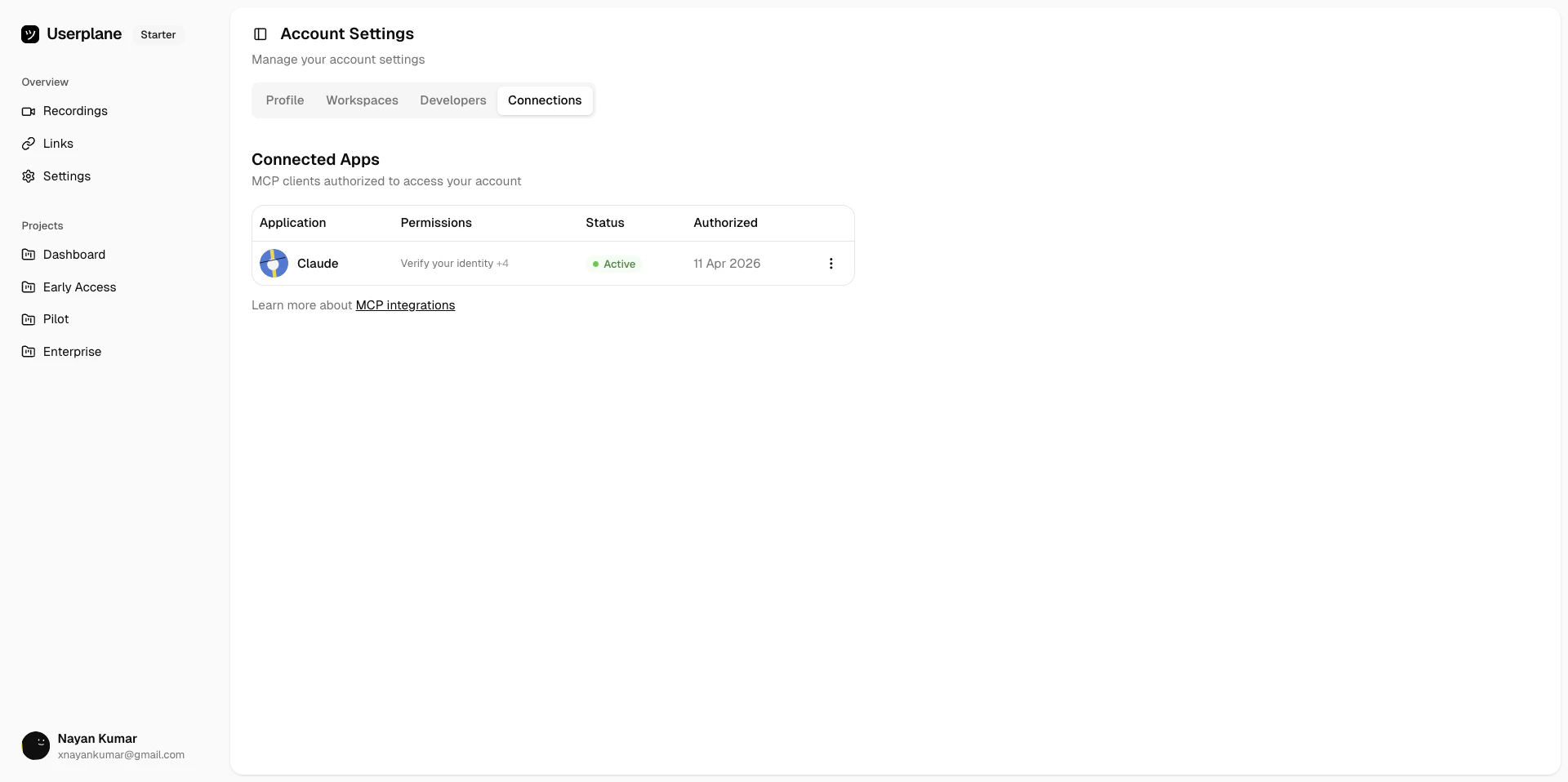
The **Connections** tab in Account Settings lists every MCP client that has been authorized to access your account. From here you can review what each client can do, check its status, and revoke access at any time.
 ## What you can see
Each connected app shows four pieces of information:
| Column | What it means |
| --------------- | -------------------------------------------------------------------------------- |
| **Application** | The MCP client name and icon (Claude, Codex, Cursor, VS Code, etc.) |
| **Permissions** | OAuth scopes granted — hover to see the full list |
| **Status** | **Active** if the token is valid; **Inactive** if it has expired or been revoked |
| **Authorized** | The date you approved the connection |
## Revoking access
Go to [Account Settings > Connections](https://dash.userplane.io/_/account?tab=connections).
Locate the app and click the three-dot menu on the right. Select **Revoke Access**.
## What you can see
Each connected app shows four pieces of information:
| Column | What it means |
| --------------- | -------------------------------------------------------------------------------- |
| **Application** | The MCP client name and icon (Claude, Codex, Cursor, VS Code, etc.) |
| **Permissions** | OAuth scopes granted — hover to see the full list |
| **Status** | **Active** if the token is valid; **Inactive** if it has expired or been revoked |
| **Authorized** | The date you approved the connection |
## Revoking access
Go to [Account Settings > Connections](https://dash.userplane.io/_/account?tab=connections).
Locate the app and click the three-dot menu on the right. Select **Revoke Access**.
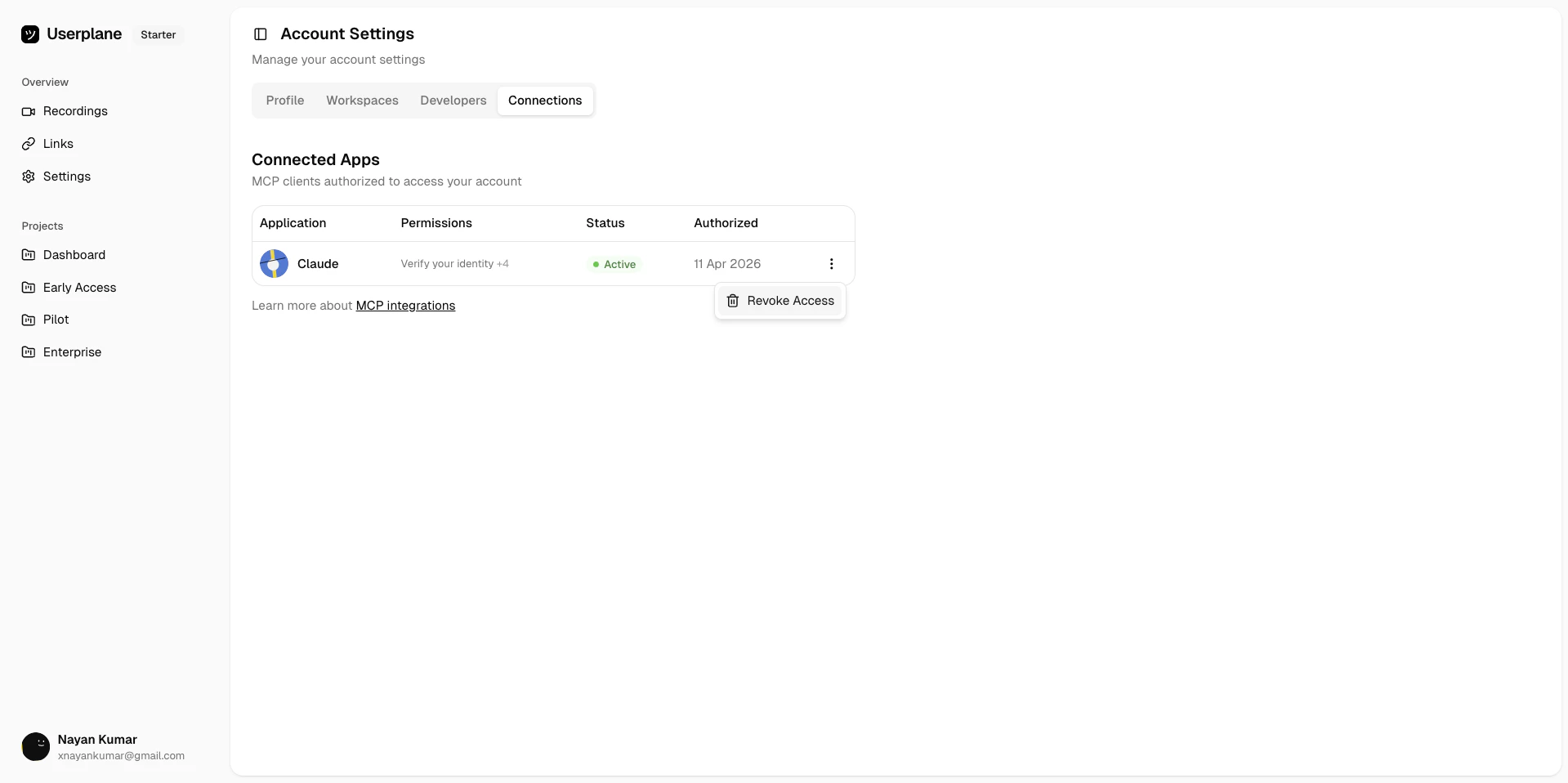 Type the application name in the confirmation field and click **Revoke Access**. The client loses access immediately.
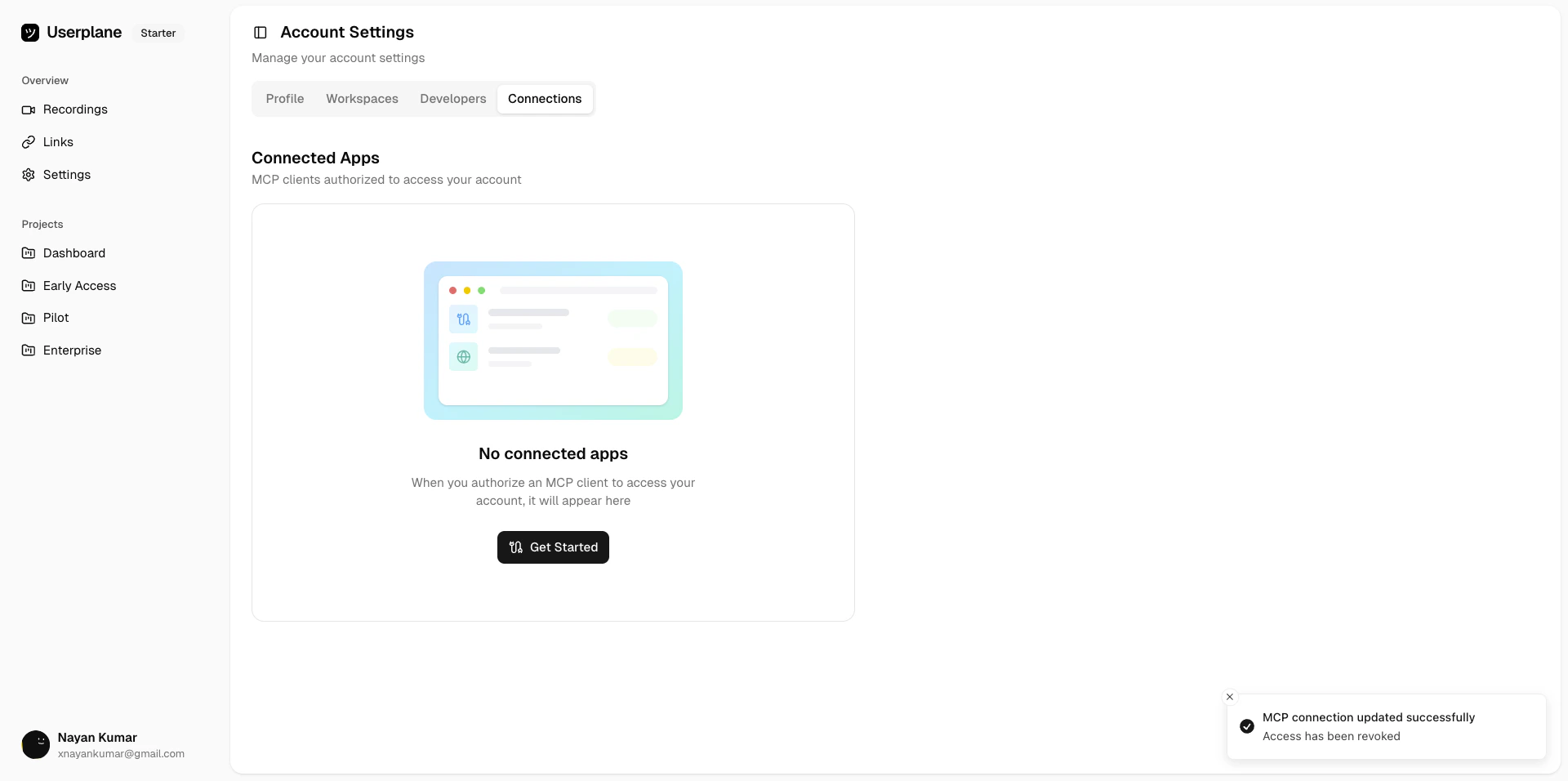 Revoking one client does not affect others. Each MCP client registers independently — Claude,
Codex, Cursor, and VS Code hold separate authorizations.
## What happens after you revoke
* The MCP client loses access to your account immediately.
* Existing data the client retrieved is not affected.
* Other connected clients continue working without interruption.
* To reconnect, add the server URL to the client again and re-authorize through the OAuth flow.
## No connected apps
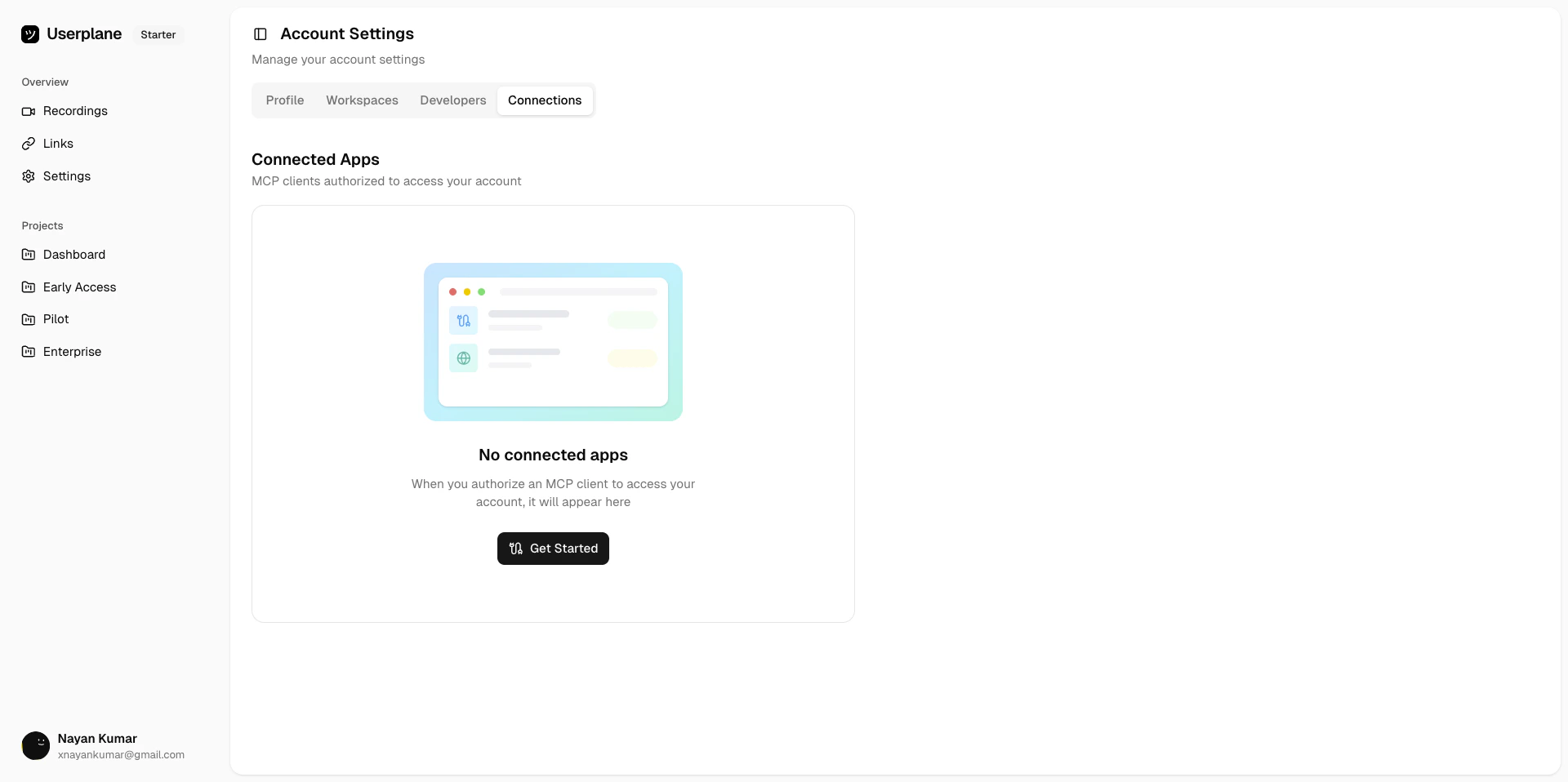
If you haven't authorized any MCP clients yet, the tab shows an empty state.
Revoking one client does not affect others. Each MCP client registers independently — Claude,
Codex, Cursor, and VS Code hold separate authorizations.
## What happens after you revoke
* The MCP client loses access to your account immediately.
* Existing data the client retrieved is not affected.
* Other connected clients continue working without interruption.
* To reconnect, add the server URL to the client again and re-authorize through the OAuth flow.
## No connected apps
If you haven't authorized any MCP clients yet, the tab shows an empty state.
 Connect Claude, Codex, Cursor, VS Code, or ChatGPT to your Userplane workspace
OAuth 2.1 flow, PKCE, token scoping, and per-client registration
## What the MCP integration gives you
Once connected, your AI client can analyze recordings, surface console errors and network failures, manage recording links, and browse workspace data — directly in the conversation.
Fetch console logs, network requests, and user actions from any recording
Video playback, log viewers, and network inspectors rendered inside your AI client
Create and track recording links for customer issues
Browse workspaces, projects, and your profile
Connect Claude, Codex, Cursor, VS Code, or ChatGPT to your Userplane workspace
OAuth 2.1 flow, PKCE, token scoping, and per-client registration
## What the MCP integration gives you
Once connected, your AI client can analyze recordings, surface console errors and network failures, manage recording links, and browse workspace data — directly in the conversation.
Fetch console logs, network requests, and user actions from any recording
Video playback, log viewers, and network inspectors rendered inside your AI client
Create and track recording links for customer issues
Browse workspaces, projects, and your profile