> ## Documentation Index
> Fetch the complete documentation index at: https://docs.userplane.io/llms.txt
> Use this file to discover all available pages before exploring further.
# Leaving a Workspace
> How to leave a workspace and what happens to your data
You can leave a workspace at any time if you no longer need access. Leaving is immediate and removes you from the workspace's member list.
## How to leave
Go to [Account Settings](https://dash.userplane.io/_/account).
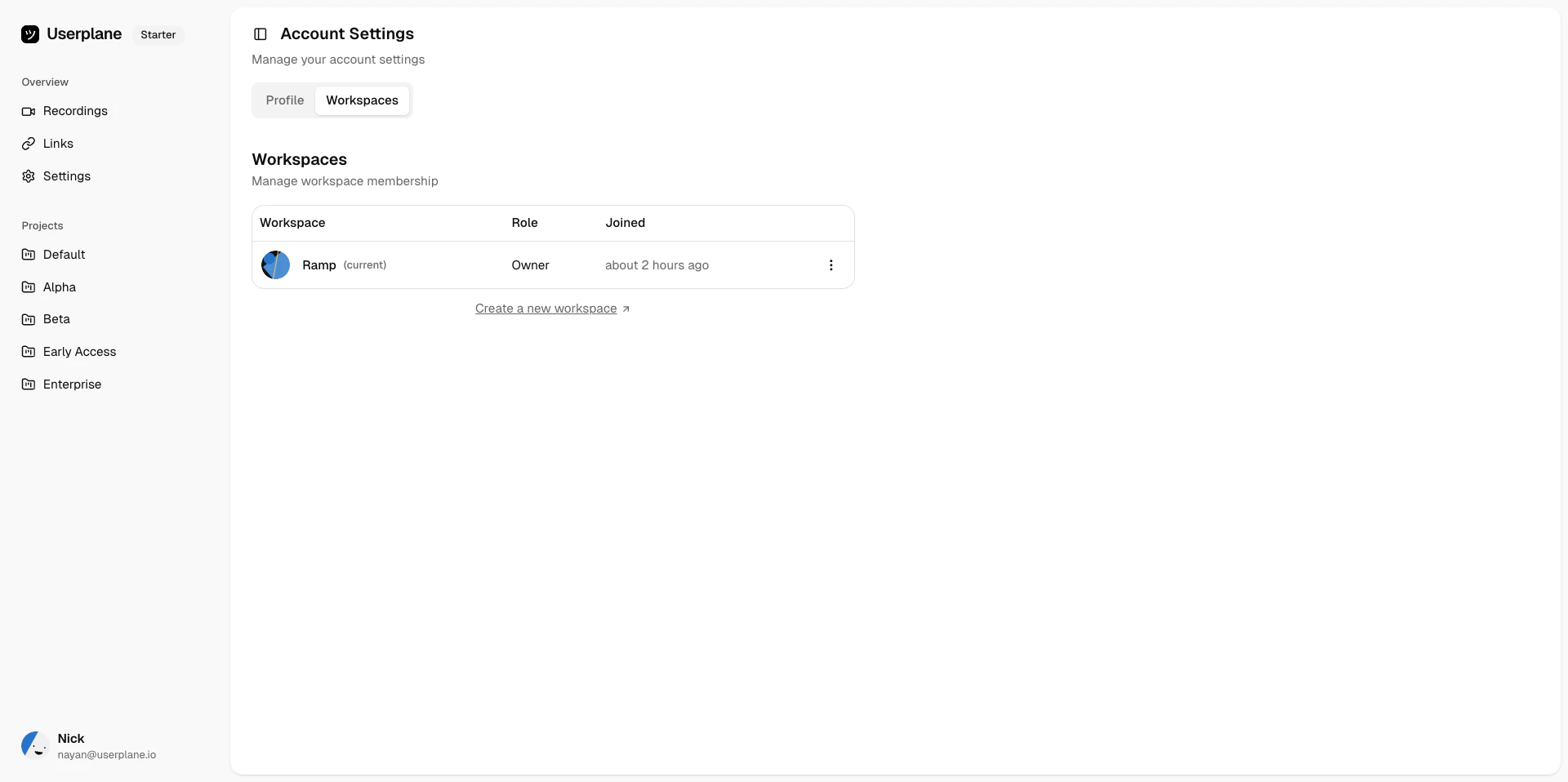
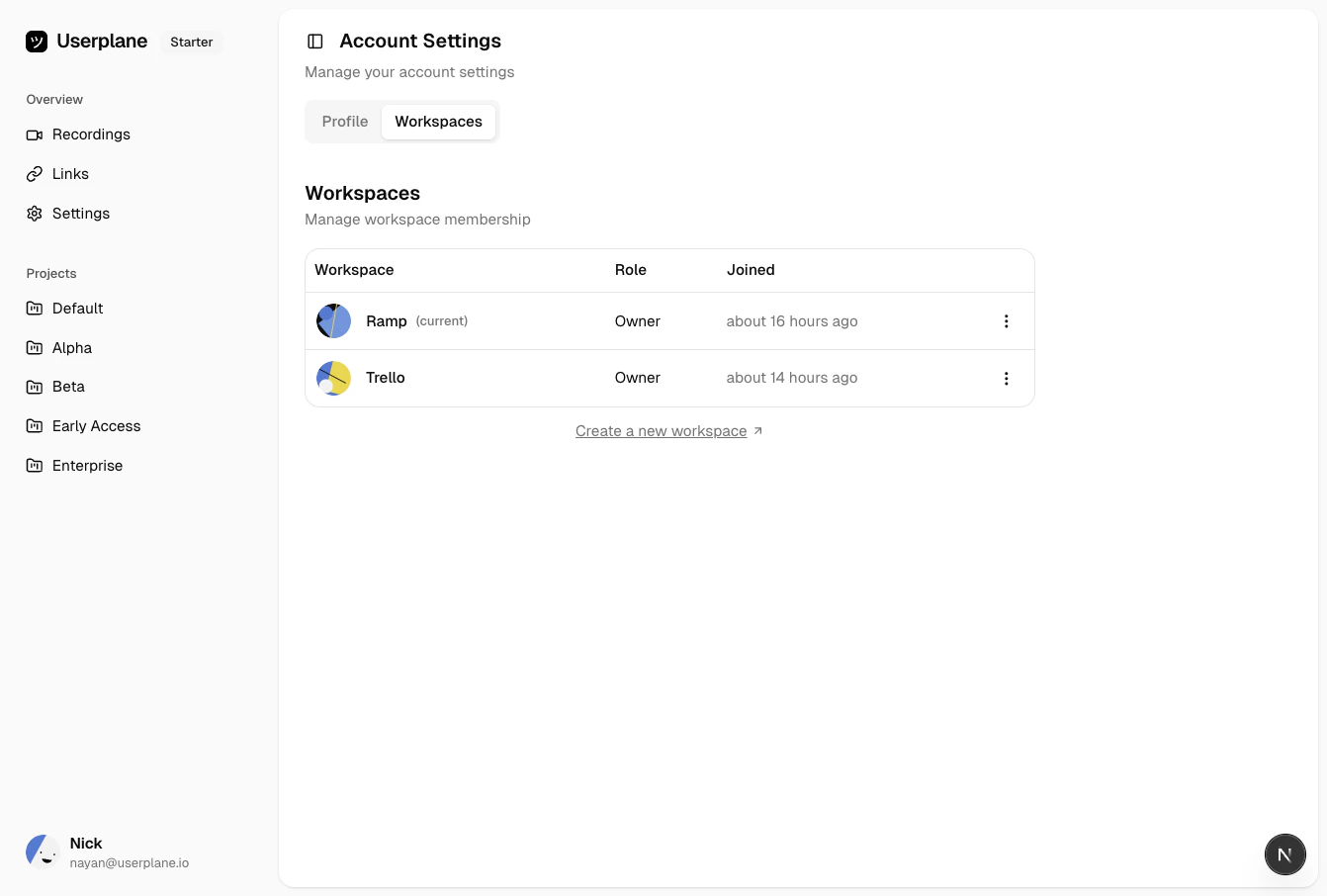 Find the workspace you want to leave.
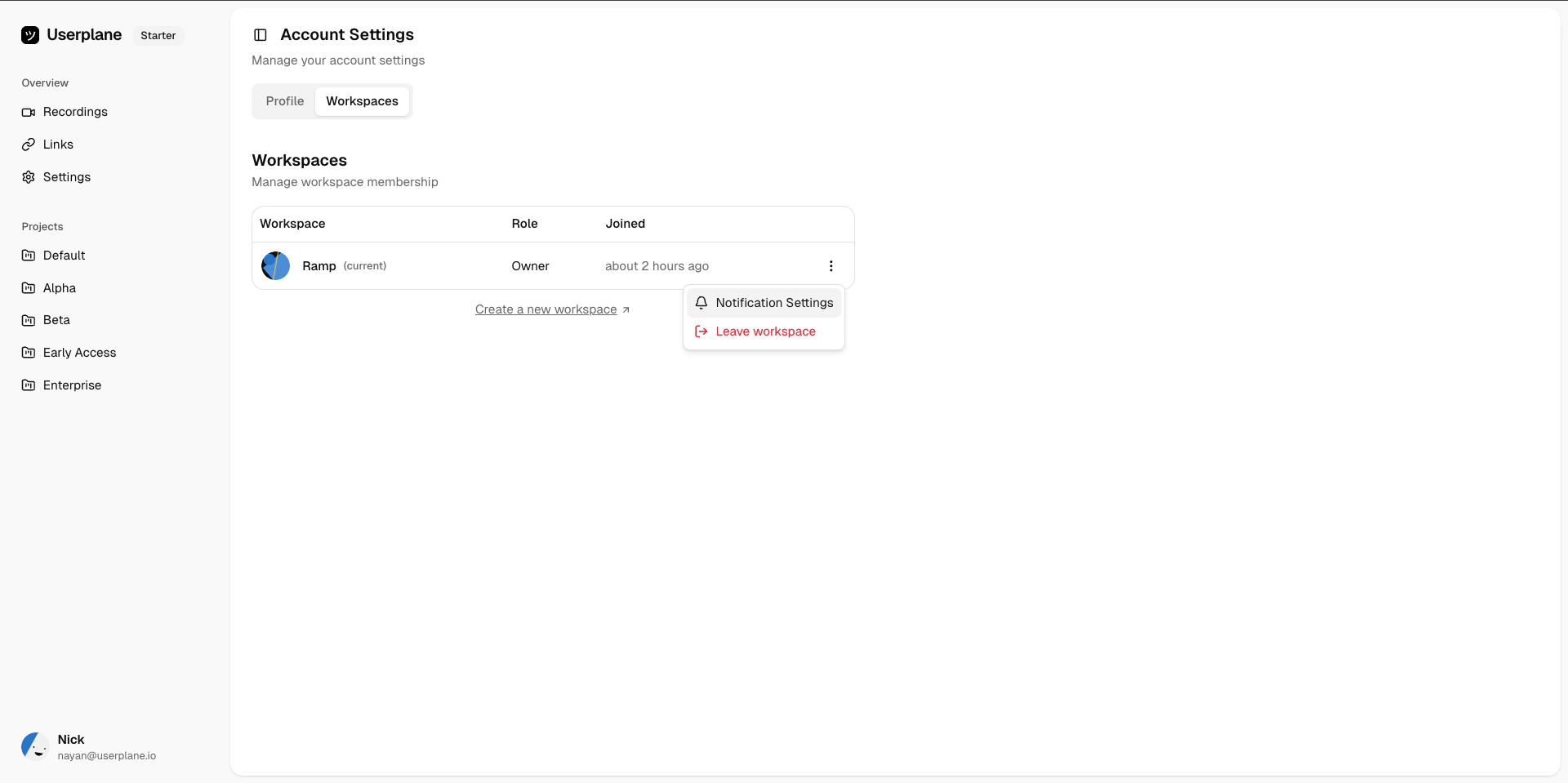
 Click **Leave Workspace** and confirm.
 ## What happens when you leave
* You lose access to the workspace immediately.
* Your past recordings and links remain in the workspace — they are not deleted.
* Other members can still view recordings and links you created.
* You are removed from the workspace member list.
## Owner requirement
If you are the workspace **owner**, you must transfer ownership to another member before you can
leave. A workspace must always have an owner.
## What happens when you leave
* You lose access to the workspace immediately.
* Your past recordings and links remain in the workspace — they are not deleted.
* Other members can still view recordings and links you created.
* You are removed from the workspace member list.
## Owner requirement
If you are the workspace **owner**, you must transfer ownership to another member before you can
leave. A workspace must always have an owner.
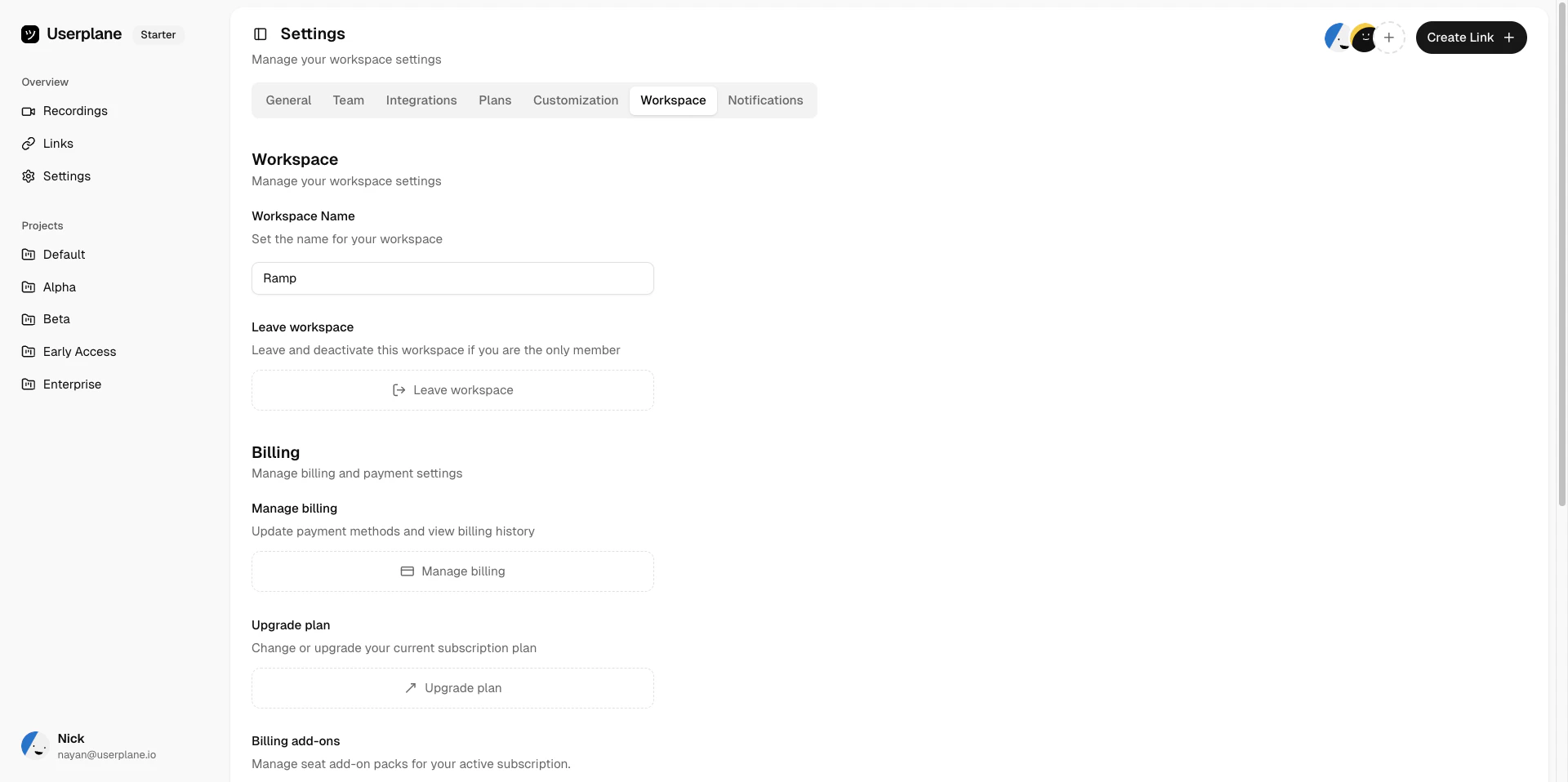 To transfer ownership:
1. Go to [Workspace Settings > Team](https://dash.userplane.io/_/settings?tab=team).
2. Select the member you want to make owner.
3. Change their role to **Owner**.
4. Once ownership is transferred, you can leave the workspace.
## Rejoining
After leaving, you can rejoin the workspace depending on the [invite policy](/workspace/invite-policies):
* **Private** — you need a new invitation.
* **Whitelisted** — you can rejoin directly if your email domain matches.
* **Protected** — you can request access again.
To transfer ownership:
1. Go to [Workspace Settings > Team](https://dash.userplane.io/_/settings?tab=team).
2. Select the member you want to make owner.
3. Change their role to **Owner**.
4. Once ownership is transferred, you can leave the workspace.
## Rejoining
After leaving, you can rejoin the workspace depending on the [invite policy](/workspace/invite-policies):
* **Private** — you need a new invitation.
* **Whitelisted** — you can rejoin directly if your email domain matches.
* **Protected** — you can request access again.