> ## Documentation Index
> Fetch the complete documentation index at: https://docs.userplane.io/llms.txt
> Use this file to discover all available pages before exploring further.
# Notification Channels & Preferences
> Configure how and where you receive notifications from Userplane
Userplane sends notifications to keep you informed about recordings, usage, and workspace activity. You can control which notification types you receive and, for incoming recordings, which channels deliver them.
## Notification types
| Notification | Description | Configurable by |
| ----------------------- | ------------------------------------------------------------------------------------------------ | -------------------- |
| **Feature highlights** | Updates about new features and product improvements. | Owner, Admin, Member |
| **Usage notifications** | Alerts when your workspace approaches or exceeds usage limits. | Admin, Member |
| **Incoming recordings** | Notifications when a new recording is submitted — delivered via one or more channels you choose. | Owner, Admin, Member |
| **Admin notifications** | Workspace administration events (member joins, access requests, role changes). | Admin |
## Notification channels
Incoming recording notifications can be delivered through any combination of the following channels:
| Channel | What it does | Requires |
| ------------ | ------------------------------------------------------------------------------ | ------------------------------------------ |
| **Email** | Sends an email when a recording arrives. | Nothing — always available. |
| **Slack** | Sends a direct message in Slack when a recording arrives. | Active Slack integration + matching email. |
| **Intercom** | Posts an admin note to the Intercom conversation the recording link came from. | Active Intercom integration. |
| **Zendesk** | Posts an internal note to the Zendesk ticket the recording link came from. | Active Zendesk integration. |
Email is always available. Slack, Intercom, and Zendesk channels appear only when your workspace admin has connected the respective integration.
Intercom and Zendesk notifications are context-tied — they only fire when the recording link was
created from a conversation or ticket in that tool. Slack and email notifications fire for all
incoming recordings regardless of where the link was created.
## Configuring preferences
Go to [Account Settings > Notifications](https://dash.userplane.io/_/account?tab=workspaces).
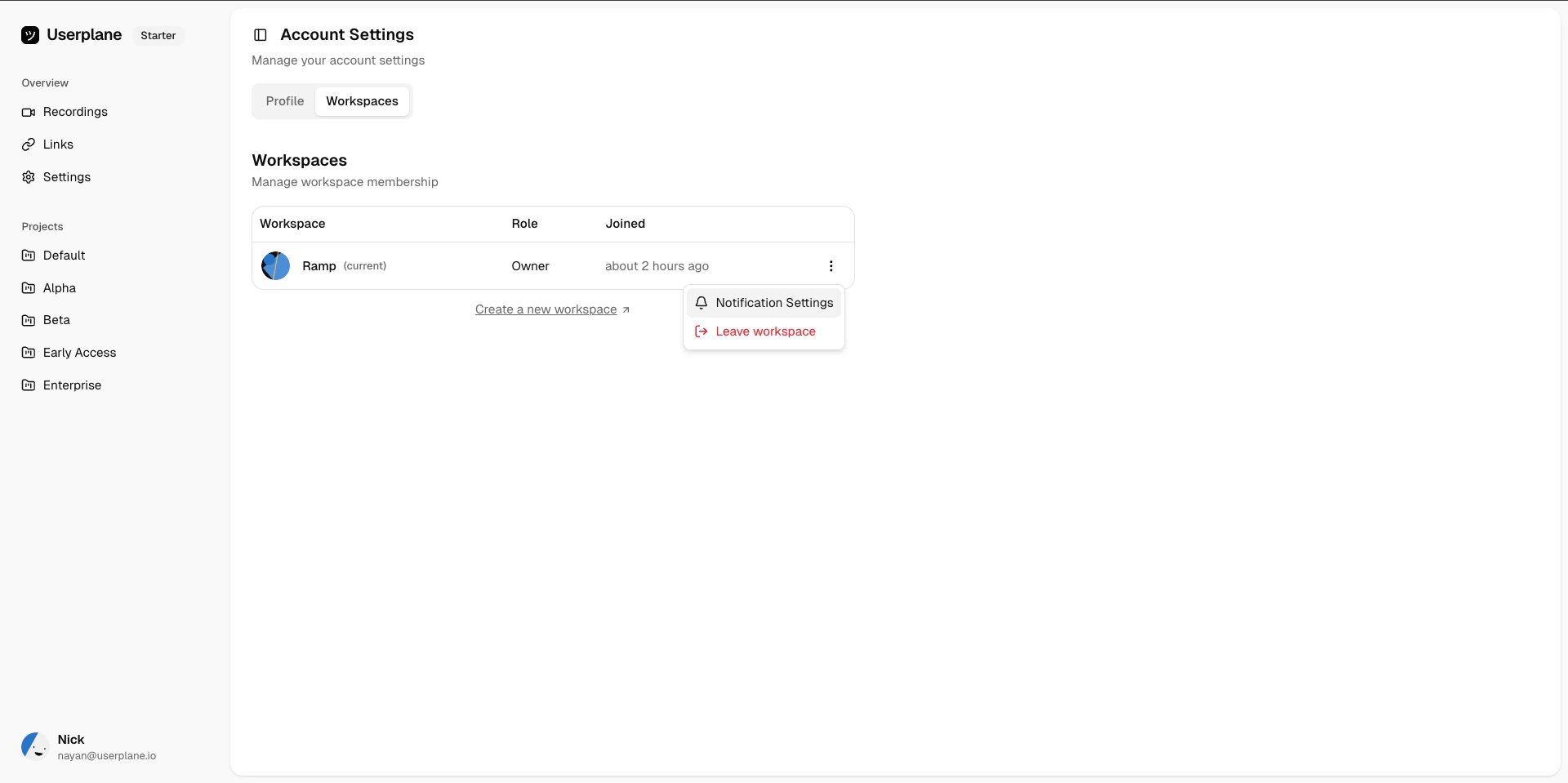 Toggle each notification type on or off. Changes are saved automatically.
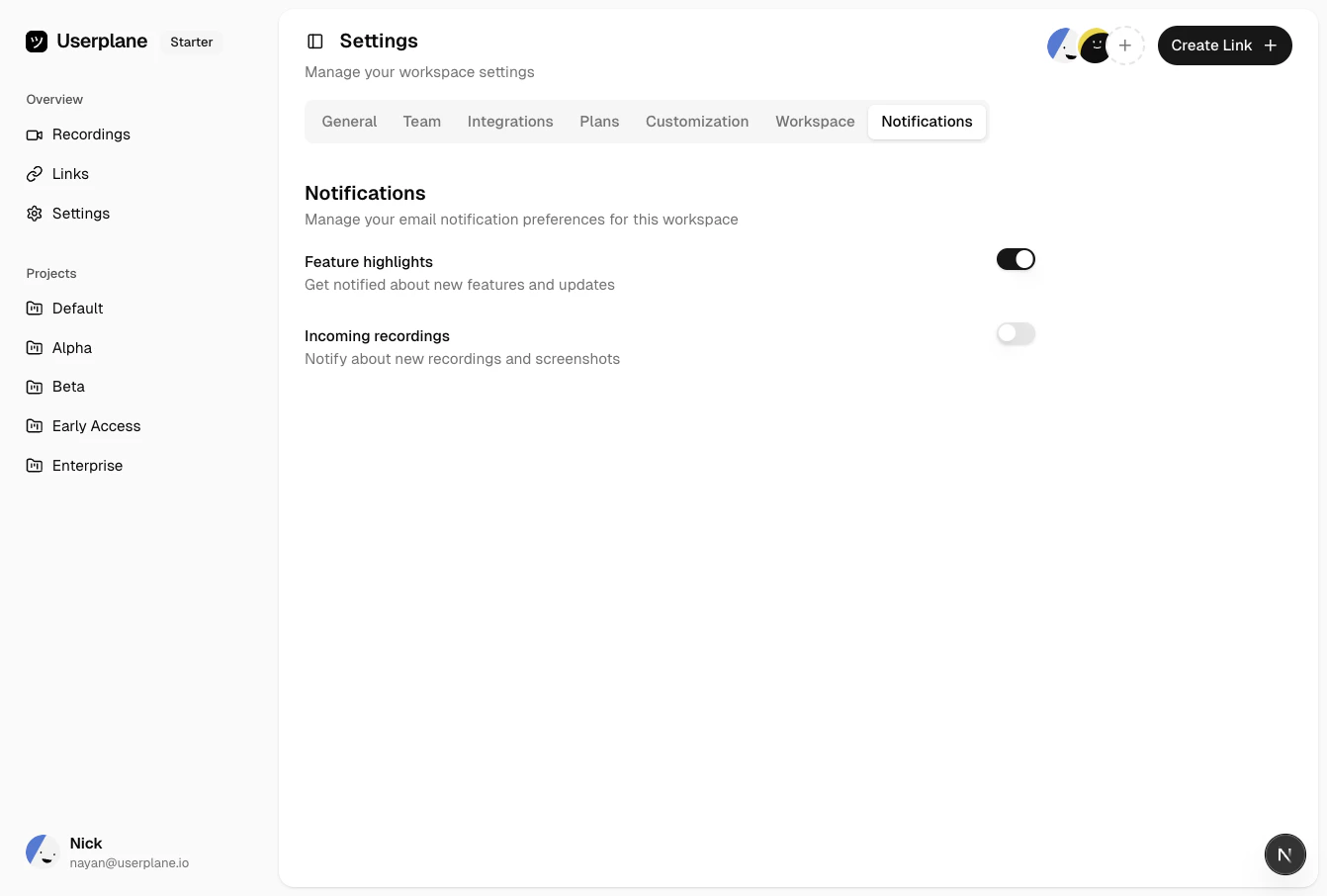 Under **Incoming Recordings**, toggle each channel individually. Only channels with active integrations are shown alongside Email.
Enable the channels you want — you can use more than one at a time.
Under **Incoming Recordings**, toggle each channel individually. Only channels with active integrations are shown alongside Email.
Enable the channels you want — you can use more than one at a time.
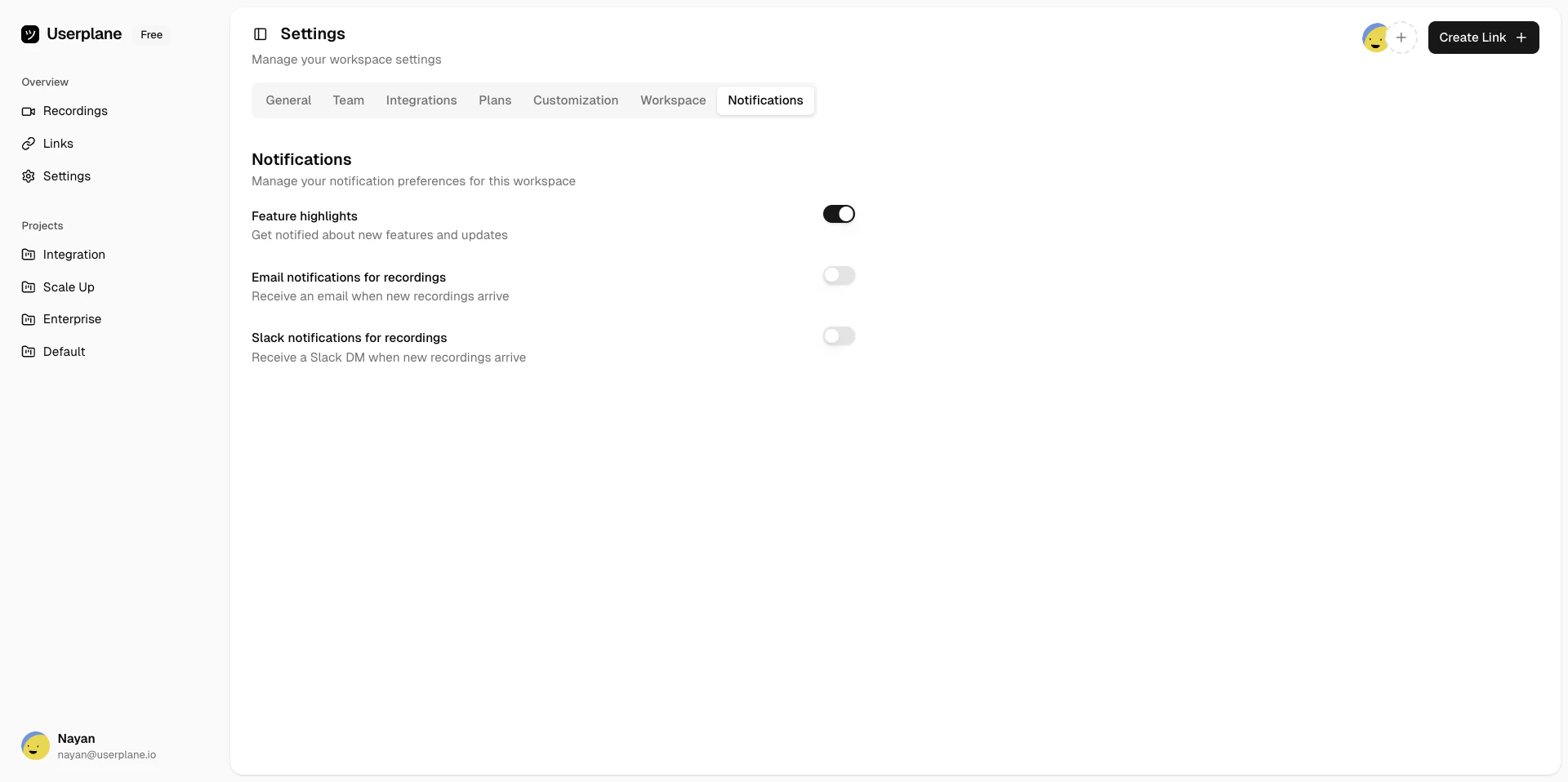 Only toggles your role can control are shown. If a notification type is missing, it is either always enabled or not applicable for your role.
## Role-based rules
* **Usage notifications** — Owners always receive these and cannot opt out. Admins and members can toggle them freely.
* **Admin notifications** — Owners always receive these and cannot opt out. Members never receive them. Only admins see this toggle and can opt in or out.
* **Feature highlights** and **Incoming recordings** — All roles can toggle these.
## Defaults
| Notification | Default state |
| ----------------------- | ------------------------------------------------------------- |
| **Feature highlights** | Enabled for all roles |
| **Usage notifications** | Enabled for all roles |
| **Incoming recordings** | All channels disabled for all roles (opt-in) |
| **Admin notifications** | Enabled for owners (locked), disabled for admins (can opt in) |
Incoming recording notifications are opt-in across all channels. Enable the channels you want to
use — each one can be toggled independently.
## Role changes
When a member's role changes, notification preferences that the new role cannot control are automatically set to their correct value. For example, promoting someone to owner forces usage and admin notifications on. Demoting an owner to member forces admin notifications off. Preferences the new role can control are left unchanged.
## Channel-specific guides
* [Slack Notifications](/integrations/slack-notifications) — how Slack DMs work and how to enable them.
* [Intercom Notifications](/integrations/intercom-notifications) — how admin notes are posted to Intercom conversations.
* [Zendesk Notifications](/integrations/zendesk-notifications) — how internal notes are posted to Zendesk tickets.
Only toggles your role can control are shown. If a notification type is missing, it is either always enabled or not applicable for your role.
## Role-based rules
* **Usage notifications** — Owners always receive these and cannot opt out. Admins and members can toggle them freely.
* **Admin notifications** — Owners always receive these and cannot opt out. Members never receive them. Only admins see this toggle and can opt in or out.
* **Feature highlights** and **Incoming recordings** — All roles can toggle these.
## Defaults
| Notification | Default state |
| ----------------------- | ------------------------------------------------------------- |
| **Feature highlights** | Enabled for all roles |
| **Usage notifications** | Enabled for all roles |
| **Incoming recordings** | All channels disabled for all roles (opt-in) |
| **Admin notifications** | Enabled for owners (locked), disabled for admins (can opt in) |
Incoming recording notifications are opt-in across all channels. Enable the channels you want to
use — each one can be toggled independently.
## Role changes
When a member's role changes, notification preferences that the new role cannot control are automatically set to their correct value. For example, promoting someone to owner forces usage and admin notifications on. Demoting an owner to member forces admin notifications off. Preferences the new role can control are left unchanged.
## Channel-specific guides
* [Slack Notifications](/integrations/slack-notifications) — how Slack DMs work and how to enable them.
* [Intercom Notifications](/integrations/intercom-notifications) — how admin notes are posted to Intercom conversations.
* [Zendesk Notifications](/integrations/zendesk-notifications) — how internal notes are posted to Zendesk tickets.