> ## Documentation Index
> Fetch the complete documentation index at: https://docs.userplane.io/llms.txt
> Use this file to discover all available pages before exploring further.
# Rotate API Key
> Invalidate an existing API key and generate a new replacement
Rotating a key invalidates the current key immediately and generates a new one. Use this when a key has been compromised or when you need to refresh credentials.
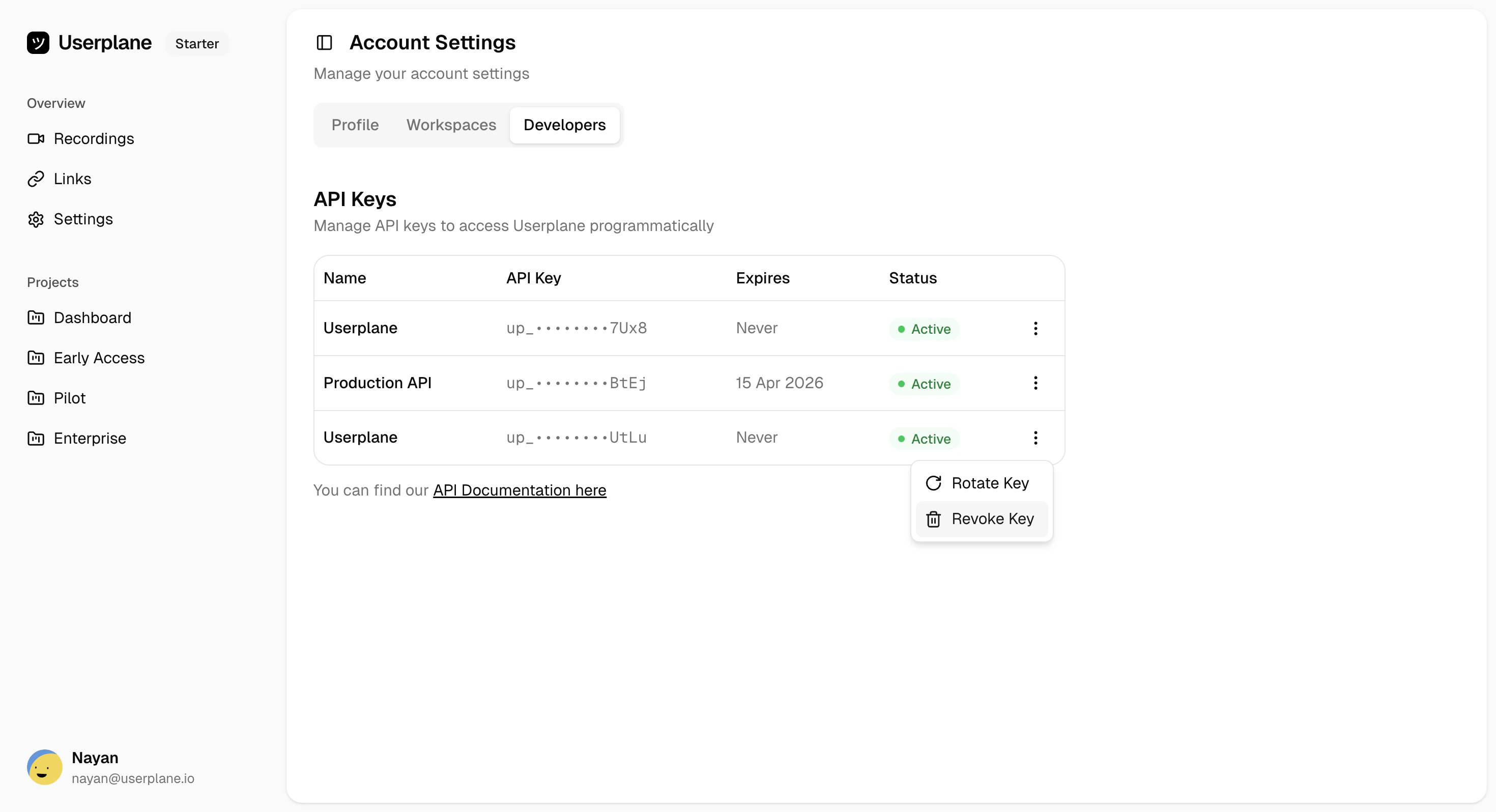
Navigate to [Account Settings](https://dash.userplane.io/_/account?tab=developers), find the key you want to rotate, and click the three-dot menu. Select **Rotate Key**.
 In the rotation dialog, configure your replacement key:
* **Name** (optional) — A label to identify the new key
* **Expiration** — Choose from: No expiration, 7 days, 30 days, 60 days, or 90 days
In the rotation dialog, configure your replacement key:
* **Name** (optional) — A label to identify the new key
* **Expiration** — Choose from: No expiration, 7 days, 30 days, 60 days, or 90 days
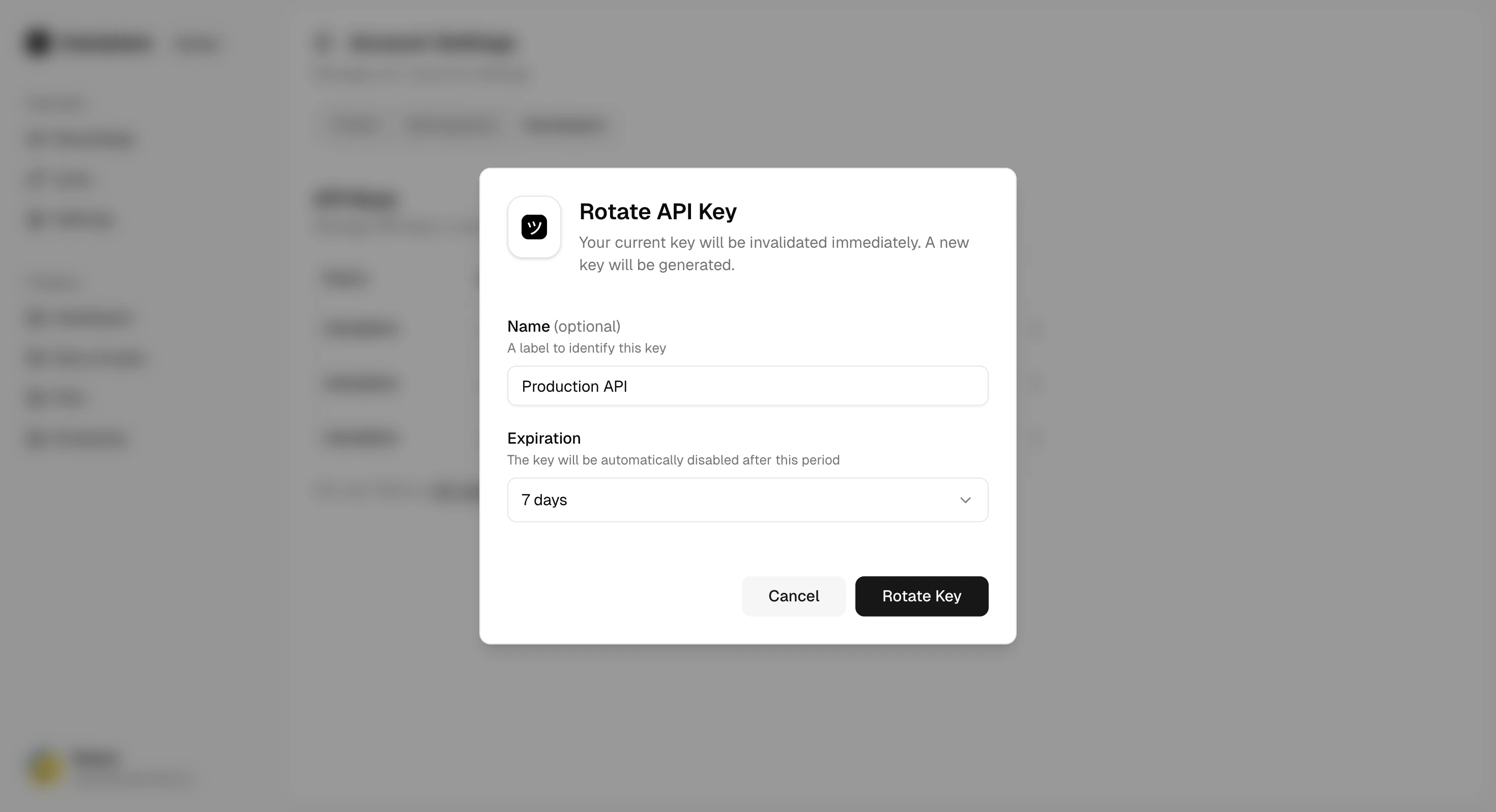 Click **Rotate Key** to proceed.
The old key is immediately invalidated. Your new key is displayed in the success dialog.
Click **Rotate Key** to proceed.
The old key is immediately invalidated. Your new key is displayed in the success dialog.
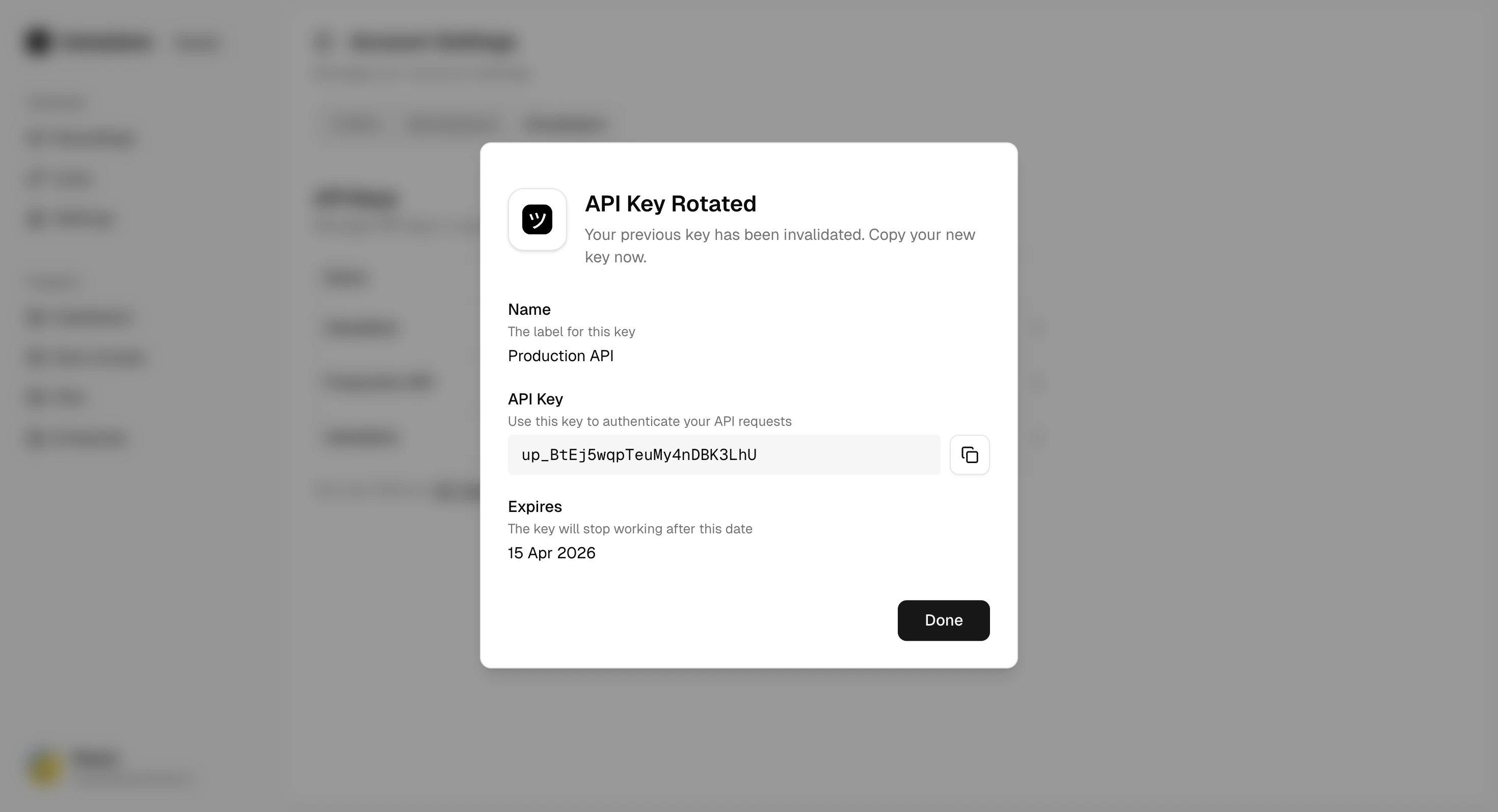 Copy the new key now. It will not be shown again after you close this dialog.
Click **Done** to return to the keys list.
## What happens during rotation
* The old key is **permanently invalidated** — any requests using it will immediately return `401 API_KEY_INVALID`
* A new key is generated with the prefix `uspl_` and the configuration you specified
* The new key counts toward your 3-key limit (the old key no longer counts)
To avoid downtime, update your integration with the new key before the rotation takes effect.
Consider using environment variables or a secret manager so key updates require only one change.
## Related
Permanently delete a key without replacement
View all your keys and their status
Create a new key from scratch
Plan for key rotation with zero downtime
Copy the new key now. It will not be shown again after you close this dialog.
Click **Done** to return to the keys list.
## What happens during rotation
* The old key is **permanently invalidated** — any requests using it will immediately return `401 API_KEY_INVALID`
* A new key is generated with the prefix `uspl_` and the configuration you specified
* The new key counts toward your 3-key limit (the old key no longer counts)
To avoid downtime, update your integration with the new key before the rotation takes effect.
Consider using environment variables or a secret manager so key updates require only one change.
## Related
Permanently delete a key without replacement
View all your keys and their status
Create a new key from scratch
Plan for key rotation with zero downtime