> ## Documentation Index
> Fetch the complete documentation index at: https://docs.userplane.io/llms.txt
> Use this file to discover all available pages before exploring further.
# Monitoring Your Usage
> Track your workspace resource consumption and understand usage warnings
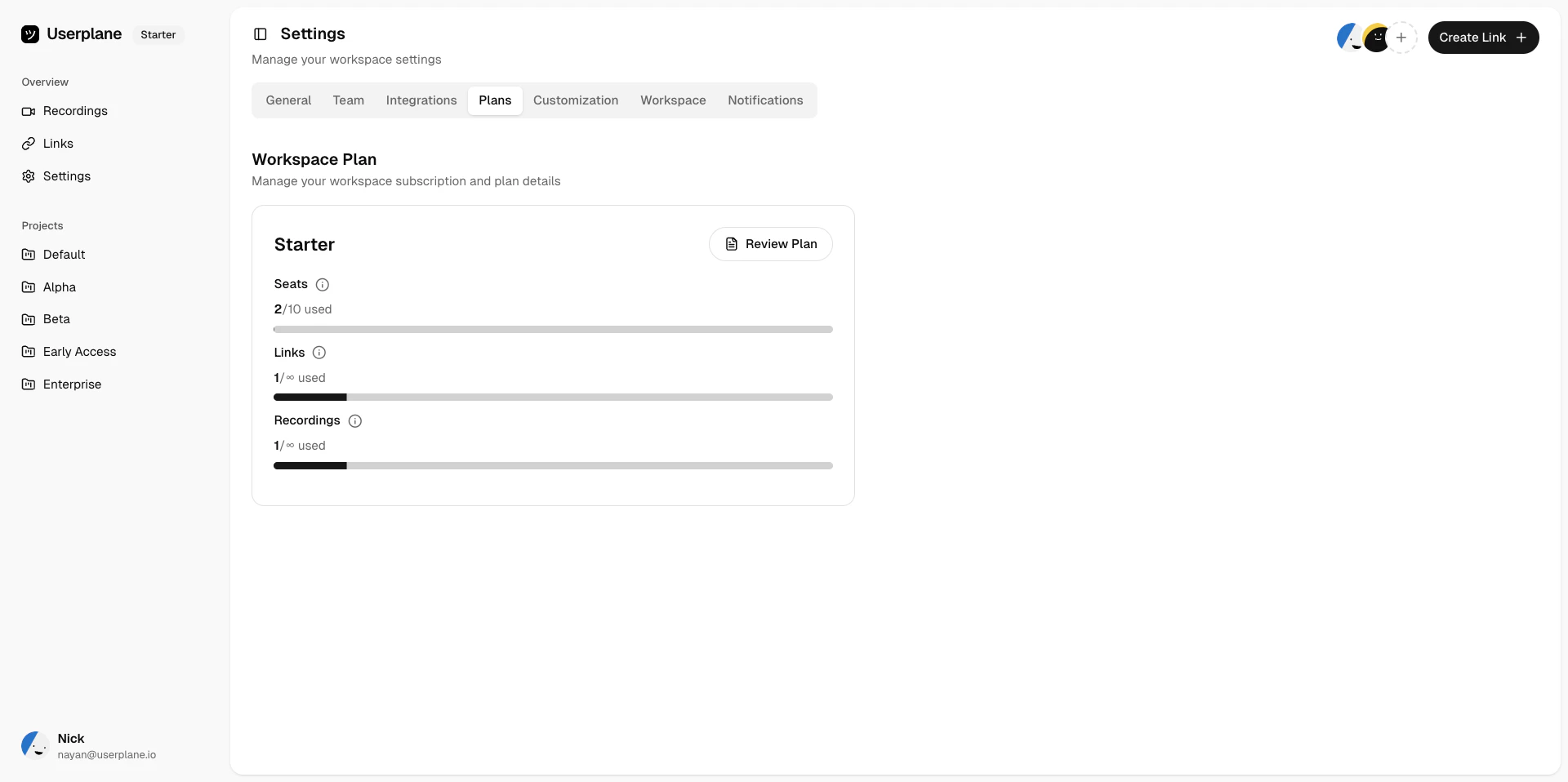
The usage dashboard in Workspace Settings shows you how much of each resource your workspace has consumed in the current billing period.
## Where to find usage
Go to [Workspace Settings > Billing](https://dash.userplane.io/_/settings?tab=plan-usage) to see the usage section. Each resource shows:
* A **progress bar** indicating how much has been used.
* A **percentage** of the limit consumed.
* The **current count** vs the plan limit.
 ## Usage warning levels
As your usage increases, Userplane shows different warning levels:
| Level | Meaning |
| --------------------- | ------------------------------------------------------------------------------------------------------- |
| **Normal** | Usage is well within your plan limits. No action needed. |
| **Approaching limit** | You are nearing your plan limit. Consider monitoring usage or planning an upgrade. |
| **Limit reached** | The limit has been reached. The resource is blocked until the next billing period or until you upgrade. |
## Notifications
If [usage notifications](/account/notifications) are enabled, you receive email alerts when your workspace enters the approaching or reached states.
## What to do when limits are reached
1. **Upgrade your plan** — move to a higher tier with more resources. See [Upgrading Your Plan](/billing/upgrading).
2. **Wait for the next billing period** — period-based resources (recordings, links, screenshots, files) reset at the start of each cycle. On annual plans, unused resources from previous months may have [rolled over](/billing/usage-limits), giving you extra capacity.
3. **Purchase seat add-ons** — if you need more seats without upgrading, see [Seat Add-Ons](/billing/seat-add-ons).
4. **Remove unused members** — if you are at the seat limit, removing inactive members frees up seats.
5. **Request a fair usage increase** — if you are on an "Unlimited" resource and have hit the fair usage limit, [contact support](/support/contact) to request a higher allocation.
## Related articles
* [Understanding Usage Limits](/billing/usage-limits) — detailed per-plan breakdowns.
* [Subscription Overview](/billing/overview) — plan tiers and pricing.
* [Seat Add-Ons](/billing/seat-add-ons) — purchase additional seats.
## Usage warning levels
As your usage increases, Userplane shows different warning levels:
| Level | Meaning |
| --------------------- | ------------------------------------------------------------------------------------------------------- |
| **Normal** | Usage is well within your plan limits. No action needed. |
| **Approaching limit** | You are nearing your plan limit. Consider monitoring usage or planning an upgrade. |
| **Limit reached** | The limit has been reached. The resource is blocked until the next billing period or until you upgrade. |
## Notifications
If [usage notifications](/account/notifications) are enabled, you receive email alerts when your workspace enters the approaching or reached states.
## What to do when limits are reached
1. **Upgrade your plan** — move to a higher tier with more resources. See [Upgrading Your Plan](/billing/upgrading).
2. **Wait for the next billing period** — period-based resources (recordings, links, screenshots, files) reset at the start of each cycle. On annual plans, unused resources from previous months may have [rolled over](/billing/usage-limits), giving you extra capacity.
3. **Purchase seat add-ons** — if you need more seats without upgrading, see [Seat Add-Ons](/billing/seat-add-ons).
4. **Remove unused members** — if you are at the seat limit, removing inactive members frees up seats.
5. **Request a fair usage increase** — if you are on an "Unlimited" resource and have hit the fair usage limit, [contact support](/support/contact) to request a higher allocation.
## Related articles
* [Understanding Usage Limits](/billing/usage-limits) — detailed per-plan breakdowns.
* [Subscription Overview](/billing/overview) — plan tiers and pricing.
* [Seat Add-Ons](/billing/seat-add-ons) — purchase additional seats.