> ## Documentation Index
> Fetch the complete documentation index at: https://docs.userplane.io/llms.txt
> Use this file to discover all available pages before exploring further.

# Domain Verification Guide

> Technical guide for developers — add the Userplane script to your site and verify domain ownership

This guide is for developers who need to add the Userplane script to a website and verify domain ownership. A workspace admin will typically send you these instructions via the "Send to Developer" button in Workspace Settings.

## Overview

Userplane verifies domain ownership by checking for its script on your website. The process is:

1. Add the Userplane meta tag and script to your site's HTML.
2. The workspace admin clicks **Verify** in Userplane.
3. Userplane checks your domain for the script and, if found, marks the domain as verified.

## Step 1: Add the script

Paste the following into the `<head>` of your site:

```html theme={null}
<!-- Sets workspace ID for screen recording -->
<meta name="userplane:workspace" content="YOUR_WORKSPACE_ID" />

<!-- Loads Userplane screen recording script -->
<script type="module" src="https://cdn.userplane.io/embed/script.js"></script>
```

Replace `YOUR_WORKSPACE_ID` with the workspace ID provided by your admin. You can also copy the exact snippet (with the workspace ID already filled in) from **Workspace Settings > Domains** in the Userplane dashboard.
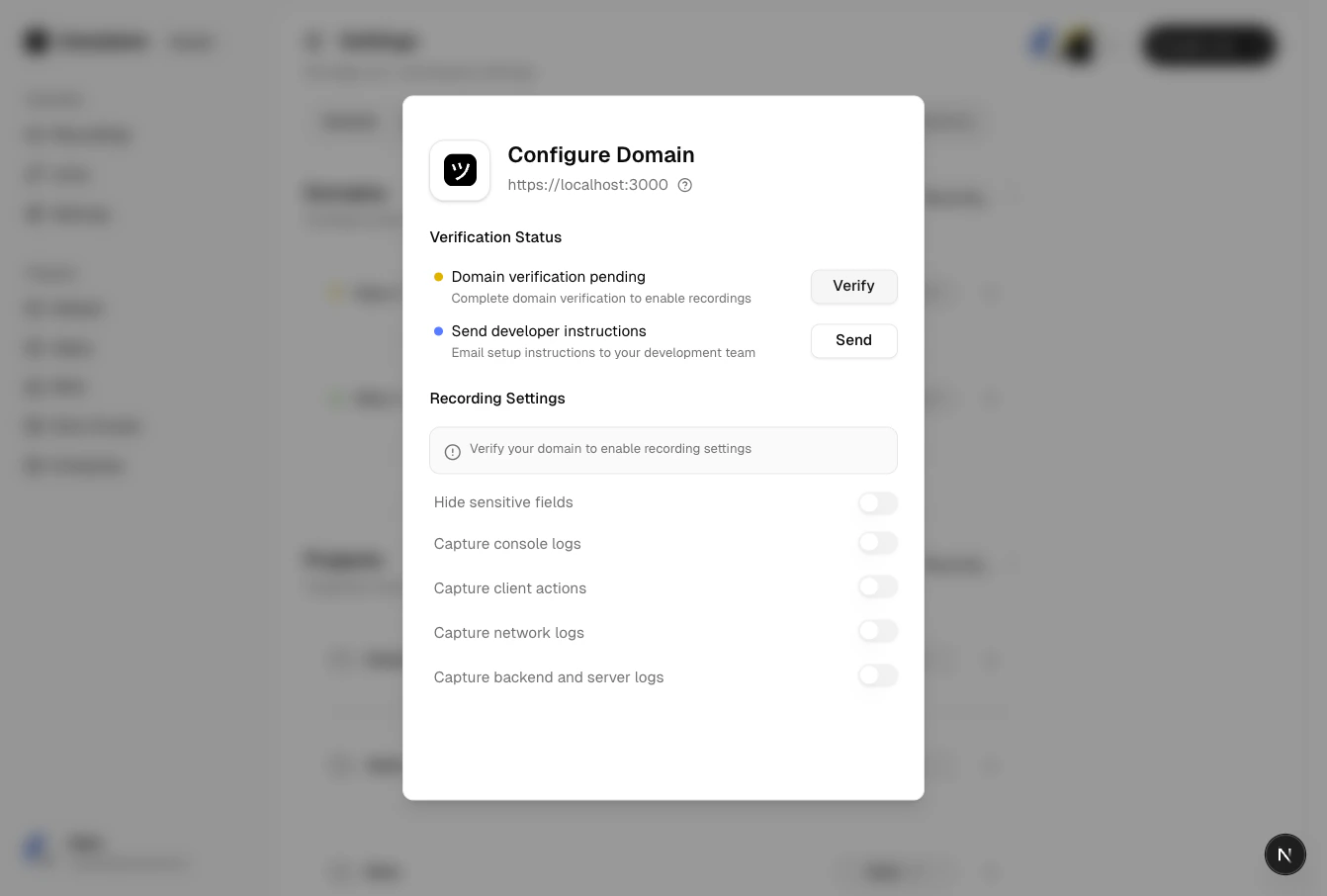
<Frame caption="Verification code in dashboard">
  <img src="https://mintcdn.com/userplane/IKCB4f_KBaL0xsjW/media/workspace/domain/domain-verification-code.png?fit=max&auto=format&n=IKCB4f_KBaL0xsjW&q=85&s=a328f645154c12854c821699bb212c40" width="1342" height="906" data-path="media/workspace/domain/domain-verification-code.png" />
</Frame>

The `<script>` tag should be placed as early as possible in the `<head>` to ensure it initializes before other scripts run. See [Installation](/developer/installation) for detailed placement guidance.

## Step 2: Deploy

Deploy the page with the script tag. The page must be publicly accessible — verification will fail if the page is behind a login wall or not yet deployed.

## Step 3: Trigger verification

After deploying, if you're a member of the workspace you can trigger verification yourself from **Workspace Settings > Domains**. Otherwise, let your workspace admin know the script is deployed and ask them to click **Verify** on your behalf. The verification check runs immediately.

<Frame caption="Verification in progress">
  <img src="https://mintcdn.com/userplane/IKCB4f_KBaL0xsjW/media/workspace/domain/verify-domain/domain-verification-in-progress.png?fit=max&auto=format&n=IKCB4f_KBaL0xsjW&q=85&s=853e6f6b805c5d7e15c4e138eb44c94d" width="1920" height="959" data-path="media/workspace/domain/verify-domain/domain-verification-in-progress.png" />
</Frame>

## Step 4: Confirmation

Once the token is found and valid, the domain status changes to **Verified**. You'll see a confirmation in the dashboard.

<Frame caption="Verification successful">
  <img src="https://mintcdn.com/userplane/IKCB4f_KBaL0xsjW/media/workspace/domain/verify-domain/domain-verification-confirmation.png?fit=max&auto=format&n=IKCB4f_KBaL0xsjW&q=85&s=962c2db6961d4eab5c548c569b0d2fff" width="1920" height="957" data-path="media/workspace/domain/verify-domain/domain-verification-confirmation.png" />
</Frame>

## Time limit

The verification token expires after **5 minutes**. If the token expires before verification completes, the admin must generate a new token from Workspace Settings.

## Troubleshooting

| Issue                          | Solution                                                                                                                                                |
| ------------------------------ | ------------------------------------------------------------------------------------------------------------------------------------------------------- |
| Verification fails immediately | Check that the script tag is on a publicly accessible page and the page is deployed.                                                                    |
| Token expired                  | The 5-minute window has passed. Ask the admin to generate a new token.                                                                                  |
| Page behind authentication     | The verification page must be publicly accessible — no login wall.                                                                                      |
| Script blocked by CSP          | If your site uses Content-Security-Policy headers, allow `*.userplane.io` in `script-src` and `frame-src`. See [Installation](/developer/installation). |

## After verification

Once the domain is verified, **keep the script on your site** — it is needed for recordings to work. The meta tag and script serve double duty: they verify the domain and enable screen recording.

<Frame caption="Domain verified">
  <img src="https://mintcdn.com/userplane/IKCB4f_KBaL0xsjW/media/workspace/domain/domain-verified-config.png?fit=max&auto=format&n=IKCB4f_KBaL0xsjW&q=85&s=60929a563eb053602d1c133cd3d32d9b" width="1342" height="906" data-path="media/workspace/domain/domain-verified-config.png" />
</Frame>

## Related articles

* [Installation](/developer/installation) — detailed guide on script placement, CSP, redirects, and browser support.
* [Domain Verification](/workspace/domain-verification) — the admin-side verification process.
* [Domains](/workspace/domains) — why domains matter.
