> ## Documentation Index
> Fetch the complete documentation index at: https://docs.userplane.io/llms.txt
> Use this file to discover all available pages before exploring further.
# Installation
> Install the Userplane script on your site — placement, domains, redirects, CSP, and browser support
This guide covers everything you need to know about installing and configuring the Userplane script on your site. The script enables screen recording and captures browser events like console logs and network requests during a recording session.
## Installation
Add the following to the `` of every page where you want recordings to work:
```html theme={null}
```
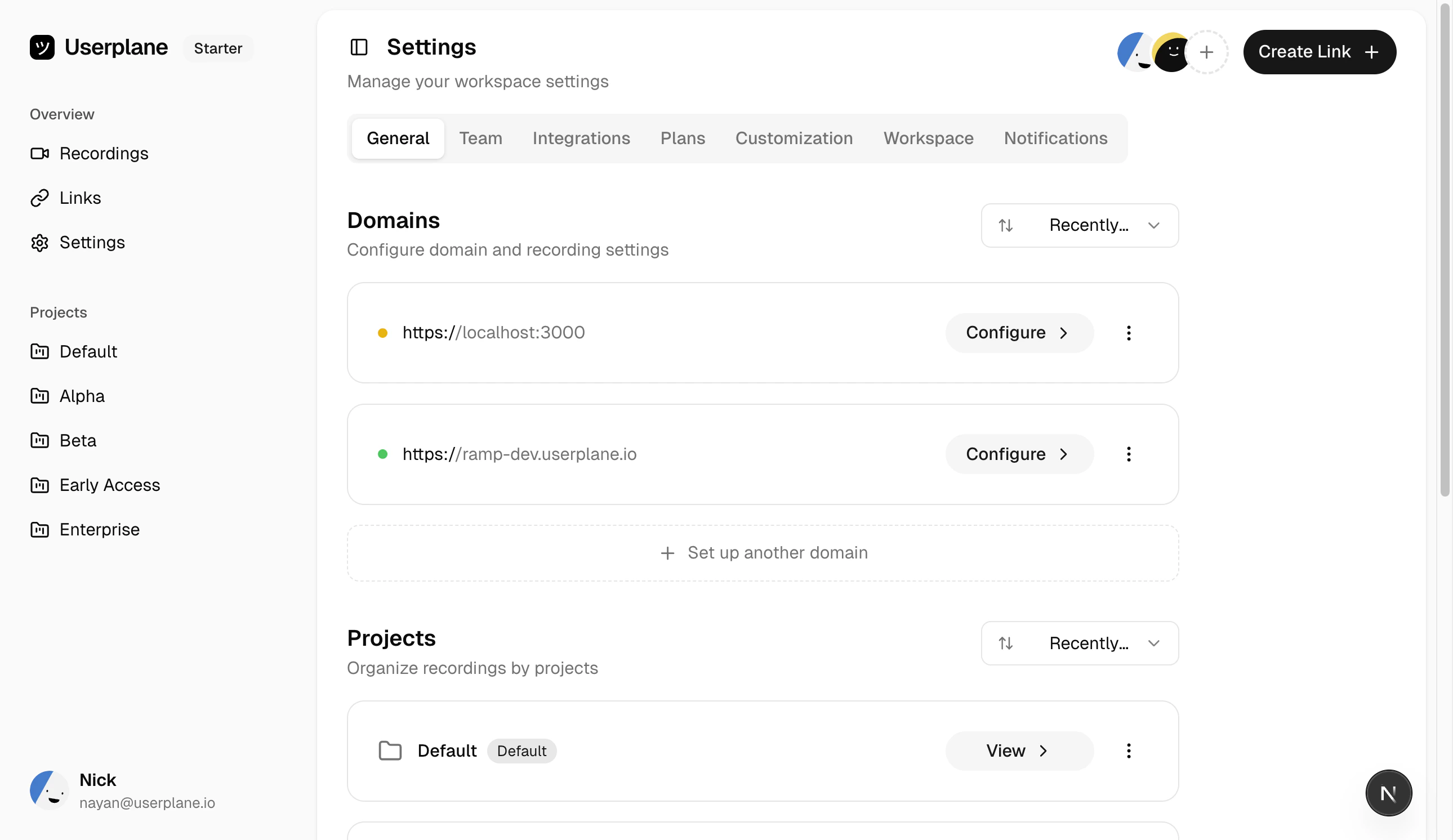
Replace `YOUR_WORKSPACE_ID` with your workspace ID. You can copy the exact snippet with your ID pre-filled from **Workspace Settings > Domains** in the Userplane dashboard.
## Script placement
The `
```
Userplane aggressively caches script assets to minimize load time. Only critical code runs upfront; the rest is deferred internally so your page continues to load and render quickly.
## Domains and subdomains
You need the Userplane script installed on each domain you want to record on. Recordings have access only to captured events from pages on the same domain that initiated the recording.
In most cases, a script installed on the root domain will also capture events from subdomains. For example, a script on `example.com` can see events from pages on `app.example.com`.
**Safari exception:** On Safari, events are only captured if the recording page and the script are
on the same subdomain. A script on `example.com` will not see events from `app.example.com` in
Safari. If Safari support is important to you, install the script on each subdomain separately.
## Handling redirects
When a customer opens a recording link, Userplane appends query parameters to the URL — most importantly `userplane-token` and `userplane-action`. These parameters tell the SDK what recording session to start.
If your application redirects users from the recording URL — for example, redirecting unauthenticated users to a login page — you need to persist these query parameters through the redirect. If the parameters are lost during the redirect, the recording session cannot start.
All `userplane-` prefixed query parameters should be carried through:
* `userplane-token` — the recording session token (required)
* `userplane-action` — the action type, e.g. `recording` (required)
* `userplane-workspace` — the workspace ID
* `userplane-meta` — encoded metadata attached to the recording link
To avoid keeping this list in sync manually, import `USERPLANE_URL_PARAMS` from the SDK — it exports the canonical array of all parameter names:
```ts theme={null}
import { USERPLANE_URL_PARAMS } from '@userplane/sdk';
// Use in a router allowlist, middleware, or analytics filter
const ALLOWED_PARAMS = new Set(['search', 'sort', ...USERPLANE_URL_PARAMS]);
```
### Example: preserving params through a login redirect
```javascript theme={null}
// Before redirecting to login, preserve userplane params
const url = new URL(window.location.href);
const userplaneParams = new URLSearchParams();
for (const [key, value] of url.searchParams) {
if (key.startsWith('userplane-')) {
userplaneParams.set(key, value);
}
}
// Append to your redirect URL
const loginUrl = new URL('/login', window.location.origin);
loginUrl.searchParams.set('redirect', `${url.pathname}?${userplaneParams.toString()}`);
window.location.href = loginUrl.toString();
```
## Content-Security-Policy
If your site does not set CSP directives, you can skip this section.
If your site specifies `Content-Security-Policy` directives via a header or `` tag, a `frame-src` or `script-src` directive that does not include `*.userplane.io` will block the Userplane script from working correctly.
Modify your CSP to allow `*.userplane.io` as both a script source and frame source:
```html theme={null}
```
Or if you set CSP via HTTP headers:
```
Content-Security-Policy: frame-src 'self' *.userplane.io; script-src 'self' *.userplane.io;
```
Without this, the Userplane recorder frame and capture script will be blocked, and recordings will not include console logs or network requests.
## Iframes
If the Userplane script is installed inside an iframe, it will only capture events from within that iframe. Top-level page events (console logs, network requests) will not be captured.
For full capture coverage, install the script on the top-level page. If your application runs inside an iframe on another site (e.g. embedded widgets or Shopify apps), be aware that top-level logs will not be captured.
## Browser support
The Userplane script works in all modern browsers:
| Browser | Log capture support |
| ------- | ------------------------------------------------------------------------------------ |
| Chrome | Fully supported (including Incognito) |
| Firefox | Fully supported (including Private Browsing) |
| Safari | Supported in standard windows. Private Browsing windows are not currently supported. |
| Edge | Fully supported (including InPrivate) |
## Multiple workspaces
If you need to associate a single domain with multiple workspaces, you can add multiple meta tags:
```html theme={null}
```
Or pass a comma-separated list:
```html theme={null}
```
## Verifying installation
Open your site in a browser.
Open the browser's developer console. Look for Userplane initialization messages confirming the
script loaded.
Create a test recording link in the Userplane dashboard and open it on your site to confirm the
recording flow works end to end.
 ## Framework guides
For framework-specific installation instructions, see the guide for your stack:
## Related articles
* [Domain Verification Guide](/developer/domain-verification) — verify domain ownership after installing the script.
* [Web SDK](/developer/web-sdk) — programmatic SDK integration for advanced use cases.
* [Sensitive Data Redaction](/developer/sensitive-data-redaction) — configure blur to protect sensitive content in recordings.
* [Domain Recording Preferences](/recording-links/domain-preferences) — control what data is captured per domain.
## Framework guides
For framework-specific installation instructions, see the guide for your stack:
## Related articles
* [Domain Verification Guide](/developer/domain-verification) — verify domain ownership after installing the script.
* [Web SDK](/developer/web-sdk) — programmatic SDK integration for advanced use cases.
* [Sensitive Data Redaction](/developer/sensitive-data-redaction) — configure blur to protect sensitive content in recordings.
* [Domain Recording Preferences](/recording-links/domain-preferences) — control what data is captured per domain.