> ## Documentation Index
> Fetch the complete documentation index at: https://docs.userplane.io/llms.txt
> Use this file to discover all available pages before exploring further.
# Help Desk Setup
> Connect Userplane to Intercom, Zendesk, or any help desk via the Chrome extension so your team can request recordings from inside tickets and conversations
Userplane integrates with Intercom, Zendesk, and Slack so your support agents can create recording links and view recordings without leaving their tools. If you use a different help desk, the [Chrome extension](/integrations/chrome-extension) provides the same core workflow alongside any browser-based tool.
## Choose your help desk
Sidebar app, Cmd+K shortcuts, and macro support inside the Intercom inbox
Ticket sidebar, editor button, and top bar app inside Zendesk
Slash command, message shortcuts, and App Home dashboard inside Slack
Side panel for creating links and viewing recordings alongside any browser-based tool
## Connect Intercom
Go to [Workspace Settings >
Integrations](https://dash.userplane.io/_/settings?tab=integrations).
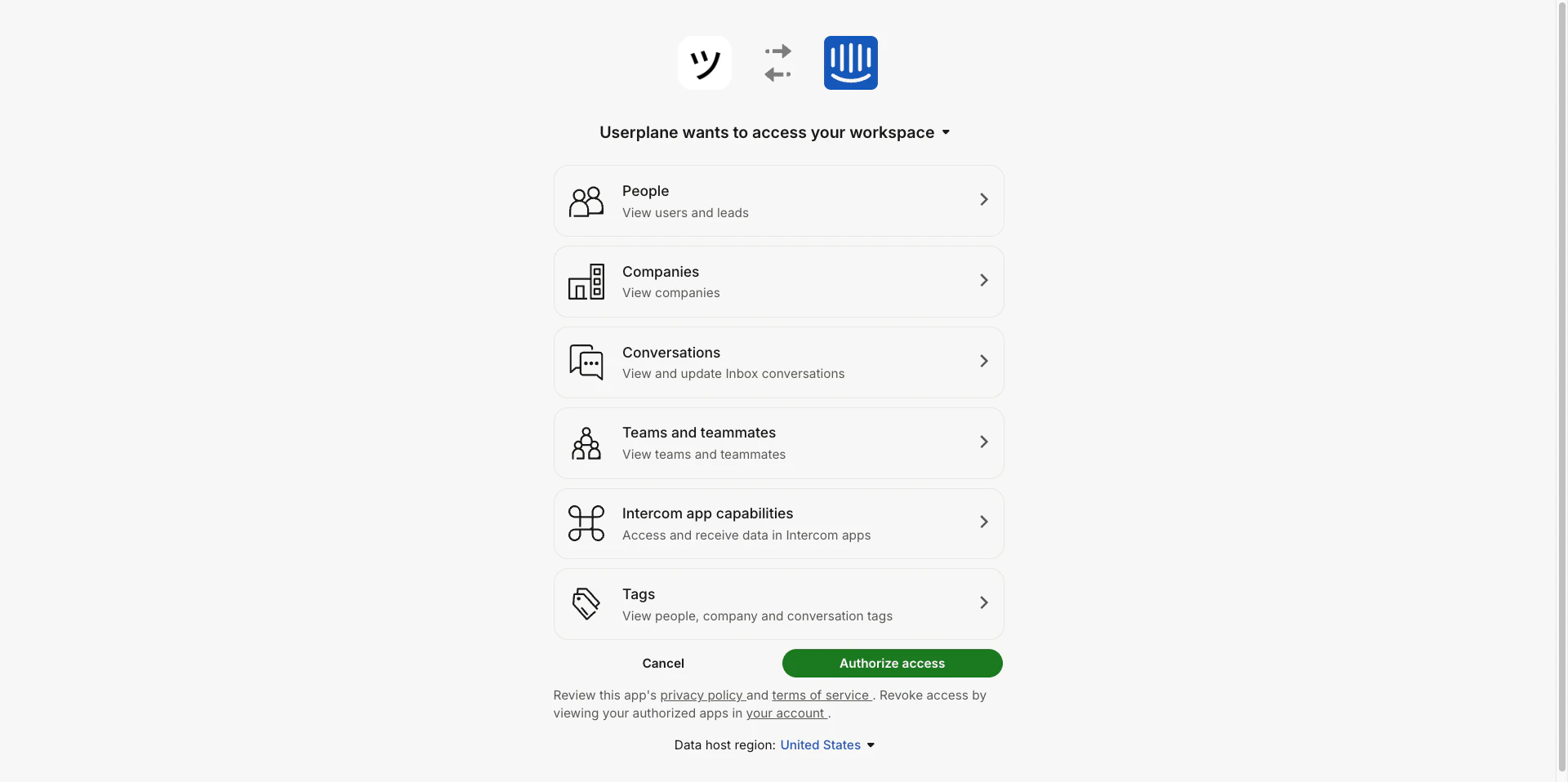
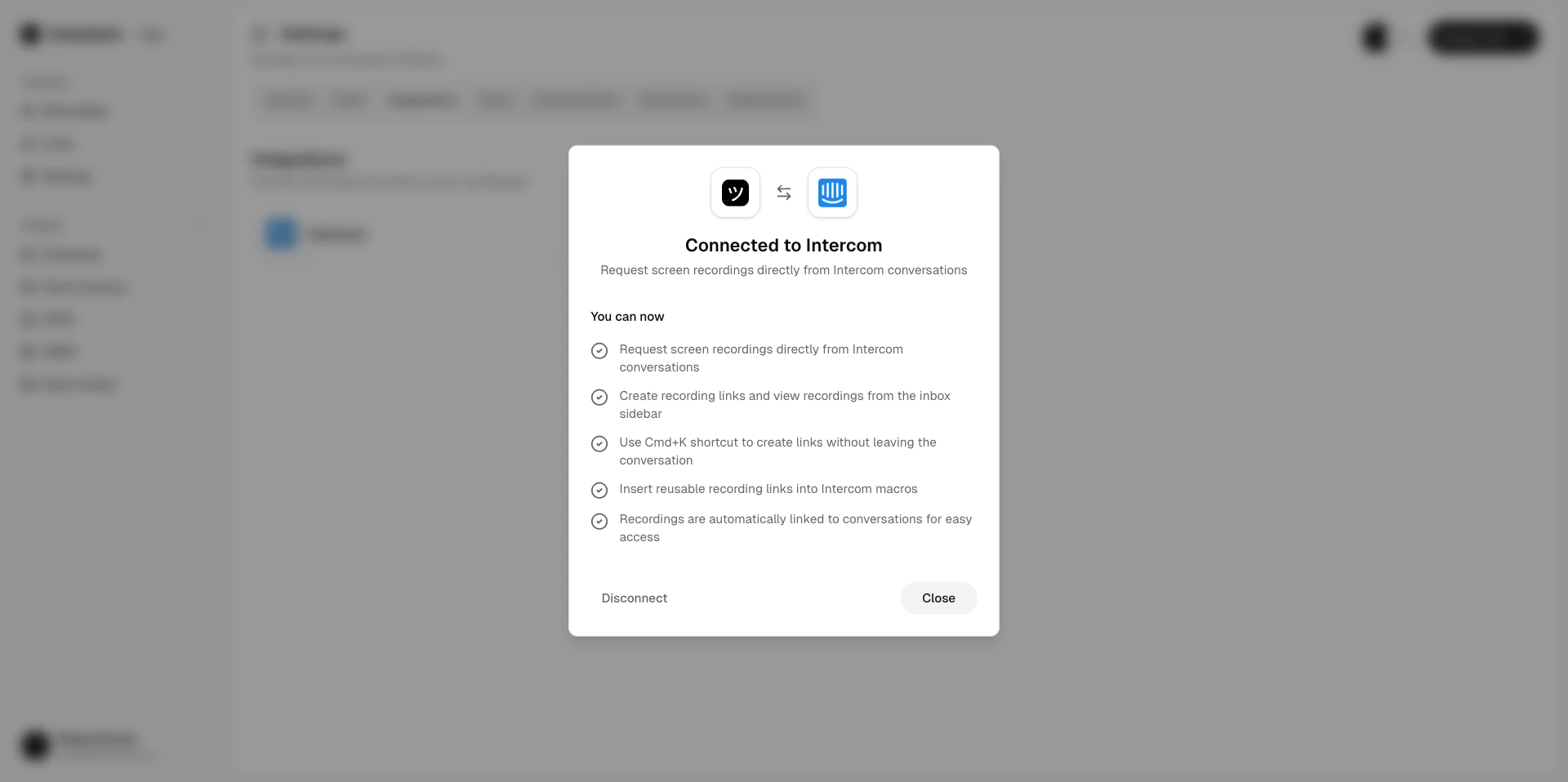
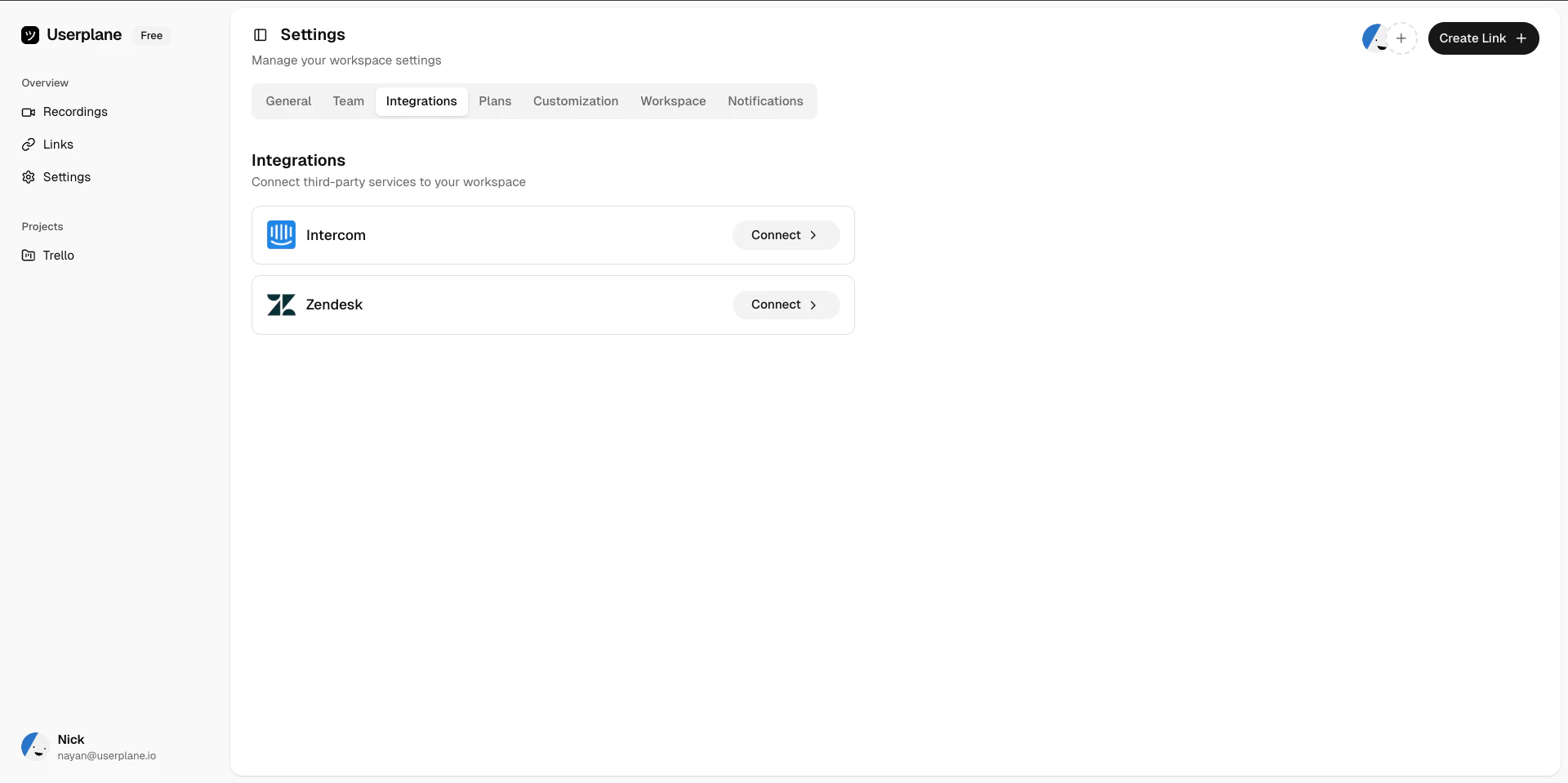 Click **Connect Intercom**. You'll be redirected to Intercom to authorize the connection.
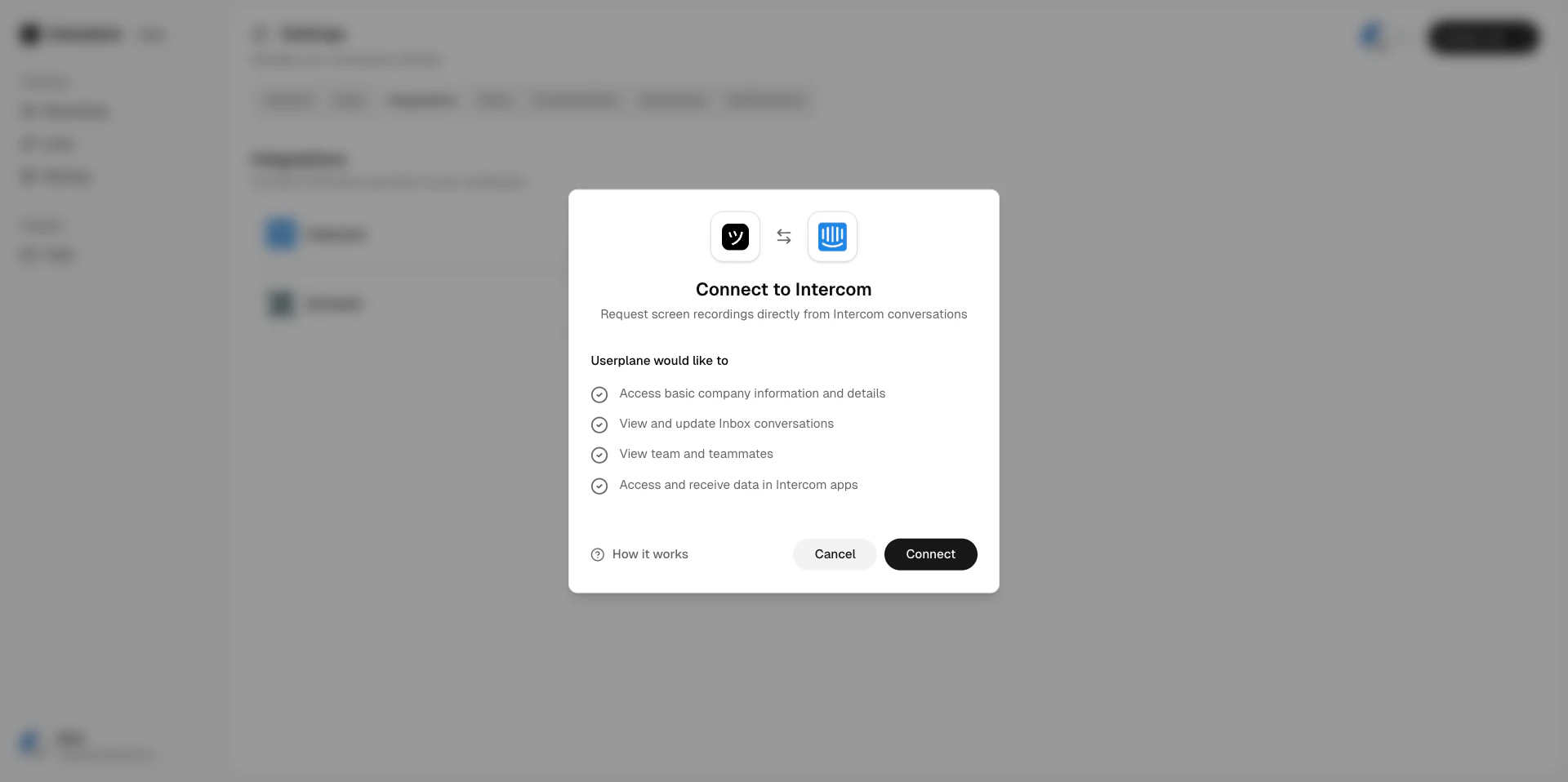 Userplane requests permissions to read conversations and manage the inbox sidebar app.
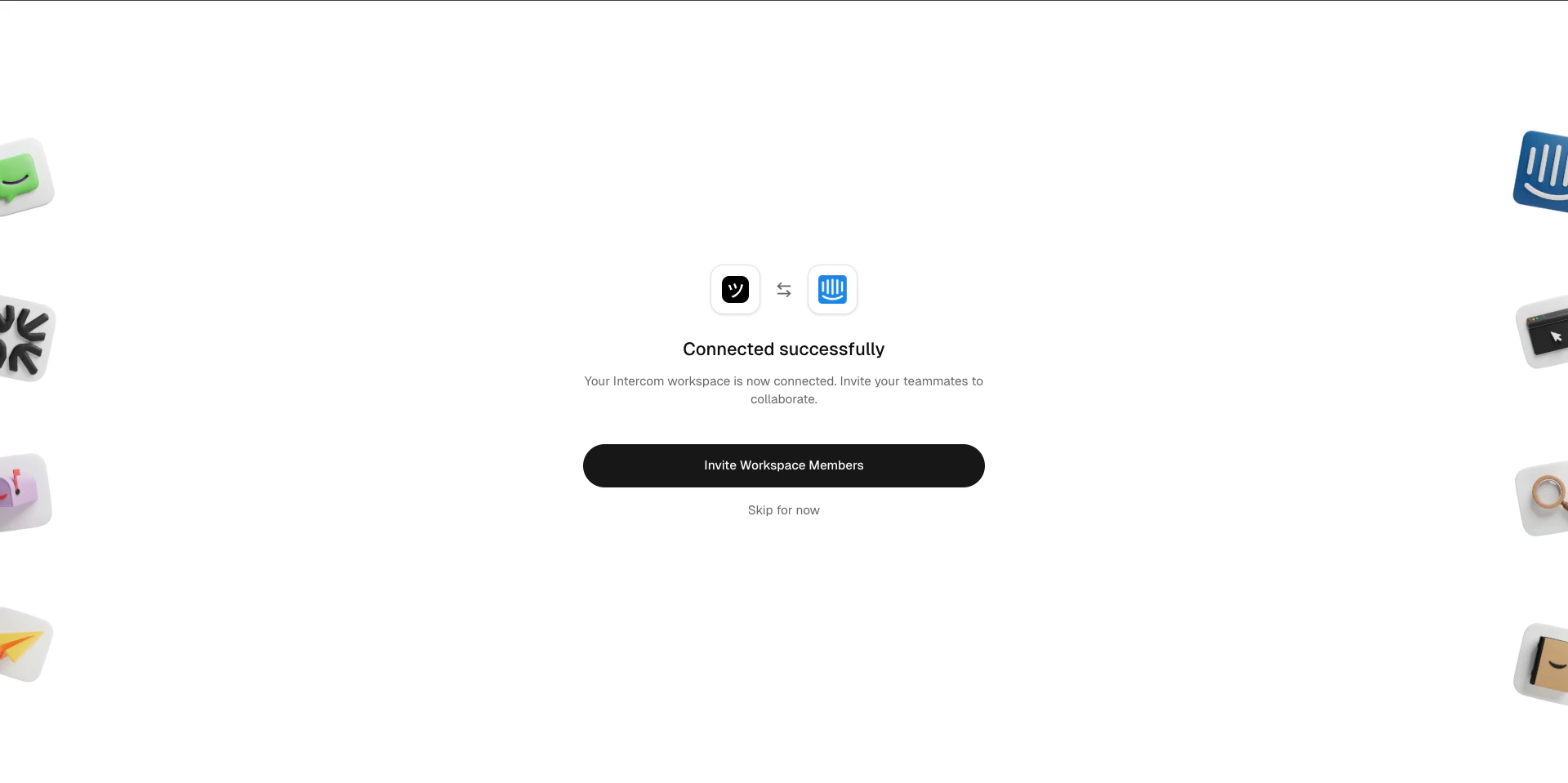
 After authorizing, you'll be redirected back to Userplane and the connection is active.
 ### What happens when you connect
* Userplane is installed in your **Intercom inbox**. Agents can create recording links and view recordings directly from conversations.
* **Intercom shortcuts** are added so agents can request recordings using `Cmd+K`.
* If Userplane isn't pinned to your sidebar, go to your Intercom inbox, select **Edit app**, and pin Userplane.
Only workspace **owners** and **admins** can manage the Intercom integration.
### What happens when you connect
* Userplane is installed in your **Intercom inbox**. Agents can create recording links and view recordings directly from conversations.
* **Intercom shortcuts** are added so agents can request recordings using `Cmd+K`.
* If Userplane isn't pinned to your sidebar, go to your Intercom inbox, select **Edit app**, and pin Userplane.
Only workspace **owners** and **admins** can manage the Intercom integration.
 See [Intercom Integration](/integrations/intercom) for the full reference.
## Connect Zendesk
Find Userplane in the [Zendesk Marketplace](https://www.zendesk.com/marketplace/apps/support/1229987/screen-recording-by-userplane/) and install it to your Zendesk account.
See [Intercom Integration](/integrations/intercom) for the full reference.
## Connect Zendesk
Find Userplane in the [Zendesk Marketplace](https://www.zendesk.com/marketplace/apps/support/1229987/screen-recording-by-userplane/) and install it to your Zendesk account.
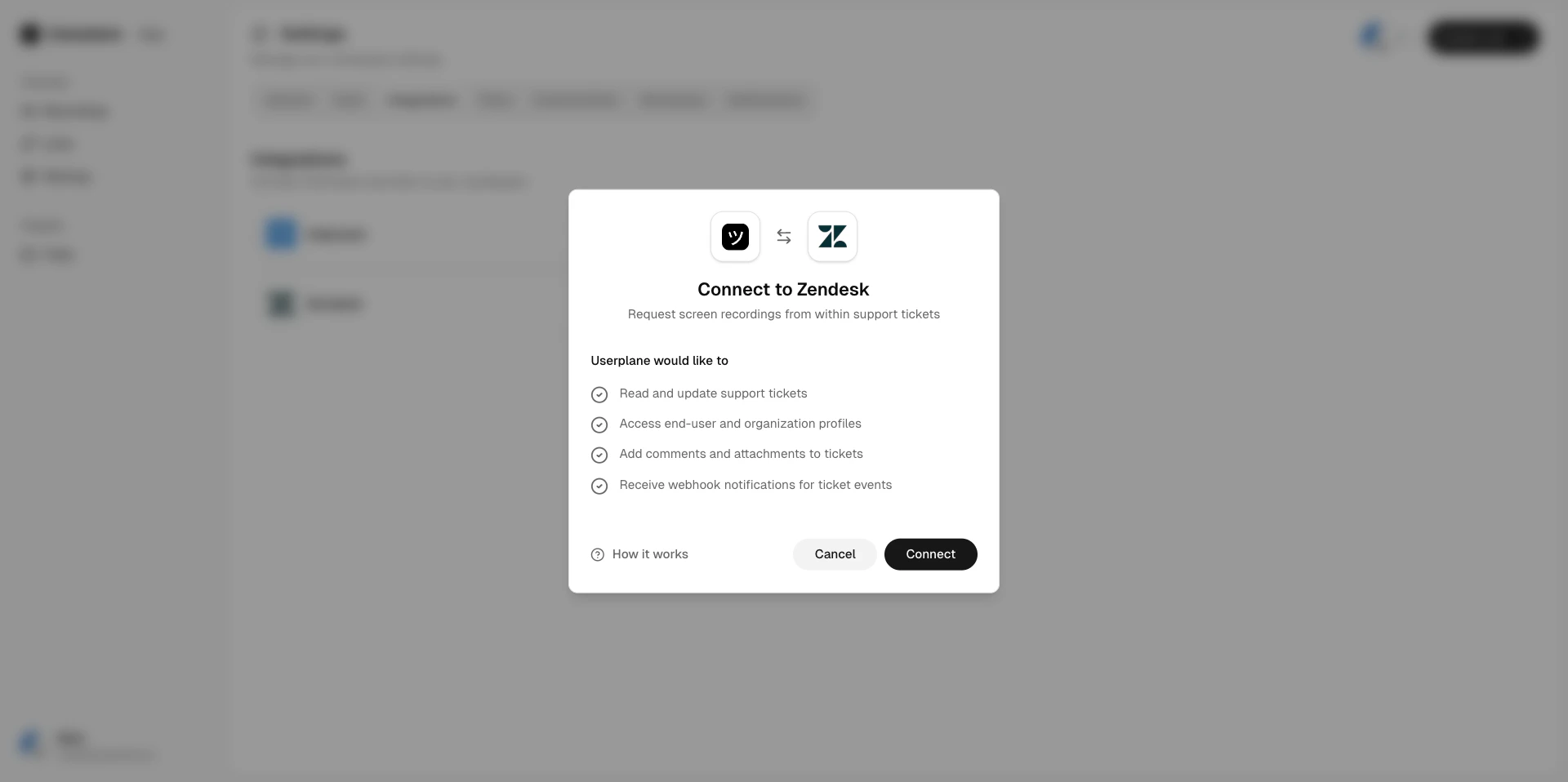 Open any ticket in Zendesk. Click the **Userplane** app in the ticket sidebar.
Click **Connect to Userplane**. You'll be redirected to authorize the connection and select your
workspace.
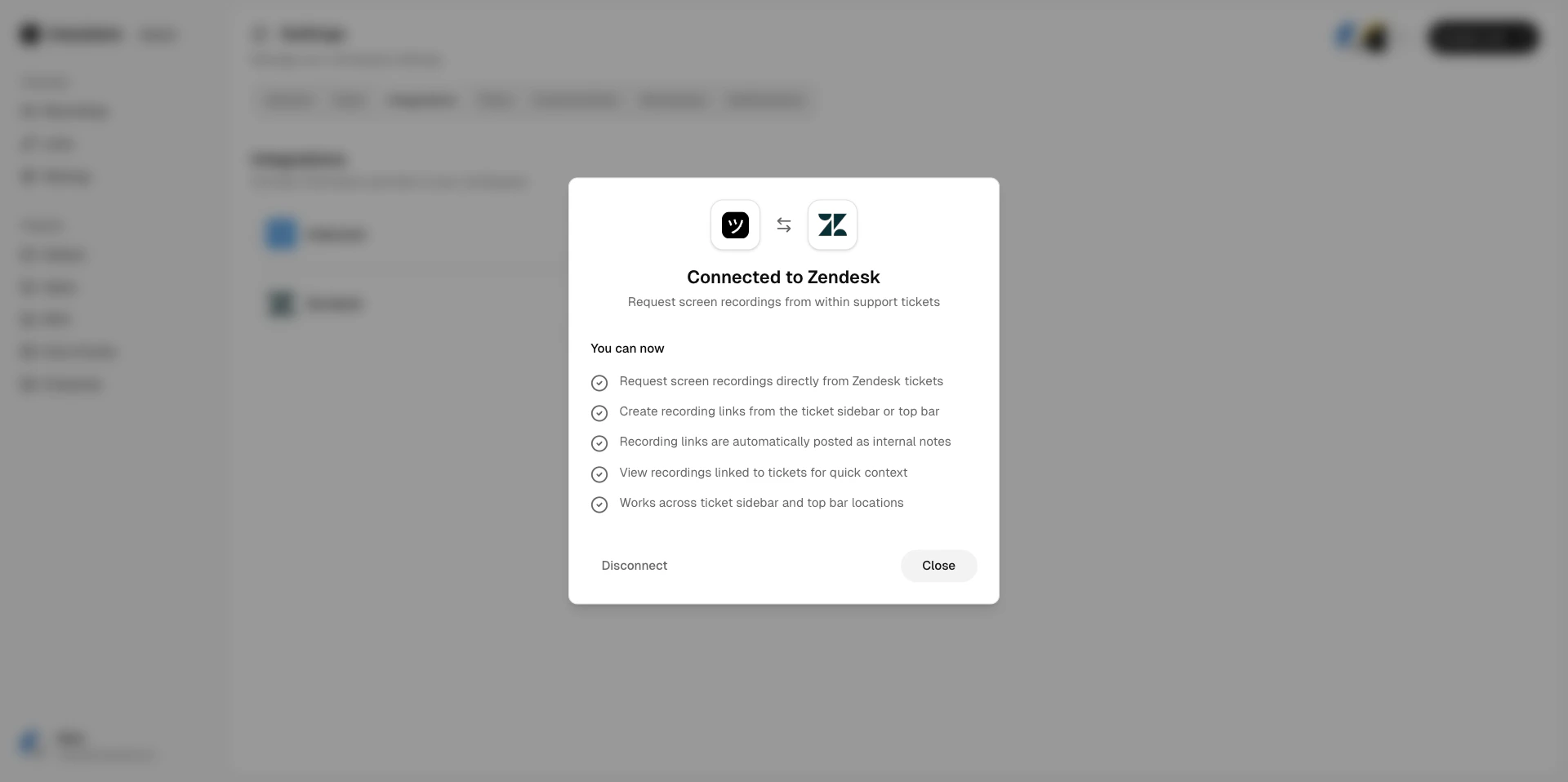
After authorization, the Userplane app is active across the ticket sidebar, ticket editor, and
top bar.
Open any ticket in Zendesk. Click the **Userplane** app in the ticket sidebar.
Click **Connect to Userplane**. You'll be redirected to authorize the connection and select your
workspace.
After authorization, the Userplane app is active across the ticket sidebar, ticket editor, and
top bar.
 ### What happens when you connect
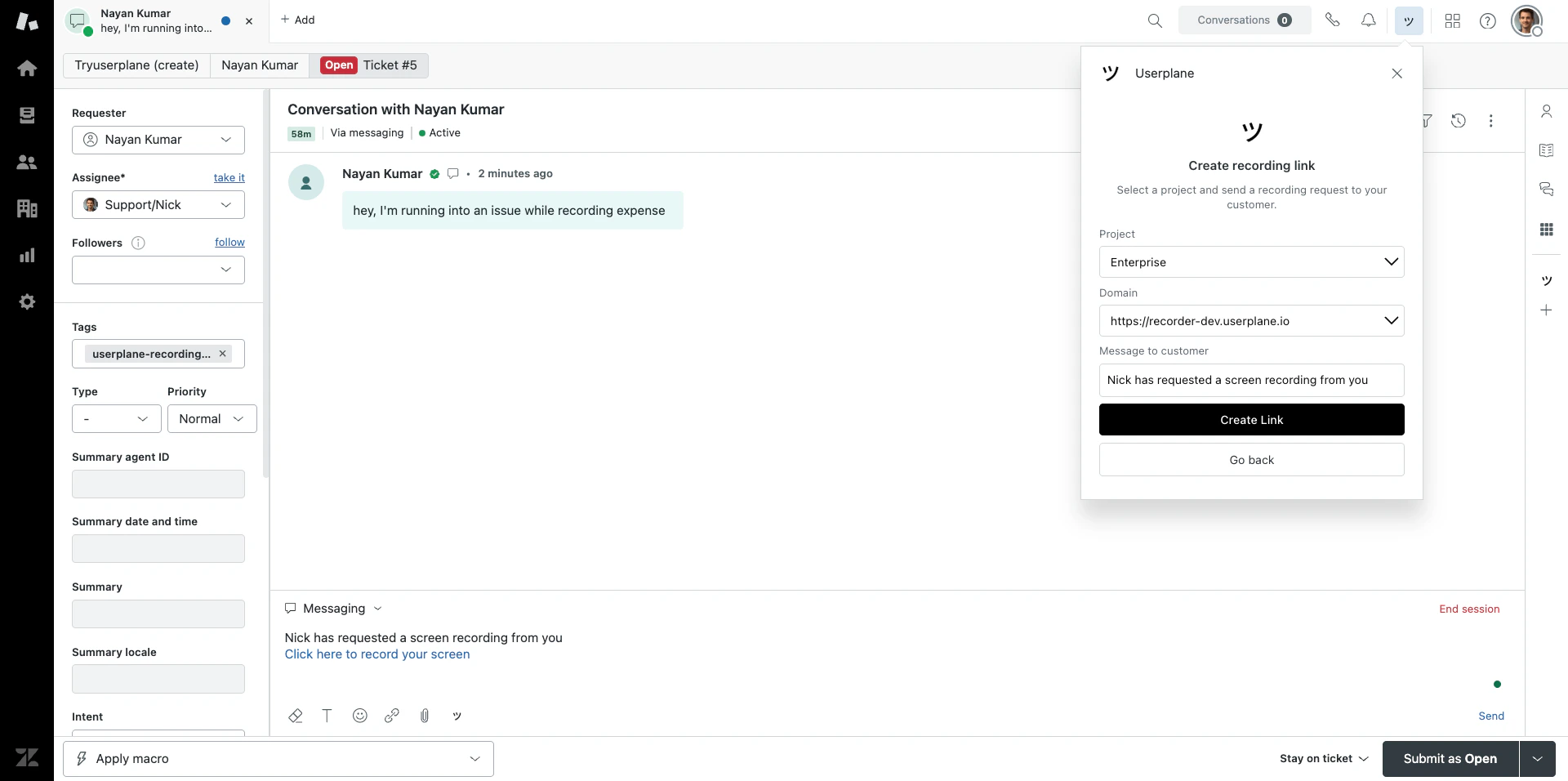
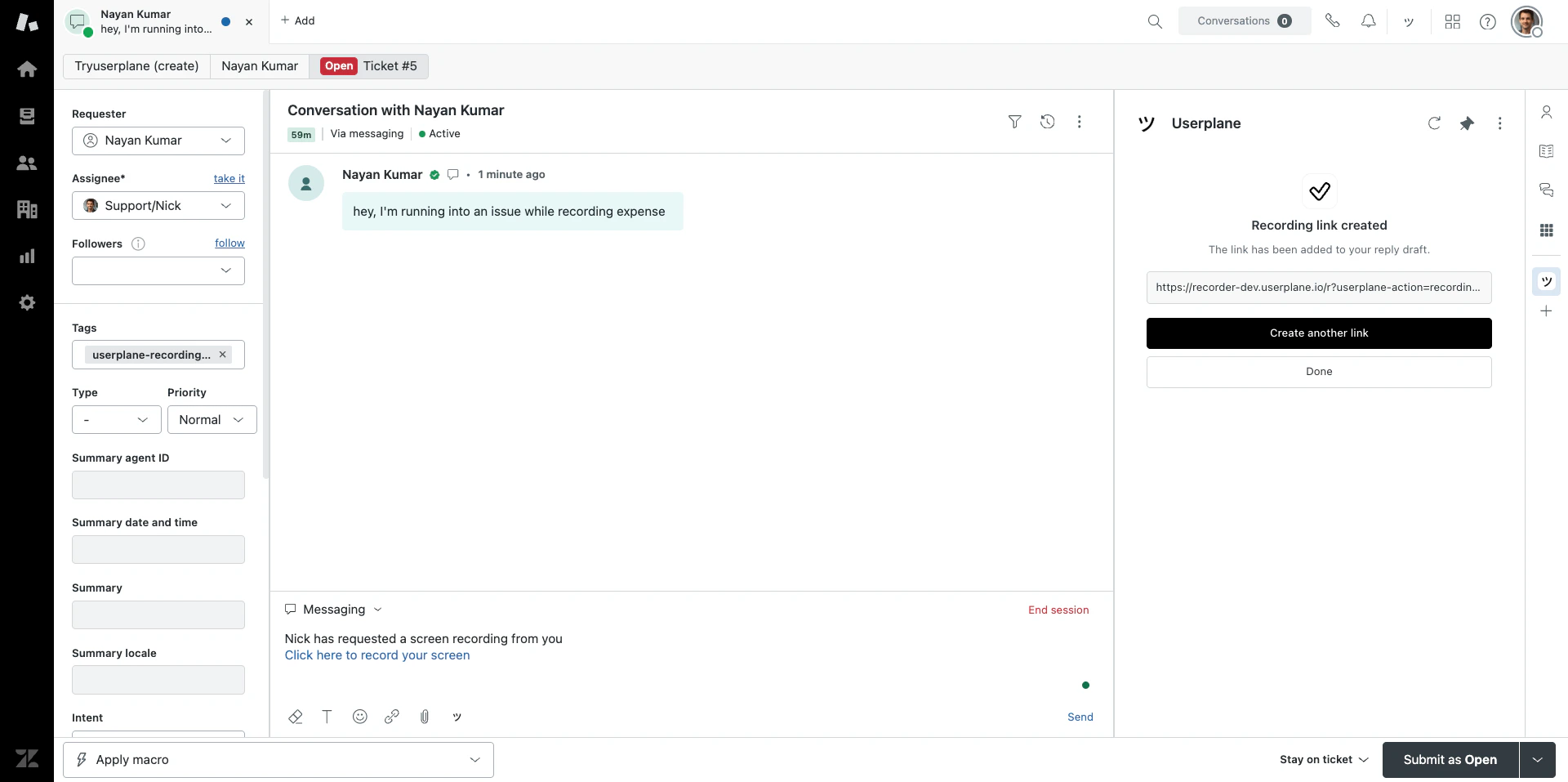
* A **ticket sidebar app** appears in every ticket for creating links and viewing recordings.
### What happens when you connect
* A **ticket sidebar app** appears in every ticket for creating links and viewing recordings.
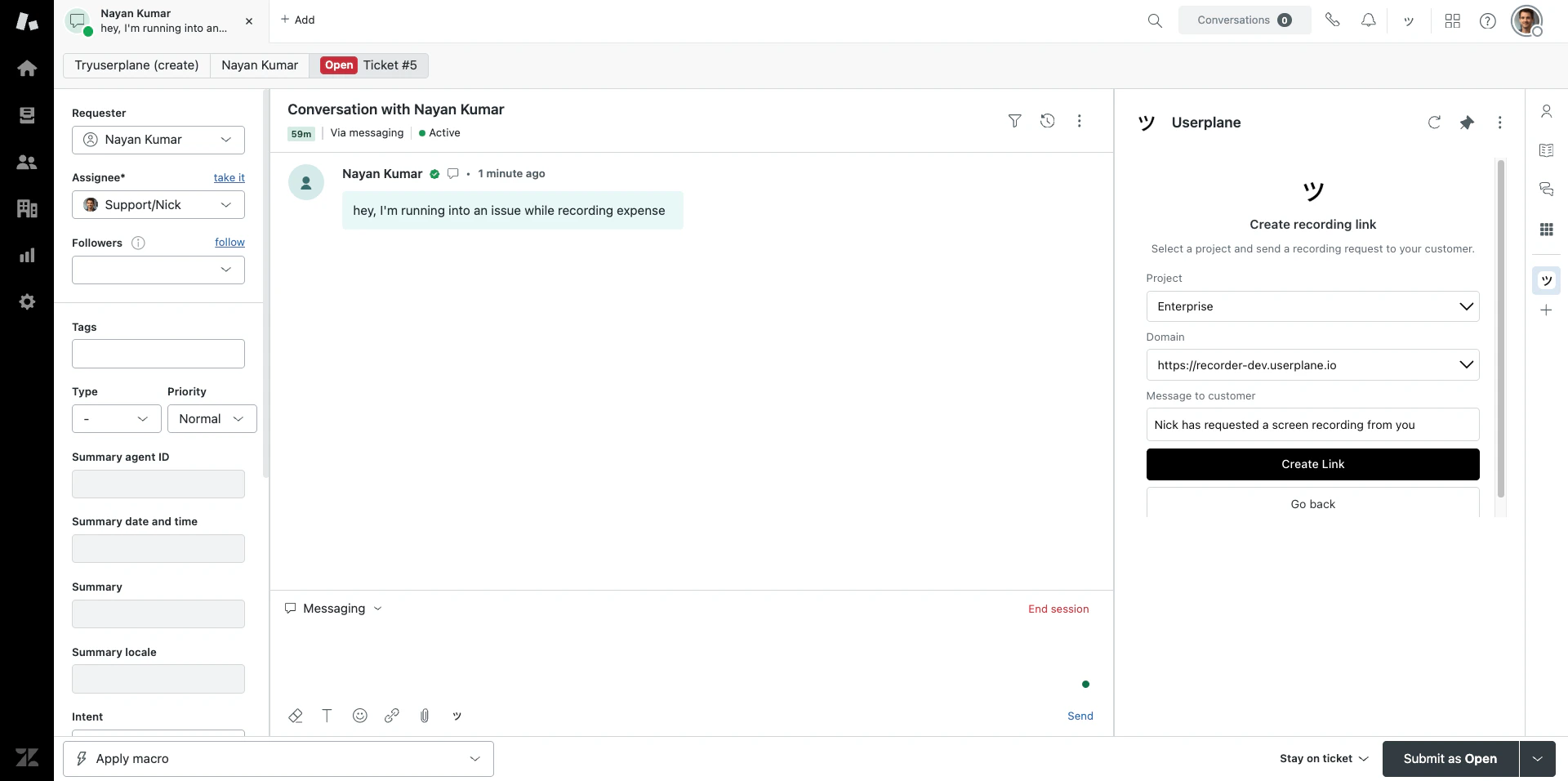 * A **ticket editor button** is added to the reply toolbar for inserting links directly into drafts.
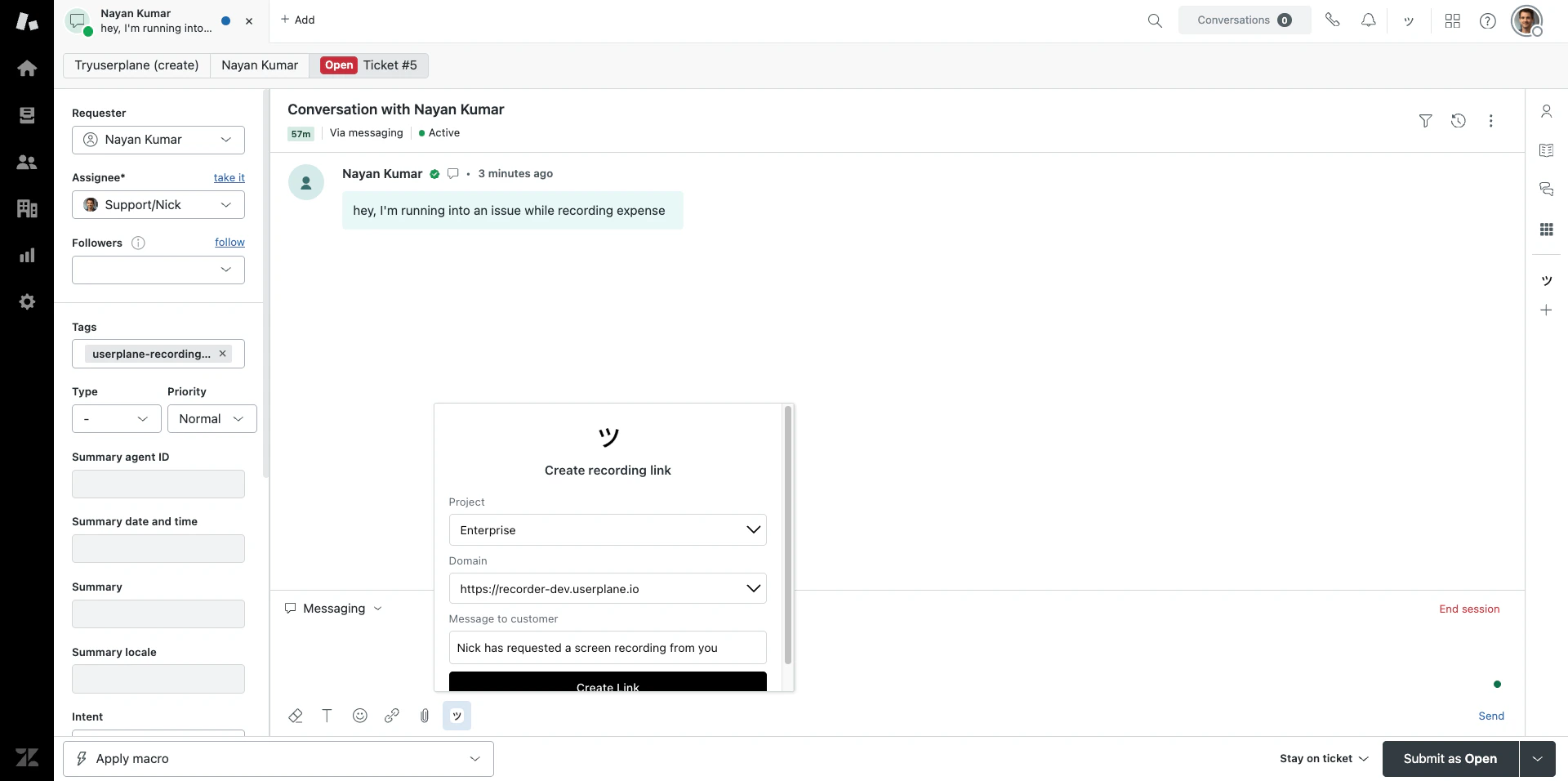 * A **top bar app** provides quick link creation from anywhere in Zendesk.
 * Tickets are automatically tagged with `userplane-recording-requested` when a link is created.
 * **Internal notes** are posted to tickets when recordings arrive.
Only workspace **owners** and **admins** can authorize the Zendesk connection.
See [Zendesk Integration](/integrations/zendesk) for the full reference.
## Connect Slack
Go to [Workspace Settings > Integrations](https://dash.userplane.io/_/settings?tab=integrations).
* **Internal notes** are posted to tickets when recordings arrive.
Only workspace **owners** and **admins** can authorize the Zendesk connection.
See [Zendesk Integration](/integrations/zendesk) for the full reference.
## Connect Slack
Go to [Workspace Settings > Integrations](https://dash.userplane.io/_/settings?tab=integrations).
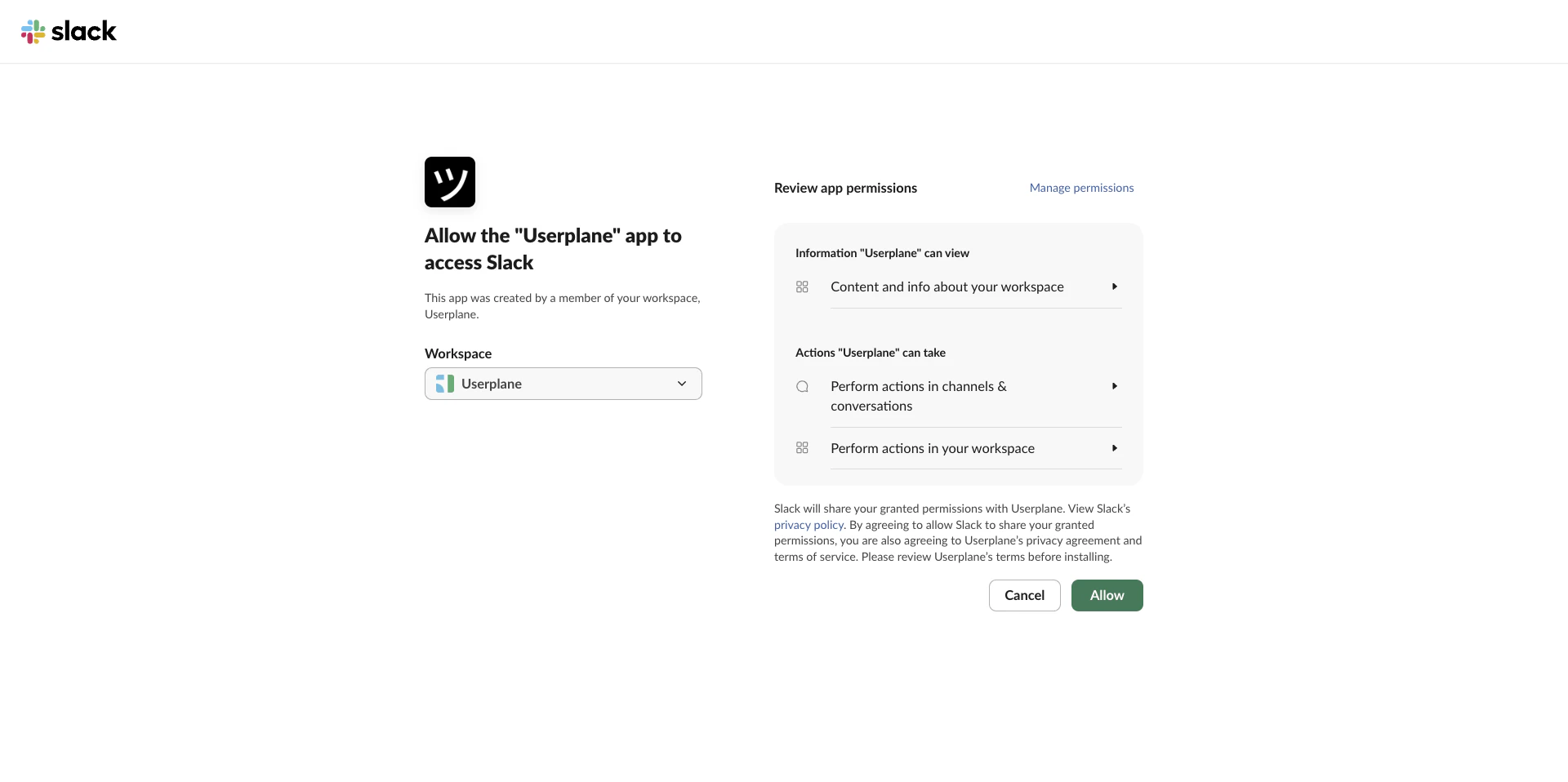
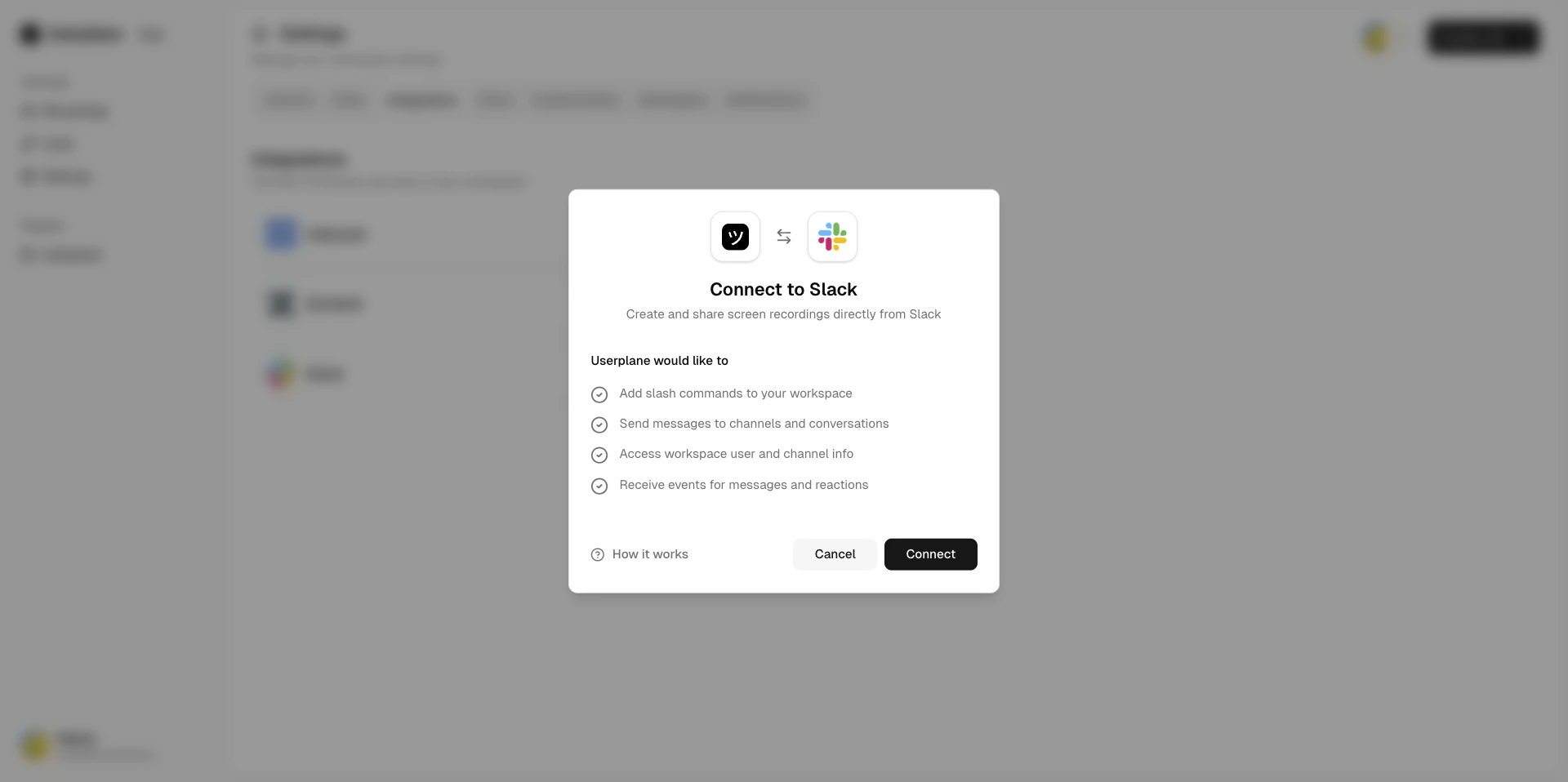 Click **Connect Slack**. You'll be redirected to Slack to authorize the connection.
Review the permissions and click **Allow**.
Click **Connect Slack**. You'll be redirected to Slack to authorize the connection.
Review the permissions and click **Allow**.
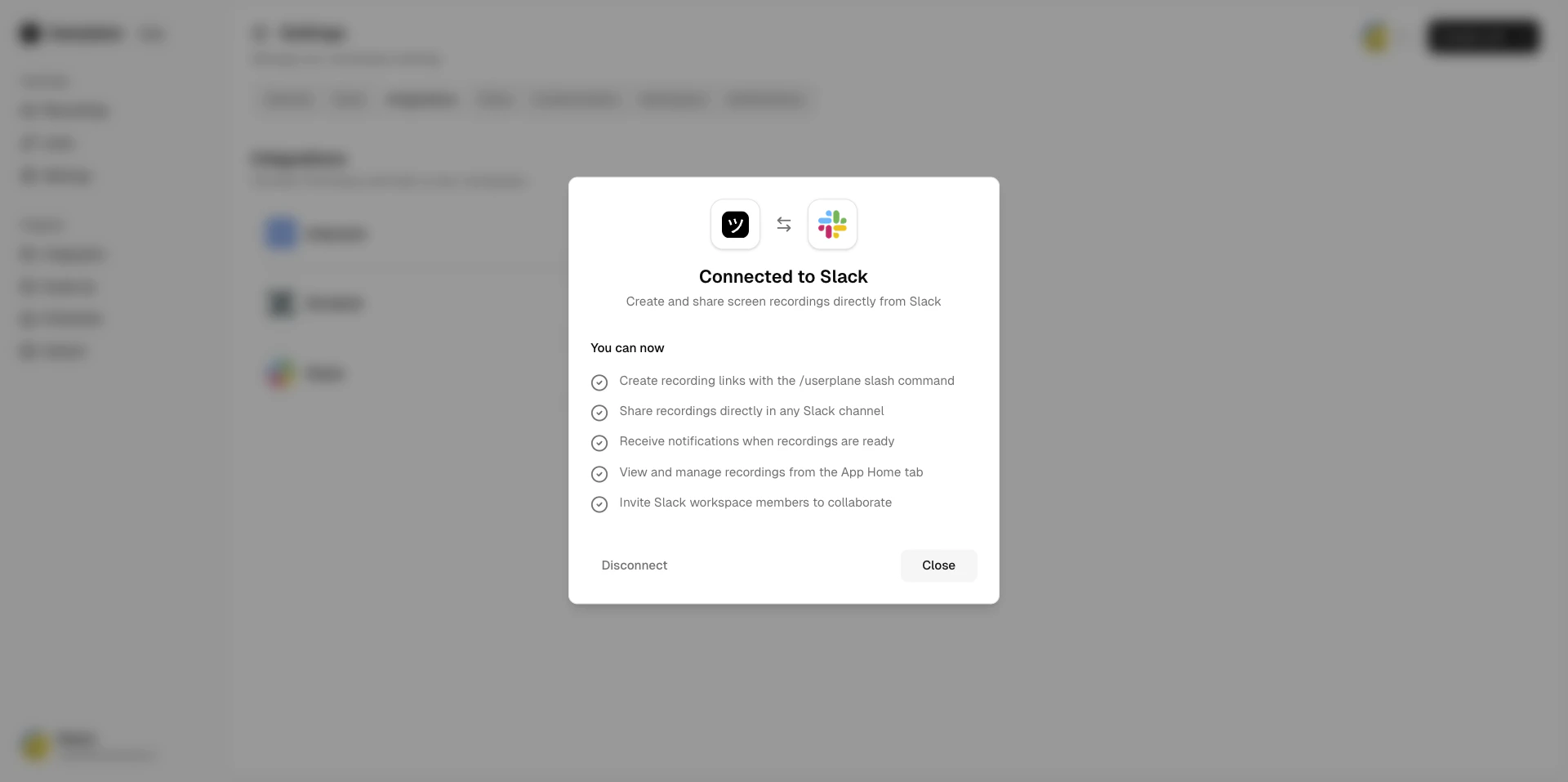
 After authorizing, you'll be redirected back to Userplane and the integration is active.
 ### What happens when you connect
* The `/userplane` slash command is registered in your Slack workspace. Agents can type it in any channel to create a recording link.
* A **message shortcut** is added so agents can right-click any Slack message to create a link in context.
* The **Userplane App Home** tab appears in Slack with a personal dashboard for each agent.
* Agents receive **DM notifications** when a recording arrives for a link they created from Slack. Any team member can also opt in to receive Slack DMs for all recordings via [notification preferences](/account/notifications).
Only workspace **owners** and **admins** can connect the Slack integration.
See [Slack Integration](/integrations/slack) for the full reference.
## Chrome Extension
If your team uses a help desk other than Intercom or Zendesk, install the Chrome extension to get the same recording link workflow from a browser side panel.
Find **Userplane** in the [Chrome Web Store](https://chromewebstore.google.com/detail/request-screen-recording/bgmbeifpcfepegcjhjdbocjbecpfmakm) and click **Add to Chrome**. Pin the extension to
your toolbar.
### What happens when you connect
* The `/userplane` slash command is registered in your Slack workspace. Agents can type it in any channel to create a recording link.
* A **message shortcut** is added so agents can right-click any Slack message to create a link in context.
* The **Userplane App Home** tab appears in Slack with a personal dashboard for each agent.
* Agents receive **DM notifications** when a recording arrives for a link they created from Slack. Any team member can also opt in to receive Slack DMs for all recordings via [notification preferences](/account/notifications).
Only workspace **owners** and **admins** can connect the Slack integration.
See [Slack Integration](/integrations/slack) for the full reference.
## Chrome Extension
If your team uses a help desk other than Intercom or Zendesk, install the Chrome extension to get the same recording link workflow from a browser side panel.
Find **Userplane** in the [Chrome Web Store](https://chromewebstore.google.com/detail/request-screen-recording/bgmbeifpcfepegcjhjdbocjbecpfmakm) and click **Add to Chrome**. Pin the extension to
your toolbar.
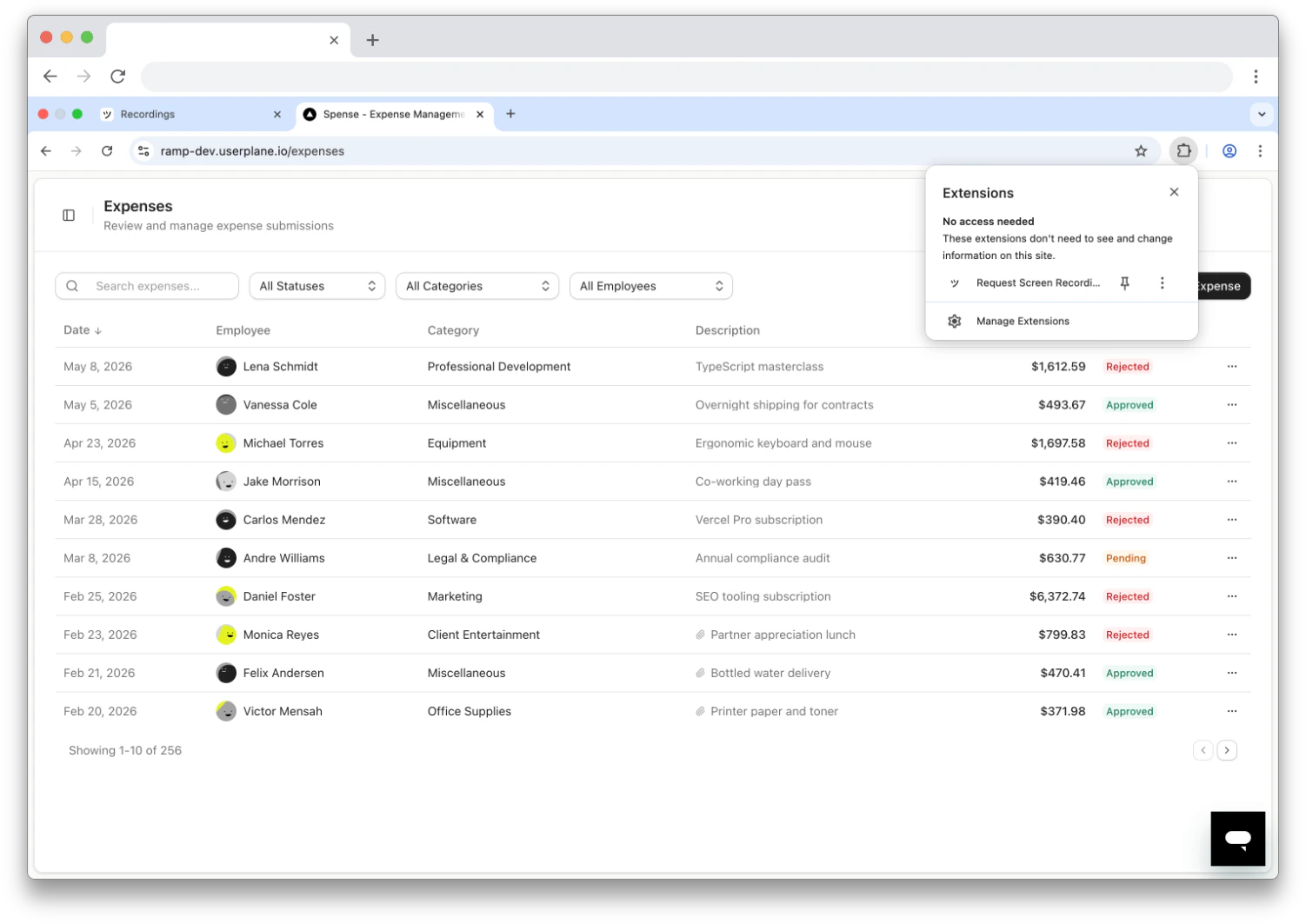 Click the **Userplane** icon in the toolbar. The side panel opens on the right side of your
browser.
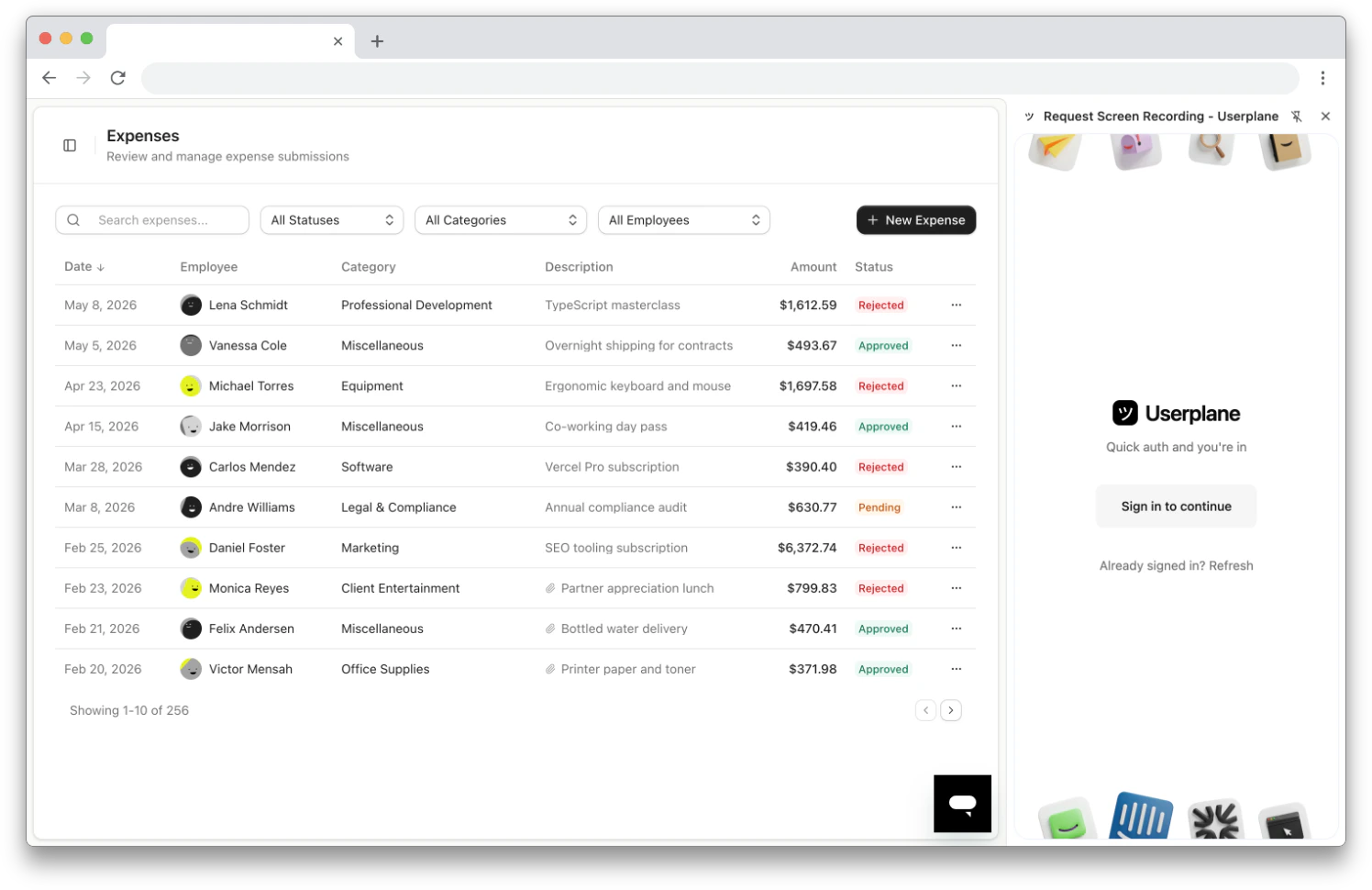
Click **Sign in to continue**. You'll be redirected to the Userplane dashboard to authenticate.
After signing in, return to the side panel and click **Refresh** if needed.
Click the **Userplane** icon in the toolbar. The side panel opens on the right side of your
browser.
Click **Sign in to continue**. You'll be redirected to the Userplane dashboard to authenticate.
After signing in, return to the side panel and click **Refresh** if needed.
 If you belong to multiple workspaces, select the one you want to use.
 ### What you get
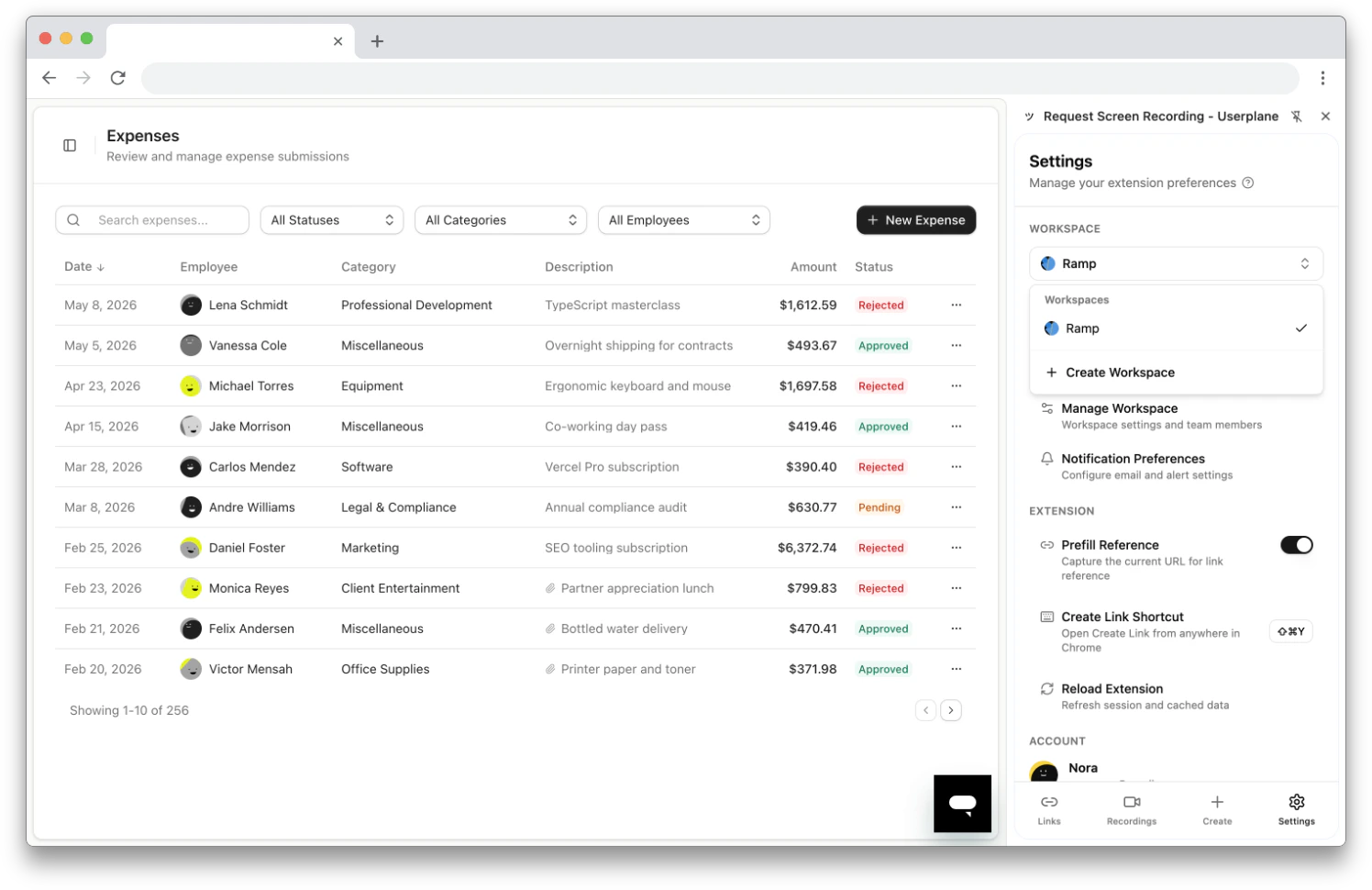
* A **side panel** with tabs for Links, Recordings, Create, and Settings.
* **Keyboard shortcut** (`Cmd+Shift+Y` / `Ctrl+Shift+Y`) to create a link instantly.
* **Right-click context menus** for quick link creation.
* **Omnibox** — type `userplane` in the address bar to create a link with a reference.
* **Auto-populates** the link reference with the current tab URL (e.g., your ticket page).
### What you get
* A **side panel** with tabs for Links, Recordings, Create, and Settings.
* **Keyboard shortcut** (`Cmd+Shift+Y` / `Ctrl+Shift+Y`) to create a link instantly.
* **Right-click context menus** for quick link creation.
* **Omnibox** — type `userplane` in the address bar to create a link with a reference.
* **Auto-populates** the link reference with the current tab URL (e.g., your ticket page).
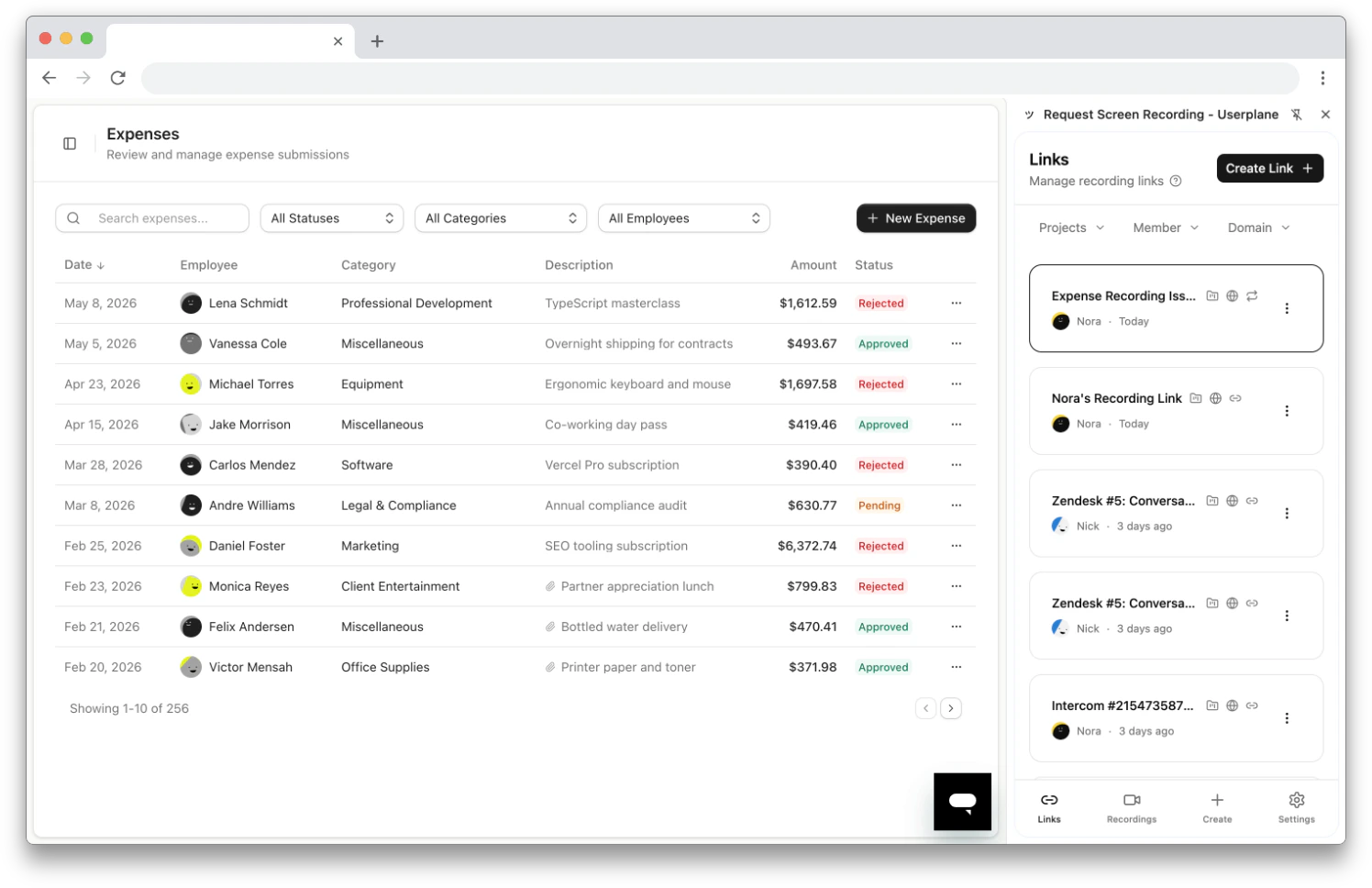 The Chrome extension works with any help desk. See [Other Help
Desks](/integrations/other-helpdesks) for workflow tips.
See [Chrome Extension Integration](/integrations/chrome-extension) for the full reference.
## Invite your team
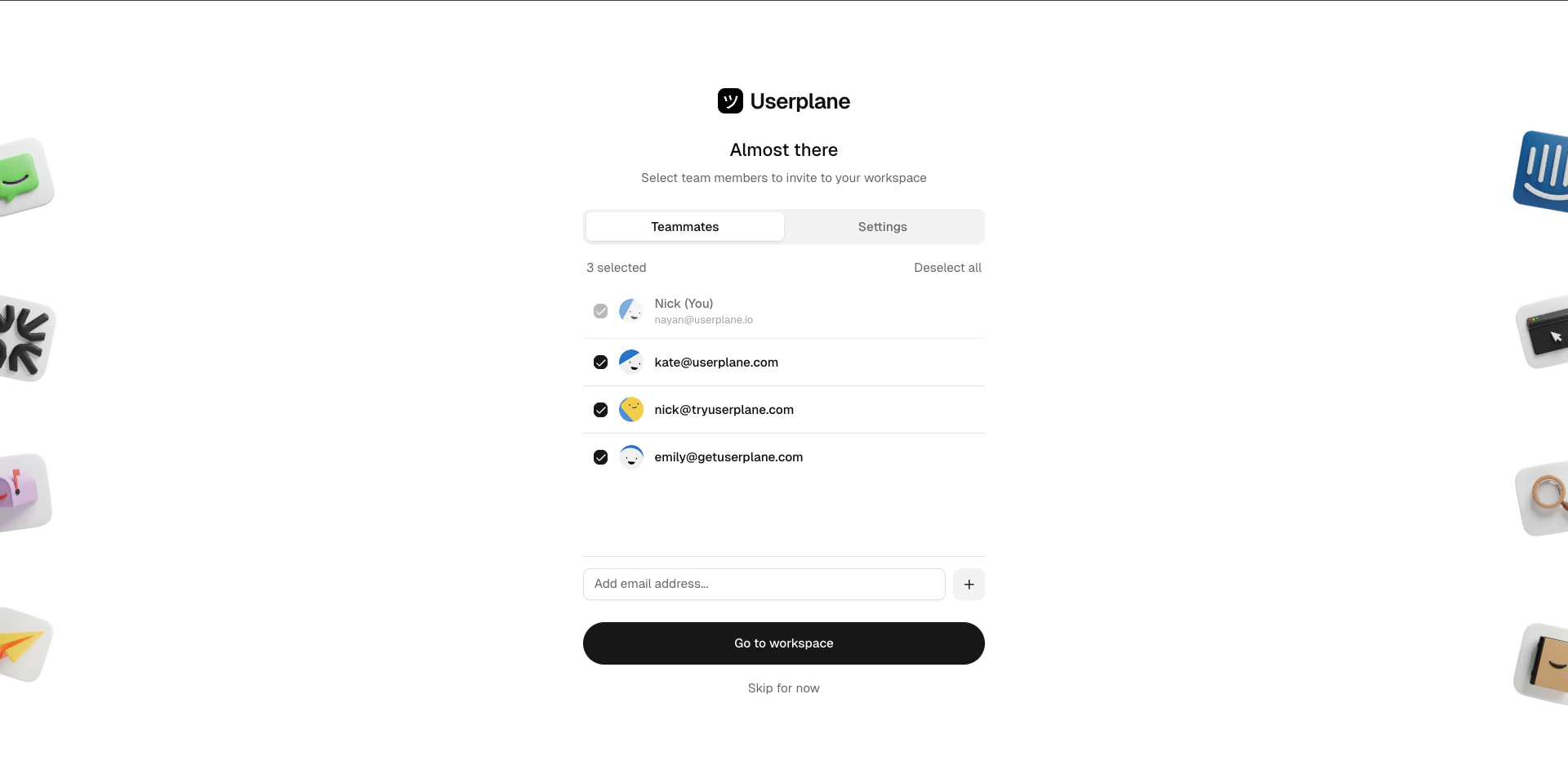
Once connected, invite your help desk agents to your Userplane workspace so they can use the integration:
Enter the email addresses of the agents you want to invite.
The Chrome extension works with any help desk. See [Other Help
Desks](/integrations/other-helpdesks) for workflow tips.
See [Chrome Extension Integration](/integrations/chrome-extension) for the full reference.
## Invite your team
Once connected, invite your help desk agents to your Userplane workspace so they can use the integration:
Enter the email addresses of the agents you want to invite.
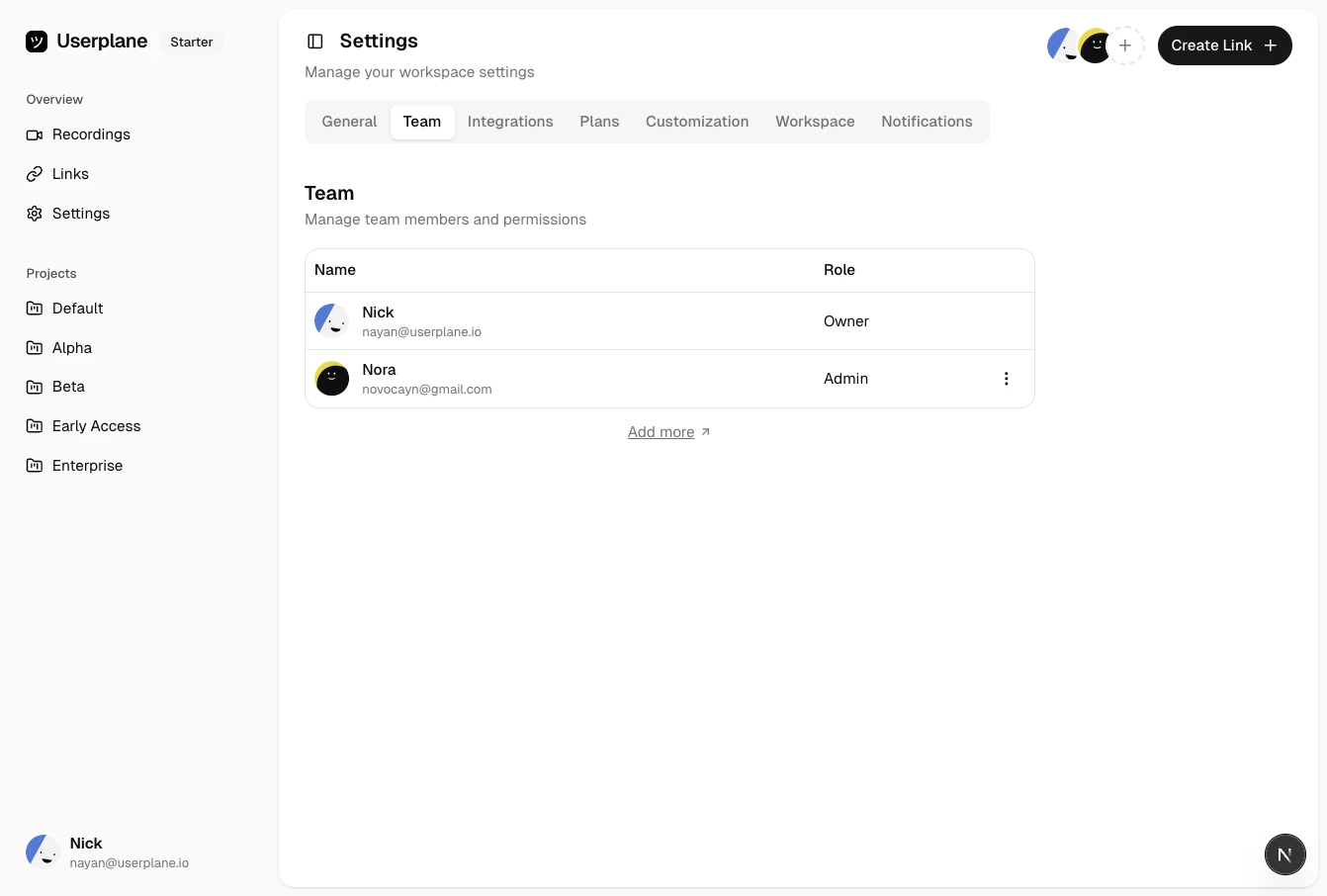
 Alternatively, go to [Workspace Settings > Team](https://dash.userplane.io/_/settings?tab=team) and click
**Invite Member**.
Alternatively, go to [Workspace Settings > Team](https://dash.userplane.io/_/settings?tab=team) and click
**Invite Member**.
 Invited users will receive an email invitation to join your workspace.
Whitelist specific email domains to enable org-wide access. Approved users can use Userplane
without individual invites.
Invited users will receive an email invitation to join your workspace.
Whitelist specific email domains to enable org-wide access. Approved users can use Userplane
without individual invites.
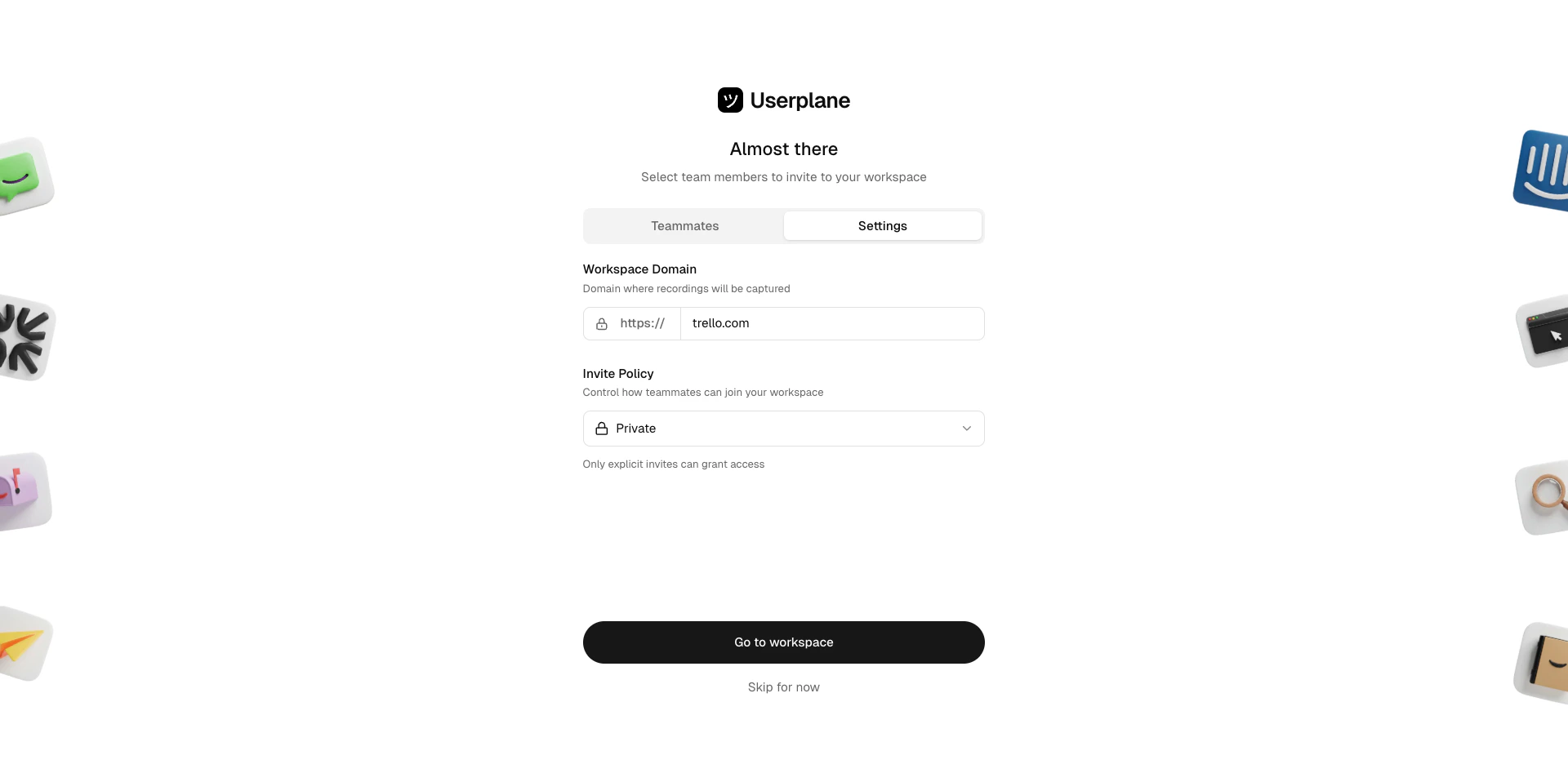 If you connected Intercom, you'll see recommendations from your Intercom admins when inviting
members.
## Disconnect
1. Go to [Workspace Settings > Integrations](https://dash.userplane.io/_/settings?tab=integrations).
If you connected Intercom, you'll see recommendations from your Intercom admins when inviting
members.
## Disconnect
1. Go to [Workspace Settings > Integrations](https://dash.userplane.io/_/settings?tab=integrations).
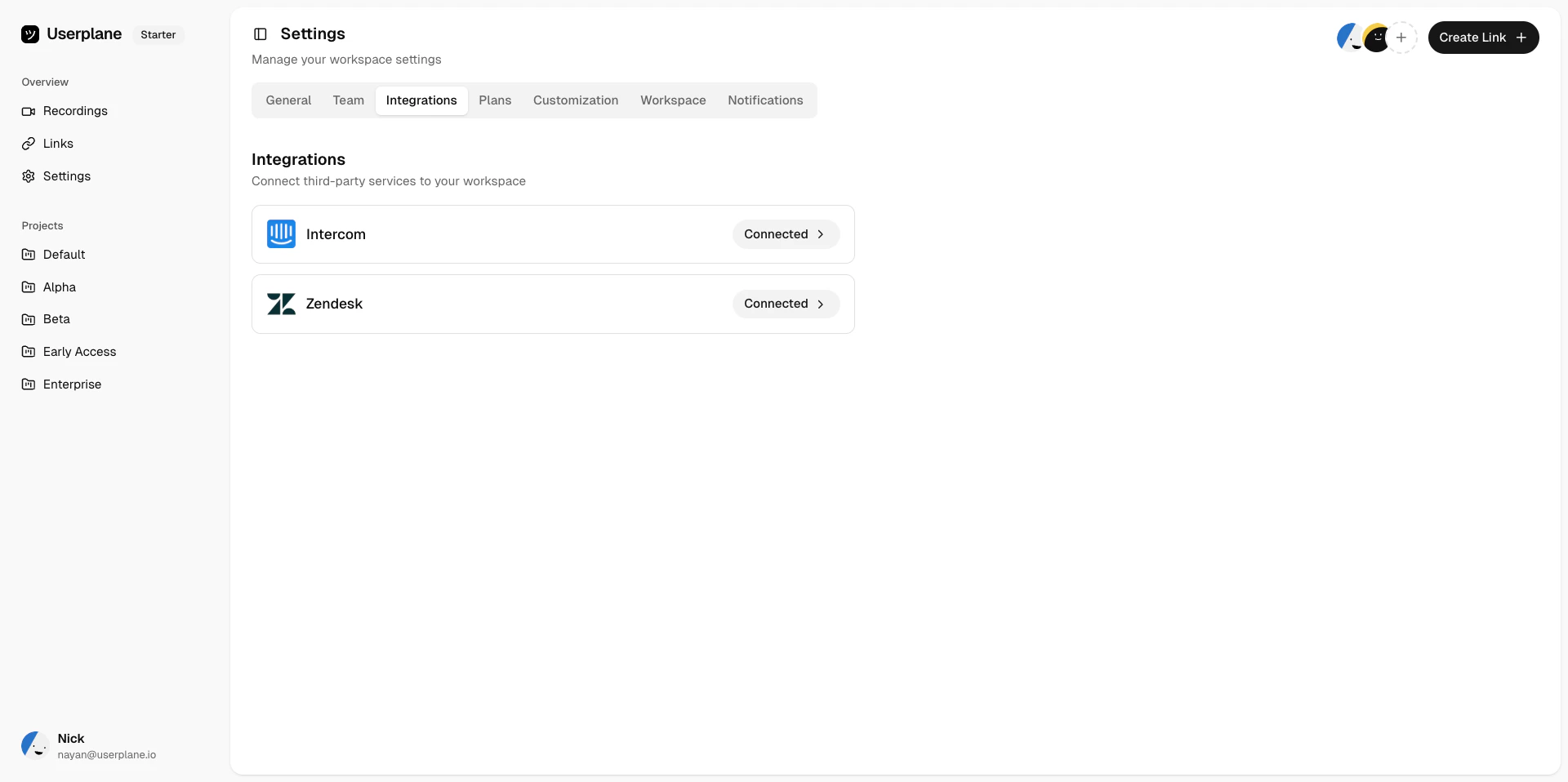 2. Click **Disconnect** next to the integration you want to remove.
Disconnecting removes the Userplane app from your help desk. Existing recordings and links are
preserved.
## Learn more
* [Intercom Integration](/integrations/intercom) — detailed overview of the Intercom integration.
* [Zendesk Integration](/integrations/zendesk) — detailed overview of the Zendesk integration.
* [Slack Integration](/integrations/slack) — detailed overview of the Slack integration.
* [Chrome Extension](/integrations/chrome-extension) — installation and overview of the Chrome extension.
* [Other Help Desks](/integrations/other-helpdesks) — use the Chrome extension alongside any help desk.
* [Roles & Permissions](/workspace/roles-permissions) — what each workspace role can do.
* [Domain Verification](/workspace/domain-verification) — enable branded recording links.
* [Team Management](/workspace/team-management) — manage workspace members and invites.
2. Click **Disconnect** next to the integration you want to remove.
Disconnecting removes the Userplane app from your help desk. Existing recordings and links are
preserved.
## Learn more
* [Intercom Integration](/integrations/intercom) — detailed overview of the Intercom integration.
* [Zendesk Integration](/integrations/zendesk) — detailed overview of the Zendesk integration.
* [Slack Integration](/integrations/slack) — detailed overview of the Slack integration.
* [Chrome Extension](/integrations/chrome-extension) — installation and overview of the Chrome extension.
* [Other Help Desks](/integrations/other-helpdesks) — use the Chrome extension alongside any help desk.
* [Roles & Permissions](/workspace/roles-permissions) — what each workspace role can do.
* [Domain Verification](/workspace/domain-verification) — enable branded recording links.
* [Team Management](/workspace/team-management) — manage workspace members and invites.