> ## Documentation Index
> Fetch the complete documentation index at: https://docs.userplane.io/llms.txt
> Use this file to discover all available pages before exploring further.
# Chrome Extension Link Management
> Browse, filter, edit, and delete recording links from the Chrome extension
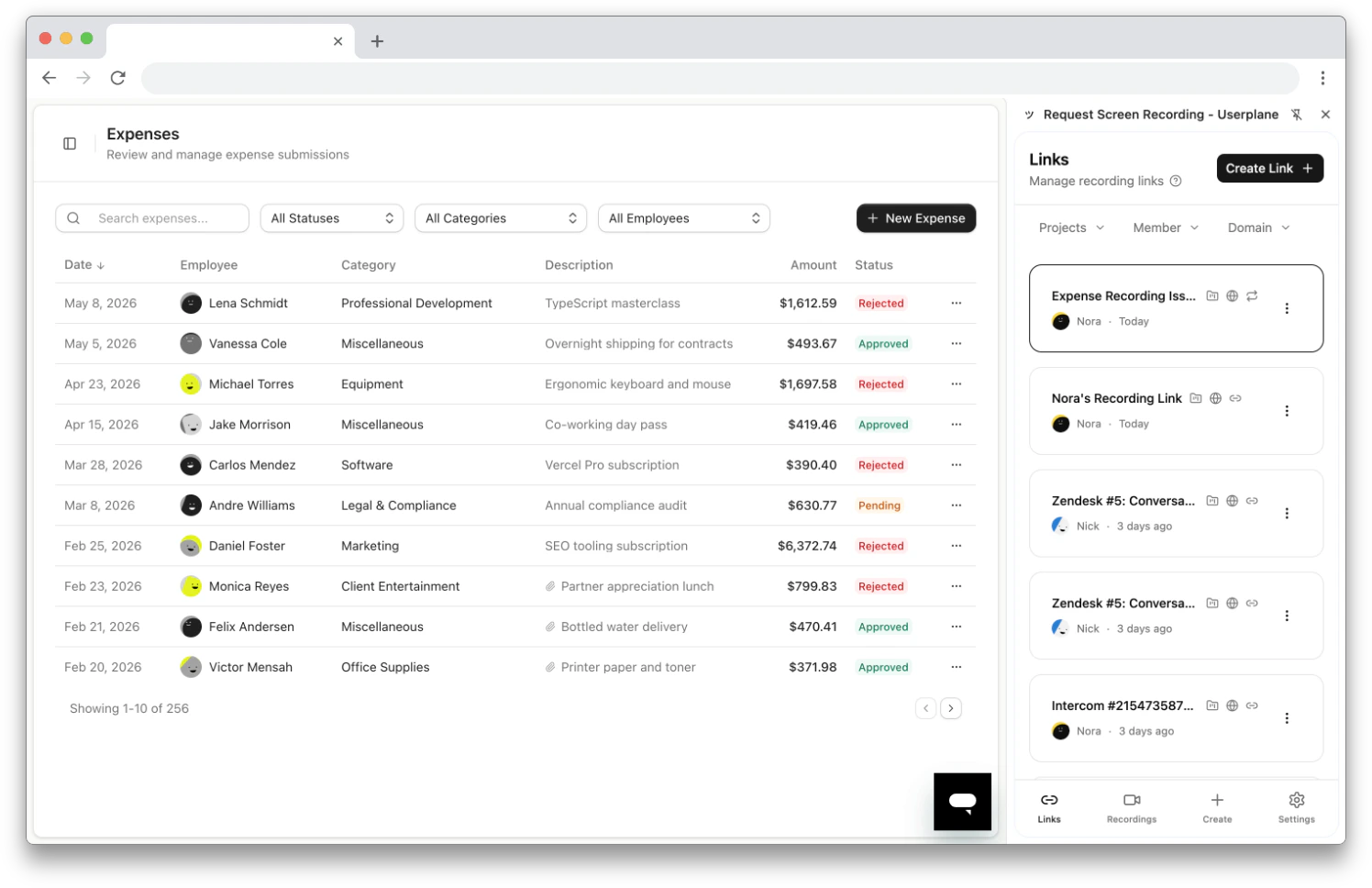
The **Links** tab is the home screen of the Chrome extension side panel. It displays all recording links in your workspace, with controls for filtering, editing, and sharing.
## Browsing links
Links are displayed as cards in a scrollable list with automatic pagination as you scroll. Each link card shows:
* **Title** — the link's display name.
* **Creator** — avatar and name of the person who created the link.
* **Creation date**.
* **Project** — the project the link is associated with (if any).
* **Domain** — the domain the link uses.
* **Reusable indicator** — whether the link can be used for multiple recordings.
 ## Filtering
Use the filter dropdowns at the top of the Links tab to narrow the list:
* **Projects** — show links from one or more projects.
* **Member** — show links created by a specific team member.
* **Domain** — show links using a specific domain.
Filters can be combined — selecting a project and a member shows only links matching both criteria.
## Link actions
Click the **three-dot menu** on any link card to access these actions:
| Action | What it does |
| ------------------- | ------------------------------------------------------------------- |
| **Copy Link** | Copies the recording link URL to your clipboard |
| **View Recordings** | Opens the Userplane dashboard filtered to recordings from this link |
| **Edit** | Opens the edit form for this link |
| **Delete** | Permanently removes the link |
## Editing a link
From the three-dot menu, select **Edit** to open the edit form. You can modify:
* **Link Title** — the display name for the link.
* **Link Reference** — the external reference (URL, ticket number, etc.).
* **Link Provider** — the provider type (e.g., JIRA, GitHub) and provider ID, useful for connecting the link to an external issue tracker.
* **Reusable** — whether the link allows multiple recordings.
Click **Save Changes** to apply. The save button activates only after changes are made.
## Deleting a link
From the three-dot menu, select **Delete** to permanently remove a link. Existing recordings created from the link are preserved — only the link itself is removed.
## Related articles
* [Chrome Extension Link Creation](/integrations/chrome-extension-create-links) — all the ways to create links.
* [Chrome Extension Recordings](/integrations/chrome-extension-recordings) — browse recordings received from your links.
* [Managing Recording Links](/recording-links/managing) — link management in the Userplane dashboard.
## Filtering
Use the filter dropdowns at the top of the Links tab to narrow the list:
* **Projects** — show links from one or more projects.
* **Member** — show links created by a specific team member.
* **Domain** — show links using a specific domain.
Filters can be combined — selecting a project and a member shows only links matching both criteria.
## Link actions
Click the **three-dot menu** on any link card to access these actions:
| Action | What it does |
| ------------------- | ------------------------------------------------------------------- |
| **Copy Link** | Copies the recording link URL to your clipboard |
| **View Recordings** | Opens the Userplane dashboard filtered to recordings from this link |
| **Edit** | Opens the edit form for this link |
| **Delete** | Permanently removes the link |
## Editing a link
From the three-dot menu, select **Edit** to open the edit form. You can modify:
* **Link Title** — the display name for the link.
* **Link Reference** — the external reference (URL, ticket number, etc.).
* **Link Provider** — the provider type (e.g., JIRA, GitHub) and provider ID, useful for connecting the link to an external issue tracker.
* **Reusable** — whether the link allows multiple recordings.
Click **Save Changes** to apply. The save button activates only after changes are made.
## Deleting a link
From the three-dot menu, select **Delete** to permanently remove a link. Existing recordings created from the link are preserved — only the link itself is removed.
## Related articles
* [Chrome Extension Link Creation](/integrations/chrome-extension-create-links) — all the ways to create links.
* [Chrome Extension Recordings](/integrations/chrome-extension-recordings) — browse recordings received from your links.
* [Managing Recording Links](/recording-links/managing) — link management in the Userplane dashboard.