> ## Documentation Index
> Fetch the complete documentation index at: https://docs.userplane.io/llms.txt
> Use this file to discover all available pages before exploring further.
# Chrome Extension Recordings
> Browse, filter, and review received recordings from the Chrome extension
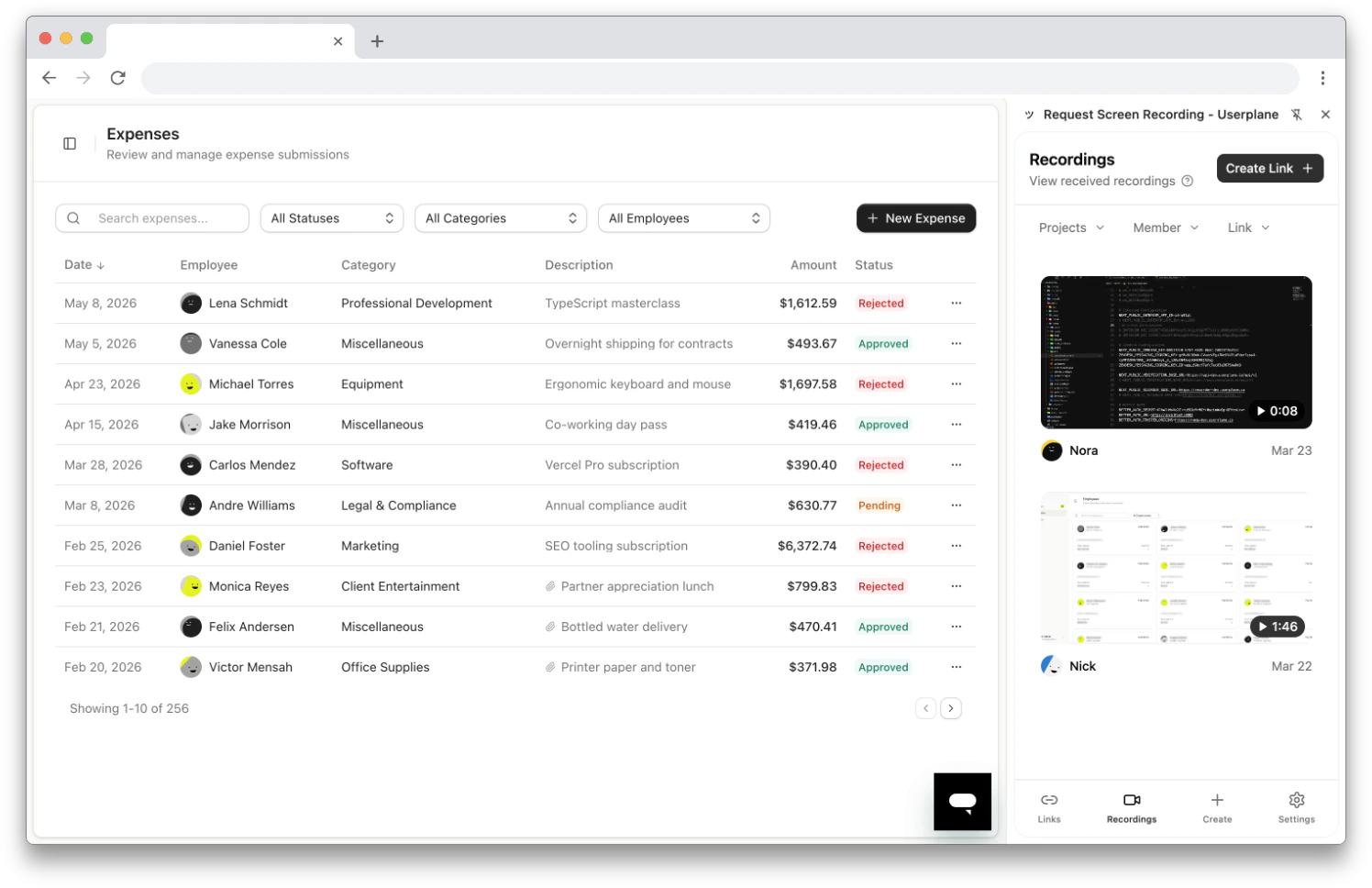
The **Recordings** tab in the Chrome extension side panel shows all recordings received in your workspace. Recordings can be browsed and filtered directly in the side panel, then opened in the Userplane dashboard for full playback and analysis.
## Browsing recordings
Recordings are displayed as cards in a scrollable list with infinite scroll. Each recording card shows:
* **Video thumbnail** — a preview frame from the recording, with a play button overlay. If the thumbnail isn't available, a fallback icon is shown.
* **Duration** — displayed as MM:SS in the bottom corner of the thumbnail.
* **Creator** — avatar and name of the person who submitted the recording.
* **Creation date**.
 ## Filtering
Use the filter dropdowns at the top to narrow the list:
* **Projects** — show recordings associated with one or more projects.
* **Member** — show recordings by a specific creator.
* **Link** — show recordings from a specific recording link.
## Sorting
Sort recordings by:
* **Creation date** — newest or oldest first.
* **Duration** — longest or shortest first.
## Expiry warnings
If a recording is set to expire within 7 days, an **expiring soon** badge appears on the card.
## Opening a recording
Click any recording card to open it in the **Userplane dashboard** in a new tab. The dashboard provides the full playback experience with:
* Video playback with timeline scrubbing
* Console logs (errors, warnings, messages)
* Network requests (status codes, timing)
* User actions (clicks, inputs, navigation)
* Custom metadata and session info
* Issue Analyzer for automated root-cause analysis
You can also click the **copy** button on a recording card to copy a direct link to the recording.
## Related articles
* [Chrome Extension Link Creation](/integrations/chrome-extension-create-links) — create links that generate recordings.
* [Chrome Extension Link Management](/integrations/chrome-extension-manage-links) — browse and manage recording links.
* [Reviewing Recordings](/recording/reviewing) — full guide to the dashboard recording detail view.
* [Recording Playback](/recording/playback) — video player controls and timeline features.
* [Issue Analyzer](/recording/issue-analyzer) — automated root-cause analysis.
## Filtering
Use the filter dropdowns at the top to narrow the list:
* **Projects** — show recordings associated with one or more projects.
* **Member** — show recordings by a specific creator.
* **Link** — show recordings from a specific recording link.
## Sorting
Sort recordings by:
* **Creation date** — newest or oldest first.
* **Duration** — longest or shortest first.
## Expiry warnings
If a recording is set to expire within 7 days, an **expiring soon** badge appears on the card.
## Opening a recording
Click any recording card to open it in the **Userplane dashboard** in a new tab. The dashboard provides the full playback experience with:
* Video playback with timeline scrubbing
* Console logs (errors, warnings, messages)
* Network requests (status codes, timing)
* User actions (clicks, inputs, navigation)
* Custom metadata and session info
* Issue Analyzer for automated root-cause analysis
You can also click the **copy** button on a recording card to copy a direct link to the recording.
## Related articles
* [Chrome Extension Link Creation](/integrations/chrome-extension-create-links) — create links that generate recordings.
* [Chrome Extension Link Management](/integrations/chrome-extension-manage-links) — browse and manage recording links.
* [Reviewing Recordings](/recording/reviewing) — full guide to the dashboard recording detail view.
* [Recording Playback](/recording/playback) — video player controls and timeline features.
* [Issue Analyzer](/recording/issue-analyzer) — automated root-cause analysis.