> ## Documentation Index
> Fetch the complete documentation index at: https://docs.userplane.io/llms.txt
> Use this file to discover all available pages before exploring further.
# Chrome Extension
> Manage recording links and view recordings from a Chrome side panel without leaving your browser
The Chrome extension lets your support team create recording links, manage links, and view recordings from a dedicated side panel — without leaving the browser tab. It works alongside any web-based tool, including help desks, CRMs, and internal dashboards.
## What the extension does
* Opens as a Chrome **side panel** for creating, managing, and sharing recording links.
* Supports a **keyboard shortcut** (`Cmd+Shift+Y` on Mac, `Ctrl+Shift+Y` on Windows/Linux) to open the Create Link form instantly.
* Provides **right-click context menus** for creating links and navigating to links or recordings.
* Includes an **omnibox command** — type `userplane` in the address bar, then a reference — to jump straight to link creation with a pre-filled reference.
* **Auto-populates** the link reference field with the current page URL (configurable in settings).
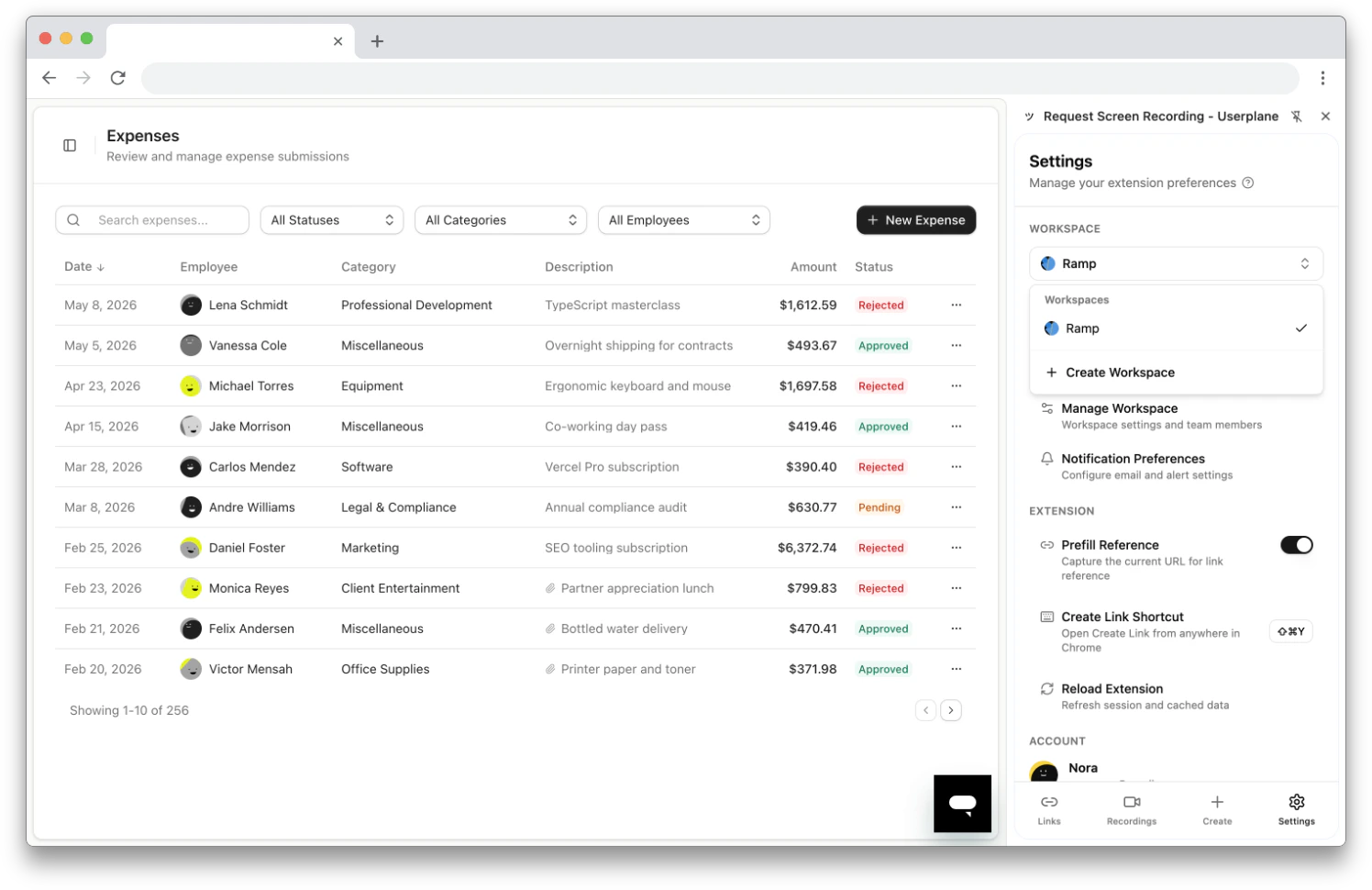
* Supports **workspace switching** for teams with multiple workspaces.
The Chrome extension is a management tool — it does not record the screen itself. Customers record
by clicking the recording link you share with them.
## Installing the extension
Find **Userplane** in the [Chrome Web Store](https://chromewebstore.google.com/detail/request-screen-recording/bgmbeifpcfepegcjhjdbocjbecpfmakm) and click **Add to Chrome**.
Click the **Extensions** icon (puzzle piece) in the Chrome toolbar and pin Userplane so it's always visible.
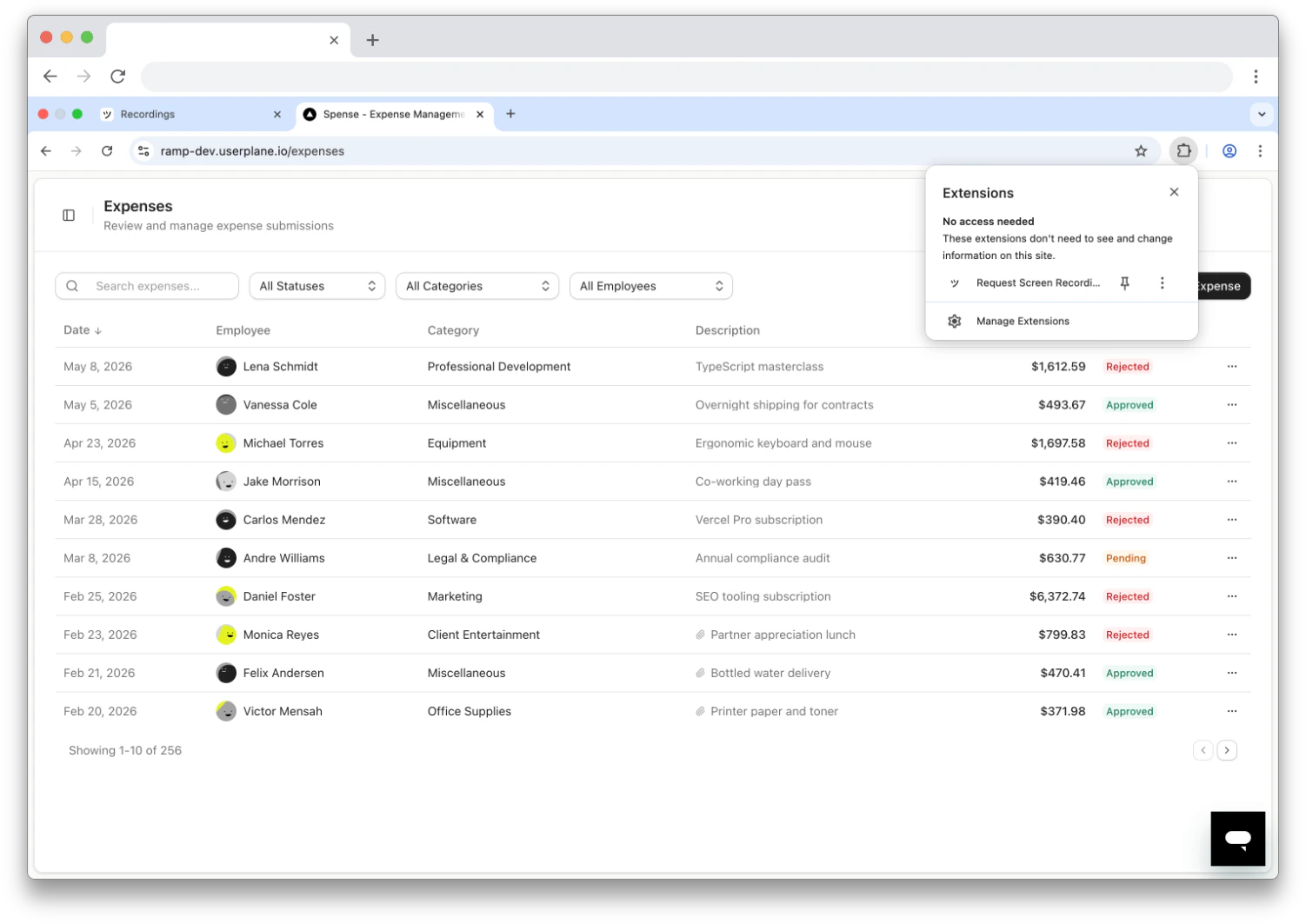 Click the **Userplane** icon in the toolbar. The side panel opens on the right side of your browser window.
## Signing in
On first open, the side panel shows a login prompt. Click **Sign in to continue**.
Click the **Userplane** icon in the toolbar. The side panel opens on the right side of your browser window.
## Signing in
On first open, the side panel shows a login prompt. Click **Sign in to continue**.
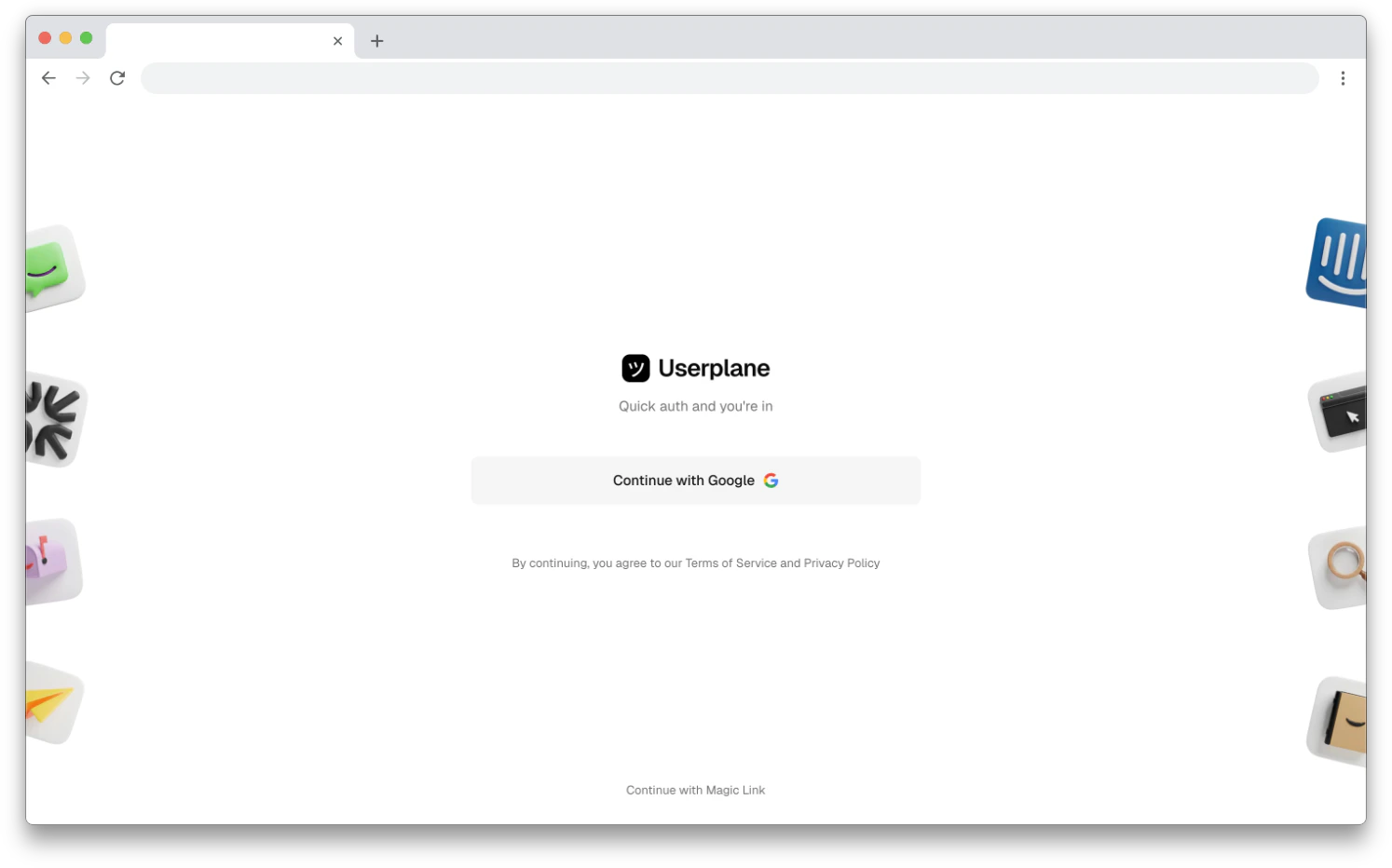
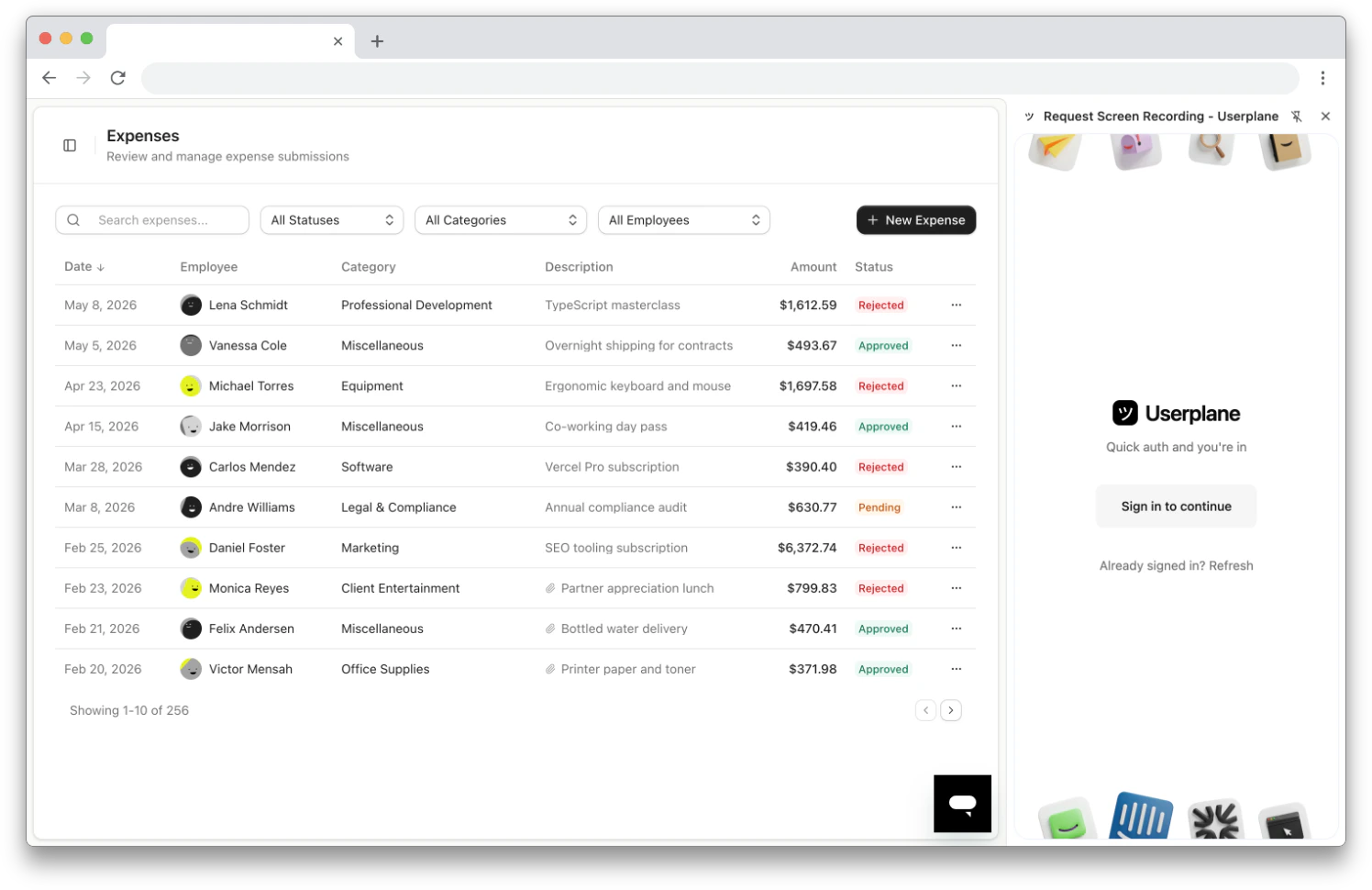 A new tab opens to the Userplane dashboard. Sign in with your account.
 Return to the side panel. If it hasn't updated, click **Already signed in? Refresh**.
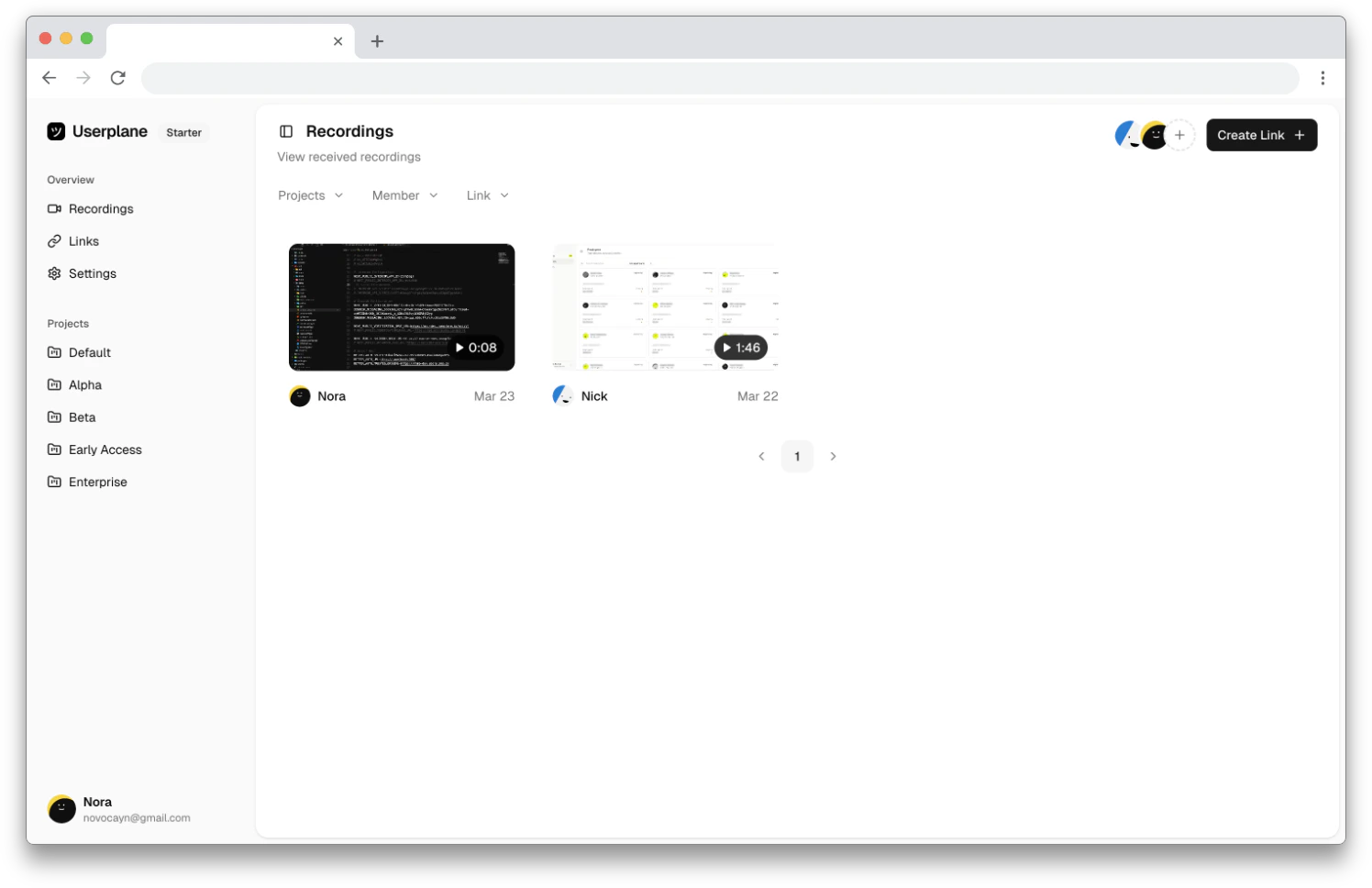 If you belong to multiple workspaces, select the one you want to use. You can switch workspaces later from the Settings tab.
 ## Extension permissions
When you install the extension, Chrome grants the following permissions:
| Permission | What it's used for |
| ----------------- | ------------------------------------------------------------ |
| **Storage** | Persisting your workspace selection and preferences |
| **Side Panel** | Displaying the Userplane interface alongside your browser |
| **Tabs** | Reading the current tab URL to auto-populate link references |
| **Context Menus** | Adding right-click options for quick link creation |
The extension also communicates with the Userplane API to fetch and manage your workspace data.
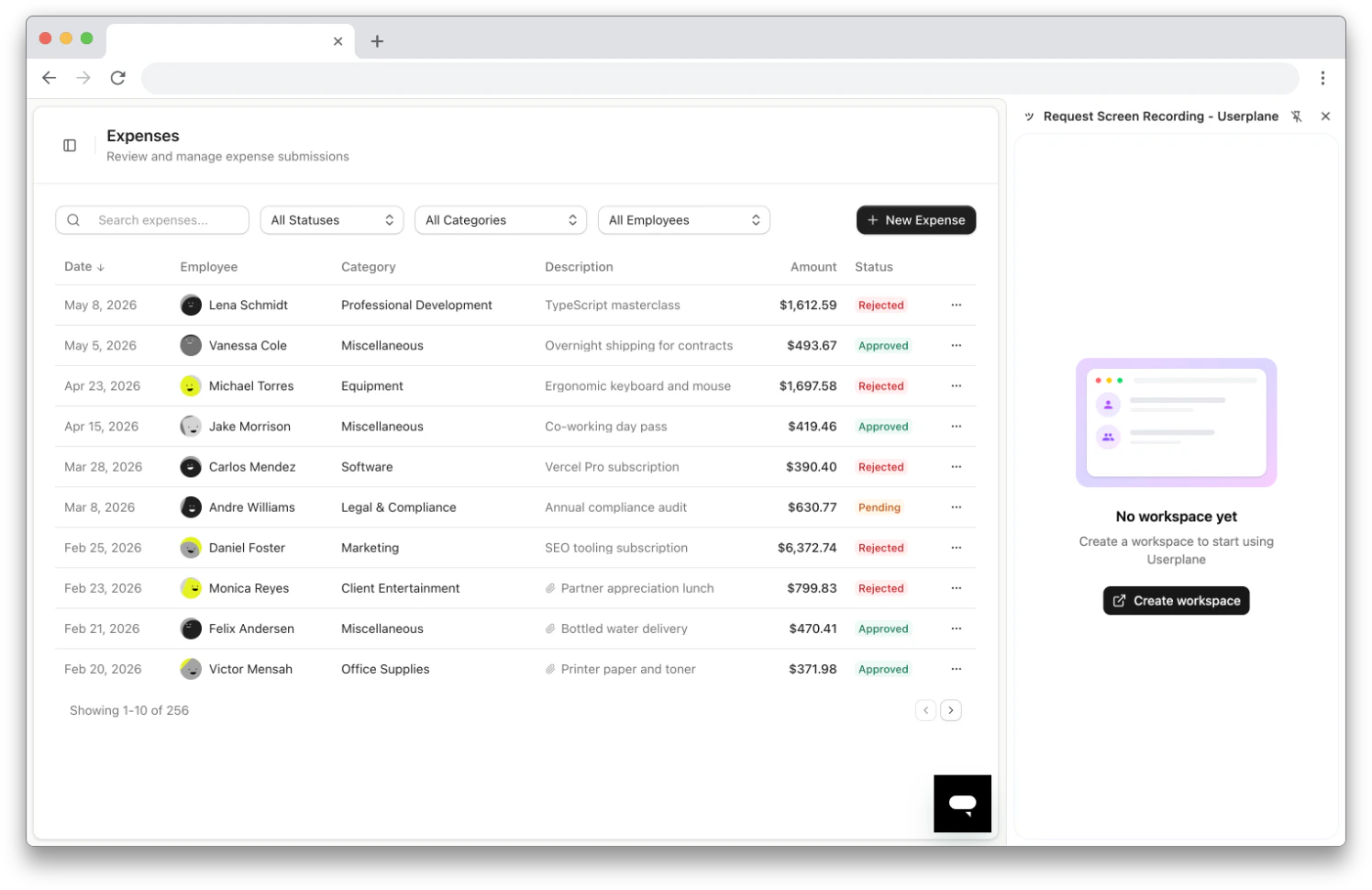
If you don't have a workspace yet, the extension prompts you to create one.
## Extension permissions
When you install the extension, Chrome grants the following permissions:
| Permission | What it's used for |
| ----------------- | ------------------------------------------------------------ |
| **Storage** | Persisting your workspace selection and preferences |
| **Side Panel** | Displaying the Userplane interface alongside your browser |
| **Tabs** | Reading the current tab URL to auto-populate link references |
| **Context Menus** | Adding right-click options for quick link creation |
The extension also communicates with the Userplane API to fetch and manage your workspace data.
If you don't have a workspace yet, the extension prompts you to create one.
 ## Requirements
* Google Chrome (or Chromium-based browsers like Edge)
* A Userplane workspace account
## Related articles
* [Chrome Extension Side Panel](/integrations/chrome-extension-side-panel) — overview of the side panel navigation and views.
* [Chrome Extension Link Creation](/integrations/chrome-extension-create-links) — all the ways to create links from the extension.
* [Chrome Extension Link Management](/integrations/chrome-extension-manage-links) — browse, filter, edit, and delete links.
* [Chrome Extension Recordings](/integrations/chrome-extension-recordings) — browse and review received recordings.
* [Chrome Extension Shortcuts](/integrations/chrome-extension-shortcuts) — quick reference for all access methods.
* [Chrome Extension Settings](/integrations/chrome-extension-settings) — configure workspace, preferences, and account settings.
* [Help Desk Setup](/getting-started/helpdesk-setup) — connect your help desk to Userplane.
* [Other Help Desks](/integrations/other-helpdesks) — use the extension alongside any help desk.
## Requirements
* Google Chrome (or Chromium-based browsers like Edge)
* A Userplane workspace account
## Related articles
* [Chrome Extension Side Panel](/integrations/chrome-extension-side-panel) — overview of the side panel navigation and views.
* [Chrome Extension Link Creation](/integrations/chrome-extension-create-links) — all the ways to create links from the extension.
* [Chrome Extension Link Management](/integrations/chrome-extension-manage-links) — browse, filter, edit, and delete links.
* [Chrome Extension Recordings](/integrations/chrome-extension-recordings) — browse and review received recordings.
* [Chrome Extension Shortcuts](/integrations/chrome-extension-shortcuts) — quick reference for all access methods.
* [Chrome Extension Settings](/integrations/chrome-extension-settings) — configure workspace, preferences, and account settings.
* [Help Desk Setup](/getting-started/helpdesk-setup) — connect your help desk to Userplane.
* [Other Help Desks](/integrations/other-helpdesks) — use the extension alongside any help desk.