> ## Documentation Index
> Fetch the complete documentation index at: https://docs.userplane.io/llms.txt
> Use this file to discover all available pages before exploring further.

# Intercom Inbox

> Create recording links and view recordings from the Intercom inbox sidebar

After [connecting Intercom](/integrations/intercom), a Userplane sidebar app appears in your Intercom inbox. This app lets agents create recording links, view recordings, and associate them with conversations — all without leaving Intercom.

## Creating a recording link

<Steps>
  <Step title="Open a conversation">
    Open a conversation in the Intercom inbox and click the **Userplane** sidebar app.
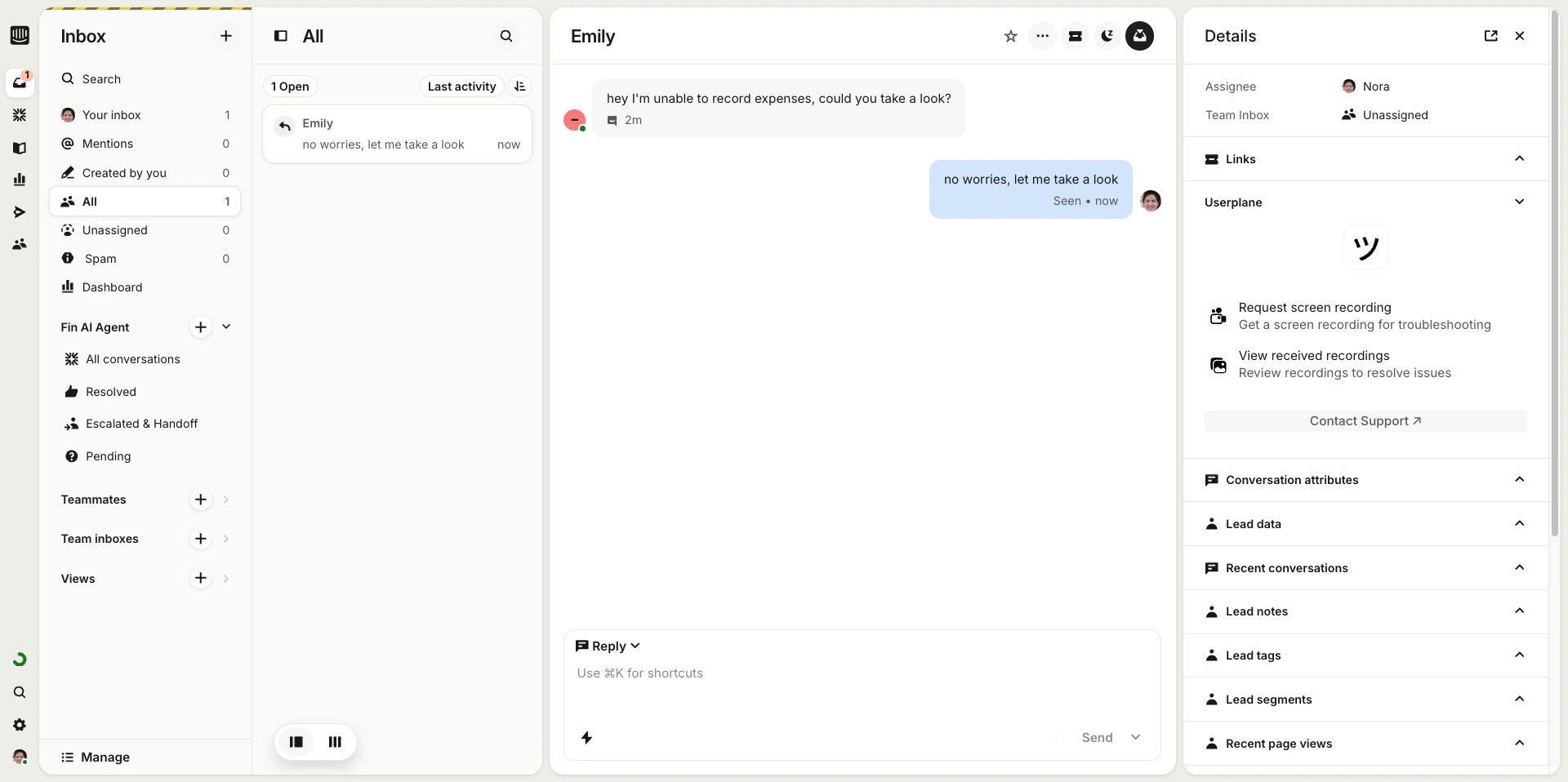
    <Frame caption="Userplane sidebar in Intercom">
      <img src="https://mintcdn.com/userplane/iHJrxtyvOmNXmfMS/media/intercom/intercom-inbox/sidebar/intercom-sidebar.png?fit=max&auto=format&n=iHJrxtyvOmNXmfMS&q=85&s=126e55f4c8d577fd3ec08571c27599c0" width="1920" height="958" data-path="media/intercom/intercom-inbox/sidebar/intercom-sidebar.png" />
    </Frame>
  </Step>

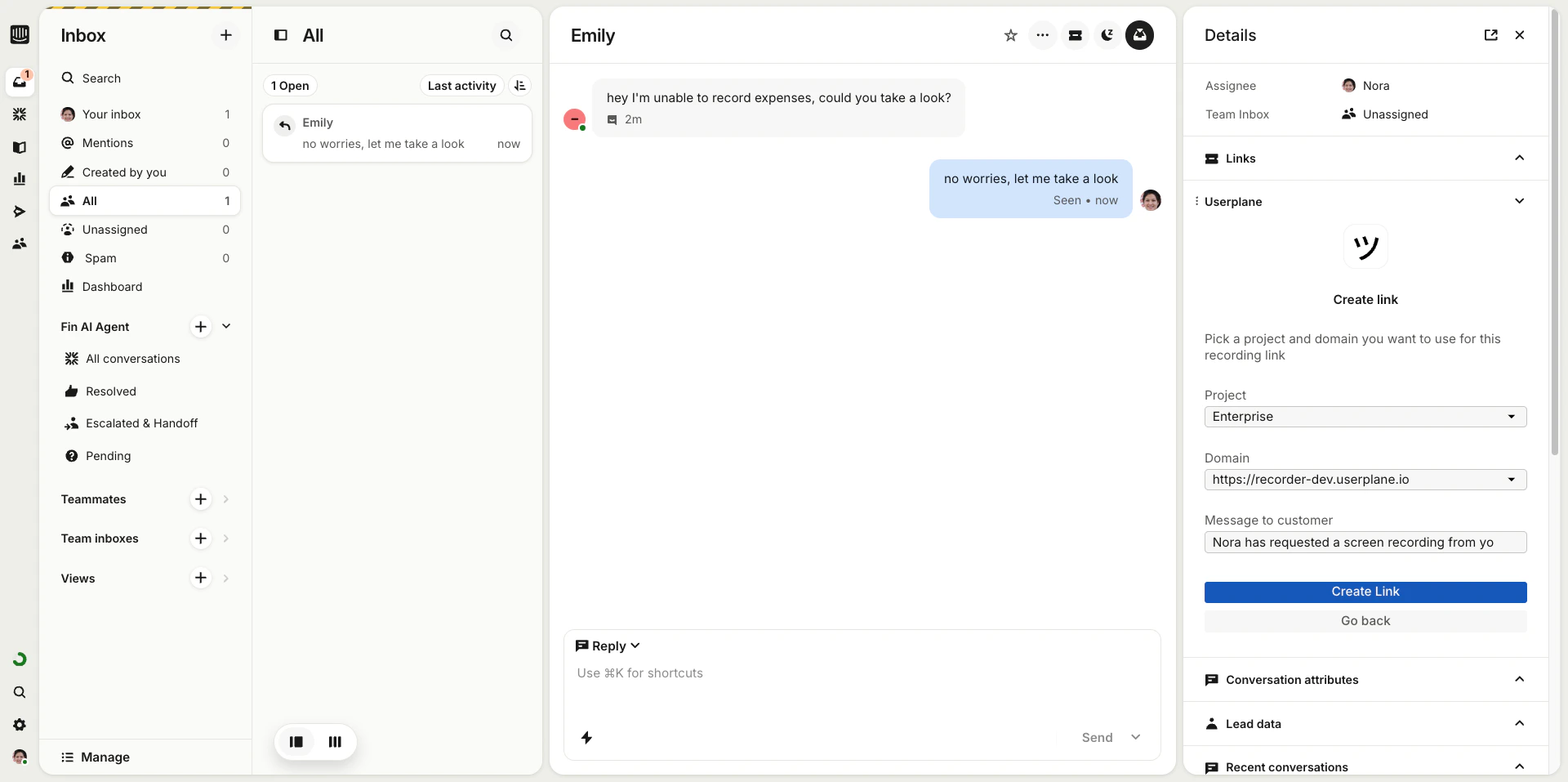
  <Step title="Fill in the link details">
    Click **Create Link**, select a **project** and **domain** from the dropdowns, then click **Create**.
    <Frame caption="Create link form in sidebar">
      <img src="https://mintcdn.com/userplane/iHJrxtyvOmNXmfMS/media/intercom/intercom-inbox/sidebar/intercom-create-link-form-sidebar.png?fit=max&auto=format&n=iHJrxtyvOmNXmfMS&q=85&s=cf77d3b1a9fa69146c6f2600b001246a" width="1920" height="957" data-path="media/intercom/intercom-inbox/sidebar/intercom-create-link-form-sidebar.png" />
    </Frame>
  </Step>

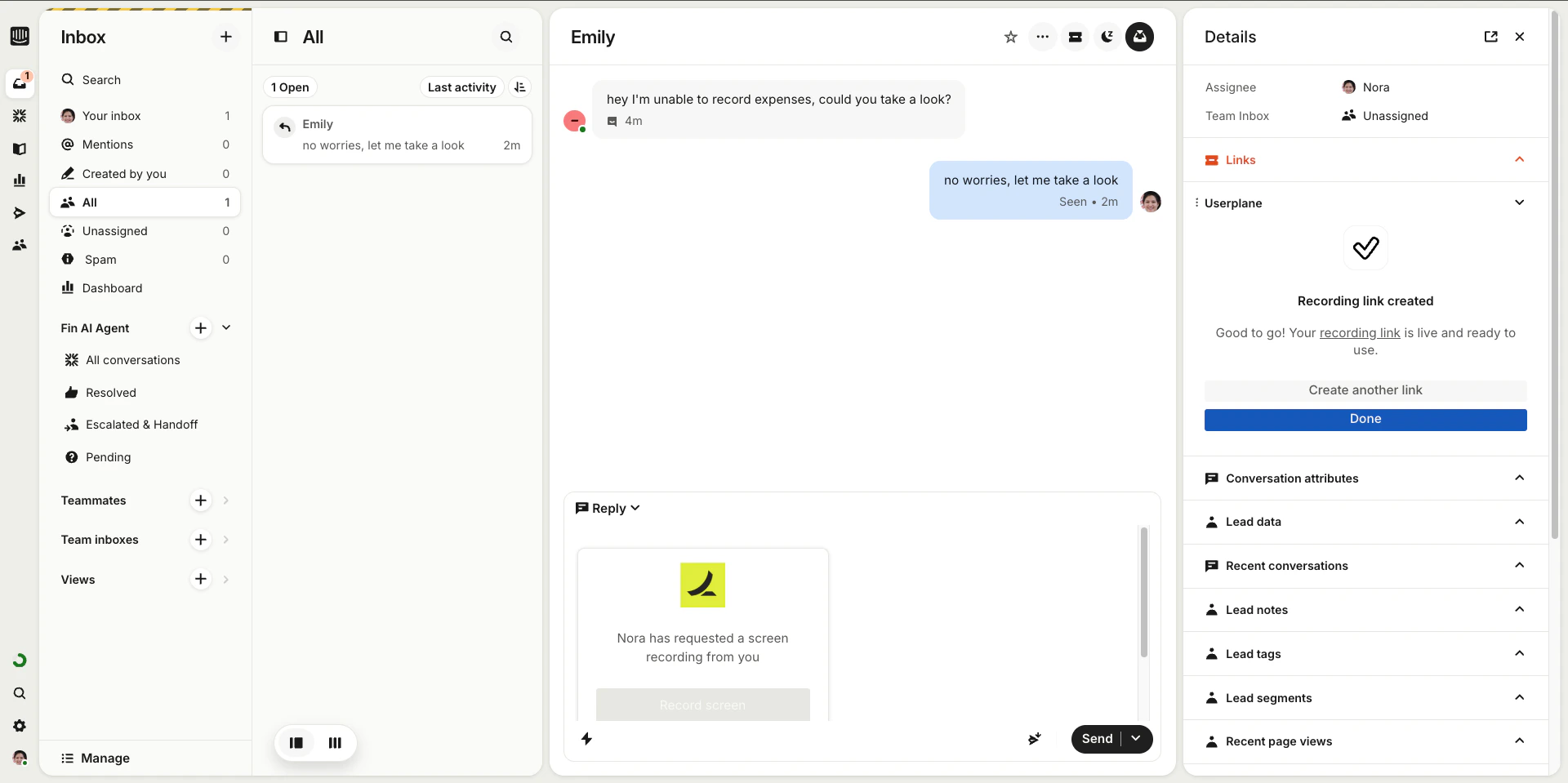
  <Step title="Copy the link">
    The link is generated and ready to share. Copy it to your clipboard.
    <Frame caption="Link created in sidebar">
      <img src="https://mintcdn.com/userplane/iHJrxtyvOmNXmfMS/media/intercom/intercom-inbox/sidebar/intercom-created-link-sidebar.png?fit=max&auto=format&n=iHJrxtyvOmNXmfMS&q=85&s=8fba98437ce12e3e080a3d13fcab8953" width="1920" height="959" data-path="media/intercom/intercom-inbox/sidebar/intercom-created-link-sidebar.png" />
    </Frame>
  </Step>

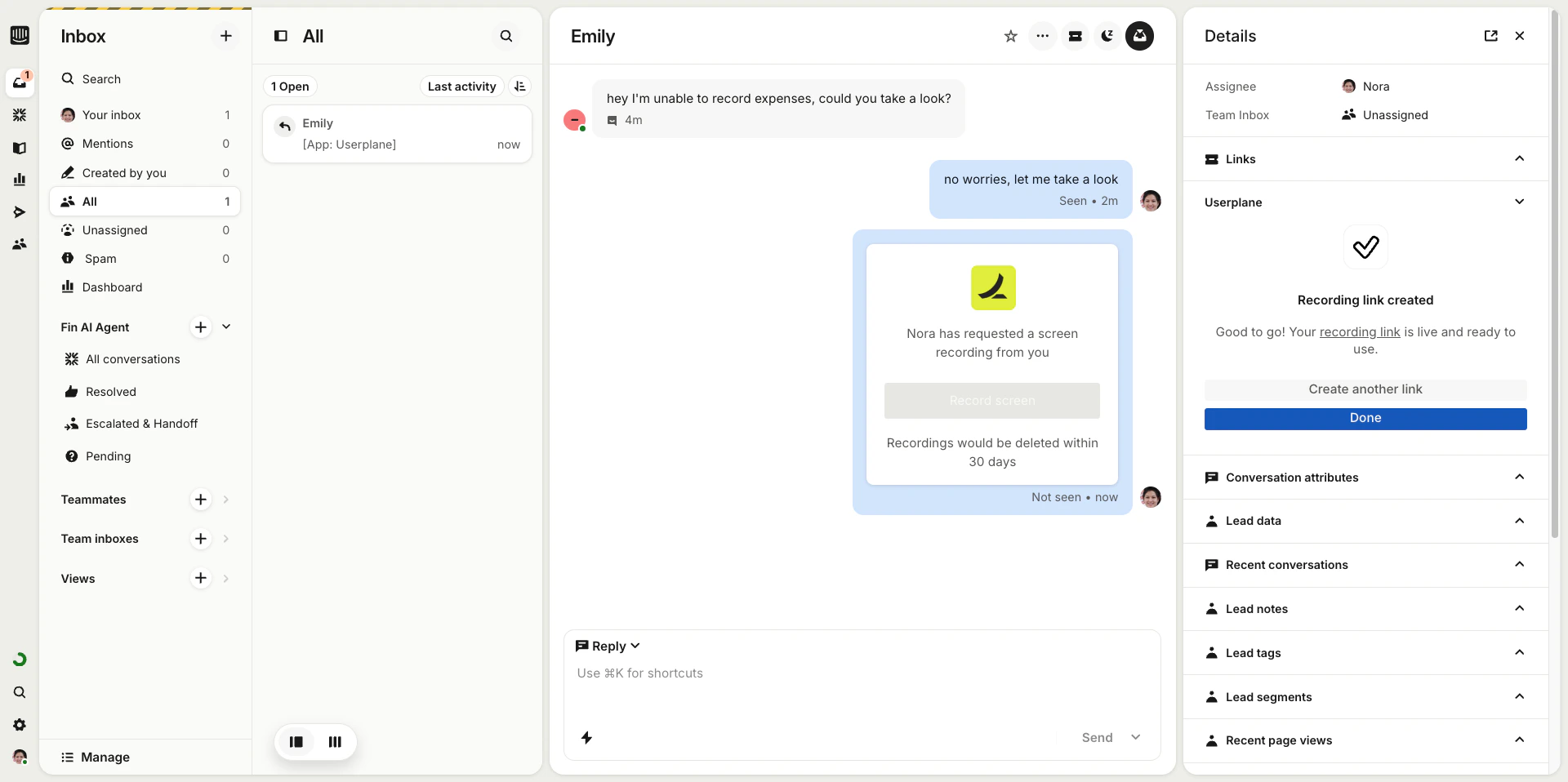
  <Step title="Send to the customer">
    Paste the recording link into the conversation and send it to the customer.
    <Frame caption="Recording link sent to customer">
      <img src="https://mintcdn.com/userplane/iHJrxtyvOmNXmfMS/media/intercom/intercom-inbox/intercom-recording-link-sent.png?fit=max&auto=format&n=iHJrxtyvOmNXmfMS&q=85&s=3ee1b3264b4ce53c4565e27ab3f79d27" width="1920" height="958" data-path="media/intercom/intercom-inbox/intercom-recording-link-sent.png" />
    </Frame>
  </Step>
</Steps>

## Viewing recordings

When a customer completes a recording, it appears in the conversation automatically.

<Steps>
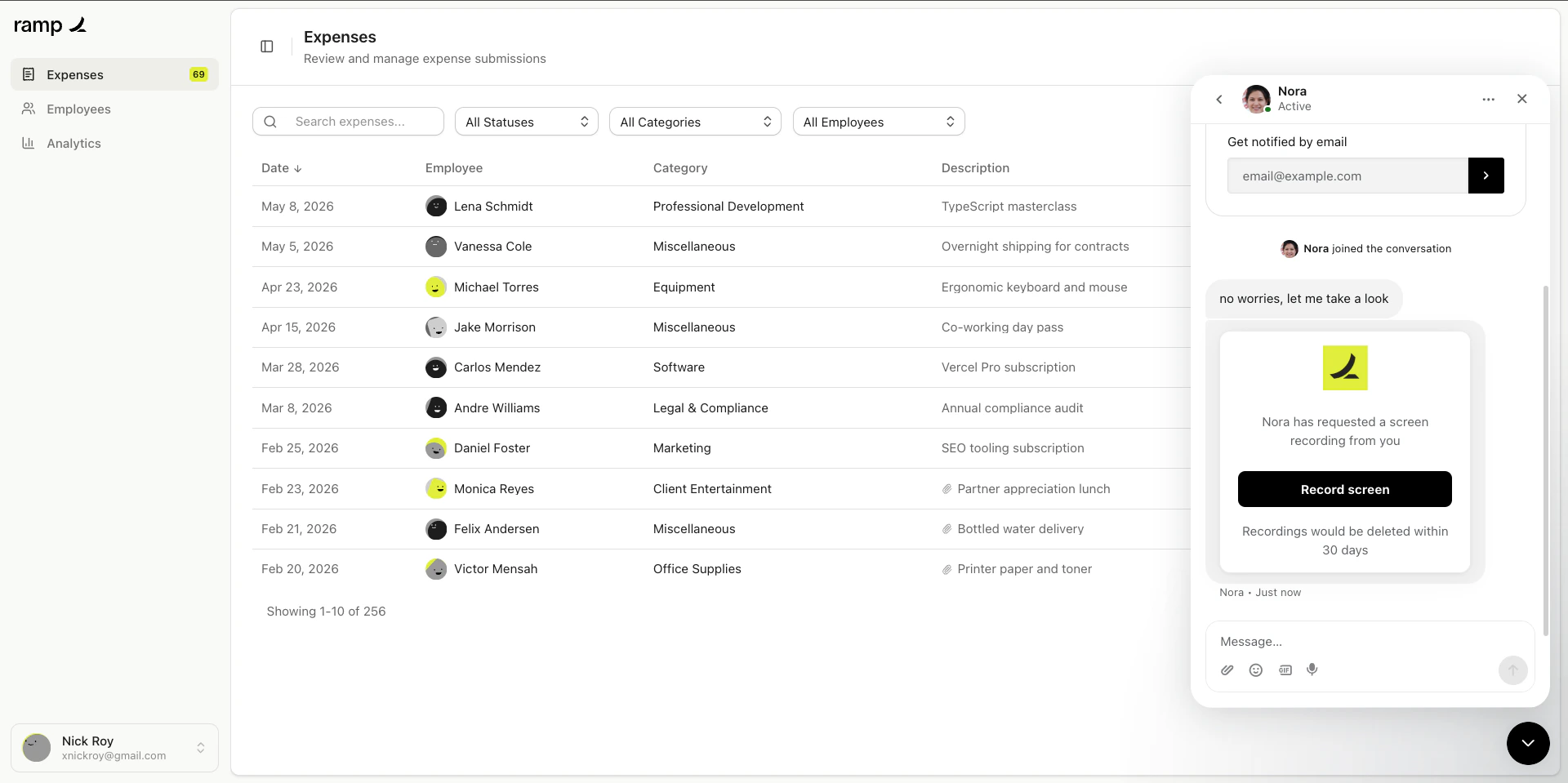
  <Step title="Recording requested">
    The customer clicks the link and completes the recording. You receive a notification in the conversation.
    <Frame caption="Recording link received">
      <img src="https://mintcdn.com/userplane/iHJrxtyvOmNXmfMS/media/intercom/intercom-inbox/intercom-recording-link-received.png?fit=max&auto=format&n=iHJrxtyvOmNXmfMS&q=85&s=b565f79ce7873108442140fa5ca75b84" width="1920" height="959" data-path="media/intercom/intercom-inbox/intercom-recording-link-received.png" />
    </Frame>
  </Step>

  <Step title="Open the recording">
    Click the recording in the sidebar to view its details, or open it in Userplane for full [playback](/recording/playback).
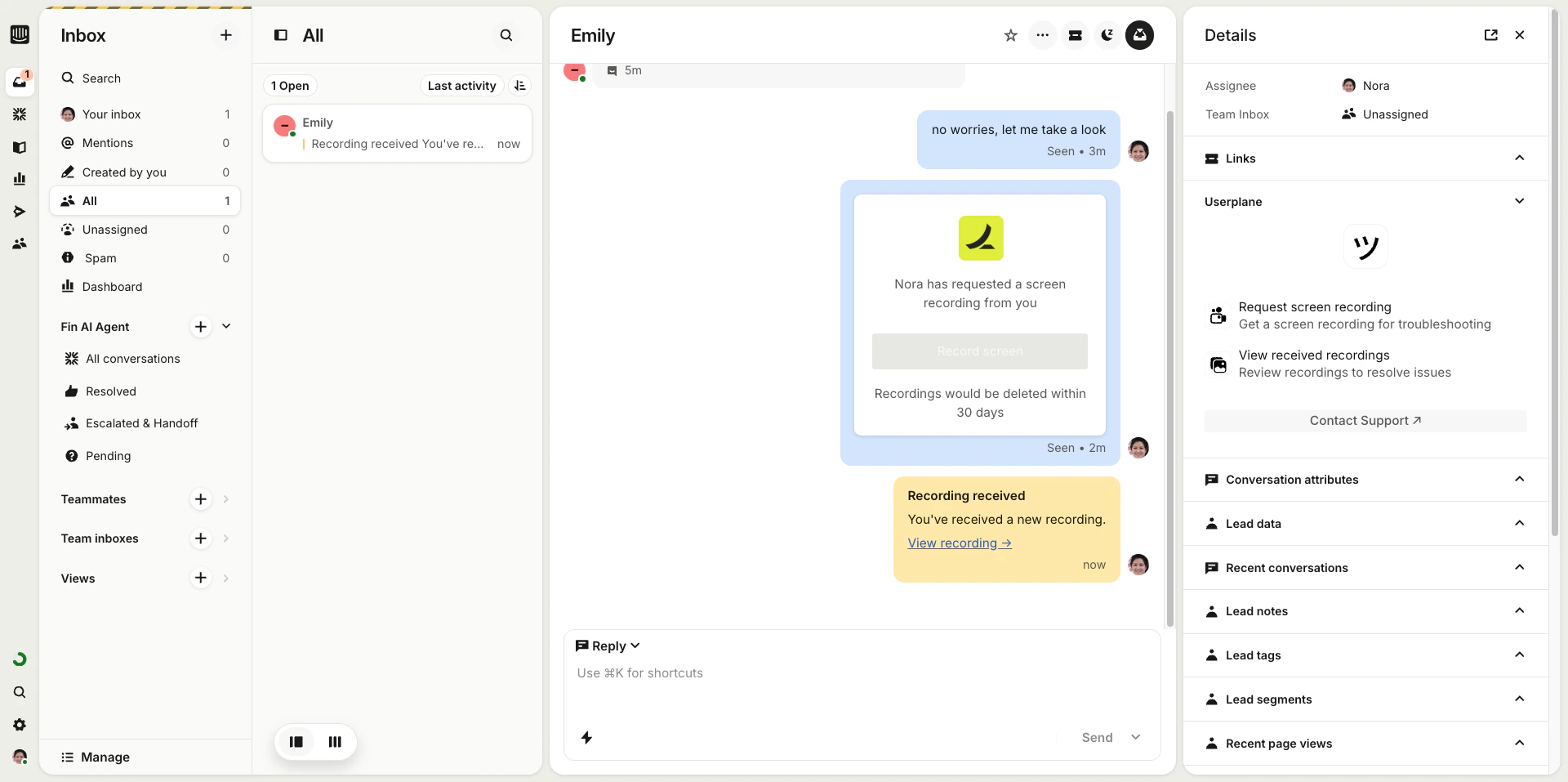
    <Frame caption="Recording received in sidebar">
      <img src="https://mintcdn.com/userplane/iHJrxtyvOmNXmfMS/media/intercom/intercom-inbox/intercom-received-recording.png?fit=max&auto=format&n=iHJrxtyvOmNXmfMS&q=85&s=bef21c2b1d5a5b459b566851acba8f3b" width="1920" height="957" data-path="media/intercom/intercom-inbox/intercom-received-recording.png" />
    </Frame>
  </Step>

  <Step title="Review the recording">
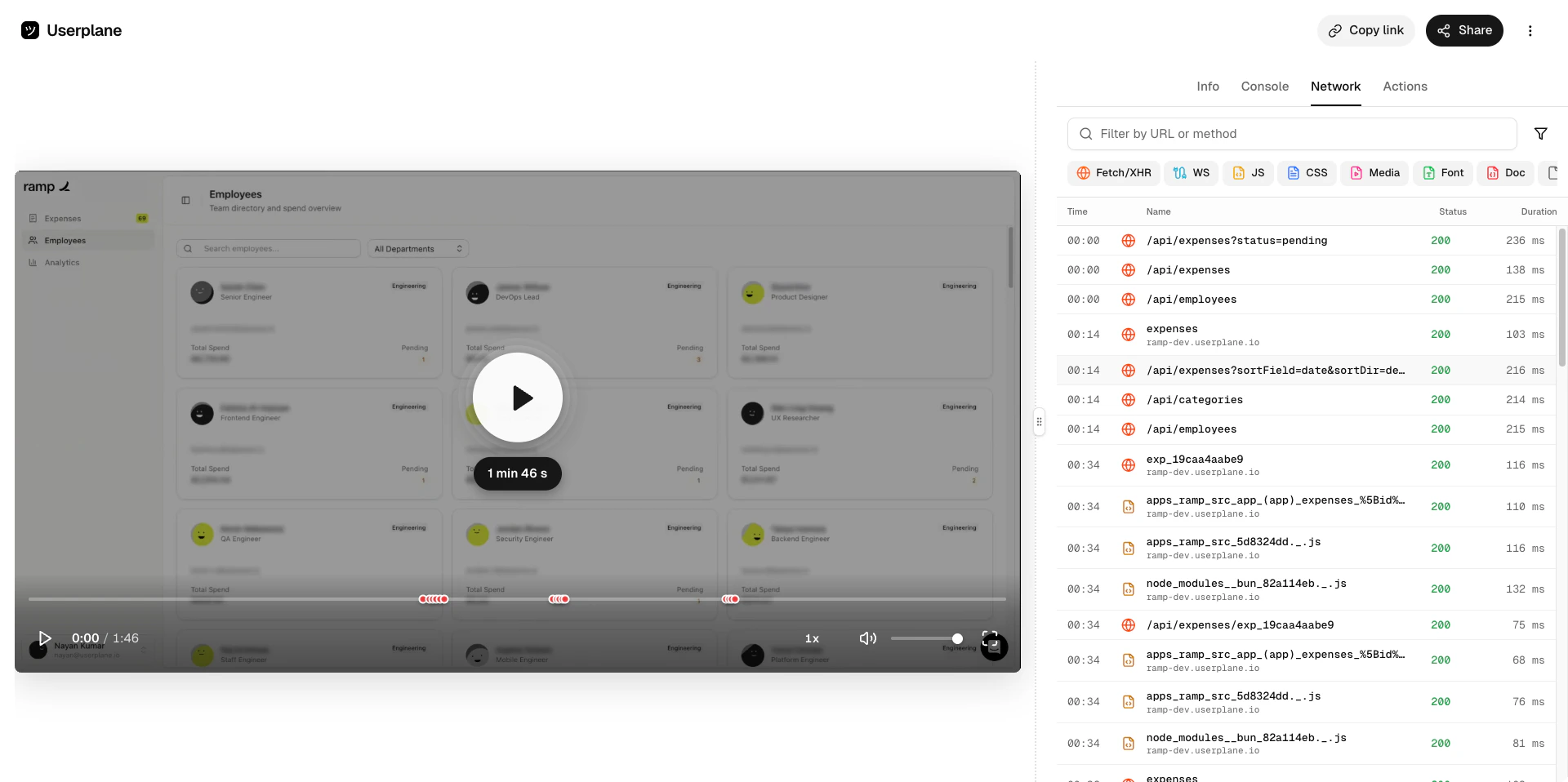
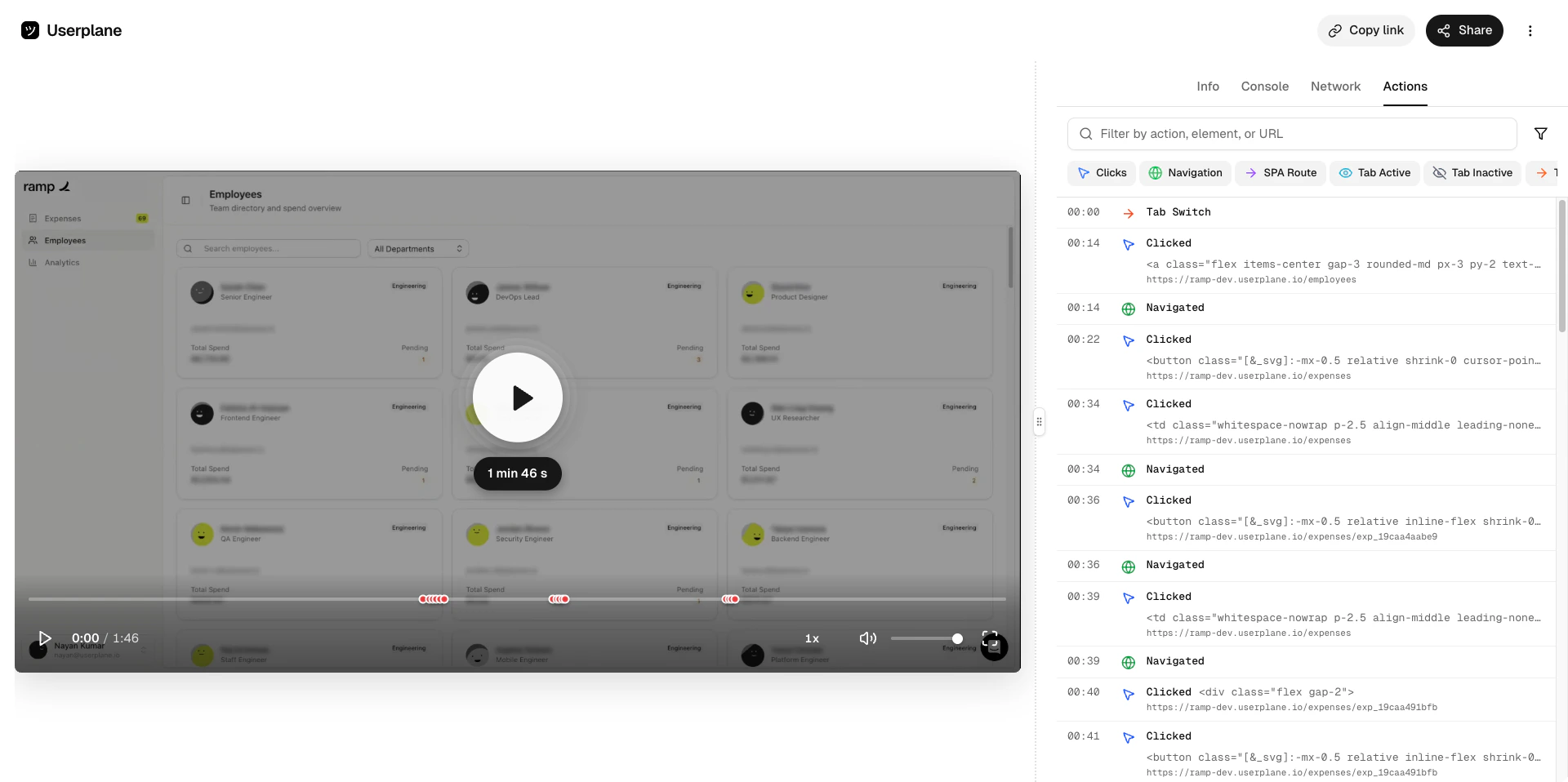
    Watch the video and inspect the captured data — console logs, network requests, user actions, and metadata.
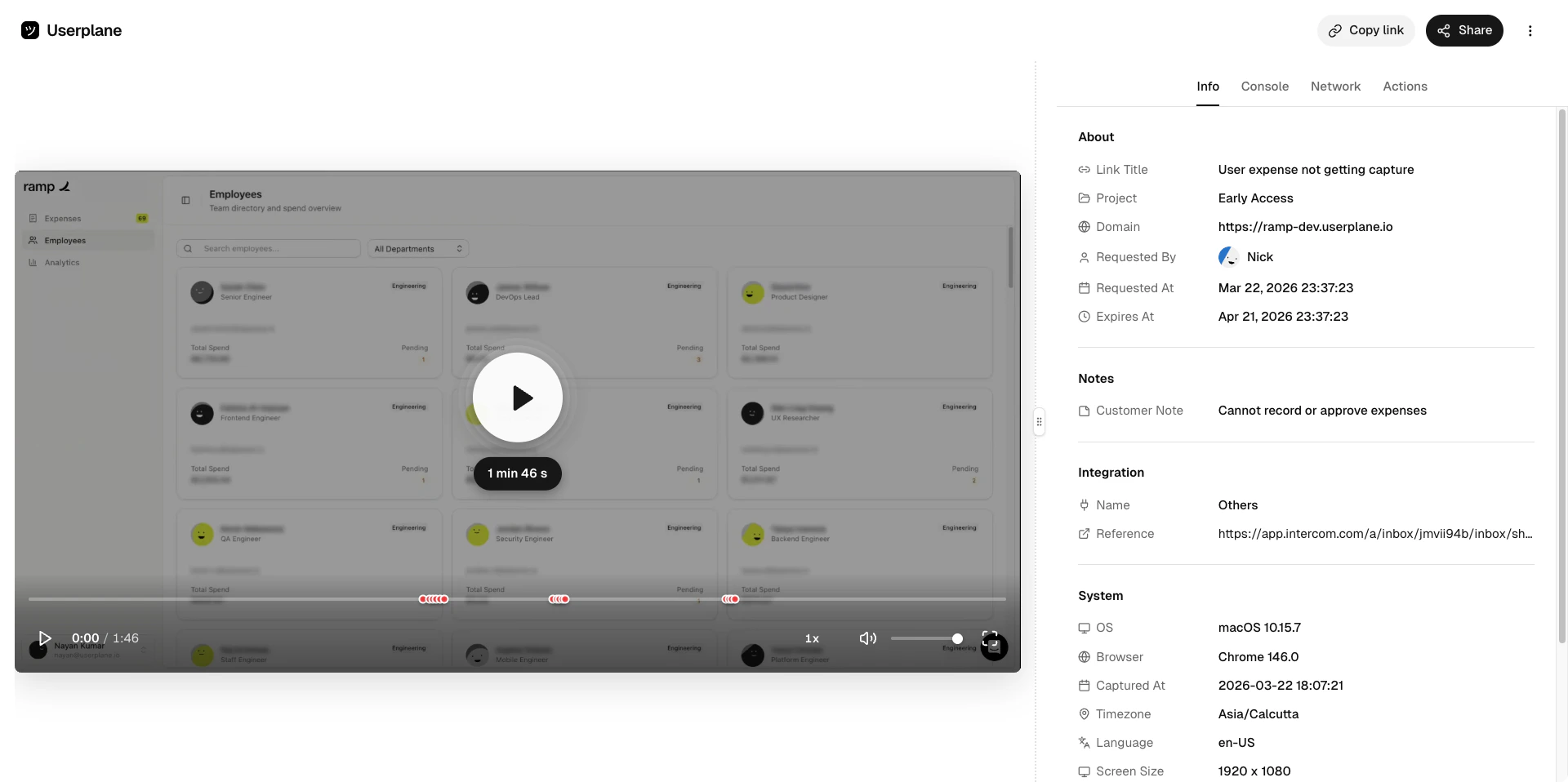
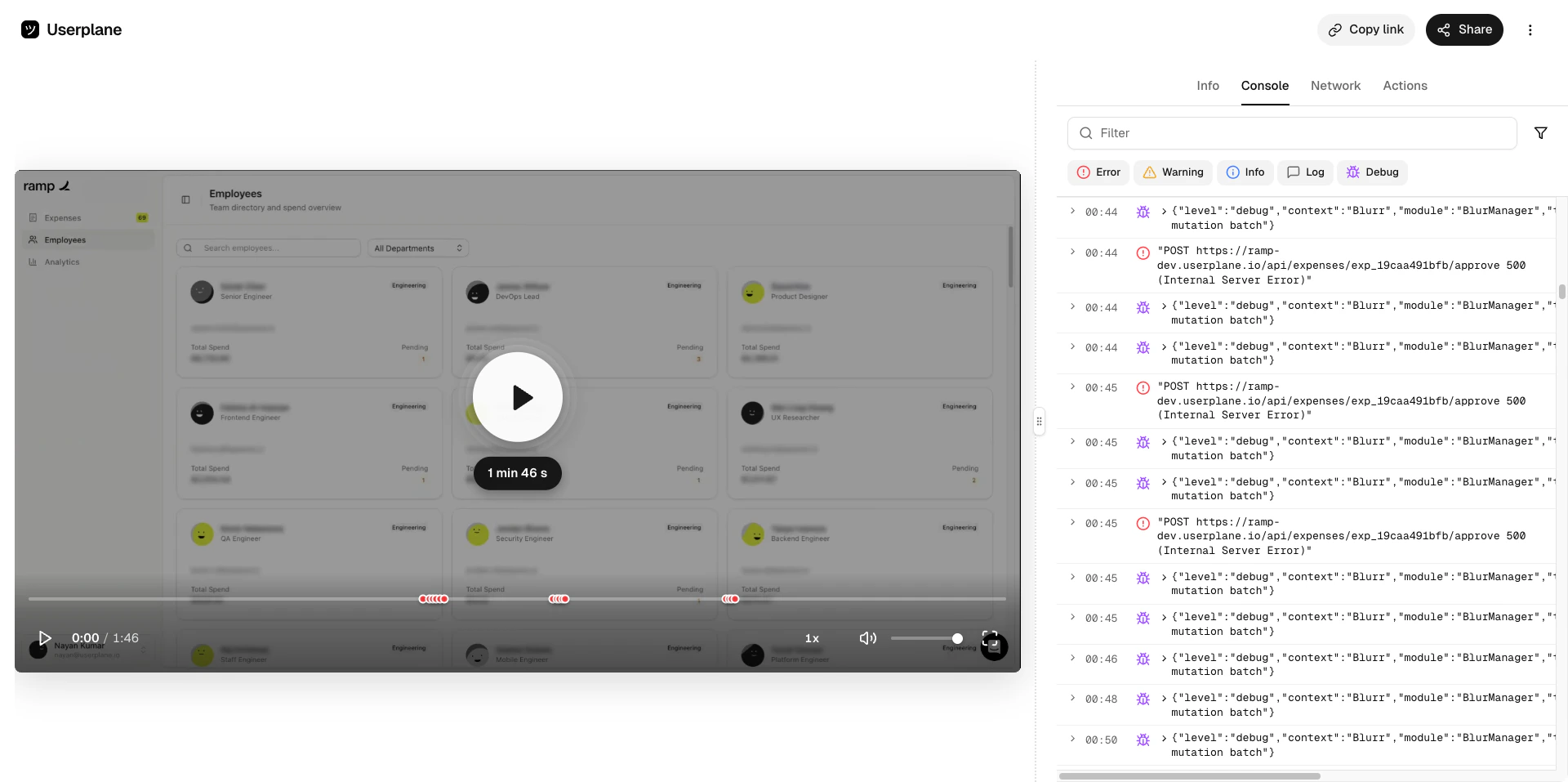
    <Tabs>
      <Tab title="Recording">
        <Frame caption="Recording playback">
          <img src="https://mintcdn.com/userplane/iHJrxtyvOmNXmfMS/media/playback/media/player-playback-screen.png?fit=max&auto=format&n=iHJrxtyvOmNXmfMS&q=85&s=34d146eb3b51ce95c95bfe81f72e50b3" width="1920" height="958" data-path="media/playback/media/player-playback-screen.png" />
        </Frame>
      </Tab>

      <Tab title="Console logs">
        <Frame caption="Console log list">
          <img src="https://mintcdn.com/userplane/iHJrxtyvOmNXmfMS/media/playback/console/console-list-view.png?fit=max&auto=format&n=iHJrxtyvOmNXmfMS&q=85&s=92504dd28ee4f6b7c76fae7e51123cfe" width="1920" height="957" data-path="media/playback/console/console-list-view.png" />
        </Frame>
      </Tab>

      <Tab title="Network logs">
        <Frame caption="Network request list">
          <img src="https://mintcdn.com/userplane/iHJrxtyvOmNXmfMS/media/playback/network/network-panel-list-view.png?fit=max&auto=format&n=iHJrxtyvOmNXmfMS&q=85&s=a6f970197afe084739ad82a0996fbd99" width="1920" height="958" data-path="media/playback/network/network-panel-list-view.png" />
        </Frame>
      </Tab>

      <Tab title="Actions">
        <Frame caption="Actions list">
          <img src="https://mintcdn.com/userplane/iHJrxtyvOmNXmfMS/media/playback/actions/actions-list-view.png?fit=max&auto=format&n=iHJrxtyvOmNXmfMS&q=85&s=648d0c27d24049f06610735f8bbfe212" width="1920" height="958" data-path="media/playback/actions/actions-list-view.png" />
        </Frame>
      </Tab>
    </Tabs>
  </Step>
</Steps>

## Conversation linking

Recordings created through the Intercom sidebar are automatically linked to the conversation. This makes it easy to find the recording later from either Userplane or Intercom.

<Steps>
  <Step title="Issue resolved">
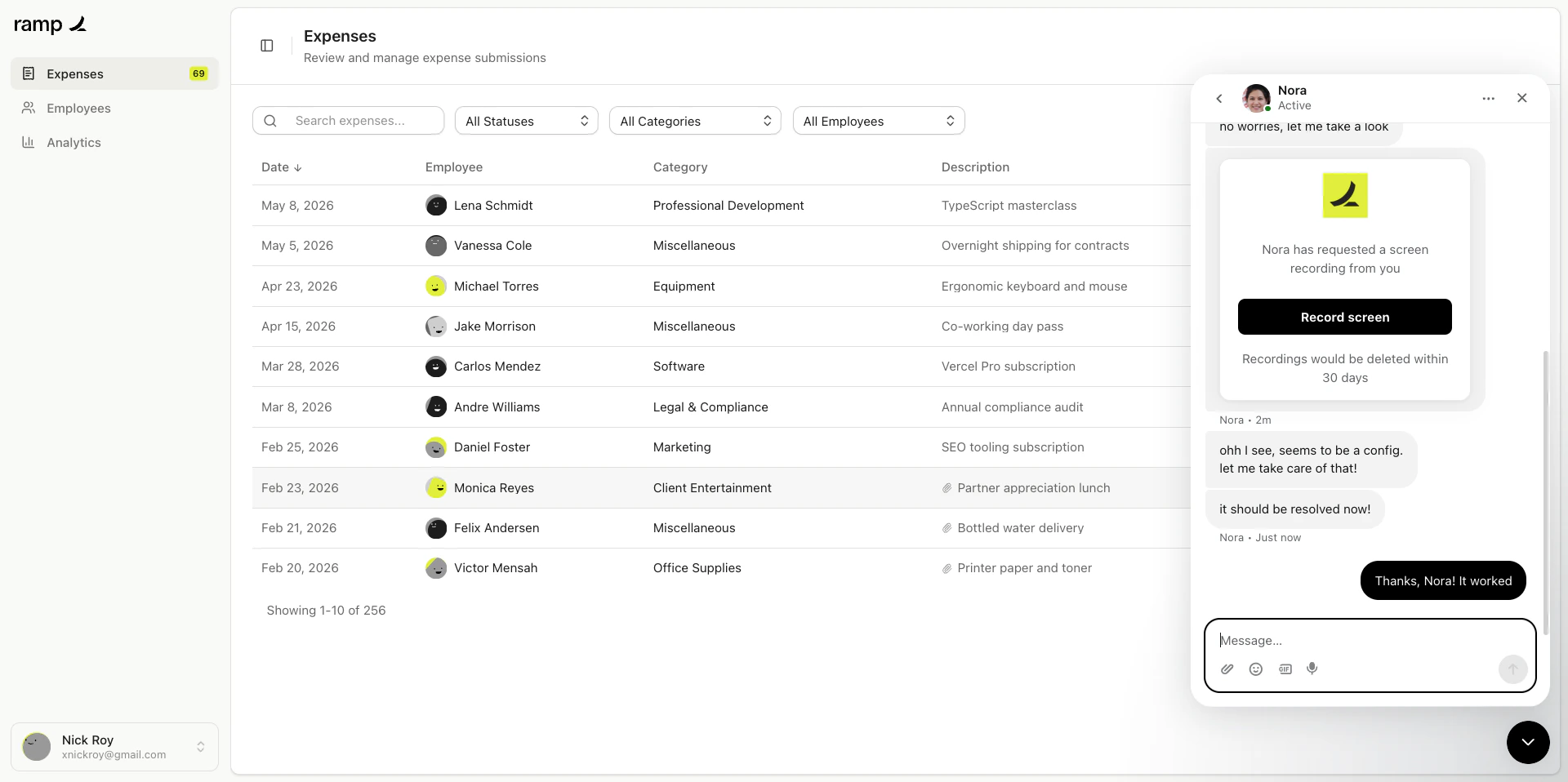
    Once you've reviewed the recording and resolved the issue, close the conversation as normal.
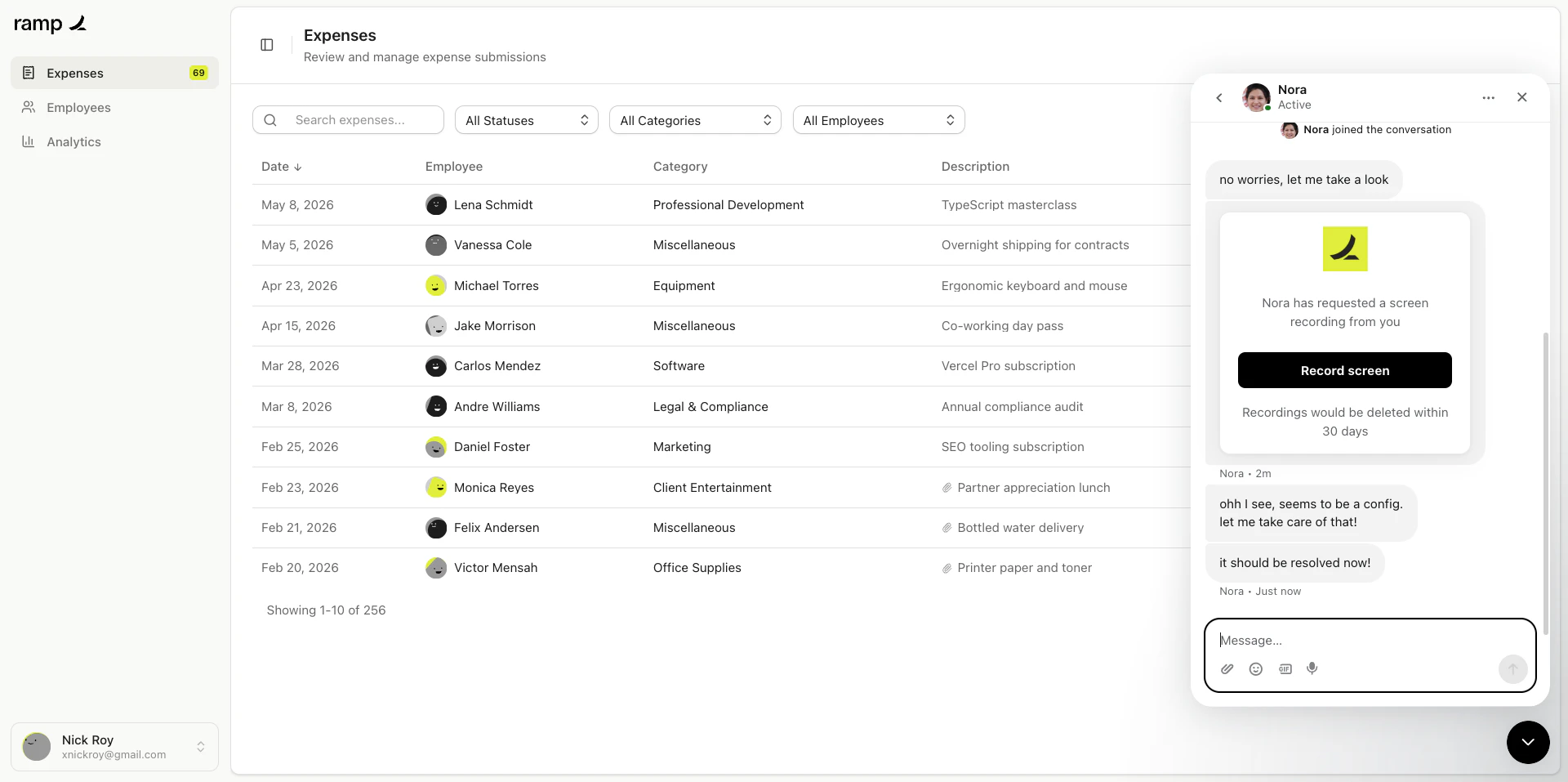
    <Frame caption="Issue resolved">
      <img src="https://mintcdn.com/userplane/iHJrxtyvOmNXmfMS/media/intercom/intercom-inbox/intercom-issue-resolved.png?fit=max&auto=format&n=iHJrxtyvOmNXmfMS&q=85&s=38c55aab1a49525e460d438580710aa2" width="1920" height="957" data-path="media/intercom/intercom-inbox/intercom-issue-resolved.png" />
    </Frame>
  </Step>

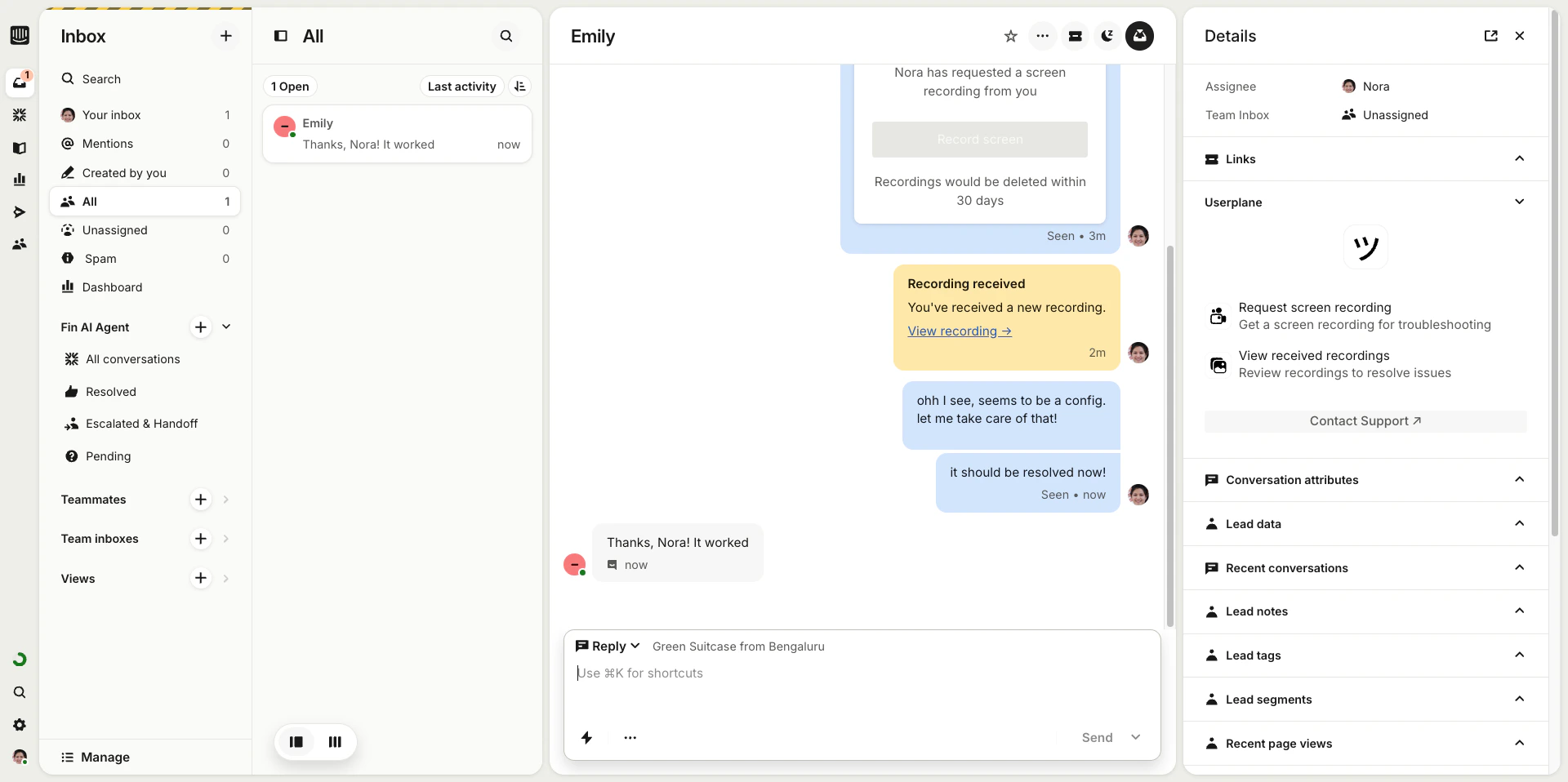
  <Step title="Post-resolution follow-up">
    The recording remains linked to the conversation for future reference.
    <Frame caption="Post-resolution workflow">
      <img src="https://mintcdn.com/userplane/iHJrxtyvOmNXmfMS/media/intercom/intercom-inbox/intercom-post-issue-resolution-part-1.png?fit=max&auto=format&n=iHJrxtyvOmNXmfMS&q=85&s=01d9b07a963458b916a91f82b2662c39" width="1920" height="958" data-path="media/intercom/intercom-inbox/intercom-post-issue-resolution-part-1.png" />
    </Frame>

    <Frame caption="Post-resolution follow-up">
      <img src="https://mintcdn.com/userplane/iHJrxtyvOmNXmfMS/media/intercom/intercom-inbox/intercom-post-issue-resolution-part-2.png?fit=max&auto=format&n=iHJrxtyvOmNXmfMS&q=85&s=81126fd8a686f5e47341643f4bb4f1d9" width="1920" height="958" data-path="media/intercom/intercom-inbox/intercom-post-issue-resolution-part-2.png" />
    </Frame>
  </Step>
</Steps>

## Using Cmd+K instead

<Tip>
  If you prefer keyboard shortcuts, you can also create recording links using the Intercom Cmd+K
  action menu. Press **Cmd+K** (or **Ctrl+K** on Windows), type **Userplane**, and follow the
  prompts. See [Intercom Shortcuts](/integrations/intercom-shortcuts) for details.
</Tip>

## Requirements

* The Intercom integration must be [connected](/integrations/intercom).
* The agent must be a member of the Userplane workspace.