> ## Documentation Index
> Fetch the complete documentation index at: https://docs.userplane.io/llms.txt
> Use this file to discover all available pages before exploring further.
# Intercom Macros
> Use reusable recording links in Intercom macros for quick one-click insertion
Intercom macros let agents insert pre-written responses into conversations with a single click. By adding a [reusable recording link](/recording-links/reusable) to a macro, agents can quickly request screen recordings without creating a new link each time.
## Setting up a macro with a recording link
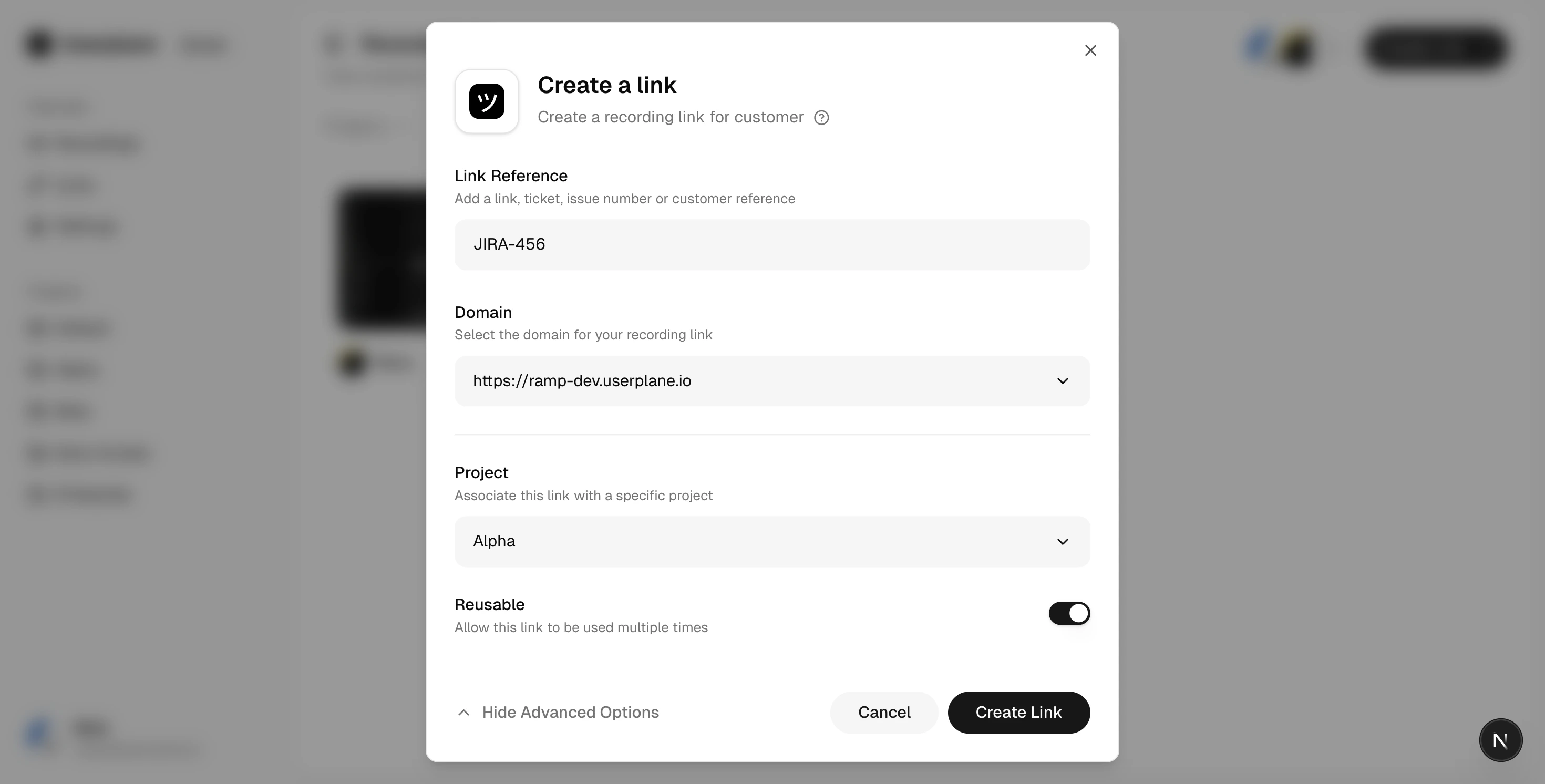
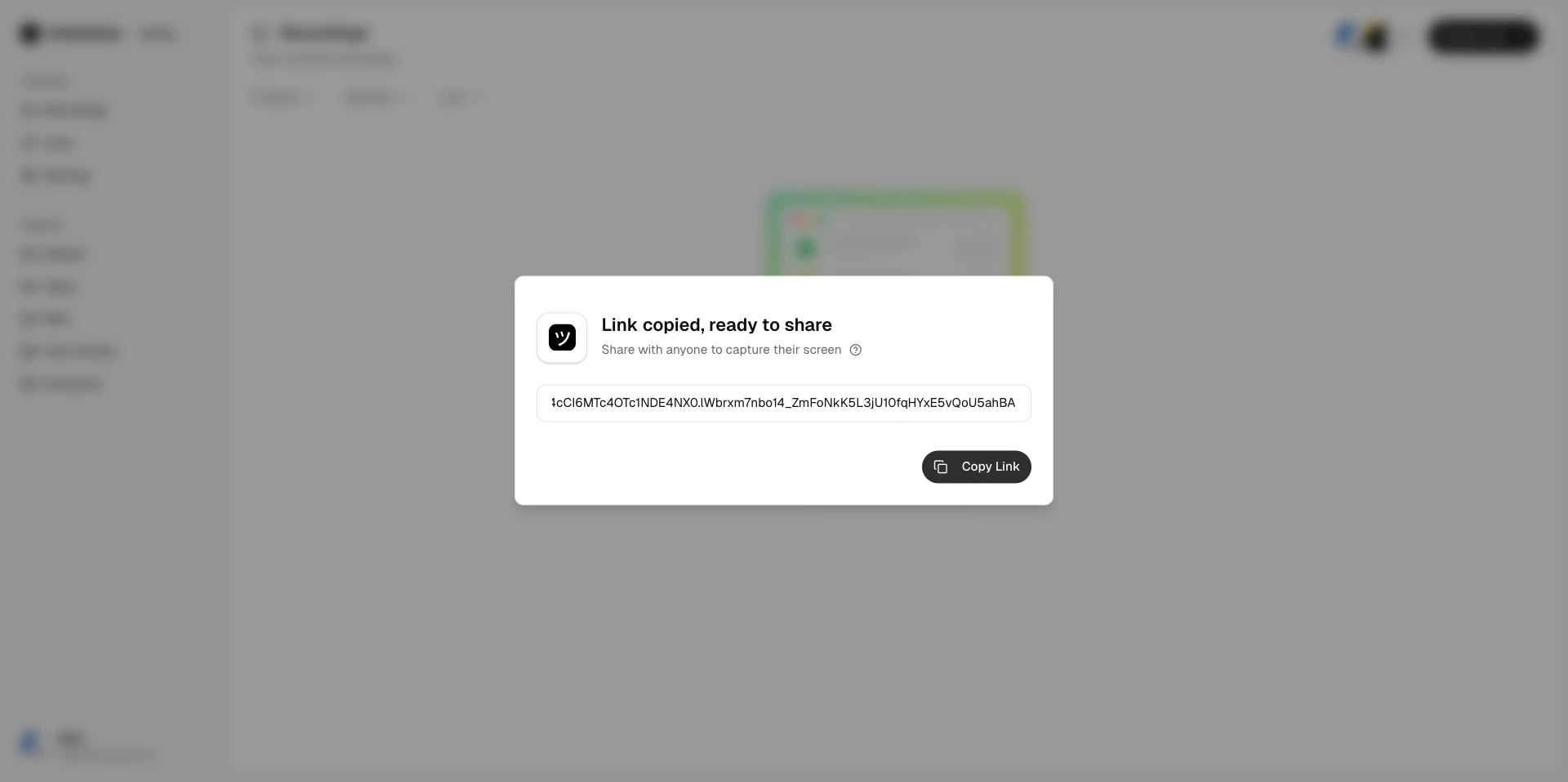
In Userplane, create a **reusable recording link**. Choose the appropriate project and domain, enable the **Reusable** toggle, then copy the link URL.
 In Intercom, create a new macro or edit an existing one.
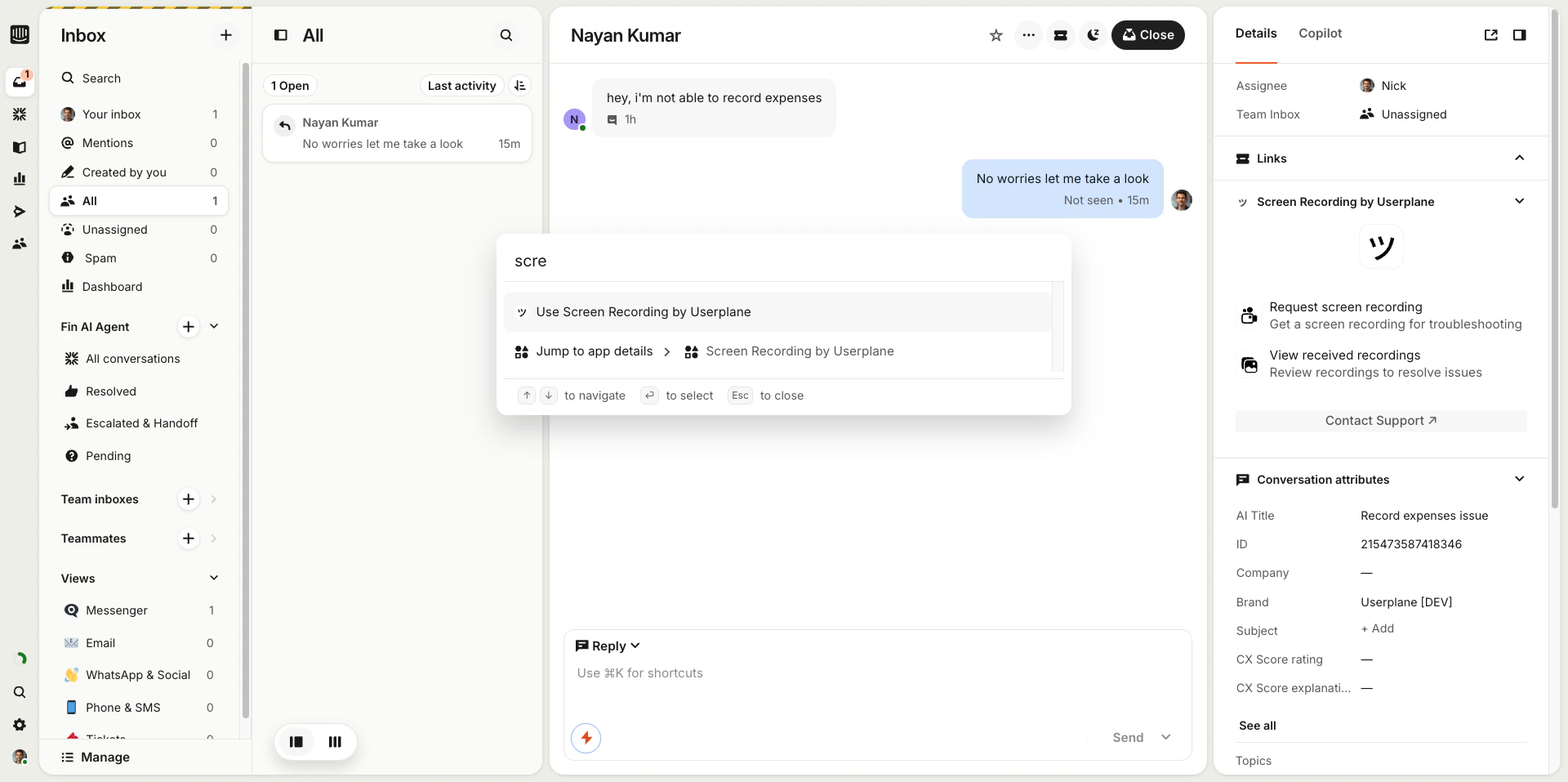 Add a message that includes the recording link URL. For example:
> Hi! To help us troubleshoot this issue, could you record a quick screen capture? Just click this link and follow the instructions: \[reusable recording link]
Save the macro. It's now ready for agents to use.
## Using the macro
Open a conversation in the Intercom inbox.
Open the macro menu and select your Userplane macro. The pre-written message with the recording link is inserted into the reply.
Add a message that includes the recording link URL. For example:
> Hi! To help us troubleshoot this issue, could you record a quick screen capture? Just click this link and follow the instructions: \[reusable recording link]
Save the macro. It's now ready for agents to use.
## Using the macro
Open a conversation in the Intercom inbox.
Open the macro menu and select your Userplane macro. The pre-written message with the recording link is inserted into the reply.
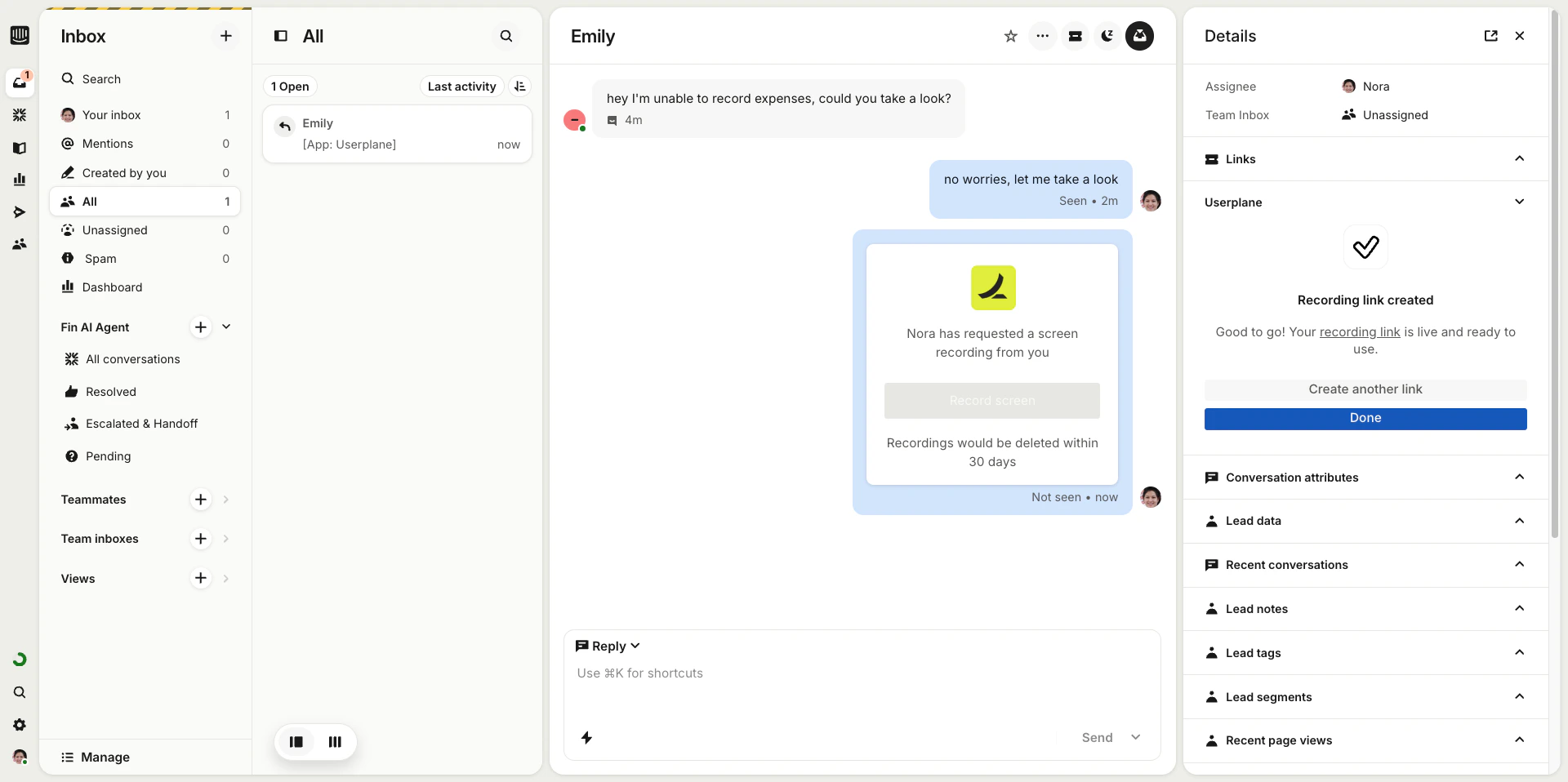 Send the message. The customer clicks the link and records their screen.
Since the link is reusable, every customer who clicks it creates a separate recording. All recordings are tied to the same link and can be viewed from the [Links](https://dash.userplane.io/_/links) page in Userplane.
Send the message. The customer clicks the link and records their screen.
Since the link is reusable, every customer who clicks it creates a separate recording. All recordings are tied to the same link and can be viewed from the [Links](https://dash.userplane.io/_/links) page in Userplane.
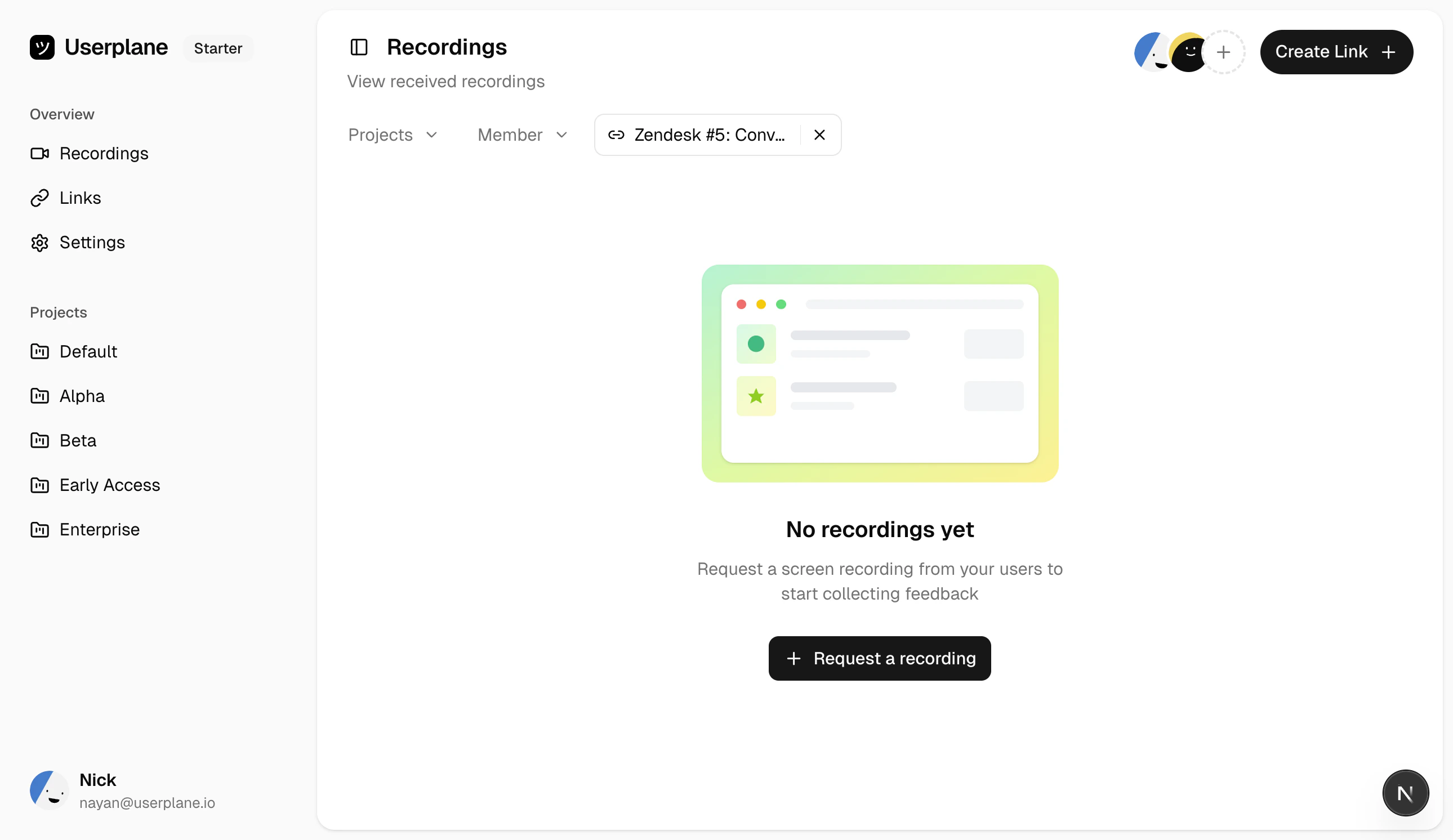 ## Viewing recordings
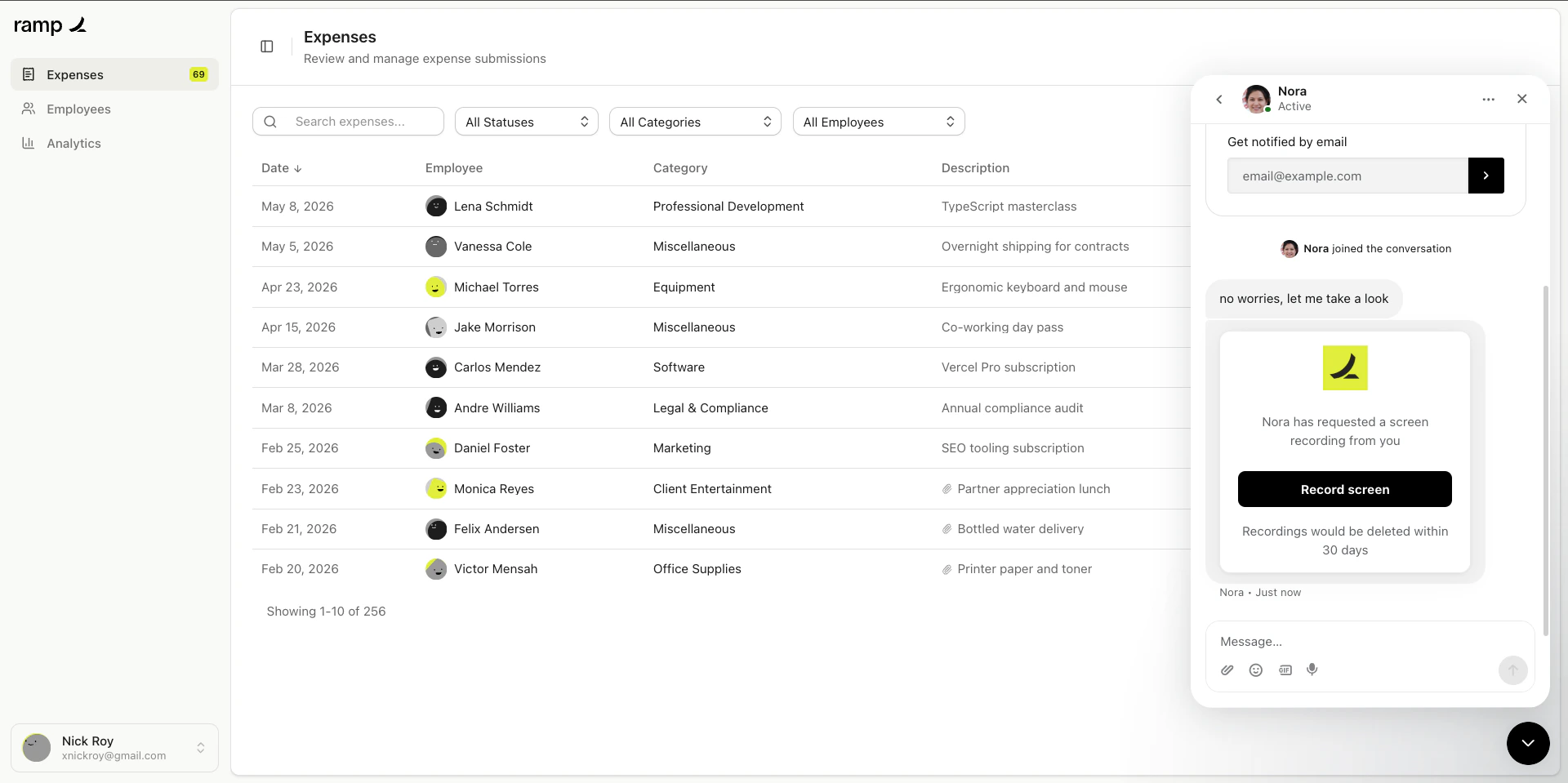
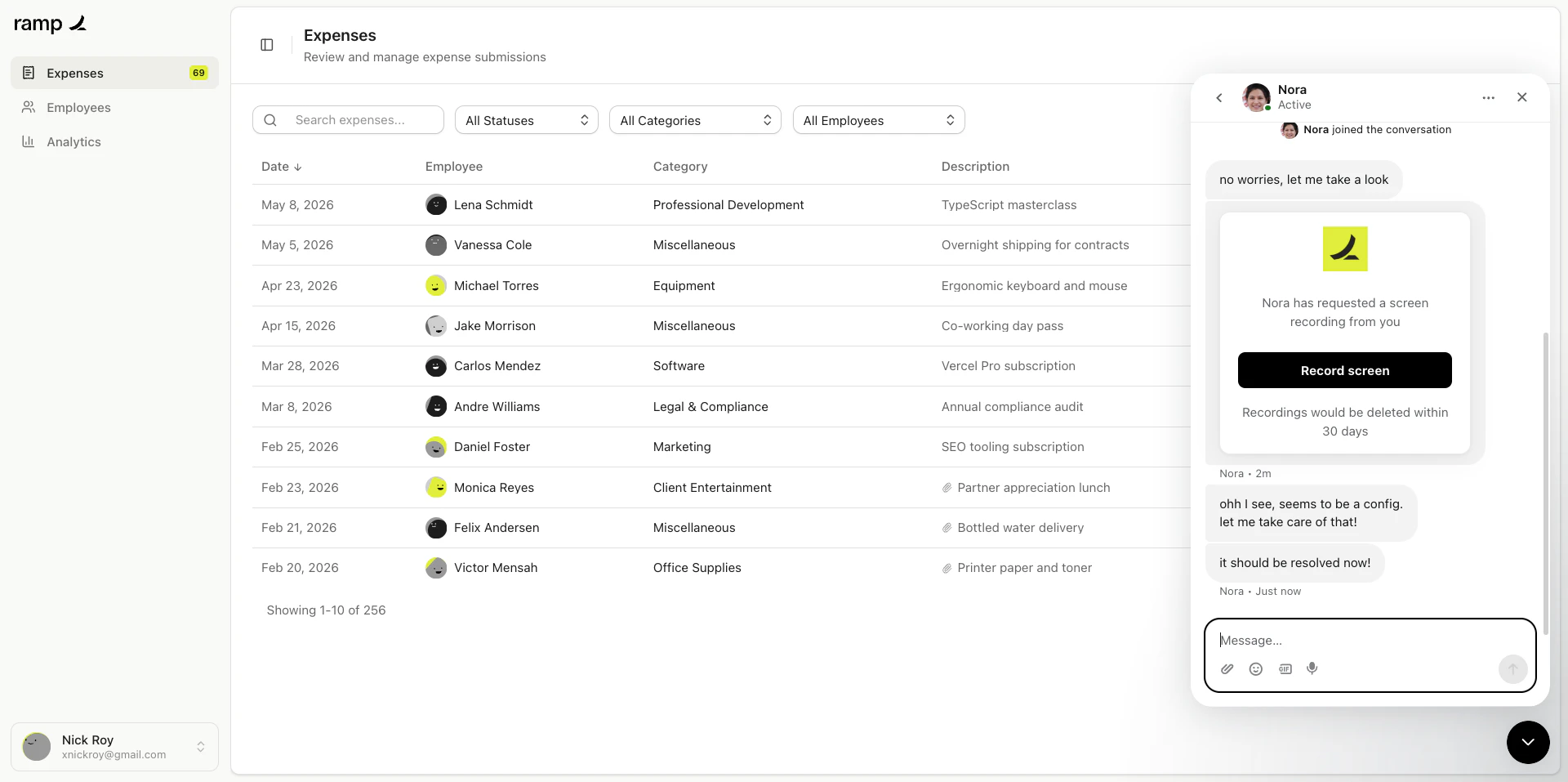
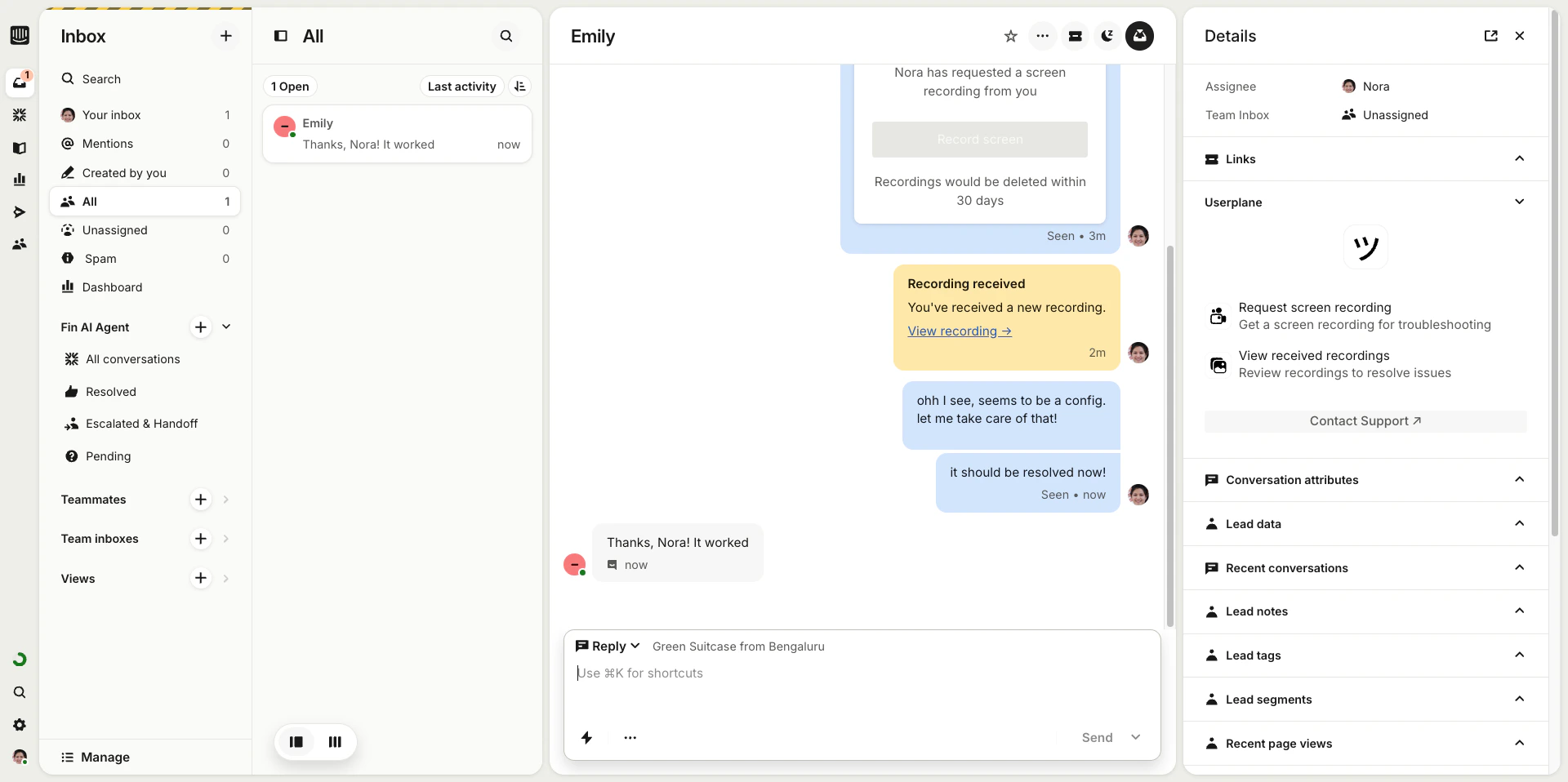
When a customer completes a recording, it appears in the conversation automatically.
The customer clicks the link and completes the recording. You receive a notification in the conversation.
## Viewing recordings
When a customer completes a recording, it appears in the conversation automatically.
The customer clicks the link and completes the recording. You receive a notification in the conversation.
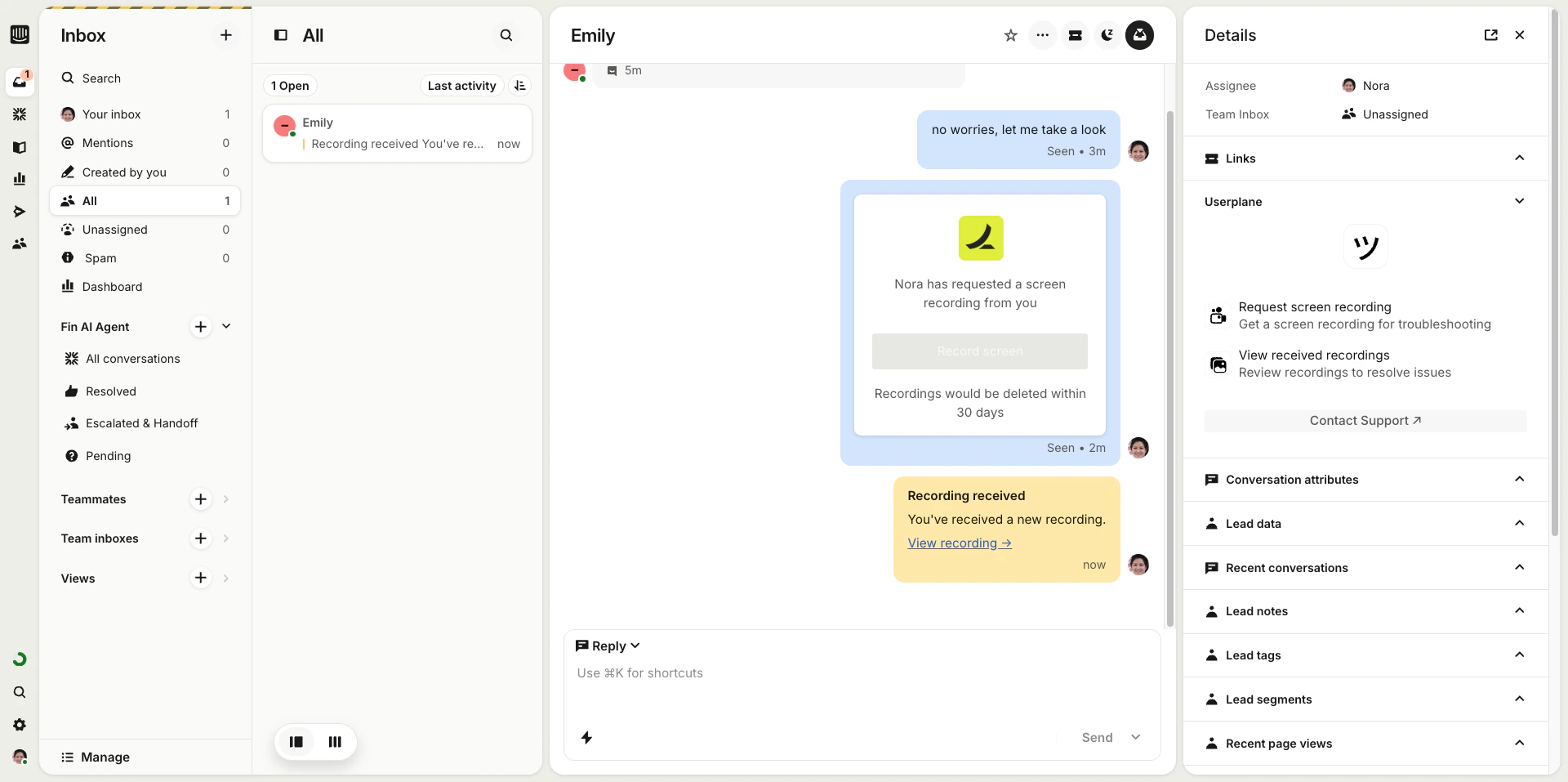
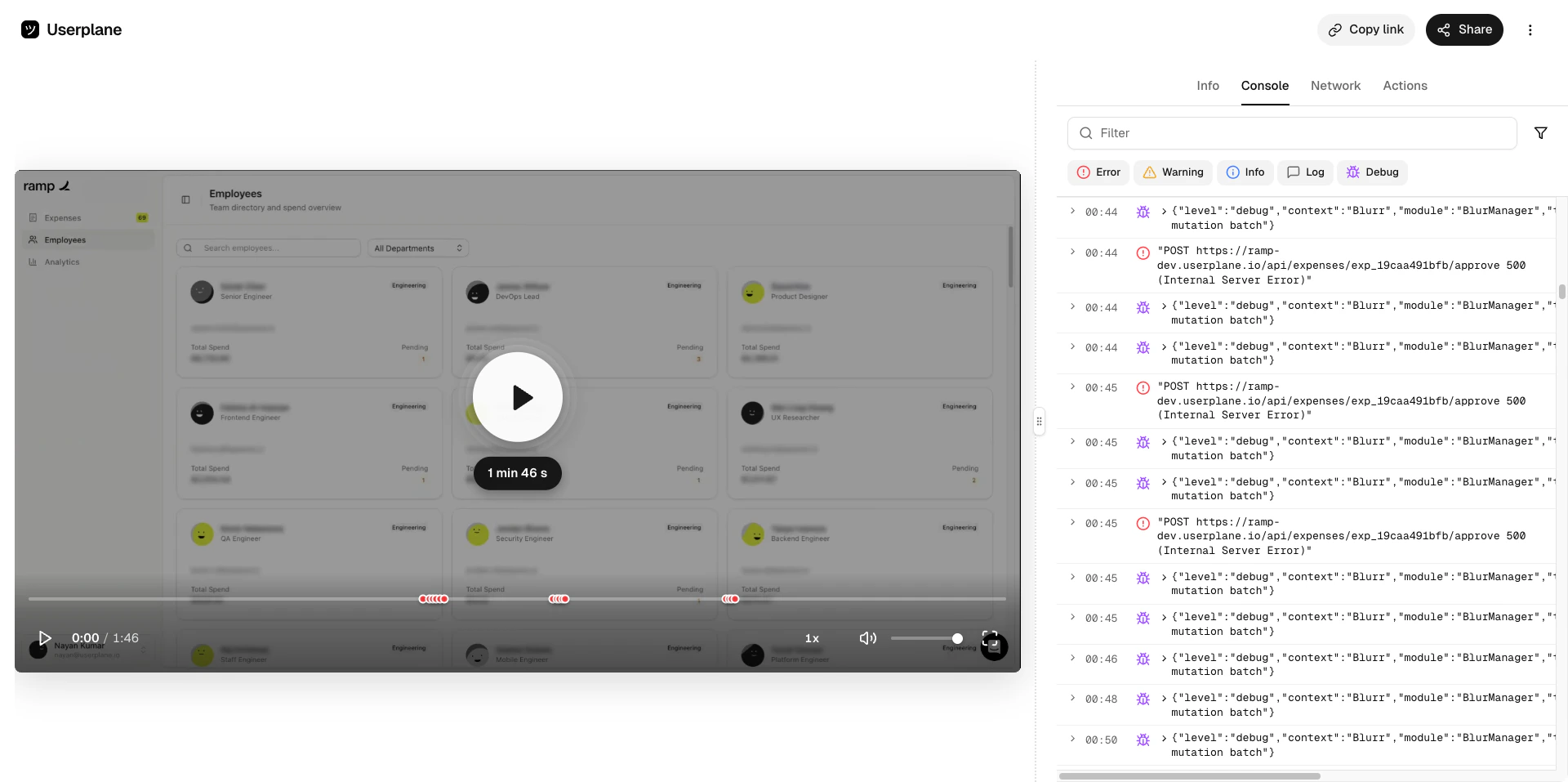
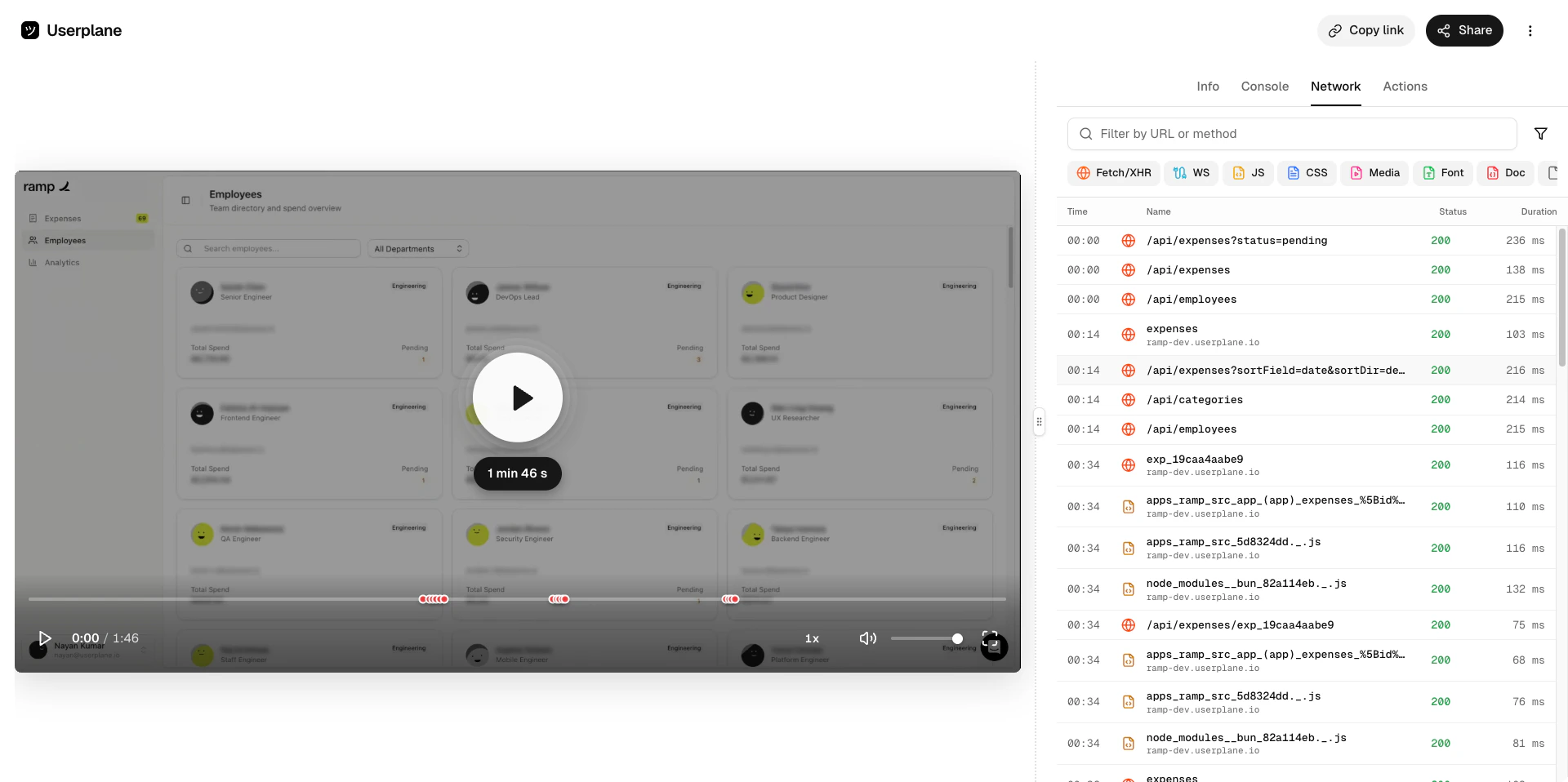
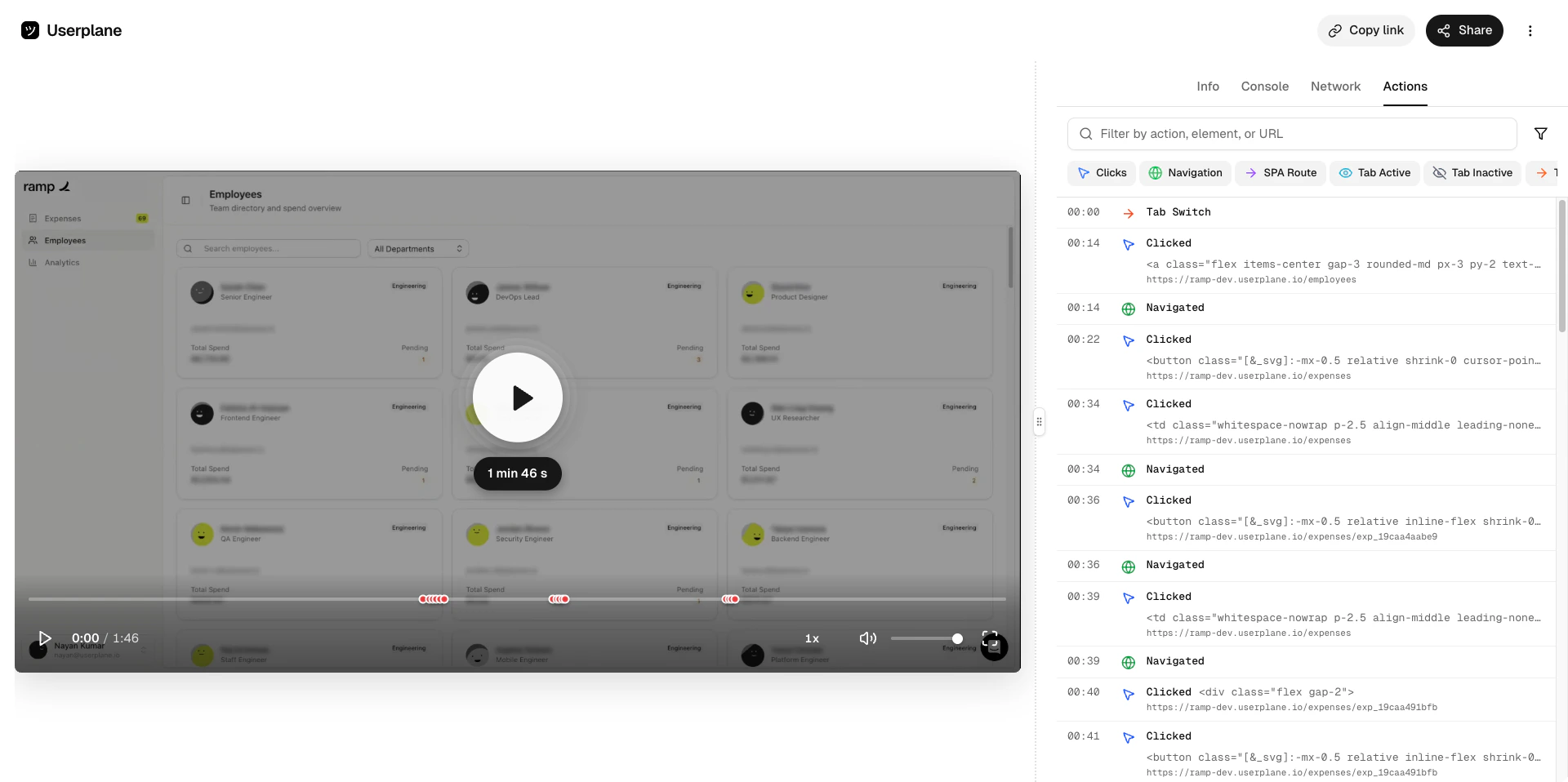
 Click the recording in the sidebar to view its details, or open it in Userplane for full [playback](/recording/playback).
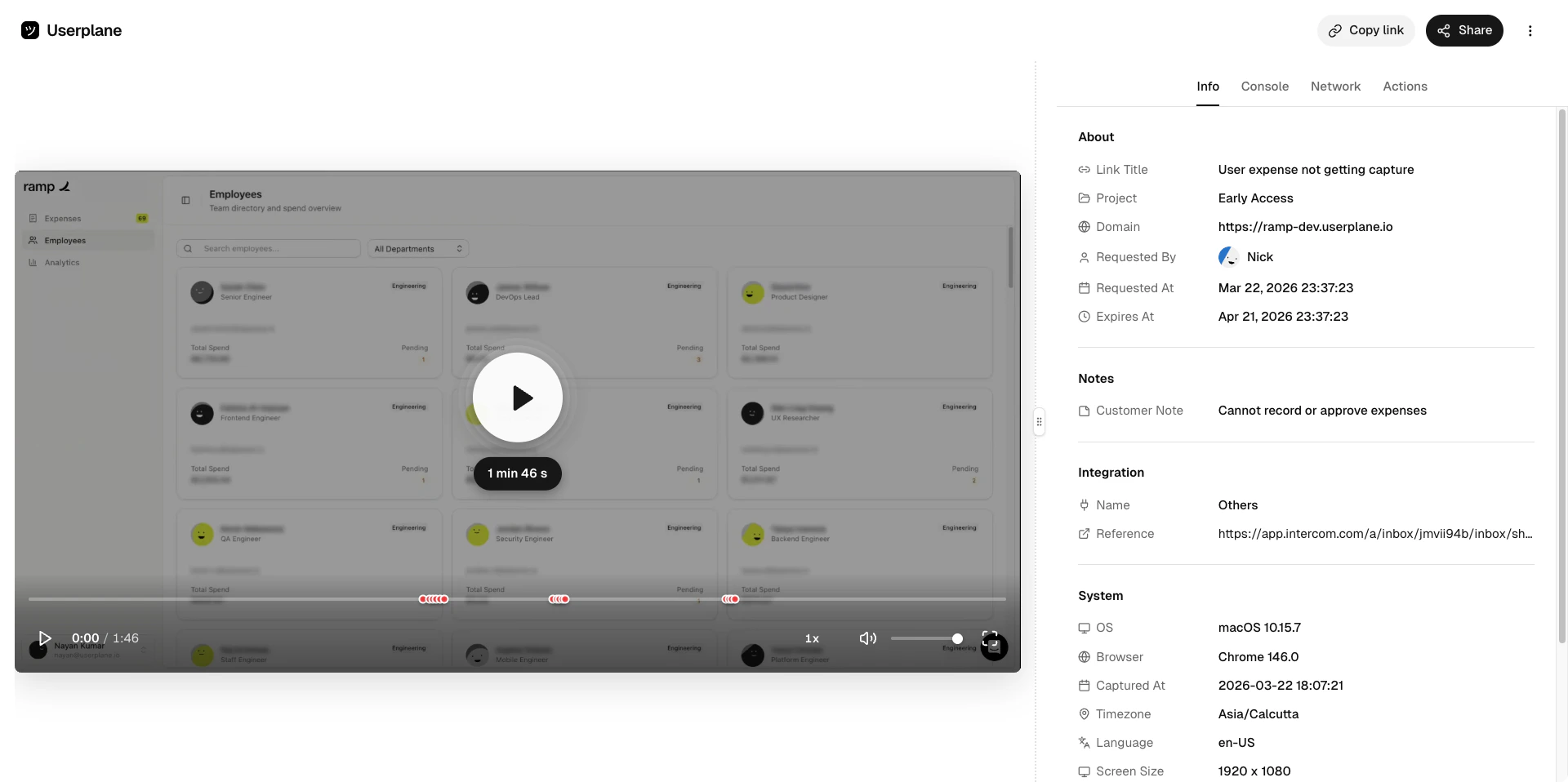
 Watch the video and inspect the captured data — console logs, network requests, user actions, and metadata.
 ## Attaching metadata via URL parameters
Since the recording link is reusable, every customer gets the same base URL. But you can inject dynamic context into each recording by appending the `userplane-meta` query parameter to the link in your macro.
The link has two parts — a static base that stays the same across all uses, and a dynamic metadata suffix that changes per conversation. The metadata is attached to the **recording**, not the link, so each recording carries its own context even though they all share the same reusable link.
Intercom macros support placeholder variables that are resolved at send time. You can use these placeholders in the `userplane-meta` parameter so that each conversation automatically injects the right values — ticket ID, customer name, assignee, or anything else Intercom exposes.
Tag every recording from this macro with a fixed source and macro name.
```
https://record.userplane.io/r/abc123?userplane-meta=source%3Dintercom,macro%3Dbug-report
```
This attaches `source: intercom` and `macro: bug-report` to each recording.
Use Intercom's placeholder variables to inject conversation-specific context.
```
https://record.userplane.io/r/abc123?userplane-meta=source%3Dintercom,conversation_id%3D{{conversation.id}},customer%3D{{user.name}}
```
When the macro is sent, Intercom resolves the placeholders. The recording ends up with metadata like `conversation_id: 12345` and `customer: Jane Smith`.
Combine static tags with dynamic placeholders for the best of both.
```
https://record.userplane.io/r/abc123?userplane-meta=source%3Dintercom,macro%3Dbug-report,conversation_id%3D{{conversation.id}},assignee%3D{{assignee.name}},priority%3D{{conversation.priority}}
```
This gives you a fixed `source` and `macro` tag for filtering, plus dynamic `conversation_id`, `assignee`, and `priority` for each individual recording.
The metadata appears in the [Info panel](/recording/playback#info-panel) when reviewing the recording.
## Attaching metadata via URL parameters
Since the recording link is reusable, every customer gets the same base URL. But you can inject dynamic context into each recording by appending the `userplane-meta` query parameter to the link in your macro.
The link has two parts — a static base that stays the same across all uses, and a dynamic metadata suffix that changes per conversation. The metadata is attached to the **recording**, not the link, so each recording carries its own context even though they all share the same reusable link.
Intercom macros support placeholder variables that are resolved at send time. You can use these placeholders in the `userplane-meta` parameter so that each conversation automatically injects the right values — ticket ID, customer name, assignee, or anything else Intercom exposes.
Tag every recording from this macro with a fixed source and macro name.
```
https://record.userplane.io/r/abc123?userplane-meta=source%3Dintercom,macro%3Dbug-report
```
This attaches `source: intercom` and `macro: bug-report` to each recording.
Use Intercom's placeholder variables to inject conversation-specific context.
```
https://record.userplane.io/r/abc123?userplane-meta=source%3Dintercom,conversation_id%3D{{conversation.id}},customer%3D{{user.name}}
```
When the macro is sent, Intercom resolves the placeholders. The recording ends up with metadata like `conversation_id: 12345` and `customer: Jane Smith`.
Combine static tags with dynamic placeholders for the best of both.
```
https://record.userplane.io/r/abc123?userplane-meta=source%3Dintercom,macro%3Dbug-report,conversation_id%3D{{conversation.id}},assignee%3D{{assignee.name}},priority%3D{{conversation.priority}}
```
This gives you a fixed `source` and `macro` tag for filtering, plus dynamic `conversation_id`, `assignee`, and `priority` for each individual recording.
The metadata appears in the [Info panel](/recording/playback#info-panel) when reviewing the recording.
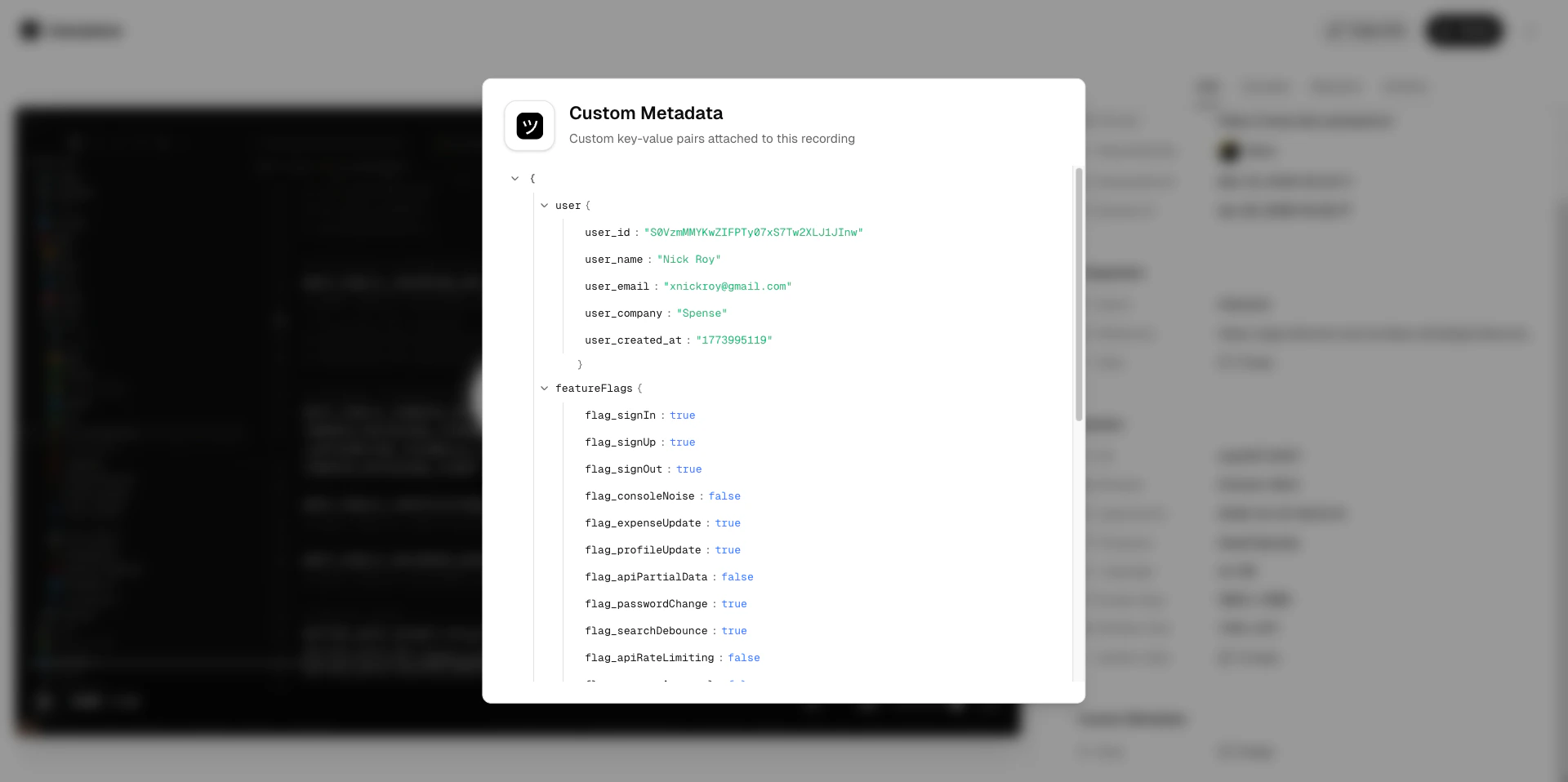 See [Metadata SDK](/developer/metadata-sdk) for the full URL parameter format.
## Conversation linking
Recordings created through the macro are automatically linked to the Intercom conversation. Because the metadata is injected dynamically via placeholders, each recording carries its own conversation context — even though they all come from the same reusable link.
The metadata attached via the URL parameter is carried over to the recording. Your team can see it in the Info panel without asking the customer for any additional context.
Once you've reviewed the recording and resolved the issue, close the conversation as normal.
See [Metadata SDK](/developer/metadata-sdk) for the full URL parameter format.
## Conversation linking
Recordings created through the macro are automatically linked to the Intercom conversation. Because the metadata is injected dynamically via placeholders, each recording carries its own conversation context — even though they all come from the same reusable link.
The metadata attached via the URL parameter is carried over to the recording. Your team can see it in the Info panel without asking the customer for any additional context.
Once you've reviewed the recording and resolved the issue, close the conversation as normal.
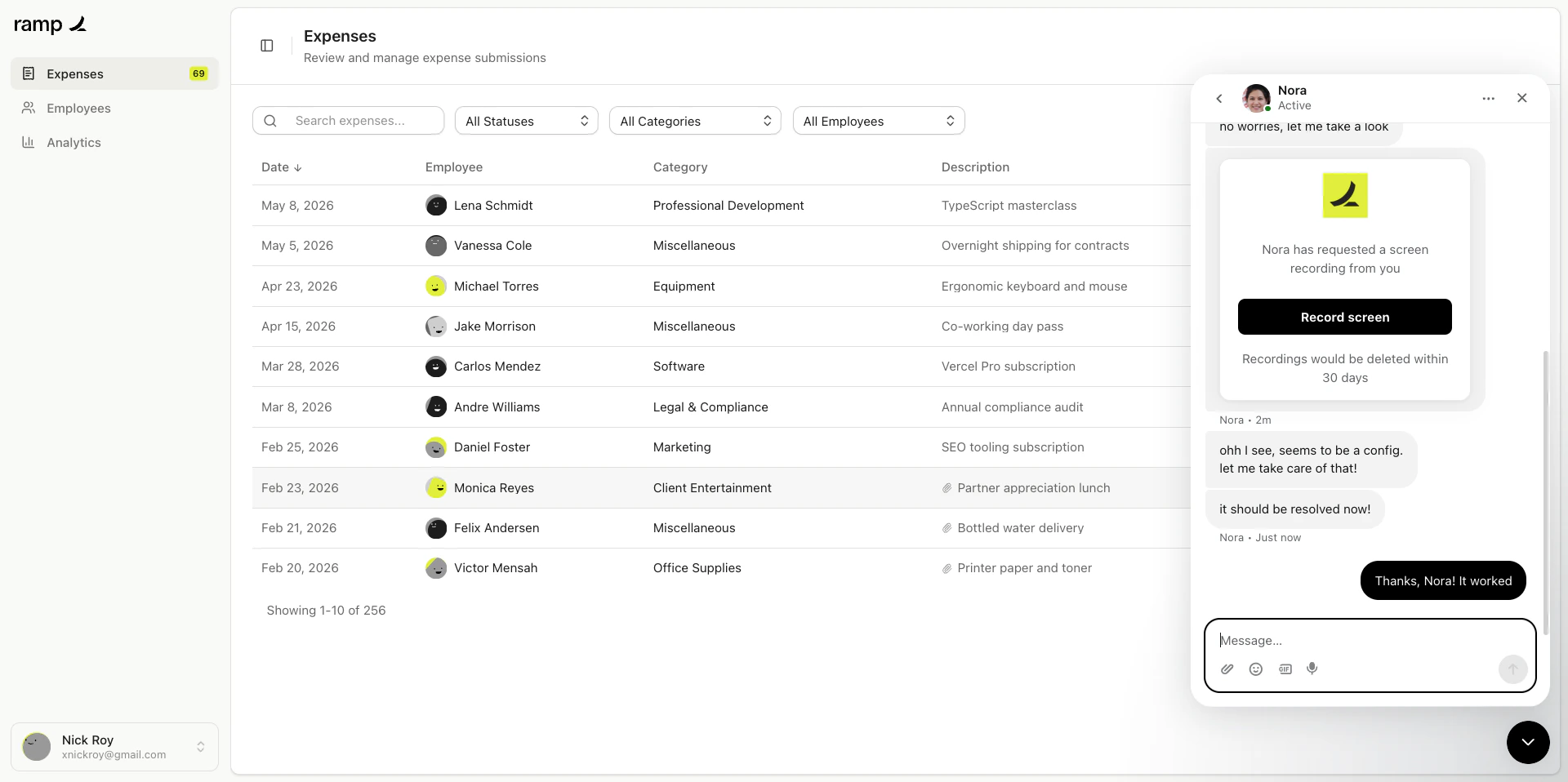
 The recording remains linked to the conversation for future reference.
 ## Tips
* Create separate macros for different projects or issue types, each with its own reusable link. -
Include a brief explanation in the macro text so the customer knows what to expect. - Use a
branded recording link (with a verified domain) for a more professional experience.
## Related articles
* [Reusable Recording Links](/recording-links/reusable) — how reusable links work.
* [Intercom Inbox](/integrations/intercom-inbox) — the inbox sidebar app.
* [Metadata SDK](/developer/metadata-sdk) — attach custom metadata to recordings.
## Tips
* Create separate macros for different projects or issue types, each with its own reusable link. -
Include a brief explanation in the macro text so the customer knows what to expect. - Use a
branded recording link (with a verified domain) for a more professional experience.
## Related articles
* [Reusable Recording Links](/recording-links/reusable) — how reusable links work.
* [Intercom Inbox](/integrations/intercom-inbox) — the inbox sidebar app.
* [Metadata SDK](/developer/metadata-sdk) — attach custom metadata to recordings.