> ## Documentation Index
> Fetch the complete documentation index at: https://docs.userplane.io/llms.txt
> Use this file to discover all available pages before exploring further.
# Intercom Shortcuts
> Use Cmd+K in Intercom to quickly create recording links without leaving the conversation
When you [connect Intercom](/integrations/intercom), Userplane is added as an Intercom shortcut. Shortcuts let agents create recording links in seconds using the Cmd+K action menu, without navigating away from the current conversation.
## Opening the shortcut
From a conversation in the Intercom inbox, press **Cmd+K** (Mac) or **Ctrl+K** (Windows) to open the action menu.
Type **Userplane** to filter the list, then select **Use Userplane** and press **Enter**.
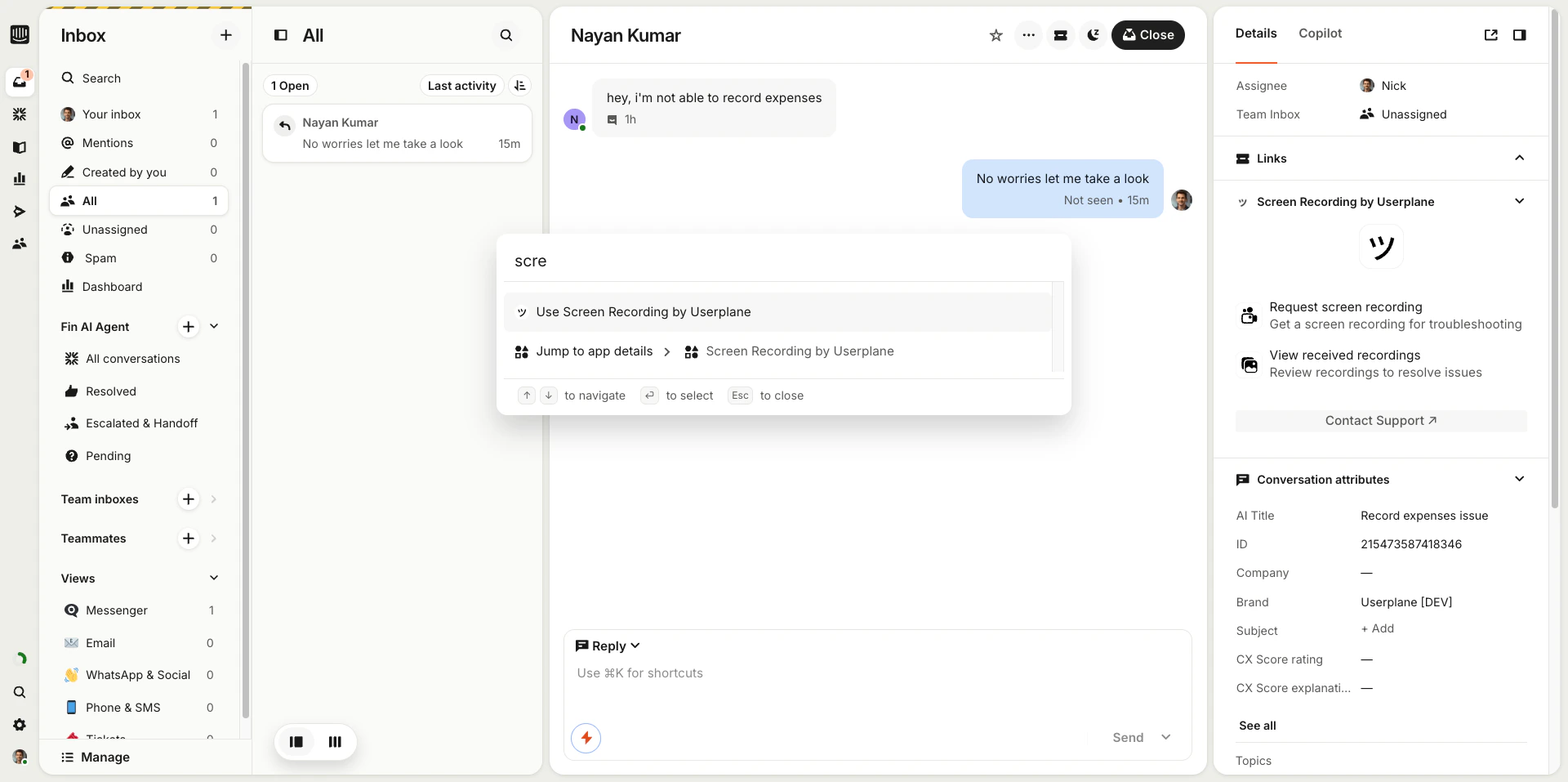 Select a **project** and **domain** from the dropdowns. Optionally edit the **message to customer** that accompanies the recording card.
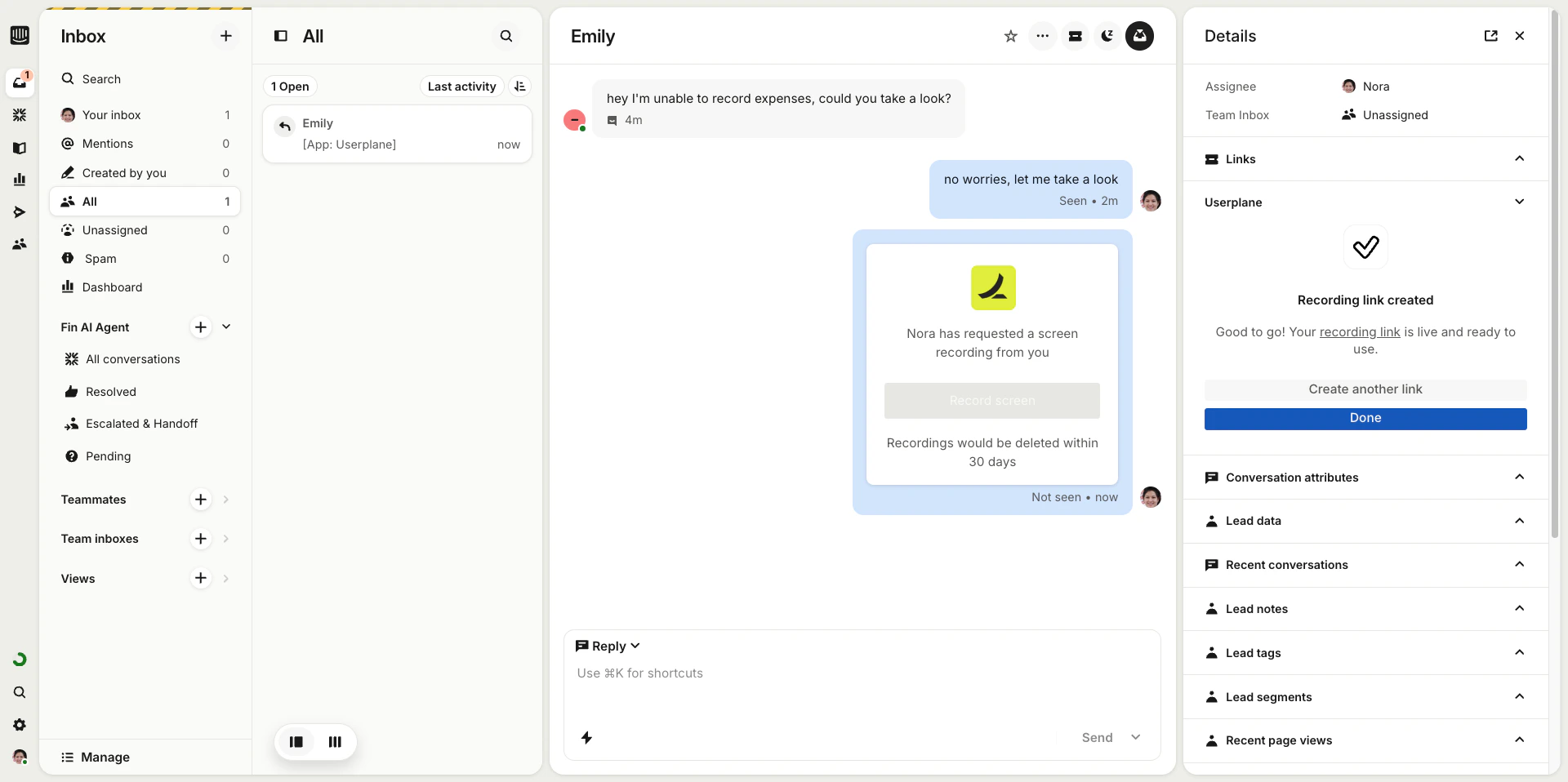
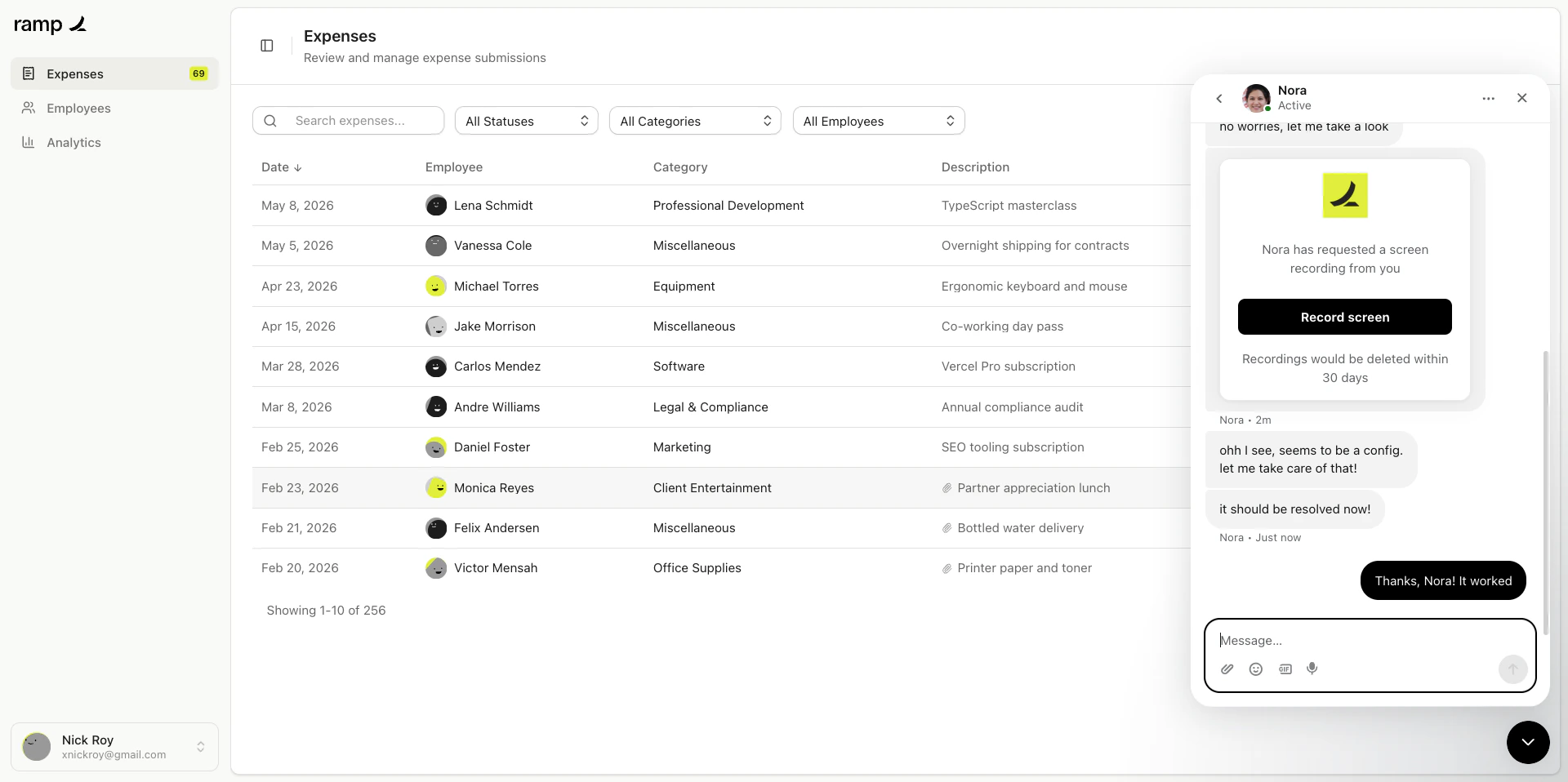
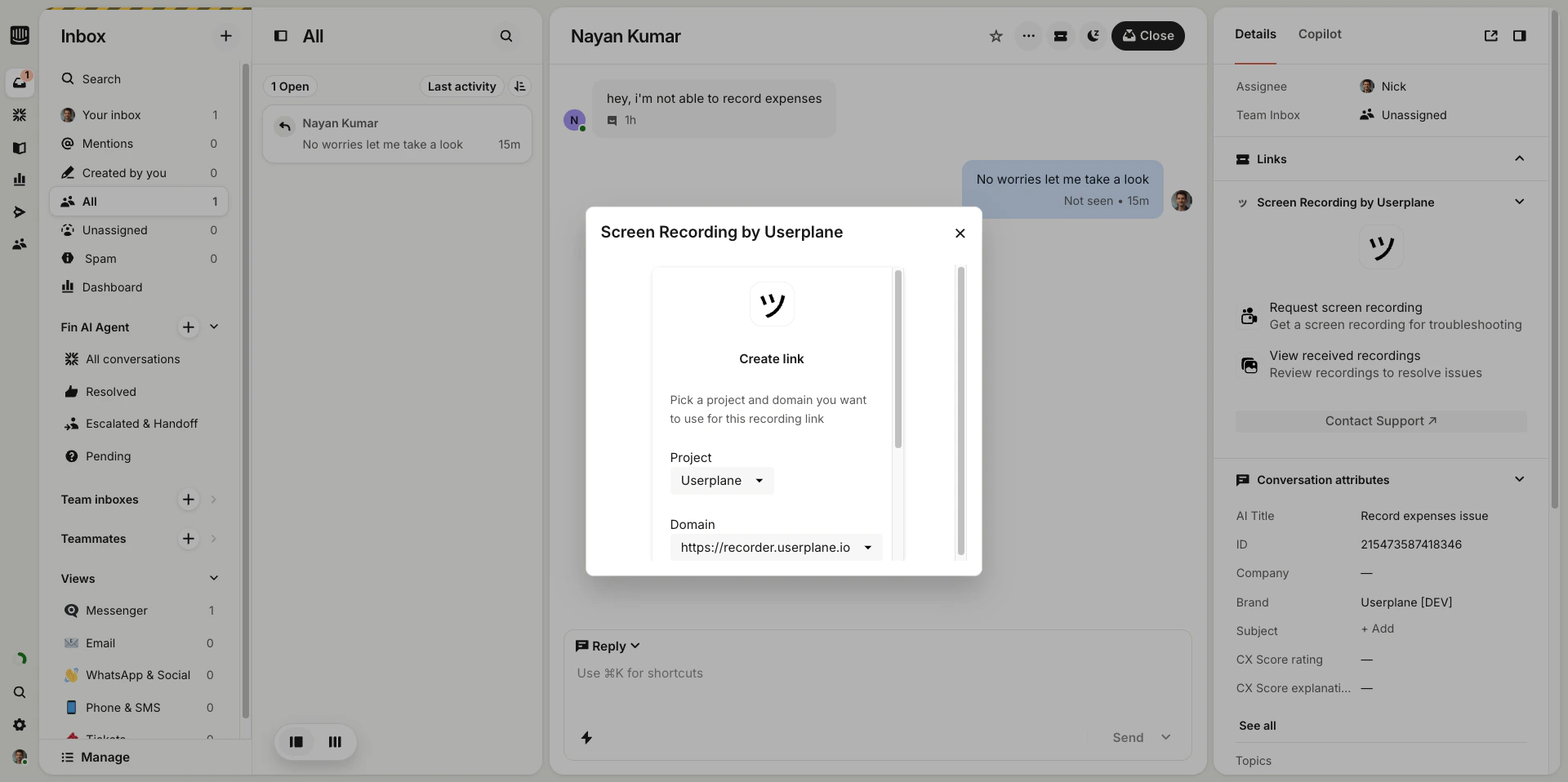 Click **Create Link**. A recording card is automatically inserted into the conversation. The customer sees a card they can click to start recording.
 ## After the link is created
* You will see a confirmation with a link to the recording.
* Click **Create another link** to start a new one, or **Done** to close.
* The recording is linked to the current Intercom conversation and appears in your Userplane dashboard.
## After the link is created
* You will see a confirmation with a link to the recording.
* Click **Create another link** to start a new one, or **Done** to close.
* The recording is linked to the current Intercom conversation and appears in your Userplane dashboard.
 ## Viewing recordings
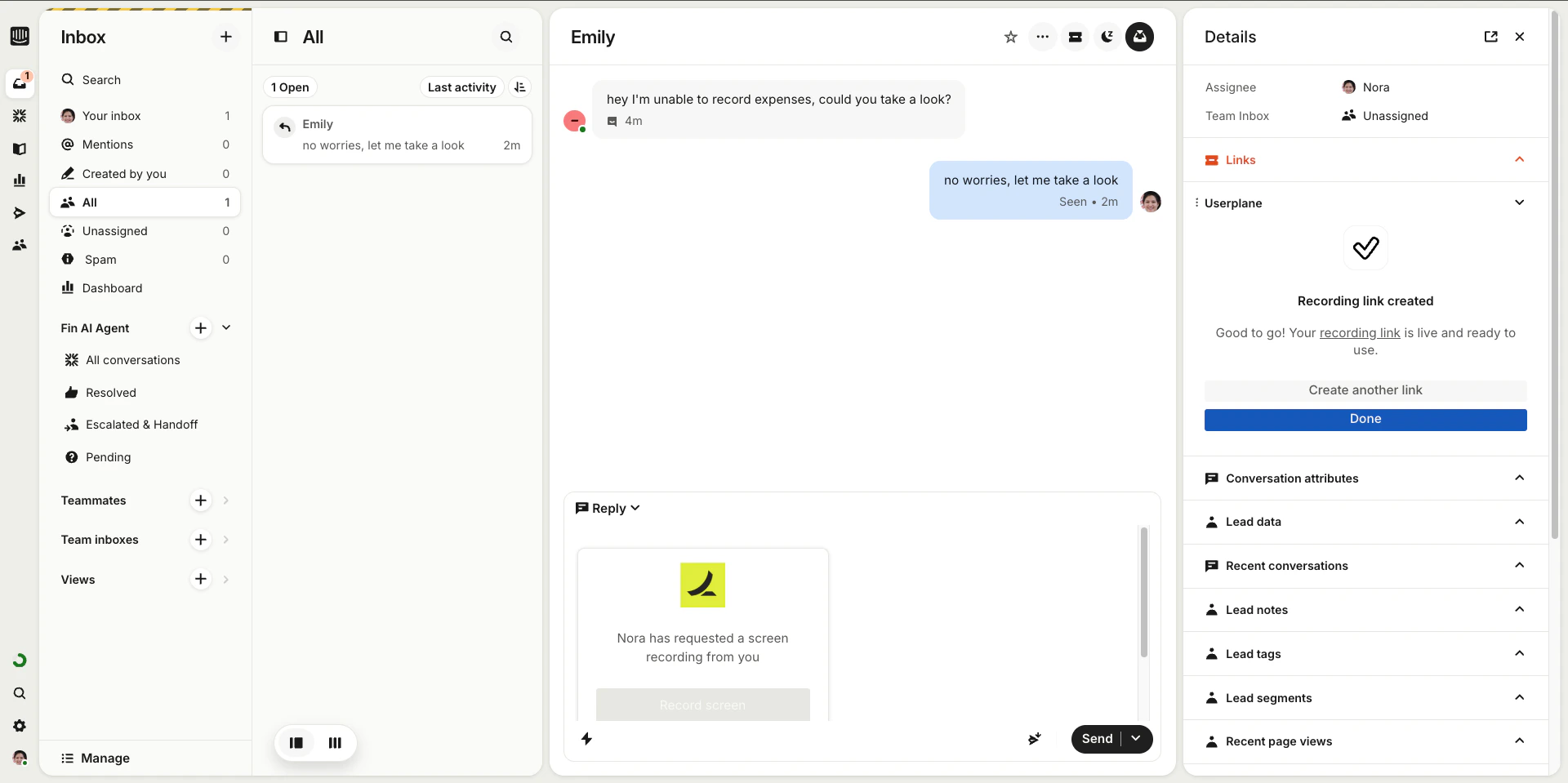
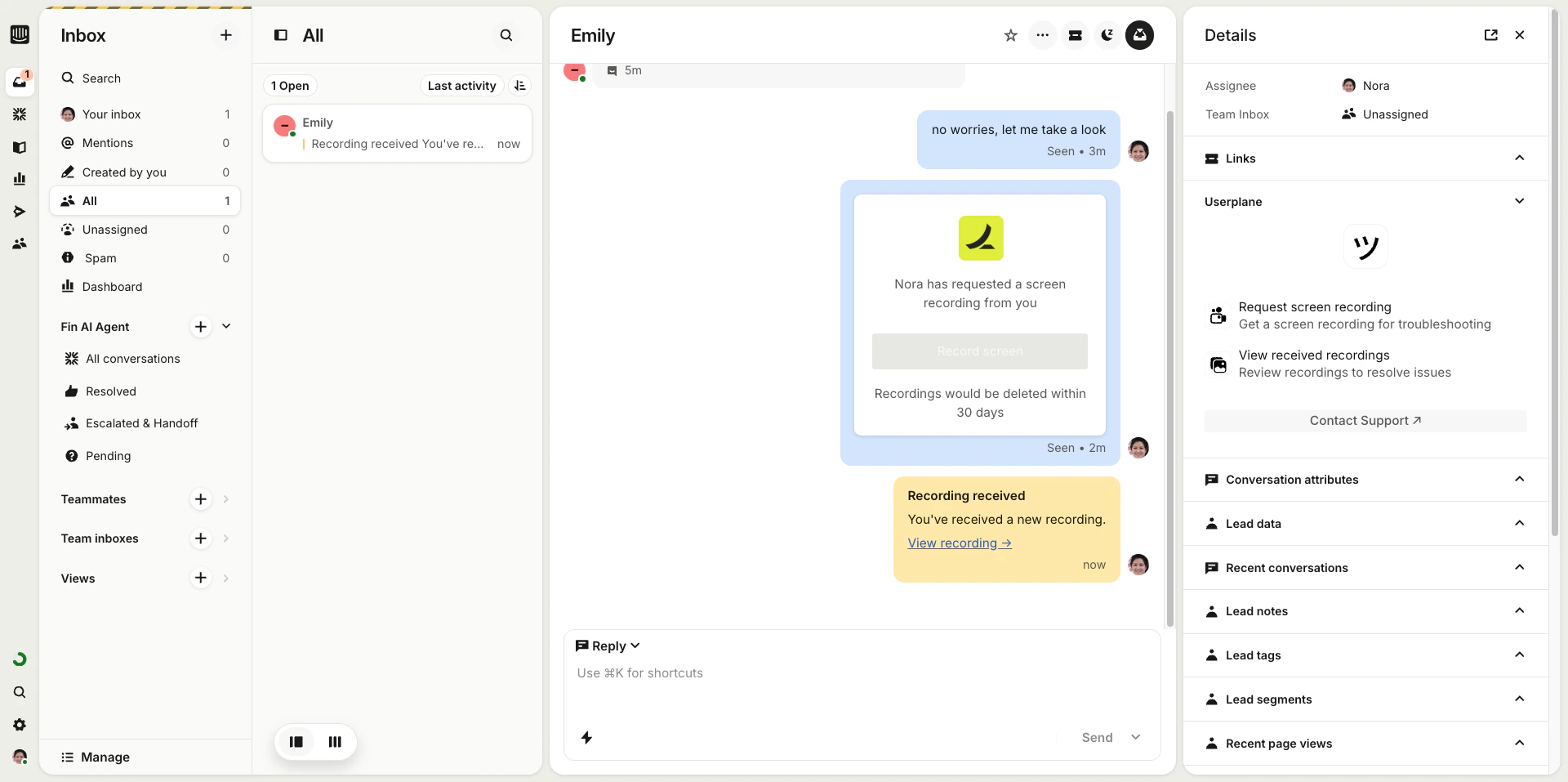
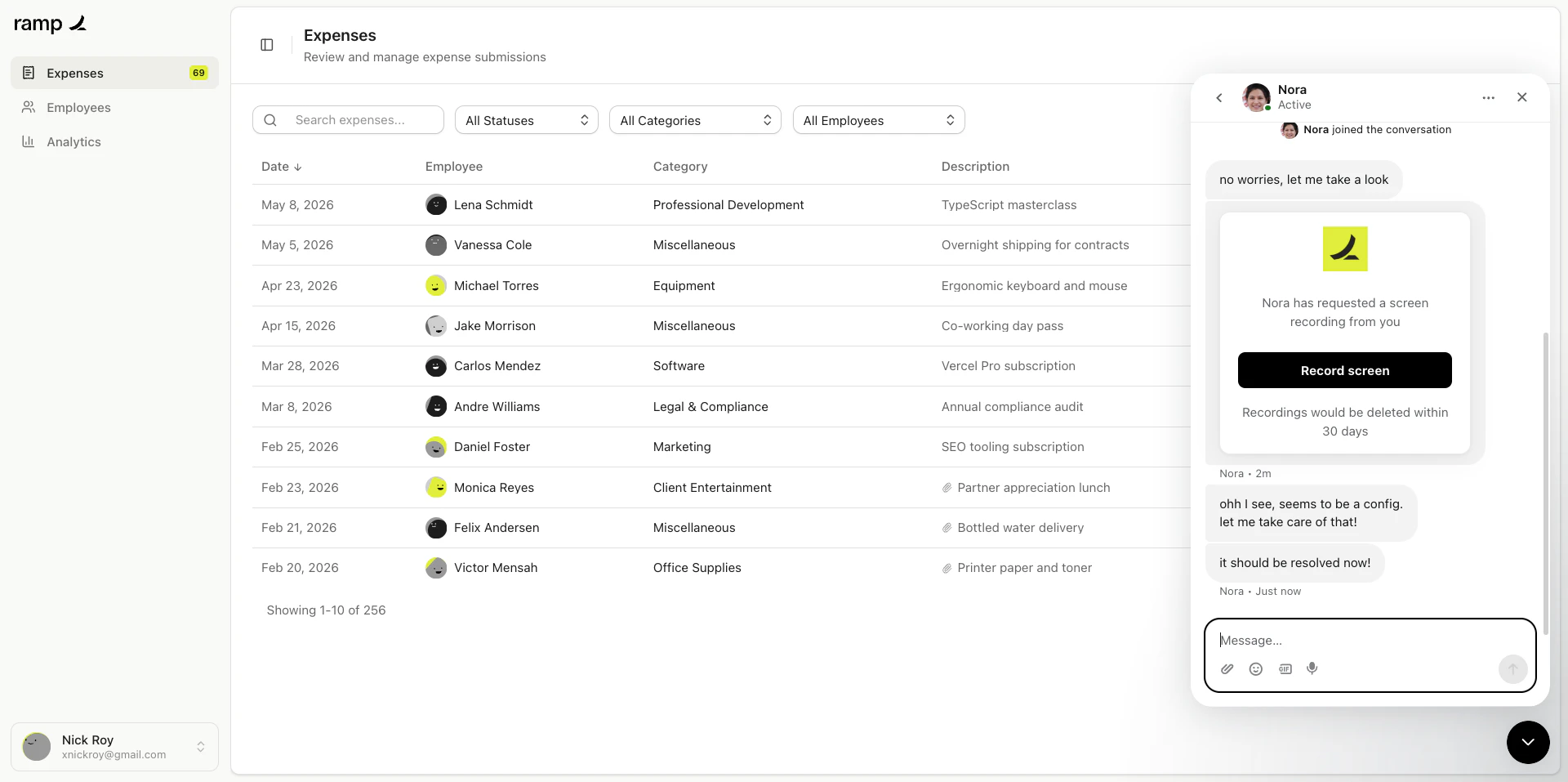
When a customer completes a recording, it appears in the conversation automatically.
The customer clicks the link and completes the recording. You receive a notification in the conversation.
## Viewing recordings
When a customer completes a recording, it appears in the conversation automatically.
The customer clicks the link and completes the recording. You receive a notification in the conversation.
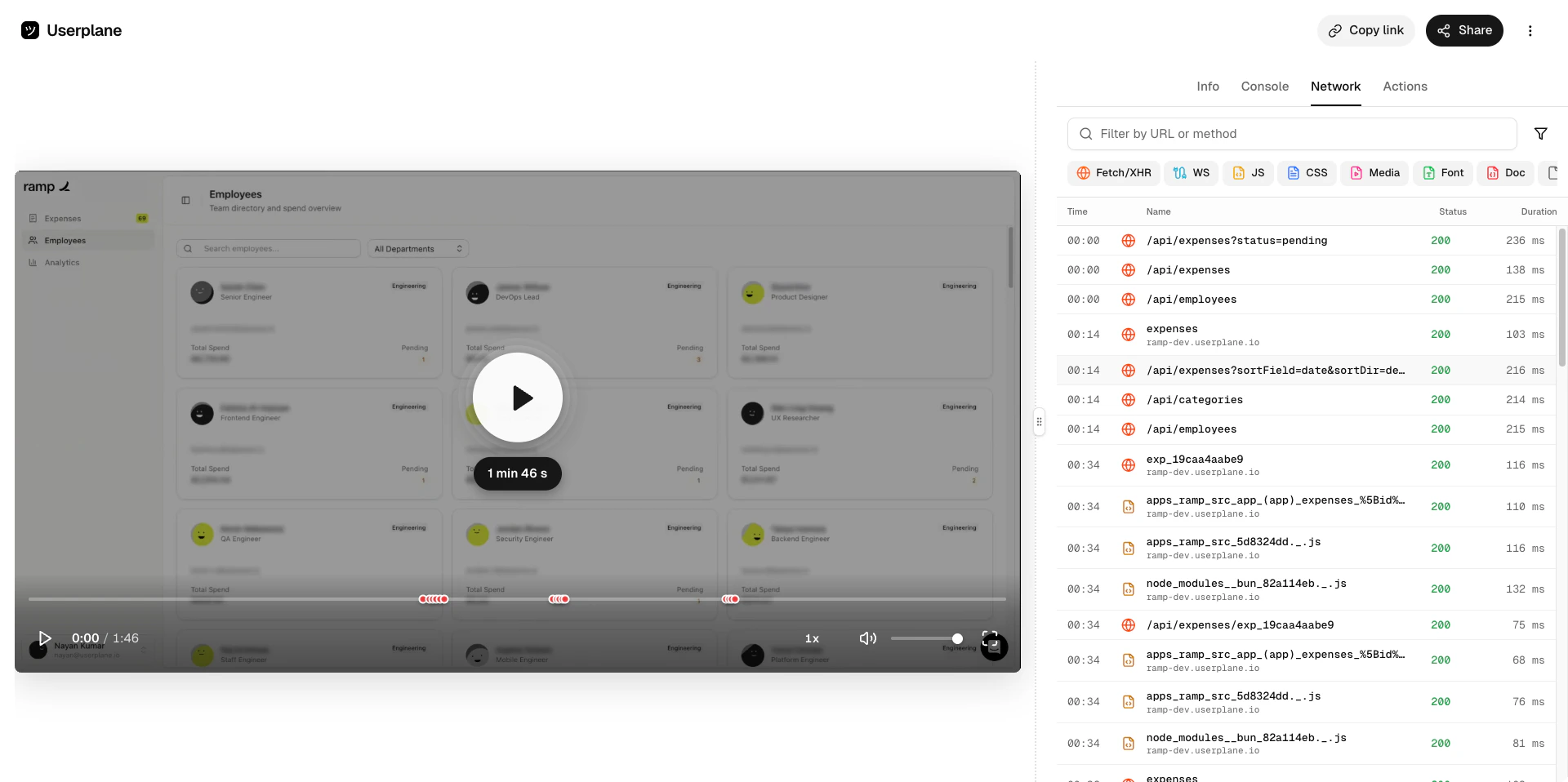
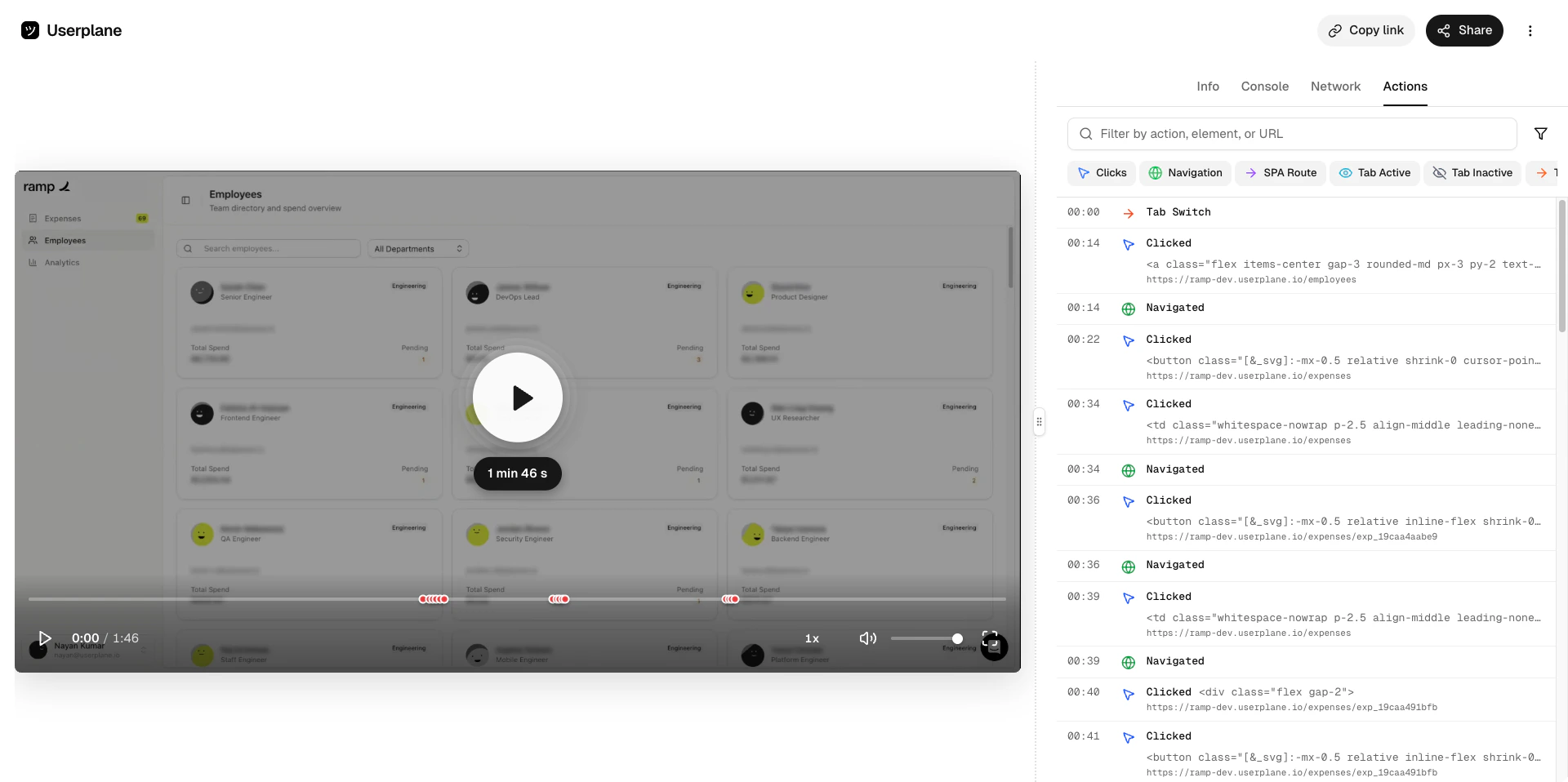
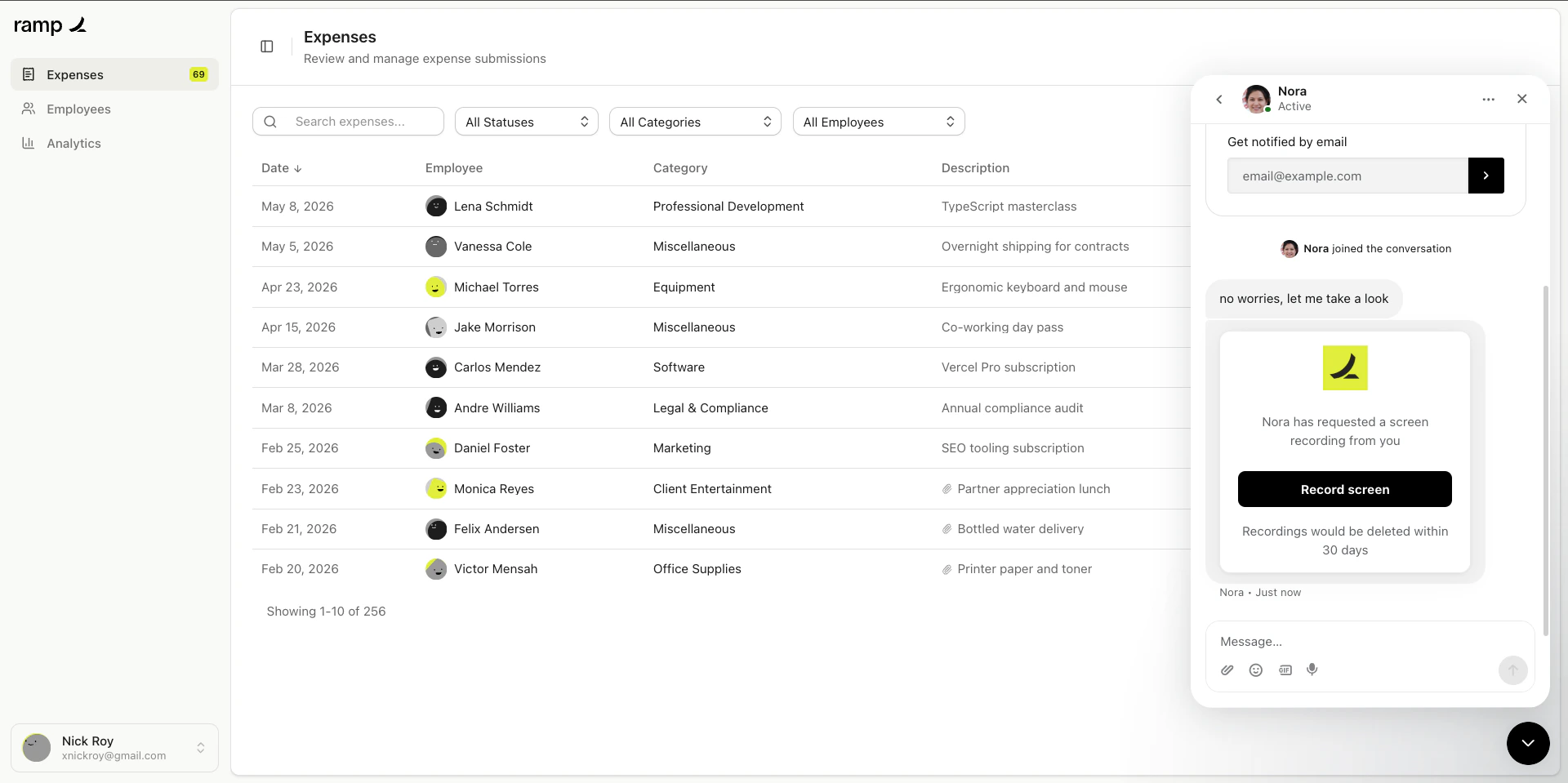 Click the recording in the sidebar to view its details, or open it in Userplane for full [playback](/recording/playback).
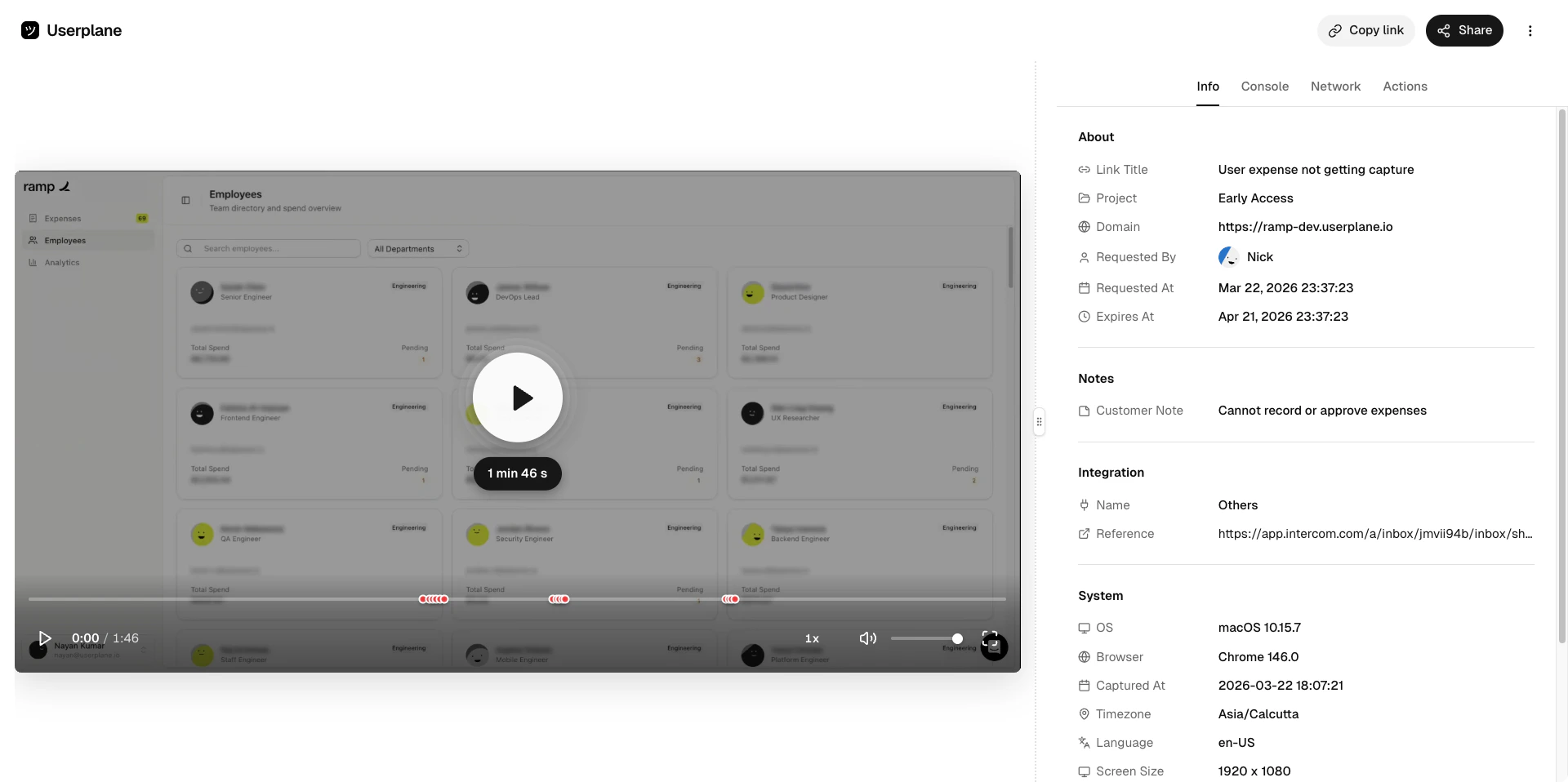
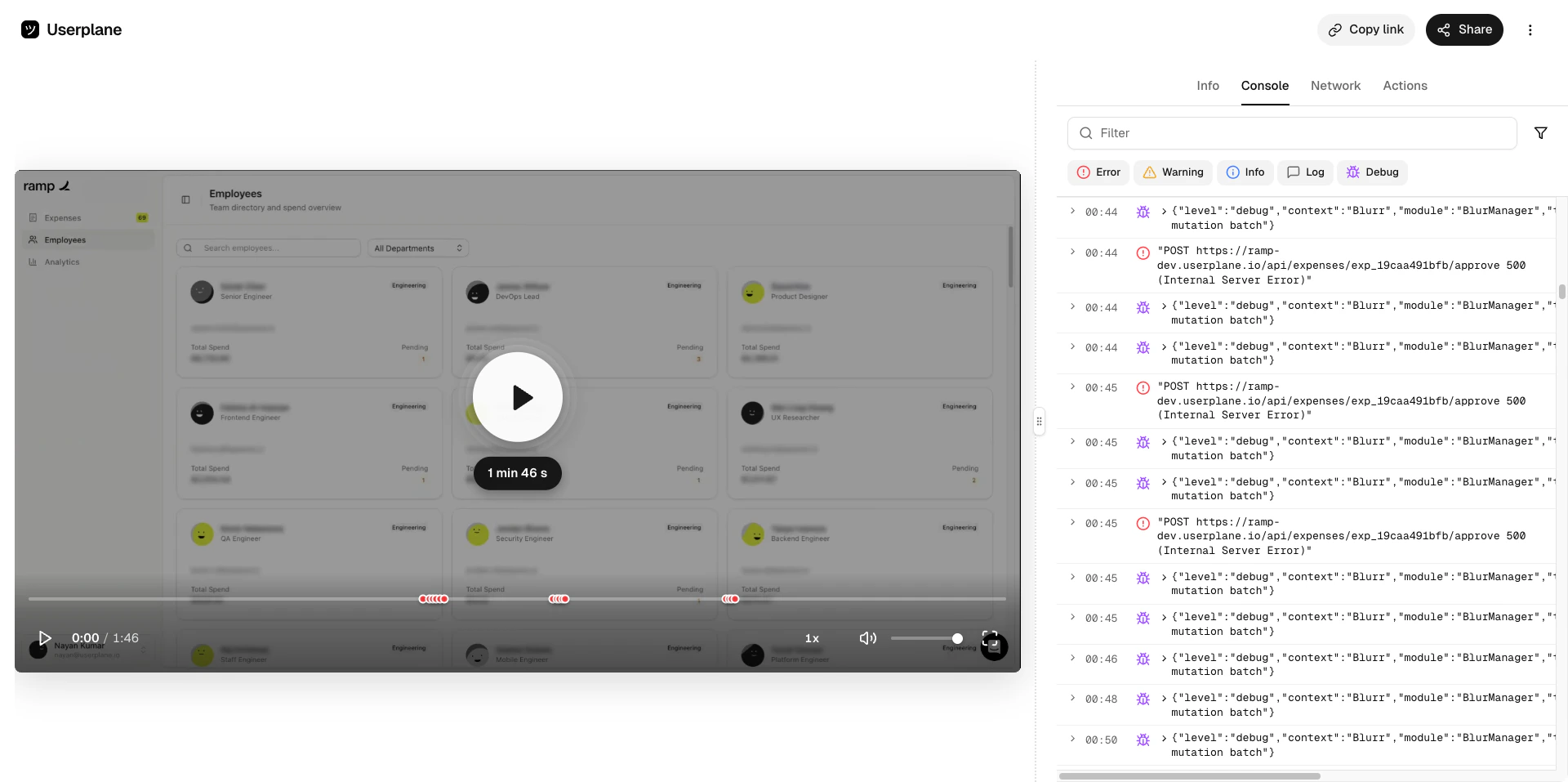
 Watch the video and inspect the captured data — console logs, network requests, user actions, and metadata.
 ## Conversation linking
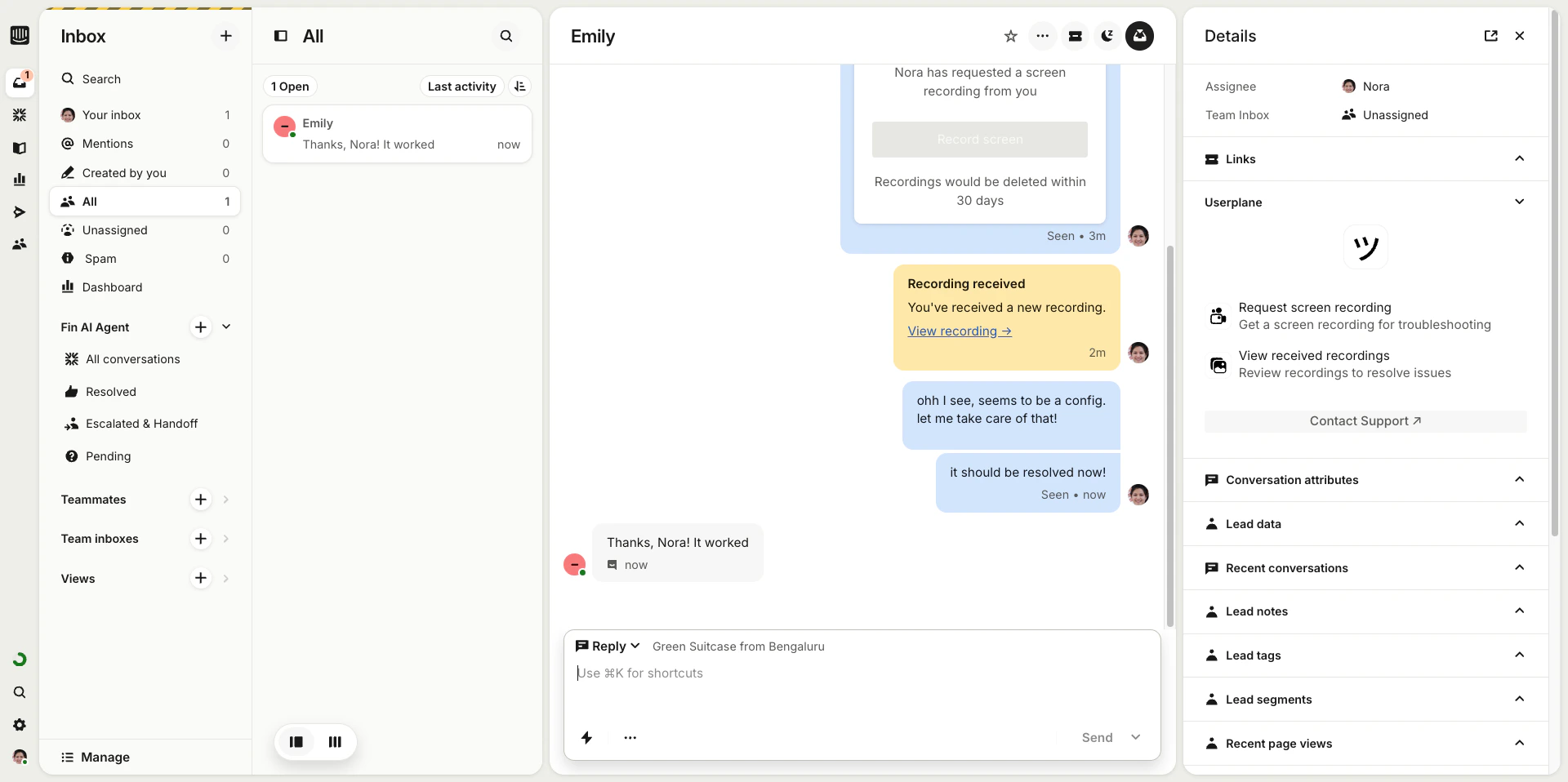
Recordings created through the shortcut are automatically linked to the conversation. This makes it easy to find the recording later from either Userplane or Intercom.
Once you've reviewed the recording and resolved the issue, close the conversation as normal.
## Conversation linking
Recordings created through the shortcut are automatically linked to the conversation. This makes it easy to find the recording later from either Userplane or Intercom.
Once you've reviewed the recording and resolved the issue, close the conversation as normal.
 The recording remains linked to the conversation for future reference.
 ## When to use shortcuts vs. the sidebar app
| | Shortcut (Cmd+K) | Sidebar app |
| ------------ | ---------------------------------------- | ----------------------------------------------- |
| **Access** | Cmd+K from anywhere in a conversation | Click Userplane in the conversation sidebar |
| **Best for** | Quickly creating a single recording link | Browsing existing recordings and creating links |
| **Speed** | Fastest — keyboard-driven, no navigation | Slightly more steps to open |
Both surfaces use the same project and domain options, and both create the same recording links. Choose whichever fits your workflow.
## Requirements
* The Intercom integration must be [connected](/integrations/intercom).
* The agent must be a member of the Userplane workspace.
## Related articles
* [Using Userplane in Intercom](/integrations/intercom-inbox) — the inbox sidebar app.
* [Intercom Macros](/integrations/intercom-macros) — use reusable links in macros.
* [Intercom Setup](/getting-started/intercom-setup) — initial setup guide.
## When to use shortcuts vs. the sidebar app
| | Shortcut (Cmd+K) | Sidebar app |
| ------------ | ---------------------------------------- | ----------------------------------------------- |
| **Access** | Cmd+K from anywhere in a conversation | Click Userplane in the conversation sidebar |
| **Best for** | Quickly creating a single recording link | Browsing existing recordings and creating links |
| **Speed** | Fastest — keyboard-driven, no navigation | Slightly more steps to open |
Both surfaces use the same project and domain options, and both create the same recording links. Choose whichever fits your workflow.
## Requirements
* The Intercom integration must be [connected](/integrations/intercom).
* The agent must be a member of the Userplane workspace.
## Related articles
* [Using Userplane in Intercom](/integrations/intercom-inbox) — the inbox sidebar app.
* [Intercom Macros](/integrations/intercom-macros) — use reusable links in macros.
* [Intercom Setup](/getting-started/intercom-setup) — initial setup guide.