> ## Documentation Index
> Fetch the complete documentation index at: https://docs.userplane.io/llms.txt
> Use this file to discover all available pages before exploring further.
# Authentication
> How the Userplane MCP server authenticates AI clients using OAuth 2.1
The Userplane MCP server uses OAuth 2.1 for authentication. AI clients handle the OAuth flow automatically when you first connect. No API keys or manual token management required.
## How it works
The MCP server implements the following standards:
| Standard | Purpose |
| ------------------------------------------ | ----------------------------------------------------------------- |
| **OAuth 2.1** | Authorization framework |
| **Dynamic Client Registration** (RFC 7591) | Each AI client registers automatically — no manual provisioning |
| **PKCE** | Proof Key for Code Exchange protects the authorization flow |
| **JWT** | Access tokens are JWTs verified against Userplane's JWKS endpoint |
The server uses a single OAuth scope: `mcp:tools`.
## What happens when you connect
You add `https://api.userplane.io/mcp` to your AI client's MCP settings.
When you ask your agent to do something that requires Userplane data, the client initiates the
OAuth flow.
A browser window opens. Sign in with your Userplane credentials.
The consent screen shows the requesting client and the `mcp:tools` scope. Click **Allow**.
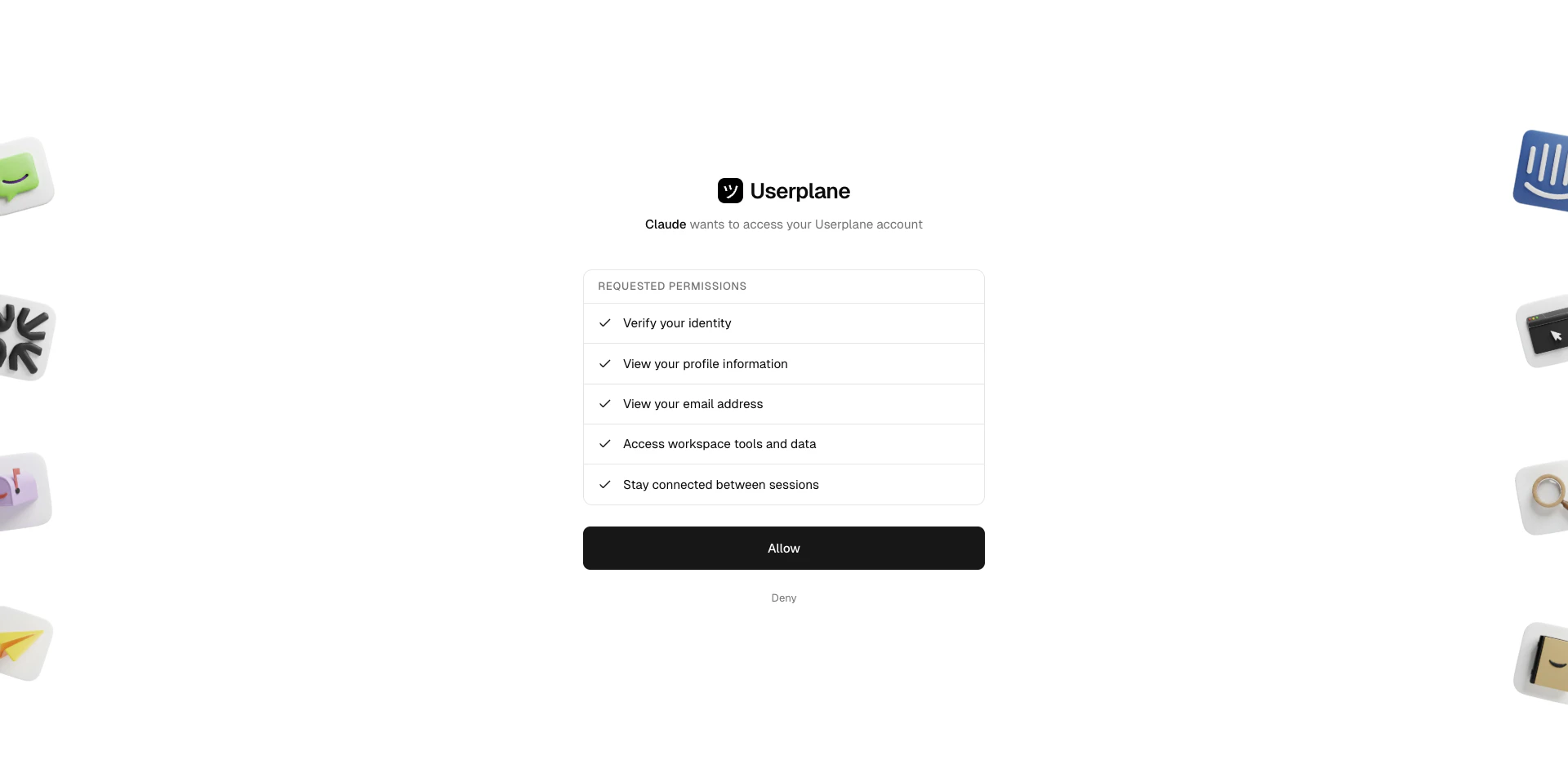 The client receives an access token and can make authenticated tool calls. Tokens refresh
automatically — you won't need to sign in again unless you revoke access.
## Permissions
MCP tools respect the same workspace roles as the Userplane dashboard and REST API.
| Capability | Required role |
| --------------------------- | ------------------------ |
| Read data (list, get, show) | Any workspace member |
| Create recording links | Any workspace member |
| Update recording links | Any workspace member |
| Delete recordings | Admin, Owner, or creator |
| Delete recording links | Admin, Owner, or creator |
Your workspace role determines what operations are available through the MCP server. If you
receive a permission error, check your role in [Workspace Settings >
Team](https://dash.userplane.io/_/settings?tab=team).
## Security
* **Per-client registration** — each AI client (Claude, Codex, Cursor, VS Code, ChatGPT) registers as a separate OAuth client. Revoking one client's access does not affect others.
* **Token scoping** — access tokens are scoped to `mcp:tools` and carry no broader permissions.
* **JWT verification** — every request is verified against Userplane's JWKS endpoint with issuer and audience checks.
* **No shared secrets** — no API keys or client secrets are shared with the AI client. All clients use PKCE (public client flow).
## Managing connections
Each authorized MCP client appears in your account's [Connected Apps](https://dash.userplane.io/_/account?tab=connections) list. From there you can review permissions, check authorization dates, and revoke access.
To revoke a specific client's access:
1. Go to [Account Settings > Connections](https://dash.userplane.io/_/account?tab=connections).
2. Locate the client and open the actions menu (three dots).
3. Select **Revoke Access**, type the application name to confirm, and click **Revoke**.
The client loses access immediately. Other connected clients are not affected.
For the full walkthrough including screenshots, see [Connected Apps](/account/connections).
The Userplane REST API uses `uspl_` API keys for authentication (see [API
Authentication](/api/authentication)). The MCP server uses OAuth 2.1 instead — the two
authentication methods provide access to the same underlying resources through different
interfaces.
## Related articles
* [Userplane MCP](/integrations/mcp-workspace) — overview of the workspace MCP server.
* [Getting Started](/integrations/mcp-getting-started) — connect your AI client and start analyzing recordings.
* [Connected Apps](/account/connections) — view and revoke MCP client access from Account Settings.
* [API Authentication](/api/authentication) — REST API authentication with `uspl_` API keys.
* [Roles & Permissions](/workspace/roles-permissions) — full breakdown of workspace roles.
The client receives an access token and can make authenticated tool calls. Tokens refresh
automatically — you won't need to sign in again unless you revoke access.
## Permissions
MCP tools respect the same workspace roles as the Userplane dashboard and REST API.
| Capability | Required role |
| --------------------------- | ------------------------ |
| Read data (list, get, show) | Any workspace member |
| Create recording links | Any workspace member |
| Update recording links | Any workspace member |
| Delete recordings | Admin, Owner, or creator |
| Delete recording links | Admin, Owner, or creator |
Your workspace role determines what operations are available through the MCP server. If you
receive a permission error, check your role in [Workspace Settings >
Team](https://dash.userplane.io/_/settings?tab=team).
## Security
* **Per-client registration** — each AI client (Claude, Codex, Cursor, VS Code, ChatGPT) registers as a separate OAuth client. Revoking one client's access does not affect others.
* **Token scoping** — access tokens are scoped to `mcp:tools` and carry no broader permissions.
* **JWT verification** — every request is verified against Userplane's JWKS endpoint with issuer and audience checks.
* **No shared secrets** — no API keys or client secrets are shared with the AI client. All clients use PKCE (public client flow).
## Managing connections
Each authorized MCP client appears in your account's [Connected Apps](https://dash.userplane.io/_/account?tab=connections) list. From there you can review permissions, check authorization dates, and revoke access.
To revoke a specific client's access:
1. Go to [Account Settings > Connections](https://dash.userplane.io/_/account?tab=connections).
2. Locate the client and open the actions menu (three dots).
3. Select **Revoke Access**, type the application name to confirm, and click **Revoke**.
The client loses access immediately. Other connected clients are not affected.
For the full walkthrough including screenshots, see [Connected Apps](/account/connections).
The Userplane REST API uses `uspl_` API keys for authentication (see [API
Authentication](/api/authentication)). The MCP server uses OAuth 2.1 instead — the two
authentication methods provide access to the same underlying resources through different
interfaces.
## Related articles
* [Userplane MCP](/integrations/mcp-workspace) — overview of the workspace MCP server.
* [Getting Started](/integrations/mcp-getting-started) — connect your AI client and start analyzing recordings.
* [Connected Apps](/account/connections) — view and revoke MCP client access from Account Settings.
* [API Authentication](/api/authentication) — REST API authentication with `uspl_` API keys.
* [Roles & Permissions](/workspace/roles-permissions) — full breakdown of workspace roles.