> ## Documentation Index
> Fetch the complete documentation index at: https://docs.userplane.io/llms.txt
> Use this file to discover all available pages before exploring further.
# Raycast Browse Recordings
> Browse recordings with thumbnails, filters, and sorting from Raycast
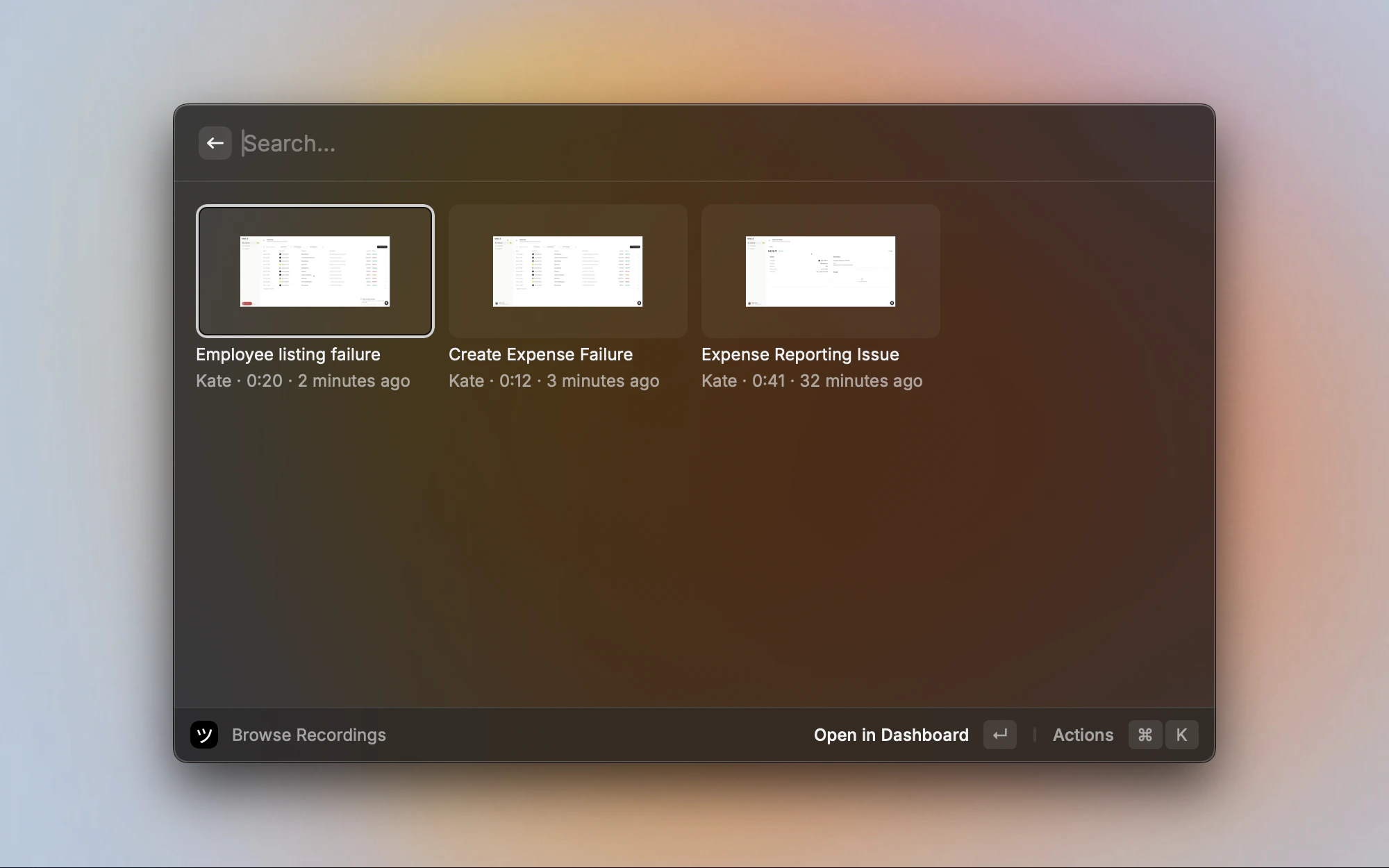
The **Browse Recordings** command displays your workspace recordings in a thumbnail grid. Recordings can be filtered by creator, project, or link, sorted by date or duration, and opened in the Userplane dashboard for full playback.
## Browsing recordings
Recordings are displayed in a four-column grid with 16:9 aspect ratio thumbnails. Each recording shows:
* **Thumbnail** — a preview frame from the recording. If unavailable, a fallback icon is shown.
* **Title** — the link title, or "Untitled recording" if none exists.
* **Creator** — name of the person who submitted the recording.
* **Duration** — displayed as H:MM:SS.
* **Created** — relative time ("2 hours ago", "yesterday").
* **Expiry badge** — an orange clock icon appears if the recording expires within 7 days.
 ## Filtering
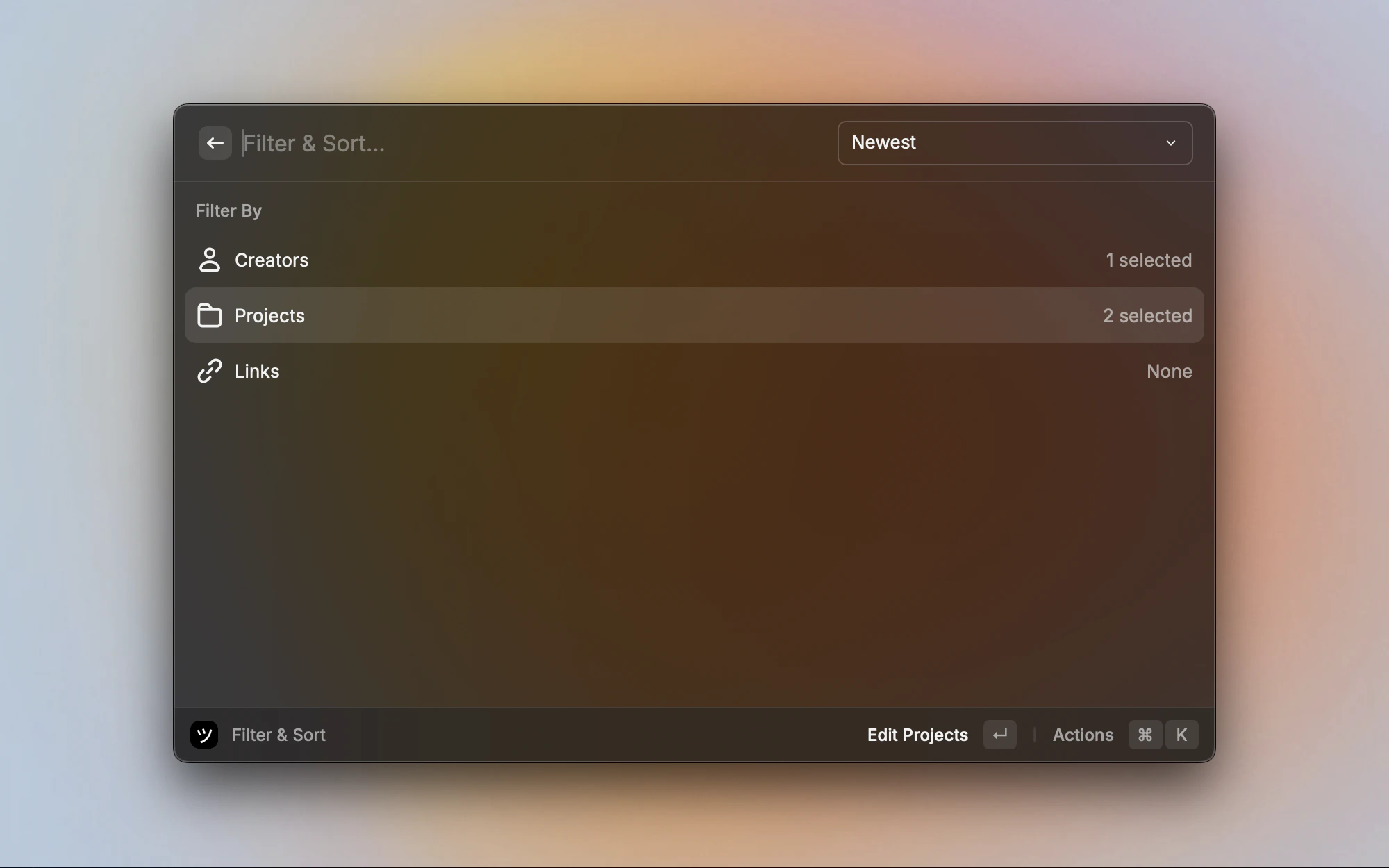
Press **Cmd+F** to open the filter screen. Filters narrow the recordings list by one or more dimensions:
* **Creators** — show recordings from specific team members.
* **Projects** — show recordings from one or more projects.
* **Links** — show recordings created from specific recording links.
Filters can be combined — selecting a creator and a project shows only recordings matching both criteria. Filters are saved per workspace and auto-apply on next use.
## Filtering
Press **Cmd+F** to open the filter screen. Filters narrow the recordings list by one or more dimensions:
* **Creators** — show recordings from specific team members.
* **Projects** — show recordings from one or more projects.
* **Links** — show recordings created from specific recording links.
Filters can be combined — selecting a creator and a project shows only recordings matching both criteria. Filters are saved per workspace and auto-apply on next use.
 To clear all filters and reset sorting, press **Cmd+Shift+F**.
## Sorting
Sort recordings using the Sort section in the action panel:
| Sort option | What it does |
| ------------------ | ------------------------------------- |
| **Newest First** | Most recently created first (default) |
| **Oldest First** | Oldest recordings first |
| **Longest First** | Longest duration first |
| **Shortest First** | Shortest duration first |
## Recording actions
Select a recording and use the action panel:
| Action | Shortcut | What it does |
| ------------------------- | ------------- | ----------------------------------------------- |
| **Open in Dashboard** | `Return` | Opens the recording in the Userplane dashboard |
| **Copy Dashboard URL** | `Cmd+C` | Copies a direct link to the recording |
| **Filter & Sort...** | `Cmd+F` | Opens the filter screen |
| **Clear Filters** | `Cmd+Shift+F` | Resets all filters and sorting to defaults |
| **View All in Dashboard** | — | Opens the full recordings list in the dashboard |
## Workspace switching
If you belong to multiple workspaces, open the action panel and select **Switch Workspace** to change which workspace's recordings are displayed. Your selection is remembered for next time.
## Pagination
The grid loads a limited set of recordings. When more recordings exist, a **View all in Dashboard** tile appears at the end of the grid. Clicking it opens the full recordings list in the Userplane dashboard.
## Related articles
* [Raycast Extension](/integrations/raycast) — installation, setup, and menu bar.
* [Raycast Create Recording Links](/integrations/raycast-create-links) — create links that generate recordings.
* [Raycast Browse Links](/integrations/raycast-links) — browse and manage recording links.
* [Reviewing Recordings](/recording/reviewing) — full guide to the dashboard recording detail view.
* [Recording Playback](/recording/playback) — video player controls and timeline features.
* [Issue Analyzer](/recording/issue-analyzer) — automated root-cause analysis.
To clear all filters and reset sorting, press **Cmd+Shift+F**.
## Sorting
Sort recordings using the Sort section in the action panel:
| Sort option | What it does |
| ------------------ | ------------------------------------- |
| **Newest First** | Most recently created first (default) |
| **Oldest First** | Oldest recordings first |
| **Longest First** | Longest duration first |
| **Shortest First** | Shortest duration first |
## Recording actions
Select a recording and use the action panel:
| Action | Shortcut | What it does |
| ------------------------- | ------------- | ----------------------------------------------- |
| **Open in Dashboard** | `Return` | Opens the recording in the Userplane dashboard |
| **Copy Dashboard URL** | `Cmd+C` | Copies a direct link to the recording |
| **Filter & Sort...** | `Cmd+F` | Opens the filter screen |
| **Clear Filters** | `Cmd+Shift+F` | Resets all filters and sorting to defaults |
| **View All in Dashboard** | — | Opens the full recordings list in the dashboard |
## Workspace switching
If you belong to multiple workspaces, open the action panel and select **Switch Workspace** to change which workspace's recordings are displayed. Your selection is remembered for next time.
## Pagination
The grid loads a limited set of recordings. When more recordings exist, a **View all in Dashboard** tile appears at the end of the grid. Clicking it opens the full recordings list in the Userplane dashboard.
## Related articles
* [Raycast Extension](/integrations/raycast) — installation, setup, and menu bar.
* [Raycast Create Recording Links](/integrations/raycast-create-links) — create links that generate recordings.
* [Raycast Browse Links](/integrations/raycast-links) — browse and manage recording links.
* [Reviewing Recordings](/recording/reviewing) — full guide to the dashboard recording detail view.
* [Recording Playback](/recording/playback) — video player controls and timeline features.
* [Issue Analyzer](/recording/issue-analyzer) — automated root-cause analysis.