> ## Documentation Index
> Fetch the complete documentation index at: https://docs.userplane.io/llms.txt
> Use this file to discover all available pages before exploring further.
# Raycast Extension
> Create recording links, browse recordings and links, and open the Userplane dashboard from Raycast
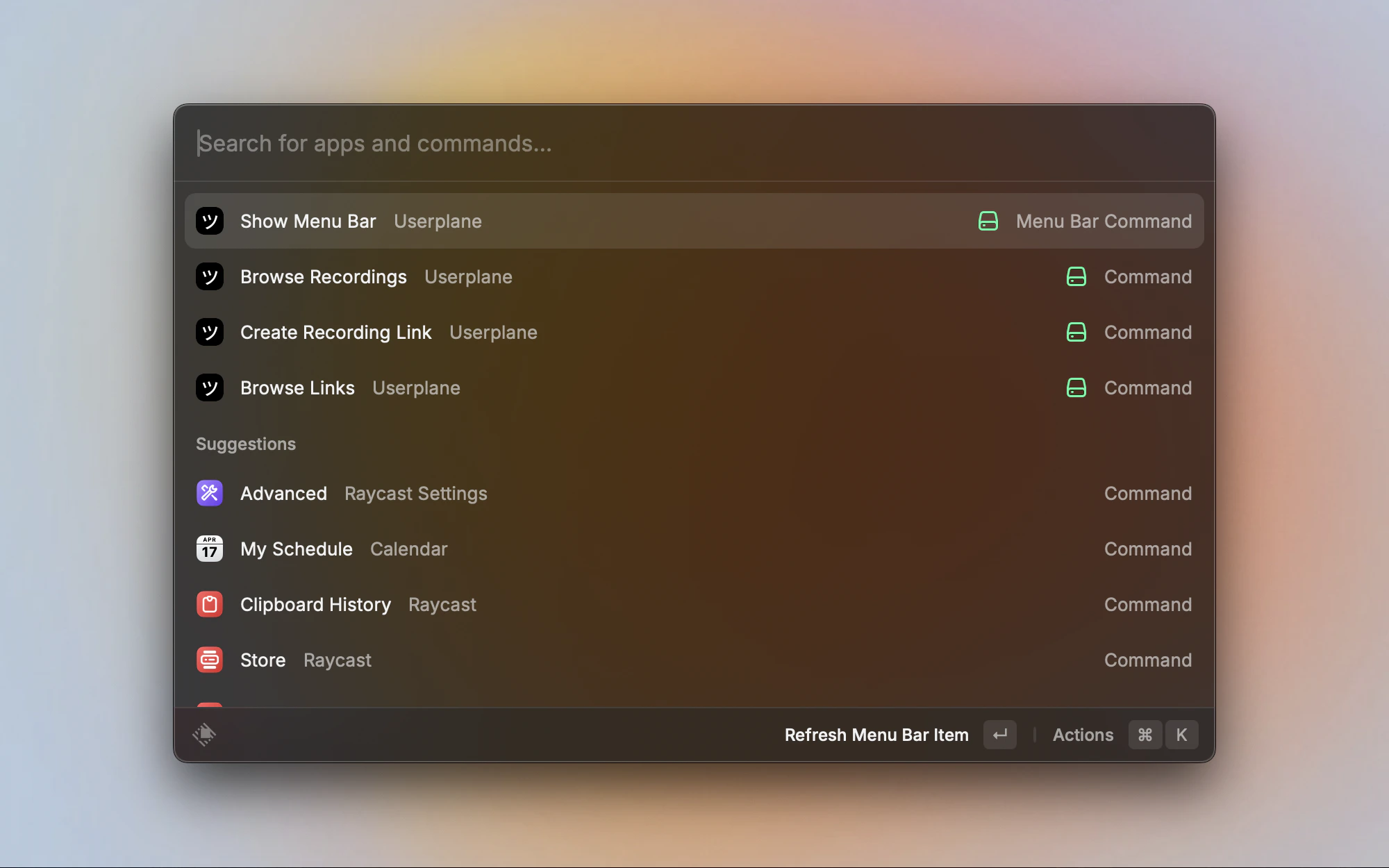
The Raycast extension lets your support team create recording links, browse recordings and links, and open the dashboard — without leaving Raycast. It works as a set of commands you can invoke from the Raycast launcher, plus an optional menu bar icon for quick access.
## What the extension does
* Provides a **Create Recording Link** command for generating and copying recording links with workspace, project, and domain selection.
* Displays recordings in a **thumbnail grid** with duration, creator, and expiry indicators.
* Lists recording links with **project tags**, reusable/single-use icons, and domain info.
* Supports **filtering and sorting** across recordings and links — by creator, project, domain, or link.
* Adds a **menu bar icon** for one-click access to any command or the Userplane dashboard.
* Remembers your **last-used workspace**, project, and domain selections across sessions.
The Raycast extension is a management tool — it does not record the screen itself. Customers
record by clicking the recording link you share with them.
## Installing the extension
Open Raycast and search for **Userplane** in the Store, or find it in the [Raycast Store](https://www.raycast.com/wizenheimer/userplane). Click **Install**.
Open Raycast and type a Userplane command — for example, **Create Recording Link**. On first run, Raycast prompts you to enter your API key.
Paste your Userplane API key into the **API Key** field. You can create one at [Dashboard > Developers](https://dash.userplane.io/_/account?tab=developers).
Your API key is stored securely in the macOS Keychain by Raycast. It is never written to disk in plain text.
## Menu bar
The **Show Menu Bar** command adds a Userplane icon to your macOS menu bar. Clicking it opens a dropdown with quick access to every command and the dashboard.
 | Item | What it does |
| -------------------------- | --------------------------------------------------------------------- |
| **Create Recording Link** | Opens the Create Recording Link command |
| **Browse Recordings** | Opens the Browse Recordings command |
| **Browse Recording Links** | Opens the Browse Links command |
| **Open Dashboard** | Opens the Userplane dashboard in your browser |
| **Contact Support** | Opens an email to [support@userplane.io](mailto:support@userplane.io) |
| **Extension Preferences** | Opens the Raycast extension preferences panel |
Enable **Show Menu Bar** in Raycast preferences to keep the icon visible at all times, even when
Raycast is not open.
## Configuration
The extension has three preferences, accessible from Raycast's Extension Preferences panel (`Cmd+Shift+A` from any Userplane command).
| Preference | Required | Default | Description |
| ------------------ | -------- | ------------------- | ------------------------------------------------------------- |
| **API Key** | Yes | — | Your Userplane API key. Create one at Dashboard > Developers. |
| **API Host** | No | `api.userplane.io` | API host for self-hosted or staging deployments. |
| **Dashboard Host** | No | `dash.userplane.io` | Dashboard host for self-hosted or staging deployments. |
The **API Host** and **Dashboard Host** fields accept a bare hostname (`api-dev.userplane.io`) or a full URL (`https://api-dev.userplane.io`). These are only needed for self-hosted or staging environments.
## Common actions
These actions are available in the action panel of every Userplane command:
| Action | Shortcut | What it does |
| ---------------------------- | ------------- | ----------------------------------------------- |
| **Open Userplane Dashboard** | `Cmd+D` | Opens the Userplane dashboard in your browser |
| **View My Recordings** | `Cmd+Shift+R` | Opens the dashboard filtered to your recordings |
| **Advanced Options** | `Cmd+Shift+A` | Opens the Raycast extension preferences panel |
## Requirements
* macOS with [Raycast](https://raycast.com) installed
* A Userplane workspace account
* An API key ([create one here](https://dash.userplane.io/_/account?tab=developers))
## Related articles
* [Raycast Create Recording Links](/integrations/raycast-create-links) — create and share recording links from Raycast.
* [Raycast Browse Recordings](/integrations/raycast-recordings) — browse recordings with thumbnails, filters, and sorting.
* [Raycast Browse Links](/integrations/raycast-links) — browse and manage recording links.
* [Help Desk Setup](/getting-started/helpdesk-setup) — connect your help desk to Userplane.
* [API Keys](/api/api-keys) — manage API keys for the Raycast extension.
| Item | What it does |
| -------------------------- | --------------------------------------------------------------------- |
| **Create Recording Link** | Opens the Create Recording Link command |
| **Browse Recordings** | Opens the Browse Recordings command |
| **Browse Recording Links** | Opens the Browse Links command |
| **Open Dashboard** | Opens the Userplane dashboard in your browser |
| **Contact Support** | Opens an email to [support@userplane.io](mailto:support@userplane.io) |
| **Extension Preferences** | Opens the Raycast extension preferences panel |
Enable **Show Menu Bar** in Raycast preferences to keep the icon visible at all times, even when
Raycast is not open.
## Configuration
The extension has three preferences, accessible from Raycast's Extension Preferences panel (`Cmd+Shift+A` from any Userplane command).
| Preference | Required | Default | Description |
| ------------------ | -------- | ------------------- | ------------------------------------------------------------- |
| **API Key** | Yes | — | Your Userplane API key. Create one at Dashboard > Developers. |
| **API Host** | No | `api.userplane.io` | API host for self-hosted or staging deployments. |
| **Dashboard Host** | No | `dash.userplane.io` | Dashboard host for self-hosted or staging deployments. |
The **API Host** and **Dashboard Host** fields accept a bare hostname (`api-dev.userplane.io`) or a full URL (`https://api-dev.userplane.io`). These are only needed for self-hosted or staging environments.
## Common actions
These actions are available in the action panel of every Userplane command:
| Action | Shortcut | What it does |
| ---------------------------- | ------------- | ----------------------------------------------- |
| **Open Userplane Dashboard** | `Cmd+D` | Opens the Userplane dashboard in your browser |
| **View My Recordings** | `Cmd+Shift+R` | Opens the dashboard filtered to your recordings |
| **Advanced Options** | `Cmd+Shift+A` | Opens the Raycast extension preferences panel |
## Requirements
* macOS with [Raycast](https://raycast.com) installed
* A Userplane workspace account
* An API key ([create one here](https://dash.userplane.io/_/account?tab=developers))
## Related articles
* [Raycast Create Recording Links](/integrations/raycast-create-links) — create and share recording links from Raycast.
* [Raycast Browse Recordings](/integrations/raycast-recordings) — browse recordings with thumbnails, filters, and sorting.
* [Raycast Browse Links](/integrations/raycast-links) — browse and manage recording links.
* [Help Desk Setup](/getting-started/helpdesk-setup) — connect your help desk to Userplane.
* [API Keys](/api/api-keys) — manage API keys for the Raycast extension.