> ## Documentation Index
> Fetch the complete documentation index at: https://docs.userplane.io/llms.txt
> Use this file to discover all available pages before exploring further.
# Slack Slash Command
> Use /userplane in any Slack channel or DM to create a recording link without leaving the conversation
When you [connect Slack](/integrations/slack), the `/userplane` command is registered in your Slack workspace. Type it in any channel or DM to open a link creation form as a modal — no need to switch tabs or open the Userplane dashboard.
## Using the slash command
In any Slack channel, DM, or thread, type `/userplane` and press **Enter**.
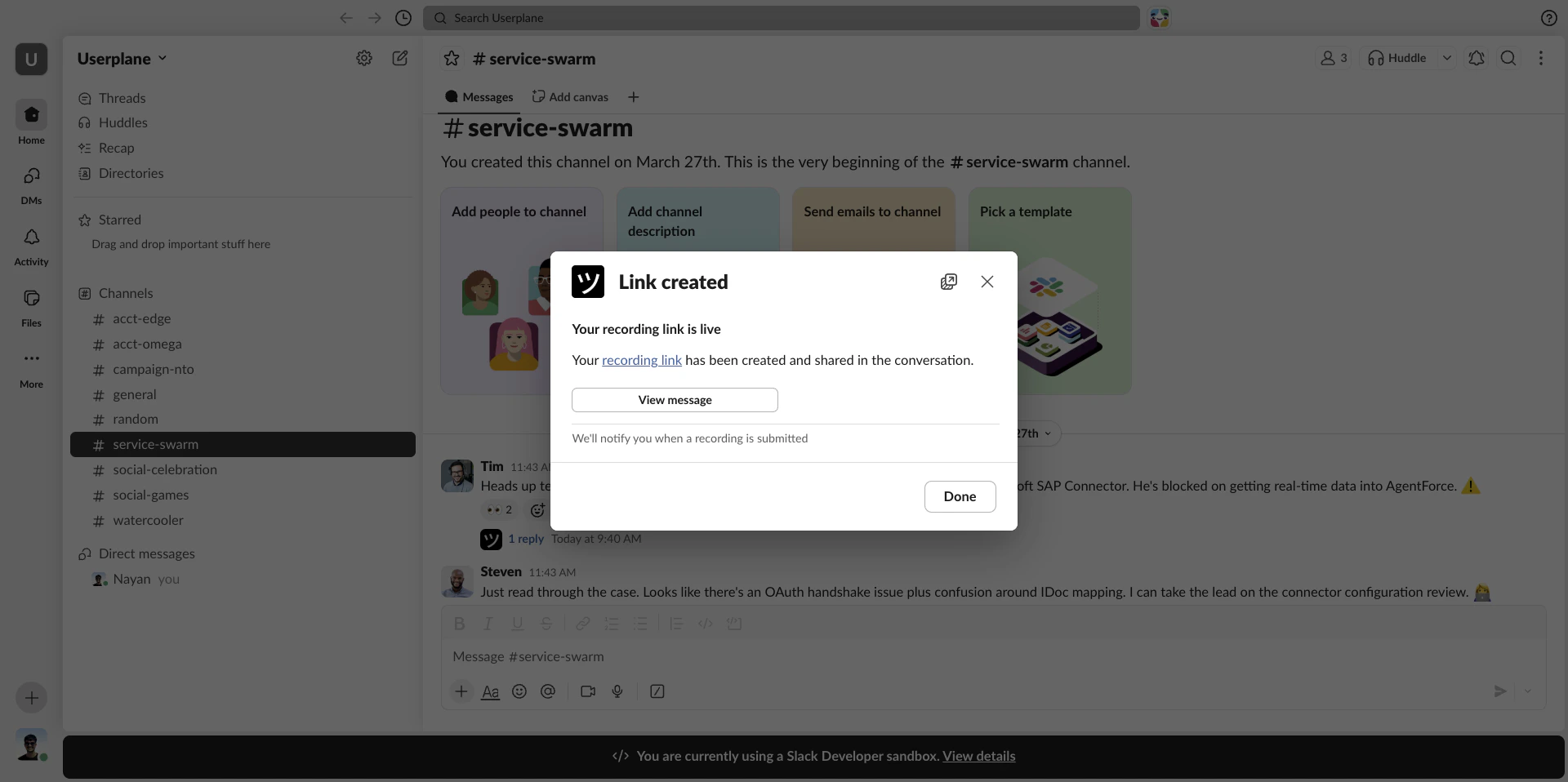
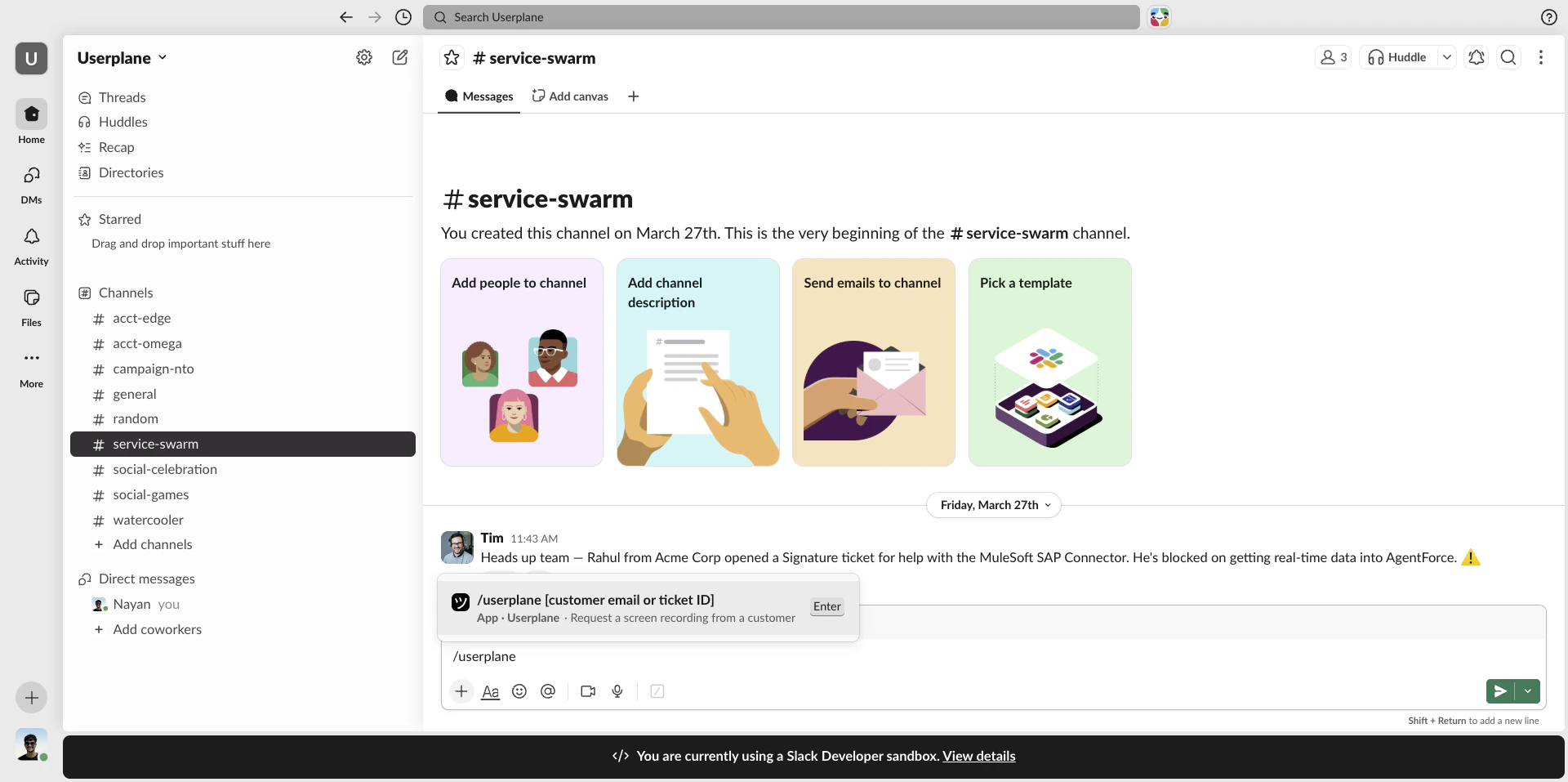 A modal opens with a form. Select a **Project** and **Domain**, and optionally edit the **Link Reference** and **Message for the recipient**.
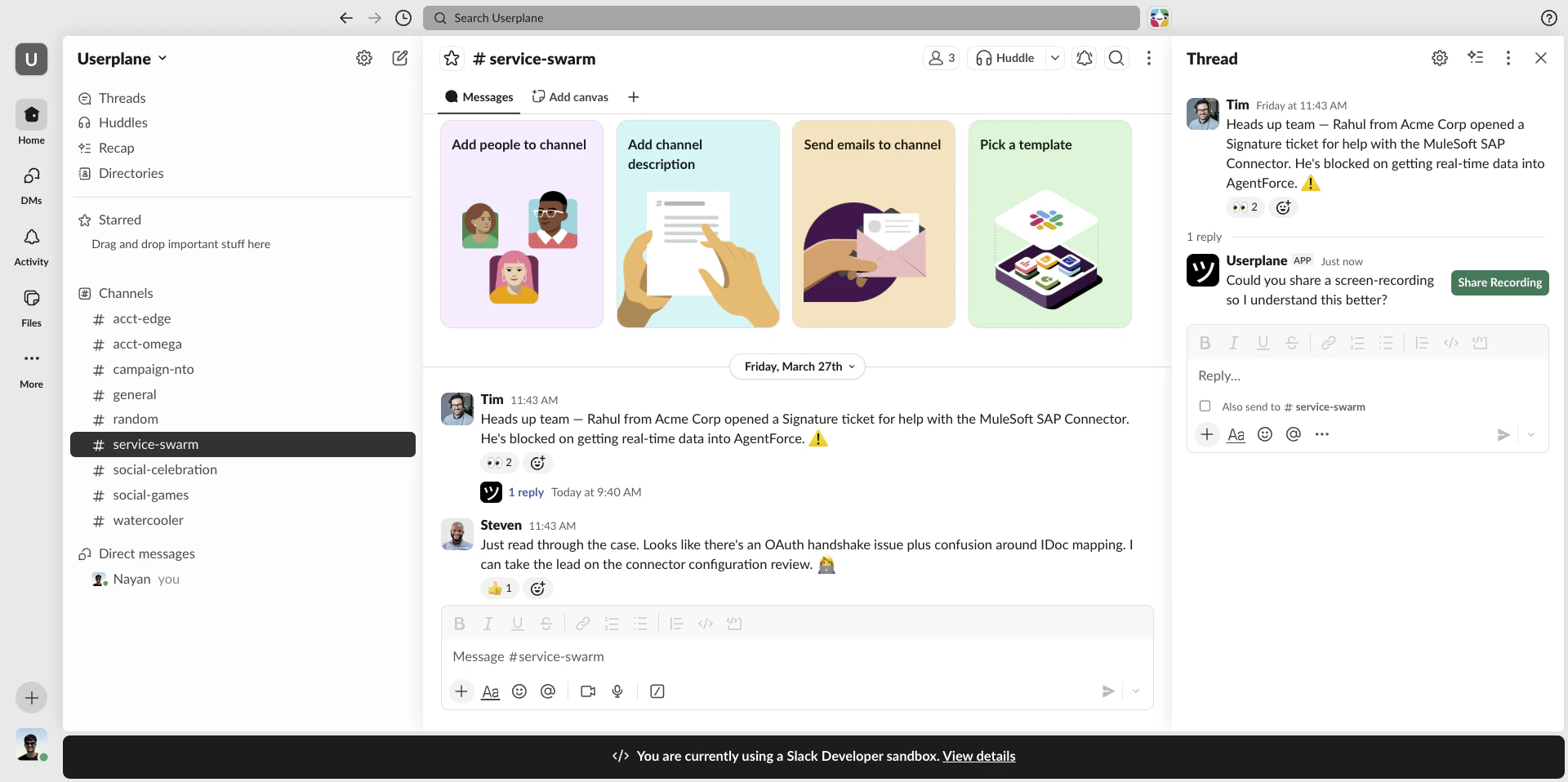
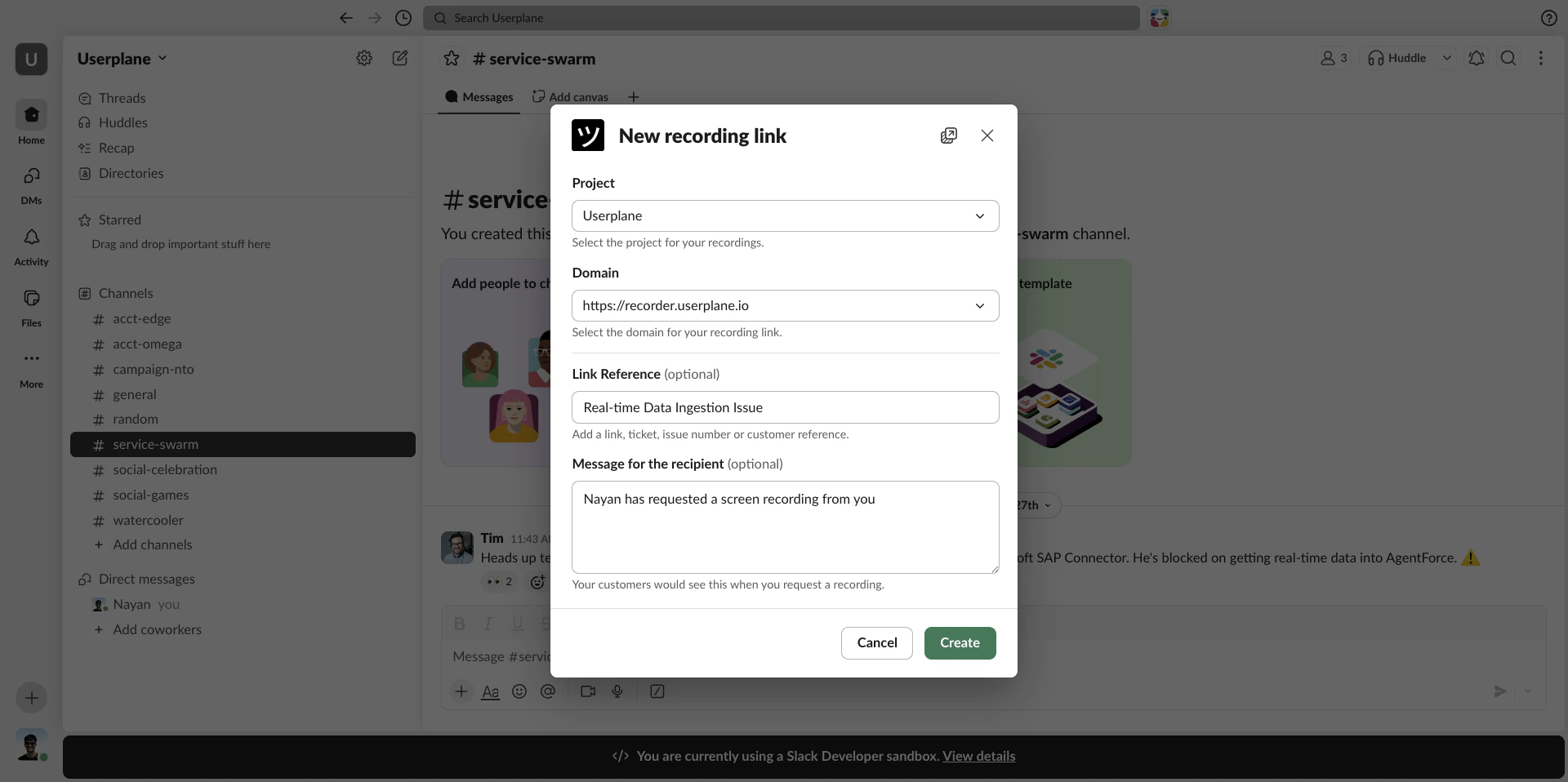 Click **Create**. The link is generated and posted to the channel as a message the team can see.
 ## Pre-filling the link reference
You can pass optional text directly in the command to pre-fill the **Link Reference** field:
```
/userplane TICKET-1234
/userplane Login bug — checkout flow
/userplane https://github.com/org/repo/issues/99
```
Whatever you type after `/userplane` appears in the Link Reference field when the modal opens. You can edit it before submitting or leave it as-is.
## Pre-filling the link reference
You can pass optional text directly in the command to pre-fill the **Link Reference** field:
```
/userplane TICKET-1234
/userplane Login bug — checkout flow
/userplane https://github.com/org/repo/issues/99
```
Whatever you type after `/userplane` appears in the Link Reference field when the modal opens. You can edit it before submitting or leave it as-is.
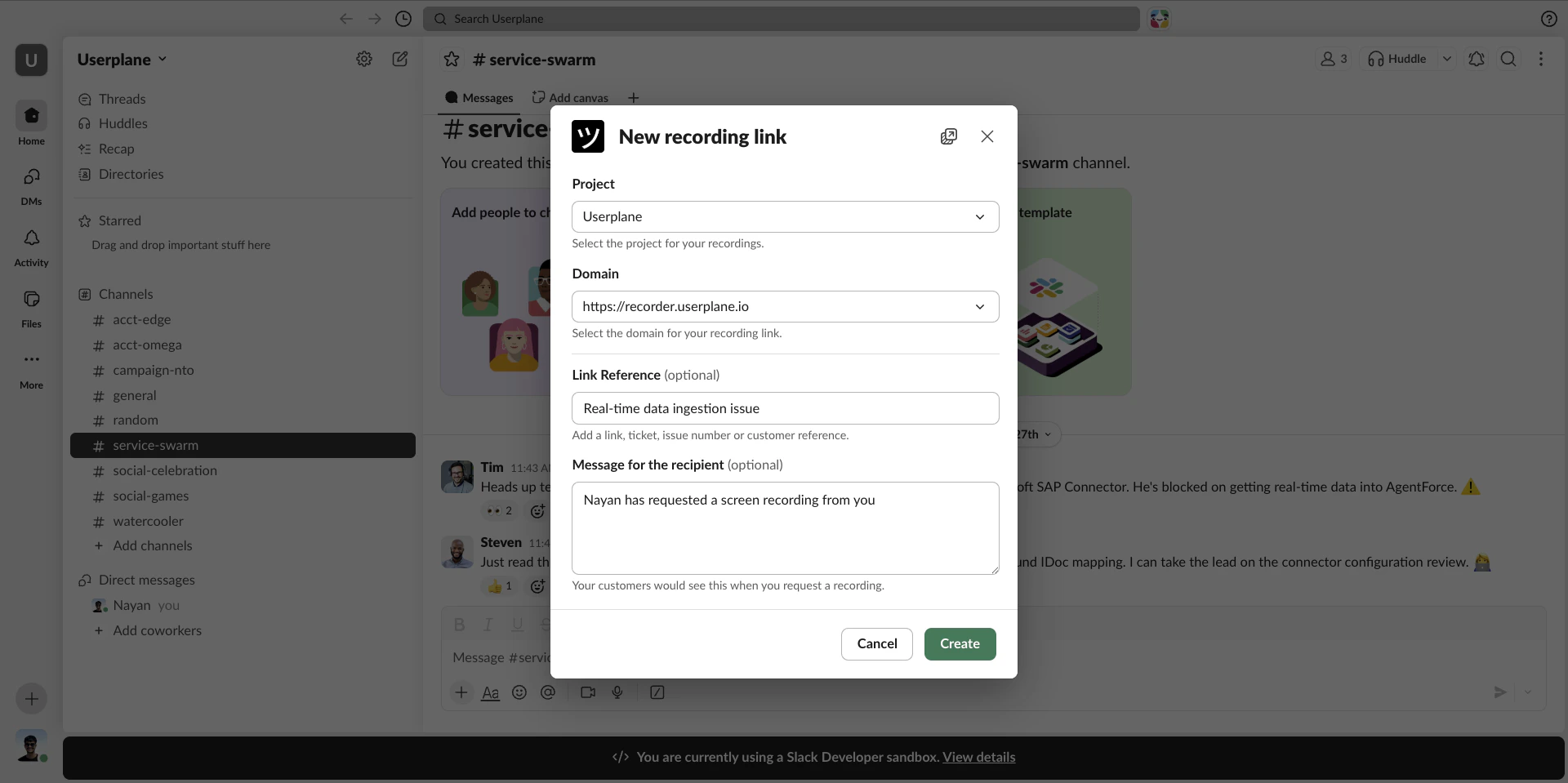 This pairs well with ticket workflows — copy the ticket ID from your help desk, type `/userplane
TICKET-ID`, and the reference is already set when the modal opens.
## After the link is created
* A message is posted to the channel with a **Share Recording** button customers can use to open the link.
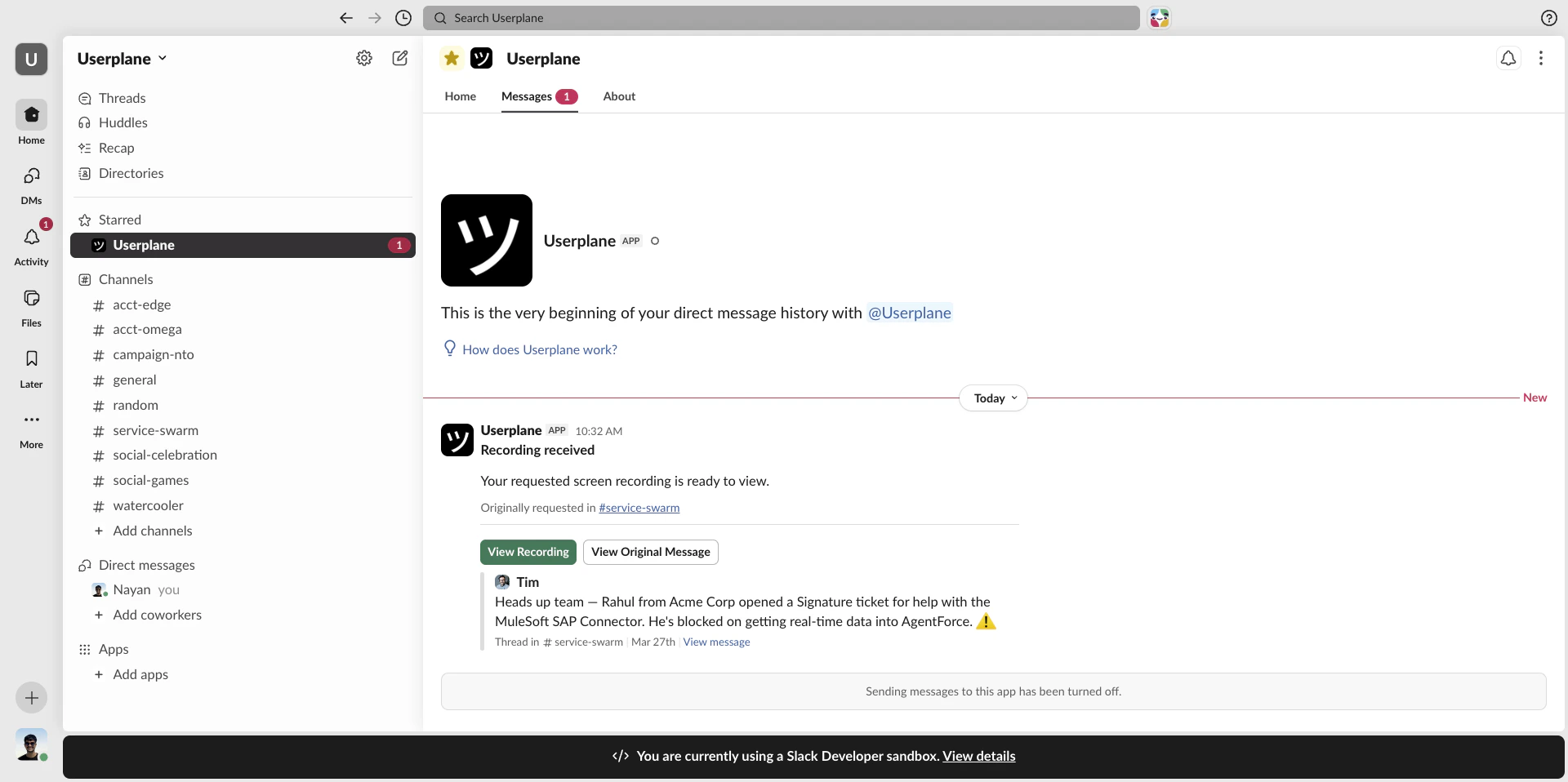
* You receive a DM when the customer submits the recording. See [Slack Notifications](/integrations/slack-notifications).
* The recording link appears in your Userplane dashboard under [Links](https://dash.userplane.io/_/links).
This pairs well with ticket workflows — copy the ticket ID from your help desk, type `/userplane
TICKET-ID`, and the reference is already set when the modal opens.
## After the link is created
* A message is posted to the channel with a **Share Recording** button customers can use to open the link.
* You receive a DM when the customer submits the recording. See [Slack Notifications](/integrations/slack-notifications).
* The recording link appears in your Userplane dashboard under [Links](https://dash.userplane.io/_/links).
 ## Viewing recordings
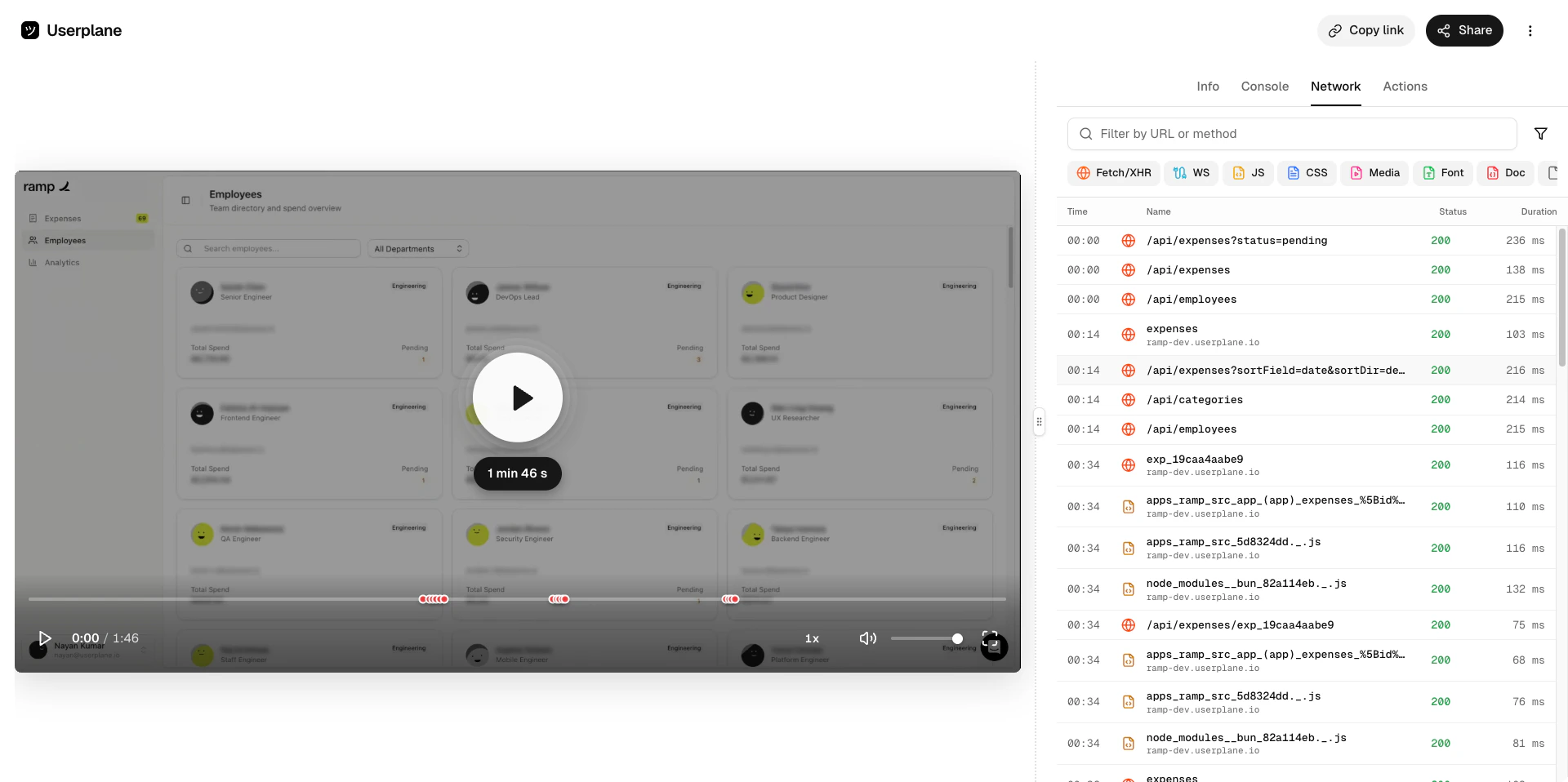
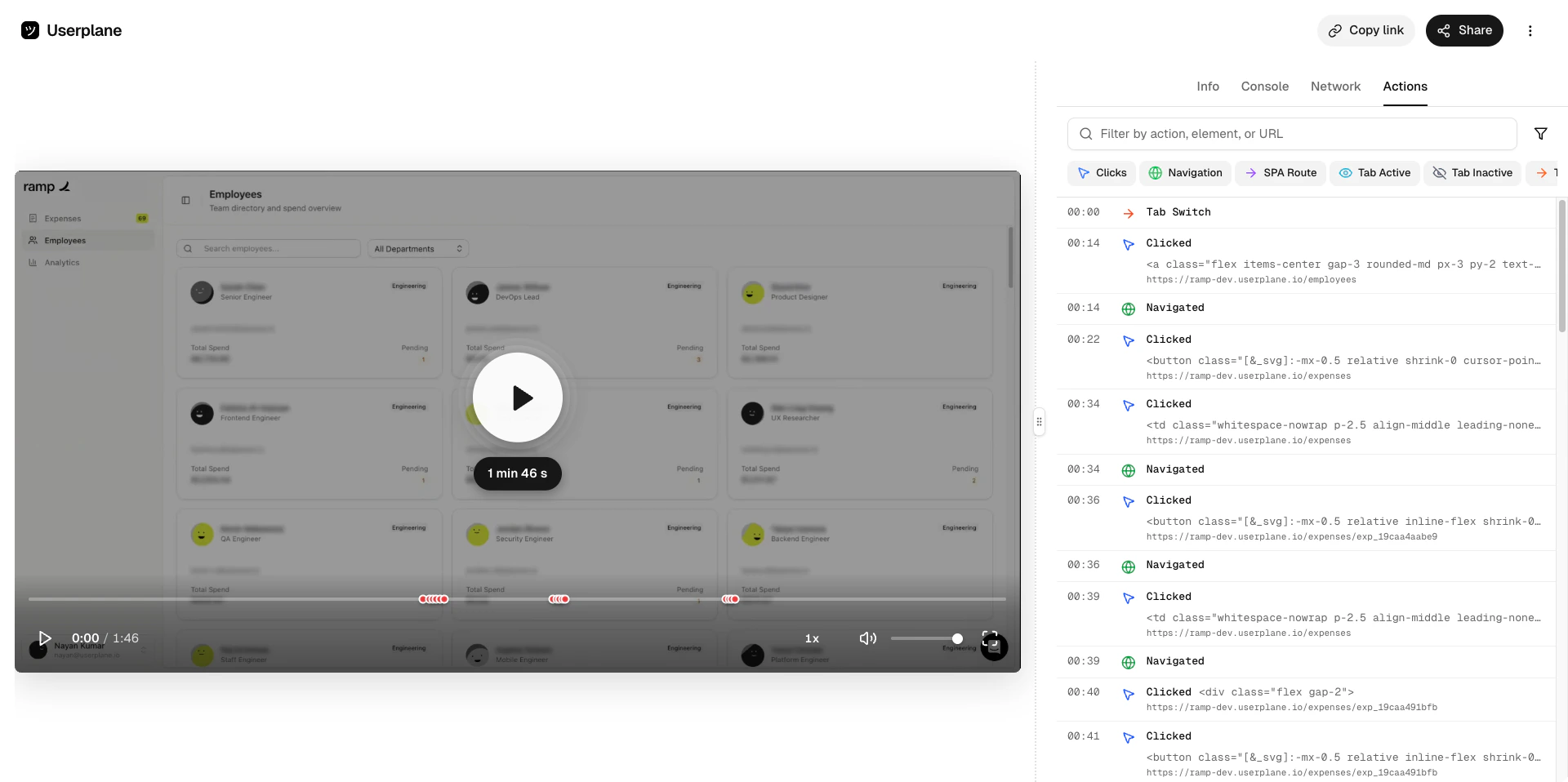
When the customer submits, open the recording in Userplane for full playback.
You get a DM in Slack with a **View Recording** button. Click it to open the recording in Userplane.
## Viewing recordings
When the customer submits, open the recording in Userplane for full playback.
You get a DM in Slack with a **View Recording** button. Click it to open the recording in Userplane.
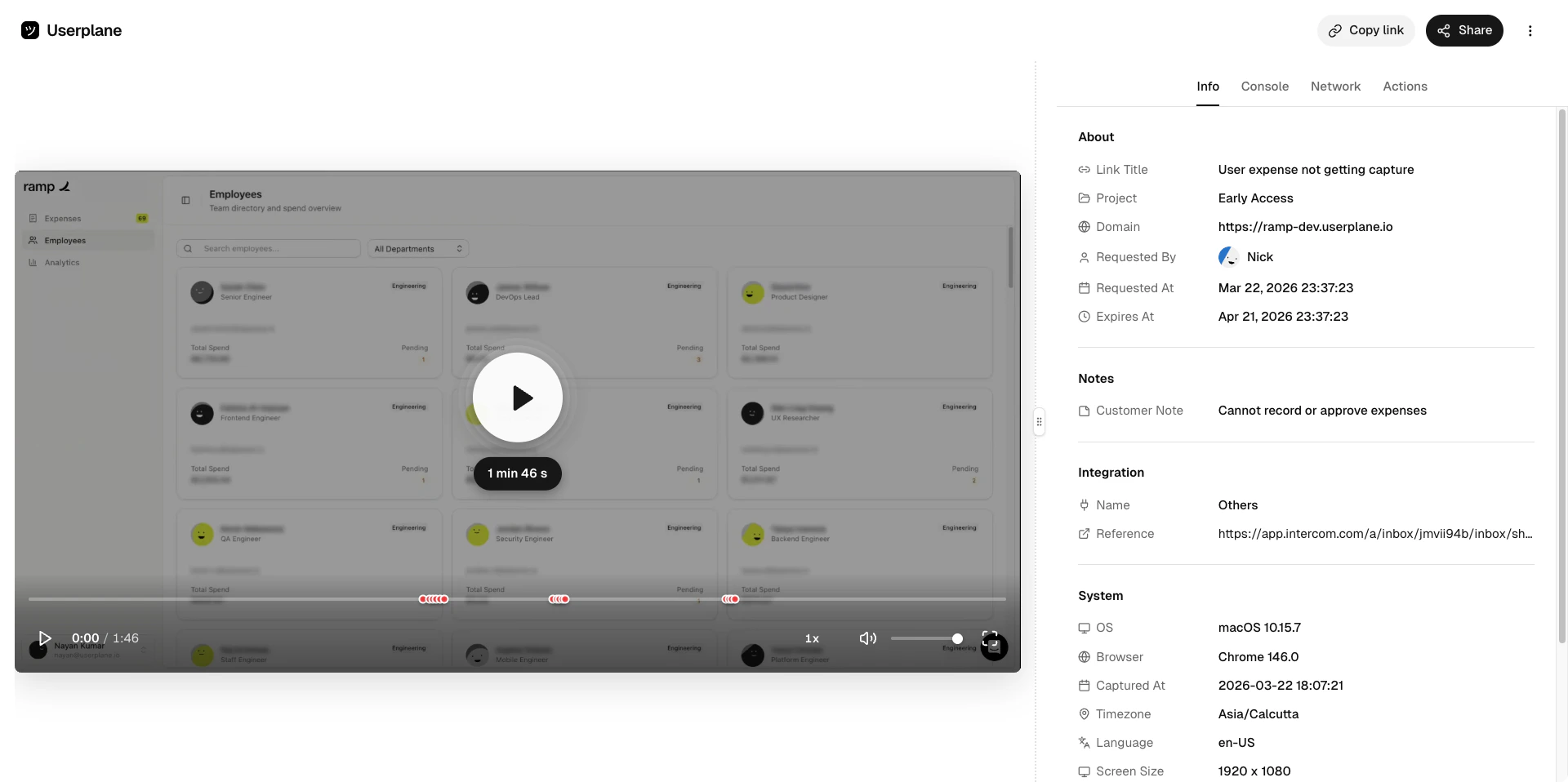
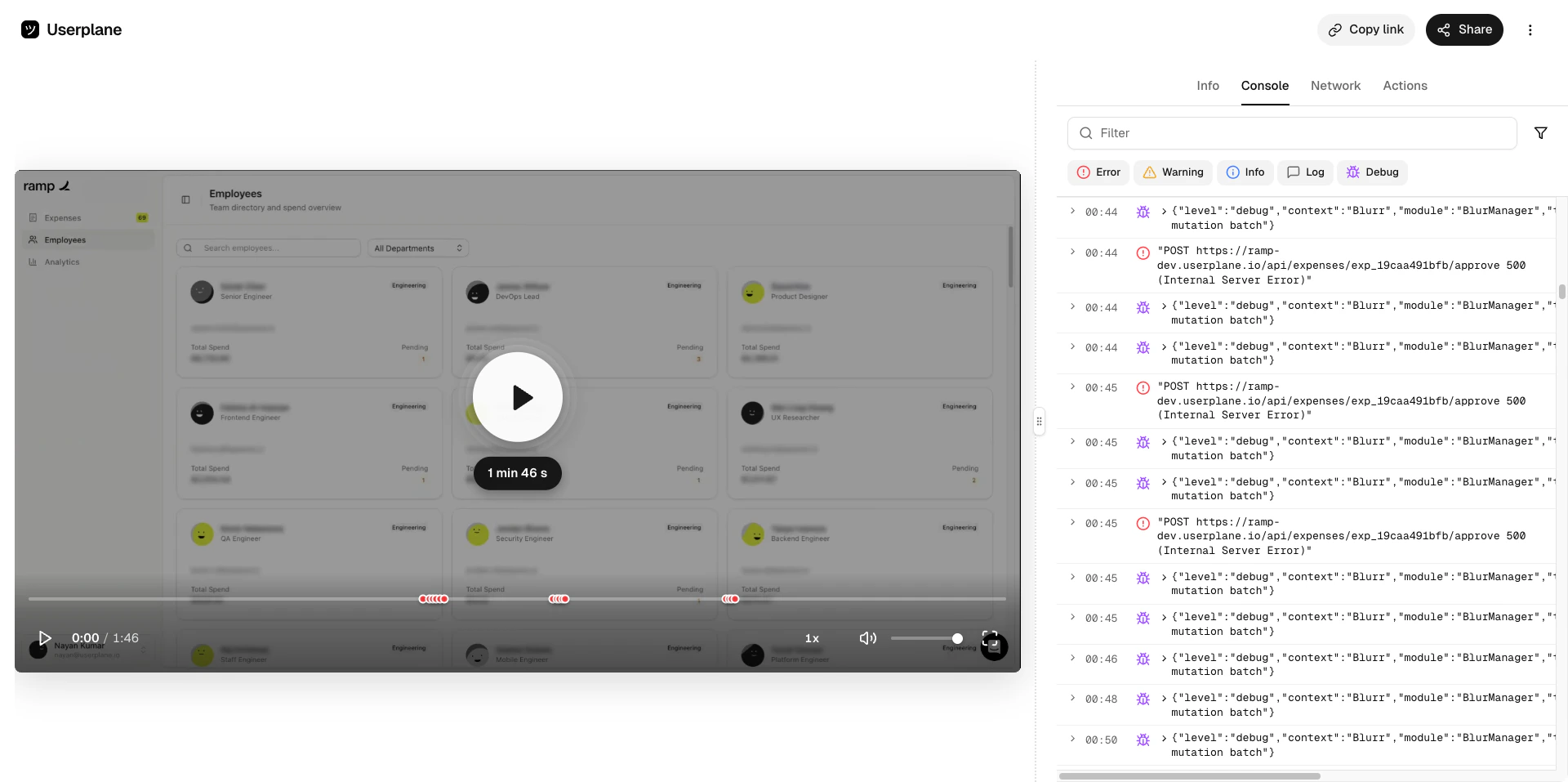
 Watch the video and inspect the captured data.
 ## When to use slash command vs. other surfaces
| | Slash command (`/userplane`) | Message shortcut | App Home |
| ---------------------- | ------------------------------------ | --------------------------------------- | --------------------------- |
| **Access** | Type in any channel or DM | Right-click any message | Open the Userplane app tab |
| **Best for** | Quick link creation mid-conversation | Linking a request to a specific message | Browsing and managing links |
| **Posts to** | The channel you typed in | The message's channel or thread | Doesn't post to a channel |
| **Pre-fill reference** | Yes — add text after `/userplane` | No | No |
## Requirements
* The Slack integration must be [connected](/integrations/slack).
* The agent must be a member of the Userplane workspace (matched by email).
## Related articles
* [Slack App Home](/integrations/slack-home) — browse recordings and manage links from Slack.
* [Slack Message Shortcuts](/integrations/slack-shortcuts) — create links from a message context menu.
* [Slack Notifications](/integrations/slack-notifications) — recording arrival notifications.
* [Link Reference](/recording/link-reference) — how references help you find recordings later.
## When to use slash command vs. other surfaces
| | Slash command (`/userplane`) | Message shortcut | App Home |
| ---------------------- | ------------------------------------ | --------------------------------------- | --------------------------- |
| **Access** | Type in any channel or DM | Right-click any message | Open the Userplane app tab |
| **Best for** | Quick link creation mid-conversation | Linking a request to a specific message | Browsing and managing links |
| **Posts to** | The channel you typed in | The message's channel or thread | Doesn't post to a channel |
| **Pre-fill reference** | Yes — add text after `/userplane` | No | No |
## Requirements
* The Slack integration must be [connected](/integrations/slack).
* The agent must be a member of the Userplane workspace (matched by email).
## Related articles
* [Slack App Home](/integrations/slack-home) — browse recordings and manage links from Slack.
* [Slack Message Shortcuts](/integrations/slack-shortcuts) — create links from a message context menu.
* [Slack Notifications](/integrations/slack-notifications) — recording arrival notifications.
* [Link Reference](/recording/link-reference) — how references help you find recordings later.