> ## Documentation Index
> Fetch the complete documentation index at: https://docs.userplane.io/llms.txt
> Use this file to discover all available pages before exploring further.
# Zendesk Ticket Editor
> Insert recording links directly into replies from the Zendesk editor toolbar
The ticket editor integration adds a Userplane button to the Zendesk reply editor toolbar. Click it to create a recording link and insert it into your reply draft in one step — without opening the sidebar.
## How it works
Open a ticket in Zendesk and start a reply.
In the reply editor toolbar, click the **Userplane** button. A compact popover opens inline.
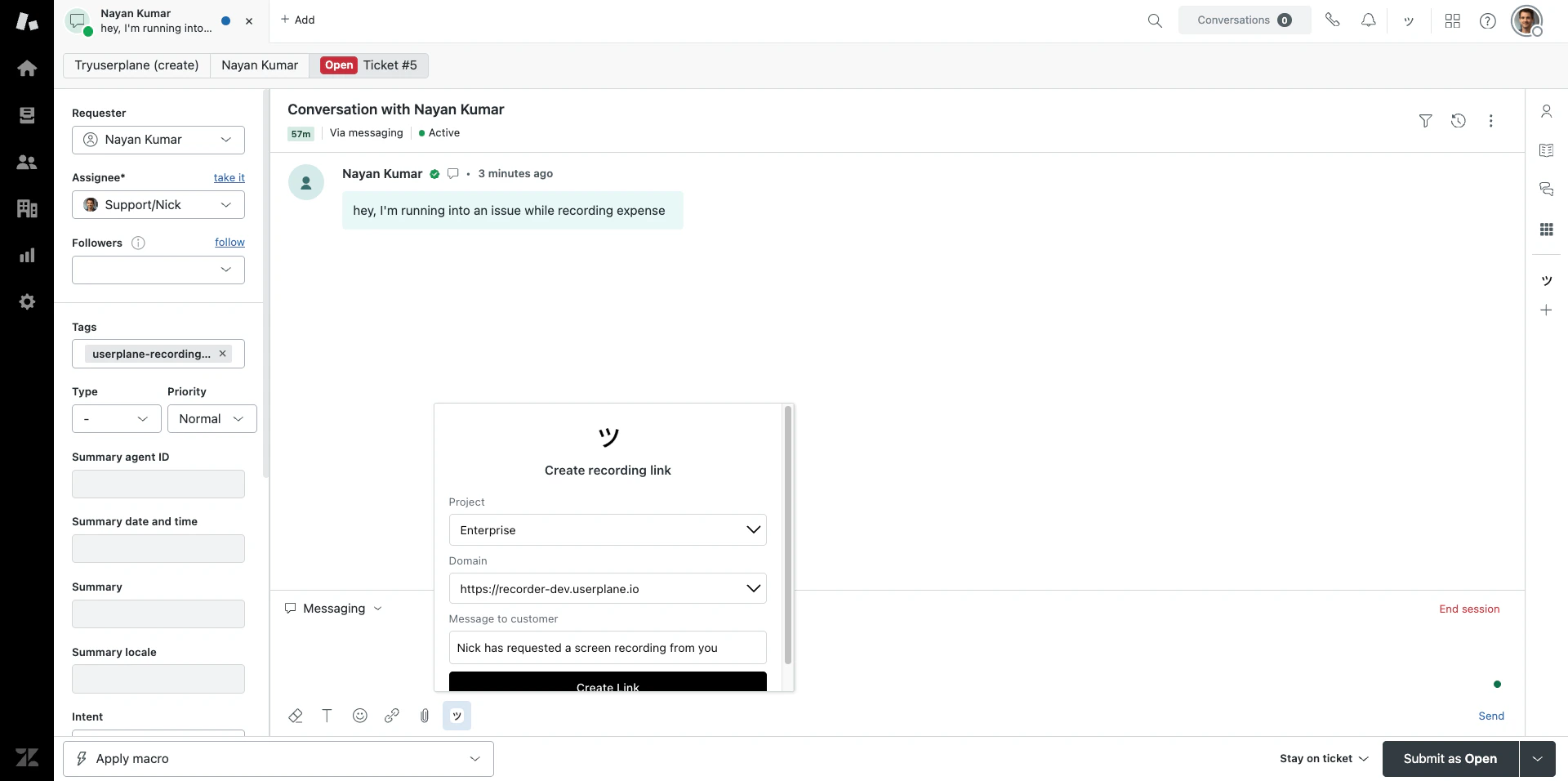 Select a **project** and **domain**, optionally customize the message, then click **Create
Link**.
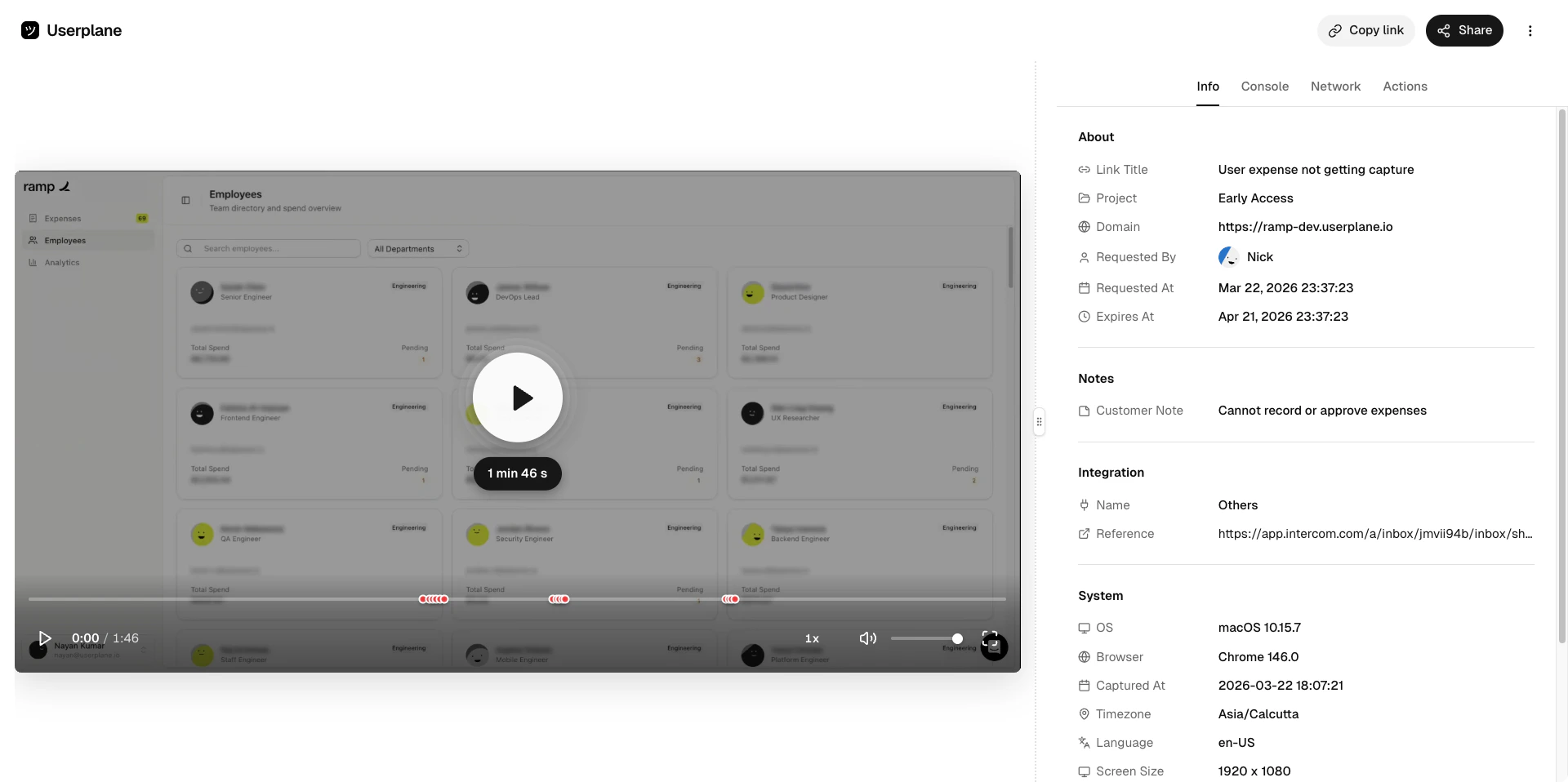
The recording link is automatically inserted into your reply draft. The popover closes and you
can continue writing your response.
## Reviewing recordings
Once a customer completes a recording, there are two ways to access it:
When the recording is received, Userplane posts an **internal note** on the ticket — visible only to agents — with a direct link to the recording playback. Click the link to jump straight to the recording. See [Zendesk Notifications](/integrations/zendesk-notifications) for details.
Select a **project** and **domain**, optionally customize the message, then click **Create
Link**.
The recording link is automatically inserted into your reply draft. The popover closes and you
can continue writing your response.
## Reviewing recordings
Once a customer completes a recording, there are two ways to access it:
When the recording is received, Userplane posts an **internal note** on the ticket — visible only to agents — with a direct link to the recording playback. Click the link to jump straight to the recording. See [Zendesk Notifications](/integrations/zendesk-notifications) for details.
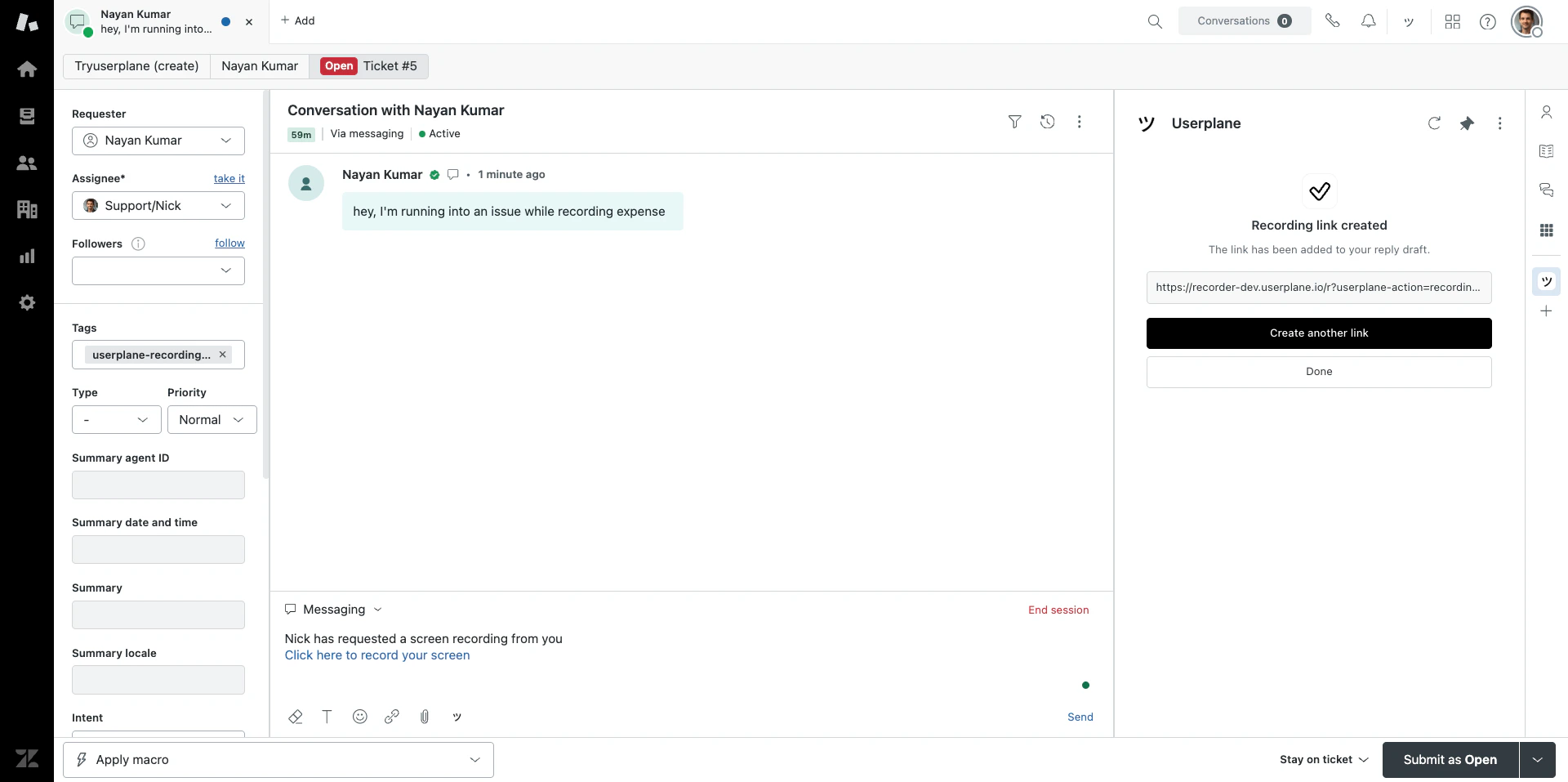 Click **View Recordings** in the [ticket sidebar](/integrations/zendesk-ticket-sidebar) opener to browse all recordings for your workspace.
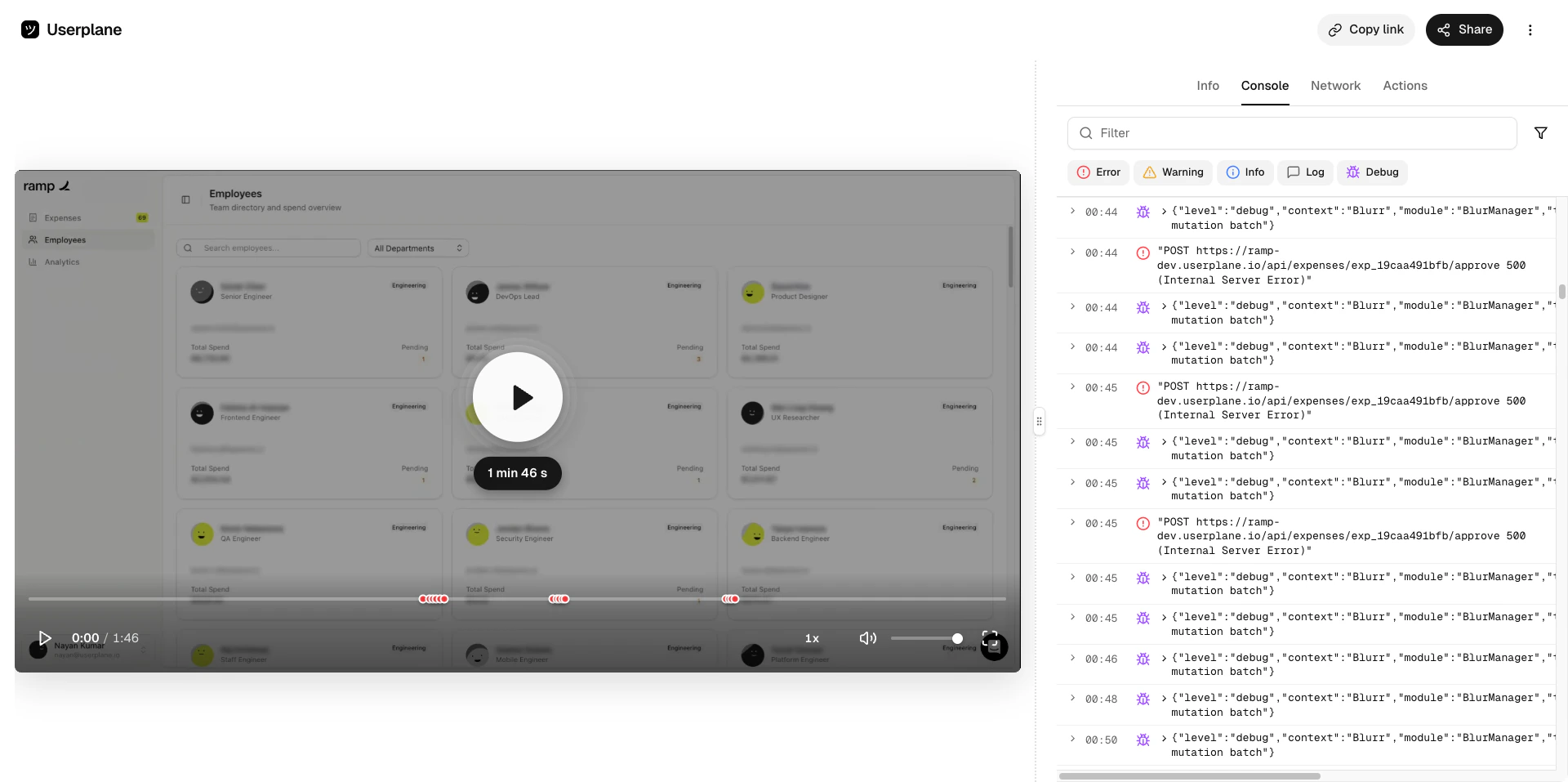
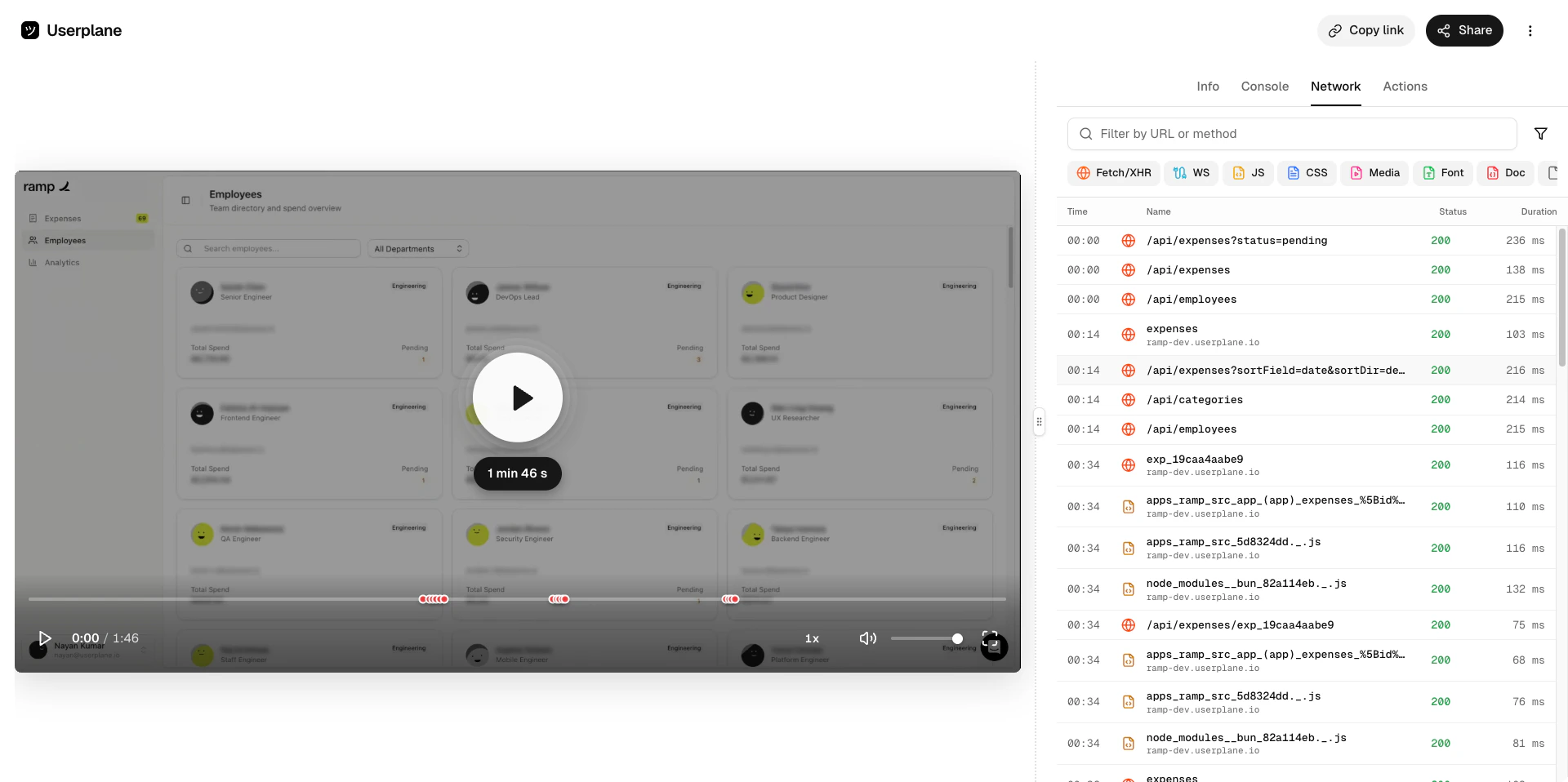
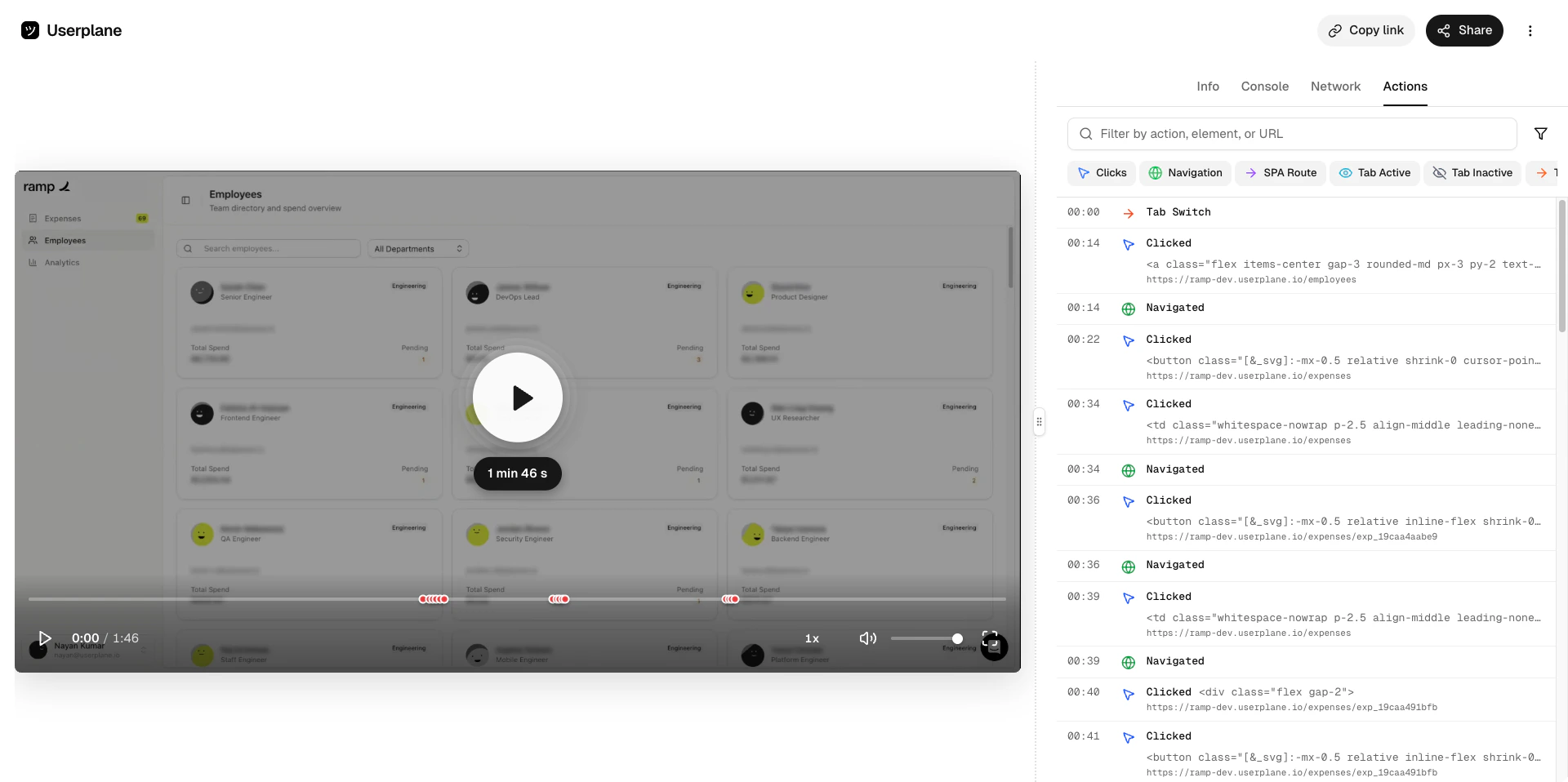
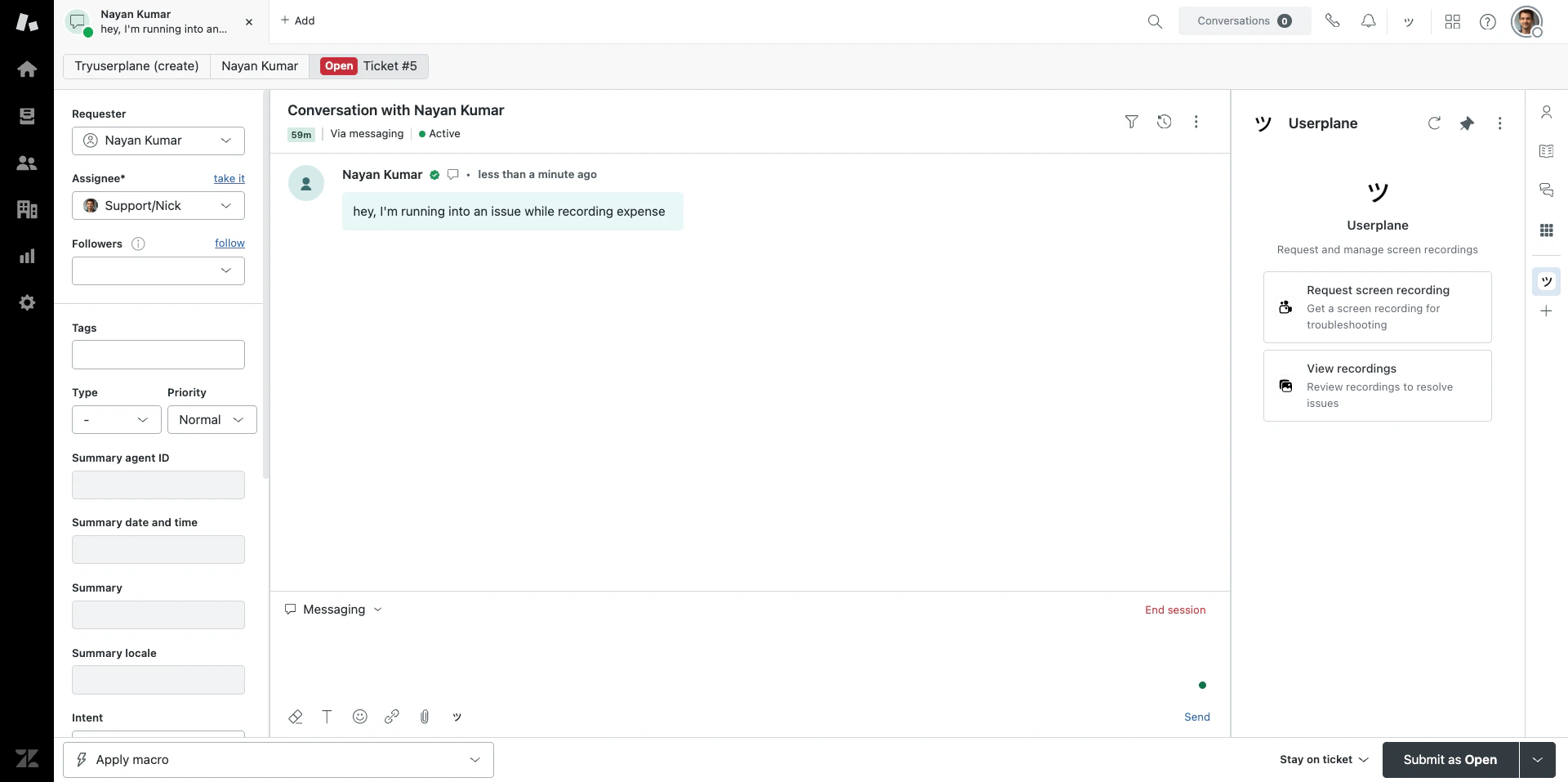 Watch the video and inspect the captured data — console logs, network requests, user actions, and metadata.
 ## When to use the editor vs. the sidebar
| | Editor button | Sidebar app |
| ------------ | --------------------------------------- | ---------------------------------------------- |
| **Access** | Click in the reply editor toolbar | Click Userplane in the ticket sidebar |
| **Best for** | Quickly inserting a link into a reply | Browsing recordings and creating links |
| **Speed** | Fastest — inline, auto-closes after use | Slightly more steps to open |
| **Context** | Compact form | Full opener view with "View Recordings" option |
Both surfaces use the same project and domain options, and both create the same recording links. Choose whichever fits your workflow.
## Requirements
* The Zendesk integration must be [connected](/integrations/zendesk).
* The agent must be a member of the Userplane workspace.
* Domains must be [verified](/workspace/domain-verification) to appear in the domain dropdown.
## Related articles
* [Zendesk Ticket Sidebar](/integrations/zendesk-ticket-sidebar) — the full sidebar app experience.
* [Zendesk Integration](/integrations/zendesk) — overview and connection guide.
* [Requesting a Recording](/recording/requesting) — creating links from the Userplane dashboard.
## When to use the editor vs. the sidebar
| | Editor button | Sidebar app |
| ------------ | --------------------------------------- | ---------------------------------------------- |
| **Access** | Click in the reply editor toolbar | Click Userplane in the ticket sidebar |
| **Best for** | Quickly inserting a link into a reply | Browsing recordings and creating links |
| **Speed** | Fastest — inline, auto-closes after use | Slightly more steps to open |
| **Context** | Compact form | Full opener view with "View Recordings" option |
Both surfaces use the same project and domain options, and both create the same recording links. Choose whichever fits your workflow.
## Requirements
* The Zendesk integration must be [connected](/integrations/zendesk).
* The agent must be a member of the Userplane workspace.
* Domains must be [verified](/workspace/domain-verification) to appear in the domain dropdown.
## Related articles
* [Zendesk Ticket Sidebar](/integrations/zendesk-ticket-sidebar) — the full sidebar app experience.
* [Zendesk Integration](/integrations/zendesk) — overview and connection guide.
* [Requesting a Recording](/recording/requesting) — creating links from the Userplane dashboard.