> ## Documentation Index
> Fetch the complete documentation index at: https://docs.userplane.io/llms.txt
> Use this file to discover all available pages before exploring further.
# Introduction
> Welcome to Userplane documentation
# Welcome to Userplane
Userplane helps your support team request screen recordings from customers in seconds. Instead of asking customers to describe what went wrong, send them a simple link and get a full video of the issue — complete with console logs, network activity, and more.
## How it works
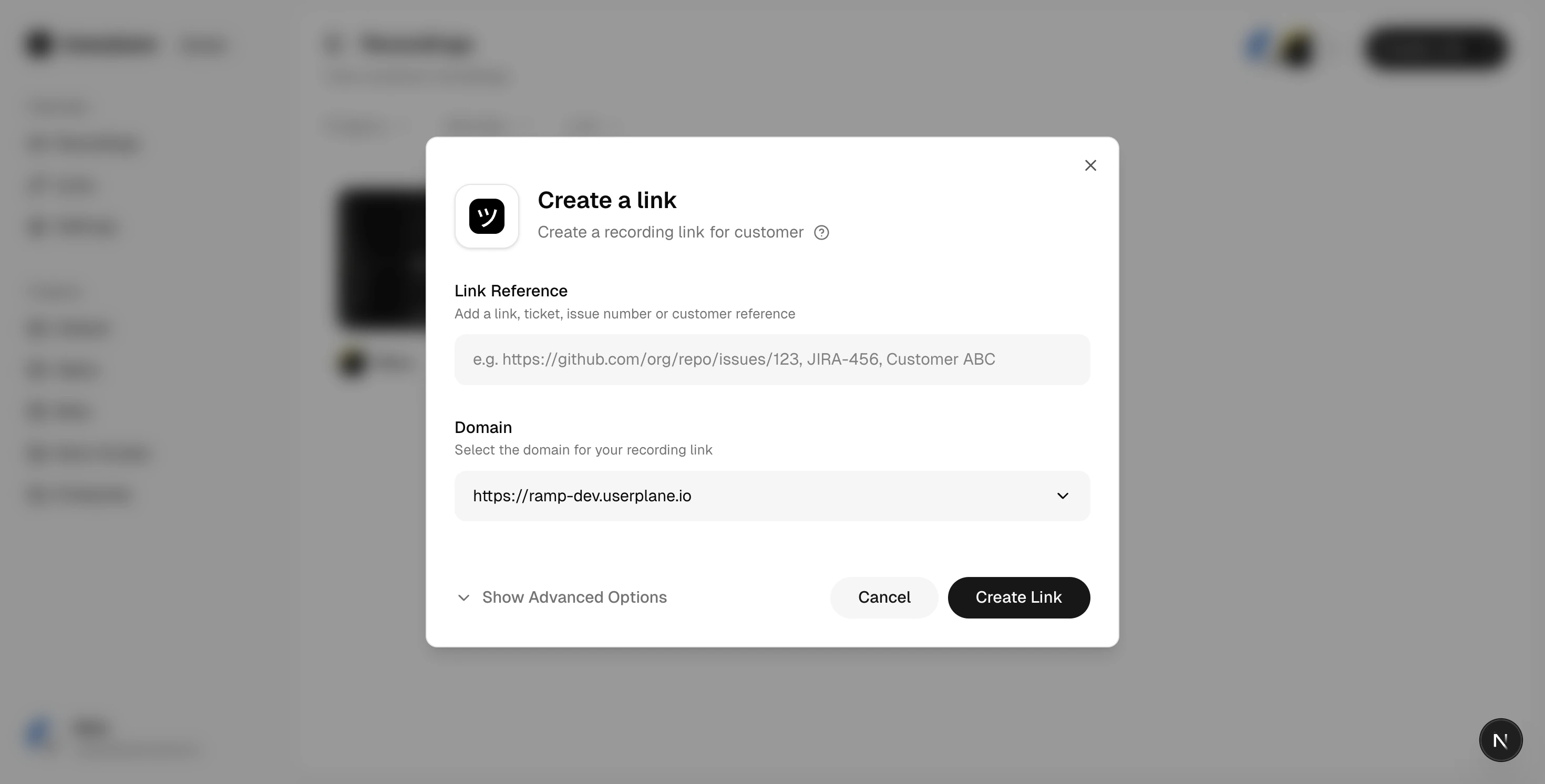
Create a recording link from your dashboard, the Chrome extension, or directly inside an Intercom,
Zendesk, or Slack conversation. Share it with your customer via chat, email, or any support channel.
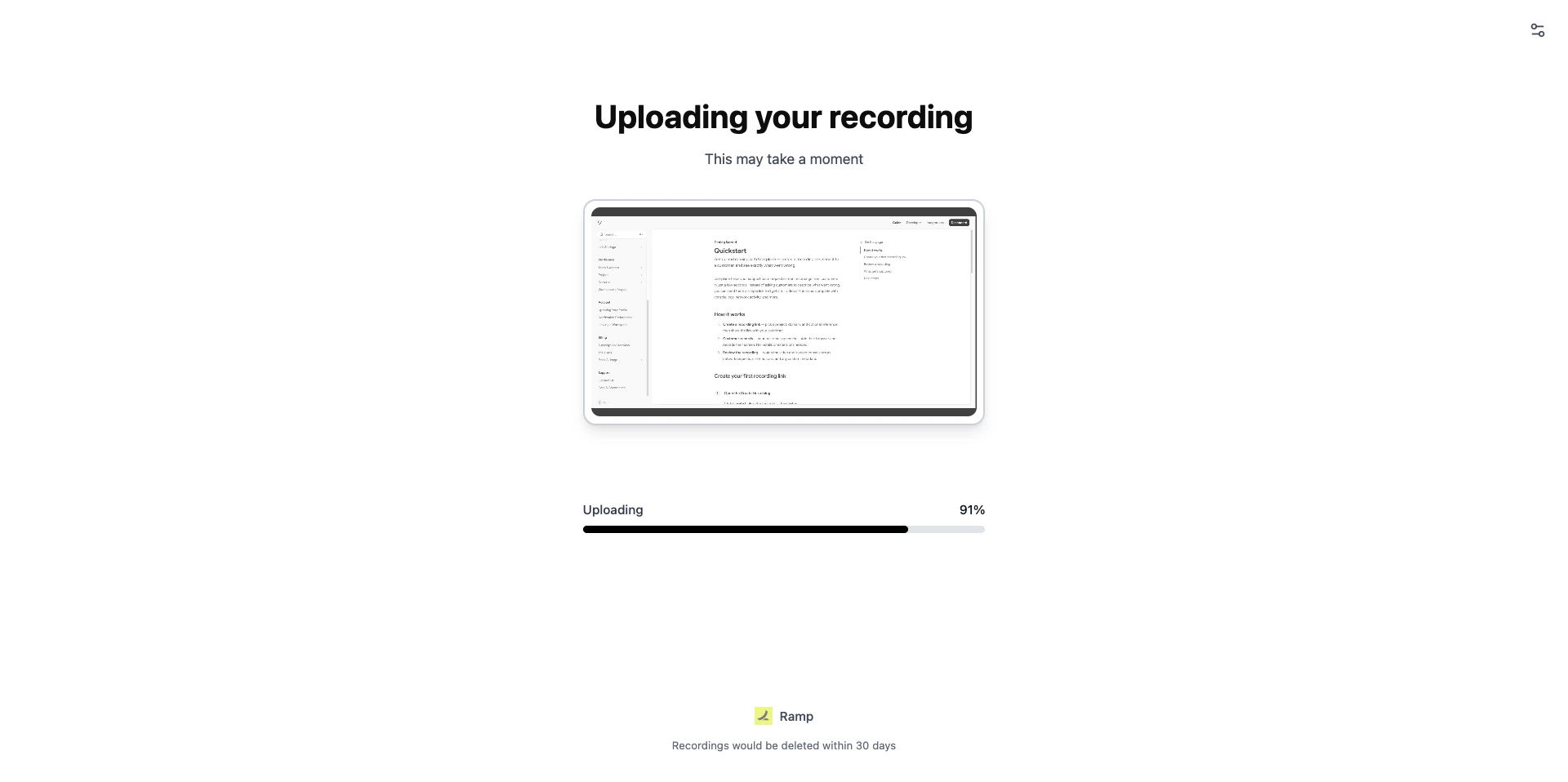
 The customer clicks the link, records their screen in one click — no installs, no sign-up
required. Audio and browser activity are captured automatically.
The customer clicks the link, records their screen in one click — no installs, no sign-up
required. Audio and browser activity are captured automatically.
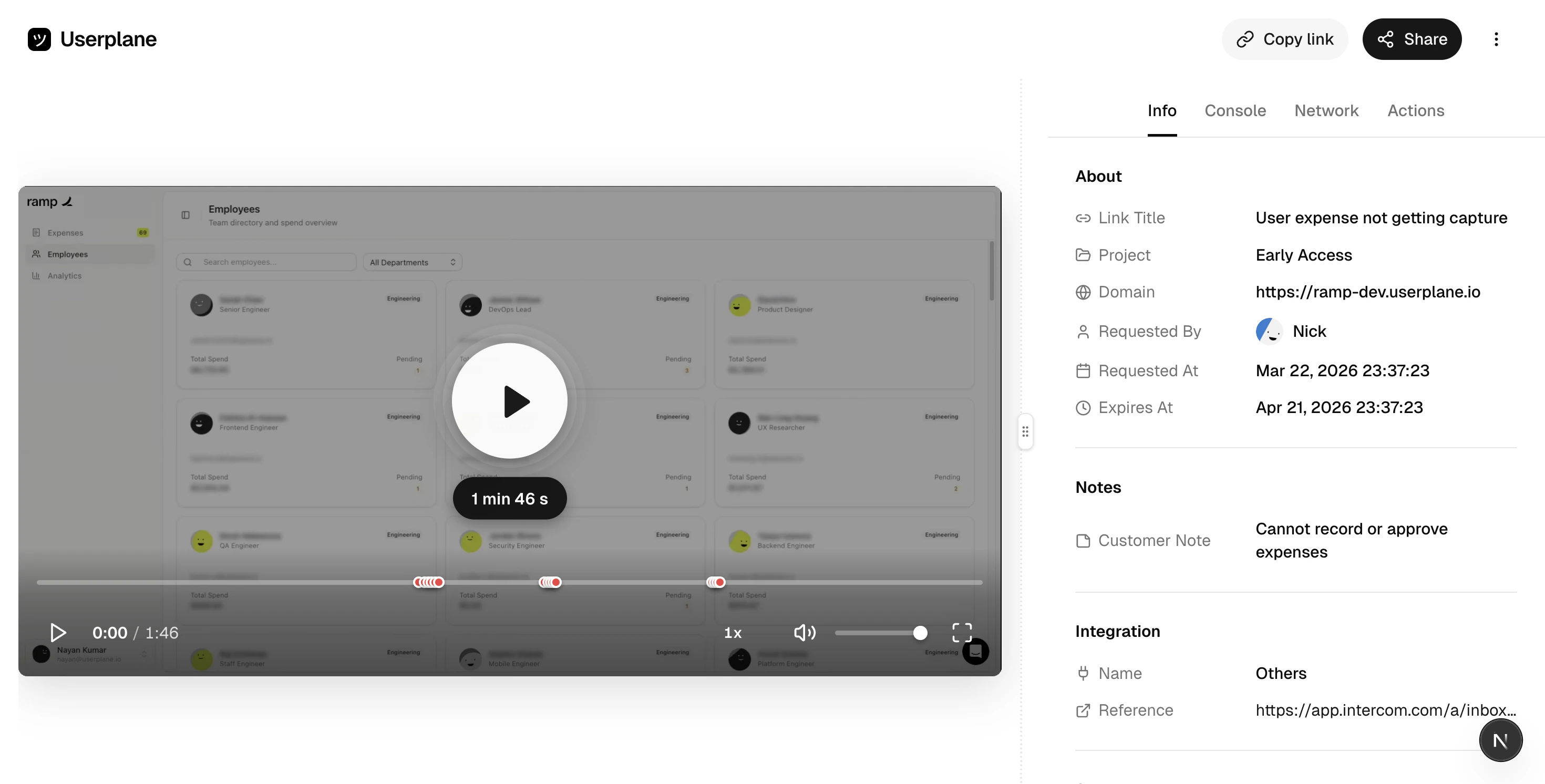
 Watch the video alongside synchronized console logs, network requests, and user actions. Use the
Issue Analyzer to surface root causes instantly.
Watch the video alongside synchronized console logs, network requests, and user actions. Use the
Issue Analyzer to surface root causes instantly.
 ## Jump in
Create your first recording link and start capturing issues in minutes
Request, review, and share session recordings with your team
Integrate Userplane programmatically into your app
Connect Userplane with Intercom, Zendesk, Slack, the Chrome extension, and your support tools
Connect Claude, Cursor, Codex, VS Code, or ChatGPT to analyze recordings, search docs, or use
Userplane agent plugins for automated integration
## Explore by role
Send recording links via Intercom, Zendesk, Slack, or the Chrome extension, and use shortcuts
and macros
Configure your workspace, verify domains, manage permissions, and set up redaction
Install the SDK, attach metadata, configure redaction, and integrate with your framework
## What gets captured
Full screen recording of the customer's browser session, exactly as they experienced it
JavaScript errors, warnings, and log output captured in sync with the video timeline
HTTP requests and responses, including status codes, headers, and timing
Clicks, scrolls, navigation events, and form interactions annotated on the timeline
Optional microphone capture so customers can narrate the issue as they record
Attach user IDs, account data, and app state via the SDK for richer context
## Jump in
Create your first recording link and start capturing issues in minutes
Request, review, and share session recordings with your team
Integrate Userplane programmatically into your app
Connect Userplane with Intercom, Zendesk, Slack, the Chrome extension, and your support tools
Connect Claude, Cursor, Codex, VS Code, or ChatGPT to analyze recordings, search docs, or use
Userplane agent plugins for automated integration
## Explore by role
Send recording links via Intercom, Zendesk, Slack, or the Chrome extension, and use shortcuts
and macros
Configure your workspace, verify domains, manage permissions, and set up redaction
Install the SDK, attach metadata, configure redaction, and integrate with your framework
## What gets captured
Full screen recording of the customer's browser session, exactly as they experienced it
JavaScript errors, warnings, and log output captured in sync with the video timeline
HTTP requests and responses, including status codes, headers, and timing
Clicks, scrolls, navigation events, and form interactions annotated on the timeline
Optional microphone capture so customers can narrate the issue as they record
Attach user IDs, account data, and app state via the SDK for richer context