> ## Documentation Index
> Fetch the complete documentation index at: https://docs.userplane.io/llms.txt
> Use this file to discover all available pages before exploring further.
# Issue Analyzer
> Use Userplane alongside your AI agent to explain, triage, and fix customer issues
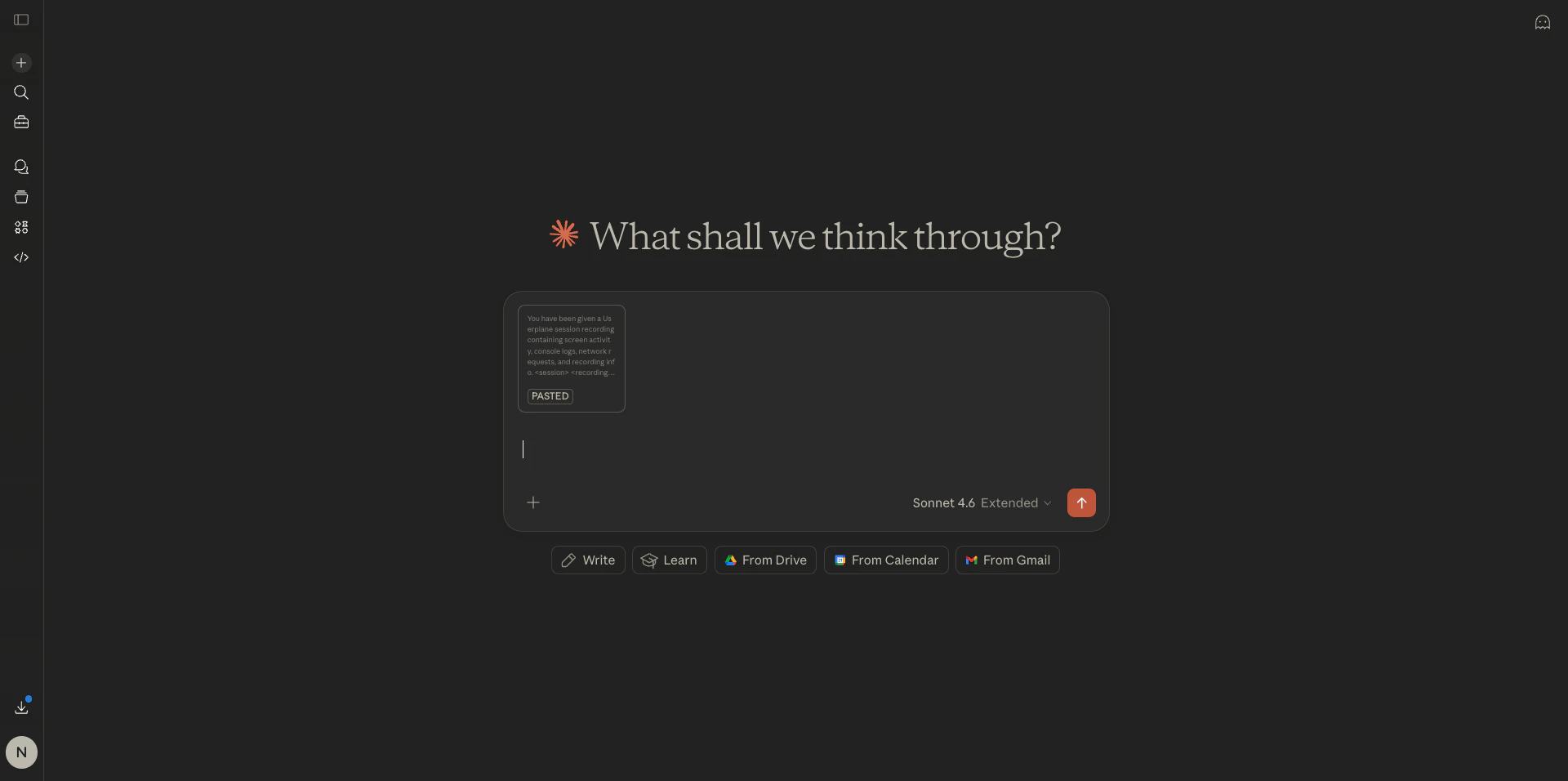
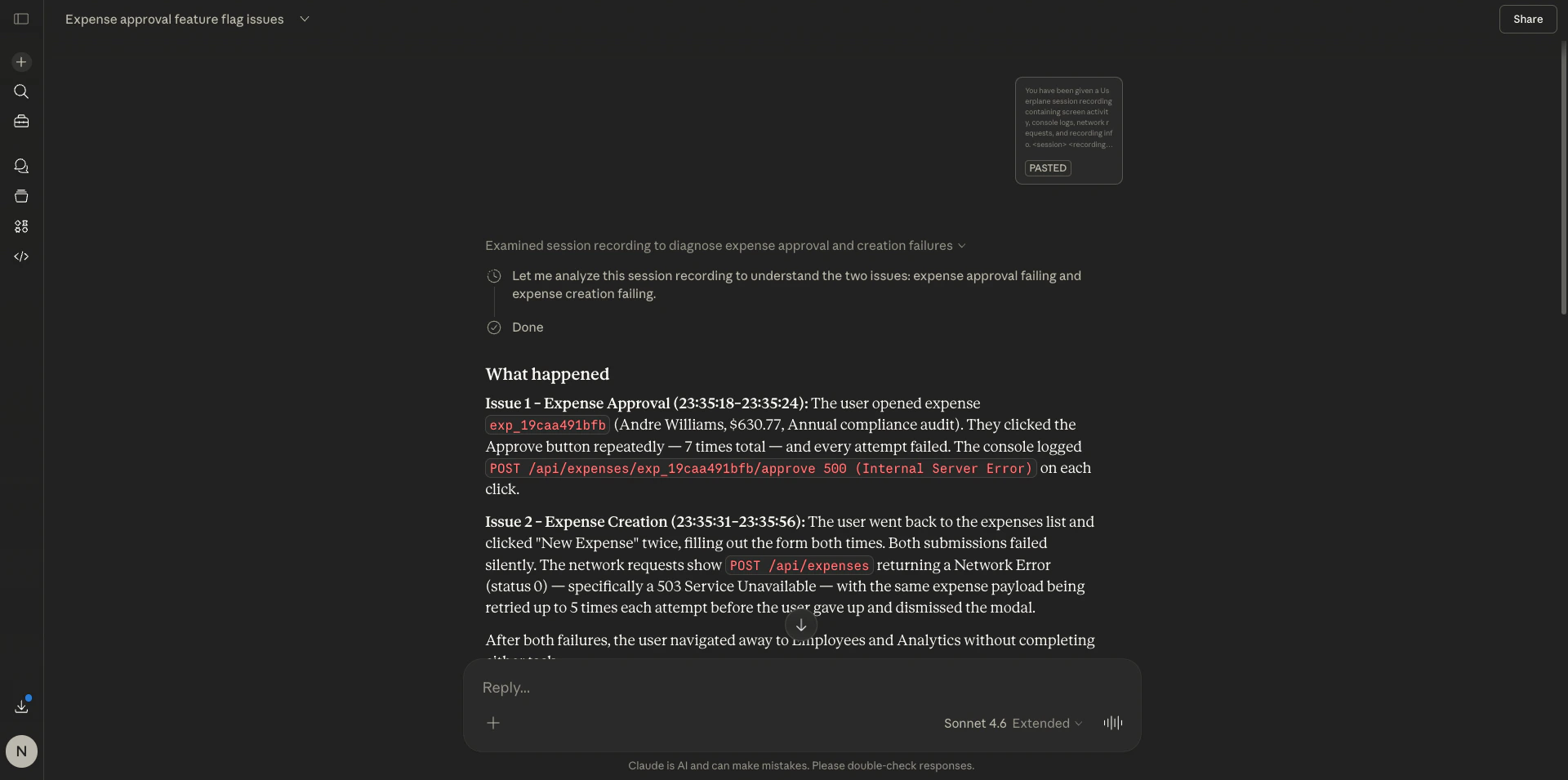
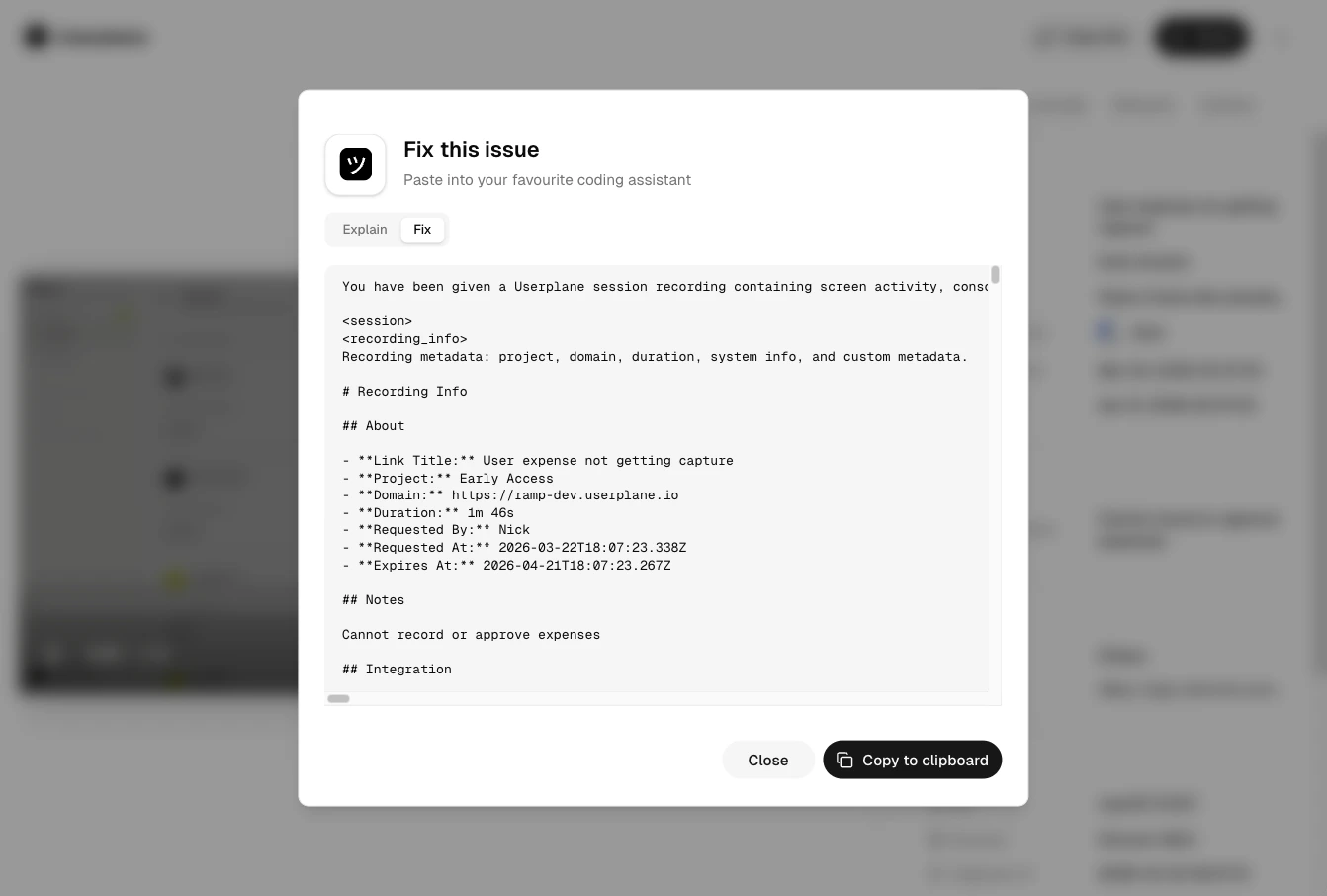
**Issue Analyzer** turns a recording's session data into a structured prompt you can paste directly into any AI assistant — Claude, ChatGPT, Cursor, or any other coding tool. It packages console logs, network requests, user actions, and recording metadata into a ready-to-go prompt so you can skip the copy-paste assembly and go straight to getting answers.
## Opening Issue Analyzer
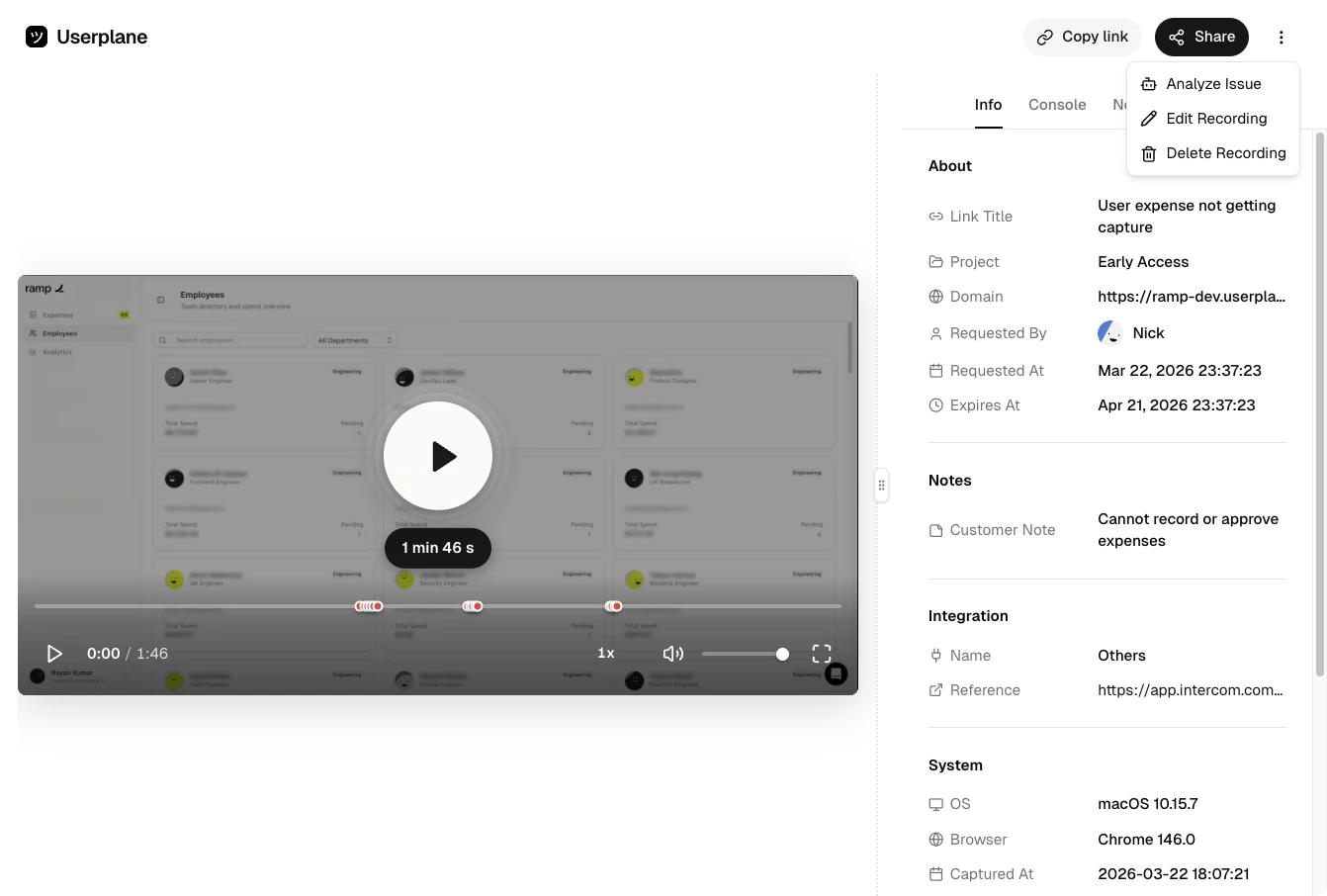
From the [recording detail view](/recording/playback), click the **⋮** (more options) menu in the top-right navigation bar and select **Issue Analyzer**. The modal loads the recording's session data and generates a prompt.
 ## Prompt modes
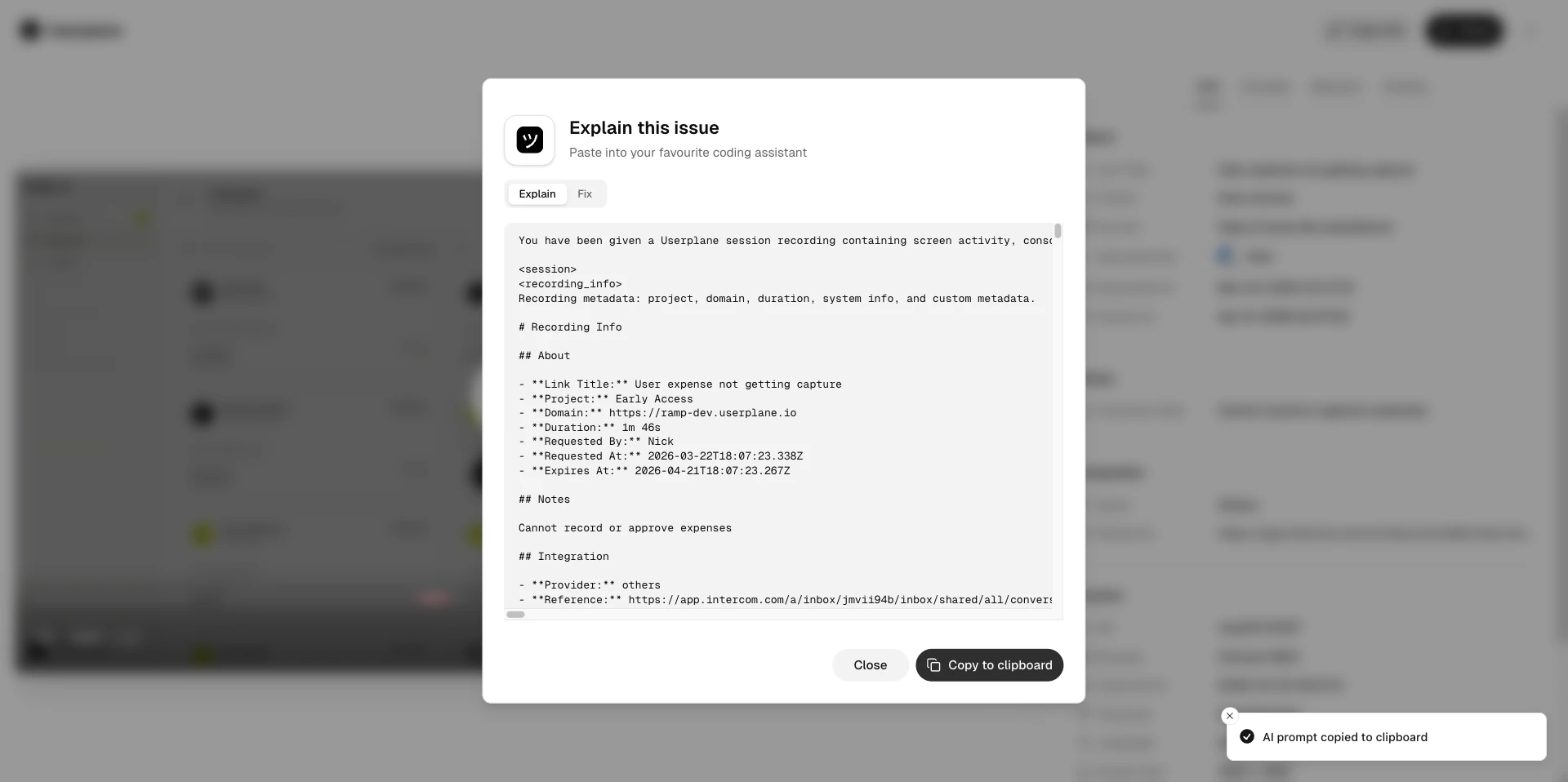
Two modes are available, selectable via tabs at the top of the modal:
### Explain
Designed for support agents and team members triaging a customer issue. The generated prompt asks the AI to walk through:
* **What happened** — what the customer did, what the app tried to do, and where it broke down
* **Why it happened** — the technical root cause in plain language, suitable for pasting into a ticket or Slack message
* **How to fix it** — split by what the customer can do immediately vs. what the dev team needs to fix in code
## Prompt modes
Two modes are available, selectable via tabs at the top of the modal:
### Explain
Designed for support agents and team members triaging a customer issue. The generated prompt asks the AI to walk through:
* **What happened** — what the customer did, what the app tried to do, and where it broke down
* **Why it happened** — the technical root cause in plain language, suitable for pasting into a ticket or Slack message
* **How to fix it** — split by what the customer can do immediately vs. what the dev team needs to fix in code
 ### Fix
Designed for engineers debugging a production issue. The prompt asks the AI to analyse:
* **Root cause** — the exact failing request, error message, or console error with timestamp
* **Affected code paths** — the specific components, API endpoints, or services involved and what went wrong in each
* **Fix** — immediate mitigation steps, code changes required, and prevention measures
### Fix
Designed for engineers debugging a production issue. The prompt asks the AI to analyse:
* **Root cause** — the exact failing request, error message, or console error with timestamp
* **Affected code paths** — the specific components, API endpoints, or services involved and what went wrong in each
* **Fix** — immediate mitigation steps, code changes required, and prevention measures
 ## Session data included
When you open Issue Analyzer, Userplane fetches the recording's captured data and includes whichever of the following are available:
| Data | What's included |
| -------------------- | ----------------------------------------------------------------- |
| **Recording info** | Project, domain, duration, system info, and custom metadata |
| **Console logs** | Errors, warnings, info, and debug messages with stack traces |
| **Network requests** | Method, URL, status, timing, headers, and request/response bodies |
| **User actions** | Clicks, navigations, page loads, and tab switches with timestamps |
If a data type wasn't captured for the recording (based on your [domain recording
preferences](/recording-links/domain-preferences)), it is omitted from the prompt.
## Copying and using the prompt
Click **Copy to clipboard** to copy the full prompt, then paste it into your AI assistant of choice. The prompt is self-contained — no additional context is needed beyond what's already included.
## Session data included
When you open Issue Analyzer, Userplane fetches the recording's captured data and includes whichever of the following are available:
| Data | What's included |
| -------------------- | ----------------------------------------------------------------- |
| **Recording info** | Project, domain, duration, system info, and custom metadata |
| **Console logs** | Errors, warnings, info, and debug messages with stack traces |
| **Network requests** | Method, URL, status, timing, headers, and request/response bodies |
| **User actions** | Clicks, navigations, page loads, and tab switches with timestamps |
If a data type wasn't captured for the recording (based on your [domain recording
preferences](/recording-links/domain-preferences)), it is omitted from the prompt.
## Copying and using the prompt
Click **Copy to clipboard** to copy the full prompt, then paste it into your AI assistant of choice. The prompt is self-contained — no additional context is needed beyond what's already included.