> ## Documentation Index
> Fetch the complete documentation index at: https://docs.userplane.io/llms.txt
> Use this file to discover all available pages before exploring further.
# Recording Playback
> Watch recordings and inspect technical details in the detail view
The recording detail view is where you watch a customer's screen recording and review the technical data captured alongside it — console logs, network requests, user actions, and metadata — all synchronized with the video timeline.
## Layout
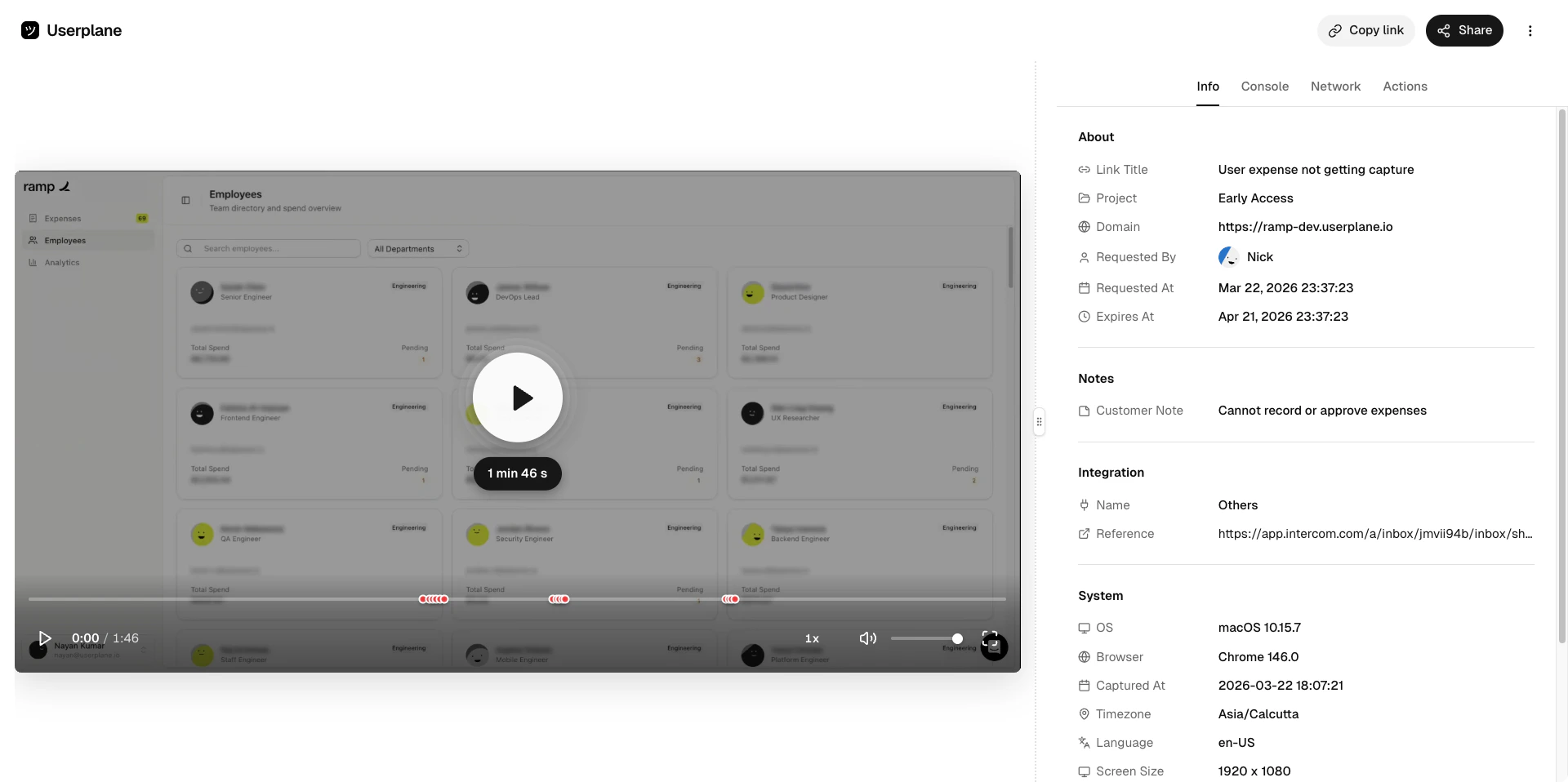
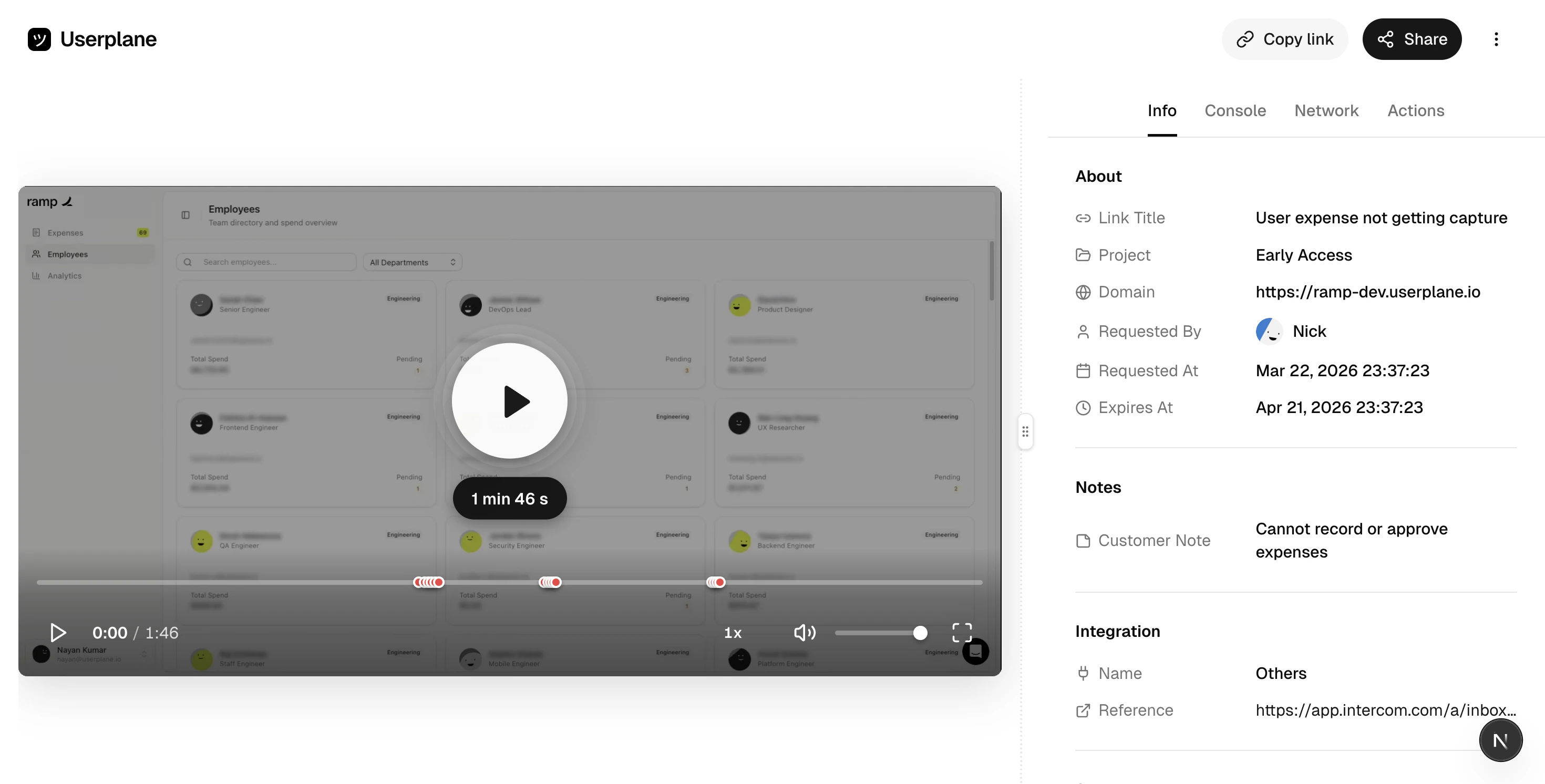
The detail view has a **resizable two-panel layout**:
* **Left panel** — the video player. Play, pause, scrub, and resize as needed.
* **Right panel** — tabbed panels for inspecting recording data.
Drag the divider between panels to adjust the split. The video and the right-panel data stay in sync — clicking a console error or network request jumps the video to the moment it happened.
 ## Video player
The video player supports standard playback controls — play, pause, scrub, and speed adjustment. Recordings are captured using the best codec available in the customer's browser (AV1, VP9, H.264, or VP8). When voice and device audio was captured, audio plays back in sync with the video.
As you watch, the right panel highlights the data entries that correspond to the current playback position — so you can see which console errors, network requests, or user actions occurred at any moment.
## Video player
The video player supports standard playback controls — play, pause, scrub, and speed adjustment. Recordings are captured using the best codec available in the customer's browser (AV1, VP9, H.264, or VP8). When voice and device audio was captured, audio plays back in sync with the video.
As you watch, the right panel highlights the data entries that correspond to the current playback position — so you can see which console errors, network requests, or user actions occurred at any moment.
 ## Right-panel tabs
The right panel contains several tabs, each showing a different type of captured data:
| Tab | What it shows |
| ----------- | ----------------------------------------------------------------------------------------------------- |
| **Info** | Link details, project, domain, who requested it, customer notes, system metadata, and custom metadata |
| **Console** | Browser console logs — errors, warnings, and messages |
| **Network** | HTTP requests with timing, status codes, and payloads |
| **Actions** | Client-side interactions — clicks, inputs, and page navigations |
Not all panels appear for every recording. The available panels depend on which data types were
captured, which is determined by your [domain recording
preferences](/recording-links/domain-preferences).
### Info panel
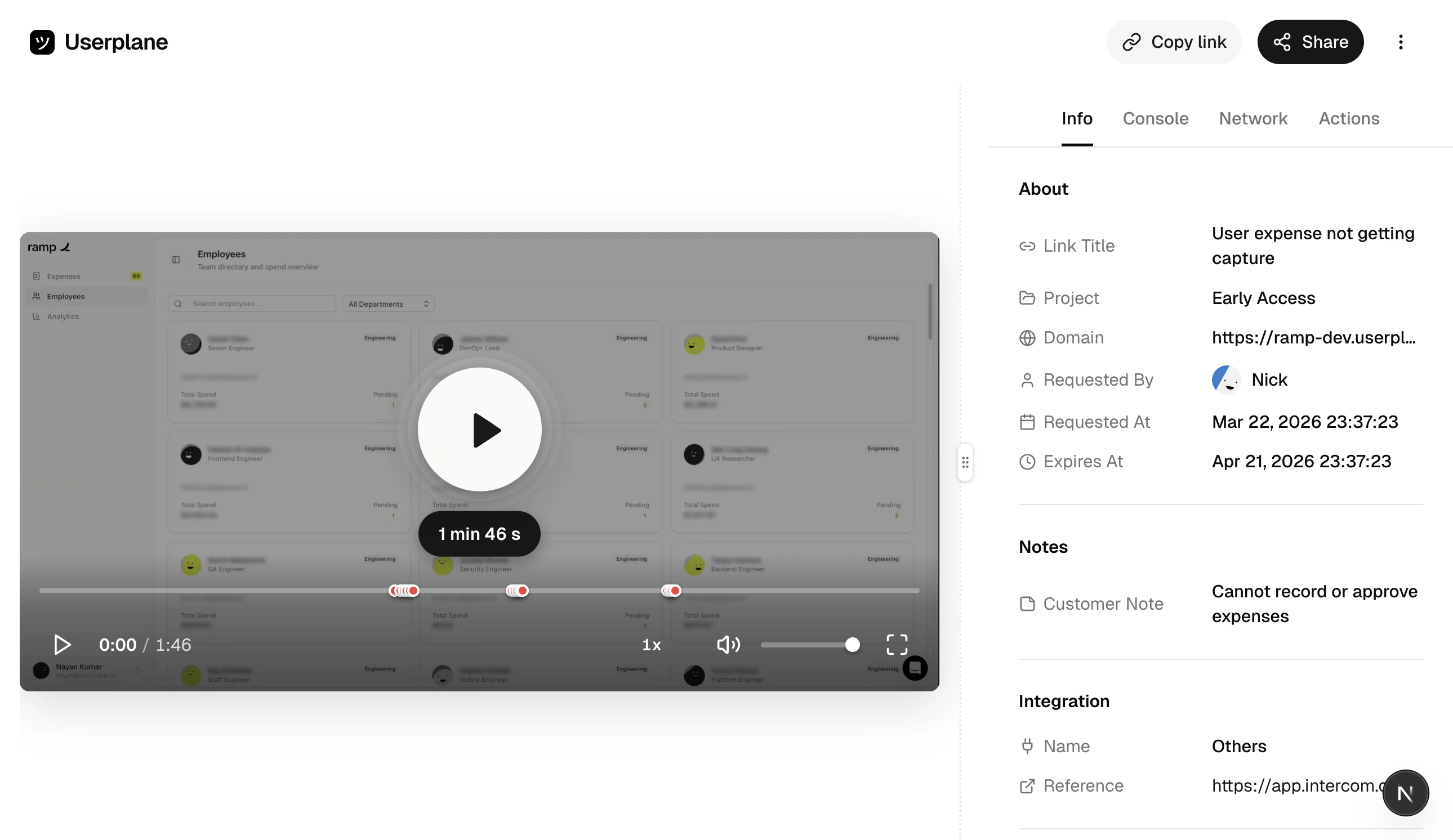
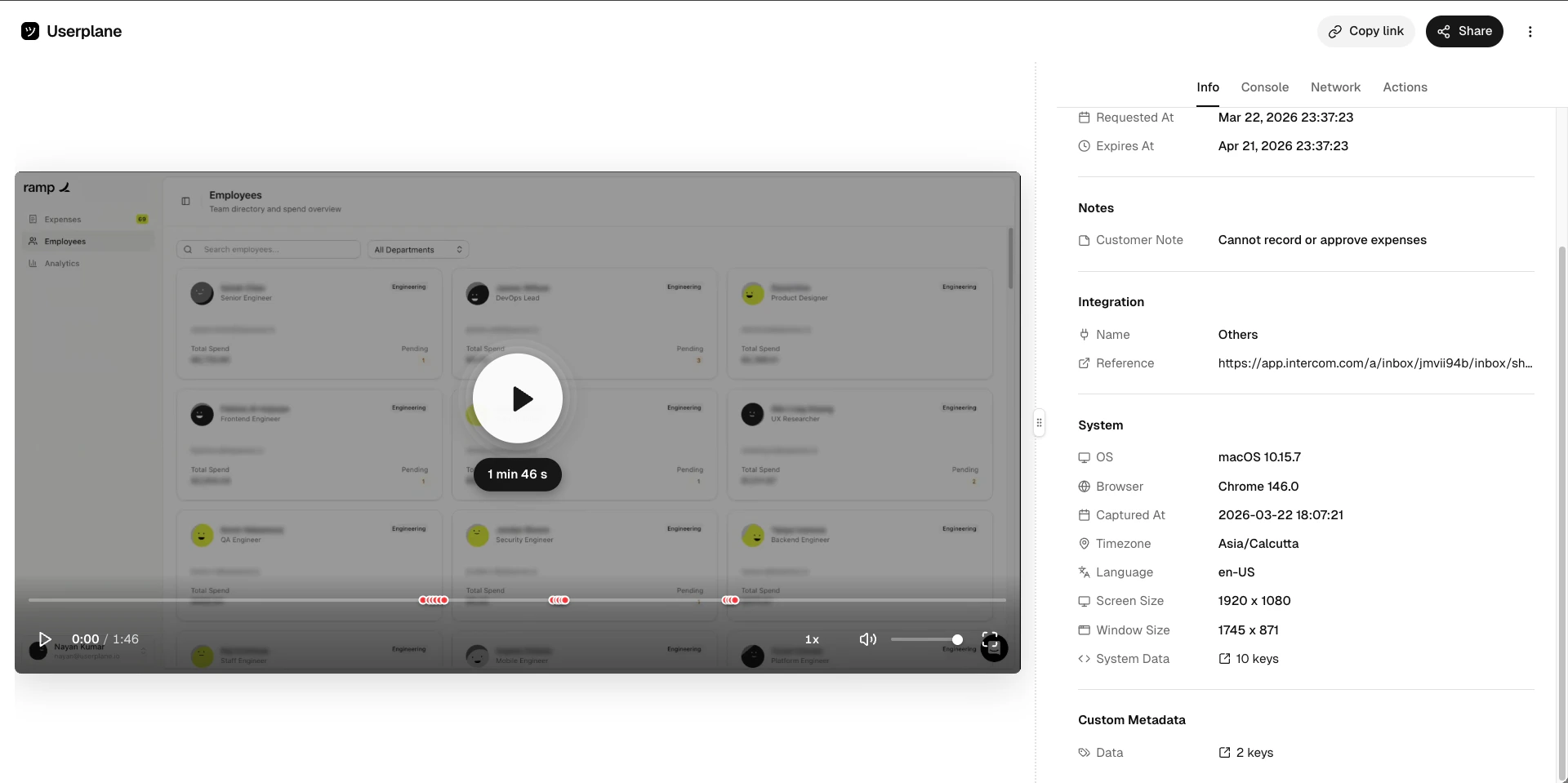
The Info panel shows everything about the recording that isn't session data — who requested it, which project and domain it belongs to, any notes the customer added, and both system and custom metadata.
Custom metadata is set via the [Metadata SDK](/developer/metadata-sdk) and can include user IDs, account names, feature flags, or any key-value pairs your app attaches to the session.
Top-level recording details — link, project, domain, requester, and customer notes.
## Right-panel tabs
The right panel contains several tabs, each showing a different type of captured data:
| Tab | What it shows |
| ----------- | ----------------------------------------------------------------------------------------------------- |
| **Info** | Link details, project, domain, who requested it, customer notes, system metadata, and custom metadata |
| **Console** | Browser console logs — errors, warnings, and messages |
| **Network** | HTTP requests with timing, status codes, and payloads |
| **Actions** | Client-side interactions — clicks, inputs, and page navigations |
Not all panels appear for every recording. The available panels depend on which data types were
captured, which is determined by your [domain recording
preferences](/recording-links/domain-preferences).
### Info panel
The Info panel shows everything about the recording that isn't session data — who requested it, which project and domain it belongs to, any notes the customer added, and both system and custom metadata.
Custom metadata is set via the [Metadata SDK](/developer/metadata-sdk) and can include user IDs, account names, feature flags, or any key-value pairs your app attaches to the session.
Top-level recording details — link, project, domain, requester, and customer notes.
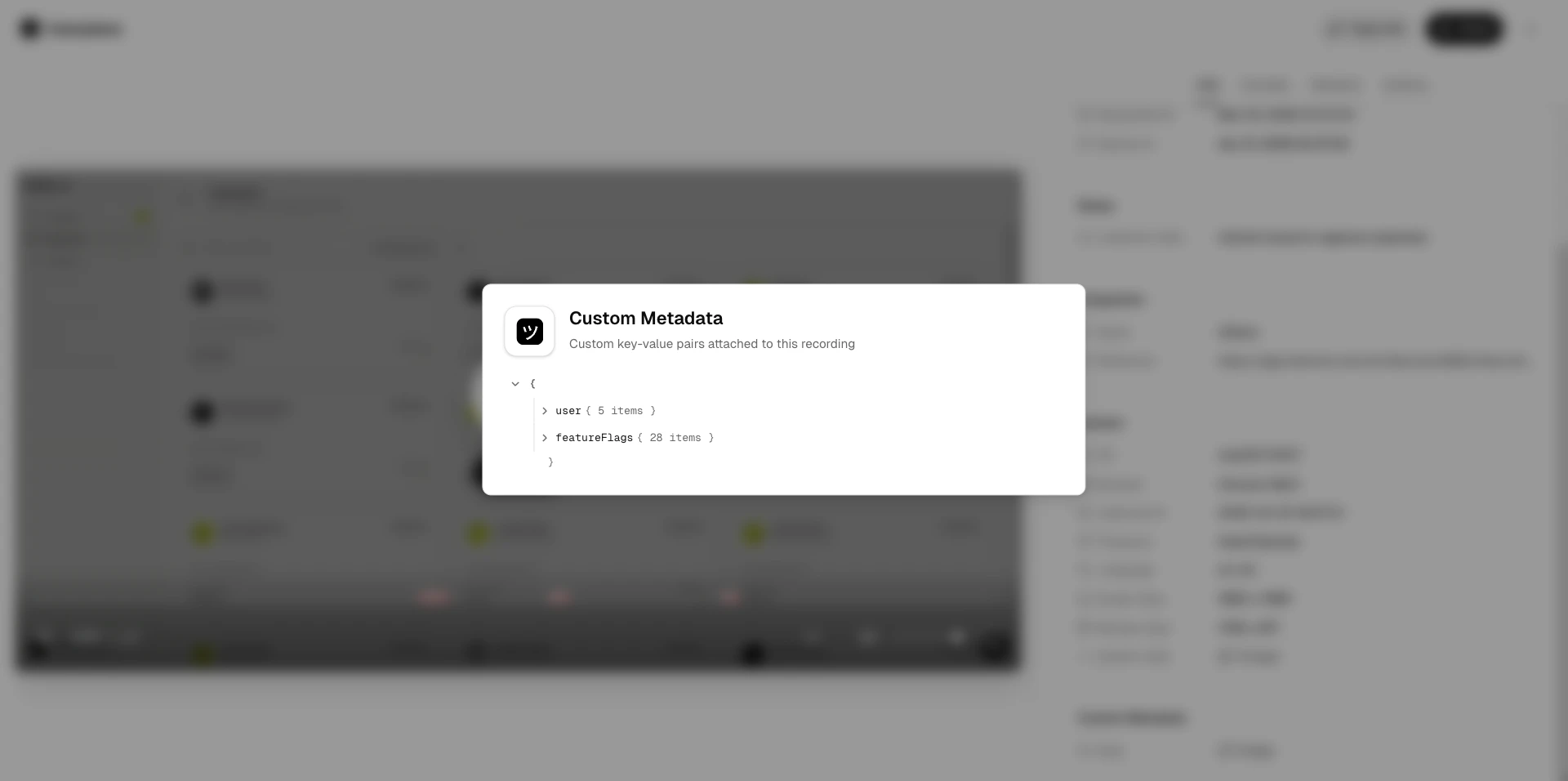
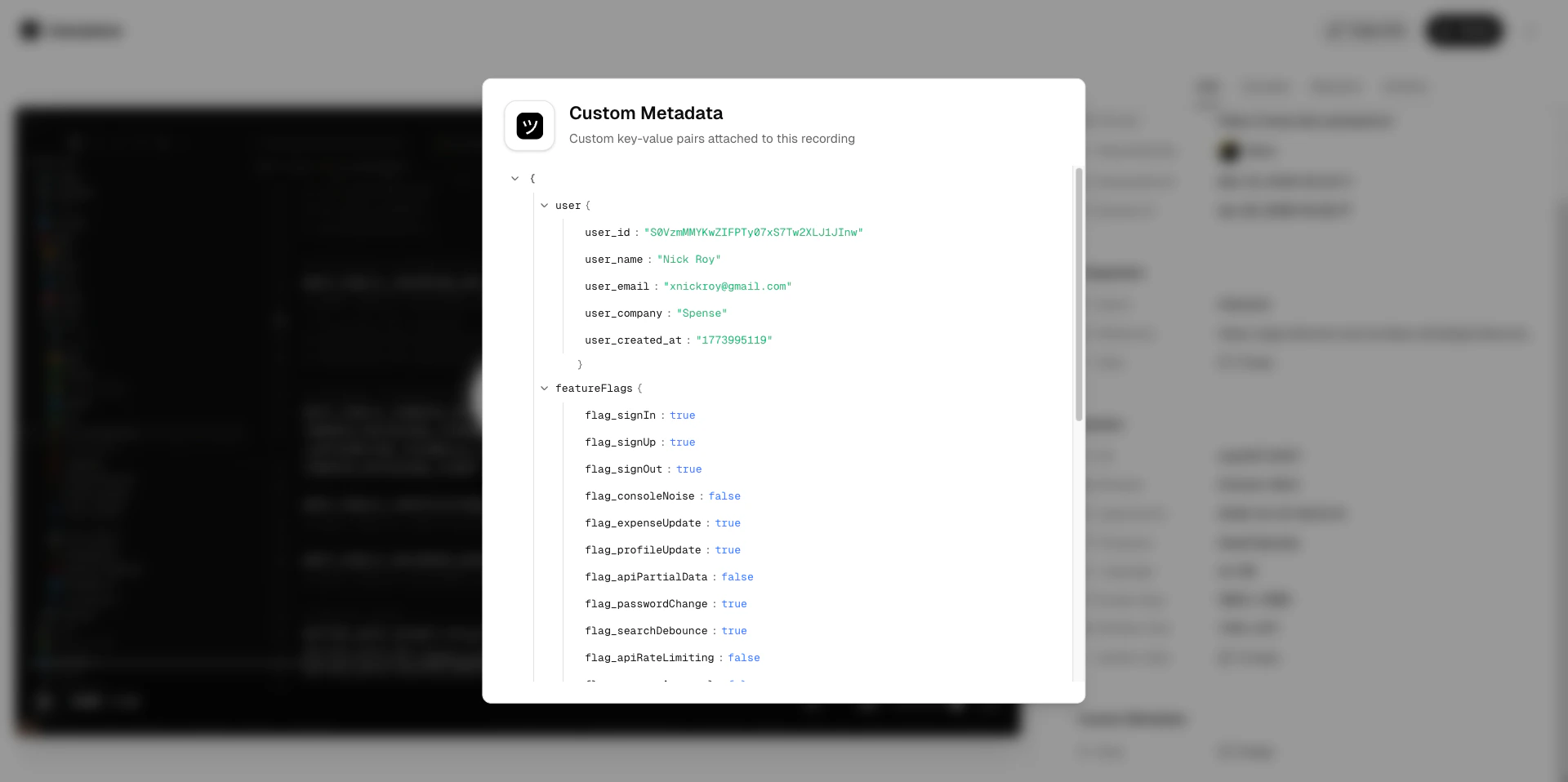
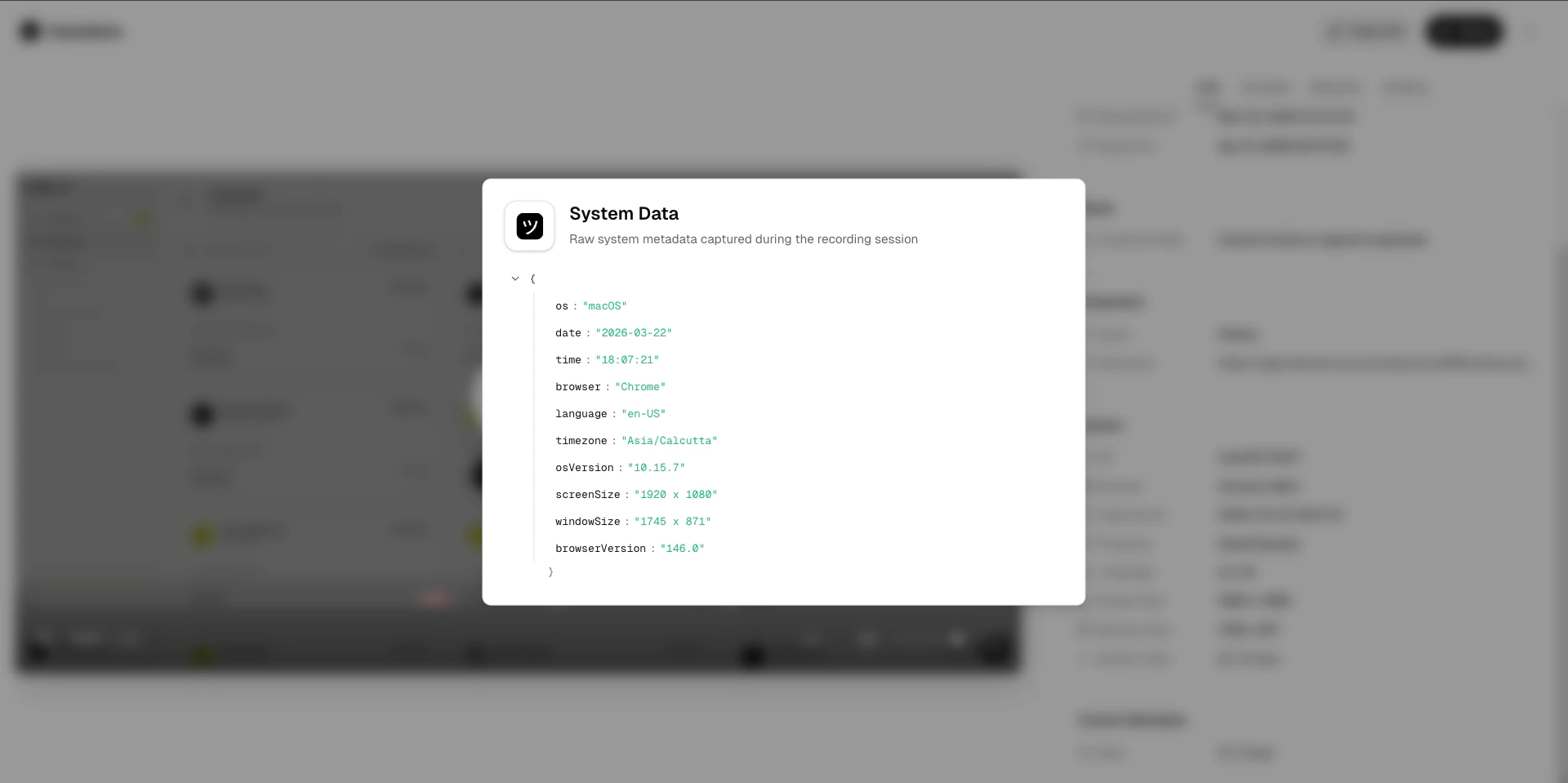
 Key-value pairs attached to the recording via the [Metadata SDK](/developer/metadata-sdk) — user IDs, account names, feature flags, or any application-specific context your app sends with the session.
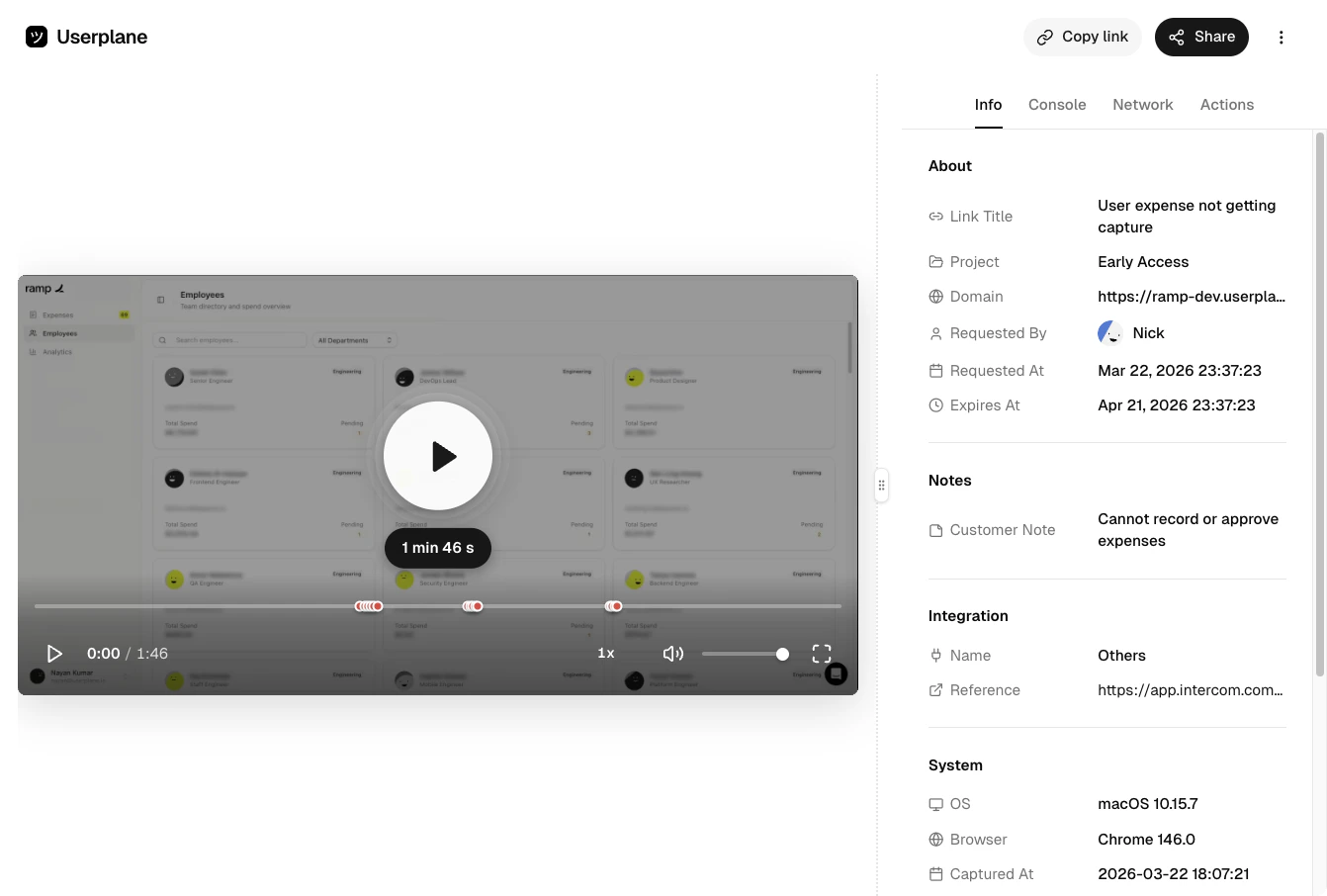 Automatically detected system information — browser name and version, operating system, screen resolution, and device type.
 ### Console panel
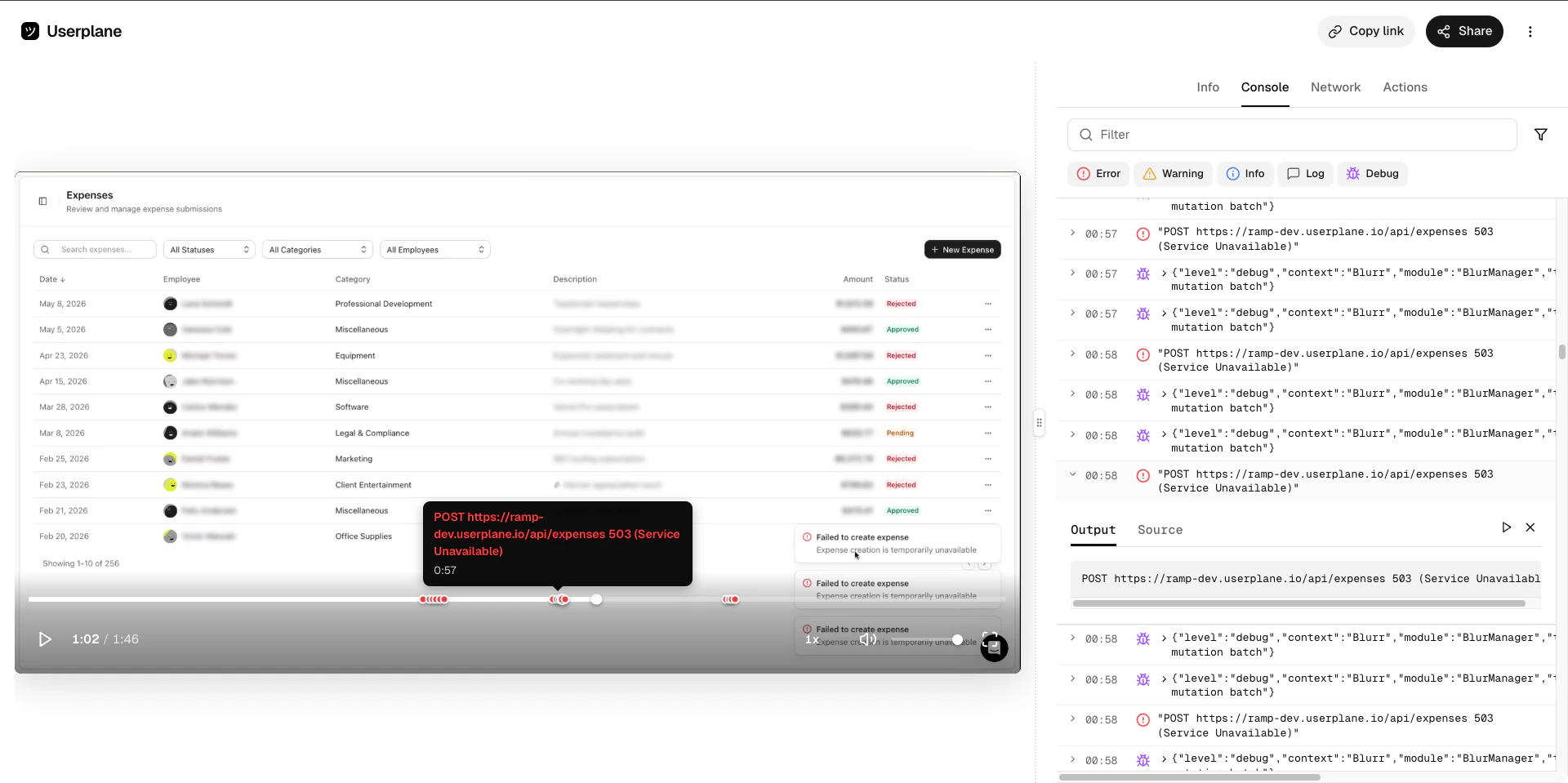
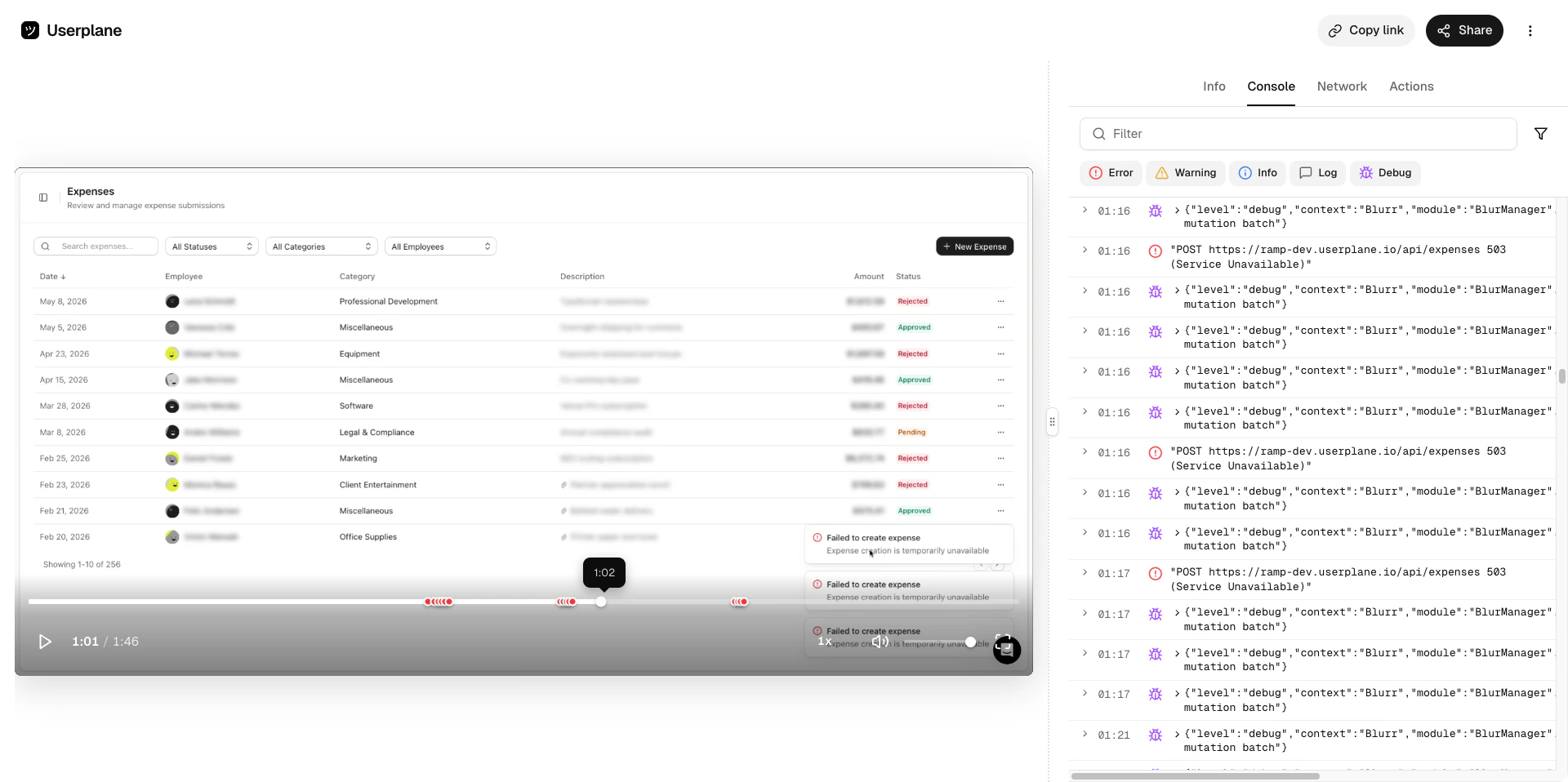
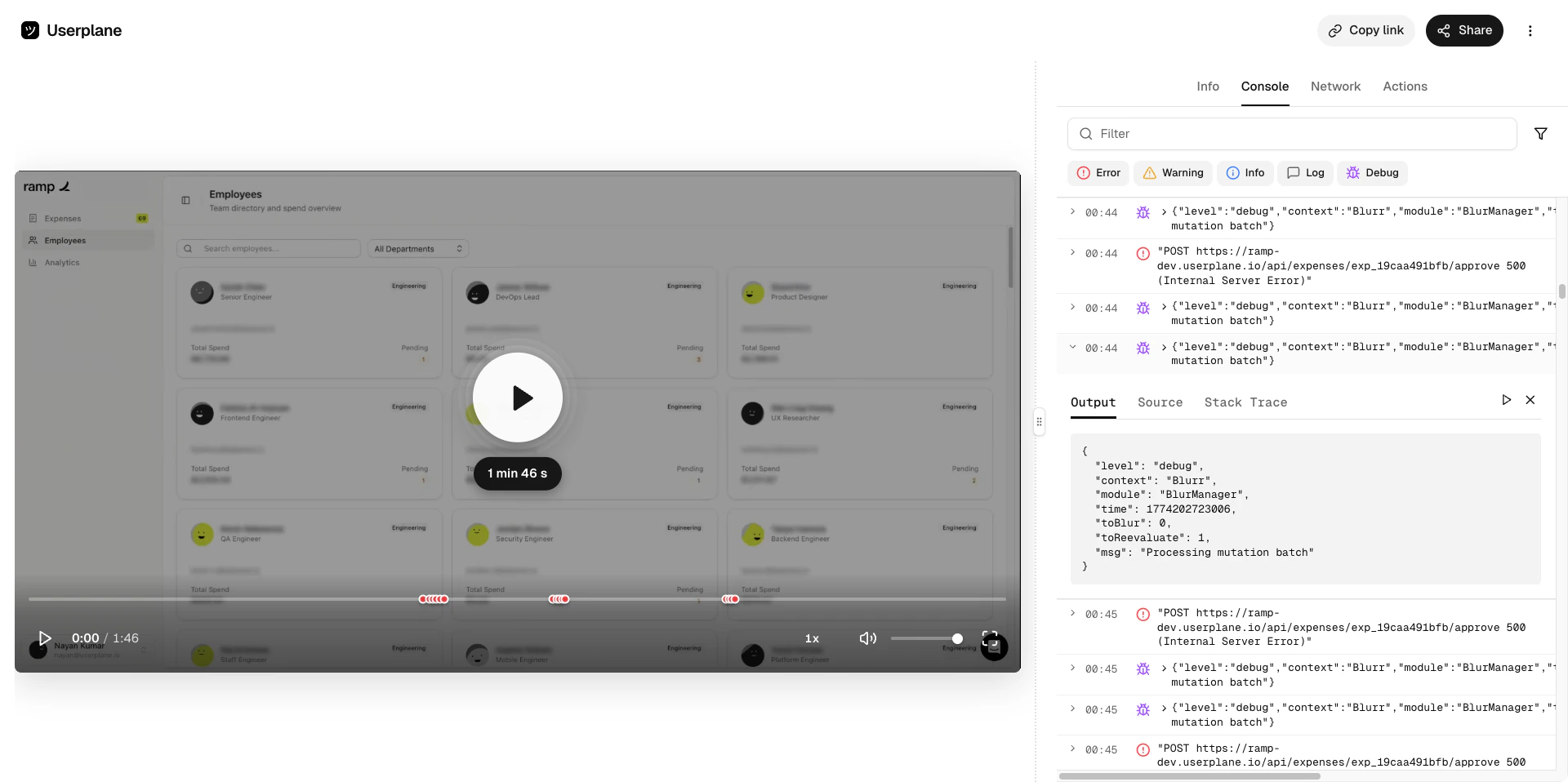
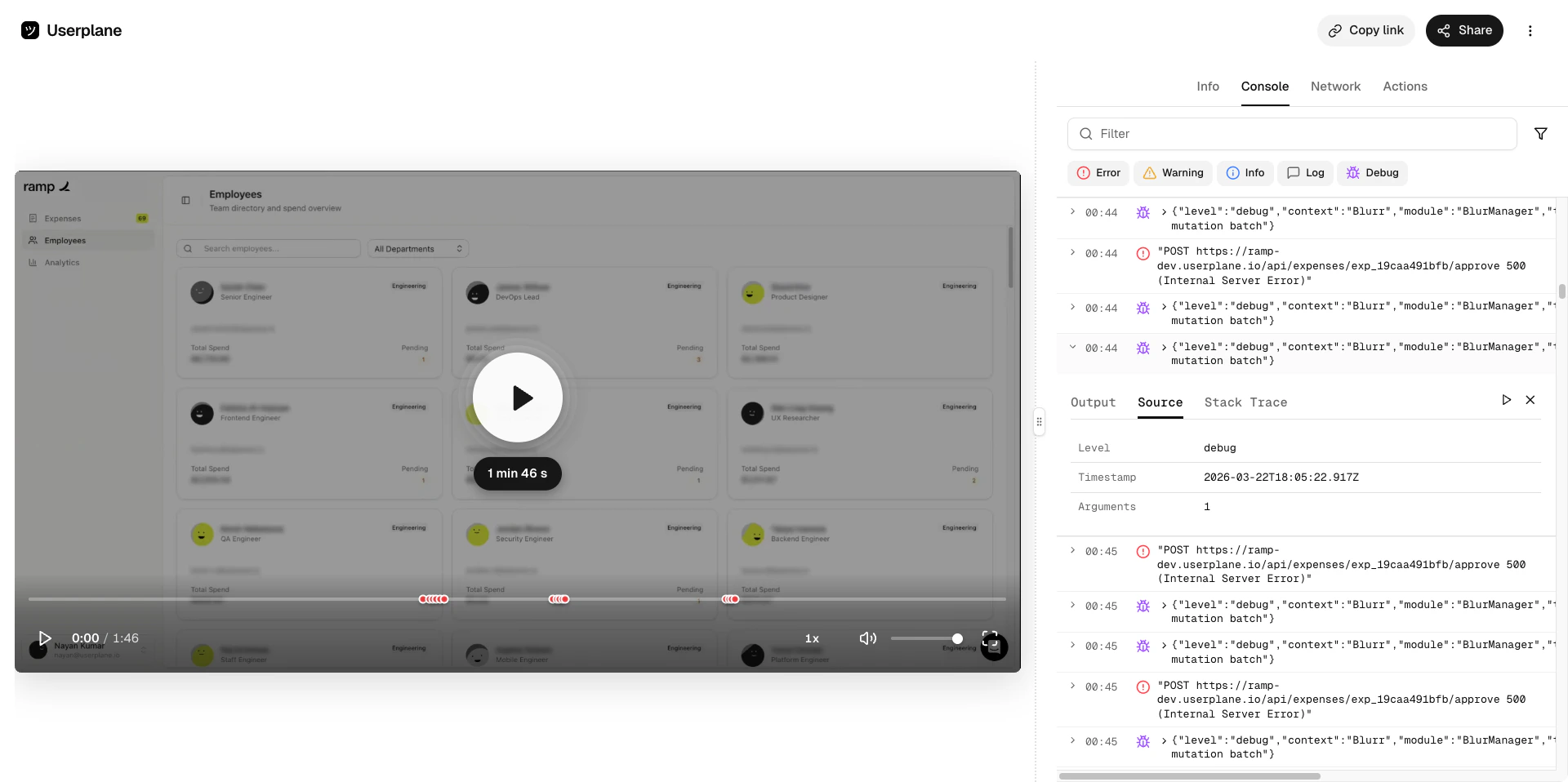
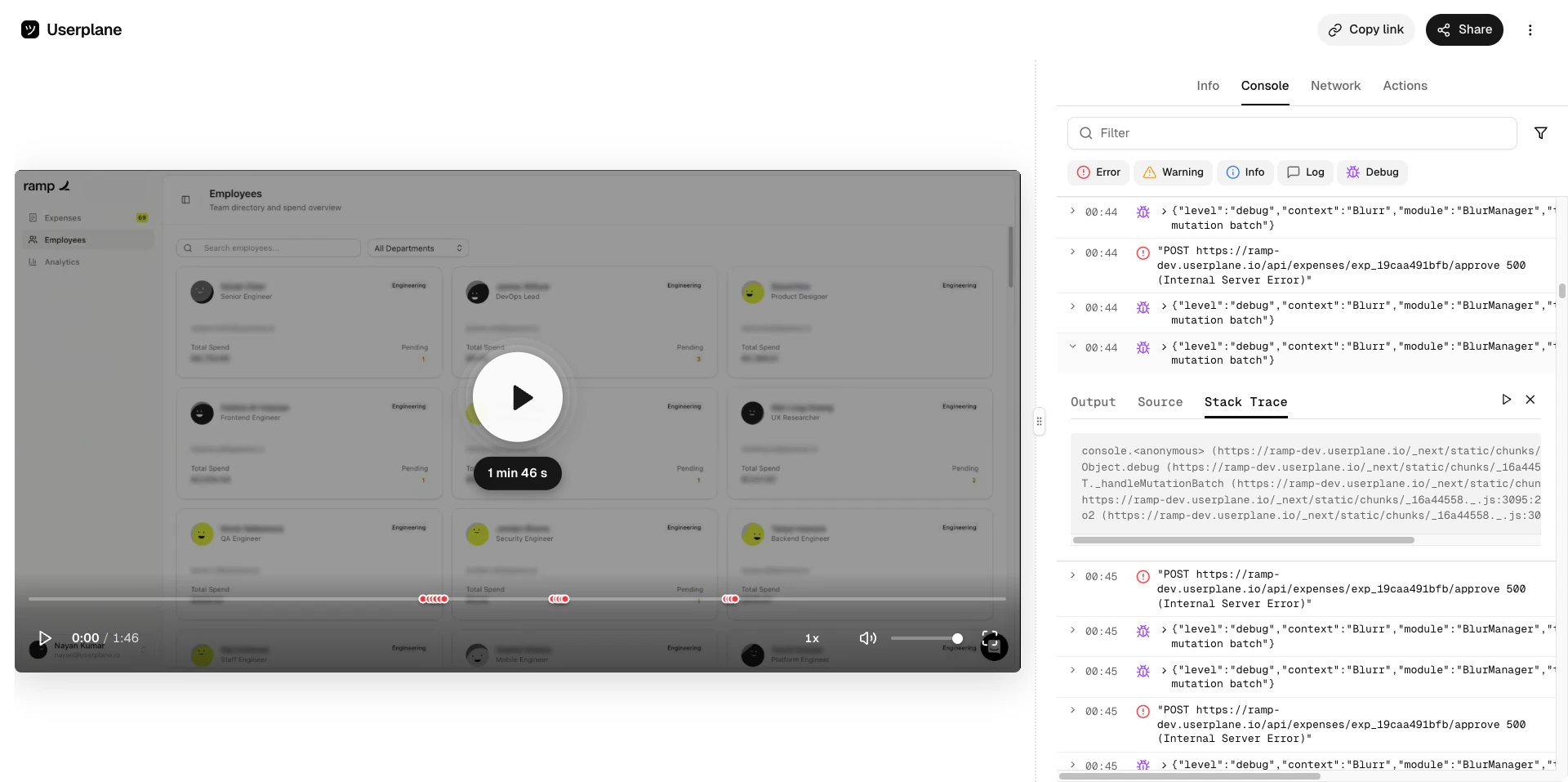
The Console panel captures browser console output — errors, warnings, info, and debug messages — exactly as they appeared in the customer's browser. Each entry includes the log level, message, source file location, and a full stack trace when available.
Click any entry to expand it and see the output, source, and stack trace. Clicking an entry also jumps the video to the moment the log was emitted.
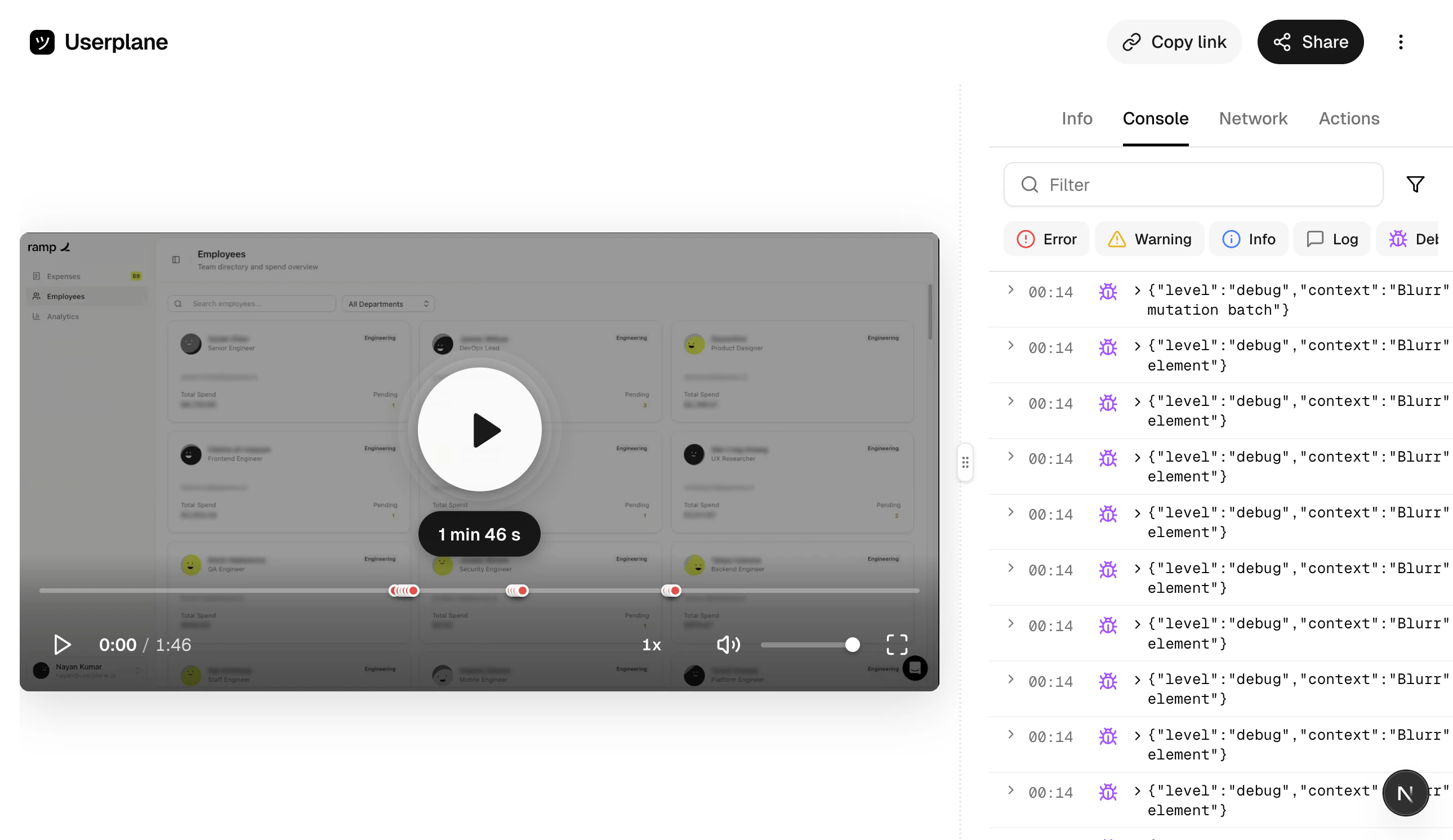
The console list shows all captured log entries chronologically, color-coded by level. Click any entry to expand it and see the full output, source, and stack trace.
### Console panel
The Console panel captures browser console output — errors, warnings, info, and debug messages — exactly as they appeared in the customer's browser. Each entry includes the log level, message, source file location, and a full stack trace when available.
Click any entry to expand it and see the output, source, and stack trace. Clicking an entry also jumps the video to the moment the log was emitted.
The console list shows all captured log entries chronologically, color-coded by level. Click any entry to expand it and see the full output, source, and stack trace.
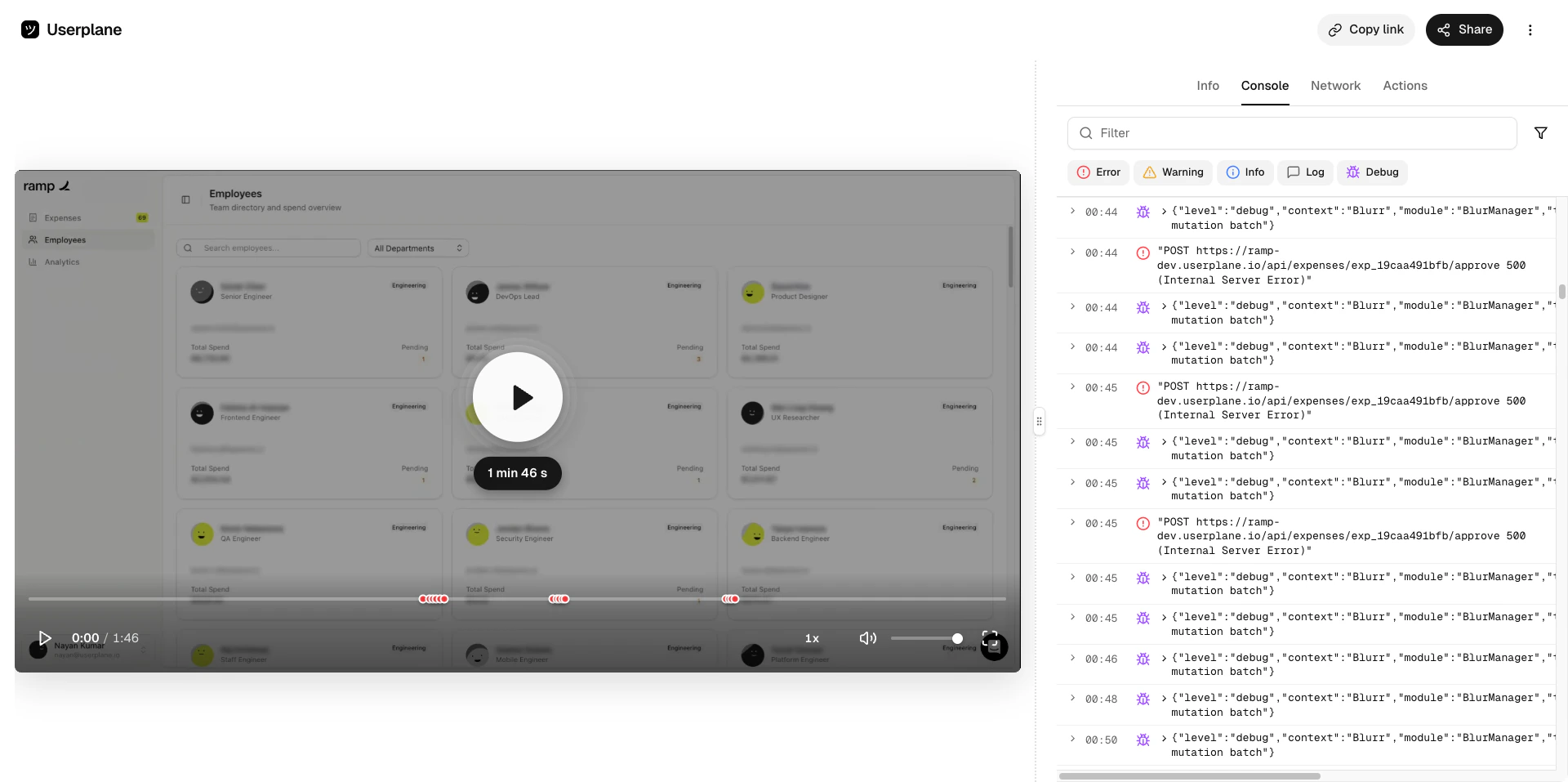
 Errors are highlighted for quick identification. Expand an error to see the full message and stack trace.
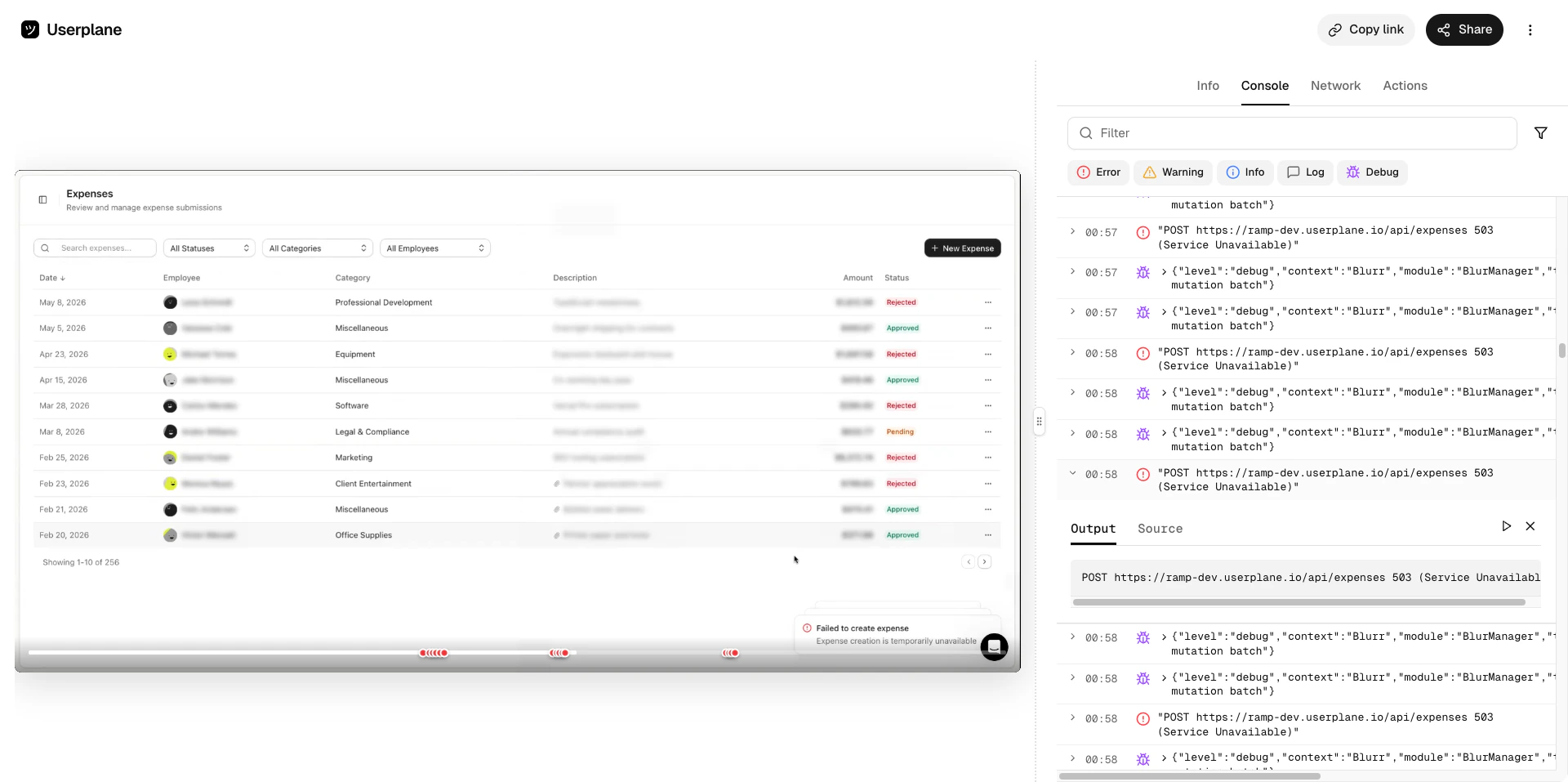 Debug, info, and warning entries include the output, source file, and stack trace — useful for tracing execution flow.
 Console entries stay in sync with the video timeline. As the video plays, the active log entry is highlighted — and clicking any entry jumps the video to the moment it was emitted.
### Network panel
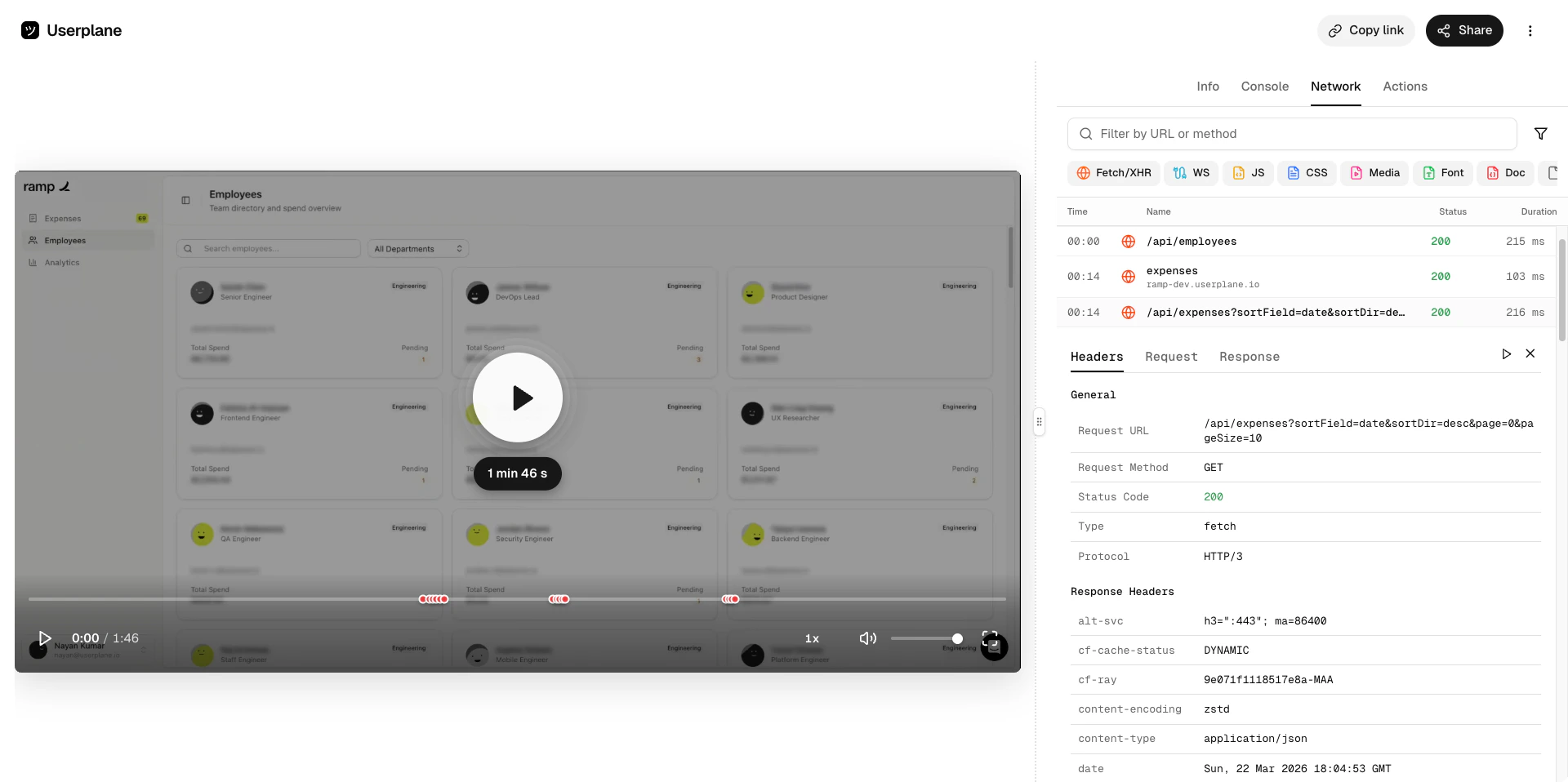
The Network panel captures HTTP requests made during the recording — method, URL, status code, timing, headers, and request/response payloads. Use it to identify failed API calls, slow responses, or unexpected payloads.
The list view shows all requests chronologically. Click any request to open the detail view with full headers and body content.
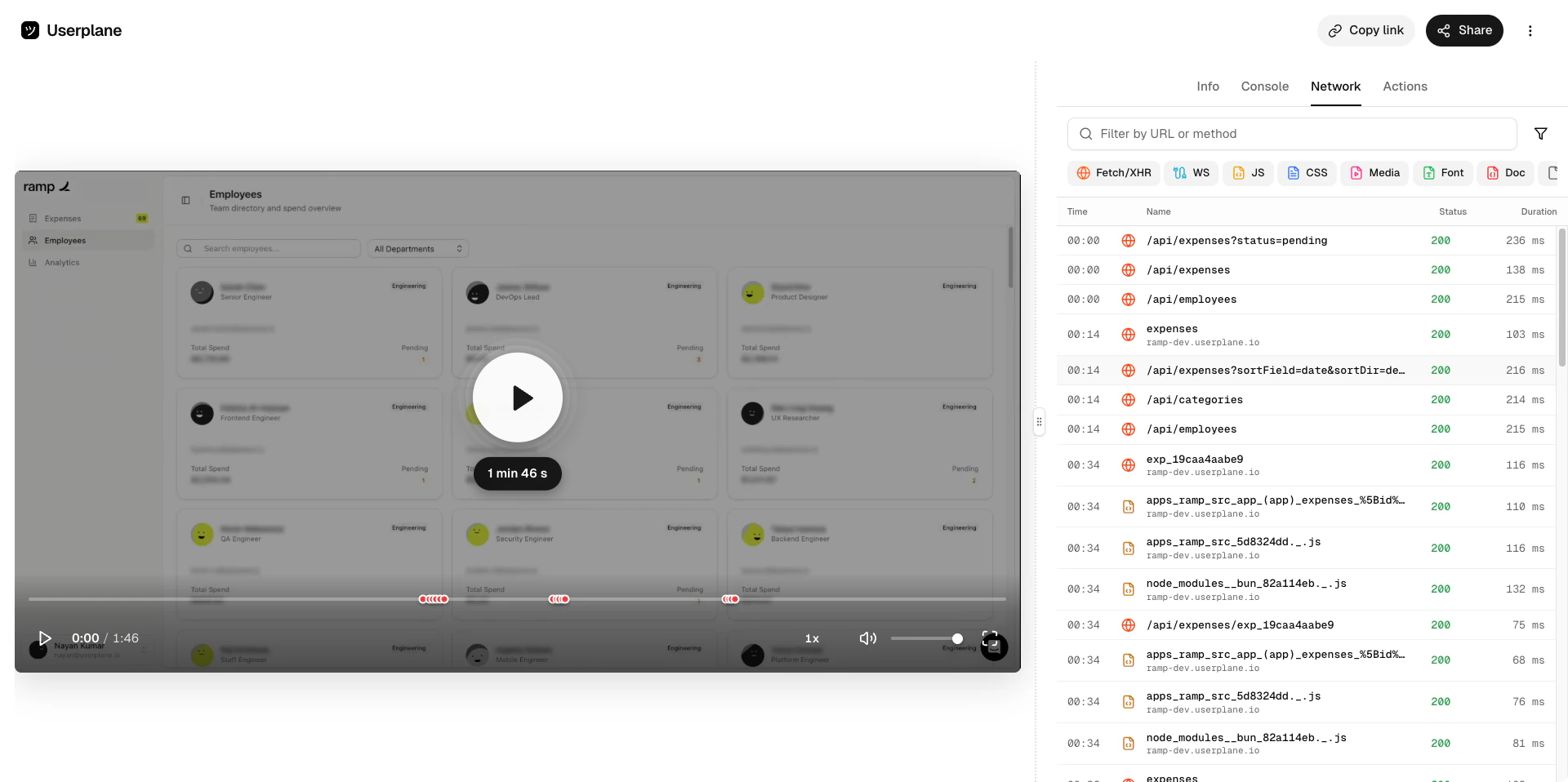
The request list shows all captured HTTP requests chronologically — method, URL, status code, and timing. Click any request to open its detail view.
Console entries stay in sync with the video timeline. As the video plays, the active log entry is highlighted — and clicking any entry jumps the video to the moment it was emitted.
### Network panel
The Network panel captures HTTP requests made during the recording — method, URL, status code, timing, headers, and request/response payloads. Use it to identify failed API calls, slow responses, or unexpected payloads.
The list view shows all requests chronologically. Click any request to open the detail view with full headers and body content.
The request list shows all captured HTTP requests chronologically — method, URL, status code, and timing. Click any request to open its detail view.
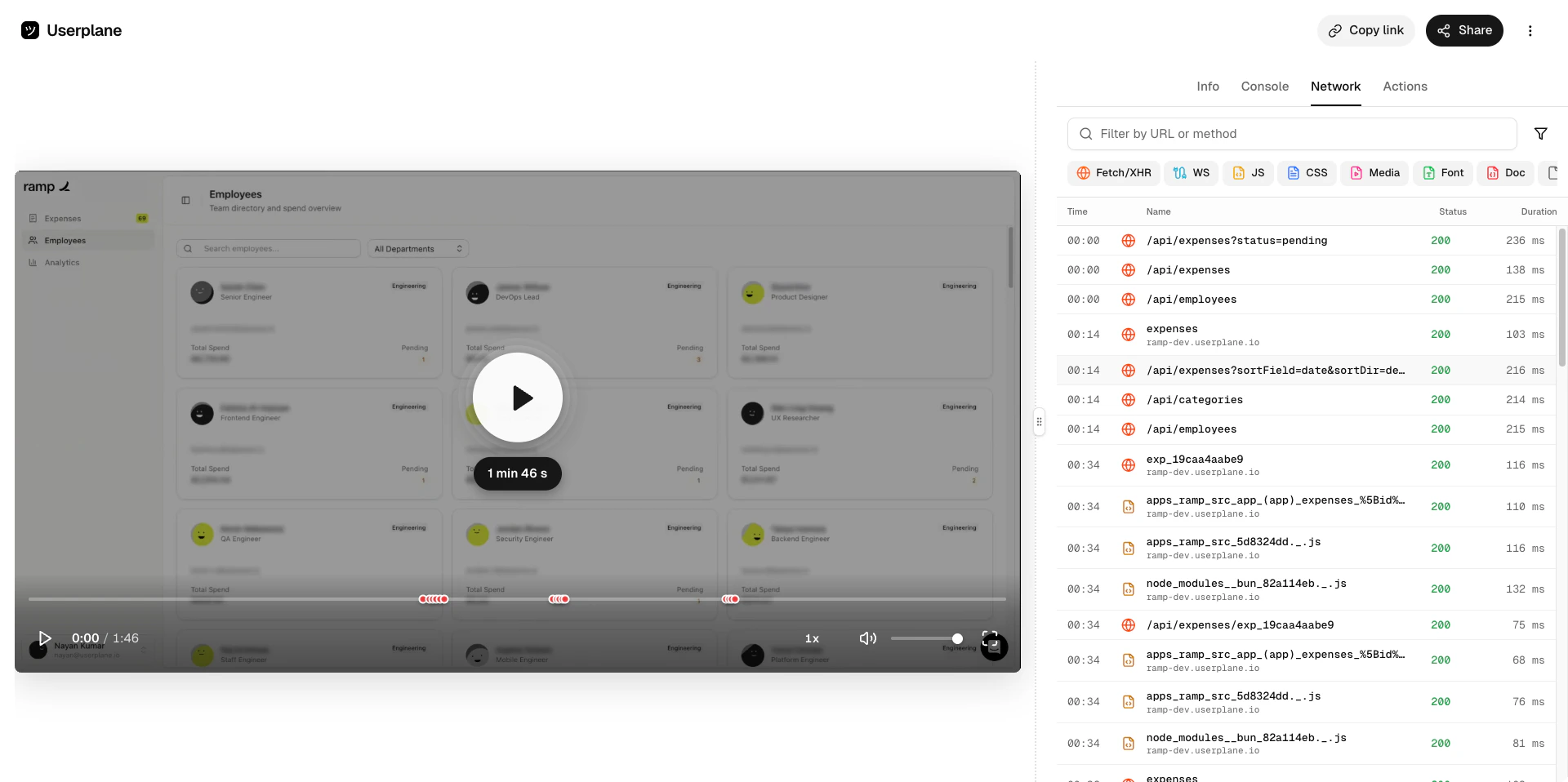
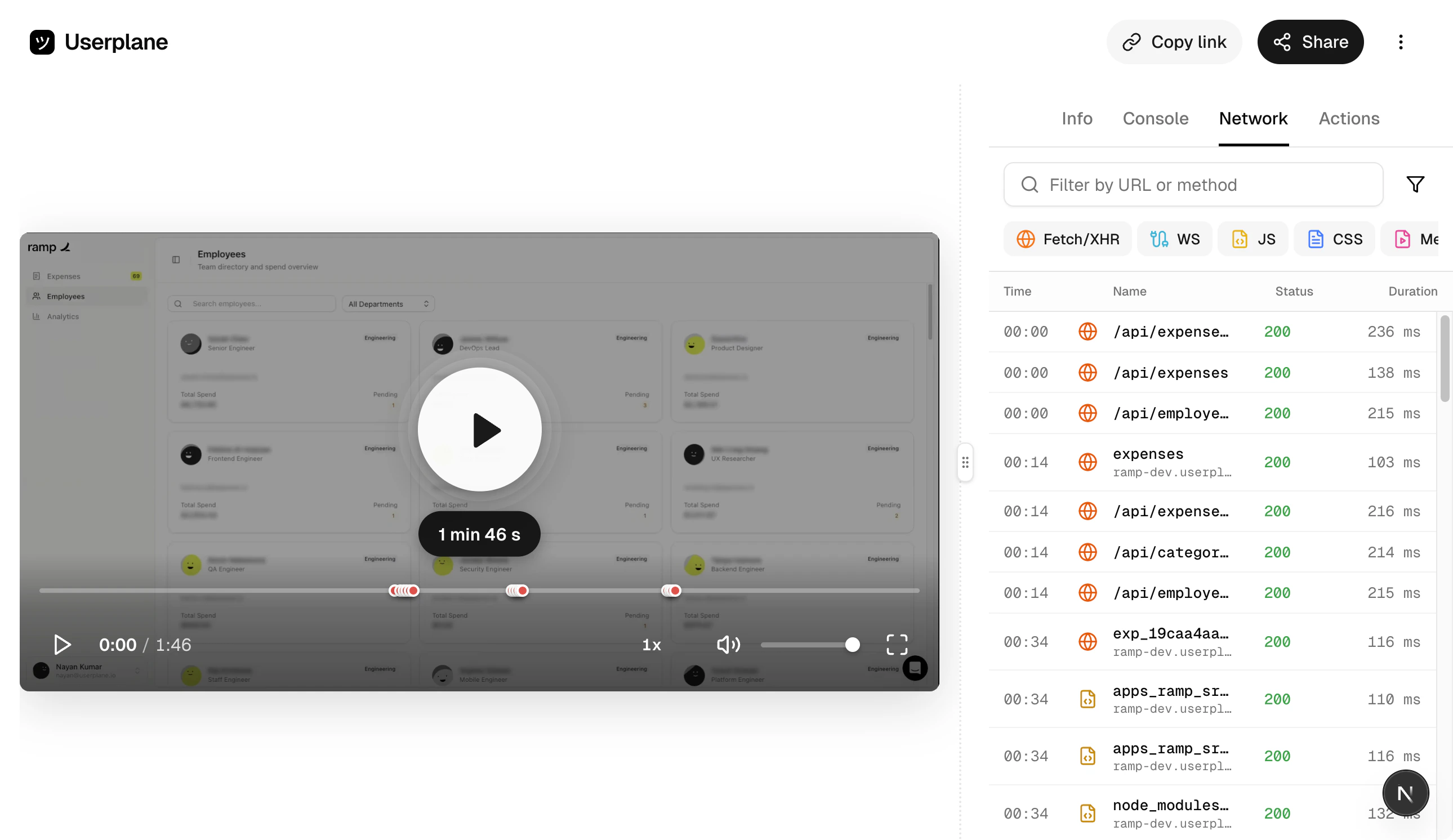 Expand a request to see the full URL, status code, timing breakdown, request and response headers, and body content.
 The network panel stays in sync with the video — the active request is highlighted as the video plays, and clicking a request jumps to the corresponding moment.
 ### Actions panel
The Actions panel captures user interactions — clicks, text inputs, page navigations, and tab switches — with timestamps. Use it to reconstruct exactly what the customer did and in what order.
Click any action to jump the video to that moment.
The actions list shows all captured interactions chronologically. Click any action to expand it and see additional detail.
### Actions panel
The Actions panel captures user interactions — clicks, text inputs, page navigations, and tab switches — with timestamps. Use it to reconstruct exactly what the customer did and in what order.
Click any action to jump the video to that moment.
The actions list shows all captured interactions chronologically. Click any action to expand it and see additional detail.
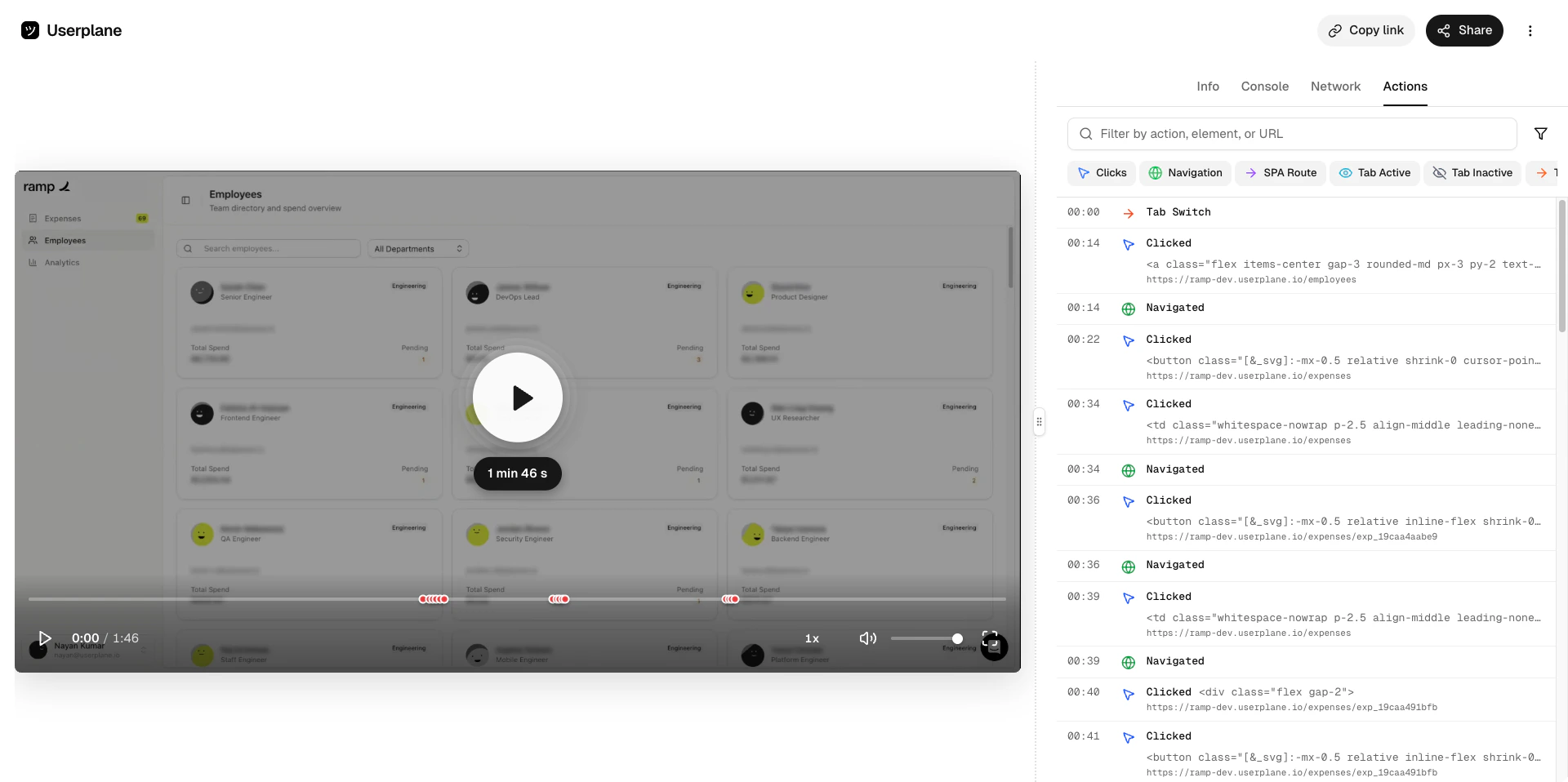
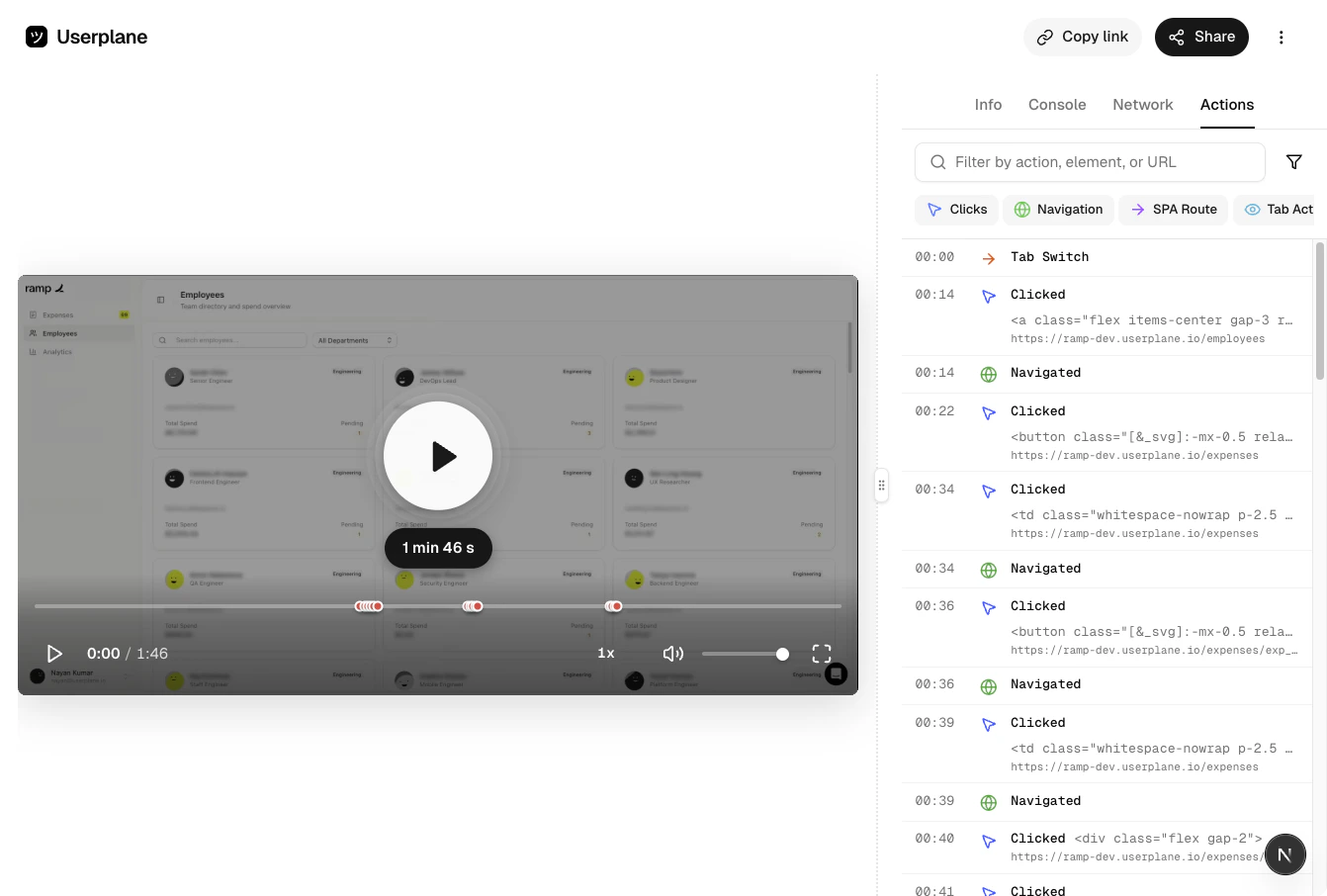
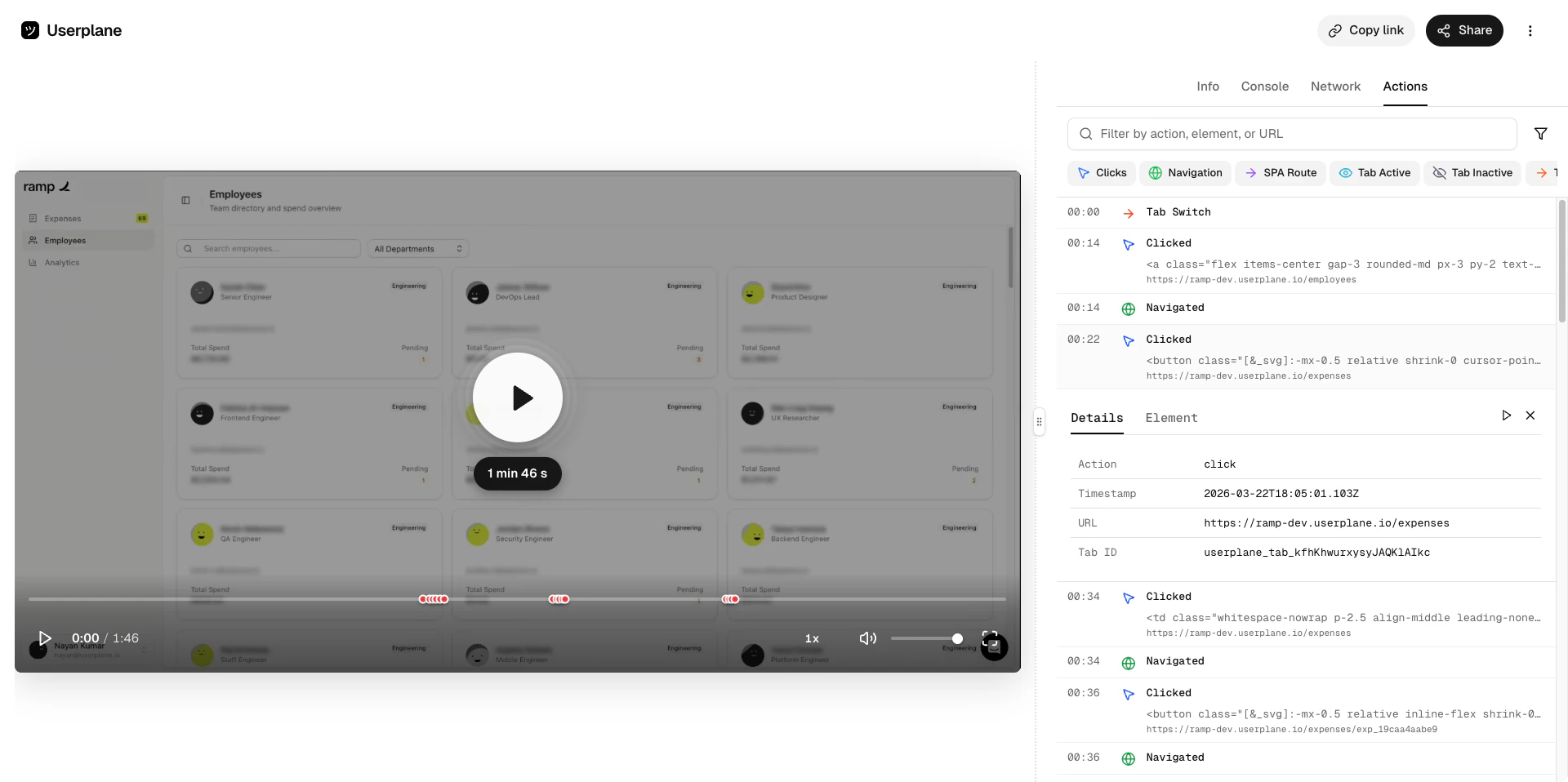 The actions panel stays in sync with the video timeline. As the video plays, the current action is highlighted — and clicking any action jumps the video to that moment.
## Navigation bar actions
The top navigation bar provides quick actions for working with the recording:
* **Copy link** — copies a direct link to the recording for sharing internally.
* **Share** — opens the [sharing modal](/recording/sharing) to share with teammates or generate a temporary public link for external collaborators.
* **⋮ (more options)** — opens a menu with additional actions:
The actions panel stays in sync with the video timeline. As the video plays, the current action is highlighted — and clicking any action jumps the video to that moment.
## Navigation bar actions
The top navigation bar provides quick actions for working with the recording:
* **Copy link** — copies a direct link to the recording for sharing internally.
* **Share** — opens the [sharing modal](/recording/sharing) to share with teammates or generate a temporary public link for external collaborators.
* **⋮ (more options)** — opens a menu with additional actions:
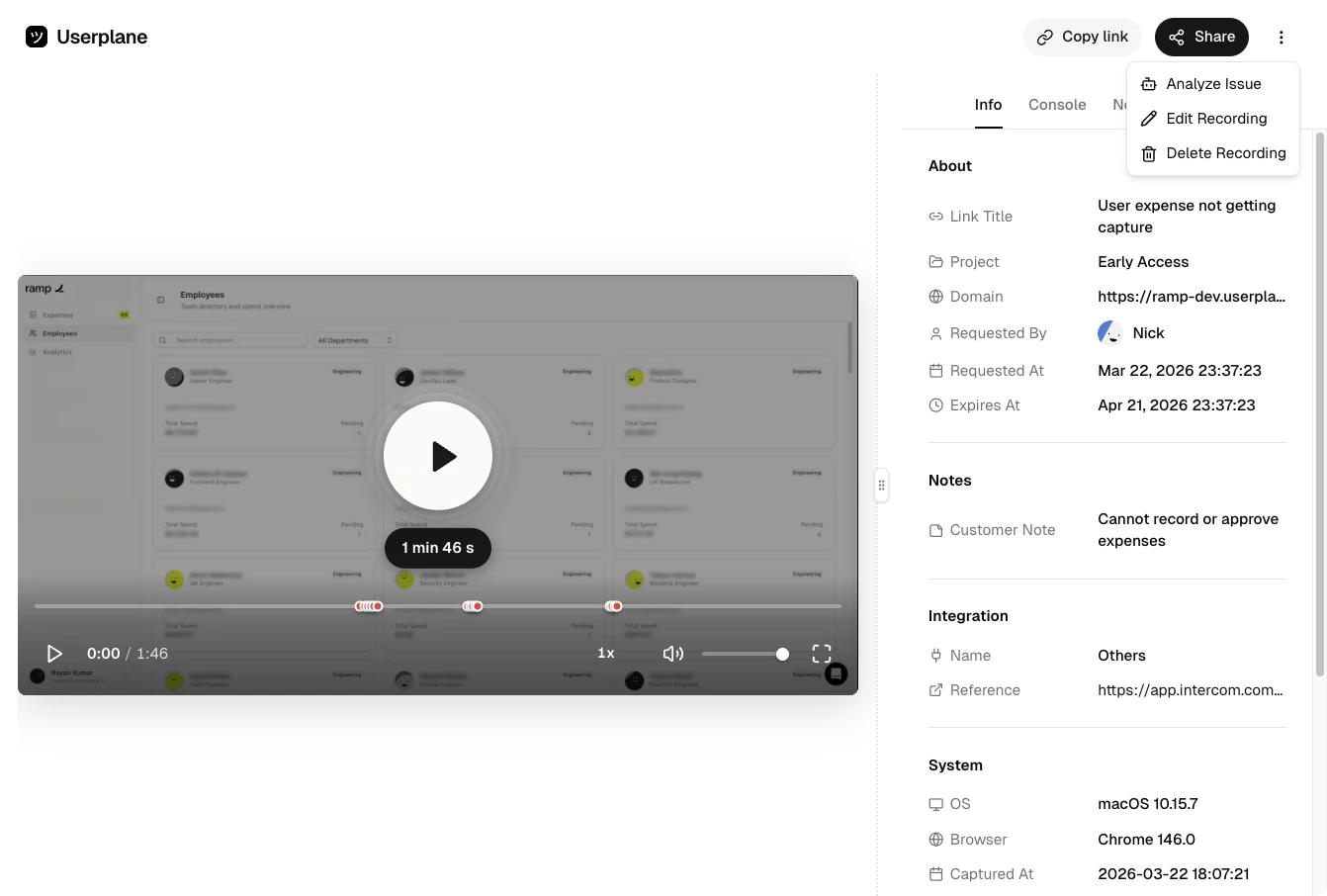 | Action | Description |
| -------------------- | ------------------------------------------------------------------------------------------------------------------- |
| **Issue Analyzer** | Generate a structured AI prompt from the recording's session data. See [Issue Analyzer](/recording/issue-analyzer). |
| **Edit Recording** | Update the recording's expiry date. See [Recording Expiry](/recording/expiry). |
| **Delete Recording** | Permanently delete the recording and all associated data. |
## Related articles
* [Sharing Recordings](/recording/sharing) — share recordings with teammates or external collaborators.
* [Issue Analyzer](/recording/issue-analyzer) — generate AI prompts from session data to explain or debug issues.
* [Recording Expiry](/recording/expiry) — control how long a recording remains accessible.
* [Domain Recording Preferences](/recording-links/domain-preferences) — configure which data types are captured per domain.
* [Reviewing Recordings](/recording/reviewing) — browse and filter recordings in your workspace.
* [Metadata SDK](/developer/metadata-sdk) — attach custom metadata to recordings from your app.
| Action | Description |
| -------------------- | ------------------------------------------------------------------------------------------------------------------- |
| **Issue Analyzer** | Generate a structured AI prompt from the recording's session data. See [Issue Analyzer](/recording/issue-analyzer). |
| **Edit Recording** | Update the recording's expiry date. See [Recording Expiry](/recording/expiry). |
| **Delete Recording** | Permanently delete the recording and all associated data. |
## Related articles
* [Sharing Recordings](/recording/sharing) — share recordings with teammates or external collaborators.
* [Issue Analyzer](/recording/issue-analyzer) — generate AI prompts from session data to explain or debug issues.
* [Recording Expiry](/recording/expiry) — control how long a recording remains accessible.
* [Domain Recording Preferences](/recording-links/domain-preferences) — configure which data types are captured per domain.
* [Reviewing Recordings](/recording/reviewing) — browse and filter recordings in your workspace.
* [Metadata SDK](/developer/metadata-sdk) — attach custom metadata to recordings from your app.