> ## Documentation Index
> Fetch the complete documentation index at: https://docs.userplane.io/llms.txt
> Use this file to discover all available pages before exploring further.
# Requesting a Recording
> Create a recording link and share it with your customer to capture a screen recording
A recording starts with a link. You create a recording link in Userplane, share it with your customer, and they record their screen directly in the browser — no installs required.
## Create a recording link
Click the [Create Link](https://dash.userplane.io/_/recordings?create_link=true) button in the
top right corner.
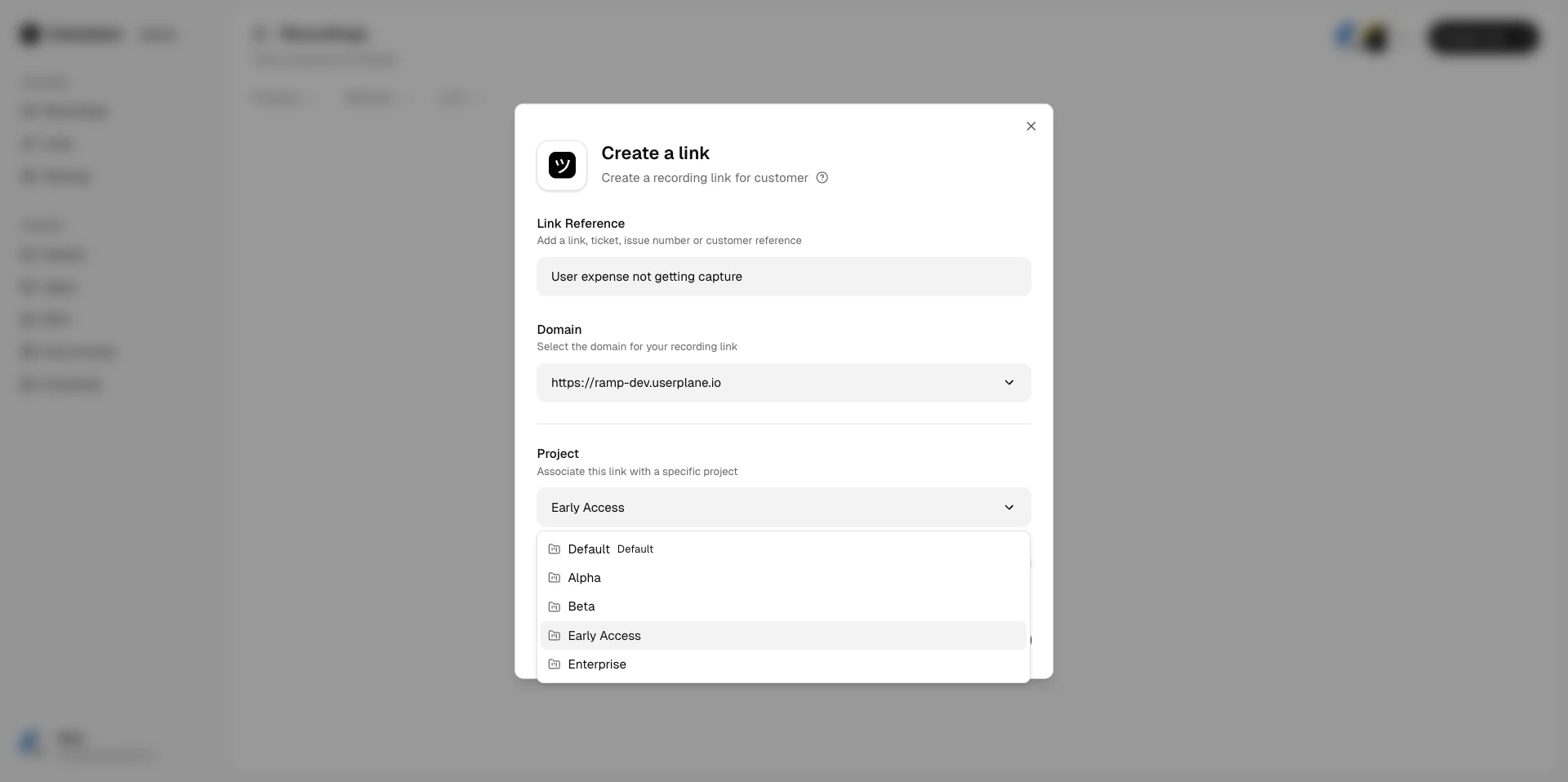
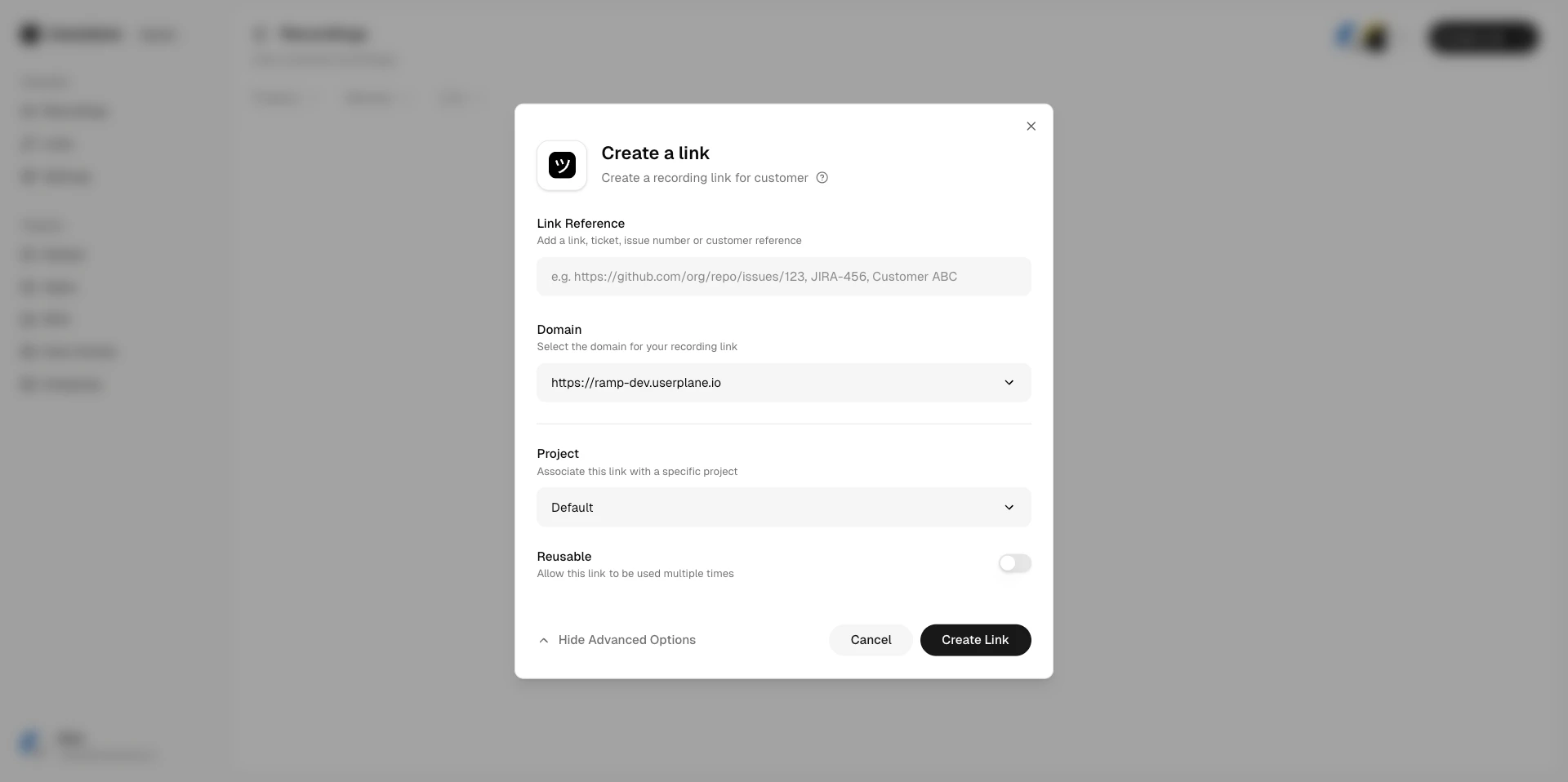 * **Project** — choose which project this recording belongs to. This helps you organize and
filter recordings later.
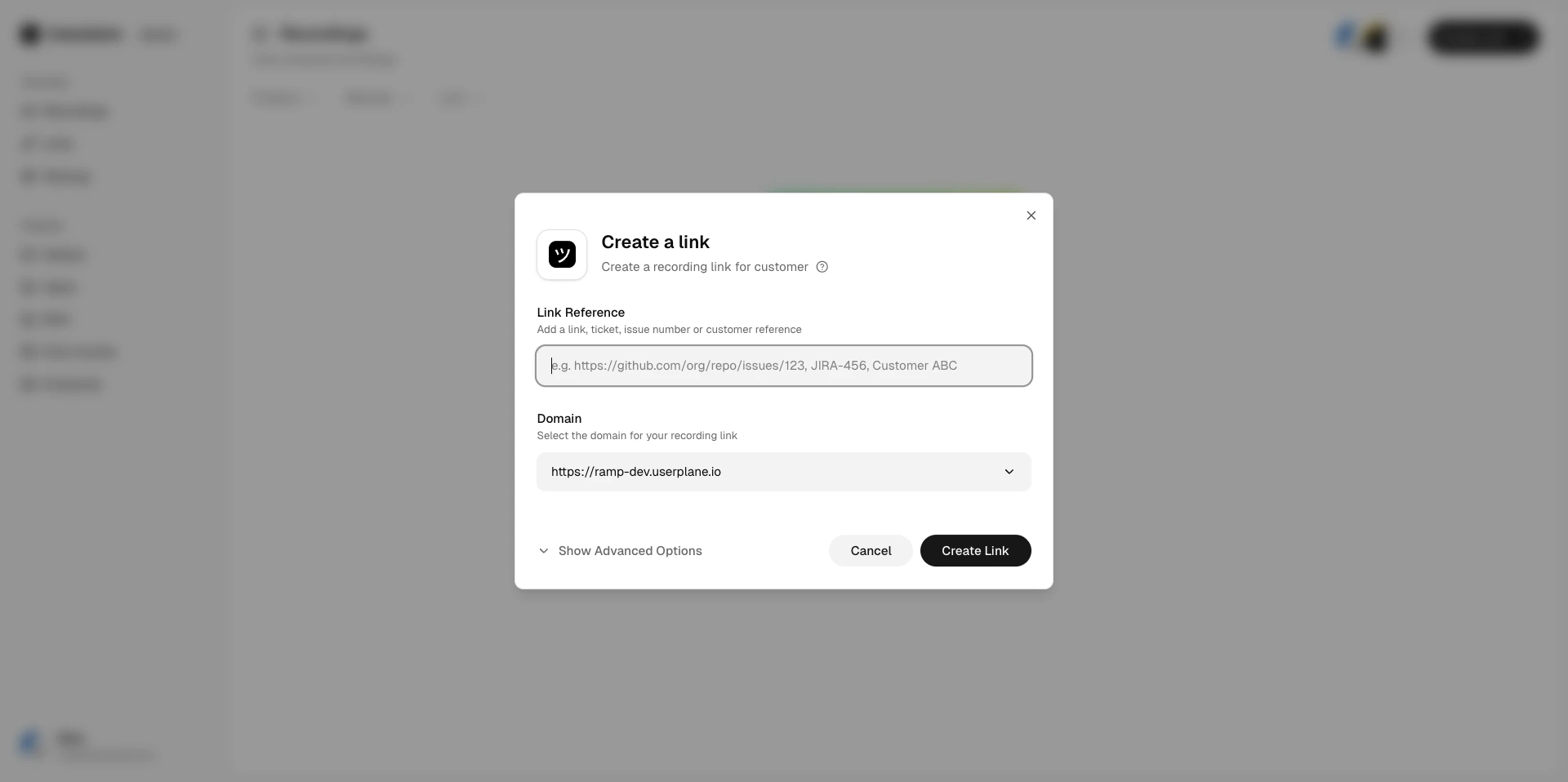
* **Domain** — select a verified domain to brand the recording link
with your site's identity. Optional but recommended.
* **Reference** — add an external reference
like a ticket number or URL (e.g. `JIRA-456`, a GitHub issue link). This makes it easy to find
the recording later.
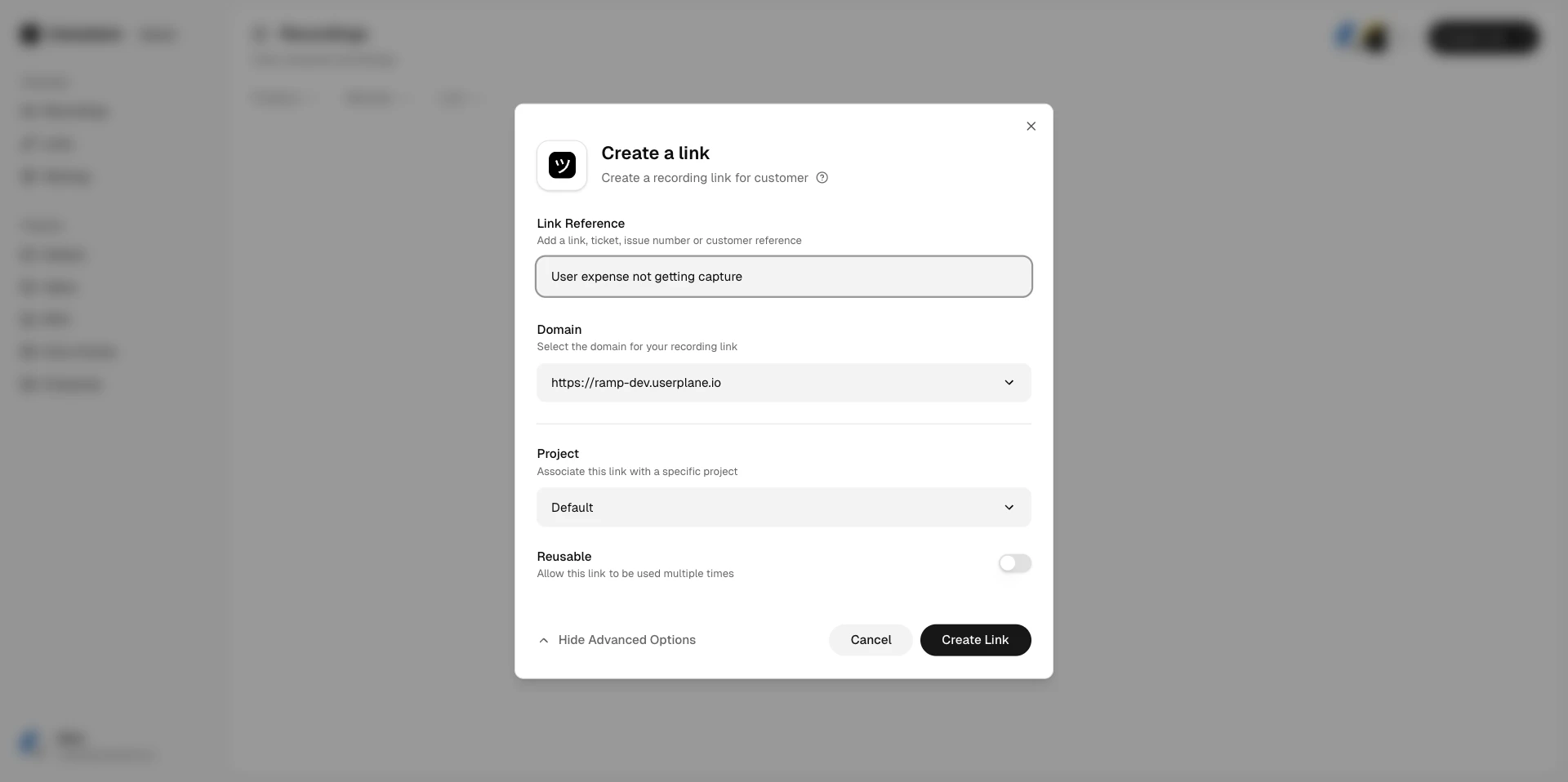
* **Reusable** — toggle whether the link can be used once or multiple
times.
* **Project** — choose which project this recording belongs to. This helps you organize and
filter recordings later.
* **Domain** — select a verified domain to brand the recording link
with your site's identity. Optional but recommended.
* **Reference** — add an external reference
like a ticket number or URL (e.g. `JIRA-456`, a GitHub issue link). This makes it easy to find
the recording later.
* **Reusable** — toggle whether the link can be used once or multiple
times.
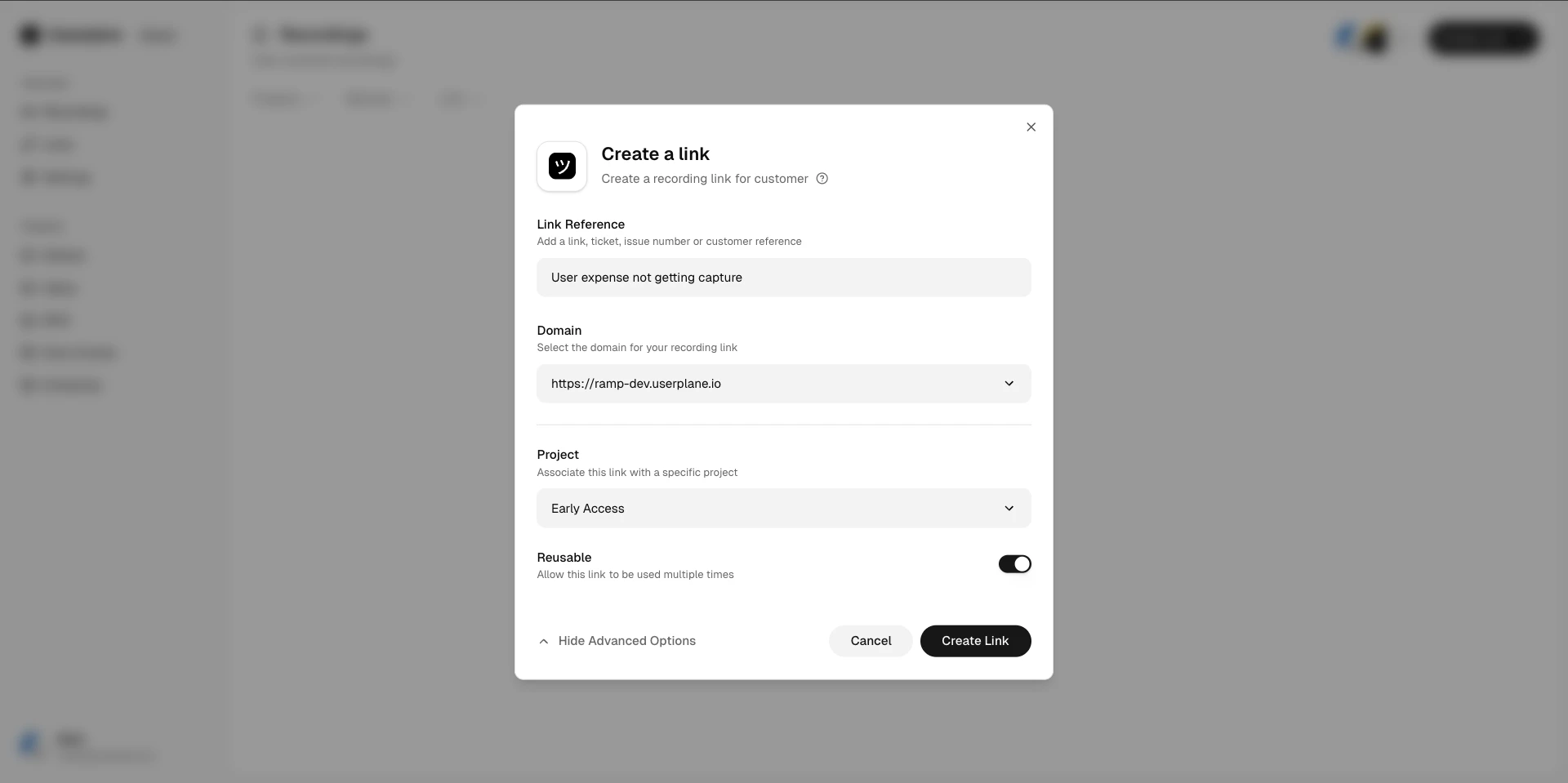 Click **Create** and copy the link.
## Share the link
Send the recording link to your customer through any channel — email, live chat, Intercom, Slack, or your help desk. When the customer opens the link, they see a branded recording page and can start recording immediately.
Click **Create** and copy the link.
## Share the link
Send the recording link to your customer through any channel — email, live chat, Intercom, Slack, or your help desk. When the customer opens the link, they see a branded recording page and can start recording immediately.
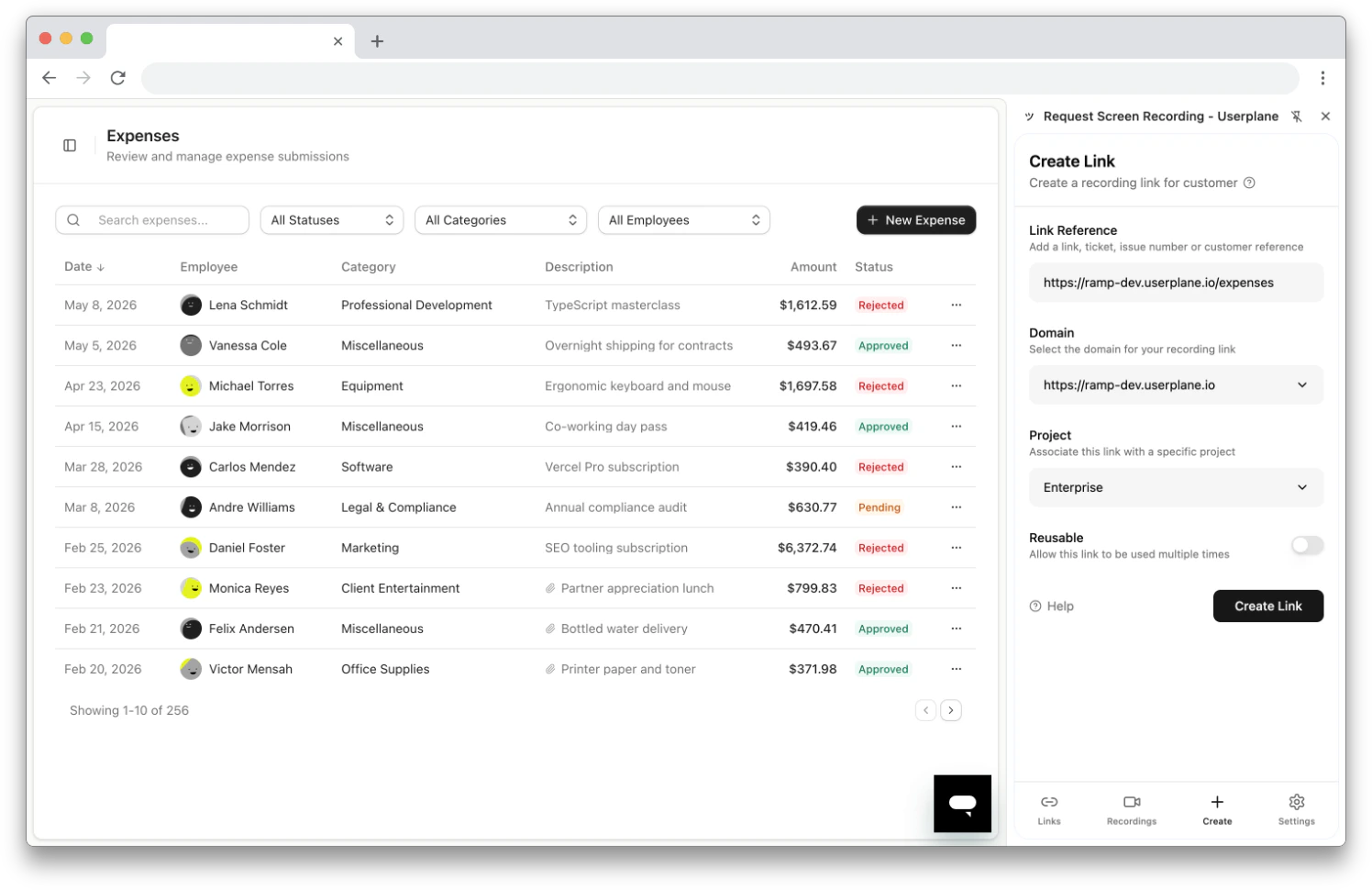
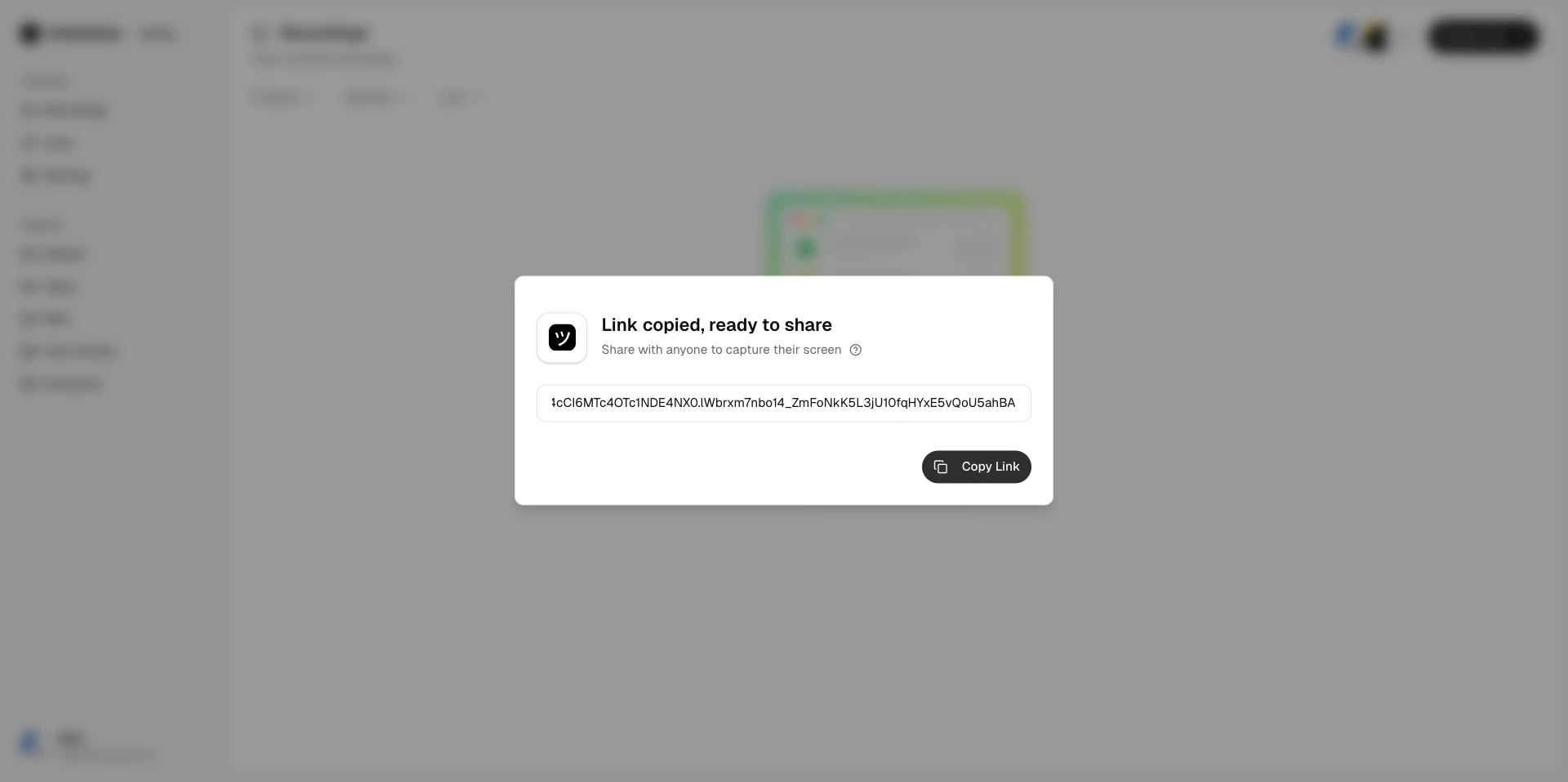 You can also create recording links from the [Chrome
extension](/integrations/chrome-extension-create-links) side panel, directly inside your help desk
using the [Intercom inbox app](/integrations/intercom-inbox) or the [Zendesk ticket
sidebar](/integrations/zendesk-ticket-sidebar), or from Slack using the [/userplane slash
command](/integrations/slack-commands).
## What happens next
After the customer opens the link, they go through the following flow. The finished recording appears in your [Recordings](https://dash.userplane.io/_/recordings) page.
The customer sees a branded recording page and can start recording immediately — no installs required.
You can also create recording links from the [Chrome
extension](/integrations/chrome-extension-create-links) side panel, directly inside your help desk
using the [Intercom inbox app](/integrations/intercom-inbox) or the [Zendesk ticket
sidebar](/integrations/zendesk-ticket-sidebar), or from Slack using the [/userplane slash
command](/integrations/slack-commands).
## What happens next
After the customer opens the link, they go through the following flow. The finished recording appears in your [Recordings](https://dash.userplane.io/_/recordings) page.
The customer sees a branded recording page and can start recording immediately — no installs required.
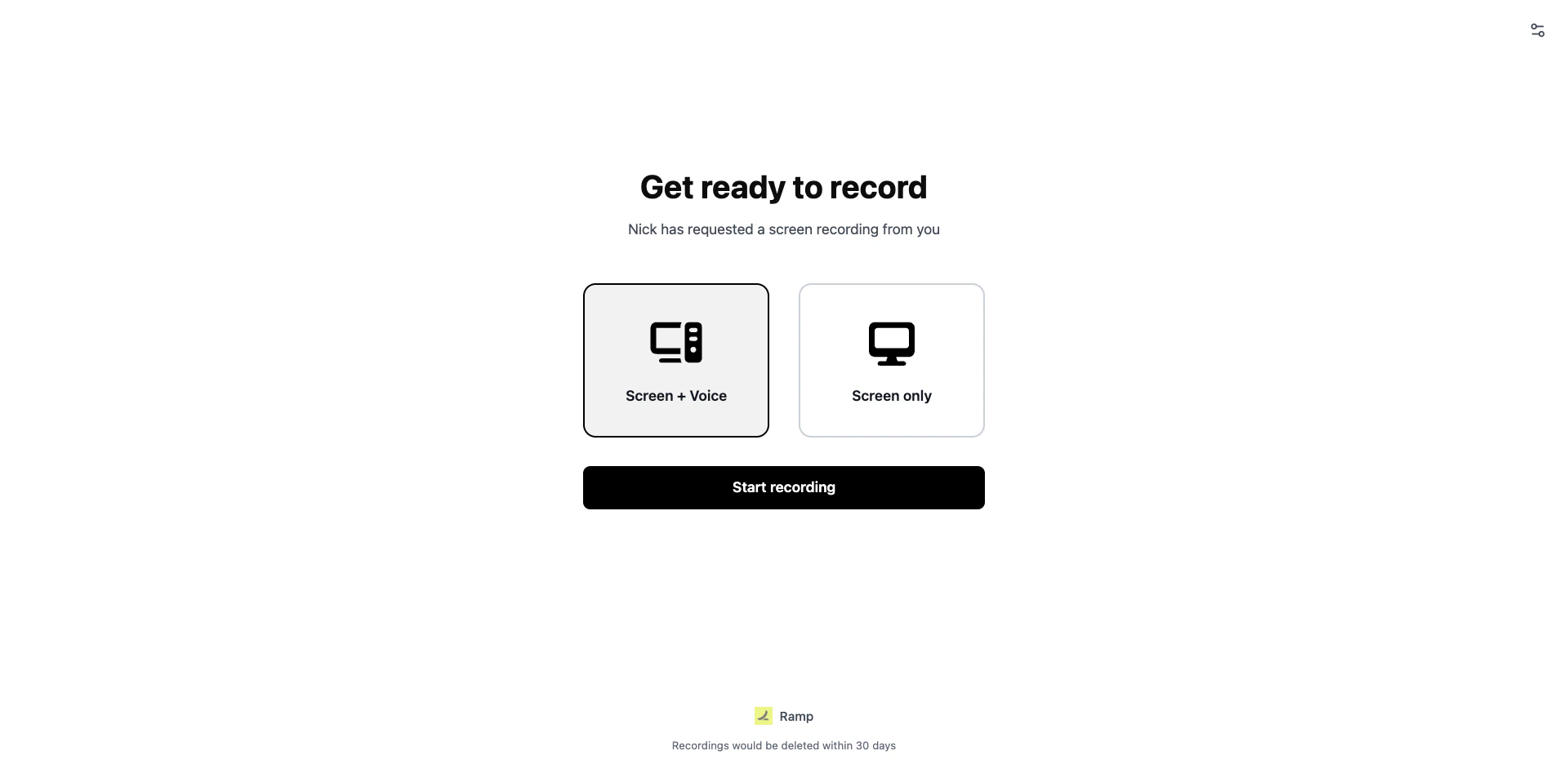 The customer's screen is captured in real time along with console logs, network activity, and user actions.
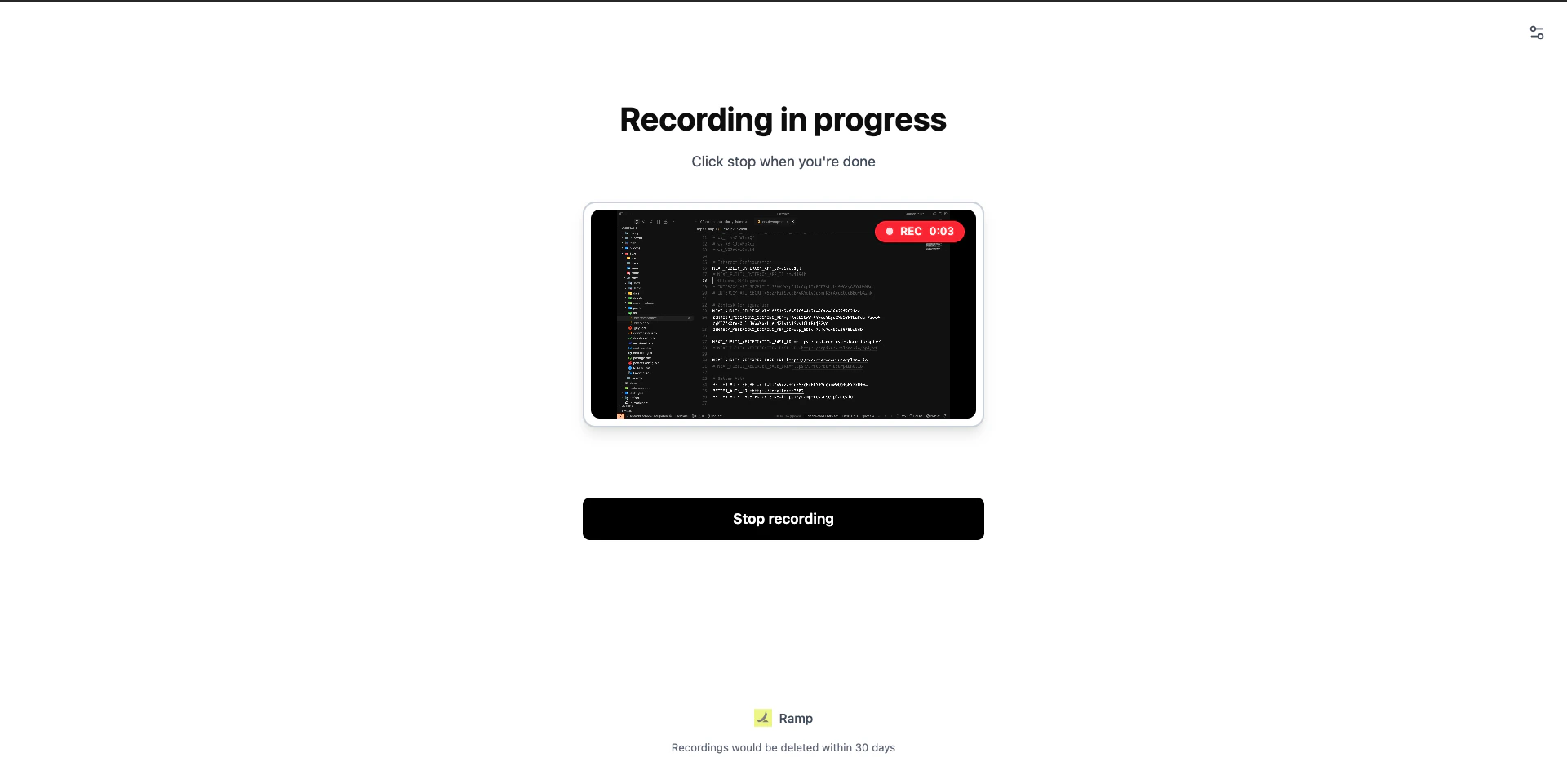 After stopping the recording, the customer can review the capture and add notes to describe the issue.
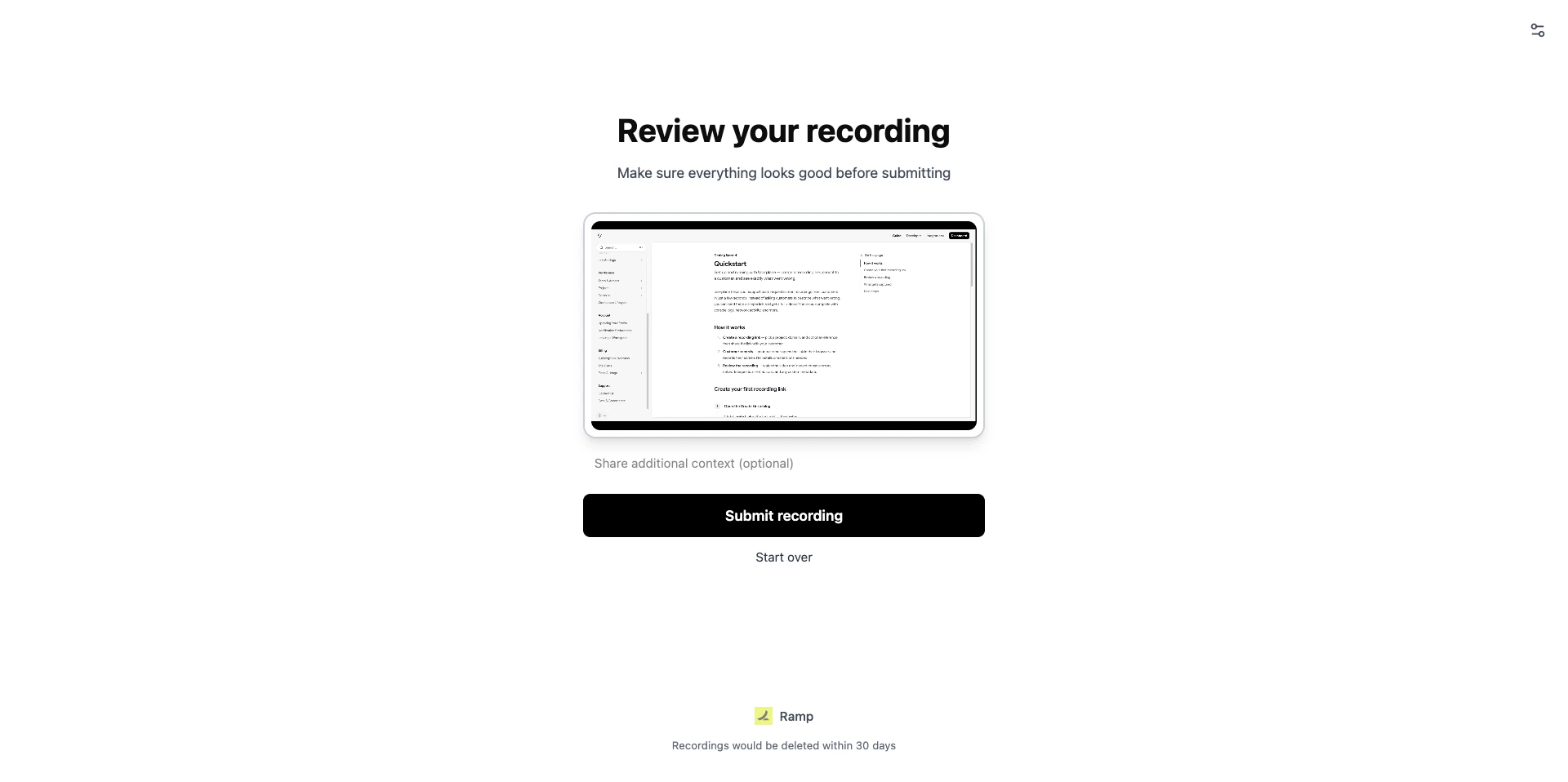
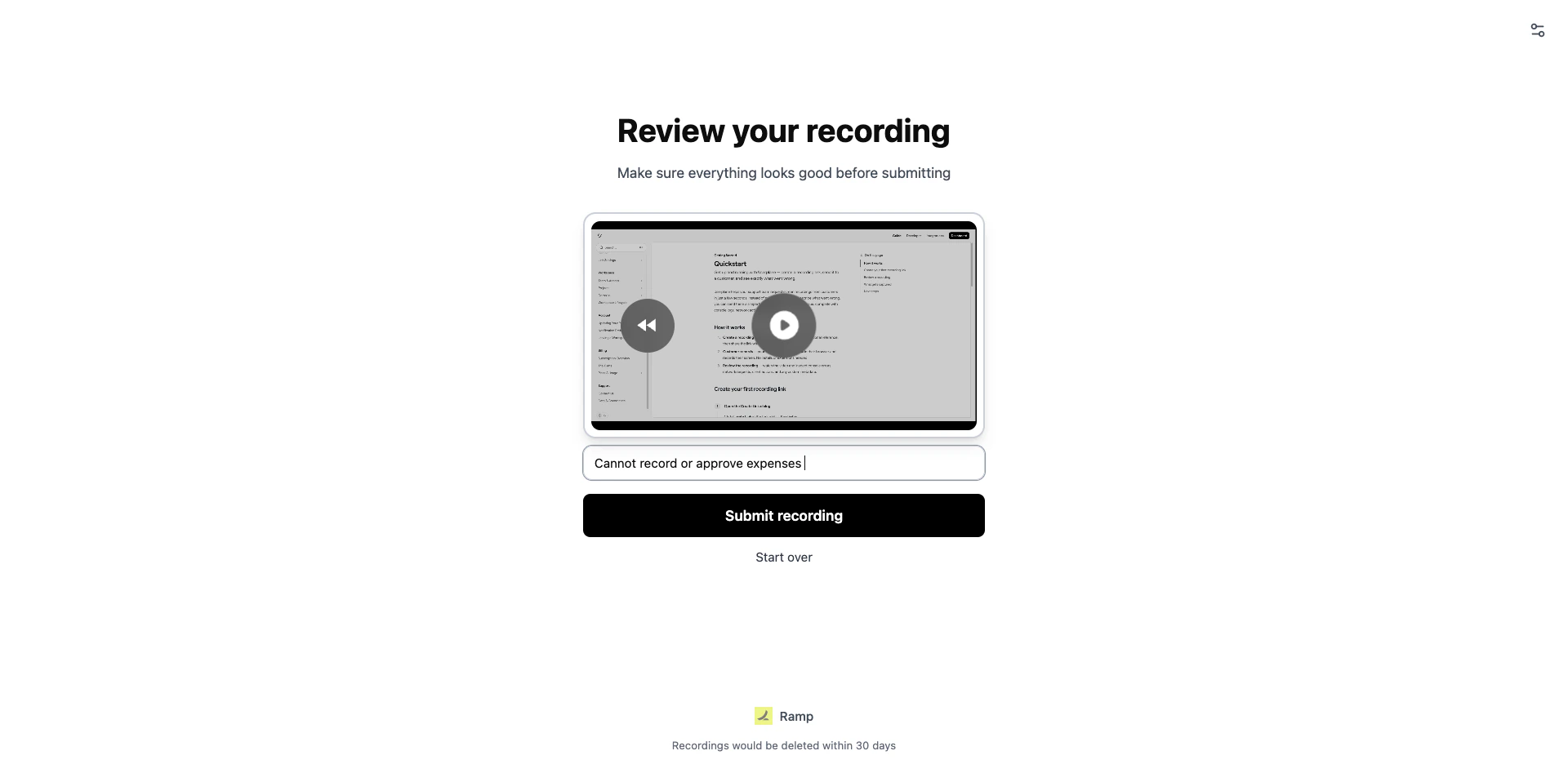 The recording is uploaded and immediately available in your workspace.
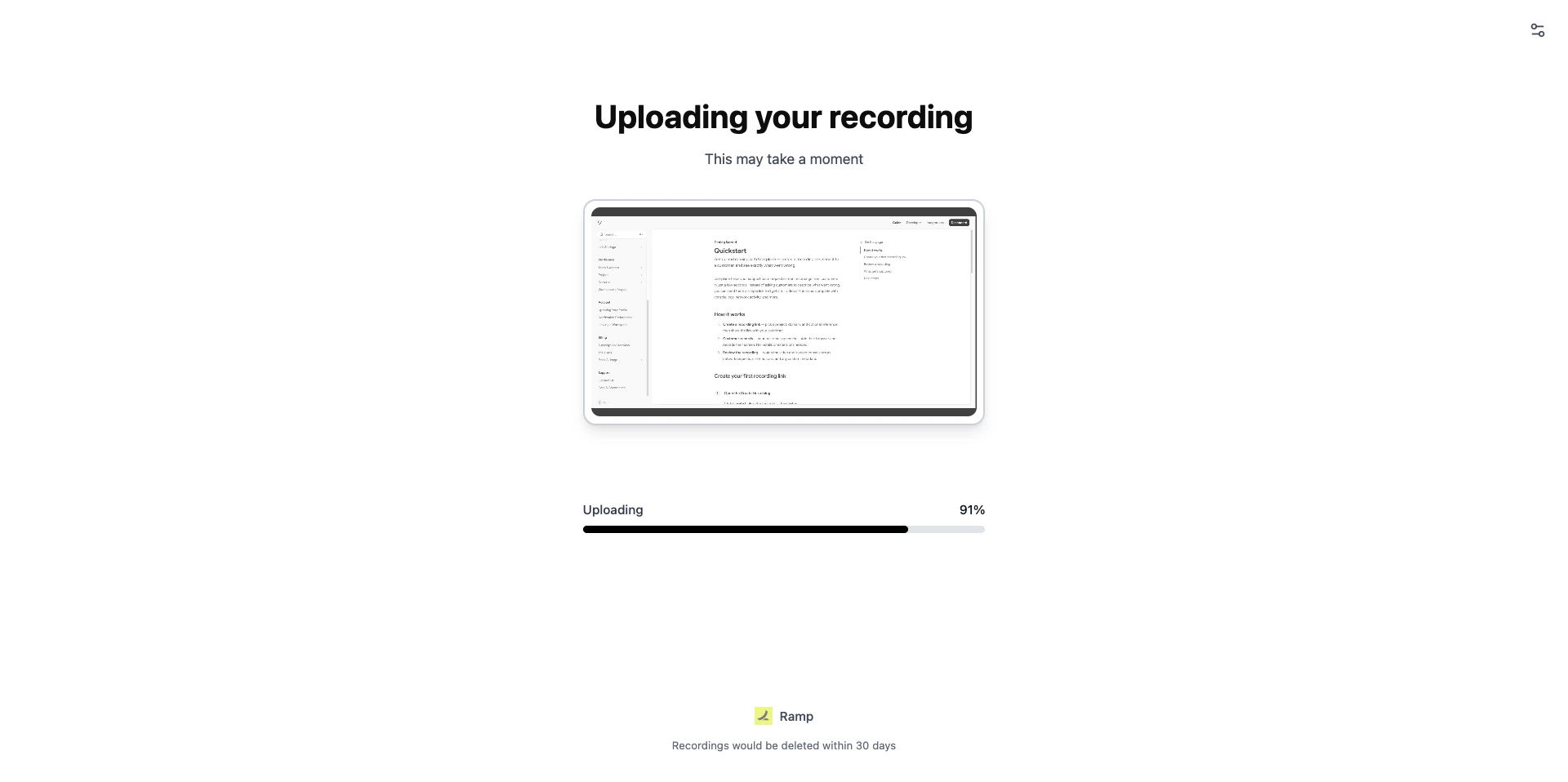
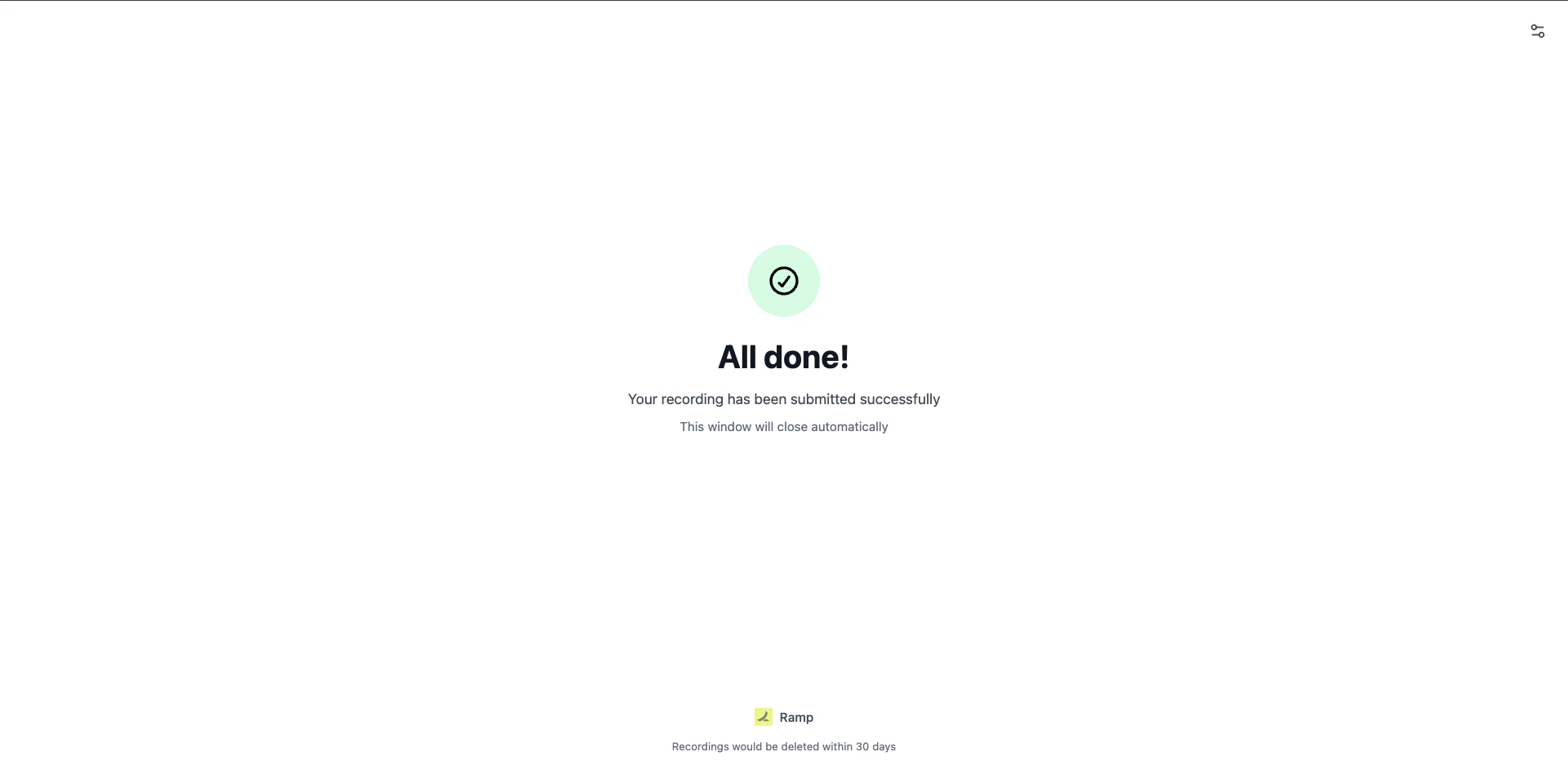 Incoming recording notifications are opt-in. To receive email alerts when recordings arrive,
enable "Incoming recordings" in your [notification preferences](/account/notifications).
## Sharing a recording
Once a recording lands in your workspace, you can share it with teammates or external collaborators. For the full sharing guide, see [Sharing Recordings](/recording/sharing).
Incoming recording notifications are opt-in. To receive email alerts when recordings arrive,
enable "Incoming recordings" in your [notification preferences](/account/notifications).
## Sharing a recording
Once a recording lands in your workspace, you can share it with teammates or external collaborators. For the full sharing guide, see [Sharing Recordings](/recording/sharing).
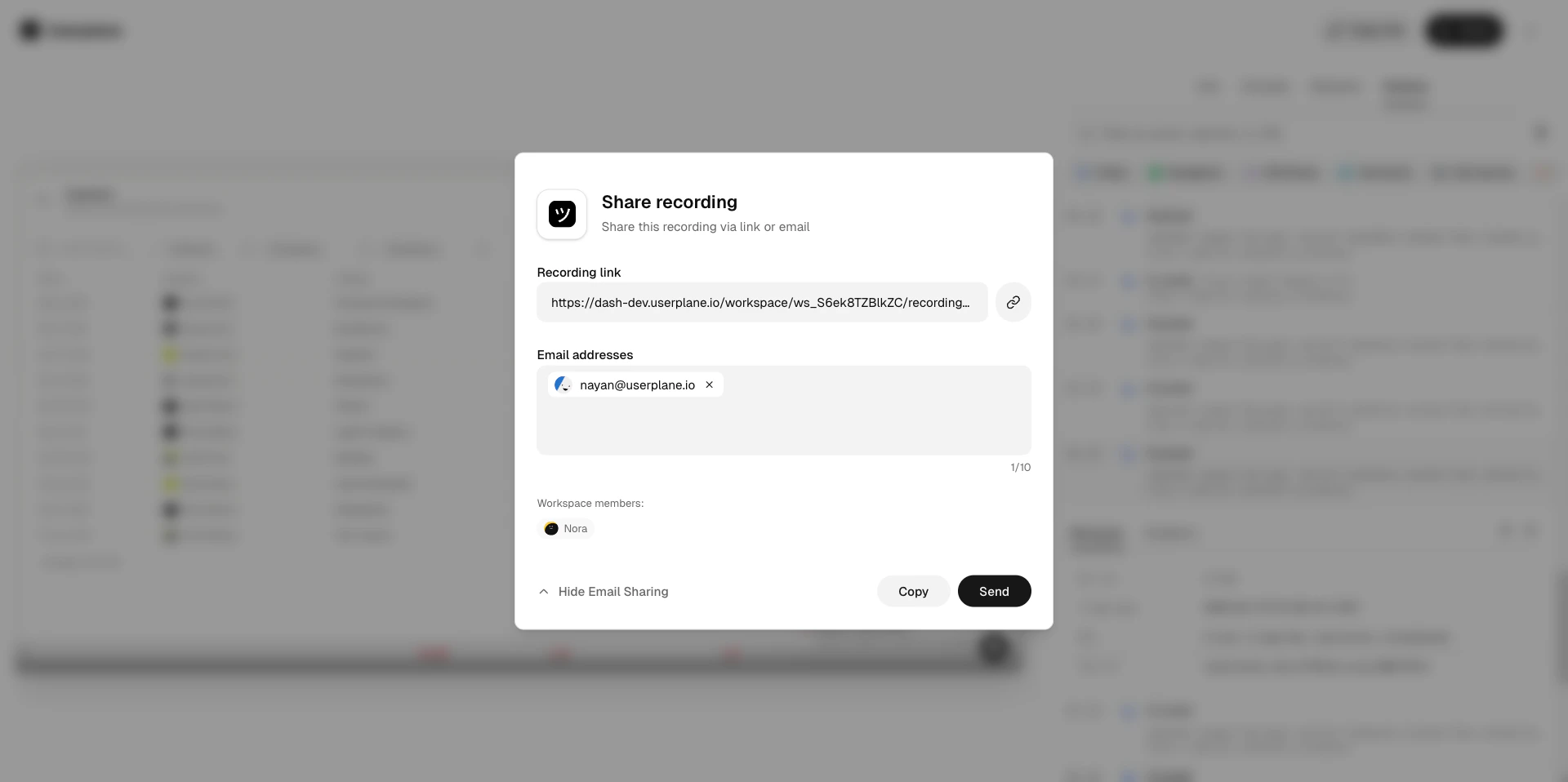
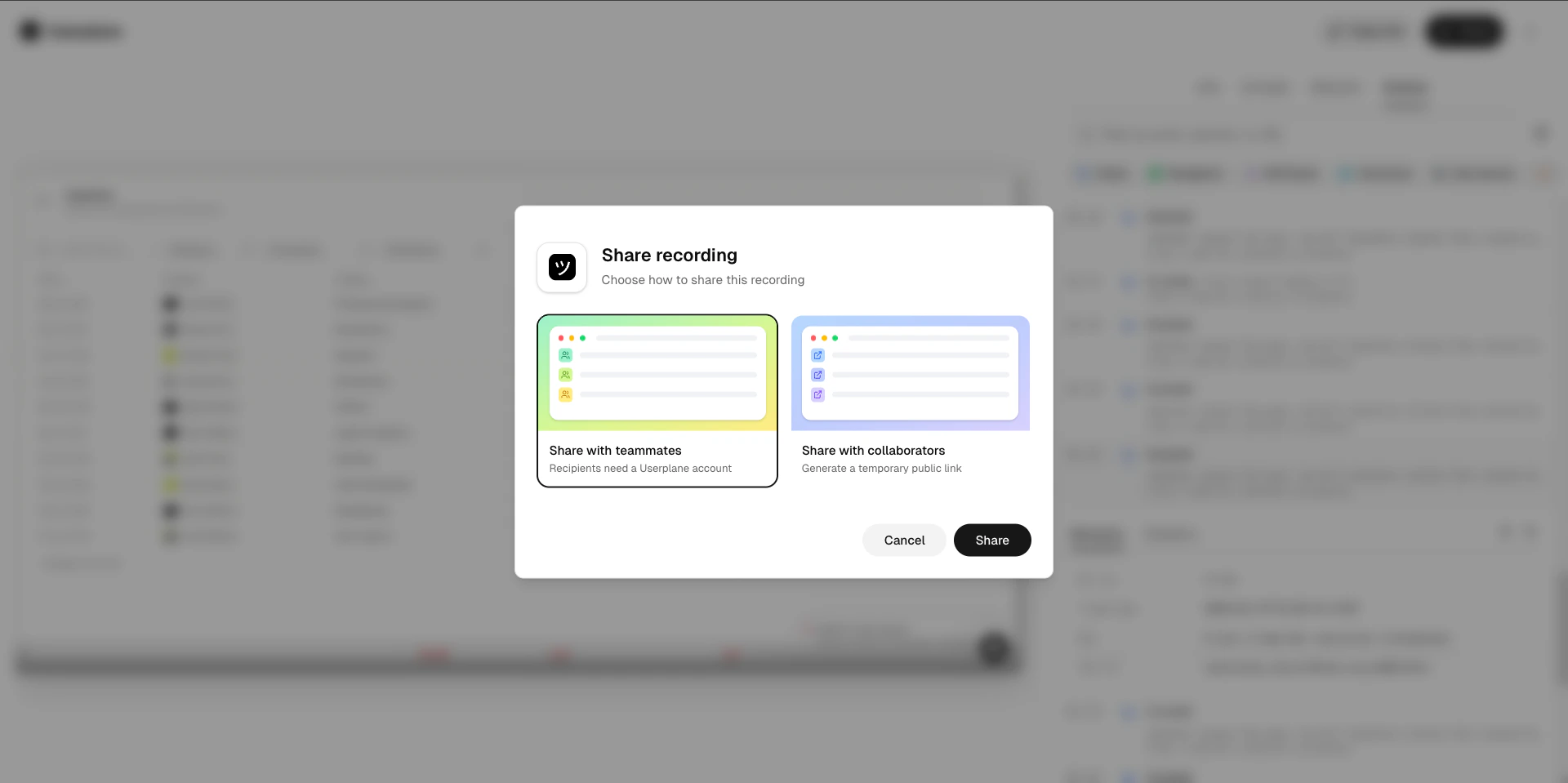 Share a recording link with workspace members. Recipients must have a Userplane account and belong to your workspace.
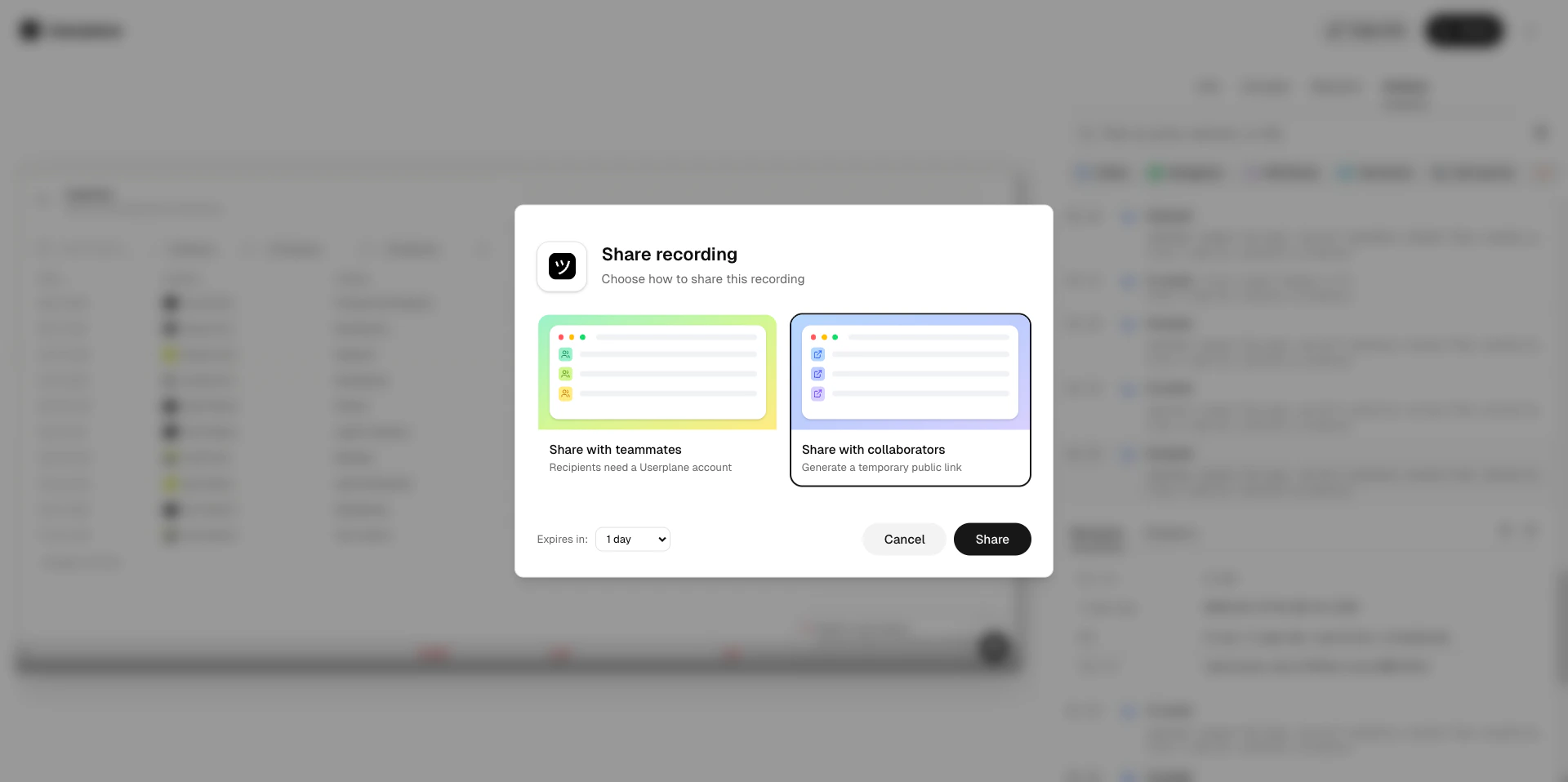
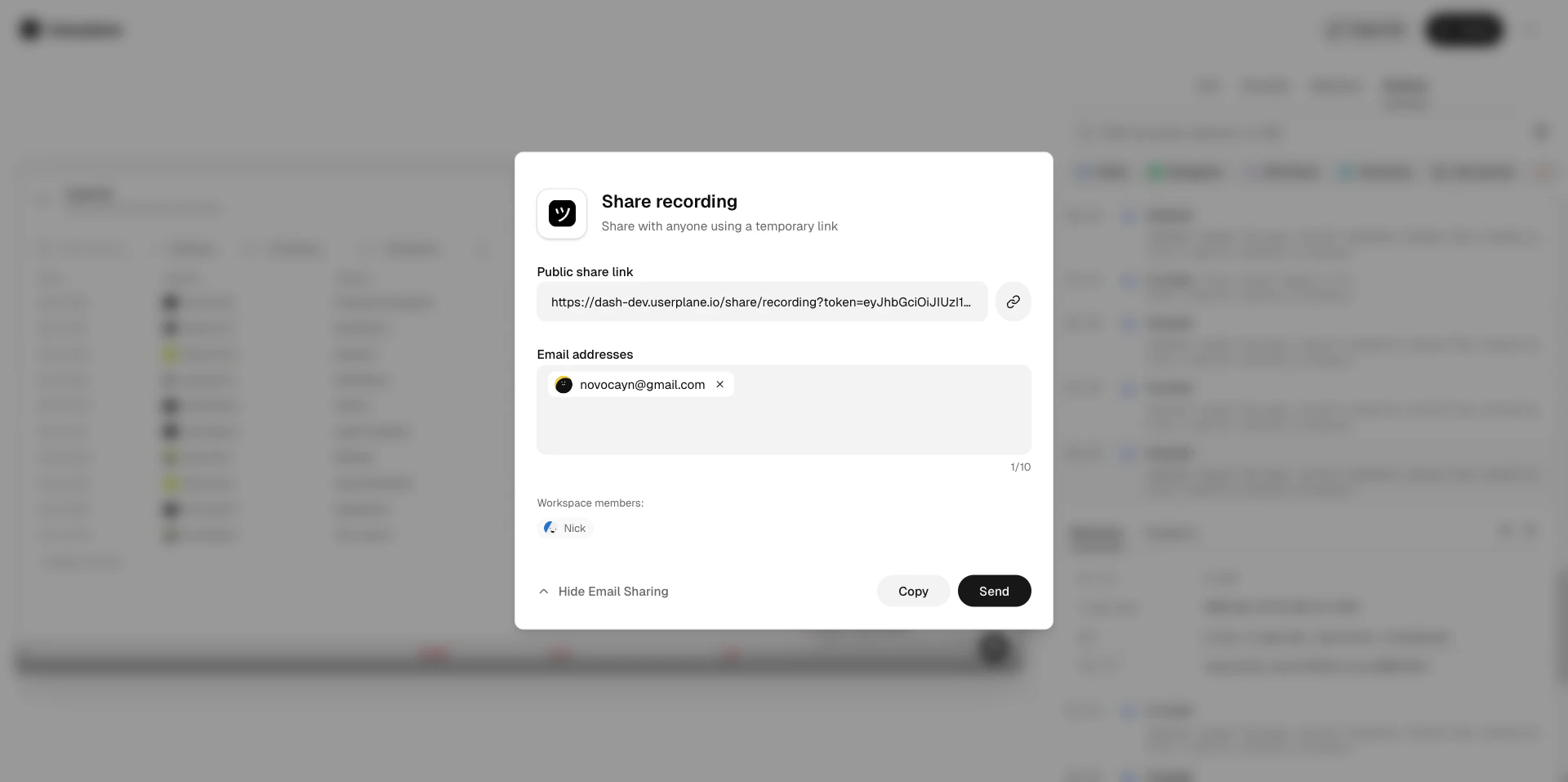
 Generate a temporary public link for anyone — no Userplane account required. The link expires automatically after the selected duration.
 ## Creating links from the Chrome extension
If you prefer to stay in the browser rather than switching to the dashboard, the [Chrome extension](/integrations/chrome-extension) lets you create recording links from a side panel alongside any tab. Press `Cmd+Shift+Y` (Mac) / `Ctrl+Shift+Y` (Windows/Linux) to open the Create Link form — the reference field auto-populates with the current page URL.
This is especially useful when you're already looking at a help desk ticket or customer page. See [Chrome Extension Link Creation](/integrations/chrome-extension-create-links) for the full walkthrough.
## Creating links from the Chrome extension
If you prefer to stay in the browser rather than switching to the dashboard, the [Chrome extension](/integrations/chrome-extension) lets you create recording links from a side panel alongside any tab. Press `Cmd+Shift+Y` (Mac) / `Ctrl+Shift+Y` (Windows/Linux) to open the Create Link form — the reference field auto-populates with the current page URL.
This is especially useful when you're already looking at a help desk ticket or customer page. See [Chrome Extension Link Creation](/integrations/chrome-extension-create-links) for the full walkthrough.
 ## Related articles
* [Link Reference](/recording/link-reference) — how references help you find recordings.
* [Recording Domains](/recording/domains) — why domains matter for branded links.
* [Recording Projects](/recording/projects) — organize recordings by project.
* [Reusable Links](/recording-links/reusable) — when to use one-time vs reusable links.
* [Chrome Extension](/integrations/chrome-extension) — create and manage links from a Chrome side panel.
## Related articles
* [Link Reference](/recording/link-reference) — how references help you find recordings.
* [Recording Domains](/recording/domains) — why domains matter for branded links.
* [Recording Projects](/recording/projects) — organize recordings by project.
* [Reusable Links](/recording-links/reusable) — when to use one-time vs reusable links.
* [Chrome Extension](/integrations/chrome-extension) — create and manage links from a Chrome side panel.