> ## Documentation Index
> Fetch the complete documentation index at: https://docs.userplane.io/llms.txt
> Use this file to discover all available pages before exploring further.
# Sharing Recordings
> Generate a temporary public link to share a recording with anyone, no login required
Once a recording lands in your workspace, you can share it with anyone — including people who don't have a Userplane account. Sharing generates a **public share link** that lets the recipient view the full recording, including the video and all captured technical data, directly in their browser.
Use public sharing when you need to loop in a developer, product manager, or stakeholder who isn't on your Userplane workspace — giving them enough context to understand an issue without adding them to your team.
Public share links are intentionally short-lived. If you find yourself regenerating links for the
same person repeatedly, consider [inviting them to your workspace](/workspace/team-management)
instead. Workspace members get direct, long-lived access to recordings without the overhead of
expiring links.
## Sharing modes
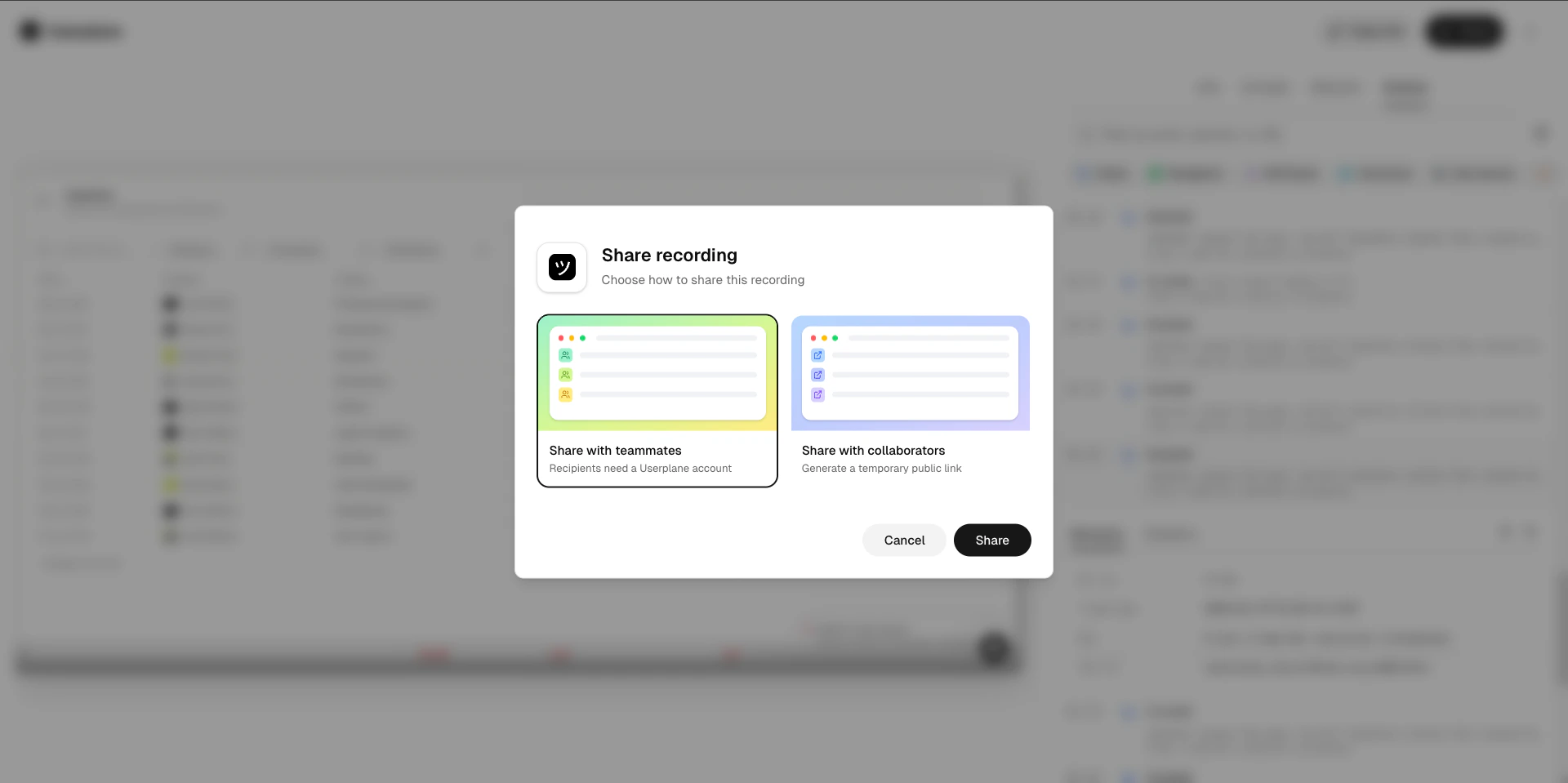
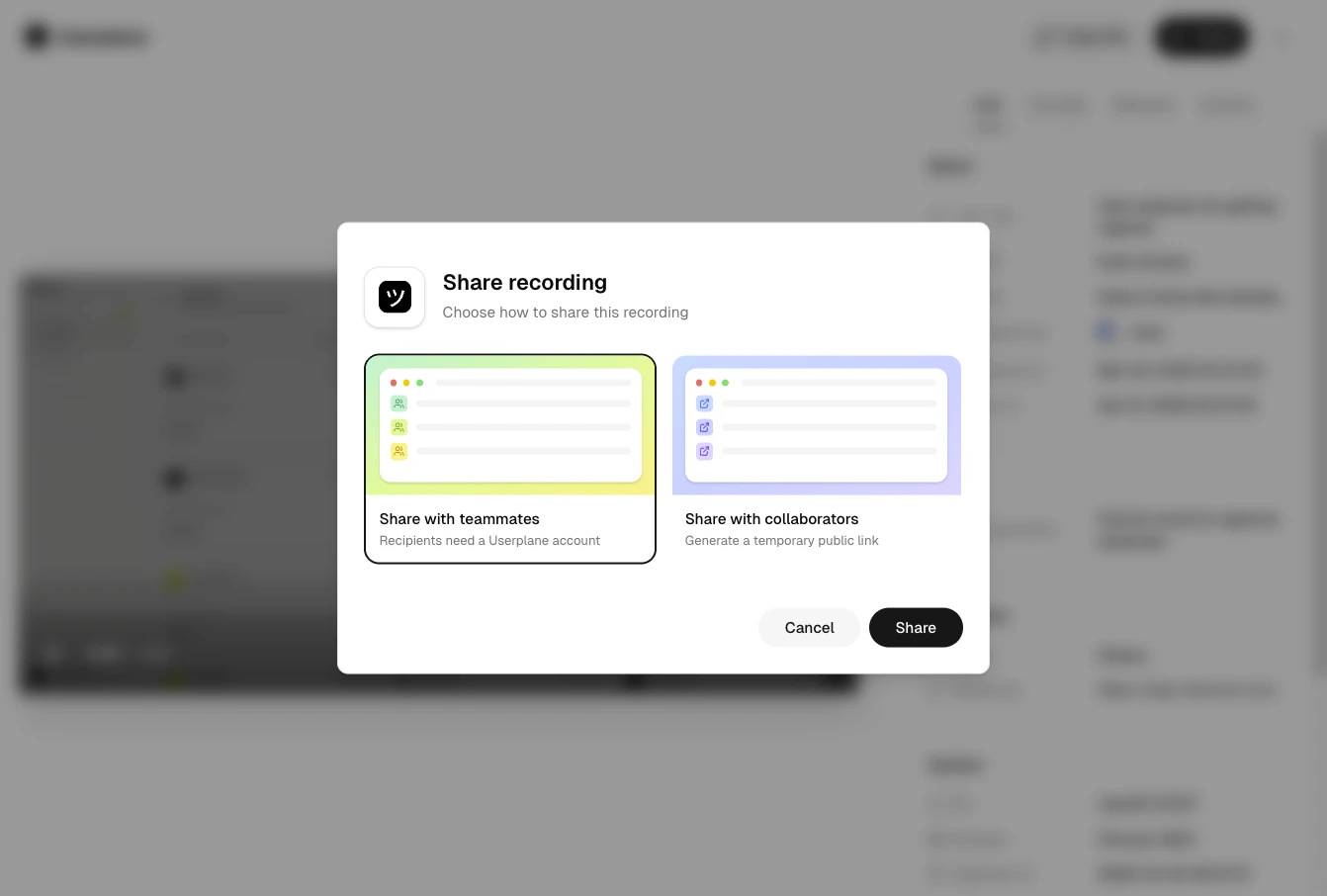
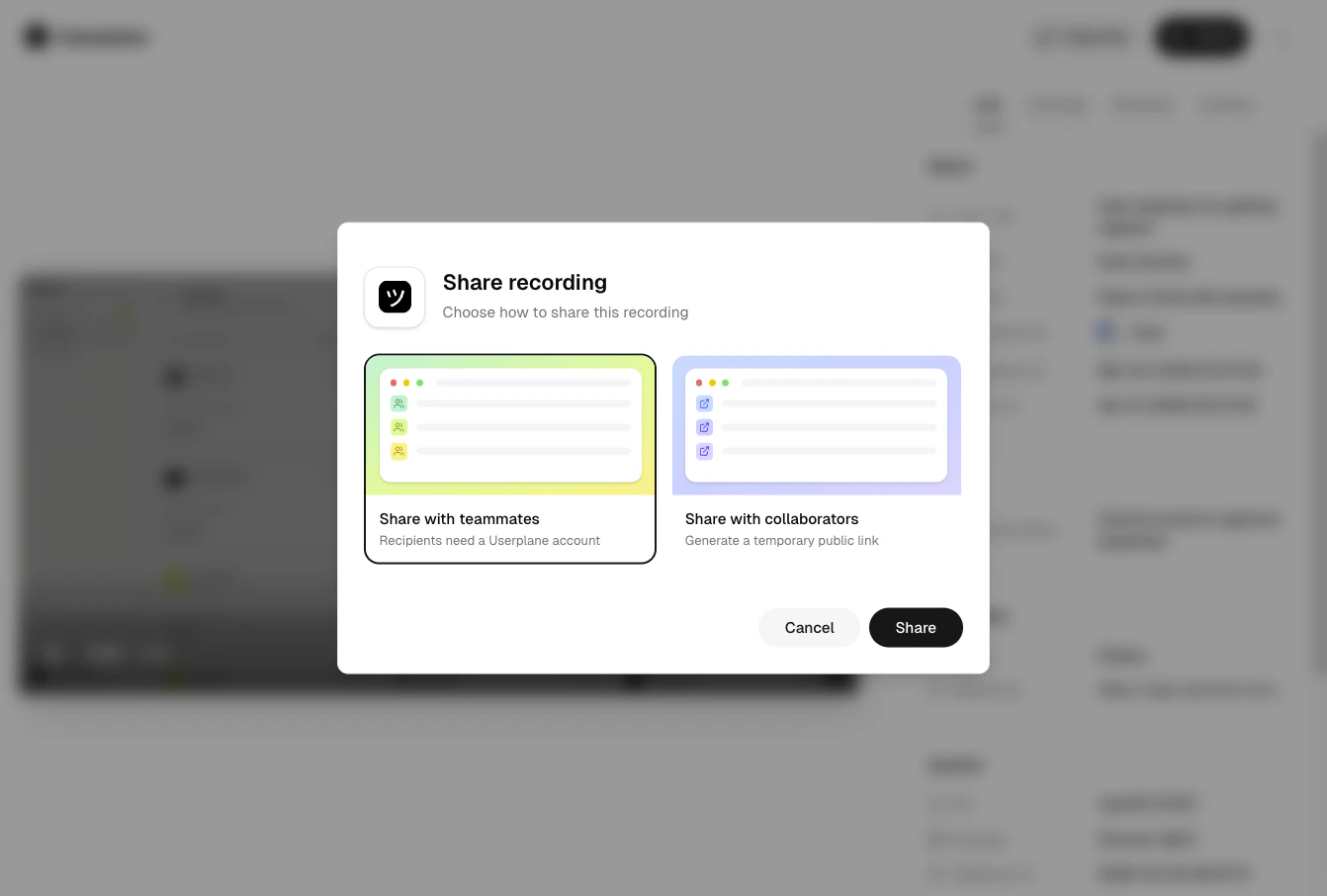
Userplane supports two ways to share a recording:
| Mode | Who can view | Requires a Userplane account |
| ---------------------------- | -------------------------------------------- | ---------------------------- |
| **Share with teammates** | Anyone with a link who is a workspace member | Yes |
| **Share with collaborators** | Anyone with the link | No |
Use **Share with teammates** when referencing a recording within your team. Use **Share with collaborators** to generate a temporary public link for external recipients.
 ## Generating a public share link
Open the recording you want to share from the
[Recordings](https://dash.userplane.io/_/recordings) page.
Click the **Share** button in the recording detail view.
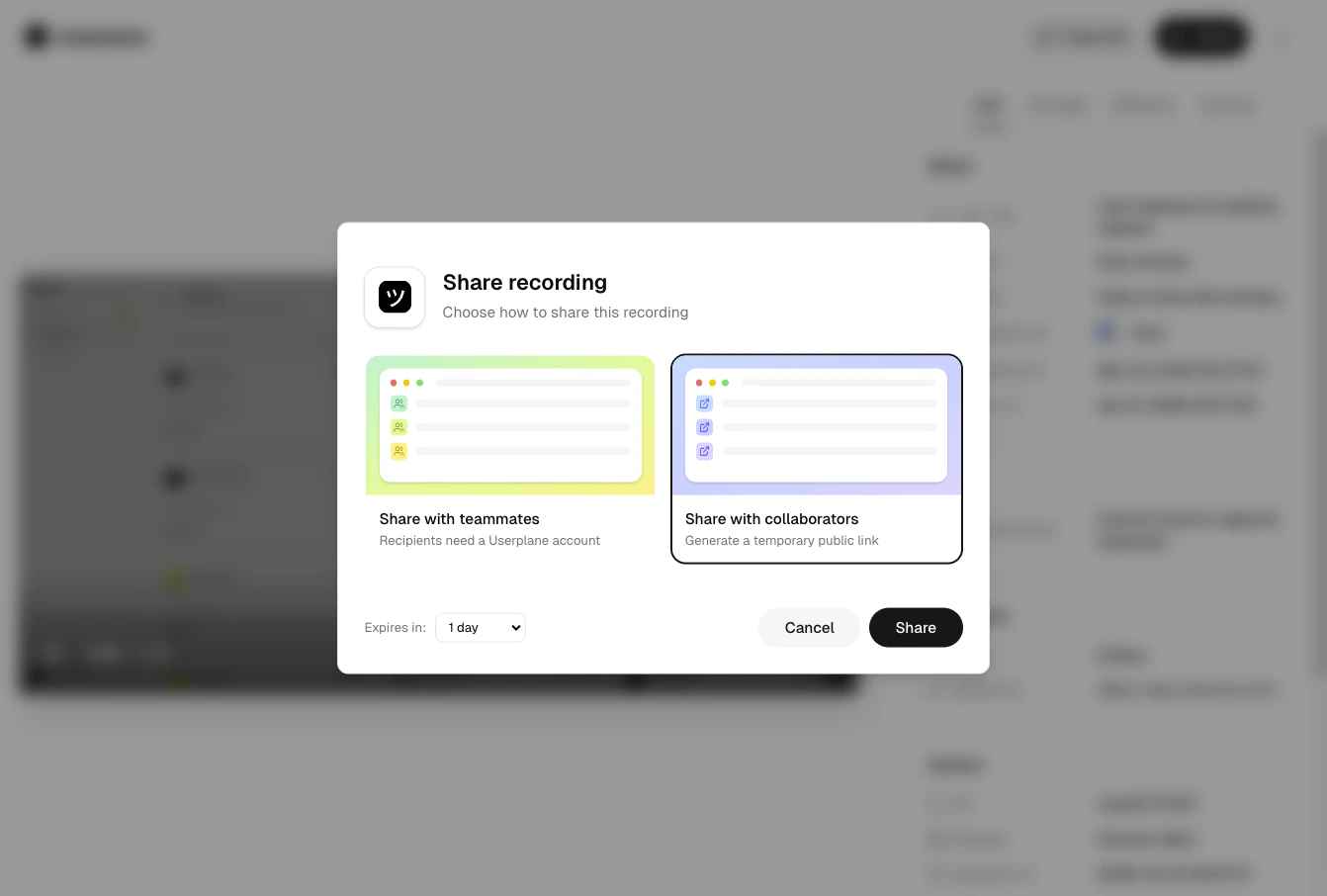
In the sharing modal, select **Share with collaborators**.
## Generating a public share link
Open the recording you want to share from the
[Recordings](https://dash.userplane.io/_/recordings) page.
Click the **Share** button in the recording detail view.
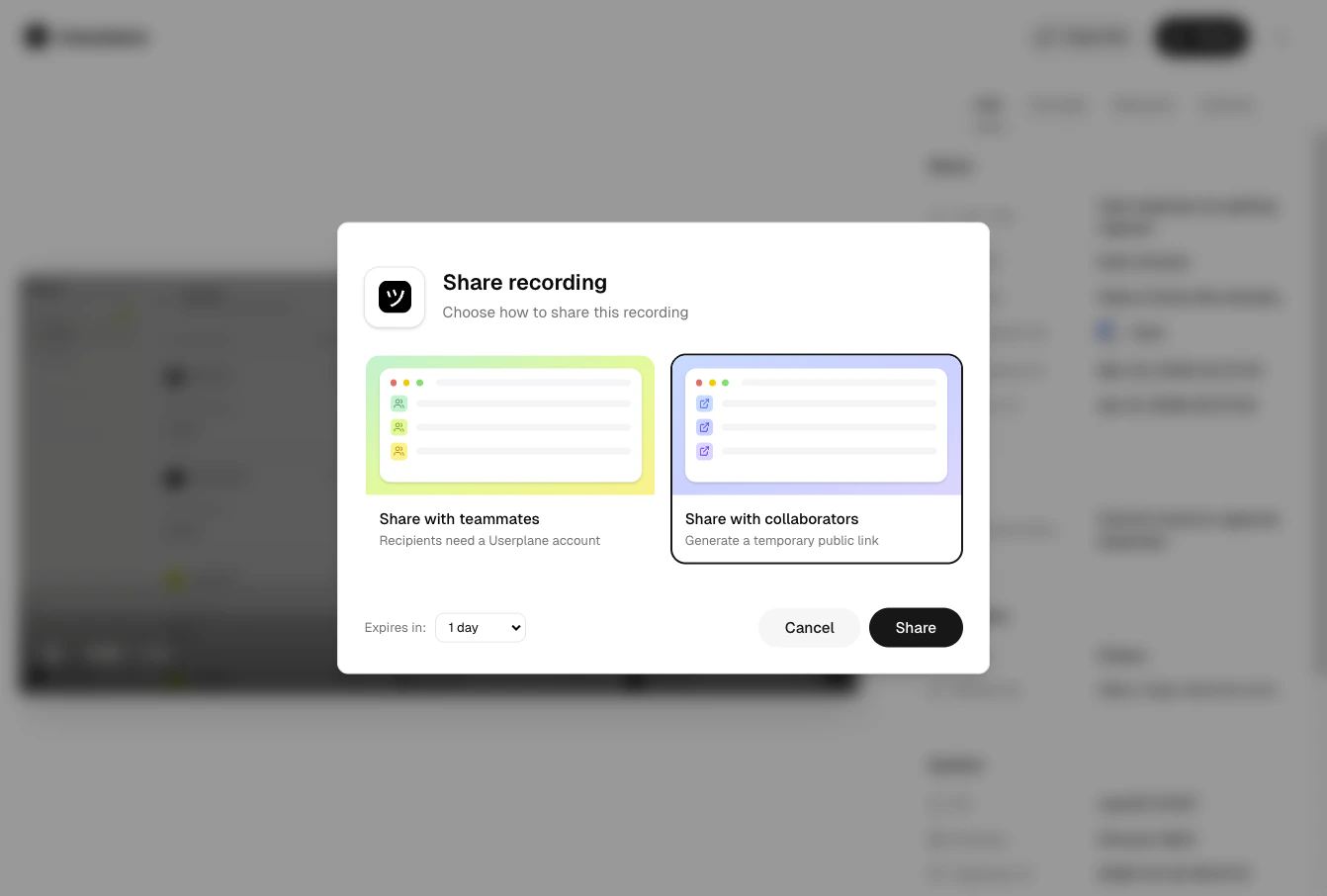
In the sharing modal, select **Share with collaborators**.
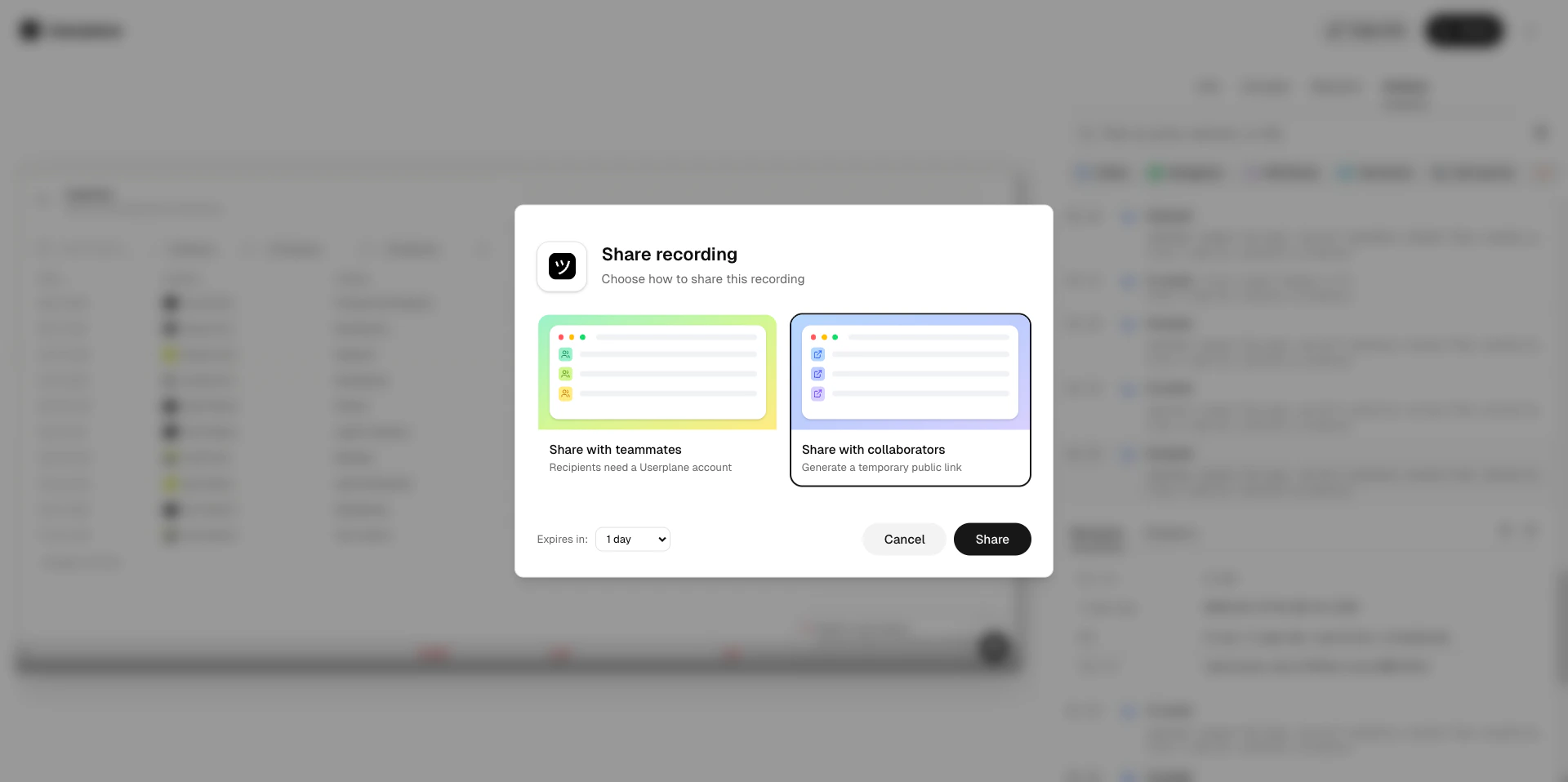 Choose an expiry duration. The link expires automatically after the selected time. The default
is **1 day**.
Click **Share** to generate the link, then copy it and send it to your recipient.
Choose an expiry duration. The link expires automatically after the selected time. The default
is **1 day**.
Click **Share** to generate the link, then copy it and send it to your recipient.
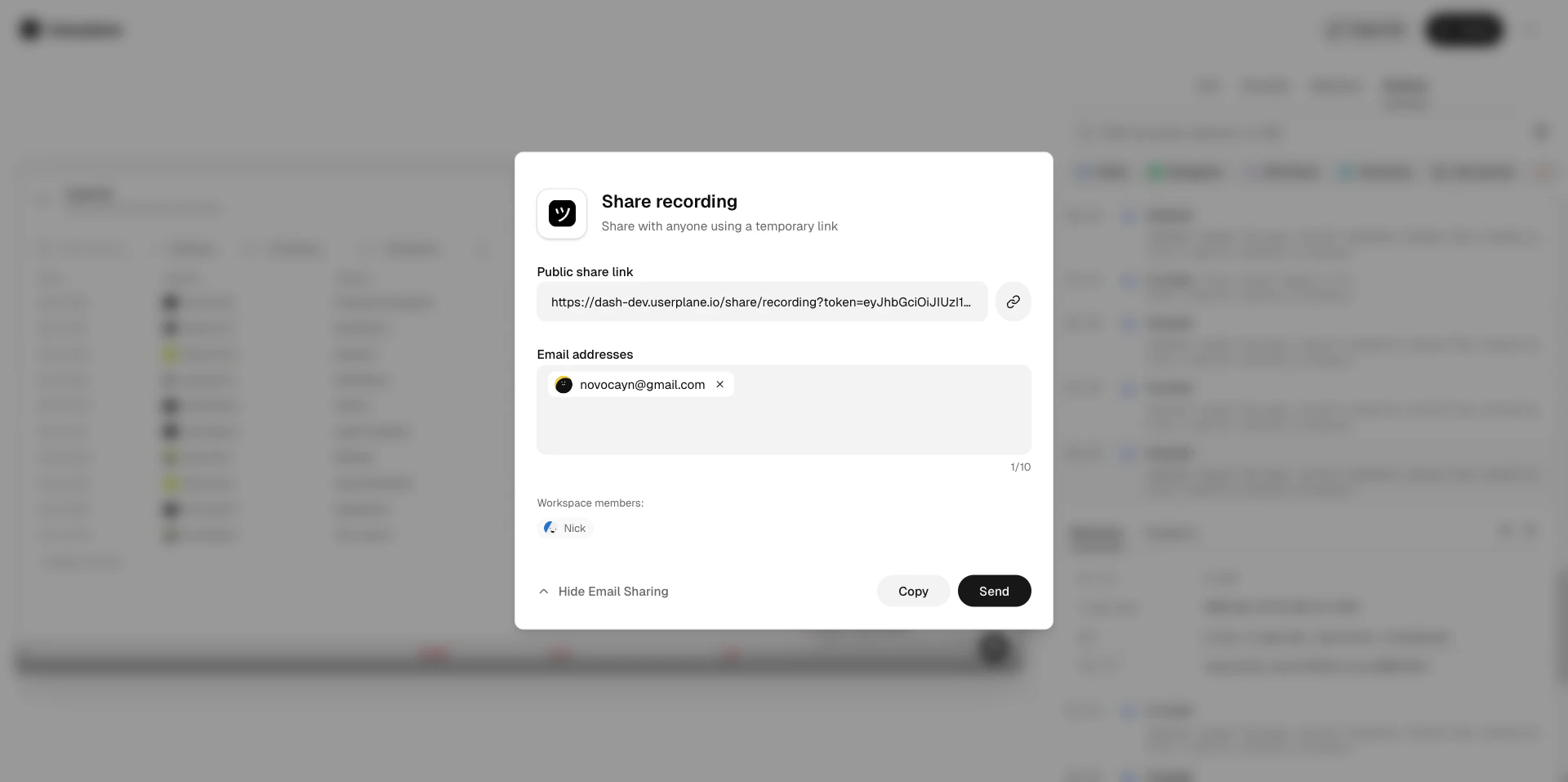 The link is ready to use immediately. Recipients can open it in any browser — no account or login required.
 ## Expiry options
| Duration | Seconds |
| -------- | --------- |
| 1 hour | 3,600 |
| 6 hours | 21,600 |
| 12 hours | 43,200 |
| 1 day | 86,400 |
| 3 days | 259,200 |
| 7 days | 604,800 |
| 14 days | 1,209,600 |
The maximum duration is **14 days**. Once the link expires, it stops working immediately. There is no way to extend or reactivate an expired share link — you will need to generate a new one.
## Expiry options
| Duration | Seconds |
| -------- | --------- |
| 1 hour | 3,600 |
| 6 hours | 21,600 |
| 12 hours | 43,200 |
| 1 day | 86,400 |
| 3 days | 259,200 |
| 7 days | 604,800 |
| 14 days | 1,209,600 |
The maximum duration is **14 days**. Once the link expires, it stops working immediately. There is no way to extend or reactivate an expired share link — you will need to generate a new one.
 ## What recipients see
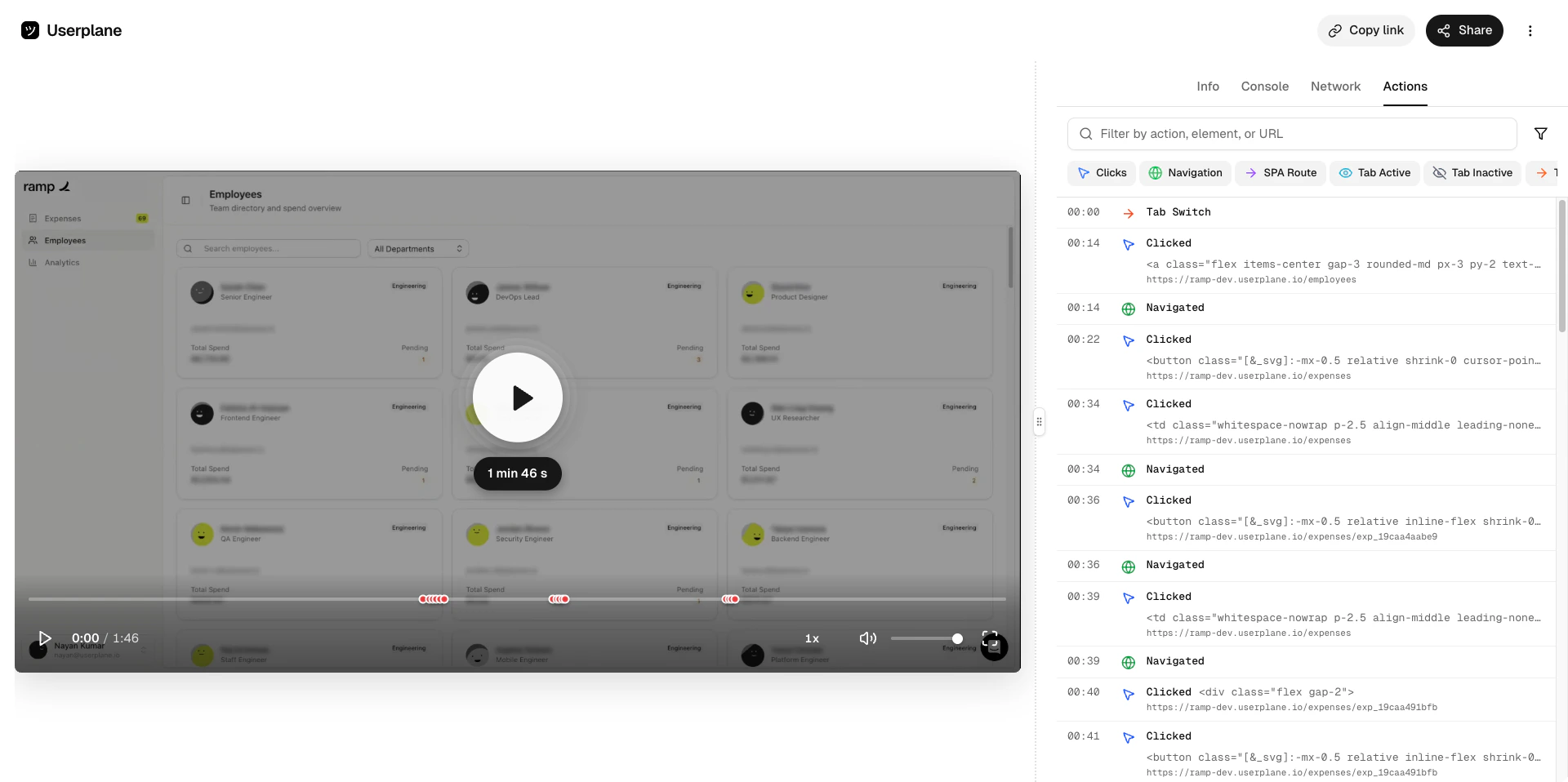
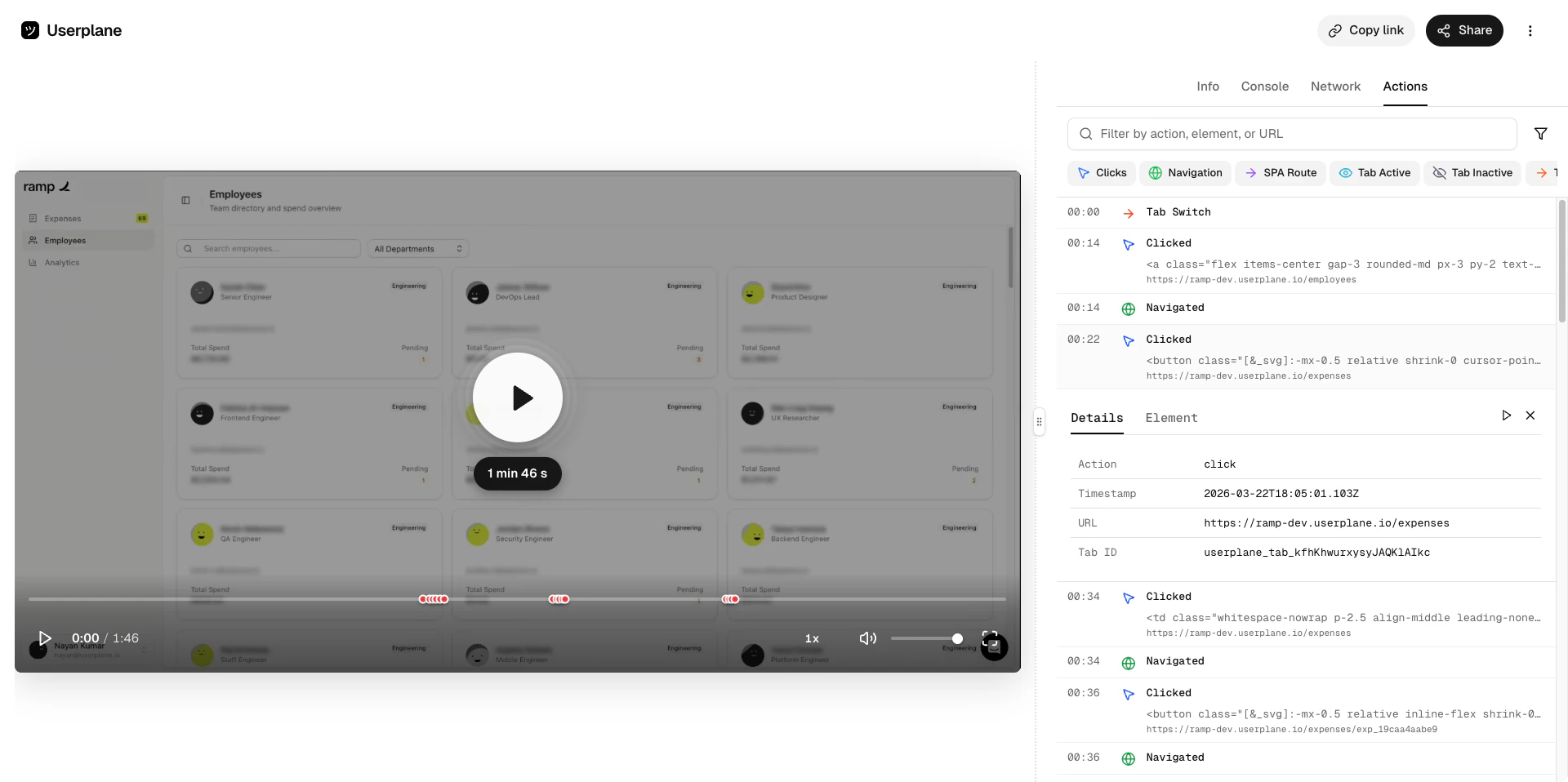
The shared recording view is a full-featured, read-only playback page. Recipients can watch the video, inspect technical data panels, and re-share the link. They cannot edit, delete, or manage the recording in any way.
Which panels are available depends on what data was captured during the recording, which is
determined by your [domain recording preferences](/recording-links/domain-preferences). A
recipient will only see Console logs, Network activity, or Actions if those were enabled for the
recording's domain.
The video player with standard playback controls — play, pause, scrub, and speed adjustment. Audio plays back in sync when captured.
## What recipients see
The shared recording view is a full-featured, read-only playback page. Recipients can watch the video, inspect technical data panels, and re-share the link. They cannot edit, delete, or manage the recording in any way.
Which panels are available depends on what data was captured during the recording, which is
determined by your [domain recording preferences](/recording-links/domain-preferences). A
recipient will only see Console logs, Network activity, or Actions if those were enabled for the
recording's domain.
The video player with standard playback controls — play, pause, scrub, and speed adjustment. Audio plays back in sync when captured.
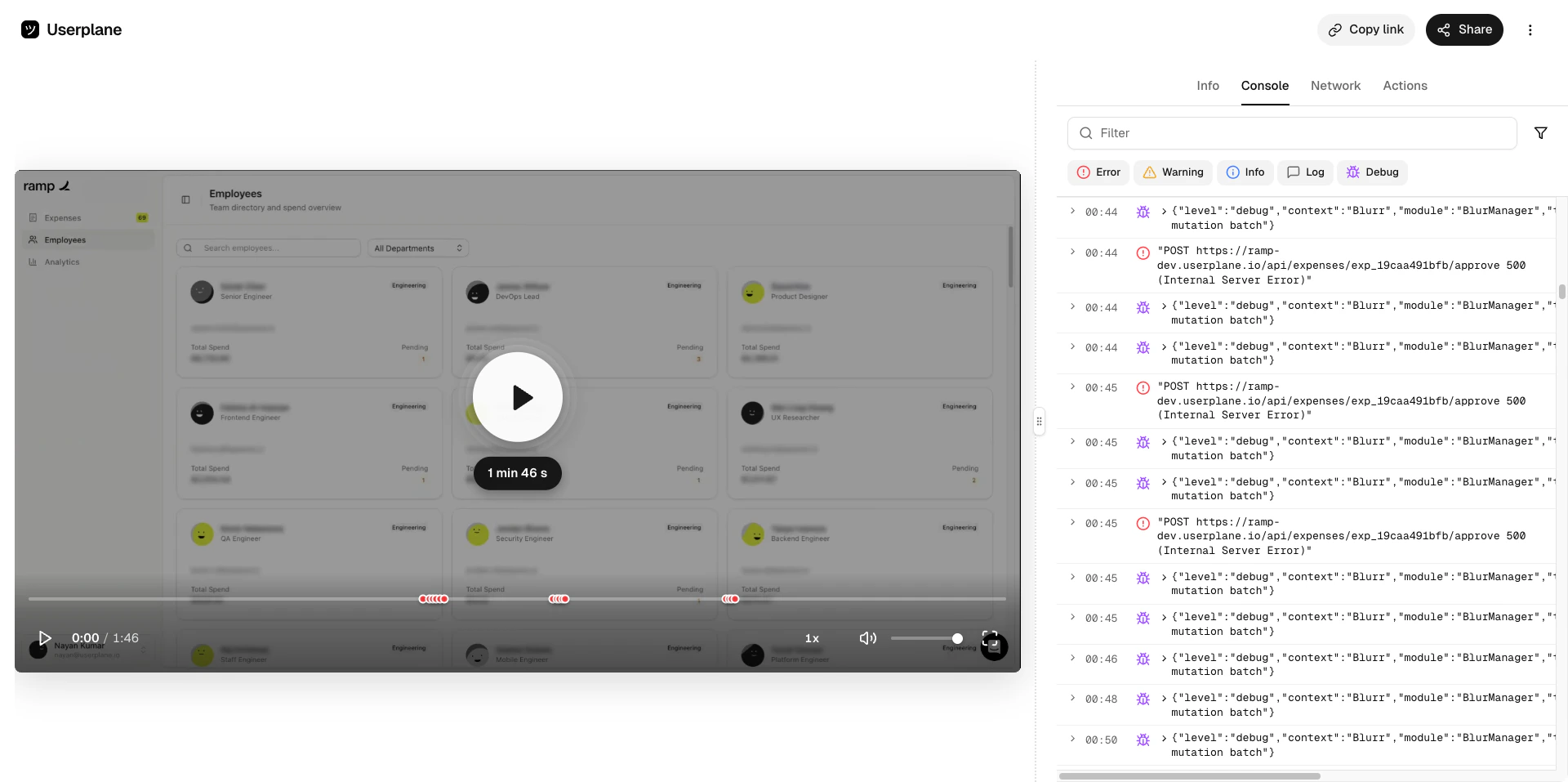
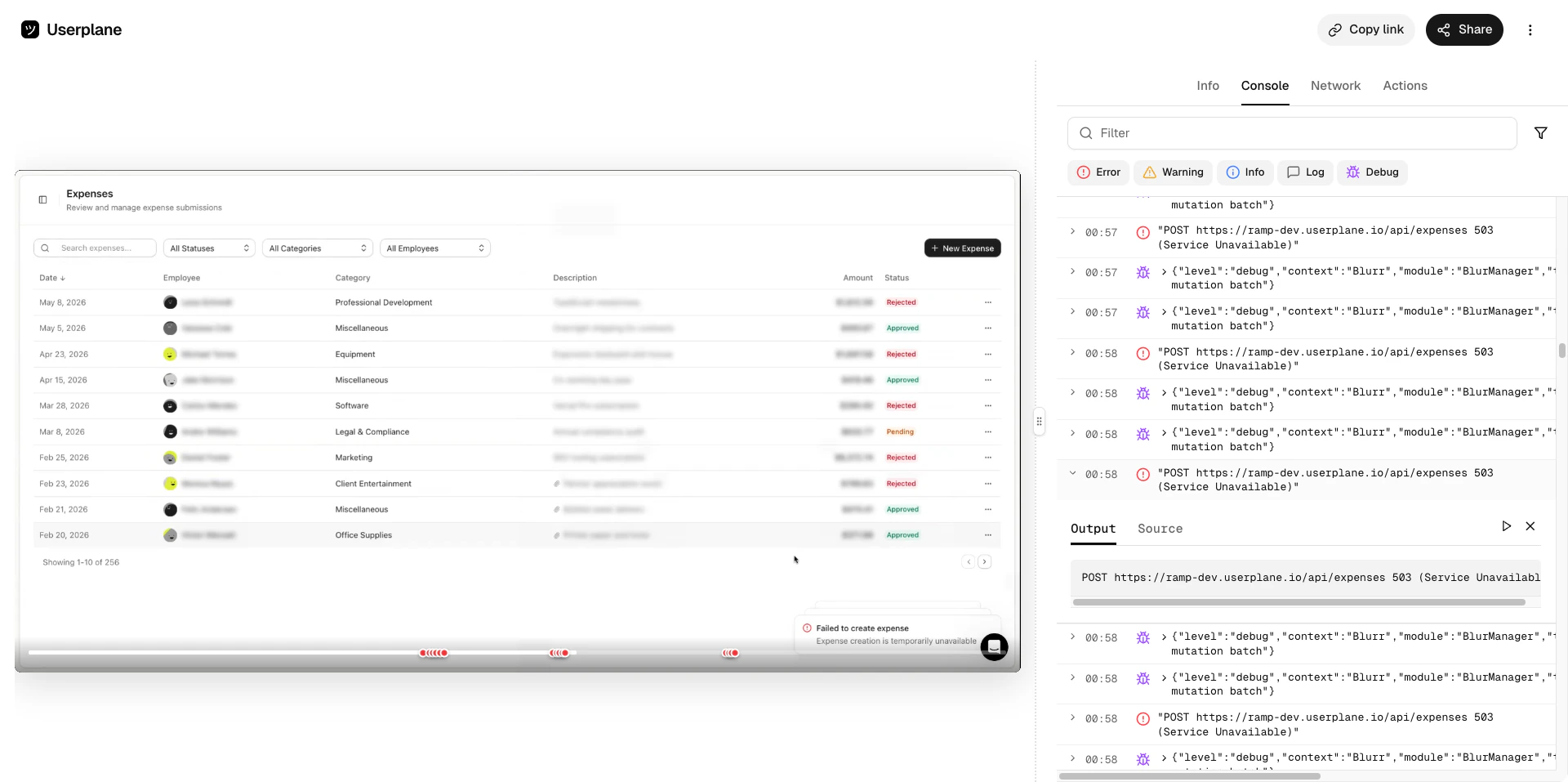
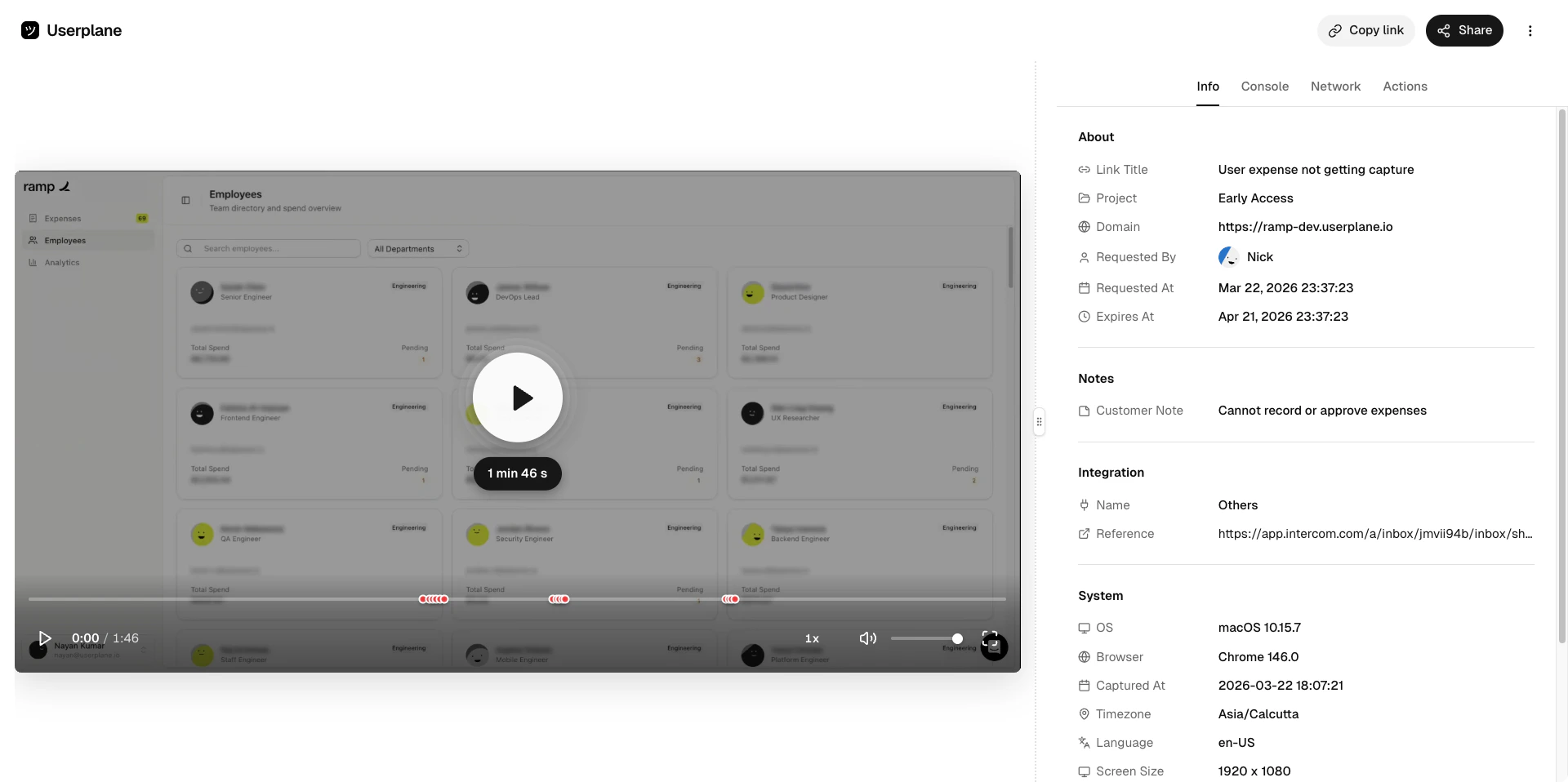 Browser console output captured during the session — errors, warnings, info, and debug messages with source locations and stack traces.
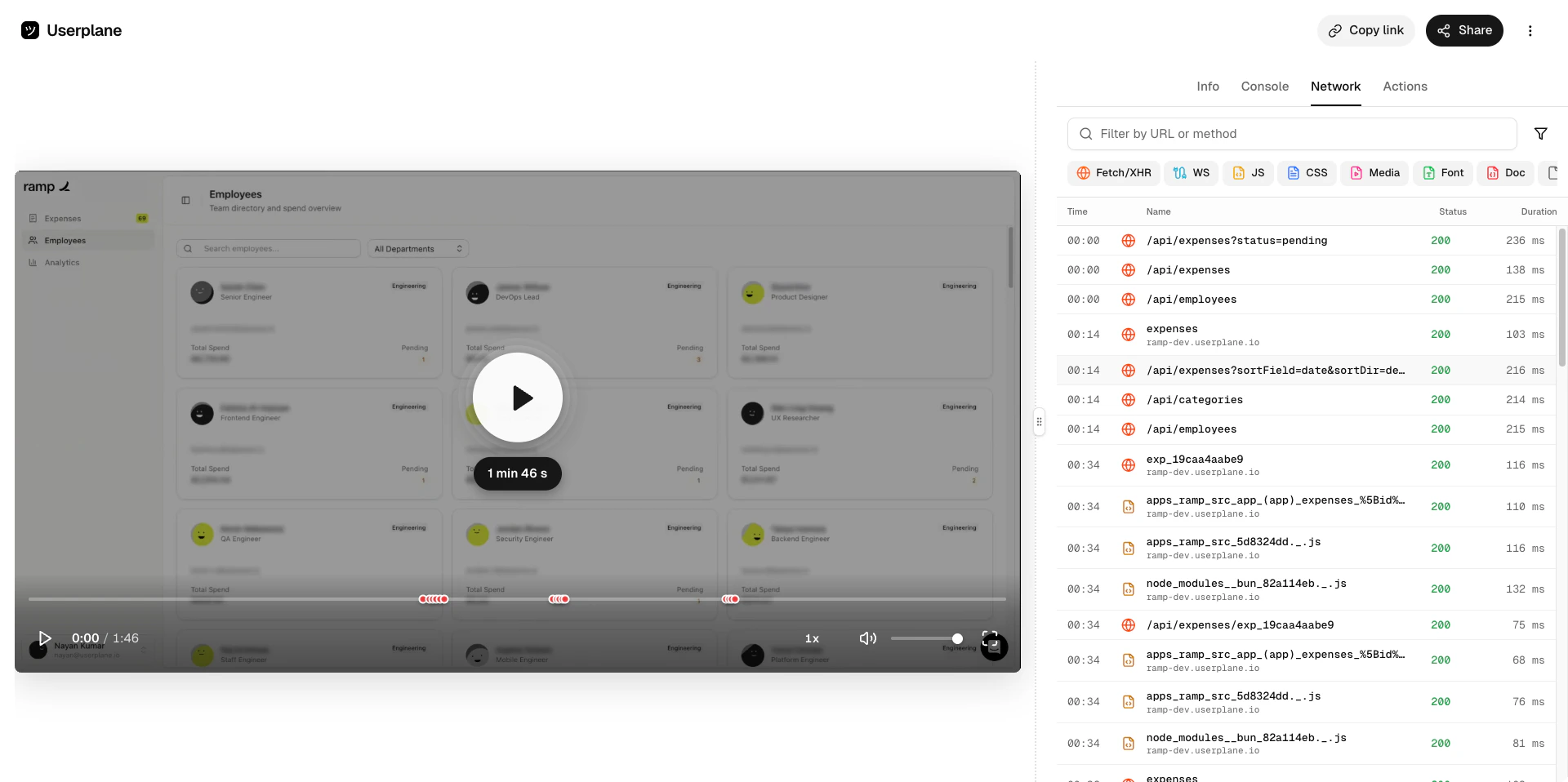
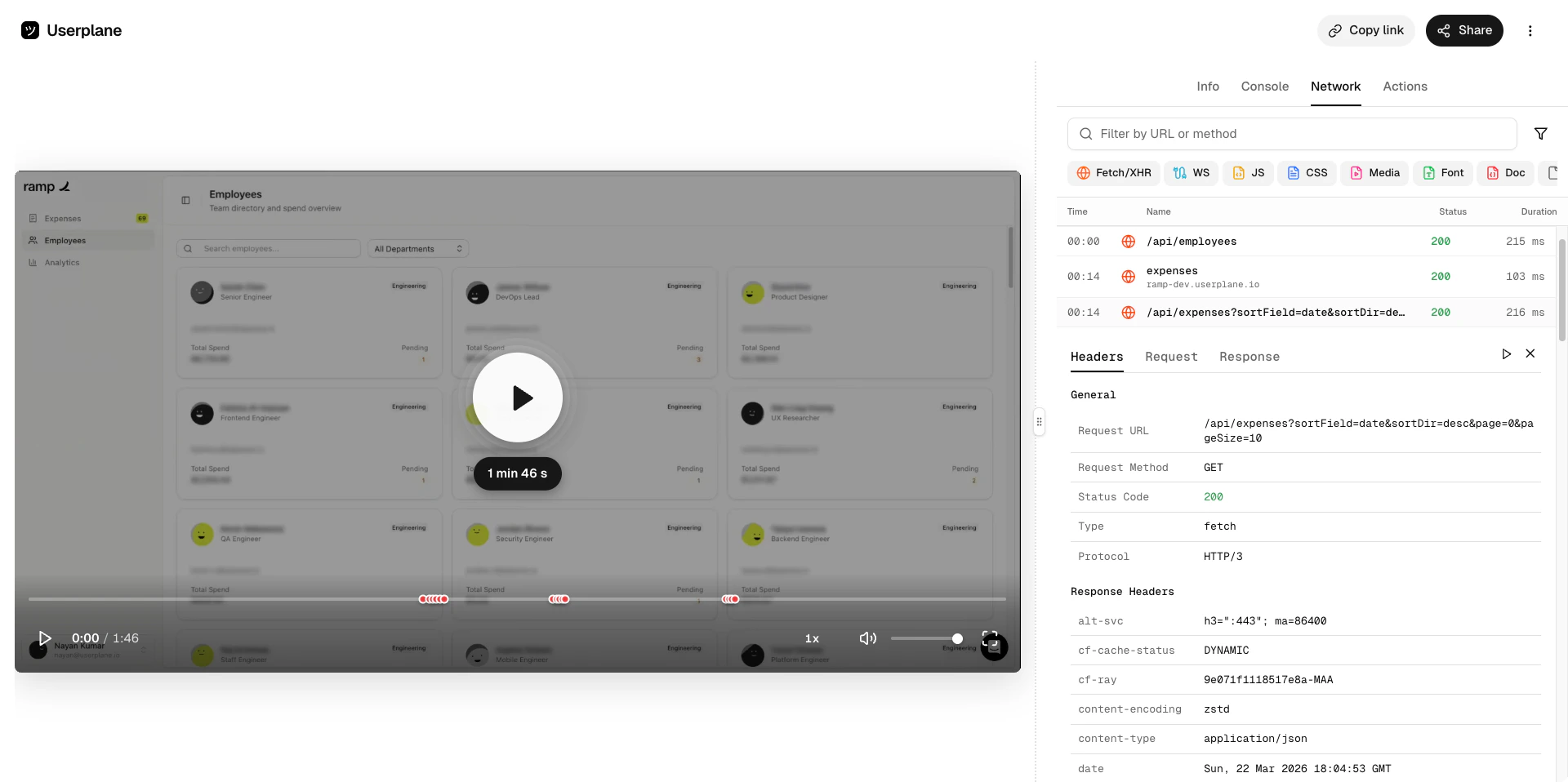
 HTTP requests made during the recording — method, URL, status code, timing, headers, and request/response payloads.
 User interactions captured during the session — clicks, text inputs, page navigations, and tab switches with timestamps.
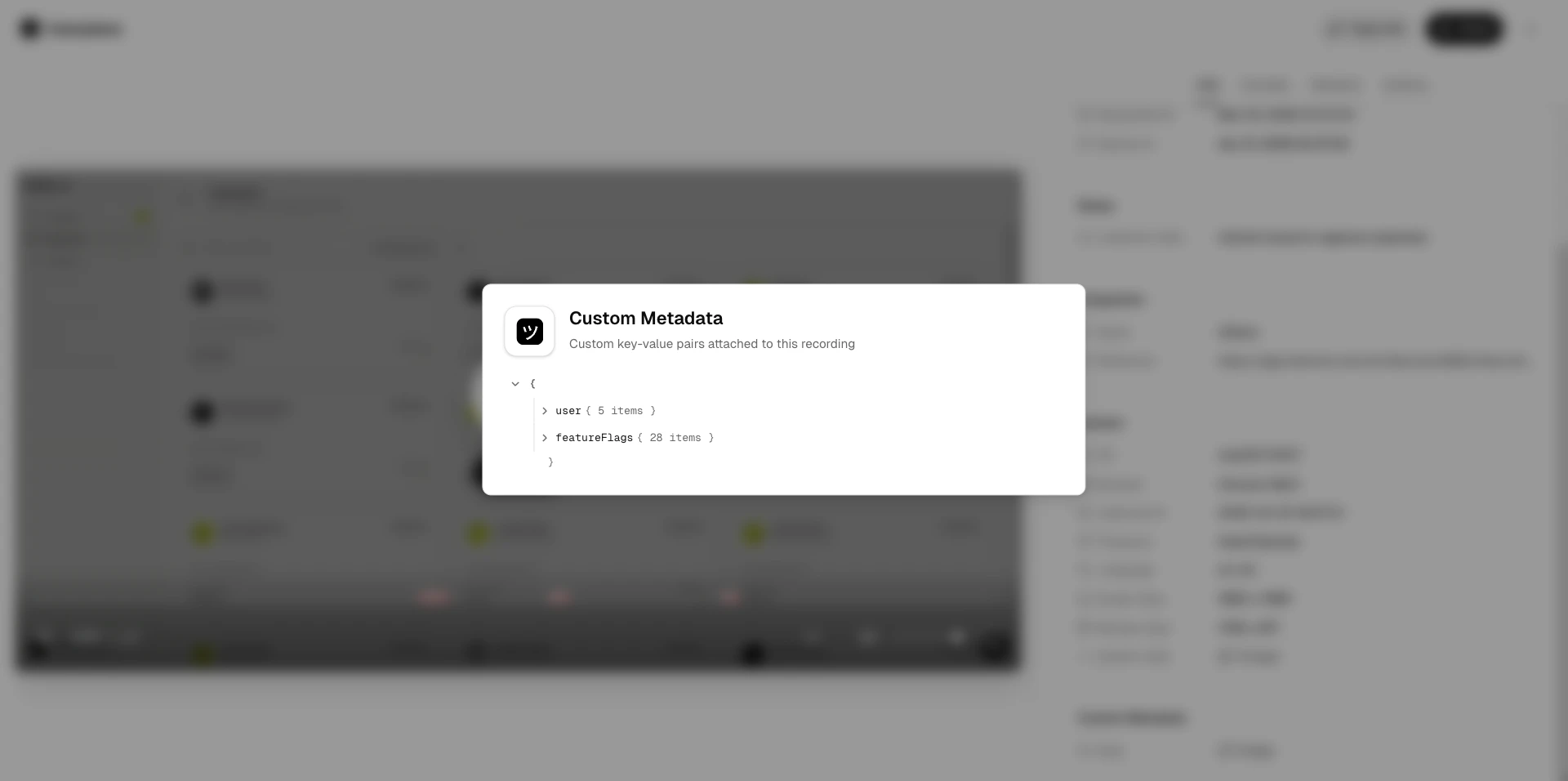
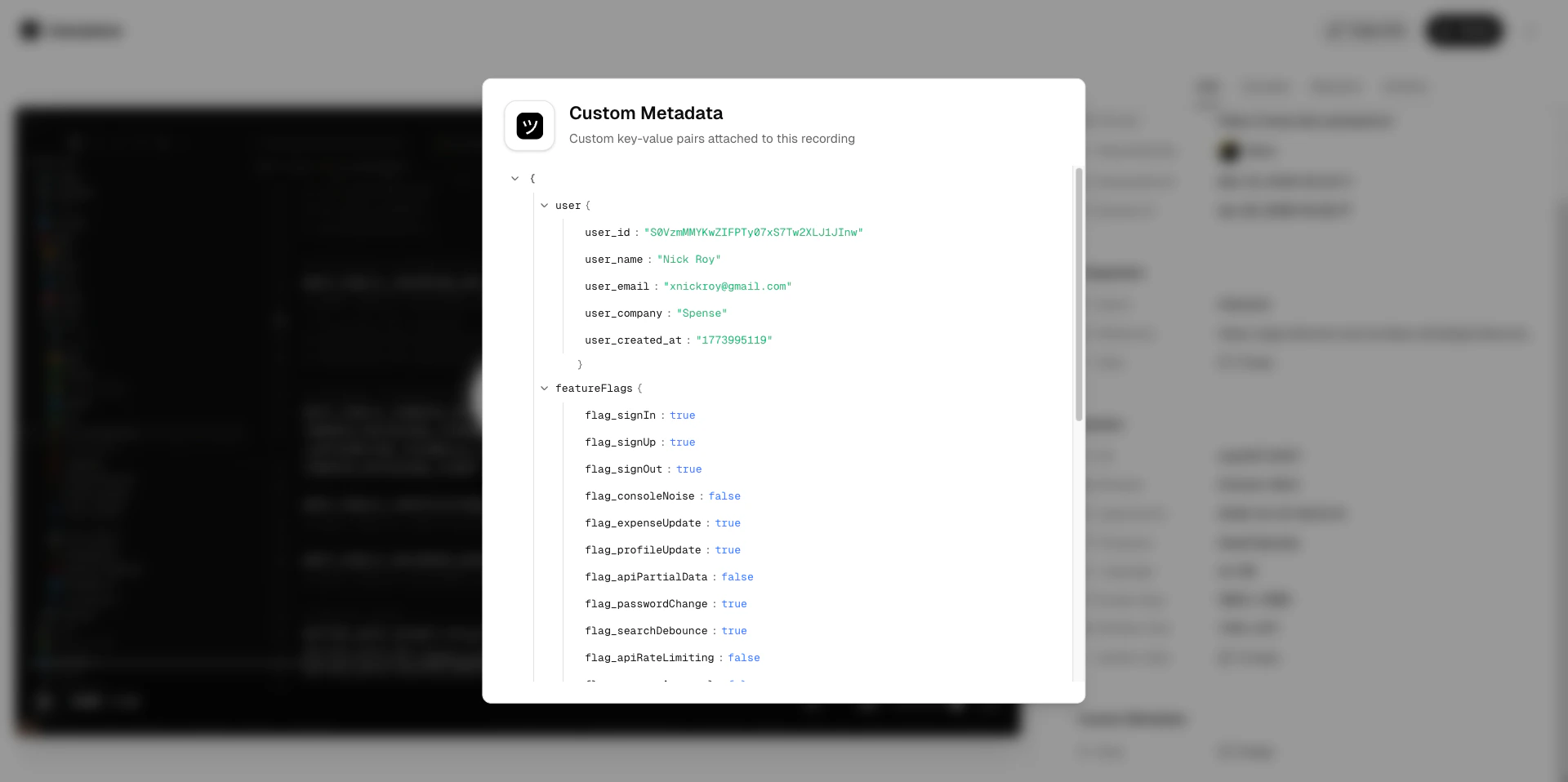
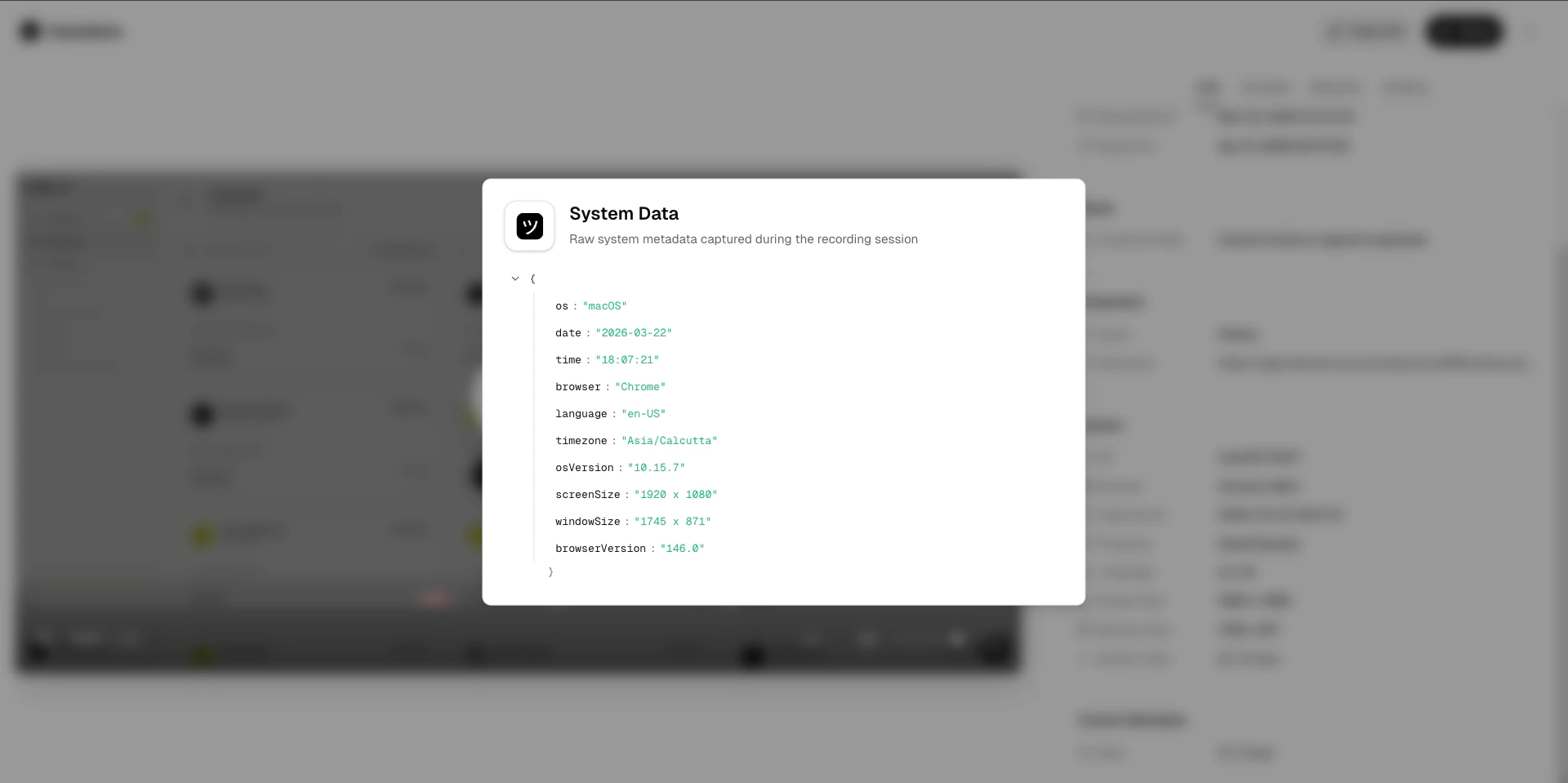
 Recording metadata including link details, project, domain, requester, customer notes, system information, and any custom metadata attached via the [Metadata SDK](/developer/metadata-sdk).
 ## Sharing by email
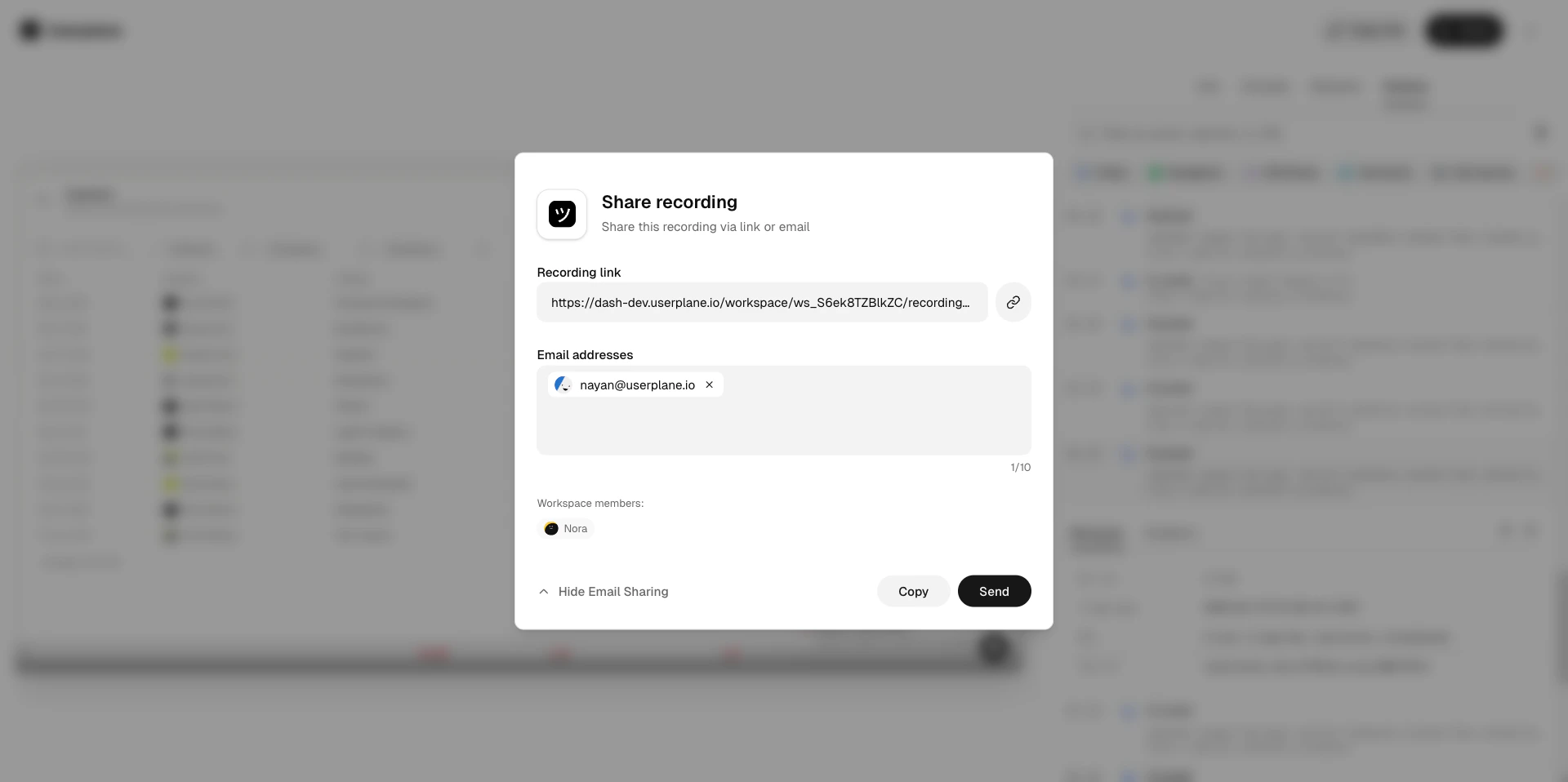
On plans that support outbound email, you can send the share link directly to one or more email addresses from within the sharing modal. Enter each address and click **Send**. Recipients receive an email with the link and can open it without a Userplane account.
## Sharing by email
On plans that support outbound email, you can send the share link directly to one or more email addresses from within the sharing modal. Enter each address and click **Send**. Recipients receive an email with the link and can open it without a Userplane account.
 ## What happens when a link expires
When a public share link expires:
* The link stops working immediately.
* Anyone who opens it sees a "Recording link expired" message.
* The underlying recording is not affected — it remains in your workspace and is fully accessible to your team.
To share the recording again after a link has expired, open the recording and generate a new share link.
## Related articles
* [Recording Playback](/recording/playback) — the full recording detail view and what each panel shows.
* [Recording Expiry](/recording/expiry) — control how long a recording itself remains accessible, separate from share link expiry.
* [Domain Recording Preferences](/recording-links/domain-preferences) — configure which data types are captured per domain.
* [Reviewing Recordings](/recording/reviewing) — browse and filter recordings in your workspace.
* [Team Management](/workspace/team-management) — invite collaborators to your workspace for long-lived access.
## What happens when a link expires
When a public share link expires:
* The link stops working immediately.
* Anyone who opens it sees a "Recording link expired" message.
* The underlying recording is not affected — it remains in your workspace and is fully accessible to your team.
To share the recording again after a link has expired, open the recording and generate a new share link.
## Related articles
* [Recording Playback](/recording/playback) — the full recording detail view and what each panel shows.
* [Recording Expiry](/recording/expiry) — control how long a recording itself remains accessible, separate from share link expiry.
* [Domain Recording Preferences](/recording-links/domain-preferences) — configure which data types are captured per domain.
* [Reviewing Recordings](/recording/reviewing) — browse and filter recordings in your workspace.
* [Team Management](/workspace/team-management) — invite collaborators to your workspace for long-lived access.