> ## Documentation Index
> Fetch the complete documentation index at: https://docs.userplane.io/llms.txt
> Use this file to discover all available pages before exploring further.
# Managing Domains
> Sort, edit, and delete domains in your workspace
The Domains section in Workspace Settings lets you manage all domains in your workspace.
## Viewing domains
Go to [Workspace Settings > Domains](https://dash.userplane.io/_/settings?tab=general) to see all domains. Each domain shows its name, status indicator, and creation date. Sort the list by name, status, or creation date to find what you need.
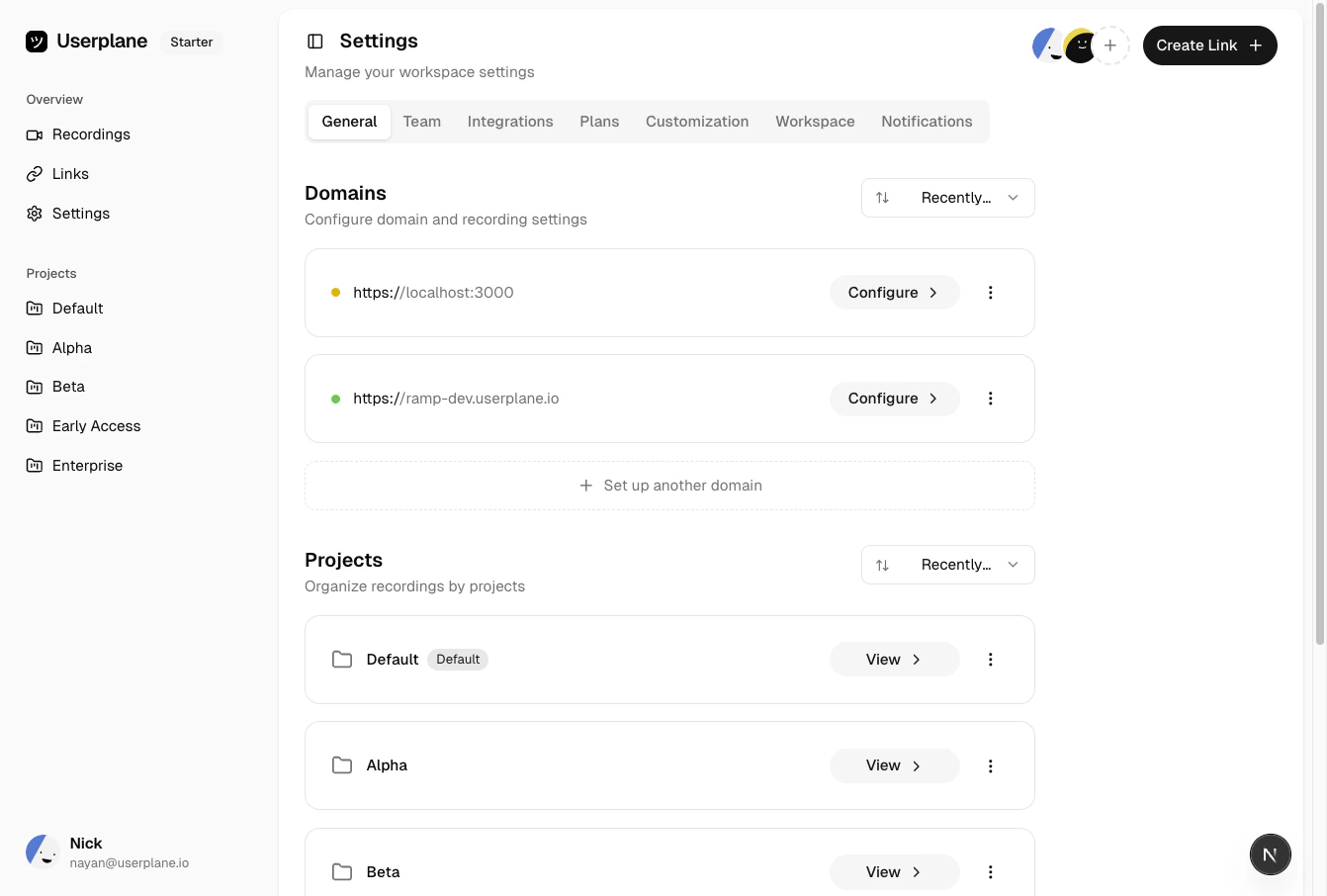 Look for the colored status dot next to each domain — a **yellow dot** means the domain is pending
verification, and a **green dot** means it's verified and ready to use.
## Editing a domain
Find the domain in the list and click the menu icon.
Look for the colored status dot next to each domain — a **yellow dot** means the domain is pending
verification, and a **green dot** means it's verified and ready to use.
## Editing a domain
Find the domain in the list and click the menu icon.
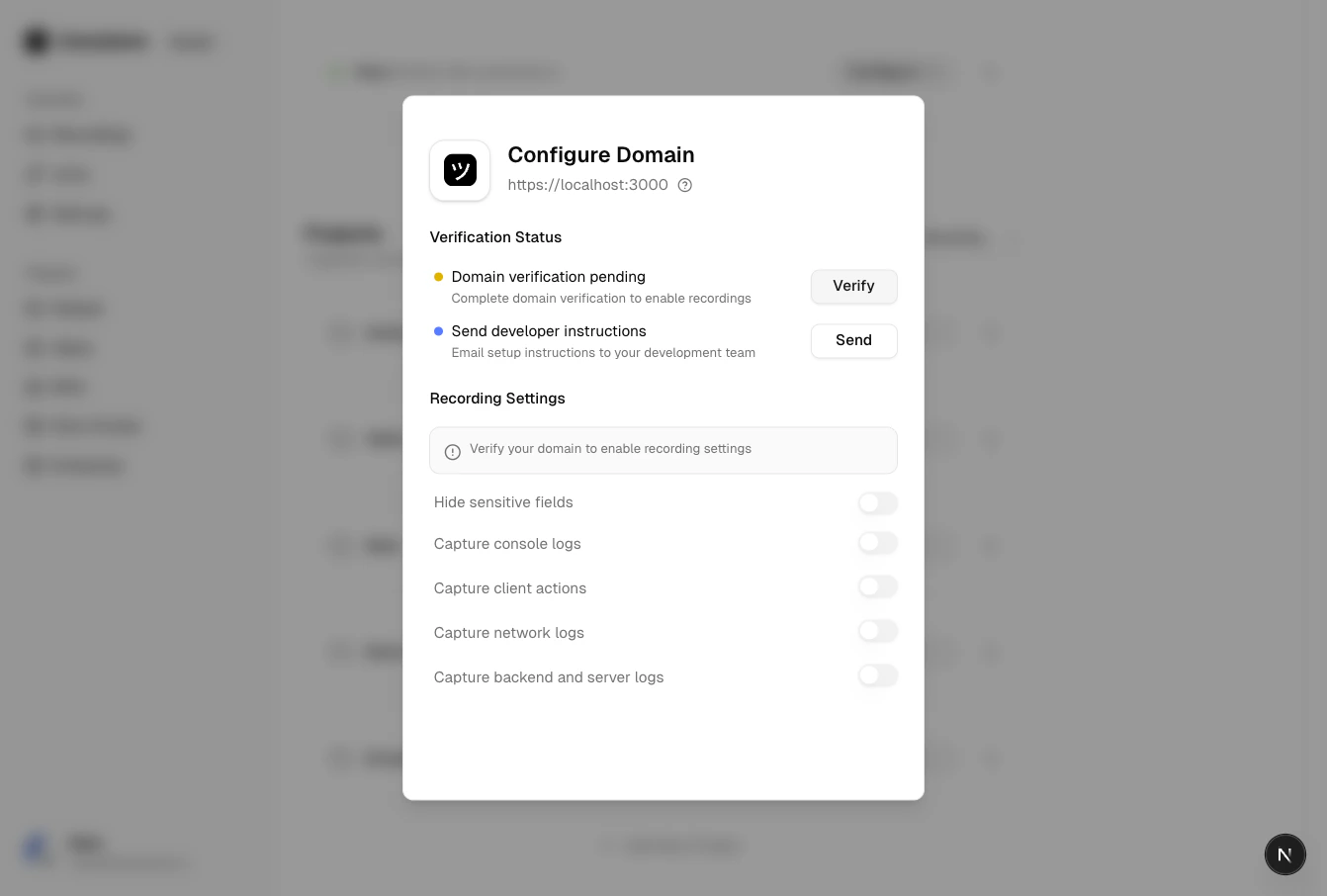
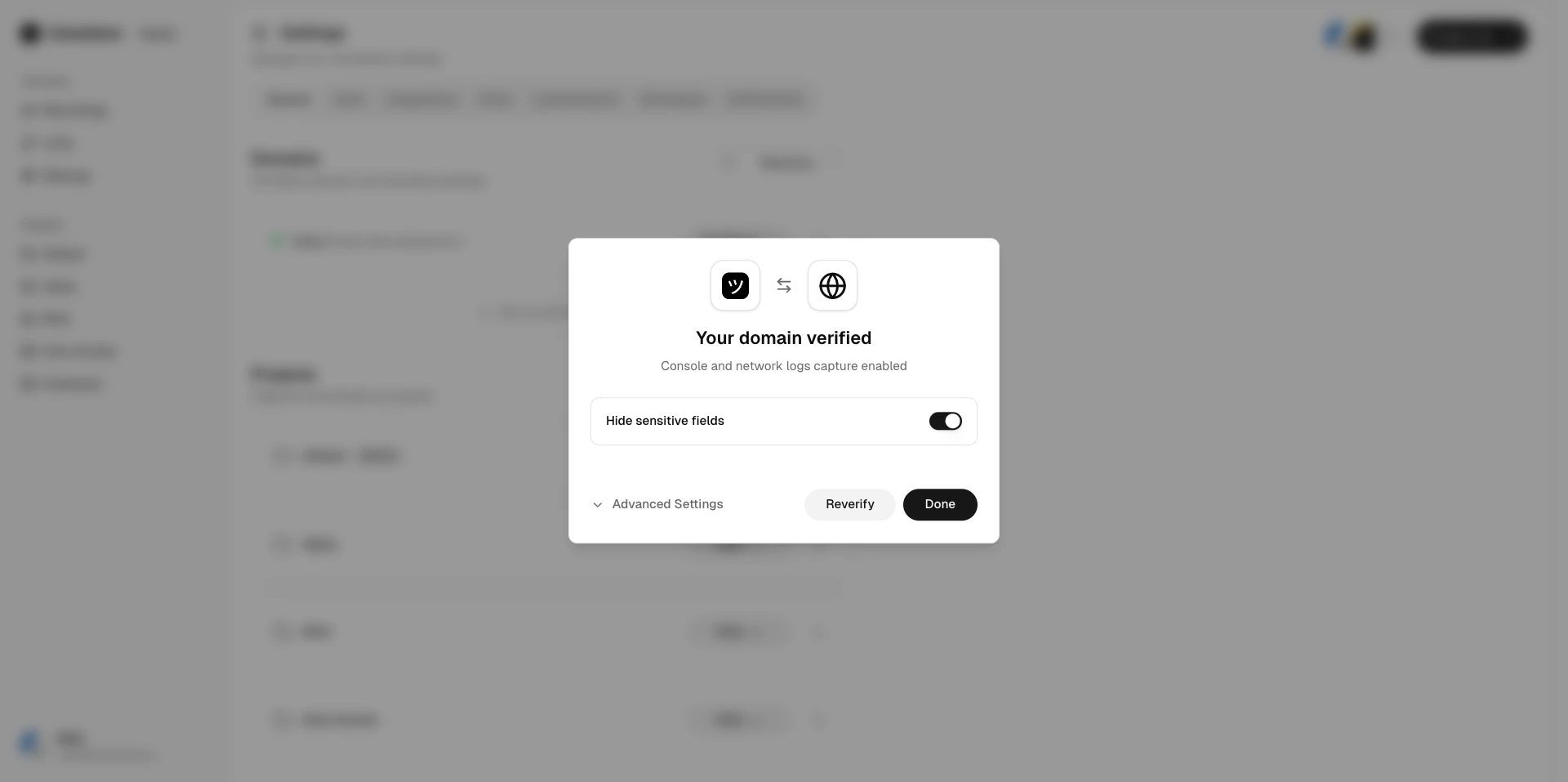
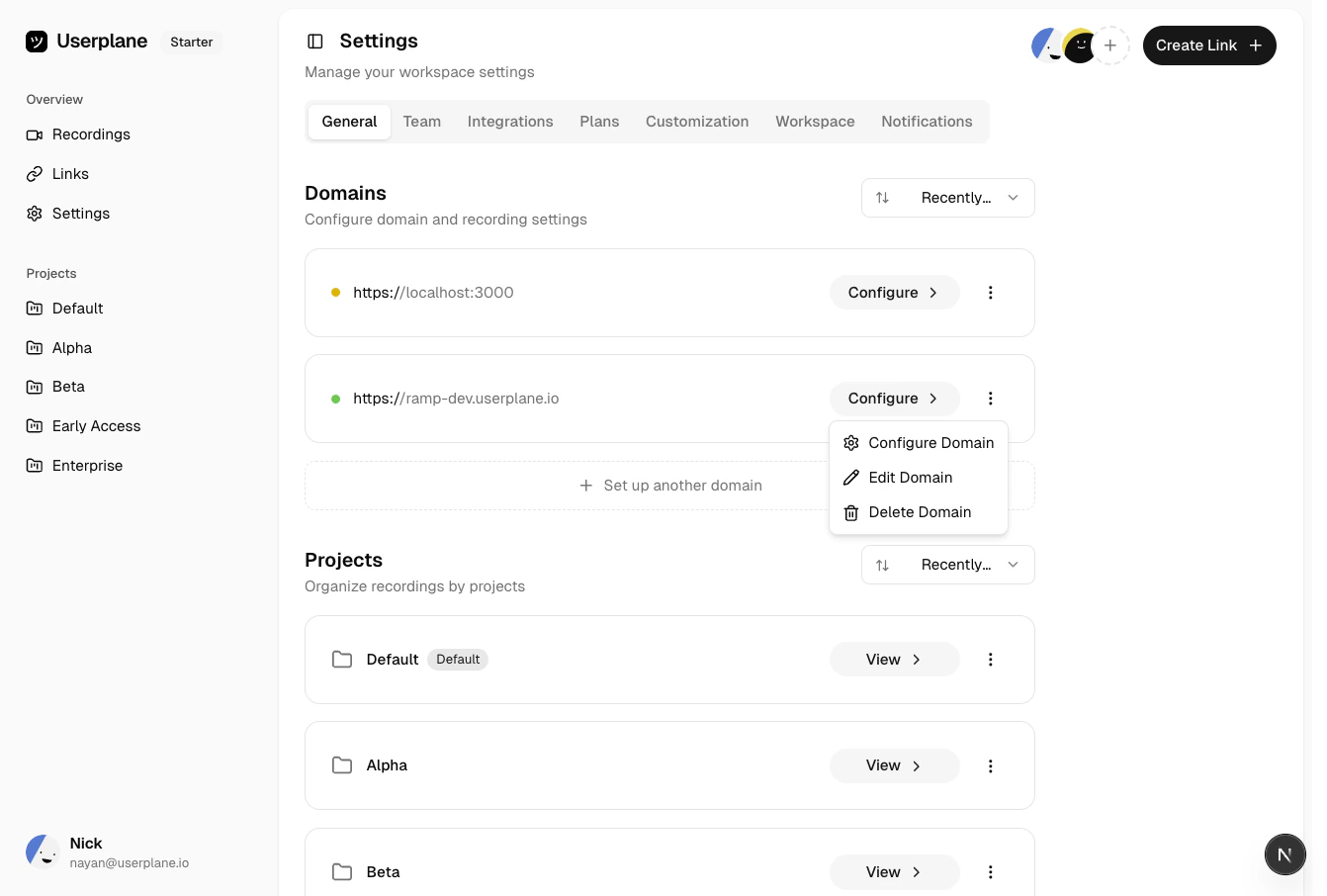 View the current verification status, trigger re-verification if the domain is pending or revoked, or access [domain recording preferences](/recording-links/domain-preferences) for verified domains.
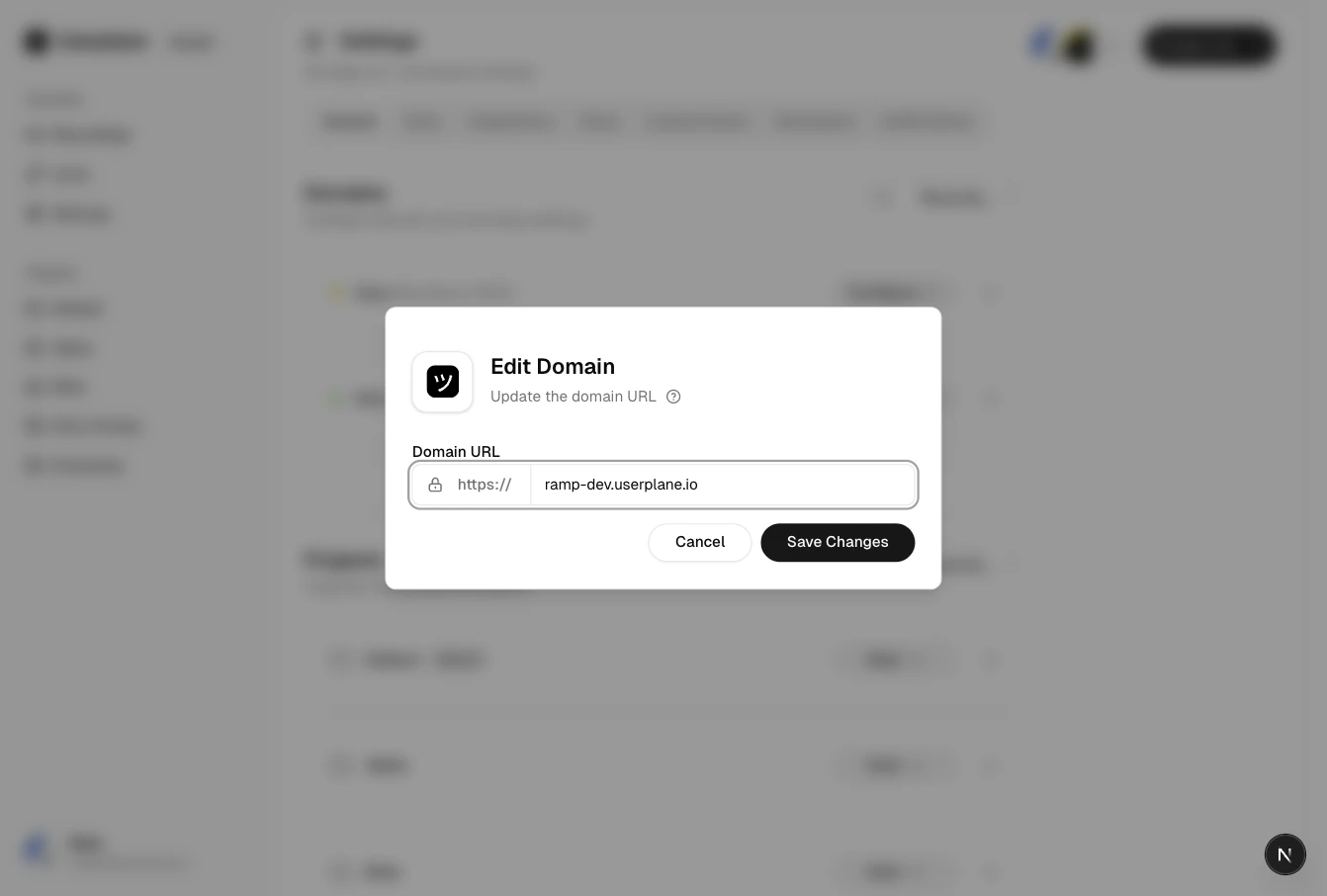 For verified domains, toggle the capture preferences — console logs, network activity, client actions, and more.
 ## Deleting a domain
Find the domain in the list and click the menu icon.
Select **Delete** and confirm.
Deleting a domain removes it from your workspace. Existing recording links that use this domain
will no longer be branded, but the links and recordings themselves are preserved.
## Related articles
* [Domains](/workspace/domains) — adding domains and understanding statuses.
* [Domain Verification](/workspace/domain-verification) — the verification process.
* [Domain Recording Preferences](/recording-links/domain-preferences) — per-domain capture settings.
## Deleting a domain
Find the domain in the list and click the menu icon.
Select **Delete** and confirm.
Deleting a domain removes it from your workspace. Existing recording links that use this domain
will no longer be branded, but the links and recordings themselves are preserved.
## Related articles
* [Domains](/workspace/domains) — adding domains and understanding statuses.
* [Domain Verification](/workspace/domain-verification) — the verification process.
* [Domain Recording Preferences](/recording-links/domain-preferences) — per-domain capture settings.