> ## Documentation Index
> Fetch the complete documentation index at: https://docs.userplane.io/llms.txt
> Use this file to discover all available pages before exploring further.
# Invite Policies
> Control how new members join your workspace — private, whitelisted, or protected
Your workspace's invite policy determines how new people can discover and join your workspace.
## Policy types
| Policy | Discoverable | How people join |
| --------------- | ------------ | ---------------------------------------------------------------------------------------------------------------------------------- |
| **Private** | No | Only explicit invitations. The workspace does not appear in search or suggestions. |
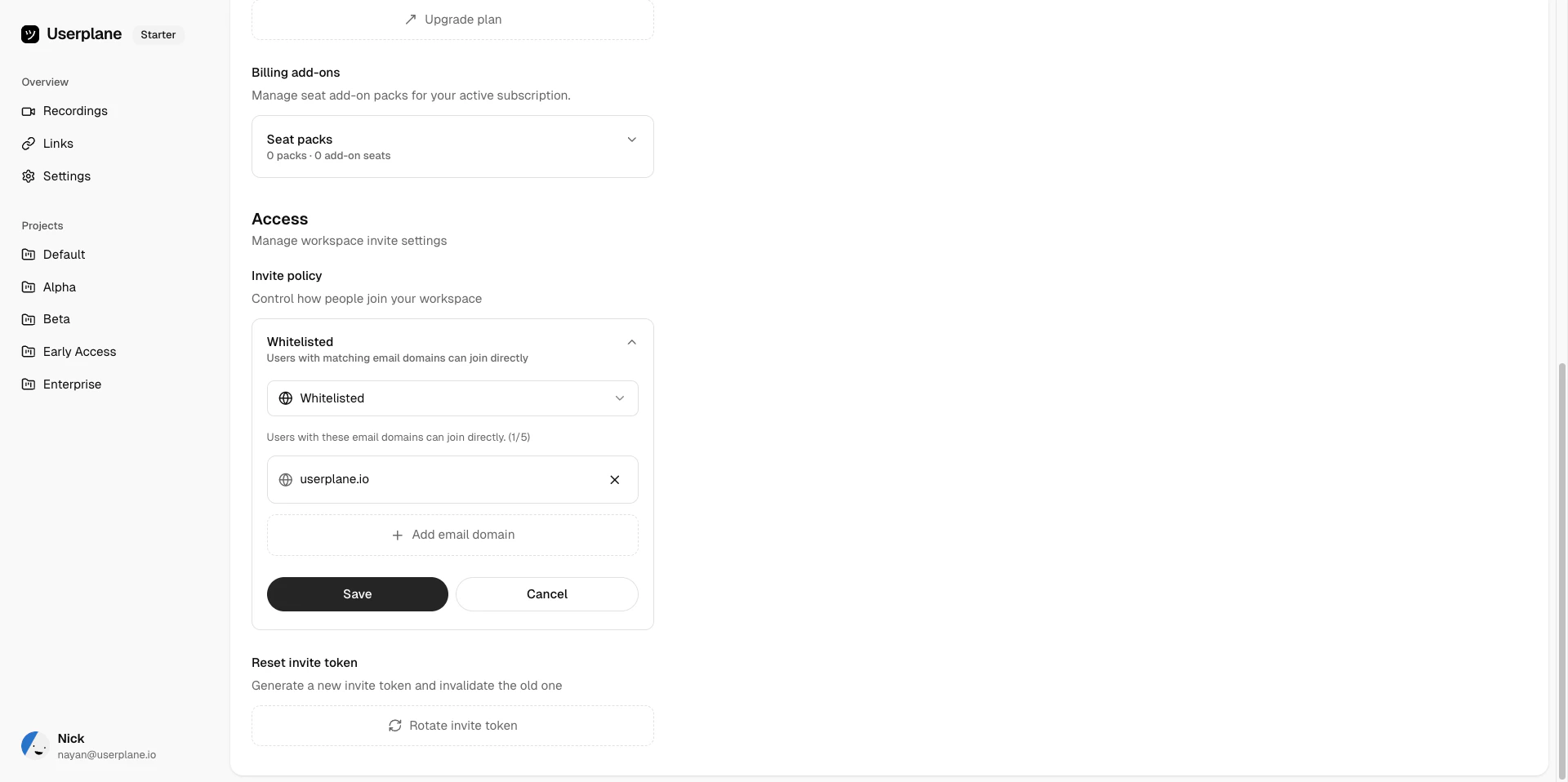
| **Whitelisted** | Yes | People with an email address matching a whitelisted domain can join directly. Others need an explicit invitation. |
| **Protected** | Yes | People with a matching email domain can **request access**. An owner must approve the request. Others need an explicit invitation. |
## Setting your invite policy
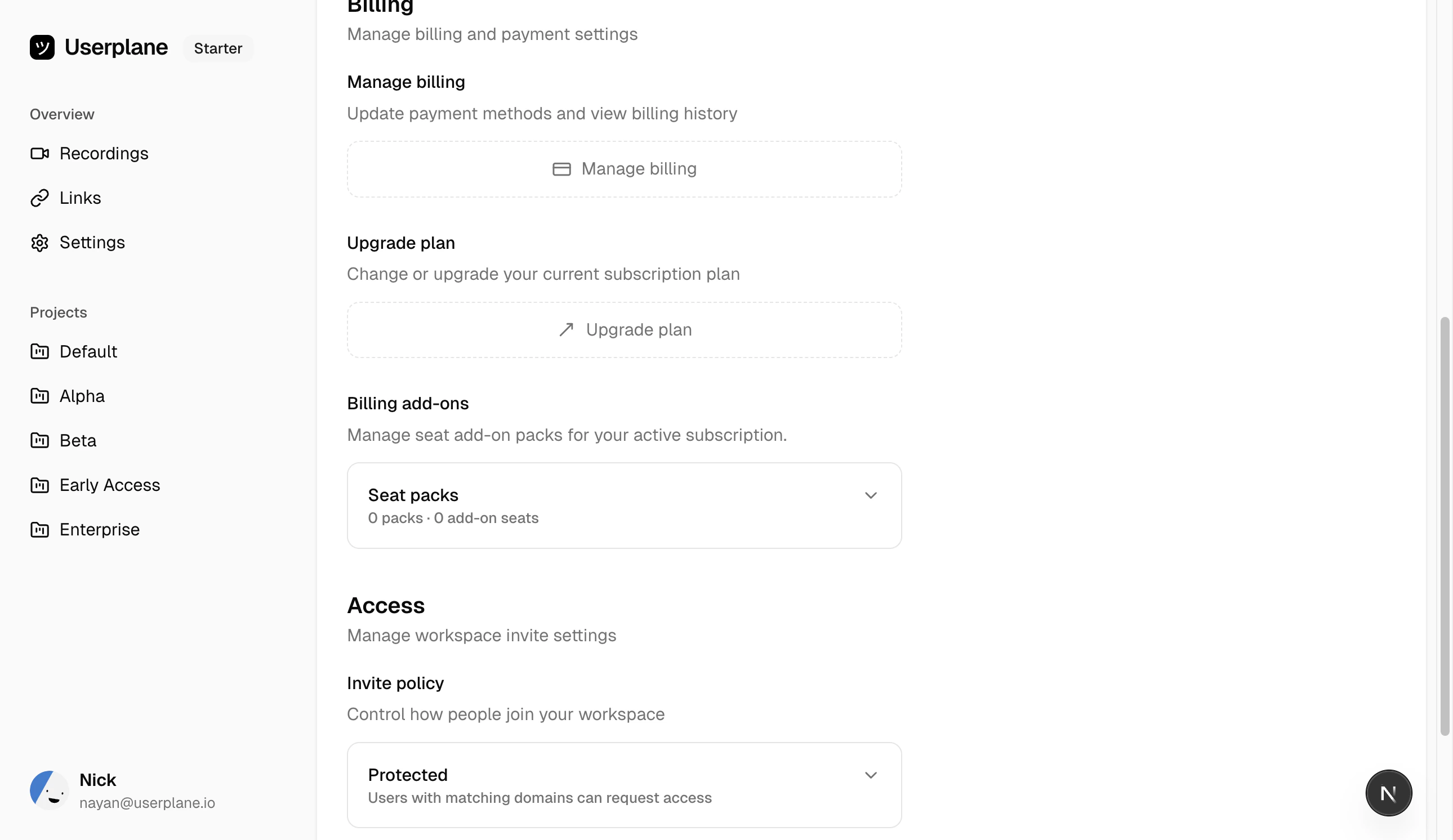
Go to [Workspace Settings > General](https://dash.userplane.io/_/settings?tab=workspace).
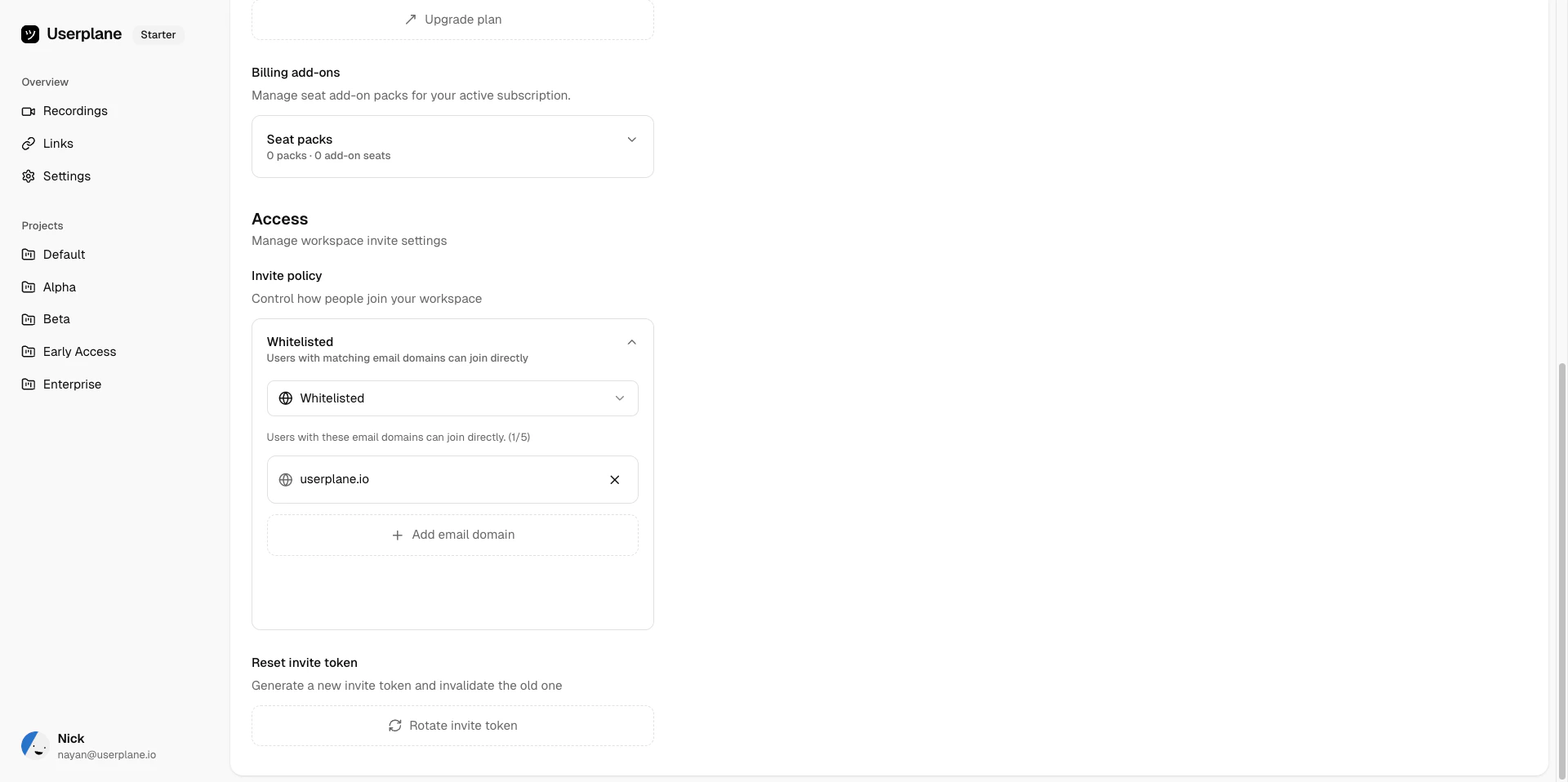
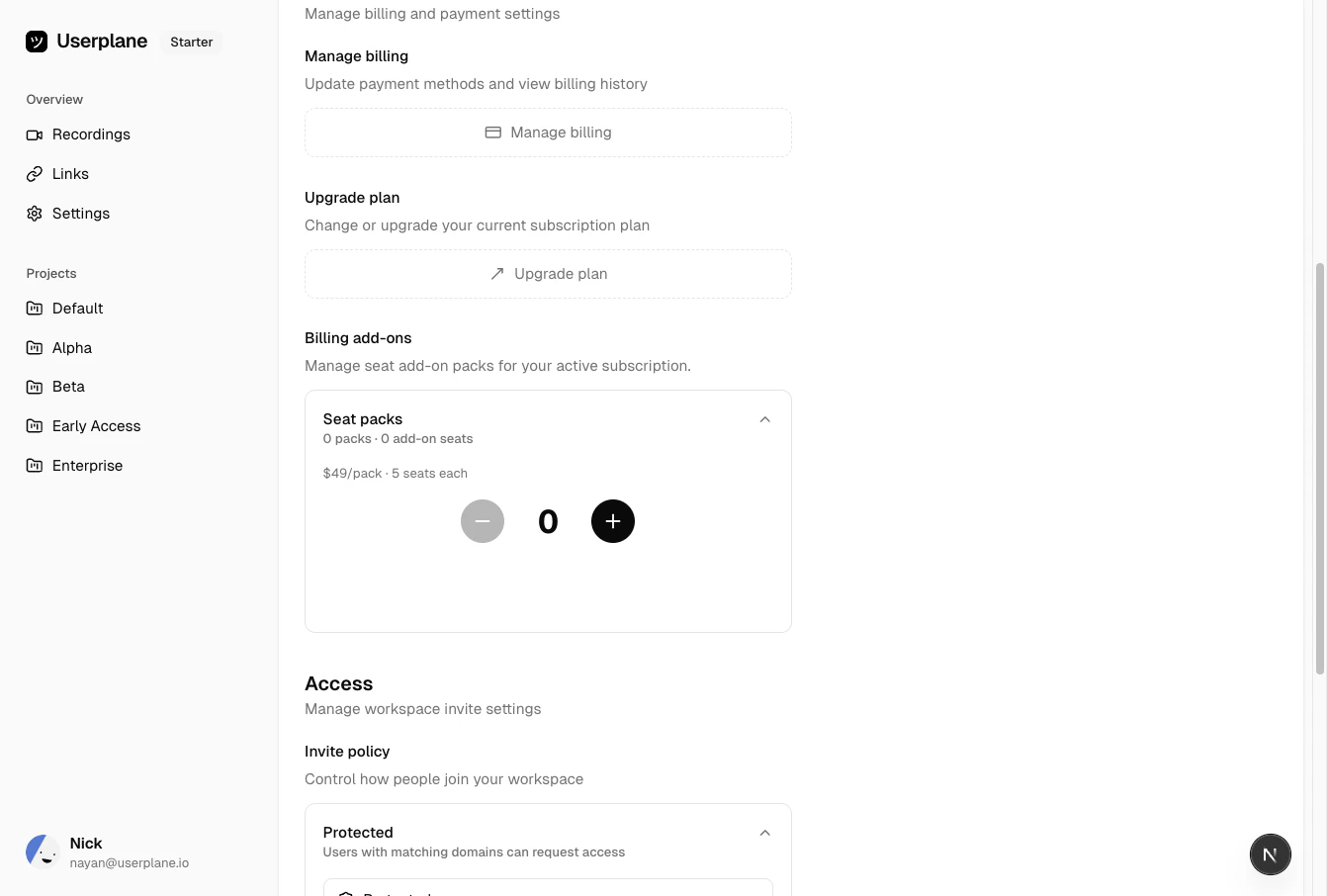 Choose a policy that matches how you want people to join your workspace.
Only explicit invitations. The workspace does not appear in search or suggestions.
Choose a policy that matches how you want people to join your workspace.
Only explicit invitations. The workspace does not appear in search or suggestions.
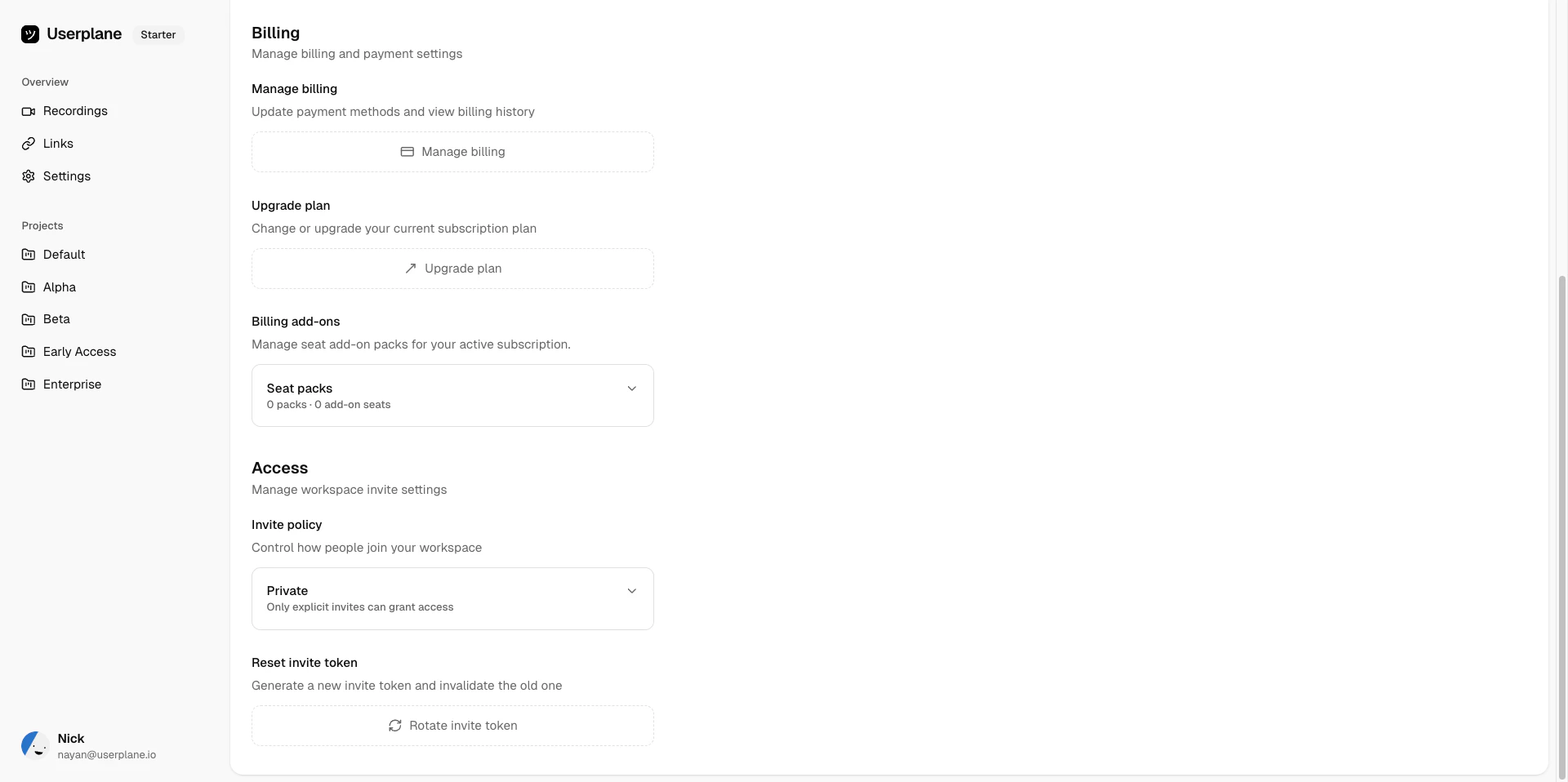 People with an email address matching a whitelisted domain can join directly. Others need an explicit invitation.
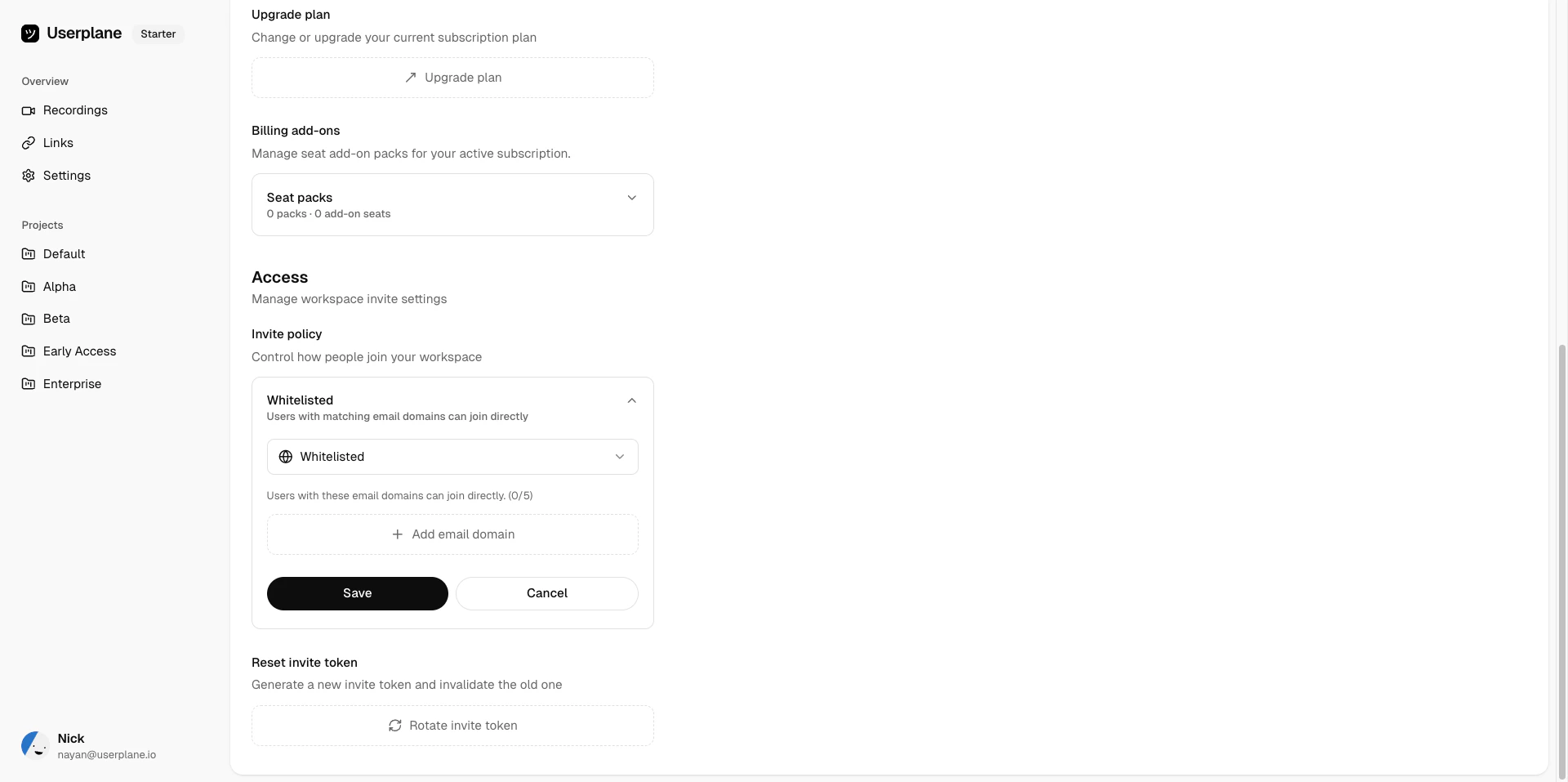 People with a matching email domain can **request access**. An owner must approve the request. Others need an explicit invitation.
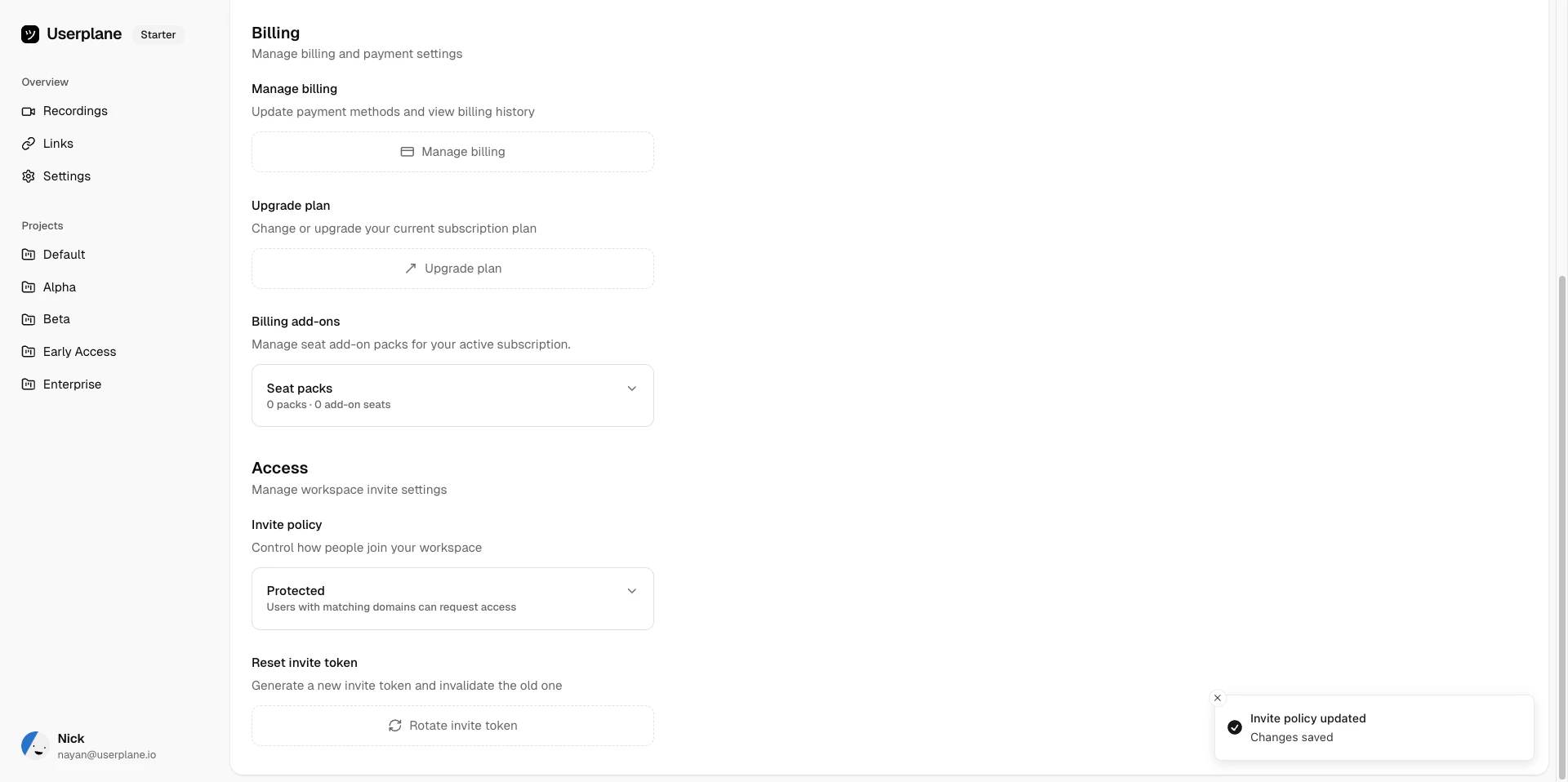
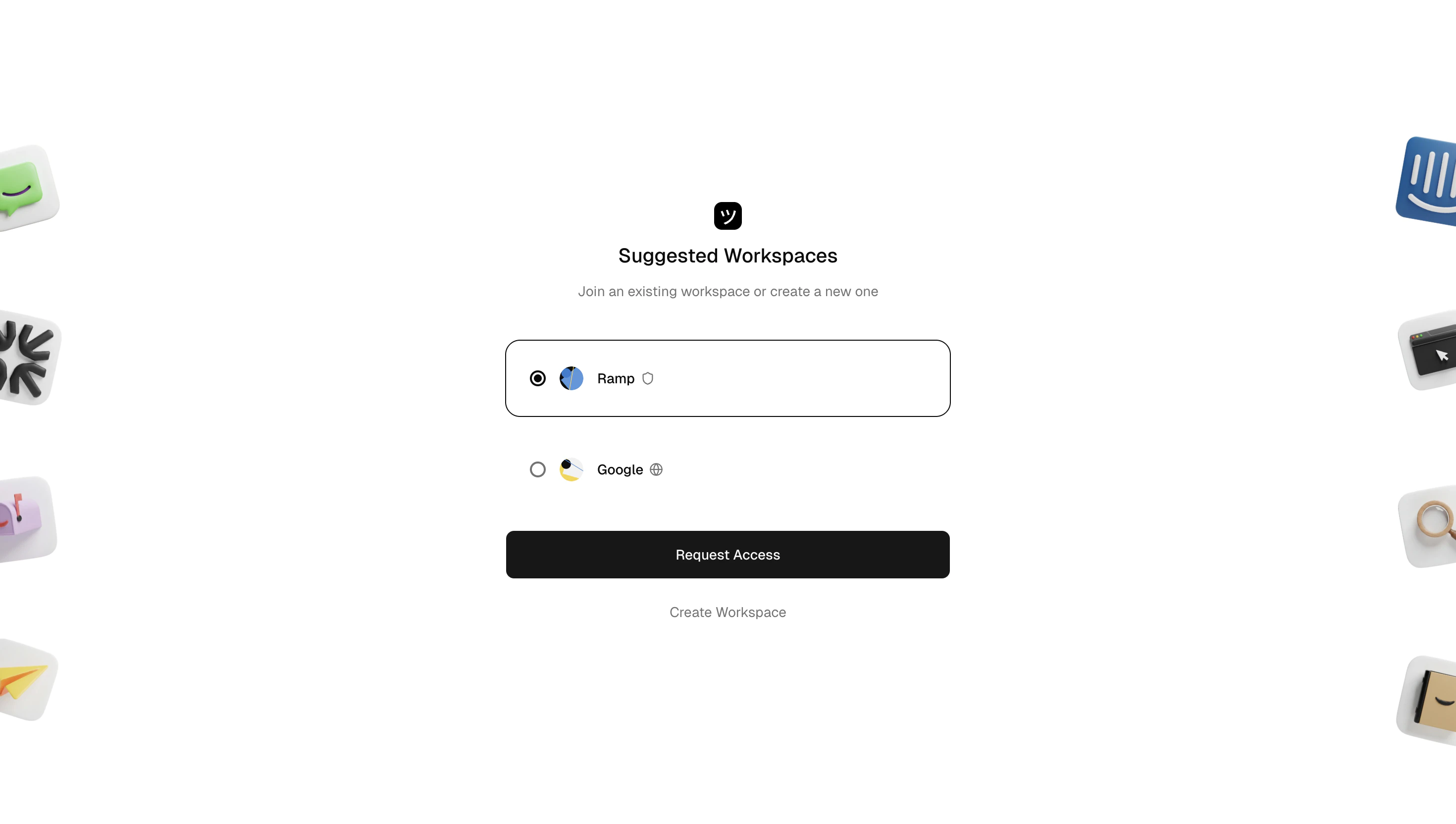
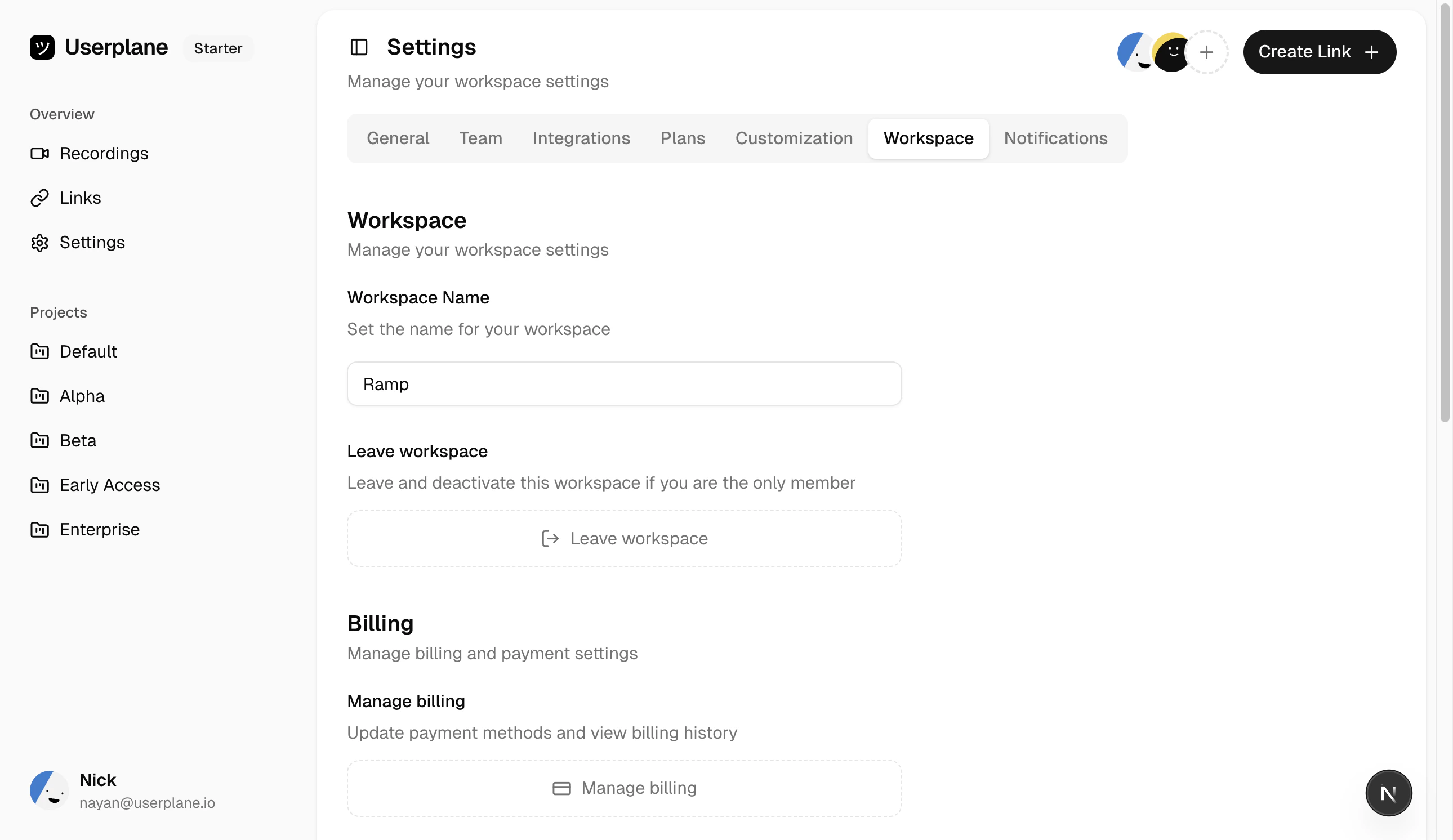 If using **Whitelisted** or **Protected**, add email domains to control who can join. See [Email domains](#email-domains) below for details.
Only workspace **owners** can change the invite policy.
## Email domains
When using the **Whitelisted** or **Protected** policy, you configure a list of allowed email domains. Only people with email addresses matching one of these domains can auto-join (whitelisted) or request access (protected). Everyone else needs an explicit invitation.
### Managing domains
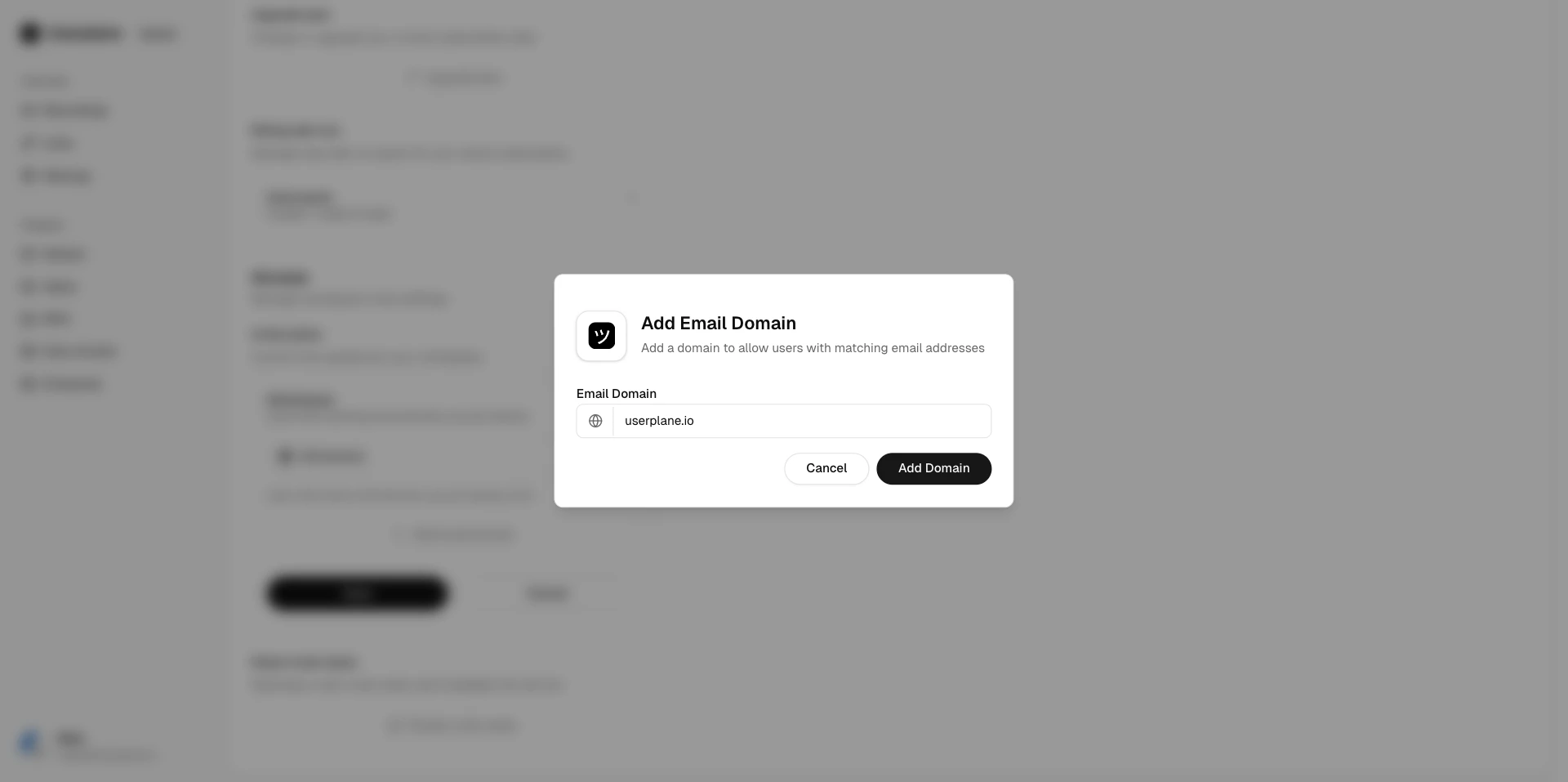
Add or remove domains at any time from the invite policy settings. Enter a domain (e.g. `acme.com`) and save — anyone with an `@acme.com` email address can then join or request access depending on your policy. Changes take effect immediately.
If using **Whitelisted** or **Protected**, add email domains to control who can join. See [Email domains](#email-domains) below for details.
Only workspace **owners** can change the invite policy.
## Email domains
When using the **Whitelisted** or **Protected** policy, you configure a list of allowed email domains. Only people with email addresses matching one of these domains can auto-join (whitelisted) or request access (protected). Everyone else needs an explicit invitation.
### Managing domains
Add or remove domains at any time from the invite policy settings. Enter a domain (e.g. `acme.com`) and save — anyone with an `@acme.com` email address can then join or request access depending on your policy. Changes take effect immediately.
 ### Limits
You can whitelist up to **5 email domains** per workspace. If you need to support more domains, consider using the **Protected** policy so an owner can manually approve requests from any email address.
## Rotating the invite token
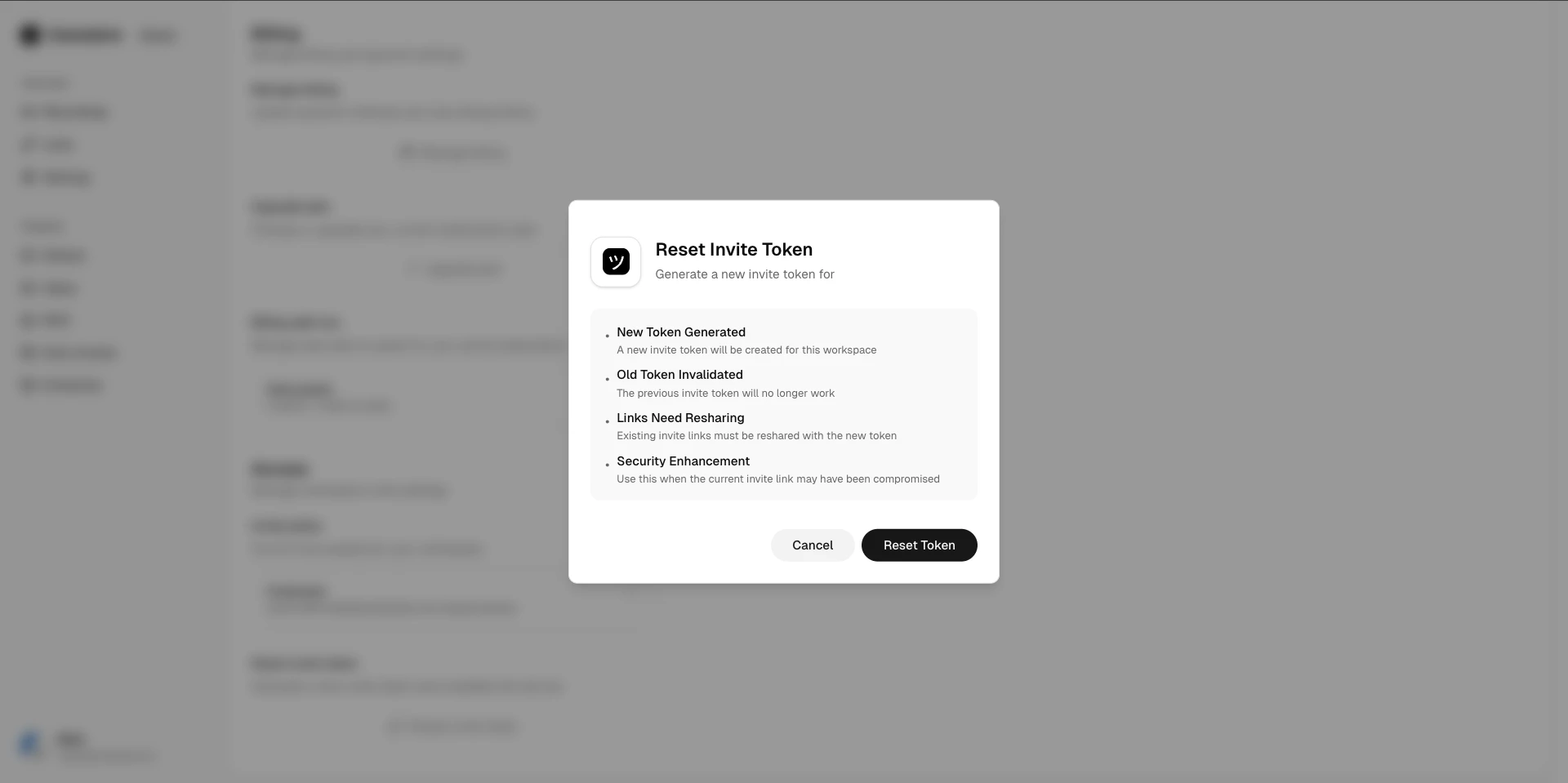
If you need to invalidate existing invitation links, you can rotate your workspace's invite token. This invalidates all pending invitations and generates a new token.
Go to [Workspace Settings > General](https://dash.userplane.io/_/settings?tab=workspace) and find the invite token section.
### Limits
You can whitelist up to **5 email domains** per workspace. If you need to support more domains, consider using the **Protected** policy so an owner can manually approve requests from any email address.
## Rotating the invite token
If you need to invalidate existing invitation links, you can rotate your workspace's invite token. This invalidates all pending invitations and generates a new token.
Go to [Workspace Settings > General](https://dash.userplane.io/_/settings?tab=workspace) and find the invite token section.
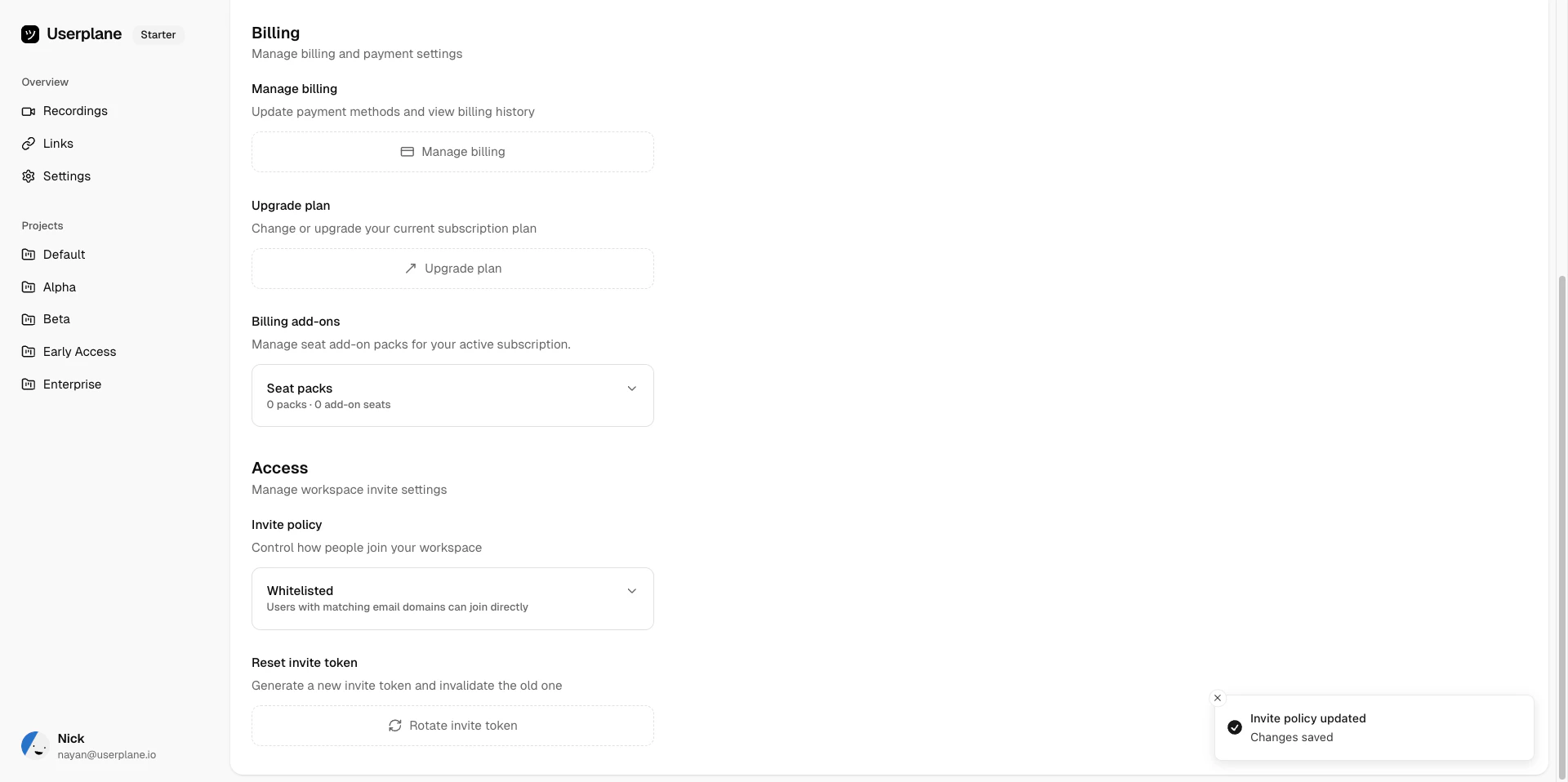 Click **Rotate Token** and confirm. All pending invitations are invalidated immediately.
 ## Related articles
* [Team Management](/workspace/team-management) — invite and manage members.
* [Access Management](/workspace/access-management) — approve or decline access requests (protected policy).
* [Roles & Permissions](/workspace/roles-permissions) — what each role can do.
## Related articles
* [Team Management](/workspace/team-management) — invite and manage members.
* [Access Management](/workspace/access-management) — approve or decline access requests (protected policy).
* [Roles & Permissions](/workspace/roles-permissions) — what each role can do.