> ## Documentation Index
> Fetch the complete documentation index at: https://docs.userplane.io/llms.txt
> Use this file to discover all available pages before exploring further.
# Projects
> Organize recordings and links into projects for easier management
Projects are a way to organize your recordings and links into logical groups. You might create a project for each product area, team, or customer segment.
## What projects are
A project is a named container within your workspace. Every recording link is assigned to a project, and the recording it produces inherits that assignment. This lets you filter, browse, and manage recordings by project.
 ## Default project
Every workspace has a **default project** that is created automatically. The default project cannot be deleted. Recording links created without specifying a project are assigned to the default project.
## Creating a project
Go to [Workspace Settings > Projects](https://dash.userplane.io/_/settings?tab=general).
## Default project
Every workspace has a **default project** that is created automatically. The default project cannot be deleted. Recording links created without specifying a project are assigned to the default project.
## Creating a project
Go to [Workspace Settings > Projects](https://dash.userplane.io/_/settings?tab=general).
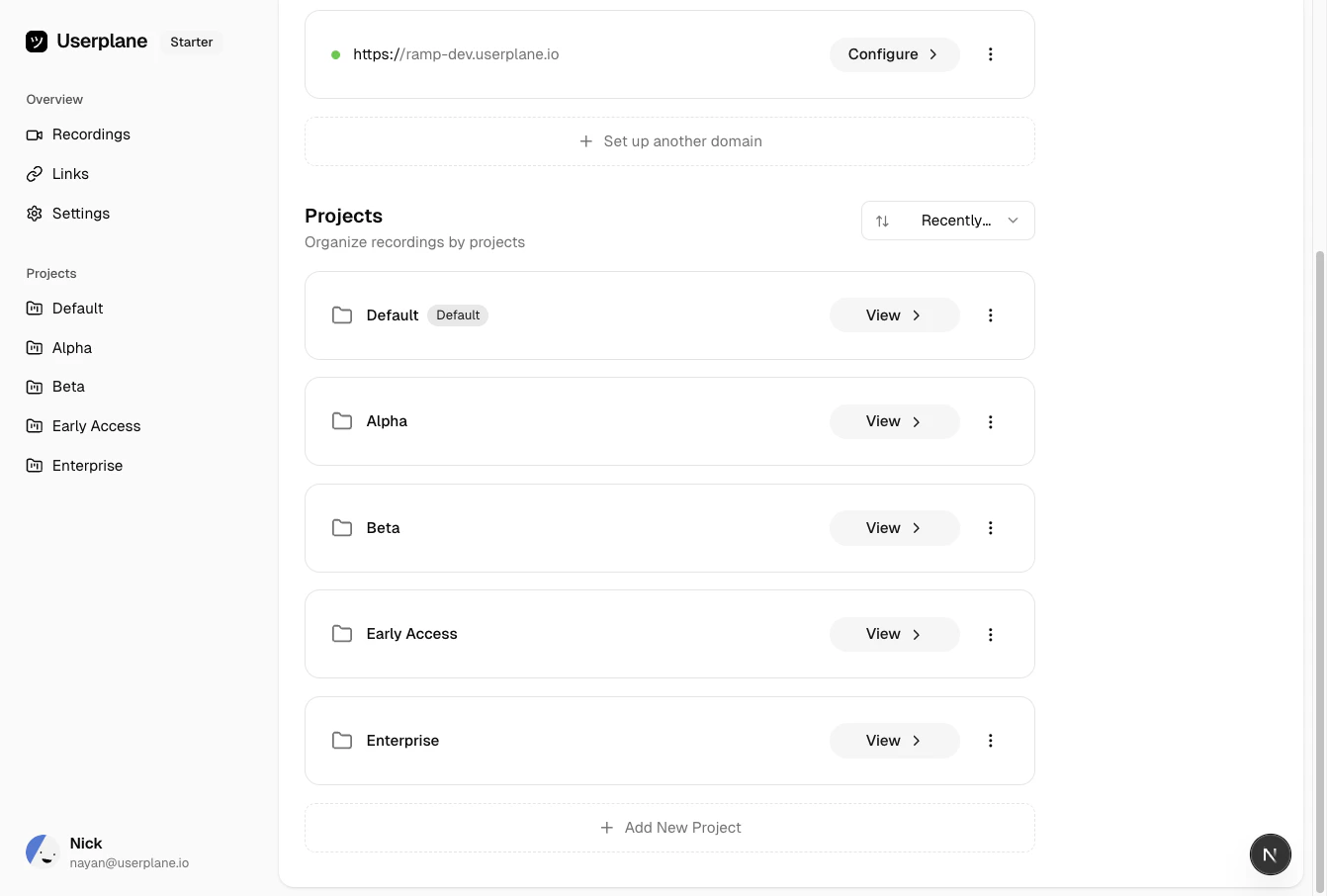 Click **Create Project** to open the creation dialog.
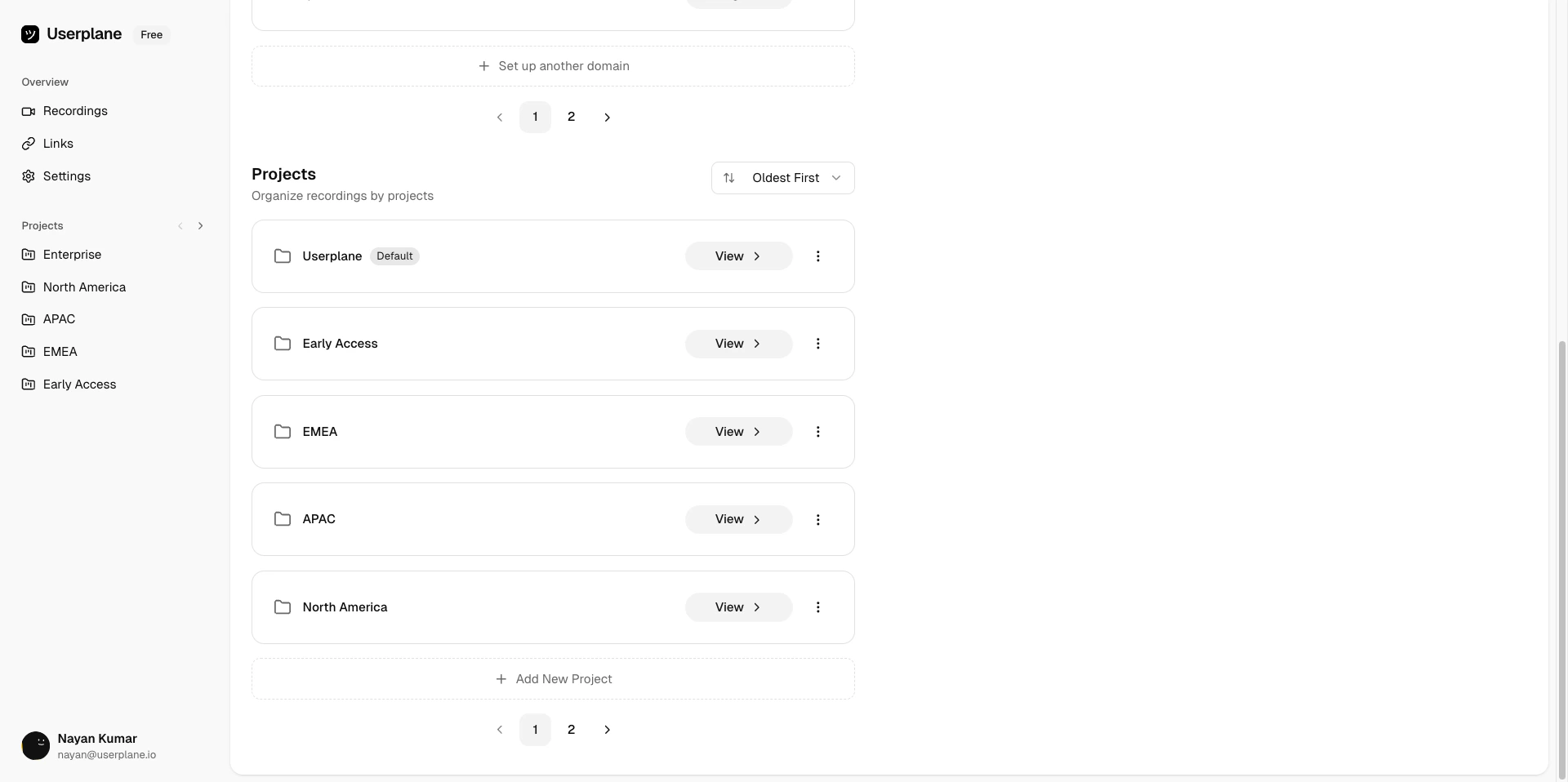 Enter a name for the project and click **Save**.
 ## Editing a project
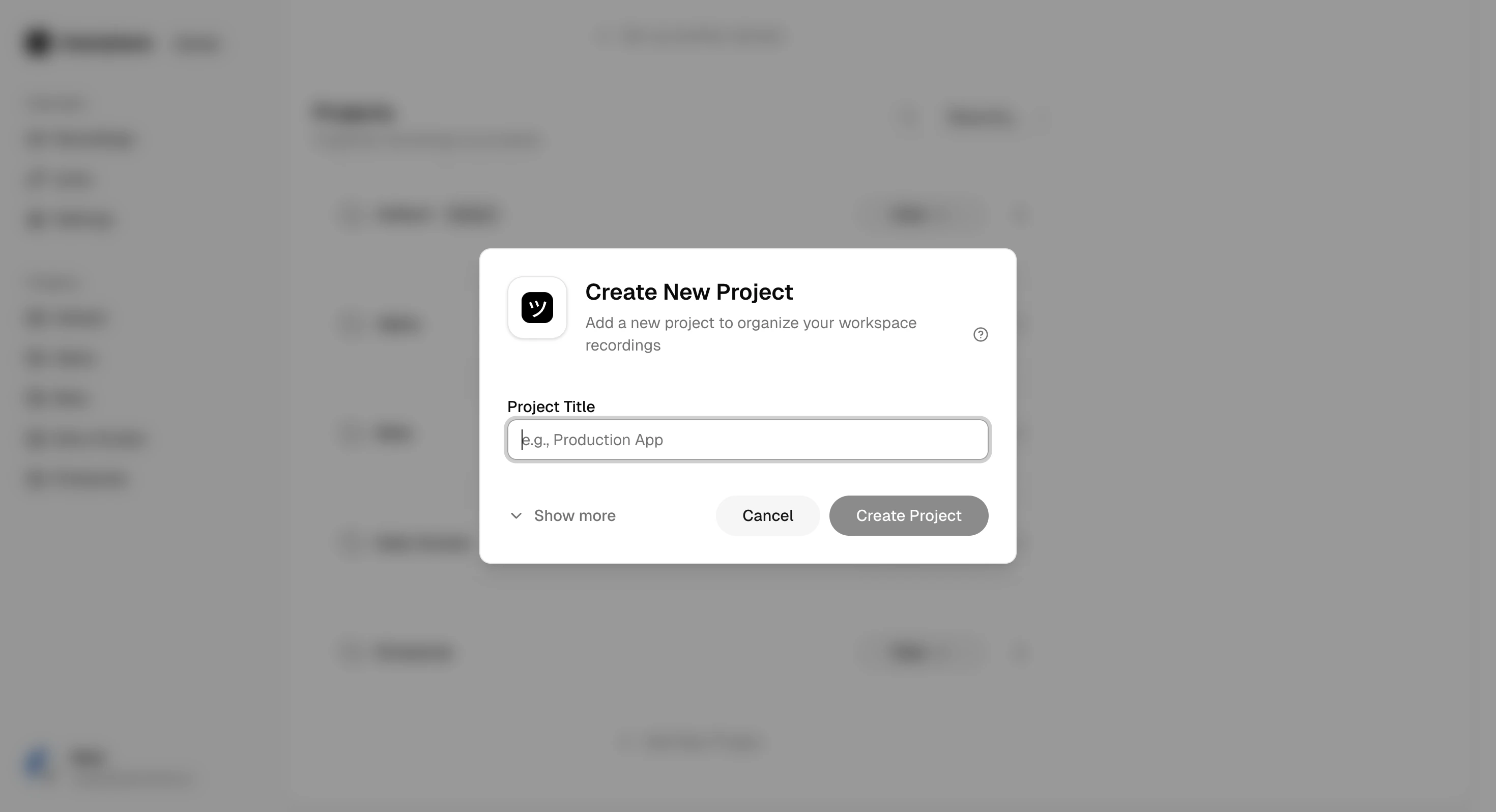
Find the project in the list and click the menu icon.
## Editing a project
Find the project in the list and click the menu icon.
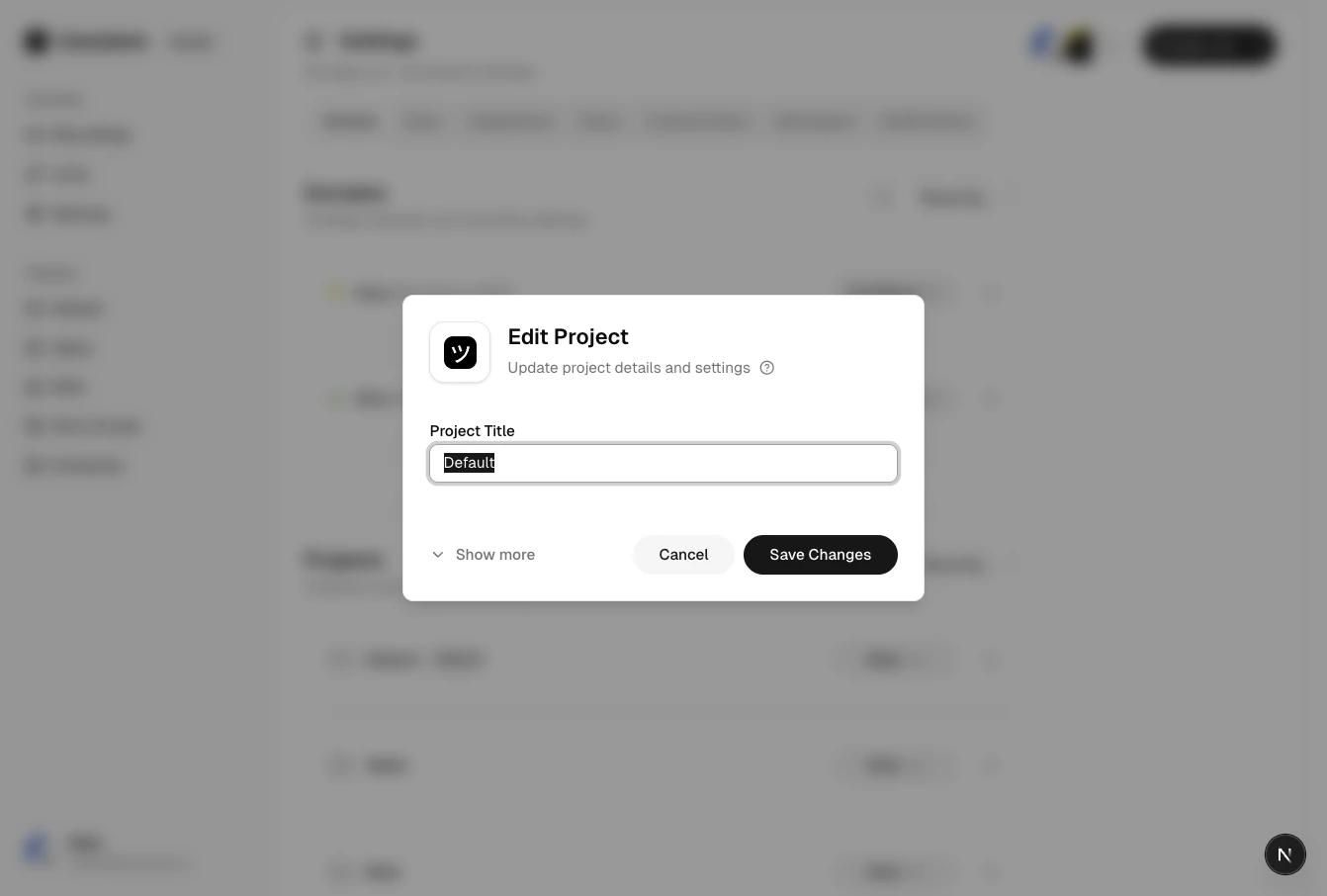
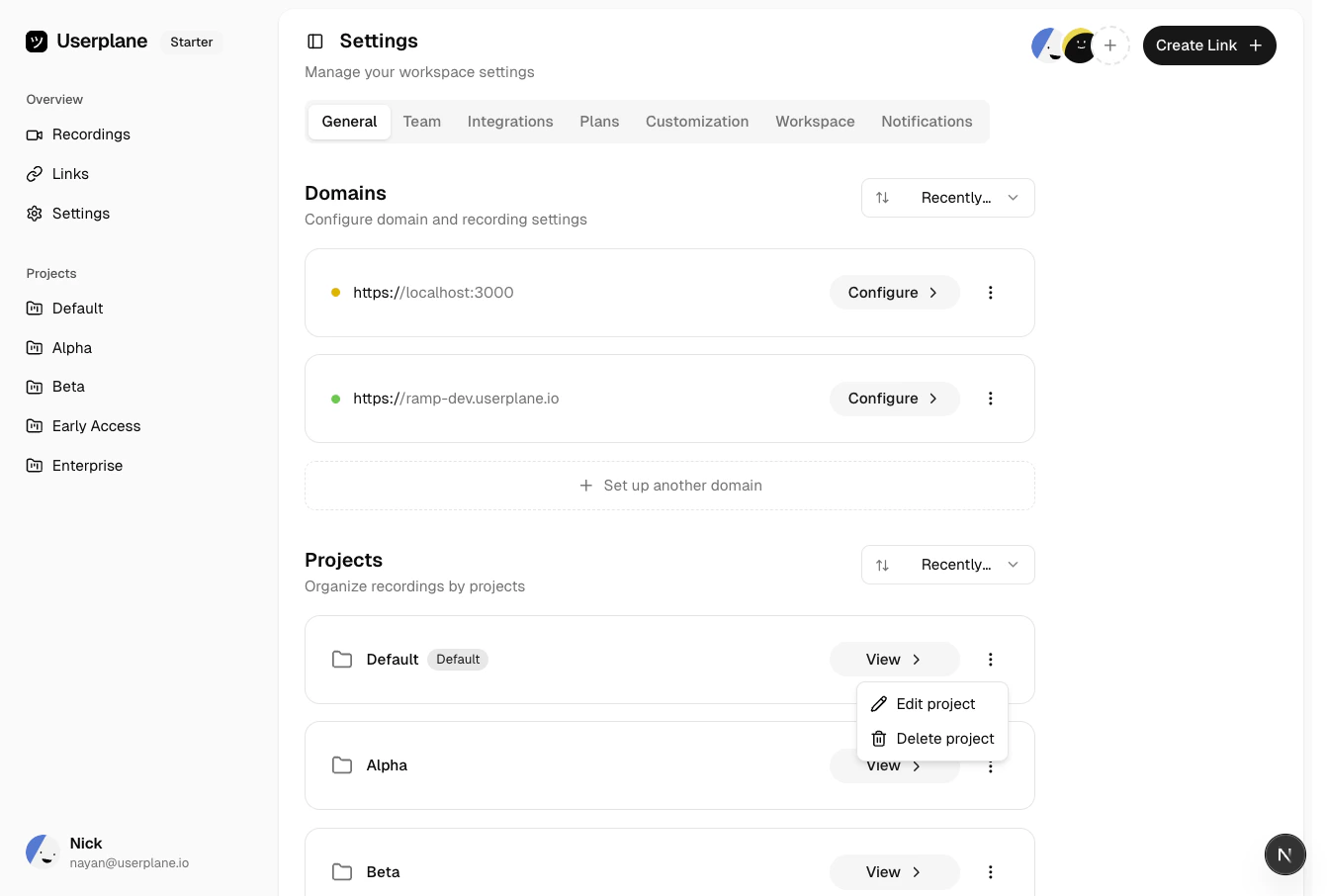 Update the project name or other settings.
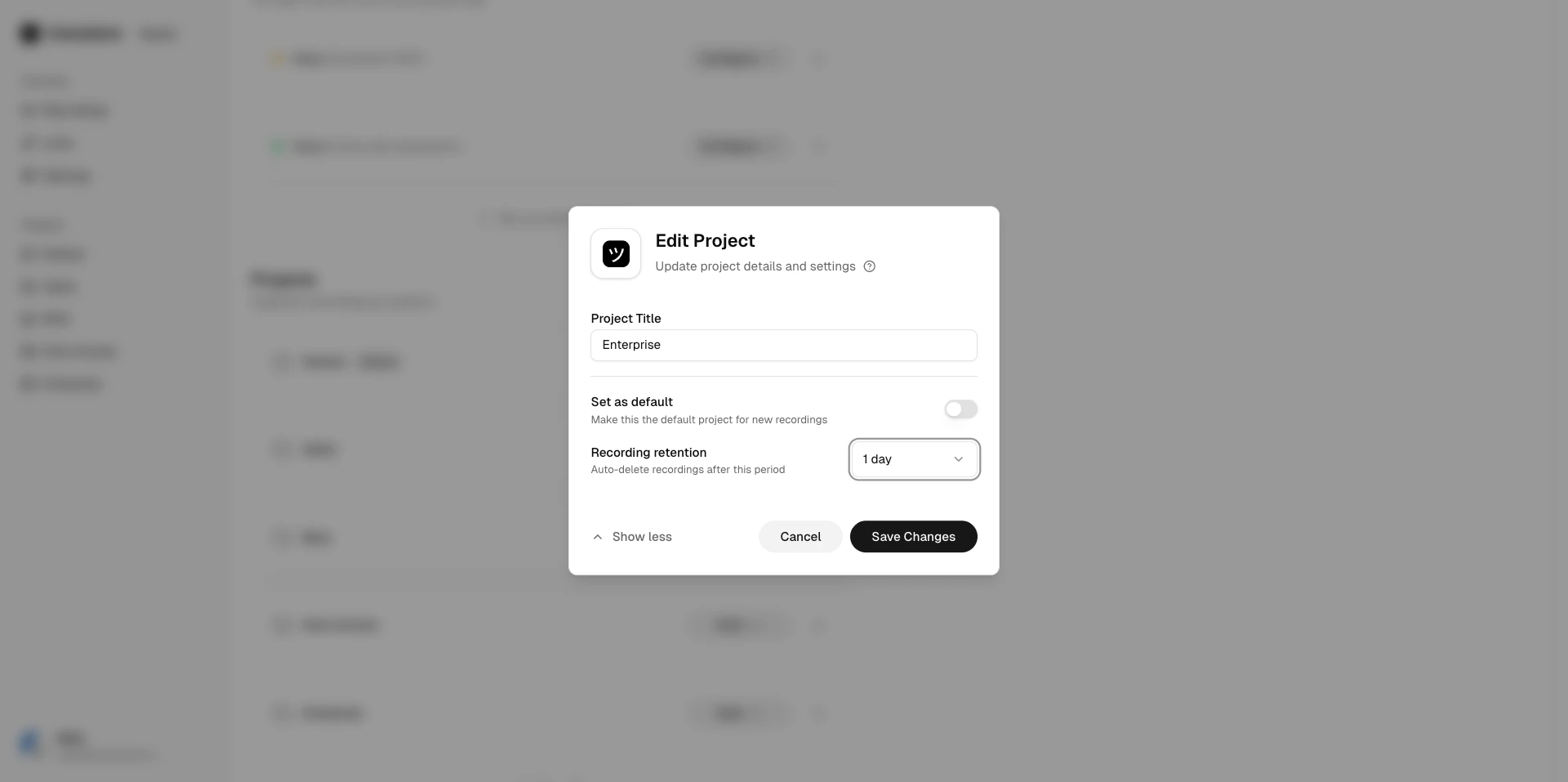
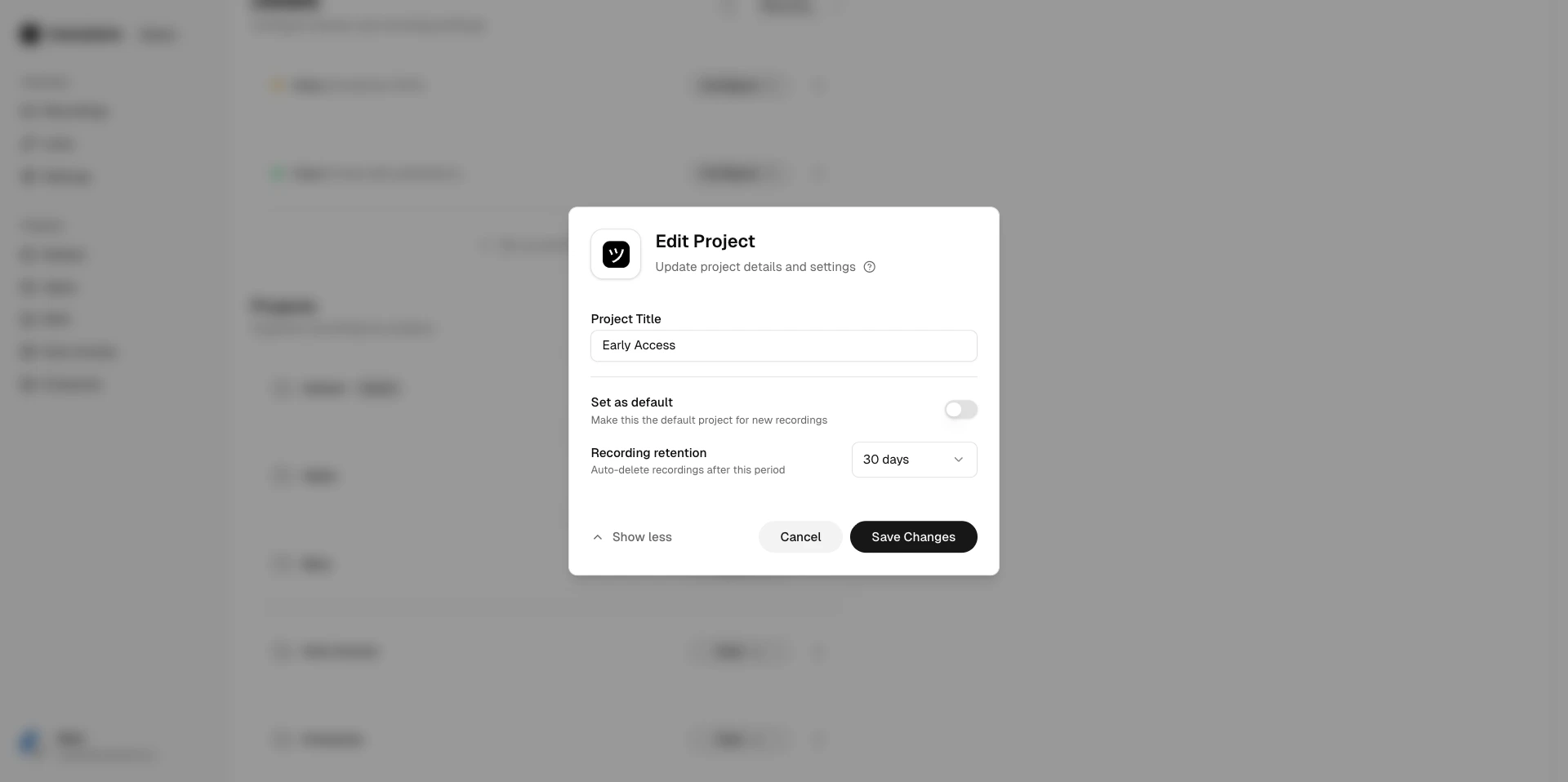 Set a retention policy to automatically expire recordings after a specified period.
 ## Using projects
Select a project from the **Project** dropdown when [creating a recording link](/recording/requesting). The resulting recording inherits the project assignment, making it easy to find later.
## Using projects
Select a project from the **Project** dropdown when [creating a recording link](/recording/requesting). The resulting recording inherits the project assignment, making it easy to find later.
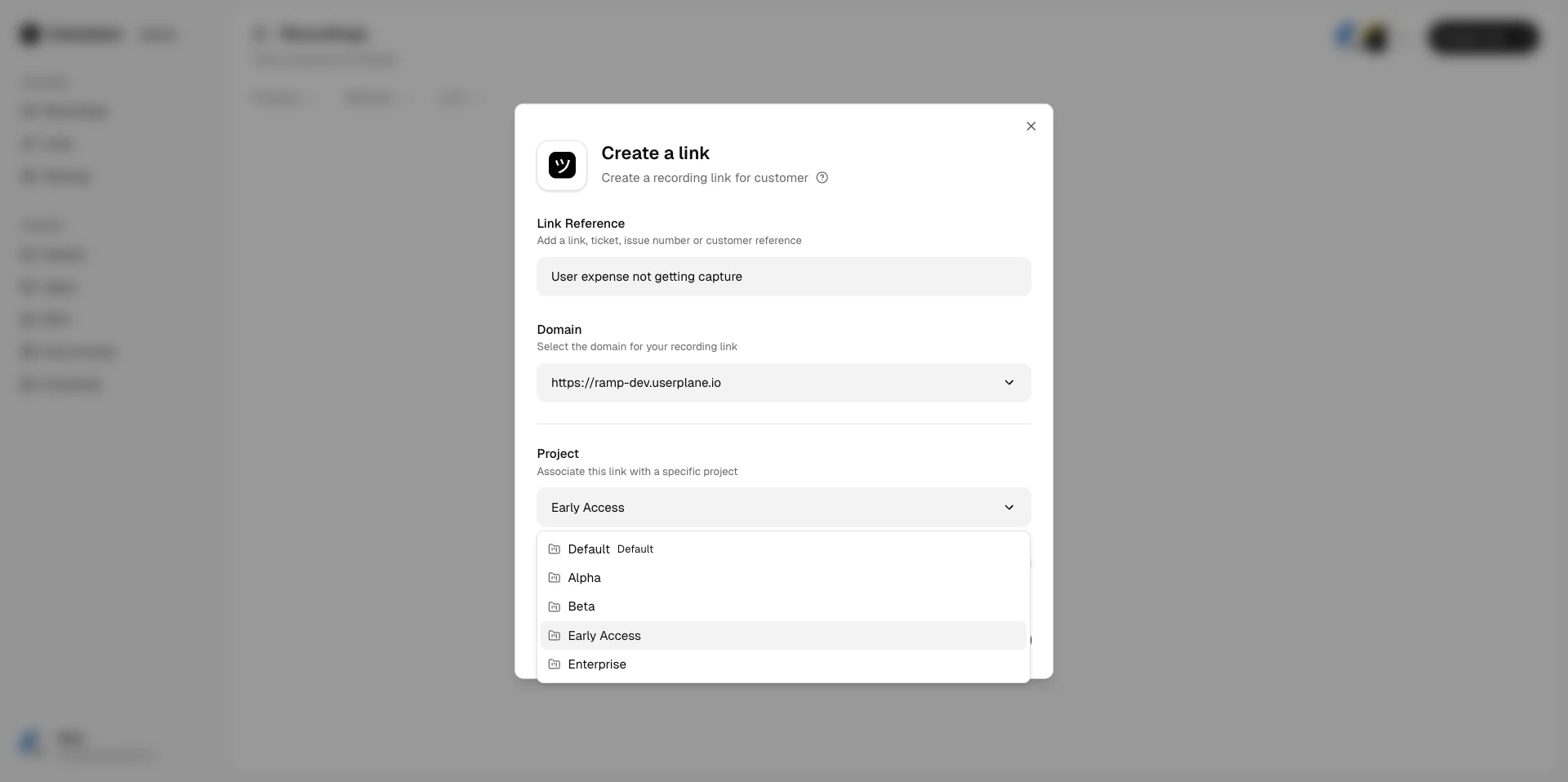 See [Recording Projects](/recording/projects) for a full walkthrough.
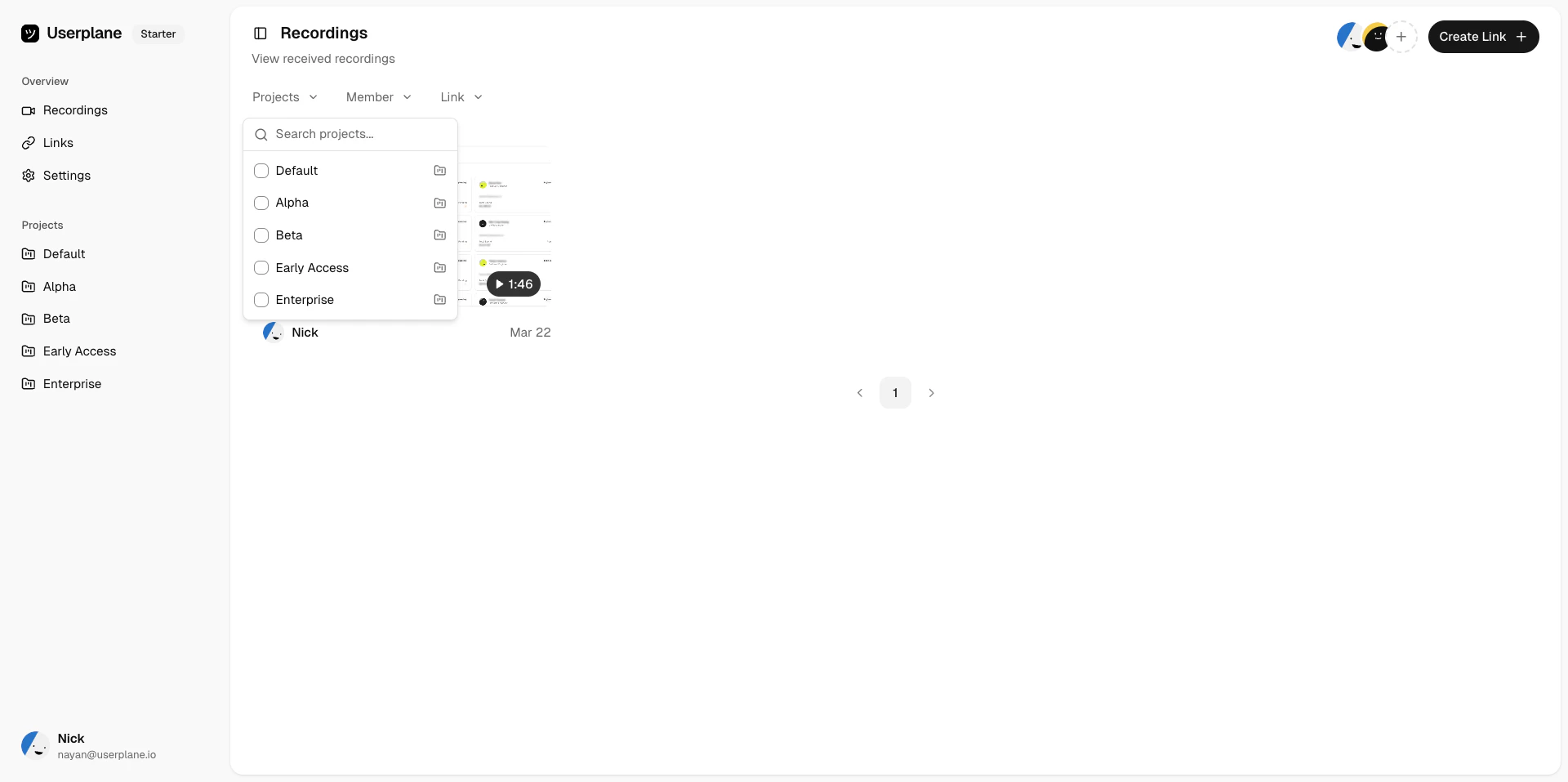
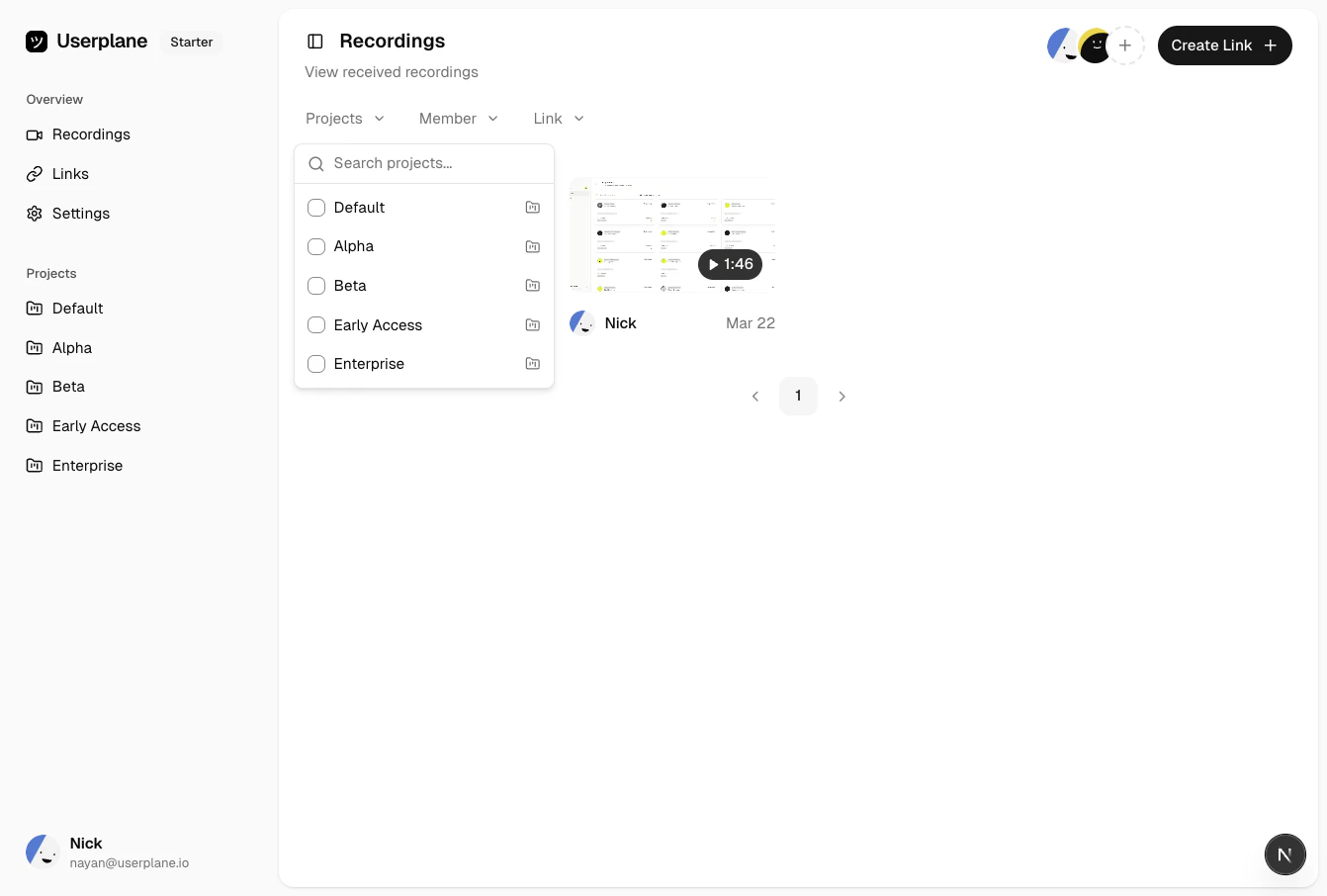
Filter by project on the [Recordings](/recording/reviewing) page to narrow down to only the recordings that matter. You can also filter by project on the [Links](/recording-links/managing) page to find related links.
See [Recording Projects](/recording/projects) for a full walkthrough.
Filter by project on the [Recordings](/recording/reviewing) page to narrow down to only the recordings that matter. You can also filter by project on the [Links](/recording-links/managing) page to find related links.
 ## Using project views
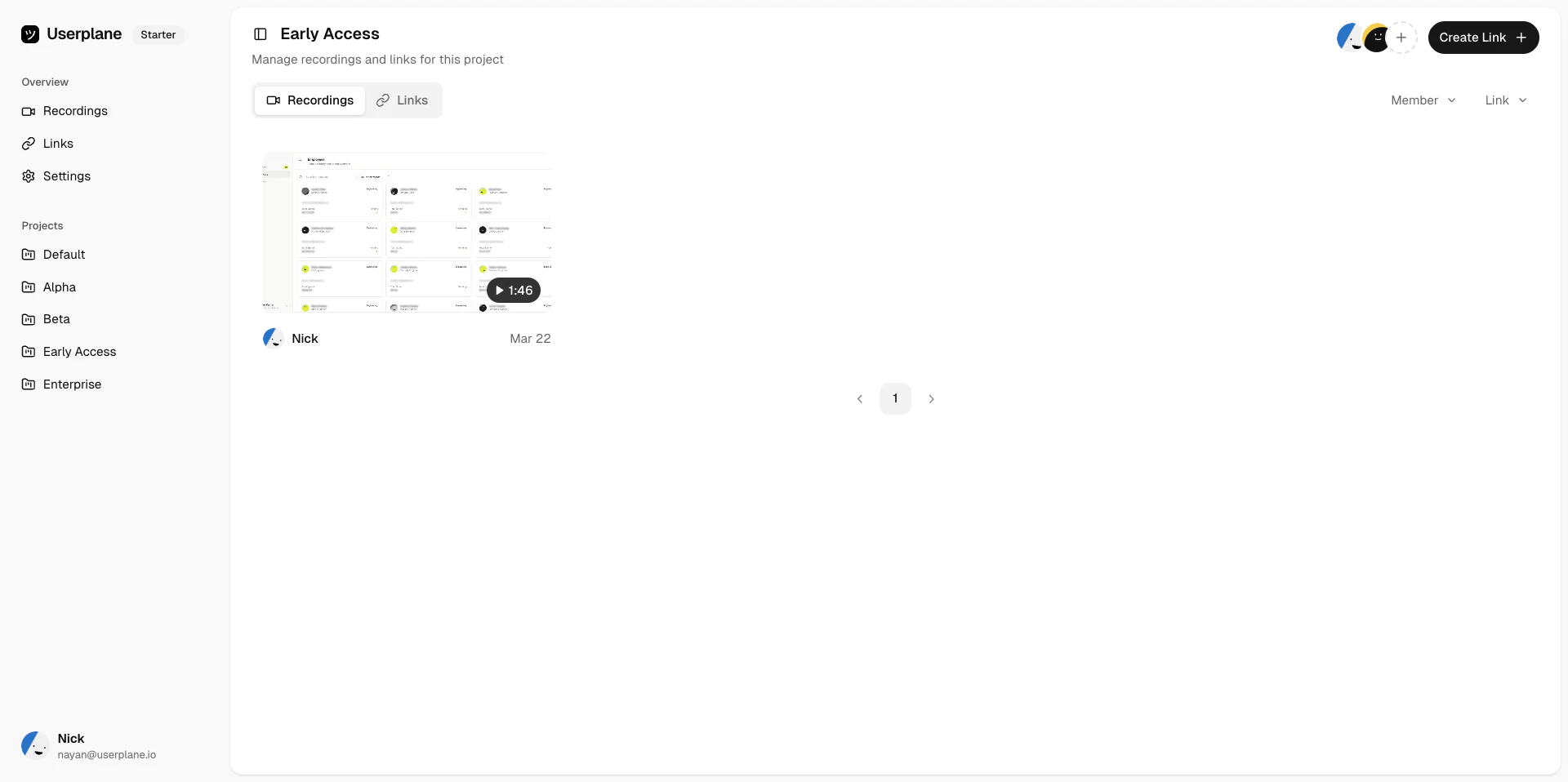
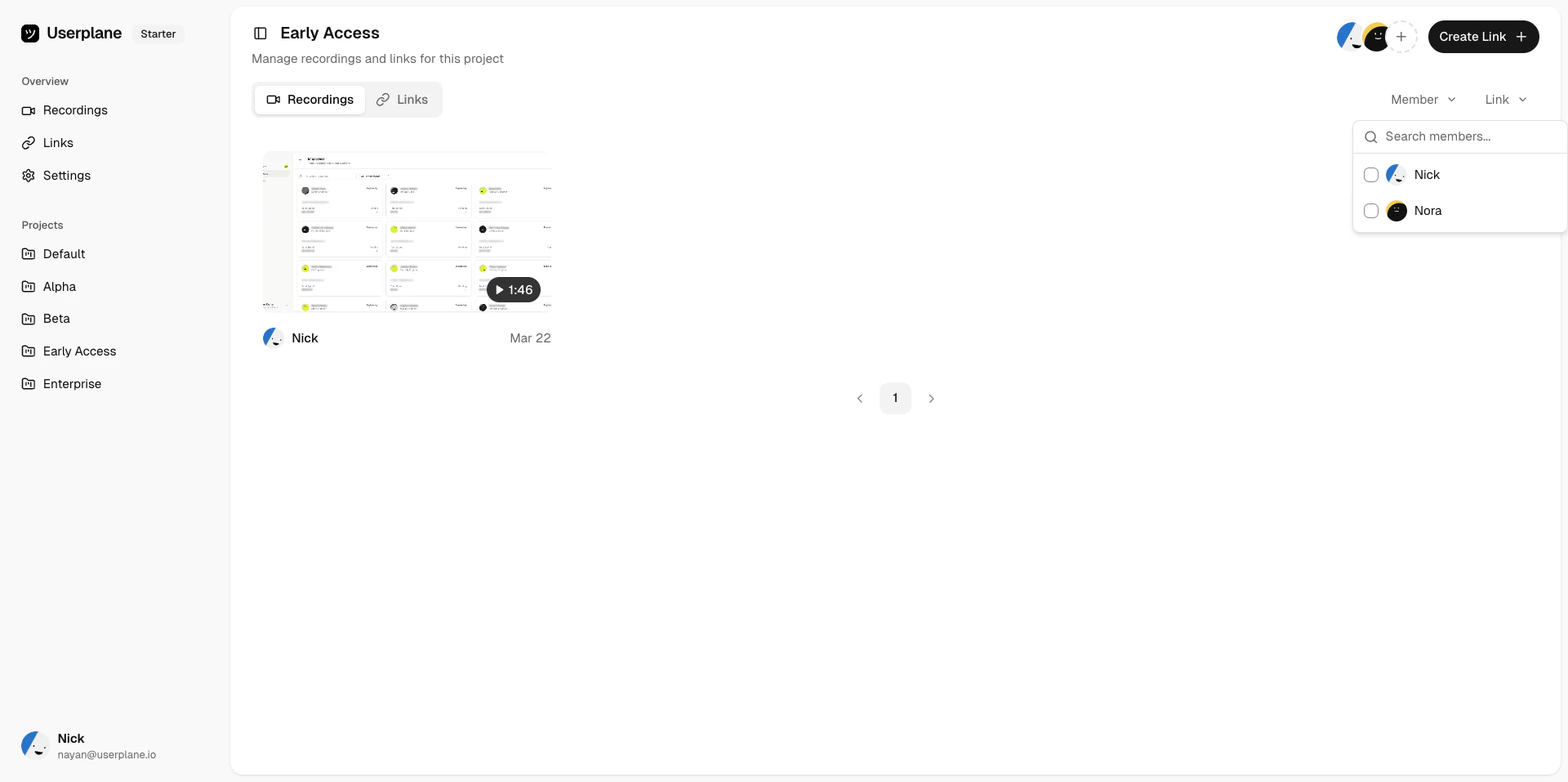
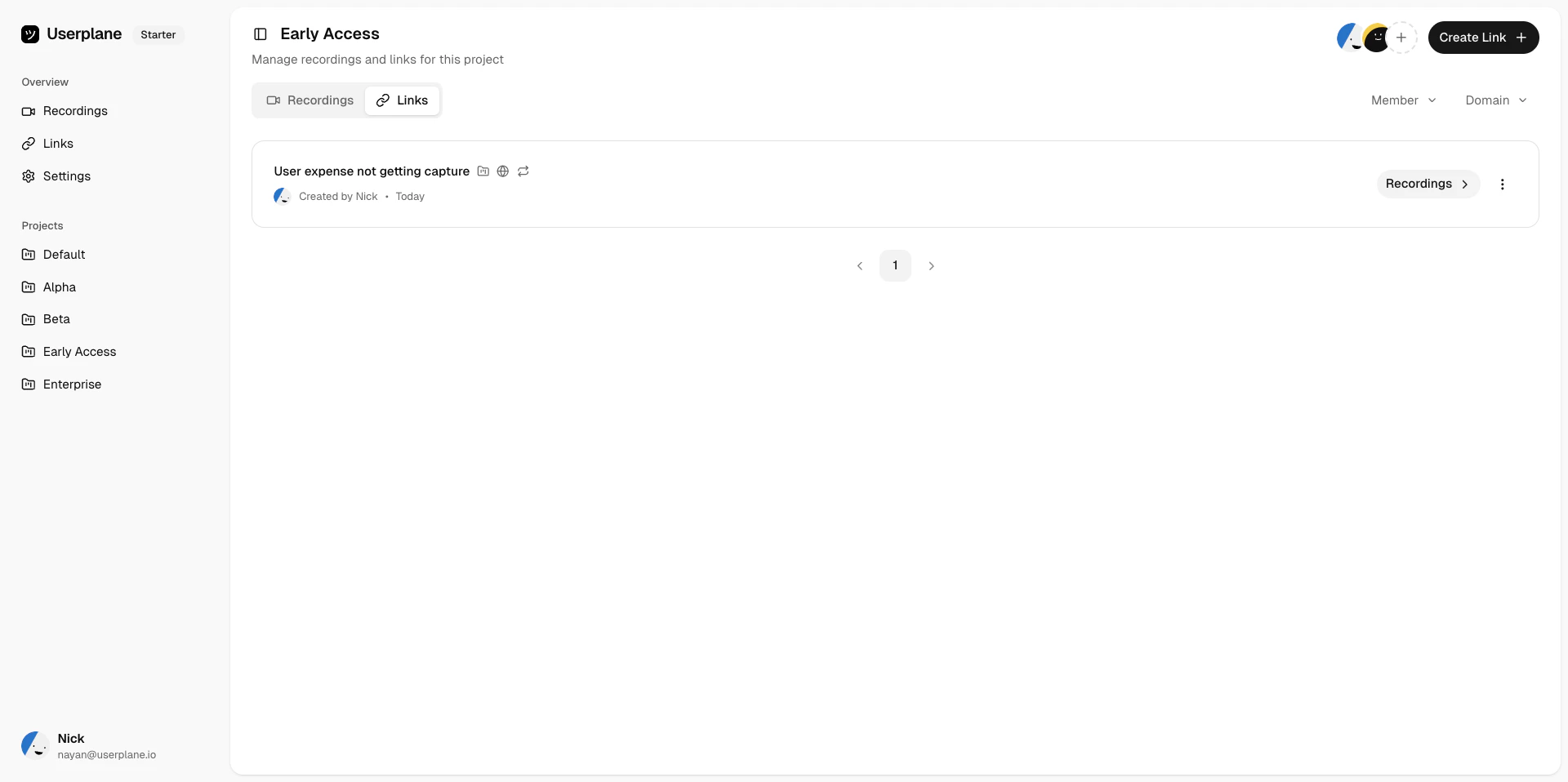
Switch to a project-scoped view for a focused look at a single project's recordings and links. The project view shows all recordings captured under that project, with filters to narrow down results and quick access to individual recording links.
## Using project views
Switch to a project-scoped view for a focused look at a single project's recordings and links. The project view shows all recordings captured under that project, with filters to narrow down results and quick access to individual recording links.
 ## Related articles
* [Project Lifecycle](/workspace/project-lifecycle) — deleting and restoring projects.
* [Recording Projects](/recording/projects) — how projects work with recording links.
## Related articles
* [Project Lifecycle](/workspace/project-lifecycle) — deleting and restoring projects.
* [Recording Projects](/recording/projects) — how projects work with recording links.