> ## Documentation Index
> Fetch the complete documentation index at: https://docs.userplane.io/llms.txt
> Use this file to discover all available pages before exploring further.
# Roles & Permissions
> Understand what owners, admins, and members can do in a workspace
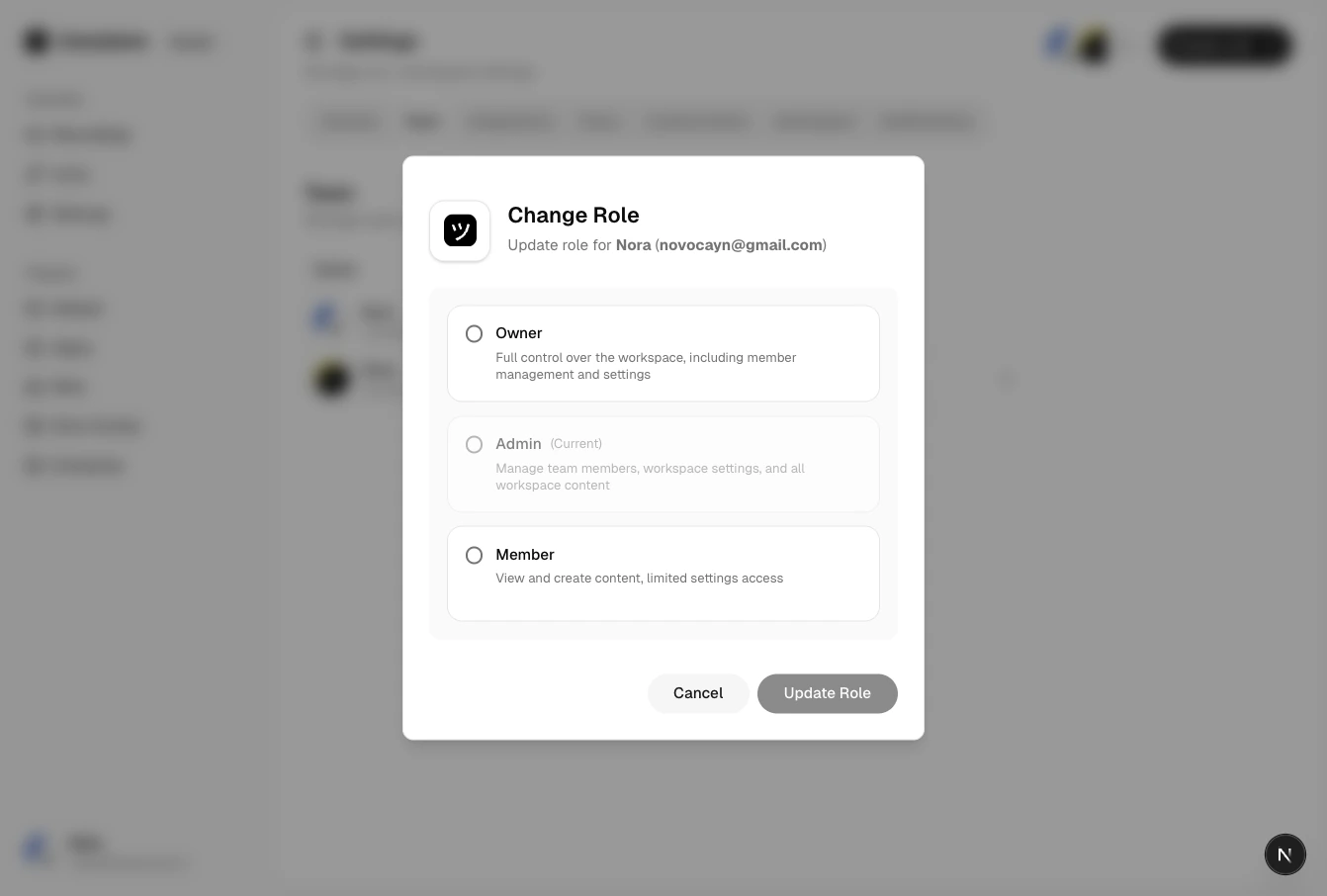
Every workspace member has one of three roles: **Owner**, **Admin**, or **Member**. Each role has a different level of access and control.
## Permission matrix
| Action | Owner | Admin | Member |
| ---------------------------- | :---: | :---: | :----: |
| View recordings | Yes | Yes | Yes |
| Create recording links | Yes | Yes | Yes |
| Manage own links | Yes | Yes | Yes |
| View workspace settings | Yes | Yes | Yes |
| Create projects | Yes | Yes | No |
| Edit projects | Yes | Yes | No |
| Delete projects | Yes | Yes | No |
| Add domains | Yes | Yes | No |
| Verify domains | Yes | Yes | No |
| Delete domains | Yes | Yes | No |
| Invite members | Yes | Yes | No |
| Remove members | Yes | Yes | No |
| Change member roles | Yes | Yes | No |
| Connect integrations | Yes | Yes | No |
| Configure branding | Yes | Yes | No |
| Configure domain preferences | Yes | Yes | No |
| Preview plan upgrades | Yes | Yes | No |
| Request plan upgrade (email) | No | No | Yes |
| Manage billing | Yes | No | No |
| Change invite policy | Yes | No | No |
| Delete workspace | Yes | No | No |
| Transfer ownership | Yes | No | No |
| Approve access requests | Yes | No | No |
 ## Role descriptions
### Owner
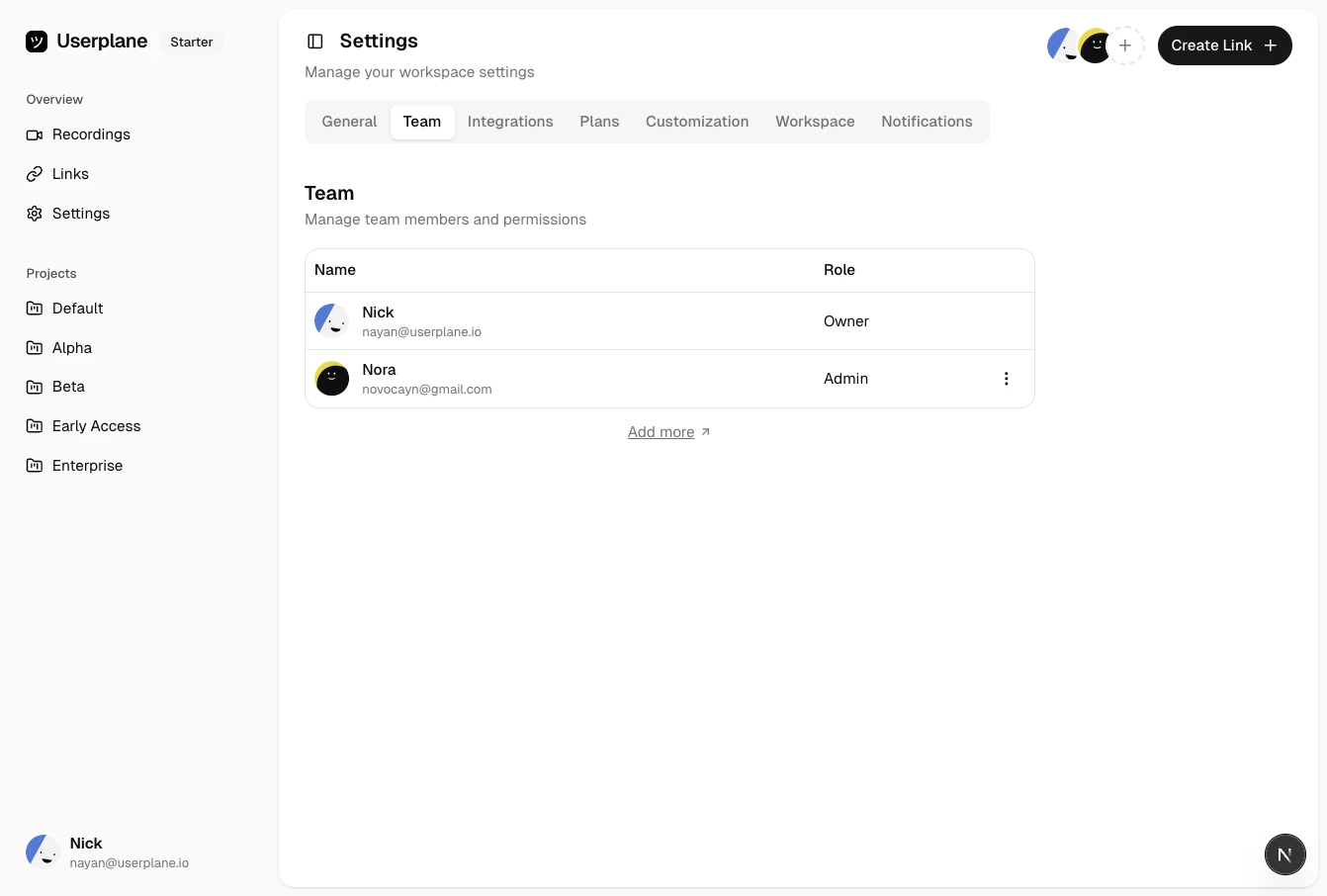
The workspace creator is the initial owner. Owners have full control over the workspace, including billing, invite policies, access request approvals, and the ability to delete the workspace. There is one owner per workspace.
### Admin
Admins can manage most workspace resources — projects, domains, integrations, members, and branding. They cannot manage billing, change the invite policy, delete the workspace, or approve access requests.
### Member
Members can view recordings, create recording links, and manage their own links. They cannot manage workspace settings, invite members, or configure resources. Members can request a plan upgrade, which sends an email notification to workspace owners.
## Role descriptions
### Owner
The workspace creator is the initial owner. Owners have full control over the workspace, including billing, invite policies, access request approvals, and the ability to delete the workspace. There is one owner per workspace.
### Admin
Admins can manage most workspace resources — projects, domains, integrations, members, and branding. They cannot manage billing, change the invite policy, delete the workspace, or approve access requests.
### Member
Members can view recordings, create recording links, and manage their own links. They cannot manage workspace settings, invite members, or configure resources. Members can request a plan upgrade, which sends an email notification to workspace owners.
 ## Notification preferences by role
Some [notification preferences](/account/notifications) are locked or hidden depending on role:
* **Usage notifications** — always on for owners (hidden). Configurable by admins and members.
* **Admin notifications** — always on for owners (hidden), never available to members (hidden). Only admins can toggle this.
* **Feature highlights, incoming recordings** — configurable by all roles.
## Notification preferences by role
Some [notification preferences](/account/notifications) are locked or hidden depending on role:
* **Usage notifications** — always on for owners (hidden). Configurable by admins and members.
* **Admin notifications** — always on for owners (hidden), never available to members (hidden). Only admins can toggle this.
* **Feature highlights, incoming recordings** — configurable by all roles.
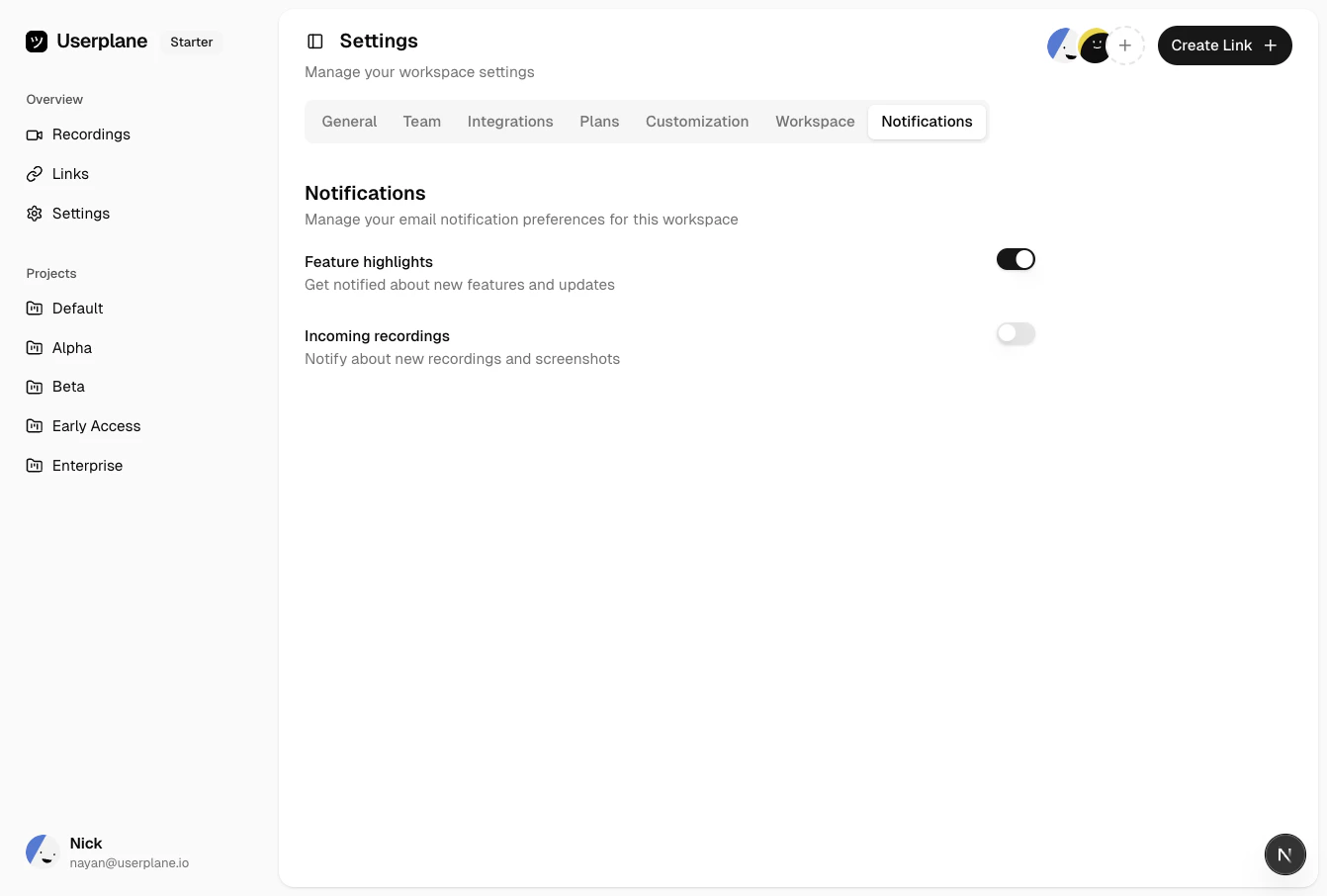 When a member's role changes, locked preferences are automatically set to the correct value for
the new role.
When a member's role changes, locked preferences are automatically set to the correct value for
the new role.