> ## Documentation Index
> Fetch the complete documentation index at: https://docs.userplane.io/llms.txt
> Use this file to discover all available pages before exploring further.
# Team Management
> Add, remove, and manage workspace members and their roles
The Team section in Workspace Settings lets you manage who has access to your workspace and what they can do.
## Viewing members
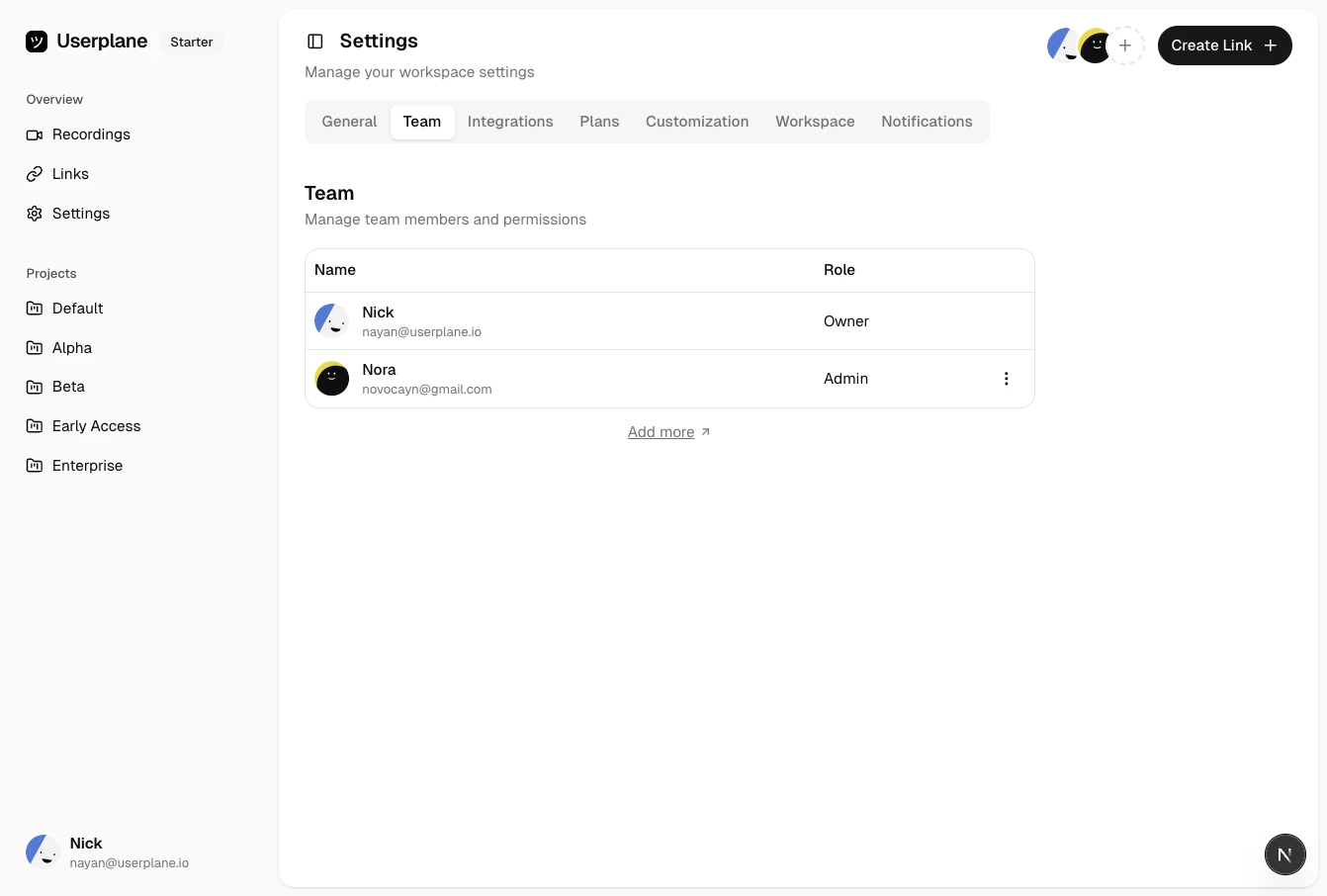
Go to [Workspace Settings > Team](https://dash.userplane.io/_/settings?tab=team) to see all current workspace members. Each member entry shows their name, avatar, email, and role.
 ## Inviting members
You can invite members from the navigation bar or from the Team settings page. Both open the same invite dialog.
Click the invite button in the navigation bar.
## Inviting members
You can invite members from the navigation bar or from the Team settings page. Both open the same invite dialog.
Click the invite button in the navigation bar.
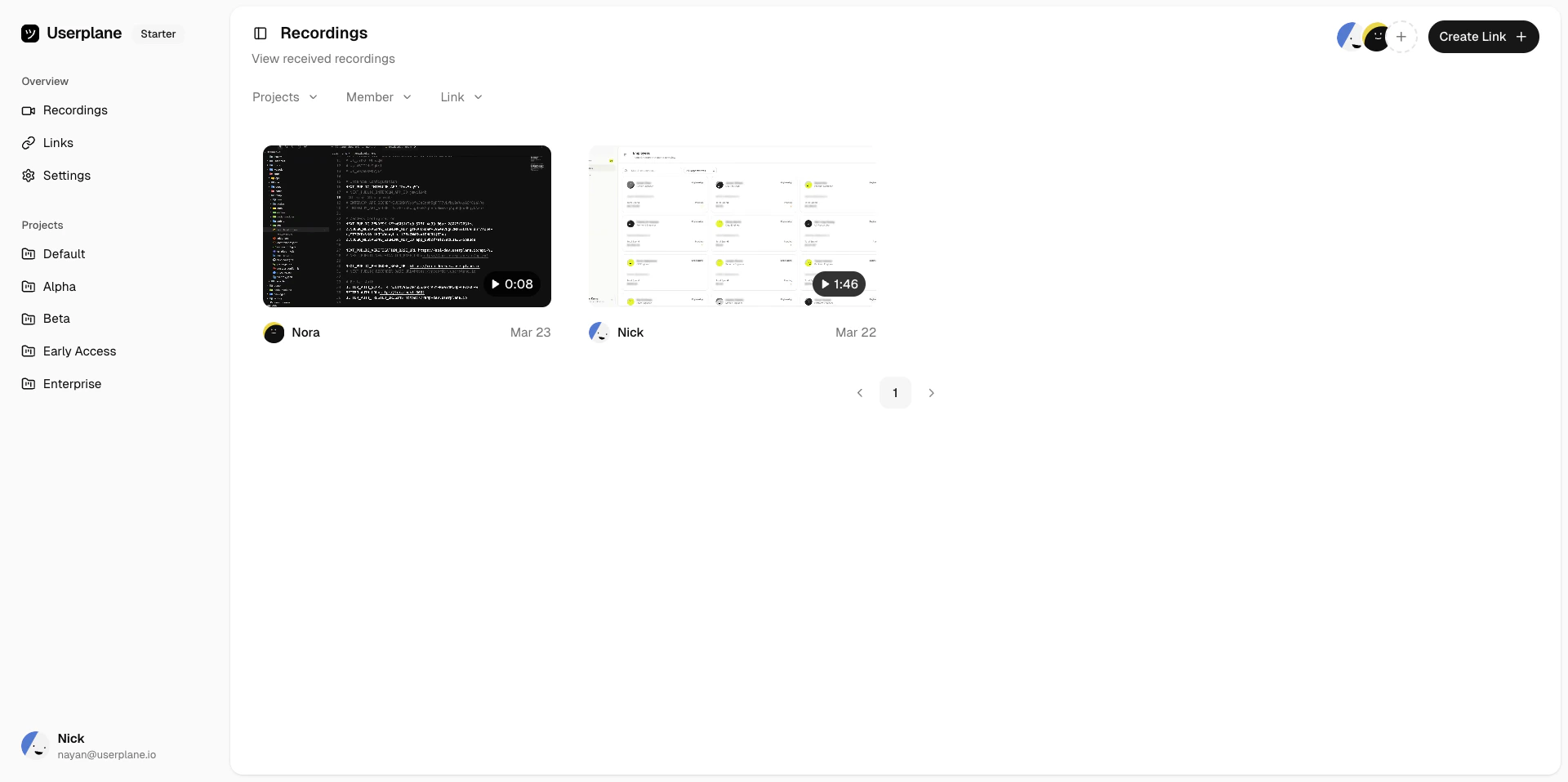 Enter the email address of the person you want to invite, then click **Send Invite**.
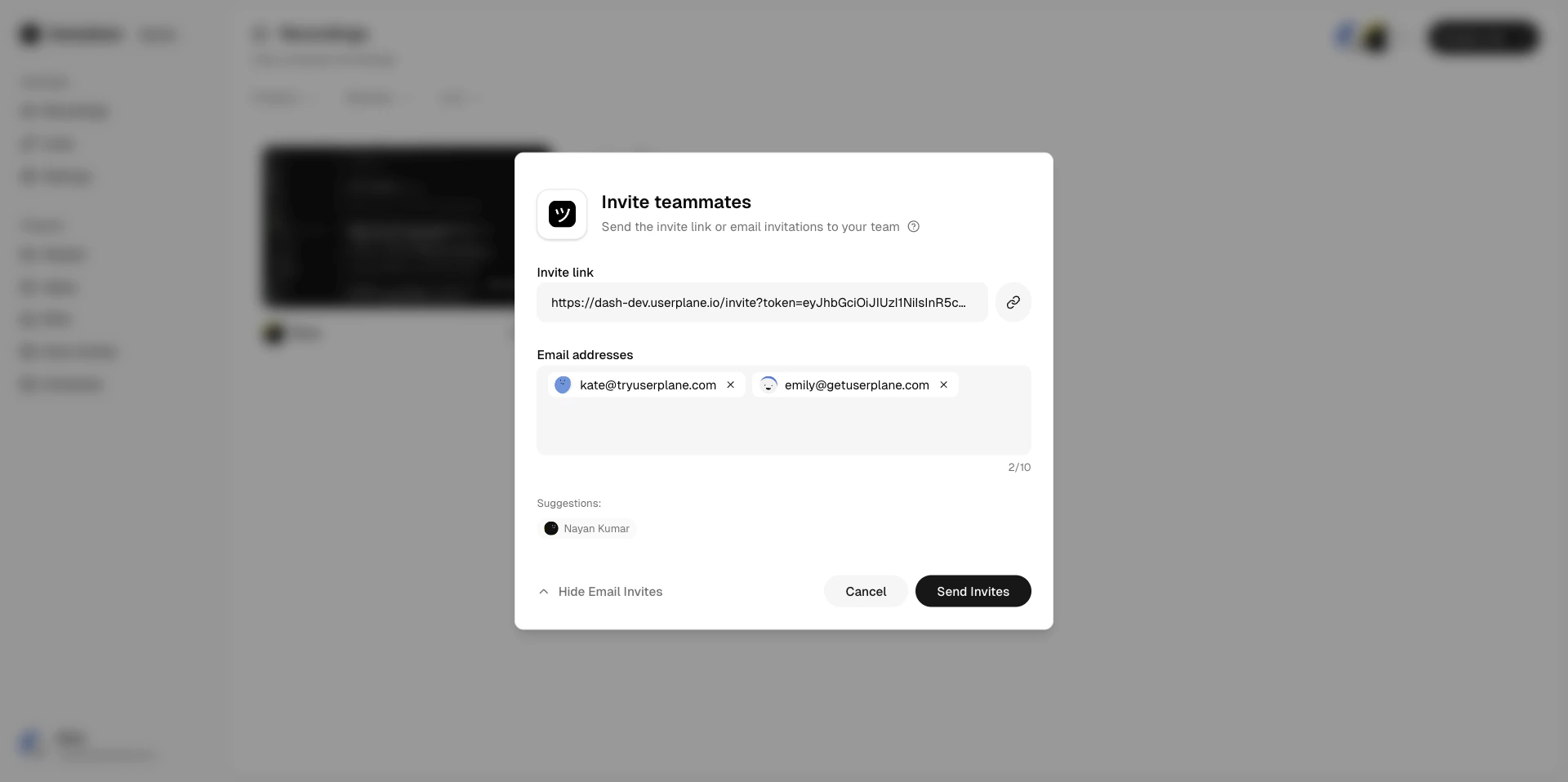 Go to [Workspace Settings > Team](https://dash.userplane.io/_/settings?tab=team) and click **Invite Member**.
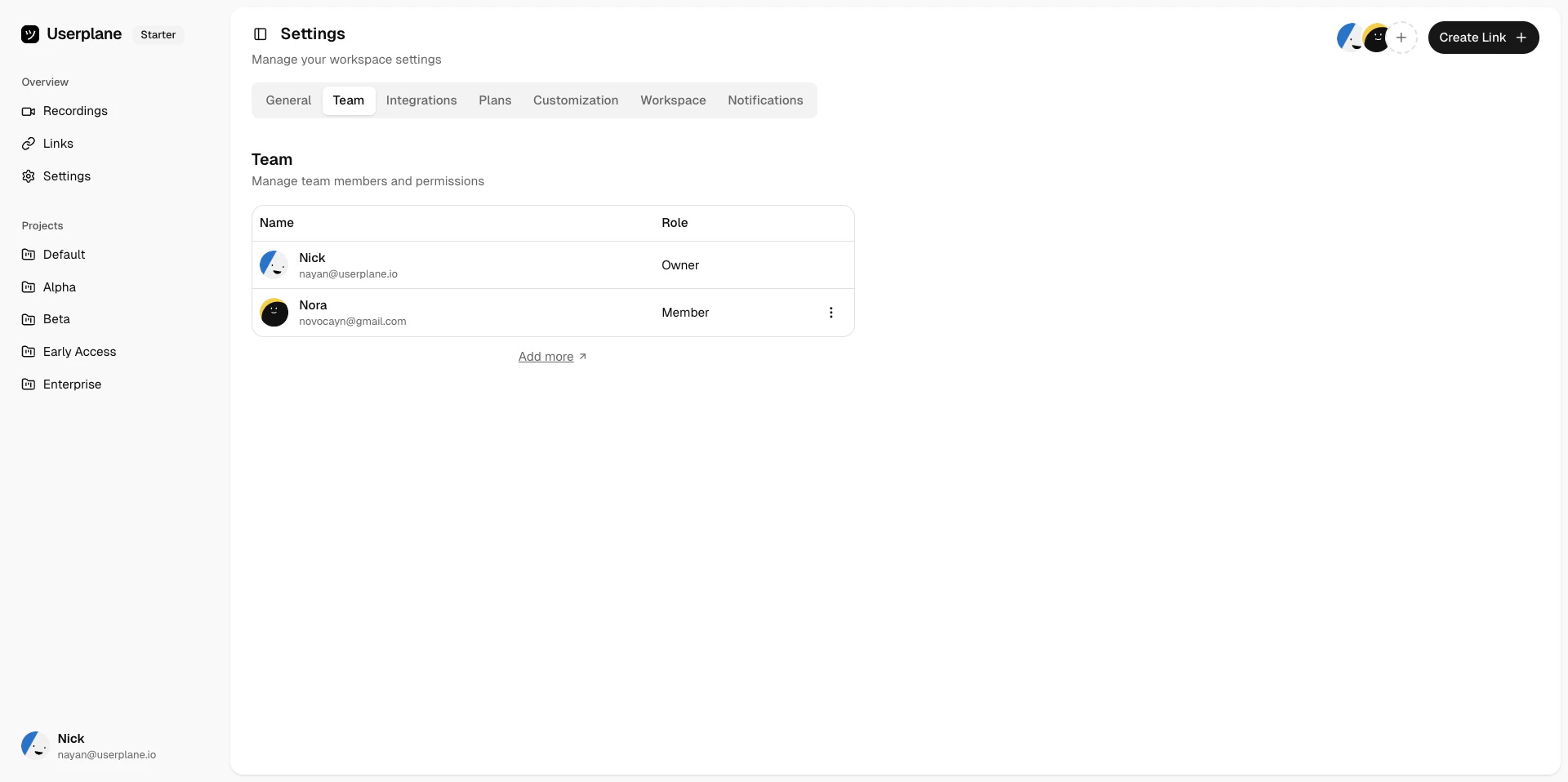 Enter the email address of the person you want to invite, then click **Send Invite**.
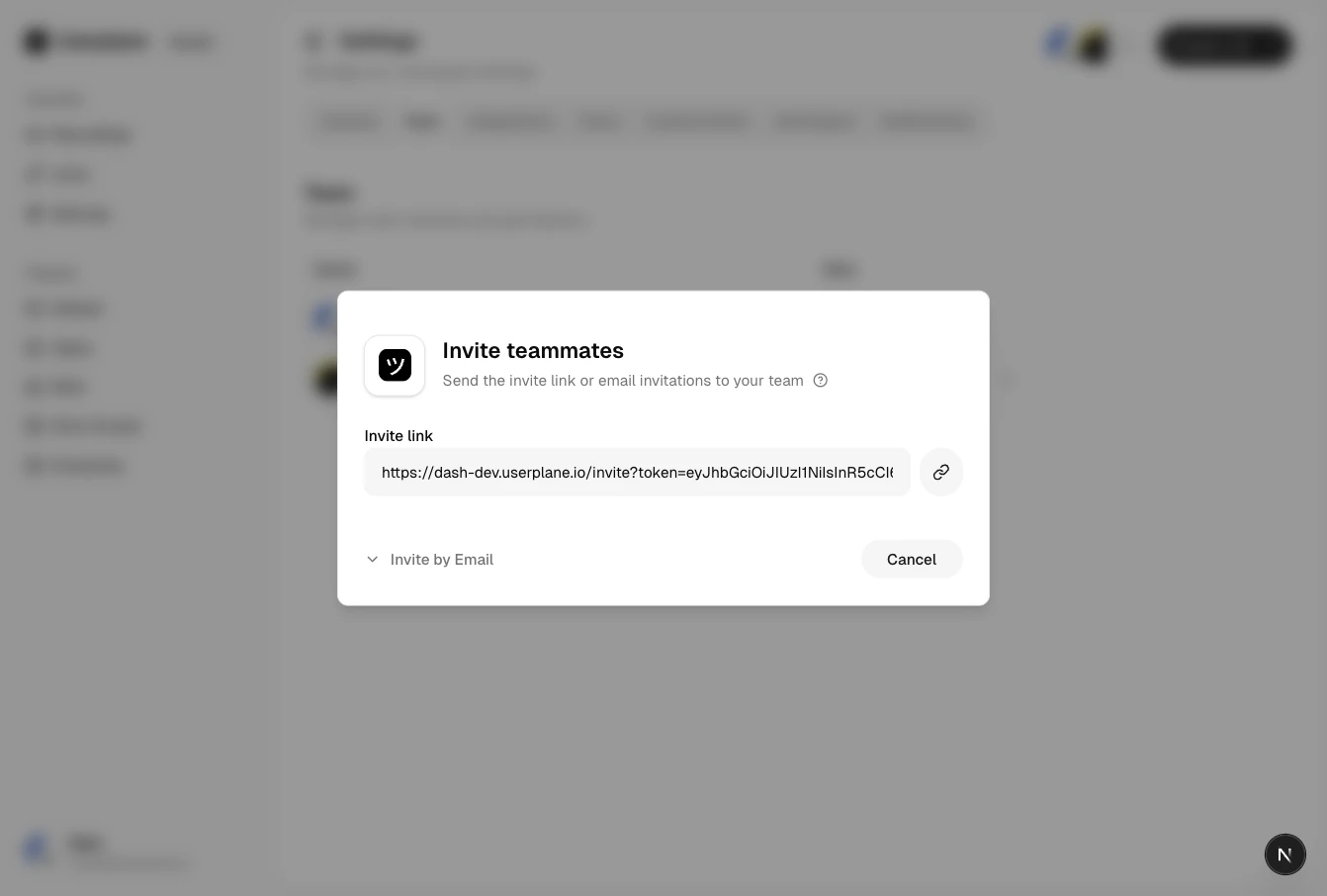 The invited person receives an email with a link to join the workspace.
Your workspace's [invite policy](/workspace/invite-policies) controls whether your workspace is
discoverable and how non-invited people can join — via direct access, email domain whitelist, or
access requests. Explicit invitations sent from this dialog work regardless of the policy.
## Changing roles
Locate the member in the team list.
Click their current role to open the role dropdown.
The invited person receives an email with a link to join the workspace.
Your workspace's [invite policy](/workspace/invite-policies) controls whether your workspace is
discoverable and how non-invited people can join — via direct access, email domain whitelist, or
access requests. Explicit invitations sent from this dialog work regardless of the policy.
## Changing roles
Locate the member in the team list.
Click their current role to open the role dropdown.
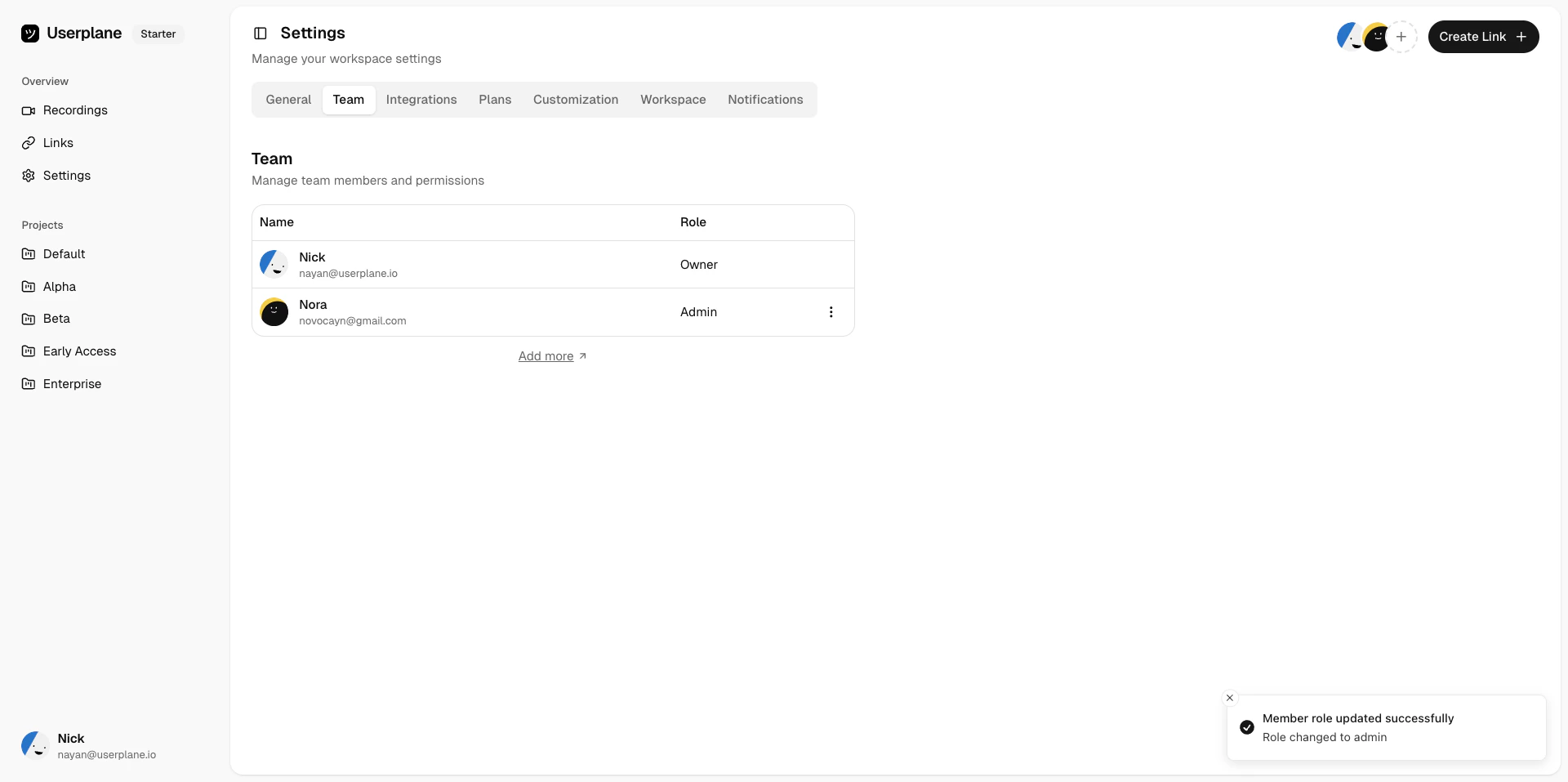
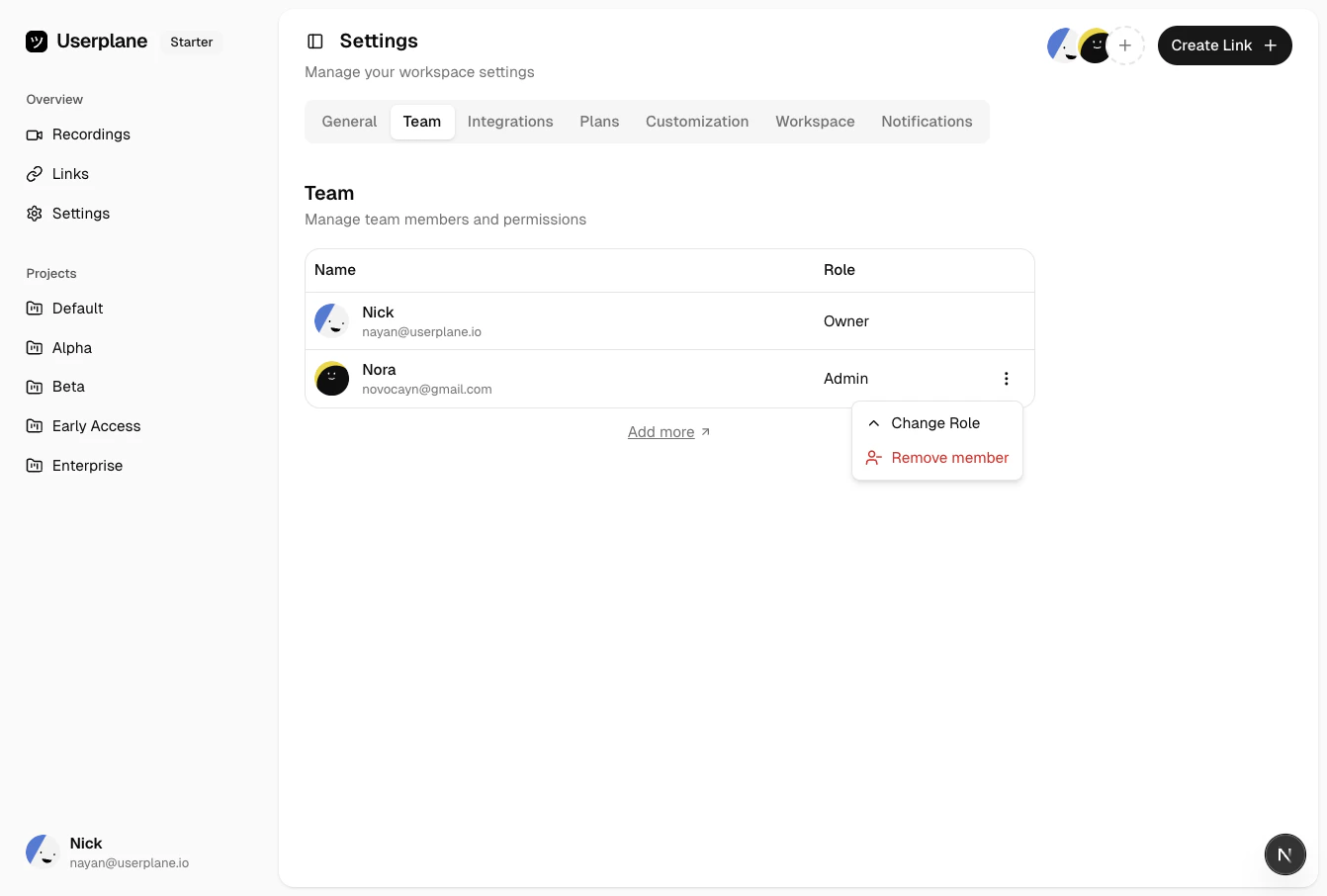 Select the new role. The change takes effect immediately.
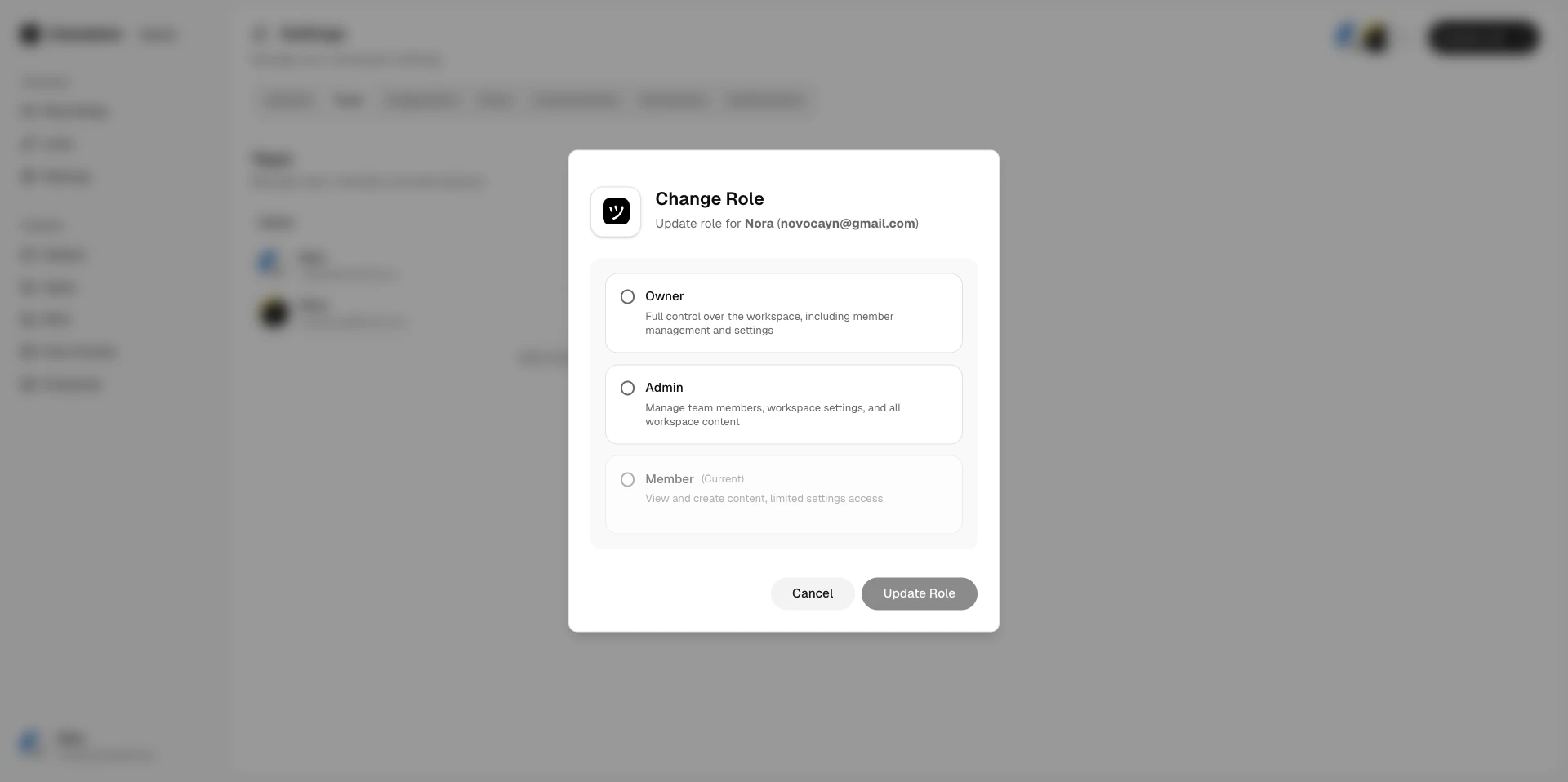
 See [Roles & Permissions](/workspace/roles-permissions) for what each role can do.
## Removing members
Locate the member in the team list.
Click the actions menu and select **Remove**.
See [Roles & Permissions](/workspace/roles-permissions) for what each role can do.
## Removing members
Locate the member in the team list.
Click the actions menu and select **Remove**.
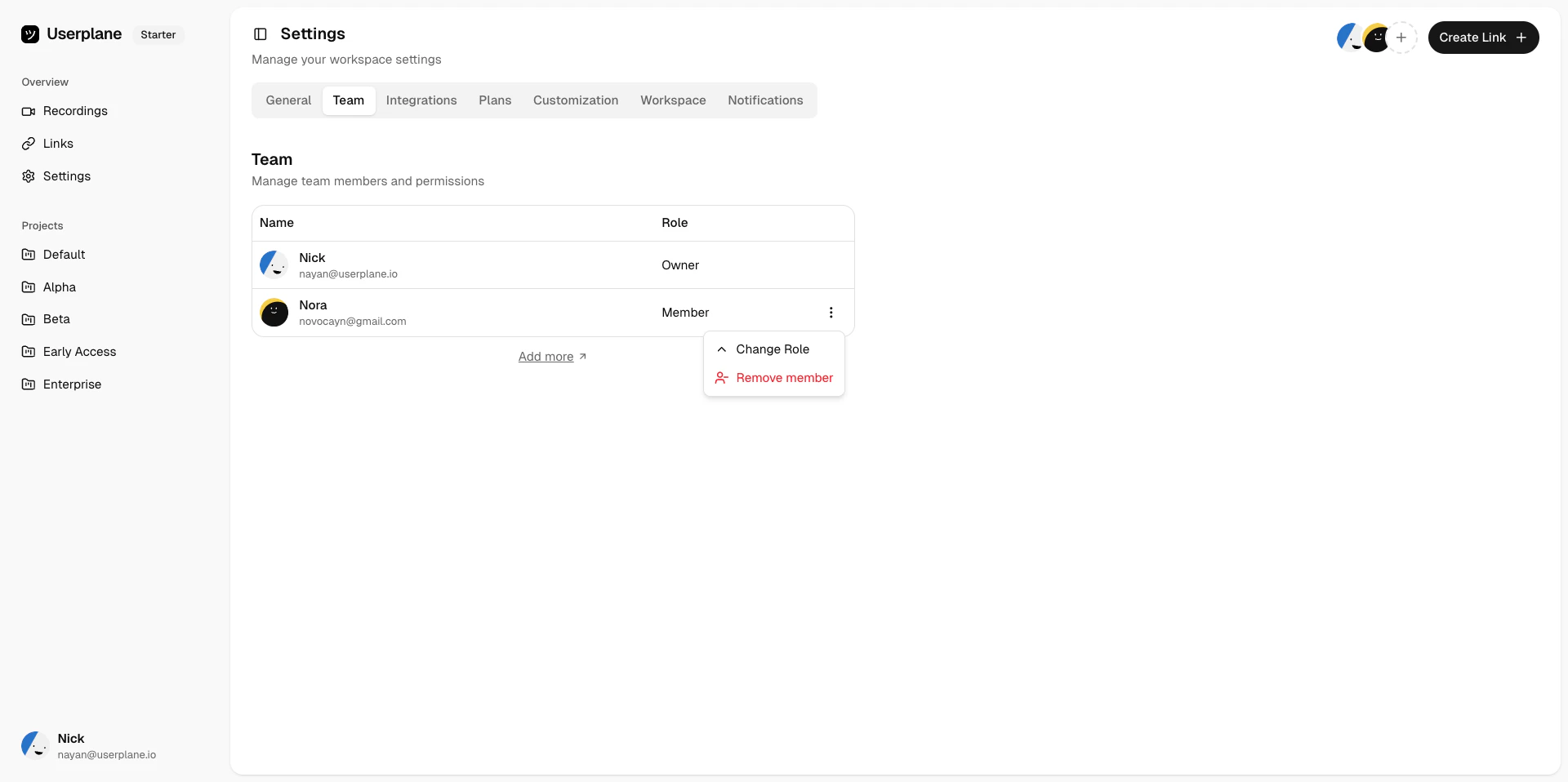 Removed members lose access to the workspace immediately. Their past recordings and links remain in the workspace.
## Seat limits and add-ons
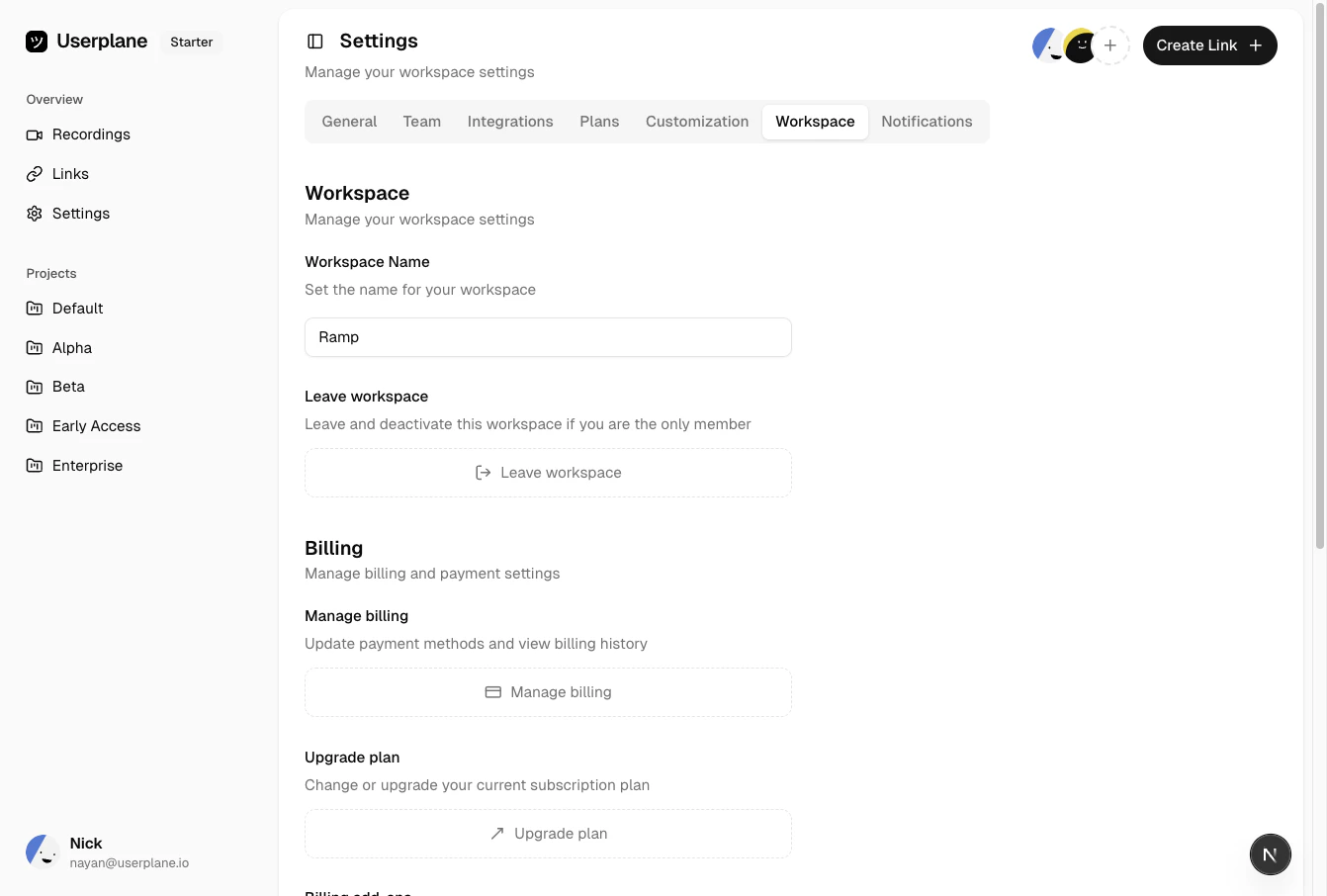
Each plan includes a set number of seats. If your workspace reaches its seat limit, you can purchase additional seats without upgrading your plan. See [Seat Add-Ons](/billing/seat-add-ons) for full details.
Go to [Workspace Settings > Billing](https://dash.userplane.io/_/settings?tab=workspace).
Removed members lose access to the workspace immediately. Their past recordings and links remain in the workspace.
## Seat limits and add-ons
Each plan includes a set number of seats. If your workspace reaches its seat limit, you can purchase additional seats without upgrading your plan. See [Seat Add-Ons](/billing/seat-add-ons) for full details.
Go to [Workspace Settings > Billing](https://dash.userplane.io/_/settings?tab=workspace).
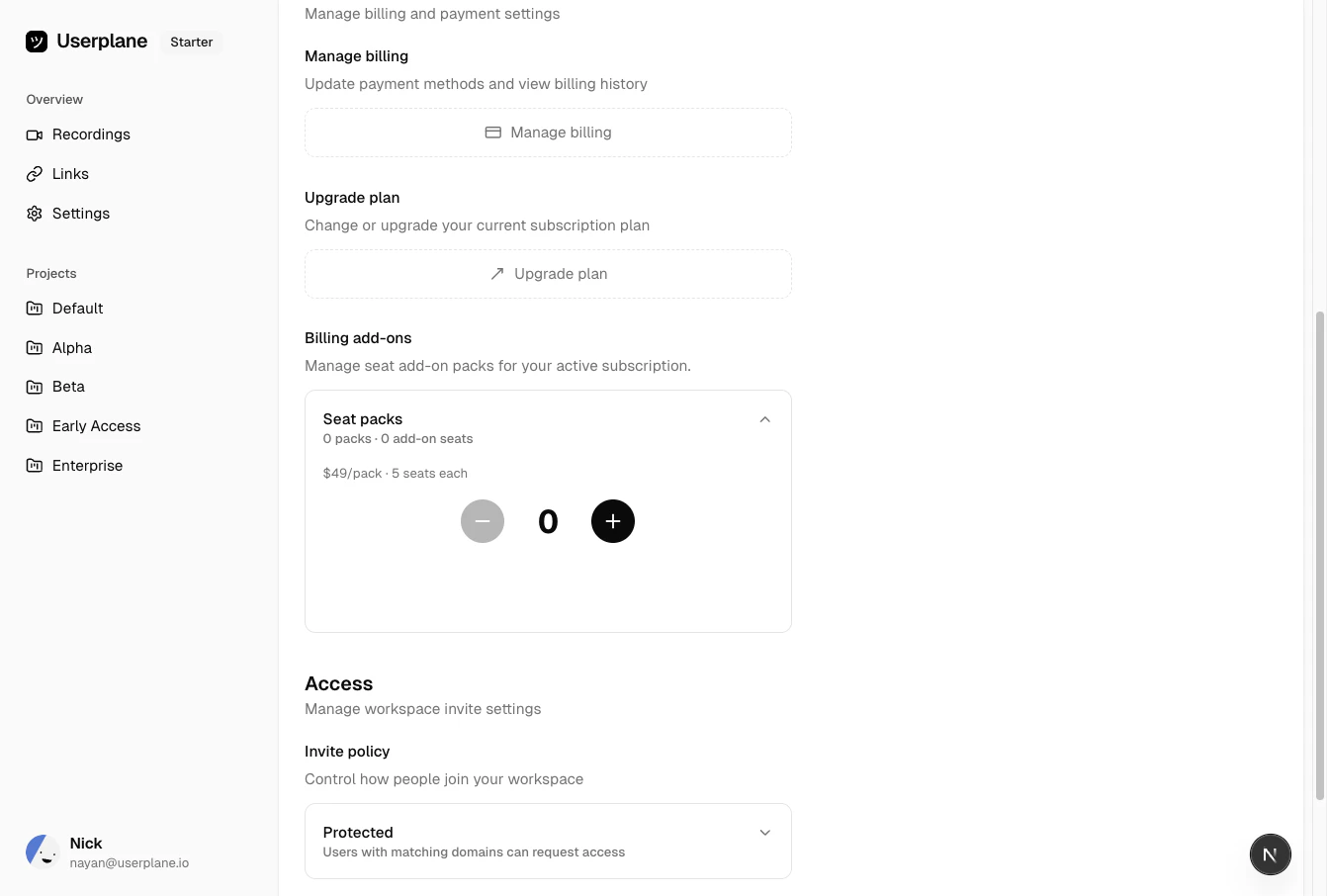
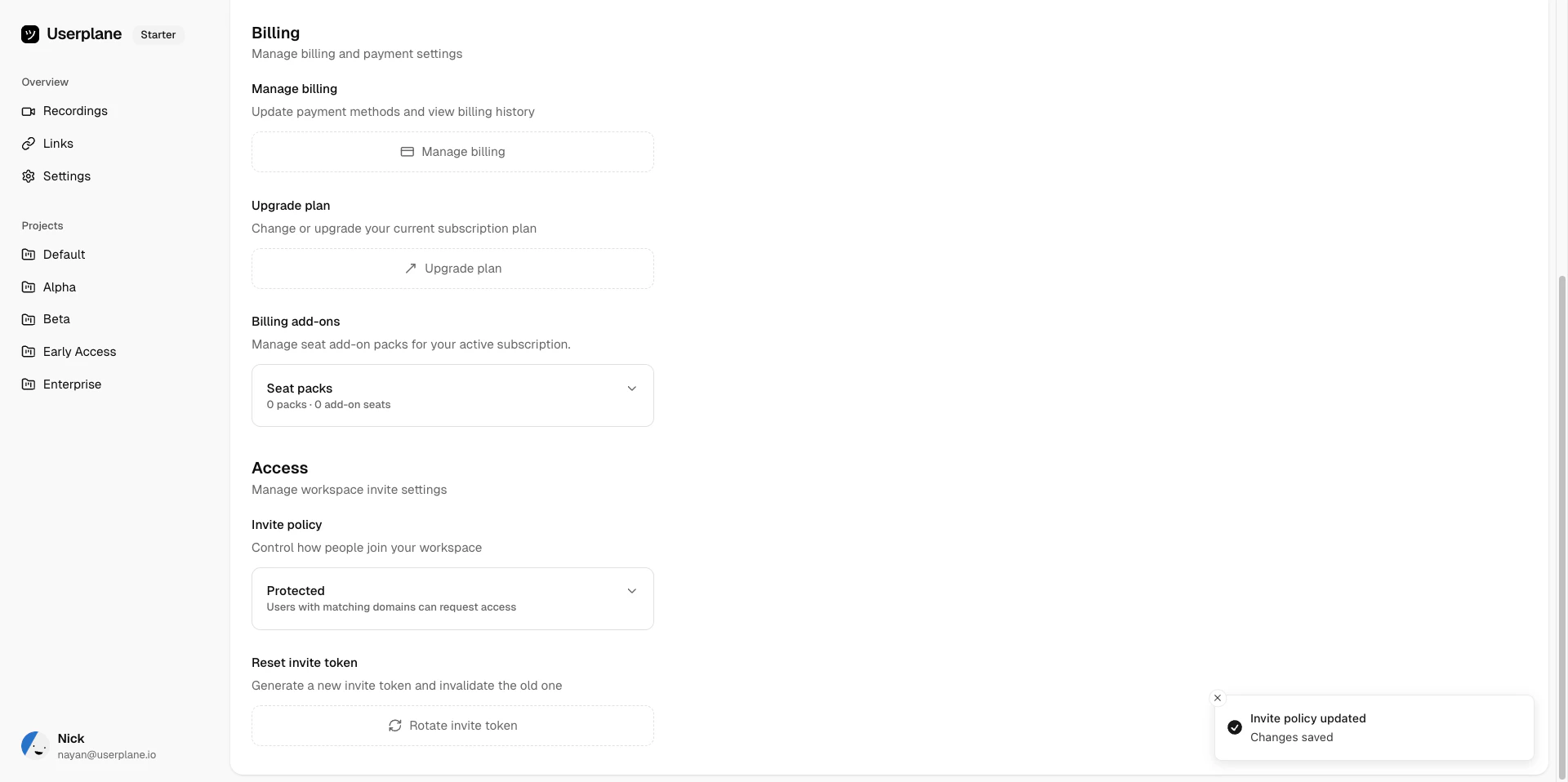 Locate the **Seats** add-on section in your billing settings.
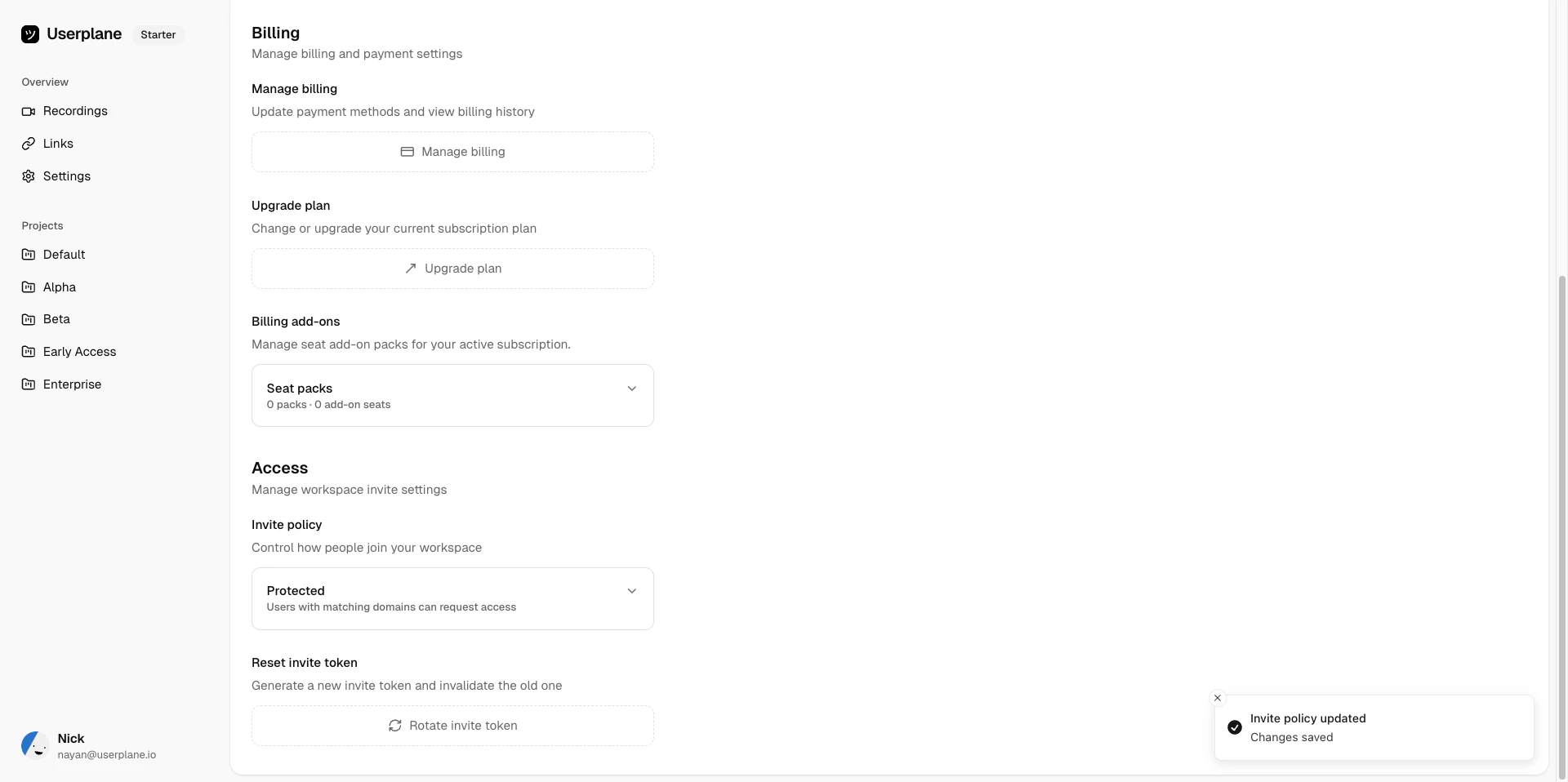 Click **Add Seats**, choose how many additional seats you need, and complete the purchase. The extra seats are available immediately.
 ## Related articles
* [Invite Policies](/workspace/invite-policies) — control how new members join.
* [Roles & Permissions](/workspace/roles-permissions) — what each role can do.
* [Access Management](/workspace/access-management) — approve or decline access requests.
## Related articles
* [Invite Policies](/workspace/invite-policies) — control how new members join.
* [Roles & Permissions](/workspace/roles-permissions) — what each role can do.
* [Access Management](/workspace/access-management) — approve or decline access requests.