> ## Documentation Index
> Fetch the complete documentation index at: https://docs.userplane.io/llms.txt
> Use this file to discover all available pages before exploring further.
# Workspace Lifecycle
> Join, leave, delete, and restore workspaces
This article covers the major lifecycle events for a workspace — joining, leaving, deleting, and restoring.
## Joining a workspace
How you join a workspace depends on the workspace's [invite policy](/workspace/invite-policies):
* **Private** — you need a direct invitation from an owner or admin.
* **Whitelisted** — if your email domain is whitelisted, you can join directly.
* **Protected** — if your email domain matches, you can request access. An owner must approve your request within **7 days**.
## Leaving a workspace
Any member can leave a workspace from their account settings. See [Leaving a Workspace](/account/leaving-workspace) for details.
If you are the workspace owner, you must transfer ownership to another member before you can
leave. A workspace must always have an owner.
## Deleting a workspace
Only the workspace **owner** can delete a workspace. Deletion is a soft delete with a 30-day
restoration window — after that, all data is permanently removed.
Go to [Workspace Settings > General](https://dash.userplane.io/_/settings?tab=workspace).
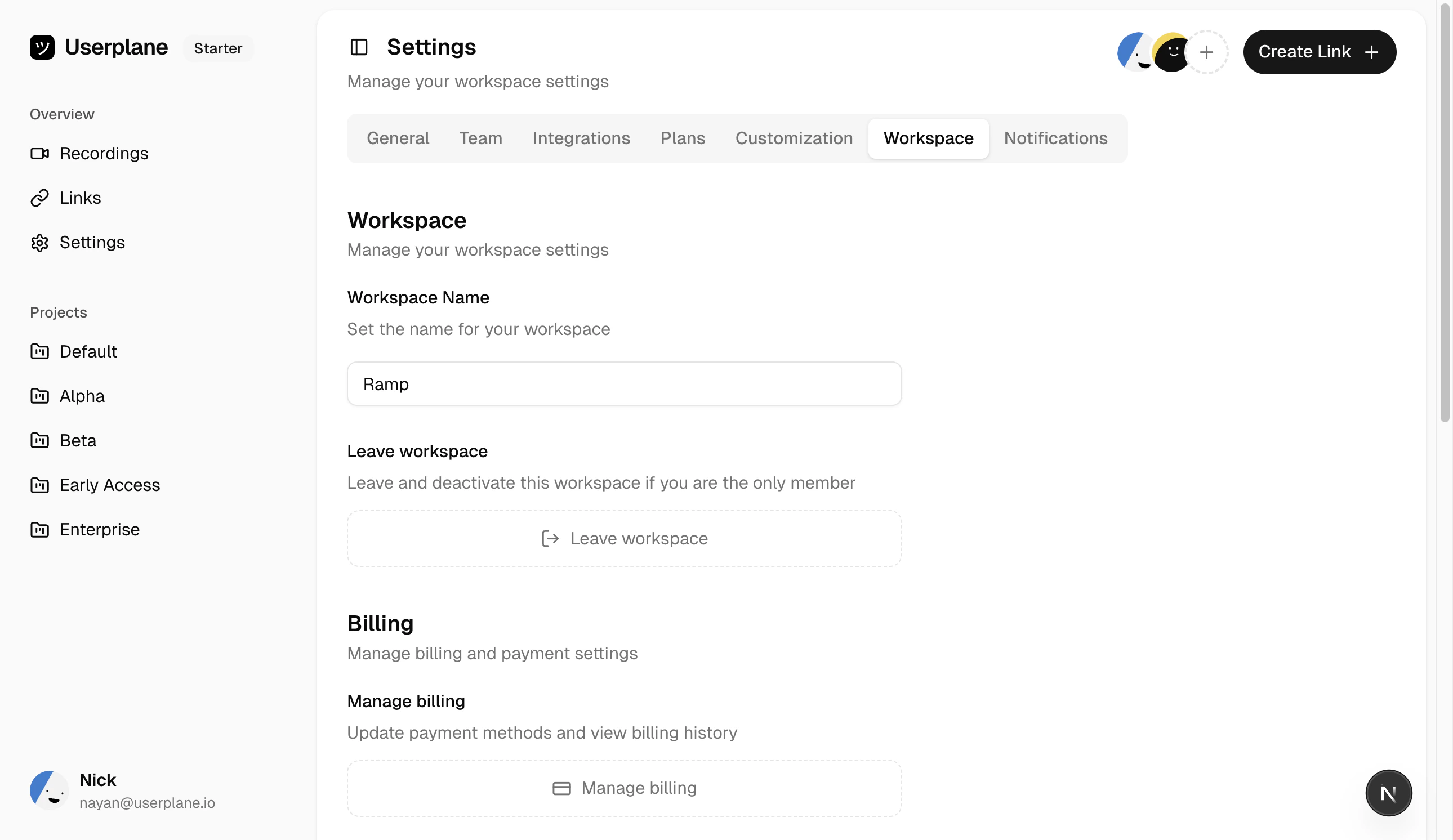 Scroll to the bottom of the page to find the danger zone section.
Click **Delete Workspace** and confirm.
Deleting a workspace is a **soft delete**. All workspace data (projects, recordings, links, domains, members) is marked as deleted but retained temporarily.
## Restoration windows
| Time since deletion | Restoration type |
| ------------------- | ------------------------------------------------------------------------------------------------------------------- |
| **0–3 days** | **Full restoration** — the workspace and all data are fully restored. |
| **3–30 days** | **Partial restoration** — the workspace is restored but some data (recordings, files) may no longer be recoverable. |
| **30+ days** | **No restoration** — the workspace and all data are permanently removed. |
## Restoring a workspace
If the workspace was deleted within the restoration window, contact the workspace owner to initiate restoration from their account.
## Updating workspace details
Owners can update workspace details from [Workspace Settings > General](https://dash.userplane.io/_/settings?tab=workspace):
* **Workspace name** — visible to members and in invitations.
## Workspace creation limits
Each user can create up to **3 workspaces per year** (rolling 365-day window).
Scroll to the bottom of the page to find the danger zone section.
Click **Delete Workspace** and confirm.
Deleting a workspace is a **soft delete**. All workspace data (projects, recordings, links, domains, members) is marked as deleted but retained temporarily.
## Restoration windows
| Time since deletion | Restoration type |
| ------------------- | ------------------------------------------------------------------------------------------------------------------- |
| **0–3 days** | **Full restoration** — the workspace and all data are fully restored. |
| **3–30 days** | **Partial restoration** — the workspace is restored but some data (recordings, files) may no longer be recoverable. |
| **30+ days** | **No restoration** — the workspace and all data are permanently removed. |
## Restoring a workspace
If the workspace was deleted within the restoration window, contact the workspace owner to initiate restoration from their account.
## Updating workspace details
Owners can update workspace details from [Workspace Settings > General](https://dash.userplane.io/_/settings?tab=workspace):
* **Workspace name** — visible to members and in invitations.
## Workspace creation limits
Each user can create up to **3 workspaces per year** (rolling 365-day window).