

1
Open key options
Navigate to Account Settings, find the key you want to rotate, and click the three-dot menu. Select Rotate Key.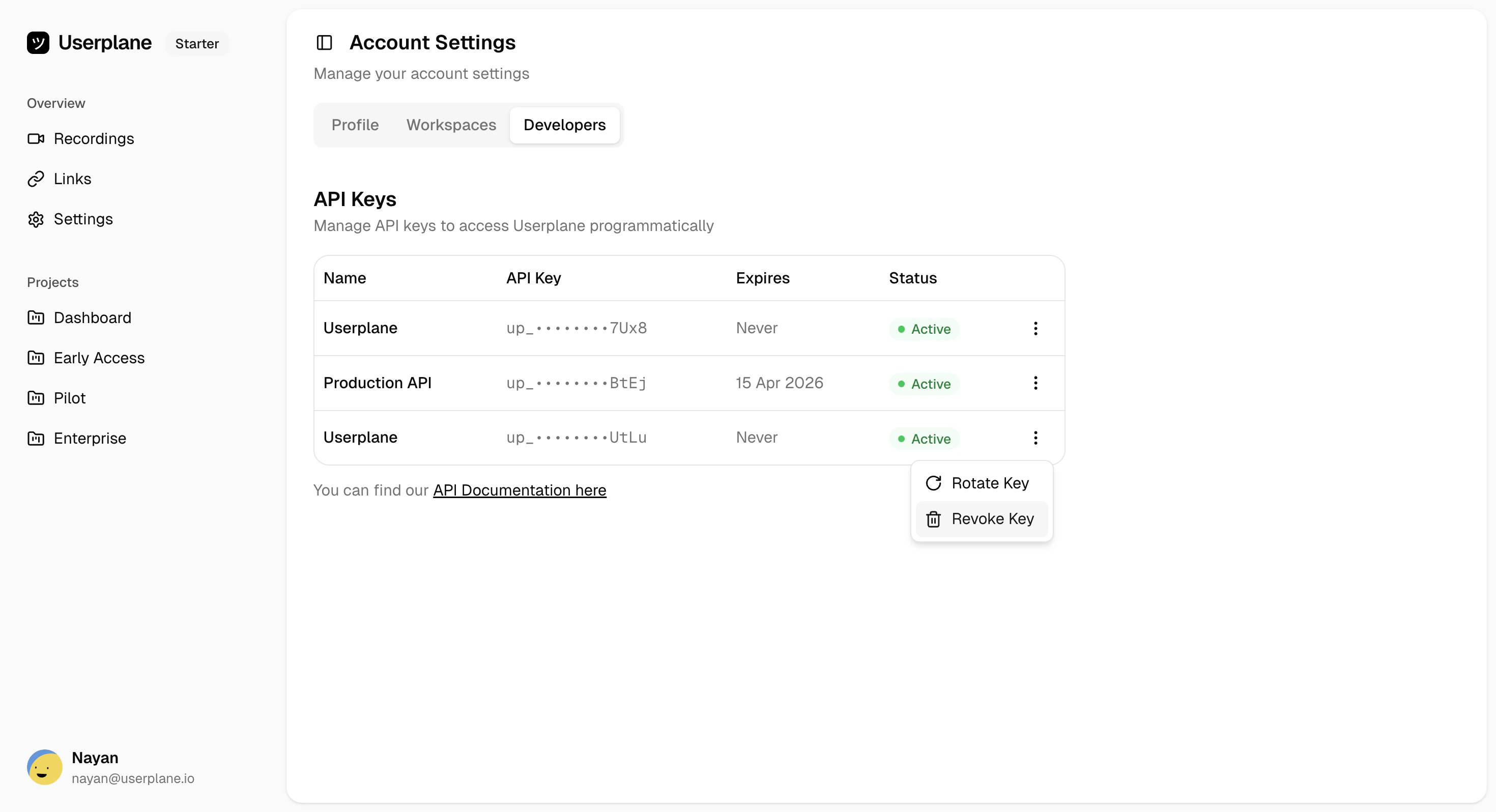
2
Configure the new key
In the rotation dialog, configure your replacement key: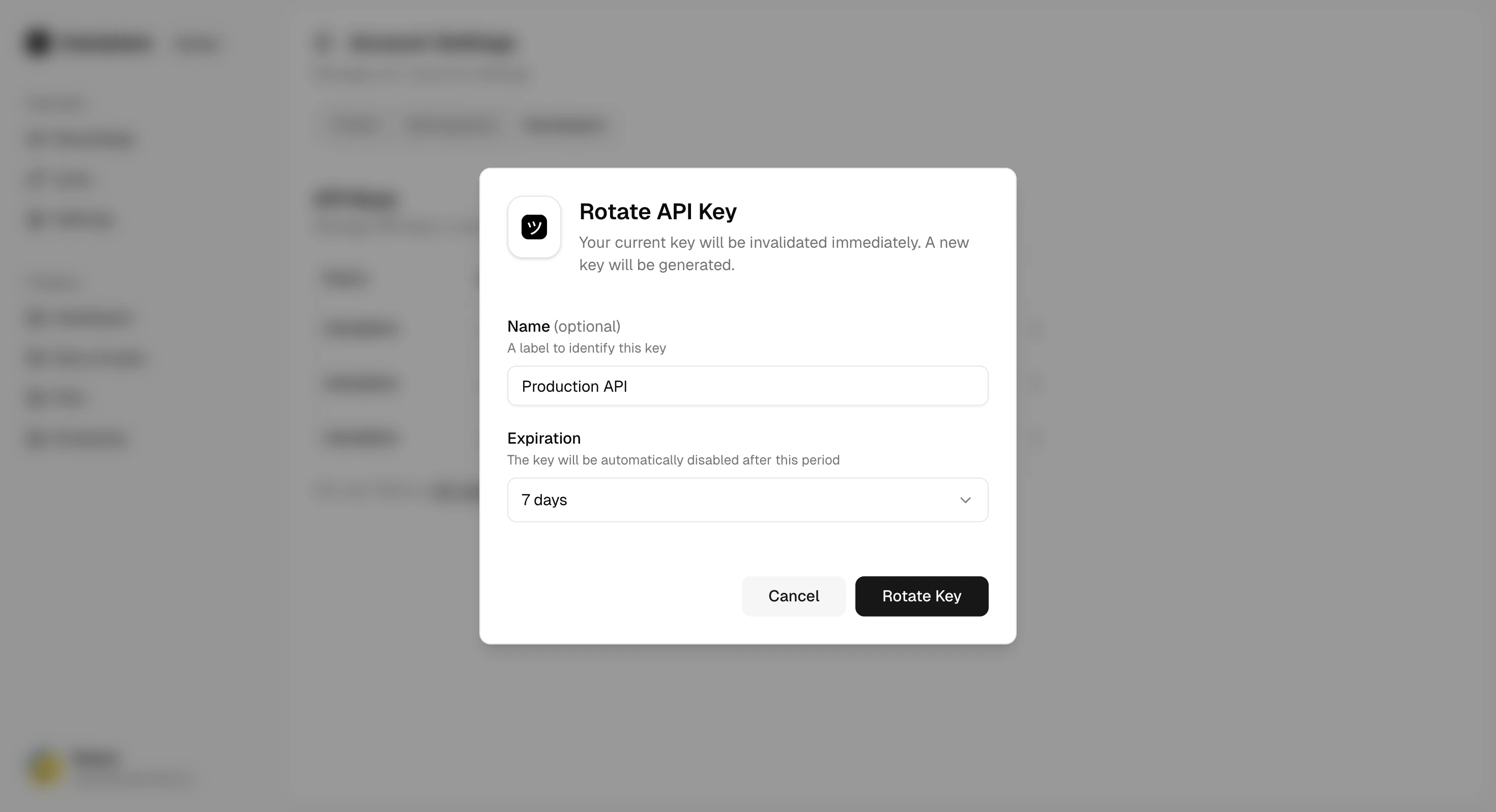
- Name (optional) — A label to identify the new key
- Expiration — Choose from: No expiration, 7 days, 30 days, 60 days, or 90 days
3
Copy the new key
The old key is immediately invalidated. Your new key is displayed in the success dialog.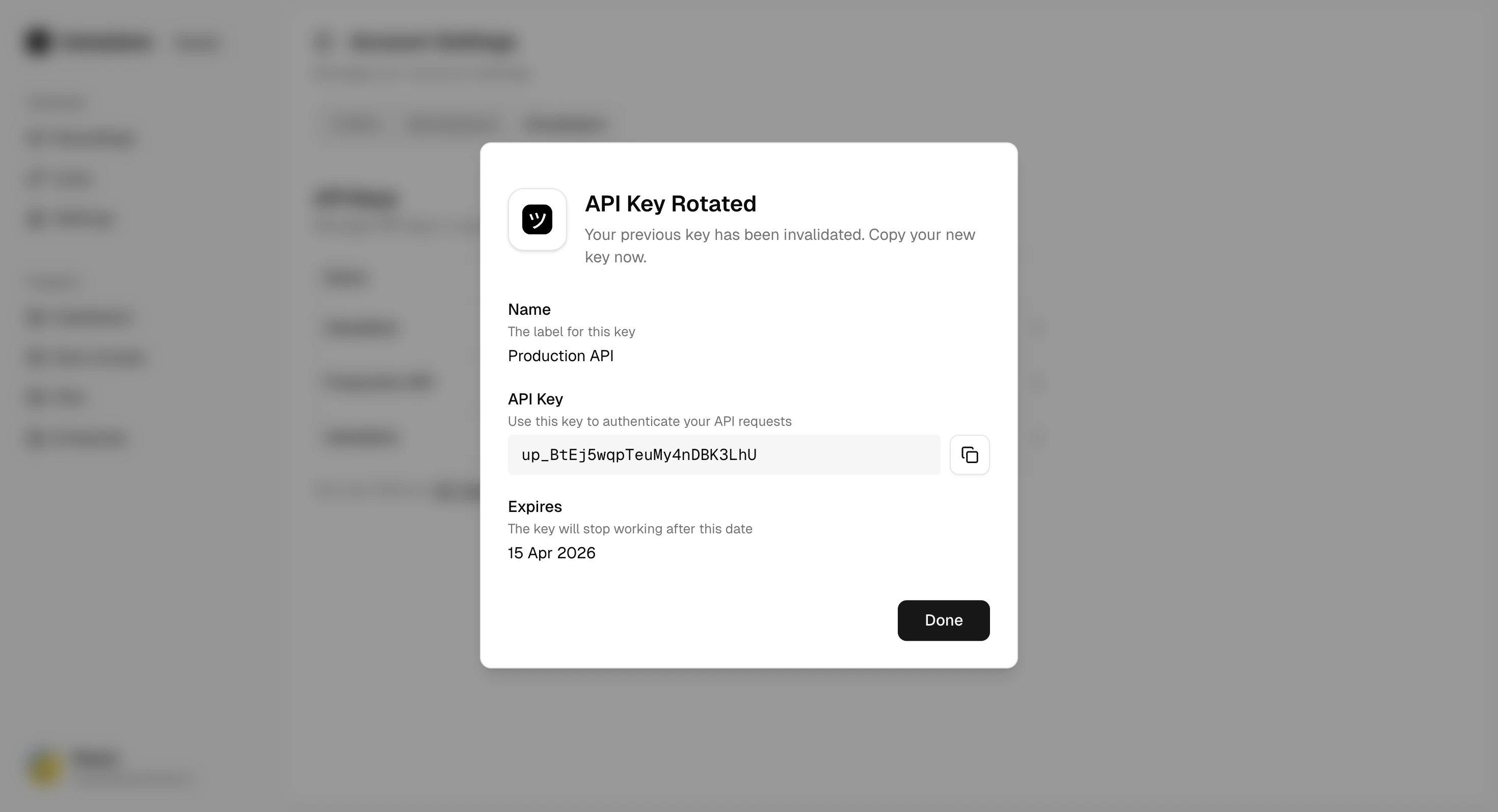
What happens during rotation
- The old key is permanently invalidated — any requests using it will immediately return
401 API_KEY_INVALID - A new key is generated with the prefix
uspl_and the configuration you specified - The new key counts toward your 3-key limit (the old key no longer counts)
To avoid downtime, update your integration with the new key before the rotation takes effect.
Consider using environment variables or a secret manager so key updates require only one change.
Related
Revoke API Key
Permanently delete a key without replacement
Manage API Keys
View all your keys and their status
Create API Key
Create a new key from scratch
Best Practices
Plan for key rotation with zero downtime