

What the integration does
- Installs a sidebar app in the Intercom inbox for creating links and viewing recordings.
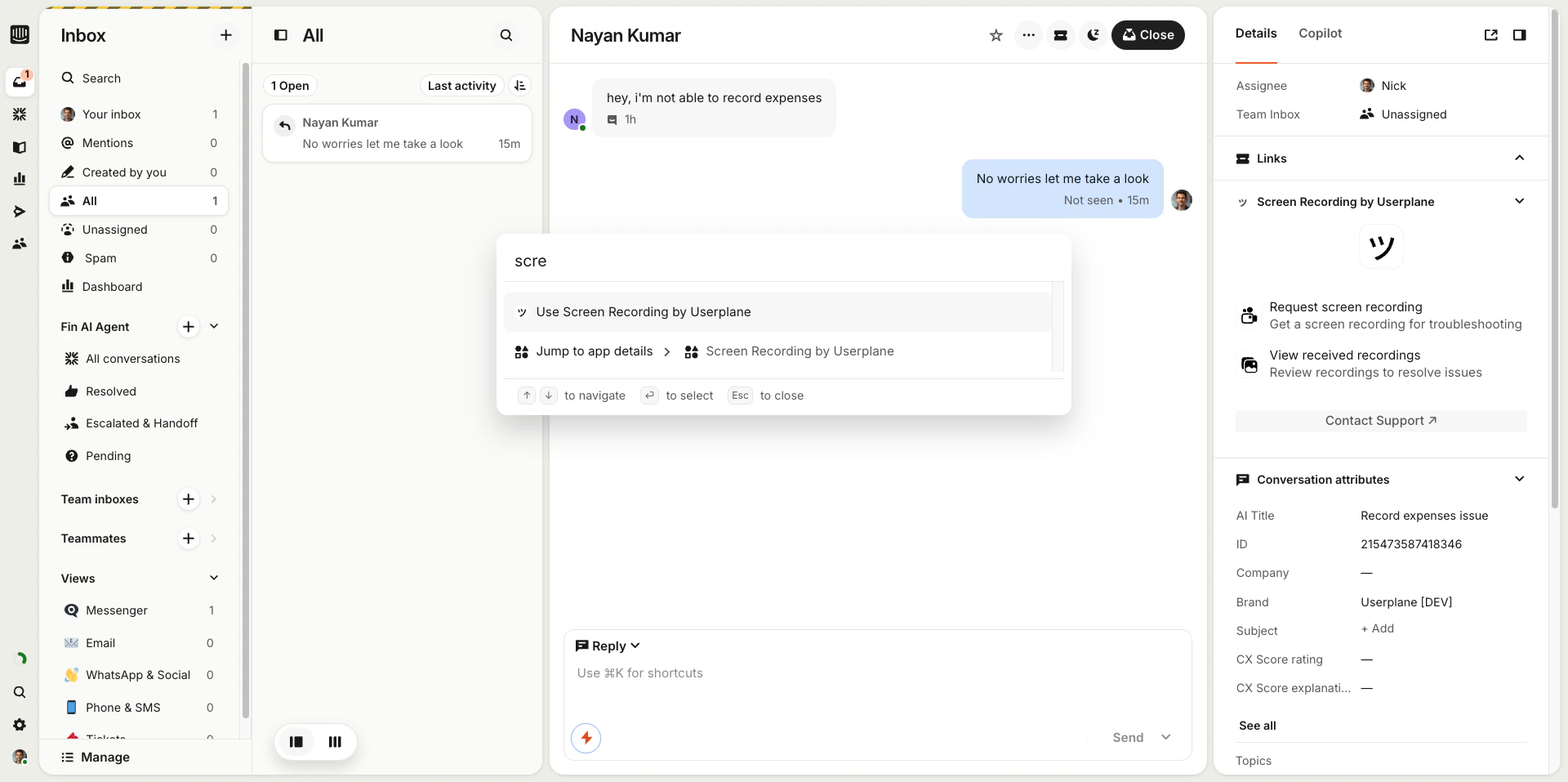
- Adds a Cmd+K shortcut so agents can type “Userplane” in the action menu to create recording links without navigating away from a conversation.
- Associates recordings with Intercom conversations automatically.
- Posts an admin note to the conversation when a customer completes a recording.
- Supports using reusable recording links in Intercom macros.
Connecting Intercom
There are two ways to connect Userplane to Intercom:Only workspace owners and admins can connect the integration.
- From Intercom Marketplace
- From Workspace Settings
Install Userplane from the Intercom App Store, then create a new workspace during the authorization flow.
1
Install from Intercom
Find Userplane in the Intercom App Store and click Install.
2
Create a workspace
You’ll be prompted to create a new Userplane workspace as part of the setup.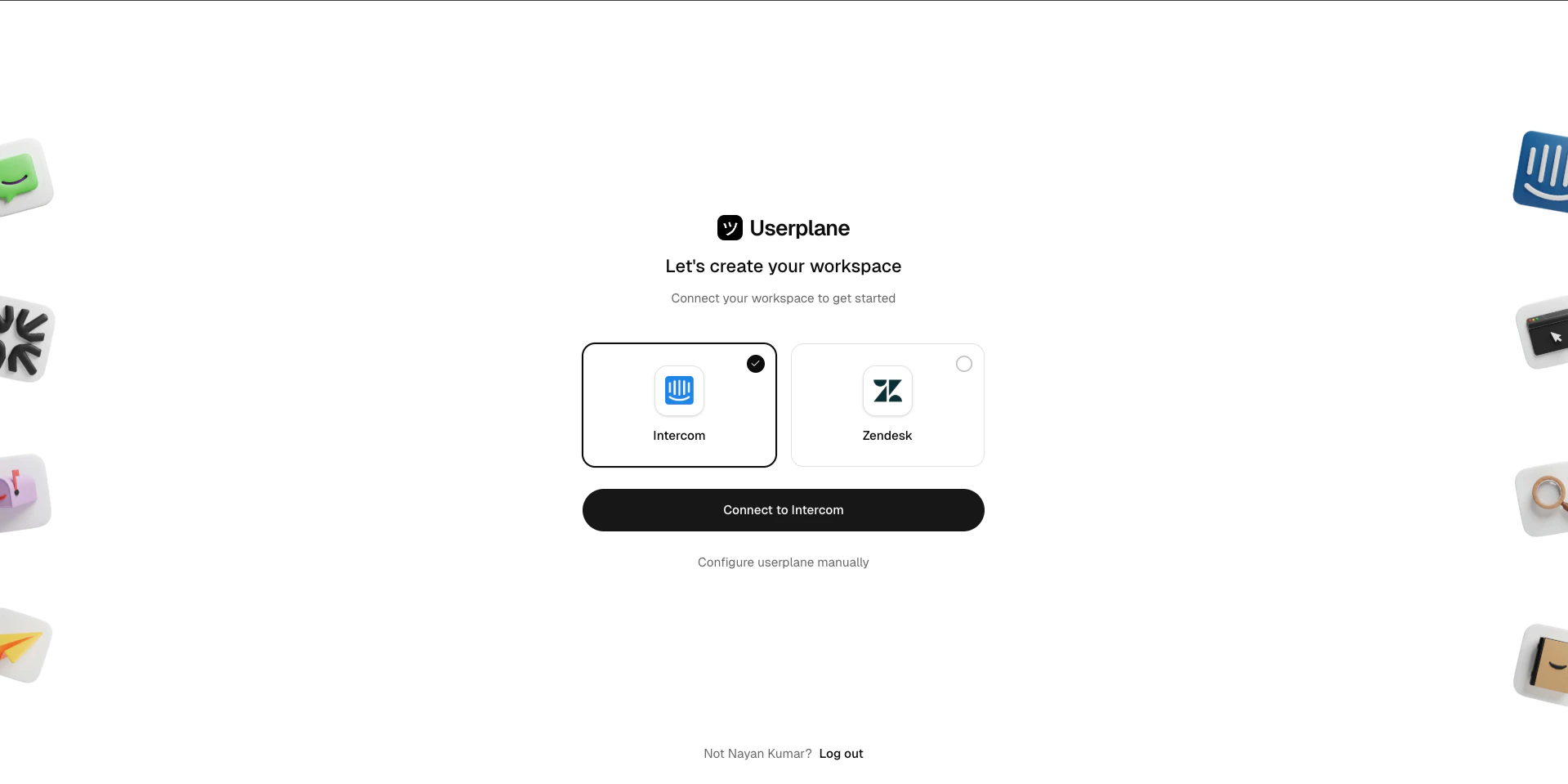
Connect to Intercom
3
Authorize
Authorize the connection in Intercom. Userplane requests permissions to read conversations and manage the inbox sidebar app.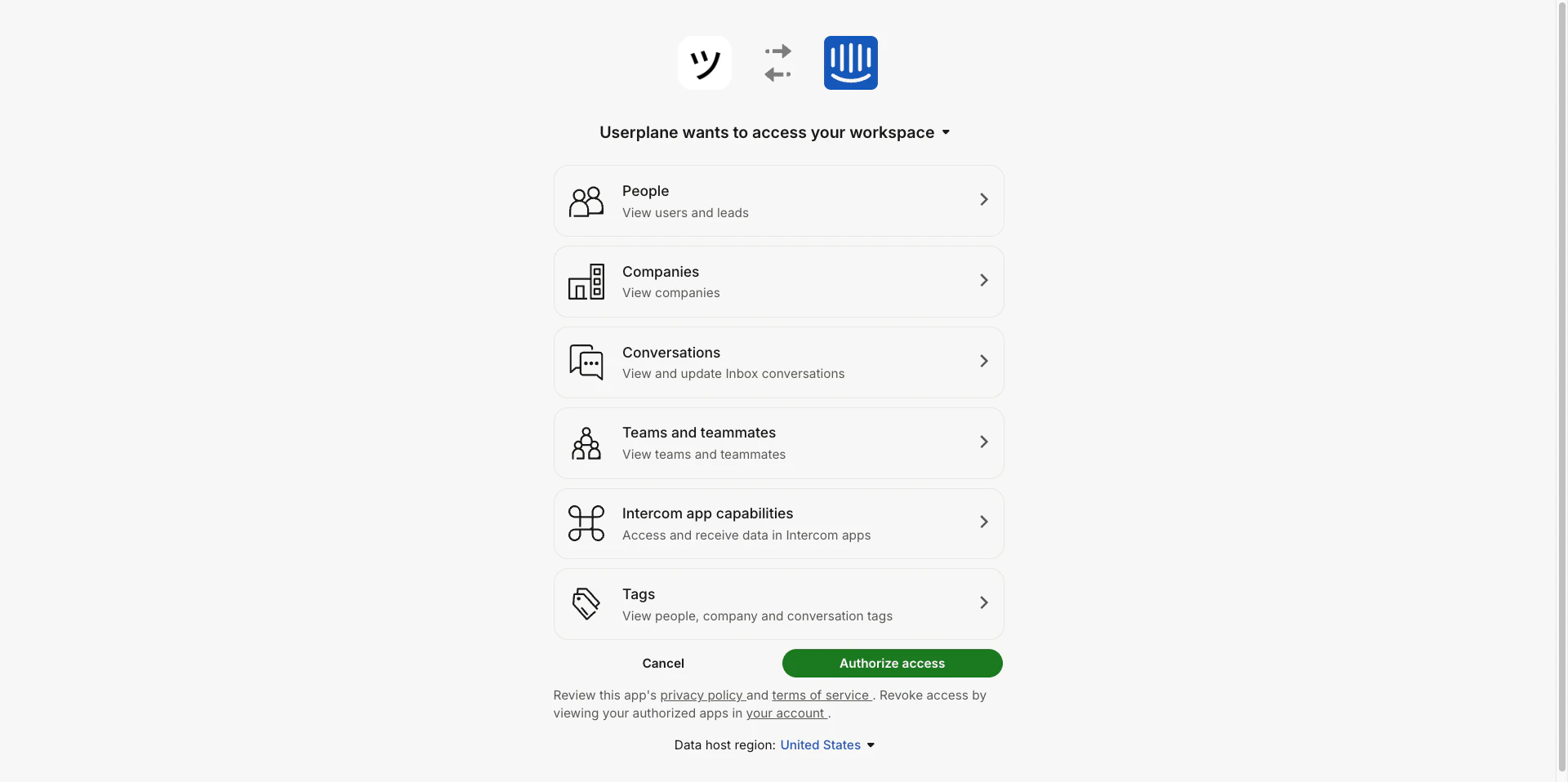
Authorize Intercom connection
4
Authorization complete
After authorization, your Intercom workspace is connected to Userplane.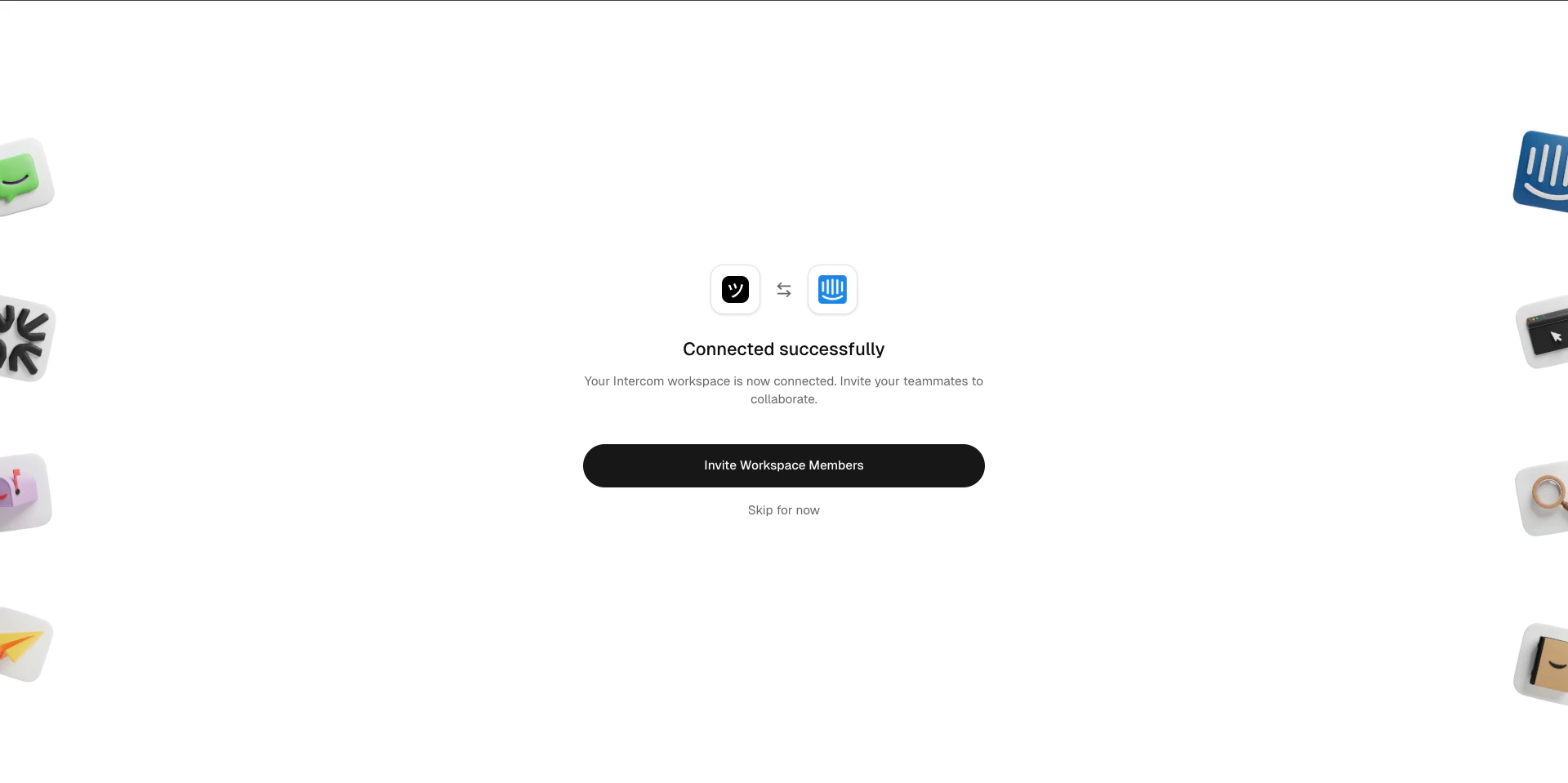
Authorization successful
5
Invite teammates
Invite your support team to the Userplane workspace so they can use the integration.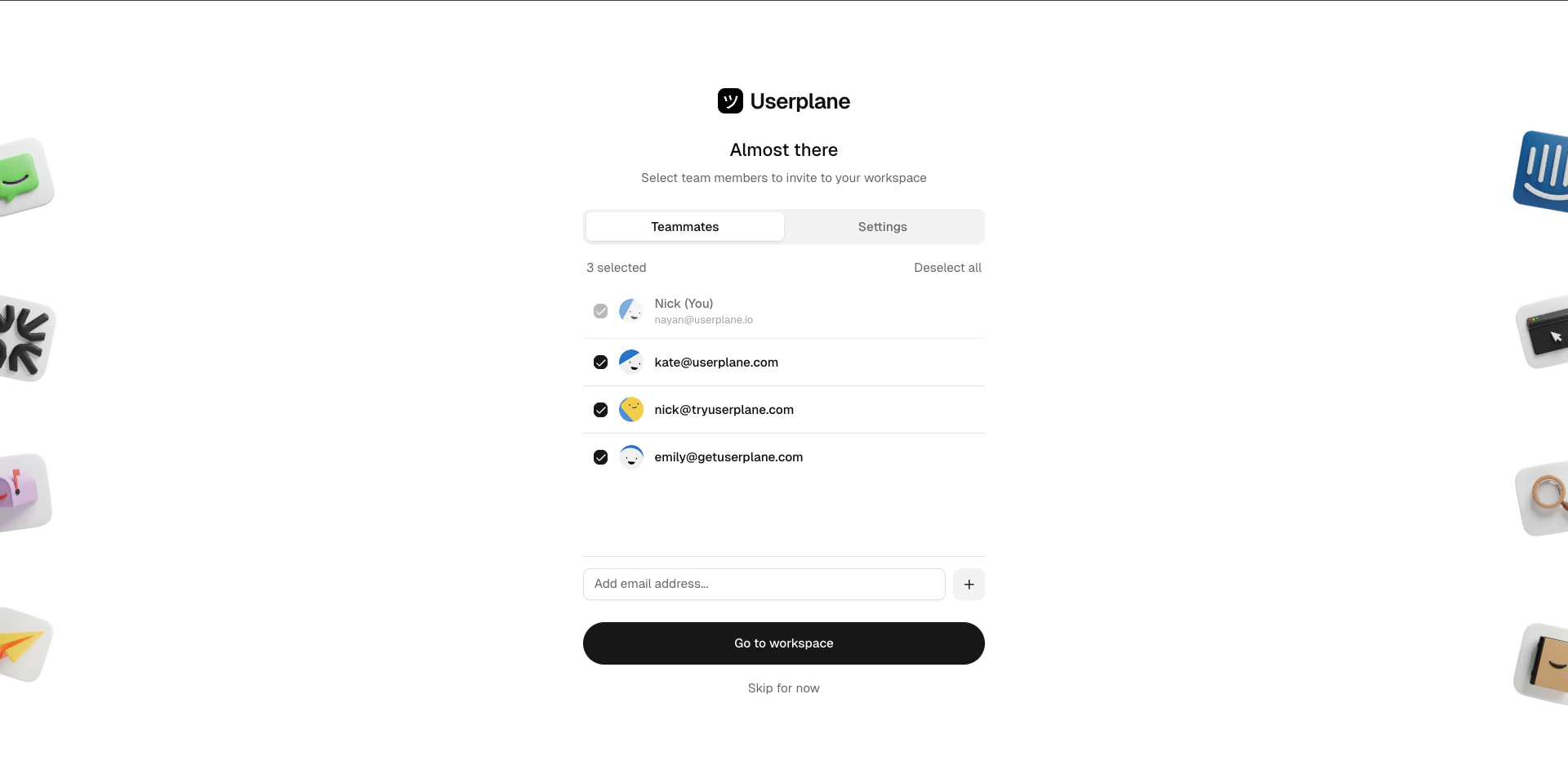
Invite teammates
6
Review your setup
Confirm the integration is connected in your workspace settings.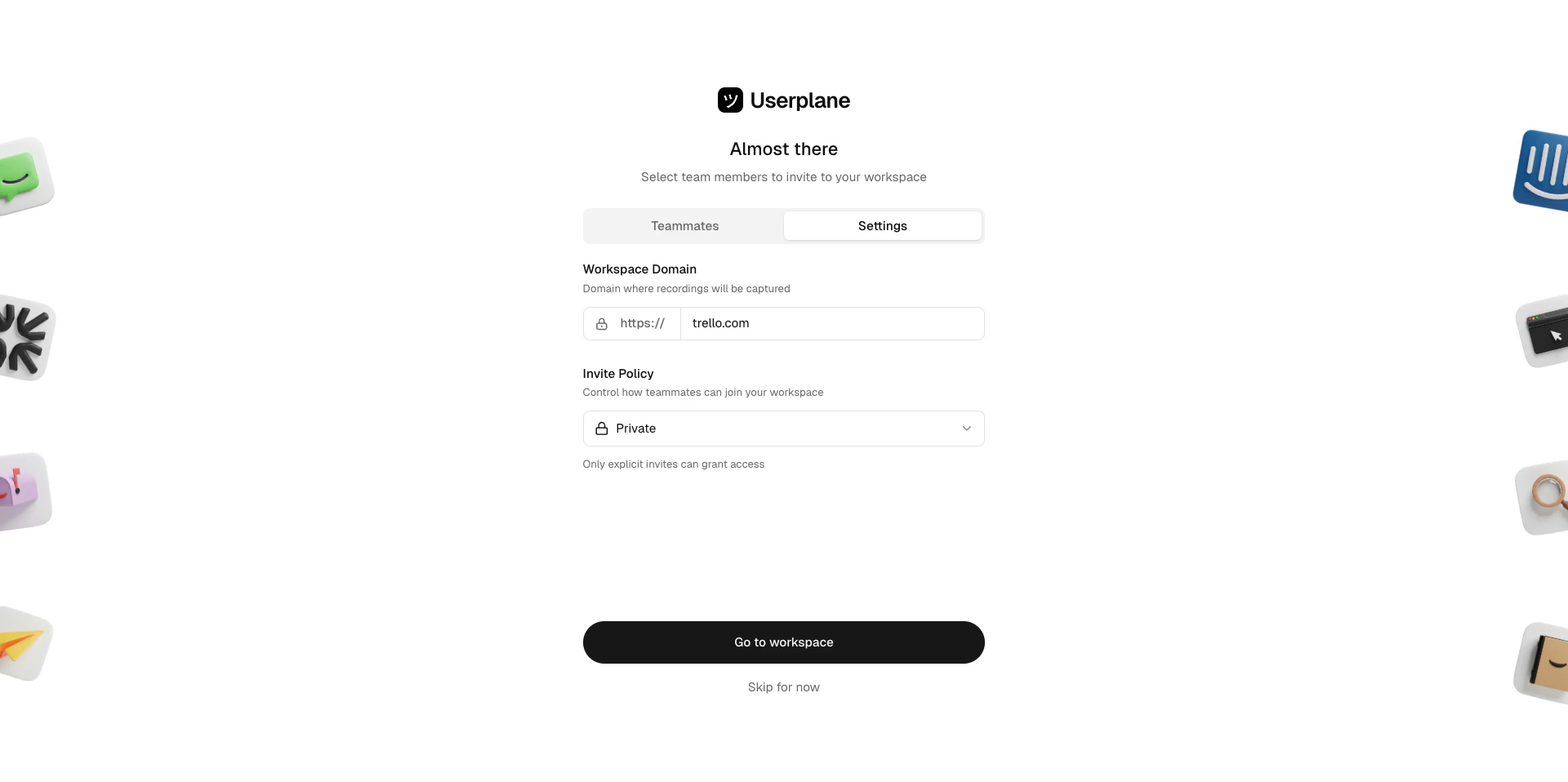
Integration connected
7
Start using the integration
The Userplane app is now available in your Intercom inbox via the sidebar and macros.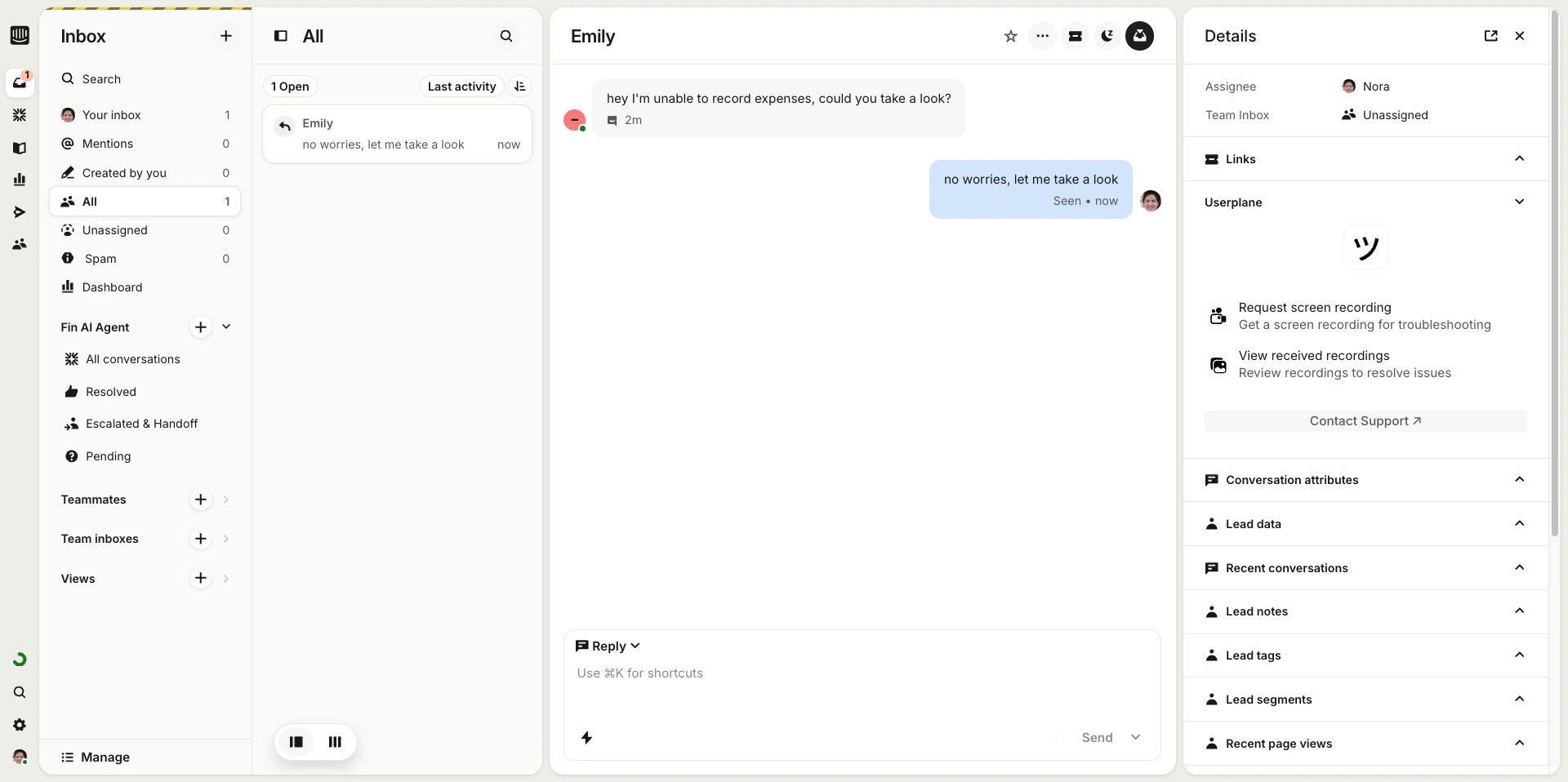
- Macros
Intercom sidebar app
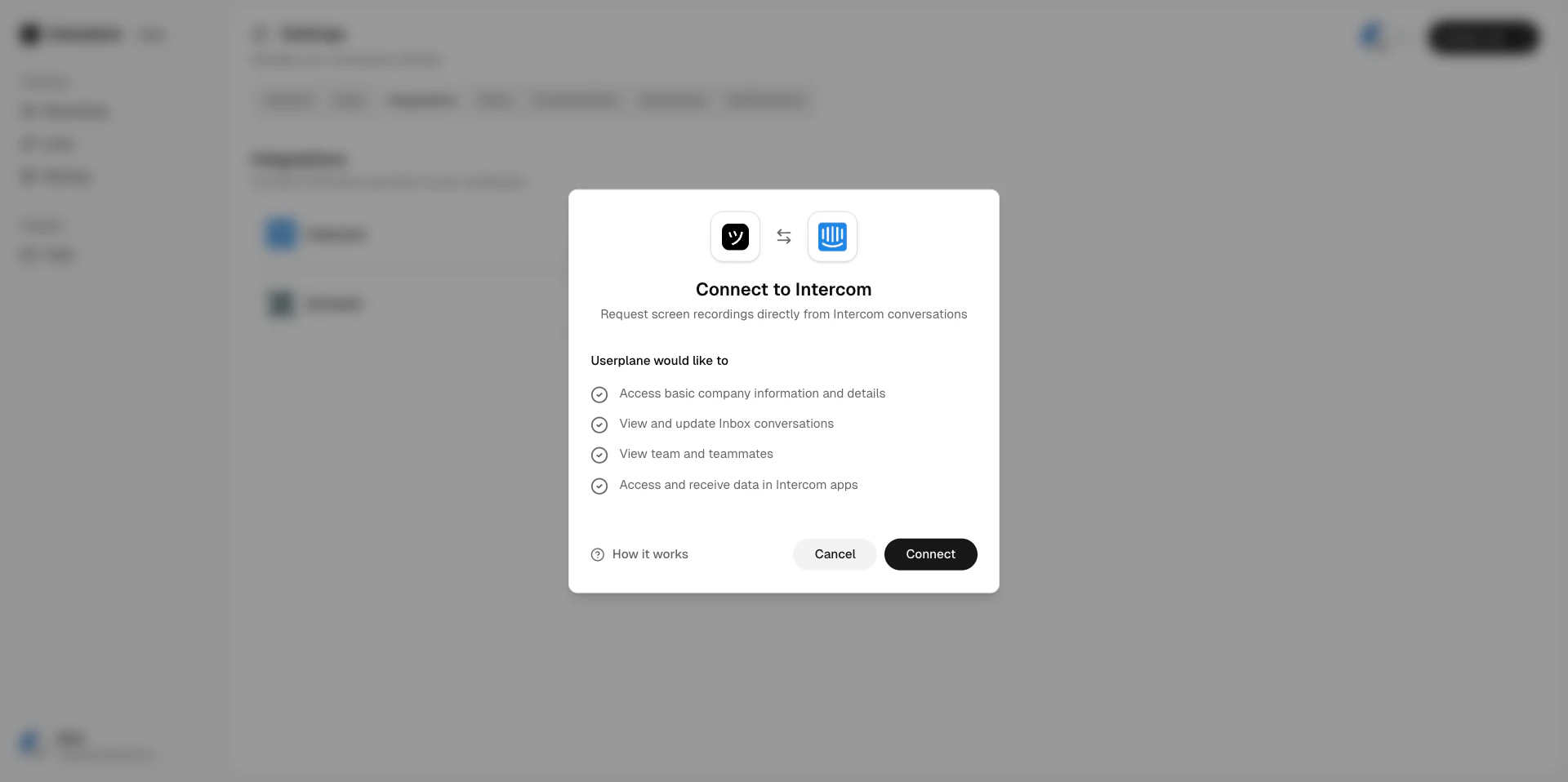
Permissions granted
When you authorize the Intercom connection, Userplane receives the following permissions:- Read conversation data to associate recordings with conversations.
- Install and manage the inbox sidebar app.
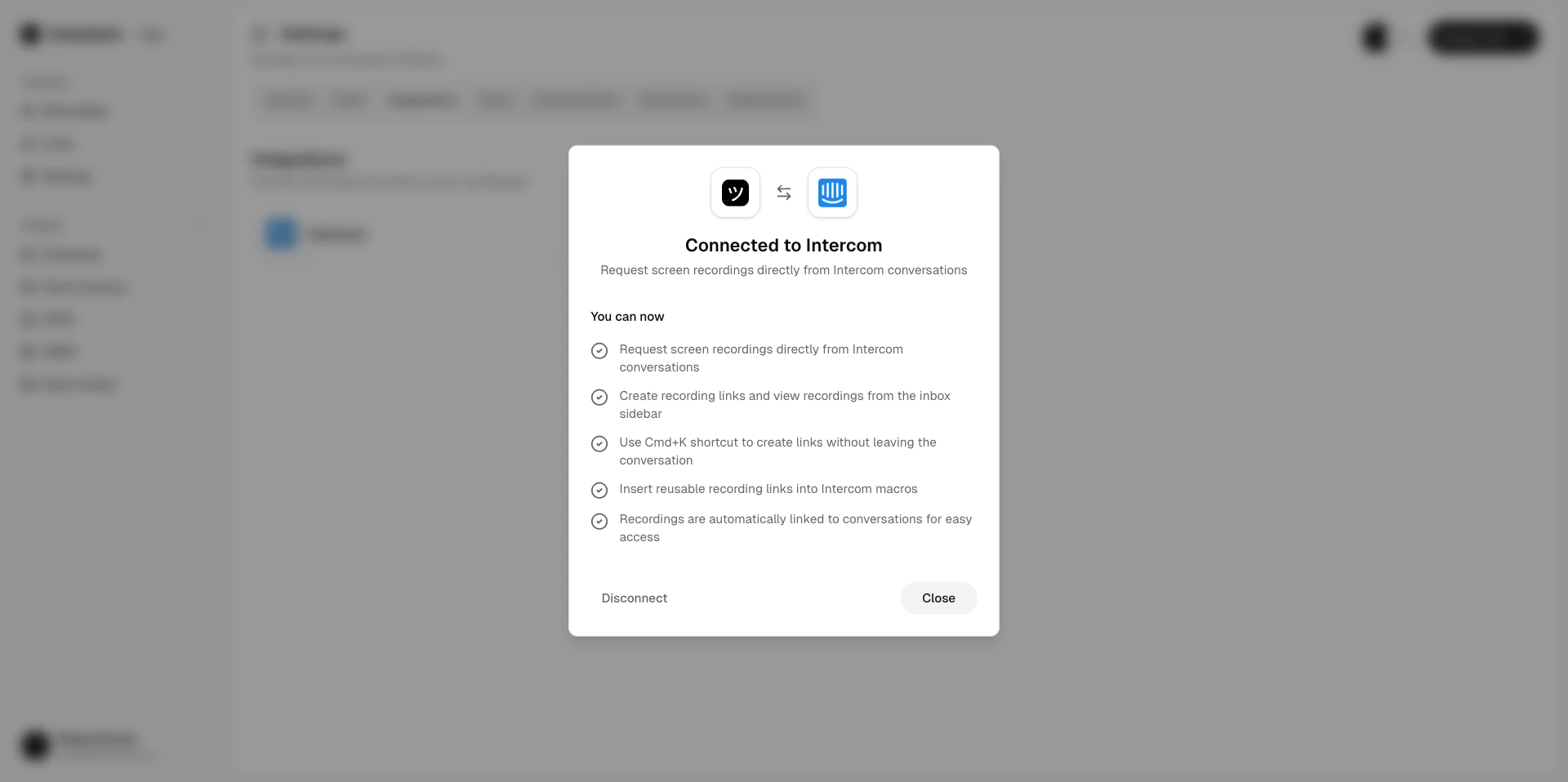
Integrations — connected
Disconnecting Intercom
1
Open Integrations settings
Go to Workspace Settings > Integrations.
Integrations — connected
2
Click Disconnect
Click Disconnect next to Intercom and confirm.
Disconnecting removes the sidebar app from Intercom. Existing recordings and links are preserved.
Related articles
- Intercom Setup — quick setup guide.
- Using Userplane in Intercom — how the sidebar app works.
- Intercom Shortcuts — use Cmd+K to create links fast.
- Intercom Macros — use reusable links in macros.
- Intercom Notifications — admin notes posted when recordings arrive.