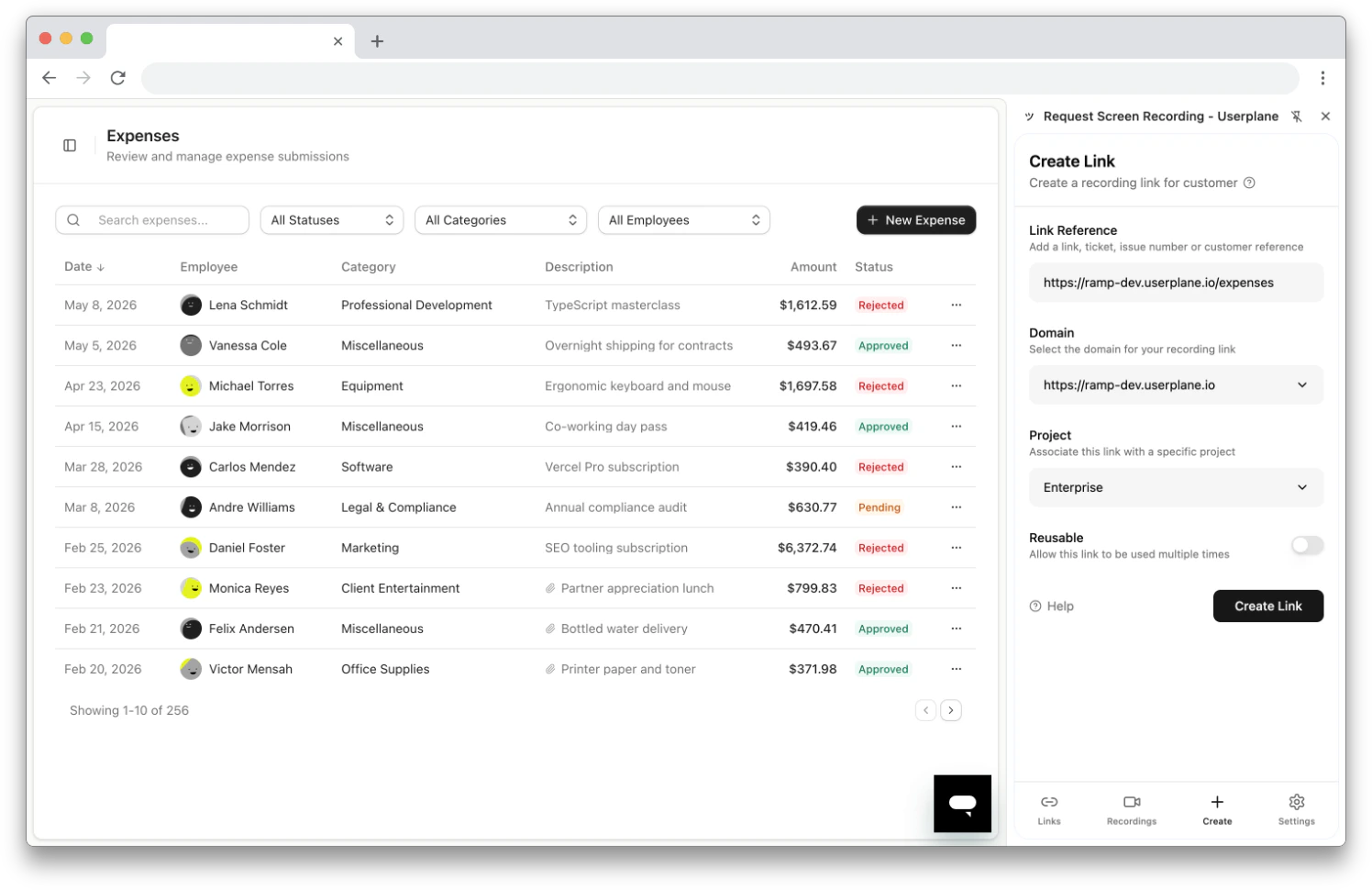
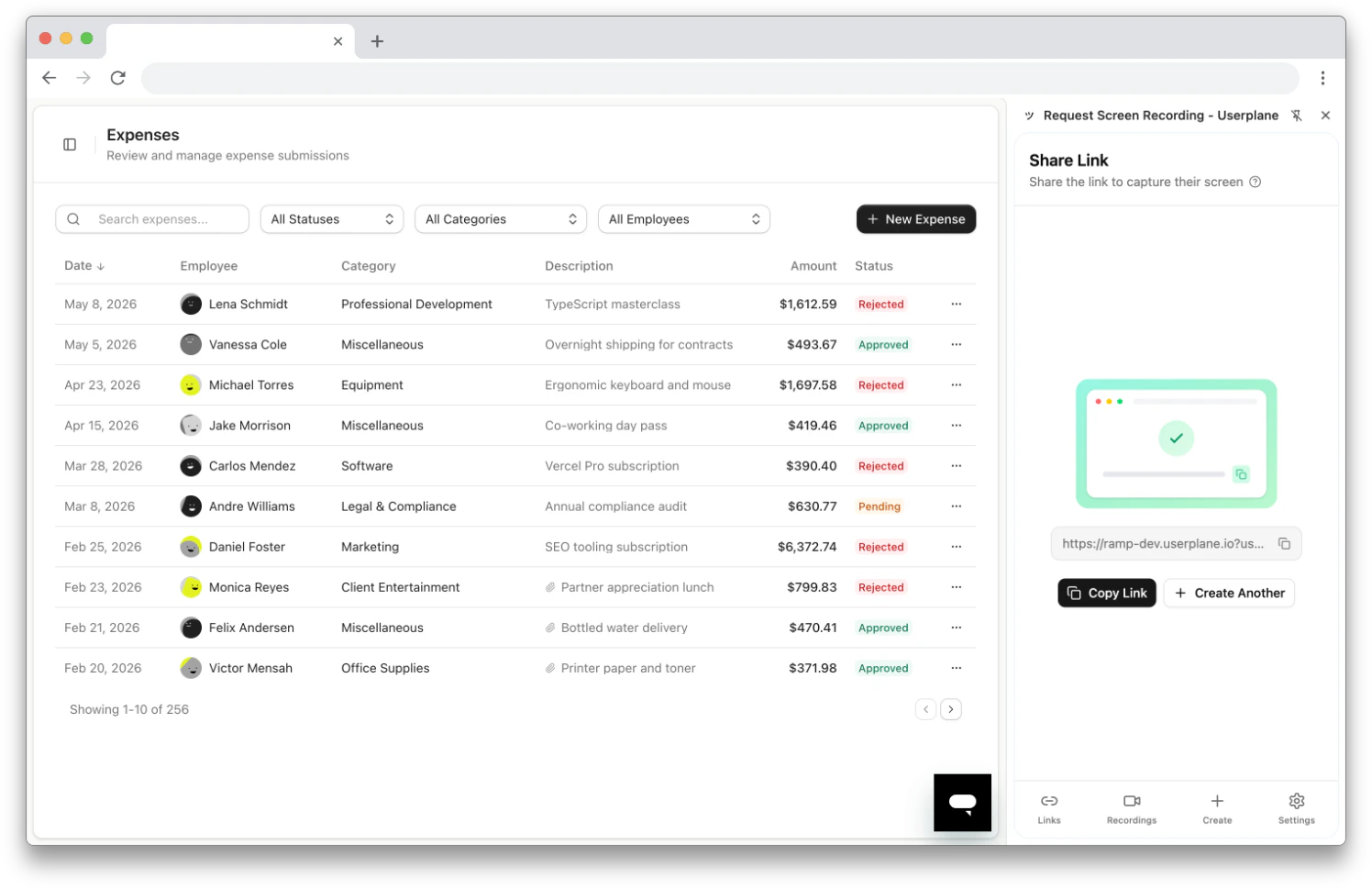
If your team uses a help desk other than Intercom or Zendesk — Freshdesk, HubSpot, Help Scout, Salesforce Service Cloud, or any other browser-based tool — the Userplane Chrome extension provides the same core workflow: create recording links, manage links, and view recordings from a side panel that works alongside any tab.

Why use the Chrome extension

  • Works with any web-based tool — no marketplace installation or OAuth connection required.
  • Auto-populates link references — the current page URL (e.g., your ticket page) is captured automatically.
  • Same features — create links, manage links, view recordings, filter, search, and share — just like the Intercom and Zendesk integrations.
  • Keyboard shortcuts — press Cmd+Shift+Y to create a link in seconds.
  • No integration setup — install the extension, sign in, and start creating links immediately.

Getting started

1

Install the Chrome extension

Install Userplane from the Chrome Web Store and pin it to your toolbar. See Chrome Extension for details.
2

Sign in and select your workspace

Open the side panel and sign in with your Userplane account. Select your workspace if you belong to multiple.
3

Open a ticket in your help desk

Navigate to the ticket or conversation where the customer is reporting an issue.
4

Open the side panel

Click the Userplane icon in your toolbar — or press Cmd+Shift+Y (Mac) / Ctrl+Shift+Y (Windows/Linux).
5

Create a recording link

The Link Reference field auto-populates with the ticket URL. Select a domain and project, then click Create Link.
6

Share the link

Copy the link and paste it into your help desk reply. The customer clicks the link, records their screen, and you receive the recording in Userplane.

Comparison with native integrations

CapabilityIntercom / Zendesk IntegrationChrome Extension
Create recording linksInside the help desk UISide panel alongside any tool
Auto-populate referenceFrom conversation or ticket contextFrom current tab URL
View recordingsIn-app sidebar + dashboardSide panel + dashboard
Ticket tagging / internal notesAutomaticManual (paste the link into your reply)
Keyboard shortcutsCmd+K (Intercom)Cmd+Shift+Y
Setup requiredOAuth + marketplace installInstall extension and sign in

Tips for teams without a native integration

  • Enable Prefill Reference — in extension settings, keep this toggle on so the ticket URL is captured automatically every time you create a link.
  • Use reusable links with templates — create reusable recording links and embed them in your help desk’s canned responses, macros, or templates.
  • Use the omnibox for fast access — type userplane in the Chrome address bar, press Tab, type a ticket number or customer name, and press Enter. See Chrome Extension Shortcuts.
  • Organize by project — assign links to projects so recordings are easy to filter by team, product area, or customer segment.