

Access methods
Omnibox
Typeuserplane in the Chrome address bar, press Tab, type a reference, and press Enter. The side panel opens with the Create Link form pre-filled.
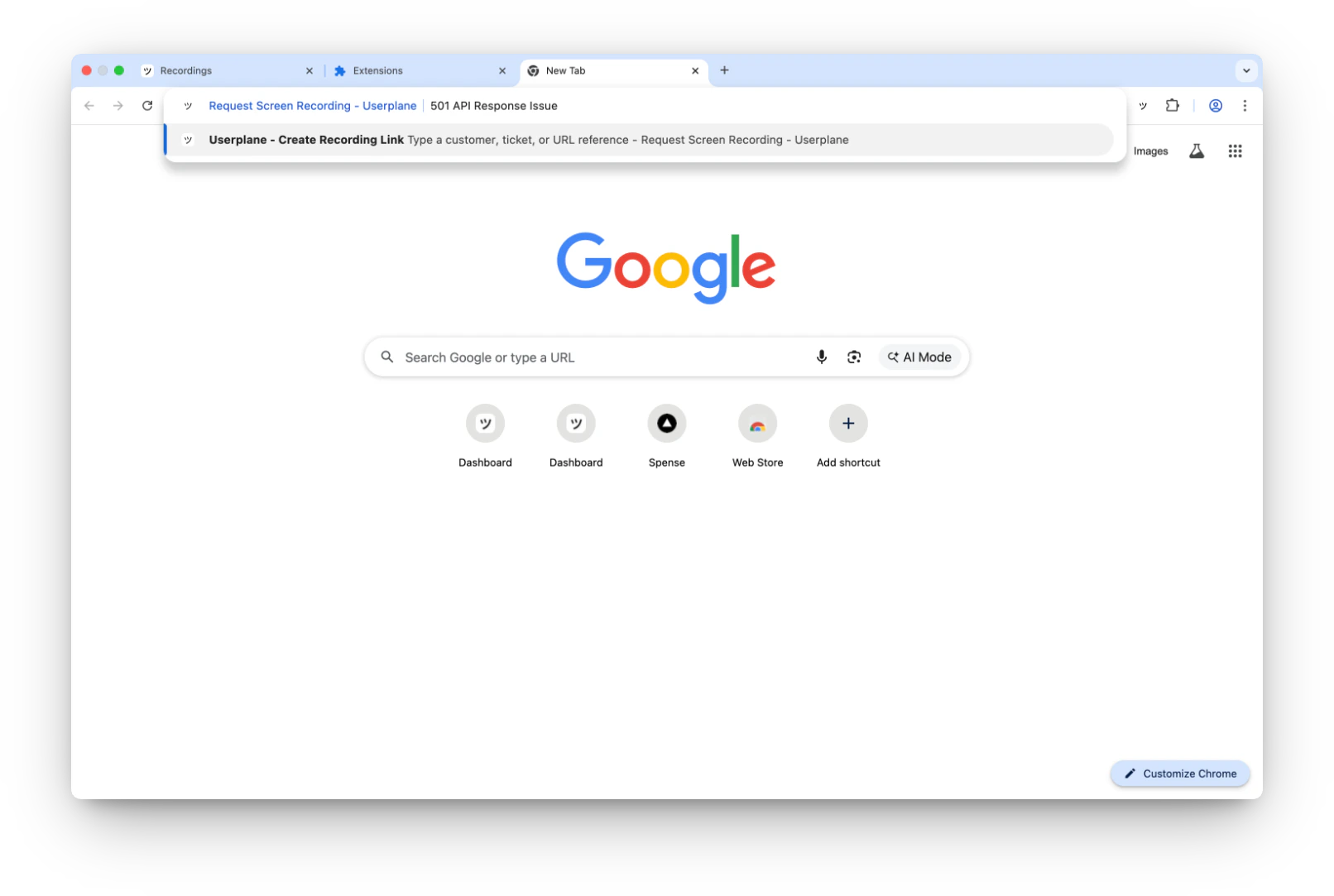
Activate the omnibox by typing userplane and pressing Tab
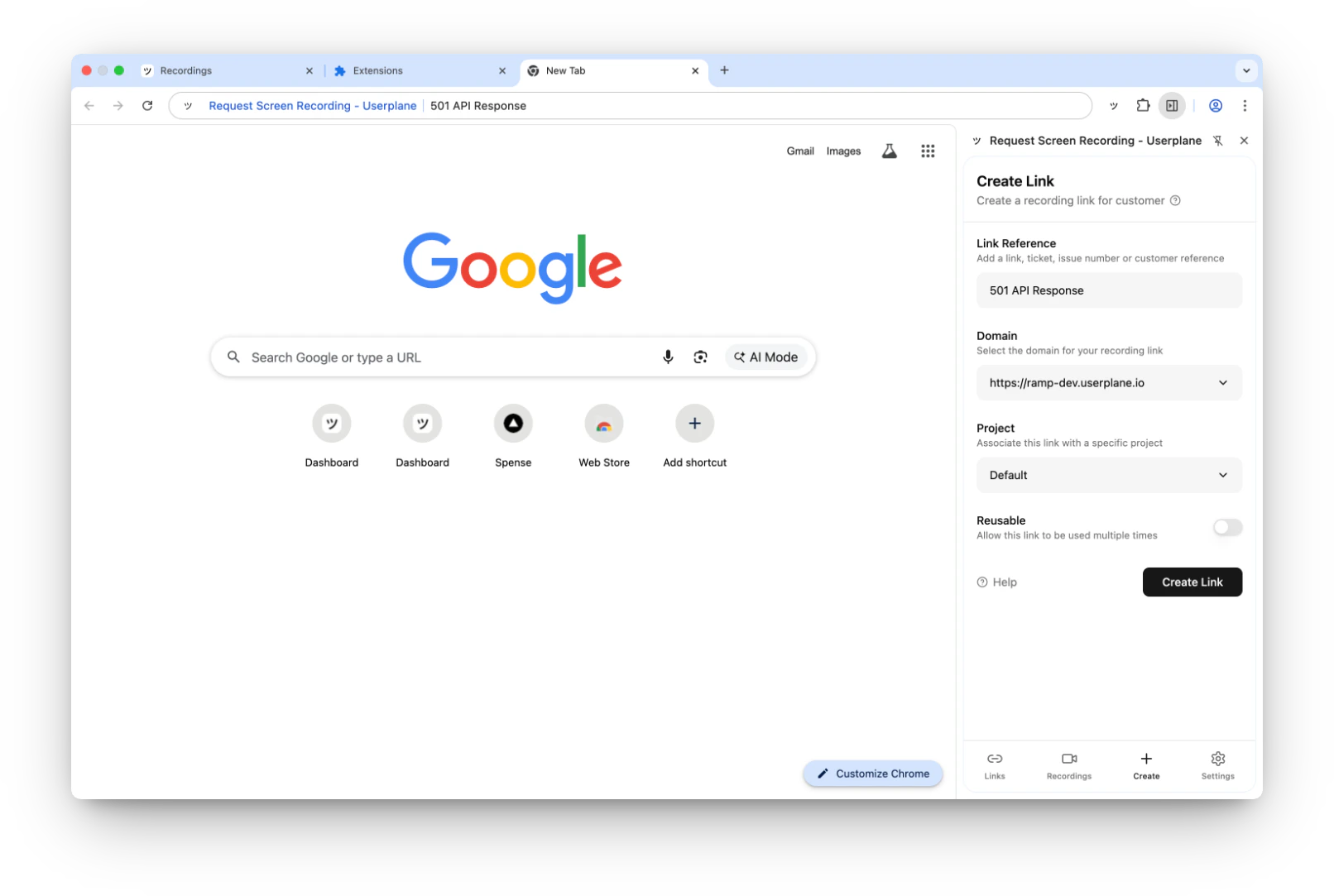
Side panel opens with the reference pre-filled
Extension icon context menu
Right-click the Userplane extension icon to access:- Create Recording Link — opens the Create Link form.
- View Recording Links — opens the Links tab.
- View Received Recordings — opens the Recordings tab.
- Help — opens the Userplane documentation.
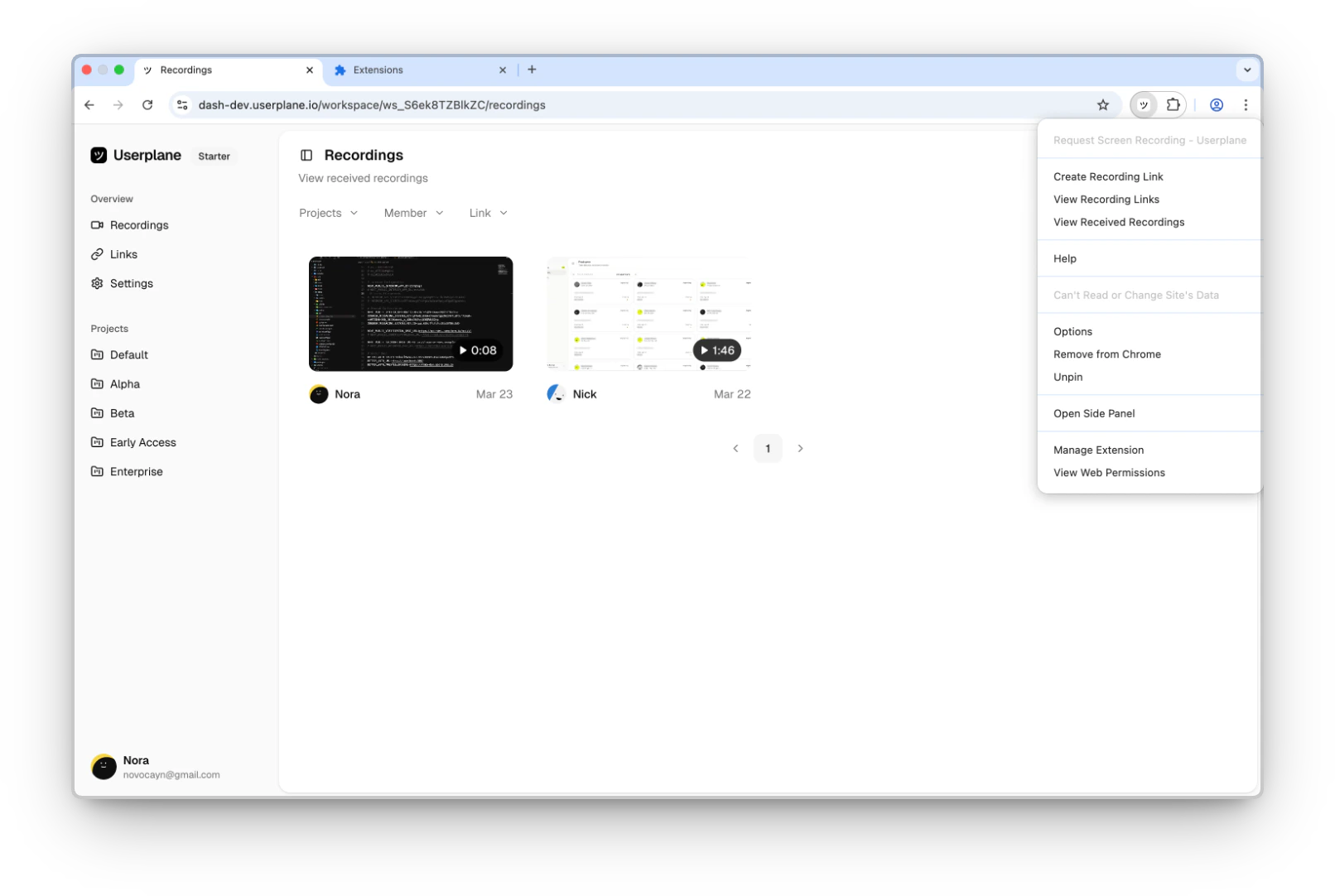
Right-click the extension icon for quick access
Page context menu
Right-click anywhere on a web page to find the Create Recording Link option.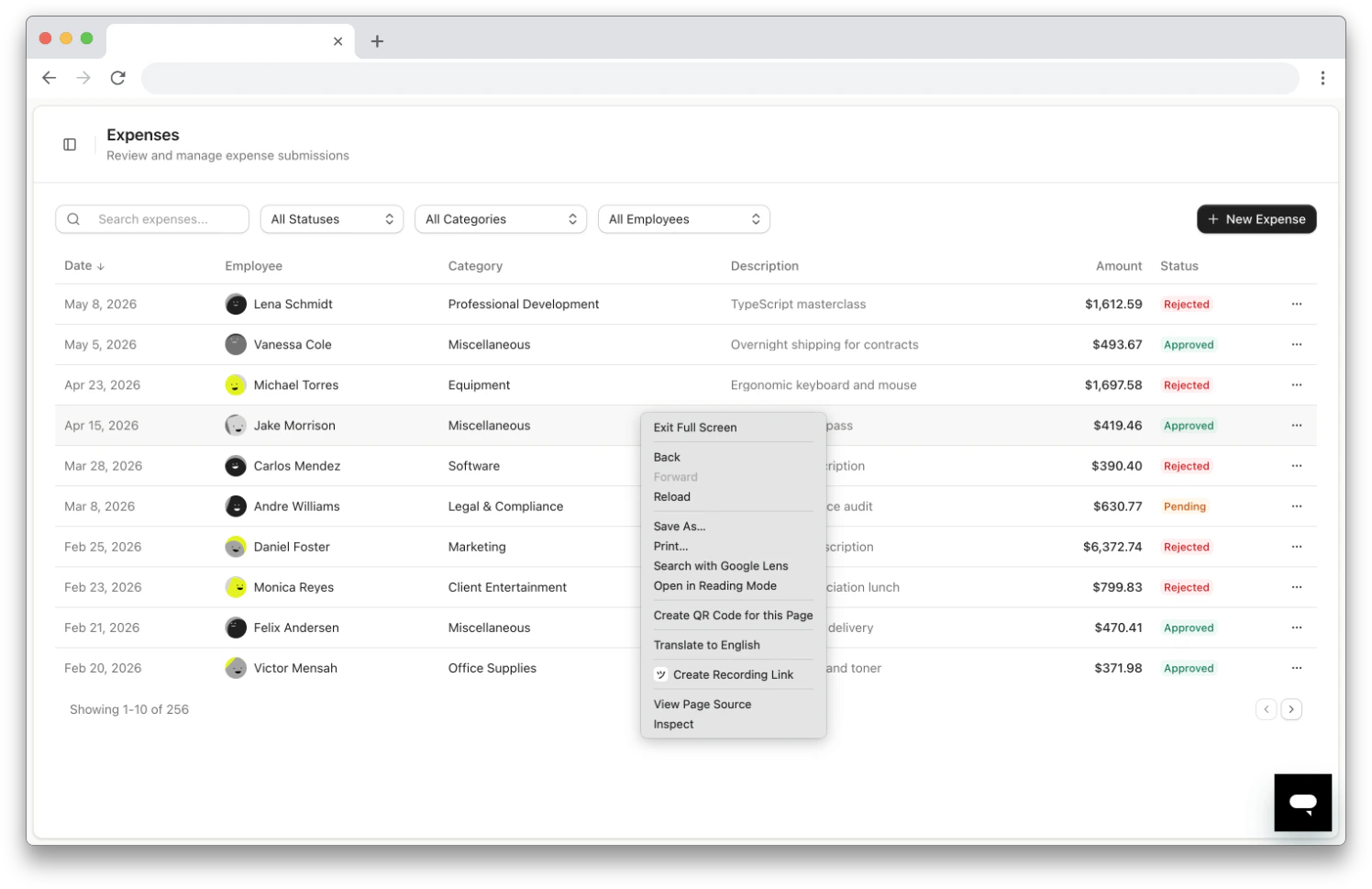
Right-click context menu on a webpage
Customizing the keyboard shortcut
The default shortcut isCmd+Shift+Y (Mac) / Ctrl+Shift+Y (Windows/Linux). To change it:
- Go to
chrome://extensions/shortcutsin your browser. - Find the Userplane extension.
- Click the pencil icon next to Create Recording Link and press your preferred key combination.
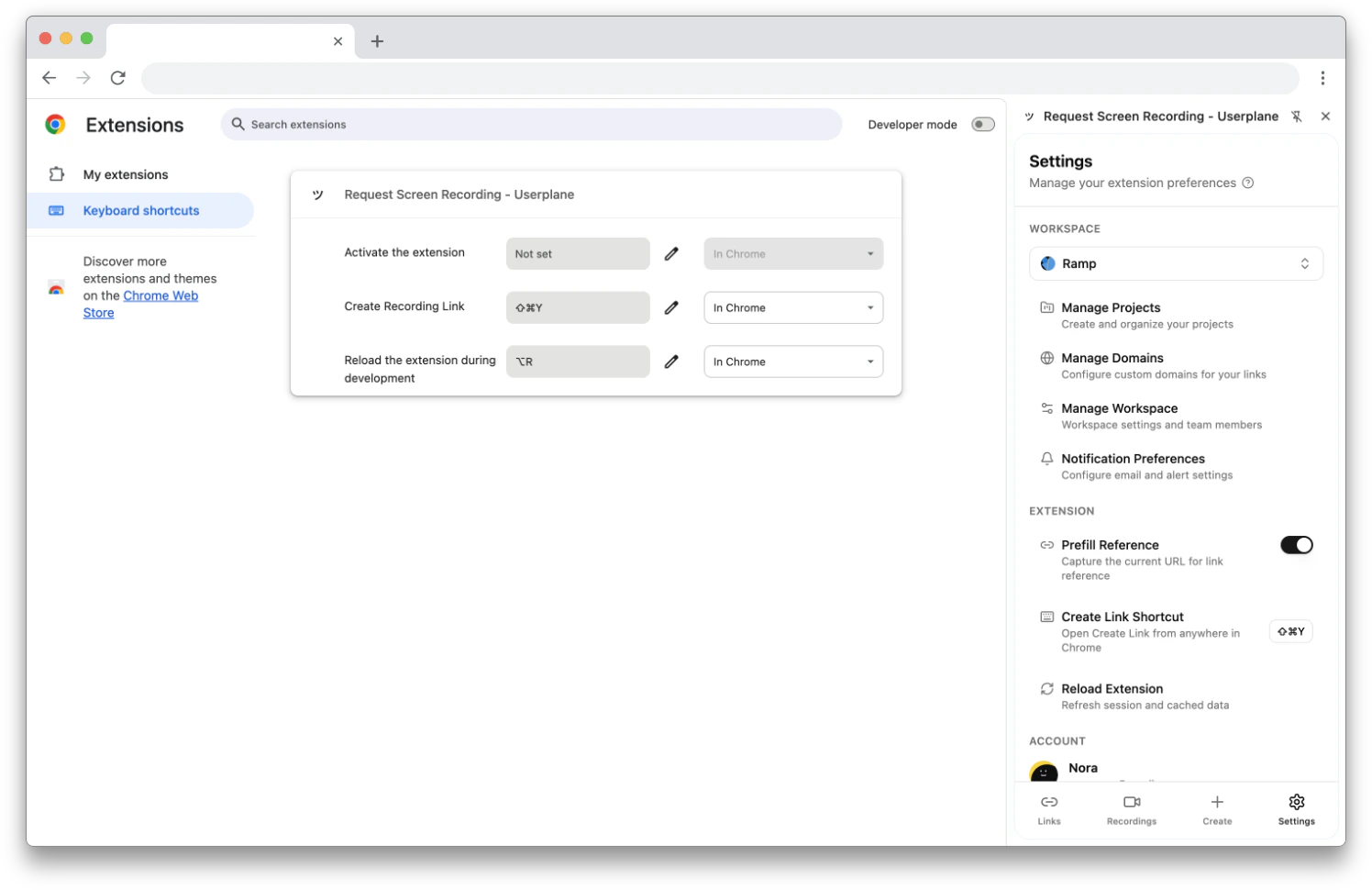
Customize keyboard shortcuts in Chrome settings
Related articles
- Chrome Extension Link Creation — detailed guide for each creation method.
- Chrome Extension Side Panel — overview of the side panel navigation.
- Chrome Extension Settings — configure preferences.