Create recording links from the Chrome extension using the side panel, keyboard shortcut, context menu, or omnibox
The Chrome extension supports multiple ways to create recording links. Every method opens the same Create Link form in the side panel and produces the same link.
Click the Userplane icon in your Chrome toolbar. The side panel opens to the Links list.
2
Open the Create tab
Click the Create tab in the bottom navigation of the side panel.
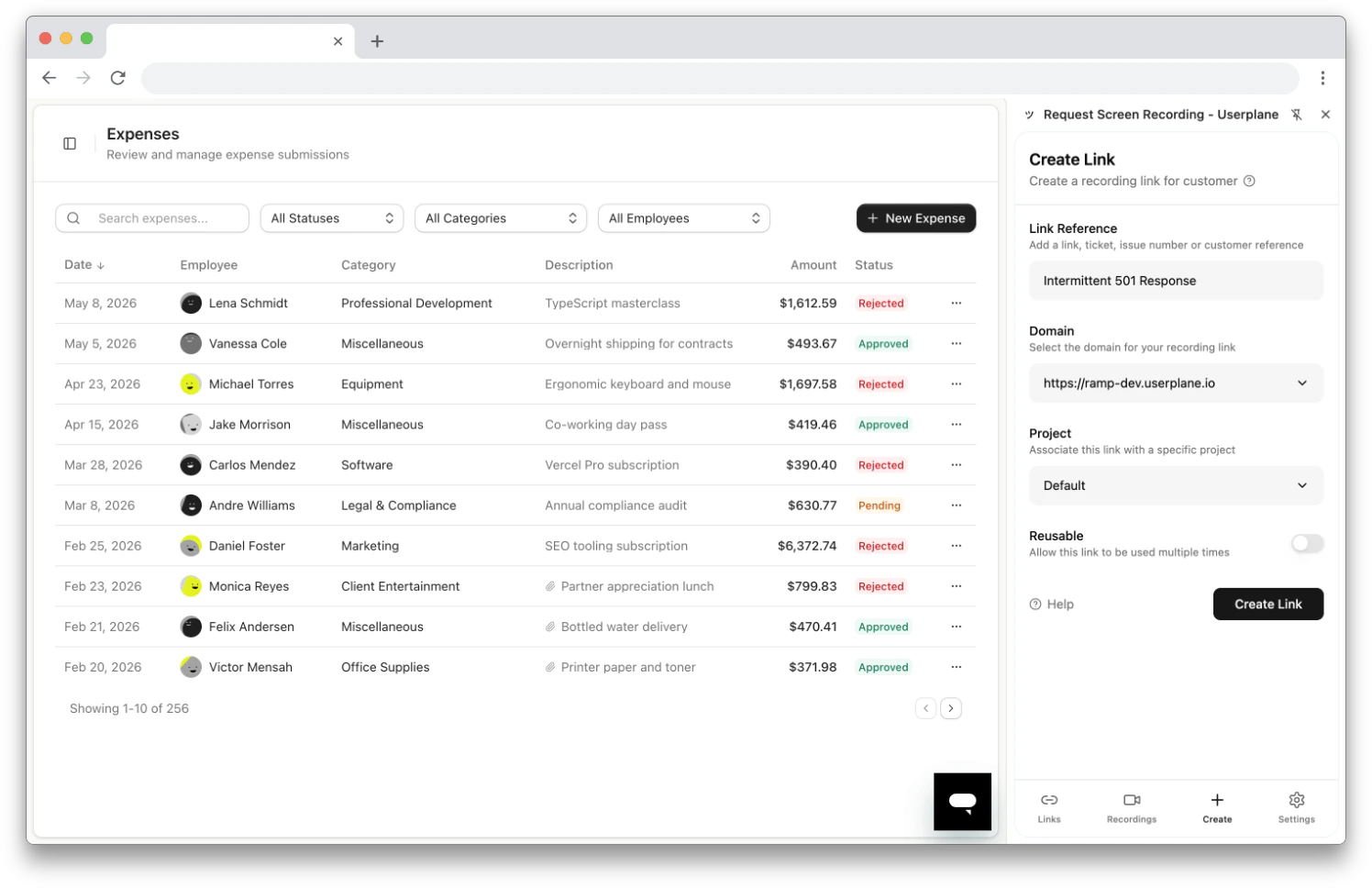
Create Link form in the side panel
3
Fill in the form
Link Reference (optional) — a URL, ticket number, or customer reference. Auto-populates with the current tab URL if Prefill Reference is enabled.
Domain (required) — select from your workspace’s domains. The first domain is auto-selected.
Project (optional) — associate the link with a project for organization. The default project is auto-selected if one exists.
Reusable — toggle whether the link can be used for multiple recordings or just one.
4
Create the link
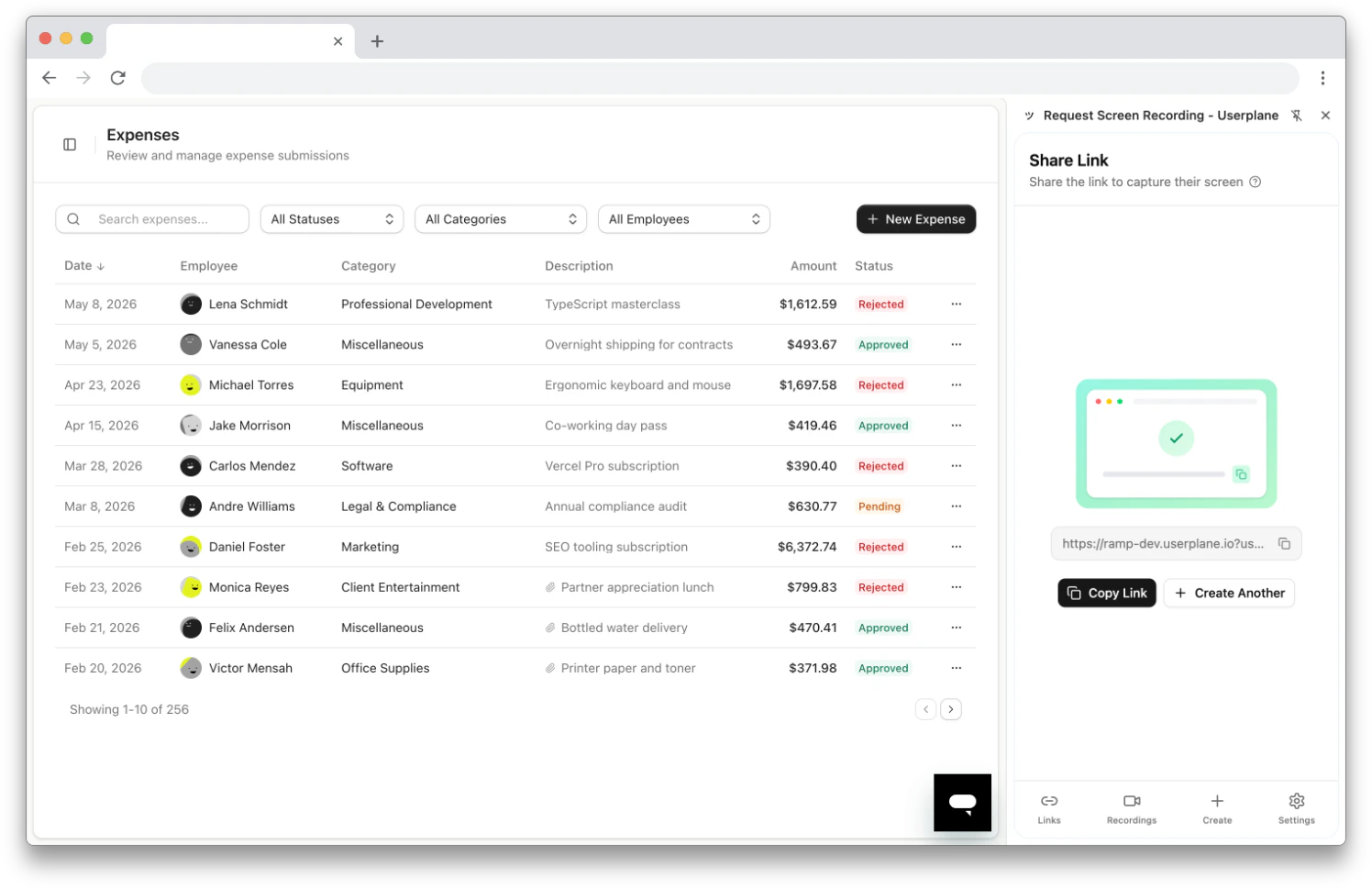
Click Create Link. If successful, the Share Link screen appears.
5
Share the link
Click Copy Link to copy the URL to your clipboard, then paste it into your help desk reply, email, or chat.
Share link screen
1
Press the shortcut
Press Cmd+Shift+Y (Mac) or Ctrl+Shift+Y (Windows/Linux) from any Chrome tab. The side panel opens directly to the Create Link form.
Create Link form opened via keyboard shortcut
2
Fill in the form
Link Reference — auto-populates with the current tab URL if Prefill Reference is enabled. Edit or clear it as needed.
Domain (required) — select from your workspace’s domains.
Project (optional) — associate the link with a project.
Reusable — toggle for single or multiple recordings.
3
Create the link
Click Create Link. The Share Link screen appears.
4
Share the link
Click Copy Link to copy the URL to your clipboard, then paste it into your help desk reply, email, or chat.
You can customize this shortcut at chrome://extensions/shortcuts. Find Userplane and
change the Create Recording Link binding to your preferred key combination.
1
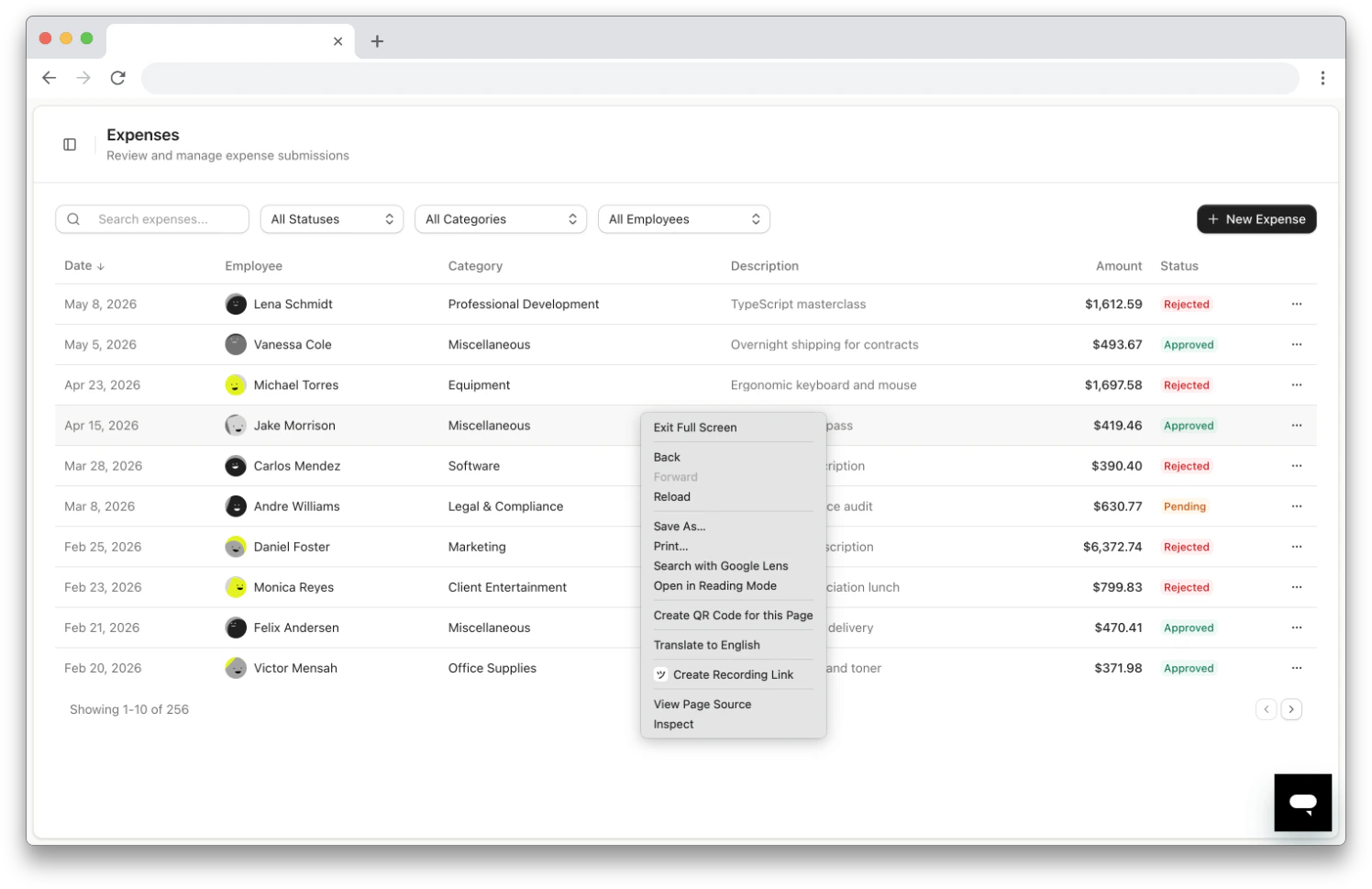
Right-click to open the menu
Right-click anywhere on a web page and select Create Recording Link. You can also right-click the Userplane extension icon in the toolbar and select Create Recording Link.
Right-click context menu on a webpage
2
Fill in the form
The side panel opens to the Create Link form. If Prefill Reference is enabled, the Link Reference field auto-populates with the current page URL.
Domain (required) — select from your workspace’s domains.
Project (optional) — associate the link with a project.
Reusable — toggle for single or multiple recordings.
3
Create the link
Click Create Link. The Share Link screen appears.
4
Share the link
Click Copy Link to copy the URL to your clipboard, then paste it into your help desk reply, email, or chat.
1
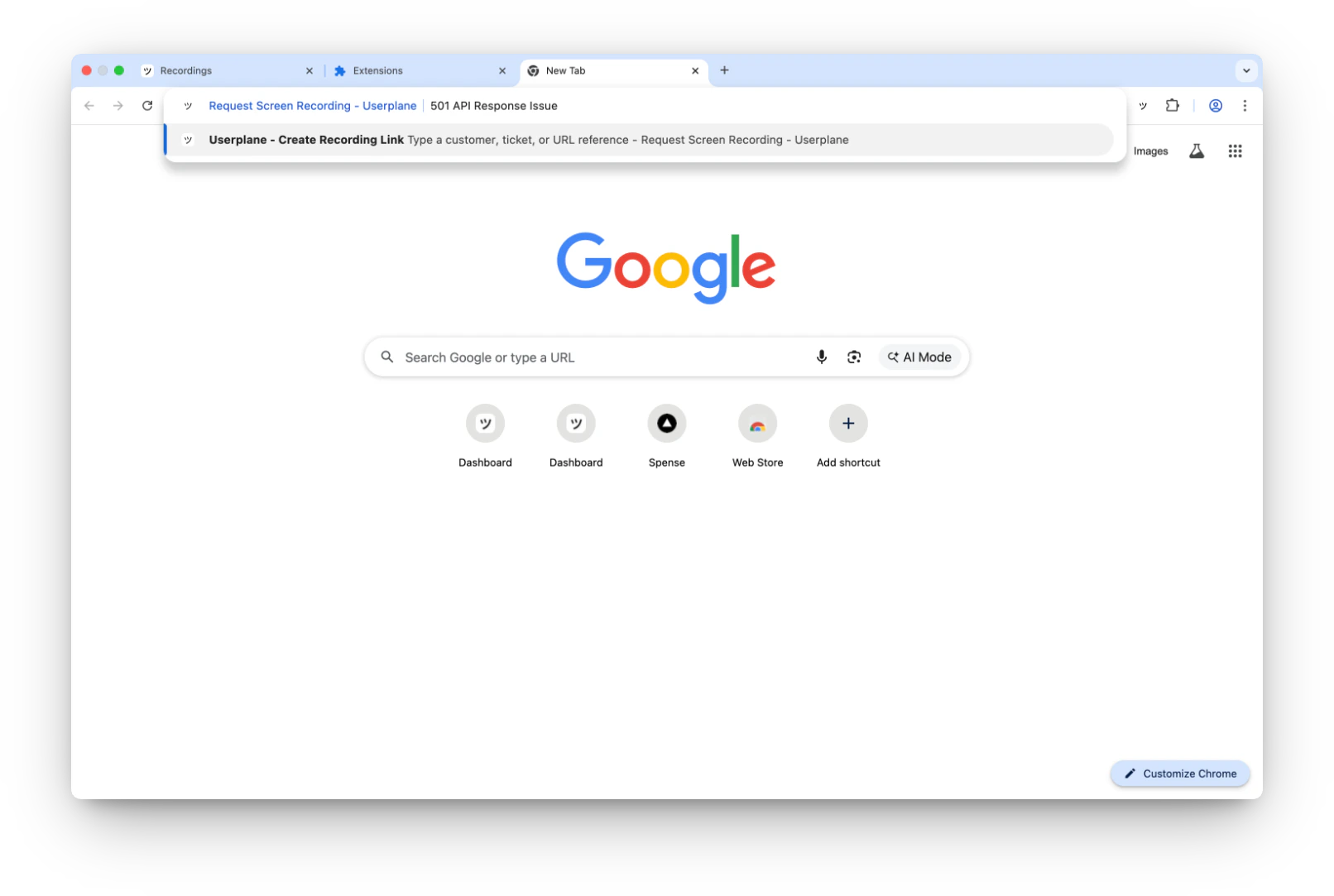
Activate the omnibox
Type userplane in the Chrome address bar, then press Tab. The address bar changes to show “Userplane - Create Recording Link”.
Omnibox activated in the Chrome address bar
2
Type a reference and press Enter
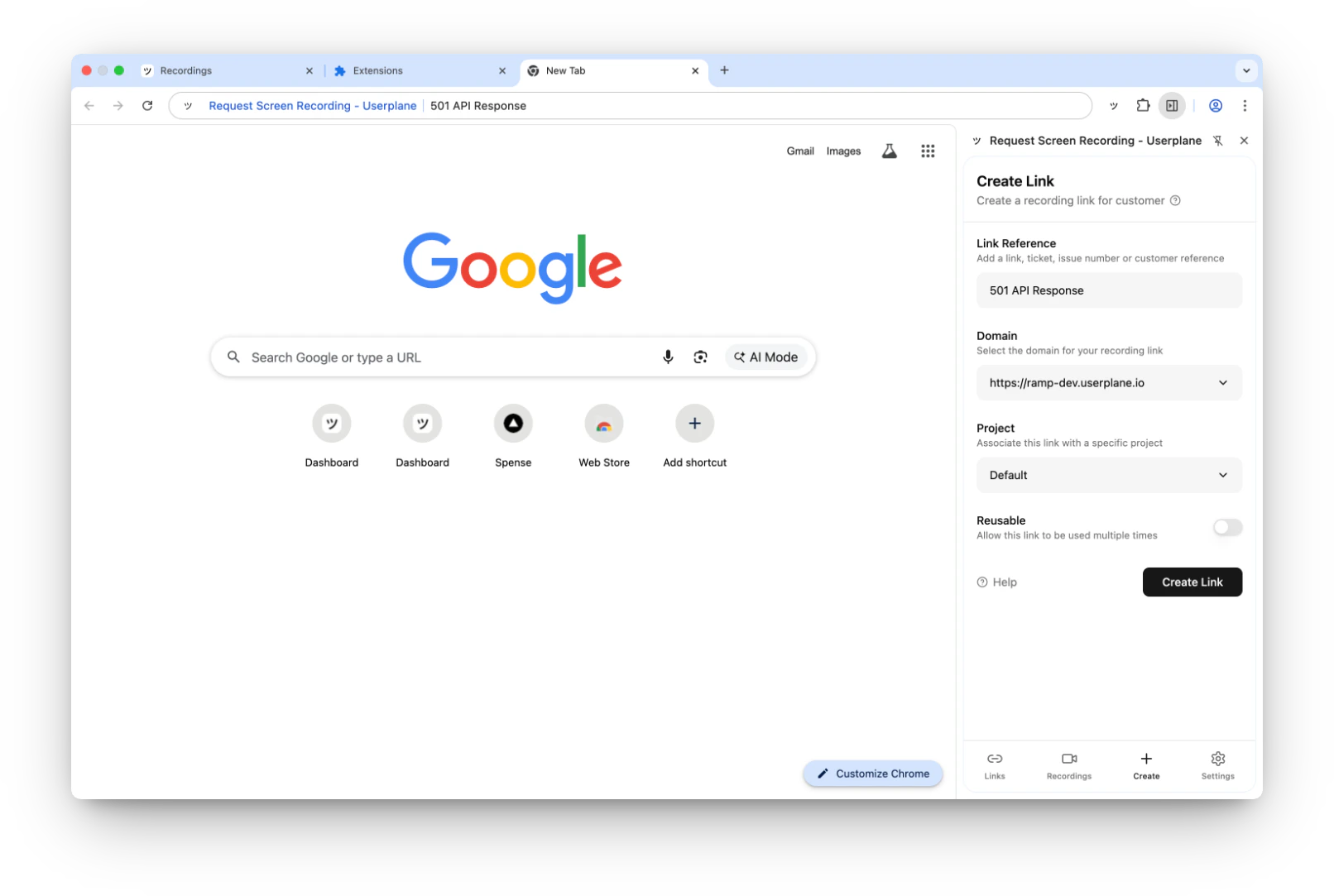
Type a reference — a customer name, ticket number, or URL — and press Enter. The side panel opens to the Create Link form with your reference pre-filled.
Side panel opens with the Create Link form
3
Complete the form
Domain (required) — select from your workspace’s domains.
Project (optional) — associate the link with a project.
Reusable — toggle for single or multiple recordings.
4
Create the link
Click Create Link. The Share Link screen appears.
5
Share the link
Click Copy Link to copy the URL to your clipboard, then paste it into your help desk reply, email, or chat.
The omnibox works well when the reference is already known — such as a ticket number or
customer name — and you want to skip opening the side panel first.
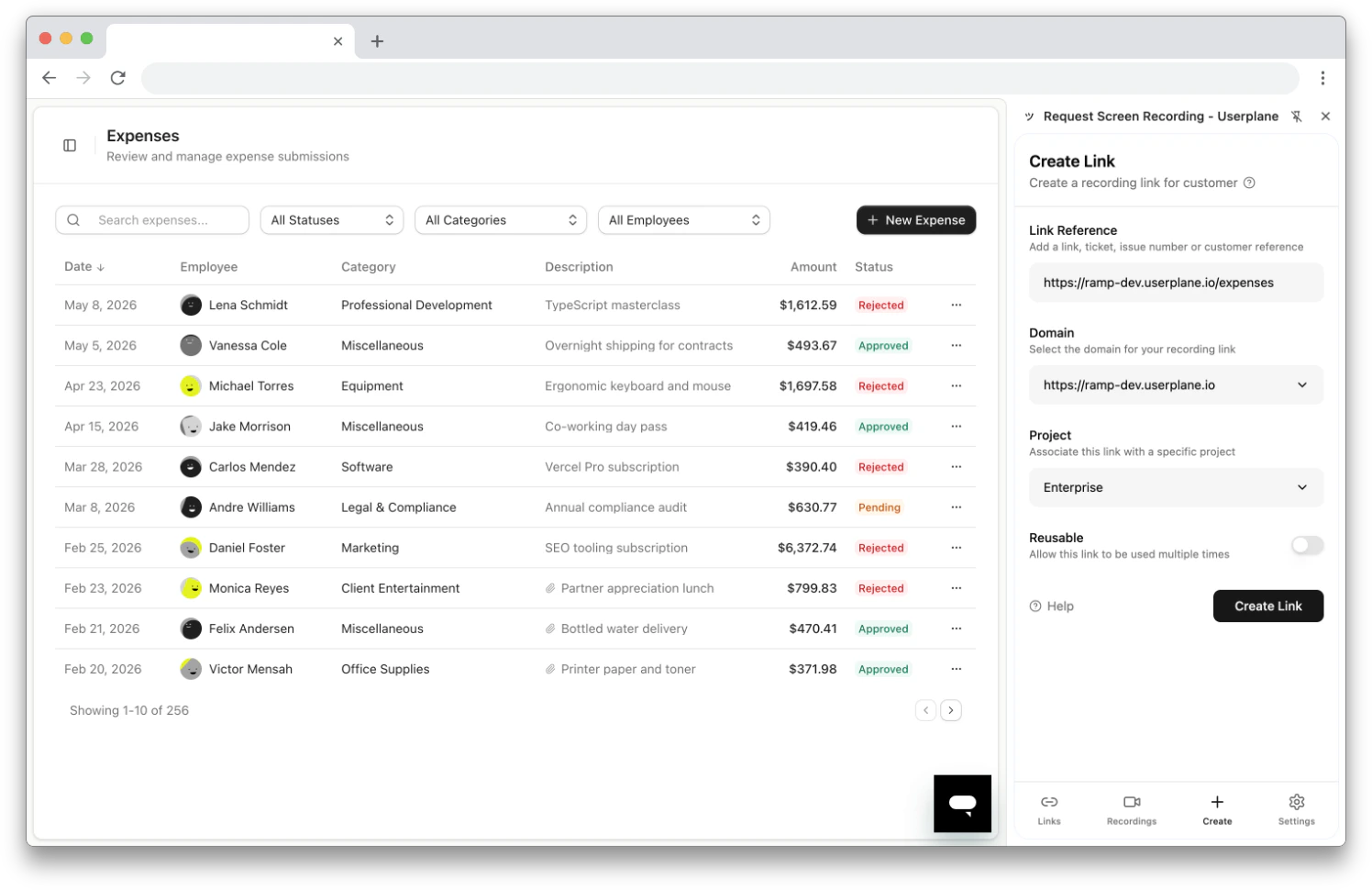
When Prefill Reference is enabled in Settings, the Create Link form auto-populates the Link Reference field with the URL of your current active tab — for example, the help desk ticket you’re viewing.Prefill Reference is on by default. Toggle it off in extension settings to enter references manually.
Create Link form with auto-populated reference from the current tab
Prefill Reference works with all creation methods — side panel, keyboard shortcut, context menu, and omnibox. When using the omnibox, the typed reference overrides the auto-populated URL.