

Opening the side panel
- Click the extension icon in the Chrome toolbar.
- Press the keyboard shortcut —
Cmd+Shift+Y(Mac) orCtrl+Shift+Y(Windows/Linux). - Right-click the extension icon and select a menu item.
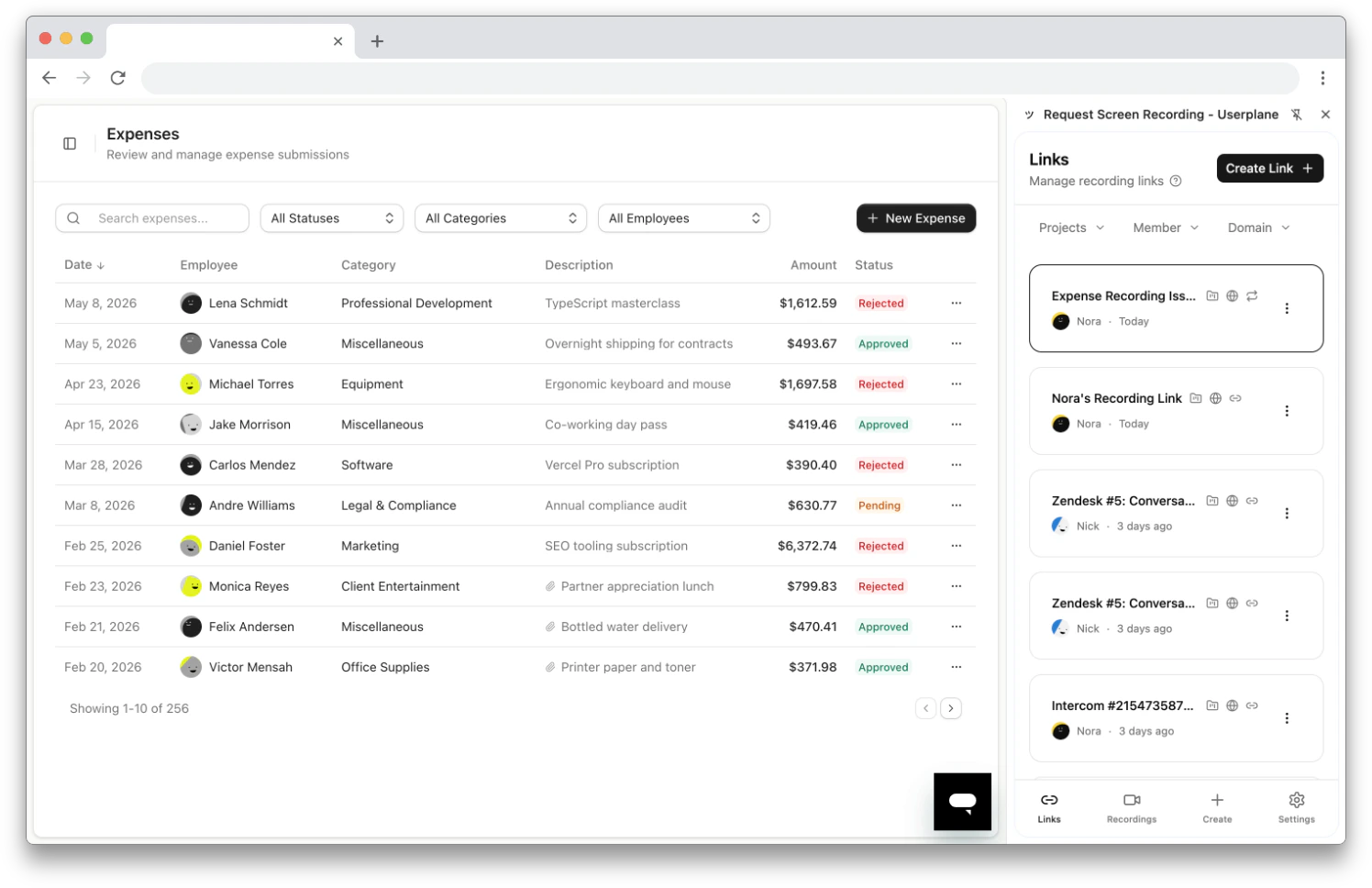
Side panel showing the Links tab
Navigation
The side panel has four tabs at the bottom:Authentication and workspace
The side panel requires sign-in via the Userplane dashboard and a selected workspace. If you belong to a single workspace, it is selected automatically. Workspace switching is available from the Settings tab.Features
Link Creation
Create links from the side panel, keyboard shortcut, context menu, or omnibox
Link Management
Browse, filter, edit, and delete recording links
Recordings
Browse received recordings and open them in the dashboard
Settings
Configure workspace, preferences, and account
Related articles
- Chrome Extension — installation and overview.
- Chrome Extension Shortcuts — all access methods at a glance.