

Browsing recordings
Recordings are displayed as cards in a scrollable list with infinite scroll. Each recording card shows:- Video thumbnail — a preview frame from the recording, with a play button overlay. If the thumbnail isn’t available, a fallback icon is shown.
- Duration — displayed as MM:SS in the bottom corner of the thumbnail.
- Creator — avatar and name of the person who submitted the recording.
- Creation date.
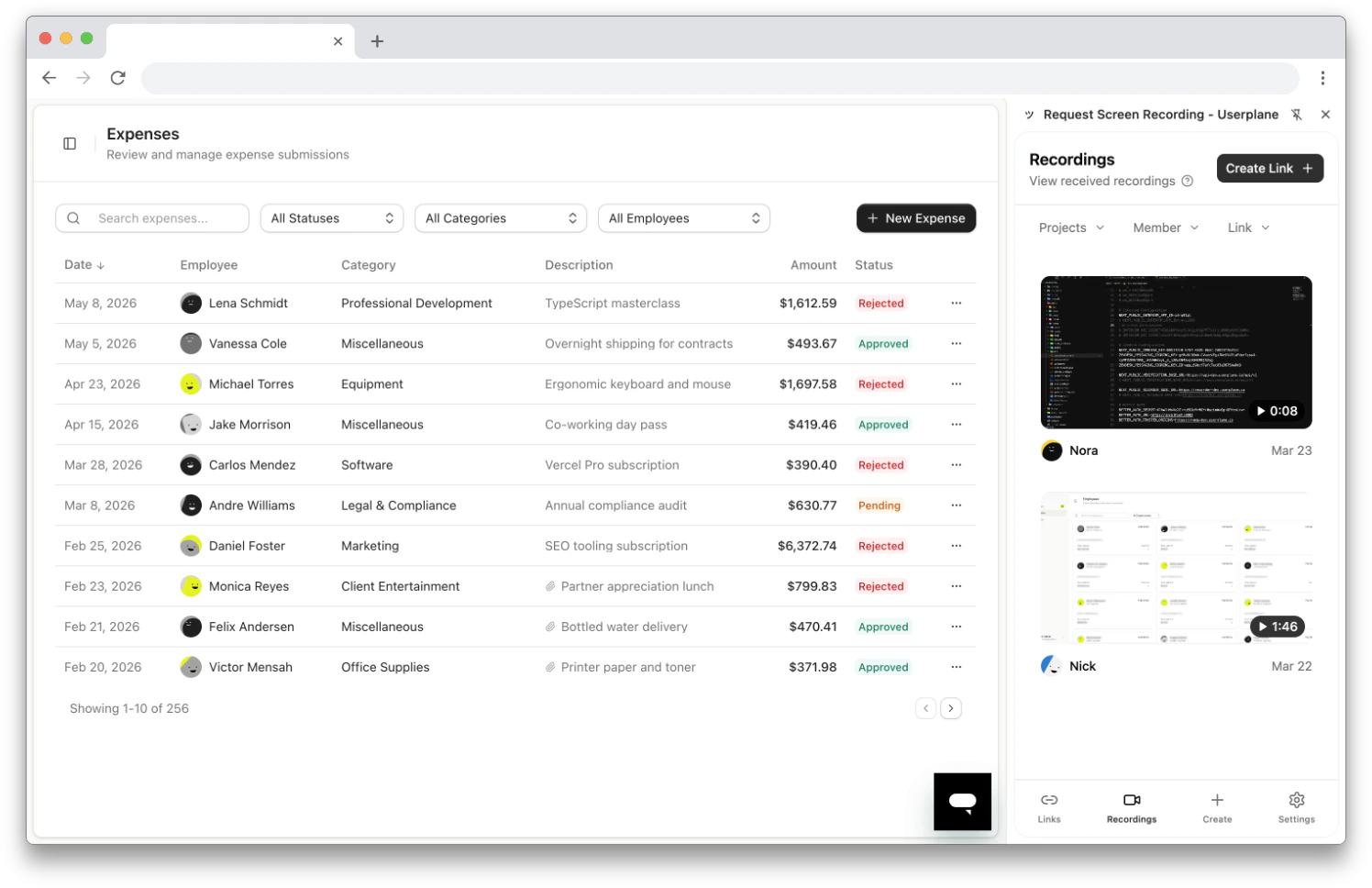
Recordings list in the side panel
Filtering
Use the filter dropdowns at the top to narrow the list:- Projects — show recordings associated with one or more projects.
- Member — show recordings by a specific creator.
- Link — show recordings from a specific recording link.
Sorting
Sort recordings by:- Creation date — newest or oldest first.
- Duration — longest or shortest first.
Expiry warnings
If a recording is set to expire within 7 days, an expiring soon badge appears on the card.Opening a recording
Click any recording card to open it in the Userplane dashboard in a new tab. The dashboard provides the full playback experience with:- Video playback with timeline scrubbing
- Console logs (errors, warnings, messages)
- Network requests (status codes, timing)
- User actions (clicks, inputs, navigation)
- Custom metadata and session info
- Issue Analyzer for automated root-cause analysis
Related articles
- Chrome Extension Link Creation — create links that generate recordings.
- Chrome Extension Link Management — browse and manage recording links.
- Reviewing Recordings — full guide to the dashboard recording detail view.
- Recording Playback — video player controls and timeline features.
- Issue Analyzer — automated root-cause analysis.