

Browsing links
Links are displayed as cards in a scrollable list with automatic pagination as you scroll. Each link card shows:- Title — the link’s display name.
- Creator — avatar and name of the person who created the link.
- Creation date.
- Project — the project the link is associated with (if any).
- Domain — the domain the link uses.
- Reusable indicator — whether the link can be used for multiple recordings.
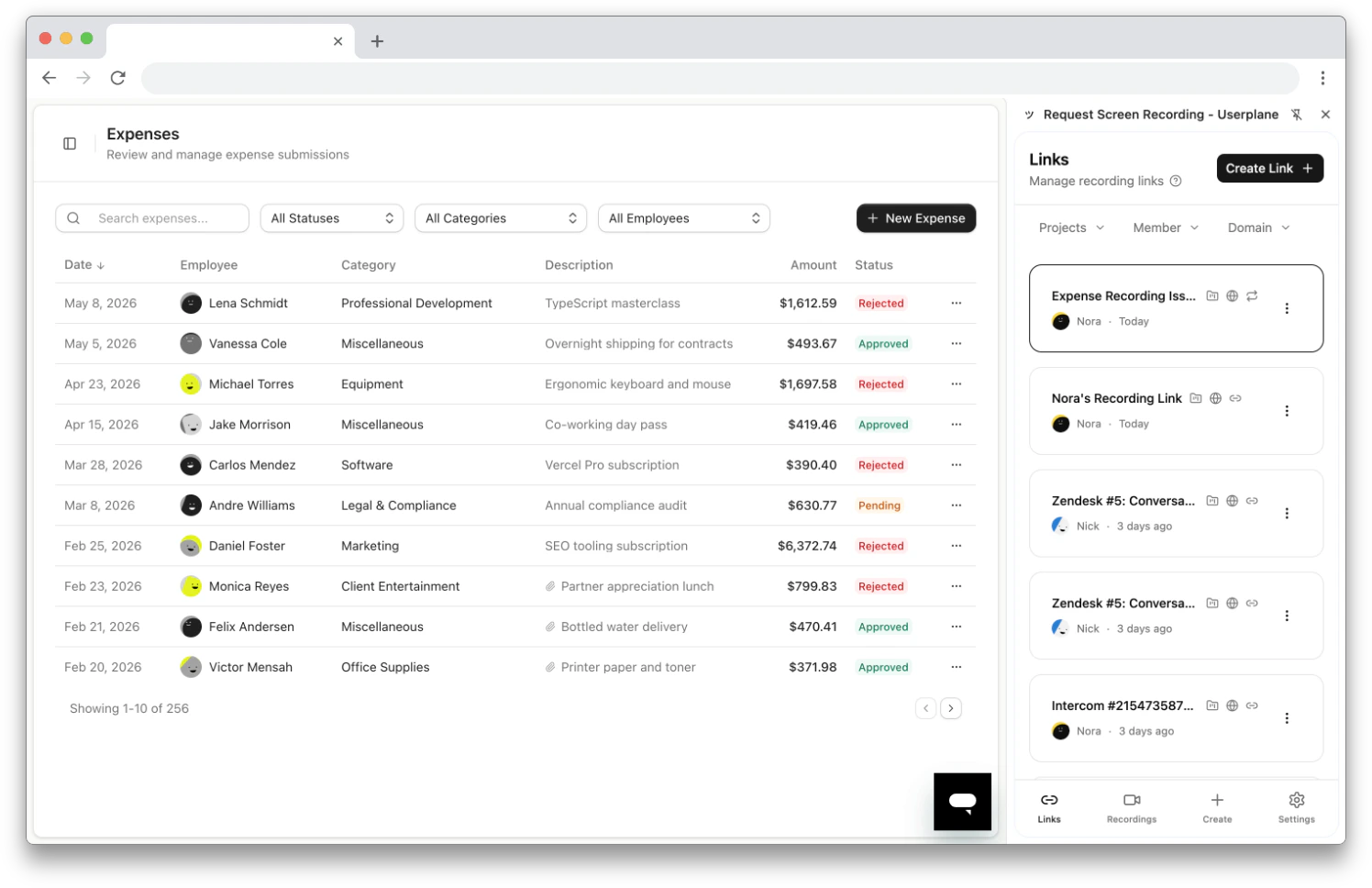
Recording links list in the side panel
Filtering
Use the filter dropdowns at the top of the Links tab to narrow the list:- Projects — show links from one or more projects.
- Member — show links created by a specific team member.
- Domain — show links using a specific domain.
Link actions
Click the three-dot menu on any link card to access these actions:Editing a link
From the three-dot menu, select Edit to open the edit form. You can modify:- Link Title — the display name for the link.
- Link Reference — the external reference (URL, ticket number, etc.).
- Link Provider — the provider type (e.g., JIRA, GitHub) and provider ID, useful for connecting the link to an external issue tracker.
- Reusable — whether the link allows multiple recordings.
Deleting a link
From the three-dot menu, select Delete to permanently remove a link. Existing recordings created from the link are preserved — only the link itself is removed.Related articles
- Chrome Extension Link Creation — all the ways to create links.
- Chrome Extension Recordings — browse recordings received from your links.
- Managing Recording Links — link management in the Userplane dashboard.