Create a recording link and share it with your customer to capture a screen recording
A recording starts with a link. You create a recording link in Userplane, share it with your customer, and they record their screen directly in the browser — no installs required.
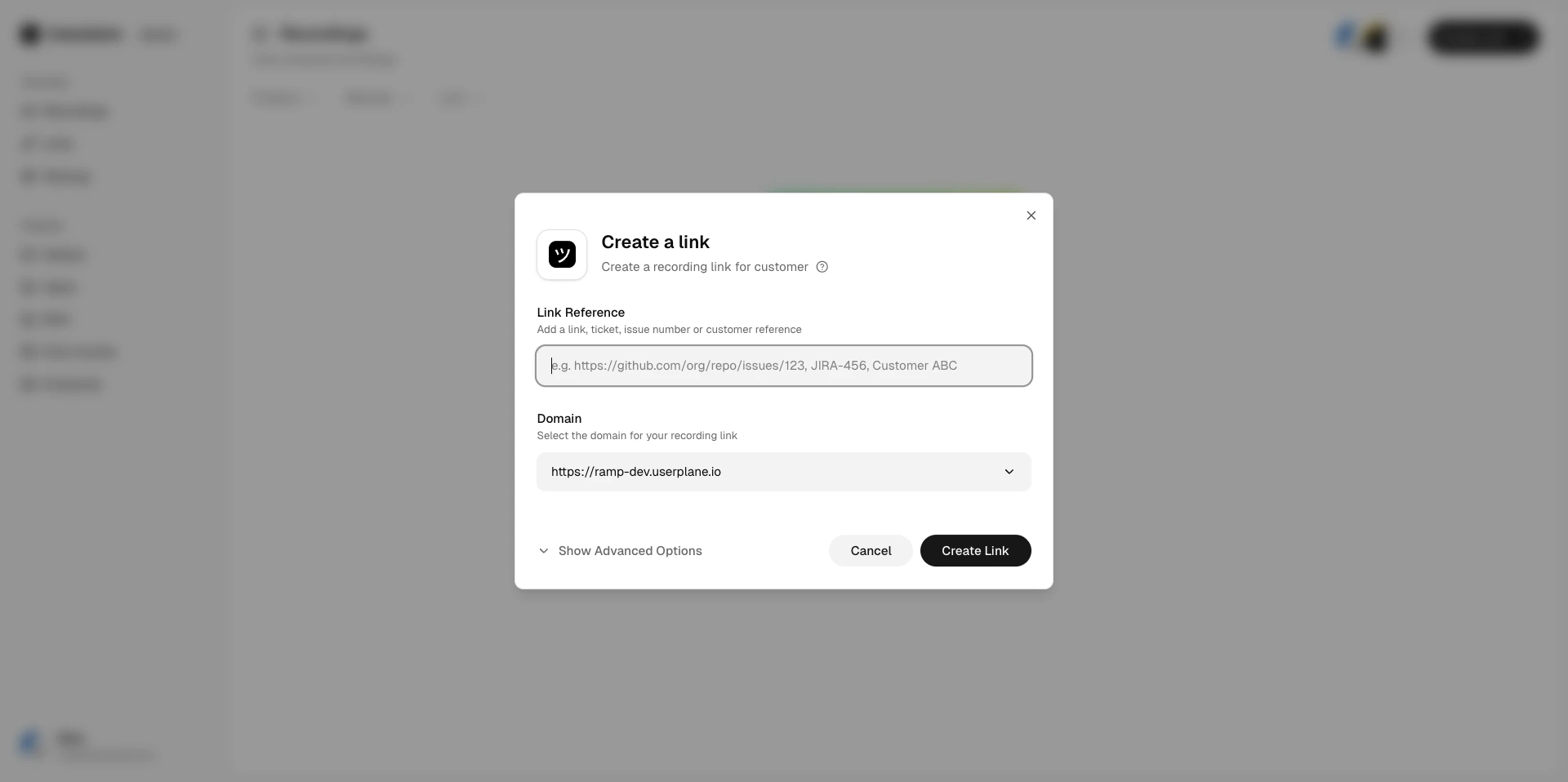
Click the Create Link button in the
top right corner.
Create Link button
2
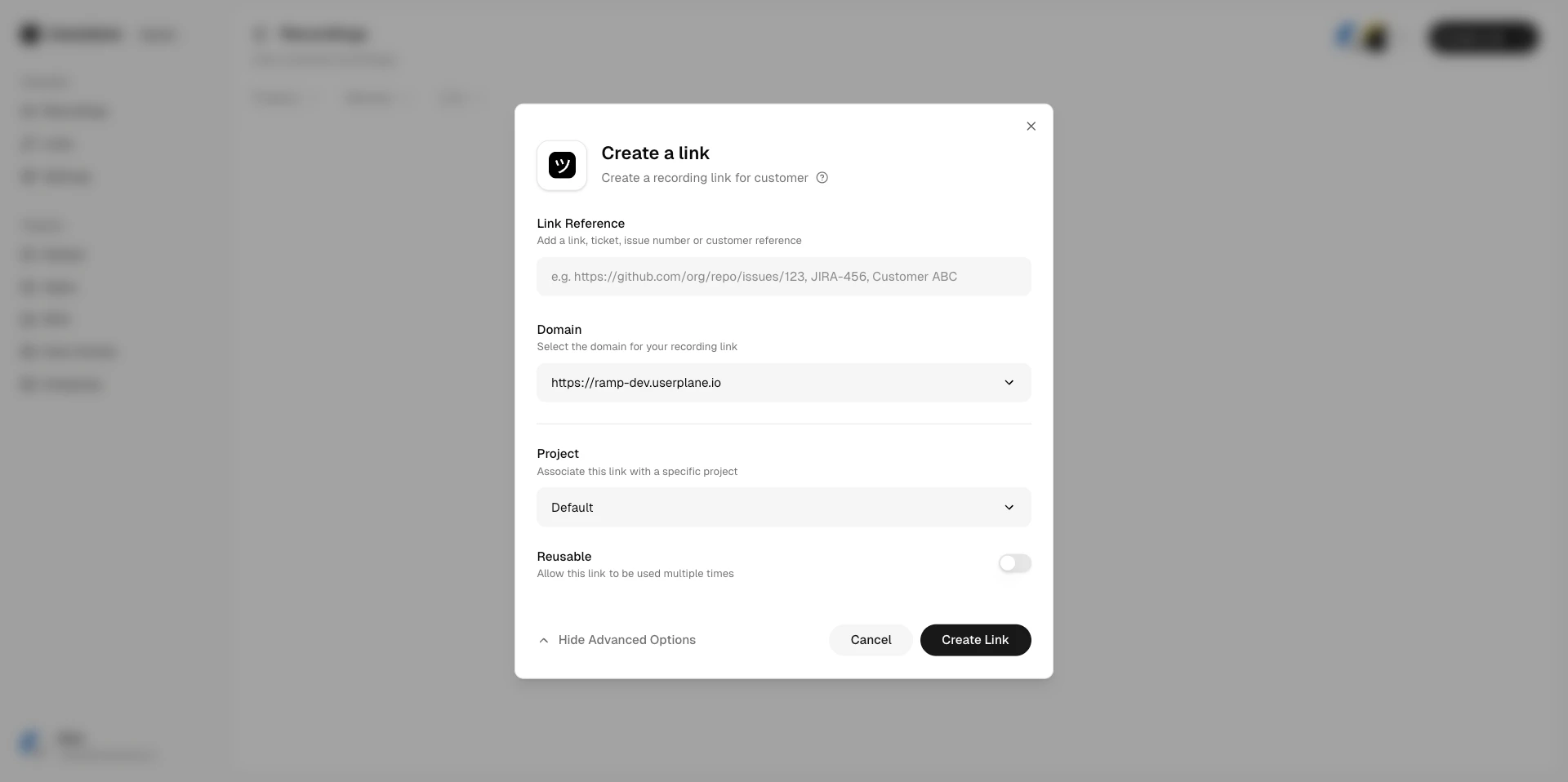
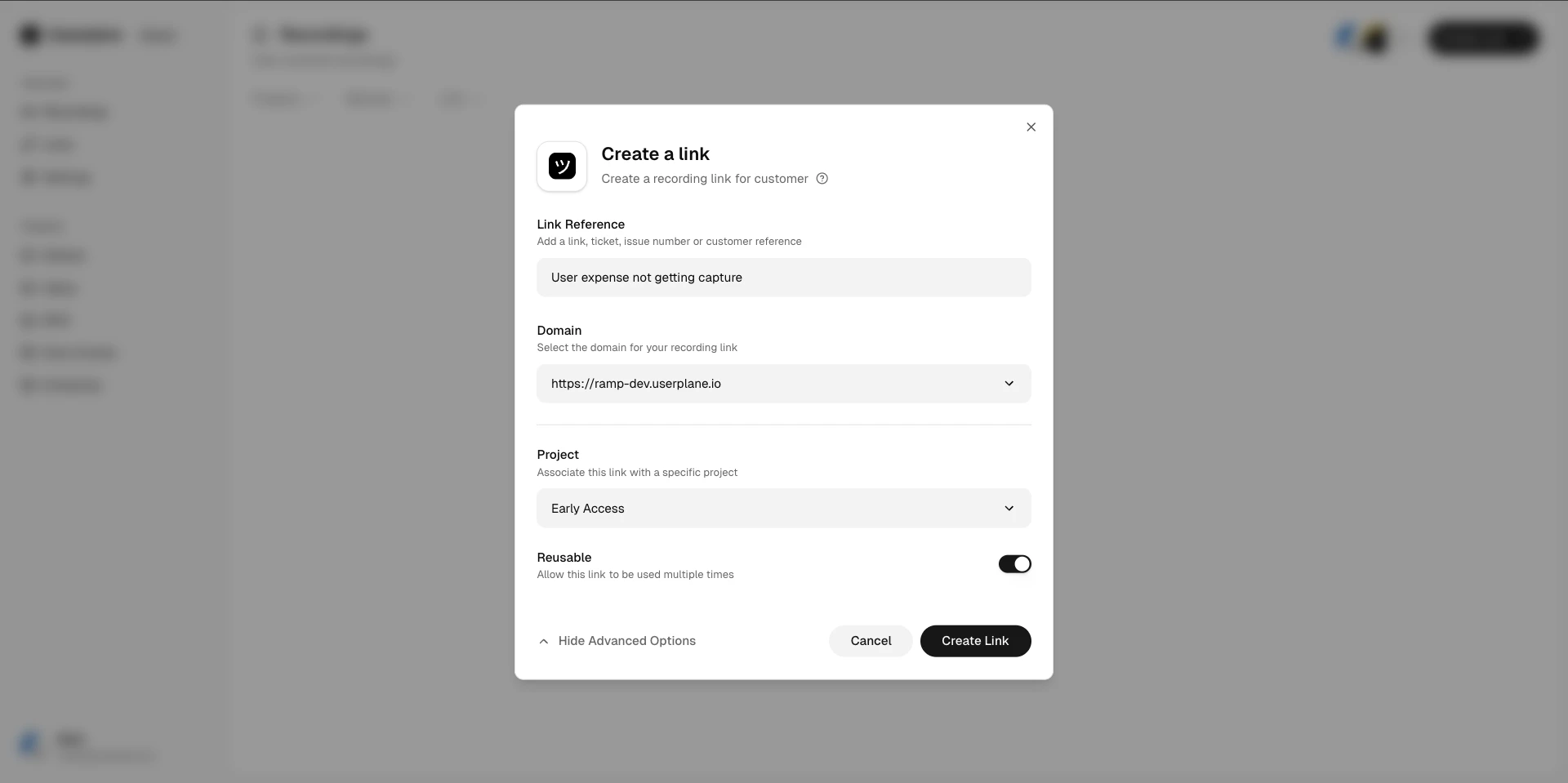
Fill in the link details
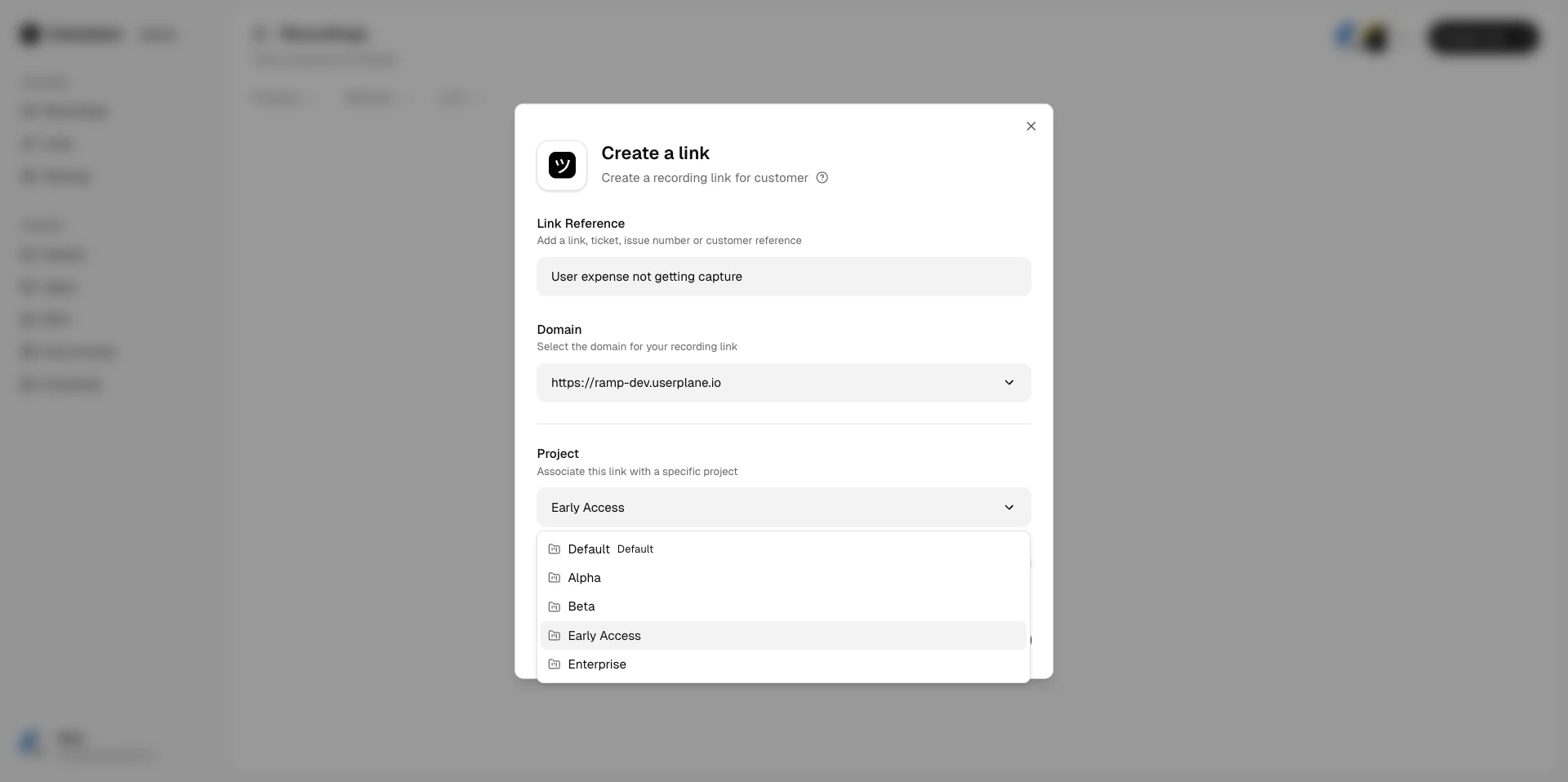
Project — choose which project this recording belongs to. This helps you organize and
filter recordings later.
Domain — select a verified domain to brand the recording link
with your site’s identity. Optional but recommended.
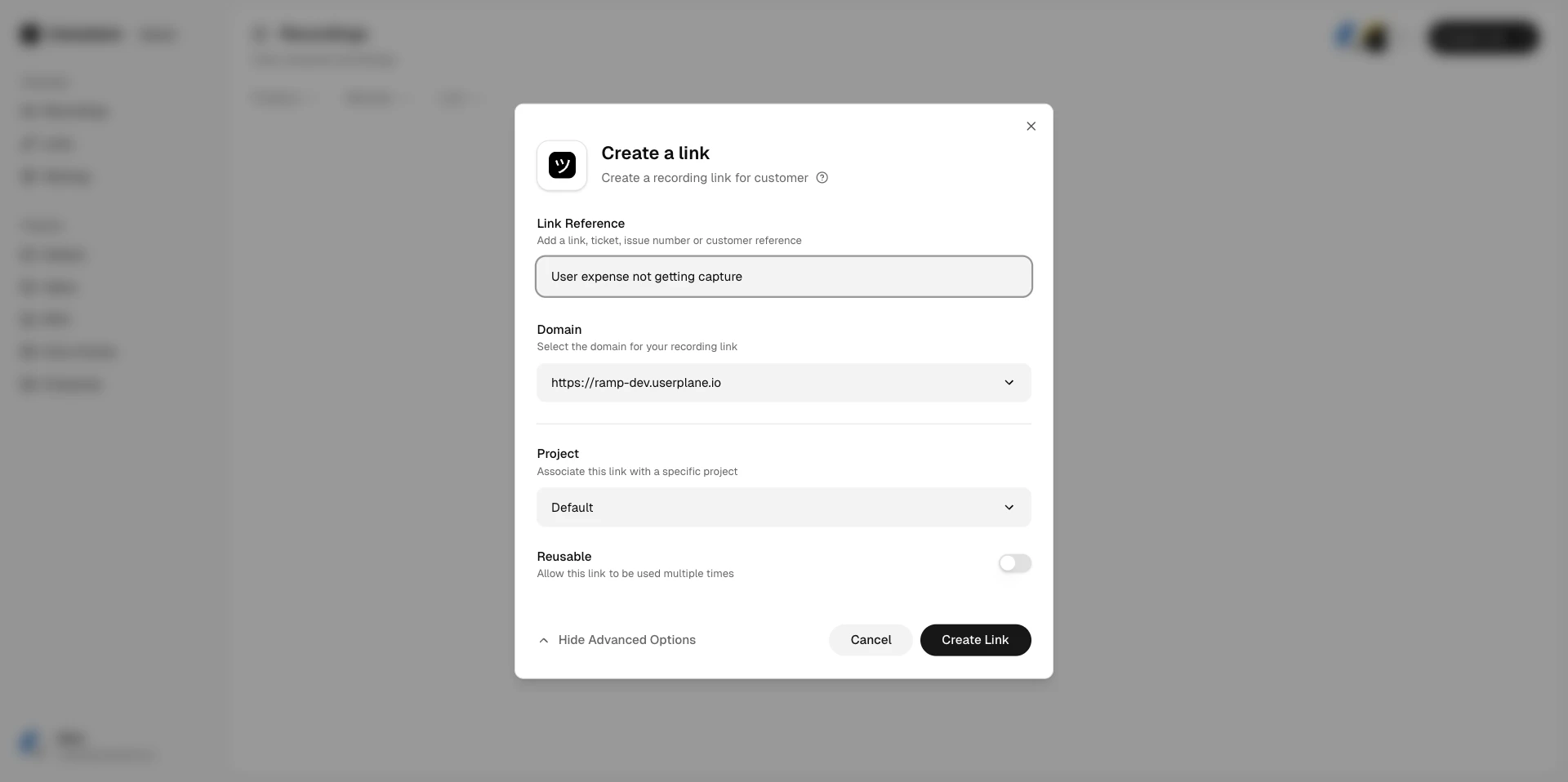
Reference — add an external reference
like a ticket number or URL (e.g. JIRA-456, a GitHub issue link). This makes it easy to find
the recording later.
Reusable — toggle whether the link can be used once or multiple
times.
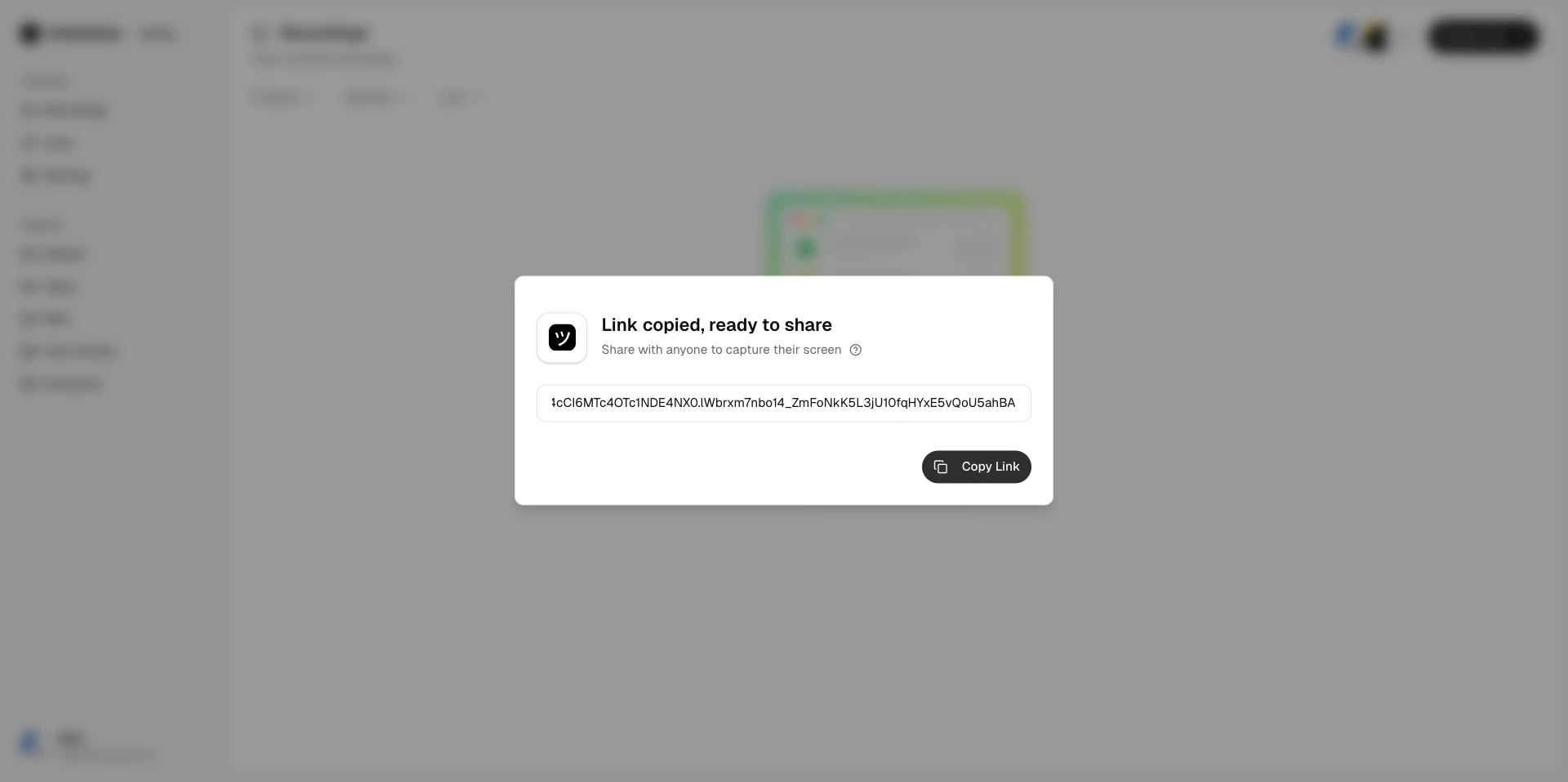
Send the recording link to your customer through any channel — email, live chat, Intercom, Slack, or your help desk. When the customer opens the link, they see a branded recording page and can start recording immediately.
After the customer opens the link, they go through the following flow. The finished recording appears in your Recordings page.
1
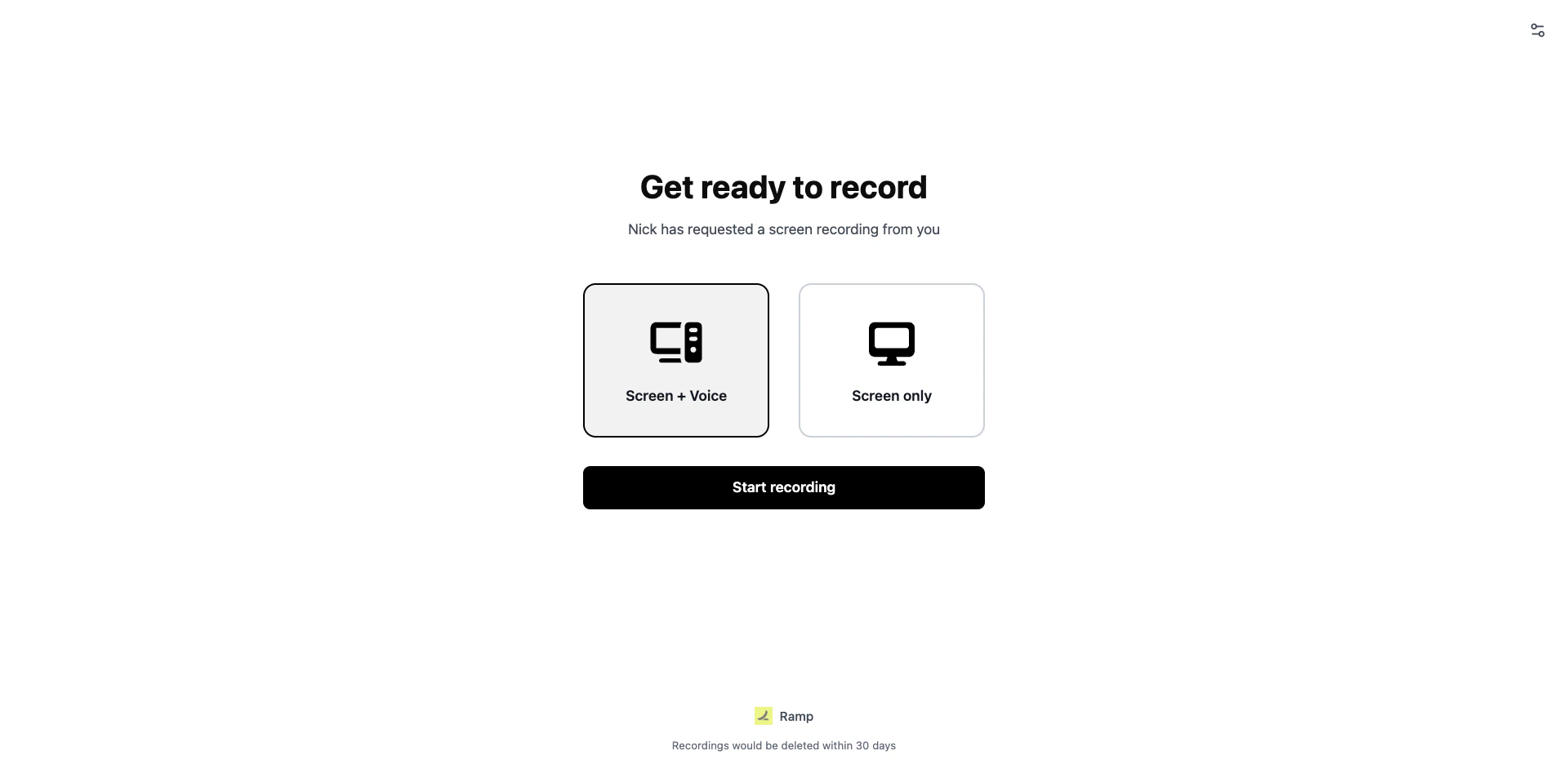
Customer opens the link
The customer sees a branded recording page and can start recording immediately — no installs required.
Customer recording page
2
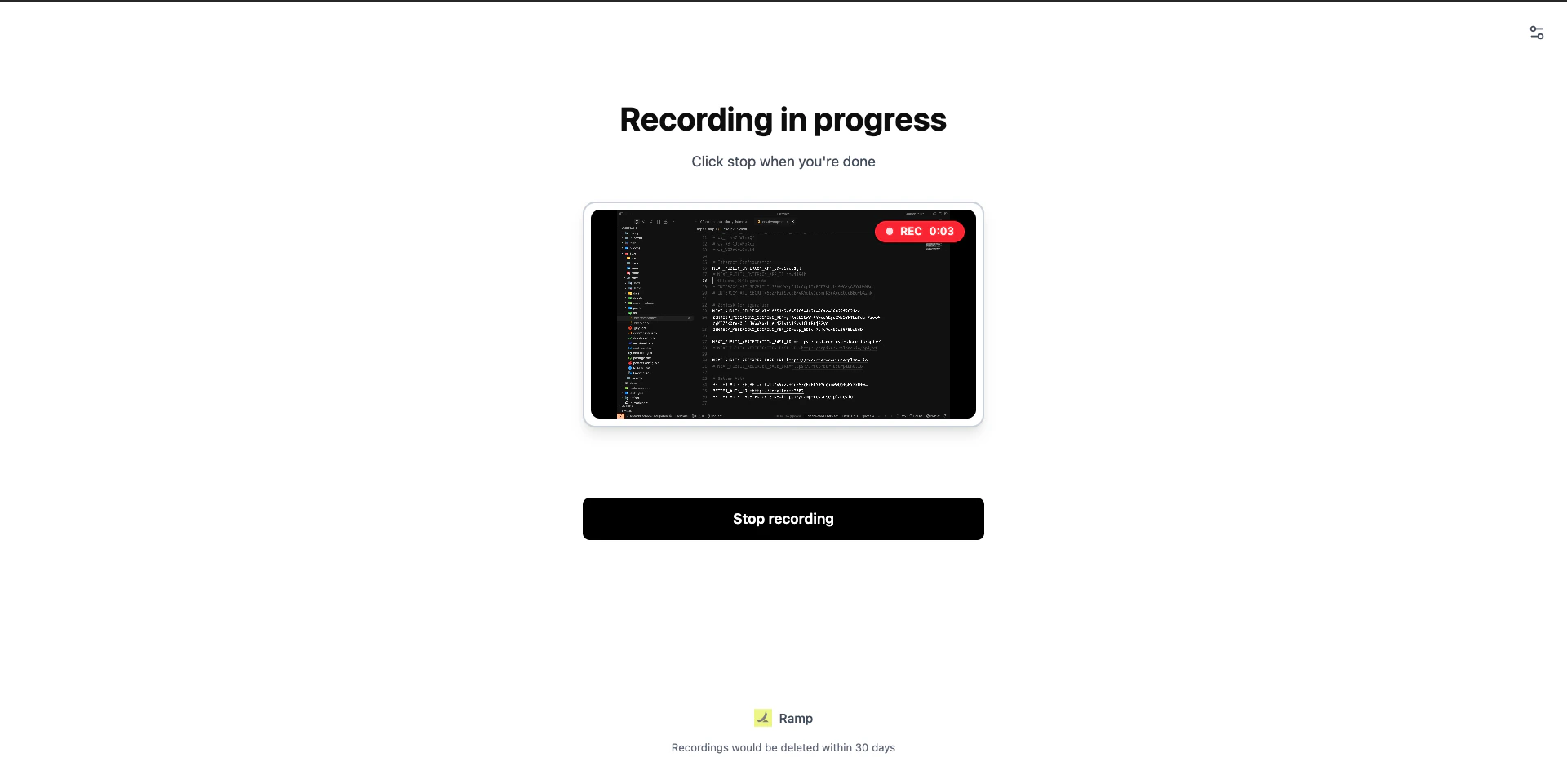
Recording in progress
The customer’s screen is captured in real time along with console logs, network activity, and user actions.
Recording in progress
3
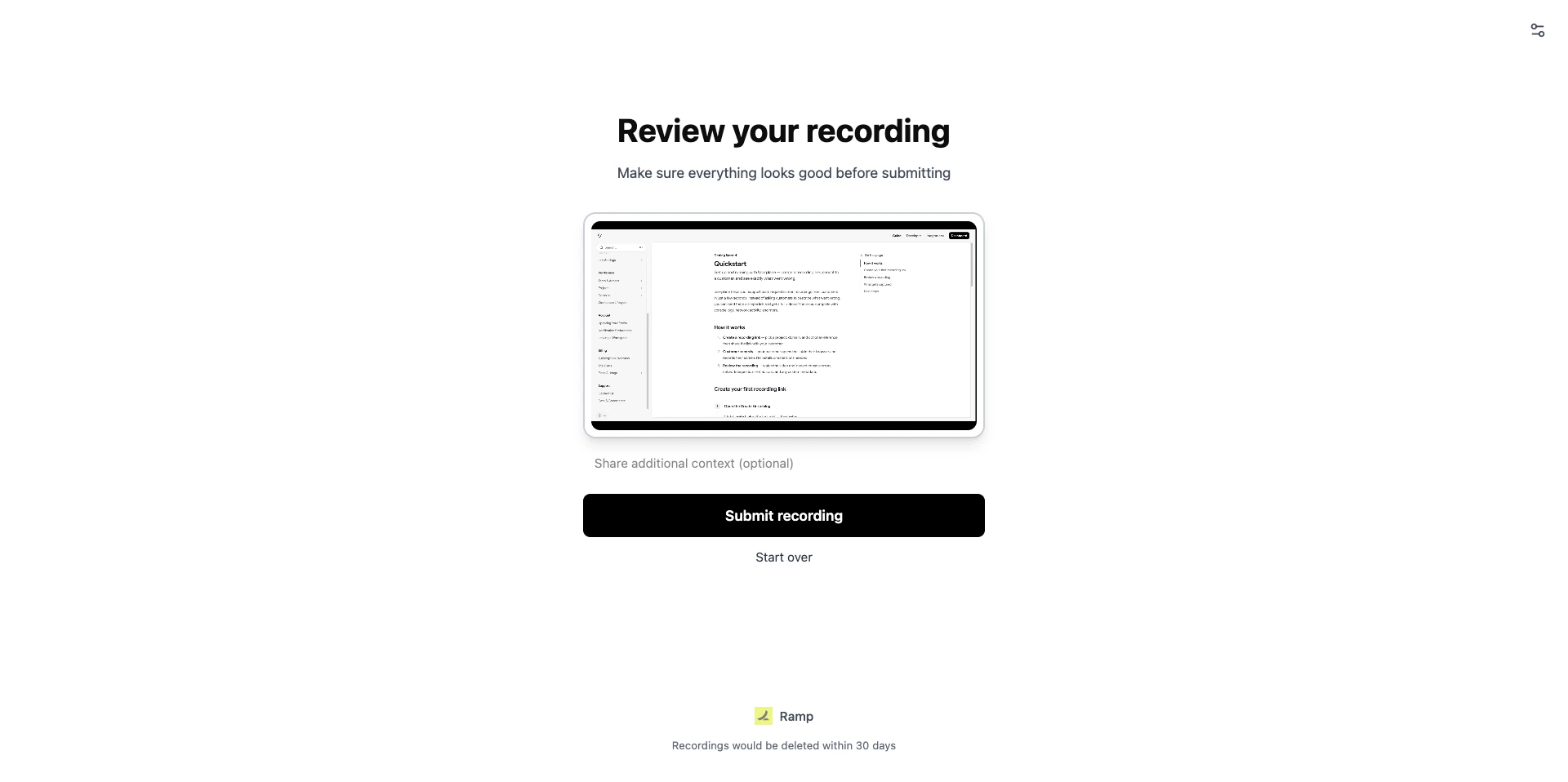
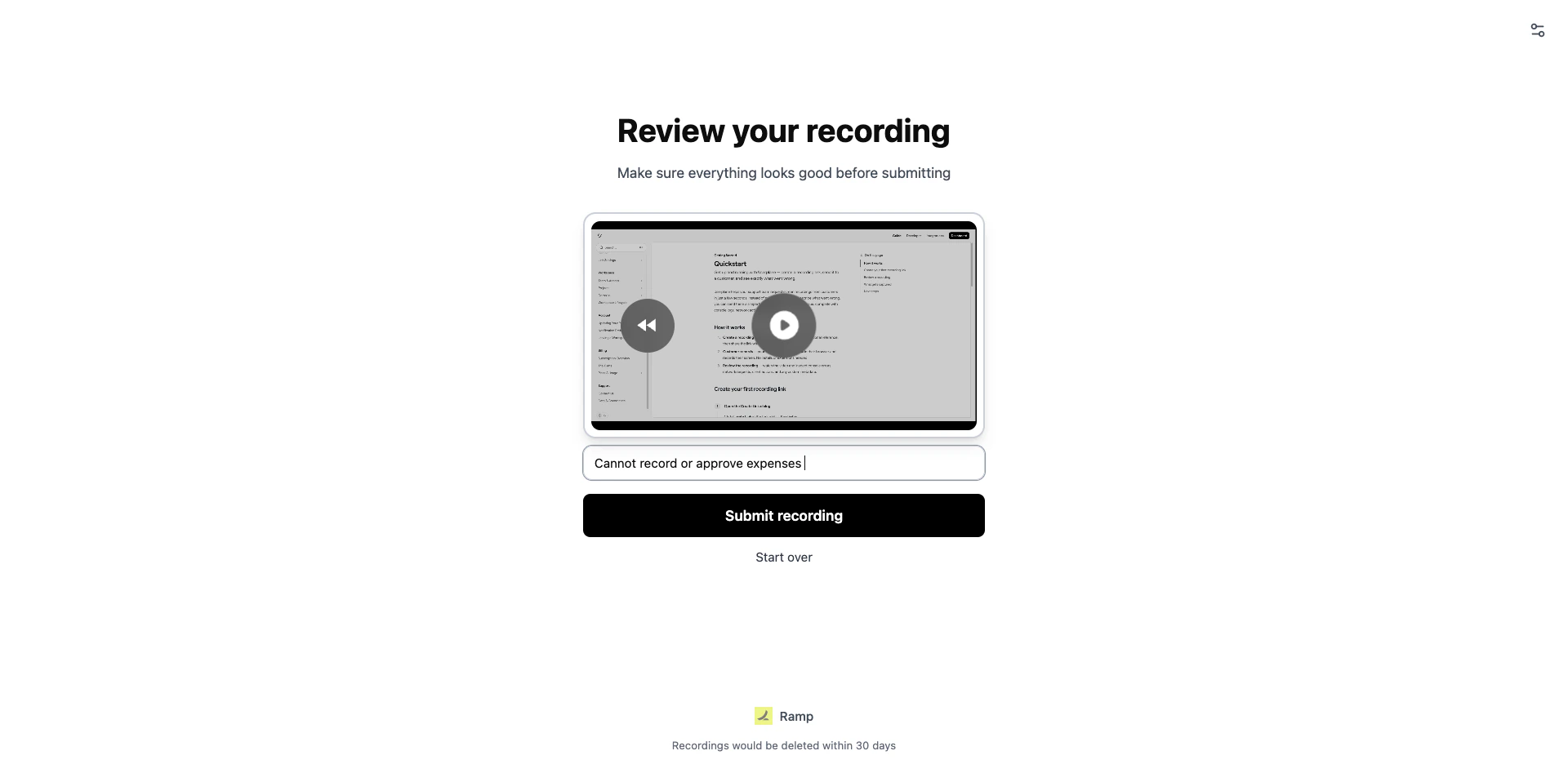
Review before uploading
After stopping the recording, the customer can review the capture and add notes to describe the issue.
Review recording before upload
Adding notes before upload
4
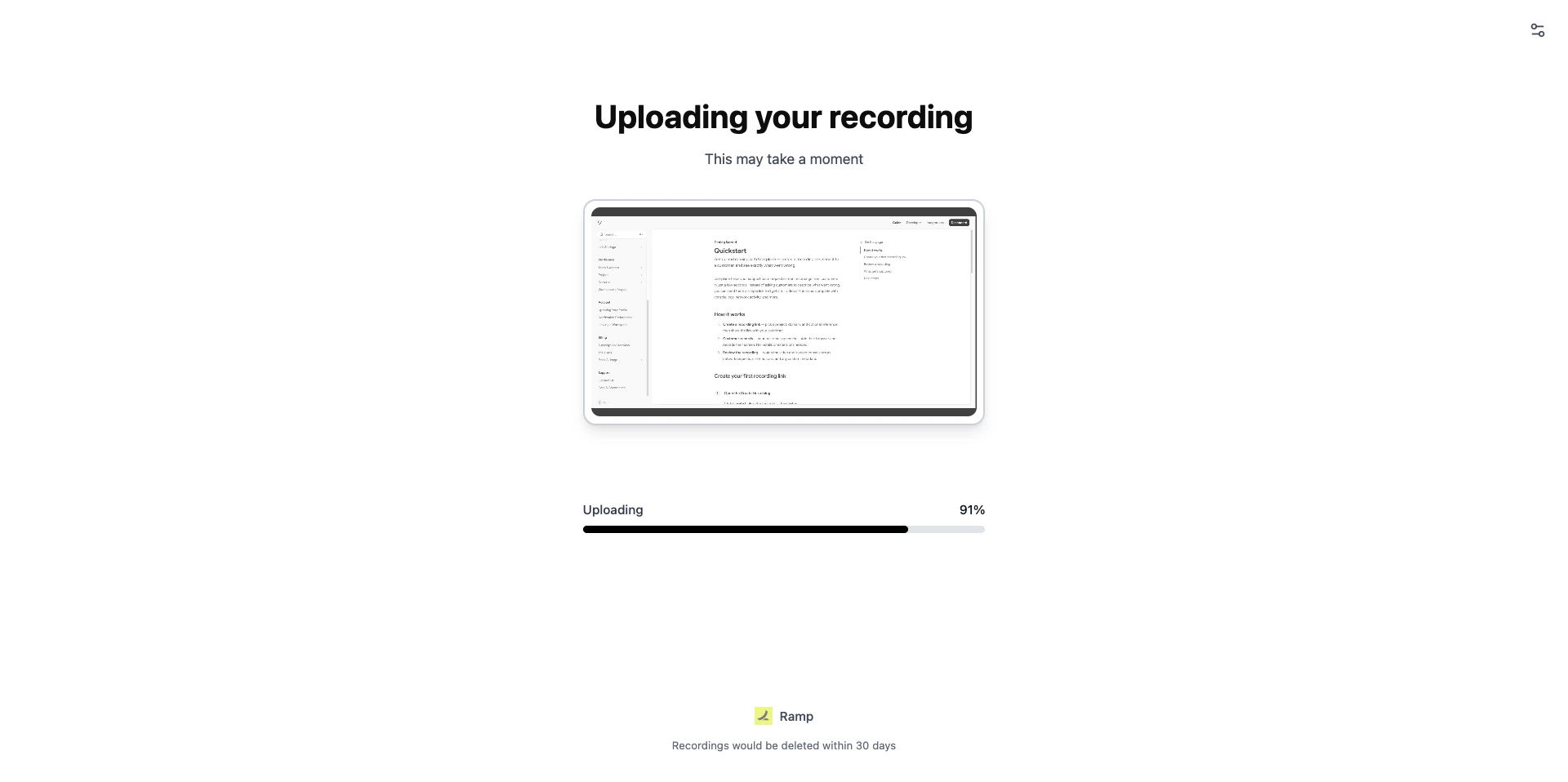
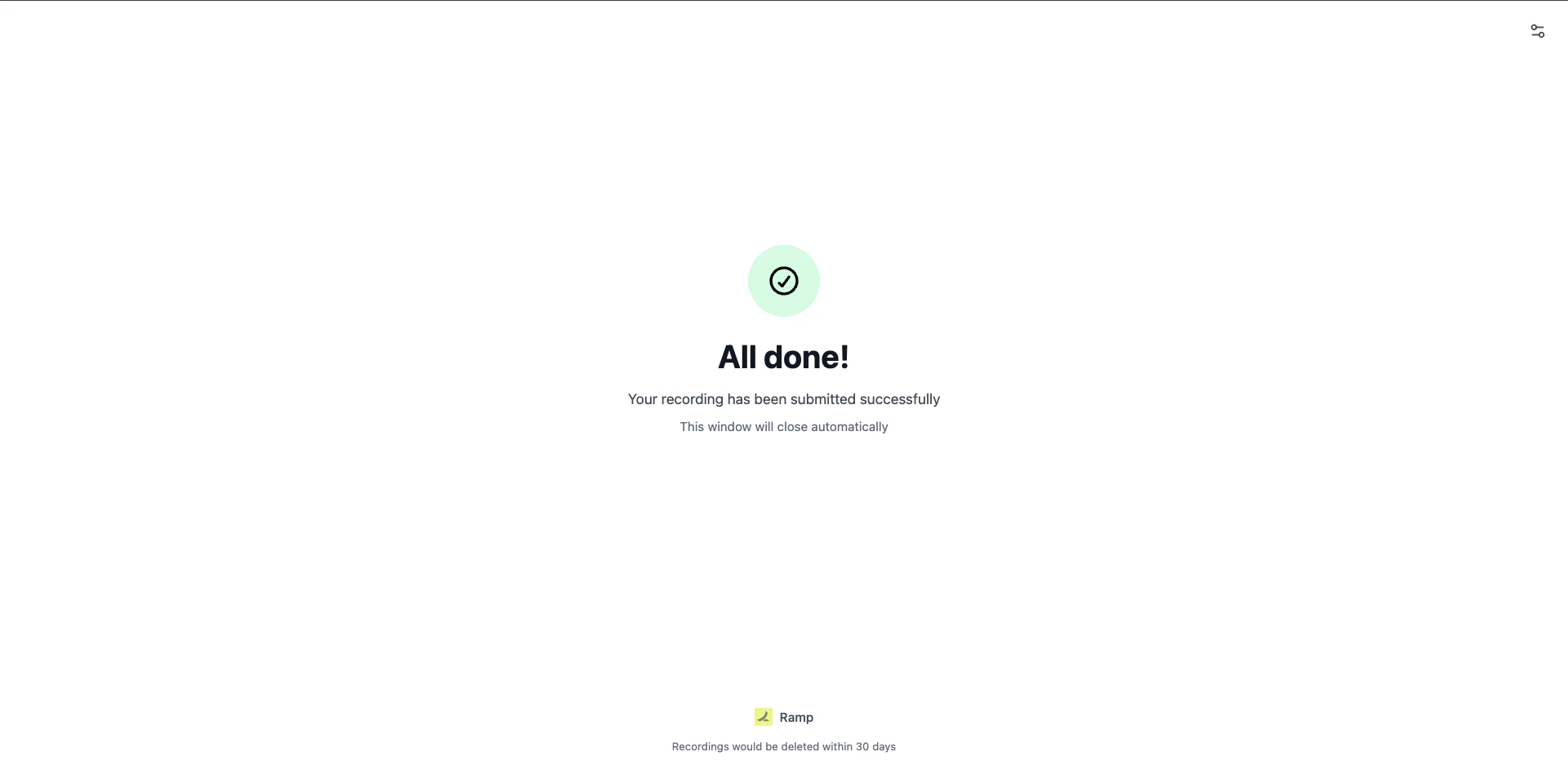
Upload completes
The recording is uploaded and immediately available in your workspace.
Upload in progress
Recording uploaded successfully
Incoming recording notifications are opt-in. To receive email alerts when recordings arrive,
enable “Incoming recordings” in your notification preferences.
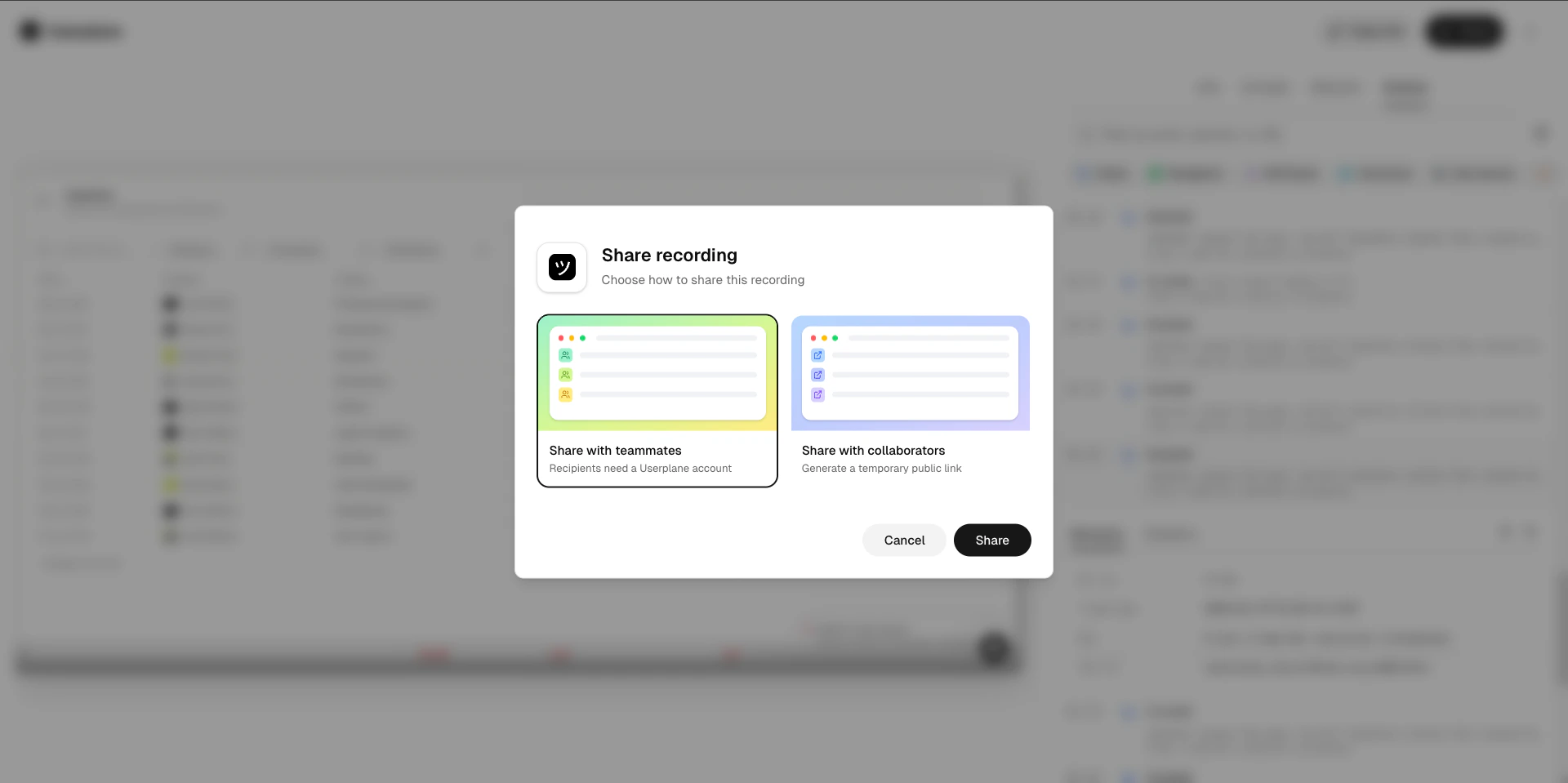
Once a recording lands in your workspace, you can share it with teammates or external collaborators. For the full sharing guide, see Sharing Recordings.
Sharing options
Share with teammates
Share with collaborators
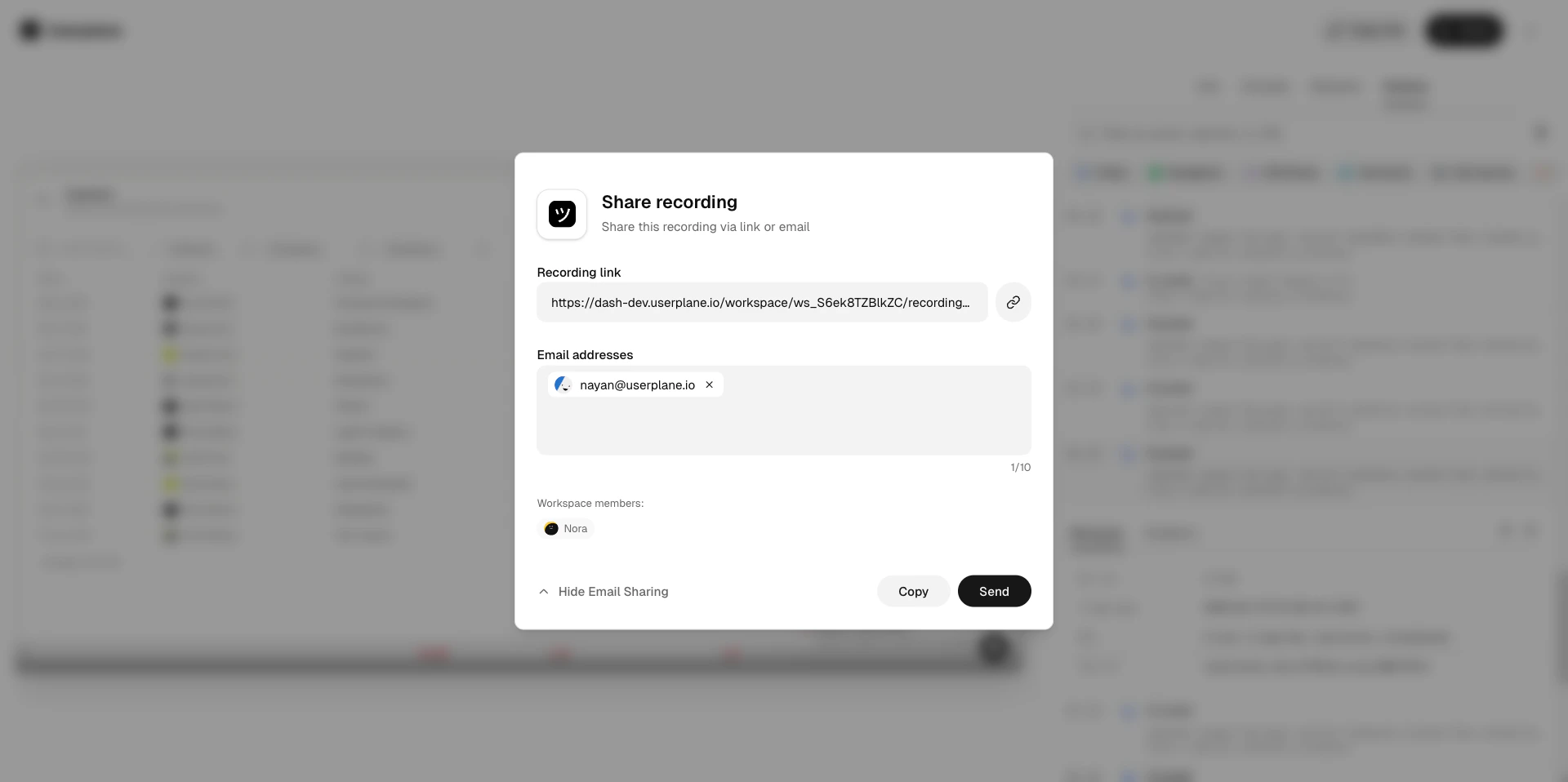
Share a recording link with workspace members. Recipients must have a Userplane account and belong to your workspace.
Share with teammates
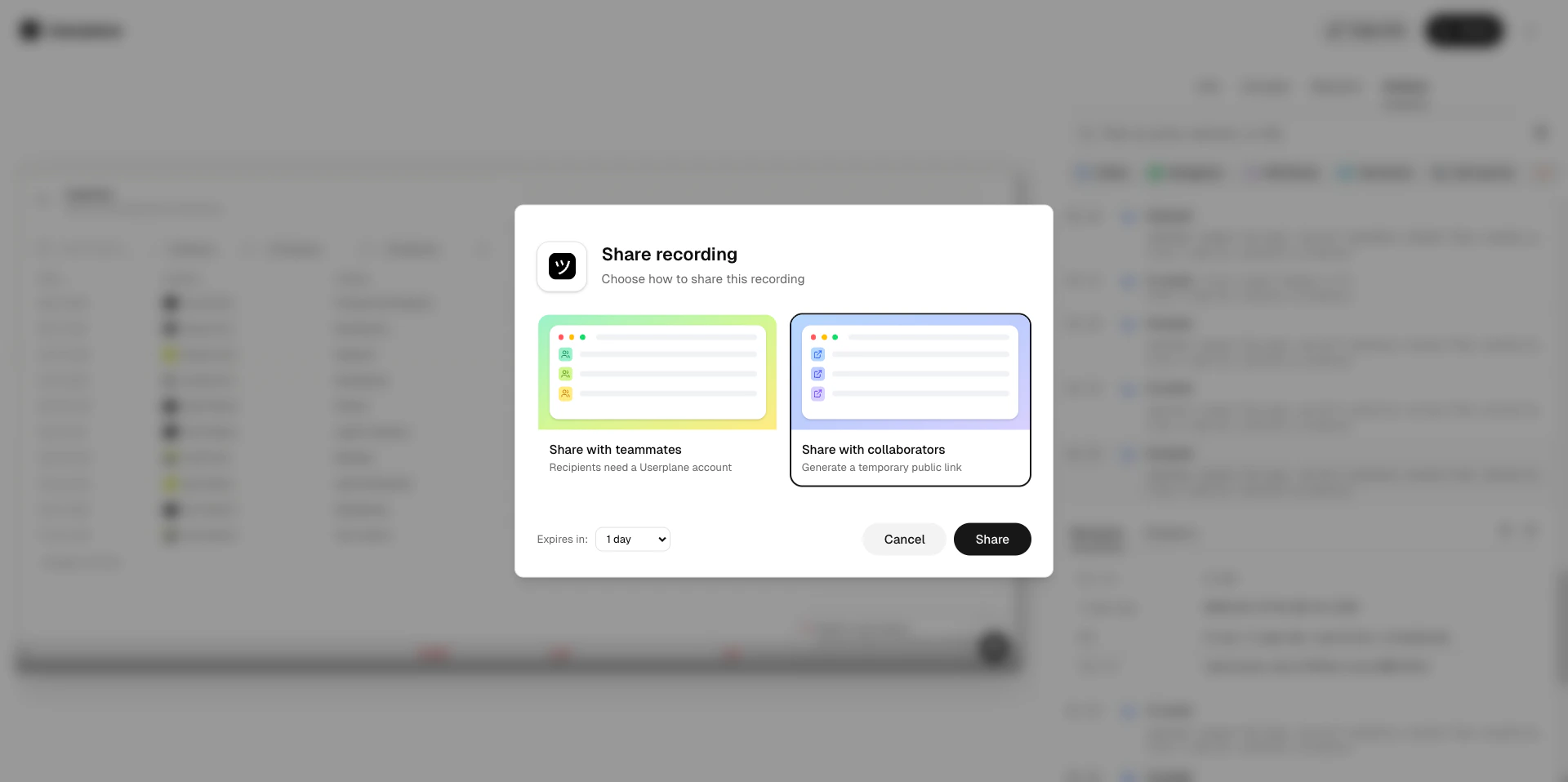
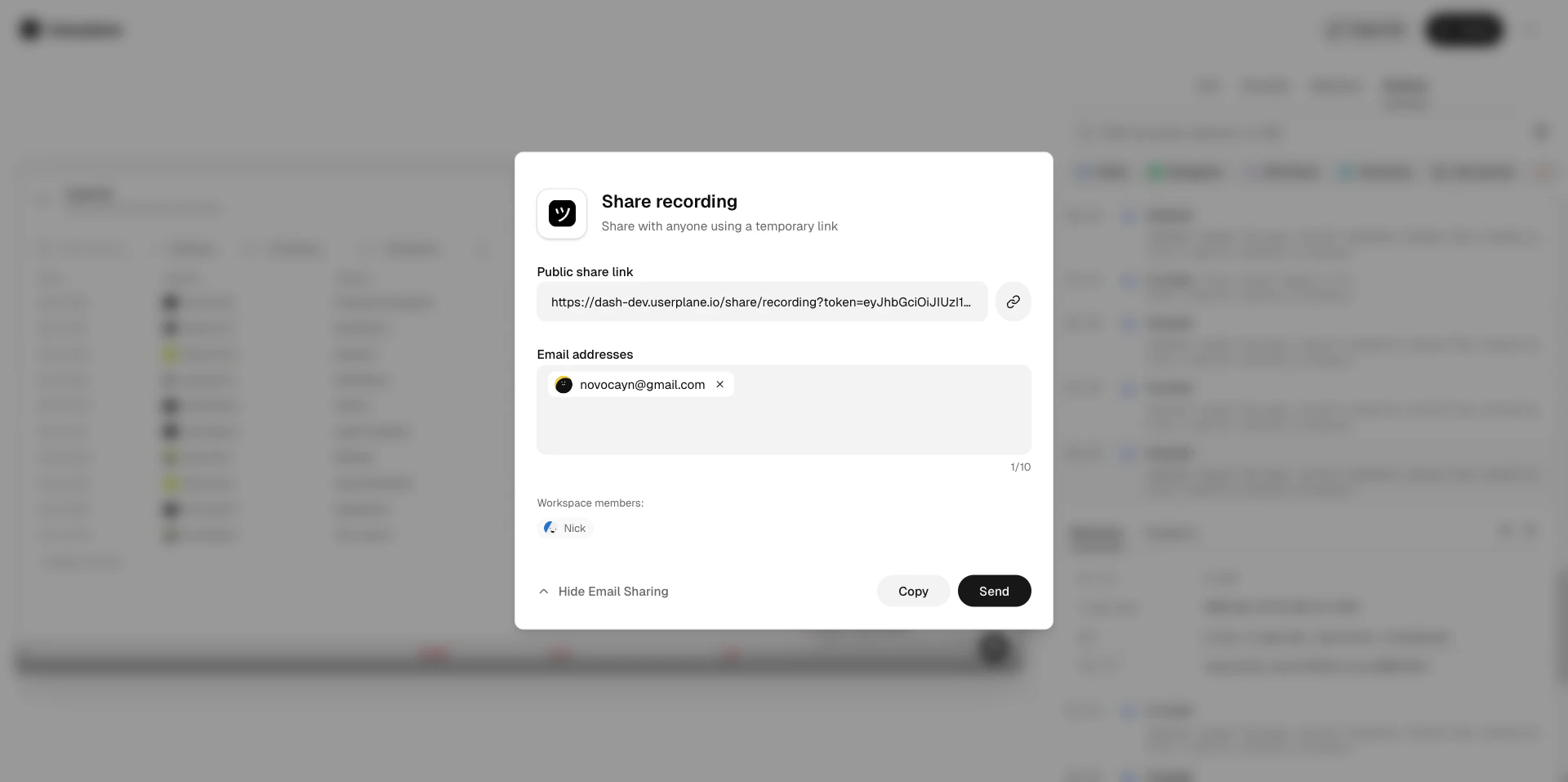
Generate a temporary public link for anyone — no Userplane account required. The link expires automatically after the selected duration.
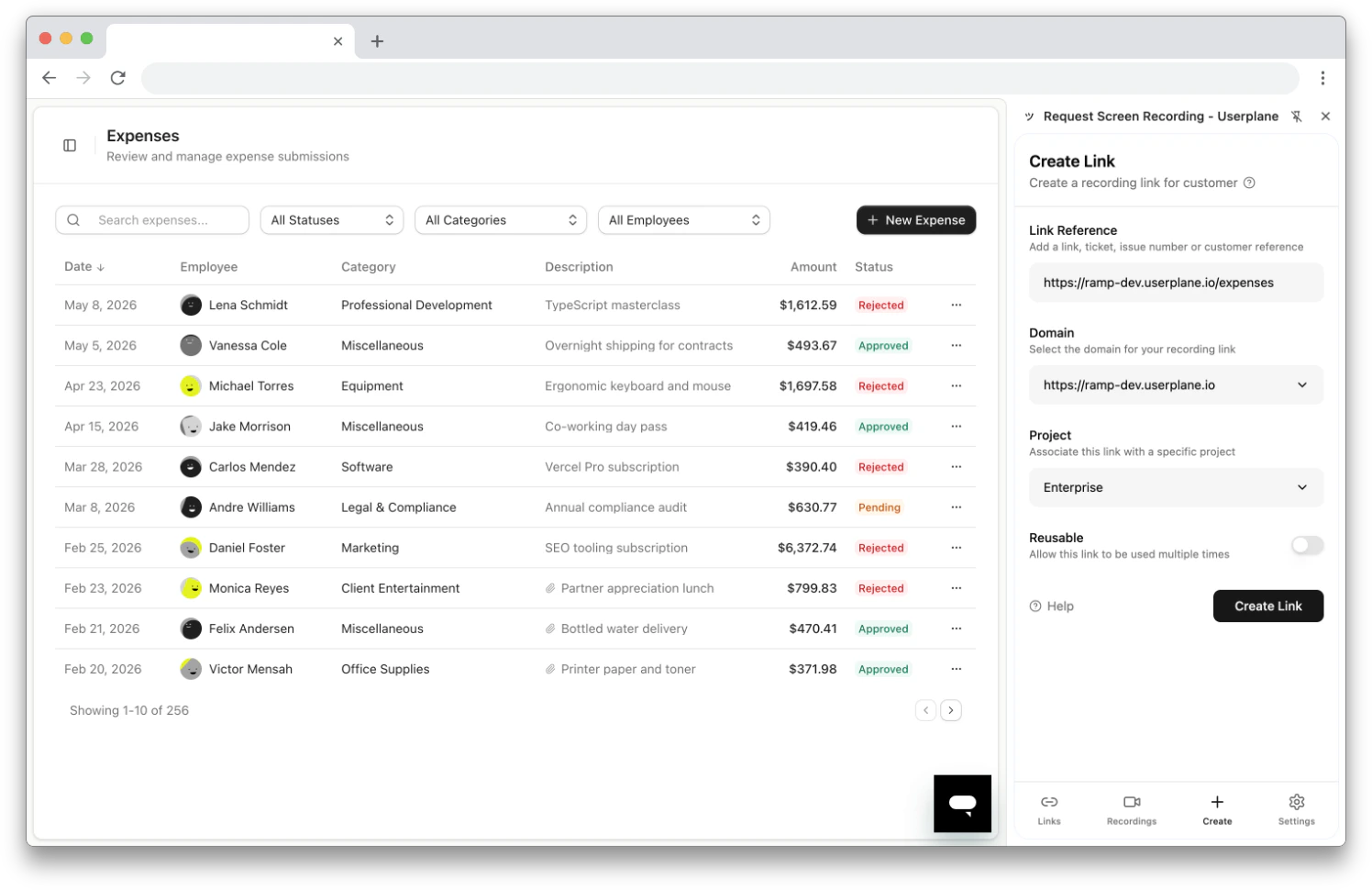
If you prefer to stay in the browser rather than switching to the dashboard, the Chrome extension lets you create recording links from a side panel alongside any tab. Press Cmd+Shift+Y (Mac) / Ctrl+Shift+Y (Windows/Linux) to open the Create Link form — the reference field auto-populates with the current page URL.This is especially useful when you’re already looking at a help desk ticket or customer page. See Chrome Extension Link Creation for the full walkthrough.
Create Link form in the Chrome extension with auto-populated reference
Reusable Links — when to use one-time vs reusable links.
Chrome Extension — create and manage links from a Chrome side panel.
{"docsConfig":{"theme":"aspen","$schema":"https://mintlify.com/docs.json","name":"Userplane Docs","colors":{"primary":"#000000","light":"#FAFAFA","dark":"#000000"},"logo":{"light":"https://mintcdn.com/userplane/e34bWffW8FdiqmQz/static/logo-light.svg?fit=max\u0026auto=format\u0026n=e34bWffW8FdiqmQz\u0026q=85\u0026s=b60f979b7800d446f3f5d5274c095cb2","dark":"https://mintcdn.com/userplane/e34bWffW8FdiqmQz/static/logo-dark.svg?fit=max\u0026auto=format\u0026n=e34bWffW8FdiqmQz\u0026q=85\u0026s=f638b932d019423317aaca6685f22ea6"},"favicon":"https://mintcdn.com/userplane/e34bWffW8FdiqmQz/static/favicon.svg?fit=max\u0026auto=format\u0026n=e34bWffW8FdiqmQz\u0026q=85\u0026s=fd9fbcc5e1783343c767381ce1744d03","api":{"playground":{"display":"interactive"}},"appearance":{"default":"light","strict":true},"navbar":{"primary":{"type":"button","label":"Dashboard","href":"https://dash.userplane.io"}},"styling":{"latex":true},"navigation":{"pages":[]}},"deployment":{"deploymentMetadataValue":{"subdomain":"userplane","hasAudioNarration":false,"actualSubdomain":"userplane","customDomains":["docs.userplane.io"],"gitSource":{"type":"github","owner":"0xnyn","repo":"userplane","deployBranch":"main","contentDirectory":"apps/docs","isPrivate":true,"mountPath":"","label":""},"chroma":{"liveDeploymentHistoryId":"6a21eb6f2fb2a99bab92da64","collectionId":"8e53ea74-03f5-4b56-ab3a-aff2a4fe9720","schemaVersion":"v2"},"entitlements":{},"buildId":"6a21eb6f2fb2a99bab92da64:success","clientVersion":"0.0.3908","searchFilterCounts":[{"language":"default","tag":"Integrations","count":62},{"language":"default","tag":"Guide","count":47},{"language":"default","tag":"Extensions \u0026 Plugins","count":34},{"language":"default","tag":"API","count":28},{"language":"default","tag":"Developer","count":24},{"language":"default","tag":"Recordings","count":21},{"language":"default","tag":"Help Desk","count":16},{"language":"default","tag":"Claude Code","count":14},{"language":"default","tag":"Framework Guides","count":13},{"language":"default","tag":"Getting Started","count":12}]},"assistantConfig":{"enableAskAiButton":false,"enableStarterQuestions":false,"enableAskAiSearchBar":true},"hasChatPermissions":false,"hasWebMcpPermissions":false,"toggles":[{"name":"kill-isr","enabled":true,"variant":{"name":"disabled","enabled":false,"feature_enabled":true},"impressionData":false},{"name":"agent-mintlify-slack","enabled":true,"variant":{"name":"disabled","enabled":false,"feature_enabled":true},"impressionData":false},{"name":"editor-v7-file-tree","enabled":true,"variant":{"name":"disabled","enabled":false,"feature_enabled":true},"impressionData":false},{"name":"agent-integrations-settings","enabled":true,"variant":{"name":"disabled","enabled":false,"feature_enabled":true},"impressionData":false},{"name":"automations-pr-grouping","enabled":true,"variant":{"name":"disabled","enabled":false,"feature_enabled":true},"impressionData":false},{"name":"custom-prefix","enabled":true,"variant":{"name":"disabled","enabled":false,"feature_enabled":true},"impressionData":false},{"name":"analytics-v7","enabled":true,"variant":{"name":"disabled","enabled":false,"feature_enabled":true},"impressionData":false},{"name":"user-flows-analytics","enabled":true,"variant":{"name":"disabled","enabled":false,"feature_enabled":true},"impressionData":false},{"name":"no-publish-flow","enabled":true,"variant":{"name":"disabled","enabled":false,"feature_enabled":true},"impressionData":false},{"name":"workos-onboarding","enabled":true,"variant":{"name":"disabled","enabled":false,"feature_enabled":true},"impressionData":false},{"name":"llms-txt-v2","enabled":true,"variant":{"name":"disabled","enabled":false,"feature_enabled":true},"impressionData":false},{"name":"pause-universal-search-reconcile","enabled":true,"variant":{"name":"disabled","enabled":false,"feature_enabled":true},"impressionData":false},{"name":"snapshot-serving-live","enabled":true,"variant":{"name":"disabled","enabled":false,"feature_enabled":true},"impressionData":false},{"name":"stripTemperatureMiddleware","enabled":true,"variant":{"name":"disabled","enabled":false,"feature_enabled":true},"impressionData":false},{"name":"per-site-search-delta","enabled":true,"variant":{"name":"disabled","enabled":false,"feature_enabled":true},"impressionData":false},{"name":"support-platform-pylon-zendesk","enabled":true,"variant":{"name":"disabled","enabled":false,"feature_enabled":true},"impressionData":false},{"name":"editor-branches-v2-autocommit","enabled":true,"variant":{"name":"disabled","enabled":false,"feature_enabled":true},"impressionData":false},{"name":"editor-branches-v2","enabled":true,"variant":{"name":"disabled","enabled":false,"feature_enabled":true},"impressionData":false},{"name":"snapshot-serving","enabled":true,"variant":{"name":"disabled","enabled":false,"feature_enabled":true},"impressionData":false},{"name":"instant-rollback","enabled":true,"variant":{"name":"disabled","enabled":false,"feature_enabled":true},"impressionData":false},{"name":"granular-notifications-server","enabled":true,"variant":{"name":"disabled","enabled":false,"feature_enabled":true},"impressionData":false},{"name":"granular-notifications","enabled":true,"variant":{"name":"disabled","enabled":false,"feature_enabled":true},"impressionData":false},{"name":"editor-private-page-search","enabled":true,"variant":{"name":"disabled","enabled":false,"feature_enabled":true},"impressionData":false},{"name":"automations-fable","enabled":true,"variant":{"name":"disabled","enabled":false,"feature_enabled":true},"impressionData":false},{"name":"fixed-ai-action-pricing","enabled":true,"variant":{"name":"disabled","enabled":false,"feature_enabled":true},"impressionData":false},{"name":"automation-resolve-merge-conflict","enabled":true,"variant":{"name":"disabled","enabled":false,"feature_enabled":true},"impressionData":false},{"name":"scoped-publishing","enabled":true,"variant":{"name":"disabled","enabled":false,"feature_enabled":true},"impressionData":false},{"name":"mintql","enabled":true,"variant":{"name":"disabled","enabled":false,"feature_enabled":true},"impressionData":false},{"name":"page-level-analytics","enabled":true,"variant":{"name":"disabled","enabled":false,"feature_enabled":true},"impressionData":false},{"name":"teamspace","enabled":true,"variant":{"name":"disabled","enabled":false,"feature_enabled":true},"impressionData":false},{"name":"editor-version-history-v2","enabled":true,"variant":{"name":"disabled","enabled":false,"feature_enabled":true},"impressionData":false},{"name":"vite-origin","enabled":true,"variant":{"name":"disabled","enabled":false,"feature_enabled":true},"impressionData":false},{"name":"editor-nav-generations","enabled":true,"variant":{"name":"disabled","enabled":false,"feature_enabled":true},"impressionData":false},{"name":"billing-page-v2","enabled":true,"variant":{"name":"disabled","enabled":false,"feature_enabled":true},"impressionData":false},{"name":"workspace-projects","enabled":true,"variant":{"name":"disabled","enabled":false,"feature_enabled":true},"impressionData":false},{"name":"assistant-v5","enabled":true,"variant":{"name":"disabled","enabled":false,"feature_enabled":true},"impressionData":false},{"name":"byok-sep-25","enabled":true,"variant":{"name":"disabled","enabled":false,"feature_enabled":true},"impressionData":false},{"name":"fork-pr-previews","enabled":true,"variant":{"name":"disabled","enabled":false,"feature_enabled":true},"impressionData":false},{"name":"revalidation-jwt","enabled":true,"variant":{"name":"disabled","enabled":false,"feature_enabled":true},"impressionData":false},{"name":"editor-agent-model-picker","enabled":true,"variant":{"name":"disabled","enabled":false,"feature_enabled":true},"impressionData":false},{"name":"client-snapshot-docs-config","enabled":true,"variant":{"name":"disabled","enabled":false,"feature_enabled":true},"impressionData":false},{"name":"hobby-abuse-scan","enabled":true,"variant":{"name":"disabled","enabled":false,"feature_enabled":true},"impressionData":false},{"name":"dashboard-inbox","enabled":true,"variant":{"name":"disabled","enabled":false,"feature_enabled":true},"impressionData":false}],"isAtlas":false,"googleFontsInlined":false},"customCss":[],"page":{"pagePath":"recording/requesting","slug":"/recording/requesting","pageMetadata":{"title":"Requesting a Recording","description":"Create a recording link and share it with your customer to capture a screen recording","href":"/recording/requesting"},"description":{"compiledSource":"\"use strict\";\nconst {jsx: _jsx} = arguments[0];\nconst {useMDXComponents: _provideComponents} = arguments[0];\nfunction _createMdxContent(props) {\n const _components = {\n p: \"p\",\n ..._provideComponents(),\n ...props.components\n };\n return _jsx(_components.p, {\n children: \"Create a recording link and share it with your customer to capture a screen recording\"\n });\n}\nfunction MDXContent(props = {}) {\n const {wrapper: MDXLayout} = {\n ..._provideComponents(),\n ...props.components\n };\n return MDXLayout ? _jsx(MDXLayout, {\n ...props,\n children: _jsx(_createMdxContent, {\n ...props\n })\n }) : _createMdxContent(props);\n}\nreturn {\n default: MDXContent\n};\n","frontmatter":{},"scope":{}},"pageType":"default","mdx":{"mdxSource":{"compiledSource":"\"use strict\";const{Fragment:_Fragment,jsx:_jsx,jsxs:_jsxs}=arguments[0];const{useMDXComponents:_provideComponents}=arguments[0];function _createMdxContent(props){const _components={a:`a`,code:`code`,li:`li`,p:`p`,strong:`strong`,ul:`ul`,..._provideComponents(),...props.components},{Frame,Heading,OptimizedImage,Step,Steps,Tab,Tabs,Tip}=_components;if(!Frame)_missingMdxReference(`Frame`,true);if(!Heading)_missingMdxReference(`Heading`,true);if(!OptimizedImage)_missingMdxReference(`OptimizedImage`,true);if(!Step)_missingMdxReference(`Step`,true);if(!Steps)_missingMdxReference(`Steps`,true);if(!Tab)_missingMdxReference(`Tab`,true);if(!Tabs)_missingMdxReference(`Tabs`,true);if(!Tip)_missingMdxReference(`Tip`,true);return _jsxs(_Fragment,{children:[_jsx(_components.p,{children:`A recording starts with a link. You create a recording link in Userplane, share it with your customer, and they record their screen directly in the browser — no installs required.`}),`\n`,_jsx(Heading,{level:`2`,id:`create-a-recording-link`,children:`Create a recording link`}),`\n`,_jsxs(Steps,{children:[_jsxs(Step,{title:`Open the Create Link dialog`,children:[_jsxs(_components.p,{children:[`Click the `,_jsx(_components.a,{href:`https://dash.userplane.io/_/recordings?create_link=true`,children:`Create Link`}),` button in the\ntop right corner.`]}),_jsx(Frame,{caption:`Create Link button`,children:_jsx(OptimizedImage,{src:`https://mintcdn.com/userplane/iHJrxtyvOmNXmfMS/media/links/create-link/create-link.png?fit=max\u0026auto=format\u0026n=iHJrxtyvOmNXmfMS\u0026q=85\u0026s=0a6dbc96efbe445bab7da6fdba353551`,\"data-og-width\":`1920`,width:`1920`,\"data-og-height\":`958`,height:`958`,\"data-path\":`media/links/create-link/create-link.png`,\"data-optimize\":`true`,\"data-opv\":`3`,srcset:`https://mintcdn.com/userplane/iHJrxtyvOmNXmfMS/media/links/create-link/create-link.png?w=280\u0026fit=max\u0026auto=format\u0026n=iHJrxtyvOmNXmfMS\u0026q=85\u0026s=42e04c72d92ccd1da1ae3c723b97aaf3 280w, https://mintcdn.com/userplane/iHJrxtyvOmNXmfMS/media/links/create-link/create-link.png?w=560\u0026fit=max\u0026auto=format\u0026n=iHJrxtyvOmNXmfMS\u0026q=85\u0026s=4d658c9d0f4ba4f53adabbd178045940 560w, https://mintcdn.com/userplane/iHJrxtyvOmNXmfMS/media/links/create-link/create-link.png?w=840\u0026fit=max\u0026auto=format\u0026n=iHJrxtyvOmNXmfMS\u0026q=85\u0026s=c0ea3cb5d9b0e37cb6c94213909c2c0d 840w, https://mintcdn.com/userplane/iHJrxtyvOmNXmfMS/media/links/create-link/create-link.png?w=1100\u0026fit=max\u0026auto=format\u0026n=iHJrxtyvOmNXmfMS\u0026q=85\u0026s=66f14d64a69e1cb5ff92423b22419cab 1100w, https://mintcdn.com/userplane/iHJrxtyvOmNXmfMS/media/links/create-link/create-link.png?w=1650\u0026fit=max\u0026auto=format\u0026n=iHJrxtyvOmNXmfMS\u0026q=85\u0026s=33b3404de5d818d9e1a4e674c8e57474 1650w, https://mintcdn.com/userplane/iHJrxtyvOmNXmfMS/media/links/create-link/create-link.png?w=2500\u0026fit=max\u0026auto=format\u0026n=iHJrxtyvOmNXmfMS\u0026q=85\u0026s=4e86f781e3830bf3d41880319a17f7fa 2500w`})})]}),_jsxs(Step,{title:`Fill in the link details`,children:[_jsxs(_components.ul,{children:[`\n`,_jsxs(_components.li,{children:[_jsx(_components.strong,{children:`Project`}),` — choose which project this recording belongs to. This helps you organize and\nfilter recordings later.`]}),`\n`,_jsxs(_components.li,{children:[_jsx(_components.strong,{children:`Domain`}),` — select a verified domain to brand the recording link\nwith your site’s identity. Optional but recommended.`]}),`\n`,_jsxs(_components.li,{children:[_jsx(_components.strong,{children:`Reference`}),` — add an external reference\nlike a ticket number or URL (e.g. `,_jsx(_components.code,{children:`JIRA-456`}),`, a GitHub issue link). This makes it easy to find\nthe recording later.`]}),`\n`,_jsxs(_components.li,{children:[_jsx(_components.strong,{children:`Reusable`}),` — toggle whether the link can be used once or multiple\ntimes.`]}),`\n`]}),_jsx(Frame,{caption:`Create Link form`,children:_jsx(OptimizedImage,{src:`https://mintcdn.com/userplane/iHJrxtyvOmNXmfMS/media/links/create-link/create-link-unfilled.png?fit=max\u0026auto=format\u0026n=iHJrxtyvOmNXmfMS\u0026q=85\u0026s=ddb807aad47446a99a906f2197e44000`,\"data-og-width\":`1920`,width:`1920`,\"data-og-height\":`958`,height:`958`,\"data-path\":`media/links/create-link/create-link-unfilled.png`,\"data-optimize\":`true`,\"data-opv\":`3`,srcset:`https://mintcdn.com/userplane/iHJrxtyvOmNXmfMS/media/links/create-link/create-link-unfilled.png?w=280\u0026fit=max\u0026auto=format\u0026n=iHJrxtyvOmNXmfMS\u0026q=85\u0026s=b88519409d57825125fb973a7c2a2b9f 280w, https://mintcdn.com/userplane/iHJrxtyvOmNXmfMS/media/links/create-link/create-link-unfilled.png?w=560\u0026fit=max\u0026auto=format\u0026n=iHJrxtyvOmNXmfMS\u0026q=85\u0026s=582559f7c7ed75469cddae8704622e66 560w, https://mintcdn.com/userplane/iHJrxtyvOmNXmfMS/media/links/create-link/create-link-unfilled.png?w=840\u0026fit=max\u0026auto=format\u0026n=iHJrxtyvOmNXmfMS\u0026q=85\u0026s=5259e58f7c6358c7628848933876c78e 840w, https://mintcdn.com/userplane/iHJrxtyvOmNXmfMS/media/links/create-link/create-link-unfilled.png?w=1100\u0026fit=max\u0026auto=format\u0026n=iHJrxtyvOmNXmfMS\u0026q=85\u0026s=800b939d69db5620f589c46ac986cc04 1100w, https://mintcdn.com/userplane/iHJrxtyvOmNXmfMS/media/links/create-link/create-link-unfilled.png?w=1650\u0026fit=max\u0026auto=format\u0026n=iHJrxtyvOmNXmfMS\u0026q=85\u0026s=84b4509787530de94780b09a511e670d 1650w, https://mintcdn.com/userplane/iHJrxtyvOmNXmfMS/media/links/create-link/create-link-unfilled.png?w=2500\u0026fit=max\u0026auto=format\u0026n=iHJrxtyvOmNXmfMS\u0026q=85\u0026s=41a0719adddd1f00ad8513395a1dbaf4 2500w`})}),_jsx(Frame,{caption:`Project selection`,children:_jsx(OptimizedImage,{src:`https://mintcdn.com/userplane/iHJrxtyvOmNXmfMS/media/links/create-link/create-link-project-selection.png?fit=max\u0026auto=format\u0026n=iHJrxtyvOmNXmfMS\u0026q=85\u0026s=0196f54a3e06fca2fd8e614e23d70ffa`,\"data-og-width\":`1920`,width:`1920`,\"data-og-height\":`958`,height:`958`,\"data-path\":`media/links/create-link/create-link-project-selection.png`,\"data-optimize\":`true`,\"data-opv\":`3`,srcset:`https://mintcdn.com/userplane/iHJrxtyvOmNXmfMS/media/links/create-link/create-link-project-selection.png?w=280\u0026fit=max\u0026auto=format\u0026n=iHJrxtyvOmNXmfMS\u0026q=85\u0026s=3b19483a7b672c6048872b7abbadb9dc 280w, https://mintcdn.com/userplane/iHJrxtyvOmNXmfMS/media/links/create-link/create-link-project-selection.png?w=560\u0026fit=max\u0026auto=format\u0026n=iHJrxtyvOmNXmfMS\u0026q=85\u0026s=fb56a1db123a8da5f35b33b2968f90c1 560w, https://mintcdn.com/userplane/iHJrxtyvOmNXmfMS/media/links/create-link/create-link-project-selection.png?w=840\u0026fit=max\u0026auto=format\u0026n=iHJrxtyvOmNXmfMS\u0026q=85\u0026s=4714314e0744d4c294ed15a4c2a27f44 840w, https://mintcdn.com/userplane/iHJrxtyvOmNXmfMS/media/links/create-link/create-link-project-selection.png?w=1100\u0026fit=max\u0026auto=format\u0026n=iHJrxtyvOmNXmfMS\u0026q=85\u0026s=661a19bcfd4ab4b2eb944ccce33e44d1 1100w, https://mintcdn.com/userplane/iHJrxtyvOmNXmfMS/media/links/create-link/create-link-project-selection.png?w=1650\u0026fit=max\u0026auto=format\u0026n=iHJrxtyvOmNXmfMS\u0026q=85\u0026s=83adad05924abaee2af2ec6db694b68e 1650w, https://mintcdn.com/userplane/iHJrxtyvOmNXmfMS/media/links/create-link/create-link-project-selection.png?w=2500\u0026fit=max\u0026auto=format\u0026n=iHJrxtyvOmNXmfMS\u0026q=85\u0026s=f206ea0c9121482712bf8f39d7e70deb 2500w`})}),_jsx(Frame,{caption:`Adding a reference`,children:_jsx(OptimizedImage,{src:`https://mintcdn.com/userplane/iHJrxtyvOmNXmfMS/media/links/create-link/create-link-link-reference.png?fit=max\u0026auto=format\u0026n=iHJrxtyvOmNXmfMS\u0026q=85\u0026s=53350fcc44963d42d49e57a1d756da2f`,\"data-og-width\":`1920`,width:`1920`,\"data-og-height\":`958`,height:`958`,\"data-path\":`media/links/create-link/create-link-link-reference.png`,\"data-optimize\":`true`,\"data-opv\":`3`,srcset:`https://mintcdn.com/userplane/iHJrxtyvOmNXmfMS/media/links/create-link/create-link-link-reference.png?w=280\u0026fit=max\u0026auto=format\u0026n=iHJrxtyvOmNXmfMS\u0026q=85\u0026s=43ff4bd6a709a3f273ae5a372303c9fe 280w, https://mintcdn.com/userplane/iHJrxtyvOmNXmfMS/media/links/create-link/create-link-link-reference.png?w=560\u0026fit=max\u0026auto=format\u0026n=iHJrxtyvOmNXmfMS\u0026q=85\u0026s=5b2ca4f125895231dc40558d635490a2 560w, https://mintcdn.com/userplane/iHJrxtyvOmNXmfMS/media/links/create-link/create-link-link-reference.png?w=840\u0026fit=max\u0026auto=format\u0026n=iHJrxtyvOmNXmfMS\u0026q=85\u0026s=85fe2b6c0e6f4495847681b6aae7bc9f 840w, https://mintcdn.com/userplane/iHJrxtyvOmNXmfMS/media/links/create-link/create-link-link-reference.png?w=1100\u0026fit=max\u0026auto=format\u0026n=iHJrxtyvOmNXmfMS\u0026q=85\u0026s=7c4f357b95562e9135c13630711f0144 1100w, https://mintcdn.com/userplane/iHJrxtyvOmNXmfMS/media/links/create-link/create-link-link-reference.png?w=1650\u0026fit=max\u0026auto=format\u0026n=iHJrxtyvOmNXmfMS\u0026q=85\u0026s=42147329063be66a18784af5a0438f48 1650w, https://mintcdn.com/userplane/iHJrxtyvOmNXmfMS/media/links/create-link/create-link-link-reference.png?w=2500\u0026fit=max\u0026auto=format\u0026n=iHJrxtyvOmNXmfMS\u0026q=85\u0026s=7e3130fdf3a046cac62306f434dee1a4 2500w`})}),_jsx(Frame,{caption:`Reusable link toggle`,children:_jsx(OptimizedImage,{src:`https://mintcdn.com/userplane/iHJrxtyvOmNXmfMS/media/links/create-link/create-link-reusable.png?fit=max\u0026auto=format\u0026n=iHJrxtyvOmNXmfMS\u0026q=85\u0026s=e259a4b65228697abeff778db5f59a88`,\"data-og-width\":`1920`,width:`1920`,\"data-og-height\":`959`,height:`959`,\"data-path\":`media/links/create-link/create-link-reusable.png`,\"data-optimize\":`true`,\"data-opv\":`3`,srcset:`https://mintcdn.com/userplane/iHJrxtyvOmNXmfMS/media/links/create-link/create-link-reusable.png?w=280\u0026fit=max\u0026auto=format\u0026n=iHJrxtyvOmNXmfMS\u0026q=85\u0026s=4aca8a8f84a59c92d4fef4b132e88111 280w, https://mintcdn.com/userplane/iHJrxtyvOmNXmfMS/media/links/create-link/create-link-reusable.png?w=560\u0026fit=max\u0026auto=format\u0026n=iHJrxtyvOmNXmfMS\u0026q=85\u0026s=57e6582a634416147d234884890fb2b8 560w, https://mintcdn.com/userplane/iHJrxtyvOmNXmfMS/media/links/create-link/create-link-reusable.png?w=840\u0026fit=max\u0026auto=format\u0026n=iHJrxtyvOmNXmfMS\u0026q=85\u0026s=b80afa490e015feda73750d0d065c46d 840w, https://mintcdn.com/userplane/iHJrxtyvOmNXmfMS/media/links/create-link/create-link-reusable.png?w=1100\u0026fit=max\u0026auto=format\u0026n=iHJrxtyvOmNXmfMS\u0026q=85\u0026s=efdb77656c2a44fa51b91f563119ff58 1100w, https://mintcdn.com/userplane/iHJrxtyvOmNXmfMS/media/links/create-link/create-link-reusable.png?w=1650\u0026fit=max\u0026auto=format\u0026n=iHJrxtyvOmNXmfMS\u0026q=85\u0026s=fbe656f64c3b343a8e4a269de741f64d 1650w, https://mintcdn.com/userplane/iHJrxtyvOmNXmfMS/media/links/create-link/create-link-reusable.png?w=2500\u0026fit=max\u0026auto=format\u0026n=iHJrxtyvOmNXmfMS\u0026q=85\u0026s=106dadb1f21d507a617044df7b9b8a95 2500w`})})]}),_jsxs(Step,{title:`Copy and share`,children:[`Click `,_jsx(_components.strong,{children:`Create`}),` and copy the link.`]})]}),`\n`,_jsx(Heading,{level:`2`,id:`share-the-link`,children:`Share the link`}),`\n`,_jsx(_components.p,{children:`Send the recording link to your customer through any channel — email, live chat, Intercom, Slack, or your help desk. When the customer opens the link, they see a branded recording page and can start recording immediately.`}),`\n`,_jsx(Frame,{caption:`Share link modal`,children:_jsx(OptimizedImage,{src:`https://mintcdn.com/userplane/iHJrxtyvOmNXmfMS/media/links/share-link/share-link-modal.png?fit=max\u0026auto=format\u0026n=iHJrxtyvOmNXmfMS\u0026q=85\u0026s=076a3ada7385260c7542830d9002b6ed`,\"data-og-width\":`1920`,width:`1920`,\"data-og-height\":`957`,height:`957`,\"data-path\":`media/links/share-link/share-link-modal.png`,\"data-optimize\":`true`,\"data-opv\":`3`,srcset:`https://mintcdn.com/userplane/iHJrxtyvOmNXmfMS/media/links/share-link/share-link-modal.png?w=280\u0026fit=max\u0026auto=format\u0026n=iHJrxtyvOmNXmfMS\u0026q=85\u0026s=33877d752563c90b08d2d2f113cb8a0a 280w, https://mintcdn.com/userplane/iHJrxtyvOmNXmfMS/media/links/share-link/share-link-modal.png?w=560\u0026fit=max\u0026auto=format\u0026n=iHJrxtyvOmNXmfMS\u0026q=85\u0026s=57790c33153b135c31103d0840983e3f 560w, https://mintcdn.com/userplane/iHJrxtyvOmNXmfMS/media/links/share-link/share-link-modal.png?w=840\u0026fit=max\u0026auto=format\u0026n=iHJrxtyvOmNXmfMS\u0026q=85\u0026s=128b44f10f3cce314966ab0c48418d19 840w, https://mintcdn.com/userplane/iHJrxtyvOmNXmfMS/media/links/share-link/share-link-modal.png?w=1100\u0026fit=max\u0026auto=format\u0026n=iHJrxtyvOmNXmfMS\u0026q=85\u0026s=ab784a94bb8370bd98047802098798c8 1100w, https://mintcdn.com/userplane/iHJrxtyvOmNXmfMS/media/links/share-link/share-link-modal.png?w=1650\u0026fit=max\u0026auto=format\u0026n=iHJrxtyvOmNXmfMS\u0026q=85\u0026s=0a62ec5cfb135bbbed2dde7e7c3fe1ad 1650w, https://mintcdn.com/userplane/iHJrxtyvOmNXmfMS/media/links/share-link/share-link-modal.png?w=2500\u0026fit=max\u0026auto=format\u0026n=iHJrxtyvOmNXmfMS\u0026q=85\u0026s=eed6a8638d35b7e4e73e125b78d3a7bc 2500w`})}),`\n`,_jsx(Tip,{children:_jsxs(_components.p,{children:[`You can also create recording links from the `,_jsx(_components.a,{href:`/integrations/chrome-extension-create-links`,children:`Chrome\nextension`}),` side panel, directly inside your help desk\nusing the `,_jsx(_components.a,{href:`/integrations/intercom-inbox`,children:`Intercom inbox app`}),` or the `,_jsx(_components.a,{href:`/integrations/zendesk-ticket-sidebar`,children:`Zendesk ticket\nsidebar`}),`, or from Slack using the `,_jsx(_components.a,{href:`/integrations/slack-commands`,children:`/userplane slash\ncommand`}),`.`]})}),`\n`,_jsx(Heading,{level:`2`,id:`what-happens-next`,children:`What happens next`}),`\n`,_jsxs(_components.p,{children:[`After the customer opens the link, they go through the following flow. The finished recording appears in your `,_jsx(_components.a,{href:`https://dash.userplane.io/_/recordings`,children:`Recordings`}),` page.`]}),`\n`,_jsxs(Steps,{children:[_jsxs(Step,{title:`Customer opens the link`,children:[_jsx(_components.p,{children:`The customer sees a branded recording page and can start recording immediately — no installs required.`}),_jsx(Frame,{caption:`Customer recording page`,children:_jsx(OptimizedImage,{src:`https://mintcdn.com/userplane/IKCB4f_KBaL0xsjW/media/recorder/recorder-get-started.png?fit=max\u0026auto=format\u0026n=IKCB4f_KBaL0xsjW\u0026q=85\u0026s=065a233464d5d8fadfa01b17a8701d17`,\"data-og-width\":`1920`,width:`1920`,\"data-og-height\":`958`,height:`958`,\"data-path\":`media/recorder/recorder-get-started.png`,\"data-optimize\":`true`,\"data-opv\":`3`,srcset:`https://mintcdn.com/userplane/IKCB4f_KBaL0xsjW/media/recorder/recorder-get-started.png?w=280\u0026fit=max\u0026auto=format\u0026n=IKCB4f_KBaL0xsjW\u0026q=85\u0026s=fe7e67b2555e109966a8d5e5b44af00c 280w, https://mintcdn.com/userplane/IKCB4f_KBaL0xsjW/media/recorder/recorder-get-started.png?w=560\u0026fit=max\u0026auto=format\u0026n=IKCB4f_KBaL0xsjW\u0026q=85\u0026s=ff99c7e0ee945d8592f0b2f9e852f67e 560w, https://mintcdn.com/userplane/IKCB4f_KBaL0xsjW/media/recorder/recorder-get-started.png?w=840\u0026fit=max\u0026auto=format\u0026n=IKCB4f_KBaL0xsjW\u0026q=85\u0026s=f7a7a8158ec2df35090ebdf1589604e3 840w, https://mintcdn.com/userplane/IKCB4f_KBaL0xsjW/media/recorder/recorder-get-started.png?w=1100\u0026fit=max\u0026auto=format\u0026n=IKCB4f_KBaL0xsjW\u0026q=85\u0026s=39cb23b0cd65021f4129e5ca2835a898 1100w, https://mintcdn.com/userplane/IKCB4f_KBaL0xsjW/media/recorder/recorder-get-started.png?w=1650\u0026fit=max\u0026auto=format\u0026n=IKCB4f_KBaL0xsjW\u0026q=85\u0026s=e667535f25209f1a40f1a9ded8f9c9f0 1650w, https://mintcdn.com/userplane/IKCB4f_KBaL0xsjW/media/recorder/recorder-get-started.png?w=2500\u0026fit=max\u0026auto=format\u0026n=IKCB4f_KBaL0xsjW\u0026q=85\u0026s=69896282a43e89216efed4f4d508bac6 2500w`})})]}),_jsxs(Step,{title:`Recording in progress`,children:[_jsx(_components.p,{children:`The customer’s screen is captured in real time along with console logs, network activity, and user actions.`}),_jsx(Frame,{caption:`Recording in progress`,children:_jsx(OptimizedImage,{src:`https://mintcdn.com/userplane/IKCB4f_KBaL0xsjW/media/recorder/recording-in-progress.png?fit=max\u0026auto=format\u0026n=IKCB4f_KBaL0xsjW\u0026q=85\u0026s=2648a364bdfd75c628ff22b40269ad48`,\"data-og-width\":`1920`,width:`1920`,\"data-og-height\":`961`,height:`961`,\"data-path\":`media/recorder/recording-in-progress.png`,\"data-optimize\":`true`,\"data-opv\":`3`,srcset:`https://mintcdn.com/userplane/IKCB4f_KBaL0xsjW/media/recorder/recording-in-progress.png?w=280\u0026fit=max\u0026auto=format\u0026n=IKCB4f_KBaL0xsjW\u0026q=85\u0026s=38db75a9db37fe16cfbd6422d22d5690 280w, https://mintcdn.com/userplane/IKCB4f_KBaL0xsjW/media/recorder/recording-in-progress.png?w=560\u0026fit=max\u0026auto=format\u0026n=IKCB4f_KBaL0xsjW\u0026q=85\u0026s=54daf04b9579ad013fcd8f38b55e25ea 560w, https://mintcdn.com/userplane/IKCB4f_KBaL0xsjW/media/recorder/recording-in-progress.png?w=840\u0026fit=max\u0026auto=format\u0026n=IKCB4f_KBaL0xsjW\u0026q=85\u0026s=77bbe69f11ad2b2b8095544d0f3c2b76 840w, https://mintcdn.com/userplane/IKCB4f_KBaL0xsjW/media/recorder/recording-in-progress.png?w=1100\u0026fit=max\u0026auto=format\u0026n=IKCB4f_KBaL0xsjW\u0026q=85\u0026s=56ae6f24f90ee3279a1476ea21f26247 1100w, https://mintcdn.com/userplane/IKCB4f_KBaL0xsjW/media/recorder/recording-in-progress.png?w=1650\u0026fit=max\u0026auto=format\u0026n=IKCB4f_KBaL0xsjW\u0026q=85\u0026s=a8701c8fc7df0fc5819ab6c7e5341092 1650w, https://mintcdn.com/userplane/IKCB4f_KBaL0xsjW/media/recorder/recording-in-progress.png?w=2500\u0026fit=max\u0026auto=format\u0026n=IKCB4f_KBaL0xsjW\u0026q=85\u0026s=28223655e2d62de4ef163e25e1b693fc 2500w`})})]}),_jsxs(Step,{title:`Review before uploading`,children:[_jsx(_components.p,{children:`After stopping the recording, the customer can review the capture and add notes to describe the issue.`}),_jsx(Frame,{caption:`Review recording before upload`,children:_jsx(OptimizedImage,{src:`https://mintcdn.com/userplane/IKCB4f_KBaL0xsjW/media/recorder/review-recording-prior-upload.png?fit=max\u0026auto=format\u0026n=IKCB4f_KBaL0xsjW\u0026q=85\u0026s=645b050d230e36c55ae9bd2d7c308db4`,\"data-og-width\":`1920`,width:`1920`,\"data-og-height\":`958`,height:`958`,\"data-path\":`media/recorder/review-recording-prior-upload.png`,\"data-optimize\":`true`,\"data-opv\":`3`,srcset:`https://mintcdn.com/userplane/IKCB4f_KBaL0xsjW/media/recorder/review-recording-prior-upload.png?w=280\u0026fit=max\u0026auto=format\u0026n=IKCB4f_KBaL0xsjW\u0026q=85\u0026s=2fd64858685a92fd7e01ecffb97c1c22 280w, https://mintcdn.com/userplane/IKCB4f_KBaL0xsjW/media/recorder/review-recording-prior-upload.png?w=560\u0026fit=max\u0026auto=format\u0026n=IKCB4f_KBaL0xsjW\u0026q=85\u0026s=96365dd82f35295960575bb2892873b3 560w, https://mintcdn.com/userplane/IKCB4f_KBaL0xsjW/media/recorder/review-recording-prior-upload.png?w=840\u0026fit=max\u0026auto=format\u0026n=IKCB4f_KBaL0xsjW\u0026q=85\u0026s=6b4528b32b861a1b563bc4430d26403d 840w, https://mintcdn.com/userplane/IKCB4f_KBaL0xsjW/media/recorder/review-recording-prior-upload.png?w=1100\u0026fit=max\u0026auto=format\u0026n=IKCB4f_KBaL0xsjW\u0026q=85\u0026s=2a317133180cfdca56b817ce8217606f 1100w, https://mintcdn.com/userplane/IKCB4f_KBaL0xsjW/media/recorder/review-recording-prior-upload.png?w=1650\u0026fit=max\u0026auto=format\u0026n=IKCB4f_KBaL0xsjW\u0026q=85\u0026s=322839923b6dc0e2c5febb0d593aa3f7 1650w, https://mintcdn.com/userplane/IKCB4f_KBaL0xsjW/media/recorder/review-recording-prior-upload.png?w=2500\u0026fit=max\u0026auto=format\u0026n=IKCB4f_KBaL0xsjW\u0026q=85\u0026s=25df6c85e2d8616274e0a334c04a4860 2500w`})}),_jsx(Frame,{caption:`Adding notes before upload`,children:_jsx(OptimizedImage,{src:`https://mintcdn.com/userplane/IKCB4f_KBaL0xsjW/media/recorder/add-notes-prior-upload.png?fit=max\u0026auto=format\u0026n=IKCB4f_KBaL0xsjW\u0026q=85\u0026s=f7c8e99b250e941a811d7a01e4c3e0f2`,\"data-og-width\":`1920`,width:`1920`,\"data-og-height\":`958`,height:`958`,\"data-path\":`media/recorder/add-notes-prior-upload.png`,\"data-optimize\":`true`,\"data-opv\":`3`,srcset:`https://mintcdn.com/userplane/IKCB4f_KBaL0xsjW/media/recorder/add-notes-prior-upload.png?w=280\u0026fit=max\u0026auto=format\u0026n=IKCB4f_KBaL0xsjW\u0026q=85\u0026s=90e3416f33af4bc95766a4d4e3261bab 280w, https://mintcdn.com/userplane/IKCB4f_KBaL0xsjW/media/recorder/add-notes-prior-upload.png?w=560\u0026fit=max\u0026auto=format\u0026n=IKCB4f_KBaL0xsjW\u0026q=85\u0026s=9306ddd6a684ffa3fd12e0d032f63519 560w, https://mintcdn.com/userplane/IKCB4f_KBaL0xsjW/media/recorder/add-notes-prior-upload.png?w=840\u0026fit=max\u0026auto=format\u0026n=IKCB4f_KBaL0xsjW\u0026q=85\u0026s=0e73fe5e4a536f7c7926044015c39d95 840w, https://mintcdn.com/userplane/IKCB4f_KBaL0xsjW/media/recorder/add-notes-prior-upload.png?w=1100\u0026fit=max\u0026auto=format\u0026n=IKCB4f_KBaL0xsjW\u0026q=85\u0026s=07afffeeef4e617901f1946f34ee0b86 1100w, https://mintcdn.com/userplane/IKCB4f_KBaL0xsjW/media/recorder/add-notes-prior-upload.png?w=1650\u0026fit=max\u0026auto=format\u0026n=IKCB4f_KBaL0xsjW\u0026q=85\u0026s=30b6de74c4d04d5d31fe3b94f63ba8b5 1650w, https://mintcdn.com/userplane/IKCB4f_KBaL0xsjW/media/recorder/add-notes-prior-upload.png?w=2500\u0026fit=max\u0026auto=format\u0026n=IKCB4f_KBaL0xsjW\u0026q=85\u0026s=1cc8578f21473c3e819c2f38b01e9efb 2500w`})})]}),_jsxs(Step,{title:`Upload completes`,children:[_jsx(_components.p,{children:`The recording is uploaded and immediately available in your workspace.`}),_jsx(Frame,{caption:`Upload in progress`,children:_jsx(OptimizedImage,{src:`https://mintcdn.com/userplane/IKCB4f_KBaL0xsjW/media/recorder/recording-upload-inprogress.png?fit=max\u0026auto=format\u0026n=IKCB4f_KBaL0xsjW\u0026q=85\u0026s=b71dafe67d3c44790a002f83ea8bdd99`,\"data-og-width\":`1920`,width:`1920`,\"data-og-height\":`958`,height:`958`,\"data-path\":`media/recorder/recording-upload-inprogress.png`,\"data-optimize\":`true`,\"data-opv\":`3`,srcset:`https://mintcdn.com/userplane/IKCB4f_KBaL0xsjW/media/recorder/recording-upload-inprogress.png?w=280\u0026fit=max\u0026auto=format\u0026n=IKCB4f_KBaL0xsjW\u0026q=85\u0026s=ed3dc9b55563cafb41ff0c70d10b3651 280w, https://mintcdn.com/userplane/IKCB4f_KBaL0xsjW/media/recorder/recording-upload-inprogress.png?w=560\u0026fit=max\u0026auto=format\u0026n=IKCB4f_KBaL0xsjW\u0026q=85\u0026s=c93413df071a87732c602f67707faa4f 560w, https://mintcdn.com/userplane/IKCB4f_KBaL0xsjW/media/recorder/recording-upload-inprogress.png?w=840\u0026fit=max\u0026auto=format\u0026n=IKCB4f_KBaL0xsjW\u0026q=85\u0026s=b7a519d3f1985ac578327c1ea73c077f 840w, https://mintcdn.com/userplane/IKCB4f_KBaL0xsjW/media/recorder/recording-upload-inprogress.png?w=1100\u0026fit=max\u0026auto=format\u0026n=IKCB4f_KBaL0xsjW\u0026q=85\u0026s=feb14a3c56c7e43208fe852150659241 1100w, https://mintcdn.com/userplane/IKCB4f_KBaL0xsjW/media/recorder/recording-upload-inprogress.png?w=1650\u0026fit=max\u0026auto=format\u0026n=IKCB4f_KBaL0xsjW\u0026q=85\u0026s=e9dbce18448cf37f1251d0597604fd16 1650w, https://mintcdn.com/userplane/IKCB4f_KBaL0xsjW/media/recorder/recording-upload-inprogress.png?w=2500\u0026fit=max\u0026auto=format\u0026n=IKCB4f_KBaL0xsjW\u0026q=85\u0026s=915e0db4968ae2db03a31fae5f79f704 2500w`})}),_jsx(Frame,{caption:`Recording uploaded successfully`,children:_jsx(OptimizedImage,{src:`https://mintcdn.com/userplane/IKCB4f_KBaL0xsjW/media/recorder/recording-upload-complete.png?fit=max\u0026auto=format\u0026n=IKCB4f_KBaL0xsjW\u0026q=85\u0026s=0388232e5b52cbc99e840c30f6788b98`,\"data-og-width\":`1920`,width:`1920`,\"data-og-height\":`959`,height:`959`,\"data-path\":`media/recorder/recording-upload-complete.png`,\"data-optimize\":`true`,\"data-opv\":`3`,srcset:`https://mintcdn.com/userplane/IKCB4f_KBaL0xsjW/media/recorder/recording-upload-complete.png?w=280\u0026fit=max\u0026auto=format\u0026n=IKCB4f_KBaL0xsjW\u0026q=85\u0026s=e69508852faf8a86676a956d1218d04d 280w, https://mintcdn.com/userplane/IKCB4f_KBaL0xsjW/media/recorder/recording-upload-complete.png?w=560\u0026fit=max\u0026auto=format\u0026n=IKCB4f_KBaL0xsjW\u0026q=85\u0026s=df460453a5c8df0877d4299bdf5d69e6 560w, https://mintcdn.com/userplane/IKCB4f_KBaL0xsjW/media/recorder/recording-upload-complete.png?w=840\u0026fit=max\u0026auto=format\u0026n=IKCB4f_KBaL0xsjW\u0026q=85\u0026s=5e88a3e34fdf8a177a1975b5b8c33c90 840w, https://mintcdn.com/userplane/IKCB4f_KBaL0xsjW/media/recorder/recording-upload-complete.png?w=1100\u0026fit=max\u0026auto=format\u0026n=IKCB4f_KBaL0xsjW\u0026q=85\u0026s=01adbd6782a8612ae58aa7add6c06bec 1100w, https://mintcdn.com/userplane/IKCB4f_KBaL0xsjW/media/recorder/recording-upload-complete.png?w=1650\u0026fit=max\u0026auto=format\u0026n=IKCB4f_KBaL0xsjW\u0026q=85\u0026s=a29463d5b205ac6e9ad2ddb84da0961c 1650w, https://mintcdn.com/userplane/IKCB4f_KBaL0xsjW/media/recorder/recording-upload-complete.png?w=2500\u0026fit=max\u0026auto=format\u0026n=IKCB4f_KBaL0xsjW\u0026q=85\u0026s=fee61e070554bc67005602e970e5f430 2500w`})})]})]}),`\n`,_jsx(Tip,{children:_jsxs(_components.p,{children:[`Incoming recording notifications are opt-in. To receive email alerts when recordings arrive,\nenable “Incoming recordings” in your `,_jsx(_components.a,{href:`/account/notifications`,children:`notification preferences`}),`.`]})}),`\n`,_jsx(Heading,{level:`2`,id:`sharing-a-recording`,children:`Sharing a recording`}),`\n`,_jsxs(_components.p,{children:[`Once a recording lands in your workspace, you can share it with teammates or external collaborators. For the full sharing guide, see `,_jsx(_components.a,{href:`/recording/sharing`,children:`Sharing Recordings`}),`.`]}),`\n`,_jsx(Frame,{caption:`Sharing options`,children:_jsx(OptimizedImage,{src:`https://mintcdn.com/userplane/IKCB4f_KBaL0xsjW/media/recordings/share-recording/share-recording-options.png?fit=max\u0026auto=format\u0026n=IKCB4f_KBaL0xsjW\u0026q=85\u0026s=74820ab4cd72bd141c774258d07084ce`,\"data-og-width\":`1920`,width:`1920`,\"data-og-height\":`959`,height:`959`,\"data-path\":`media/recordings/share-recording/share-recording-options.png`,\"data-optimize\":`true`,\"data-opv\":`3`,srcset:`https://mintcdn.com/userplane/IKCB4f_KBaL0xsjW/media/recordings/share-recording/share-recording-options.png?w=280\u0026fit=max\u0026auto=format\u0026n=IKCB4f_KBaL0xsjW\u0026q=85\u0026s=eb3fad74aa23492e281aee5b68d27b92 280w, https://mintcdn.com/userplane/IKCB4f_KBaL0xsjW/media/recordings/share-recording/share-recording-options.png?w=560\u0026fit=max\u0026auto=format\u0026n=IKCB4f_KBaL0xsjW\u0026q=85\u0026s=2e3d2562408f2e434391e11f6d39de5e 560w, https://mintcdn.com/userplane/IKCB4f_KBaL0xsjW/media/recordings/share-recording/share-recording-options.png?w=840\u0026fit=max\u0026auto=format\u0026n=IKCB4f_KBaL0xsjW\u0026q=85\u0026s=066bfa73bbf203640bdbf1d45d411fdb 840w, https://mintcdn.com/userplane/IKCB4f_KBaL0xsjW/media/recordings/share-recording/share-recording-options.png?w=1100\u0026fit=max\u0026auto=format\u0026n=IKCB4f_KBaL0xsjW\u0026q=85\u0026s=27b6ae1d8887a73d94d2c2ccad398bad 1100w, https://mintcdn.com/userplane/IKCB4f_KBaL0xsjW/media/recordings/share-recording/share-recording-options.png?w=1650\u0026fit=max\u0026auto=format\u0026n=IKCB4f_KBaL0xsjW\u0026q=85\u0026s=7b28632f66b35e9f807e4e0def741a43 1650w, https://mintcdn.com/userplane/IKCB4f_KBaL0xsjW/media/recordings/share-recording/share-recording-options.png?w=2500\u0026fit=max\u0026auto=format\u0026n=IKCB4f_KBaL0xsjW\u0026q=85\u0026s=e888f1ef2f83b57b69dd31f96b3b0f4b 2500w`})}),`\n`,_jsxs(Tabs,{children:[_jsxs(Tab,{title:`Share with teammates`,id:`share-with-teammates`,children:[_jsx(_components.p,{children:`Share a recording link with workspace members. Recipients must have a Userplane account and belong to your workspace.`}),_jsx(Frame,{caption:`Share with teammates`,children:_jsx(OptimizedImage,{src:`https://mintcdn.com/userplane/IKCB4f_KBaL0xsjW/media/recordings/share-recording/share-recording-internal-private.png?fit=max\u0026auto=format\u0026n=IKCB4f_KBaL0xsjW\u0026q=85\u0026s=a26f272399bcc656047b7d02cf3df5e7`,\"data-og-width\":`1920`,width:`1920`,\"data-og-height\":`958`,height:`958`,\"data-path\":`media/recordings/share-recording/share-recording-internal-private.png`,\"data-optimize\":`true`,\"data-opv\":`3`,srcset:`https://mintcdn.com/userplane/IKCB4f_KBaL0xsjW/media/recordings/share-recording/share-recording-internal-private.png?w=280\u0026fit=max\u0026auto=format\u0026n=IKCB4f_KBaL0xsjW\u0026q=85\u0026s=d1436e5190bd8cbea05a4d4eba15f280 280w, https://mintcdn.com/userplane/IKCB4f_KBaL0xsjW/media/recordings/share-recording/share-recording-internal-private.png?w=560\u0026fit=max\u0026auto=format\u0026n=IKCB4f_KBaL0xsjW\u0026q=85\u0026s=4548ad13112ee08a6f5660e44cc49acc 560w, https://mintcdn.com/userplane/IKCB4f_KBaL0xsjW/media/recordings/share-recording/share-recording-internal-private.png?w=840\u0026fit=max\u0026auto=format\u0026n=IKCB4f_KBaL0xsjW\u0026q=85\u0026s=a3f600289936a5590219bbd2809ae3e7 840w, https://mintcdn.com/userplane/IKCB4f_KBaL0xsjW/media/recordings/share-recording/share-recording-internal-private.png?w=1100\u0026fit=max\u0026auto=format\u0026n=IKCB4f_KBaL0xsjW\u0026q=85\u0026s=5605f473f74a32ba7a7ed315219b2b8c 1100w, https://mintcdn.com/userplane/IKCB4f_KBaL0xsjW/media/recordings/share-recording/share-recording-internal-private.png?w=1650\u0026fit=max\u0026auto=format\u0026n=IKCB4f_KBaL0xsjW\u0026q=85\u0026s=c27338469ab0c0864eb557a485259376 1650w, https://mintcdn.com/userplane/IKCB4f_KBaL0xsjW/media/recordings/share-recording/share-recording-internal-private.png?w=2500\u0026fit=max\u0026auto=format\u0026n=IKCB4f_KBaL0xsjW\u0026q=85\u0026s=ba223e0d5eb45f681476f7f60a66cf12 2500w`})})]}),_jsxs(Tab,{title:`Share with collaborators`,id:`share-with-collaborators`,children:[_jsx(_components.p,{children:`Generate a temporary public link for anyone — no Userplane account required. The link expires automatically after the selected duration.`}),_jsx(Frame,{caption:`Select collaborator sharing`,children:_jsx(OptimizedImage,{src:`https://mintcdn.com/userplane/IKCB4f_KBaL0xsjW/media/recordings/share-recording/share-recording-collaborator-select.png?fit=max\u0026auto=format\u0026n=IKCB4f_KBaL0xsjW\u0026q=85\u0026s=d4191dbc8145d32ae7aa1c7e3bca367c`,\"data-og-width\":`1920`,width:`1920`,\"data-og-height\":`958`,height:`958`,\"data-path\":`media/recordings/share-recording/share-recording-collaborator-select.png`,\"data-optimize\":`true`,\"data-opv\":`3`,srcset:`https://mintcdn.com/userplane/IKCB4f_KBaL0xsjW/media/recordings/share-recording/share-recording-collaborator-select.png?w=280\u0026fit=max\u0026auto=format\u0026n=IKCB4f_KBaL0xsjW\u0026q=85\u0026s=f713a645fc45b0ce59c1b4e9f820d947 280w, https://mintcdn.com/userplane/IKCB4f_KBaL0xsjW/media/recordings/share-recording/share-recording-collaborator-select.png?w=560\u0026fit=max\u0026auto=format\u0026n=IKCB4f_KBaL0xsjW\u0026q=85\u0026s=61c24f807b6ab406147804934682b4fb 560w, https://mintcdn.com/userplane/IKCB4f_KBaL0xsjW/media/recordings/share-recording/share-recording-collaborator-select.png?w=840\u0026fit=max\u0026auto=format\u0026n=IKCB4f_KBaL0xsjW\u0026q=85\u0026s=8aa5ee237a6ed022e7bb497118b00875 840w, https://mintcdn.com/userplane/IKCB4f_KBaL0xsjW/media/recordings/share-recording/share-recording-collaborator-select.png?w=1100\u0026fit=max\u0026auto=format\u0026n=IKCB4f_KBaL0xsjW\u0026q=85\u0026s=b86a0d1b40021df6e5ebed0d1e28e865 1100w, https://mintcdn.com/userplane/IKCB4f_KBaL0xsjW/media/recordings/share-recording/share-recording-collaborator-select.png?w=1650\u0026fit=max\u0026auto=format\u0026n=IKCB4f_KBaL0xsjW\u0026q=85\u0026s=a5843881d5675ecad7daedbfa5ec17a1 1650w, https://mintcdn.com/userplane/IKCB4f_KBaL0xsjW/media/recordings/share-recording/share-recording-collaborator-select.png?w=2500\u0026fit=max\u0026auto=format\u0026n=IKCB4f_KBaL0xsjW\u0026q=85\u0026s=3ec6dc5749f28cca604d683d0598f788 2500w`})}),_jsx(Frame,{caption:`Public share link generated`,children:_jsx(OptimizedImage,{src:`https://mintcdn.com/userplane/IKCB4f_KBaL0xsjW/media/recordings/share-recording/share-public-temporary-link.png?fit=max\u0026auto=format\u0026n=IKCB4f_KBaL0xsjW\u0026q=85\u0026s=98d683a7c703e6105279bdada9612e8b`,\"data-og-width\":`1920`,width:`1920`,\"data-og-height\":`957`,height:`957`,\"data-path\":`media/recordings/share-recording/share-public-temporary-link.png`,\"data-optimize\":`true`,\"data-opv\":`3`,srcset:`https://mintcdn.com/userplane/IKCB4f_KBaL0xsjW/media/recordings/share-recording/share-public-temporary-link.png?w=280\u0026fit=max\u0026auto=format\u0026n=IKCB4f_KBaL0xsjW\u0026q=85\u0026s=f729166931d3caee51158b639dc0d20f 280w, https://mintcdn.com/userplane/IKCB4f_KBaL0xsjW/media/recordings/share-recording/share-public-temporary-link.png?w=560\u0026fit=max\u0026auto=format\u0026n=IKCB4f_KBaL0xsjW\u0026q=85\u0026s=99460cc2e84028d350f4c9b2c3b17922 560w, https://mintcdn.com/userplane/IKCB4f_KBaL0xsjW/media/recordings/share-recording/share-public-temporary-link.png?w=840\u0026fit=max\u0026auto=format\u0026n=IKCB4f_KBaL0xsjW\u0026q=85\u0026s=6a3689053e47d4b88afe34590d13949a 840w, https://mintcdn.com/userplane/IKCB4f_KBaL0xsjW/media/recordings/share-recording/share-public-temporary-link.png?w=1100\u0026fit=max\u0026auto=format\u0026n=IKCB4f_KBaL0xsjW\u0026q=85\u0026s=4f01f4d13b6ae3970afaf1f03f1c3966 1100w, https://mintcdn.com/userplane/IKCB4f_KBaL0xsjW/media/recordings/share-recording/share-public-temporary-link.png?w=1650\u0026fit=max\u0026auto=format\u0026n=IKCB4f_KBaL0xsjW\u0026q=85\u0026s=c61dcac5b45889d4c111960cdfbb85c1 1650w, https://mintcdn.com/userplane/IKCB4f_KBaL0xsjW/media/recordings/share-recording/share-public-temporary-link.png?w=2500\u0026fit=max\u0026auto=format\u0026n=IKCB4f_KBaL0xsjW\u0026q=85\u0026s=facc59646458e9b812f7baabe9ab65e0 2500w`})})]})]}),`\n`,_jsx(Heading,{level:`2`,id:`creating-links-from-the-chrome-extension`,children:`Creating links from the Chrome extension`}),`\n`,_jsxs(_components.p,{children:[`If you prefer to stay in the browser rather than switching to the dashboard, the `,_jsx(_components.a,{href:`/integrations/chrome-extension`,children:`Chrome extension`}),` lets you create recording links from a side panel alongside any tab. Press `,_jsx(_components.code,{children:`Cmd+Shift+Y`}),` (Mac) / `,_jsx(_components.code,{children:`Ctrl+Shift+Y`}),` (Windows/Linux) to open the Create Link form — the reference field auto-populates with the current page URL.`]}),`\n`,_jsxs(_components.p,{children:[`This is especially useful when you’re already looking at a help desk ticket or customer page. See `,_jsx(_components.a,{href:`/integrations/chrome-extension-create-links`,children:`Chrome Extension Link Creation`}),` for the full walkthrough.`]}),`\n`,_jsx(Frame,{caption:`Create Link form in the Chrome extension with auto-populated reference`,children:_jsx(OptimizedImage,{src:`https://mintcdn.com/userplane/8_FOZno9A0XwGdNH/media/extension/extension-create-link-prefill-reference.png?fit=max\u0026auto=format\u0026n=8_FOZno9A0XwGdNH\u0026q=85\u0026s=25b0a8aea535b4f4a2df3740ce58d6b9`,\"data-og-width\":`1496`,width:`1496`,\"data-og-height\":`970`,height:`970`,\"data-path\":`media/extension/extension-create-link-prefill-reference.png`,\"data-optimize\":`true`,\"data-opv\":`3`,srcset:`https://mintcdn.com/userplane/8_FOZno9A0XwGdNH/media/extension/extension-create-link-prefill-reference.png?w=280\u0026fit=max\u0026auto=format\u0026n=8_FOZno9A0XwGdNH\u0026q=85\u0026s=f052a200fd74aaecaedfb4a9257e5b0b 280w, https://mintcdn.com/userplane/8_FOZno9A0XwGdNH/media/extension/extension-create-link-prefill-reference.png?w=560\u0026fit=max\u0026auto=format\u0026n=8_FOZno9A0XwGdNH\u0026q=85\u0026s=20a5b047f8e34ca54e315babce42c693 560w, https://mintcdn.com/userplane/8_FOZno9A0XwGdNH/media/extension/extension-create-link-prefill-reference.png?w=840\u0026fit=max\u0026auto=format\u0026n=8_FOZno9A0XwGdNH\u0026q=85\u0026s=98f4c4fc4ca9824da02bb143b89bbfbf 840w, https://mintcdn.com/userplane/8_FOZno9A0XwGdNH/media/extension/extension-create-link-prefill-reference.png?w=1100\u0026fit=max\u0026auto=format\u0026n=8_FOZno9A0XwGdNH\u0026q=85\u0026s=9c04387cbfb78dbcfbb0de3cb010a7f5 1100w, https://mintcdn.com/userplane/8_FOZno9A0XwGdNH/media/extension/extension-create-link-prefill-reference.png?w=1650\u0026fit=max\u0026auto=format\u0026n=8_FOZno9A0XwGdNH\u0026q=85\u0026s=03047f2ff0359cb0770077a4a697d451 1650w, https://mintcdn.com/userplane/8_FOZno9A0XwGdNH/media/extension/extension-create-link-prefill-reference.png?w=2500\u0026fit=max\u0026auto=format\u0026n=8_FOZno9A0XwGdNH\u0026q=85\u0026s=984319990c258f1e56af760c7276b8ba 2500w`})}),`\n`,_jsx(Heading,{level:`2`,id:`related-articles`,children:`Related articles`}),`\n`,_jsxs(_components.ul,{children:[`\n`,_jsxs(_components.li,{children:[_jsx(_components.a,{href:`/recording/link-reference`,children:`Link Reference`}),` — how references help you find recordings.`]}),`\n`,_jsxs(_components.li,{children:[_jsx(_components.a,{href:`/recording/domains`,children:`Recording Domains`}),` — why domains matter for branded links.`]}),`\n`,_jsxs(_components.li,{children:[_jsx(_components.a,{href:`/recording/projects`,children:`Recording Projects`}),` — organize recordings by project.`]}),`\n`,_jsxs(_components.li,{children:[_jsx(_components.a,{href:`/recording-links/reusable`,children:`Reusable Links`}),` — when to use one-time vs reusable links.`]}),`\n`,_jsxs(_components.li,{children:[_jsx(_components.a,{href:`/integrations/chrome-extension`,children:`Chrome Extension`}),` — create and manage links from a Chrome side panel.`]}),`\n`]})]})}function MDXContent(props={}){const{wrapper:MDXLayout}={..._provideComponents(),...props.components};return MDXLayout?_jsx(MDXLayout,{...props,children:_jsx(_createMdxContent,{...props})}):_createMdxContent(props)}return{default:MDXContent};function _missingMdxReference(id,component){throw new Error(`Expected `+(component?`component`:`object`)+\" `\"+id+\"` to be defined: you likely forgot to import, pass, or provide it.\")}","frontmatter":{},"scope":{"config":{},"pageMetadata":{"title":"Requesting a Recording","description":"Create a recording link and share it with your customer to capture a screen recording","href":"/recording/requesting"}}},"mdxSourceWithNoJs":null},"mdxExtracts":{"tableOfContents":[{"title":"Create a recording link","slug":"create-a-recording-link","depth":2,"children":[]},{"title":"Share the link","slug":"share-the-link","depth":2,"children":[]},{"title":"What happens next","slug":"what-happens-next","depth":2,"children":[]},{"title":"Sharing a recording","slug":"sharing-a-recording","depth":2,"children":[]},{"title":"Creating links from the Chrome extension","slug":"creating-links-from-the-chrome-extension","depth":2,"children":[]},{"title":"Related articles","slug":"related-articles","depth":2,"children":[]}],"codeExamples":{}},"jsLinks":["/_mintlify/custom/userplane/95cb985acf23057a/eslint.config.js"],"subdomain":"userplane","siteName":"Userplane Docs","title":"Requesting a Recording - Userplane Docs","navMaps":{"firstHrefInVersion":{},"firstHrefInLanguage":{}},"lastModified":"2026-04-02T06:32:57.037Z","originalFileLocation":"recording/requesting.mdx"},"headHtml":"\u003cscript data-mint-head>(function(){var d=document.documentElement,p=\"light\";if(!p){try{p=localStorage.getItem(\"isDarkMode\")}catch(e){}if(p==='true')p='dark';else if(p==='false')p='light';if(p!=='light'\u0026\u0026p!=='dark'\u0026\u0026p!=='system')p=\"light\"}var r=p==='system'?(matchMedia(\"(prefers-color-scheme: dark)\").matches?'dark':'light'):p;d.classList.remove(r==='dark'?'light':'dark');d.classList.add(r);d.setAttribute(\"data-theme-preference\",p)})();\u003c/script>\u003cmeta data-mint-head name=\"description\" content=\"Create a recording link and share it with your customer to capture a screen recording\">\u003cmeta data-mint-head name=\"application-name\" content=\"Userplane Docs\">\u003cmeta data-mint-head name=\"generator\" content=\"Mintlify\">\u003clink data-mint-head rel=\"icon\" type=\"image/png\" sizes=\"192x192\" href=\"/mintlify-assets/_mintlify/favicons/userplane/fDBjjV0nXQ3P7r2U/_generated/favicon/android-chrome-192x192.png\" media=\"(prefers-color-scheme: light)\">\u003clink data-mint-head rel=\"apple-touch-icon\" type=\"image/png\" sizes=\"180x180\" href=\"/mintlify-assets/_mintlify/favicons/userplane/fDBjjV0nXQ3P7r2U/_generated/favicon/apple-touch-icon.png\">\u003clink data-mint-head rel=\"icon\" type=\"image/png\" sizes=\"16x16\" href=\"/mintlify-assets/_mintlify/favicons/userplane/fDBjjV0nXQ3P7r2U/_generated/favicon/favicon-16x16.png\" media=\"(prefers-color-scheme: light)\">\u003clink data-mint-head rel=\"icon\" type=\"image/png\" sizes=\"32x32\" href=\"/mintlify-assets/_mintlify/favicons/userplane/fDBjjV0nXQ3P7r2U/_generated/favicon/favicon-32x32.png\" media=\"(prefers-color-scheme: light)\">\u003clink data-mint-head rel=\"shortcut icon\" type=\"image/x-icon\" href=\"/mintlify-assets/_mintlify/favicons/userplane/fDBjjV0nXQ3P7r2U/_generated/favicon/favicon.ico\" media=\"(prefers-color-scheme: light)\">\u003clink data-mint-head rel=\"icon\" type=\"image/png\" sizes=\"192x192\" href=\"/mintlify-assets/_mintlify/favicons/userplane/fDBjjV0nXQ3P7r2U/_generated/favicon-dark/android-chrome-192x192.png\" media=\"(prefers-color-scheme: dark)\">\u003clink data-mint-head rel=\"icon\" type=\"image/png\" sizes=\"16x16\" href=\"/mintlify-assets/_mintlify/favicons/userplane/fDBjjV0nXQ3P7r2U/_generated/favicon-dark/favicon-16x16.png\" media=\"(prefers-color-scheme: dark)\">\u003clink data-mint-head rel=\"icon\" type=\"image/png\" sizes=\"32x32\" href=\"/mintlify-assets/_mintlify/favicons/userplane/fDBjjV0nXQ3P7r2U/_generated/favicon-dark/favicon-32x32.png\" media=\"(prefers-color-scheme: dark)\">\u003clink data-mint-head rel=\"shortcut icon\" type=\"image/x-icon\" href=\"/mintlify-assets/_mintlify/favicons/userplane/fDBjjV0nXQ3P7r2U/_generated/favicon-dark/favicon.ico\" media=\"(prefers-color-scheme: dark)\">\u003cmeta data-mint-head property=\"og:title\" content=\"Requesting a Recording - Userplane Docs\">\u003cmeta data-mint-head property=\"og:description\" content=\"Create a recording link and share it with your customer to capture a screen recording\">\u003cmeta data-mint-head property=\"og:site_name\" content=\"Userplane Docs\">\u003cmeta data-mint-head property=\"og:url\" content=\"https://docs.userplane.io/recording/requesting\">\u003cmeta data-mint-head property=\"og:type\" content=\"website\">\u003cmeta data-mint-head name=\"twitter:card\" content=\"summary_large_image\">\u003cmeta data-mint-head name=\"twitter:title\" content=\"Requesting a Recording - Userplane Docs\">\u003cmeta data-mint-head name=\"twitter:description\" content=\"Create a recording link and share it with your customer to capture a screen recording\">\u003cmeta data-mint-head name=\"msapplication-config\" content=\"/mintlify-assets/_mintlify/favicons/userplane/fDBjjV0nXQ3P7r2U/_generated/favicon/browserconfig.xml\">\u003cmeta data-mint-head name=\"apple-mobile-web-app-title\" content=\"Userplane Docs\">\u003cmeta data-mint-head name=\"msapplication-TileColor\" content=\"#000000\">\u003clink data-mint-head rel=\"canonical\" href=\"https://docs.userplane.io/recording/requesting\">\u003clink data-mint-head rel=\"alternate\" type=\"application/xml\" href=\"/sitemap.xml\">\u003clink data-mint-head rel=\"alternate\" type=\"text/markdown\" href=\"/recording/requesting.md\">\u003cscript data-mint-head type=\"application/ld+json\">{\"@context\":\"https://schema.org\",\"@graph\":[{\"@type\":\"Organization\",\"@id\":\"https://docs.userplane.io/#organization\",\"name\":\"Userplane Docs\",\"url\":\"https://docs.userplane.io\",\"logo\":{\"@type\":\"ImageObject\",\"url\":\"https://mintcdn.com/userplane/e34bWffW8FdiqmQz/static/logo-light.svg?fit=max\u0026auto=format\u0026n=e34bWffW8FdiqmQz\u0026q=85\u0026s=b60f979b7800d446f3f5d5274c095cb2\"}},{\"@type\":\"WebSite\",\"@id\":\"https://docs.userplane.io#website\",\"name\":\"Userplane Docs\",\"url\":\"https://docs.userplane.io\",\"publisher\":{\"@id\":\"https://docs.userplane.io/#organization\"}},{\"@type\":\"WebPage\",\"@id\":\"https://docs.userplane.io/recording/requesting#webpage\",\"url\":\"https://docs.userplane.io/recording/requesting\",\"name\":\"Requesting a Recording\",\"description\":\"Create a recording link and share it with your customer to capture a screen recording\",\"dateModified\":\"2026-04-02T06:32:57.037Z\",\"isPartOf\":{\"@id\":\"https://docs.userplane.io#website\"},\"breadcrumb\":{\"@id\":\"https://docs.userplane.io/recording/requesting#breadcrumb\"}},{\"@type\":\"BreadcrumbList\",\"@id\":\"https://docs.userplane.io/recording/requesting#breadcrumb\",\"itemListElement\":[{\"@type\":\"ListItem\",\"position\":1,\"name\":\"Userplane Docs\",\"item\":\"https://docs.userplane.io\"},{\"@type\":\"ListItem\",\"position\":2,\"name\":\"Requesting a Recording\",\"item\":\"https://docs.userplane.io/recording/requesting\"}]},{\"@type\":[\"Article\",\"TechArticle\"],\"@id\":\"https://docs.userplane.io/recording/requesting#article\",\"headline\":\"Requesting a Recording\",\"name\":\"Requesting a Recording\",\"description\":\"Create a recording link and share it with your customer to capture a screen recording\",\"url\":\"https://docs.userplane.io/recording/requesting\",\"mainEntityOfPage\":{\"@id\":\"https://docs.userplane.io/recording/requesting#webpage\"},\"dateModified\":\"2026-04-02T06:32:57.037Z\",\"publisher\":{\"@id\":\"https://docs.userplane.io/#organization\"},\"isPartOf\":{\"@id\":\"https://docs.userplane.io#website\"}}]}\u003c/script>\u003cscript data-mint-head type=\"application/ld+json\">{\"@context\":\"https://schema.org\",\"@type\":\"WebSite\",\"name\":\"Userplane Docs\",\"creator\":{\"@type\":\"Organization\",\"name\":\"Mintlify\",\"url\":\"https://mintlify.com\"}}\u003c/script>","siteName":"Userplane Docs","nav":{"global":null,"tabs":[{"tab":"Guide","groups":[{"group":"Getting Started","icon":"rocket","pages":[{"title":"Introduction","href":"/introduction"},{"title":"Quickstart","href":"/quickstart"}]},{"group":"Setup \u0026 Onboarding","icon":"wrench","pages":[{"title":"Workspace Setup","href":"/getting-started/workspace-setup"},{"title":"Help Desk Setup","href":"/getting-started/helpdesk-setup"},{"title":"Support Agent Onboarding","href":"/getting-started/for-support-agents"},{"title":"Support Engineer Onboarding","href":"/getting-started/for-support-engineers"},{"title":"Developer Onboarding","description":"Install the Userplane SDK, configure metadata, set up domain verification, and control what gets captured","href":"/getting-started/for-developers"}]},{"group":"Recordings","icon":"video","pages":[{"group":"Capture","pages":[{"title":"Requesting a Recording","href":"/recording/requesting"},{"title":"Reusable Recording Links","description":"Use reusable links in help docs, macros, and templates for repeat recording collection","href":"/recording-links/reusable"},{"title":"Link Reference","href":"/recording/link-reference"},{"title":"Recording Domains","href":"/recording/domains"}]},{"group":"Review","pages":[{"title":"Reviewing Recordings","href":"/recording/reviewing"},{"title":"Recording Playback","href":"/recording/playback"},{"title":"Issue Analyzer","href":"/recording/issue-analyzer"},{"title":"Sharing Recordings","href":"/recording/sharing"},{"title":"Recording Expiry","href":"/recording/expiry"},{"title":"Recording Projects","href":"/recording/projects"}]},{"group":"Link Settings","pages":[{"title":"Managing Recording Links","href":"/recording-links/managing"},{"title":"Customizing Recording Links","href":"/recording-links/overview"},{"title":"Branding Your Links","href":"/recording-links/branding"},{"title":"Domain Recording Preferences","href":"/recording-links/domain-preferences"},{"title":"Recording Limits \u0026 Duration","href":"/recording-links/limits"},{"title":"Sensitive Data Redaction","href":"/recording-links/sensitive-data-redaction"},{"title":"Recording Link Metadata","href":"/recording-links/link-metadata"}]}]},{"group":"Workspace","icon":"building","pages":[{"group":"Team \u0026 Access","pages":[{"title":"Team Management","href":"/workspace/team-management"},{"title":"Roles \u0026 Permissions","href":"/workspace/roles-permissions"},{"title":"Invite Policies","href":"/workspace/invite-policies"},{"title":"Access Management","href":"/workspace/access-management"}]},{"group":"Projects","pages":[{"title":"Projects","href":"/workspace/projects"},{"title":"Project Lifecycle","href":"/workspace/project-lifecycle"}]},{"group":"Domains","pages":[{"title":"Domains","href":"/workspace/domains"},{"title":"Managing Domains","href":"/workspace/domain-management"},{"title":"Domain Verification","href":"/workspace/domain-verification"}]},{"title":"Workspace Lifecycle","href":"/workspace/workspace-lifecycle"}]},{"group":"Account","icon":"circle-user","pages":[{"title":"Updating Your Profile","href":"/account/profile"},{"title":"Notification Channels \u0026 Preferences","href":"/account/notifications"},{"title":"Connected Apps","href":"/account/connections"},{"title":"Leaving a Workspace","href":"/account/leaving-workspace"}]},{"group":"Billing","icon":"credit-card","pages":[{"title":"Subscription Overview","href":"/billing/overview"},{"title":"Trial Plans","href":"/billing/trial"},{"group":"Plans \u0026 Usage","pages":[{"title":"Understanding Usage Limits","href":"/billing/usage-limits"},{"title":"Monitoring Your Usage","href":"/billing/monitoring-usage"},{"title":"Upgrading Your Plan","href":"/billing/upgrading"},{"title":"Downgrading Your Plan","href":"/billing/downgrading"},{"title":"Seat Add-Ons","href":"/billing/seat-add-ons"}]}]},{"group":"Support","icon":"life-ring","pages":[{"title":"Contact Us","href":"/support/contact"},{"title":"Data \u0026 Governance","href":"/support/data-governance"}]}]},{"tab":"Developer","pages":[{"title":"Developer","href":"/developer/installation"}]},{"tab":"API","pages":[{"title":"API","href":"/api/introduction"}]},{"tab":"Integrations","pages":[{"title":"Integrations","href":"/integrations/intercom"}]}]},"title":"Requesting a Recording - Userplane Docs","buildId":"dpl_CUnGQP1HgFUzoxatVC37y4zP83Vx","deploymentId":"dpl_CUnGQP1HgFUzoxatVC37y4zP83Vx","dynamics":["07c022d89b","a74be98ba7"],"chunks":["Frame-BCFzRGe_.js","DynamicMarkdown-BUuAYxJE.js","zoom-image-lightbox-DQ5W4Q2v.js","PlusIcon-jZ8vgk6R.js","lightbox-handle-r17bVUz3.js"]}