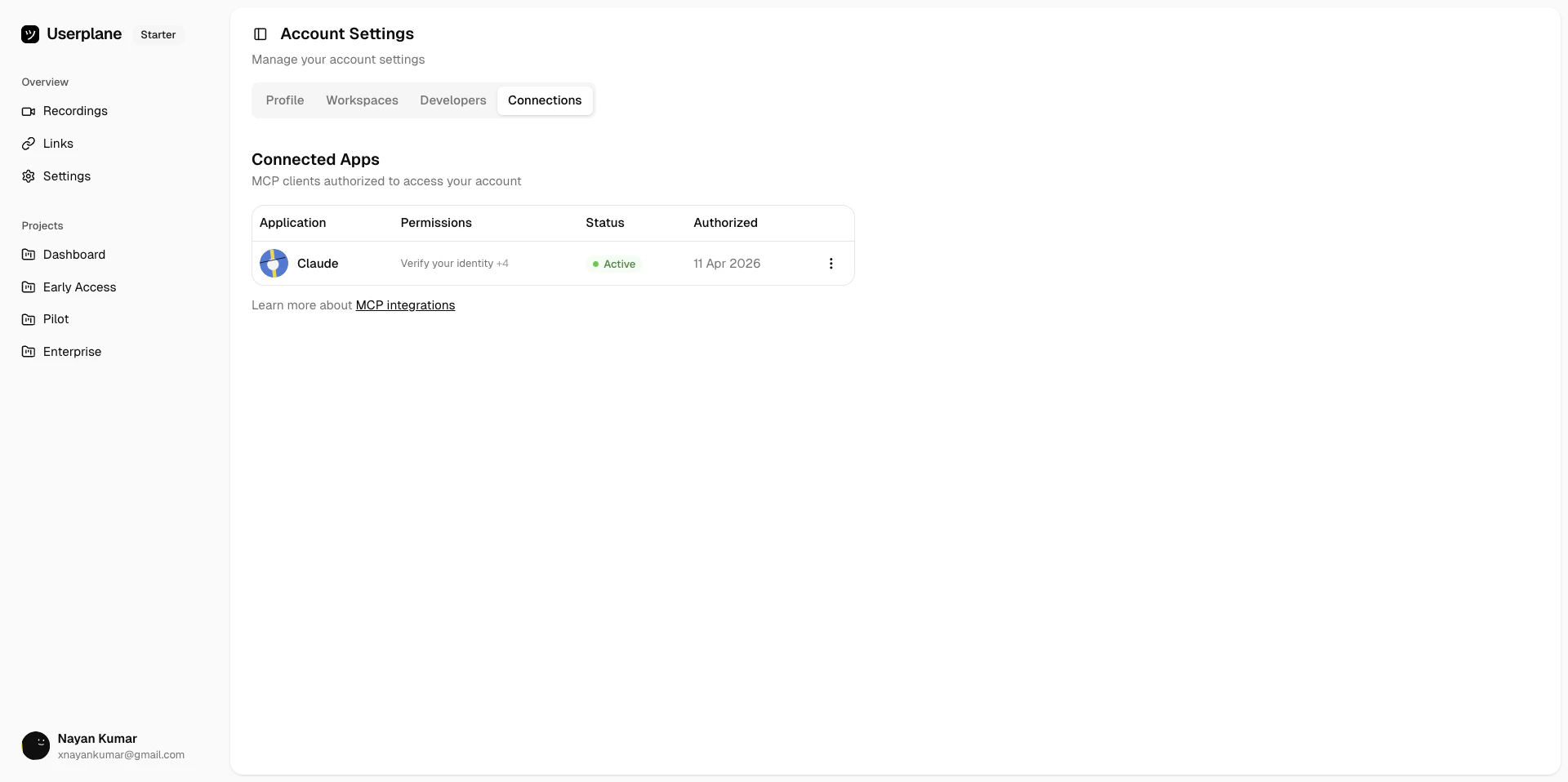
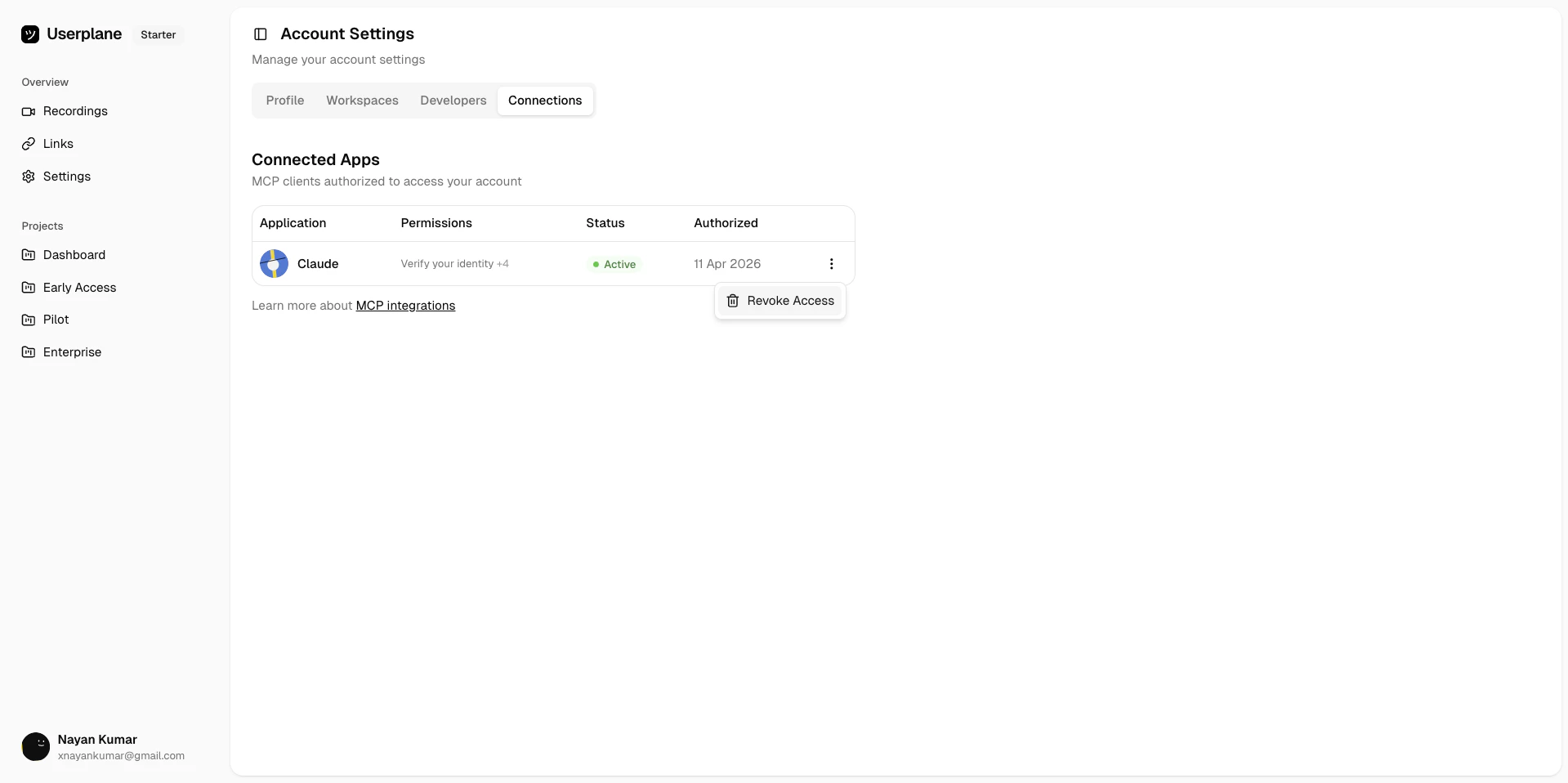
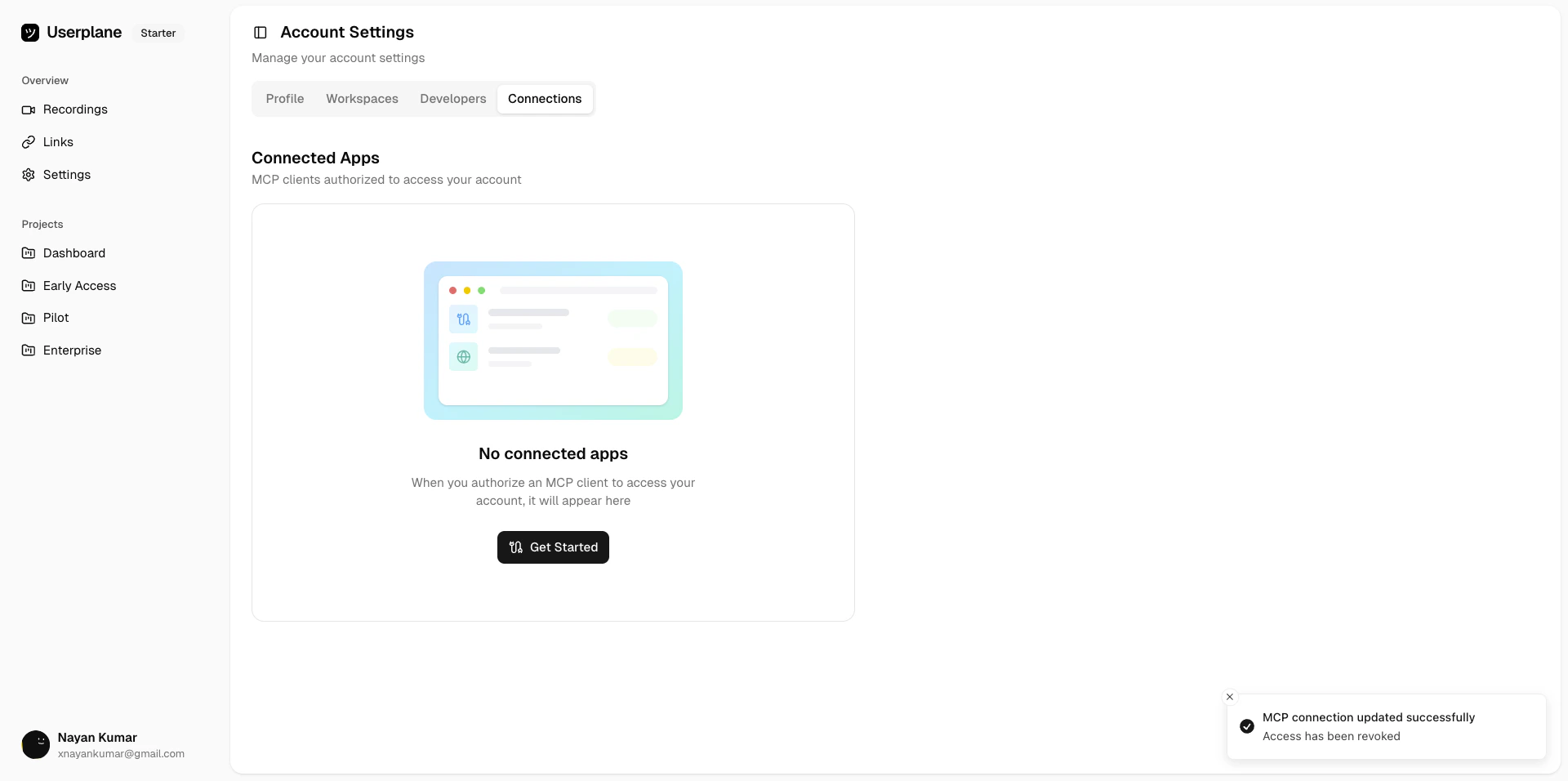
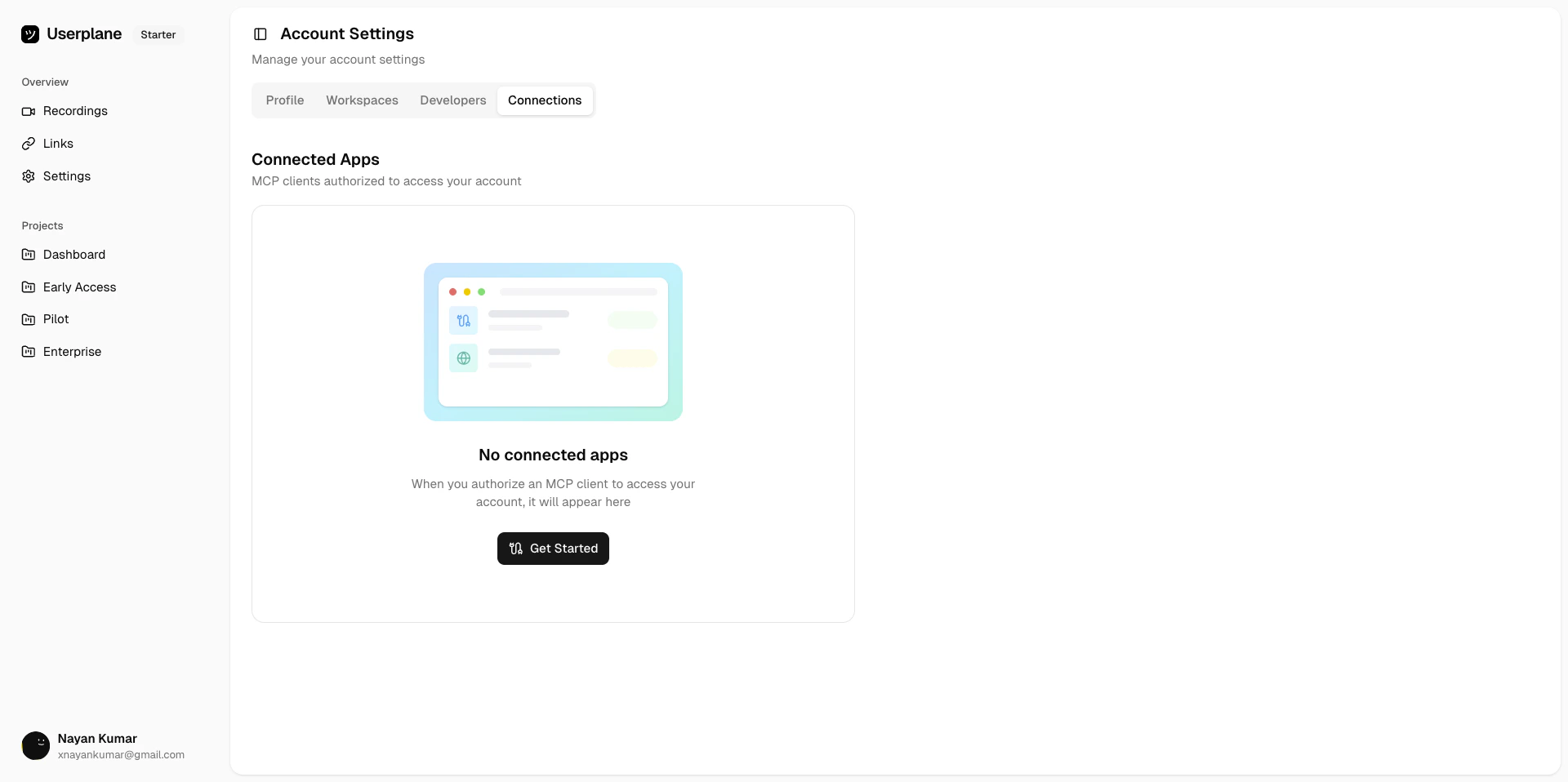
View and manage MCP clients authorized to access your Userplane account
The Connections tab in Account Settings lists every MCP client that has been authorized to access your account. From here you can review what each client can do, check its status, and revoke access at any time.
Once connected, your AI client can analyze recordings, surface console errors and network failures, manage recording links, and browse workspace data — directly in the conversation.
Analyze recordings
Fetch console logs, network requests, and user actions from any recording
Interactive viewers
Video playback, log viewers, and network inspectors rendered inside your AI client
Manage recording links
Create and track recording links for customer issues
Workspace data
Browse workspaces, projects, and your profile
{"docsConfig":{"theme":"aspen","$schema":"https://mintlify.com/docs.json","name":"Userplane Docs","colors":{"primary":"#000000","light":"#FAFAFA","dark":"#000000"},"logo":{"light":"https://mintcdn.com/userplane/e34bWffW8FdiqmQz/static/logo-light.svg?fit=max\u0026auto=format\u0026n=e34bWffW8FdiqmQz\u0026q=85\u0026s=b60f979b7800d446f3f5d5274c095cb2","dark":"https://mintcdn.com/userplane/e34bWffW8FdiqmQz/static/logo-dark.svg?fit=max\u0026auto=format\u0026n=e34bWffW8FdiqmQz\u0026q=85\u0026s=f638b932d019423317aaca6685f22ea6"},"favicon":"https://mintcdn.com/userplane/e34bWffW8FdiqmQz/static/favicon.svg?fit=max\u0026auto=format\u0026n=e34bWffW8FdiqmQz\u0026q=85\u0026s=fd9fbcc5e1783343c767381ce1744d03","api":{"playground":{"display":"interactive"}},"appearance":{"default":"light","strict":true},"navbar":{"primary":{"type":"button","label":"Dashboard","href":"https://dash.userplane.io"}},"styling":{"latex":true},"navigation":{"pages":[]}},"deployment":{"deploymentMetadataValue":{"subdomain":"userplane","hasAudioNarration":false,"actualSubdomain":"userplane","customDomains":["docs.userplane.io"],"gitSource":{"type":"github","owner":"0xnyn","repo":"userplane","deployBranch":"main","contentDirectory":"apps/docs","isPrivate":true,"mountPath":"","label":""},"chroma":{"liveDeploymentHistoryId":"6a21eb6f2fb2a99bab92da64","collectionId":"8e53ea74-03f5-4b56-ab3a-aff2a4fe9720","schemaVersion":"v2"},"entitlements":{},"buildId":"6a21eb6f2fb2a99bab92da64:success","clientVersion":"0.0.3908","searchFilterCounts":[{"language":"default","tag":"Integrations","count":62},{"language":"default","tag":"Guide","count":47},{"language":"default","tag":"Extensions \u0026 Plugins","count":34},{"language":"default","tag":"API","count":28},{"language":"default","tag":"Developer","count":24},{"language":"default","tag":"Recordings","count":21},{"language":"default","tag":"Help Desk","count":16},{"language":"default","tag":"Claude Code","count":14},{"language":"default","tag":"Framework Guides","count":13},{"language":"default","tag":"Getting Started","count":12}]},"assistantConfig":{"enableAskAiButton":false,"enableStarterQuestions":false,"enableAskAiSearchBar":true},"hasChatPermissions":false,"hasWebMcpPermissions":false,"toggles":[{"name":"kill-isr","enabled":true,"variant":{"name":"disabled","enabled":false,"feature_enabled":true},"impressionData":false},{"name":"agent-mintlify-slack","enabled":true,"variant":{"name":"disabled","enabled":false,"feature_enabled":true},"impressionData":false},{"name":"editor-v7-file-tree","enabled":true,"variant":{"name":"disabled","enabled":false,"feature_enabled":true},"impressionData":false},{"name":"agent-integrations-settings","enabled":true,"variant":{"name":"disabled","enabled":false,"feature_enabled":true},"impressionData":false},{"name":"automations-pr-grouping","enabled":true,"variant":{"name":"disabled","enabled":false,"feature_enabled":true},"impressionData":false},{"name":"custom-prefix","enabled":true,"variant":{"name":"disabled","enabled":false,"feature_enabled":true},"impressionData":false},{"name":"analytics-v7","enabled":true,"variant":{"name":"disabled","enabled":false,"feature_enabled":true},"impressionData":false},{"name":"user-flows-analytics","enabled":true,"variant":{"name":"disabled","enabled":false,"feature_enabled":true},"impressionData":false},{"name":"no-publish-flow","enabled":true,"variant":{"name":"disabled","enabled":false,"feature_enabled":true},"impressionData":false},{"name":"workos-onboarding","enabled":true,"variant":{"name":"disabled","enabled":false,"feature_enabled":true},"impressionData":false},{"name":"llms-txt-v2","enabled":true,"variant":{"name":"disabled","enabled":false,"feature_enabled":true},"impressionData":false},{"name":"pause-universal-search-reconcile","enabled":true,"variant":{"name":"disabled","enabled":false,"feature_enabled":true},"impressionData":false},{"name":"snapshot-serving-live","enabled":true,"variant":{"name":"disabled","enabled":false,"feature_enabled":true},"impressionData":false},{"name":"stripTemperatureMiddleware","enabled":true,"variant":{"name":"disabled","enabled":false,"feature_enabled":true},"impressionData":false},{"name":"per-site-search-delta","enabled":true,"variant":{"name":"disabled","enabled":false,"feature_enabled":true},"impressionData":false},{"name":"support-platform-pylon-zendesk","enabled":true,"variant":{"name":"disabled","enabled":false,"feature_enabled":true},"impressionData":false},{"name":"editor-branches-v2-autocommit","enabled":true,"variant":{"name":"disabled","enabled":false,"feature_enabled":true},"impressionData":false},{"name":"editor-branches-v2","enabled":true,"variant":{"name":"disabled","enabled":false,"feature_enabled":true},"impressionData":false},{"name":"snapshot-serving","enabled":true,"variant":{"name":"disabled","enabled":false,"feature_enabled":true},"impressionData":false},{"name":"instant-rollback","enabled":true,"variant":{"name":"disabled","enabled":false,"feature_enabled":true},"impressionData":false},{"name":"granular-notifications-server","enabled":true,"variant":{"name":"disabled","enabled":false,"feature_enabled":true},"impressionData":false},{"name":"granular-notifications","enabled":true,"variant":{"name":"disabled","enabled":false,"feature_enabled":true},"impressionData":false},{"name":"editor-private-page-search","enabled":true,"variant":{"name":"disabled","enabled":false,"feature_enabled":true},"impressionData":false},{"name":"automations-fable","enabled":true,"variant":{"name":"disabled","enabled":false,"feature_enabled":true},"impressionData":false},{"name":"fixed-ai-action-pricing","enabled":true,"variant":{"name":"disabled","enabled":false,"feature_enabled":true},"impressionData":false},{"name":"automation-resolve-merge-conflict","enabled":true,"variant":{"name":"disabled","enabled":false,"feature_enabled":true},"impressionData":false},{"name":"scoped-publishing","enabled":true,"variant":{"name":"disabled","enabled":false,"feature_enabled":true},"impressionData":false},{"name":"mintql","enabled":true,"variant":{"name":"disabled","enabled":false,"feature_enabled":true},"impressionData":false},{"name":"page-level-analytics","enabled":true,"variant":{"name":"disabled","enabled":false,"feature_enabled":true},"impressionData":false},{"name":"teamspace","enabled":true,"variant":{"name":"disabled","enabled":false,"feature_enabled":true},"impressionData":false},{"name":"editor-version-history-v2","enabled":true,"variant":{"name":"disabled","enabled":false,"feature_enabled":true},"impressionData":false},{"name":"vite-origin","enabled":true,"variant":{"name":"disabled","enabled":false,"feature_enabled":true},"impressionData":false},{"name":"editor-nav-generations","enabled":true,"variant":{"name":"disabled","enabled":false,"feature_enabled":true},"impressionData":false},{"name":"billing-page-v2","enabled":true,"variant":{"name":"disabled","enabled":false,"feature_enabled":true},"impressionData":false},{"name":"workspace-projects","enabled":true,"variant":{"name":"disabled","enabled":false,"feature_enabled":true},"impressionData":false},{"name":"assistant-v5","enabled":true,"variant":{"name":"disabled","enabled":false,"feature_enabled":true},"impressionData":false},{"name":"byok-sep-25","enabled":true,"variant":{"name":"disabled","enabled":false,"feature_enabled":true},"impressionData":false},{"name":"fork-pr-previews","enabled":true,"variant":{"name":"disabled","enabled":false,"feature_enabled":true},"impressionData":false},{"name":"revalidation-jwt","enabled":true,"variant":{"name":"disabled","enabled":false,"feature_enabled":true},"impressionData":false},{"name":"editor-agent-model-picker","enabled":true,"variant":{"name":"disabled","enabled":false,"feature_enabled":true},"impressionData":false},{"name":"client-snapshot-docs-config","enabled":true,"variant":{"name":"disabled","enabled":false,"feature_enabled":true},"impressionData":false},{"name":"hobby-abuse-scan","enabled":true,"variant":{"name":"disabled","enabled":false,"feature_enabled":true},"impressionData":false},{"name":"dashboard-inbox","enabled":true,"variant":{"name":"disabled","enabled":false,"feature_enabled":true},"impressionData":false}],"isAtlas":false,"googleFontsInlined":false},"customCss":[],"page":{"pagePath":"account/connections","slug":"/account/connections","pageMetadata":{"title":"Connected Apps","description":"View and manage MCP clients authorized to access your Userplane account","href":"/account/connections"},"description":{"compiledSource":"\"use strict\";\nconst {jsx: _jsx} = arguments[0];\nconst {useMDXComponents: _provideComponents} = arguments[0];\nfunction _createMdxContent(props) {\n const _components = {\n p: \"p\",\n ..._provideComponents(),\n ...props.components\n };\n return _jsx(_components.p, {\n children: \"View and manage MCP clients authorized to access your Userplane account\"\n });\n}\nfunction MDXContent(props = {}) {\n const {wrapper: MDXLayout} = {\n ..._provideComponents(),\n ...props.components\n };\n return MDXLayout ? _jsx(MDXLayout, {\n ...props,\n children: _jsx(_createMdxContent, {\n ...props\n })\n }) : _createMdxContent(props);\n}\nreturn {\n default: MDXContent\n};\n","frontmatter":{},"scope":{}},"pageType":"default","mdx":{"mdxSource":{"compiledSource":"\"use strict\";const{Fragment:_Fragment,jsx:_jsx,jsxs:_jsxs}=arguments[0];const{useMDXComponents:_provideComponents}=arguments[0];function _createMdxContent(props){const _components={a:`a`,li:`li`,p:`p`,strong:`strong`,tbody:`tbody`,td:`td`,th:`th`,thead:`thead`,tr:`tr`,ul:`ul`,..._provideComponents(),...props.components},{Card,CardGroup,Frame,Heading,Note,OptimizedImage,Step,Steps,Table}=_components;if(!Card)_missingMdxReference(`Card`,true);if(!CardGroup)_missingMdxReference(`CardGroup`,true);if(!Frame)_missingMdxReference(`Frame`,true);if(!Heading)_missingMdxReference(`Heading`,true);if(!Note)_missingMdxReference(`Note`,true);if(!OptimizedImage)_missingMdxReference(`OptimizedImage`,true);if(!Step)_missingMdxReference(`Step`,true);if(!Steps)_missingMdxReference(`Steps`,true);if(!Table)_missingMdxReference(`Table`,true);return _jsxs(_Fragment,{children:[_jsxs(_components.p,{children:[`The `,_jsx(_components.strong,{children:`Connections`}),` tab in Account Settings lists every MCP client that has been authorized to access your account. From here you can review what each client can do, check its status, and revoke access at any time.`]}),`\n`,_jsx(Frame,{caption:`Connected apps — Account Settings`,children:_jsx(OptimizedImage,{src:`https://mintcdn.com/userplane/Y1enpzNIbKJbDLD6/media/account/connections/connected-apps.png?fit=max\u0026auto=format\u0026n=Y1enpzNIbKJbDLD6\u0026q=85\u0026s=a5f625c2573e5c0fb96546e10b76aa50`,\"data-og-width\":`1920`,width:`1920`,\"data-og-height\":`958`,height:`958`,\"data-path\":`media/account/connections/connected-apps.png`,\"data-optimize\":`true`,\"data-opv\":`3`,srcset:`https://mintcdn.com/userplane/Y1enpzNIbKJbDLD6/media/account/connections/connected-apps.png?w=280\u0026fit=max\u0026auto=format\u0026n=Y1enpzNIbKJbDLD6\u0026q=85\u0026s=c5462ad9e1aded378c393680db7b0277 280w, https://mintcdn.com/userplane/Y1enpzNIbKJbDLD6/media/account/connections/connected-apps.png?w=560\u0026fit=max\u0026auto=format\u0026n=Y1enpzNIbKJbDLD6\u0026q=85\u0026s=eaf317a78fa76889f90815ade182f67f 560w, https://mintcdn.com/userplane/Y1enpzNIbKJbDLD6/media/account/connections/connected-apps.png?w=840\u0026fit=max\u0026auto=format\u0026n=Y1enpzNIbKJbDLD6\u0026q=85\u0026s=fc545671034df3613e7fb98052f4d9a0 840w, https://mintcdn.com/userplane/Y1enpzNIbKJbDLD6/media/account/connections/connected-apps.png?w=1100\u0026fit=max\u0026auto=format\u0026n=Y1enpzNIbKJbDLD6\u0026q=85\u0026s=61aae023953401327018e3ce844be98d 1100w, https://mintcdn.com/userplane/Y1enpzNIbKJbDLD6/media/account/connections/connected-apps.png?w=1650\u0026fit=max\u0026auto=format\u0026n=Y1enpzNIbKJbDLD6\u0026q=85\u0026s=6805deef031cc11be18415510253c16f 1650w, https://mintcdn.com/userplane/Y1enpzNIbKJbDLD6/media/account/connections/connected-apps.png?w=2500\u0026fit=max\u0026auto=format\u0026n=Y1enpzNIbKJbDLD6\u0026q=85\u0026s=43ed74c95ed09136e18ca613f99e56d6 2500w`})}),`\n`,_jsx(Heading,{level:`2`,id:`what-you-can-see`,children:`What you can see`}),`\n`,_jsx(_components.p,{children:`Each connected app shows four pieces of information:`}),`\n`,_jsxs(Table,{children:[_jsx(_components.thead,{children:_jsxs(_components.tr,{children:[_jsx(_components.th,{children:`Column`}),_jsx(_components.th,{children:`What it means`})]})}),_jsxs(_components.tbody,{children:[_jsxs(_components.tr,{children:[_jsx(_components.td,{children:_jsx(_components.strong,{children:`Application`})}),_jsx(_components.td,{children:`The MCP client name and icon (Claude, Codex, Cursor, VS Code, etc.)`})]}),_jsxs(_components.tr,{children:[_jsx(_components.td,{children:_jsx(_components.strong,{children:`Permissions`})}),_jsx(_components.td,{children:`OAuth scopes granted — hover to see the full list`})]}),_jsxs(_components.tr,{children:[_jsx(_components.td,{children:_jsx(_components.strong,{children:`Status`})}),_jsxs(_components.td,{children:[_jsx(_components.strong,{children:`Active`}),` if the token is valid; `,_jsx(_components.strong,{children:`Inactive`}),` if it has expired or been revoked`]})]}),_jsxs(_components.tr,{children:[_jsx(_components.td,{children:_jsx(_components.strong,{children:`Authorized`})}),_jsx(_components.td,{children:`The date you approved the connection`})]})]})]}),`\n`,_jsx(Heading,{level:`2`,id:`revoking-access`,children:`Revoking access`}),`\n`,_jsxs(Steps,{children:[_jsx(Step,{title:`Open Connections`,children:_jsxs(_components.p,{children:[`Go to `,_jsx(_components.a,{href:`https://dash.userplane.io/_/account?tab=connections`,children:`Account Settings > Connections`}),`.`]})}),_jsxs(Step,{title:`Open the actions menu`,children:[_jsxs(_components.p,{children:[`Locate the app and click the three-dot menu on the right. Select `,_jsx(_components.strong,{children:`Revoke Access`}),`.`]}),_jsx(Frame,{caption:`Revoke access option`,children:_jsx(OptimizedImage,{src:`https://mintcdn.com/userplane/Y1enpzNIbKJbDLD6/media/account/connections/revoke-access-option.png?fit=max\u0026auto=format\u0026n=Y1enpzNIbKJbDLD6\u0026q=85\u0026s=109b4294c9fe29f4fe6ce248b63be132`,\"data-og-width\":`1919`,width:`1919`,\"data-og-height\":`958`,height:`958`,\"data-path\":`media/account/connections/revoke-access-option.png`,\"data-optimize\":`true`,\"data-opv\":`3`,srcset:`https://mintcdn.com/userplane/Y1enpzNIbKJbDLD6/media/account/connections/revoke-access-option.png?w=280\u0026fit=max\u0026auto=format\u0026n=Y1enpzNIbKJbDLD6\u0026q=85\u0026s=3efdde3de7c291e2c5cc8a5a96bf1490 280w, https://mintcdn.com/userplane/Y1enpzNIbKJbDLD6/media/account/connections/revoke-access-option.png?w=560\u0026fit=max\u0026auto=format\u0026n=Y1enpzNIbKJbDLD6\u0026q=85\u0026s=3310e027f89c8212fc496170c806570a 560w, https://mintcdn.com/userplane/Y1enpzNIbKJbDLD6/media/account/connections/revoke-access-option.png?w=840\u0026fit=max\u0026auto=format\u0026n=Y1enpzNIbKJbDLD6\u0026q=85\u0026s=4624b5f10a0a3425fb96ff22db5ae8a9 840w, https://mintcdn.com/userplane/Y1enpzNIbKJbDLD6/media/account/connections/revoke-access-option.png?w=1100\u0026fit=max\u0026auto=format\u0026n=Y1enpzNIbKJbDLD6\u0026q=85\u0026s=3e6520a3f46652df34fdd229fa706341 1100w, https://mintcdn.com/userplane/Y1enpzNIbKJbDLD6/media/account/connections/revoke-access-option.png?w=1650\u0026fit=max\u0026auto=format\u0026n=Y1enpzNIbKJbDLD6\u0026q=85\u0026s=77d90ec7357cecce467189e99327de4c 1650w, https://mintcdn.com/userplane/Y1enpzNIbKJbDLD6/media/account/connections/revoke-access-option.png?w=2500\u0026fit=max\u0026auto=format\u0026n=Y1enpzNIbKJbDLD6\u0026q=85\u0026s=07e6179a4ead2e840d590cc09f898933 2500w`})})]}),_jsxs(Step,{title:`Confirm`,children:[_jsxs(_components.p,{children:[`Type the application name in the confirmation field and click `,_jsx(_components.strong,{children:`Revoke Access`}),`. The client loses access immediately.`]}),_jsx(Frame,{caption:`After revoking access`,children:_jsx(OptimizedImage,{src:`https://mintcdn.com/userplane/Y1enpzNIbKJbDLD6/media/account/connections/revoked-access.png?fit=max\u0026auto=format\u0026n=Y1enpzNIbKJbDLD6\u0026q=85\u0026s=3474a91ce839df7528708e76c2f197e6`,\"data-og-width\":`1920`,width:`1920`,\"data-og-height\":`956`,height:`956`,\"data-path\":`media/account/connections/revoked-access.png`,\"data-optimize\":`true`,\"data-opv\":`3`,srcset:`https://mintcdn.com/userplane/Y1enpzNIbKJbDLD6/media/account/connections/revoked-access.png?w=280\u0026fit=max\u0026auto=format\u0026n=Y1enpzNIbKJbDLD6\u0026q=85\u0026s=3cde391cd51e24be5fbb169ef6bf6365 280w, https://mintcdn.com/userplane/Y1enpzNIbKJbDLD6/media/account/connections/revoked-access.png?w=560\u0026fit=max\u0026auto=format\u0026n=Y1enpzNIbKJbDLD6\u0026q=85\u0026s=df8836193d17c27d1a8c05c8d210eaec 560w, https://mintcdn.com/userplane/Y1enpzNIbKJbDLD6/media/account/connections/revoked-access.png?w=840\u0026fit=max\u0026auto=format\u0026n=Y1enpzNIbKJbDLD6\u0026q=85\u0026s=1fd8bf0001204a258d68e8711ff7e507 840w, https://mintcdn.com/userplane/Y1enpzNIbKJbDLD6/media/account/connections/revoked-access.png?w=1100\u0026fit=max\u0026auto=format\u0026n=Y1enpzNIbKJbDLD6\u0026q=85\u0026s=5eb7db7581c81ada02437b3f44afb423 1100w, https://mintcdn.com/userplane/Y1enpzNIbKJbDLD6/media/account/connections/revoked-access.png?w=1650\u0026fit=max\u0026auto=format\u0026n=Y1enpzNIbKJbDLD6\u0026q=85\u0026s=650daadaa7cc7825f0e6cb84443a7e68 1650w, https://mintcdn.com/userplane/Y1enpzNIbKJbDLD6/media/account/connections/revoked-access.png?w=2500\u0026fit=max\u0026auto=format\u0026n=Y1enpzNIbKJbDLD6\u0026q=85\u0026s=73078f19beaf74f30d03df373f290e5c 2500w`})})]})]}),`\n`,_jsx(Note,{children:_jsx(_components.p,{children:`Revoking one client does not affect others. Each MCP client registers independently — Claude,\nCodex, Cursor, and VS Code hold separate authorizations.`})}),`\n`,_jsx(Heading,{level:`2`,id:`what-happens-after-you-revoke`,children:`What happens after you revoke`}),`\n`,_jsxs(_components.ul,{children:[`\n`,_jsx(_components.li,{children:`The MCP client loses access to your account immediately.`}),`\n`,_jsx(_components.li,{children:`Existing data the client retrieved is not affected.`}),`\n`,_jsx(_components.li,{children:`Other connected clients continue working without interruption.`}),`\n`,_jsx(_components.li,{children:`To reconnect, add the server URL to the client again and re-authorize through the OAuth flow.`}),`\n`]}),`\n`,_jsx(Heading,{level:`2`,id:`no-connected-apps`,children:`No connected apps`}),`\n`,_jsx(_components.p,{children:`If you haven’t authorized any MCP clients yet, the tab shows an empty state.`}),`\n`,_jsx(Frame,{caption:`No connected apps`,children:_jsx(OptimizedImage,{src:`https://mintcdn.com/userplane/Y1enpzNIbKJbDLD6/media/account/connections/empty-state.png?fit=max\u0026auto=format\u0026n=Y1enpzNIbKJbDLD6\u0026q=85\u0026s=94efc62c339a549bdcd4d451750ac6b3`,\"data-og-width\":`1920`,width:`1920`,\"data-og-height\":`958`,height:`958`,\"data-path\":`media/account/connections/empty-state.png`,\"data-optimize\":`true`,\"data-opv\":`3`,srcset:`https://mintcdn.com/userplane/Y1enpzNIbKJbDLD6/media/account/connections/empty-state.png?w=280\u0026fit=max\u0026auto=format\u0026n=Y1enpzNIbKJbDLD6\u0026q=85\u0026s=e397fb1e57ebd60e3534ea605b08db17 280w, https://mintcdn.com/userplane/Y1enpzNIbKJbDLD6/media/account/connections/empty-state.png?w=560\u0026fit=max\u0026auto=format\u0026n=Y1enpzNIbKJbDLD6\u0026q=85\u0026s=93ca81dd7ddb3fc9b3b0310d29c40fe8 560w, https://mintcdn.com/userplane/Y1enpzNIbKJbDLD6/media/account/connections/empty-state.png?w=840\u0026fit=max\u0026auto=format\u0026n=Y1enpzNIbKJbDLD6\u0026q=85\u0026s=3822468cbb5d46965fd80fc91c52732f 840w, https://mintcdn.com/userplane/Y1enpzNIbKJbDLD6/media/account/connections/empty-state.png?w=1100\u0026fit=max\u0026auto=format\u0026n=Y1enpzNIbKJbDLD6\u0026q=85\u0026s=6a1dffc0e16cf4c3765bfe7f739a6a3d 1100w, https://mintcdn.com/userplane/Y1enpzNIbKJbDLD6/media/account/connections/empty-state.png?w=1650\u0026fit=max\u0026auto=format\u0026n=Y1enpzNIbKJbDLD6\u0026q=85\u0026s=e690de2d0d254db680b6df6c045f7c8b 1650w, https://mintcdn.com/userplane/Y1enpzNIbKJbDLD6/media/account/connections/empty-state.png?w=2500\u0026fit=max\u0026auto=format\u0026n=Y1enpzNIbKJbDLD6\u0026q=85\u0026s=1936ab636a4d529a13904b606f97509a 2500w`})}),`\n`,_jsxs(CardGroup,{cols:2,children:[_jsx(Card,{title:`Get started with MCP`,icon:`rocket`,href:`/integrations/mcp-getting-started`,children:_jsx(_components.p,{children:`Connect Claude, Codex, Cursor, VS Code, or ChatGPT to your Userplane workspace`})}),_jsx(Card,{title:`How authentication works`,icon:`lock`,href:`/integrations/mcp-authentication`,children:_jsx(_components.p,{children:`OAuth 2.1 flow, PKCE, token scoping, and per-client registration`})})]}),`\n`,_jsx(Heading,{level:`2`,id:`what-the-mcp-integration-gives-you`,children:`What the MCP integration gives you`}),`\n`,_jsx(_components.p,{children:`Once connected, your AI client can analyze recordings, surface console errors and network failures, manage recording links, and browse workspace data — directly in the conversation.`}),`\n`,_jsxs(CardGroup,{cols:2,children:[_jsx(Card,{title:`Analyze recordings`,icon:`magnifying-glass`,href:`/integrations/mcp-tools-recordings`,children:_jsx(_components.p,{children:`Fetch console logs, network requests, and user actions from any recording`})}),_jsx(Card,{title:`Interactive viewers`,icon:`display`,href:`/integrations/mcp-apps`,children:_jsx(_components.p,{children:`Video playback, log viewers, and network inspectors rendered inside your AI client`})}),_jsx(Card,{title:`Manage recording links`,icon:`link`,href:`/integrations/mcp-tools-links`,children:_jsx(_components.p,{children:`Create and track recording links for customer issues`})}),_jsx(Card,{title:`Workspace data`,icon:`folder-open`,href:`/integrations/mcp-tools-workspace`,children:_jsx(_components.p,{children:`Browse workspaces, projects, and your profile`})})]})]})}function MDXContent(props={}){const{wrapper:MDXLayout}={..._provideComponents(),...props.components};return MDXLayout?_jsx(MDXLayout,{...props,children:_jsx(_createMdxContent,{...props})}):_createMdxContent(props)}return{default:MDXContent};function _missingMdxReference(id,component){throw new Error(`Expected `+(component?`component`:`object`)+\" `\"+id+\"` to be defined: you likely forgot to import, pass, or provide it.\")}","frontmatter":{},"scope":{"config":{},"pageMetadata":{"title":"Connected Apps","description":"View and manage MCP clients authorized to access your Userplane account","href":"/account/connections"}}},"mdxSourceWithNoJs":null},"mdxExtracts":{"tableOfContents":[{"title":"What you can see","slug":"what-you-can-see","depth":2,"children":[]},{"title":"Revoking access","slug":"revoking-access","depth":2,"children":[]},{"title":"What happens after you revoke","slug":"what-happens-after-you-revoke","depth":2,"children":[]},{"title":"No connected apps","slug":"no-connected-apps","depth":2,"children":[]},{"title":"What the MCP integration gives you","slug":"what-the-mcp-integration-gives-you","depth":2,"children":[]}],"codeExamples":{}},"jsLinks":["/_mintlify/custom/userplane/95cb985acf23057a/eslint.config.js"],"subdomain":"userplane","siteName":"Userplane Docs","title":"Connected Apps - Userplane Docs","navMaps":{"firstHrefInVersion":{},"firstHrefInLanguage":{}},"lastModified":"2026-05-06T18:42:35.341Z","originalFileLocation":"account/connections.mdx"},"headHtml":"\u003cscript data-mint-head>(function(){var d=document.documentElement,p=\"light\";if(!p){try{p=localStorage.getItem(\"isDarkMode\")}catch(e){}if(p==='true')p='dark';else if(p==='false')p='light';if(p!=='light'\u0026\u0026p!=='dark'\u0026\u0026p!=='system')p=\"light\"}var r=p==='system'?(matchMedia(\"(prefers-color-scheme: dark)\").matches?'dark':'light'):p;d.classList.remove(r==='dark'?'light':'dark');d.classList.add(r);d.setAttribute(\"data-theme-preference\",p)})();\u003c/script>\u003cmeta data-mint-head name=\"description\" content=\"View and manage MCP clients authorized to access your Userplane account\">\u003cmeta data-mint-head name=\"application-name\" content=\"Userplane Docs\">\u003cmeta data-mint-head name=\"generator\" content=\"Mintlify\">\u003clink data-mint-head rel=\"icon\" type=\"image/png\" sizes=\"192x192\" href=\"/mintlify-assets/_mintlify/favicons/userplane/fDBjjV0nXQ3P7r2U/_generated/favicon/android-chrome-192x192.png\" media=\"(prefers-color-scheme: light)\">\u003clink data-mint-head rel=\"apple-touch-icon\" type=\"image/png\" sizes=\"180x180\" href=\"/mintlify-assets/_mintlify/favicons/userplane/fDBjjV0nXQ3P7r2U/_generated/favicon/apple-touch-icon.png\">\u003clink data-mint-head rel=\"icon\" type=\"image/png\" sizes=\"16x16\" href=\"/mintlify-assets/_mintlify/favicons/userplane/fDBjjV0nXQ3P7r2U/_generated/favicon/favicon-16x16.png\" media=\"(prefers-color-scheme: light)\">\u003clink data-mint-head rel=\"icon\" type=\"image/png\" sizes=\"32x32\" href=\"/mintlify-assets/_mintlify/favicons/userplane/fDBjjV0nXQ3P7r2U/_generated/favicon/favicon-32x32.png\" media=\"(prefers-color-scheme: light)\">\u003clink data-mint-head rel=\"shortcut icon\" type=\"image/x-icon\" href=\"/mintlify-assets/_mintlify/favicons/userplane/fDBjjV0nXQ3P7r2U/_generated/favicon/favicon.ico\" media=\"(prefers-color-scheme: light)\">\u003clink data-mint-head rel=\"icon\" type=\"image/png\" sizes=\"192x192\" href=\"/mintlify-assets/_mintlify/favicons/userplane/fDBjjV0nXQ3P7r2U/_generated/favicon-dark/android-chrome-192x192.png\" media=\"(prefers-color-scheme: dark)\">\u003clink data-mint-head rel=\"icon\" type=\"image/png\" sizes=\"16x16\" href=\"/mintlify-assets/_mintlify/favicons/userplane/fDBjjV0nXQ3P7r2U/_generated/favicon-dark/favicon-16x16.png\" media=\"(prefers-color-scheme: dark)\">\u003clink data-mint-head rel=\"icon\" type=\"image/png\" sizes=\"32x32\" href=\"/mintlify-assets/_mintlify/favicons/userplane/fDBjjV0nXQ3P7r2U/_generated/favicon-dark/favicon-32x32.png\" media=\"(prefers-color-scheme: dark)\">\u003clink data-mint-head rel=\"shortcut icon\" type=\"image/x-icon\" href=\"/mintlify-assets/_mintlify/favicons/userplane/fDBjjV0nXQ3P7r2U/_generated/favicon-dark/favicon.ico\" media=\"(prefers-color-scheme: dark)\">\u003cmeta data-mint-head property=\"og:title\" content=\"Connected Apps - Userplane Docs\">\u003cmeta data-mint-head property=\"og:description\" content=\"View and manage MCP clients authorized to access your Userplane account\">\u003cmeta data-mint-head property=\"og:site_name\" content=\"Userplane Docs\">\u003cmeta data-mint-head property=\"og:url\" content=\"https://docs.userplane.io/account/connections\">\u003cmeta data-mint-head property=\"og:type\" content=\"website\">\u003cmeta data-mint-head name=\"twitter:card\" content=\"summary_large_image\">\u003cmeta data-mint-head name=\"twitter:title\" content=\"Connected Apps - Userplane Docs\">\u003cmeta data-mint-head name=\"twitter:description\" content=\"View and manage MCP clients authorized to access your Userplane account\">\u003cmeta data-mint-head name=\"msapplication-config\" content=\"/mintlify-assets/_mintlify/favicons/userplane/fDBjjV0nXQ3P7r2U/_generated/favicon/browserconfig.xml\">\u003cmeta data-mint-head name=\"apple-mobile-web-app-title\" content=\"Userplane Docs\">\u003cmeta data-mint-head name=\"msapplication-TileColor\" content=\"#000000\">\u003clink data-mint-head rel=\"canonical\" href=\"https://docs.userplane.io/account/connections\">\u003clink data-mint-head rel=\"alternate\" type=\"application/xml\" href=\"/sitemap.xml\">\u003clink data-mint-head rel=\"alternate\" type=\"text/markdown\" href=\"/account/connections.md\">\u003cscript data-mint-head type=\"application/ld+json\">{\"@context\":\"https://schema.org\",\"@graph\":[{\"@type\":\"Organization\",\"@id\":\"https://docs.userplane.io/#organization\",\"name\":\"Userplane Docs\",\"url\":\"https://docs.userplane.io\",\"logo\":{\"@type\":\"ImageObject\",\"url\":\"https://mintcdn.com/userplane/e34bWffW8FdiqmQz/static/logo-light.svg?fit=max\u0026auto=format\u0026n=e34bWffW8FdiqmQz\u0026q=85\u0026s=b60f979b7800d446f3f5d5274c095cb2\"}},{\"@type\":\"WebSite\",\"@id\":\"https://docs.userplane.io#website\",\"name\":\"Userplane Docs\",\"url\":\"https://docs.userplane.io\",\"publisher\":{\"@id\":\"https://docs.userplane.io/#organization\"}},{\"@type\":\"WebPage\",\"@id\":\"https://docs.userplane.io/account/connections#webpage\",\"url\":\"https://docs.userplane.io/account/connections\",\"name\":\"Connected Apps\",\"description\":\"View and manage MCP clients authorized to access your Userplane account\",\"dateModified\":\"2026-05-06T18:42:35.341Z\",\"isPartOf\":{\"@id\":\"https://docs.userplane.io#website\"},\"breadcrumb\":{\"@id\":\"https://docs.userplane.io/account/connections#breadcrumb\"}},{\"@type\":\"BreadcrumbList\",\"@id\":\"https://docs.userplane.io/account/connections#breadcrumb\",\"itemListElement\":[{\"@type\":\"ListItem\",\"position\":1,\"name\":\"Account\",\"item\":\"https://docs.userplane.io/account/profile\"},{\"@type\":\"ListItem\",\"position\":2,\"name\":\"Connected Apps\",\"item\":\"https://docs.userplane.io/account/connections\"}]},{\"@type\":[\"Article\",\"TechArticle\"],\"@id\":\"https://docs.userplane.io/account/connections#article\",\"headline\":\"Connected Apps\",\"name\":\"Connected Apps\",\"description\":\"View and manage MCP clients authorized to access your Userplane account\",\"url\":\"https://docs.userplane.io/account/connections\",\"mainEntityOfPage\":{\"@id\":\"https://docs.userplane.io/account/connections#webpage\"},\"dateModified\":\"2026-05-06T18:42:35.341Z\",\"publisher\":{\"@id\":\"https://docs.userplane.io/#organization\"},\"isPartOf\":{\"@id\":\"https://docs.userplane.io#website\"}}]}\u003c/script>\u003cscript data-mint-head type=\"application/ld+json\">{\"@context\":\"https://schema.org\",\"@type\":\"WebSite\",\"name\":\"Userplane Docs\",\"creator\":{\"@type\":\"Organization\",\"name\":\"Mintlify\",\"url\":\"https://mintlify.com\"}}\u003c/script>","siteName":"Userplane Docs","nav":{"global":null,"tabs":[{"tab":"Guide","groups":[{"group":"Getting Started","icon":"rocket","pages":[{"title":"Introduction","href":"/introduction"},{"title":"Quickstart","href":"/quickstart"}]},{"group":"Setup \u0026 Onboarding","icon":"wrench","pages":[{"title":"Workspace Setup","href":"/getting-started/workspace-setup"},{"title":"Help Desk Setup","href":"/getting-started/helpdesk-setup"},{"title":"Support Agent Onboarding","href":"/getting-started/for-support-agents"},{"title":"Support Engineer Onboarding","href":"/getting-started/for-support-engineers"},{"title":"Developer Onboarding","href":"/getting-started/for-developers"}]},{"group":"Recordings","icon":"video","pages":[{"group":"Capture","pages":[{"title":"Requesting a Recording","href":"/recording/requesting"},{"title":"Reusable Recording Links","href":"/recording-links/reusable"},{"title":"Link Reference","href":"/recording/link-reference"},{"title":"Recording Domains","href":"/recording/domains"}]},{"group":"Review","pages":[{"title":"Reviewing Recordings","href":"/recording/reviewing"},{"title":"Recording Playback","href":"/recording/playback"},{"title":"Issue Analyzer","href":"/recording/issue-analyzer"},{"title":"Sharing Recordings","href":"/recording/sharing"},{"title":"Recording Expiry","href":"/recording/expiry"},{"title":"Recording Projects","href":"/recording/projects"}]},{"group":"Link Settings","pages":[{"title":"Managing Recording Links","href":"/recording-links/managing"},{"title":"Customizing Recording Links","href":"/recording-links/overview"},{"title":"Branding Your Links","href":"/recording-links/branding"},{"title":"Domain Recording Preferences","href":"/recording-links/domain-preferences"},{"title":"Recording Limits \u0026 Duration","href":"/recording-links/limits"},{"title":"Sensitive Data Redaction","href":"/recording-links/sensitive-data-redaction"},{"title":"Recording Link Metadata","href":"/recording-links/link-metadata"}]}]},{"group":"Workspace","icon":"building","pages":[{"group":"Team \u0026 Access","pages":[{"title":"Team Management","href":"/workspace/team-management"},{"title":"Roles \u0026 Permissions","href":"/workspace/roles-permissions"},{"title":"Invite Policies","href":"/workspace/invite-policies"},{"title":"Access Management","href":"/workspace/access-management"}]},{"group":"Projects","pages":[{"title":"Projects","href":"/workspace/projects"},{"title":"Project Lifecycle","href":"/workspace/project-lifecycle"}]},{"group":"Domains","pages":[{"title":"Domains","href":"/workspace/domains"},{"title":"Managing Domains","href":"/workspace/domain-management"},{"title":"Domain Verification","href":"/workspace/domain-verification"}]},{"title":"Workspace Lifecycle","href":"/workspace/workspace-lifecycle"}]},{"group":"Account","icon":"circle-user","pages":[{"title":"Updating Your Profile","href":"/account/profile"},{"title":"Notification Channels \u0026 Preferences","description":"Configure how and where you receive notifications from Userplane","href":"/account/notifications"},{"title":"Connected Apps","href":"/account/connections"},{"title":"Leaving a Workspace","description":"How to leave a workspace and what happens to your data","href":"/account/leaving-workspace"}]},{"group":"Billing","icon":"credit-card","pages":[{"title":"Subscription Overview","href":"/billing/overview"},{"title":"Trial Plans","href":"/billing/trial"},{"group":"Plans \u0026 Usage","pages":[{"title":"Understanding Usage Limits","href":"/billing/usage-limits"},{"title":"Monitoring Your Usage","href":"/billing/monitoring-usage"},{"title":"Upgrading Your Plan","href":"/billing/upgrading"},{"title":"Downgrading Your Plan","href":"/billing/downgrading"},{"title":"Seat Add-Ons","href":"/billing/seat-add-ons"}]}]},{"group":"Support","icon":"life-ring","pages":[{"title":"Contact Us","href":"/support/contact"},{"title":"Data \u0026 Governance","href":"/support/data-governance"}]}]},{"tab":"Developer","pages":[{"title":"Developer","href":"/developer/installation"}]},{"tab":"API","pages":[{"title":"API","href":"/api/introduction"}]},{"tab":"Integrations","pages":[{"title":"Integrations","href":"/integrations/intercom"}]}]},"title":"Connected Apps - Userplane Docs","buildId":"dpl_CUnGQP1HgFUzoxatVC37y4zP83Vx","deploymentId":"dpl_CUnGQP1HgFUzoxatVC37y4zP83Vx","dynamics":["07c022d89b","a74be98ba7"],"chunks":["Frame-BCFzRGe_.js","DynamicMarkdown-BUuAYxJE.js","zoom-image-lightbox-DQ5W4Q2v.js","PlusIcon-jZ8vgk6R.js","lightbox-handle-r17bVUz3.js"]}