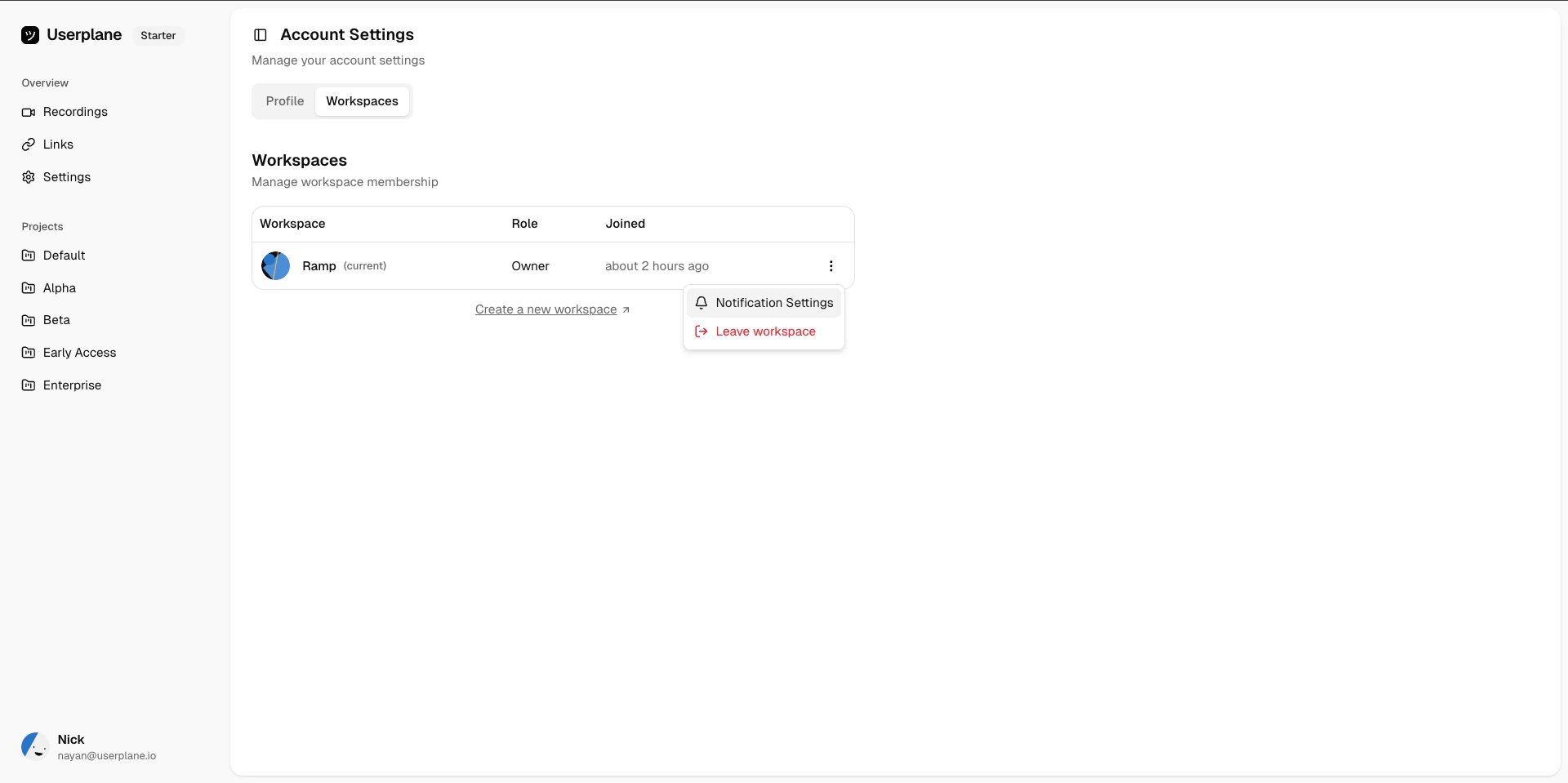
Configure how and where you receive notifications from Userplane
Userplane sends notifications to keep you informed about recordings, usage, and workspace activity. You can control which notification types you receive and, for incoming recordings, which channels deliver them.
Incoming recording notifications can be delivered through any combination of the following channels:
Channel
What it does
Requires
Email
Sends an email when a recording arrives.
Nothing — always available.
Slack
Sends a direct message in Slack when a recording arrives.
Active Slack integration + matching email.
Intercom
Posts an admin note to the Intercom conversation the recording link came from.
Active Intercom integration.
Zendesk
Posts an internal note to the Zendesk ticket the recording link came from.
Active Zendesk integration.
Email is always available. Slack, Intercom, and Zendesk channels appear only when your workspace admin has connected the respective integration.
Intercom and Zendesk notifications are context-tied — they only fire when the recording link was
created from a conversation or ticket in that tool. Slack and email notifications fire for all
incoming recordings regardless of where the link was created.
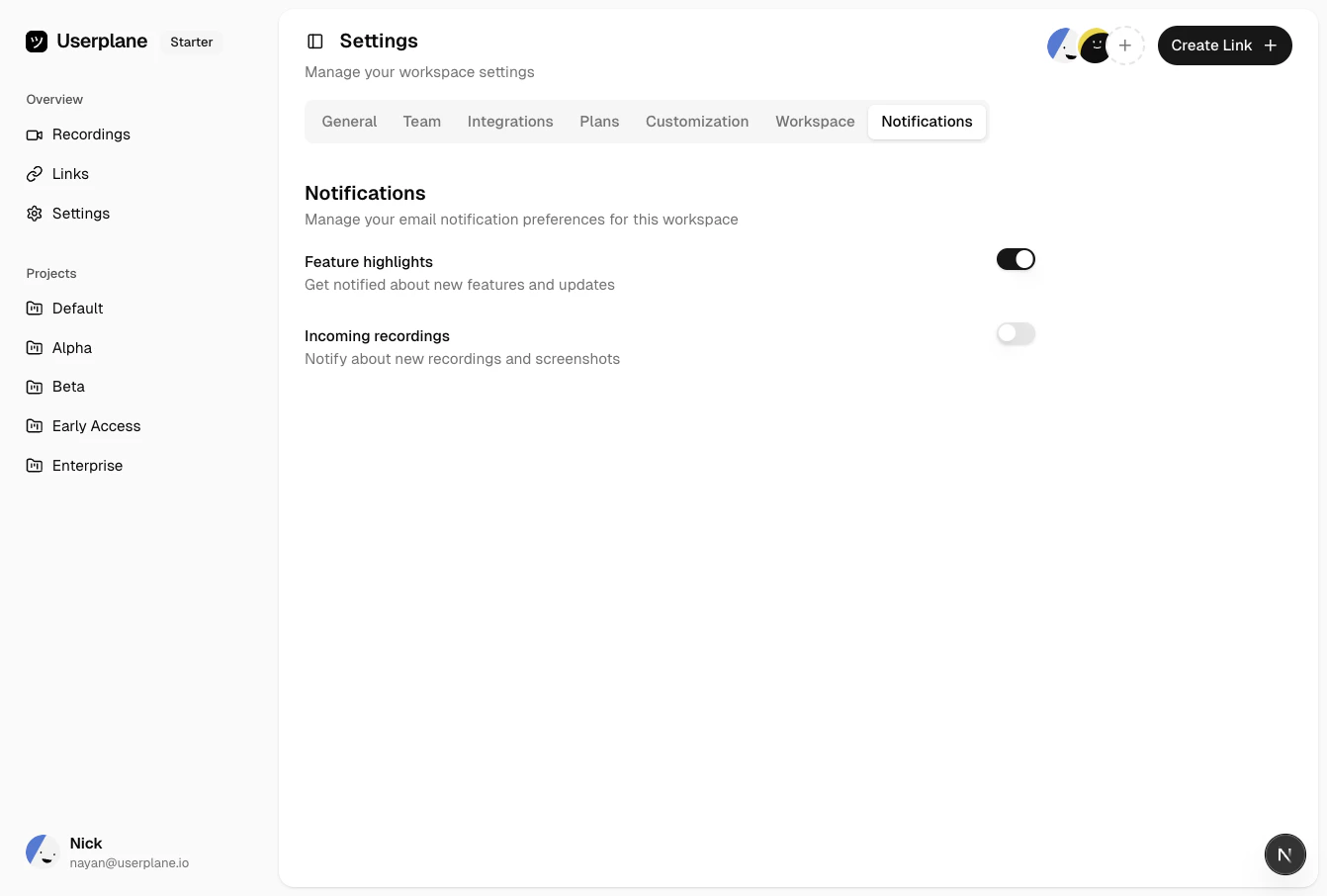
Toggle each notification type on or off. Changes are saved automatically.
Workspace notification preferences
3
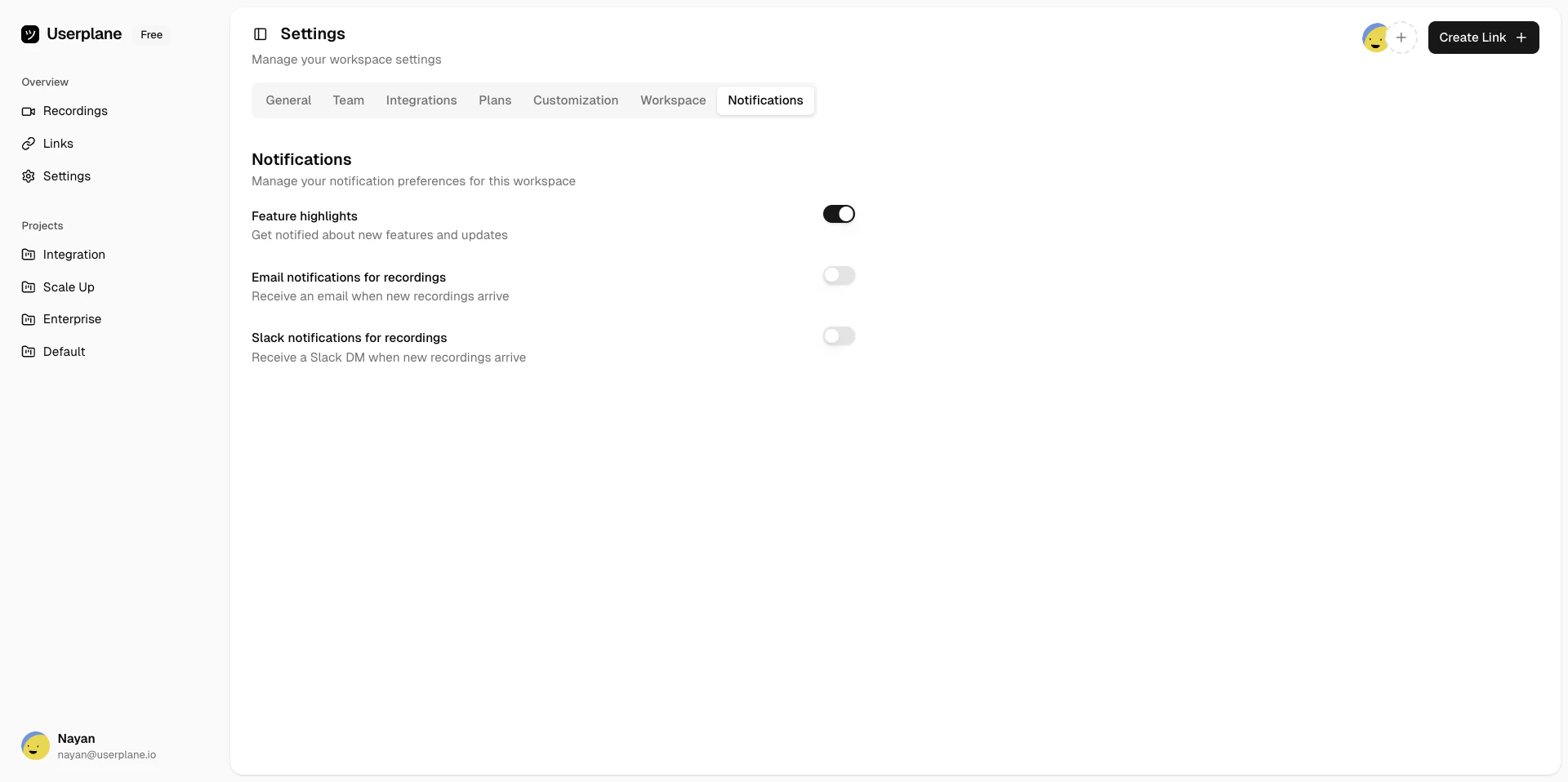
Configure incoming recording channels
Under Incoming Recordings, toggle each channel individually. Only channels with active integrations are shown alongside Email.Enable the channels you want — you can use more than one at a time.
Incoming recording channel toggles
Only toggles your role can control are shown. If a notification type is missing, it is either always enabled or not applicable for your role.
When a member’s role changes, notification preferences that the new role cannot control are automatically set to their correct value. For example, promoting someone to owner forces usage and admin notifications on. Demoting an owner to member forces admin notifications off. Preferences the new role can control are left unchanged.
{"docsConfig":{"theme":"aspen","$schema":"https://mintlify.com/docs.json","name":"Userplane Docs","colors":{"primary":"#000000","light":"#FAFAFA","dark":"#000000"},"logo":{"light":"https://mintcdn.com/userplane/e34bWffW8FdiqmQz/static/logo-light.svg?fit=max\u0026auto=format\u0026n=e34bWffW8FdiqmQz\u0026q=85\u0026s=b60f979b7800d446f3f5d5274c095cb2","dark":"https://mintcdn.com/userplane/e34bWffW8FdiqmQz/static/logo-dark.svg?fit=max\u0026auto=format\u0026n=e34bWffW8FdiqmQz\u0026q=85\u0026s=f638b932d019423317aaca6685f22ea6"},"favicon":"https://mintcdn.com/userplane/e34bWffW8FdiqmQz/static/favicon.svg?fit=max\u0026auto=format\u0026n=e34bWffW8FdiqmQz\u0026q=85\u0026s=fd9fbcc5e1783343c767381ce1744d03","api":{"playground":{"display":"interactive"}},"appearance":{"default":"light","strict":true},"navbar":{"primary":{"type":"button","label":"Dashboard","href":"https://dash.userplane.io"}},"styling":{"latex":true},"navigation":{"pages":[]}},"deployment":{"deploymentMetadataValue":{"subdomain":"userplane","hasAudioNarration":false,"actualSubdomain":"userplane","customDomains":["docs.userplane.io"],"gitSource":{"type":"github","owner":"0xnyn","repo":"userplane","deployBranch":"main","contentDirectory":"apps/docs","isPrivate":true,"mountPath":"","label":""},"chroma":{"liveDeploymentHistoryId":"6a21eb6f2fb2a99bab92da64","collectionId":"8e53ea74-03f5-4b56-ab3a-aff2a4fe9720","schemaVersion":"v2"},"entitlements":{},"buildId":"6a21eb6f2fb2a99bab92da64:success","clientVersion":"0.0.3908","searchFilterCounts":[{"language":"default","tag":"Integrations","count":62},{"language":"default","tag":"Guide","count":47},{"language":"default","tag":"Extensions \u0026 Plugins","count":34},{"language":"default","tag":"API","count":28},{"language":"default","tag":"Developer","count":24},{"language":"default","tag":"Recordings","count":21},{"language":"default","tag":"Help Desk","count":16},{"language":"default","tag":"Claude Code","count":14},{"language":"default","tag":"Framework Guides","count":13},{"language":"default","tag":"Getting Started","count":12}]},"assistantConfig":{"enableAskAiButton":false,"enableStarterQuestions":false,"enableAskAiSearchBar":true},"hasChatPermissions":false,"hasWebMcpPermissions":false,"toggles":[{"name":"kill-isr","enabled":true,"variant":{"name":"disabled","enabled":false,"feature_enabled":true},"impressionData":false},{"name":"agent-mintlify-slack","enabled":true,"variant":{"name":"disabled","enabled":false,"feature_enabled":true},"impressionData":false},{"name":"editor-v7-file-tree","enabled":true,"variant":{"name":"disabled","enabled":false,"feature_enabled":true},"impressionData":false},{"name":"agent-integrations-settings","enabled":true,"variant":{"name":"disabled","enabled":false,"feature_enabled":true},"impressionData":false},{"name":"automations-pr-grouping","enabled":true,"variant":{"name":"disabled","enabled":false,"feature_enabled":true},"impressionData":false},{"name":"custom-prefix","enabled":true,"variant":{"name":"disabled","enabled":false,"feature_enabled":true},"impressionData":false},{"name":"analytics-v7","enabled":true,"variant":{"name":"disabled","enabled":false,"feature_enabled":true},"impressionData":false},{"name":"user-flows-analytics","enabled":true,"variant":{"name":"disabled","enabled":false,"feature_enabled":true},"impressionData":false},{"name":"no-publish-flow","enabled":true,"variant":{"name":"disabled","enabled":false,"feature_enabled":true},"impressionData":false},{"name":"workos-onboarding","enabled":true,"variant":{"name":"disabled","enabled":false,"feature_enabled":true},"impressionData":false},{"name":"llms-txt-v2","enabled":true,"variant":{"name":"disabled","enabled":false,"feature_enabled":true},"impressionData":false},{"name":"pause-universal-search-reconcile","enabled":true,"variant":{"name":"disabled","enabled":false,"feature_enabled":true},"impressionData":false},{"name":"snapshot-serving-live","enabled":true,"variant":{"name":"disabled","enabled":false,"feature_enabled":true},"impressionData":false},{"name":"stripTemperatureMiddleware","enabled":true,"variant":{"name":"disabled","enabled":false,"feature_enabled":true},"impressionData":false},{"name":"per-site-search-delta","enabled":true,"variant":{"name":"disabled","enabled":false,"feature_enabled":true},"impressionData":false},{"name":"support-platform-pylon-zendesk","enabled":true,"variant":{"name":"disabled","enabled":false,"feature_enabled":true},"impressionData":false},{"name":"editor-branches-v2-autocommit","enabled":true,"variant":{"name":"disabled","enabled":false,"feature_enabled":true},"impressionData":false},{"name":"editor-branches-v2","enabled":true,"variant":{"name":"disabled","enabled":false,"feature_enabled":true},"impressionData":false},{"name":"snapshot-serving","enabled":true,"variant":{"name":"disabled","enabled":false,"feature_enabled":true},"impressionData":false},{"name":"instant-rollback","enabled":true,"variant":{"name":"disabled","enabled":false,"feature_enabled":true},"impressionData":false},{"name":"granular-notifications-server","enabled":true,"variant":{"name":"disabled","enabled":false,"feature_enabled":true},"impressionData":false},{"name":"granular-notifications","enabled":true,"variant":{"name":"disabled","enabled":false,"feature_enabled":true},"impressionData":false},{"name":"editor-private-page-search","enabled":true,"variant":{"name":"disabled","enabled":false,"feature_enabled":true},"impressionData":false},{"name":"automations-fable","enabled":true,"variant":{"name":"disabled","enabled":false,"feature_enabled":true},"impressionData":false},{"name":"fixed-ai-action-pricing","enabled":true,"variant":{"name":"disabled","enabled":false,"feature_enabled":true},"impressionData":false},{"name":"automation-resolve-merge-conflict","enabled":true,"variant":{"name":"disabled","enabled":false,"feature_enabled":true},"impressionData":false},{"name":"scoped-publishing","enabled":true,"variant":{"name":"disabled","enabled":false,"feature_enabled":true},"impressionData":false},{"name":"mintql","enabled":true,"variant":{"name":"disabled","enabled":false,"feature_enabled":true},"impressionData":false},{"name":"page-level-analytics","enabled":true,"variant":{"name":"disabled","enabled":false,"feature_enabled":true},"impressionData":false},{"name":"teamspace","enabled":true,"variant":{"name":"disabled","enabled":false,"feature_enabled":true},"impressionData":false},{"name":"editor-version-history-v2","enabled":true,"variant":{"name":"disabled","enabled":false,"feature_enabled":true},"impressionData":false},{"name":"vite-origin","enabled":true,"variant":{"name":"disabled","enabled":false,"feature_enabled":true},"impressionData":false},{"name":"editor-nav-generations","enabled":true,"variant":{"name":"disabled","enabled":false,"feature_enabled":true},"impressionData":false},{"name":"billing-page-v2","enabled":true,"variant":{"name":"disabled","enabled":false,"feature_enabled":true},"impressionData":false},{"name":"workspace-projects","enabled":true,"variant":{"name":"disabled","enabled":false,"feature_enabled":true},"impressionData":false},{"name":"assistant-v5","enabled":true,"variant":{"name":"disabled","enabled":false,"feature_enabled":true},"impressionData":false},{"name":"byok-sep-25","enabled":true,"variant":{"name":"disabled","enabled":false,"feature_enabled":true},"impressionData":false},{"name":"fork-pr-previews","enabled":true,"variant":{"name":"disabled","enabled":false,"feature_enabled":true},"impressionData":false},{"name":"revalidation-jwt","enabled":true,"variant":{"name":"disabled","enabled":false,"feature_enabled":true},"impressionData":false},{"name":"editor-agent-model-picker","enabled":true,"variant":{"name":"disabled","enabled":false,"feature_enabled":true},"impressionData":false},{"name":"client-snapshot-docs-config","enabled":true,"variant":{"name":"disabled","enabled":false,"feature_enabled":true},"impressionData":false},{"name":"hobby-abuse-scan","enabled":true,"variant":{"name":"disabled","enabled":false,"feature_enabled":true},"impressionData":false},{"name":"dashboard-inbox","enabled":true,"variant":{"name":"disabled","enabled":false,"feature_enabled":true},"impressionData":false}],"isAtlas":false,"googleFontsInlined":false},"customCss":[],"page":{"pagePath":"account/notifications","slug":"/account/notifications","pageMetadata":{"title":"Notification Channels \u0026 Preferences","description":"Configure how and where you receive notifications from Userplane","href":"/account/notifications"},"description":{"compiledSource":"\"use strict\";\nconst {jsx: _jsx} = arguments[0];\nconst {useMDXComponents: _provideComponents} = arguments[0];\nfunction _createMdxContent(props) {\n const _components = {\n p: \"p\",\n ..._provideComponents(),\n ...props.components\n };\n return _jsx(_components.p, {\n children: \"Configure how and where you receive notifications from Userplane\"\n });\n}\nfunction MDXContent(props = {}) {\n const {wrapper: MDXLayout} = {\n ..._provideComponents(),\n ...props.components\n };\n return MDXLayout ? _jsx(MDXLayout, {\n ...props,\n children: _jsx(_createMdxContent, {\n ...props\n })\n }) : _createMdxContent(props);\n}\nreturn {\n default: MDXContent\n};\n","frontmatter":{},"scope":{}},"pageType":"default","mdx":{"mdxSource":{"compiledSource":"\"use strict\";const{Fragment:_Fragment,jsx:_jsx,jsxs:_jsxs}=arguments[0];const{useMDXComponents:_provideComponents}=arguments[0];function _createMdxContent(props){const _components={a:`a`,li:`li`,p:`p`,strong:`strong`,tbody:`tbody`,td:`td`,th:`th`,thead:`thead`,tr:`tr`,ul:`ul`,..._provideComponents(),...props.components},{Frame,Heading,Info,Note,OptimizedImage,Step,Steps,Table}=_components;if(!Frame)_missingMdxReference(`Frame`,true);if(!Heading)_missingMdxReference(`Heading`,true);if(!Info)_missingMdxReference(`Info`,true);if(!Note)_missingMdxReference(`Note`,true);if(!OptimizedImage)_missingMdxReference(`OptimizedImage`,true);if(!Step)_missingMdxReference(`Step`,true);if(!Steps)_missingMdxReference(`Steps`,true);if(!Table)_missingMdxReference(`Table`,true);return _jsxs(_Fragment,{children:[_jsx(_components.p,{children:`Userplane sends notifications to keep you informed about recordings, usage, and workspace activity. You can control which notification types you receive and, for incoming recordings, which channels deliver them.`}),`\n`,_jsx(Heading,{level:`2`,id:`notification-types`,children:`Notification types`}),`\n`,_jsxs(Table,{children:[_jsx(_components.thead,{children:_jsxs(_components.tr,{children:[_jsx(_components.th,{children:`Notification`}),_jsx(_components.th,{children:`Description`}),_jsx(_components.th,{children:`Configurable by`})]})}),_jsxs(_components.tbody,{children:[_jsxs(_components.tr,{children:[_jsx(_components.td,{children:_jsx(_components.strong,{children:`Feature highlights`})}),_jsx(_components.td,{children:`Updates about new features and product improvements.`}),_jsx(_components.td,{children:`Owner, Admin, Member`})]}),_jsxs(_components.tr,{children:[_jsx(_components.td,{children:_jsx(_components.strong,{children:`Usage notifications`})}),_jsx(_components.td,{children:`Alerts when your workspace approaches or exceeds usage limits.`}),_jsx(_components.td,{children:`Admin, Member`})]}),_jsxs(_components.tr,{children:[_jsx(_components.td,{children:_jsx(_components.strong,{children:`Incoming recordings`})}),_jsx(_components.td,{children:`Notifications when a new recording is submitted — delivered via one or more channels you choose.`}),_jsx(_components.td,{children:`Owner, Admin, Member`})]}),_jsxs(_components.tr,{children:[_jsx(_components.td,{children:_jsx(_components.strong,{children:`Admin notifications`})}),_jsx(_components.td,{children:`Workspace administration events (member joins, access requests, role changes).`}),_jsx(_components.td,{children:`Admin`})]})]})]}),`\n`,_jsx(Heading,{level:`2`,id:`notification-channels`,children:`Notification channels`}),`\n`,_jsx(_components.p,{children:`Incoming recording notifications can be delivered through any combination of the following channels:`}),`\n`,_jsxs(Table,{children:[_jsx(_components.thead,{children:_jsxs(_components.tr,{children:[_jsx(_components.th,{children:`Channel`}),_jsx(_components.th,{children:`What it does`}),_jsx(_components.th,{children:`Requires`})]})}),_jsxs(_components.tbody,{children:[_jsxs(_components.tr,{children:[_jsx(_components.td,{children:_jsx(_components.strong,{children:`Email`})}),_jsx(_components.td,{children:`Sends an email when a recording arrives.`}),_jsx(_components.td,{children:`Nothing — always available.`})]}),_jsxs(_components.tr,{children:[_jsx(_components.td,{children:_jsx(_components.strong,{children:`Slack`})}),_jsx(_components.td,{children:`Sends a direct message in Slack when a recording arrives.`}),_jsx(_components.td,{children:`Active Slack integration + matching email.`})]}),_jsxs(_components.tr,{children:[_jsx(_components.td,{children:_jsx(_components.strong,{children:`Intercom`})}),_jsx(_components.td,{children:`Posts an admin note to the Intercom conversation the recording link came from.`}),_jsx(_components.td,{children:`Active Intercom integration.`})]}),_jsxs(_components.tr,{children:[_jsx(_components.td,{children:_jsx(_components.strong,{children:`Zendesk`})}),_jsx(_components.td,{children:`Posts an internal note to the Zendesk ticket the recording link came from.`}),_jsx(_components.td,{children:`Active Zendesk integration.`})]})]})]}),`\n`,_jsx(_components.p,{children:`Email is always available. Slack, Intercom, and Zendesk channels appear only when your workspace admin has connected the respective integration.`}),`\n`,_jsx(Note,{children:_jsx(_components.p,{children:`Intercom and Zendesk notifications are context-tied — they only fire when the recording link was\ncreated from a conversation or ticket in that tool. Slack and email notifications fire for all\nincoming recordings regardless of where the link was created.`})}),`\n`,_jsx(Heading,{level:`2`,id:`configuring-preferences`,children:`Configuring preferences`}),`\n`,_jsxs(Steps,{children:[_jsxs(Step,{title:`Open Notifications settings`,children:[_jsxs(_components.p,{children:[`Go to `,_jsx(_components.a,{href:`https://dash.userplane.io/_/account?tab=workspaces`,children:`Account Settings > Notifications`}),`.`]}),_jsx(Frame,{caption:`Notification preferences`,children:_jsx(OptimizedImage,{src:`https://mintcdn.com/userplane/iHJrxtyvOmNXmfMS/media/account/workspaces-notification-preference.png?fit=max\u0026auto=format\u0026n=iHJrxtyvOmNXmfMS\u0026q=85\u0026s=1f48cacdb9602eb811da3e3f4829f096`,\"data-og-width\":`1920`,width:`1920`,\"data-og-height\":`959`,height:`959`,\"data-path\":`media/account/workspaces-notification-preference.png`,\"data-optimize\":`true`,\"data-opv\":`3`,srcset:`https://mintcdn.com/userplane/iHJrxtyvOmNXmfMS/media/account/workspaces-notification-preference.png?w=280\u0026fit=max\u0026auto=format\u0026n=iHJrxtyvOmNXmfMS\u0026q=85\u0026s=10a99d2f314afafeb77406d21ecd0fcb 280w, https://mintcdn.com/userplane/iHJrxtyvOmNXmfMS/media/account/workspaces-notification-preference.png?w=560\u0026fit=max\u0026auto=format\u0026n=iHJrxtyvOmNXmfMS\u0026q=85\u0026s=a5ab7bc818aeb408790de7bbd8212f4c 560w, https://mintcdn.com/userplane/iHJrxtyvOmNXmfMS/media/account/workspaces-notification-preference.png?w=840\u0026fit=max\u0026auto=format\u0026n=iHJrxtyvOmNXmfMS\u0026q=85\u0026s=7048fbcae146f0ca2bcbad19e07051a8 840w, https://mintcdn.com/userplane/iHJrxtyvOmNXmfMS/media/account/workspaces-notification-preference.png?w=1100\u0026fit=max\u0026auto=format\u0026n=iHJrxtyvOmNXmfMS\u0026q=85\u0026s=f68751c50ed1b7534575806cb4c09998 1100w, https://mintcdn.com/userplane/iHJrxtyvOmNXmfMS/media/account/workspaces-notification-preference.png?w=1650\u0026fit=max\u0026auto=format\u0026n=iHJrxtyvOmNXmfMS\u0026q=85\u0026s=5705380f1335d687665cdc659335c3e1 1650w, https://mintcdn.com/userplane/iHJrxtyvOmNXmfMS/media/account/workspaces-notification-preference.png?w=2500\u0026fit=max\u0026auto=format\u0026n=iHJrxtyvOmNXmfMS\u0026q=85\u0026s=21cf6ffa2734c44e8514b0c58bbd7a71 2500w`})})]}),_jsxs(Step,{title:`Toggle notification types`,children:[_jsx(_components.p,{children:`Toggle each notification type on or off. Changes are saved automatically.`}),_jsx(Frame,{caption:`Workspace notification preferences`,children:_jsx(OptimizedImage,{src:`https://mintcdn.com/userplane/IKCB4f_KBaL0xsjW/media/workspace/notification/notification-toggles.png?fit=max\u0026auto=format\u0026n=IKCB4f_KBaL0xsjW\u0026q=85\u0026s=2c067d2b11fa3c980df209180c31091a`,\"data-og-width\":`1342`,width:`1342`,\"data-og-height\":`906`,height:`906`,\"data-path\":`media/workspace/notification/notification-toggles.png`,\"data-optimize\":`true`,\"data-opv\":`3`,srcset:`https://mintcdn.com/userplane/IKCB4f_KBaL0xsjW/media/workspace/notification/notification-toggles.png?w=280\u0026fit=max\u0026auto=format\u0026n=IKCB4f_KBaL0xsjW\u0026q=85\u0026s=c23019ac7d7a128ab3c9044096fbe3f2 280w, https://mintcdn.com/userplane/IKCB4f_KBaL0xsjW/media/workspace/notification/notification-toggles.png?w=560\u0026fit=max\u0026auto=format\u0026n=IKCB4f_KBaL0xsjW\u0026q=85\u0026s=b7eff9a8b3b5eb64f85200ce6faedc7f 560w, https://mintcdn.com/userplane/IKCB4f_KBaL0xsjW/media/workspace/notification/notification-toggles.png?w=840\u0026fit=max\u0026auto=format\u0026n=IKCB4f_KBaL0xsjW\u0026q=85\u0026s=5e0a10f565d6ef4aeb8f939f86d6888d 840w, https://mintcdn.com/userplane/IKCB4f_KBaL0xsjW/media/workspace/notification/notification-toggles.png?w=1100\u0026fit=max\u0026auto=format\u0026n=IKCB4f_KBaL0xsjW\u0026q=85\u0026s=f46223ffae731734747ef68e17cbddd9 1100w, https://mintcdn.com/userplane/IKCB4f_KBaL0xsjW/media/workspace/notification/notification-toggles.png?w=1650\u0026fit=max\u0026auto=format\u0026n=IKCB4f_KBaL0xsjW\u0026q=85\u0026s=ed5aabb7f914c106559f36f8fc665cd6 1650w, https://mintcdn.com/userplane/IKCB4f_KBaL0xsjW/media/workspace/notification/notification-toggles.png?w=2500\u0026fit=max\u0026auto=format\u0026n=IKCB4f_KBaL0xsjW\u0026q=85\u0026s=e7388b61502ffff1427d3a293f4763bc 2500w`})})]}),_jsxs(Step,{title:`Configure incoming recording channels`,children:[_jsxs(_components.p,{children:[`Under `,_jsx(_components.strong,{children:`Incoming Recordings`}),`, toggle each channel individually. Only channels with active integrations are shown alongside Email.`]}),_jsx(_components.p,{children:`Enable the channels you want — you can use more than one at a time.`}),_jsx(Frame,{caption:`Incoming recording channel toggles`,children:_jsx(OptimizedImage,{src:`https://mintcdn.com/userplane/oYgz4qon42ADp_DE/media/slack/notifications/notification-preferences.png?fit=max\u0026auto=format\u0026n=oYgz4qon42ADp_DE\u0026q=85\u0026s=551d078a9d76fc8b056a226c03ff1d8d`,\"data-og-width\":`1920`,width:`1920`,\"data-og-height\":`958`,height:`958`,\"data-path\":`media/slack/notifications/notification-preferences.png`,\"data-optimize\":`true`,\"data-opv\":`3`,srcset:`https://mintcdn.com/userplane/oYgz4qon42ADp_DE/media/slack/notifications/notification-preferences.png?w=280\u0026fit=max\u0026auto=format\u0026n=oYgz4qon42ADp_DE\u0026q=85\u0026s=e1589290b66fb92738830c48a45cf0ed 280w, https://mintcdn.com/userplane/oYgz4qon42ADp_DE/media/slack/notifications/notification-preferences.png?w=560\u0026fit=max\u0026auto=format\u0026n=oYgz4qon42ADp_DE\u0026q=85\u0026s=b09ed967adc4e56b8ebf00beab5a8148 560w, https://mintcdn.com/userplane/oYgz4qon42ADp_DE/media/slack/notifications/notification-preferences.png?w=840\u0026fit=max\u0026auto=format\u0026n=oYgz4qon42ADp_DE\u0026q=85\u0026s=744a4b3fca979cfa975ba8e7527e226b 840w, https://mintcdn.com/userplane/oYgz4qon42ADp_DE/media/slack/notifications/notification-preferences.png?w=1100\u0026fit=max\u0026auto=format\u0026n=oYgz4qon42ADp_DE\u0026q=85\u0026s=4048ad47280277fcc5f0faaf538c3410 1100w, https://mintcdn.com/userplane/oYgz4qon42ADp_DE/media/slack/notifications/notification-preferences.png?w=1650\u0026fit=max\u0026auto=format\u0026n=oYgz4qon42ADp_DE\u0026q=85\u0026s=2b6069c195e5f81830539fed32f50ccb 1650w, https://mintcdn.com/userplane/oYgz4qon42ADp_DE/media/slack/notifications/notification-preferences.png?w=2500\u0026fit=max\u0026auto=format\u0026n=oYgz4qon42ADp_DE\u0026q=85\u0026s=6be95adea7f78384d6754f3e4125603f 2500w`})})]})]}),`\n`,_jsx(_components.p,{children:`Only toggles your role can control are shown. If a notification type is missing, it is either always enabled or not applicable for your role.`}),`\n`,_jsx(Heading,{level:`2`,id:`role-based-rules`,children:`Role-based rules`}),`\n`,_jsxs(_components.ul,{children:[`\n`,_jsxs(_components.li,{children:[_jsx(_components.strong,{children:`Usage notifications`}),` — Owners always receive these and cannot opt out. Admins and members can toggle them freely.`]}),`\n`,_jsxs(_components.li,{children:[_jsx(_components.strong,{children:`Admin notifications`}),` — Owners always receive these and cannot opt out. Members never receive them. Only admins see this toggle and can opt in or out.`]}),`\n`,_jsxs(_components.li,{children:[_jsx(_components.strong,{children:`Feature highlights`}),` and `,_jsx(_components.strong,{children:`Incoming recordings`}),` — All roles can toggle these.`]}),`\n`]}),`\n`,_jsx(Heading,{level:`2`,id:`defaults`,children:`Defaults`}),`\n`,_jsxs(Table,{children:[_jsx(_components.thead,{children:_jsxs(_components.tr,{children:[_jsx(_components.th,{children:`Notification`}),_jsx(_components.th,{children:`Default state`})]})}),_jsxs(_components.tbody,{children:[_jsxs(_components.tr,{children:[_jsx(_components.td,{children:_jsx(_components.strong,{children:`Feature highlights`})}),_jsx(_components.td,{children:`Enabled for all roles`})]}),_jsxs(_components.tr,{children:[_jsx(_components.td,{children:_jsx(_components.strong,{children:`Usage notifications`})}),_jsx(_components.td,{children:`Enabled for all roles`})]}),_jsxs(_components.tr,{children:[_jsx(_components.td,{children:_jsx(_components.strong,{children:`Incoming recordings`})}),_jsx(_components.td,{children:`All channels disabled for all roles (opt-in)`})]}),_jsxs(_components.tr,{children:[_jsx(_components.td,{children:_jsx(_components.strong,{children:`Admin notifications`})}),_jsx(_components.td,{children:`Enabled for owners (locked), disabled for admins (can opt in)`})]})]})]}),`\n`,_jsx(Info,{children:_jsx(_components.p,{children:`Incoming recording notifications are opt-in across all channels. Enable the channels you want to\nuse — each one can be toggled independently.`})}),`\n`,_jsx(Heading,{level:`2`,id:`role-changes`,children:`Role changes`}),`\n`,_jsx(_components.p,{children:`When a member’s role changes, notification preferences that the new role cannot control are automatically set to their correct value. For example, promoting someone to owner forces usage and admin notifications on. Demoting an owner to member forces admin notifications off. Preferences the new role can control are left unchanged.`}),`\n`,_jsx(Heading,{level:`2`,id:`channel-specific-guides`,children:`Channel-specific guides`}),`\n`,_jsxs(_components.ul,{children:[`\n`,_jsxs(_components.li,{children:[_jsx(_components.a,{href:`/integrations/slack-notifications`,children:`Slack Notifications`}),` — how Slack DMs work and how to enable them.`]}),`\n`,_jsxs(_components.li,{children:[_jsx(_components.a,{href:`/integrations/intercom-notifications`,children:`Intercom Notifications`}),` — how admin notes are posted to Intercom conversations.`]}),`\n`,_jsxs(_components.li,{children:[_jsx(_components.a,{href:`/integrations/zendesk-notifications`,children:`Zendesk Notifications`}),` — how internal notes are posted to Zendesk tickets.`]}),`\n`]})]})}function MDXContent(props={}){const{wrapper:MDXLayout}={..._provideComponents(),...props.components};return MDXLayout?_jsx(MDXLayout,{...props,children:_jsx(_createMdxContent,{...props})}):_createMdxContent(props)}return{default:MDXContent};function _missingMdxReference(id,component){throw new Error(`Expected `+(component?`component`:`object`)+\" `\"+id+\"` to be defined: you likely forgot to import, pass, or provide it.\")}","frontmatter":{},"scope":{"config":{},"pageMetadata":{"title":"Notification Channels \u0026 Preferences","description":"Configure how and where you receive notifications from Userplane","href":"/account/notifications"}}},"mdxSourceWithNoJs":null},"mdxExtracts":{"tableOfContents":[{"title":"Notification types","slug":"notification-types","depth":2,"children":[]},{"title":"Notification channels","slug":"notification-channels","depth":2,"children":[]},{"title":"Configuring preferences","slug":"configuring-preferences","depth":2,"children":[]},{"title":"Role-based rules","slug":"role-based-rules","depth":2,"children":[]},{"title":"Defaults","slug":"defaults","depth":2,"children":[]},{"title":"Role changes","slug":"role-changes","depth":2,"children":[]},{"title":"Channel-specific guides","slug":"channel-specific-guides","depth":2,"children":[]}],"codeExamples":{}},"jsLinks":["/_mintlify/custom/userplane/95cb985acf23057a/eslint.config.js"],"subdomain":"userplane","siteName":"Userplane Docs","title":"Notification Channels \u0026 Preferences - Userplane Docs","navMaps":{"firstHrefInVersion":{},"firstHrefInLanguage":{}},"lastModified":"2026-04-02T06:32:51.810Z","originalFileLocation":"account/notifications.mdx"},"headHtml":"\u003cscript data-mint-head>(function(){var d=document.documentElement,p=\"light\";if(!p){try{p=localStorage.getItem(\"isDarkMode\")}catch(e){}if(p==='true')p='dark';else if(p==='false')p='light';if(p!=='light'\u0026\u0026p!=='dark'\u0026\u0026p!=='system')p=\"light\"}var r=p==='system'?(matchMedia(\"(prefers-color-scheme: dark)\").matches?'dark':'light'):p;d.classList.remove(r==='dark'?'light':'dark');d.classList.add(r);d.setAttribute(\"data-theme-preference\",p)})();\u003c/script>\u003cmeta data-mint-head name=\"description\" content=\"Configure how and where you receive notifications from Userplane\">\u003cmeta data-mint-head name=\"application-name\" content=\"Userplane Docs\">\u003cmeta data-mint-head name=\"generator\" content=\"Mintlify\">\u003clink data-mint-head rel=\"icon\" type=\"image/png\" sizes=\"192x192\" href=\"/mintlify-assets/_mintlify/favicons/userplane/fDBjjV0nXQ3P7r2U/_generated/favicon/android-chrome-192x192.png\" media=\"(prefers-color-scheme: light)\">\u003clink data-mint-head rel=\"apple-touch-icon\" type=\"image/png\" sizes=\"180x180\" href=\"/mintlify-assets/_mintlify/favicons/userplane/fDBjjV0nXQ3P7r2U/_generated/favicon/apple-touch-icon.png\">\u003clink data-mint-head rel=\"icon\" type=\"image/png\" sizes=\"16x16\" href=\"/mintlify-assets/_mintlify/favicons/userplane/fDBjjV0nXQ3P7r2U/_generated/favicon/favicon-16x16.png\" media=\"(prefers-color-scheme: light)\">\u003clink data-mint-head rel=\"icon\" type=\"image/png\" sizes=\"32x32\" href=\"/mintlify-assets/_mintlify/favicons/userplane/fDBjjV0nXQ3P7r2U/_generated/favicon/favicon-32x32.png\" media=\"(prefers-color-scheme: light)\">\u003clink data-mint-head rel=\"shortcut icon\" type=\"image/x-icon\" href=\"/mintlify-assets/_mintlify/favicons/userplane/fDBjjV0nXQ3P7r2U/_generated/favicon/favicon.ico\" media=\"(prefers-color-scheme: light)\">\u003clink data-mint-head rel=\"icon\" type=\"image/png\" sizes=\"192x192\" href=\"/mintlify-assets/_mintlify/favicons/userplane/fDBjjV0nXQ3P7r2U/_generated/favicon-dark/android-chrome-192x192.png\" media=\"(prefers-color-scheme: dark)\">\u003clink data-mint-head rel=\"icon\" type=\"image/png\" sizes=\"16x16\" href=\"/mintlify-assets/_mintlify/favicons/userplane/fDBjjV0nXQ3P7r2U/_generated/favicon-dark/favicon-16x16.png\" media=\"(prefers-color-scheme: dark)\">\u003clink data-mint-head rel=\"icon\" type=\"image/png\" sizes=\"32x32\" href=\"/mintlify-assets/_mintlify/favicons/userplane/fDBjjV0nXQ3P7r2U/_generated/favicon-dark/favicon-32x32.png\" media=\"(prefers-color-scheme: dark)\">\u003clink data-mint-head rel=\"shortcut icon\" type=\"image/x-icon\" href=\"/mintlify-assets/_mintlify/favicons/userplane/fDBjjV0nXQ3P7r2U/_generated/favicon-dark/favicon.ico\" media=\"(prefers-color-scheme: dark)\">\u003cmeta data-mint-head property=\"og:title\" content=\"Notification Channels \u0026amp; Preferences - Userplane Docs\">\u003cmeta data-mint-head property=\"og:description\" content=\"Configure how and where you receive notifications from Userplane\">\u003cmeta data-mint-head property=\"og:site_name\" content=\"Userplane Docs\">\u003cmeta data-mint-head property=\"og:url\" content=\"https://docs.userplane.io/account/notifications\">\u003cmeta data-mint-head property=\"og:type\" content=\"website\">\u003cmeta data-mint-head name=\"twitter:card\" content=\"summary_large_image\">\u003cmeta data-mint-head name=\"twitter:title\" content=\"Notification Channels \u0026amp; Preferences - Userplane Docs\">\u003cmeta data-mint-head name=\"twitter:description\" content=\"Configure how and where you receive notifications from Userplane\">\u003cmeta data-mint-head name=\"msapplication-config\" content=\"/mintlify-assets/_mintlify/favicons/userplane/fDBjjV0nXQ3P7r2U/_generated/favicon/browserconfig.xml\">\u003cmeta data-mint-head name=\"apple-mobile-web-app-title\" content=\"Userplane Docs\">\u003cmeta data-mint-head name=\"msapplication-TileColor\" content=\"#000000\">\u003clink data-mint-head rel=\"canonical\" href=\"https://docs.userplane.io/account/notifications\">\u003clink data-mint-head rel=\"alternate\" type=\"application/xml\" href=\"/sitemap.xml\">\u003clink data-mint-head rel=\"alternate\" type=\"text/markdown\" href=\"/account/notifications.md\">\u003cscript data-mint-head type=\"application/ld+json\">{\"@context\":\"https://schema.org\",\"@graph\":[{\"@type\":\"Organization\",\"@id\":\"https://docs.userplane.io/#organization\",\"name\":\"Userplane Docs\",\"url\":\"https://docs.userplane.io\",\"logo\":{\"@type\":\"ImageObject\",\"url\":\"https://mintcdn.com/userplane/e34bWffW8FdiqmQz/static/logo-light.svg?fit=max\u0026auto=format\u0026n=e34bWffW8FdiqmQz\u0026q=85\u0026s=b60f979b7800d446f3f5d5274c095cb2\"}},{\"@type\":\"WebSite\",\"@id\":\"https://docs.userplane.io#website\",\"name\":\"Userplane Docs\",\"url\":\"https://docs.userplane.io\",\"publisher\":{\"@id\":\"https://docs.userplane.io/#organization\"}},{\"@type\":\"WebPage\",\"@id\":\"https://docs.userplane.io/account/notifications#webpage\",\"url\":\"https://docs.userplane.io/account/notifications\",\"name\":\"Notification Channels \u0026 Preferences\",\"description\":\"Configure how and where you receive notifications from Userplane\",\"dateModified\":\"2026-04-02T06:32:51.810Z\",\"isPartOf\":{\"@id\":\"https://docs.userplane.io#website\"},\"breadcrumb\":{\"@id\":\"https://docs.userplane.io/account/notifications#breadcrumb\"}},{\"@type\":\"BreadcrumbList\",\"@id\":\"https://docs.userplane.io/account/notifications#breadcrumb\",\"itemListElement\":[{\"@type\":\"ListItem\",\"position\":1,\"name\":\"Account\",\"item\":\"https://docs.userplane.io/account/profile\"},{\"@type\":\"ListItem\",\"position\":2,\"name\":\"Notification Channels \u0026 Preferences\",\"item\":\"https://docs.userplane.io/account/notifications\"}]},{\"@type\":[\"Article\",\"TechArticle\"],\"@id\":\"https://docs.userplane.io/account/notifications#article\",\"headline\":\"Notification Channels \u0026 Preferences\",\"name\":\"Notification Channels \u0026 Preferences\",\"description\":\"Configure how and where you receive notifications from Userplane\",\"url\":\"https://docs.userplane.io/account/notifications\",\"mainEntityOfPage\":{\"@id\":\"https://docs.userplane.io/account/notifications#webpage\"},\"dateModified\":\"2026-04-02T06:32:51.810Z\",\"publisher\":{\"@id\":\"https://docs.userplane.io/#organization\"},\"isPartOf\":{\"@id\":\"https://docs.userplane.io#website\"}}]}\u003c/script>\u003cscript data-mint-head type=\"application/ld+json\">{\"@context\":\"https://schema.org\",\"@type\":\"WebSite\",\"name\":\"Userplane Docs\",\"creator\":{\"@type\":\"Organization\",\"name\":\"Mintlify\",\"url\":\"https://mintlify.com\"}}\u003c/script>","siteName":"Userplane Docs","nav":{"global":null,"tabs":[{"tab":"Guide","groups":[{"group":"Getting Started","icon":"rocket","pages":[{"title":"Introduction","href":"/introduction"},{"title":"Quickstart","href":"/quickstart"}]},{"group":"Setup \u0026 Onboarding","icon":"wrench","pages":[{"title":"Workspace Setup","href":"/getting-started/workspace-setup"},{"title":"Help Desk Setup","href":"/getting-started/helpdesk-setup"},{"title":"Support Agent Onboarding","href":"/getting-started/for-support-agents"},{"title":"Support Engineer Onboarding","href":"/getting-started/for-support-engineers"},{"title":"Developer Onboarding","href":"/getting-started/for-developers"}]},{"group":"Recordings","icon":"video","pages":[{"group":"Capture","pages":[{"title":"Requesting a Recording","href":"/recording/requesting"},{"title":"Reusable Recording Links","href":"/recording-links/reusable"},{"title":"Link Reference","href":"/recording/link-reference"},{"title":"Recording Domains","href":"/recording/domains"}]},{"group":"Review","pages":[{"title":"Reviewing Recordings","href":"/recording/reviewing"},{"title":"Recording Playback","href":"/recording/playback"},{"title":"Issue Analyzer","href":"/recording/issue-analyzer"},{"title":"Sharing Recordings","href":"/recording/sharing"},{"title":"Recording Expiry","href":"/recording/expiry"},{"title":"Recording Projects","href":"/recording/projects"}]},{"group":"Link Settings","pages":[{"title":"Managing Recording Links","href":"/recording-links/managing"},{"title":"Customizing Recording Links","href":"/recording-links/overview"},{"title":"Branding Your Links","href":"/recording-links/branding"},{"title":"Domain Recording Preferences","href":"/recording-links/domain-preferences"},{"title":"Recording Limits \u0026 Duration","href":"/recording-links/limits"},{"title":"Sensitive Data Redaction","href":"/recording-links/sensitive-data-redaction"},{"title":"Recording Link Metadata","href":"/recording-links/link-metadata"}]}]},{"group":"Workspace","icon":"building","pages":[{"group":"Team \u0026 Access","pages":[{"title":"Team Management","href":"/workspace/team-management"},{"title":"Roles \u0026 Permissions","href":"/workspace/roles-permissions"},{"title":"Invite Policies","href":"/workspace/invite-policies"},{"title":"Access Management","href":"/workspace/access-management"}]},{"group":"Projects","pages":[{"title":"Projects","href":"/workspace/projects"},{"title":"Project Lifecycle","href":"/workspace/project-lifecycle"}]},{"group":"Domains","pages":[{"title":"Domains","href":"/workspace/domains"},{"title":"Managing Domains","href":"/workspace/domain-management"},{"title":"Domain Verification","href":"/workspace/domain-verification"}]},{"title":"Workspace Lifecycle","href":"/workspace/workspace-lifecycle"}]},{"group":"Account","icon":"circle-user","pages":[{"title":"Updating Your Profile","description":"Change your display name and other profile settings","href":"/account/profile"},{"title":"Notification Channels \u0026 Preferences","href":"/account/notifications"},{"title":"Connected Apps","description":"View and manage MCP clients authorized to access your Userplane account","href":"/account/connections"},{"title":"Leaving a Workspace","href":"/account/leaving-workspace"}]},{"group":"Billing","icon":"credit-card","pages":[{"title":"Subscription Overview","href":"/billing/overview"},{"title":"Trial Plans","href":"/billing/trial"},{"group":"Plans \u0026 Usage","pages":[{"title":"Understanding Usage Limits","href":"/billing/usage-limits"},{"title":"Monitoring Your Usage","href":"/billing/monitoring-usage"},{"title":"Upgrading Your Plan","href":"/billing/upgrading"},{"title":"Downgrading Your Plan","href":"/billing/downgrading"},{"title":"Seat Add-Ons","href":"/billing/seat-add-ons"}]}]},{"group":"Support","icon":"life-ring","pages":[{"title":"Contact Us","href":"/support/contact"},{"title":"Data \u0026 Governance","href":"/support/data-governance"}]}]},{"tab":"Developer","pages":[{"title":"Developer","href":"/developer/installation"}]},{"tab":"API","pages":[{"title":"API","href":"/api/introduction"}]},{"tab":"Integrations","pages":[{"title":"Integrations","href":"/integrations/intercom"}]}]},"title":"Notification Channels \u0026 Preferences - Userplane Docs","buildId":"dpl_CUnGQP1HgFUzoxatVC37y4zP83Vx","deploymentId":"dpl_CUnGQP1HgFUzoxatVC37y4zP83Vx","dynamics":["07c022d89b","a74be98ba7"],"chunks":["Frame-BCFzRGe_.js","DynamicMarkdown-BUuAYxJE.js","zoom-image-lightbox-DQ5W4Q2v.js","PlusIcon-jZ8vgk6R.js","lightbox-handle-r17bVUz3.js"]}