Get a direct message in Slack when a customer submits a recording
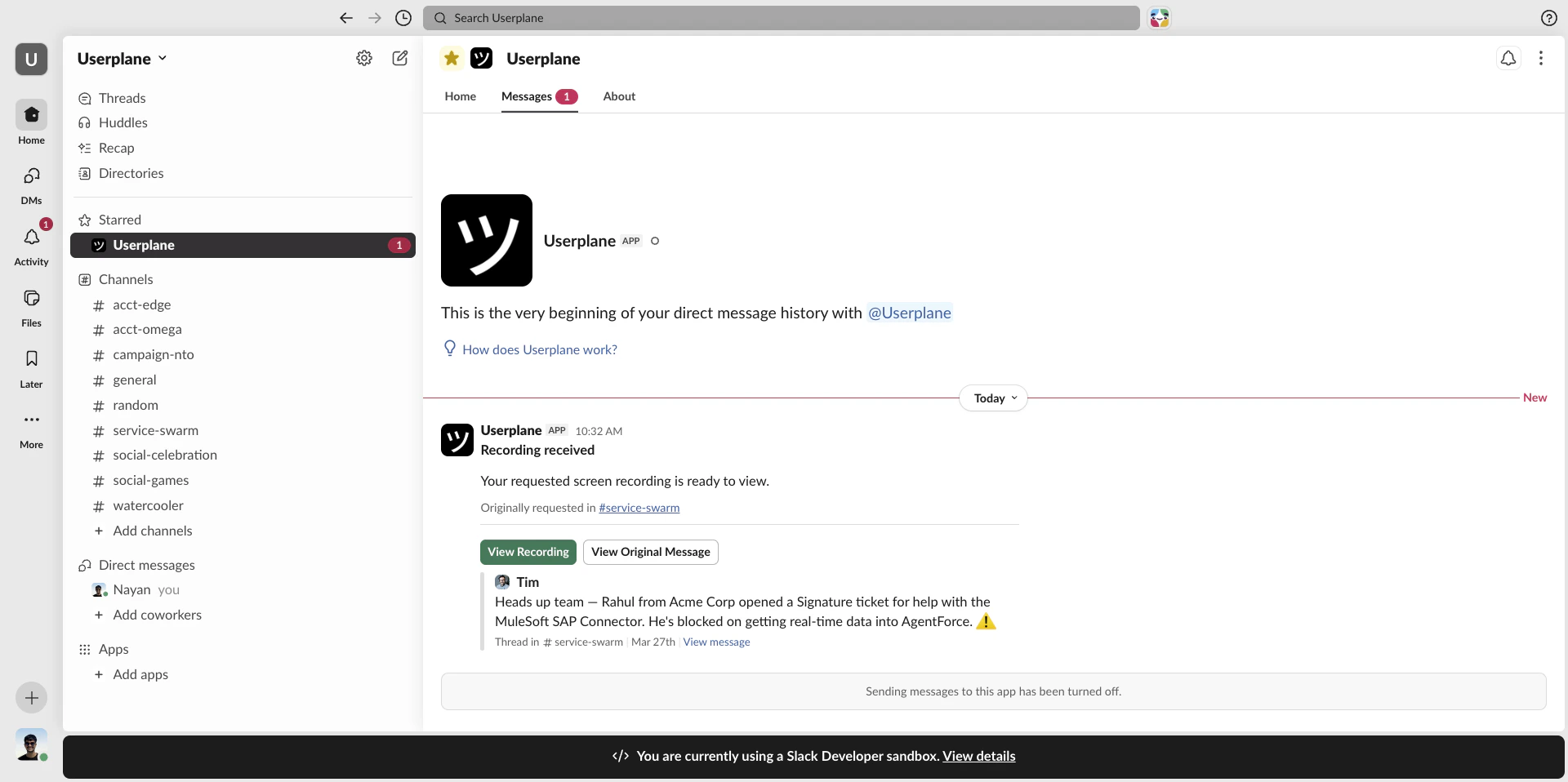
When a customer submits a recording, Userplane sends a DM in Slack to let the relevant agent know. Notifications include a direct link to open the recording in Userplane and, when the link was created from Slack, a link back to the original Slack message.
A “Recording received” message with the link reference.
A View Recording button that opens the recording in Userplane.
A View Original Message button that deep-links back to the Slack channel or thread where the link was created (only present when the link was created via Slack).
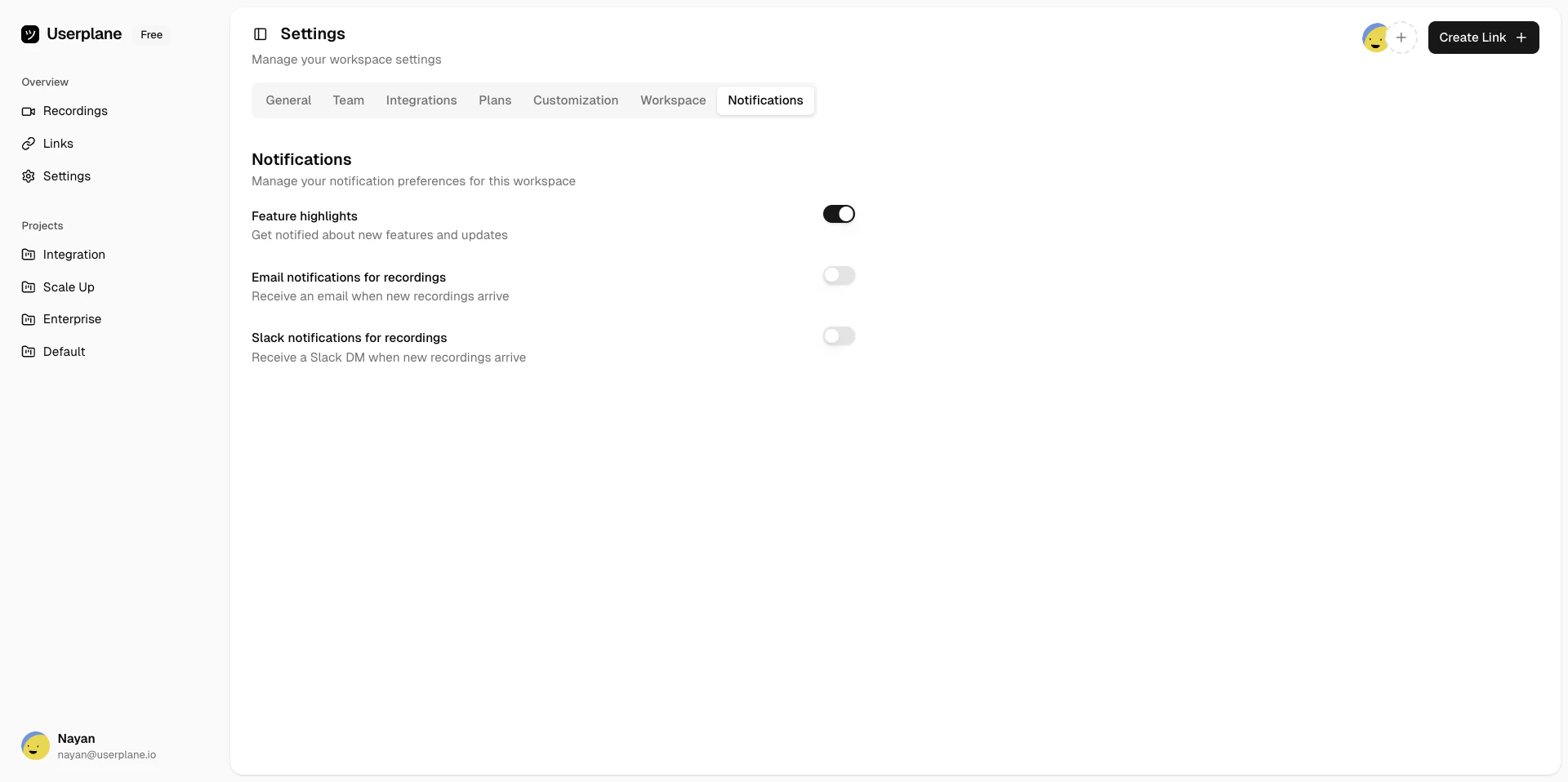
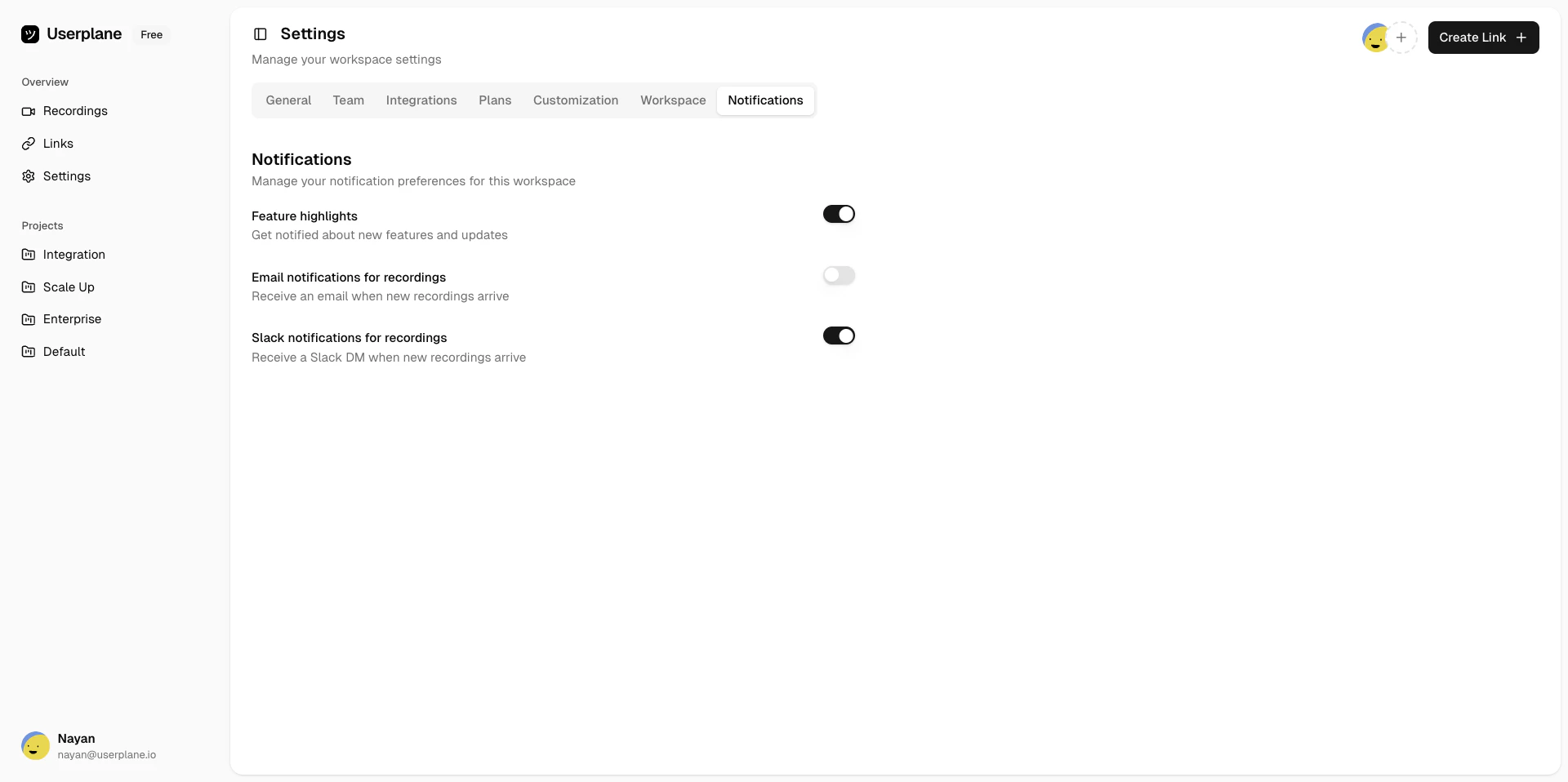
There are two ways an agent receives a notification, and they work together:Context-tied — if you created the recording link from Slack (via the slash command or message shortcut), you automatically get a DM when the recording arrives. No additional setup needed.Preference-based — any workspace member can opt in to receive Slack DMs for all recordings, not just ones they created from Slack. This is configured in your notification preferences.
If you created the link from Slack and also have the preference-based notification enabled, you
receive only one DM — not two.