

Using the message shortcut
1
Open the message menu
Hover over any message in Slack and click the three-dot menu (More actions), or right-click the message.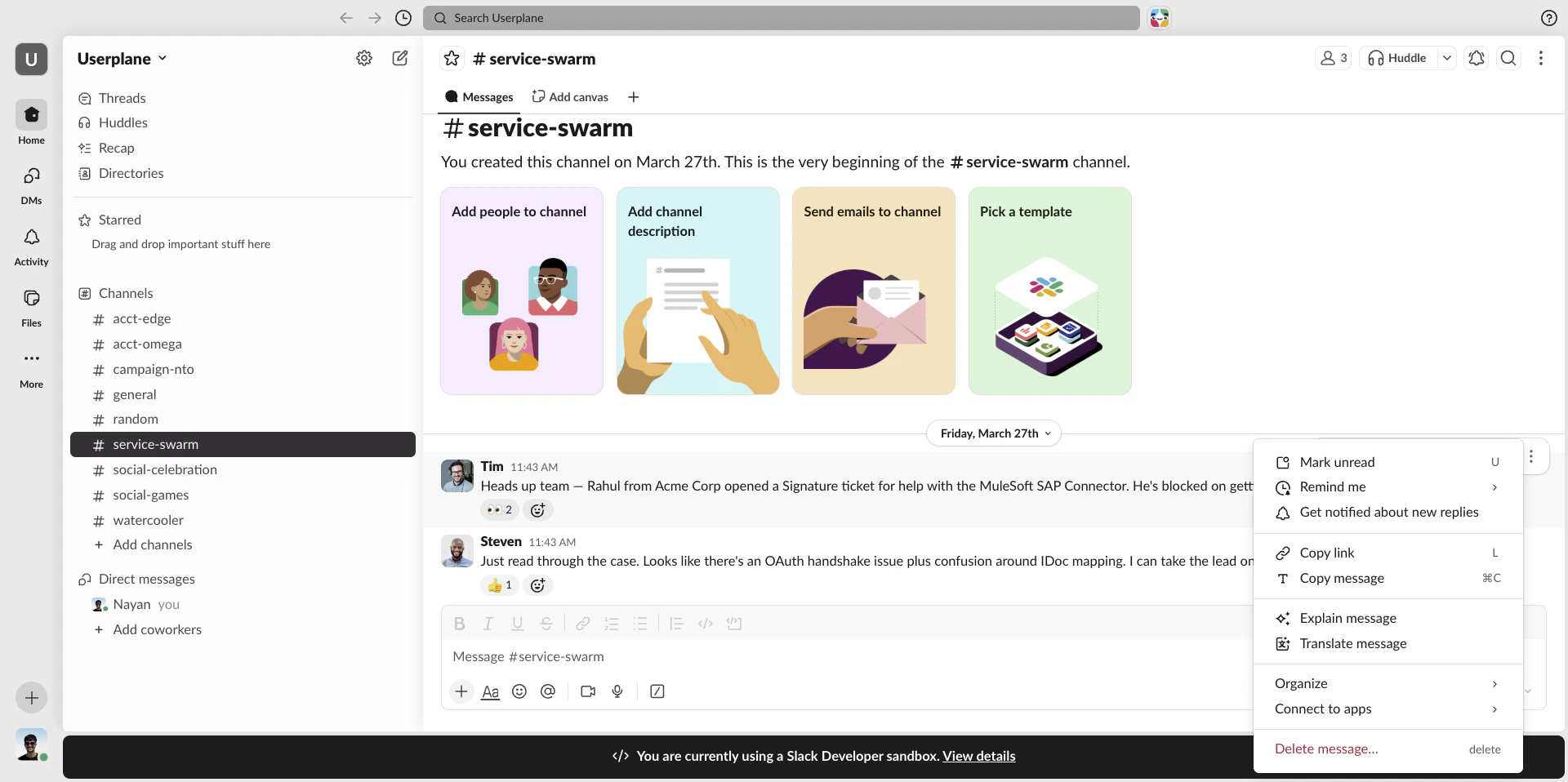
Message context menu
2
Select Create recording link
Click Create recording link from the list of shortcuts.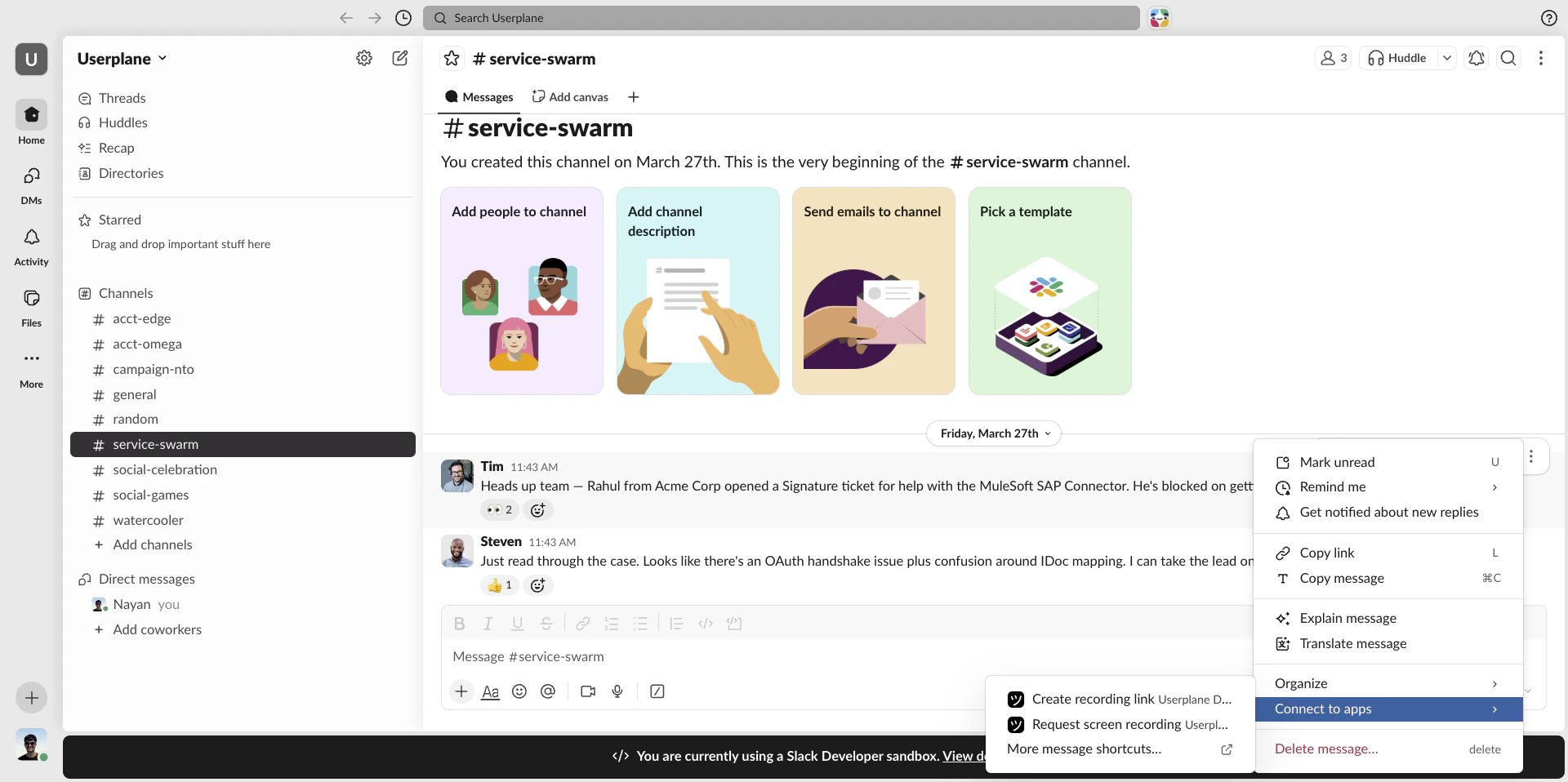
Selecting the Userplane shortcut
3
Fill in the link details
The same link creator modal opens. Select a Project and Domain, and optionally edit the Link Reference and Message for the recipient.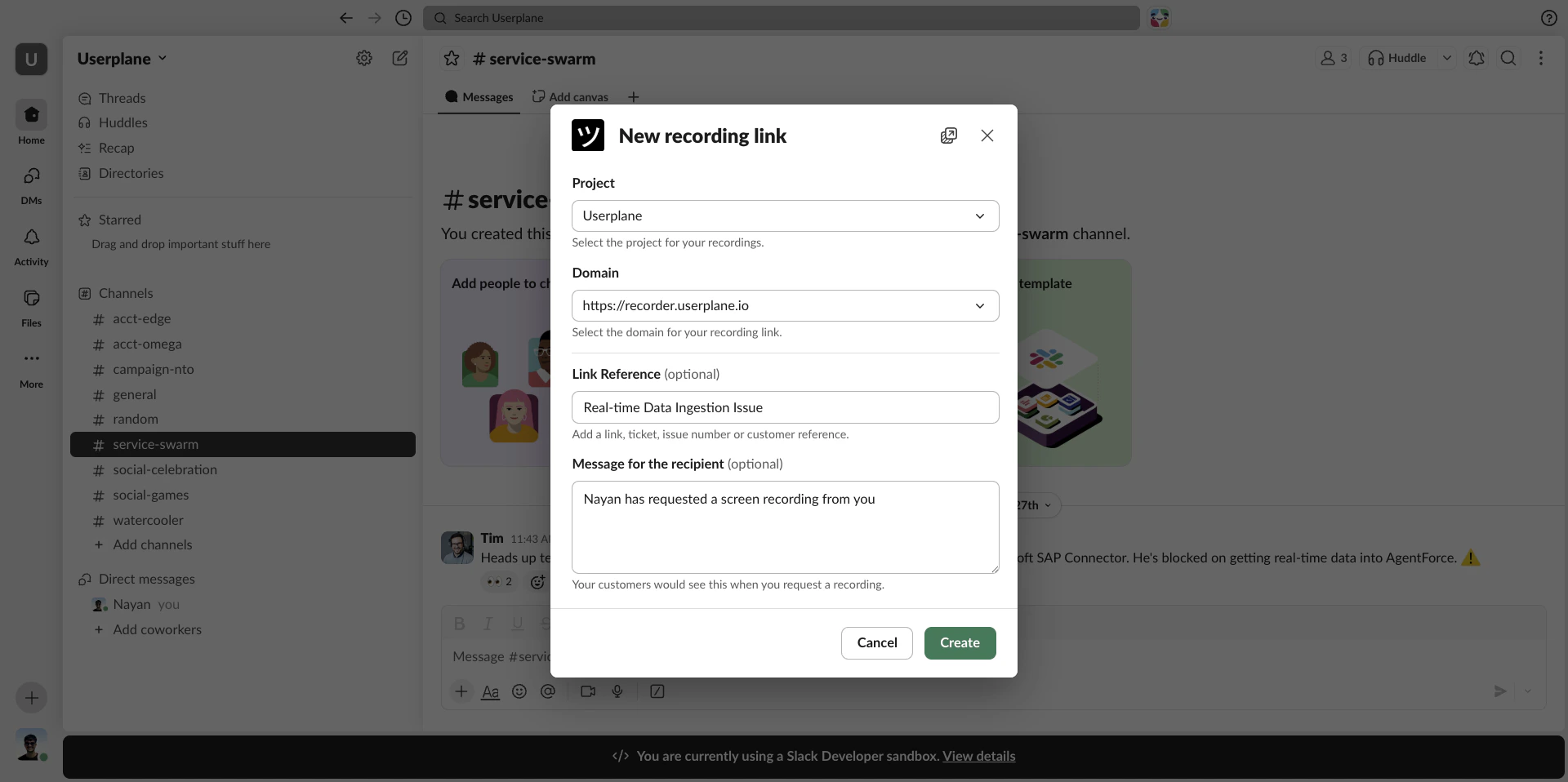
Link creator modal
4
Click Create
Click Create. The recording link is posted back to the channel as a reply to the original message.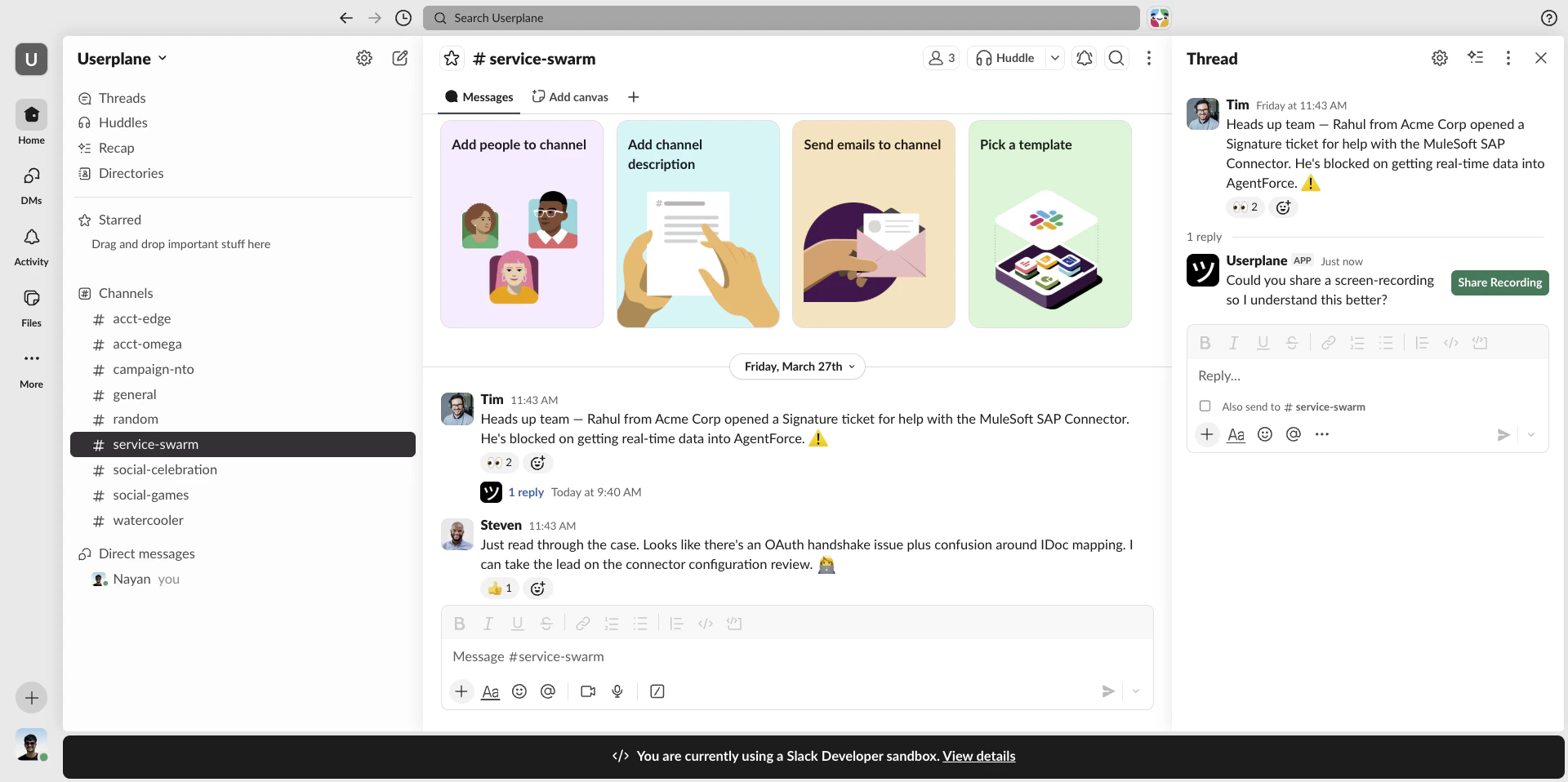
Recording link posted as a reply
Thread-aware behavior
The shortcut posts the recording link where it’s most useful based on where the message lives:- Message in a thread — the link is posted as another reply in the same thread, keeping the conversation together.
- Message in the main channel — the link is posted as a new thread reply on that message, starting a thread.
After the link is created
- The recording link appears as a reply to the original message.
- You receive a DM when the customer submits the recording. See Slack Notifications.
- The recording and link appear in your Userplane dashboard.
Viewing recordings
When the customer submits, open the recording in Userplane for full playback.1
Recording received
You get a DM in Slack with a View Recording button and a View Original Message button that deep-links back to the Slack thread.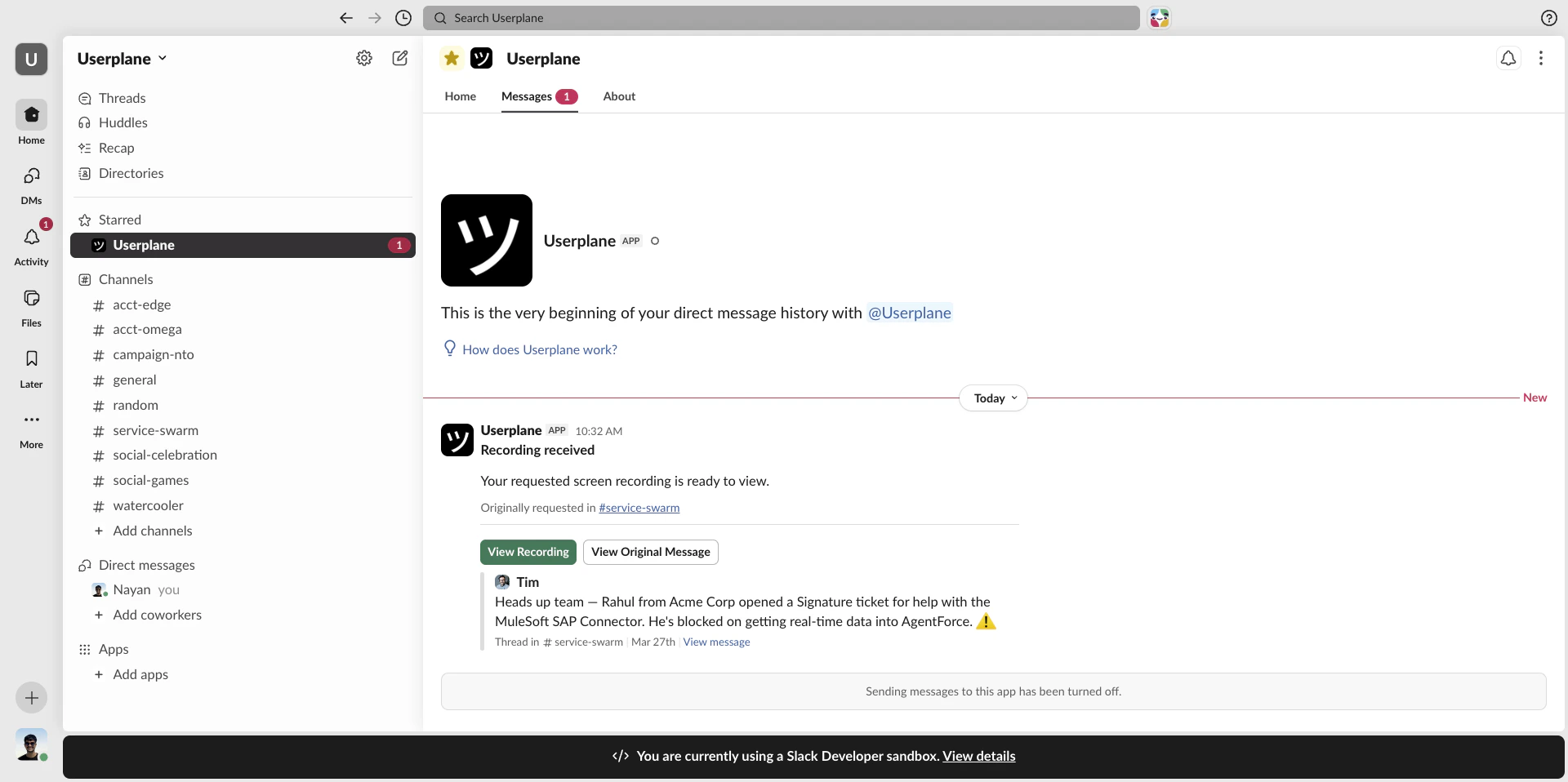
Recording received notification
2
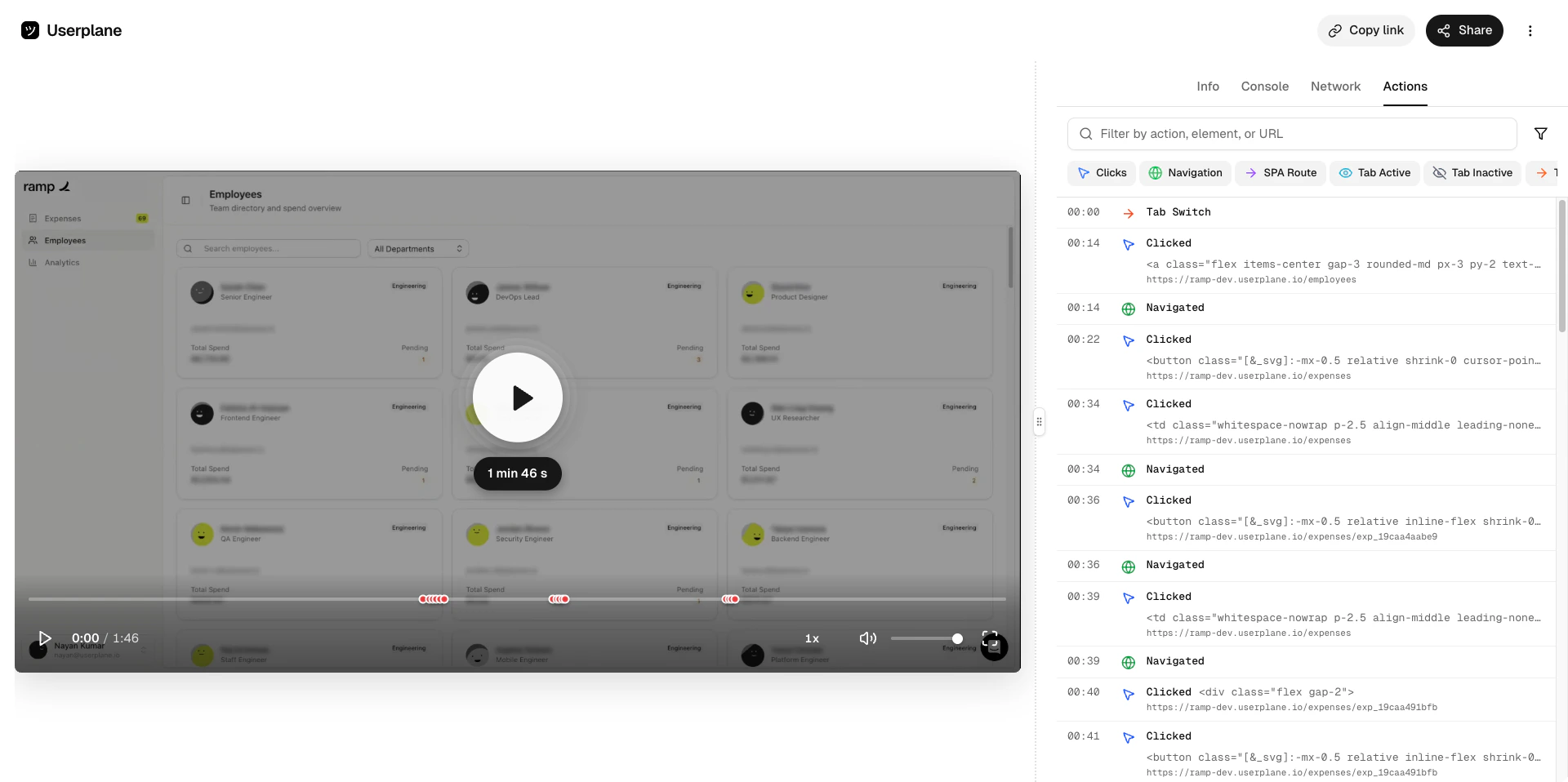
Review the session
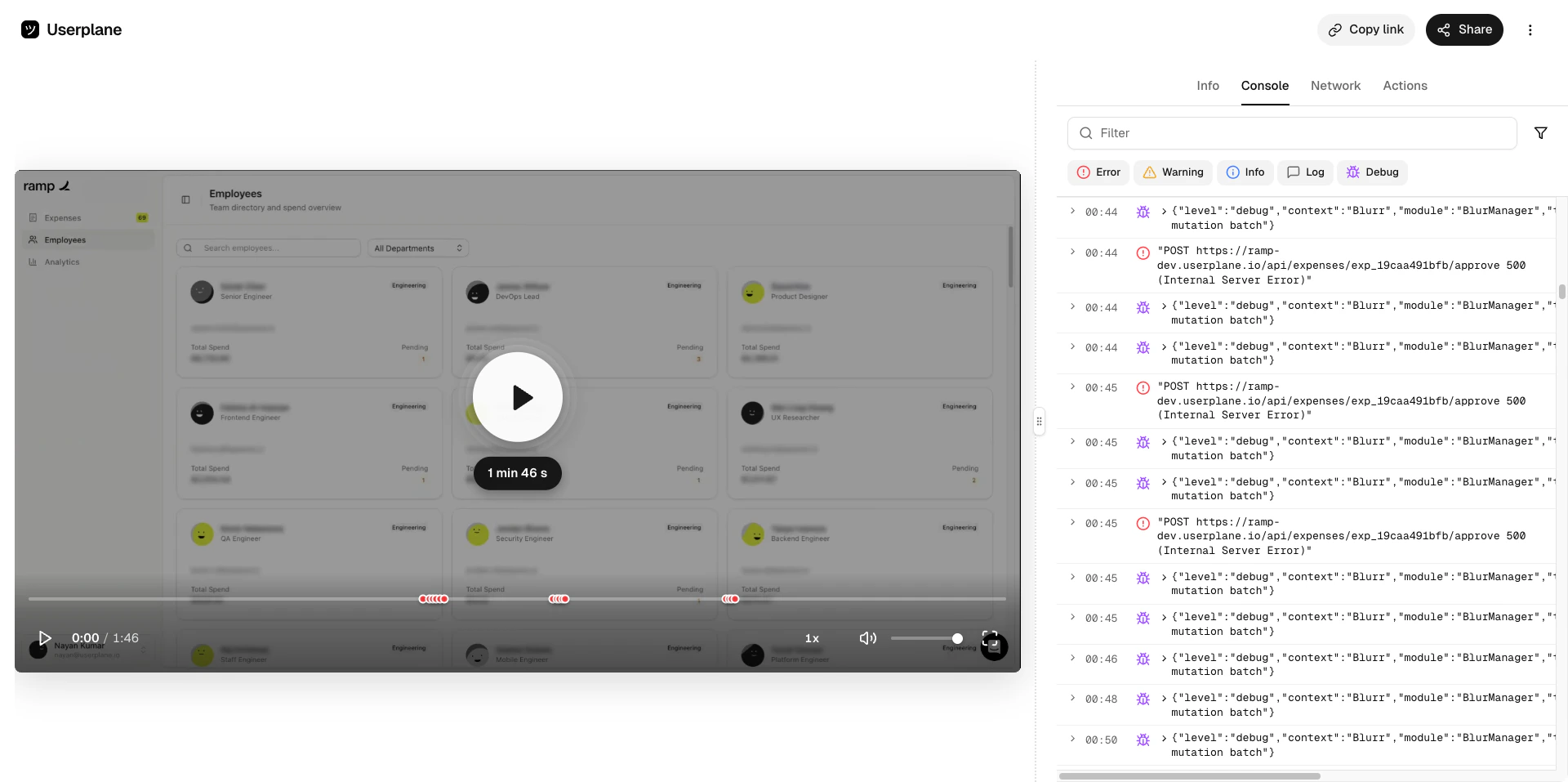
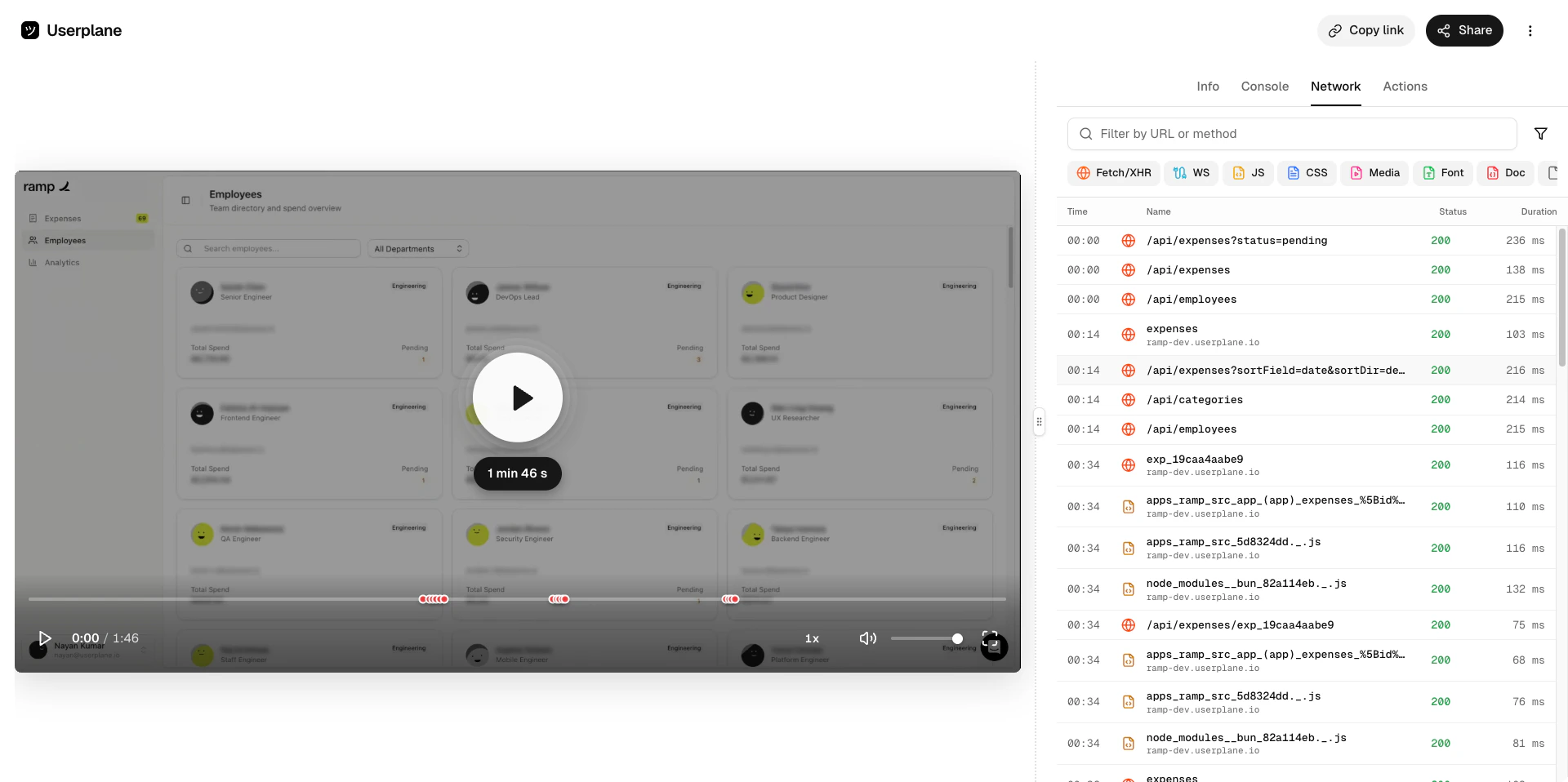
Watch the video and inspect the captured data.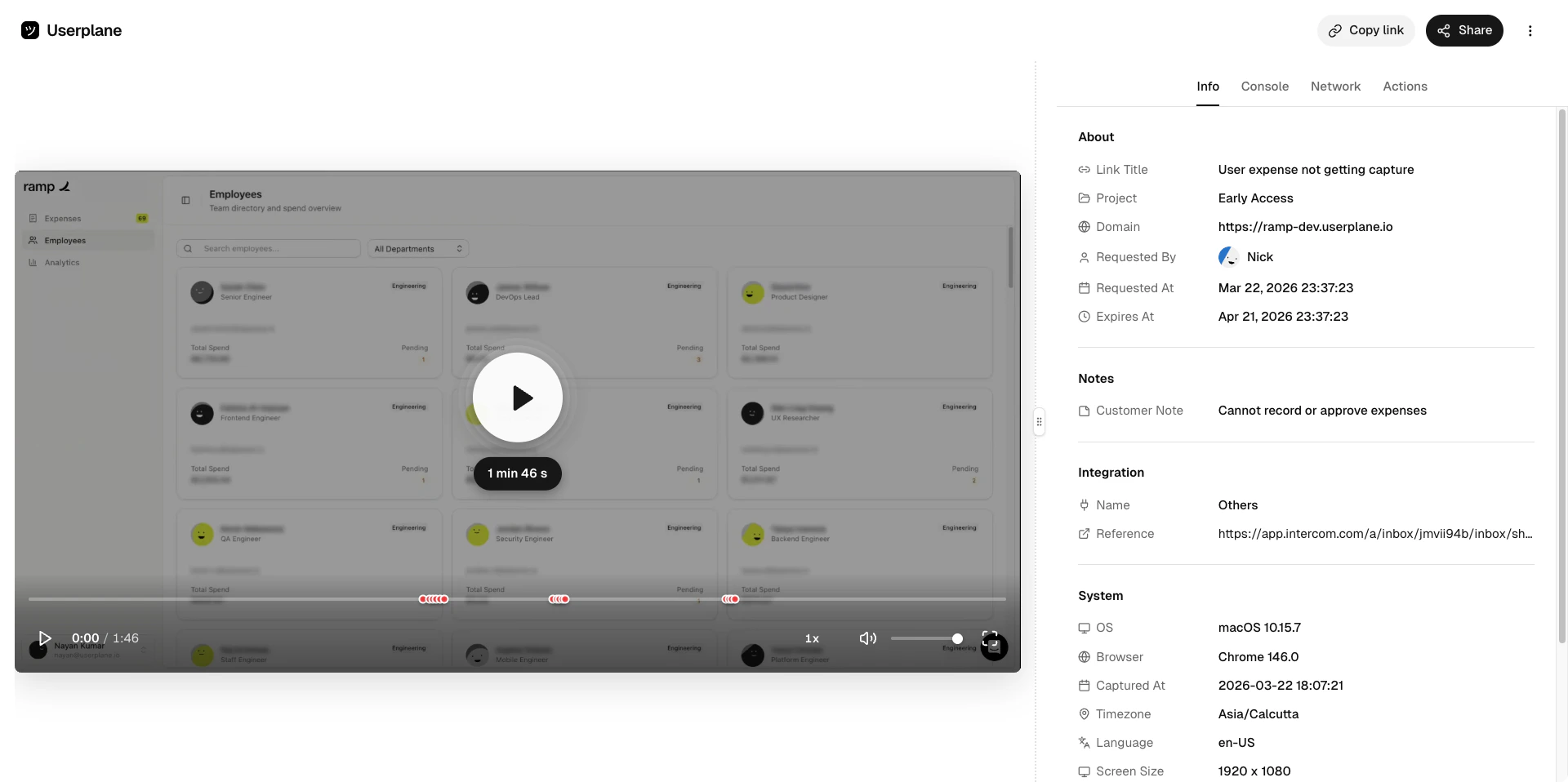
- Recording
- Console logs
- Network logs
- Actions
Recording playback
Requirements
- The Slack integration must be connected.
- The agent must be a member of the Userplane workspace (matched by email).
Related articles
- Slack Slash Command — create recording links by typing
/userplane. - Slack App Home — browse and manage recording links from the Userplane tab.
- Slack Notifications — recording arrival notifications.
- Slack Integration — overview and connection guide.