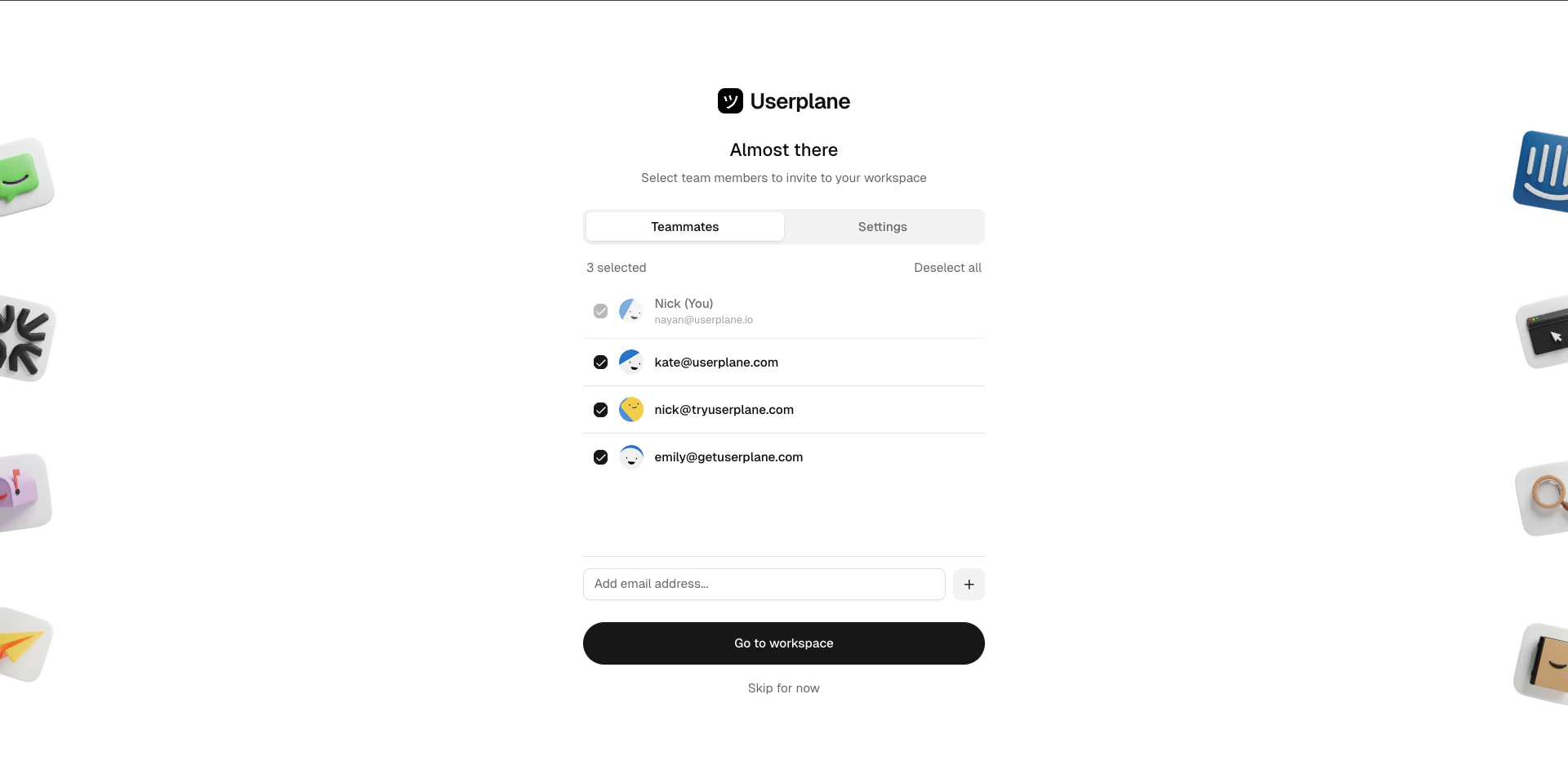
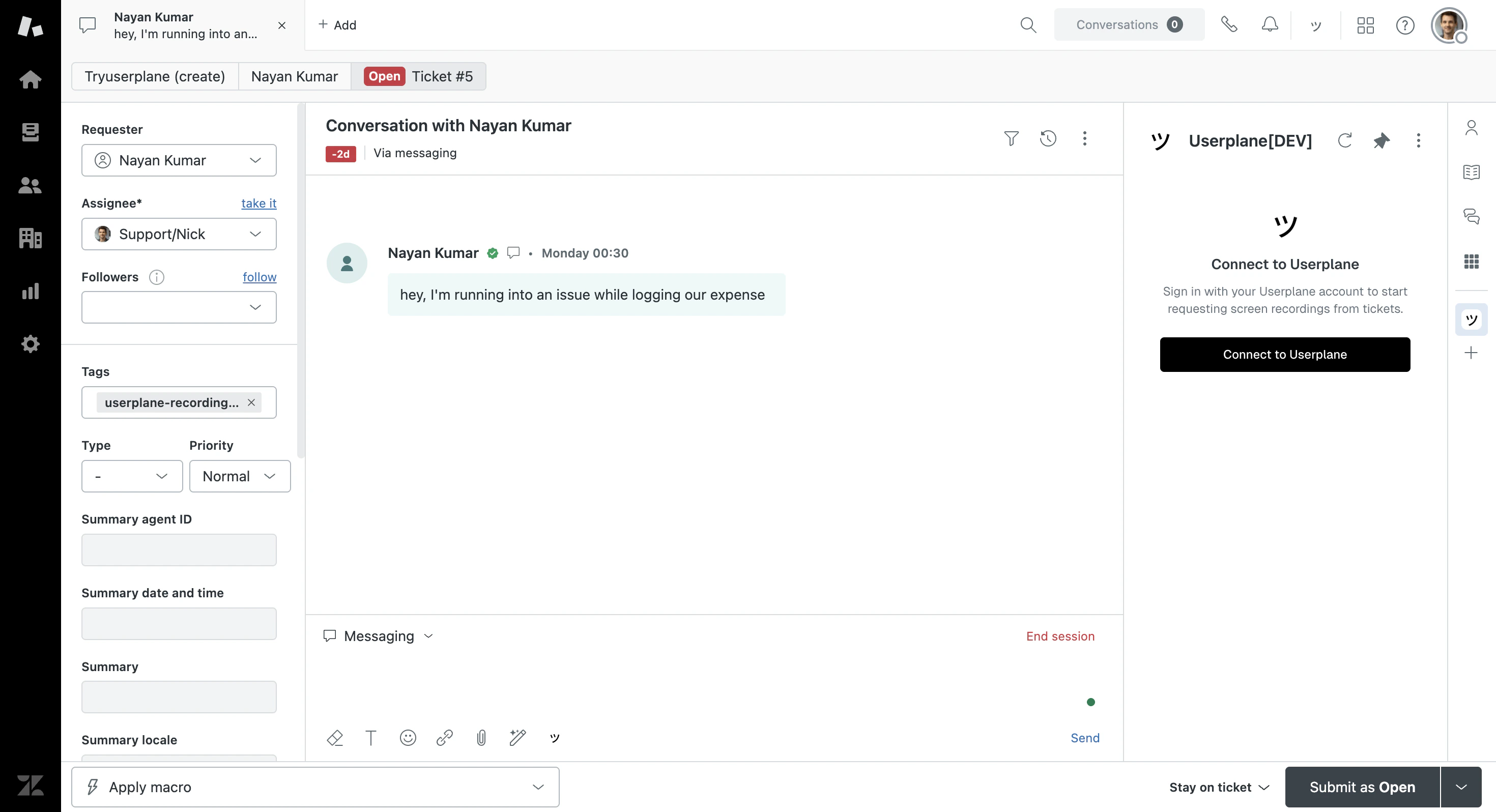
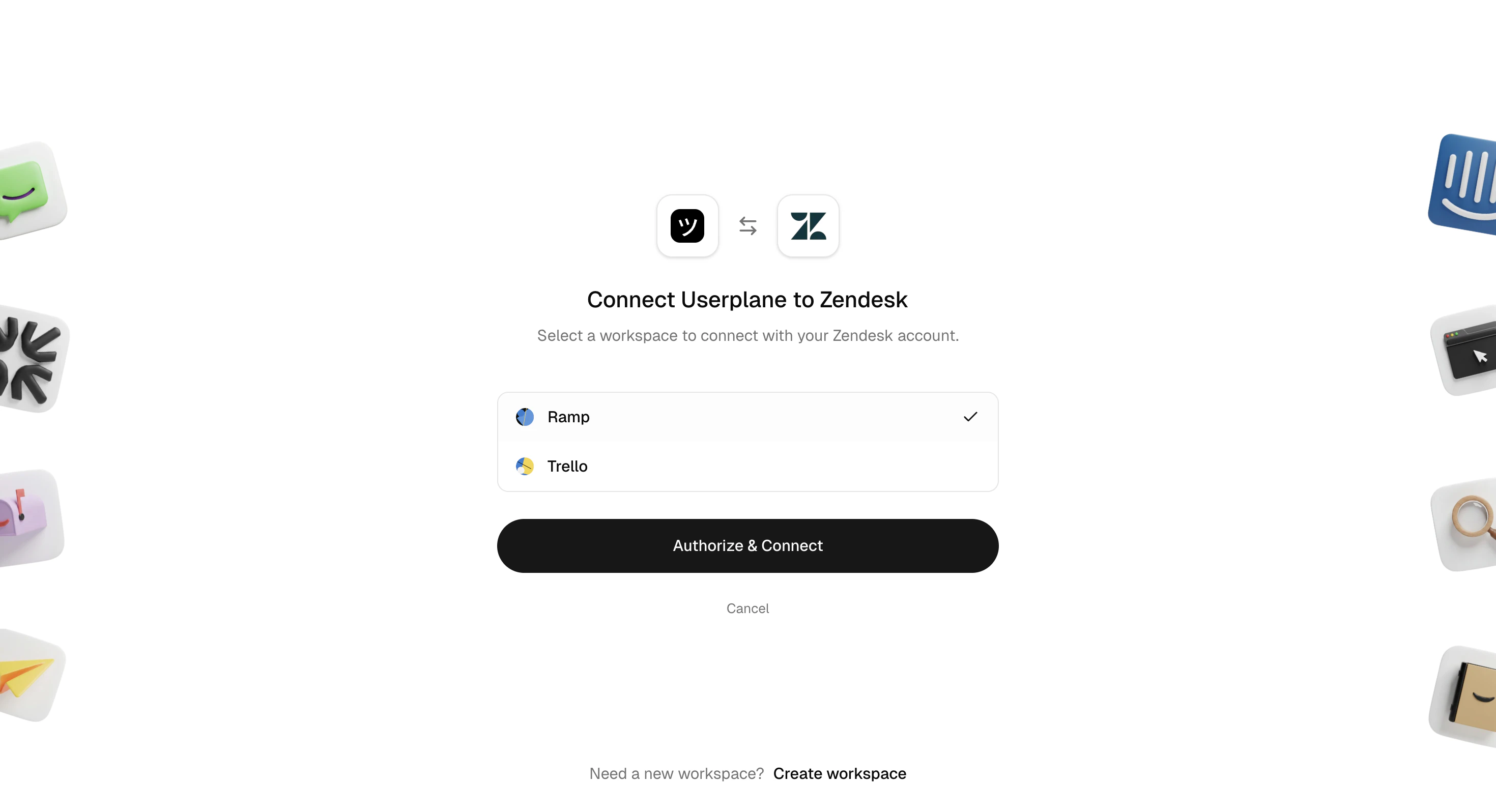
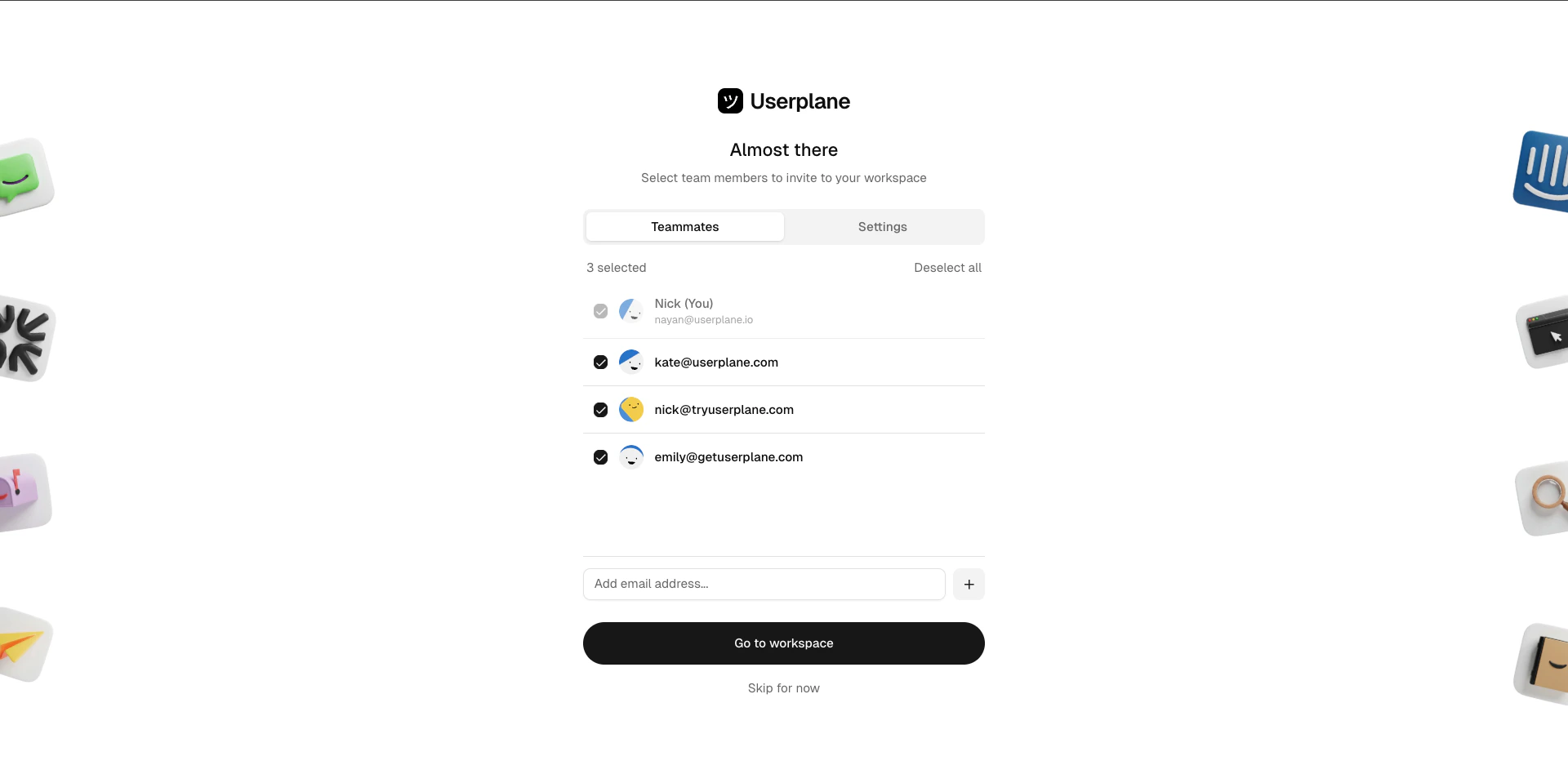
Configure your workspace, set up domains, manage recording link settings, and keep sensitive data secure
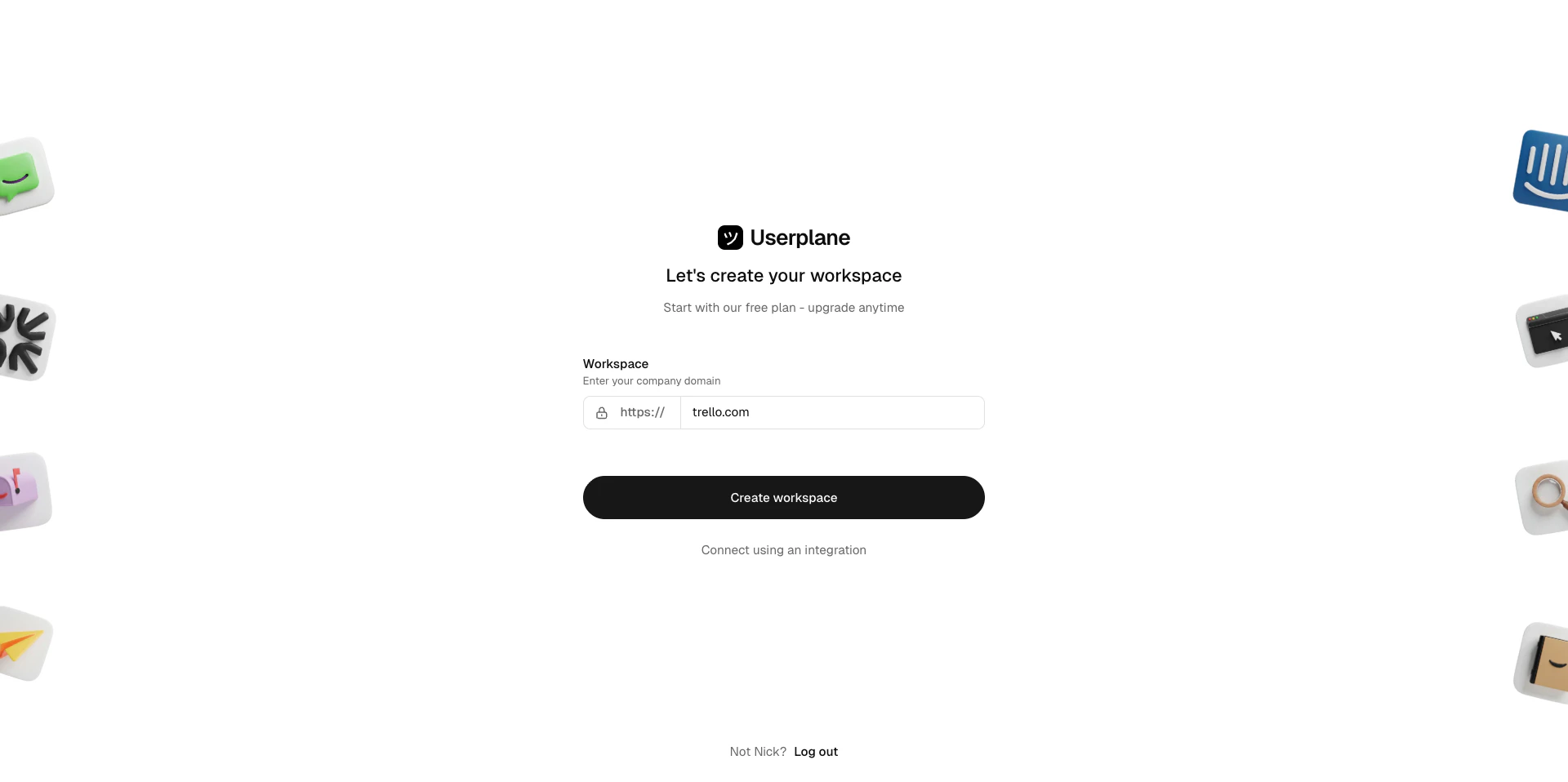
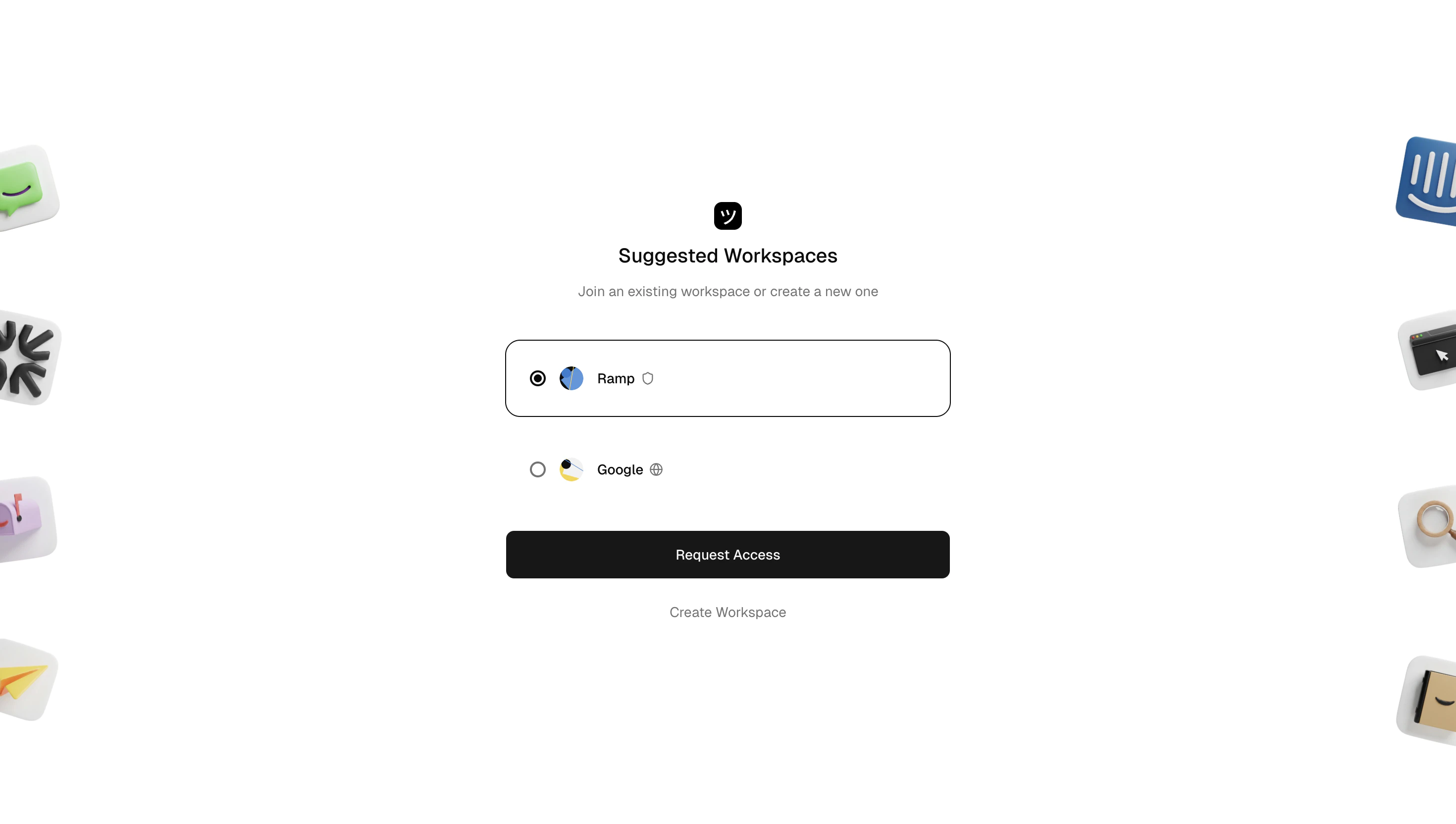
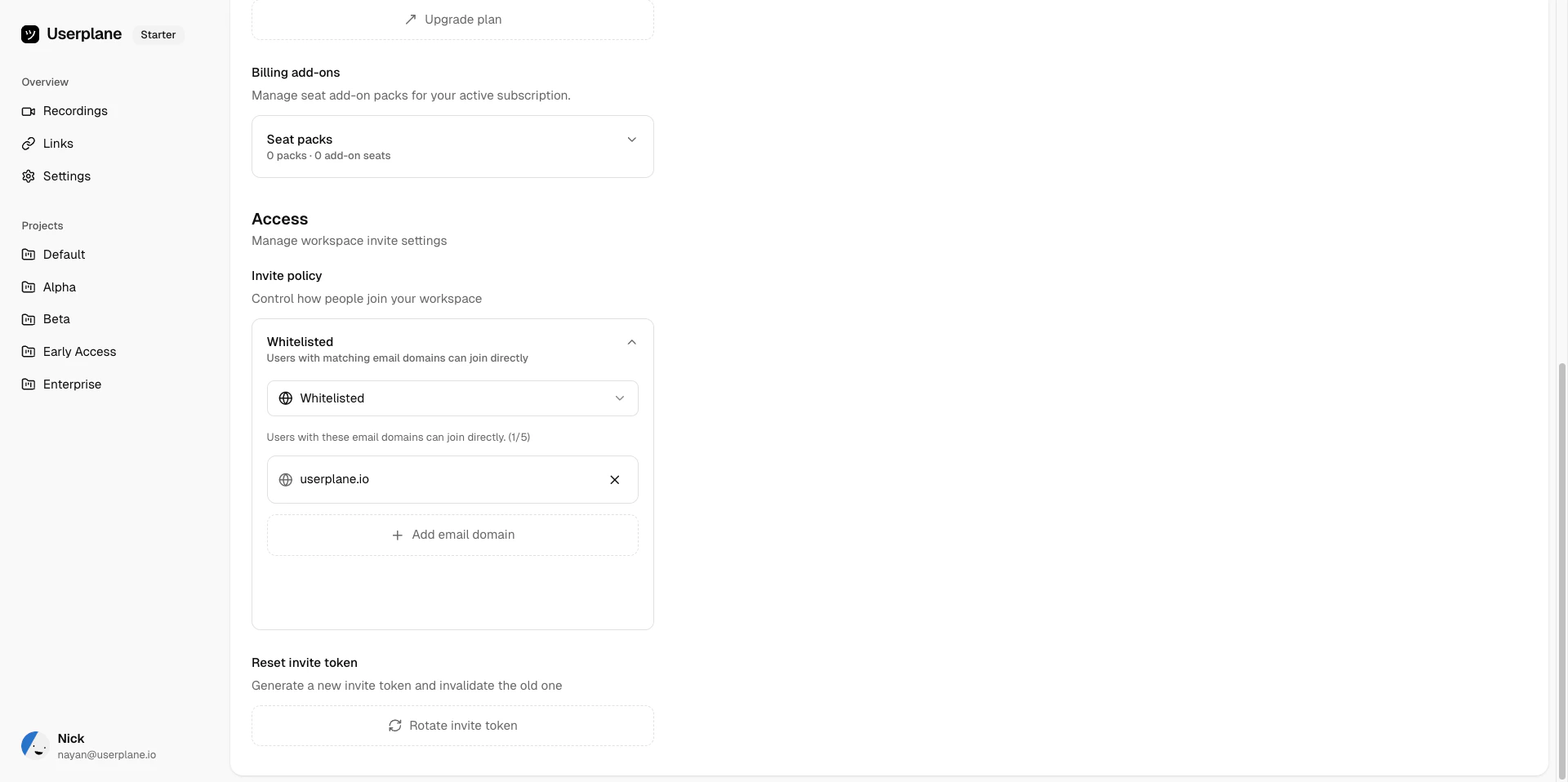
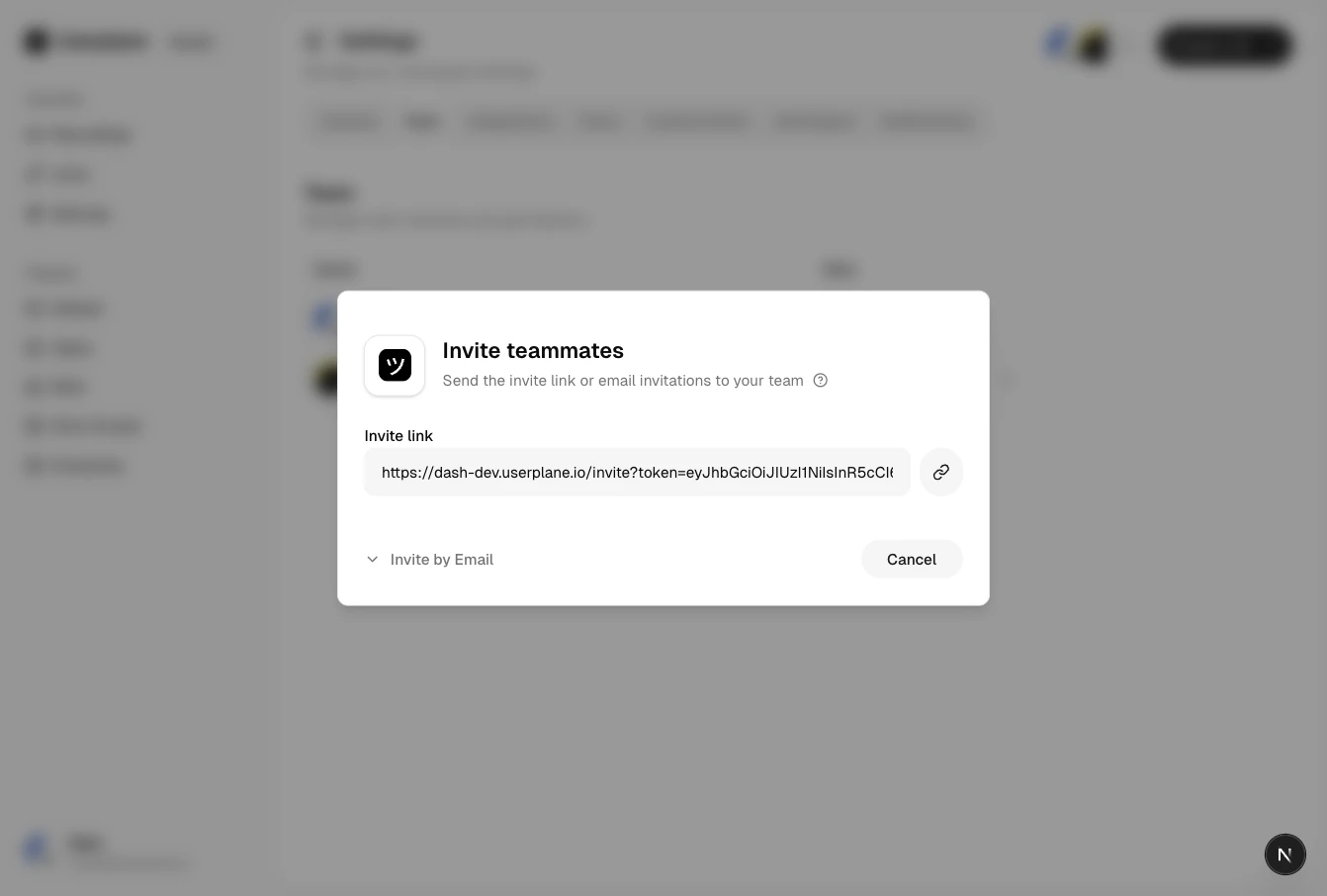
You’re the one who gets things set up so the rest of the support team can work effectively. This guide covers workspace configuration, domain setup, recording link management, and sensitive data controls.
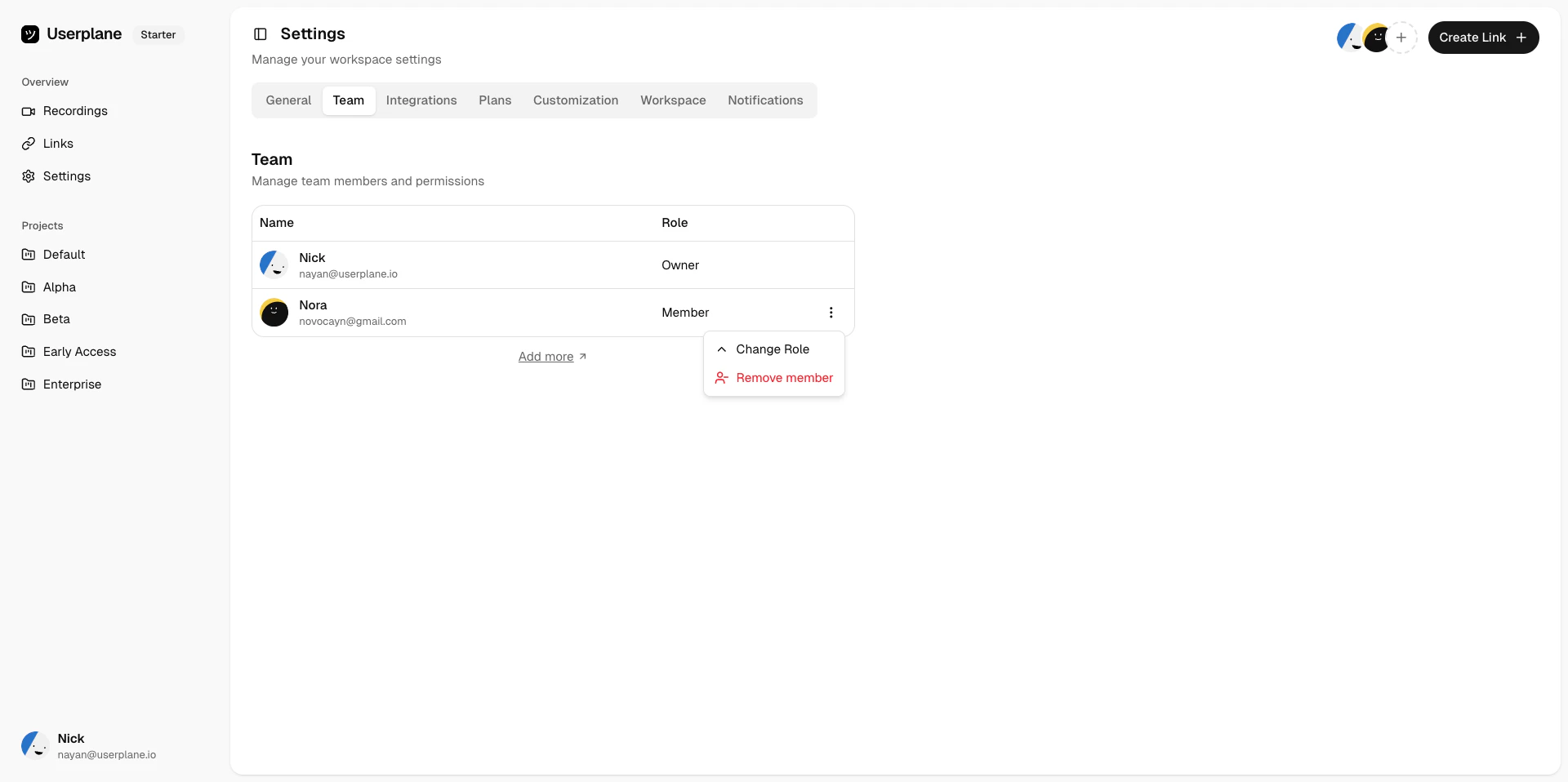
Review the default roles (Owner, Admin, Member, Viewer) and assign them to
teammates. Admins can manage integrations and settings; Members can create links and review
recordings.
Assign roles
2
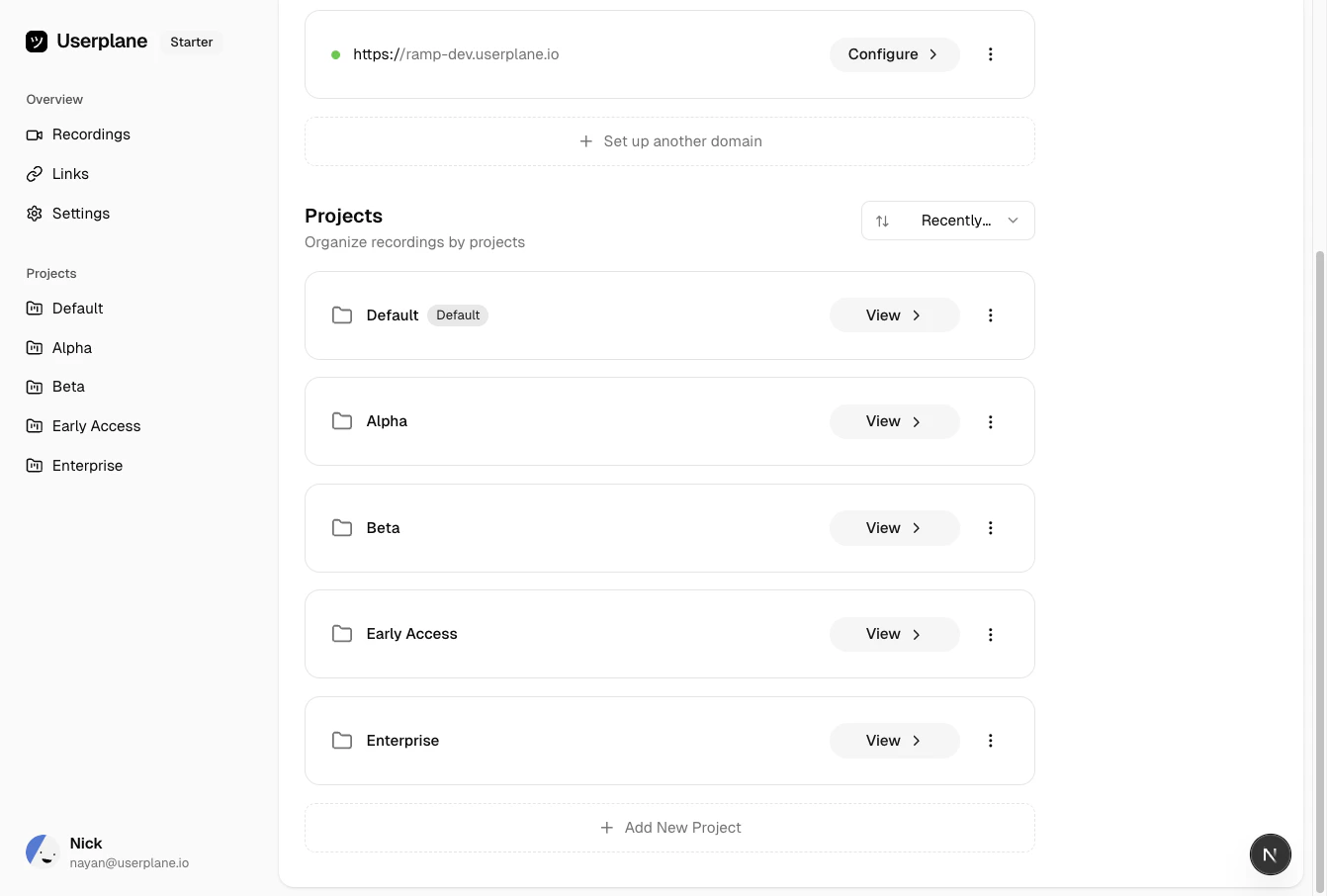
Create projects
Go to Projects and create projects for each product
area, customer segment, or team. Projects keep recordings organized and make filtering easy.
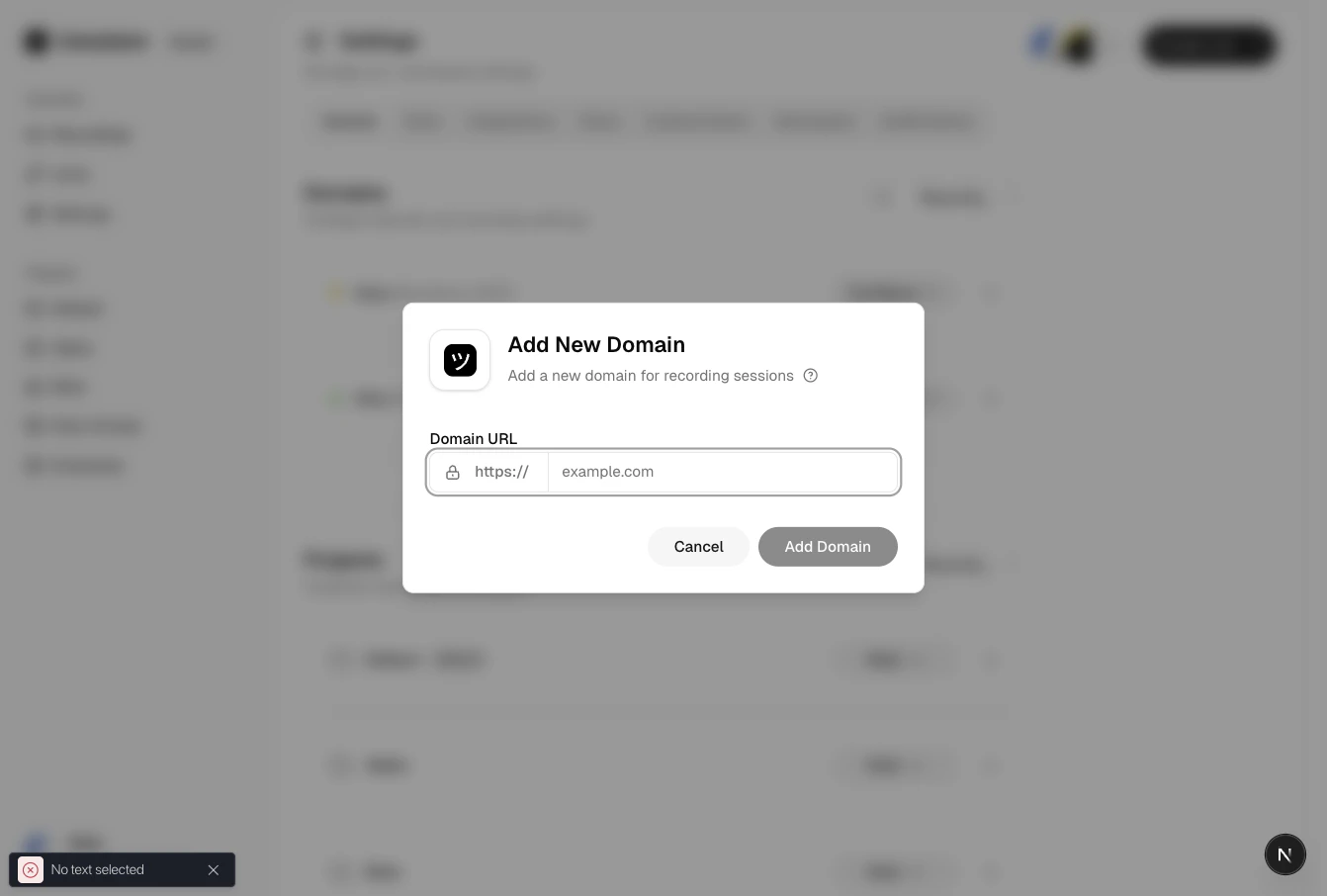
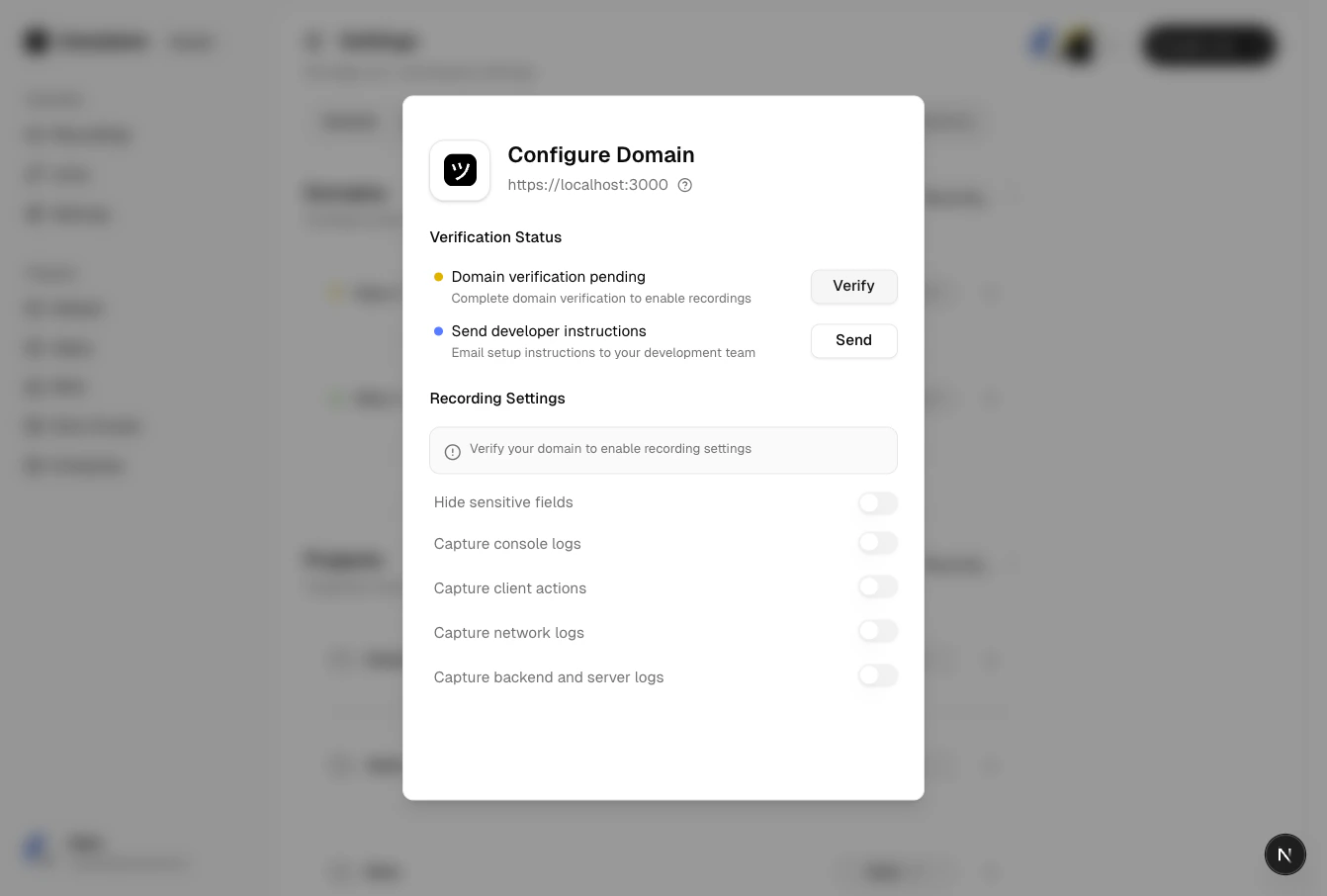
Domain verification enables first-party branded recording links — customers see your domain, not Userplane’s. Userplane verifies ownership by checking that its embed script is present on your site.
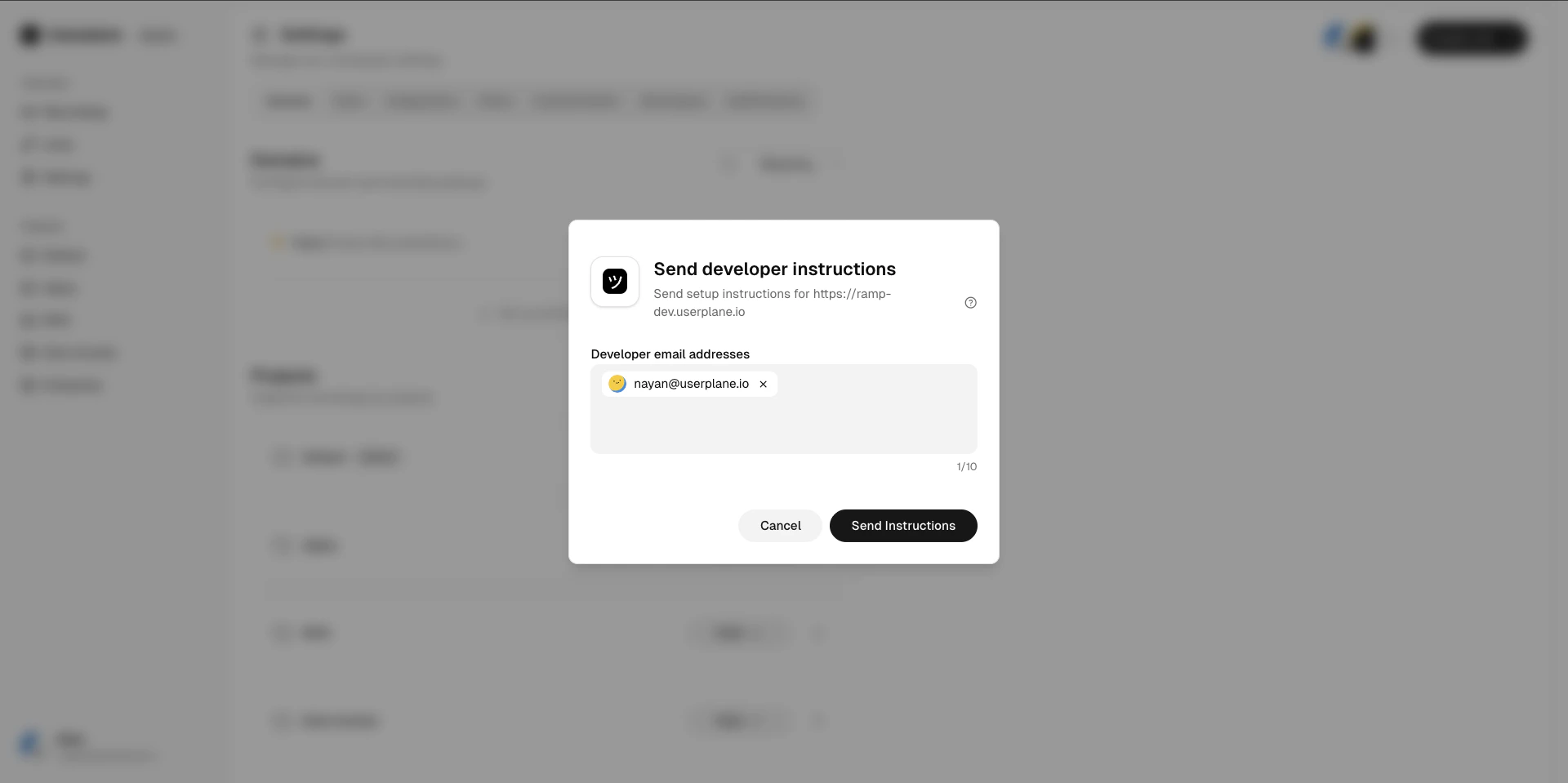
Click Send to Developer to email the script install instructions to your engineering team.
They need to add the Userplane embed script to a publicly accessible page on the domain.
Domain verification
3
Verify
Once your developer confirms the script is deployed, click Verify in the dashboard.
Verification runs immediately. The verification token expires after 5 minutes, so coordinate
with your developer before clicking Verify.
Domain verification
4
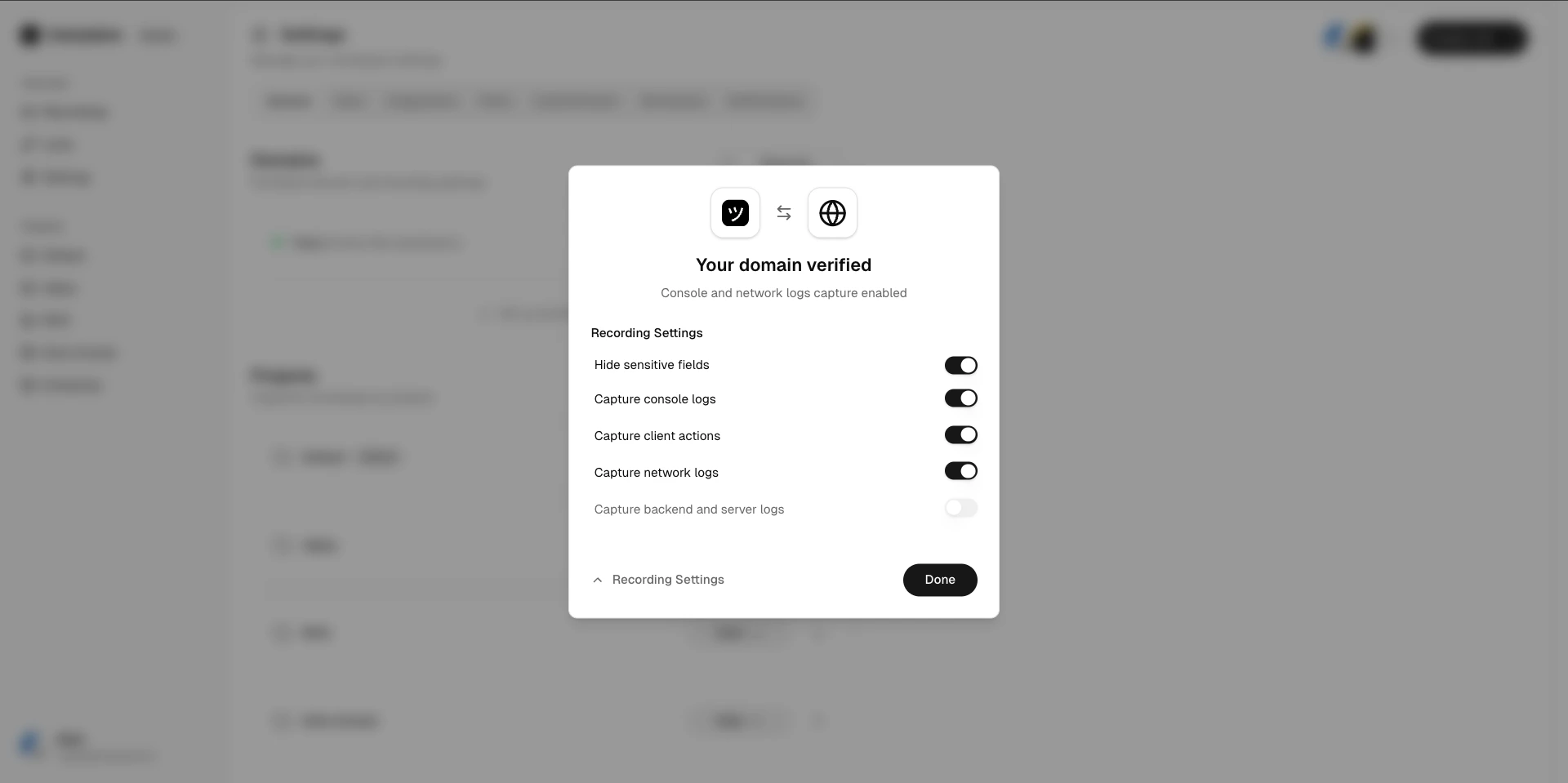
Configure recording preferences
Once verified, set per-domain defaults: which data to capture (console, network, audio), link
expiry, and branding.
Before going live, make sure sensitive customer data doesn’t appear in recordings.
1
Review what gets captured
Once enabled, recordings include screen video, console logs, and network requests.
2
Set up redaction rules
Go to Recording Link Settings and configure: -
URL patterns to exclude from network capture - Request header redaction for auth tokens
CSS selector masking to blur sensitive DOM elements in the video
3
Coordinate with your engineering team
For deeper redaction (e.g., redacting specific fields in API responses), your engineering team
can use the SDK’s privacy controls. Point them to the Developer
guide.
{"docsConfig":{"theme":"aspen","$schema":"https://mintlify.com/docs.json","name":"Userplane Docs","colors":{"primary":"#000000","light":"#FAFAFA","dark":"#000000"},"logo":{"light":"https://mintcdn.com/userplane/e34bWffW8FdiqmQz/static/logo-light.svg?fit=max\u0026auto=format\u0026n=e34bWffW8FdiqmQz\u0026q=85\u0026s=b60f979b7800d446f3f5d5274c095cb2","dark":"https://mintcdn.com/userplane/e34bWffW8FdiqmQz/static/logo-dark.svg?fit=max\u0026auto=format\u0026n=e34bWffW8FdiqmQz\u0026q=85\u0026s=f638b932d019423317aaca6685f22ea6"},"favicon":"https://mintcdn.com/userplane/e34bWffW8FdiqmQz/static/favicon.svg?fit=max\u0026auto=format\u0026n=e34bWffW8FdiqmQz\u0026q=85\u0026s=fd9fbcc5e1783343c767381ce1744d03","api":{"playground":{"display":"interactive"}},"appearance":{"default":"light","strict":true},"navbar":{"primary":{"type":"button","label":"Dashboard","href":"https://dash.userplane.io"}},"styling":{"latex":true},"navigation":{"pages":[]}},"deployment":{"deploymentMetadataValue":{"subdomain":"userplane","hasAudioNarration":false,"actualSubdomain":"userplane","customDomains":["docs.userplane.io"],"gitSource":{"type":"github","owner":"0xnyn","repo":"userplane","deployBranch":"main","contentDirectory":"apps/docs","isPrivate":true,"mountPath":"","label":""},"chroma":{"liveDeploymentHistoryId":"6a21eb6f2fb2a99bab92da64","collectionId":"8e53ea74-03f5-4b56-ab3a-aff2a4fe9720","schemaVersion":"v2"},"entitlements":{},"buildId":"6a21eb6f2fb2a99bab92da64:success","clientVersion":"0.0.3908","searchFilterCounts":[{"language":"default","tag":"Integrations","count":62},{"language":"default","tag":"Guide","count":47},{"language":"default","tag":"Extensions \u0026 Plugins","count":34},{"language":"default","tag":"API","count":28},{"language":"default","tag":"Developer","count":24},{"language":"default","tag":"Recordings","count":21},{"language":"default","tag":"Help Desk","count":16},{"language":"default","tag":"Claude Code","count":14},{"language":"default","tag":"Framework Guides","count":13},{"language":"default","tag":"Getting Started","count":12}]},"assistantConfig":{"enableAskAiButton":false,"enableStarterQuestions":false,"enableAskAiSearchBar":true},"hasChatPermissions":false,"hasWebMcpPermissions":false,"toggles":[{"name":"kill-isr","enabled":true,"variant":{"name":"disabled","enabled":false,"feature_enabled":true},"impressionData":false},{"name":"agent-mintlify-slack","enabled":true,"variant":{"name":"disabled","enabled":false,"feature_enabled":true},"impressionData":false},{"name":"editor-v7-file-tree","enabled":true,"variant":{"name":"disabled","enabled":false,"feature_enabled":true},"impressionData":false},{"name":"agent-integrations-settings","enabled":true,"variant":{"name":"disabled","enabled":false,"feature_enabled":true},"impressionData":false},{"name":"automations-pr-grouping","enabled":true,"variant":{"name":"disabled","enabled":false,"feature_enabled":true},"impressionData":false},{"name":"custom-prefix","enabled":true,"variant":{"name":"disabled","enabled":false,"feature_enabled":true},"impressionData":false},{"name":"analytics-v7","enabled":true,"variant":{"name":"disabled","enabled":false,"feature_enabled":true},"impressionData":false},{"name":"user-flows-analytics","enabled":true,"variant":{"name":"disabled","enabled":false,"feature_enabled":true},"impressionData":false},{"name":"no-publish-flow","enabled":true,"variant":{"name":"disabled","enabled":false,"feature_enabled":true},"impressionData":false},{"name":"workos-onboarding","enabled":true,"variant":{"name":"disabled","enabled":false,"feature_enabled":true},"impressionData":false},{"name":"llms-txt-v2","enabled":true,"variant":{"name":"disabled","enabled":false,"feature_enabled":true},"impressionData":false},{"name":"pause-universal-search-reconcile","enabled":true,"variant":{"name":"disabled","enabled":false,"feature_enabled":true},"impressionData":false},{"name":"snapshot-serving-live","enabled":true,"variant":{"name":"disabled","enabled":false,"feature_enabled":true},"impressionData":false},{"name":"stripTemperatureMiddleware","enabled":true,"variant":{"name":"disabled","enabled":false,"feature_enabled":true},"impressionData":false},{"name":"per-site-search-delta","enabled":true,"variant":{"name":"disabled","enabled":false,"feature_enabled":true},"impressionData":false},{"name":"support-platform-pylon-zendesk","enabled":true,"variant":{"name":"disabled","enabled":false,"feature_enabled":true},"impressionData":false},{"name":"editor-branches-v2-autocommit","enabled":true,"variant":{"name":"disabled","enabled":false,"feature_enabled":true},"impressionData":false},{"name":"editor-branches-v2","enabled":true,"variant":{"name":"disabled","enabled":false,"feature_enabled":true},"impressionData":false},{"name":"snapshot-serving","enabled":true,"variant":{"name":"disabled","enabled":false,"feature_enabled":true},"impressionData":false},{"name":"instant-rollback","enabled":true,"variant":{"name":"disabled","enabled":false,"feature_enabled":true},"impressionData":false},{"name":"granular-notifications-server","enabled":true,"variant":{"name":"disabled","enabled":false,"feature_enabled":true},"impressionData":false},{"name":"granular-notifications","enabled":true,"variant":{"name":"disabled","enabled":false,"feature_enabled":true},"impressionData":false},{"name":"editor-private-page-search","enabled":true,"variant":{"name":"disabled","enabled":false,"feature_enabled":true},"impressionData":false},{"name":"automations-fable","enabled":true,"variant":{"name":"disabled","enabled":false,"feature_enabled":true},"impressionData":false},{"name":"fixed-ai-action-pricing","enabled":true,"variant":{"name":"disabled","enabled":false,"feature_enabled":true},"impressionData":false},{"name":"automation-resolve-merge-conflict","enabled":true,"variant":{"name":"disabled","enabled":false,"feature_enabled":true},"impressionData":false},{"name":"scoped-publishing","enabled":true,"variant":{"name":"disabled","enabled":false,"feature_enabled":true},"impressionData":false},{"name":"mintql","enabled":true,"variant":{"name":"disabled","enabled":false,"feature_enabled":true},"impressionData":false},{"name":"page-level-analytics","enabled":true,"variant":{"name":"disabled","enabled":false,"feature_enabled":true},"impressionData":false},{"name":"teamspace","enabled":true,"variant":{"name":"disabled","enabled":false,"feature_enabled":true},"impressionData":false},{"name":"editor-version-history-v2","enabled":true,"variant":{"name":"disabled","enabled":false,"feature_enabled":true},"impressionData":false},{"name":"vite-origin","enabled":true,"variant":{"name":"disabled","enabled":false,"feature_enabled":true},"impressionData":false},{"name":"editor-nav-generations","enabled":true,"variant":{"name":"disabled","enabled":false,"feature_enabled":true},"impressionData":false},{"name":"billing-page-v2","enabled":true,"variant":{"name":"disabled","enabled":false,"feature_enabled":true},"impressionData":false},{"name":"workspace-projects","enabled":true,"variant":{"name":"disabled","enabled":false,"feature_enabled":true},"impressionData":false},{"name":"assistant-v5","enabled":true,"variant":{"name":"disabled","enabled":false,"feature_enabled":true},"impressionData":false},{"name":"byok-sep-25","enabled":true,"variant":{"name":"disabled","enabled":false,"feature_enabled":true},"impressionData":false},{"name":"fork-pr-previews","enabled":true,"variant":{"name":"disabled","enabled":false,"feature_enabled":true},"impressionData":false},{"name":"revalidation-jwt","enabled":true,"variant":{"name":"disabled","enabled":false,"feature_enabled":true},"impressionData":false},{"name":"editor-agent-model-picker","enabled":true,"variant":{"name":"disabled","enabled":false,"feature_enabled":true},"impressionData":false},{"name":"client-snapshot-docs-config","enabled":true,"variant":{"name":"disabled","enabled":false,"feature_enabled":true},"impressionData":false},{"name":"hobby-abuse-scan","enabled":true,"variant":{"name":"disabled","enabled":false,"feature_enabled":true},"impressionData":false},{"name":"dashboard-inbox","enabled":true,"variant":{"name":"disabled","enabled":false,"feature_enabled":true},"impressionData":false}],"isAtlas":false,"googleFontsInlined":false},"customCss":[],"page":{"pagePath":"getting-started/for-support-engineers","slug":"/getting-started/for-support-engineers","pageMetadata":{"title":"Support Engineer Onboarding","description":"Configure your workspace, set up domains, manage recording link settings, and keep sensitive data secure","href":"/getting-started/for-support-engineers"},"description":{"compiledSource":"\"use strict\";\nconst {jsx: _jsx} = arguments[0];\nconst {useMDXComponents: _provideComponents} = arguments[0];\nfunction _createMdxContent(props) {\n const _components = {\n p: \"p\",\n ..._provideComponents(),\n ...props.components\n };\n return _jsx(_components.p, {\n children: \"Configure your workspace, set up domains, manage recording link settings, and keep sensitive data secure\"\n });\n}\nfunction MDXContent(props = {}) {\n const {wrapper: MDXLayout} = {\n ..._provideComponents(),\n ...props.components\n };\n return MDXLayout ? _jsx(MDXLayout, {\n ...props,\n children: _jsx(_createMdxContent, {\n ...props\n })\n }) : _createMdxContent(props);\n}\nreturn {\n default: MDXContent\n};\n","frontmatter":{},"scope":{}},"pageType":"default","mdx":{"mdxSource":{"compiledSource":"\"use strict\";const{Fragment:_Fragment,jsx:_jsx,jsxs:_jsxs}=arguments[0];const{useMDXComponents:_provideComponents}=arguments[0];function _createMdxContent(props){const _components={a:`a`,code:`code`,li:`li`,p:`p`,strong:`strong`,tbody:`tbody`,td:`td`,th:`th`,thead:`thead`,tr:`tr`,ul:`ul`,..._provideComponents(),...props.components},{Card,CardGroup,Frame,Heading,Note,OptimizedImage,Step,Steps,Tab,Table,Tabs}=_components;if(!Card)_missingMdxReference(`Card`,true);if(!CardGroup)_missingMdxReference(`CardGroup`,true);if(!Frame)_missingMdxReference(`Frame`,true);if(!Heading)_missingMdxReference(`Heading`,true);if(!Note)_missingMdxReference(`Note`,true);if(!OptimizedImage)_missingMdxReference(`OptimizedImage`,true);if(!Step)_missingMdxReference(`Step`,true);if(!Steps)_missingMdxReference(`Steps`,true);if(!Tab)_missingMdxReference(`Tab`,true);if(!Table)_missingMdxReference(`Table`,true);if(!Tabs)_missingMdxReference(`Tabs`,true);return _jsxs(_Fragment,{children:[_jsx(_components.p,{children:`You’re the one who gets things set up so the rest of the support team can work effectively. This guide covers workspace configuration, domain setup, recording link management, and sensitive data controls.`}),`\n`,_jsx(Heading,{level:`2`,id:`what-you’ll-own`,children:`What you’ll own`}),`\n`,_jsxs(_components.ul,{children:[`\n`,_jsx(_components.li,{children:`Workspace and team configuration`}),`\n`,_jsx(_components.li,{children:`Domain verification and branding`}),`\n`,_jsx(_components.li,{children:`Recording link defaults and limits`}),`\n`,_jsx(_components.li,{children:`Sensitive data redaction rules`}),`\n`]}),`\n`,_jsx(Heading,{level:`2`,id:`step-1-create-and-configure-your-workspace`,children:`Step 1: Create and configure your workspace`}),`\n`,_jsxs(Steps,{children:[_jsxs(Step,{title:`Create a workspace`,children:[_jsxs(_components.p,{children:[`Sign in and click `,_jsx(_components.a,{href:`https://dash.userplane.io/workspace/create`,children:`Create Workspace`}),`. Enter your company URL to get started.`]}),_jsx(Frame,{caption:`Create a workspace`,children:_jsx(OptimizedImage,{src:`https://mintcdn.com/userplane/iHJrxtyvOmNXmfMS/media/onboarding/manual-onboarding-kickoff.png?fit=max\u0026auto=format\u0026n=iHJrxtyvOmNXmfMS\u0026q=85\u0026s=72014181808d02f7474f1db80724d562`,\"data-og-width\":`1920`,width:`1920`,\"data-og-height\":`958`,height:`958`,\"data-path\":`media/onboarding/manual-onboarding-kickoff.png`,\"data-optimize\":`true`,\"data-opv\":`3`,srcset:`https://mintcdn.com/userplane/iHJrxtyvOmNXmfMS/media/onboarding/manual-onboarding-kickoff.png?w=280\u0026fit=max\u0026auto=format\u0026n=iHJrxtyvOmNXmfMS\u0026q=85\u0026s=e17c13ff05cad98cf135ef596ffa1b13 280w, https://mintcdn.com/userplane/iHJrxtyvOmNXmfMS/media/onboarding/manual-onboarding-kickoff.png?w=560\u0026fit=max\u0026auto=format\u0026n=iHJrxtyvOmNXmfMS\u0026q=85\u0026s=5b6f0f518c623f967c1a2adc7bb5d3c2 560w, https://mintcdn.com/userplane/iHJrxtyvOmNXmfMS/media/onboarding/manual-onboarding-kickoff.png?w=840\u0026fit=max\u0026auto=format\u0026n=iHJrxtyvOmNXmfMS\u0026q=85\u0026s=a3b5d7d6c4f46eada2347ec0f7cf2360 840w, https://mintcdn.com/userplane/iHJrxtyvOmNXmfMS/media/onboarding/manual-onboarding-kickoff.png?w=1100\u0026fit=max\u0026auto=format\u0026n=iHJrxtyvOmNXmfMS\u0026q=85\u0026s=c59caf0eb65b0c92c0dbc6d8d5e34033 1100w, https://mintcdn.com/userplane/iHJrxtyvOmNXmfMS/media/onboarding/manual-onboarding-kickoff.png?w=1650\u0026fit=max\u0026auto=format\u0026n=iHJrxtyvOmNXmfMS\u0026q=85\u0026s=fb1828b9f94786f842b8d2690ae01ed0 1650w, https://mintcdn.com/userplane/iHJrxtyvOmNXmfMS/media/onboarding/manual-onboarding-kickoff.png?w=2500\u0026fit=max\u0026auto=format\u0026n=iHJrxtyvOmNXmfMS\u0026q=85\u0026s=26cf3928f9d07d7be767241ec0559a3b 2500w`})})]}),_jsxs(Step,{title:`Set your invite policy`,children:[_jsxs(_components.p,{children:[`Go to `,_jsx(_components.a,{href:`https://dash.userplane.io/_/settings?tab=workspace`,children:`Workspace Settings > Invite Policy`}),`. Choose the right policy for your org:`]}),_jsxs(Table,{children:[_jsx(_components.thead,{children:_jsxs(_components.tr,{children:[_jsx(_components.th,{children:`Policy`}),_jsx(_components.th,{children:`Behavior`})]})}),_jsxs(_components.tbody,{children:[_jsxs(_components.tr,{children:[_jsx(_components.td,{children:_jsx(_components.strong,{children:`Private`})}),_jsx(_components.td,{children:`Only explicitly invited users can join`})]}),_jsxs(_components.tr,{children:[_jsx(_components.td,{children:_jsx(_components.strong,{children:`Whitelisted`})}),_jsx(_components.td,{children:`Anyone with a matching email domain joins automatically`})]}),_jsxs(_components.tr,{children:[_jsx(_components.td,{children:_jsx(_components.strong,{children:`Protected`})}),_jsx(_components.td,{children:`Matching domain users can request access, you approve`})]})]})]}),_jsx(Frame,{caption:`Request workspace access (Protected policy)`,children:_jsx(OptimizedImage,{src:`https://mintcdn.com/userplane/8_FOZno9A0XwGdNH/media/intercom/workspace-settings/request-workspace-access.png?fit=max\u0026auto=format\u0026n=8_FOZno9A0XwGdNH\u0026q=85\u0026s=272a463c7fe5c581f5b2fc3b3e438860`,\"data-og-width\":`2940`,width:`2940`,\"data-og-height\":`1664`,height:`1664`,\"data-path\":`media/intercom/workspace-settings/request-workspace-access.png`,\"data-optimize\":`true`,\"data-opv\":`3`,srcset:`https://mintcdn.com/userplane/8_FOZno9A0XwGdNH/media/intercom/workspace-settings/request-workspace-access.png?w=280\u0026fit=max\u0026auto=format\u0026n=8_FOZno9A0XwGdNH\u0026q=85\u0026s=4bff8ffbd60131ab5a4c95137d74ace7 280w, https://mintcdn.com/userplane/8_FOZno9A0XwGdNH/media/intercom/workspace-settings/request-workspace-access.png?w=560\u0026fit=max\u0026auto=format\u0026n=8_FOZno9A0XwGdNH\u0026q=85\u0026s=a9e40d743e776b0c44a9d76052ef81d0 560w, https://mintcdn.com/userplane/8_FOZno9A0XwGdNH/media/intercom/workspace-settings/request-workspace-access.png?w=840\u0026fit=max\u0026auto=format\u0026n=8_FOZno9A0XwGdNH\u0026q=85\u0026s=e78aa75bc83f080ddc0c3a1a744aa83b 840w, https://mintcdn.com/userplane/8_FOZno9A0XwGdNH/media/intercom/workspace-settings/request-workspace-access.png?w=1100\u0026fit=max\u0026auto=format\u0026n=8_FOZno9A0XwGdNH\u0026q=85\u0026s=6823b7ca79638944977926228bd310e0 1100w, https://mintcdn.com/userplane/8_FOZno9A0XwGdNH/media/intercom/workspace-settings/request-workspace-access.png?w=1650\u0026fit=max\u0026auto=format\u0026n=8_FOZno9A0XwGdNH\u0026q=85\u0026s=411461ff400d5272471fda34b4994425 1650w, https://mintcdn.com/userplane/8_FOZno9A0XwGdNH/media/intercom/workspace-settings/request-workspace-access.png?w=2500\u0026fit=max\u0026auto=format\u0026n=8_FOZno9A0XwGdNH\u0026q=85\u0026s=236668ca4c44c3924805d82f3995cd8f 2500w`})}),_jsx(_components.p,{children:`Whitelist your company email domain so teammates can join without individual invites.`}),_jsx(Frame,{caption:`Invite policy settings`,children:_jsx(OptimizedImage,{src:`https://mintcdn.com/userplane/IKCB4f_KBaL0xsjW/media/workspace/invite-policy/invite-policy-settings.png?fit=max\u0026auto=format\u0026n=IKCB4f_KBaL0xsjW\u0026q=85\u0026s=845a0c102720cdfdbf0d30df1d9c4610`,\"data-og-width\":`1920`,width:`1920`,\"data-og-height\":`958`,height:`958`,\"data-path\":`media/workspace/invite-policy/invite-policy-settings.png`,\"data-optimize\":`true`,\"data-opv\":`3`,srcset:`https://mintcdn.com/userplane/IKCB4f_KBaL0xsjW/media/workspace/invite-policy/invite-policy-settings.png?w=280\u0026fit=max\u0026auto=format\u0026n=IKCB4f_KBaL0xsjW\u0026q=85\u0026s=cb3855211e104b93c4683f232873d741 280w, https://mintcdn.com/userplane/IKCB4f_KBaL0xsjW/media/workspace/invite-policy/invite-policy-settings.png?w=560\u0026fit=max\u0026auto=format\u0026n=IKCB4f_KBaL0xsjW\u0026q=85\u0026s=7b3bec8a2902e85177c8381f389b0ade 560w, https://mintcdn.com/userplane/IKCB4f_KBaL0xsjW/media/workspace/invite-policy/invite-policy-settings.png?w=840\u0026fit=max\u0026auto=format\u0026n=IKCB4f_KBaL0xsjW\u0026q=85\u0026s=48c0f26d53d2d85441068bb5ef328d71 840w, https://mintcdn.com/userplane/IKCB4f_KBaL0xsjW/media/workspace/invite-policy/invite-policy-settings.png?w=1100\u0026fit=max\u0026auto=format\u0026n=IKCB4f_KBaL0xsjW\u0026q=85\u0026s=a8f5f85afd2ab3adcb341e8dc8c1a199 1100w, https://mintcdn.com/userplane/IKCB4f_KBaL0xsjW/media/workspace/invite-policy/invite-policy-settings.png?w=1650\u0026fit=max\u0026auto=format\u0026n=IKCB4f_KBaL0xsjW\u0026q=85\u0026s=630b4640afd19a17d690d0e445f7291d 1650w, https://mintcdn.com/userplane/IKCB4f_KBaL0xsjW/media/workspace/invite-policy/invite-policy-settings.png?w=2500\u0026fit=max\u0026auto=format\u0026n=IKCB4f_KBaL0xsjW\u0026q=85\u0026s=ced7c51b1a3815975e53875bc299ad14 2500w`})})]}),_jsxs(Step,{title:`Invite your team`,children:[_jsxs(_components.p,{children:[`Go to `,_jsx(_components.a,{href:`https://dash.userplane.io/_/settings?tab=team`,children:`Team Settings`}),` and invite teammates. Later, you can assign roles based on what each person needs to do.`]}),_jsx(Frame,{caption:`Invite team members`,children:_jsx(OptimizedImage,{src:`https://mintcdn.com/userplane/IKCB4f_KBaL0xsjW/media/workspace/team/invite-dialog.png?fit=max\u0026auto=format\u0026n=IKCB4f_KBaL0xsjW\u0026q=85\u0026s=2b1755de8851f26d34be60d3c7ead4ab`,\"data-og-width\":`1342`,width:`1342`,\"data-og-height\":`906`,height:`906`,\"data-path\":`media/workspace/team/invite-dialog.png`,\"data-optimize\":`true`,\"data-opv\":`3`,srcset:`https://mintcdn.com/userplane/IKCB4f_KBaL0xsjW/media/workspace/team/invite-dialog.png?w=280\u0026fit=max\u0026auto=format\u0026n=IKCB4f_KBaL0xsjW\u0026q=85\u0026s=dbf400a64f4b2f437682c9d45cdb43ab 280w, https://mintcdn.com/userplane/IKCB4f_KBaL0xsjW/media/workspace/team/invite-dialog.png?w=560\u0026fit=max\u0026auto=format\u0026n=IKCB4f_KBaL0xsjW\u0026q=85\u0026s=1c86f712556537c414bf32d67a081600 560w, https://mintcdn.com/userplane/IKCB4f_KBaL0xsjW/media/workspace/team/invite-dialog.png?w=840\u0026fit=max\u0026auto=format\u0026n=IKCB4f_KBaL0xsjW\u0026q=85\u0026s=bda755444c515c8982ac18992feab43d 840w, https://mintcdn.com/userplane/IKCB4f_KBaL0xsjW/media/workspace/team/invite-dialog.png?w=1100\u0026fit=max\u0026auto=format\u0026n=IKCB4f_KBaL0xsjW\u0026q=85\u0026s=b4d91db96f6cca6fee0e8ad94024e45f 1100w, https://mintcdn.com/userplane/IKCB4f_KBaL0xsjW/media/workspace/team/invite-dialog.png?w=1650\u0026fit=max\u0026auto=format\u0026n=IKCB4f_KBaL0xsjW\u0026q=85\u0026s=5676f3833807b62d1f491ddcf7d0e224 1650w, https://mintcdn.com/userplane/IKCB4f_KBaL0xsjW/media/workspace/team/invite-dialog.png?w=2500\u0026fit=max\u0026auto=format\u0026n=IKCB4f_KBaL0xsjW\u0026q=85\u0026s=2972ffcc00596357ab76b9cf2d42d748 2500w`})})]})]}),`\n`,_jsxs(_components.p,{children:[`See `,_jsx(_components.a,{href:`/workspace/roles-permissions`,children:`Roles \u0026 Permissions`}),` for a full breakdown of what each role can access.`]}),`\n`,_jsx(Heading,{level:`2`,id:`step-2-set-up-roles-and-projects`,children:`Step 2: Set up roles and projects`}),`\n`,_jsxs(Steps,{children:[_jsxs(Step,{title:`Assign roles`,children:[_jsxs(_components.p,{children:[`Review the default roles (`,_jsx(_components.strong,{children:`Owner`}),`, `,_jsx(_components.strong,{children:`Admin`}),`, `,_jsx(_components.strong,{children:`Member`}),`, `,_jsx(_components.strong,{children:`Viewer`}),`) and assign them to\nteammates. Admins can manage integrations and settings; Members can create links and review\nrecordings.`]}),_jsx(Frame,{caption:`Assign roles`,children:_jsx(OptimizedImage,{src:`https://mintcdn.com/userplane/IKCB4f_KBaL0xsjW/media/workspace/team/team-actions.png?fit=max\u0026auto=format\u0026n=IKCB4f_KBaL0xsjW\u0026q=85\u0026s=1df1b60c3e0ec7ac9a44727a11799458`,\"data-og-width\":`1920`,width:`1920`,\"data-og-height\":`958`,height:`958`,\"data-path\":`media/workspace/team/team-actions.png`,\"data-optimize\":`true`,\"data-opv\":`3`,srcset:`https://mintcdn.com/userplane/IKCB4f_KBaL0xsjW/media/workspace/team/team-actions.png?w=280\u0026fit=max\u0026auto=format\u0026n=IKCB4f_KBaL0xsjW\u0026q=85\u0026s=b388d7f2bb7e5788b691cd5cdde1f8a4 280w, https://mintcdn.com/userplane/IKCB4f_KBaL0xsjW/media/workspace/team/team-actions.png?w=560\u0026fit=max\u0026auto=format\u0026n=IKCB4f_KBaL0xsjW\u0026q=85\u0026s=500ba2a7c712972bd6a16e9e5cc6718f 560w, https://mintcdn.com/userplane/IKCB4f_KBaL0xsjW/media/workspace/team/team-actions.png?w=840\u0026fit=max\u0026auto=format\u0026n=IKCB4f_KBaL0xsjW\u0026q=85\u0026s=619456315ff4b585bc2752ae135c05d5 840w, https://mintcdn.com/userplane/IKCB4f_KBaL0xsjW/media/workspace/team/team-actions.png?w=1100\u0026fit=max\u0026auto=format\u0026n=IKCB4f_KBaL0xsjW\u0026q=85\u0026s=f05f038efd5b2b4082c168c9b7aa8287 1100w, https://mintcdn.com/userplane/IKCB4f_KBaL0xsjW/media/workspace/team/team-actions.png?w=1650\u0026fit=max\u0026auto=format\u0026n=IKCB4f_KBaL0xsjW\u0026q=85\u0026s=acdf31c994a7198bf277603dd8d1d1e6 1650w, https://mintcdn.com/userplane/IKCB4f_KBaL0xsjW/media/workspace/team/team-actions.png?w=2500\u0026fit=max\u0026auto=format\u0026n=IKCB4f_KBaL0xsjW\u0026q=85\u0026s=64c566cf39a317a60c152f38b40dc4fd 2500w`})})]}),_jsxs(Step,{title:`Create projects`,children:[_jsxs(_components.p,{children:[`Go to `,_jsx(_components.a,{href:`https://dash.userplane.io/_/projects`,children:`Projects`}),` and create projects for each product\narea, customer segment, or team. Projects keep recordings organized and make filtering easy.`]}),_jsx(Frame,{caption:`Projects list`,children:_jsx(OptimizedImage,{src:`https://mintcdn.com/userplane/IKCB4f_KBaL0xsjW/media/projects/projects-list.png?fit=max\u0026auto=format\u0026n=IKCB4f_KBaL0xsjW\u0026q=85\u0026s=400466947ba378d948878187af4d9bd4`,\"data-og-width\":`1342`,width:`1342`,\"data-og-height\":`906`,height:`906`,\"data-path\":`media/projects/projects-list.png`,\"data-optimize\":`true`,\"data-opv\":`3`,srcset:`https://mintcdn.com/userplane/IKCB4f_KBaL0xsjW/media/projects/projects-list.png?w=280\u0026fit=max\u0026auto=format\u0026n=IKCB4f_KBaL0xsjW\u0026q=85\u0026s=701b1c4049419a33bc846aba06c3461c 280w, https://mintcdn.com/userplane/IKCB4f_KBaL0xsjW/media/projects/projects-list.png?w=560\u0026fit=max\u0026auto=format\u0026n=IKCB4f_KBaL0xsjW\u0026q=85\u0026s=5cdc3cdc75c23a83931e367aa0b1d7be 560w, https://mintcdn.com/userplane/IKCB4f_KBaL0xsjW/media/projects/projects-list.png?w=840\u0026fit=max\u0026auto=format\u0026n=IKCB4f_KBaL0xsjW\u0026q=85\u0026s=f76b1a2b3abe134f7edff219f36d7a8a 840w, https://mintcdn.com/userplane/IKCB4f_KBaL0xsjW/media/projects/projects-list.png?w=1100\u0026fit=max\u0026auto=format\u0026n=IKCB4f_KBaL0xsjW\u0026q=85\u0026s=f86b5db4e0494a23e2b98a7d3554758f 1100w, https://mintcdn.com/userplane/IKCB4f_KBaL0xsjW/media/projects/projects-list.png?w=1650\u0026fit=max\u0026auto=format\u0026n=IKCB4f_KBaL0xsjW\u0026q=85\u0026s=09c27f5c1d25ac572401016424f11d1c 1650w, https://mintcdn.com/userplane/IKCB4f_KBaL0xsjW/media/projects/projects-list.png?w=2500\u0026fit=max\u0026auto=format\u0026n=IKCB4f_KBaL0xsjW\u0026q=85\u0026s=3c2695056753a34c671161c3e59a04ca 2500w`})})]})]}),`\n`,_jsx(Heading,{level:`2`,id:`step-3-verify-your-domain`,children:`Step 3: Verify your domain`}),`\n`,_jsx(_components.p,{children:`Domain verification enables first-party branded recording links — customers see your domain, not Userplane’s. Userplane verifies ownership by checking that its embed script is present on your site.`}),`\n`,_jsxs(Steps,{children:[_jsxs(Step,{title:`Add your domain`,children:[_jsxs(_components.p,{children:[`Go to `,_jsx(_components.a,{href:`https://dash.userplane.io/_/settings?tab=general`,children:`Workspace Settings > Domains`}),` and click\n`,_jsx(_components.strong,{children:`Add Domain`}),`.`]}),_jsx(Frame,{caption:`Add domain`,children:_jsx(OptimizedImage,{src:`https://mintcdn.com/userplane/IKCB4f_KBaL0xsjW/media/workspace/domain/add-domain-modal.png?fit=max\u0026auto=format\u0026n=IKCB4f_KBaL0xsjW\u0026q=85\u0026s=32f84f75ca7e0c8c8815381ff1f46f9a`,\"data-og-width\":`1342`,width:`1342`,\"data-og-height\":`906`,height:`906`,\"data-path\":`media/workspace/domain/add-domain-modal.png`,\"data-optimize\":`true`,\"data-opv\":`3`,srcset:`https://mintcdn.com/userplane/IKCB4f_KBaL0xsjW/media/workspace/domain/add-domain-modal.png?w=280\u0026fit=max\u0026auto=format\u0026n=IKCB4f_KBaL0xsjW\u0026q=85\u0026s=df44470031a2327fb02c235a964d376f 280w, https://mintcdn.com/userplane/IKCB4f_KBaL0xsjW/media/workspace/domain/add-domain-modal.png?w=560\u0026fit=max\u0026auto=format\u0026n=IKCB4f_KBaL0xsjW\u0026q=85\u0026s=3ef837790186c5ef70569e91dcae1c45 560w, https://mintcdn.com/userplane/IKCB4f_KBaL0xsjW/media/workspace/domain/add-domain-modal.png?w=840\u0026fit=max\u0026auto=format\u0026n=IKCB4f_KBaL0xsjW\u0026q=85\u0026s=d027b33c6641d9612342e3188db73ba8 840w, https://mintcdn.com/userplane/IKCB4f_KBaL0xsjW/media/workspace/domain/add-domain-modal.png?w=1100\u0026fit=max\u0026auto=format\u0026n=IKCB4f_KBaL0xsjW\u0026q=85\u0026s=57d7e5703044032e687b5bf0d0e88138 1100w, https://mintcdn.com/userplane/IKCB4f_KBaL0xsjW/media/workspace/domain/add-domain-modal.png?w=1650\u0026fit=max\u0026auto=format\u0026n=IKCB4f_KBaL0xsjW\u0026q=85\u0026s=d505860299fed5edd267ef5f25823cec 1650w, https://mintcdn.com/userplane/IKCB4f_KBaL0xsjW/media/workspace/domain/add-domain-modal.png?w=2500\u0026fit=max\u0026auto=format\u0026n=IKCB4f_KBaL0xsjW\u0026q=85\u0026s=35b4436554af4427db546a7830f922a6 2500w`})})]}),_jsxs(Step,{title:`Send install instructions to your developer`,children:[_jsxs(_components.p,{children:[`Click `,_jsx(_components.strong,{children:`Send to Developer`}),` to email the script install instructions to your engineering team.\nThey need to add the Userplane embed script to a publicly accessible page on the domain.`]}),_jsx(Frame,{caption:`Domain verification`,children:_jsx(OptimizedImage,{src:`https://mintcdn.com/userplane/IKCB4f_KBaL0xsjW/media/workspace/domain/verify-domain/domain-send-instructions.png?fit=max\u0026auto=format\u0026n=IKCB4f_KBaL0xsjW\u0026q=85\u0026s=82431d25e974325433cbd46f8aeda333`,\"data-og-width\":`1920`,width:`1920`,\"data-og-height\":`959`,height:`959`,\"data-path\":`media/workspace/domain/verify-domain/domain-send-instructions.png`,\"data-optimize\":`true`,\"data-opv\":`3`,srcset:`https://mintcdn.com/userplane/IKCB4f_KBaL0xsjW/media/workspace/domain/verify-domain/domain-send-instructions.png?w=280\u0026fit=max\u0026auto=format\u0026n=IKCB4f_KBaL0xsjW\u0026q=85\u0026s=85d30e1a62052173f92bb3400966db34 280w, https://mintcdn.com/userplane/IKCB4f_KBaL0xsjW/media/workspace/domain/verify-domain/domain-send-instructions.png?w=560\u0026fit=max\u0026auto=format\u0026n=IKCB4f_KBaL0xsjW\u0026q=85\u0026s=6816c05f6207183c0415660edfce3390 560w, https://mintcdn.com/userplane/IKCB4f_KBaL0xsjW/media/workspace/domain/verify-domain/domain-send-instructions.png?w=840\u0026fit=max\u0026auto=format\u0026n=IKCB4f_KBaL0xsjW\u0026q=85\u0026s=fb6e001f8e57627802fe2b0a3ecaa257 840w, https://mintcdn.com/userplane/IKCB4f_KBaL0xsjW/media/workspace/domain/verify-domain/domain-send-instructions.png?w=1100\u0026fit=max\u0026auto=format\u0026n=IKCB4f_KBaL0xsjW\u0026q=85\u0026s=8eddbbd496dd172c7a091b141de3a2d9 1100w, https://mintcdn.com/userplane/IKCB4f_KBaL0xsjW/media/workspace/domain/verify-domain/domain-send-instructions.png?w=1650\u0026fit=max\u0026auto=format\u0026n=IKCB4f_KBaL0xsjW\u0026q=85\u0026s=e79c5e581f59237e15c3debc9f1a9154 1650w, https://mintcdn.com/userplane/IKCB4f_KBaL0xsjW/media/workspace/domain/verify-domain/domain-send-instructions.png?w=2500\u0026fit=max\u0026auto=format\u0026n=IKCB4f_KBaL0xsjW\u0026q=85\u0026s=600bd706b8e2f58f91a557d2be58aa94 2500w`})})]}),_jsxs(Step,{title:`Verify`,children:[_jsxs(_components.p,{children:[`Once your developer confirms the script is deployed, click `,_jsx(_components.strong,{children:`Verify`}),` in the dashboard.\nVerification runs immediately. The verification token expires after 5 minutes, so coordinate\nwith your developer before clicking Verify.`]}),_jsx(Frame,{caption:`Domain verification`,children:_jsx(OptimizedImage,{src:`https://mintcdn.com/userplane/IKCB4f_KBaL0xsjW/media/workspace/domain/domain-verification-code.png?fit=max\u0026auto=format\u0026n=IKCB4f_KBaL0xsjW\u0026q=85\u0026s=a328f645154c12854c821699bb212c40`,\"data-og-width\":`1342`,width:`1342`,\"data-og-height\":`906`,height:`906`,\"data-path\":`media/workspace/domain/domain-verification-code.png`,\"data-optimize\":`true`,\"data-opv\":`3`,srcset:`https://mintcdn.com/userplane/IKCB4f_KBaL0xsjW/media/workspace/domain/domain-verification-code.png?w=280\u0026fit=max\u0026auto=format\u0026n=IKCB4f_KBaL0xsjW\u0026q=85\u0026s=f5e14dcdac1ad7026fea96acc05c2309 280w, https://mintcdn.com/userplane/IKCB4f_KBaL0xsjW/media/workspace/domain/domain-verification-code.png?w=560\u0026fit=max\u0026auto=format\u0026n=IKCB4f_KBaL0xsjW\u0026q=85\u0026s=89914917592962ca67ed0ac6e6e910ac 560w, https://mintcdn.com/userplane/IKCB4f_KBaL0xsjW/media/workspace/domain/domain-verification-code.png?w=840\u0026fit=max\u0026auto=format\u0026n=IKCB4f_KBaL0xsjW\u0026q=85\u0026s=d26592340297e1151ec04ee18bb6f4a8 840w, https://mintcdn.com/userplane/IKCB4f_KBaL0xsjW/media/workspace/domain/domain-verification-code.png?w=1100\u0026fit=max\u0026auto=format\u0026n=IKCB4f_KBaL0xsjW\u0026q=85\u0026s=6cc5860b203b3946a5e4eecd63dd847c 1100w, https://mintcdn.com/userplane/IKCB4f_KBaL0xsjW/media/workspace/domain/domain-verification-code.png?w=1650\u0026fit=max\u0026auto=format\u0026n=IKCB4f_KBaL0xsjW\u0026q=85\u0026s=2df8a70a563c445b54318fa35b86d1c6 1650w, https://mintcdn.com/userplane/IKCB4f_KBaL0xsjW/media/workspace/domain/domain-verification-code.png?w=2500\u0026fit=max\u0026auto=format\u0026n=IKCB4f_KBaL0xsjW\u0026q=85\u0026s=beccc518b8c1ef8b6d50ceaa7cf23fe6 2500w`})})]}),_jsxs(Step,{title:`Configure recording preferences`,children:[_jsx(_components.p,{children:`Once verified, set per-domain defaults: which data to capture (console, network, audio), link\nexpiry, and branding.`}),_jsx(Frame,{caption:`Domain recording preferences`,children:_jsx(OptimizedImage,{src:`https://mintcdn.com/userplane/IKCB4f_KBaL0xsjW/media/workspace/domain/verify-domain/post-verification-domain-configuration.png?fit=max\u0026auto=format\u0026n=IKCB4f_KBaL0xsjW\u0026q=85\u0026s=946cdfa913850843489f1fdfcbb19864`,\"data-og-width\":`1920`,width:`1920`,\"data-og-height\":`959`,height:`959`,\"data-path\":`media/workspace/domain/verify-domain/post-verification-domain-configuration.png`,\"data-optimize\":`true`,\"data-opv\":`3`,srcset:`https://mintcdn.com/userplane/IKCB4f_KBaL0xsjW/media/workspace/domain/verify-domain/post-verification-domain-configuration.png?w=280\u0026fit=max\u0026auto=format\u0026n=IKCB4f_KBaL0xsjW\u0026q=85\u0026s=b069b050e051c9bf05d3faea0f99c467 280w, https://mintcdn.com/userplane/IKCB4f_KBaL0xsjW/media/workspace/domain/verify-domain/post-verification-domain-configuration.png?w=560\u0026fit=max\u0026auto=format\u0026n=IKCB4f_KBaL0xsjW\u0026q=85\u0026s=4a5fc226a0bb8a7121faf68a62ea1ad2 560w, https://mintcdn.com/userplane/IKCB4f_KBaL0xsjW/media/workspace/domain/verify-domain/post-verification-domain-configuration.png?w=840\u0026fit=max\u0026auto=format\u0026n=IKCB4f_KBaL0xsjW\u0026q=85\u0026s=cee66880cdd1ba00de2f76d9bd867217 840w, https://mintcdn.com/userplane/IKCB4f_KBaL0xsjW/media/workspace/domain/verify-domain/post-verification-domain-configuration.png?w=1100\u0026fit=max\u0026auto=format\u0026n=IKCB4f_KBaL0xsjW\u0026q=85\u0026s=f2f1005cab29637048414276b1e6cfc7 1100w, https://mintcdn.com/userplane/IKCB4f_KBaL0xsjW/media/workspace/domain/verify-domain/post-verification-domain-configuration.png?w=1650\u0026fit=max\u0026auto=format\u0026n=IKCB4f_KBaL0xsjW\u0026q=85\u0026s=27f615c93aec1ffb4945c365e002b680 1650w, https://mintcdn.com/userplane/IKCB4f_KBaL0xsjW/media/workspace/domain/verify-domain/post-verification-domain-configuration.png?w=2500\u0026fit=max\u0026auto=format\u0026n=IKCB4f_KBaL0xsjW\u0026q=85\u0026s=f00eace626710aad892fed4699b4422c 2500w`})})]})]}),`\n`,_jsxs(_components.p,{children:[`See `,_jsx(_components.a,{href:`/workspace/domain-management`,children:`Domain Management`}),` and `,_jsx(_components.a,{href:`/recording-links/domain-preferences`,children:`Recording Link Domain Preferences`}),`.`]}),`\n`,_jsx(Heading,{level:`2`,id:`step-4-configure-sensitive-data-redaction`,children:`Step 4: Configure sensitive data redaction`}),`\n`,_jsx(_components.p,{children:`Before going live, make sure sensitive customer data doesn’t appear in recordings.`}),`\n`,_jsxs(Steps,{children:[_jsx(Step,{title:`Review what gets captured`,children:_jsx(_components.p,{children:`Once enabled, recordings include screen video, console logs, and network requests.`})}),_jsxs(Step,{title:`Set up redaction rules`,children:[_jsxs(_components.p,{children:[`Go to `,_jsx(_components.a,{href:`/recording-links/sensitive-data-redaction`,children:`Recording Link Settings`}),` and configure: -\n`,_jsx(_components.strong,{children:`URL patterns`}),` to exclude from network capture - `,_jsx(_components.strong,{children:`Request header redaction`}),` for auth tokens`]}),_jsxs(_components.ul,{children:[`\n`,_jsxs(_components.li,{children:[_jsx(_components.strong,{children:`CSS selector masking`}),` to blur sensitive DOM elements in the video`]}),`\n`]})]}),_jsx(Step,{title:`Coordinate with your engineering team`,children:_jsxs(_components.p,{children:[`For deeper redaction (e.g., redacting specific fields in API responses), your engineering team\ncan use the SDK’s privacy controls. Point them to the `,_jsx(_components.a,{href:`/getting-started/for-developers`,children:`Developer\nguide`}),`.`]})})]}),`\n`,_jsx(Heading,{level:`2`,id:`step-5-connect-your-help-desk`,children:`Step 5: Connect your help desk`}),`\n`,_jsxs(Tabs,{children:[_jsx(Tab,{title:`Intercom`,id:`intercom`,children:_jsxs(Steps,{children:[_jsxs(Step,{title:`Go to Integrations settings`,children:[_jsxs(_components.p,{children:[`Go to `,_jsx(_components.a,{href:`https://dash.userplane.io/_/settings?tab=integrations`,children:`Workspace Settings >\nIntegrations`}),` and click `,_jsx(_components.strong,{children:`Connect\nIntercom`}),`.`]}),_jsx(Frame,{caption:`Integrations overview`,children:_jsx(OptimizedImage,{src:`https://mintcdn.com/userplane/IKCB4f_KBaL0xsjW/media/workspace/integrations/integrations-overview.png?fit=max\u0026auto=format\u0026n=IKCB4f_KBaL0xsjW\u0026q=85\u0026s=32382c29973a6c8ecbdb7878d2d463af`,\"data-og-width\":`1342`,width:`1342`,\"data-og-height\":`906`,height:`906`,\"data-path\":`media/workspace/integrations/integrations-overview.png`,\"data-optimize\":`true`,\"data-opv\":`3`,srcset:`https://mintcdn.com/userplane/IKCB4f_KBaL0xsjW/media/workspace/integrations/integrations-overview.png?w=280\u0026fit=max\u0026auto=format\u0026n=IKCB4f_KBaL0xsjW\u0026q=85\u0026s=b875f36940d5d16d2f73e9fdbde72cdb 280w, https://mintcdn.com/userplane/IKCB4f_KBaL0xsjW/media/workspace/integrations/integrations-overview.png?w=560\u0026fit=max\u0026auto=format\u0026n=IKCB4f_KBaL0xsjW\u0026q=85\u0026s=3a3a2c8efc7332c4c562e8bf954a86dd 560w, https://mintcdn.com/userplane/IKCB4f_KBaL0xsjW/media/workspace/integrations/integrations-overview.png?w=840\u0026fit=max\u0026auto=format\u0026n=IKCB4f_KBaL0xsjW\u0026q=85\u0026s=1d5ce4654a23cde0deac039ed5e212f7 840w, https://mintcdn.com/userplane/IKCB4f_KBaL0xsjW/media/workspace/integrations/integrations-overview.png?w=1100\u0026fit=max\u0026auto=format\u0026n=IKCB4f_KBaL0xsjW\u0026q=85\u0026s=3af4526127a1c6c834b56c8f2b797bd0 1100w, https://mintcdn.com/userplane/IKCB4f_KBaL0xsjW/media/workspace/integrations/integrations-overview.png?w=1650\u0026fit=max\u0026auto=format\u0026n=IKCB4f_KBaL0xsjW\u0026q=85\u0026s=d44c0dbed5e3669ece99611ff4da46f8 1650w, https://mintcdn.com/userplane/IKCB4f_KBaL0xsjW/media/workspace/integrations/integrations-overview.png?w=2500\u0026fit=max\u0026auto=format\u0026n=IKCB4f_KBaL0xsjW\u0026q=85\u0026s=9eefda4dfe13d33279a08095e9eb1409 2500w`})})]}),_jsxs(Step,{title:`Authorize`,children:[_jsx(_components.p,{children:`Complete the OAuth flow. Userplane will appear in your team’s Intercom inbox as a sidebar\napp.`}),_jsx(Frame,{caption:`Integrations overview`,children:_jsx(OptimizedImage,{src:`https://mintcdn.com/userplane/iHJrxtyvOmNXmfMS/media/intercom/intercom-oauth/intercom-oauth-consent.png?fit=max\u0026auto=format\u0026n=iHJrxtyvOmNXmfMS\u0026q=85\u0026s=1892900527def5bc2e576aed63768fad`,\"data-og-width\":`1920`,width:`1920`,\"data-og-height\":`958`,height:`958`,\"data-path\":`media/intercom/intercom-oauth/intercom-oauth-consent.png`,\"data-optimize\":`true`,\"data-opv\":`3`,srcset:`https://mintcdn.com/userplane/iHJrxtyvOmNXmfMS/media/intercom/intercom-oauth/intercom-oauth-consent.png?w=280\u0026fit=max\u0026auto=format\u0026n=iHJrxtyvOmNXmfMS\u0026q=85\u0026s=0612f400f5ad30bb740c52ec6174561a 280w, https://mintcdn.com/userplane/iHJrxtyvOmNXmfMS/media/intercom/intercom-oauth/intercom-oauth-consent.png?w=560\u0026fit=max\u0026auto=format\u0026n=iHJrxtyvOmNXmfMS\u0026q=85\u0026s=a053bf62f001f8bea991b2003eb80a43 560w, https://mintcdn.com/userplane/iHJrxtyvOmNXmfMS/media/intercom/intercom-oauth/intercom-oauth-consent.png?w=840\u0026fit=max\u0026auto=format\u0026n=iHJrxtyvOmNXmfMS\u0026q=85\u0026s=ff62e21fbc9e2343a2de60a0e7324733 840w, https://mintcdn.com/userplane/iHJrxtyvOmNXmfMS/media/intercom/intercom-oauth/intercom-oauth-consent.png?w=1100\u0026fit=max\u0026auto=format\u0026n=iHJrxtyvOmNXmfMS\u0026q=85\u0026s=1c2f96ab7da0b20ba986354d5760054e 1100w, https://mintcdn.com/userplane/iHJrxtyvOmNXmfMS/media/intercom/intercom-oauth/intercom-oauth-consent.png?w=1650\u0026fit=max\u0026auto=format\u0026n=iHJrxtyvOmNXmfMS\u0026q=85\u0026s=203e8a9a8e365f5b9ac31e4daed10043 1650w, https://mintcdn.com/userplane/iHJrxtyvOmNXmfMS/media/intercom/intercom-oauth/intercom-oauth-consent.png?w=2500\u0026fit=max\u0026auto=format\u0026n=iHJrxtyvOmNXmfMS\u0026q=85\u0026s=132d2c328ef64d267f352e20a6a01b96 2500w`})})]}),_jsxs(Step,{title:`Invite Intercom users`,children:[_jsx(_components.p,{children:`After connecting, invite your Intercom teammates to the workspace so they can use Userplane\ninside Intercom.`}),_jsx(Frame,{caption:`Integrations overview`,children:_jsx(OptimizedImage,{src:`https://mintcdn.com/userplane/iHJrxtyvOmNXmfMS/media/intercom/intercom-oauth/post-onboarding-invite-teammates.png?fit=max\u0026auto=format\u0026n=iHJrxtyvOmNXmfMS\u0026q=85\u0026s=d648d37cb1881be5ea76fd64a5f175c5`,\"data-og-width\":`1920`,width:`1920`,\"data-og-height\":`959`,height:`959`,\"data-path\":`media/intercom/intercom-oauth/post-onboarding-invite-teammates.png`,\"data-optimize\":`true`,\"data-opv\":`3`,srcset:`https://mintcdn.com/userplane/iHJrxtyvOmNXmfMS/media/intercom/intercom-oauth/post-onboarding-invite-teammates.png?w=280\u0026fit=max\u0026auto=format\u0026n=iHJrxtyvOmNXmfMS\u0026q=85\u0026s=7ed106e2816546c8b9a0c9546c6af5d1 280w, https://mintcdn.com/userplane/iHJrxtyvOmNXmfMS/media/intercom/intercom-oauth/post-onboarding-invite-teammates.png?w=560\u0026fit=max\u0026auto=format\u0026n=iHJrxtyvOmNXmfMS\u0026q=85\u0026s=93210a5d3379f4ee9661674620fde0e0 560w, https://mintcdn.com/userplane/iHJrxtyvOmNXmfMS/media/intercom/intercom-oauth/post-onboarding-invite-teammates.png?w=840\u0026fit=max\u0026auto=format\u0026n=iHJrxtyvOmNXmfMS\u0026q=85\u0026s=68266db577d77a26c08b7ee21a86b347 840w, https://mintcdn.com/userplane/iHJrxtyvOmNXmfMS/media/intercom/intercom-oauth/post-onboarding-invite-teammates.png?w=1100\u0026fit=max\u0026auto=format\u0026n=iHJrxtyvOmNXmfMS\u0026q=85\u0026s=9407a39050fc2088a98767f0c071d686 1100w, https://mintcdn.com/userplane/iHJrxtyvOmNXmfMS/media/intercom/intercom-oauth/post-onboarding-invite-teammates.png?w=1650\u0026fit=max\u0026auto=format\u0026n=iHJrxtyvOmNXmfMS\u0026q=85\u0026s=5cd0f431c1586fad20a5ca1067afb2f9 1650w, https://mintcdn.com/userplane/iHJrxtyvOmNXmfMS/media/intercom/intercom-oauth/post-onboarding-invite-teammates.png?w=2500\u0026fit=max\u0026auto=format\u0026n=iHJrxtyvOmNXmfMS\u0026q=85\u0026s=8988953e317c594952c04628d8258b3b 2500w`})})]})]})}),_jsx(Tab,{title:`Zendesk`,id:`zendesk`,children:_jsxs(Steps,{children:[_jsx(Step,{title:`Install from the Zendesk Marketplace`,children:_jsxs(_components.p,{children:[`Find Userplane in the `,_jsx(_components.a,{href:`https://www.zendesk.com/marketplace/apps/support/1229987/screen-recording-by-userplane/`,children:`Zendesk Marketplace`}),` and install it to your Zendesk account.`]})}),_jsxs(Step,{title:`Connect to Userplane`,children:[_jsxs(_components.p,{children:[`Open any ticket in Zendesk and click the Userplane app in the ticket sidebar. Click `,_jsx(_components.strong,{children:`Connect to Userplane`}),` to start the authorization flow.`]}),_jsx(Frame,{caption:`Connect to Userplane`,children:_jsx(OptimizedImage,{src:`https://mintcdn.com/userplane/_qXbmO6IuSeHLGEc/media/zendesk/zendesk-oauth/zendesk-connect-workspace.png?fit=max\u0026auto=format\u0026n=_qXbmO6IuSeHLGEc\u0026q=85\u0026s=a00a21df02110539234fa67022d335ca`,\"data-og-width\":`2940`,width:`2940`,\"data-og-height\":`1596`,height:`1596`,\"data-path\":`media/zendesk/zendesk-oauth/zendesk-connect-workspace.png`,\"data-optimize\":`true`,\"data-opv\":`3`,srcset:`https://mintcdn.com/userplane/_qXbmO6IuSeHLGEc/media/zendesk/zendesk-oauth/zendesk-connect-workspace.png?w=280\u0026fit=max\u0026auto=format\u0026n=_qXbmO6IuSeHLGEc\u0026q=85\u0026s=917c028c638b1362f503a520983b583f 280w, https://mintcdn.com/userplane/_qXbmO6IuSeHLGEc/media/zendesk/zendesk-oauth/zendesk-connect-workspace.png?w=560\u0026fit=max\u0026auto=format\u0026n=_qXbmO6IuSeHLGEc\u0026q=85\u0026s=1ac2d4702cf659b0bb6b18d74434fc8c 560w, https://mintcdn.com/userplane/_qXbmO6IuSeHLGEc/media/zendesk/zendesk-oauth/zendesk-connect-workspace.png?w=840\u0026fit=max\u0026auto=format\u0026n=_qXbmO6IuSeHLGEc\u0026q=85\u0026s=d922058cd7a254af94ade6f80a4cb46f 840w, https://mintcdn.com/userplane/_qXbmO6IuSeHLGEc/media/zendesk/zendesk-oauth/zendesk-connect-workspace.png?w=1100\u0026fit=max\u0026auto=format\u0026n=_qXbmO6IuSeHLGEc\u0026q=85\u0026s=d471ebc05eb0f04468bd35c2aa3b4737 1100w, https://mintcdn.com/userplane/_qXbmO6IuSeHLGEc/media/zendesk/zendesk-oauth/zendesk-connect-workspace.png?w=1650\u0026fit=max\u0026auto=format\u0026n=_qXbmO6IuSeHLGEc\u0026q=85\u0026s=d52aa645cff24b4e73dc6dbcec852fb1 1650w, https://mintcdn.com/userplane/_qXbmO6IuSeHLGEc/media/zendesk/zendesk-oauth/zendesk-connect-workspace.png?w=2500\u0026fit=max\u0026auto=format\u0026n=_qXbmO6IuSeHLGEc\u0026q=85\u0026s=b0d5d76063a4217e0d3075317c4a2e3a 2500w`})})]}),_jsxs(Step,{title:`Select your workspace`,children:[_jsx(_components.p,{children:`Complete the sign-in in the popup window and select your workspace.`}),_jsx(Frame,{caption:`Select your workspace`,children:_jsx(OptimizedImage,{src:`https://mintcdn.com/userplane/_qXbmO6IuSeHLGEc/media/zendesk/zendesk-oauth/zendesk-workspace-selector.png?fit=max\u0026auto=format\u0026n=_qXbmO6IuSeHLGEc\u0026q=85\u0026s=9174ed2fe8c81d766b11873aa108bf43`,\"data-og-width\":`2940`,width:`2940`,\"data-og-height\":`1596`,height:`1596`,\"data-path\":`media/zendesk/zendesk-oauth/zendesk-workspace-selector.png`,\"data-optimize\":`true`,\"data-opv\":`3`,srcset:`https://mintcdn.com/userplane/_qXbmO6IuSeHLGEc/media/zendesk/zendesk-oauth/zendesk-workspace-selector.png?w=280\u0026fit=max\u0026auto=format\u0026n=_qXbmO6IuSeHLGEc\u0026q=85\u0026s=c0f7666663ef6d698f9b36ed54bb8c39 280w, https://mintcdn.com/userplane/_qXbmO6IuSeHLGEc/media/zendesk/zendesk-oauth/zendesk-workspace-selector.png?w=560\u0026fit=max\u0026auto=format\u0026n=_qXbmO6IuSeHLGEc\u0026q=85\u0026s=35d79359d2de4e4d6f5bbe45237860d7 560w, https://mintcdn.com/userplane/_qXbmO6IuSeHLGEc/media/zendesk/zendesk-oauth/zendesk-workspace-selector.png?w=840\u0026fit=max\u0026auto=format\u0026n=_qXbmO6IuSeHLGEc\u0026q=85\u0026s=e0cc7813cfce5c0aae81c9033e081d04 840w, https://mintcdn.com/userplane/_qXbmO6IuSeHLGEc/media/zendesk/zendesk-oauth/zendesk-workspace-selector.png?w=1100\u0026fit=max\u0026auto=format\u0026n=_qXbmO6IuSeHLGEc\u0026q=85\u0026s=eabaaee77de86997ce21eb7ce801fcbd 1100w, https://mintcdn.com/userplane/_qXbmO6IuSeHLGEc/media/zendesk/zendesk-oauth/zendesk-workspace-selector.png?w=1650\u0026fit=max\u0026auto=format\u0026n=_qXbmO6IuSeHLGEc\u0026q=85\u0026s=46cfeb0e4190a725fe9609990c47181c 1650w, https://mintcdn.com/userplane/_qXbmO6IuSeHLGEc/media/zendesk/zendesk-oauth/zendesk-workspace-selector.png?w=2500\u0026fit=max\u0026auto=format\u0026n=_qXbmO6IuSeHLGEc\u0026q=85\u0026s=51e8247e1eb50991a49f5d5060071673 2500w`})})]}),_jsxs(Step,{title:`Invite Zendesk agents`,children:[_jsx(_components.p,{children:`After connecting, invite your Zendesk agents to the workspace so they can use Userplane\ninside Zendesk.`}),_jsx(Frame,{caption:`Invite teammates`,children:_jsx(OptimizedImage,{src:`https://mintcdn.com/userplane/egKmOMA4so9foWLy/media/zendesk/zendesk-oauth/post-onboarding-invite-teammates.png?fit=max\u0026auto=format\u0026n=egKmOMA4so9foWLy\u0026q=85\u0026s=61f24736f786310a7e1178d5142e9b98`,\"data-og-width\":`1920`,width:`1920`,\"data-og-height\":`959`,height:`959`,\"data-path\":`media/zendesk/zendesk-oauth/post-onboarding-invite-teammates.png`,\"data-optimize\":`true`,\"data-opv\":`3`,srcset:`https://mintcdn.com/userplane/egKmOMA4so9foWLy/media/zendesk/zendesk-oauth/post-onboarding-invite-teammates.png?w=280\u0026fit=max\u0026auto=format\u0026n=egKmOMA4so9foWLy\u0026q=85\u0026s=83f1878dc9ef61ba4d61f80c3bbe645f 280w, https://mintcdn.com/userplane/egKmOMA4so9foWLy/media/zendesk/zendesk-oauth/post-onboarding-invite-teammates.png?w=560\u0026fit=max\u0026auto=format\u0026n=egKmOMA4so9foWLy\u0026q=85\u0026s=f5160029d1e31873ba06ef16ca885a6b 560w, https://mintcdn.com/userplane/egKmOMA4so9foWLy/media/zendesk/zendesk-oauth/post-onboarding-invite-teammates.png?w=840\u0026fit=max\u0026auto=format\u0026n=egKmOMA4so9foWLy\u0026q=85\u0026s=670323a382f08c64366a91b678425654 840w, https://mintcdn.com/userplane/egKmOMA4so9foWLy/media/zendesk/zendesk-oauth/post-onboarding-invite-teammates.png?w=1100\u0026fit=max\u0026auto=format\u0026n=egKmOMA4so9foWLy\u0026q=85\u0026s=9b985dfef680eda3318a3eb0e537c4d6 1100w, https://mintcdn.com/userplane/egKmOMA4so9foWLy/media/zendesk/zendesk-oauth/post-onboarding-invite-teammates.png?w=1650\u0026fit=max\u0026auto=format\u0026n=egKmOMA4so9foWLy\u0026q=85\u0026s=5bed0e20874d297626cca0fddec71c9e 1650w, https://mintcdn.com/userplane/egKmOMA4so9foWLy/media/zendesk/zendesk-oauth/post-onboarding-invite-teammates.png?w=2500\u0026fit=max\u0026auto=format\u0026n=egKmOMA4so9foWLy\u0026q=85\u0026s=fb2e973978781fe326cc3019644778b1 2500w`})})]}),_jsxs(Step,{title:`Refresh the Zendesk app`,children:[_jsxs(_components.p,{children:[`Go back to the Zendesk app and click `,_jsx(_components.strong,{children:`Refresh`}),` to pick up the newly connected workspace.`]}),_jsx(Frame,{caption:`Complete sign-in`,children:_jsx(OptimizedImage,{src:`https://mintcdn.com/userplane/_qXbmO6IuSeHLGEc/media/zendesk/zendesk-oauth/zendesk-complete-sign-in.png?fit=max\u0026auto=format\u0026n=_qXbmO6IuSeHLGEc\u0026q=85\u0026s=1ca98e8471539bd2bcdbdff2217249d9`,\"data-og-width\":`2820`,width:`2820`,\"data-og-height\":`1596`,height:`1596`,\"data-path\":`media/zendesk/zendesk-oauth/zendesk-complete-sign-in.png`,\"data-optimize\":`true`,\"data-opv\":`3`,srcset:`https://mintcdn.com/userplane/_qXbmO6IuSeHLGEc/media/zendesk/zendesk-oauth/zendesk-complete-sign-in.png?w=280\u0026fit=max\u0026auto=format\u0026n=_qXbmO6IuSeHLGEc\u0026q=85\u0026s=73d21bd6abb2c5daa9da7162acaa571d 280w, https://mintcdn.com/userplane/_qXbmO6IuSeHLGEc/media/zendesk/zendesk-oauth/zendesk-complete-sign-in.png?w=560\u0026fit=max\u0026auto=format\u0026n=_qXbmO6IuSeHLGEc\u0026q=85\u0026s=ab404725e500bc9d75cd32b61b7c8d20 560w, https://mintcdn.com/userplane/_qXbmO6IuSeHLGEc/media/zendesk/zendesk-oauth/zendesk-complete-sign-in.png?w=840\u0026fit=max\u0026auto=format\u0026n=_qXbmO6IuSeHLGEc\u0026q=85\u0026s=d1907e96555ce8218ff24d2ebf7a6359 840w, https://mintcdn.com/userplane/_qXbmO6IuSeHLGEc/media/zendesk/zendesk-oauth/zendesk-complete-sign-in.png?w=1100\u0026fit=max\u0026auto=format\u0026n=_qXbmO6IuSeHLGEc\u0026q=85\u0026s=b2f662cf137cc10a35f917d90cf01f45 1100w, https://mintcdn.com/userplane/_qXbmO6IuSeHLGEc/media/zendesk/zendesk-oauth/zendesk-complete-sign-in.png?w=1650\u0026fit=max\u0026auto=format\u0026n=_qXbmO6IuSeHLGEc\u0026q=85\u0026s=ec4bc3b230d1e5a038eec9f232e22eb2 1650w, https://mintcdn.com/userplane/_qXbmO6IuSeHLGEc/media/zendesk/zendesk-oauth/zendesk-complete-sign-in.png?w=2500\u0026fit=max\u0026auto=format\u0026n=_qXbmO6IuSeHLGEc\u0026q=85\u0026s=7469f983413569c45e667c25ebab0064 2500w`})})]})]})}),_jsx(Tab,{title:`Slack`,id:`slack`,children:_jsxs(Steps,{children:[_jsxs(Step,{title:`Go to Integrations settings`,children:[_jsxs(_components.p,{children:[`Go to `,_jsx(_components.a,{href:`https://dash.userplane.io/_/settings?tab=integrations`,children:`Workspace Settings > Integrations`}),` and click `,_jsx(_components.strong,{children:`Connect Slack`}),`.`]}),_jsx(Frame,{caption:`Integrations settings`,children:_jsx(OptimizedImage,{src:`https://mintcdn.com/userplane/oYgz4qon42ADp_DE/media/slack/workspace-settings/pre-connection-modal.png?fit=max\u0026auto=format\u0026n=oYgz4qon42ADp_DE\u0026q=85\u0026s=edf69f30f923f0cb71a223adb6116a45`,\"data-og-width\":`1920`,width:`1920`,\"data-og-height\":`958`,height:`958`,\"data-path\":`media/slack/workspace-settings/pre-connection-modal.png`,\"data-optimize\":`true`,\"data-opv\":`3`,srcset:`https://mintcdn.com/userplane/oYgz4qon42ADp_DE/media/slack/workspace-settings/pre-connection-modal.png?w=280\u0026fit=max\u0026auto=format\u0026n=oYgz4qon42ADp_DE\u0026q=85\u0026s=bbee92d5e7d7edc19a5ce3214d8f7507 280w, https://mintcdn.com/userplane/oYgz4qon42ADp_DE/media/slack/workspace-settings/pre-connection-modal.png?w=560\u0026fit=max\u0026auto=format\u0026n=oYgz4qon42ADp_DE\u0026q=85\u0026s=2f735b62993bbb8fa6c35b6882c92555 560w, https://mintcdn.com/userplane/oYgz4qon42ADp_DE/media/slack/workspace-settings/pre-connection-modal.png?w=840\u0026fit=max\u0026auto=format\u0026n=oYgz4qon42ADp_DE\u0026q=85\u0026s=8be4679f5e1e76f3a59a35d131ff1b1a 840w, https://mintcdn.com/userplane/oYgz4qon42ADp_DE/media/slack/workspace-settings/pre-connection-modal.png?w=1100\u0026fit=max\u0026auto=format\u0026n=oYgz4qon42ADp_DE\u0026q=85\u0026s=fca9ca42e94f5b1da24903d1121c126e 1100w, https://mintcdn.com/userplane/oYgz4qon42ADp_DE/media/slack/workspace-settings/pre-connection-modal.png?w=1650\u0026fit=max\u0026auto=format\u0026n=oYgz4qon42ADp_DE\u0026q=85\u0026s=bb446352a4b2abfcbd5e66414a362876 1650w, https://mintcdn.com/userplane/oYgz4qon42ADp_DE/media/slack/workspace-settings/pre-connection-modal.png?w=2500\u0026fit=max\u0026auto=format\u0026n=oYgz4qon42ADp_DE\u0026q=85\u0026s=40cdf8b900dbd44d55a497554aa87444 2500w`})})]}),_jsxs(Step,{title:`Authorize`,children:[_jsxs(_components.p,{children:[`Complete the OAuth flow. The `,_jsx(_components.code,{children:`/userplane`}),` command, message shortcuts, and App Home become available in your Slack workspace.`]}),_jsx(Frame,{caption:`Slack authorization`,children:_jsx(OptimizedImage,{src:`https://mintcdn.com/userplane/oYgz4qon42ADp_DE/media/slack/oauth/slack-oauth-consent.png?fit=max\u0026auto=format\u0026n=oYgz4qon42ADp_DE\u0026q=85\u0026s=7a06bc9c5a3ccc2e2824ae49e568ddaa`,\"data-og-width\":`1920`,width:`1920`,\"data-og-height\":`958`,height:`958`,\"data-path\":`media/slack/oauth/slack-oauth-consent.png`,\"data-optimize\":`true`,\"data-opv\":`3`,srcset:`https://mintcdn.com/userplane/oYgz4qon42ADp_DE/media/slack/oauth/slack-oauth-consent.png?w=280\u0026fit=max\u0026auto=format\u0026n=oYgz4qon42ADp_DE\u0026q=85\u0026s=7acabe07e1f8498c1ff79ca05f3083b7 280w, https://mintcdn.com/userplane/oYgz4qon42ADp_DE/media/slack/oauth/slack-oauth-consent.png?w=560\u0026fit=max\u0026auto=format\u0026n=oYgz4qon42ADp_DE\u0026q=85\u0026s=e22f8780a5c455c961f4e96c6e4e5f90 560w, https://mintcdn.com/userplane/oYgz4qon42ADp_DE/media/slack/oauth/slack-oauth-consent.png?w=840\u0026fit=max\u0026auto=format\u0026n=oYgz4qon42ADp_DE\u0026q=85\u0026s=89b25cdb7eed1b4006bf951667660b0d 840w, https://mintcdn.com/userplane/oYgz4qon42ADp_DE/media/slack/oauth/slack-oauth-consent.png?w=1100\u0026fit=max\u0026auto=format\u0026n=oYgz4qon42ADp_DE\u0026q=85\u0026s=86c055a1e6b75f25d1efcd758931af36 1100w, https://mintcdn.com/userplane/oYgz4qon42ADp_DE/media/slack/oauth/slack-oauth-consent.png?w=1650\u0026fit=max\u0026auto=format\u0026n=oYgz4qon42ADp_DE\u0026q=85\u0026s=a472e2e05bc1d2bcec3a122cd1772002 1650w, https://mintcdn.com/userplane/oYgz4qon42ADp_DE/media/slack/oauth/slack-oauth-consent.png?w=2500\u0026fit=max\u0026auto=format\u0026n=oYgz4qon42ADp_DE\u0026q=85\u0026s=0ce68c2684a76be696fc953416206f49 2500w`})})]}),_jsx(Step,{title:`Invite workspace members`,children:_jsxs(_components.p,{children:[`Slack users are matched to Userplane workspace members by email. Invite any agents who need access from `,_jsx(_components.a,{href:`https://dash.userplane.io/_/settings?tab=team`,children:`Workspace Settings > Team`}),`.`]})})]})}),_jsxs(Tab,{title:`Chrome Extension`,id:`chrome-extension`,children:[_jsxs(Steps,{children:[_jsx(Step,{title:`Install the Chrome extension`,children:_jsxs(_components.p,{children:[`Install `,_jsx(_components.strong,{children:`Userplane`}),` from the `,_jsx(_components.a,{href:`https://chromewebstore.google.com/detail/request-screen-recording/bgmbeifpcfepegcjhjdbocjbecpfmakm`,children:`Chrome Web Store`}),`. Share the install link with your support team so each agent can install it.`]})}),_jsxs(Step,{title:`Agents sign in`,children:[_jsxs(_components.p,{children:[`Each agent opens the side panel, clicks `,_jsx(_components.strong,{children:`Sign in to continue`}),`, and authenticates via the Userplane dashboard.`]}),_jsx(Frame,{caption:`Extension sign-in prompt`,children:_jsx(OptimizedImage,{src:`https://mintcdn.com/userplane/8_FOZno9A0XwGdNH/media/extension/extension-sign-in-continue.png?fit=max\u0026auto=format\u0026n=8_FOZno9A0XwGdNH\u0026q=85\u0026s=ab00fac138567aa81d6673c1837aa602`,\"data-og-width\":`1496`,width:`1496`,\"data-og-height\":`970`,height:`970`,\"data-path\":`media/extension/extension-sign-in-continue.png`,\"data-optimize\":`true`,\"data-opv\":`3`,srcset:`https://mintcdn.com/userplane/8_FOZno9A0XwGdNH/media/extension/extension-sign-in-continue.png?w=280\u0026fit=max\u0026auto=format\u0026n=8_FOZno9A0XwGdNH\u0026q=85\u0026s=95e8d216898fb6119763851e758f3b94 280w, https://mintcdn.com/userplane/8_FOZno9A0XwGdNH/media/extension/extension-sign-in-continue.png?w=560\u0026fit=max\u0026auto=format\u0026n=8_FOZno9A0XwGdNH\u0026q=85\u0026s=615e349bc5c2c19b08c3b75fc3f59fdc 560w, https://mintcdn.com/userplane/8_FOZno9A0XwGdNH/media/extension/extension-sign-in-continue.png?w=840\u0026fit=max\u0026auto=format\u0026n=8_FOZno9A0XwGdNH\u0026q=85\u0026s=98c7ec91bec5a3e45f240667294e2606 840w, https://mintcdn.com/userplane/8_FOZno9A0XwGdNH/media/extension/extension-sign-in-continue.png?w=1100\u0026fit=max\u0026auto=format\u0026n=8_FOZno9A0XwGdNH\u0026q=85\u0026s=89d7ecc34fabeeb7a74e4dbd5b8a84fe 1100w, https://mintcdn.com/userplane/8_FOZno9A0XwGdNH/media/extension/extension-sign-in-continue.png?w=1650\u0026fit=max\u0026auto=format\u0026n=8_FOZno9A0XwGdNH\u0026q=85\u0026s=0123385832b3e78c34e339090bf0acbb 1650w, https://mintcdn.com/userplane/8_FOZno9A0XwGdNH/media/extension/extension-sign-in-continue.png?w=2500\u0026fit=max\u0026auto=format\u0026n=8_FOZno9A0XwGdNH\u0026q=85\u0026s=e1d1bfa4689fa97bdbe0a11ca74f0804 2500w`})})]}),_jsxs(Step,{title:`Select the workspace`,children:[_jsx(_components.p,{children:`After signing in, agents select your workspace from the workspace list. They can then create recording links and view recordings from the side panel.`}),_jsx(Frame,{caption:`Workspace selector in the extension`,children:_jsx(OptimizedImage,{src:`https://mintcdn.com/userplane/8_FOZno9A0XwGdNH/media/extension/extension-setting-workspace-switcher.png?fit=max\u0026auto=format\u0026n=8_FOZno9A0XwGdNH\u0026q=85\u0026s=c60721df98626ddd49d69afa1b799997`,\"data-og-width\":`1496`,width:`1496`,\"data-og-height\":`970`,height:`970`,\"data-path\":`media/extension/extension-setting-workspace-switcher.png`,\"data-optimize\":`true`,\"data-opv\":`3`,srcset:`https://mintcdn.com/userplane/8_FOZno9A0XwGdNH/media/extension/extension-setting-workspace-switcher.png?w=280\u0026fit=max\u0026auto=format\u0026n=8_FOZno9A0XwGdNH\u0026q=85\u0026s=b5e87951ff42e37edcca20ac73f4b5b4 280w, https://mintcdn.com/userplane/8_FOZno9A0XwGdNH/media/extension/extension-setting-workspace-switcher.png?w=560\u0026fit=max\u0026auto=format\u0026n=8_FOZno9A0XwGdNH\u0026q=85\u0026s=ed3175c921daf0a0f9b7ea2d1b20a9e1 560w, https://mintcdn.com/userplane/8_FOZno9A0XwGdNH/media/extension/extension-setting-workspace-switcher.png?w=840\u0026fit=max\u0026auto=format\u0026n=8_FOZno9A0XwGdNH\u0026q=85\u0026s=4c8acfd4b711885700e434bb30272bfe 840w, https://mintcdn.com/userplane/8_FOZno9A0XwGdNH/media/extension/extension-setting-workspace-switcher.png?w=1100\u0026fit=max\u0026auto=format\u0026n=8_FOZno9A0XwGdNH\u0026q=85\u0026s=4081b56d33690258ccfd58d46d605d02 1100w, https://mintcdn.com/userplane/8_FOZno9A0XwGdNH/media/extension/extension-setting-workspace-switcher.png?w=1650\u0026fit=max\u0026auto=format\u0026n=8_FOZno9A0XwGdNH\u0026q=85\u0026s=991aebc6af9707deb8de5e92bba90376 1650w, https://mintcdn.com/userplane/8_FOZno9A0XwGdNH/media/extension/extension-setting-workspace-switcher.png?w=2500\u0026fit=max\u0026auto=format\u0026n=8_FOZno9A0XwGdNH\u0026q=85\u0026s=c69c3855d7f0acf296385a36108b7777 2500w`})})]})]}),_jsx(Note,{children:_jsx(_components.p,{children:`No OAuth or marketplace setup is required. The Chrome extension authenticates via the Userplane\ndashboard session.`})})]})]}),`\n`,_jsxs(_components.p,{children:[`See `,_jsx(_components.a,{href:`/getting-started/helpdesk-setup`,children:`Help Desk Setup`}),` for full details, including the `,_jsx(_components.a,{href:`/integrations/chrome-extension`,children:`Chrome extension`}),` option.`]}),`\n`,_jsx(Heading,{level:`2`,id:`ongoing-management`,children:`Ongoing management`}),`\n`,_jsxs(_components.ul,{children:[`\n`,_jsxs(_components.li,{children:[_jsx(_components.strong,{children:`Monitor usage`}),` — track recording volume and storage against your plan limits. See `,_jsx(_components.a,{href:`/billing/monitoring-usage`,children:`Monitoring Usage`}),`.`]}),`\n`,_jsxs(_components.li,{children:[_jsx(_components.strong,{children:`Manage recording link limits`}),` — set per-link expiry and usage caps. See `,_jsx(_components.a,{href:`/recording-links/limits`,children:`Recording Link Limits`}),`.`]}),`\n`,_jsxs(_components.li,{children:[_jsx(_components.strong,{children:`Domain health`}),` — re-verify if the Userplane script is removed or the verification page becomes inaccessible. See `,_jsx(_components.a,{href:`/workspace/domains`,children:`Domains`}),`.`]}),`\n`,_jsxs(_components.li,{children:[_jsx(_components.strong,{children:`Workspace lifecycle`}),` — archive or transfer ownership when team structures change. See `,_jsx(_components.a,{href:`/workspace/workspace-lifecycle`,children:`Workspace Lifecycle`}),`.`]}),`\n`]}),`\n`,_jsx(Heading,{level:`2`,id:`next-steps`,children:`Next steps`}),`\n`,_jsxs(CardGroup,{cols:2,children:[_jsx(Card,{title:`Roles \u0026 Permissions`,icon:`shield`,href:`/workspace/roles-permissions`,children:_jsx(_components.p,{children:`Full breakdown of what each role can do`})}),_jsx(Card,{title:`Domain Management`,icon:`globe`,href:`/workspace/domain-management`,children:_jsx(_components.p,{children:`Manage, verify, and configure multiple domains`})}),_jsx(Card,{title:`Sensitive Data Redaction`,icon:`eye-slash`,href:`/recording-links/sensitive-data-redaction`,children:_jsx(_components.p,{children:`Configure what data gets masked or excluded`})}),_jsx(Card,{title:`Billing \u0026 Usage`,icon:`chart-bar`,href:`/billing/monitoring-usage`,children:_jsx(_components.p,{children:`Monitor recording volume and plan limits`})})]})]})}function MDXContent(props={}){const{wrapper:MDXLayout}={..._provideComponents(),...props.components};return MDXLayout?_jsx(MDXLayout,{...props,children:_jsx(_createMdxContent,{...props})}):_createMdxContent(props)}return{default:MDXContent};function _missingMdxReference(id,component){throw new Error(`Expected `+(component?`component`:`object`)+\" `\"+id+\"` to be defined: you likely forgot to import, pass, or provide it.\")}","frontmatter":{},"scope":{"config":{},"pageMetadata":{"title":"Support Engineer Onboarding","description":"Configure your workspace, set up domains, manage recording link settings, and keep sensitive data secure","href":"/getting-started/for-support-engineers"}}},"mdxSourceWithNoJs":null},"mdxExtracts":{"tableOfContents":[{"title":"What you’ll own","slug":"what-you’ll-own","depth":2,"children":[]},{"title":"Step 1: Create and configure your workspace","slug":"step-1-create-and-configure-your-workspace","depth":2,"children":[]},{"title":"Step 2: Set up roles and projects","slug":"step-2-set-up-roles-and-projects","depth":2,"children":[]},{"title":"Step 3: Verify your domain","slug":"step-3-verify-your-domain","depth":2,"children":[]},{"title":"Step 4: Configure sensitive data redaction","slug":"step-4-configure-sensitive-data-redaction","depth":2,"children":[]},{"title":"Step 5: Connect your help desk","slug":"step-5-connect-your-help-desk","depth":2,"children":[]},{"title":"Ongoing management","slug":"ongoing-management","depth":2,"children":[]},{"title":"Next steps","slug":"next-steps","depth":2,"children":[]}],"codeExamples":{}},"jsLinks":["/_mintlify/custom/userplane/95cb985acf23057a/eslint.config.js"],"subdomain":"userplane","siteName":"Userplane Docs","title":"Support Engineer Onboarding - Userplane Docs","navMaps":{"firstHrefInVersion":{},"firstHrefInLanguage":{}},"lastModified":"2026-04-20T16:24:25.573Z","originalFileLocation":"getting-started/for-support-engineers.mdx"},"headHtml":"\u003cscript data-mint-head>(function(){var d=document.documentElement,p=\"light\";if(!p){try{p=localStorage.getItem(\"isDarkMode\")}catch(e){}if(p==='true')p='dark';else if(p==='false')p='light';if(p!=='light'\u0026\u0026p!=='dark'\u0026\u0026p!=='system')p=\"light\"}var r=p==='system'?(matchMedia(\"(prefers-color-scheme: dark)\").matches?'dark':'light'):p;d.classList.remove(r==='dark'?'light':'dark');d.classList.add(r);d.setAttribute(\"data-theme-preference\",p)})();\u003c/script>\u003cmeta data-mint-head name=\"description\" content=\"Configure your workspace, set up domains, manage recording link settings, and keep sensitive data secure\">\u003cmeta data-mint-head name=\"application-name\" content=\"Userplane Docs\">\u003cmeta data-mint-head name=\"generator\" content=\"Mintlify\">\u003clink data-mint-head rel=\"icon\" type=\"image/png\" sizes=\"192x192\" href=\"/mintlify-assets/_mintlify/favicons/userplane/fDBjjV0nXQ3P7r2U/_generated/favicon/android-chrome-192x192.png\" media=\"(prefers-color-scheme: light)\">\u003clink data-mint-head rel=\"apple-touch-icon\" type=\"image/png\" sizes=\"180x180\" href=\"/mintlify-assets/_mintlify/favicons/userplane/fDBjjV0nXQ3P7r2U/_generated/favicon/apple-touch-icon.png\">\u003clink data-mint-head rel=\"icon\" type=\"image/png\" sizes=\"16x16\" href=\"/mintlify-assets/_mintlify/favicons/userplane/fDBjjV0nXQ3P7r2U/_generated/favicon/favicon-16x16.png\" media=\"(prefers-color-scheme: light)\">\u003clink data-mint-head rel=\"icon\" type=\"image/png\" sizes=\"32x32\" href=\"/mintlify-assets/_mintlify/favicons/userplane/fDBjjV0nXQ3P7r2U/_generated/favicon/favicon-32x32.png\" media=\"(prefers-color-scheme: light)\">\u003clink data-mint-head rel=\"shortcut icon\" type=\"image/x-icon\" href=\"/mintlify-assets/_mintlify/favicons/userplane/fDBjjV0nXQ3P7r2U/_generated/favicon/favicon.ico\" media=\"(prefers-color-scheme: light)\">\u003clink data-mint-head rel=\"icon\" type=\"image/png\" sizes=\"192x192\" href=\"/mintlify-assets/_mintlify/favicons/userplane/fDBjjV0nXQ3P7r2U/_generated/favicon-dark/android-chrome-192x192.png\" media=\"(prefers-color-scheme: dark)\">\u003clink data-mint-head rel=\"icon\" type=\"image/png\" sizes=\"16x16\" href=\"/mintlify-assets/_mintlify/favicons/userplane/fDBjjV0nXQ3P7r2U/_generated/favicon-dark/favicon-16x16.png\" media=\"(prefers-color-scheme: dark)\">\u003clink data-mint-head rel=\"icon\" type=\"image/png\" sizes=\"32x32\" href=\"/mintlify-assets/_mintlify/favicons/userplane/fDBjjV0nXQ3P7r2U/_generated/favicon-dark/favicon-32x32.png\" media=\"(prefers-color-scheme: dark)\">\u003clink data-mint-head rel=\"shortcut icon\" type=\"image/x-icon\" href=\"/mintlify-assets/_mintlify/favicons/userplane/fDBjjV0nXQ3P7r2U/_generated/favicon-dark/favicon.ico\" media=\"(prefers-color-scheme: dark)\">\u003cmeta data-mint-head property=\"og:title\" content=\"Support Engineer Onboarding - Userplane Docs\">\u003cmeta data-mint-head property=\"og:description\" content=\"Configure your workspace, set up domains, manage recording link settings, and keep sensitive data secure\">\u003cmeta data-mint-head property=\"og:site_name\" content=\"Userplane Docs\">\u003cmeta data-mint-head property=\"og:url\" content=\"https://docs.userplane.io/getting-started/for-support-engineers\">\u003cmeta data-mint-head property=\"og:type\" content=\"website\">\u003cmeta data-mint-head name=\"twitter:card\" content=\"summary_large_image\">\u003cmeta data-mint-head name=\"twitter:title\" content=\"Support Engineer Onboarding - Userplane Docs\">\u003cmeta data-mint-head name=\"twitter:description\" content=\"Configure your workspace, set up domains, manage recording link settings, and keep sensitive data secure\">\u003cmeta data-mint-head name=\"msapplication-config\" content=\"/mintlify-assets/_mintlify/favicons/userplane/fDBjjV0nXQ3P7r2U/_generated/favicon/browserconfig.xml\">\u003cmeta data-mint-head name=\"apple-mobile-web-app-title\" content=\"Userplane Docs\">\u003cmeta data-mint-head name=\"msapplication-TileColor\" content=\"#000000\">\u003clink data-mint-head rel=\"canonical\" href=\"https://docs.userplane.io/getting-started/for-support-engineers\">\u003clink data-mint-head rel=\"alternate\" type=\"application/xml\" href=\"/sitemap.xml\">\u003clink data-mint-head rel=\"alternate\" type=\"text/markdown\" href=\"/getting-started/for-support-engineers.md\">\u003cscript data-mint-head type=\"application/ld+json\">{\"@context\":\"https://schema.org\",\"@graph\":[{\"@type\":\"Organization\",\"@id\":\"https://docs.userplane.io/#organization\",\"name\":\"Userplane Docs\",\"url\":\"https://docs.userplane.io\",\"logo\":{\"@type\":\"ImageObject\",\"url\":\"https://mintcdn.com/userplane/e34bWffW8FdiqmQz/static/logo-light.svg?fit=max\u0026auto=format\u0026n=e34bWffW8FdiqmQz\u0026q=85\u0026s=b60f979b7800d446f3f5d5274c095cb2\"}},{\"@type\":\"WebSite\",\"@id\":\"https://docs.userplane.io#website\",\"name\":\"Userplane Docs\",\"url\":\"https://docs.userplane.io\",\"publisher\":{\"@id\":\"https://docs.userplane.io/#organization\"}},{\"@type\":\"WebPage\",\"@id\":\"https://docs.userplane.io/getting-started/for-support-engineers#webpage\",\"url\":\"https://docs.userplane.io/getting-started/for-support-engineers\",\"name\":\"Support Engineer Onboarding\",\"description\":\"Configure your workspace, set up domains, manage recording link settings, and keep sensitive data secure\",\"dateModified\":\"2026-04-20T16:24:25.573Z\",\"isPartOf\":{\"@id\":\"https://docs.userplane.io#website\"},\"breadcrumb\":{\"@id\":\"https://docs.userplane.io/getting-started/for-support-engineers#breadcrumb\"}},{\"@type\":\"BreadcrumbList\",\"@id\":\"https://docs.userplane.io/getting-started/for-support-engineers#breadcrumb\",\"itemListElement\":[{\"@type\":\"ListItem\",\"position\":1,\"name\":\"Setup \u0026 Onboarding\",\"item\":\"https://docs.userplane.io/getting-started/workspace-setup\"},{\"@type\":\"ListItem\",\"position\":2,\"name\":\"Support Engineer Onboarding\",\"item\":\"https://docs.userplane.io/getting-started/for-support-engineers\"}]},{\"@type\":[\"Article\",\"TechArticle\"],\"@id\":\"https://docs.userplane.io/getting-started/for-support-engineers#article\",\"headline\":\"Support Engineer Onboarding\",\"name\":\"Support Engineer Onboarding\",\"description\":\"Configure your workspace, set up domains, manage recording link settings, and keep sensitive data secure\",\"url\":\"https://docs.userplane.io/getting-started/for-support-engineers\",\"mainEntityOfPage\":{\"@id\":\"https://docs.userplane.io/getting-started/for-support-engineers#webpage\"},\"dateModified\":\"2026-04-20T16:24:25.573Z\",\"publisher\":{\"@id\":\"https://docs.userplane.io/#organization\"},\"isPartOf\":{\"@id\":\"https://docs.userplane.io#website\"}}]}\u003c/script>\u003cscript data-mint-head type=\"application/ld+json\">{\"@context\":\"https://schema.org\",\"@type\":\"WebSite\",\"name\":\"Userplane Docs\",\"creator\":{\"@type\":\"Organization\",\"name\":\"Mintlify\",\"url\":\"https://mintlify.com\"}}\u003c/script>","siteName":"Userplane Docs","nav":{"global":null,"tabs":[{"tab":"Guide","groups":[{"group":"Getting Started","icon":"rocket","pages":[{"title":"Introduction","href":"/introduction"},{"title":"Quickstart","href":"/quickstart"}]},{"group":"Setup \u0026 Onboarding","icon":"wrench","pages":[{"title":"Workspace Setup","href":"/getting-started/workspace-setup"},{"title":"Help Desk Setup","href":"/getting-started/helpdesk-setup"},{"title":"Support Agent Onboarding","description":"Start collecting screen recordings from customers and reviewing sessions inside your help desk","href":"/getting-started/for-support-agents"},{"title":"Support Engineer Onboarding","href":"/getting-started/for-support-engineers"},{"title":"Developer Onboarding","description":"Install the Userplane SDK, configure metadata, set up domain verification, and control what gets captured","href":"/getting-started/for-developers"}]},{"group":"Recordings","icon":"video","pages":[{"group":"Capture","pages":[{"title":"Requesting a Recording","href":"/recording/requesting"},{"title":"Reusable Recording Links","href":"/recording-links/reusable"},{"title":"Link Reference","href":"/recording/link-reference"},{"title":"Recording Domains","href":"/recording/domains"}]},{"group":"Review","pages":[{"title":"Reviewing Recordings","href":"/recording/reviewing"},{"title":"Recording Playback","href":"/recording/playback"},{"title":"Issue Analyzer","href":"/recording/issue-analyzer"},{"title":"Sharing Recordings","href":"/recording/sharing"},{"title":"Recording Expiry","href":"/recording/expiry"},{"title":"Recording Projects","href":"/recording/projects"}]},{"group":"Link Settings","pages":[{"title":"Managing Recording Links","href":"/recording-links/managing"},{"title":"Customizing Recording Links","href":"/recording-links/overview"},{"title":"Branding Your Links","href":"/recording-links/branding"},{"title":"Domain Recording Preferences","href":"/recording-links/domain-preferences"},{"title":"Recording Limits \u0026 Duration","href":"/recording-links/limits"},{"title":"Sensitive Data Redaction","href":"/recording-links/sensitive-data-redaction"},{"title":"Recording Link Metadata","href":"/recording-links/link-metadata"}]}]},{"group":"Workspace","icon":"building","pages":[{"group":"Team \u0026 Access","pages":[{"title":"Team Management","href":"/workspace/team-management"},{"title":"Roles \u0026 Permissions","href":"/workspace/roles-permissions"},{"title":"Invite Policies","href":"/workspace/invite-policies"},{"title":"Access Management","href":"/workspace/access-management"}]},{"group":"Projects","pages":[{"title":"Projects","href":"/workspace/projects"},{"title":"Project Lifecycle","href":"/workspace/project-lifecycle"}]},{"group":"Domains","pages":[{"title":"Domains","href":"/workspace/domains"},{"title":"Managing Domains","href":"/workspace/domain-management"},{"title":"Domain Verification","href":"/workspace/domain-verification"}]},{"title":"Workspace Lifecycle","href":"/workspace/workspace-lifecycle"}]},{"group":"Account","icon":"circle-user","pages":[{"title":"Updating Your Profile","href":"/account/profile"},{"title":"Notification Channels \u0026 Preferences","href":"/account/notifications"},{"title":"Connected Apps","href":"/account/connections"},{"title":"Leaving a Workspace","href":"/account/leaving-workspace"}]},{"group":"Billing","icon":"credit-card","pages":[{"title":"Subscription Overview","href":"/billing/overview"},{"title":"Trial Plans","href":"/billing/trial"},{"group":"Plans \u0026 Usage","pages":[{"title":"Understanding Usage Limits","href":"/billing/usage-limits"},{"title":"Monitoring Your Usage","href":"/billing/monitoring-usage"},{"title":"Upgrading Your Plan","href":"/billing/upgrading"},{"title":"Downgrading Your Plan","href":"/billing/downgrading"},{"title":"Seat Add-Ons","href":"/billing/seat-add-ons"}]}]},{"group":"Support","icon":"life-ring","pages":[{"title":"Contact Us","href":"/support/contact"},{"title":"Data \u0026 Governance","href":"/support/data-governance"}]}]},{"tab":"Developer","pages":[{"title":"Developer","href":"/developer/installation"}]},{"tab":"API","pages":[{"title":"API","href":"/api/introduction"}]},{"tab":"Integrations","pages":[{"title":"Integrations","href":"/integrations/intercom"}]}]},"title":"Support Engineer Onboarding - Userplane Docs","buildId":"dpl_CUnGQP1HgFUzoxatVC37y4zP83Vx","deploymentId":"dpl_CUnGQP1HgFUzoxatVC37y4zP83Vx","dynamics":["07c022d89b","a74be98ba7"],"chunks":["Frame-BCFzRGe_.js","DynamicMarkdown-BUuAYxJE.js","zoom-image-lightbox-DQ5W4Q2v.js","PlusIcon-jZ8vgk6R.js","lightbox-handle-r17bVUz3.js"]}