

Where to find usage
Go to Workspace Settings > Billing to see the usage section. Each resource shows:- A progress bar indicating how much has been used.
- A percentage of the limit consumed.
- The current count vs the plan limit.
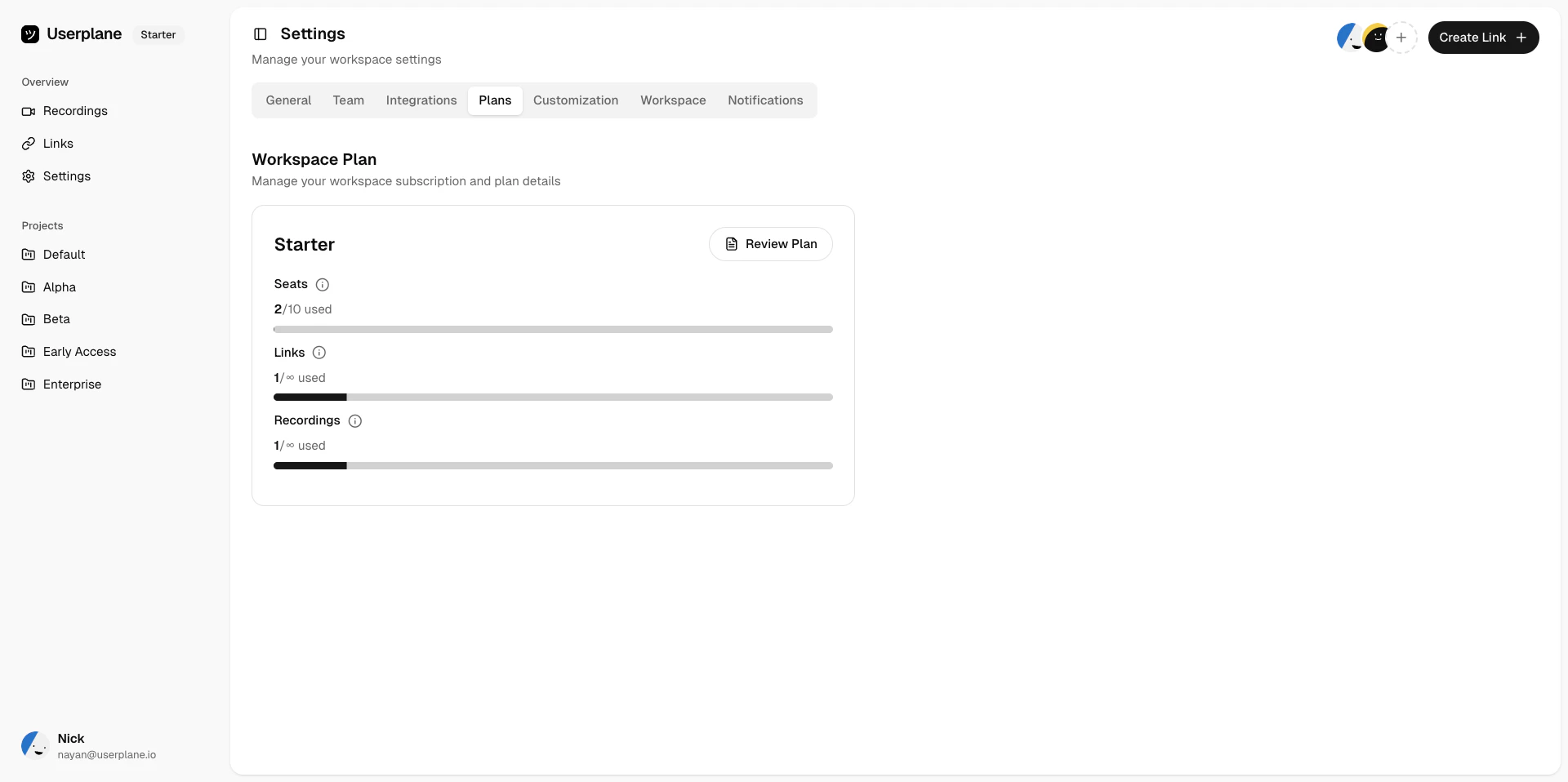
Workspace usage overview
Usage warning levels
As your usage increases, Userplane shows different warning levels:Notifications
If usage notifications are enabled, you receive email alerts when your workspace enters the approaching or reached states.What to do when limits are reached
- Upgrade your plan — move to a higher tier with more resources. See Upgrading Your Plan.
- Wait for the next billing period — period-based resources (recordings, links, screenshots, files) reset at the start of each cycle. On annual plans, unused resources from previous months may have rolled over, giving you extra capacity.
- Purchase seat add-ons — if you need more seats without upgrading, see Seat Add-Ons.
- Remove unused members — if you are at the seat limit, removing inactive members frees up seats.
- Request a fair usage increase — if you are on an “Unlimited” resource and have hit the fair usage limit, contact support to request a higher allocation.
Related articles
- Understanding Usage Limits — detailed per-plan breakdowns.
- Subscription Overview — plan tiers and pricing.
- Seat Add-Ons — purchase additional seats.