Install the Userplane SDK, configure metadata, set up domain verification, and control what gets captured
Userplane works without any code — but the SDK unlocks richer session data, custom metadata, and programmatic recording controls. This guide covers everything you need to integrate Userplane into your app.
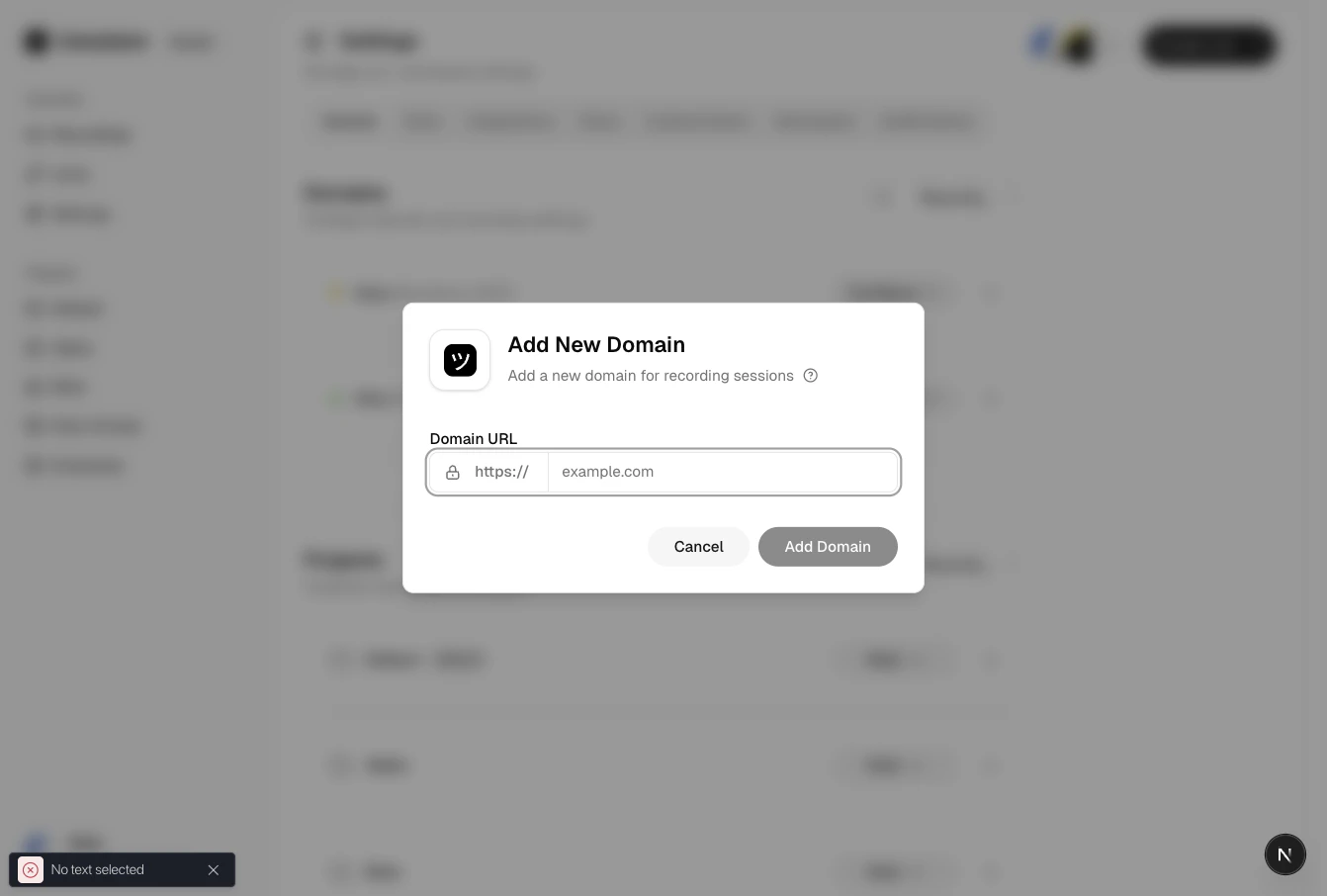
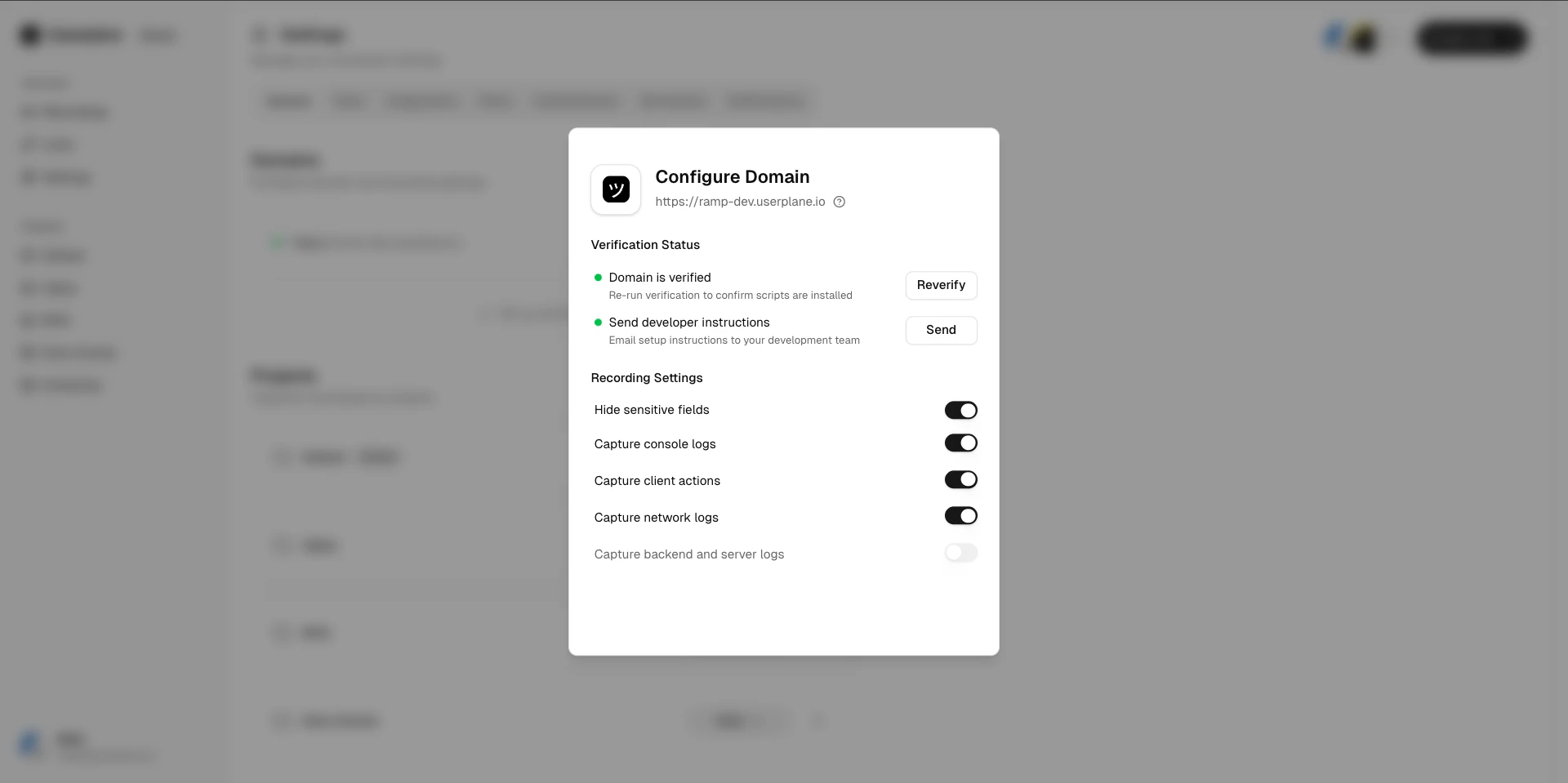
Domain verification is required before your support team can create branded recording links on your domain. Userplane verifies ownership by checking that the embed script is present on your site.
The embed script from Step 1 is what Userplane checks for during verification. Make sure it is
deployed to a publicly accessible page — verification will fail if the page is behind a login
wall or not yet deployed.
3
Verify
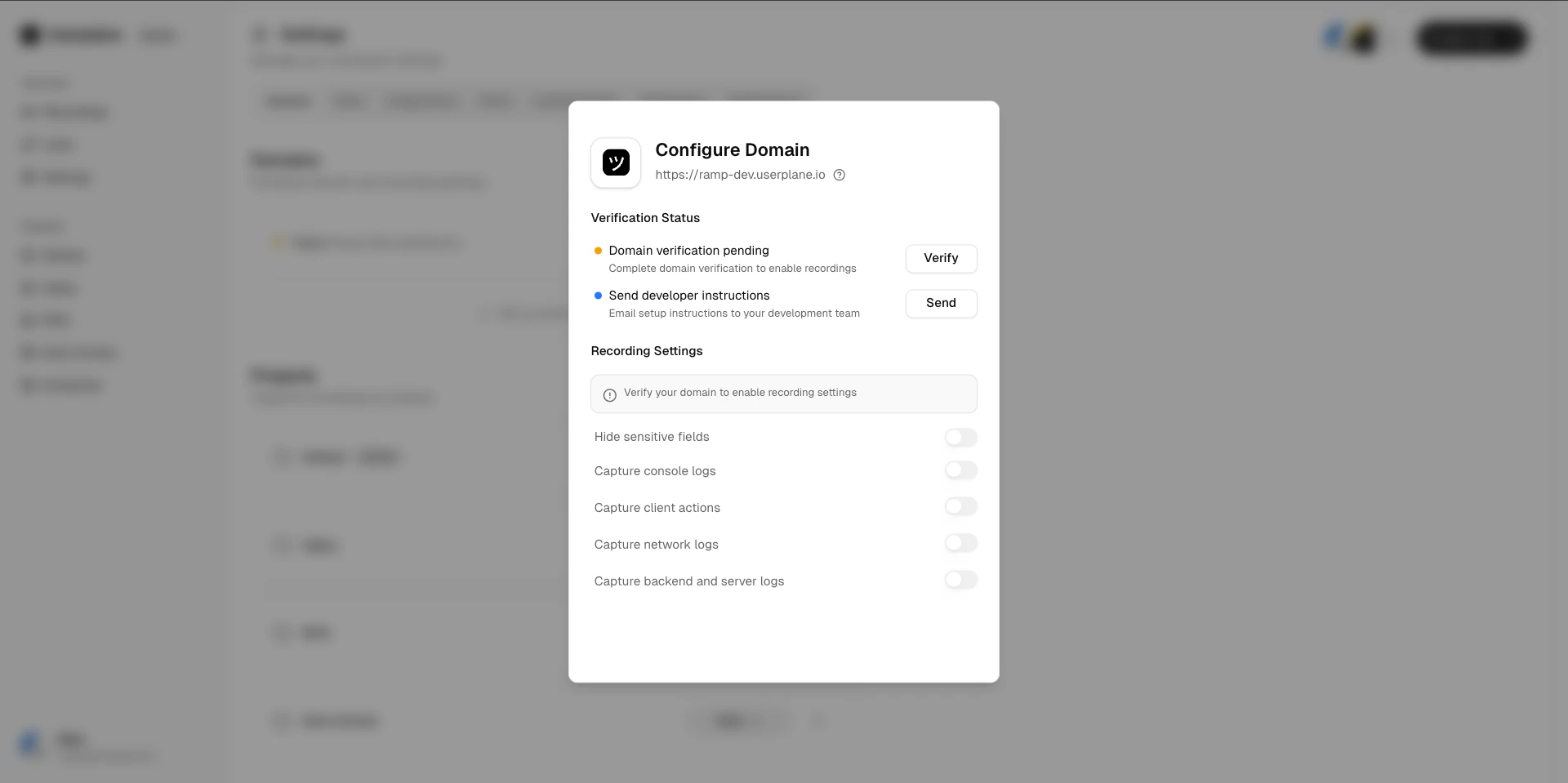
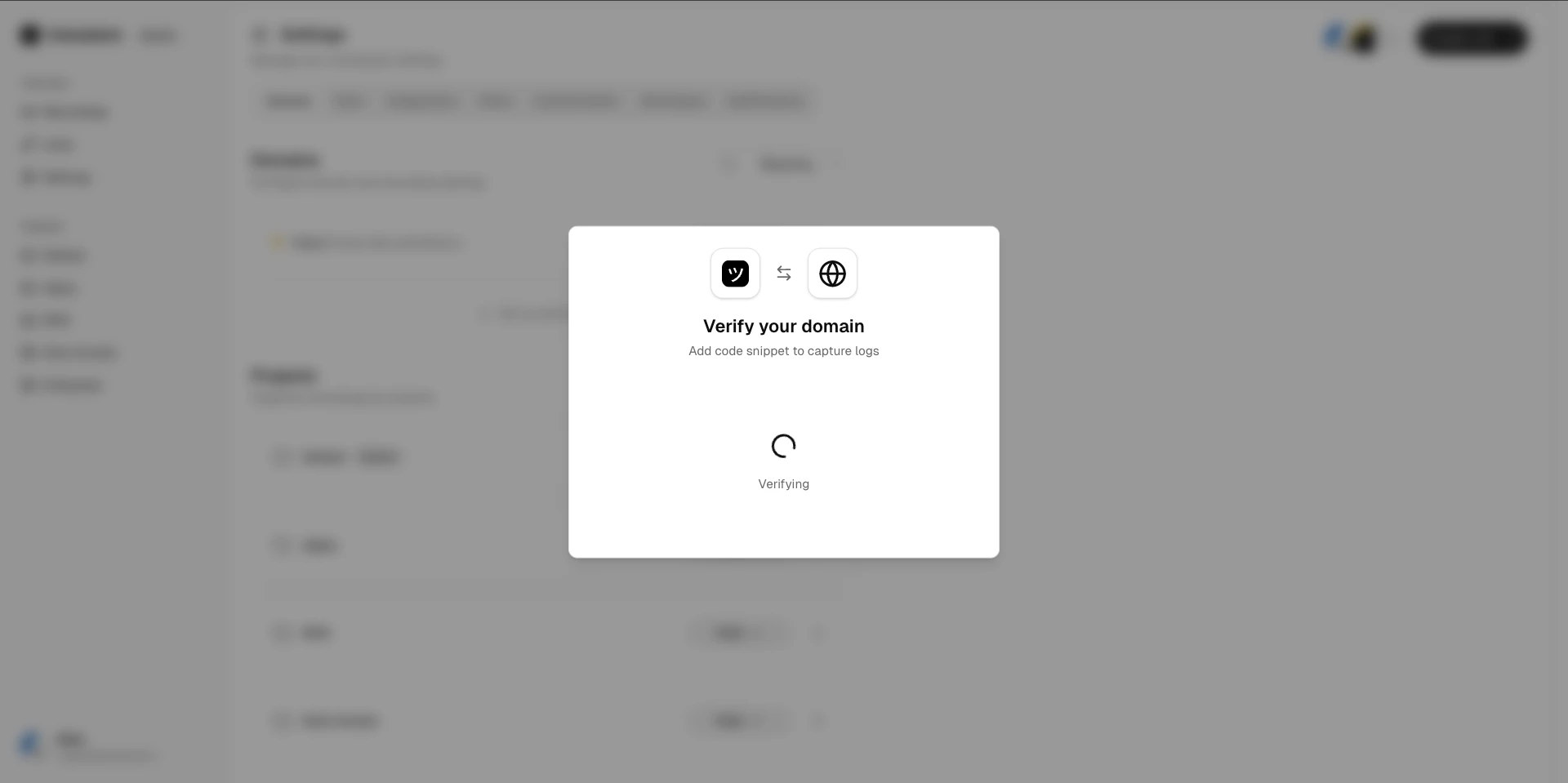
Click Verify in the dashboard (or ask your workspace admin to do it). Verification runs
immediately. The verification token expires after 5 minutes, so trigger it once the script is
live.
Metadata lets you attach user and account context to every recording so your support team sees who the customer is without having to ask.
import { set } from '@userplane/sdk';// Call after your user is authenticatedset('userId', user.id);set('email', user.email);set('name', user.name);set('accountId', account.id);set('plan', account.plan);
Metadata appears in the Info tab of every recording from that user. See Metadata SDK for the full reference.
Use metadata() to capture values at recording submission time — useful for SPAs where context changes without a page reload:
import { set, metadata } from '@userplane/sdk';// Static values set once at loginset('userId', user.id);set('email', user.email);// Dynamic values captured fresh when the recording is submittedmetadata(() => ({ accountId: getCurrentAccount().id, plan: getCurrentAccount().plan, page: window.location.pathname,}));
See Sensitive Data Redaction for the full list of privacy controls — including CSS class and meta tag approaches, and third-party selector compatibility.
Once the SDK is installed, you can control recording sessions programmatically:
import { open, unmount, getRecordingState } from '@userplane/sdk';// Open the recording flowopen();// Close the recorderunmount();// Check current stateconst state = getRecordingState(); // 'inactive' | 'active' | 'retained'
Full API reference for initialization, controls, and events
Metadata SDK
Attach user and account context to every recording
Sensitive Data Redaction
Full privacy controls — masking, exclusions, and redaction
Recording Data Reference
What data is collected and how it’s stored
{"docsConfig":{"theme":"aspen","$schema":"https://mintlify.com/docs.json","name":"Userplane Docs","colors":{"primary":"#000000","light":"#FAFAFA","dark":"#000000"},"logo":{"light":"https://mintcdn.com/userplane/e34bWffW8FdiqmQz/static/logo-light.svg?fit=max\u0026auto=format\u0026n=e34bWffW8FdiqmQz\u0026q=85\u0026s=b60f979b7800d446f3f5d5274c095cb2","dark":"https://mintcdn.com/userplane/e34bWffW8FdiqmQz/static/logo-dark.svg?fit=max\u0026auto=format\u0026n=e34bWffW8FdiqmQz\u0026q=85\u0026s=f638b932d019423317aaca6685f22ea6"},"favicon":"https://mintcdn.com/userplane/e34bWffW8FdiqmQz/static/favicon.svg?fit=max\u0026auto=format\u0026n=e34bWffW8FdiqmQz\u0026q=85\u0026s=fd9fbcc5e1783343c767381ce1744d03","api":{"playground":{"display":"interactive"}},"appearance":{"default":"light","strict":true},"navbar":{"primary":{"type":"button","label":"Dashboard","href":"https://dash.userplane.io"}},"styling":{"latex":true},"navigation":{"pages":[]}},"deployment":{"deploymentMetadataValue":{"subdomain":"userplane","hasAudioNarration":false,"actualSubdomain":"userplane","customDomains":["docs.userplane.io"],"gitSource":{"type":"github","owner":"0xnyn","repo":"userplane","deployBranch":"main","contentDirectory":"apps/docs","isPrivate":true,"mountPath":"","label":""},"chroma":{"liveDeploymentHistoryId":"6a21eb6f2fb2a99bab92da64","collectionId":"8e53ea74-03f5-4b56-ab3a-aff2a4fe9720","schemaVersion":"v2"},"entitlements":{},"buildId":"6a21eb6f2fb2a99bab92da64:success","clientVersion":"0.0.3908","searchFilterCounts":[{"language":"default","tag":"Integrations","count":62},{"language":"default","tag":"Guide","count":47},{"language":"default","tag":"Extensions \u0026 Plugins","count":34},{"language":"default","tag":"API","count":28},{"language":"default","tag":"Developer","count":24},{"language":"default","tag":"Recordings","count":21},{"language":"default","tag":"Help Desk","count":16},{"language":"default","tag":"Claude Code","count":14},{"language":"default","tag":"Framework Guides","count":13},{"language":"default","tag":"Getting Started","count":12}]},"assistantConfig":{"enableAskAiButton":false,"enableStarterQuestions":false,"enableAskAiSearchBar":true},"hasChatPermissions":false,"hasWebMcpPermissions":false,"toggles":[{"name":"kill-isr","enabled":true,"variant":{"name":"disabled","enabled":false,"feature_enabled":true},"impressionData":false},{"name":"agent-mintlify-slack","enabled":true,"variant":{"name":"disabled","enabled":false,"feature_enabled":true},"impressionData":false},{"name":"editor-v7-file-tree","enabled":true,"variant":{"name":"disabled","enabled":false,"feature_enabled":true},"impressionData":false},{"name":"agent-integrations-settings","enabled":true,"variant":{"name":"disabled","enabled":false,"feature_enabled":true},"impressionData":false},{"name":"automations-pr-grouping","enabled":true,"variant":{"name":"disabled","enabled":false,"feature_enabled":true},"impressionData":false},{"name":"custom-prefix","enabled":true,"variant":{"name":"disabled","enabled":false,"feature_enabled":true},"impressionData":false},{"name":"analytics-v7","enabled":true,"variant":{"name":"disabled","enabled":false,"feature_enabled":true},"impressionData":false},{"name":"user-flows-analytics","enabled":true,"variant":{"name":"disabled","enabled":false,"feature_enabled":true},"impressionData":false},{"name":"no-publish-flow","enabled":true,"variant":{"name":"disabled","enabled":false,"feature_enabled":true},"impressionData":false},{"name":"workos-onboarding","enabled":true,"variant":{"name":"disabled","enabled":false,"feature_enabled":true},"impressionData":false},{"name":"llms-txt-v2","enabled":true,"variant":{"name":"disabled","enabled":false,"feature_enabled":true},"impressionData":false},{"name":"pause-universal-search-reconcile","enabled":true,"variant":{"name":"disabled","enabled":false,"feature_enabled":true},"impressionData":false},{"name":"snapshot-serving-live","enabled":true,"variant":{"name":"disabled","enabled":false,"feature_enabled":true},"impressionData":false},{"name":"stripTemperatureMiddleware","enabled":true,"variant":{"name":"disabled","enabled":false,"feature_enabled":true},"impressionData":false},{"name":"per-site-search-delta","enabled":true,"variant":{"name":"disabled","enabled":false,"feature_enabled":true},"impressionData":false},{"name":"support-platform-pylon-zendesk","enabled":true,"variant":{"name":"disabled","enabled":false,"feature_enabled":true},"impressionData":false},{"name":"editor-branches-v2-autocommit","enabled":true,"variant":{"name":"disabled","enabled":false,"feature_enabled":true},"impressionData":false},{"name":"editor-branches-v2","enabled":true,"variant":{"name":"disabled","enabled":false,"feature_enabled":true},"impressionData":false},{"name":"snapshot-serving","enabled":true,"variant":{"name":"disabled","enabled":false,"feature_enabled":true},"impressionData":false},{"name":"instant-rollback","enabled":true,"variant":{"name":"disabled","enabled":false,"feature_enabled":true},"impressionData":false},{"name":"granular-notifications-server","enabled":true,"variant":{"name":"disabled","enabled":false,"feature_enabled":true},"impressionData":false},{"name":"granular-notifications","enabled":true,"variant":{"name":"disabled","enabled":false,"feature_enabled":true},"impressionData":false},{"name":"editor-private-page-search","enabled":true,"variant":{"name":"disabled","enabled":false,"feature_enabled":true},"impressionData":false},{"name":"automations-fable","enabled":true,"variant":{"name":"disabled","enabled":false,"feature_enabled":true},"impressionData":false},{"name":"fixed-ai-action-pricing","enabled":true,"variant":{"name":"disabled","enabled":false,"feature_enabled":true},"impressionData":false},{"name":"automation-resolve-merge-conflict","enabled":true,"variant":{"name":"disabled","enabled":false,"feature_enabled":true},"impressionData":false},{"name":"scoped-publishing","enabled":true,"variant":{"name":"disabled","enabled":false,"feature_enabled":true},"impressionData":false},{"name":"mintql","enabled":true,"variant":{"name":"disabled","enabled":false,"feature_enabled":true},"impressionData":false},{"name":"page-level-analytics","enabled":true,"variant":{"name":"disabled","enabled":false,"feature_enabled":true},"impressionData":false},{"name":"teamspace","enabled":true,"variant":{"name":"disabled","enabled":false,"feature_enabled":true},"impressionData":false},{"name":"editor-version-history-v2","enabled":true,"variant":{"name":"disabled","enabled":false,"feature_enabled":true},"impressionData":false},{"name":"vite-origin","enabled":true,"variant":{"name":"disabled","enabled":false,"feature_enabled":true},"impressionData":false},{"name":"editor-nav-generations","enabled":true,"variant":{"name":"disabled","enabled":false,"feature_enabled":true},"impressionData":false},{"name":"billing-page-v2","enabled":true,"variant":{"name":"disabled","enabled":false,"feature_enabled":true},"impressionData":false},{"name":"workspace-projects","enabled":true,"variant":{"name":"disabled","enabled":false,"feature_enabled":true},"impressionData":false},{"name":"assistant-v5","enabled":true,"variant":{"name":"disabled","enabled":false,"feature_enabled":true},"impressionData":false},{"name":"byok-sep-25","enabled":true,"variant":{"name":"disabled","enabled":false,"feature_enabled":true},"impressionData":false},{"name":"fork-pr-previews","enabled":true,"variant":{"name":"disabled","enabled":false,"feature_enabled":true},"impressionData":false},{"name":"revalidation-jwt","enabled":true,"variant":{"name":"disabled","enabled":false,"feature_enabled":true},"impressionData":false},{"name":"editor-agent-model-picker","enabled":true,"variant":{"name":"disabled","enabled":false,"feature_enabled":true},"impressionData":false},{"name":"client-snapshot-docs-config","enabled":true,"variant":{"name":"disabled","enabled":false,"feature_enabled":true},"impressionData":false},{"name":"hobby-abuse-scan","enabled":true,"variant":{"name":"disabled","enabled":false,"feature_enabled":true},"impressionData":false},{"name":"dashboard-inbox","enabled":true,"variant":{"name":"disabled","enabled":false,"feature_enabled":true},"impressionData":false}],"isAtlas":false,"googleFontsInlined":false},"customCss":[],"page":{"pagePath":"getting-started/for-developers","slug":"/getting-started/for-developers","pageMetadata":{"title":"Developer Onboarding","description":"Install the Userplane SDK, configure metadata, set up domain verification, and control what gets captured","href":"/getting-started/for-developers"},"description":{"compiledSource":"\"use strict\";\nconst {jsx: _jsx} = arguments[0];\nconst {useMDXComponents: _provideComponents} = arguments[0];\nfunction _createMdxContent(props) {\n const _components = {\n p: \"p\",\n ..._provideComponents(),\n ...props.components\n };\n return _jsx(_components.p, {\n children: \"Install the Userplane SDK, configure metadata, set up domain verification, and control what gets captured\"\n });\n}\nfunction MDXContent(props = {}) {\n const {wrapper: MDXLayout} = {\n ..._provideComponents(),\n ...props.components\n };\n return MDXLayout ? _jsx(MDXLayout, {\n ...props,\n children: _jsx(_createMdxContent, {\n ...props\n })\n }) : _createMdxContent(props);\n}\nreturn {\n default: MDXContent\n};\n","frontmatter":{},"scope":{}},"pageType":"default","mdx":{"mdxSource":{"compiledSource":"\"use strict\";const{Fragment:_Fragment,jsx:_jsx,jsxs:_jsxs}=arguments[0];const{useMDXComponents:_provideComponents}=arguments[0];function _createMdxContent(props){const _components={a:`a`,code:`code`,input:`input`,li:`li`,p:`p`,pre:`pre`,span:`span`,strong:`strong`,ul:`ul`,..._provideComponents(),...props.components},{Card,CardGroup,CodeBlock,Frame,Heading,OptimizedImage,Step,Steps}=_components;if(!Card)_missingMdxReference(`Card`,true);if(!CardGroup)_missingMdxReference(`CardGroup`,true);if(!CodeBlock)_missingMdxReference(`CodeBlock`,true);if(!Frame)_missingMdxReference(`Frame`,true);if(!Heading)_missingMdxReference(`Heading`,true);if(!OptimizedImage)_missingMdxReference(`OptimizedImage`,true);if(!Step)_missingMdxReference(`Step`,true);if(!Steps)_missingMdxReference(`Steps`,true);return _jsxs(_Fragment,{children:[_jsx(_components.p,{children:`Userplane works without any code — but the SDK unlocks richer session data, custom metadata, and programmatic recording controls. This guide covers everything you need to integrate Userplane into your app.`}),`\n`,_jsx(Heading,{level:`2`,id:`what-you’ll-set-up`,children:`What you’ll set up`}),`\n`,_jsxs(_components.ul,{children:[`\n`,_jsx(_components.li,{children:`Script or npm package installation`}),`\n`,_jsx(_components.li,{children:`Domain verification (required for branded recording links)`}),`\n`,_jsx(_components.li,{children:`Custom metadata to attach user/account context to recordings`}),`\n`,_jsx(_components.li,{children:`Sensitive data redaction for compliance`}),`\n`,_jsx(_components.li,{children:`Framework-specific configuration`}),`\n`]}),`\n`,_jsx(Heading,{level:`2`,id:`step-1-install-the-sdk`,children:`Step 1: Install the SDK`}),`\n`,_jsx(_components.p,{children:`You can load Userplane via CDN snippet or install it as an npm package.`}),`\n`,_jsx(Heading,{level:`3`,id:`embed-script-quickest`,children:`Embed script (quickest)`}),`\n`,_jsxs(_components.p,{children:[`Add this to the `,_jsx(_components.code,{children:`\u003chead>`}),` of every page where you want recordings to work:`]}),`\n`,_jsx(CodeBlock,{filename:``,numberOfLines:`5`,language:`html`,children:_jsx(_components.pre,{className:`shiki shiki-themes github-light-default dark-plus`,style:{backgroundColor:`#ffffff`,\"--shiki-dark-bg\":`#0B0C0E`,color:`#1f2328`,\"--shiki-dark\":`#D4D4D4`},language:`html`,children:_jsxs(_components.code,{language:`html`,numberOfLines:`5`,children:[_jsx(_components.span,{className:`line`,children:_jsx(_components.span,{style:{color:`#6E7781`,\"--shiki-dark\":`#6A9955`},children:`\u003c!-- Sets workspace ID for screen recording -->`})}),`\n`,_jsxs(_components.span,{className:`line`,children:[_jsx(_components.span,{style:{color:`#1F2328`,\"--shiki-dark\":`#808080`},children:`\u003c`}),_jsx(_components.span,{style:{color:`#116329`,\"--shiki-dark\":`#569CD6`},children:`meta`}),_jsx(_components.span,{style:{color:`#0550AE`,\"--shiki-dark\":`#9CDCFE`},children:` name`}),_jsx(_components.span,{style:{color:`#1F2328`,\"--shiki-dark\":`#D4D4D4`},children:`=`}),_jsx(_components.span,{style:{color:`#0A3069`,\"--shiki-dark\":`#CE9178`},children:`\"userplane:workspace\"`}),_jsx(_components.span,{style:{color:`#0550AE`,\"--shiki-dark\":`#9CDCFE`},children:` content`}),_jsx(_components.span,{style:{color:`#1F2328`,\"--shiki-dark\":`#D4D4D4`},children:`=`}),_jsx(_components.span,{style:{color:`#0A3069`,\"--shiki-dark\":`#CE9178`},children:`\"YOUR_WORKSPACE_ID\"`}),_jsx(_components.span,{style:{color:`#1F2328`,\"--shiki-dark\":`#808080`},children:` />`})]}),`\n`,_jsx(_components.span,{className:`line`}),`\n`,_jsx(_components.span,{className:`line`,children:_jsx(_components.span,{style:{color:`#6E7781`,\"--shiki-dark\":`#6A9955`},children:`\u003c!-- Loads Userplane screen recording script -->`})}),`\n`,_jsxs(_components.span,{className:`line`,children:[_jsx(_components.span,{style:{color:`#1F2328`,\"--shiki-dark\":`#808080`},children:`\u003c`}),_jsx(_components.span,{style:{color:`#116329`,\"--shiki-dark\":`#569CD6`},children:`script`}),_jsx(_components.span,{style:{color:`#0550AE`,\"--shiki-dark\":`#9CDCFE`},children:` type`}),_jsx(_components.span,{style:{color:`#1F2328`,\"--shiki-dark\":`#D4D4D4`},children:`=`}),_jsx(_components.span,{style:{color:`#0A3069`,\"--shiki-dark\":`#CE9178`},children:`\"module\"`}),_jsx(_components.span,{style:{color:`#0550AE`,\"--shiki-dark\":`#9CDCFE`},children:` src`}),_jsx(_components.span,{style:{color:`#1F2328`,\"--shiki-dark\":`#D4D4D4`},children:`=`}),_jsx(_components.span,{style:{color:`#0A3069`,\"--shiki-dark\":`#CE9178`},children:`\"https://cdn.userplane.io/embed/script.js\"`}),_jsx(_components.span,{style:{color:`#1F2328`,\"--shiki-dark\":`#808080`},children:`>\u003c/`}),_jsx(_components.span,{style:{color:`#116329`,\"--shiki-dark\":`#569CD6`},children:`script`}),_jsx(_components.span,{style:{color:`#1F2328`,\"--shiki-dark\":`#808080`},children:`>`})]}),`\n`]})})}),`\n`,_jsx(Heading,{level:`3`,id:`npm`,children:`npm`}),`\n`,_jsx(Frame,{caption:`Userplane SDK on npm`,children:_jsx(OptimizedImage,{src:`https://mintcdn.com/userplane/iHJrxtyvOmNXmfMS/media/developer/npm/userplane-sdk.png?fit=max\u0026auto=format\u0026n=iHJrxtyvOmNXmfMS\u0026q=85\u0026s=3aff2063ad62ae673ce89e16e38aa137`,\"data-og-width\":`1900`,width:`1900`,\"data-og-height\":`957`,height:`957`,\"data-path\":`media/developer/npm/userplane-sdk.png`,\"data-optimize\":`true`,\"data-opv\":`3`,srcset:`https://mintcdn.com/userplane/iHJrxtyvOmNXmfMS/media/developer/npm/userplane-sdk.png?w=280\u0026fit=max\u0026auto=format\u0026n=iHJrxtyvOmNXmfMS\u0026q=85\u0026s=7cb8201e8ef2fd4984bb7d77150100b7 280w, https://mintcdn.com/userplane/iHJrxtyvOmNXmfMS/media/developer/npm/userplane-sdk.png?w=560\u0026fit=max\u0026auto=format\u0026n=iHJrxtyvOmNXmfMS\u0026q=85\u0026s=b8a378991b928c241aa2707a469a5341 560w, https://mintcdn.com/userplane/iHJrxtyvOmNXmfMS/media/developer/npm/userplane-sdk.png?w=840\u0026fit=max\u0026auto=format\u0026n=iHJrxtyvOmNXmfMS\u0026q=85\u0026s=ded59957fbb113620996d4d5a6ff4277 840w, https://mintcdn.com/userplane/iHJrxtyvOmNXmfMS/media/developer/npm/userplane-sdk.png?w=1100\u0026fit=max\u0026auto=format\u0026n=iHJrxtyvOmNXmfMS\u0026q=85\u0026s=608d0d655b4e0b0e61a564b0a271b9c2 1100w, https://mintcdn.com/userplane/iHJrxtyvOmNXmfMS/media/developer/npm/userplane-sdk.png?w=1650\u0026fit=max\u0026auto=format\u0026n=iHJrxtyvOmNXmfMS\u0026q=85\u0026s=edba9e293fb97408dc8718489844dab6 1650w, https://mintcdn.com/userplane/iHJrxtyvOmNXmfMS/media/developer/npm/userplane-sdk.png?w=2500\u0026fit=max\u0026auto=format\u0026n=iHJrxtyvOmNXmfMS\u0026q=85\u0026s=ec7cf44fabb70b0958c972a2ab1d1b60 2500w`})}),`\n`,_jsx(_components.p,{children:_jsx(_components.code,{children:`bash npm install @userplane/sdk `})}),`\n`,_jsx(CodeBlock,{filename:``,numberOfLines:`2`,language:`typescript`,children:_jsx(_components.pre,{className:`shiki shiki-themes github-light-default dark-plus`,style:{backgroundColor:`#ffffff`,\"--shiki-dark-bg\":`#0B0C0E`,color:`#1f2328`,\"--shiki-dark\":`#D4D4D4`},language:`typescript`,children:_jsxs(_components.code,{language:`typescript`,numberOfLines:`2`,children:[_jsxs(_components.span,{className:`line`,children:[_jsx(_components.span,{style:{color:`#CF222E`,\"--shiki-dark\":`#C586C0`},children:`import`}),_jsx(_components.span,{style:{color:`#1F2328`,\"--shiki-dark\":`#D4D4D4`},children:` { `}),_jsx(_components.span,{style:{color:`#1F2328`,\"--shiki-dark\":`#9CDCFE`},children:`initialize`}),_jsx(_components.span,{style:{color:`#1F2328`,\"--shiki-dark\":`#D4D4D4`},children:` } `}),_jsx(_components.span,{style:{color:`#CF222E`,\"--shiki-dark\":`#C586C0`},children:`from`}),_jsx(_components.span,{style:{color:`#0A3069`,\"--shiki-dark\":`#CE9178`},children:` '@userplane/sdk'`}),_jsx(_components.span,{style:{color:`#1F2328`,\"--shiki-dark\":`#D4D4D4`},children:`;`})]}),`\n`,_jsxs(_components.span,{className:`line`,children:[_jsx(_components.span,{style:{color:`#8250DF`,\"--shiki-dark\":`#DCDCAA`},children:`initialize`}),_jsx(_components.span,{style:{color:`#1F2328`,\"--shiki-dark\":`#D4D4D4`},children:`({ `}),_jsx(_components.span,{style:{color:`#1F2328`,\"--shiki-dark\":`#9CDCFE`},children:`workspaceId:`}),_jsx(_components.span,{style:{color:`#0A3069`,\"--shiki-dark\":`#CE9178`},children:` 'YOUR_WORKSPACE_ID'`}),_jsx(_components.span,{style:{color:`#1F2328`,\"--shiki-dark\":`#D4D4D4`},children:` });`})]}),`\n`]})})}),`\n`,_jsxs(_components.p,{children:[`Your `,_jsx(_components.code,{children:`workspaceId`}),` is in `,_jsx(_components.a,{href:`https://dash.userplane.io/_/settings`,children:`Workspace Settings > General`}),`.`]}),`\n`,_jsxs(_components.p,{children:[`See `,_jsx(_components.a,{href:`/developer/web-sdk`,children:`Web SDK Reference`}),` for the full API and `,_jsx(_components.a,{href:`/developer/installation`,children:`Installation Guide`}),` for platform-specific notes.`]}),`\n`,_jsx(Heading,{level:`2`,id:`step-2-verify-your-domain`,children:`Step 2: Verify your domain`}),`\n`,_jsx(_components.p,{children:`Domain verification is required before your support team can create branded recording links on your domain. Userplane verifies ownership by checking that the embed script is present on your site.`}),`\n`,_jsxs(Steps,{children:[_jsxs(Step,{title:`Add your domain in the dashboard`,children:[_jsxs(_components.p,{children:[`Go to `,_jsx(_components.a,{href:`https://dash.userplane.io/_/settings?tab=general`,children:`Workspace Settings > Domains`}),` and click\n`,_jsx(_components.strong,{children:`Add Domain`}),`.`]}),_jsx(Frame,{caption:`Add domain dialog`,children:_jsx(OptimizedImage,{src:`https://mintcdn.com/userplane/IKCB4f_KBaL0xsjW/media/workspace/domain/add-domain-modal.png?fit=max\u0026auto=format\u0026n=IKCB4f_KBaL0xsjW\u0026q=85\u0026s=32f84f75ca7e0c8c8815381ff1f46f9a`,\"data-og-width\":`1342`,width:`1342`,\"data-og-height\":`906`,height:`906`,\"data-path\":`media/workspace/domain/add-domain-modal.png`,\"data-optimize\":`true`,\"data-opv\":`3`,srcset:`https://mintcdn.com/userplane/IKCB4f_KBaL0xsjW/media/workspace/domain/add-domain-modal.png?w=280\u0026fit=max\u0026auto=format\u0026n=IKCB4f_KBaL0xsjW\u0026q=85\u0026s=df44470031a2327fb02c235a964d376f 280w, https://mintcdn.com/userplane/IKCB4f_KBaL0xsjW/media/workspace/domain/add-domain-modal.png?w=560\u0026fit=max\u0026auto=format\u0026n=IKCB4f_KBaL0xsjW\u0026q=85\u0026s=3ef837790186c5ef70569e91dcae1c45 560w, https://mintcdn.com/userplane/IKCB4f_KBaL0xsjW/media/workspace/domain/add-domain-modal.png?w=840\u0026fit=max\u0026auto=format\u0026n=IKCB4f_KBaL0xsjW\u0026q=85\u0026s=d027b33c6641d9612342e3188db73ba8 840w, https://mintcdn.com/userplane/IKCB4f_KBaL0xsjW/media/workspace/domain/add-domain-modal.png?w=1100\u0026fit=max\u0026auto=format\u0026n=IKCB4f_KBaL0xsjW\u0026q=85\u0026s=57d7e5703044032e687b5bf0d0e88138 1100w, https://mintcdn.com/userplane/IKCB4f_KBaL0xsjW/media/workspace/domain/add-domain-modal.png?w=1650\u0026fit=max\u0026auto=format\u0026n=IKCB4f_KBaL0xsjW\u0026q=85\u0026s=d505860299fed5edd267ef5f25823cec 1650w, https://mintcdn.com/userplane/IKCB4f_KBaL0xsjW/media/workspace/domain/add-domain-modal.png?w=2500\u0026fit=max\u0026auto=format\u0026n=IKCB4f_KBaL0xsjW\u0026q=85\u0026s=35b4436554af4427db546a7830f922a6 2500w`})})]}),_jsx(Step,{title:`Deploy the script`,children:_jsx(_components.p,{children:`The embed script from Step 1 is what Userplane checks for during verification. Make sure it is\ndeployed to a publicly accessible page — verification will fail if the page is behind a login\nwall or not yet deployed.`})}),_jsxs(Step,{title:`Verify`,children:[_jsxs(_components.p,{children:[`Click `,_jsx(_components.strong,{children:`Verify`}),` in the dashboard (or ask your workspace admin to do it). Verification runs\nimmediately. The verification token expires after 5 minutes, so trigger it once the script is\nlive.`]}),_jsx(Frame,{caption:`Domain pending verification`,children:_jsx(OptimizedImage,{src:`https://mintcdn.com/userplane/IKCB4f_KBaL0xsjW/media/workspace/domain/verify-domain/domain-configure-pending.png?fit=max\u0026auto=format\u0026n=IKCB4f_KBaL0xsjW\u0026q=85\u0026s=7661e5497f8db24c27f5b5d0181d31ef`,\"data-og-width\":`1920`,width:`1920`,\"data-og-height\":`959`,height:`959`,\"data-path\":`media/workspace/domain/verify-domain/domain-configure-pending.png`,\"data-optimize\":`true`,\"data-opv\":`3`,srcset:`https://mintcdn.com/userplane/IKCB4f_KBaL0xsjW/media/workspace/domain/verify-domain/domain-configure-pending.png?w=280\u0026fit=max\u0026auto=format\u0026n=IKCB4f_KBaL0xsjW\u0026q=85\u0026s=45b84e85927f18f99000a06077a76a49 280w, https://mintcdn.com/userplane/IKCB4f_KBaL0xsjW/media/workspace/domain/verify-domain/domain-configure-pending.png?w=560\u0026fit=max\u0026auto=format\u0026n=IKCB4f_KBaL0xsjW\u0026q=85\u0026s=43bc5e6122d604c5d358e35e35101e4f 560w, https://mintcdn.com/userplane/IKCB4f_KBaL0xsjW/media/workspace/domain/verify-domain/domain-configure-pending.png?w=840\u0026fit=max\u0026auto=format\u0026n=IKCB4f_KBaL0xsjW\u0026q=85\u0026s=23f191f53f106043d3505bcf9840290f 840w, https://mintcdn.com/userplane/IKCB4f_KBaL0xsjW/media/workspace/domain/verify-domain/domain-configure-pending.png?w=1100\u0026fit=max\u0026auto=format\u0026n=IKCB4f_KBaL0xsjW\u0026q=85\u0026s=c409a29df7a493197b5e2e000a1b8a47 1100w, https://mintcdn.com/userplane/IKCB4f_KBaL0xsjW/media/workspace/domain/verify-domain/domain-configure-pending.png?w=1650\u0026fit=max\u0026auto=format\u0026n=IKCB4f_KBaL0xsjW\u0026q=85\u0026s=6a791ae3654580a19242ed9f403ea32a 1650w, https://mintcdn.com/userplane/IKCB4f_KBaL0xsjW/media/workspace/domain/verify-domain/domain-configure-pending.png?w=2500\u0026fit=max\u0026auto=format\u0026n=IKCB4f_KBaL0xsjW\u0026q=85\u0026s=48b2d320cd2da6067abb1de9537ee1ea 2500w`})}),_jsx(Frame,{caption:`Domain verification in progress`,children:_jsx(OptimizedImage,{src:`https://mintcdn.com/userplane/IKCB4f_KBaL0xsjW/media/workspace/domain/verify-domain/domain-verification-in-progress.png?fit=max\u0026auto=format\u0026n=IKCB4f_KBaL0xsjW\u0026q=85\u0026s=853e6f6b805c5d7e15c4e138eb44c94d`,\"data-og-width\":`1920`,width:`1920`,\"data-og-height\":`959`,height:`959`,\"data-path\":`media/workspace/domain/verify-domain/domain-verification-in-progress.png`,\"data-optimize\":`true`,\"data-opv\":`3`,srcset:`https://mintcdn.com/userplane/IKCB4f_KBaL0xsjW/media/workspace/domain/verify-domain/domain-verification-in-progress.png?w=280\u0026fit=max\u0026auto=format\u0026n=IKCB4f_KBaL0xsjW\u0026q=85\u0026s=984a45a5e7b406e1c6e283f049947cbf 280w, https://mintcdn.com/userplane/IKCB4f_KBaL0xsjW/media/workspace/domain/verify-domain/domain-verification-in-progress.png?w=560\u0026fit=max\u0026auto=format\u0026n=IKCB4f_KBaL0xsjW\u0026q=85\u0026s=7c5dfcc00dcb7c7265c8880c02079708 560w, https://mintcdn.com/userplane/IKCB4f_KBaL0xsjW/media/workspace/domain/verify-domain/domain-verification-in-progress.png?w=840\u0026fit=max\u0026auto=format\u0026n=IKCB4f_KBaL0xsjW\u0026q=85\u0026s=90f37d90416d3e774579551ffad447d6 840w, https://mintcdn.com/userplane/IKCB4f_KBaL0xsjW/media/workspace/domain/verify-domain/domain-verification-in-progress.png?w=1100\u0026fit=max\u0026auto=format\u0026n=IKCB4f_KBaL0xsjW\u0026q=85\u0026s=7b977f39139471c491f17e4e85471145 1100w, https://mintcdn.com/userplane/IKCB4f_KBaL0xsjW/media/workspace/domain/verify-domain/domain-verification-in-progress.png?w=1650\u0026fit=max\u0026auto=format\u0026n=IKCB4f_KBaL0xsjW\u0026q=85\u0026s=47ee03e1372db16ae6e1a5e0acb870e5 1650w, https://mintcdn.com/userplane/IKCB4f_KBaL0xsjW/media/workspace/domain/verify-domain/domain-verification-in-progress.png?w=2500\u0026fit=max\u0026auto=format\u0026n=IKCB4f_KBaL0xsjW\u0026q=85\u0026s=01d1b3652f857a93fd8c1946f1b6b18c 2500w`})}),_jsx(Frame,{caption:`Domain verified`,children:_jsx(OptimizedImage,{src:`https://mintcdn.com/userplane/IKCB4f_KBaL0xsjW/media/workspace/domain/verify-domain/domain-configure-verified.png?fit=max\u0026auto=format\u0026n=IKCB4f_KBaL0xsjW\u0026q=85\u0026s=7a44f5e3a27f6a5d872fe9084a2fba19`,\"data-og-width\":`1920`,width:`1920`,\"data-og-height\":`959`,height:`959`,\"data-path\":`media/workspace/domain/verify-domain/domain-configure-verified.png`,\"data-optimize\":`true`,\"data-opv\":`3`,srcset:`https://mintcdn.com/userplane/IKCB4f_KBaL0xsjW/media/workspace/domain/verify-domain/domain-configure-verified.png?w=280\u0026fit=max\u0026auto=format\u0026n=IKCB4f_KBaL0xsjW\u0026q=85\u0026s=2155ceaa93bbfe55bb3deeb7b3b96afc 280w, https://mintcdn.com/userplane/IKCB4f_KBaL0xsjW/media/workspace/domain/verify-domain/domain-configure-verified.png?w=560\u0026fit=max\u0026auto=format\u0026n=IKCB4f_KBaL0xsjW\u0026q=85\u0026s=c7f45a71afe5a2890715ea5b6d493fb2 560w, https://mintcdn.com/userplane/IKCB4f_KBaL0xsjW/media/workspace/domain/verify-domain/domain-configure-verified.png?w=840\u0026fit=max\u0026auto=format\u0026n=IKCB4f_KBaL0xsjW\u0026q=85\u0026s=6c8275e58374fd00cac92cd46bb4f651 840w, https://mintcdn.com/userplane/IKCB4f_KBaL0xsjW/media/workspace/domain/verify-domain/domain-configure-verified.png?w=1100\u0026fit=max\u0026auto=format\u0026n=IKCB4f_KBaL0xsjW\u0026q=85\u0026s=0c238cfa50be81cf88372acc0d51fd19 1100w, https://mintcdn.com/userplane/IKCB4f_KBaL0xsjW/media/workspace/domain/verify-domain/domain-configure-verified.png?w=1650\u0026fit=max\u0026auto=format\u0026n=IKCB4f_KBaL0xsjW\u0026q=85\u0026s=18d66ae509e153da9aefb86bad466491 1650w, https://mintcdn.com/userplane/IKCB4f_KBaL0xsjW/media/workspace/domain/verify-domain/domain-configure-verified.png?w=2500\u0026fit=max\u0026auto=format\u0026n=IKCB4f_KBaL0xsjW\u0026q=85\u0026s=9d04efbfb54a7b8e17c687fd715f891c 2500w`})})]})]}),`\n`,_jsxs(_components.p,{children:[`See `,_jsx(_components.a,{href:`/developer/domain-verification`,children:`Domain Verification`}),` for full details and troubleshooting.`]}),`\n`,_jsx(Heading,{level:`2`,id:`step-3-attach-metadata-to-recordings`,children:`Step 3: Attach metadata to recordings`}),`\n`,_jsx(_components.p,{children:`Metadata lets you attach user and account context to every recording so your support team sees who the customer is without having to ask.`}),`\n`,_jsx(CodeBlock,{filename:``,numberOfLines:`8`,language:`typescript`,children:_jsx(_components.pre,{className:`shiki shiki-themes github-light-default dark-plus`,style:{backgroundColor:`#ffffff`,\"--shiki-dark-bg\":`#0B0C0E`,color:`#1f2328`,\"--shiki-dark\":`#D4D4D4`},language:`typescript`,children:_jsxs(_components.code,{language:`typescript`,numberOfLines:`8`,children:[_jsxs(_components.span,{className:`line`,children:[_jsx(_components.span,{style:{color:`#CF222E`,\"--shiki-dark\":`#C586C0`},children:`import`}),_jsx(_components.span,{style:{color:`#1F2328`,\"--shiki-dark\":`#D4D4D4`},children:` { `}),_jsx(_components.span,{style:{color:`#1F2328`,\"--shiki-dark\":`#9CDCFE`},children:`set`}),_jsx(_components.span,{style:{color:`#1F2328`,\"--shiki-dark\":`#D4D4D4`},children:` } `}),_jsx(_components.span,{style:{color:`#CF222E`,\"--shiki-dark\":`#C586C0`},children:`from`}),_jsx(_components.span,{style:{color:`#0A3069`,\"--shiki-dark\":`#CE9178`},children:` '@userplane/sdk'`}),_jsx(_components.span,{style:{color:`#1F2328`,\"--shiki-dark\":`#D4D4D4`},children:`;`})]}),`\n`,_jsx(_components.span,{className:`line`}),`\n`,_jsx(_components.span,{className:`line`,children:_jsx(_components.span,{style:{color:`#6E7781`,\"--shiki-dark\":`#6A9955`},children:`// Call after your user is authenticated`})}),`\n`,_jsxs(_components.span,{className:`line`,children:[_jsx(_components.span,{style:{color:`#8250DF`,\"--shiki-dark\":`#DCDCAA`},children:`set`}),_jsx(_components.span,{style:{color:`#1F2328`,\"--shiki-dark\":`#D4D4D4`},children:`(`}),_jsx(_components.span,{style:{color:`#0A3069`,\"--shiki-dark\":`#CE9178`},children:`'userId'`}),_jsx(_components.span,{style:{color:`#1F2328`,\"--shiki-dark\":`#D4D4D4`},children:`, `}),_jsx(_components.span,{style:{color:`#1F2328`,\"--shiki-dark\":`#9CDCFE`},children:`user`}),_jsx(_components.span,{style:{color:`#1F2328`,\"--shiki-dark\":`#D4D4D4`},children:`.`}),_jsx(_components.span,{style:{color:`#1F2328`,\"--shiki-dark\":`#9CDCFE`},children:`id`}),_jsx(_components.span,{style:{color:`#1F2328`,\"--shiki-dark\":`#D4D4D4`},children:`);`})]}),`\n`,_jsxs(_components.span,{className:`line`,children:[_jsx(_components.span,{style:{color:`#8250DF`,\"--shiki-dark\":`#DCDCAA`},children:`set`}),_jsx(_components.span,{style:{color:`#1F2328`,\"--shiki-dark\":`#D4D4D4`},children:`(`}),_jsx(_components.span,{style:{color:`#0A3069`,\"--shiki-dark\":`#CE9178`},children:`'email'`}),_jsx(_components.span,{style:{color:`#1F2328`,\"--shiki-dark\":`#D4D4D4`},children:`, `}),_jsx(_components.span,{style:{color:`#1F2328`,\"--shiki-dark\":`#9CDCFE`},children:`user`}),_jsx(_components.span,{style:{color:`#1F2328`,\"--shiki-dark\":`#D4D4D4`},children:`.`}),_jsx(_components.span,{style:{color:`#1F2328`,\"--shiki-dark\":`#9CDCFE`},children:`email`}),_jsx(_components.span,{style:{color:`#1F2328`,\"--shiki-dark\":`#D4D4D4`},children:`);`})]}),`\n`,_jsxs(_components.span,{className:`line`,children:[_jsx(_components.span,{style:{color:`#8250DF`,\"--shiki-dark\":`#DCDCAA`},children:`set`}),_jsx(_components.span,{style:{color:`#1F2328`,\"--shiki-dark\":`#D4D4D4`},children:`(`}),_jsx(_components.span,{style:{color:`#0A3069`,\"--shiki-dark\":`#CE9178`},children:`'name'`}),_jsx(_components.span,{style:{color:`#1F2328`,\"--shiki-dark\":`#D4D4D4`},children:`, `}),_jsx(_components.span,{style:{color:`#1F2328`,\"--shiki-dark\":`#9CDCFE`},children:`user`}),_jsx(_components.span,{style:{color:`#1F2328`,\"--shiki-dark\":`#D4D4D4`},children:`.`}),_jsx(_components.span,{style:{color:`#1F2328`,\"--shiki-dark\":`#9CDCFE`},children:`name`}),_jsx(_components.span,{style:{color:`#1F2328`,\"--shiki-dark\":`#D4D4D4`},children:`);`})]}),`\n`,_jsxs(_components.span,{className:`line`,children:[_jsx(_components.span,{style:{color:`#8250DF`,\"--shiki-dark\":`#DCDCAA`},children:`set`}),_jsx(_components.span,{style:{color:`#1F2328`,\"--shiki-dark\":`#D4D4D4`},children:`(`}),_jsx(_components.span,{style:{color:`#0A3069`,\"--shiki-dark\":`#CE9178`},children:`'accountId'`}),_jsx(_components.span,{style:{color:`#1F2328`,\"--shiki-dark\":`#D4D4D4`},children:`, `}),_jsx(_components.span,{style:{color:`#1F2328`,\"--shiki-dark\":`#9CDCFE`},children:`account`}),_jsx(_components.span,{style:{color:`#1F2328`,\"--shiki-dark\":`#D4D4D4`},children:`.`}),_jsx(_components.span,{style:{color:`#1F2328`,\"--shiki-dark\":`#9CDCFE`},children:`id`}),_jsx(_components.span,{style:{color:`#1F2328`,\"--shiki-dark\":`#D4D4D4`},children:`);`})]}),`\n`,_jsxs(_components.span,{className:`line`,children:[_jsx(_components.span,{style:{color:`#8250DF`,\"--shiki-dark\":`#DCDCAA`},children:`set`}),_jsx(_components.span,{style:{color:`#1F2328`,\"--shiki-dark\":`#D4D4D4`},children:`(`}),_jsx(_components.span,{style:{color:`#0A3069`,\"--shiki-dark\":`#CE9178`},children:`'plan'`}),_jsx(_components.span,{style:{color:`#1F2328`,\"--shiki-dark\":`#D4D4D4`},children:`, `}),_jsx(_components.span,{style:{color:`#1F2328`,\"--shiki-dark\":`#9CDCFE`},children:`account`}),_jsx(_components.span,{style:{color:`#1F2328`,\"--shiki-dark\":`#D4D4D4`},children:`.`}),_jsx(_components.span,{style:{color:`#1F2328`,\"--shiki-dark\":`#9CDCFE`},children:`plan`}),_jsx(_components.span,{style:{color:`#1F2328`,\"--shiki-dark\":`#D4D4D4`},children:`);`})]}),`\n`]})})}),`\n`,_jsxs(_components.p,{children:[`Metadata appears in the `,_jsx(_components.strong,{children:`Info`}),` tab of every recording from that user. See `,_jsx(_components.a,{href:`/developer/metadata-sdk`,children:`Metadata SDK`}),` for the full reference.`]}),`\n`,_jsx(Heading,{level:`3`,id:`dynamic-metadata`,children:`Dynamic metadata`}),`\n`,_jsxs(_components.p,{children:[`Use `,_jsx(_components.code,{children:`metadata()`}),` to capture values at recording submission time — useful for SPAs where context changes without a page reload:`]}),`\n`,_jsx(CodeBlock,{filename:``,numberOfLines:`12`,language:`typescript`,children:_jsx(_components.pre,{className:`shiki shiki-themes github-light-default dark-plus`,style:{backgroundColor:`#ffffff`,\"--shiki-dark-bg\":`#0B0C0E`,color:`#1f2328`,\"--shiki-dark\":`#D4D4D4`},language:`typescript`,children:_jsxs(_components.code,{language:`typescript`,numberOfLines:`12`,children:[_jsxs(_components.span,{className:`line`,children:[_jsx(_components.span,{style:{color:`#CF222E`,\"--shiki-dark\":`#C586C0`},children:`import`}),_jsx(_components.span,{style:{color:`#1F2328`,\"--shiki-dark\":`#D4D4D4`},children:` { `}),_jsx(_components.span,{style:{color:`#1F2328`,\"--shiki-dark\":`#9CDCFE`},children:`set`}),_jsx(_components.span,{style:{color:`#1F2328`,\"--shiki-dark\":`#D4D4D4`},children:`, `}),_jsx(_components.span,{style:{color:`#1F2328`,\"--shiki-dark\":`#9CDCFE`},children:`metadata`}),_jsx(_components.span,{style:{color:`#1F2328`,\"--shiki-dark\":`#D4D4D4`},children:` } `}),_jsx(_components.span,{style:{color:`#CF222E`,\"--shiki-dark\":`#C586C0`},children:`from`}),_jsx(_components.span,{style:{color:`#0A3069`,\"--shiki-dark\":`#CE9178`},children:` '@userplane/sdk'`}),_jsx(_components.span,{style:{color:`#1F2328`,\"--shiki-dark\":`#D4D4D4`},children:`;`})]}),`\n`,_jsx(_components.span,{className:`line`}),`\n`,_jsx(_components.span,{className:`line`,children:_jsx(_components.span,{style:{color:`#6E7781`,\"--shiki-dark\":`#6A9955`},children:`// Static values set once at login`})}),`\n`,_jsxs(_components.span,{className:`line`,children:[_jsx(_components.span,{style:{color:`#8250DF`,\"--shiki-dark\":`#DCDCAA`},children:`set`}),_jsx(_components.span,{style:{color:`#1F2328`,\"--shiki-dark\":`#D4D4D4`},children:`(`}),_jsx(_components.span,{style:{color:`#0A3069`,\"--shiki-dark\":`#CE9178`},children:`'userId'`}),_jsx(_components.span,{style:{color:`#1F2328`,\"--shiki-dark\":`#D4D4D4`},children:`, `}),_jsx(_components.span,{style:{color:`#1F2328`,\"--shiki-dark\":`#9CDCFE`},children:`user`}),_jsx(_components.span,{style:{color:`#1F2328`,\"--shiki-dark\":`#D4D4D4`},children:`.`}),_jsx(_components.span,{style:{color:`#1F2328`,\"--shiki-dark\":`#9CDCFE`},children:`id`}),_jsx(_components.span,{style:{color:`#1F2328`,\"--shiki-dark\":`#D4D4D4`},children:`);`})]}),`\n`,_jsxs(_components.span,{className:`line`,children:[_jsx(_components.span,{style:{color:`#8250DF`,\"--shiki-dark\":`#DCDCAA`},children:`set`}),_jsx(_components.span,{style:{color:`#1F2328`,\"--shiki-dark\":`#D4D4D4`},children:`(`}),_jsx(_components.span,{style:{color:`#0A3069`,\"--shiki-dark\":`#CE9178`},children:`'email'`}),_jsx(_components.span,{style:{color:`#1F2328`,\"--shiki-dark\":`#D4D4D4`},children:`, `}),_jsx(_components.span,{style:{color:`#1F2328`,\"--shiki-dark\":`#9CDCFE`},children:`user`}),_jsx(_components.span,{style:{color:`#1F2328`,\"--shiki-dark\":`#D4D4D4`},children:`.`}),_jsx(_components.span,{style:{color:`#1F2328`,\"--shiki-dark\":`#9CDCFE`},children:`email`}),_jsx(_components.span,{style:{color:`#1F2328`,\"--shiki-dark\":`#D4D4D4`},children:`);`})]}),`\n`,_jsx(_components.span,{className:`line`}),`\n`,_jsx(_components.span,{className:`line`,children:_jsx(_components.span,{style:{color:`#6E7781`,\"--shiki-dark\":`#6A9955`},children:`// Dynamic values captured fresh when the recording is submitted`})}),`\n`,_jsxs(_components.span,{className:`line`,children:[_jsx(_components.span,{style:{color:`#8250DF`,\"--shiki-dark\":`#DCDCAA`},children:`metadata`}),_jsx(_components.span,{style:{color:`#1F2328`,\"--shiki-dark\":`#D4D4D4`},children:`(() `}),_jsx(_components.span,{style:{color:`#CF222E`,\"--shiki-dark\":`#569CD6`},children:`=>`}),_jsx(_components.span,{style:{color:`#1F2328`,\"--shiki-dark\":`#D4D4D4`},children:` ({`})]}),`\n`,_jsxs(_components.span,{className:`line`,children:[_jsx(_components.span,{style:{color:`#1F2328`,\"--shiki-dark\":`#9CDCFE`},children:` accountId:`}),_jsx(_components.span,{style:{color:`#8250DF`,\"--shiki-dark\":`#DCDCAA`},children:` getCurrentAccount`}),_jsx(_components.span,{style:{color:`#1F2328`,\"--shiki-dark\":`#D4D4D4`},children:`().`}),_jsx(_components.span,{style:{color:`#1F2328`,\"--shiki-dark\":`#9CDCFE`},children:`id`}),_jsx(_components.span,{style:{color:`#1F2328`,\"--shiki-dark\":`#D4D4D4`},children:`,`})]}),`\n`,_jsxs(_components.span,{className:`line`,children:[_jsx(_components.span,{style:{color:`#1F2328`,\"--shiki-dark\":`#9CDCFE`},children:` plan:`}),_jsx(_components.span,{style:{color:`#8250DF`,\"--shiki-dark\":`#DCDCAA`},children:` getCurrentAccount`}),_jsx(_components.span,{style:{color:`#1F2328`,\"--shiki-dark\":`#D4D4D4`},children:`().`}),_jsx(_components.span,{style:{color:`#1F2328`,\"--shiki-dark\":`#9CDCFE`},children:`plan`}),_jsx(_components.span,{style:{color:`#1F2328`,\"--shiki-dark\":`#D4D4D4`},children:`,`})]}),`\n`,_jsxs(_components.span,{className:`line`,children:[_jsx(_components.span,{style:{color:`#1F2328`,\"--shiki-dark\":`#9CDCFE`},children:` page:`}),_jsx(_components.span,{style:{color:`#1F2328`,\"--shiki-dark\":`#9CDCFE`},children:` window`}),_jsx(_components.span,{style:{color:`#1F2328`,\"--shiki-dark\":`#D4D4D4`},children:`.`}),_jsx(_components.span,{style:{color:`#1F2328`,\"--shiki-dark\":`#9CDCFE`},children:`location`}),_jsx(_components.span,{style:{color:`#1F2328`,\"--shiki-dark\":`#D4D4D4`},children:`.`}),_jsx(_components.span,{style:{color:`#1F2328`,\"--shiki-dark\":`#9CDCFE`},children:`pathname`}),_jsx(_components.span,{style:{color:`#1F2328`,\"--shiki-dark\":`#D4D4D4`},children:`,`})]}),`\n`,_jsx(_components.span,{className:`line`,children:_jsx(_components.span,{style:{color:`#1F2328`,\"--shiki-dark\":`#D4D4D4`},children:`}));`})}),`\n`]})})}),`\n`,_jsx(Heading,{level:`2`,id:`step-4-configure-sensitive-data-redaction`,children:`Step 4: Configure sensitive data redaction`}),`\n`,_jsx(_components.p,{children:`Prevent sensitive data from appearing in recordings before you go to production.`}),`\n`,_jsx(Heading,{level:`3`,id:`blur-dom-elements`,children:`Blur DOM elements`}),`\n`,_jsxs(_components.p,{children:[`Add `,_jsx(_components.code,{children:`data-userplane-blur`}),` to any element you want blurred in the recording:`]}),`\n`,_jsx(CodeBlock,{filename:``,numberOfLines:`2`,language:`html`,children:_jsx(_components.pre,{className:`shiki shiki-themes github-light-default dark-plus`,style:{backgroundColor:`#ffffff`,\"--shiki-dark-bg\":`#0B0C0E`,color:`#1f2328`,\"--shiki-dark\":`#D4D4D4`},language:`html`,children:_jsxs(_components.code,{language:`html`,numberOfLines:`2`,children:[_jsxs(_components.span,{className:`line`,children:[_jsx(_components.span,{style:{color:`#1F2328`,\"--shiki-dark\":`#808080`},children:`\u003c`}),_jsx(_components.span,{style:{color:`#116329`,\"--shiki-dark\":`#569CD6`},children:`input`}),_jsx(_components.span,{style:{color:`#0550AE`,\"--shiki-dark\":`#9CDCFE`},children:` type`}),_jsx(_components.span,{style:{color:`#1F2328`,\"--shiki-dark\":`#D4D4D4`},children:`=`}),_jsx(_components.span,{style:{color:`#0A3069`,\"--shiki-dark\":`#CE9178`},children:`\"password\"`}),_jsx(_components.span,{style:{color:`#0550AE`,\"--shiki-dark\":`#9CDCFE`},children:` data-userplane-blur`}),_jsx(_components.span,{style:{color:`#1F2328`,\"--shiki-dark\":`#808080`},children:` />`})]}),`\n`,_jsxs(_components.span,{className:`line`,children:[_jsx(_components.span,{style:{color:`#1F2328`,\"--shiki-dark\":`#808080`},children:`\u003c`}),_jsx(_components.span,{style:{color:`#116329`,\"--shiki-dark\":`#569CD6`},children:`div`}),_jsx(_components.span,{style:{color:`#0550AE`,\"--shiki-dark\":`#9CDCFE`},children:` class`}),_jsx(_components.span,{style:{color:`#1F2328`,\"--shiki-dark\":`#D4D4D4`},children:`=`}),_jsx(_components.span,{style:{color:`#0A3069`,\"--shiki-dark\":`#CE9178`},children:`\"credit-card-number\"`}),_jsx(_components.span,{style:{color:`#0550AE`,\"--shiki-dark\":`#9CDCFE`},children:` data-userplane-blur`}),_jsx(_components.span,{style:{color:`#1F2328`,\"--shiki-dark\":`#808080`},children:`>`}),_jsx(_components.span,{style:{color:`#1F2328`,\"--shiki-dark\":`#D4D4D4`},children:`4242 4242 4242 4242`}),_jsx(_components.span,{style:{color:`#1F2328`,\"--shiki-dark\":`#808080`},children:`\u003c/`}),_jsx(_components.span,{style:{color:`#116329`,\"--shiki-dark\":`#569CD6`},children:`div`}),_jsx(_components.span,{style:{color:`#1F2328`,\"--shiki-dark\":`#808080`},children:`>`})]}),`\n`]})})}),`\n`,_jsx(Frame,{caption:`Blur in action`,children:_jsx(OptimizedImage,{src:`https://mintcdn.com/userplane/IKCB4f_KBaL0xsjW/media/recorder/recorder-data-blurr-in-action-part-1.png?fit=max\u0026auto=format\u0026n=IKCB4f_KBaL0xsjW\u0026q=85\u0026s=e5b73417b9bf76c45f7a740a6f60d039`,\"data-og-width\":`1920`,width:`1920`,\"data-og-height\":`958`,height:`958`,\"data-path\":`media/recorder/recorder-data-blurr-in-action-part-1.png`,\"data-optimize\":`true`,\"data-opv\":`3`,srcset:`https://mintcdn.com/userplane/IKCB4f_KBaL0xsjW/media/recorder/recorder-data-blurr-in-action-part-1.png?w=280\u0026fit=max\u0026auto=format\u0026n=IKCB4f_KBaL0xsjW\u0026q=85\u0026s=c2e3602f29c94cf4e877d54e141a04ae 280w, https://mintcdn.com/userplane/IKCB4f_KBaL0xsjW/media/recorder/recorder-data-blurr-in-action-part-1.png?w=560\u0026fit=max\u0026auto=format\u0026n=IKCB4f_KBaL0xsjW\u0026q=85\u0026s=48fae264e818dbadd10009777862854c 560w, https://mintcdn.com/userplane/IKCB4f_KBaL0xsjW/media/recorder/recorder-data-blurr-in-action-part-1.png?w=840\u0026fit=max\u0026auto=format\u0026n=IKCB4f_KBaL0xsjW\u0026q=85\u0026s=91b924b4b1dccd5a851dccdea6e6e3b2 840w, https://mintcdn.com/userplane/IKCB4f_KBaL0xsjW/media/recorder/recorder-data-blurr-in-action-part-1.png?w=1100\u0026fit=max\u0026auto=format\u0026n=IKCB4f_KBaL0xsjW\u0026q=85\u0026s=d0535511c417d6ee3ebd48b488408413 1100w, https://mintcdn.com/userplane/IKCB4f_KBaL0xsjW/media/recorder/recorder-data-blurr-in-action-part-1.png?w=1650\u0026fit=max\u0026auto=format\u0026n=IKCB4f_KBaL0xsjW\u0026q=85\u0026s=b36001ad52b943a3d2206d4d30aa4626 1650w, https://mintcdn.com/userplane/IKCB4f_KBaL0xsjW/media/recorder/recorder-data-blurr-in-action-part-1.png?w=2500\u0026fit=max\u0026auto=format\u0026n=IKCB4f_KBaL0xsjW\u0026q=85\u0026s=53f83f2cb020c937f770a7074c25395d 2500w`})}),`\n`,_jsxs(_components.p,{children:[`See `,_jsx(_components.a,{href:`/developer/sensitive-data-redaction`,children:`Sensitive Data Redaction`}),` for the full list of privacy controls — including CSS class and meta tag approaches, and third-party selector compatibility.`]}),`\n`,_jsx(Heading,{level:`3`,id:`exclude-network-requests`,children:`Exclude network requests`}),`\n`,_jsxs(_components.p,{children:[`Prevent specific URLs from being captured in network logs by passing `,_jsx(_components.code,{children:`excludeCaptureEndpoints`}),` to `,_jsx(_components.code,{children:`initialize()`}),`:`]}),`\n`,_jsx(CodeBlock,{filename:``,numberOfLines:`4`,language:`typescript`,children:_jsx(_components.pre,{className:`shiki shiki-themes github-light-default dark-plus`,style:{backgroundColor:`#ffffff`,\"--shiki-dark-bg\":`#0B0C0E`,color:`#1f2328`,\"--shiki-dark\":`#D4D4D4`},language:`typescript`,children:_jsxs(_components.code,{language:`typescript`,numberOfLines:`4`,children:[_jsxs(_components.span,{className:`line`,children:[_jsx(_components.span,{style:{color:`#8250DF`,\"--shiki-dark\":`#DCDCAA`},children:`initialize`}),_jsx(_components.span,{style:{color:`#1F2328`,\"--shiki-dark\":`#D4D4D4`},children:`({`})]}),`\n`,_jsxs(_components.span,{className:`line`,children:[_jsx(_components.span,{style:{color:`#1F2328`,\"--shiki-dark\":`#9CDCFE`},children:` workspaceId:`}),_jsx(_components.span,{style:{color:`#0A3069`,\"--shiki-dark\":`#CE9178`},children:` 'YOUR_WORKSPACE_ID'`}),_jsx(_components.span,{style:{color:`#1F2328`,\"--shiki-dark\":`#D4D4D4`},children:`,`})]}),`\n`,_jsxs(_components.span,{className:`line`,children:[_jsx(_components.span,{style:{color:`#1F2328`,\"--shiki-dark\":`#9CDCFE`},children:` excludeCaptureEndpoints:`}),_jsx(_components.span,{style:{color:`#1F2328`,\"--shiki-dark\":`#D4D4D4`},children:` [`}),_jsx(_components.span,{style:{color:`#0A3069`,\"--shiki-dark\":`#CE9178`},children:`'/api/auth'`}),_jsx(_components.span,{style:{color:`#1F2328`,\"--shiki-dark\":`#D4D4D4`},children:`, `}),_jsx(_components.span,{style:{color:`#0A3069`,\"--shiki-dark\":`#CE9178`},children:`'/api/payment'`}),_jsx(_components.span,{style:{color:`#1F2328`,\"--shiki-dark\":`#D4D4D4`},children:`, `}),_jsx(_components.span,{style:{color:`#0A3069`,\"--shiki-dark\":`#CE9178`},children:`'stripe.com'`}),_jsx(_components.span,{style:{color:`#1F2328`,\"--shiki-dark\":`#D4D4D4`},children:`],`})]}),`\n`,_jsx(_components.span,{className:`line`,children:_jsx(_components.span,{style:{color:`#1F2328`,\"--shiki-dark\":`#D4D4D4`},children:`});`})}),`\n`]})})}),`\n`,_jsx(_components.p,{children:`These are merged with Userplane’s internal excluded endpoints.`}),`\n`,_jsx(Heading,{level:`2`,id:`step-5-choose-your-framework`,children:`Step 5: Choose your framework`}),`\n`,_jsx(_components.p,{children:`Userplane works with any JavaScript framework. Check the guide for yours:`}),`\n`,_jsxs(CardGroup,{cols:3,children:[_jsx(Card,{title:`React`,icon:`react`,href:`/frameworks/react`}),_jsx(Card,{title:`Next.js`,icon:`react`,href:`/frameworks/nextjs`}),_jsx(Card,{title:`Vue`,icon:`vuejs`,href:`/frameworks/vue`}),_jsx(Card,{title:`Nuxt`,icon:`vuejs`,href:`/frameworks/nuxt`}),_jsx(Card,{title:`Angular`,icon:`angular`,href:`/frameworks/angular`}),_jsx(Card,{title:`SvelteKit`,icon:`js`,href:`/frameworks/sveltekit`}),_jsx(Card,{title:`Astro`,icon:`js`,href:`/frameworks/astro`}),_jsx(Card,{title:`TanStack Start`,icon:`js`,href:`/frameworks/tanstack-start`}),_jsx(Card,{title:`Static HTML`,icon:`html5`,href:`/frameworks/static-html`})]}),`\n`,_jsx(Heading,{level:`2`,id:`programmatic-recording-controls`,children:`Programmatic recording controls`}),`\n`,_jsx(_components.p,{children:`Once the SDK is installed, you can control recording sessions programmatically:`}),`\n`,_jsx(CodeBlock,{filename:``,numberOfLines:`10`,language:`typescript`,children:_jsx(_components.pre,{className:`shiki shiki-themes github-light-default dark-plus`,style:{backgroundColor:`#ffffff`,\"--shiki-dark-bg\":`#0B0C0E`,color:`#1f2328`,\"--shiki-dark\":`#D4D4D4`},language:`typescript`,children:_jsxs(_components.code,{language:`typescript`,numberOfLines:`10`,children:[_jsxs(_components.span,{className:`line`,children:[_jsx(_components.span,{style:{color:`#CF222E`,\"--shiki-dark\":`#C586C0`},children:`import`}),_jsx(_components.span,{style:{color:`#1F2328`,\"--shiki-dark\":`#D4D4D4`},children:` { `}),_jsx(_components.span,{style:{color:`#1F2328`,\"--shiki-dark\":`#9CDCFE`},children:`open`}),_jsx(_components.span,{style:{color:`#1F2328`,\"--shiki-dark\":`#D4D4D4`},children:`, `}),_jsx(_components.span,{style:{color:`#1F2328`,\"--shiki-dark\":`#9CDCFE`},children:`unmount`}),_jsx(_components.span,{style:{color:`#1F2328`,\"--shiki-dark\":`#D4D4D4`},children:`, `}),_jsx(_components.span,{style:{color:`#1F2328`,\"--shiki-dark\":`#9CDCFE`},children:`getRecordingState`}),_jsx(_components.span,{style:{color:`#1F2328`,\"--shiki-dark\":`#D4D4D4`},children:` } `}),_jsx(_components.span,{style:{color:`#CF222E`,\"--shiki-dark\":`#C586C0`},children:`from`}),_jsx(_components.span,{style:{color:`#0A3069`,\"--shiki-dark\":`#CE9178`},children:` '@userplane/sdk'`}),_jsx(_components.span,{style:{color:`#1F2328`,\"--shiki-dark\":`#D4D4D4`},children:`;`})]}),`\n`,_jsx(_components.span,{className:`line`}),`\n`,_jsx(_components.span,{className:`line`,children:_jsx(_components.span,{style:{color:`#6E7781`,\"--shiki-dark\":`#6A9955`},children:`// Open the recording flow`})}),`\n`,_jsxs(_components.span,{className:`line`,children:[_jsx(_components.span,{style:{color:`#8250DF`,\"--shiki-dark\":`#DCDCAA`},children:`open`}),_jsx(_components.span,{style:{color:`#1F2328`,\"--shiki-dark\":`#D4D4D4`},children:`();`})]}),`\n`,_jsx(_components.span,{className:`line`}),`\n`,_jsx(_components.span,{className:`line`,children:_jsx(_components.span,{style:{color:`#6E7781`,\"--shiki-dark\":`#6A9955`},children:`// Close the recorder`})}),`\n`,_jsxs(_components.span,{className:`line`,children:[_jsx(_components.span,{style:{color:`#8250DF`,\"--shiki-dark\":`#DCDCAA`},children:`unmount`}),_jsx(_components.span,{style:{color:`#1F2328`,\"--shiki-dark\":`#D4D4D4`},children:`();`})]}),`\n`,_jsx(_components.span,{className:`line`}),`\n`,_jsx(_components.span,{className:`line`,children:_jsx(_components.span,{style:{color:`#6E7781`,\"--shiki-dark\":`#6A9955`},children:`// Check current state`})}),`\n`,_jsxs(_components.span,{className:`line`,children:[_jsx(_components.span,{style:{color:`#CF222E`,\"--shiki-dark\":`#569CD6`},children:`const`}),_jsx(_components.span,{style:{color:`#0550AE`,\"--shiki-dark\":`#4FC1FF`},children:` state`}),_jsx(_components.span,{style:{color:`#CF222E`,\"--shiki-dark\":`#D4D4D4`},children:` =`}),_jsx(_components.span,{style:{color:`#8250DF`,\"--shiki-dark\":`#DCDCAA`},children:` getRecordingState`}),_jsx(_components.span,{style:{color:`#1F2328`,\"--shiki-dark\":`#D4D4D4`},children:`(); `}),_jsx(_components.span,{style:{color:`#6E7781`,\"--shiki-dark\":`#6A9955`},children:`// 'inactive' | 'active' | 'retained'`})]}),`\n`]})})}),`\n`,_jsxs(_components.p,{children:[`See `,_jsx(_components.a,{href:`/developer/web-sdk#recorder-control`,children:`Recorder Control API`}),` for full details.`]}),`\n`,_jsx(Heading,{level:`2`,id:`checklist-before-going-live`,children:`Checklist before going live`}),`\n`,_jsxs(_components.ul,{className:`contains-task-list`,children:[`\n`,_jsxs(_components.li,{className:`task-list-item`,children:[_jsx(_components.input,{type:`checkbox`,disabled:true}),` `,`Embed script installed on every page (or `,_jsx(_components.code,{children:`initialize()`}),` called via the npm package)`]}),`\n`,_jsxs(_components.li,{className:`task-list-item`,children:[_jsx(_components.input,{type:`checkbox`,disabled:true}),` `,_jsx(_components.code,{children:`workspaceId`}),` is set correctly (not hardcoded in the repo — use env vars)`]}),`\n`,_jsxs(_components.li,{className:`task-list-item`,children:[_jsx(_components.input,{type:`checkbox`,disabled:true}),` `,`Domain verified in the dashboard`]}),`\n`,_jsxs(_components.li,{className:`task-list-item`,children:[_jsx(_components.input,{type:`checkbox`,disabled:true}),` `,_jsx(_components.code,{children:`set()`}),` called after user authentication to attach metadata`]}),`\n`,_jsxs(_components.li,{className:`task-list-item`,children:[_jsx(_components.input,{type:`checkbox`,disabled:true}),` `,`Sensitive fields marked with `,_jsx(_components.code,{children:`data-userplane-blur`})]}),`\n`,_jsxs(_components.li,{className:`task-list-item`,children:[_jsx(_components.input,{type:`checkbox`,disabled:true}),` `,_jsx(_components.code,{children:`excludeCaptureEndpoints`}),` set in `,_jsx(_components.code,{children:`initialize()`}),` to exclude auth/payment URLs from network logs`]}),`\n`,_jsxs(_components.li,{className:`task-list-item`,children:[_jsx(_components.input,{type:`checkbox`,disabled:true}),` `,`Tested a recording end-to-end in a staging environment`]}),`\n`]}),`\n`,_jsx(Heading,{level:`2`,id:`next-steps`,children:`Next steps`}),`\n`,_jsxs(CardGroup,{cols:2,children:[_jsx(Card,{title:`Web SDK Reference`,icon:`code`,href:`/developer/web-sdk`,children:_jsx(_components.p,{children:`Full API reference for initialization, controls, and events`})}),_jsx(Card,{title:`Metadata SDK`,icon:`tag`,href:`/developer/metadata-sdk`,children:_jsx(_components.p,{children:`Attach user and account context to every recording`})}),_jsx(Card,{title:`Sensitive Data Redaction`,icon:`eye-slash`,href:`/developer/sensitive-data-redaction`,children:_jsx(_components.p,{children:`Full privacy controls — masking, exclusions, and redaction`})}),_jsx(Card,{title:`Recording Data Reference`,icon:`database`,href:`/developer/recording-data-reference`,children:_jsx(_components.p,{children:`What data is collected and how it’s stored`})})]})]})}function MDXContent(props={}){const{wrapper:MDXLayout}={..._provideComponents(),...props.components};return MDXLayout?_jsx(MDXLayout,{...props,children:_jsx(_createMdxContent,{...props})}):_createMdxContent(props)}return{default:MDXContent};function _missingMdxReference(id,component){throw new Error(`Expected `+(component?`component`:`object`)+\" `\"+id+\"` to be defined: you likely forgot to import, pass, or provide it.\")}","frontmatter":{},"scope":{"config":{},"pageMetadata":{"title":"Developer Onboarding","description":"Install the Userplane SDK, configure metadata, set up domain verification, and control what gets captured","href":"/getting-started/for-developers"}}},"mdxSourceWithNoJs":null},"mdxExtracts":{"tableOfContents":[{"title":"What you’ll set up","slug":"what-you’ll-set-up","depth":2,"children":[]},{"title":"Step 1: Install the SDK","slug":"step-1-install-the-sdk","depth":2,"children":[{"title":"Embed script (quickest)","slug":"embed-script-quickest","depth":3,"children":[]},{"title":"npm","slug":"npm","depth":3,"children":[]}]},{"title":"Step 2: Verify your domain","slug":"step-2-verify-your-domain","depth":2,"children":[]},{"title":"Step 3: Attach metadata to recordings","slug":"step-3-attach-metadata-to-recordings","depth":2,"children":[{"title":"Dynamic metadata","slug":"dynamic-metadata","depth":3,"children":[]}]},{"title":"Step 4: Configure sensitive data redaction","slug":"step-4-configure-sensitive-data-redaction","depth":2,"children":[{"title":"Blur DOM elements","slug":"blur-dom-elements","depth":3,"children":[]},{"title":"Exclude network requests","slug":"exclude-network-requests","depth":3,"children":[]}]},{"title":"Step 5: Choose your framework","slug":"step-5-choose-your-framework","depth":2,"children":[]},{"title":"Programmatic recording controls","slug":"programmatic-recording-controls","depth":2,"children":[]},{"title":"Checklist before going live","slug":"checklist-before-going-live","depth":2,"children":[]},{"title":"Next steps","slug":"next-steps","depth":2,"children":[]}],"codeExamples":{}},"jsLinks":["/_mintlify/custom/userplane/95cb985acf23057a/eslint.config.js"],"subdomain":"userplane","siteName":"Userplane Docs","title":"Developer Onboarding - Userplane Docs","navMaps":{"firstHrefInVersion":{},"firstHrefInLanguage":{}},"lastModified":"2026-04-02T06:32:51.812Z","originalFileLocation":"getting-started/for-developers.mdx"},"headHtml":"\u003cscript data-mint-head>(function(){var d=document.documentElement,p=\"light\";if(!p){try{p=localStorage.getItem(\"isDarkMode\")}catch(e){}if(p==='true')p='dark';else if(p==='false')p='light';if(p!=='light'\u0026\u0026p!=='dark'\u0026\u0026p!=='system')p=\"light\"}var r=p==='system'?(matchMedia(\"(prefers-color-scheme: dark)\").matches?'dark':'light'):p;d.classList.remove(r==='dark'?'light':'dark');d.classList.add(r);d.setAttribute(\"data-theme-preference\",p)})();\u003c/script>\u003cmeta data-mint-head name=\"description\" content=\"Install the Userplane SDK, configure metadata, set up domain verification, and control what gets captured\">\u003cmeta data-mint-head name=\"application-name\" content=\"Userplane Docs\">\u003cmeta data-mint-head name=\"generator\" content=\"Mintlify\">\u003clink data-mint-head rel=\"icon\" type=\"image/png\" sizes=\"192x192\" href=\"/mintlify-assets/_mintlify/favicons/userplane/fDBjjV0nXQ3P7r2U/_generated/favicon/android-chrome-192x192.png\" media=\"(prefers-color-scheme: light)\">\u003clink data-mint-head rel=\"apple-touch-icon\" type=\"image/png\" sizes=\"180x180\" href=\"/mintlify-assets/_mintlify/favicons/userplane/fDBjjV0nXQ3P7r2U/_generated/favicon/apple-touch-icon.png\">\u003clink data-mint-head rel=\"icon\" type=\"image/png\" sizes=\"16x16\" href=\"/mintlify-assets/_mintlify/favicons/userplane/fDBjjV0nXQ3P7r2U/_generated/favicon/favicon-16x16.png\" media=\"(prefers-color-scheme: light)\">\u003clink data-mint-head rel=\"icon\" type=\"image/png\" sizes=\"32x32\" href=\"/mintlify-assets/_mintlify/favicons/userplane/fDBjjV0nXQ3P7r2U/_generated/favicon/favicon-32x32.png\" media=\"(prefers-color-scheme: light)\">\u003clink data-mint-head rel=\"shortcut icon\" type=\"image/x-icon\" href=\"/mintlify-assets/_mintlify/favicons/userplane/fDBjjV0nXQ3P7r2U/_generated/favicon/favicon.ico\" media=\"(prefers-color-scheme: light)\">\u003clink data-mint-head rel=\"icon\" type=\"image/png\" sizes=\"192x192\" href=\"/mintlify-assets/_mintlify/favicons/userplane/fDBjjV0nXQ3P7r2U/_generated/favicon-dark/android-chrome-192x192.png\" media=\"(prefers-color-scheme: dark)\">\u003clink data-mint-head rel=\"icon\" type=\"image/png\" sizes=\"16x16\" href=\"/mintlify-assets/_mintlify/favicons/userplane/fDBjjV0nXQ3P7r2U/_generated/favicon-dark/favicon-16x16.png\" media=\"(prefers-color-scheme: dark)\">\u003clink data-mint-head rel=\"icon\" type=\"image/png\" sizes=\"32x32\" href=\"/mintlify-assets/_mintlify/favicons/userplane/fDBjjV0nXQ3P7r2U/_generated/favicon-dark/favicon-32x32.png\" media=\"(prefers-color-scheme: dark)\">\u003clink data-mint-head rel=\"shortcut icon\" type=\"image/x-icon\" href=\"/mintlify-assets/_mintlify/favicons/userplane/fDBjjV0nXQ3P7r2U/_generated/favicon-dark/favicon.ico\" media=\"(prefers-color-scheme: dark)\">\u003cmeta data-mint-head property=\"og:title\" content=\"Developer Onboarding - Userplane Docs\">\u003cmeta data-mint-head property=\"og:description\" content=\"Install the Userplane SDK, configure metadata, set up domain verification, and control what gets captured\">\u003cmeta data-mint-head property=\"og:site_name\" content=\"Userplane Docs\">\u003cmeta data-mint-head property=\"og:url\" content=\"https://docs.userplane.io/getting-started/for-developers\">\u003cmeta data-mint-head property=\"og:type\" content=\"website\">\u003cmeta data-mint-head name=\"twitter:card\" content=\"summary_large_image\">\u003cmeta data-mint-head name=\"twitter:title\" content=\"Developer Onboarding - Userplane Docs\">\u003cmeta data-mint-head name=\"twitter:description\" content=\"Install the Userplane SDK, configure metadata, set up domain verification, and control what gets captured\">\u003cmeta data-mint-head name=\"msapplication-config\" content=\"/mintlify-assets/_mintlify/favicons/userplane/fDBjjV0nXQ3P7r2U/_generated/favicon/browserconfig.xml\">\u003cmeta data-mint-head name=\"apple-mobile-web-app-title\" content=\"Userplane Docs\">\u003cmeta data-mint-head name=\"msapplication-TileColor\" content=\"#000000\">\u003clink data-mint-head rel=\"canonical\" href=\"https://docs.userplane.io/getting-started/for-developers\">\u003clink data-mint-head rel=\"alternate\" type=\"application/xml\" href=\"/sitemap.xml\">\u003clink data-mint-head rel=\"alternate\" type=\"text/markdown\" href=\"/getting-started/for-developers.md\">\u003cscript data-mint-head type=\"application/ld+json\">{\"@context\":\"https://schema.org\",\"@graph\":[{\"@type\":\"Organization\",\"@id\":\"https://docs.userplane.io/#organization\",\"name\":\"Userplane Docs\",\"url\":\"https://docs.userplane.io\",\"logo\":{\"@type\":\"ImageObject\",\"url\":\"https://mintcdn.com/userplane/e34bWffW8FdiqmQz/static/logo-light.svg?fit=max\u0026auto=format\u0026n=e34bWffW8FdiqmQz\u0026q=85\u0026s=b60f979b7800d446f3f5d5274c095cb2\"}},{\"@type\":\"WebSite\",\"@id\":\"https://docs.userplane.io#website\",\"name\":\"Userplane Docs\",\"url\":\"https://docs.userplane.io\",\"publisher\":{\"@id\":\"https://docs.userplane.io/#organization\"}},{\"@type\":\"WebPage\",\"@id\":\"https://docs.userplane.io/getting-started/for-developers#webpage\",\"url\":\"https://docs.userplane.io/getting-started/for-developers\",\"name\":\"Developer Onboarding\",\"description\":\"Install the Userplane SDK, configure metadata, set up domain verification, and control what gets captured\",\"dateModified\":\"2026-04-02T06:32:51.812Z\",\"isPartOf\":{\"@id\":\"https://docs.userplane.io#website\"},\"breadcrumb\":{\"@id\":\"https://docs.userplane.io/getting-started/for-developers#breadcrumb\"}},{\"@type\":\"BreadcrumbList\",\"@id\":\"https://docs.userplane.io/getting-started/for-developers#breadcrumb\",\"itemListElement\":[{\"@type\":\"ListItem\",\"position\":1,\"name\":\"Setup \u0026 Onboarding\",\"item\":\"https://docs.userplane.io/getting-started/workspace-setup\"},{\"@type\":\"ListItem\",\"position\":2,\"name\":\"Developer Onboarding\",\"item\":\"https://docs.userplane.io/getting-started/for-developers\"}]},{\"@type\":[\"Article\",\"TechArticle\"],\"@id\":\"https://docs.userplane.io/getting-started/for-developers#article\",\"headline\":\"Developer Onboarding\",\"name\":\"Developer Onboarding\",\"description\":\"Install the Userplane SDK, configure metadata, set up domain verification, and control what gets captured\",\"url\":\"https://docs.userplane.io/getting-started/for-developers\",\"mainEntityOfPage\":{\"@id\":\"https://docs.userplane.io/getting-started/for-developers#webpage\"},\"dateModified\":\"2026-04-02T06:32:51.812Z\",\"publisher\":{\"@id\":\"https://docs.userplane.io/#organization\"},\"isPartOf\":{\"@id\":\"https://docs.userplane.io#website\"}}]}\u003c/script>\u003cscript data-mint-head type=\"application/ld+json\">{\"@context\":\"https://schema.org\",\"@type\":\"WebSite\",\"name\":\"Userplane Docs\",\"creator\":{\"@type\":\"Organization\",\"name\":\"Mintlify\",\"url\":\"https://mintlify.com\"}}\u003c/script>","siteName":"Userplane Docs","nav":{"global":null,"tabs":[{"tab":"Guide","groups":[{"group":"Getting Started","icon":"rocket","pages":[{"title":"Introduction","href":"/introduction"},{"title":"Quickstart","href":"/quickstart"}]},{"group":"Setup \u0026 Onboarding","icon":"wrench","pages":[{"title":"Workspace Setup","href":"/getting-started/workspace-setup"},{"title":"Help Desk Setup","href":"/getting-started/helpdesk-setup"},{"title":"Support Agent Onboarding","href":"/getting-started/for-support-agents"},{"title":"Support Engineer Onboarding","description":"Configure your workspace, set up domains, manage recording link settings, and keep sensitive data secure","href":"/getting-started/for-support-engineers"},{"title":"Developer Onboarding","href":"/getting-started/for-developers"}]},{"group":"Recordings","icon":"video","pages":[{"group":"Capture","pages":[{"title":"Requesting a Recording","description":"Create a recording link and share it with your customer to capture a screen recording","href":"/recording/requesting"},{"title":"Reusable Recording Links","href":"/recording-links/reusable"},{"title":"Link Reference","href":"/recording/link-reference"},{"title":"Recording Domains","href":"/recording/domains"}]},{"group":"Review","pages":[{"title":"Reviewing Recordings","href":"/recording/reviewing"},{"title":"Recording Playback","href":"/recording/playback"},{"title":"Issue Analyzer","href":"/recording/issue-analyzer"},{"title":"Sharing Recordings","href":"/recording/sharing"},{"title":"Recording Expiry","href":"/recording/expiry"},{"title":"Recording Projects","href":"/recording/projects"}]},{"group":"Link Settings","pages":[{"title":"Managing Recording Links","href":"/recording-links/managing"},{"title":"Customizing Recording Links","href":"/recording-links/overview"},{"title":"Branding Your Links","href":"/recording-links/branding"},{"title":"Domain Recording Preferences","href":"/recording-links/domain-preferences"},{"title":"Recording Limits \u0026 Duration","href":"/recording-links/limits"},{"title":"Sensitive Data Redaction","href":"/recording-links/sensitive-data-redaction"},{"title":"Recording Link Metadata","href":"/recording-links/link-metadata"}]}]},{"group":"Workspace","icon":"building","pages":[{"group":"Team \u0026 Access","pages":[{"title":"Team Management","href":"/workspace/team-management"},{"title":"Roles \u0026 Permissions","href":"/workspace/roles-permissions"},{"title":"Invite Policies","href":"/workspace/invite-policies"},{"title":"Access Management","href":"/workspace/access-management"}]},{"group":"Projects","pages":[{"title":"Projects","href":"/workspace/projects"},{"title":"Project Lifecycle","href":"/workspace/project-lifecycle"}]},{"group":"Domains","pages":[{"title":"Domains","href":"/workspace/domains"},{"title":"Managing Domains","href":"/workspace/domain-management"},{"title":"Domain Verification","href":"/workspace/domain-verification"}]},{"title":"Workspace Lifecycle","href":"/workspace/workspace-lifecycle"}]},{"group":"Account","icon":"circle-user","pages":[{"title":"Updating Your Profile","href":"/account/profile"},{"title":"Notification Channels \u0026 Preferences","href":"/account/notifications"},{"title":"Connected Apps","href":"/account/connections"},{"title":"Leaving a Workspace","href":"/account/leaving-workspace"}]},{"group":"Billing","icon":"credit-card","pages":[{"title":"Subscription Overview","href":"/billing/overview"},{"title":"Trial Plans","href":"/billing/trial"},{"group":"Plans \u0026 Usage","pages":[{"title":"Understanding Usage Limits","href":"/billing/usage-limits"},{"title":"Monitoring Your Usage","href":"/billing/monitoring-usage"},{"title":"Upgrading Your Plan","href":"/billing/upgrading"},{"title":"Downgrading Your Plan","href":"/billing/downgrading"},{"title":"Seat Add-Ons","href":"/billing/seat-add-ons"}]}]},{"group":"Support","icon":"life-ring","pages":[{"title":"Contact Us","href":"/support/contact"},{"title":"Data \u0026 Governance","href":"/support/data-governance"}]}]},{"tab":"Developer","pages":[{"title":"Developer","href":"/developer/installation"}]},{"tab":"API","pages":[{"title":"API","href":"/api/introduction"}]},{"tab":"Integrations","pages":[{"title":"Integrations","href":"/integrations/intercom"}]}]},"title":"Developer Onboarding - Userplane Docs","buildId":"dpl_CUnGQP1HgFUzoxatVC37y4zP83Vx","deploymentId":"dpl_CUnGQP1HgFUzoxatVC37y4zP83Vx","dynamics":["07c022d89b","a74be98ba7"],"chunks":["Frame-BCFzRGe_.js","DynamicMarkdown-BUuAYxJE.js","zoom-image-lightbox-DQ5W4Q2v.js","PlusIcon-jZ8vgk6R.js","lightbox-handle-r17bVUz3.js"]}