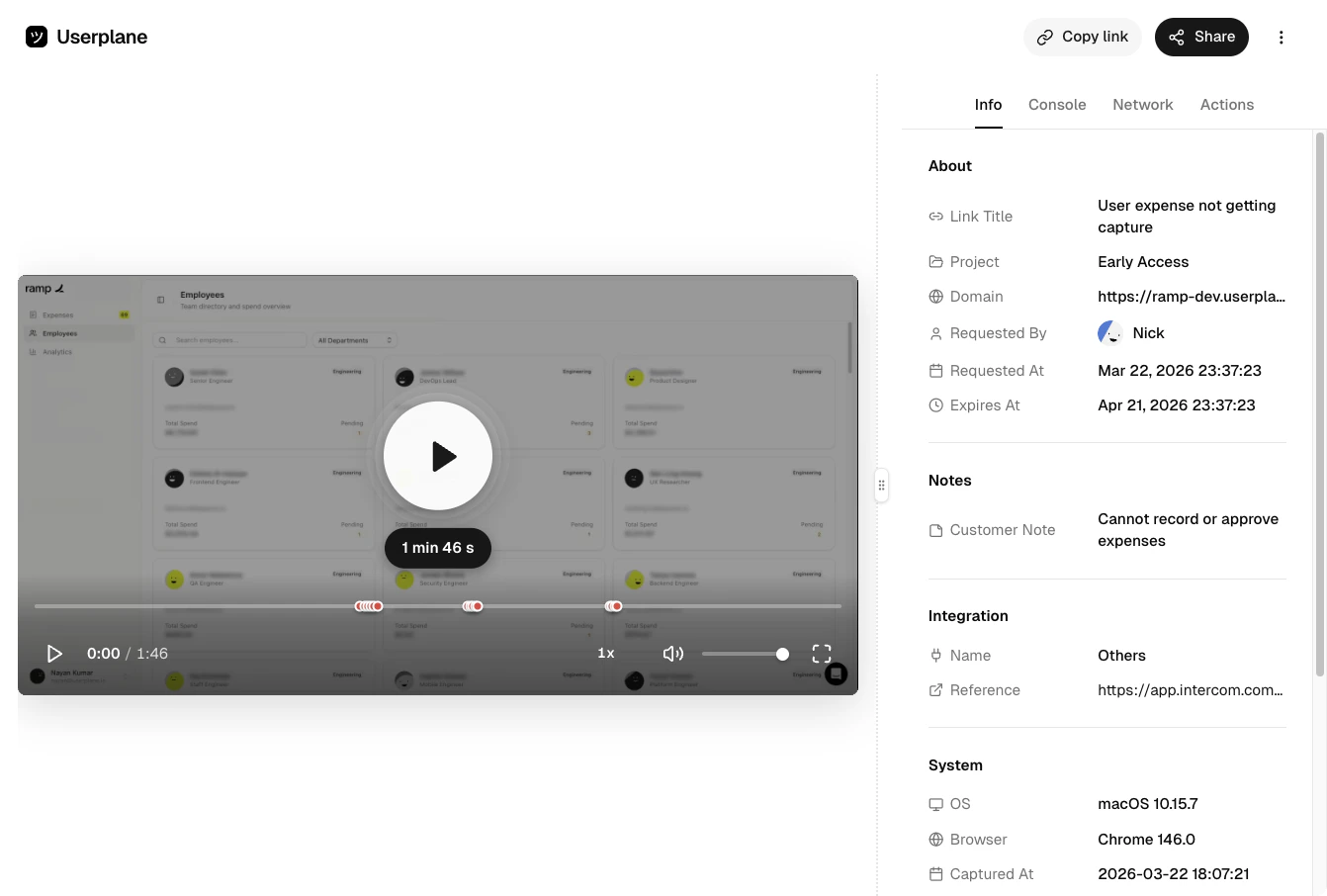
The Userplane SDK includes a metadata API that lets you attach custom key-value data to recordings. This data appears in the Info panel when your support team reviews a recording, giving them additional context about the user and their session without having to ask.
Installation
npm install @userplane/sdk
When your support team opens a recording, they see what happened on screen. But they often need more context: which user is this? What plan are they on? Which feature flags are active? What environment is this?
Metadata lets you attach this context automatically, so it’s there every time a recording is reviewed — no extra back-and-forth needed.
API reference
set(key, value)
Sets a static metadata key-value pair. Use this for values that are known at initialization and don’t change frequently.
| Parameter | Type | Description |
|---|
key | string | The metadata key. Appears as a label in the Info Panel. |
value | Serializable | The value to associate with the key. Can be a string, number, boolean, null, array, or nested object. |
Returns: void
import { set } from '@userplane/sdk';
set('userId', 'usr_12345');
set('accountId', 'acct_abc123');
set('plan', 'business');
set('environment', 'production');
set('appVersion', '2.4.1');
Static metadata provides defaults. If a dynamic metadata function (see below) returns the same key, the function value takes priority.
Registers a dynamic metadata function. The function is called when a recording is being submitted, so it captures the most current values at that point in time.
| Parameter | Type | Description |
|---|
fn | () => SerializableObject | A function that returns an object of key-value pairs. Called at recording submission time. |
Returns: void
import { metadata } from '@userplane/sdk';
metadata(() => ({
userId: getCurrentUser().id,
plan: getCurrentUser().plan,
page: window.location.pathname,
featureFlags: getActiveFlags(),
}));
Calling metadata() again overwrites the previous function. Only one metadata function can be registered at a time.
Clears metadata. The behavior depends on what you pass:
| Parameter | Type | Description |
|---|
keyOrType | string | undefined | What to clear (optional). See behavior table below. |
Returns: void
| Argument | Behavior |
|---|
| (no argument) | Clears everything — both the metadata function and all static key-value pairs |
'function' | Clears only the registered metadata function |
'static' | Clears all static key-value pairs set via set() |
| Any other string | Clears that specific static key |
import { clearMetadata } from '@userplane/sdk';
// Clear everything
clearMetadata();
// Clear only the metadata function
clearMetadata('function');
// Clear all static metadata
clearMetadata('static');
// Clear a specific key
clearMetadata('userId');
Returns the merged metadata object (static + function), or null if no metadata is set. This is primarily used internally by the SDK when the recorder requests metadata, but can be useful for debugging.
Returns: SerializableObject | null
import { getCustomMetadata } from '@userplane/sdk';
const meta = getCustomMetadata();
console.log(meta);
// { userId: 'usr_12345', plan: 'business', page: '/dashboard', ... }
When both static metadata and a metadata function are present, the function’s return values take priority over static values for the same key.
Types
Serializable
Values passed to set() or returned from metadata functions must be serializable:
type Serializable =
| string
| number
| boolean
| null
| undefined
| Serializable[]
| { [key: string]: Serializable };
This means you can pass strings, numbers, booleans, nulls, arrays, and nested objects — but not functions, Dates, or class instances.
SerializableObject
The return type of a metadata function:
interface SerializableObject {
[key: string]: Serializable;
}
Custom metadata is displayed in the Info Panel of the recording detail view as a list of key-value pairs, shown below the system metadata section (browser, OS, page URL). Keys appear as labels and values appear as text.
Common patterns
Set user context on login
import { set } from '@userplane/sdk';
function onLogin(user) {
set('userId', user.id);
set('email', user.email);
set('accountName', user.account.name);
set('plan', user.account.plan);
set('role', user.role);
}
import { clearMetadata } from '@userplane/sdk';
function onLogout() {
clearMetadata();
}
This prevents user data from leaking into recordings from a subsequent session or a different
user.
Attach feature flags
import { metadata } from '@userplane/sdk';
metadata(() => ({
featureFlags: {
newCheckout: isFeatureEnabled('new-checkout'),
betaDashboard: isFeatureEnabled('beta-dashboard'),
darkMode: isFeatureEnabled('dark-mode'),
},
}));
Feature flags are useful because they tell your support team exactly which version of a feature the customer was using when they recorded the issue.
import { set, metadata } from '@userplane/sdk';
// Static values set once
set('appVersion', '2.4.1');
set('environment', 'production');
set('region', 'us-east-1');
// Dynamic values captured at recording time
metadata(() => ({
page: window.location.pathname,
userId: getCurrentUser()?.id ?? 'anonymous',
cartItems: getCartItemCount(),
activeExperiments: getActiveExperiments(),
}));
Static values act as defaults. If the metadata function returns the same key (e.g. userId), the function value wins.
Track page context in a single-page app
import { set } from '@userplane/sdk';
// Update on each route change
router.afterEach((to) => {
set('currentRoute', to.path);
set('routeName', to.name);
});
Attach error context
import { set } from '@userplane/sdk';
window.addEventListener('error', (event) => {
set('lastError', event.message);
set('lastErrorSource', `${event.filename}:${event.lineno}`);
});
If you cannot use the SDK — for example, in helpdesk macros, server-rendered pages, or third-party tools — you can attach metadata to a recording via a URL query parameter instead.
Append the userplane-meta parameter to any recording link URL:
?userplane-meta=key1%3Dval1,key2%3Dval2
The value is a comma-separated list of key-value pairs. Each pair uses = as the delimiter between key and name, and the entire value must be URL-encoded (so = becomes %3D).
Decoded format: key1=val1,key2=val2
Examples
Helpdesk macro link:
https://record.userplane.io/r/abc123?userplane-meta=ticketId%3D98765,priority%3Dhigh
This attaches ticketId: 98765 and priority: high to the recording.
Server-rendered page:
<a href="https://record.userplane.io/r/abc123?userplane-meta=userId%3Dusr_456,plan%3Denterprise">
Record your screen
</a>
Values appear in the Info Panel identically to SDK-set metadata — as key-value pairs in the custom metadata section. There is no visual distinction between URL parameter metadata and SDK metadata.
If both URL parameter metadata and SDK metadata are present, the values are merged. When the same key exists in both sources, the SDK value takes priority.
Tips
- Use
set() for stable values that are known at initialization — user ID, account name, plan,
app version, environment. - Use metadata() for values that change during the session — current
page, active feature flags, cart contents, form state. - Call clearMetadata() on logout to avoid
leaking user data into subsequent recordings. - Keep metadata keys descriptive. Your support team
will see them as-is in the Info Panel. - Avoid attaching large objects. Metadata should be concise
context, not a full state dump. - If you cannot install the SDK, use the userplane-meta URL
parameter to pass metadata through recording link URLs. This is especially useful for helpdesk
macros and server-rendered pages.
Related articles
- Web SDK — initialize the SDK and control recordings programmatically.
- Installation — install and configure the embed script.
- Intercom Macros — use recording links with URL metadata in Intercom macros.