

Adding the script
The fastest way to add Userplane is the CDN embed. Add these two tags to the<head> of your base layout:
npm SDK
Use the npm SDK when you need programmatic control — triggering recordings from a button, attaching user metadata, or reading recording state.Installation
Initialization
Add a<script> block to your base layout. In Astro, <script> blocks in .astro files are bundled and run in the browser — no client: directive or SSR guard is needed.
.env file:
import.meta.env.PUBLIC_* variables are inlined at build time by Vite. Access them inside <script> blocks (client-side), not in the frontmatter (server-side) — frontmatter runs at build/request time and has no access to browser APIs.URL parameters
Astro can be deployed as a static site or with a server adapter (SSR). For static deployments, Userplane reads URL parameters on the client automatically — no additional configuration is needed. For SSR deployments with redirects, preserve theuserplane- prefixed parameters through any server-side redirect in your middleware:
Sensitive data
Adddata-userplane-blur to any element you want blurred in recordings. See Sensitive Data Redaction for the full reference.
Metadata
Callset() inside the <script> block after initialize():
SSR
Astro’s<script> blocks are always client-only — Astro bundles them separately from the server render. The frontmatter section (---) runs on the server (or at build time for static output) and has no access to window, document, or browser APIs.
@userplane/sdk is SSR-safe to import at the module level inside a <script> block. The module does not reference window at evaluation time.
Example app
A complete Astro example is available at github.com/userplanehq/userplane-sdk-examples/tree/main/examples/astro.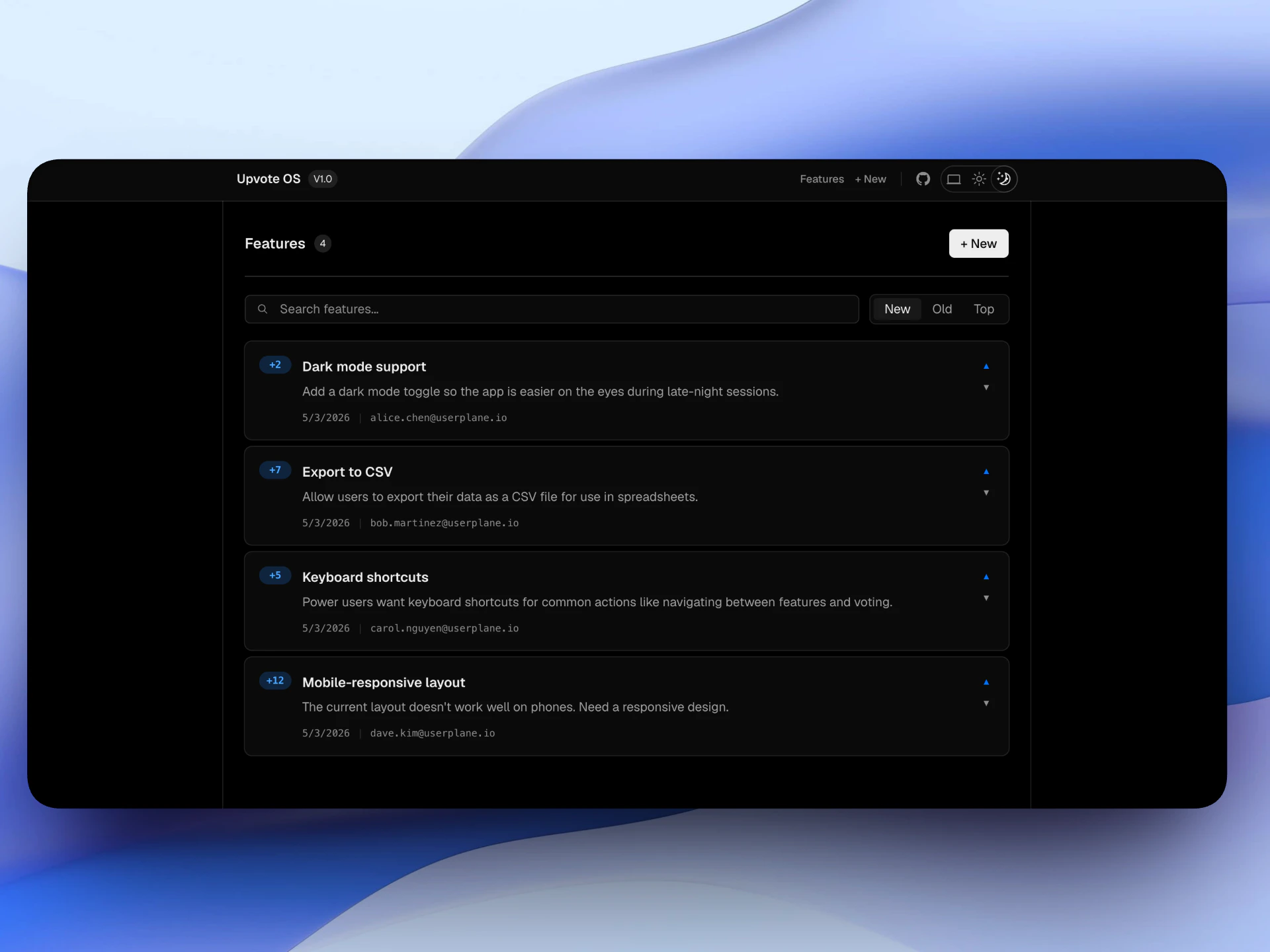
Example app
Related articles
- Installation — CDN script placement, CSP, and redirect handling.
- Web SDK — full SDK API reference.
- Metadata SDK — attach user context to recordings.
- Sensitive Data Redaction — blur sensitive content in recordings.