

Overview
Userplane verifies domain ownership by checking for its script on your website. The process is:- Add the Userplane meta tag and script to your site’s HTML.
- The workspace admin clicks Verify in Userplane.
- Userplane checks your domain for the script and, if found, marks the domain as verified.
Step 1: Add the script
Paste the following into the<head> of your site:
YOUR_WORKSPACE_ID with the workspace ID provided by your admin. You can also copy the exact snippet (with the workspace ID already filled in) from Workspace Settings > Domains in the Userplane dashboard.
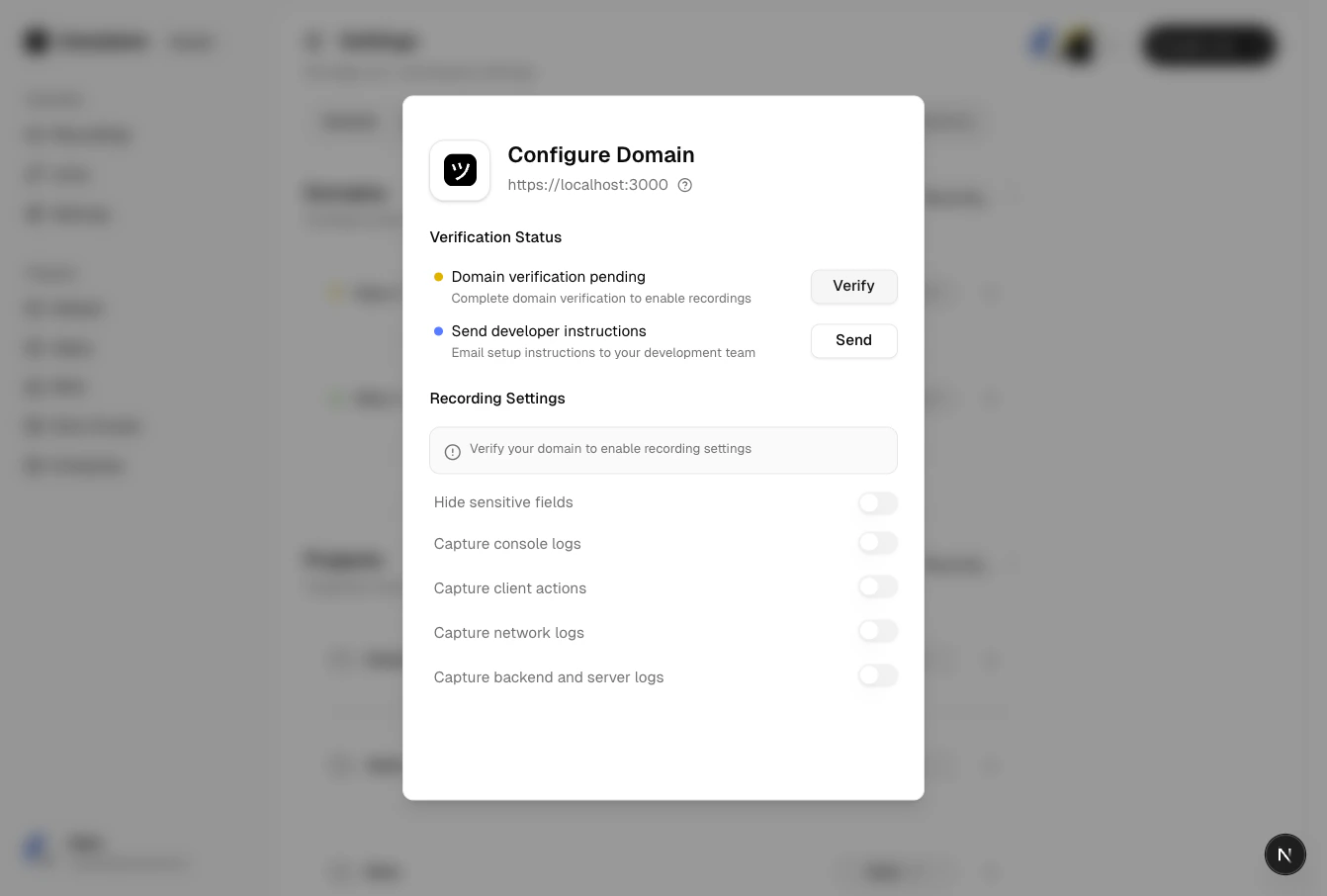
Verification code in dashboard
<script> tag should be placed as early as possible in the <head> to ensure it initializes before other scripts run. See Installation for detailed placement guidance.
Step 2: Deploy
Deploy the page with the script tag. The page must be publicly accessible — verification will fail if the page is behind a login wall or not yet deployed.Step 3: Trigger verification
After deploying, if you’re a member of the workspace you can trigger verification yourself from Workspace Settings > Domains. Otherwise, let your workspace admin know the script is deployed and ask them to click Verify on your behalf. The verification check runs immediately.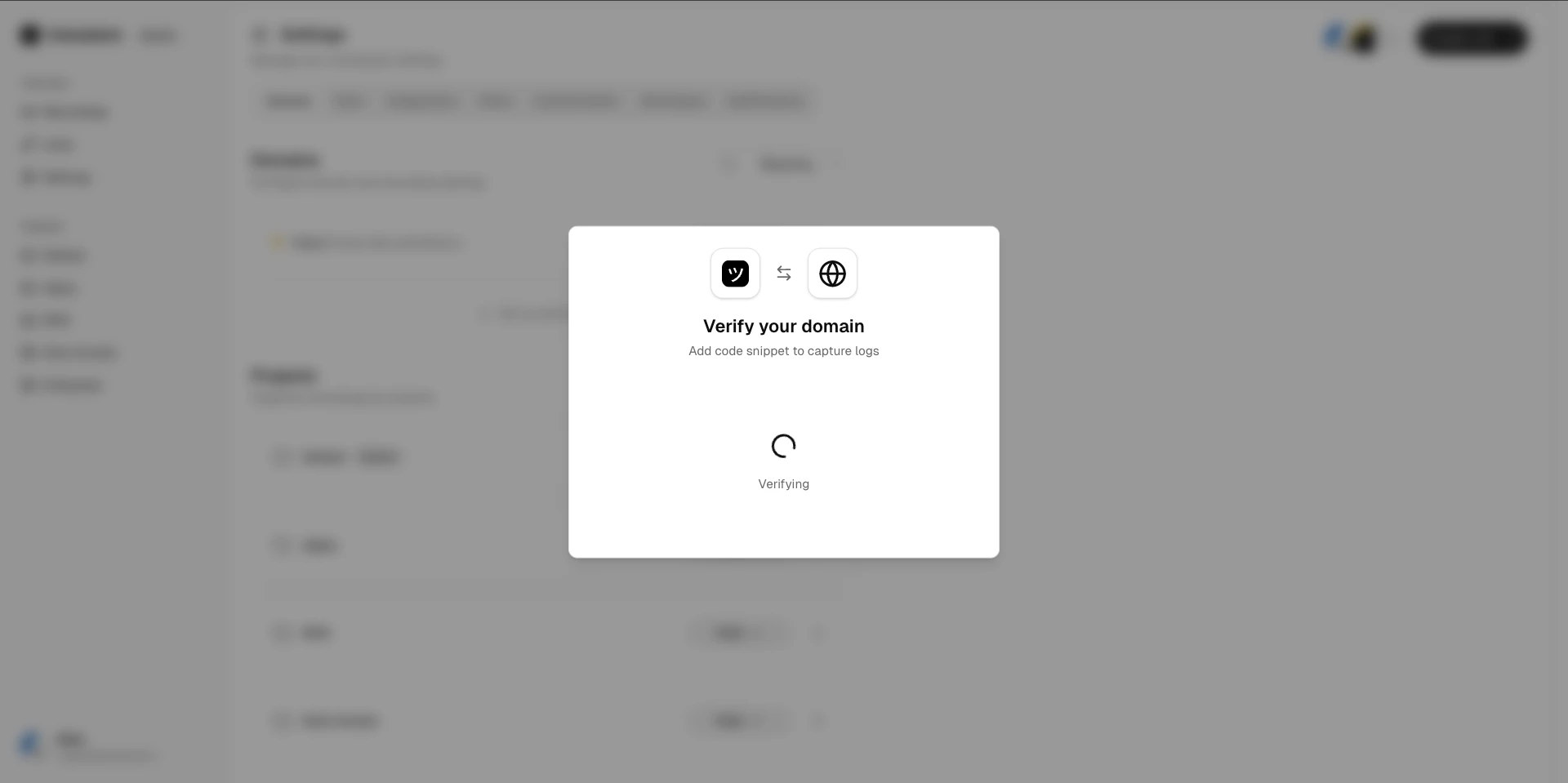
Verification in progress
Step 4: Confirmation
Once the token is found and valid, the domain status changes to Verified. You’ll see a confirmation in the dashboard.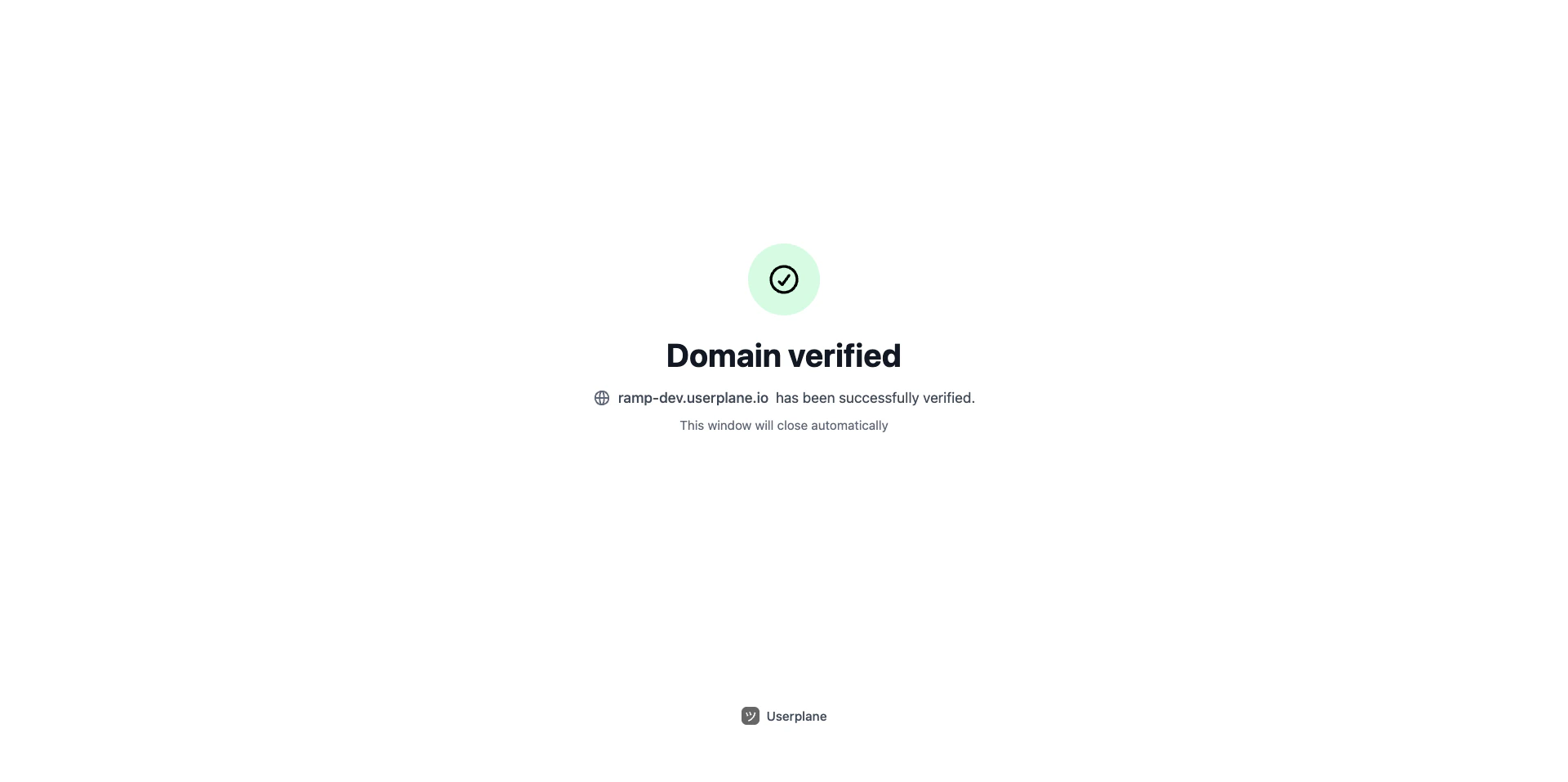
Verification successful
Time limit
The verification token expires after 5 minutes. If the token expires before verification completes, the admin must generate a new token from Workspace Settings.Troubleshooting
After verification
Once the domain is verified, keep the script on your site — it is needed for recordings to work. The meta tag and script serve double duty: they verify the domain and enable screen recording.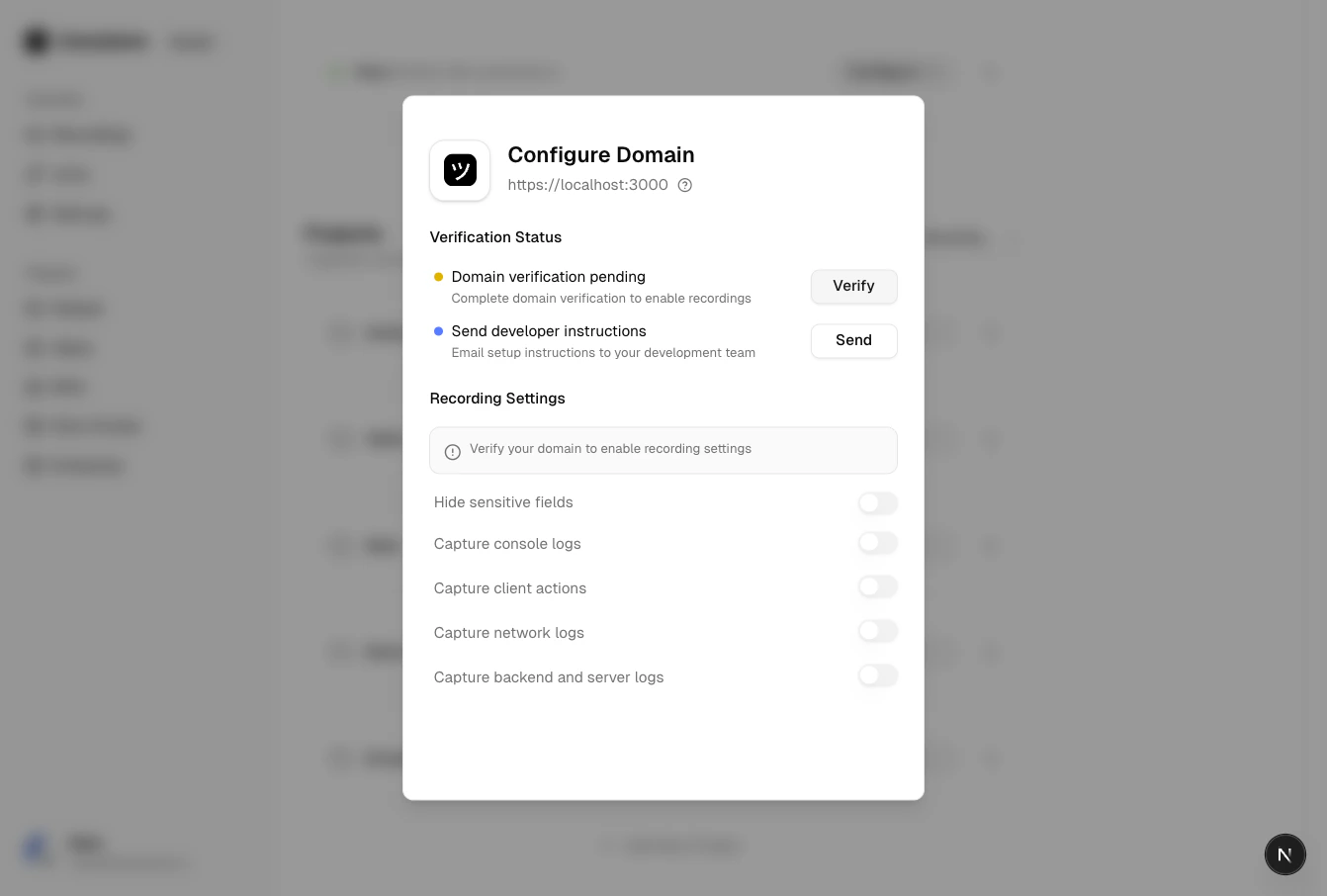
Domain verified
Related articles
- Installation — detailed guide on script placement, CSP, redirects, and browser support.
- Domain Verification — the admin-side verification process.
- Domains — why domains matter.