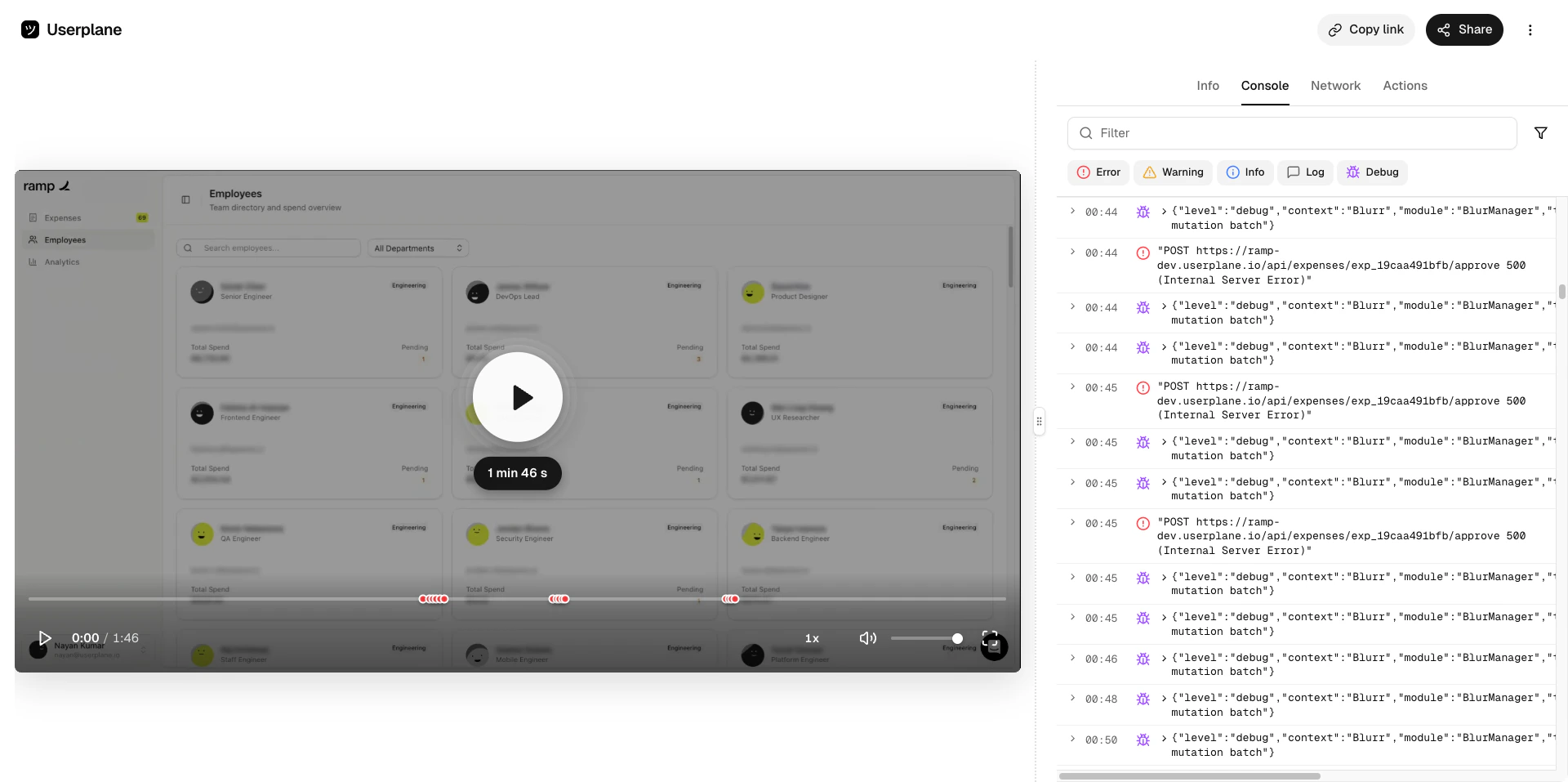
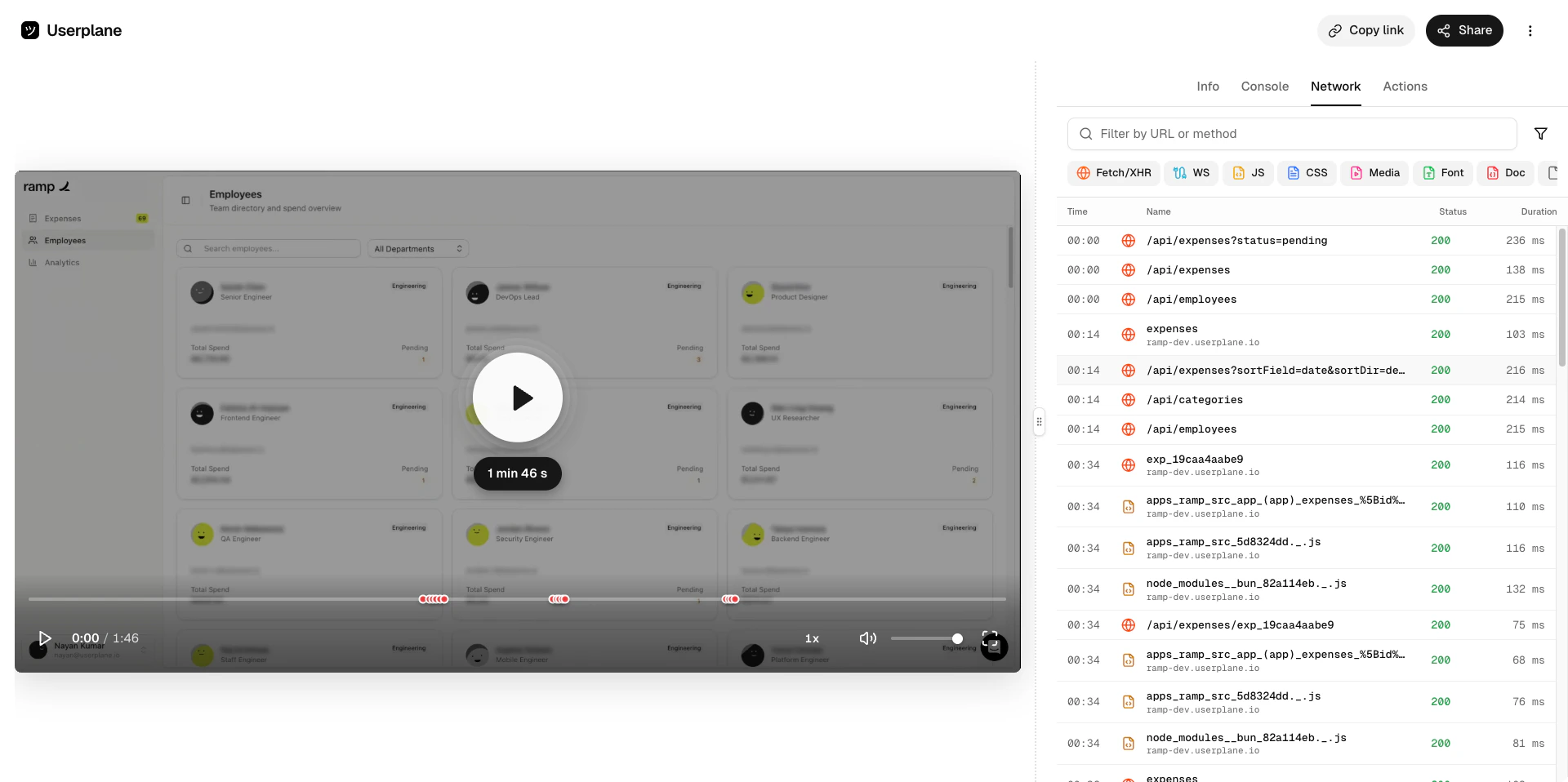
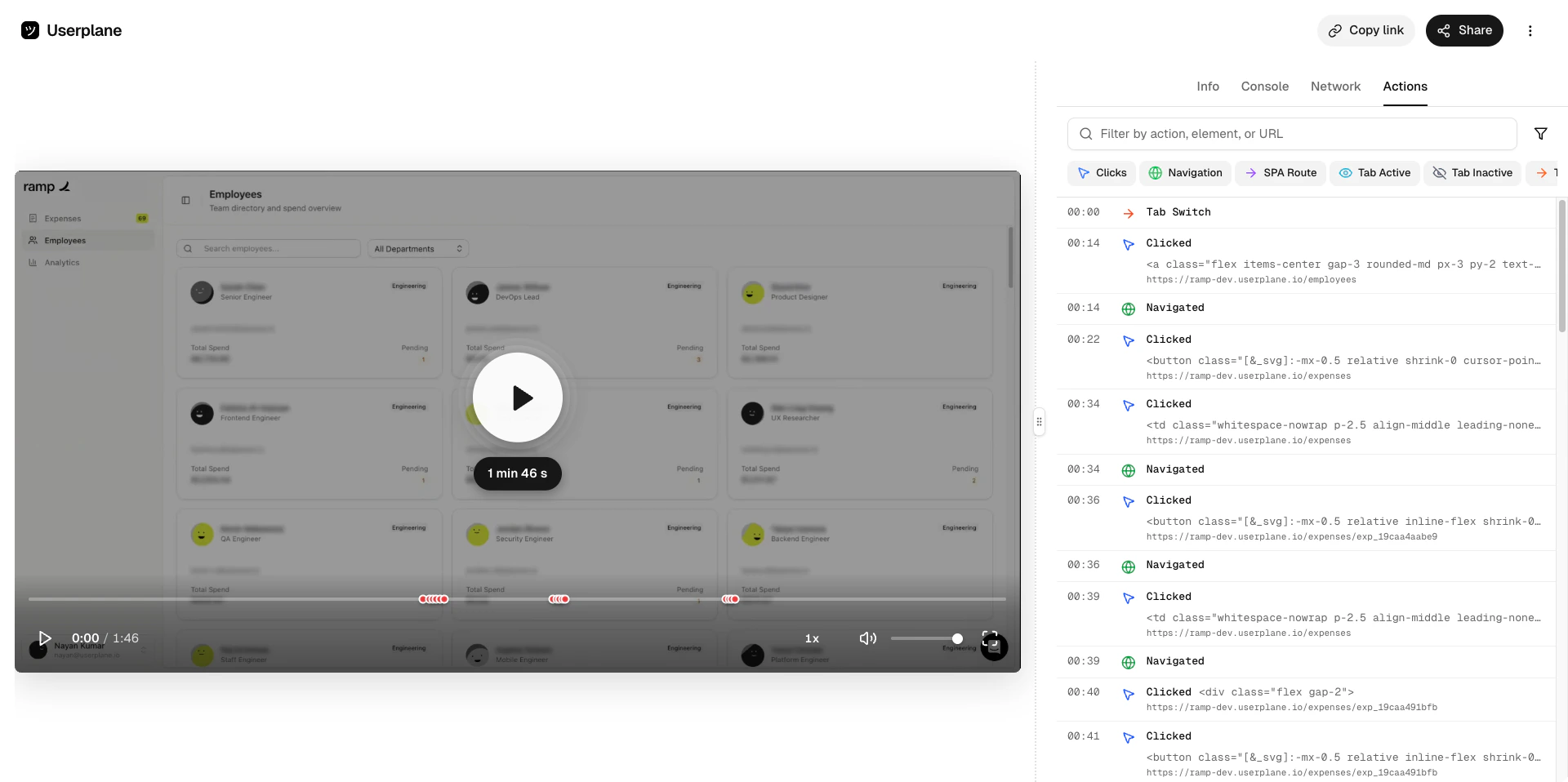
Use reusable recording links in Intercom macros for quick one-click insertion
Intercom macros let agents insert pre-written responses into conversations with a single click. By adding a reusable recording link to a macro, agents can quickly request screen recordings without creating a new link each time.
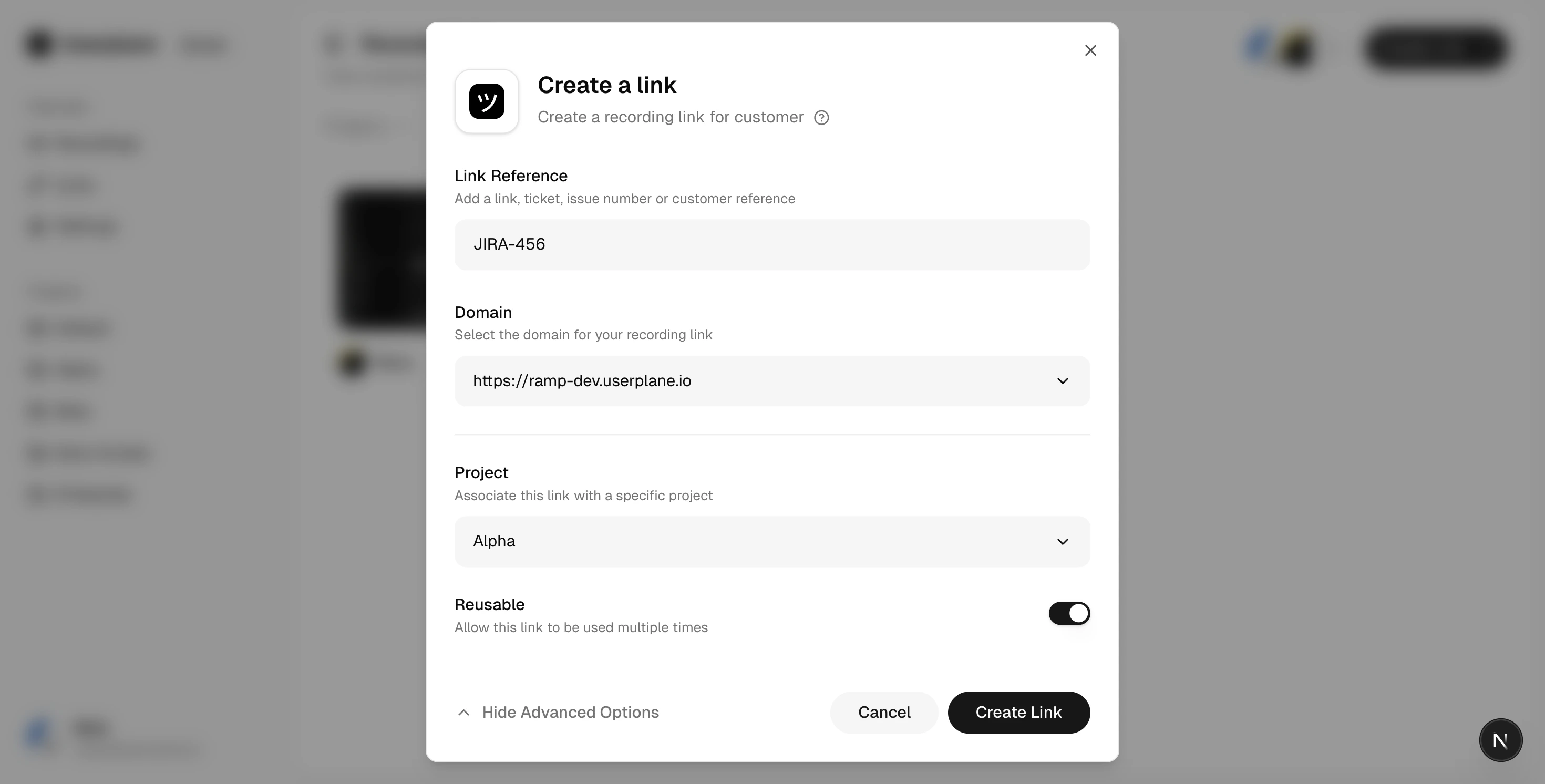
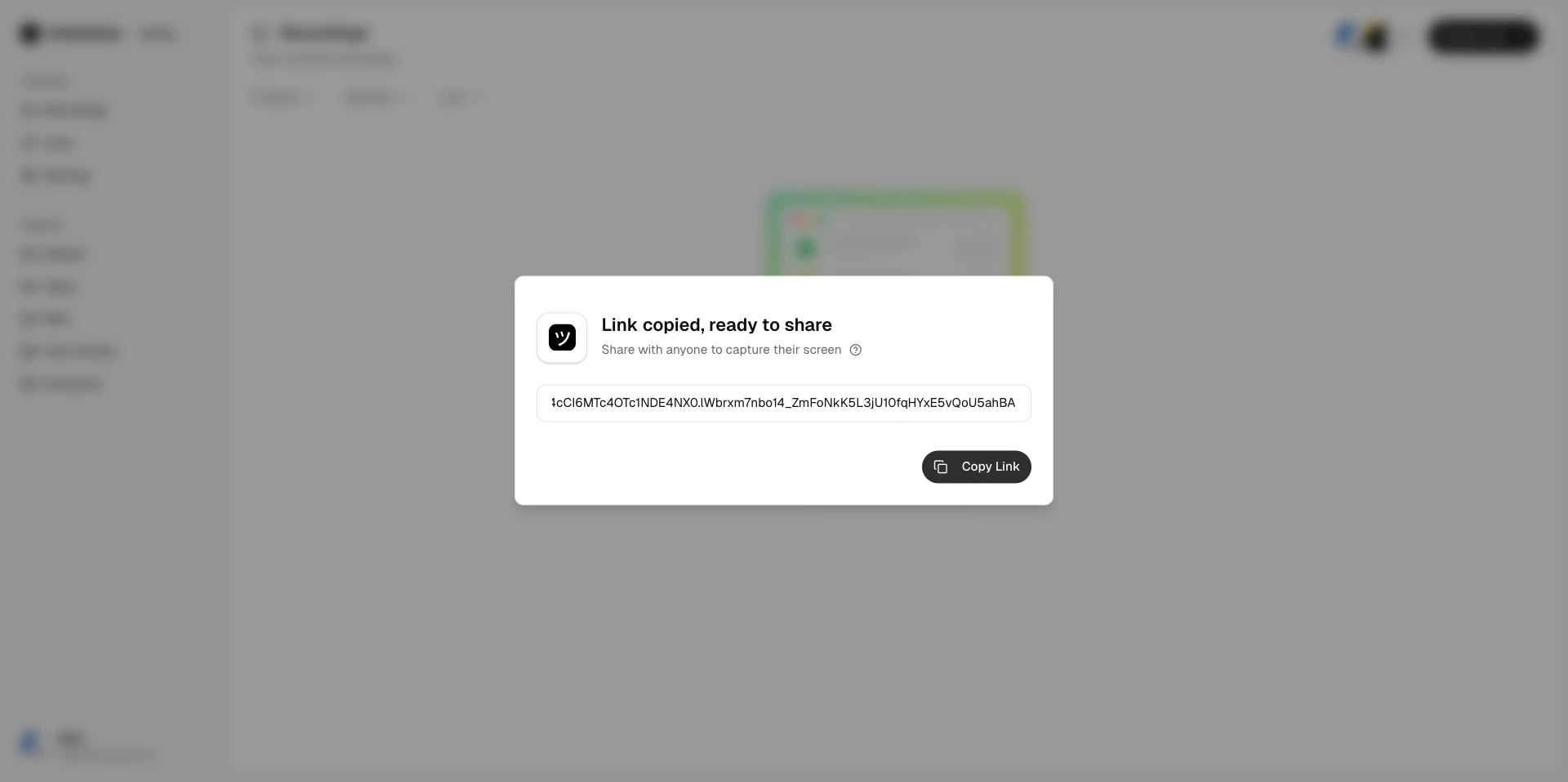
In Userplane, create a reusable recording link. Choose the appropriate project and domain, enable the Reusable toggle, then copy the link URL.
Reusable link toggle
Share link
2
Create or edit a macro in Intercom
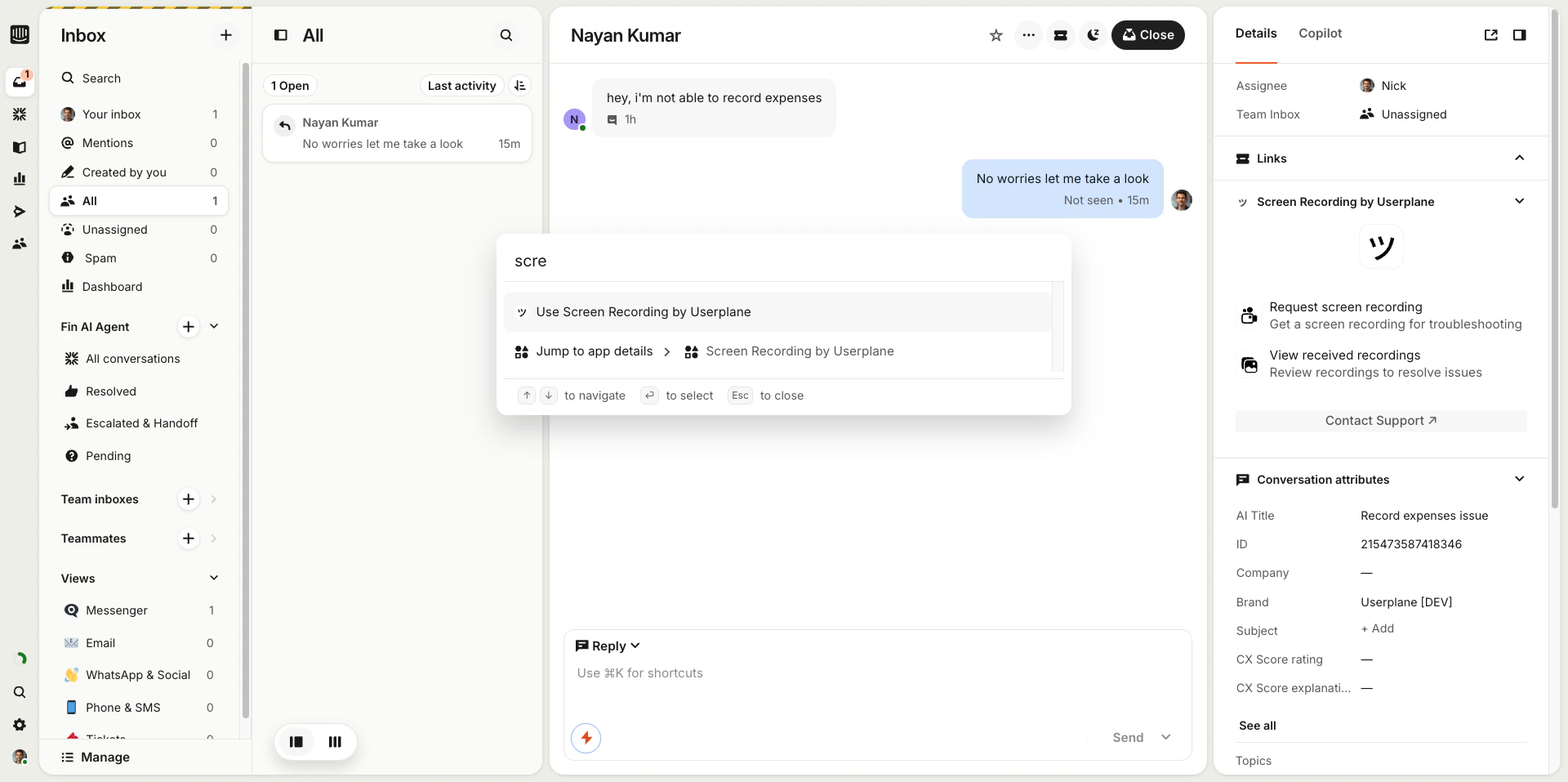
In Intercom, create a new macro or edit an existing one.
Userplane macro in Intercom
3
Add the link to the macro message
Add a message that includes the recording link URL. For example:
Hi! To help us troubleshoot this issue, could you record a quick screen capture? Just click this link and follow the instructions: [reusable recording link]
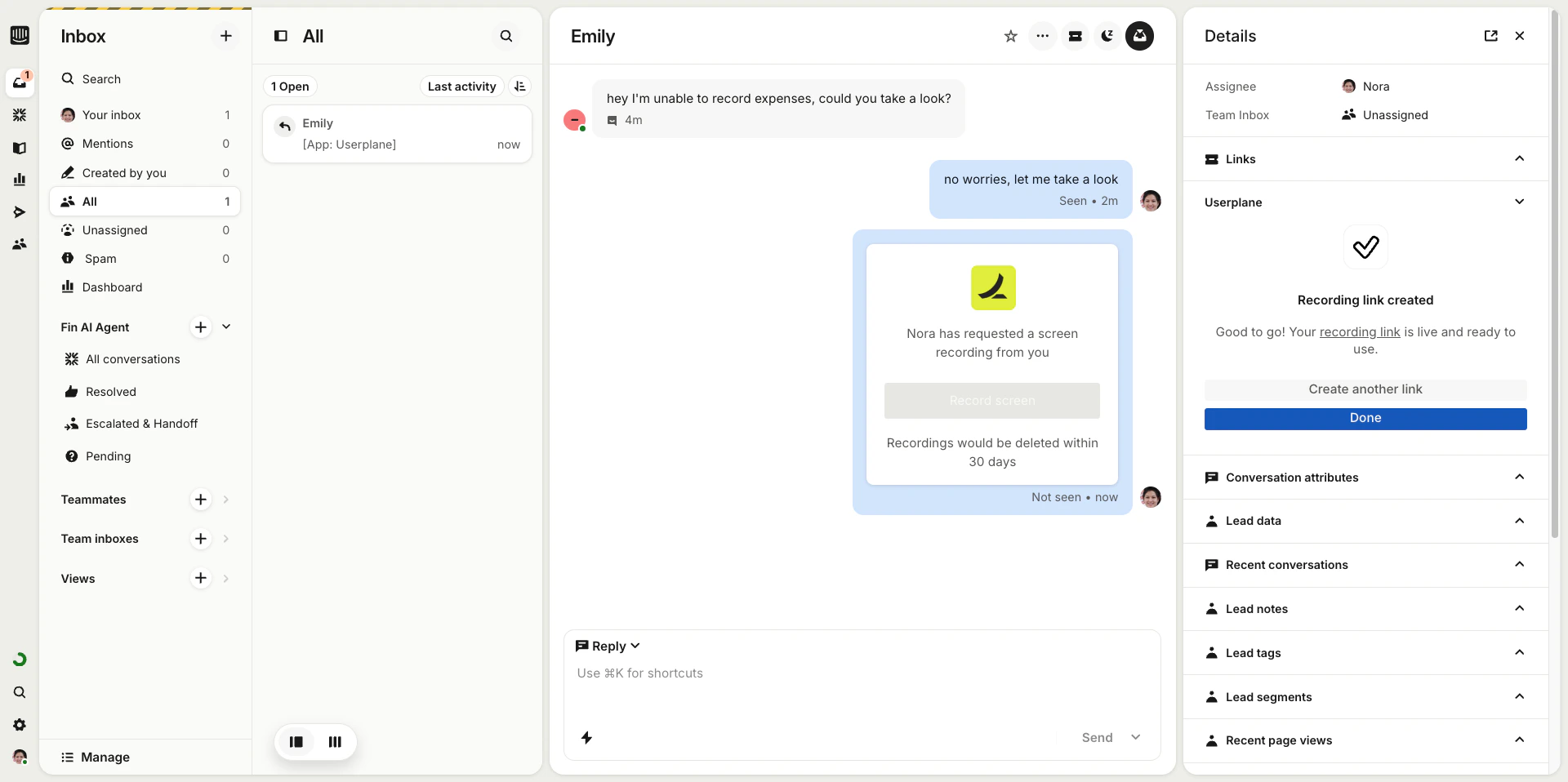
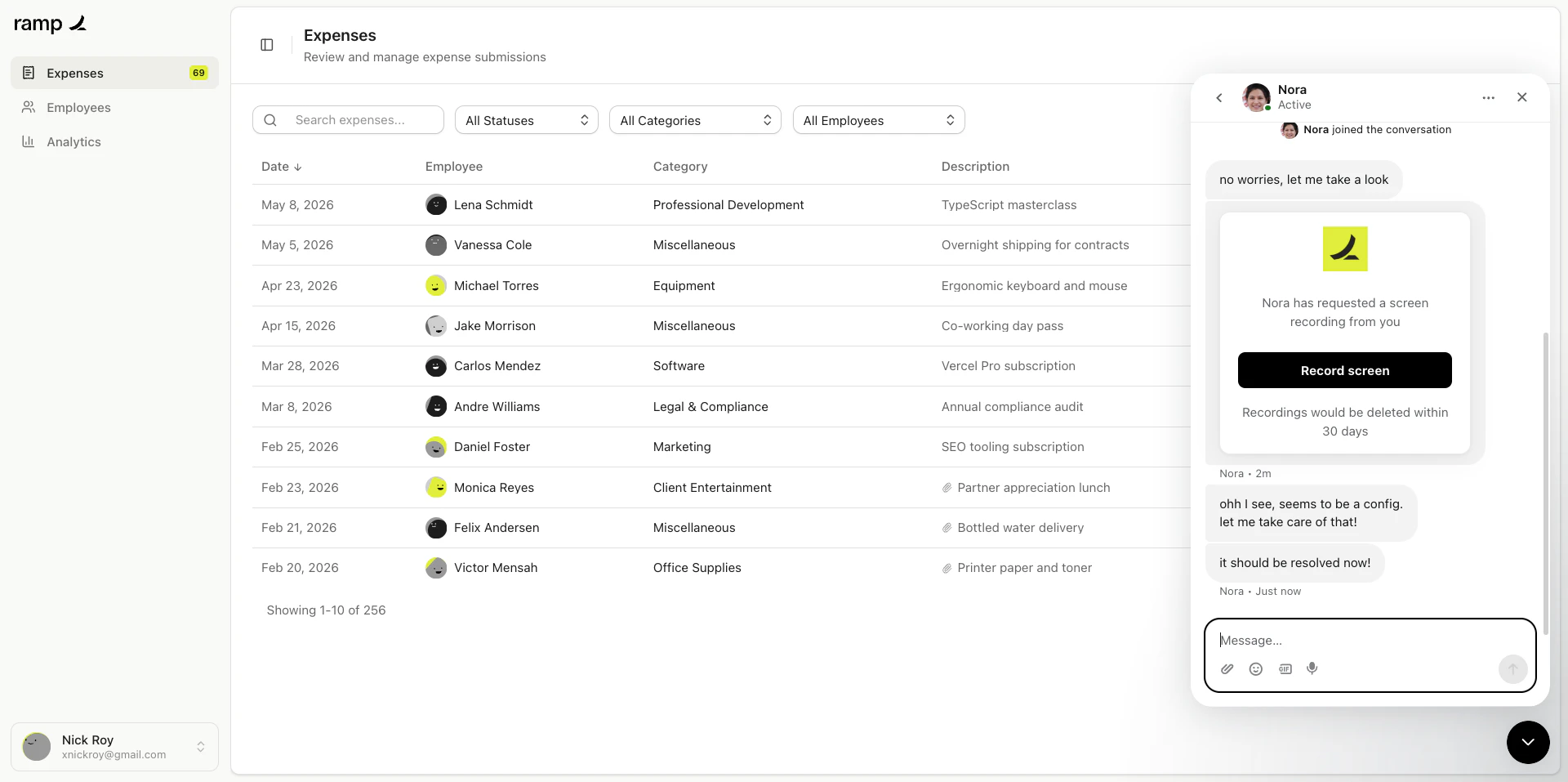
Open the macro menu and select your Userplane macro. The pre-written message with the recording link is inserted into the reply.
Recording link sent to customer
3
Send the message
Send the message. The customer clicks the link and records their screen.
Since the link is reusable, every customer who clicks it creates a separate recording. All recordings are tied to the same link and can be viewed from the Links page in Userplane.
Since the recording link is reusable, every customer gets the same base URL. But you can inject dynamic context into each recording by appending the userplane-meta query parameter to the link in your macro.The link has two parts — a static base that stays the same across all uses, and a dynamic metadata suffix that changes per conversation. The metadata is attached to the recording, not the link, so each recording carries its own context even though they all share the same reusable link.Intercom macros support placeholder variables that are resolved at send time. You can use these placeholders in the userplane-meta parameter so that each conversation automatically injects the right values — ticket ID, customer name, assignee, or anything else Intercom exposes.
Static metadata
Dynamic with placeholders
Mixed approach
Tag every recording from this macro with a fixed source and macro name.
Recordings created through the macro are automatically linked to the Intercom conversation. Because the metadata is injected dynamically via placeholders, each recording carries its own conversation context — even though they all come from the same reusable link.
1
Metadata attached
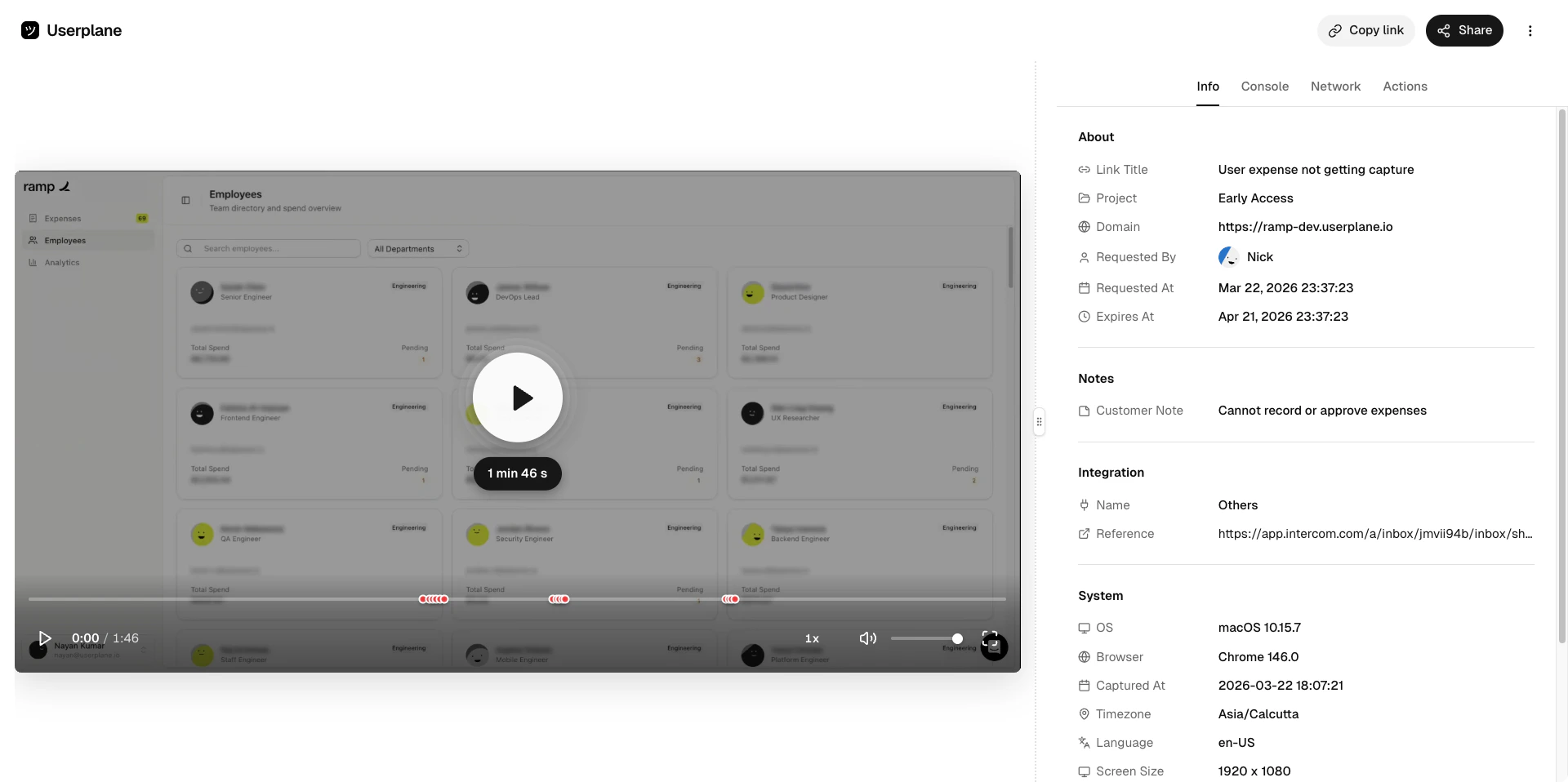
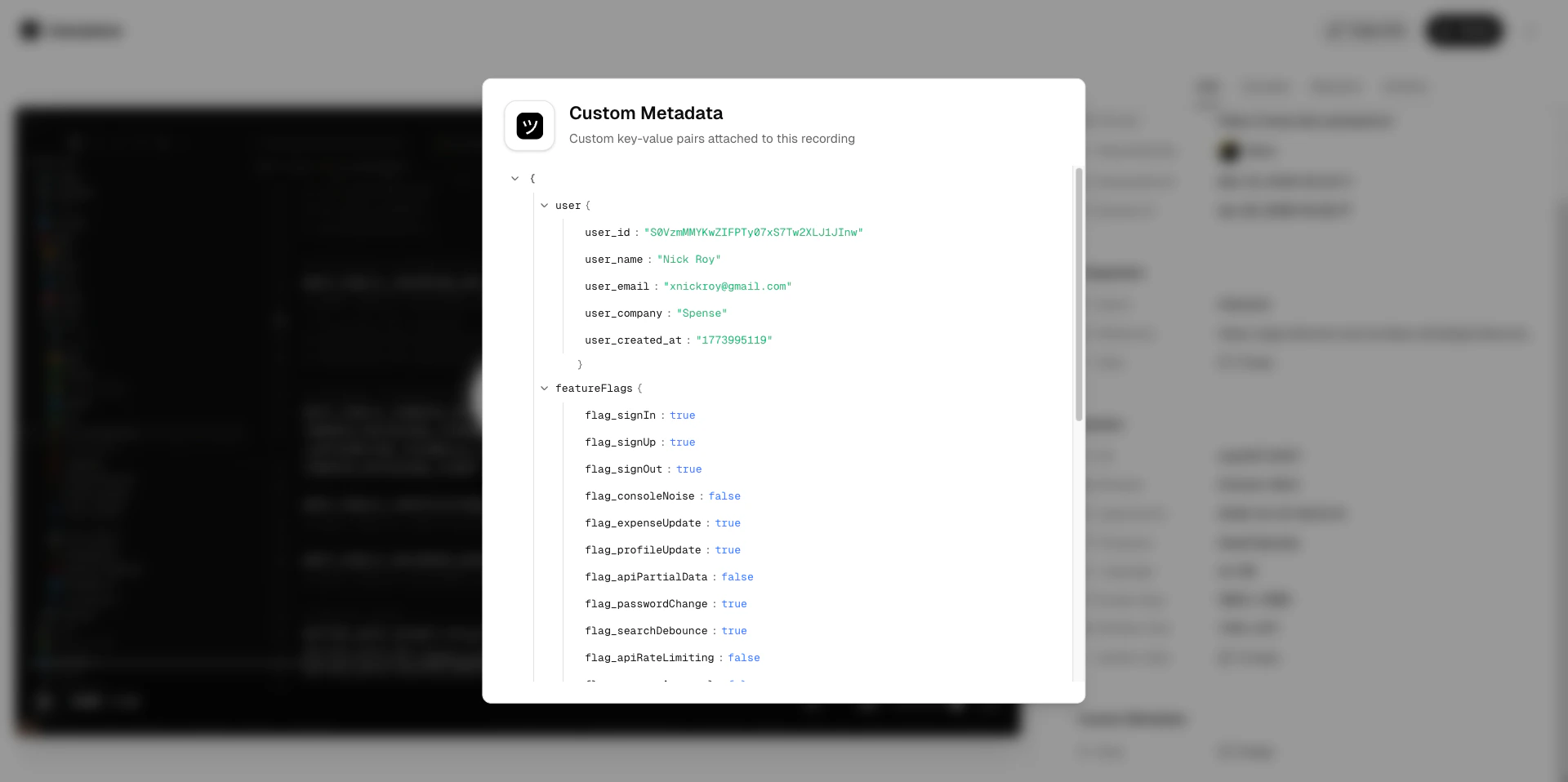
The metadata attached via the URL parameter is carried over to the recording. Your team can see it in the Info panel without asking the customer for any additional context.
Metadata in Info panel
2
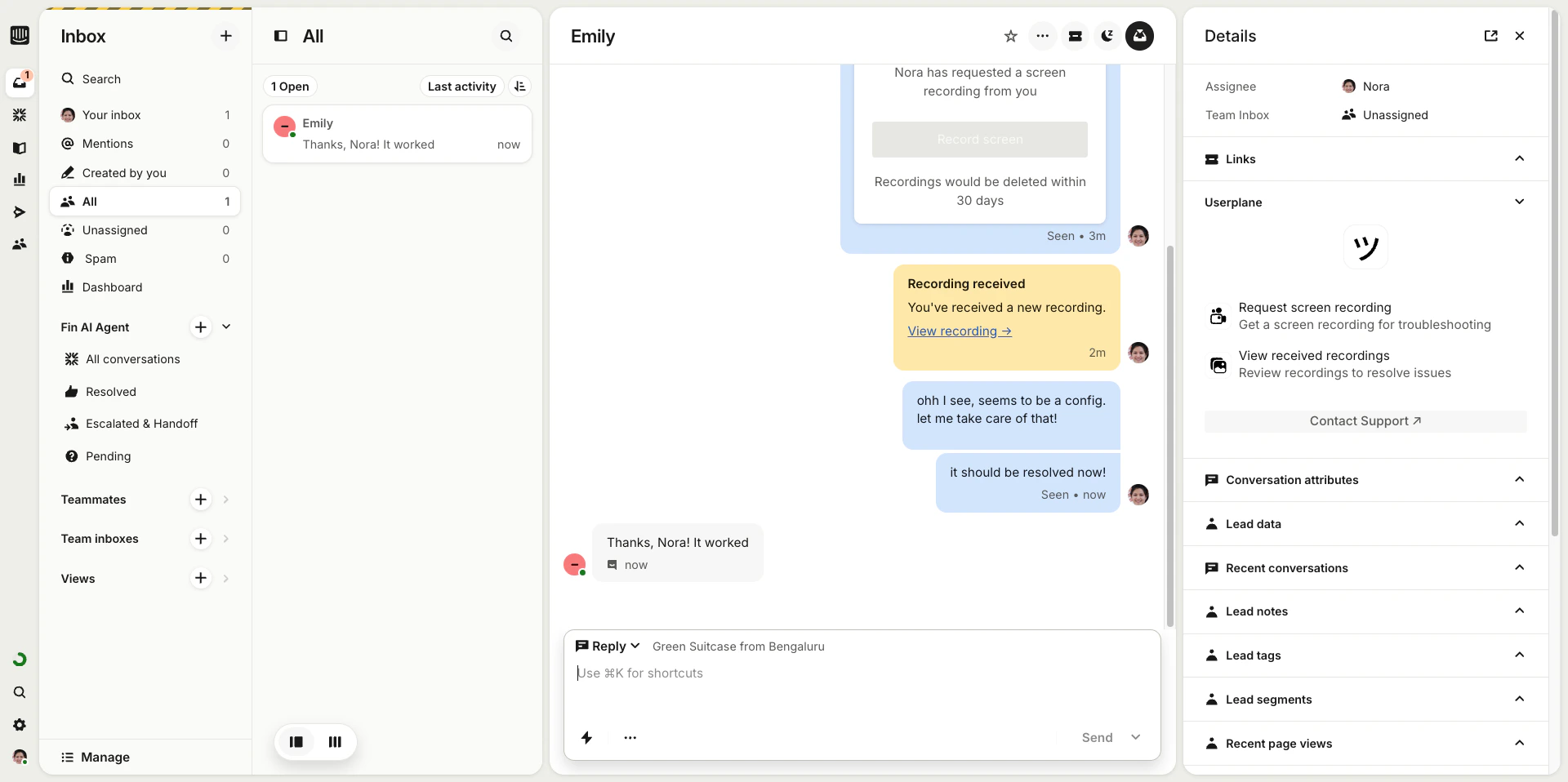
Issue resolved
Once you’ve reviewed the recording and resolved the issue, close the conversation as normal.
Issue resolved
3
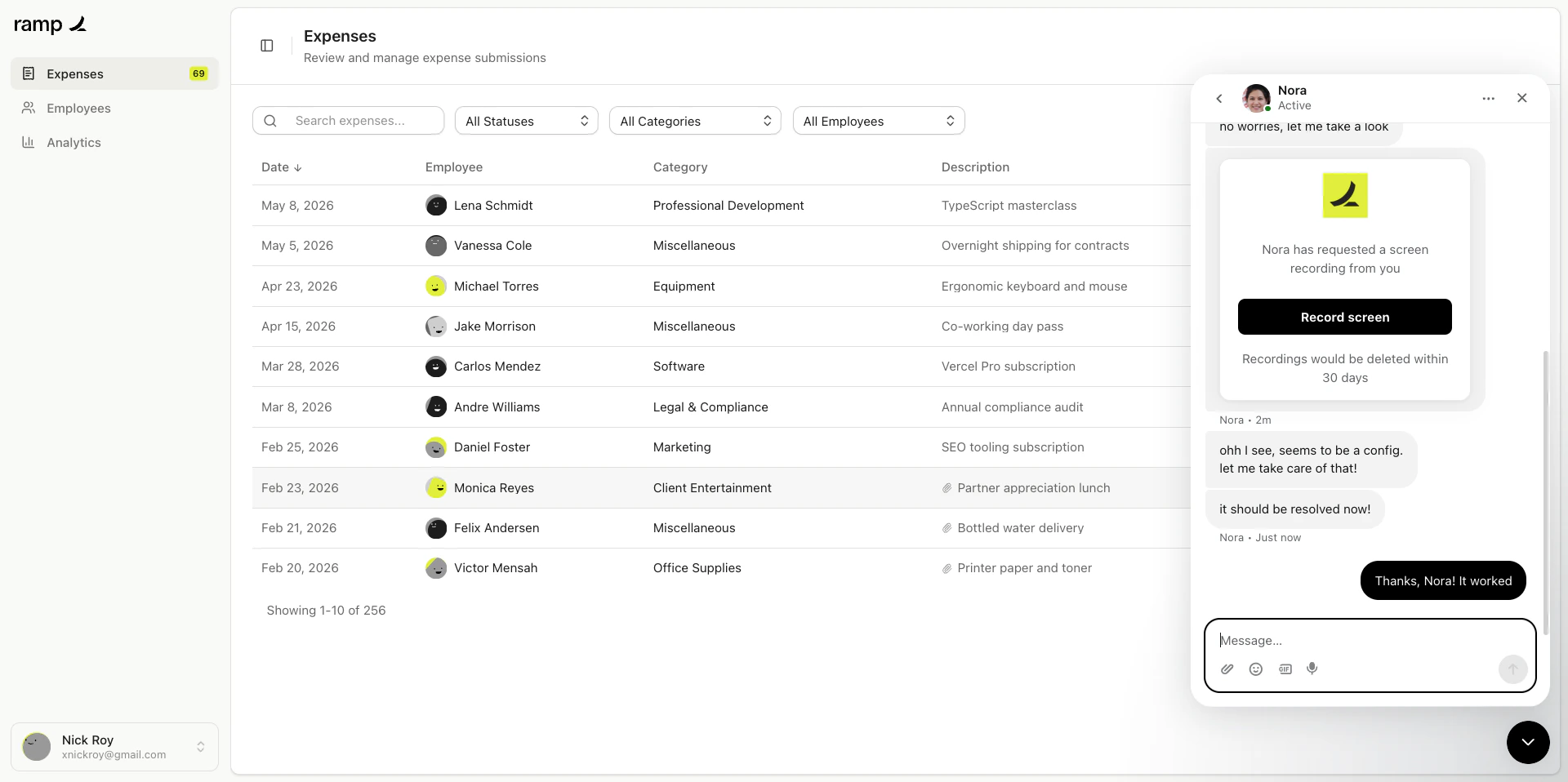
Post-resolution follow-up
The recording remains linked to the conversation for future reference.
Create separate macros for different projects or issue types, each with its own reusable link. -
Include a brief explanation in the macro text so the customer knows what to expect. - Use a
branded recording link (with a verified domain) for a more professional experience.
Metadata SDK — attach custom metadata to recordings.
{"docsConfig":{"theme":"aspen","$schema":"https://mintlify.com/docs.json","name":"Userplane Docs","colors":{"primary":"#000000","light":"#FAFAFA","dark":"#000000"},"logo":{"light":"https://mintcdn.com/userplane/e34bWffW8FdiqmQz/static/logo-light.svg?fit=max\u0026auto=format\u0026n=e34bWffW8FdiqmQz\u0026q=85\u0026s=b60f979b7800d446f3f5d5274c095cb2","dark":"https://mintcdn.com/userplane/e34bWffW8FdiqmQz/static/logo-dark.svg?fit=max\u0026auto=format\u0026n=e34bWffW8FdiqmQz\u0026q=85\u0026s=f638b932d019423317aaca6685f22ea6"},"favicon":"https://mintcdn.com/userplane/e34bWffW8FdiqmQz/static/favicon.svg?fit=max\u0026auto=format\u0026n=e34bWffW8FdiqmQz\u0026q=85\u0026s=fd9fbcc5e1783343c767381ce1744d03","api":{"playground":{"display":"interactive"}},"appearance":{"default":"light","strict":true},"navbar":{"primary":{"type":"button","label":"Dashboard","href":"https://dash.userplane.io"}},"styling":{"latex":true},"navigation":{"pages":[]}},"deployment":{"deploymentMetadataValue":{"subdomain":"userplane","hasAudioNarration":false,"actualSubdomain":"userplane","customDomains":["docs.userplane.io"],"gitSource":{"type":"github","owner":"0xnyn","repo":"userplane","deployBranch":"main","contentDirectory":"apps/docs","isPrivate":true,"mountPath":"","label":""},"chroma":{"liveDeploymentHistoryId":"6a21eb6f2fb2a99bab92da64","collectionId":"8e53ea74-03f5-4b56-ab3a-aff2a4fe9720","schemaVersion":"v2"},"entitlements":{},"buildId":"6a21eb6f2fb2a99bab92da64:success","clientVersion":"0.0.3908","searchFilterCounts":[{"language":"default","tag":"Integrations","count":62},{"language":"default","tag":"Guide","count":47},{"language":"default","tag":"Extensions \u0026 Plugins","count":34},{"language":"default","tag":"API","count":28},{"language":"default","tag":"Developer","count":24},{"language":"default","tag":"Recordings","count":21},{"language":"default","tag":"Help Desk","count":16},{"language":"default","tag":"Claude Code","count":14},{"language":"default","tag":"Framework Guides","count":13},{"language":"default","tag":"Getting Started","count":12}]},"assistantConfig":{"enableAskAiButton":false,"enableStarterQuestions":false,"enableAskAiSearchBar":true},"hasChatPermissions":false,"hasWebMcpPermissions":false,"toggles":[{"name":"kill-isr","enabled":true,"variant":{"name":"disabled","enabled":false,"feature_enabled":true},"impressionData":false},{"name":"agent-mintlify-slack","enabled":true,"variant":{"name":"disabled","enabled":false,"feature_enabled":true},"impressionData":false},{"name":"editor-v7-file-tree","enabled":true,"variant":{"name":"disabled","enabled":false,"feature_enabled":true},"impressionData":false},{"name":"agent-integrations-settings","enabled":true,"variant":{"name":"disabled","enabled":false,"feature_enabled":true},"impressionData":false},{"name":"automations-pr-grouping","enabled":true,"variant":{"name":"disabled","enabled":false,"feature_enabled":true},"impressionData":false},{"name":"custom-prefix","enabled":true,"variant":{"name":"disabled","enabled":false,"feature_enabled":true},"impressionData":false},{"name":"analytics-v7","enabled":true,"variant":{"name":"disabled","enabled":false,"feature_enabled":true},"impressionData":false},{"name":"user-flows-analytics","enabled":true,"variant":{"name":"disabled","enabled":false,"feature_enabled":true},"impressionData":false},{"name":"no-publish-flow","enabled":true,"variant":{"name":"disabled","enabled":false,"feature_enabled":true},"impressionData":false},{"name":"workos-onboarding","enabled":true,"variant":{"name":"disabled","enabled":false,"feature_enabled":true},"impressionData":false},{"name":"llms-txt-v2","enabled":true,"variant":{"name":"disabled","enabled":false,"feature_enabled":true},"impressionData":false},{"name":"pause-universal-search-reconcile","enabled":true,"variant":{"name":"disabled","enabled":false,"feature_enabled":true},"impressionData":false},{"name":"snapshot-serving-live","enabled":true,"variant":{"name":"disabled","enabled":false,"feature_enabled":true},"impressionData":false},{"name":"stripTemperatureMiddleware","enabled":true,"variant":{"name":"disabled","enabled":false,"feature_enabled":true},"impressionData":false},{"name":"per-site-search-delta","enabled":true,"variant":{"name":"disabled","enabled":false,"feature_enabled":true},"impressionData":false},{"name":"support-platform-pylon-zendesk","enabled":true,"variant":{"name":"disabled","enabled":false,"feature_enabled":true},"impressionData":false},{"name":"editor-branches-v2-autocommit","enabled":true,"variant":{"name":"disabled","enabled":false,"feature_enabled":true},"impressionData":false},{"name":"editor-branches-v2","enabled":true,"variant":{"name":"disabled","enabled":false,"feature_enabled":true},"impressionData":false},{"name":"snapshot-serving","enabled":true,"variant":{"name":"disabled","enabled":false,"feature_enabled":true},"impressionData":false},{"name":"instant-rollback","enabled":true,"variant":{"name":"disabled","enabled":false,"feature_enabled":true},"impressionData":false},{"name":"granular-notifications-server","enabled":true,"variant":{"name":"disabled","enabled":false,"feature_enabled":true},"impressionData":false},{"name":"granular-notifications","enabled":true,"variant":{"name":"disabled","enabled":false,"feature_enabled":true},"impressionData":false},{"name":"editor-private-page-search","enabled":true,"variant":{"name":"disabled","enabled":false,"feature_enabled":true},"impressionData":false},{"name":"automations-fable","enabled":true,"variant":{"name":"disabled","enabled":false,"feature_enabled":true},"impressionData":false},{"name":"fixed-ai-action-pricing","enabled":true,"variant":{"name":"disabled","enabled":false,"feature_enabled":true},"impressionData":false},{"name":"automation-resolve-merge-conflict","enabled":true,"variant":{"name":"disabled","enabled":false,"feature_enabled":true},"impressionData":false},{"name":"scoped-publishing","enabled":true,"variant":{"name":"disabled","enabled":false,"feature_enabled":true},"impressionData":false},{"name":"mintql","enabled":true,"variant":{"name":"disabled","enabled":false,"feature_enabled":true},"impressionData":false},{"name":"page-level-analytics","enabled":true,"variant":{"name":"disabled","enabled":false,"feature_enabled":true},"impressionData":false},{"name":"teamspace","enabled":true,"variant":{"name":"disabled","enabled":false,"feature_enabled":true},"impressionData":false},{"name":"editor-version-history-v2","enabled":true,"variant":{"name":"disabled","enabled":false,"feature_enabled":true},"impressionData":false},{"name":"vite-origin","enabled":true,"variant":{"name":"disabled","enabled":false,"feature_enabled":true},"impressionData":false},{"name":"editor-nav-generations","enabled":true,"variant":{"name":"disabled","enabled":false,"feature_enabled":true},"impressionData":false},{"name":"billing-page-v2","enabled":true,"variant":{"name":"disabled","enabled":false,"feature_enabled":true},"impressionData":false},{"name":"workspace-projects","enabled":true,"variant":{"name":"disabled","enabled":false,"feature_enabled":true},"impressionData":false},{"name":"assistant-v5","enabled":true,"variant":{"name":"disabled","enabled":false,"feature_enabled":true},"impressionData":false},{"name":"byok-sep-25","enabled":true,"variant":{"name":"disabled","enabled":false,"feature_enabled":true},"impressionData":false},{"name":"fork-pr-previews","enabled":true,"variant":{"name":"disabled","enabled":false,"feature_enabled":true},"impressionData":false},{"name":"revalidation-jwt","enabled":true,"variant":{"name":"disabled","enabled":false,"feature_enabled":true},"impressionData":false},{"name":"editor-agent-model-picker","enabled":true,"variant":{"name":"disabled","enabled":false,"feature_enabled":true},"impressionData":false},{"name":"client-snapshot-docs-config","enabled":true,"variant":{"name":"disabled","enabled":false,"feature_enabled":true},"impressionData":false},{"name":"hobby-abuse-scan","enabled":true,"variant":{"name":"disabled","enabled":false,"feature_enabled":true},"impressionData":false},{"name":"dashboard-inbox","enabled":true,"variant":{"name":"disabled","enabled":false,"feature_enabled":true},"impressionData":false}],"isAtlas":false,"googleFontsInlined":false},"customCss":[],"page":{"pagePath":"integrations/intercom-macros","slug":"/integrations/intercom-macros","pageMetadata":{"title":"Intercom Macros","description":"Use reusable recording links in Intercom macros for quick one-click insertion","href":"/integrations/intercom-macros"},"description":{"compiledSource":"\"use strict\";\nconst {jsx: _jsx} = arguments[0];\nconst {useMDXComponents: _provideComponents} = arguments[0];\nfunction _createMdxContent(props) {\n const _components = {\n p: \"p\",\n ..._provideComponents(),\n ...props.components\n };\n return _jsx(_components.p, {\n children: \"Use reusable recording links in Intercom macros for quick one-click insertion\"\n });\n}\nfunction MDXContent(props = {}) {\n const {wrapper: MDXLayout} = {\n ..._provideComponents(),\n ...props.components\n };\n return MDXLayout ? _jsx(MDXLayout, {\n ...props,\n children: _jsx(_createMdxContent, {\n ...props\n })\n }) : _createMdxContent(props);\n}\nreturn {\n default: MDXContent\n};\n","frontmatter":{},"scope":{}},"pageType":"default","mdx":{"mdxSource":{"compiledSource":"\"use strict\";const{Fragment:_Fragment,jsx:_jsx,jsxs:_jsxs}=arguments[0];const{useMDXComponents:_provideComponents}=arguments[0];function _createMdxContent(props){const _components={a:`a`,blockquote:`blockquote`,code:`code`,li:`li`,p:`p`,pre:`pre`,span:`span`,strong:`strong`,ul:`ul`,..._provideComponents(),...props.components},{CodeBlock,Frame,Heading,OptimizedImage,Step,Steps,Tab,Tabs,Tip}=_components;if(!CodeBlock)_missingMdxReference(`CodeBlock`,true);if(!Frame)_missingMdxReference(`Frame`,true);if(!Heading)_missingMdxReference(`Heading`,true);if(!OptimizedImage)_missingMdxReference(`OptimizedImage`,true);if(!Step)_missingMdxReference(`Step`,true);if(!Steps)_missingMdxReference(`Steps`,true);if(!Tab)_missingMdxReference(`Tab`,true);if(!Tabs)_missingMdxReference(`Tabs`,true);if(!Tip)_missingMdxReference(`Tip`,true);return _jsxs(_Fragment,{children:[_jsxs(_components.p,{children:[`Intercom macros let agents insert pre-written responses into conversations with a single click. By adding a `,_jsx(_components.a,{href:`/recording-links/reusable`,children:`reusable recording link`}),` to a macro, agents can quickly request screen recordings without creating a new link each time.`]}),`\n`,_jsx(Heading,{level:`2`,id:`setting-up-a-macro-with-a-recording-link`,children:`Setting up a macro with a recording link`}),`\n`,_jsxs(Steps,{children:[_jsxs(Step,{title:`Create a reusable recording link`,children:[_jsxs(_components.p,{children:[`In Userplane, create a `,_jsx(_components.strong,{children:`reusable recording link`}),`. Choose the appropriate project and domain, enable the `,_jsx(_components.strong,{children:`Reusable`}),` toggle, then copy the link URL.`]}),_jsx(Frame,{caption:`Reusable link toggle`,children:_jsx(OptimizedImage,{src:`https://mintcdn.com/userplane/iHJrxtyvOmNXmfMS/media/links/create-link/create-link-reusable-on.png?fit=max\u0026auto=format\u0026n=iHJrxtyvOmNXmfMS\u0026q=85\u0026s=4edf14a04e6a2ab0e7e3927c40de2100`,\"data-og-width\":`2940`,width:`2940`,\"data-og-height\":`1492`,height:`1492`,\"data-path\":`media/links/create-link/create-link-reusable-on.png`,\"data-optimize\":`true`,\"data-opv\":`3`,srcset:`https://mintcdn.com/userplane/iHJrxtyvOmNXmfMS/media/links/create-link/create-link-reusable-on.png?w=280\u0026fit=max\u0026auto=format\u0026n=iHJrxtyvOmNXmfMS\u0026q=85\u0026s=afa2d5dff185b883298c4909f9fe7927 280w, https://mintcdn.com/userplane/iHJrxtyvOmNXmfMS/media/links/create-link/create-link-reusable-on.png?w=560\u0026fit=max\u0026auto=format\u0026n=iHJrxtyvOmNXmfMS\u0026q=85\u0026s=c1162e07ce96e9f4d8f005d22dbc9e61 560w, https://mintcdn.com/userplane/iHJrxtyvOmNXmfMS/media/links/create-link/create-link-reusable-on.png?w=840\u0026fit=max\u0026auto=format\u0026n=iHJrxtyvOmNXmfMS\u0026q=85\u0026s=0aa1c0df4069cd1afb622a62d84fe2eb 840w, https://mintcdn.com/userplane/iHJrxtyvOmNXmfMS/media/links/create-link/create-link-reusable-on.png?w=1100\u0026fit=max\u0026auto=format\u0026n=iHJrxtyvOmNXmfMS\u0026q=85\u0026s=b8605ae5612c5fdd63f9926c0a387377 1100w, https://mintcdn.com/userplane/iHJrxtyvOmNXmfMS/media/links/create-link/create-link-reusable-on.png?w=1650\u0026fit=max\u0026auto=format\u0026n=iHJrxtyvOmNXmfMS\u0026q=85\u0026s=ac5e042ce675e73868e1c0966648254f 1650w, https://mintcdn.com/userplane/iHJrxtyvOmNXmfMS/media/links/create-link/create-link-reusable-on.png?w=2500\u0026fit=max\u0026auto=format\u0026n=iHJrxtyvOmNXmfMS\u0026q=85\u0026s=cdde96046a94b5118255e49f88950413 2500w`})}),_jsx(Frame,{caption:`Share link`,children:_jsx(OptimizedImage,{src:`https://mintcdn.com/userplane/iHJrxtyvOmNXmfMS/media/links/share-link/share-link-modal.png?fit=max\u0026auto=format\u0026n=iHJrxtyvOmNXmfMS\u0026q=85\u0026s=076a3ada7385260c7542830d9002b6ed`,\"data-og-width\":`1920`,width:`1920`,\"data-og-height\":`957`,height:`957`,\"data-path\":`media/links/share-link/share-link-modal.png`,\"data-optimize\":`true`,\"data-opv\":`3`,srcset:`https://mintcdn.com/userplane/iHJrxtyvOmNXmfMS/media/links/share-link/share-link-modal.png?w=280\u0026fit=max\u0026auto=format\u0026n=iHJrxtyvOmNXmfMS\u0026q=85\u0026s=33877d752563c90b08d2d2f113cb8a0a 280w, https://mintcdn.com/userplane/iHJrxtyvOmNXmfMS/media/links/share-link/share-link-modal.png?w=560\u0026fit=max\u0026auto=format\u0026n=iHJrxtyvOmNXmfMS\u0026q=85\u0026s=57790c33153b135c31103d0840983e3f 560w, https://mintcdn.com/userplane/iHJrxtyvOmNXmfMS/media/links/share-link/share-link-modal.png?w=840\u0026fit=max\u0026auto=format\u0026n=iHJrxtyvOmNXmfMS\u0026q=85\u0026s=128b44f10f3cce314966ab0c48418d19 840w, https://mintcdn.com/userplane/iHJrxtyvOmNXmfMS/media/links/share-link/share-link-modal.png?w=1100\u0026fit=max\u0026auto=format\u0026n=iHJrxtyvOmNXmfMS\u0026q=85\u0026s=ab784a94bb8370bd98047802098798c8 1100w, https://mintcdn.com/userplane/iHJrxtyvOmNXmfMS/media/links/share-link/share-link-modal.png?w=1650\u0026fit=max\u0026auto=format\u0026n=iHJrxtyvOmNXmfMS\u0026q=85\u0026s=0a62ec5cfb135bbbed2dde7e7c3fe1ad 1650w, https://mintcdn.com/userplane/iHJrxtyvOmNXmfMS/media/links/share-link/share-link-modal.png?w=2500\u0026fit=max\u0026auto=format\u0026n=iHJrxtyvOmNXmfMS\u0026q=85\u0026s=eed6a8638d35b7e4e73e125b78d3a7bc 2500w`})})]}),_jsxs(Step,{title:`Create or edit a macro in Intercom`,children:[_jsx(_components.p,{children:`In Intercom, create a new macro or edit an existing one.`}),_jsx(Frame,{caption:`Userplane macro in Intercom`,children:_jsx(OptimizedImage,{src:`https://mintcdn.com/userplane/iHJrxtyvOmNXmfMS/media/intercom/intercom-inbox/macro/intercom-userplane-macro.png?fit=max\u0026auto=format\u0026n=iHJrxtyvOmNXmfMS\u0026q=85\u0026s=3eb8adc9d8d1d464d415d8772e9b2306`,\"data-og-width\":`1920`,width:`1920`,\"data-og-height\":`957`,height:`957`,\"data-path\":`media/intercom/intercom-inbox/macro/intercom-userplane-macro.png`,\"data-optimize\":`true`,\"data-opv\":`3`,srcset:`https://mintcdn.com/userplane/iHJrxtyvOmNXmfMS/media/intercom/intercom-inbox/macro/intercom-userplane-macro.png?w=280\u0026fit=max\u0026auto=format\u0026n=iHJrxtyvOmNXmfMS\u0026q=85\u0026s=6336afe2bcfe03c958e4430de7a76ff3 280w, https://mintcdn.com/userplane/iHJrxtyvOmNXmfMS/media/intercom/intercom-inbox/macro/intercom-userplane-macro.png?w=560\u0026fit=max\u0026auto=format\u0026n=iHJrxtyvOmNXmfMS\u0026q=85\u0026s=254876eec40013adab654677b557e90b 560w, https://mintcdn.com/userplane/iHJrxtyvOmNXmfMS/media/intercom/intercom-inbox/macro/intercom-userplane-macro.png?w=840\u0026fit=max\u0026auto=format\u0026n=iHJrxtyvOmNXmfMS\u0026q=85\u0026s=836c8273dc0e2679eced4439582bf8d2 840w, https://mintcdn.com/userplane/iHJrxtyvOmNXmfMS/media/intercom/intercom-inbox/macro/intercom-userplane-macro.png?w=1100\u0026fit=max\u0026auto=format\u0026n=iHJrxtyvOmNXmfMS\u0026q=85\u0026s=a416f2a547851ae9ee0eef7b1a1cb7e9 1100w, https://mintcdn.com/userplane/iHJrxtyvOmNXmfMS/media/intercom/intercom-inbox/macro/intercom-userplane-macro.png?w=1650\u0026fit=max\u0026auto=format\u0026n=iHJrxtyvOmNXmfMS\u0026q=85\u0026s=e681b69a43ab82261a20c989f4e8c00d 1650w, https://mintcdn.com/userplane/iHJrxtyvOmNXmfMS/media/intercom/intercom-inbox/macro/intercom-userplane-macro.png?w=2500\u0026fit=max\u0026auto=format\u0026n=iHJrxtyvOmNXmfMS\u0026q=85\u0026s=7c08d05e4ac24b742ada8fb7cae497eb 2500w`})})]}),_jsxs(Step,{title:`Add the link to the macro message`,children:[_jsx(_components.p,{children:`Add a message that includes the recording link URL. For example:`}),_jsxs(_components.blockquote,{children:[`\n`,_jsx(_components.p,{children:`Hi! To help us troubleshoot this issue, could you record a quick screen capture? Just click this link and follow the instructions: [reusable recording link]`}),`\n`]})]}),_jsx(Step,{title:`Save the macro`,children:_jsx(_components.p,{children:`Save the macro. It’s now ready for agents to use.`})})]}),`\n`,_jsx(Heading,{level:`2`,id:`using-the-macro`,children:`Using the macro`}),`\n`,_jsxs(Steps,{children:[_jsx(Step,{title:`Open a conversation`,children:_jsx(_components.p,{children:`Open a conversation in the Intercom inbox.`})}),_jsxs(Step,{title:`Insert the macro`,children:[_jsx(_components.p,{children:`Open the macro menu and select your Userplane macro. The pre-written message with the recording link is inserted into the reply.`}),_jsx(Frame,{caption:`Recording link sent to customer`,children:_jsx(OptimizedImage,{src:`https://mintcdn.com/userplane/iHJrxtyvOmNXmfMS/media/intercom/intercom-inbox/intercom-recording-link-sent.png?fit=max\u0026auto=format\u0026n=iHJrxtyvOmNXmfMS\u0026q=85\u0026s=3ee1b3264b4ce53c4565e27ab3f79d27`,\"data-og-width\":`1920`,width:`1920`,\"data-og-height\":`958`,height:`958`,\"data-path\":`media/intercom/intercom-inbox/intercom-recording-link-sent.png`,\"data-optimize\":`true`,\"data-opv\":`3`,srcset:`https://mintcdn.com/userplane/iHJrxtyvOmNXmfMS/media/intercom/intercom-inbox/intercom-recording-link-sent.png?w=280\u0026fit=max\u0026auto=format\u0026n=iHJrxtyvOmNXmfMS\u0026q=85\u0026s=5f0732813c5abaecc8b737827ff9200c 280w, https://mintcdn.com/userplane/iHJrxtyvOmNXmfMS/media/intercom/intercom-inbox/intercom-recording-link-sent.png?w=560\u0026fit=max\u0026auto=format\u0026n=iHJrxtyvOmNXmfMS\u0026q=85\u0026s=cec62b8aaf4e6c6347b92198980b544f 560w, https://mintcdn.com/userplane/iHJrxtyvOmNXmfMS/media/intercom/intercom-inbox/intercom-recording-link-sent.png?w=840\u0026fit=max\u0026auto=format\u0026n=iHJrxtyvOmNXmfMS\u0026q=85\u0026s=b3fb5b2f536b489f8bf61165d99f702d 840w, https://mintcdn.com/userplane/iHJrxtyvOmNXmfMS/media/intercom/intercom-inbox/intercom-recording-link-sent.png?w=1100\u0026fit=max\u0026auto=format\u0026n=iHJrxtyvOmNXmfMS\u0026q=85\u0026s=708add8cabe3c7f72015c25a444c54e8 1100w, https://mintcdn.com/userplane/iHJrxtyvOmNXmfMS/media/intercom/intercom-inbox/intercom-recording-link-sent.png?w=1650\u0026fit=max\u0026auto=format\u0026n=iHJrxtyvOmNXmfMS\u0026q=85\u0026s=074e6e0a48d96a4a0b0e9241319d87dc 1650w, https://mintcdn.com/userplane/iHJrxtyvOmNXmfMS/media/intercom/intercom-inbox/intercom-recording-link-sent.png?w=2500\u0026fit=max\u0026auto=format\u0026n=iHJrxtyvOmNXmfMS\u0026q=85\u0026s=9981215a4f738b901e87e5ce8ec34425 2500w`})})]}),_jsx(Step,{title:`Send the message`,children:_jsx(_components.p,{children:`Send the message. The customer clicks the link and records their screen.`})})]}),`\n`,_jsxs(_components.p,{children:[`Since the link is reusable, every customer who clicks it creates a separate recording. All recordings are tied to the same link and can be viewed from the `,_jsx(_components.a,{href:`https://dash.userplane.io/_/links`,children:`Links`}),` page in Userplane.`]}),`\n`,_jsx(Frame,{caption:`Reusable link recordings`,children:_jsx(OptimizedImage,{src:`https://mintcdn.com/userplane/iHJrxtyvOmNXmfMS/media/links/reusable-link-recordings.png?fit=max\u0026auto=format\u0026n=iHJrxtyvOmNXmfMS\u0026q=85\u0026s=8190b5cd4327ab9baeba1bee448c925d`,\"data-og-width\":`2580`,width:`2580`,\"data-og-height\":`1492`,height:`1492`,\"data-path\":`media/links/reusable-link-recordings.png`,\"data-optimize\":`true`,\"data-opv\":`3`,srcset:`https://mintcdn.com/userplane/iHJrxtyvOmNXmfMS/media/links/reusable-link-recordings.png?w=280\u0026fit=max\u0026auto=format\u0026n=iHJrxtyvOmNXmfMS\u0026q=85\u0026s=5cb45befc26812a274d9a84dcc9926cb 280w, https://mintcdn.com/userplane/iHJrxtyvOmNXmfMS/media/links/reusable-link-recordings.png?w=560\u0026fit=max\u0026auto=format\u0026n=iHJrxtyvOmNXmfMS\u0026q=85\u0026s=98ddc38c941ee449db1eb4c1f0686752 560w, https://mintcdn.com/userplane/iHJrxtyvOmNXmfMS/media/links/reusable-link-recordings.png?w=840\u0026fit=max\u0026auto=format\u0026n=iHJrxtyvOmNXmfMS\u0026q=85\u0026s=1ecc2aec088dae6ae5c7434acc385051 840w, https://mintcdn.com/userplane/iHJrxtyvOmNXmfMS/media/links/reusable-link-recordings.png?w=1100\u0026fit=max\u0026auto=format\u0026n=iHJrxtyvOmNXmfMS\u0026q=85\u0026s=116df4c4c07b4f71a7f45407e1f13f3d 1100w, https://mintcdn.com/userplane/iHJrxtyvOmNXmfMS/media/links/reusable-link-recordings.png?w=1650\u0026fit=max\u0026auto=format\u0026n=iHJrxtyvOmNXmfMS\u0026q=85\u0026s=6e74d6b39e6d875bb1b7414ded37c015 1650w, https://mintcdn.com/userplane/iHJrxtyvOmNXmfMS/media/links/reusable-link-recordings.png?w=2500\u0026fit=max\u0026auto=format\u0026n=iHJrxtyvOmNXmfMS\u0026q=85\u0026s=ee8803458fbabb6129a2b499e351f719 2500w`})}),`\n`,_jsx(Heading,{level:`2`,id:`viewing-recordings`,children:`Viewing recordings`}),`\n`,_jsx(_components.p,{children:`When a customer completes a recording, it appears in the conversation automatically.`}),`\n`,_jsxs(Steps,{children:[_jsxs(Step,{title:`Recording received`,children:[_jsx(_components.p,{children:`The customer clicks the link and completes the recording. You receive a notification in the conversation.`}),_jsx(Frame,{caption:`Recording link received`,children:_jsx(OptimizedImage,{src:`https://mintcdn.com/userplane/iHJrxtyvOmNXmfMS/media/intercom/intercom-inbox/intercom-recording-link-received.png?fit=max\u0026auto=format\u0026n=iHJrxtyvOmNXmfMS\u0026q=85\u0026s=b565f79ce7873108442140fa5ca75b84`,\"data-og-width\":`1920`,width:`1920`,\"data-og-height\":`959`,height:`959`,\"data-path\":`media/intercom/intercom-inbox/intercom-recording-link-received.png`,\"data-optimize\":`true`,\"data-opv\":`3`,srcset:`https://mintcdn.com/userplane/iHJrxtyvOmNXmfMS/media/intercom/intercom-inbox/intercom-recording-link-received.png?w=280\u0026fit=max\u0026auto=format\u0026n=iHJrxtyvOmNXmfMS\u0026q=85\u0026s=62c649687832c1725f31cc4d11c91237 280w, https://mintcdn.com/userplane/iHJrxtyvOmNXmfMS/media/intercom/intercom-inbox/intercom-recording-link-received.png?w=560\u0026fit=max\u0026auto=format\u0026n=iHJrxtyvOmNXmfMS\u0026q=85\u0026s=ee845796c59aba4ac1e580f5a4da11db 560w, https://mintcdn.com/userplane/iHJrxtyvOmNXmfMS/media/intercom/intercom-inbox/intercom-recording-link-received.png?w=840\u0026fit=max\u0026auto=format\u0026n=iHJrxtyvOmNXmfMS\u0026q=85\u0026s=ff18cb2f9312c5b4619661bc40096516 840w, https://mintcdn.com/userplane/iHJrxtyvOmNXmfMS/media/intercom/intercom-inbox/intercom-recording-link-received.png?w=1100\u0026fit=max\u0026auto=format\u0026n=iHJrxtyvOmNXmfMS\u0026q=85\u0026s=7723472c85ff299dec57065d86576b39 1100w, https://mintcdn.com/userplane/iHJrxtyvOmNXmfMS/media/intercom/intercom-inbox/intercom-recording-link-received.png?w=1650\u0026fit=max\u0026auto=format\u0026n=iHJrxtyvOmNXmfMS\u0026q=85\u0026s=2f6dd0155dfe4b52e29911a2e4f72543 1650w, https://mintcdn.com/userplane/iHJrxtyvOmNXmfMS/media/intercom/intercom-inbox/intercom-recording-link-received.png?w=2500\u0026fit=max\u0026auto=format\u0026n=iHJrxtyvOmNXmfMS\u0026q=85\u0026s=fe30c05c3a85cd9ab2a2bc5b92b599e9 2500w`})})]}),_jsxs(Step,{title:`Open the recording`,children:[_jsxs(_components.p,{children:[`Click the recording in the sidebar to view its details, or open it in Userplane for full `,_jsx(_components.a,{href:`/recording/playback`,children:`playback`}),`.`]}),_jsx(Frame,{caption:`Recording received in sidebar`,children:_jsx(OptimizedImage,{src:`https://mintcdn.com/userplane/iHJrxtyvOmNXmfMS/media/intercom/intercom-inbox/intercom-received-recording.png?fit=max\u0026auto=format\u0026n=iHJrxtyvOmNXmfMS\u0026q=85\u0026s=bef21c2b1d5a5b459b566851acba8f3b`,\"data-og-width\":`1920`,width:`1920`,\"data-og-height\":`957`,height:`957`,\"data-path\":`media/intercom/intercom-inbox/intercom-received-recording.png`,\"data-optimize\":`true`,\"data-opv\":`3`,srcset:`https://mintcdn.com/userplane/iHJrxtyvOmNXmfMS/media/intercom/intercom-inbox/intercom-received-recording.png?w=280\u0026fit=max\u0026auto=format\u0026n=iHJrxtyvOmNXmfMS\u0026q=85\u0026s=0d792ec245c1bc226b5d57c283d67623 280w, https://mintcdn.com/userplane/iHJrxtyvOmNXmfMS/media/intercom/intercom-inbox/intercom-received-recording.png?w=560\u0026fit=max\u0026auto=format\u0026n=iHJrxtyvOmNXmfMS\u0026q=85\u0026s=63008752e9392dc96e728587e1cb024c 560w, https://mintcdn.com/userplane/iHJrxtyvOmNXmfMS/media/intercom/intercom-inbox/intercom-received-recording.png?w=840\u0026fit=max\u0026auto=format\u0026n=iHJrxtyvOmNXmfMS\u0026q=85\u0026s=1c8f673fa458a84caffd8f042e7eb992 840w, https://mintcdn.com/userplane/iHJrxtyvOmNXmfMS/media/intercom/intercom-inbox/intercom-received-recording.png?w=1100\u0026fit=max\u0026auto=format\u0026n=iHJrxtyvOmNXmfMS\u0026q=85\u0026s=09fceffc7fba983902ac323aa96c0f3f 1100w, https://mintcdn.com/userplane/iHJrxtyvOmNXmfMS/media/intercom/intercom-inbox/intercom-received-recording.png?w=1650\u0026fit=max\u0026auto=format\u0026n=iHJrxtyvOmNXmfMS\u0026q=85\u0026s=2d9f1858b4d27ed15894cb25d1d6115a 1650w, https://mintcdn.com/userplane/iHJrxtyvOmNXmfMS/media/intercom/intercom-inbox/intercom-received-recording.png?w=2500\u0026fit=max\u0026auto=format\u0026n=iHJrxtyvOmNXmfMS\u0026q=85\u0026s=624b7c26cde5ed45456360466464b8fa 2500w`})})]}),_jsxs(Step,{title:`Review the recording`,children:[_jsx(_components.p,{children:`Watch the video and inspect the captured data — console logs, network requests, user actions, and metadata.`}),_jsxs(Tabs,{children:[_jsx(Tab,{title:`Recording`,id:`recording`,children:_jsx(Frame,{caption:`Recording playback`,children:_jsx(OptimizedImage,{src:`https://mintcdn.com/userplane/iHJrxtyvOmNXmfMS/media/playback/media/player-playback-screen.png?fit=max\u0026auto=format\u0026n=iHJrxtyvOmNXmfMS\u0026q=85\u0026s=34d146eb3b51ce95c95bfe81f72e50b3`,\"data-og-width\":`1920`,width:`1920`,\"data-og-height\":`958`,height:`958`,\"data-path\":`media/playback/media/player-playback-screen.png`,\"data-optimize\":`true`,\"data-opv\":`3`,srcset:`https://mintcdn.com/userplane/iHJrxtyvOmNXmfMS/media/playback/media/player-playback-screen.png?w=280\u0026fit=max\u0026auto=format\u0026n=iHJrxtyvOmNXmfMS\u0026q=85\u0026s=05f6d87b72675a986fe9ef9e66d78c43 280w, https://mintcdn.com/userplane/iHJrxtyvOmNXmfMS/media/playback/media/player-playback-screen.png?w=560\u0026fit=max\u0026auto=format\u0026n=iHJrxtyvOmNXmfMS\u0026q=85\u0026s=cda1895aaec7bf8799f5b1438fd8ccb9 560w, https://mintcdn.com/userplane/iHJrxtyvOmNXmfMS/media/playback/media/player-playback-screen.png?w=840\u0026fit=max\u0026auto=format\u0026n=iHJrxtyvOmNXmfMS\u0026q=85\u0026s=41255f652ee11294a312ff36027ea90a 840w, https://mintcdn.com/userplane/iHJrxtyvOmNXmfMS/media/playback/media/player-playback-screen.png?w=1100\u0026fit=max\u0026auto=format\u0026n=iHJrxtyvOmNXmfMS\u0026q=85\u0026s=bbd1a5a81b9a35defba4ffa4634dc314 1100w, https://mintcdn.com/userplane/iHJrxtyvOmNXmfMS/media/playback/media/player-playback-screen.png?w=1650\u0026fit=max\u0026auto=format\u0026n=iHJrxtyvOmNXmfMS\u0026q=85\u0026s=b1d791800e6b65d69add38b0b17a077b 1650w, https://mintcdn.com/userplane/iHJrxtyvOmNXmfMS/media/playback/media/player-playback-screen.png?w=2500\u0026fit=max\u0026auto=format\u0026n=iHJrxtyvOmNXmfMS\u0026q=85\u0026s=0cca6988b07fc58852ac4f91228948e4 2500w`})})}),_jsx(Tab,{title:`Console logs`,id:`console-logs`,children:_jsx(Frame,{caption:`Console log list`,children:_jsx(OptimizedImage,{src:`https://mintcdn.com/userplane/iHJrxtyvOmNXmfMS/media/playback/console/console-list-view.png?fit=max\u0026auto=format\u0026n=iHJrxtyvOmNXmfMS\u0026q=85\u0026s=92504dd28ee4f6b7c76fae7e51123cfe`,\"data-og-width\":`1920`,width:`1920`,\"data-og-height\":`957`,height:`957`,\"data-path\":`media/playback/console/console-list-view.png`,\"data-optimize\":`true`,\"data-opv\":`3`,srcset:`https://mintcdn.com/userplane/iHJrxtyvOmNXmfMS/media/playback/console/console-list-view.png?w=280\u0026fit=max\u0026auto=format\u0026n=iHJrxtyvOmNXmfMS\u0026q=85\u0026s=9f9cb612d1c8eba6ce2d7a2440dd42ff 280w, https://mintcdn.com/userplane/iHJrxtyvOmNXmfMS/media/playback/console/console-list-view.png?w=560\u0026fit=max\u0026auto=format\u0026n=iHJrxtyvOmNXmfMS\u0026q=85\u0026s=346aef91a2a0e699af25746e1886126f 560w, https://mintcdn.com/userplane/iHJrxtyvOmNXmfMS/media/playback/console/console-list-view.png?w=840\u0026fit=max\u0026auto=format\u0026n=iHJrxtyvOmNXmfMS\u0026q=85\u0026s=40f11df0f22fc23468ba207febf3464e 840w, https://mintcdn.com/userplane/iHJrxtyvOmNXmfMS/media/playback/console/console-list-view.png?w=1100\u0026fit=max\u0026auto=format\u0026n=iHJrxtyvOmNXmfMS\u0026q=85\u0026s=3e4caac0fb2627e35b4002a5ee0a8673 1100w, https://mintcdn.com/userplane/iHJrxtyvOmNXmfMS/media/playback/console/console-list-view.png?w=1650\u0026fit=max\u0026auto=format\u0026n=iHJrxtyvOmNXmfMS\u0026q=85\u0026s=ec9a5cfadefe5f908edab7cf4efbe743 1650w, https://mintcdn.com/userplane/iHJrxtyvOmNXmfMS/media/playback/console/console-list-view.png?w=2500\u0026fit=max\u0026auto=format\u0026n=iHJrxtyvOmNXmfMS\u0026q=85\u0026s=52d56fe3c6c99789114a1699482626b1 2500w`})})}),_jsx(Tab,{title:`Network logs`,id:`network-logs`,children:_jsx(Frame,{caption:`Network request list`,children:_jsx(OptimizedImage,{src:`https://mintcdn.com/userplane/iHJrxtyvOmNXmfMS/media/playback/network/network-panel-list-view.png?fit=max\u0026auto=format\u0026n=iHJrxtyvOmNXmfMS\u0026q=85\u0026s=a6f970197afe084739ad82a0996fbd99`,\"data-og-width\":`1920`,width:`1920`,\"data-og-height\":`958`,height:`958`,\"data-path\":`media/playback/network/network-panel-list-view.png`,\"data-optimize\":`true`,\"data-opv\":`3`,srcset:`https://mintcdn.com/userplane/iHJrxtyvOmNXmfMS/media/playback/network/network-panel-list-view.png?w=280\u0026fit=max\u0026auto=format\u0026n=iHJrxtyvOmNXmfMS\u0026q=85\u0026s=a40d4f2aaff4364df7a341d3e2979dee 280w, https://mintcdn.com/userplane/iHJrxtyvOmNXmfMS/media/playback/network/network-panel-list-view.png?w=560\u0026fit=max\u0026auto=format\u0026n=iHJrxtyvOmNXmfMS\u0026q=85\u0026s=60aa8e0cc025782ffbcd1a0764ff2f48 560w, https://mintcdn.com/userplane/iHJrxtyvOmNXmfMS/media/playback/network/network-panel-list-view.png?w=840\u0026fit=max\u0026auto=format\u0026n=iHJrxtyvOmNXmfMS\u0026q=85\u0026s=313845f460c75a50f8197276d762e9cc 840w, https://mintcdn.com/userplane/iHJrxtyvOmNXmfMS/media/playback/network/network-panel-list-view.png?w=1100\u0026fit=max\u0026auto=format\u0026n=iHJrxtyvOmNXmfMS\u0026q=85\u0026s=4c56c73a3d3c7bf9e9bf96515e343a17 1100w, https://mintcdn.com/userplane/iHJrxtyvOmNXmfMS/media/playback/network/network-panel-list-view.png?w=1650\u0026fit=max\u0026auto=format\u0026n=iHJrxtyvOmNXmfMS\u0026q=85\u0026s=7c5e822b3766027e28b5b487249c75d5 1650w, https://mintcdn.com/userplane/iHJrxtyvOmNXmfMS/media/playback/network/network-panel-list-view.png?w=2500\u0026fit=max\u0026auto=format\u0026n=iHJrxtyvOmNXmfMS\u0026q=85\u0026s=1db0ae68374e72e41bacd061cf6139c7 2500w`})})}),_jsx(Tab,{title:`Actions`,id:`actions`,children:_jsx(Frame,{caption:`Actions list`,children:_jsx(OptimizedImage,{src:`https://mintcdn.com/userplane/iHJrxtyvOmNXmfMS/media/playback/actions/actions-list-view.png?fit=max\u0026auto=format\u0026n=iHJrxtyvOmNXmfMS\u0026q=85\u0026s=648d0c27d24049f06610735f8bbfe212`,\"data-og-width\":`1920`,width:`1920`,\"data-og-height\":`958`,height:`958`,\"data-path\":`media/playback/actions/actions-list-view.png`,\"data-optimize\":`true`,\"data-opv\":`3`,srcset:`https://mintcdn.com/userplane/iHJrxtyvOmNXmfMS/media/playback/actions/actions-list-view.png?w=280\u0026fit=max\u0026auto=format\u0026n=iHJrxtyvOmNXmfMS\u0026q=85\u0026s=e2f479893e26ed958e4af7ae2fce4306 280w, https://mintcdn.com/userplane/iHJrxtyvOmNXmfMS/media/playback/actions/actions-list-view.png?w=560\u0026fit=max\u0026auto=format\u0026n=iHJrxtyvOmNXmfMS\u0026q=85\u0026s=6bcfd126a5153538c3afa4524521d468 560w, https://mintcdn.com/userplane/iHJrxtyvOmNXmfMS/media/playback/actions/actions-list-view.png?w=840\u0026fit=max\u0026auto=format\u0026n=iHJrxtyvOmNXmfMS\u0026q=85\u0026s=a6834d84a32b48fbe634e31e21a5d035 840w, https://mintcdn.com/userplane/iHJrxtyvOmNXmfMS/media/playback/actions/actions-list-view.png?w=1100\u0026fit=max\u0026auto=format\u0026n=iHJrxtyvOmNXmfMS\u0026q=85\u0026s=006369b6a72cc0b41fc3d15614b402a8 1100w, https://mintcdn.com/userplane/iHJrxtyvOmNXmfMS/media/playback/actions/actions-list-view.png?w=1650\u0026fit=max\u0026auto=format\u0026n=iHJrxtyvOmNXmfMS\u0026q=85\u0026s=3843928f1852cdcf0581420060804efc 1650w, https://mintcdn.com/userplane/iHJrxtyvOmNXmfMS/media/playback/actions/actions-list-view.png?w=2500\u0026fit=max\u0026auto=format\u0026n=iHJrxtyvOmNXmfMS\u0026q=85\u0026s=59a1923f3a5441b2f6e7b23d9adcd8e6 2500w`})})})]})]})]}),`\n`,_jsx(Heading,{level:`2`,id:`attaching-metadata-via-url-parameters`,children:`Attaching metadata via URL parameters`}),`\n`,_jsxs(_components.p,{children:[`Since the recording link is reusable, every customer gets the same base URL. But you can inject dynamic context into each recording by appending the `,_jsx(_components.code,{children:`userplane-meta`}),` query parameter to the link in your macro.`]}),`\n`,_jsxs(_components.p,{children:[`The link has two parts — a static base that stays the same across all uses, and a dynamic metadata suffix that changes per conversation. The metadata is attached to the `,_jsx(_components.strong,{children:`recording`}),`, not the link, so each recording carries its own context even though they all share the same reusable link.`]}),`\n`,_jsxs(_components.p,{children:[`Intercom macros support placeholder variables that are resolved at send time. You can use these placeholders in the `,_jsx(_components.code,{children:`userplane-meta`}),` parameter so that each conversation automatically injects the right values — ticket ID, customer name, assignee, or anything else Intercom exposes.`]}),`\n`,_jsxs(Tabs,{children:[_jsxs(Tab,{title:`Static metadata`,id:`static-metadata`,children:[_jsx(_components.p,{children:`Tag every recording from this macro with a fixed source and macro name.`}),_jsx(CodeBlock,{numberOfLines:`2`,language:`text`,children:_jsx(_components.pre,{className:`shiki shiki-themes github-light-default dark-plus`,style:{backgroundColor:`#ffffff`,\"--shiki-dark-bg\":`#0B0C0E`,color:`#1f2328`,\"--shiki-dark\":`#D4D4D4`},language:`text`,children:_jsxs(_components.code,{language:`text`,numberOfLines:`2`,children:[_jsx(_components.span,{className:`line`,children:_jsx(_components.span,{children:`https://record.userplane.io/r/abc123?userplane-meta=source%3Dintercom,macro%3Dbug-report`})}),`\n`,_jsx(_components.span,{className:`line`,children:_jsx(_components.span,{})})]})})}),_jsxs(_components.p,{children:[`This attaches `,_jsx(_components.code,{children:`source: intercom`}),` and `,_jsx(_components.code,{children:`macro: bug-report`}),` to each recording.`]})]}),_jsxs(Tab,{title:`Dynamic with placeholders`,id:`dynamic-with-placeholders`,children:[_jsx(_components.p,{children:`Use Intercom’s placeholder variables to inject conversation-specific context.`}),_jsx(CodeBlock,{numberOfLines:`2`,language:`text`,children:_jsx(_components.pre,{className:`shiki shiki-themes github-light-default dark-plus`,style:{backgroundColor:`#ffffff`,\"--shiki-dark-bg\":`#0B0C0E`,color:`#1f2328`,\"--shiki-dark\":`#D4D4D4`},language:`text`,children:_jsxs(_components.code,{language:`text`,numberOfLines:`2`,children:[_jsx(_components.span,{className:`line`,children:_jsx(_components.span,{children:`https://record.userplane.io/r/abc123?userplane-meta=source%3Dintercom,conversation_id%3D{{conversation.id}},customer%3D{{user.name}}`})}),`\n`,_jsx(_components.span,{className:`line`,children:_jsx(_components.span,{})})]})})}),_jsxs(_components.p,{children:[`When the macro is sent, Intercom resolves the placeholders. The recording ends up with metadata like `,_jsx(_components.code,{children:`conversation_id: 12345`}),` and `,_jsx(_components.code,{children:`customer: Jane Smith`}),`.`]})]}),_jsxs(Tab,{title:`Mixed approach`,id:`mixed-approach`,children:[_jsx(_components.p,{children:`Combine static tags with dynamic placeholders for the best of both.`}),_jsx(CodeBlock,{numberOfLines:`2`,language:`text`,children:_jsx(_components.pre,{className:`shiki shiki-themes github-light-default dark-plus`,style:{backgroundColor:`#ffffff`,\"--shiki-dark-bg\":`#0B0C0E`,color:`#1f2328`,\"--shiki-dark\":`#D4D4D4`},language:`text`,children:_jsxs(_components.code,{language:`text`,numberOfLines:`2`,children:[_jsx(_components.span,{className:`line`,children:_jsx(_components.span,{children:`https://record.userplane.io/r/abc123?userplane-meta=source%3Dintercom,macro%3Dbug-report,conversation_id%3D{{conversation.id}},assignee%3D{{assignee.name}},priority%3D{{conversation.priority}}`})}),`\n`,_jsx(_components.span,{className:`line`,children:_jsx(_components.span,{})})]})})}),_jsxs(_components.p,{children:[`This gives you a fixed `,_jsx(_components.code,{children:`source`}),` and `,_jsx(_components.code,{children:`macro`}),` tag for filtering, plus dynamic `,_jsx(_components.code,{children:`conversation_id`}),`, `,_jsx(_components.code,{children:`assignee`}),`, and `,_jsx(_components.code,{children:`priority`}),` for each individual recording.`]})]})]}),`\n`,_jsxs(_components.p,{children:[`The metadata appears in the `,_jsx(_components.a,{href:`/recording/playback#info-panel`,children:`Info panel`}),` when reviewing the recording.`]}),`\n`,_jsx(Frame,{caption:`Metadata in Info panel`,children:_jsx(OptimizedImage,{src:`https://mintcdn.com/userplane/iHJrxtyvOmNXmfMS/media/playback/info/info-panel-metadata-expanded.png?fit=max\u0026auto=format\u0026n=iHJrxtyvOmNXmfMS\u0026q=85\u0026s=1d57c8854705159e8023274ccc03c7f1`,\"data-og-width\":`1920`,width:`1920`,\"data-og-height\":`958`,height:`958`,\"data-path\":`media/playback/info/info-panel-metadata-expanded.png`,\"data-optimize\":`true`,\"data-opv\":`3`,srcset:`https://mintcdn.com/userplane/iHJrxtyvOmNXmfMS/media/playback/info/info-panel-metadata-expanded.png?w=280\u0026fit=max\u0026auto=format\u0026n=iHJrxtyvOmNXmfMS\u0026q=85\u0026s=d0a7872716d67737f96f1e74b2cbeb2a 280w, https://mintcdn.com/userplane/iHJrxtyvOmNXmfMS/media/playback/info/info-panel-metadata-expanded.png?w=560\u0026fit=max\u0026auto=format\u0026n=iHJrxtyvOmNXmfMS\u0026q=85\u0026s=a908c76127c6d395b23bfc5c8643d9cd 560w, https://mintcdn.com/userplane/iHJrxtyvOmNXmfMS/media/playback/info/info-panel-metadata-expanded.png?w=840\u0026fit=max\u0026auto=format\u0026n=iHJrxtyvOmNXmfMS\u0026q=85\u0026s=d37bae7d72ced8493dd388d2f63134b1 840w, https://mintcdn.com/userplane/iHJrxtyvOmNXmfMS/media/playback/info/info-panel-metadata-expanded.png?w=1100\u0026fit=max\u0026auto=format\u0026n=iHJrxtyvOmNXmfMS\u0026q=85\u0026s=e55092f3c7e843d31b737cf882c53bd0 1100w, https://mintcdn.com/userplane/iHJrxtyvOmNXmfMS/media/playback/info/info-panel-metadata-expanded.png?w=1650\u0026fit=max\u0026auto=format\u0026n=iHJrxtyvOmNXmfMS\u0026q=85\u0026s=a714fb17082307fd37ed8315637ee831 1650w, https://mintcdn.com/userplane/iHJrxtyvOmNXmfMS/media/playback/info/info-panel-metadata-expanded.png?w=2500\u0026fit=max\u0026auto=format\u0026n=iHJrxtyvOmNXmfMS\u0026q=85\u0026s=c2e6beb645f1da079db1a05cc3b49f9b 2500w`})}),`\n`,_jsxs(_components.p,{children:[`See `,_jsx(_components.a,{href:`/developer/metadata-sdk`,children:`Metadata SDK`}),` for the full URL parameter format.`]}),`\n`,_jsx(Heading,{level:`2`,id:`conversation-linking`,children:`Conversation linking`}),`\n`,_jsx(_components.p,{children:`Recordings created through the macro are automatically linked to the Intercom conversation. Because the metadata is injected dynamically via placeholders, each recording carries its own conversation context — even though they all come from the same reusable link.`}),`\n`,_jsxs(Steps,{children:[_jsxs(Step,{title:`Metadata attached`,children:[_jsx(_components.p,{children:`The metadata attached via the URL parameter is carried over to the recording. Your team can see it in the Info panel without asking the customer for any additional context.`}),_jsx(Frame,{caption:`Metadata in Info panel`,children:_jsx(OptimizedImage,{src:`https://mintcdn.com/userplane/iHJrxtyvOmNXmfMS/media/playback/info/info-panel-metadata-expanded.png?fit=max\u0026auto=format\u0026n=iHJrxtyvOmNXmfMS\u0026q=85\u0026s=1d57c8854705159e8023274ccc03c7f1`,\"data-og-width\":`1920`,width:`1920`,\"data-og-height\":`958`,height:`958`,\"data-path\":`media/playback/info/info-panel-metadata-expanded.png`,\"data-optimize\":`true`,\"data-opv\":`3`,srcset:`https://mintcdn.com/userplane/iHJrxtyvOmNXmfMS/media/playback/info/info-panel-metadata-expanded.png?w=280\u0026fit=max\u0026auto=format\u0026n=iHJrxtyvOmNXmfMS\u0026q=85\u0026s=d0a7872716d67737f96f1e74b2cbeb2a 280w, https://mintcdn.com/userplane/iHJrxtyvOmNXmfMS/media/playback/info/info-panel-metadata-expanded.png?w=560\u0026fit=max\u0026auto=format\u0026n=iHJrxtyvOmNXmfMS\u0026q=85\u0026s=a908c76127c6d395b23bfc5c8643d9cd 560w, https://mintcdn.com/userplane/iHJrxtyvOmNXmfMS/media/playback/info/info-panel-metadata-expanded.png?w=840\u0026fit=max\u0026auto=format\u0026n=iHJrxtyvOmNXmfMS\u0026q=85\u0026s=d37bae7d72ced8493dd388d2f63134b1 840w, https://mintcdn.com/userplane/iHJrxtyvOmNXmfMS/media/playback/info/info-panel-metadata-expanded.png?w=1100\u0026fit=max\u0026auto=format\u0026n=iHJrxtyvOmNXmfMS\u0026q=85\u0026s=e55092f3c7e843d31b737cf882c53bd0 1100w, https://mintcdn.com/userplane/iHJrxtyvOmNXmfMS/media/playback/info/info-panel-metadata-expanded.png?w=1650\u0026fit=max\u0026auto=format\u0026n=iHJrxtyvOmNXmfMS\u0026q=85\u0026s=a714fb17082307fd37ed8315637ee831 1650w, https://mintcdn.com/userplane/iHJrxtyvOmNXmfMS/media/playback/info/info-panel-metadata-expanded.png?w=2500\u0026fit=max\u0026auto=format\u0026n=iHJrxtyvOmNXmfMS\u0026q=85\u0026s=c2e6beb645f1da079db1a05cc3b49f9b 2500w`})})]}),_jsxs(Step,{title:`Issue resolved`,children:[_jsx(_components.p,{children:`Once you’ve reviewed the recording and resolved the issue, close the conversation as normal.`}),_jsx(Frame,{caption:`Issue resolved`,children:_jsx(OptimizedImage,{src:`https://mintcdn.com/userplane/iHJrxtyvOmNXmfMS/media/intercom/intercom-inbox/intercom-issue-resolved.png?fit=max\u0026auto=format\u0026n=iHJrxtyvOmNXmfMS\u0026q=85\u0026s=38c55aab1a49525e460d438580710aa2`,\"data-og-width\":`1920`,width:`1920`,\"data-og-height\":`957`,height:`957`,\"data-path\":`media/intercom/intercom-inbox/intercom-issue-resolved.png`,\"data-optimize\":`true`,\"data-opv\":`3`,srcset:`https://mintcdn.com/userplane/iHJrxtyvOmNXmfMS/media/intercom/intercom-inbox/intercom-issue-resolved.png?w=280\u0026fit=max\u0026auto=format\u0026n=iHJrxtyvOmNXmfMS\u0026q=85\u0026s=e0f87a98957d0f8c0b31d4bbbaf917f8 280w, https://mintcdn.com/userplane/iHJrxtyvOmNXmfMS/media/intercom/intercom-inbox/intercom-issue-resolved.png?w=560\u0026fit=max\u0026auto=format\u0026n=iHJrxtyvOmNXmfMS\u0026q=85\u0026s=4434bf6f4c43d55caaa5a2f4d31437ae 560w, https://mintcdn.com/userplane/iHJrxtyvOmNXmfMS/media/intercom/intercom-inbox/intercom-issue-resolved.png?w=840\u0026fit=max\u0026auto=format\u0026n=iHJrxtyvOmNXmfMS\u0026q=85\u0026s=03ba4890c02439757a03fd55fcc07393 840w, https://mintcdn.com/userplane/iHJrxtyvOmNXmfMS/media/intercom/intercom-inbox/intercom-issue-resolved.png?w=1100\u0026fit=max\u0026auto=format\u0026n=iHJrxtyvOmNXmfMS\u0026q=85\u0026s=994df841c20cd0a936f0519a6c283192 1100w, https://mintcdn.com/userplane/iHJrxtyvOmNXmfMS/media/intercom/intercom-inbox/intercom-issue-resolved.png?w=1650\u0026fit=max\u0026auto=format\u0026n=iHJrxtyvOmNXmfMS\u0026q=85\u0026s=706f1968299fa86fd224e812372d211f 1650w, https://mintcdn.com/userplane/iHJrxtyvOmNXmfMS/media/intercom/intercom-inbox/intercom-issue-resolved.png?w=2500\u0026fit=max\u0026auto=format\u0026n=iHJrxtyvOmNXmfMS\u0026q=85\u0026s=d734a54b16f79d82e002a0aded747d5b 2500w`})})]}),_jsxs(Step,{title:`Post-resolution follow-up`,children:[_jsx(_components.p,{children:`The recording remains linked to the conversation for future reference.`}),_jsx(Frame,{caption:`Post-resolution workflow`,children:_jsx(OptimizedImage,{src:`https://mintcdn.com/userplane/iHJrxtyvOmNXmfMS/media/intercom/intercom-inbox/intercom-post-issue-resolution-part-1.png?fit=max\u0026auto=format\u0026n=iHJrxtyvOmNXmfMS\u0026q=85\u0026s=01d9b07a963458b916a91f82b2662c39`,\"data-og-width\":`1920`,width:`1920`,\"data-og-height\":`958`,height:`958`,\"data-path\":`media/intercom/intercom-inbox/intercom-post-issue-resolution-part-1.png`,\"data-optimize\":`true`,\"data-opv\":`3`,srcset:`https://mintcdn.com/userplane/iHJrxtyvOmNXmfMS/media/intercom/intercom-inbox/intercom-post-issue-resolution-part-1.png?w=280\u0026fit=max\u0026auto=format\u0026n=iHJrxtyvOmNXmfMS\u0026q=85\u0026s=dc18755935ed1fdb8fcba0dab129114c 280w, https://mintcdn.com/userplane/iHJrxtyvOmNXmfMS/media/intercom/intercom-inbox/intercom-post-issue-resolution-part-1.png?w=560\u0026fit=max\u0026auto=format\u0026n=iHJrxtyvOmNXmfMS\u0026q=85\u0026s=86720af303a062efe36361ab0a90ba79 560w, https://mintcdn.com/userplane/iHJrxtyvOmNXmfMS/media/intercom/intercom-inbox/intercom-post-issue-resolution-part-1.png?w=840\u0026fit=max\u0026auto=format\u0026n=iHJrxtyvOmNXmfMS\u0026q=85\u0026s=029f8962f76c81b9299c25175ef1be74 840w, https://mintcdn.com/userplane/iHJrxtyvOmNXmfMS/media/intercom/intercom-inbox/intercom-post-issue-resolution-part-1.png?w=1100\u0026fit=max\u0026auto=format\u0026n=iHJrxtyvOmNXmfMS\u0026q=85\u0026s=e9c02589be12ba4ad00016b6f1391b60 1100w, https://mintcdn.com/userplane/iHJrxtyvOmNXmfMS/media/intercom/intercom-inbox/intercom-post-issue-resolution-part-1.png?w=1650\u0026fit=max\u0026auto=format\u0026n=iHJrxtyvOmNXmfMS\u0026q=85\u0026s=f6e99e5cb324b6919462f3ee22f334f4 1650w, https://mintcdn.com/userplane/iHJrxtyvOmNXmfMS/media/intercom/intercom-inbox/intercom-post-issue-resolution-part-1.png?w=2500\u0026fit=max\u0026auto=format\u0026n=iHJrxtyvOmNXmfMS\u0026q=85\u0026s=2a58f2c2af551d3e9a79b53772db1b5b 2500w`})}),_jsx(Frame,{caption:`Post-resolution follow-up`,children:_jsx(OptimizedImage,{src:`https://mintcdn.com/userplane/iHJrxtyvOmNXmfMS/media/intercom/intercom-inbox/intercom-post-issue-resolution-part-2.png?fit=max\u0026auto=format\u0026n=iHJrxtyvOmNXmfMS\u0026q=85\u0026s=81126fd8a686f5e47341643f4bb4f1d9`,\"data-og-width\":`1920`,width:`1920`,\"data-og-height\":`958`,height:`958`,\"data-path\":`media/intercom/intercom-inbox/intercom-post-issue-resolution-part-2.png`,\"data-optimize\":`true`,\"data-opv\":`3`,srcset:`https://mintcdn.com/userplane/iHJrxtyvOmNXmfMS/media/intercom/intercom-inbox/intercom-post-issue-resolution-part-2.png?w=280\u0026fit=max\u0026auto=format\u0026n=iHJrxtyvOmNXmfMS\u0026q=85\u0026s=a7db795ee87084f2610a8897be01085b 280w, https://mintcdn.com/userplane/iHJrxtyvOmNXmfMS/media/intercom/intercom-inbox/intercom-post-issue-resolution-part-2.png?w=560\u0026fit=max\u0026auto=format\u0026n=iHJrxtyvOmNXmfMS\u0026q=85\u0026s=268064e01db8f53c8d2096f9b74b805f 560w, https://mintcdn.com/userplane/iHJrxtyvOmNXmfMS/media/intercom/intercom-inbox/intercom-post-issue-resolution-part-2.png?w=840\u0026fit=max\u0026auto=format\u0026n=iHJrxtyvOmNXmfMS\u0026q=85\u0026s=4f478b6e03d0e33167f7043a36ebc1d2 840w, https://mintcdn.com/userplane/iHJrxtyvOmNXmfMS/media/intercom/intercom-inbox/intercom-post-issue-resolution-part-2.png?w=1100\u0026fit=max\u0026auto=format\u0026n=iHJrxtyvOmNXmfMS\u0026q=85\u0026s=36c7f0f0f932e15f01b30ea5c0ab87d5 1100w, https://mintcdn.com/userplane/iHJrxtyvOmNXmfMS/media/intercom/intercom-inbox/intercom-post-issue-resolution-part-2.png?w=1650\u0026fit=max\u0026auto=format\u0026n=iHJrxtyvOmNXmfMS\u0026q=85\u0026s=d41dd5137ba7f2fd6ccdff64a8ccf9b3 1650w, https://mintcdn.com/userplane/iHJrxtyvOmNXmfMS/media/intercom/intercom-inbox/intercom-post-issue-resolution-part-2.png?w=2500\u0026fit=max\u0026auto=format\u0026n=iHJrxtyvOmNXmfMS\u0026q=85\u0026s=4ffbf14331f1ed30659f2d9d83d8ba6c 2500w`})})]})]}),`\n`,_jsx(Heading,{level:`2`,id:`tips`,children:`Tips`}),`\n`,_jsx(Tip,{children:_jsxs(_components.ul,{children:[`\n`,_jsx(_components.li,{children:`Create separate macros for different projects or issue types, each with its own reusable link. -\nInclude a brief explanation in the macro text so the customer knows what to expect. - Use a\nbranded recording link (with a verified domain) for a more professional experience.`}),`\n`]})}),`\n`,_jsx(Heading,{level:`2`,id:`related-articles`,children:`Related articles`}),`\n`,_jsxs(_components.ul,{children:[`\n`,_jsxs(_components.li,{children:[_jsx(_components.a,{href:`/recording-links/reusable`,children:`Reusable Recording Links`}),` — how reusable links work.`]}),`\n`,_jsxs(_components.li,{children:[_jsx(_components.a,{href:`/integrations/intercom-inbox`,children:`Intercom Inbox`}),` — the inbox sidebar app.`]}),`\n`,_jsxs(_components.li,{children:[_jsx(_components.a,{href:`/developer/metadata-sdk`,children:`Metadata SDK`}),` — attach custom metadata to recordings.`]}),`\n`]})]})}function MDXContent(props={}){const{wrapper:MDXLayout}={..._provideComponents(),...props.components};return MDXLayout?_jsx(MDXLayout,{...props,children:_jsx(_createMdxContent,{...props})}):_createMdxContent(props)}return{default:MDXContent};function _missingMdxReference(id,component){throw new Error(`Expected `+(component?`component`:`object`)+\" `\"+id+\"` to be defined: you likely forgot to import, pass, or provide it.\")}","frontmatter":{},"scope":{"config":{},"pageMetadata":{"title":"Intercom Macros","description":"Use reusable recording links in Intercom macros for quick one-click insertion","href":"/integrations/intercom-macros"}}},"mdxSourceWithNoJs":null},"mdxExtracts":{"tableOfContents":[{"title":"Setting up a macro with a recording link","slug":"setting-up-a-macro-with-a-recording-link","depth":2,"children":[]},{"title":"Using the macro","slug":"using-the-macro","depth":2,"children":[]},{"title":"Viewing recordings","slug":"viewing-recordings","depth":2,"children":[]},{"title":"Attaching metadata via URL parameters","slug":"attaching-metadata-via-url-parameters","depth":2,"children":[]},{"title":"Conversation linking","slug":"conversation-linking","depth":2,"children":[]},{"title":"Tips","slug":"tips","depth":2,"children":[]},{"title":"Related articles","slug":"related-articles","depth":2,"children":[]}],"codeExamples":{}},"jsLinks":["/_mintlify/custom/userplane/95cb985acf23057a/eslint.config.js"],"subdomain":"userplane","siteName":"Userplane Docs","title":"Intercom Macros - Userplane Docs","navMaps":{"firstHrefInVersion":{},"firstHrefInLanguage":{}},"lastModified":"2026-03-23T22:38:56.833Z","originalFileLocation":"integrations/intercom-macros.mdx"},"headHtml":"\u003cscript data-mint-head>(function(){var d=document.documentElement,p=\"light\";if(!p){try{p=localStorage.getItem(\"isDarkMode\")}catch(e){}if(p==='true')p='dark';else if(p==='false')p='light';if(p!=='light'\u0026\u0026p!=='dark'\u0026\u0026p!=='system')p=\"light\"}var r=p==='system'?(matchMedia(\"(prefers-color-scheme: dark)\").matches?'dark':'light'):p;d.classList.remove(r==='dark'?'light':'dark');d.classList.add(r);d.setAttribute(\"data-theme-preference\",p)})();\u003c/script>\u003cmeta data-mint-head name=\"description\" content=\"Use reusable recording links in Intercom macros for quick one-click insertion\">\u003cmeta data-mint-head name=\"application-name\" content=\"Userplane Docs\">\u003cmeta data-mint-head name=\"generator\" content=\"Mintlify\">\u003clink data-mint-head rel=\"icon\" type=\"image/png\" sizes=\"192x192\" href=\"/mintlify-assets/_mintlify/favicons/userplane/fDBjjV0nXQ3P7r2U/_generated/favicon/android-chrome-192x192.png\" media=\"(prefers-color-scheme: light)\">\u003clink data-mint-head rel=\"apple-touch-icon\" type=\"image/png\" sizes=\"180x180\" href=\"/mintlify-assets/_mintlify/favicons/userplane/fDBjjV0nXQ3P7r2U/_generated/favicon/apple-touch-icon.png\">\u003clink data-mint-head rel=\"icon\" type=\"image/png\" sizes=\"16x16\" href=\"/mintlify-assets/_mintlify/favicons/userplane/fDBjjV0nXQ3P7r2U/_generated/favicon/favicon-16x16.png\" media=\"(prefers-color-scheme: light)\">\u003clink data-mint-head rel=\"icon\" type=\"image/png\" sizes=\"32x32\" href=\"/mintlify-assets/_mintlify/favicons/userplane/fDBjjV0nXQ3P7r2U/_generated/favicon/favicon-32x32.png\" media=\"(prefers-color-scheme: light)\">\u003clink data-mint-head rel=\"shortcut icon\" type=\"image/x-icon\" href=\"/mintlify-assets/_mintlify/favicons/userplane/fDBjjV0nXQ3P7r2U/_generated/favicon/favicon.ico\" media=\"(prefers-color-scheme: light)\">\u003clink data-mint-head rel=\"icon\" type=\"image/png\" sizes=\"192x192\" href=\"/mintlify-assets/_mintlify/favicons/userplane/fDBjjV0nXQ3P7r2U/_generated/favicon-dark/android-chrome-192x192.png\" media=\"(prefers-color-scheme: dark)\">\u003clink data-mint-head rel=\"icon\" type=\"image/png\" sizes=\"16x16\" href=\"/mintlify-assets/_mintlify/favicons/userplane/fDBjjV0nXQ3P7r2U/_generated/favicon-dark/favicon-16x16.png\" media=\"(prefers-color-scheme: dark)\">\u003clink data-mint-head rel=\"icon\" type=\"image/png\" sizes=\"32x32\" href=\"/mintlify-assets/_mintlify/favicons/userplane/fDBjjV0nXQ3P7r2U/_generated/favicon-dark/favicon-32x32.png\" media=\"(prefers-color-scheme: dark)\">\u003clink data-mint-head rel=\"shortcut icon\" type=\"image/x-icon\" href=\"/mintlify-assets/_mintlify/favicons/userplane/fDBjjV0nXQ3P7r2U/_generated/favicon-dark/favicon.ico\" media=\"(prefers-color-scheme: dark)\">\u003cmeta data-mint-head property=\"og:title\" content=\"Intercom Macros - Userplane Docs\">\u003cmeta data-mint-head property=\"og:description\" content=\"Use reusable recording links in Intercom macros for quick one-click insertion\">\u003cmeta data-mint-head property=\"og:site_name\" content=\"Userplane Docs\">\u003cmeta data-mint-head property=\"og:url\" content=\"https://docs.userplane.io/integrations/intercom-macros\">\u003cmeta data-mint-head property=\"og:type\" content=\"website\">\u003cmeta data-mint-head name=\"twitter:card\" content=\"summary_large_image\">\u003cmeta data-mint-head name=\"twitter:title\" content=\"Intercom Macros - Userplane Docs\">\u003cmeta data-mint-head name=\"twitter:description\" content=\"Use reusable recording links in Intercom macros for quick one-click insertion\">\u003cmeta data-mint-head name=\"msapplication-config\" content=\"/mintlify-assets/_mintlify/favicons/userplane/fDBjjV0nXQ3P7r2U/_generated/favicon/browserconfig.xml\">\u003cmeta data-mint-head name=\"apple-mobile-web-app-title\" content=\"Userplane Docs\">\u003cmeta data-mint-head name=\"msapplication-TileColor\" content=\"#000000\">\u003clink data-mint-head rel=\"canonical\" href=\"https://docs.userplane.io/integrations/intercom-macros\">\u003clink data-mint-head rel=\"alternate\" type=\"application/xml\" href=\"/sitemap.xml\">\u003clink data-mint-head rel=\"alternate\" type=\"text/markdown\" href=\"/integrations/intercom-macros.md\">\u003cscript data-mint-head type=\"application/ld+json\">{\"@context\":\"https://schema.org\",\"@graph\":[{\"@type\":\"Organization\",\"@id\":\"https://docs.userplane.io/#organization\",\"name\":\"Userplane Docs\",\"url\":\"https://docs.userplane.io\",\"logo\":{\"@type\":\"ImageObject\",\"url\":\"https://mintcdn.com/userplane/e34bWffW8FdiqmQz/static/logo-light.svg?fit=max\u0026auto=format\u0026n=e34bWffW8FdiqmQz\u0026q=85\u0026s=b60f979b7800d446f3f5d5274c095cb2\"}},{\"@type\":\"WebSite\",\"@id\":\"https://docs.userplane.io#website\",\"name\":\"Userplane Docs\",\"url\":\"https://docs.userplane.io\",\"publisher\":{\"@id\":\"https://docs.userplane.io/#organization\"}},{\"@type\":\"WebPage\",\"@id\":\"https://docs.userplane.io/integrations/intercom-macros#webpage\",\"url\":\"https://docs.userplane.io/integrations/intercom-macros\",\"name\":\"Intercom Macros\",\"description\":\"Use reusable recording links in Intercom macros for quick one-click insertion\",\"dateModified\":\"2026-03-23T22:38:56.833Z\",\"isPartOf\":{\"@id\":\"https://docs.userplane.io#website\"},\"breadcrumb\":{\"@id\":\"https://docs.userplane.io/integrations/intercom-macros#breadcrumb\"}},{\"@type\":\"BreadcrumbList\",\"@id\":\"https://docs.userplane.io/integrations/intercom-macros#breadcrumb\",\"itemListElement\":[{\"@type\":\"ListItem\",\"position\":1,\"name\":\"Help Desk\",\"item\":\"https://docs.userplane.io/integrations/intercom\"},{\"@type\":\"ListItem\",\"position\":2,\"name\":\"Intercom\",\"item\":\"https://docs.userplane.io/integrations/intercom\"},{\"@type\":\"ListItem\",\"position\":3,\"name\":\"Intercom Macros\",\"item\":\"https://docs.userplane.io/integrations/intercom-macros\"}]},{\"@type\":[\"Article\",\"TechArticle\"],\"@id\":\"https://docs.userplane.io/integrations/intercom-macros#article\",\"headline\":\"Intercom Macros\",\"name\":\"Intercom Macros\",\"description\":\"Use reusable recording links in Intercom macros for quick one-click insertion\",\"url\":\"https://docs.userplane.io/integrations/intercom-macros\",\"mainEntityOfPage\":{\"@id\":\"https://docs.userplane.io/integrations/intercom-macros#webpage\"},\"dateModified\":\"2026-03-23T22:38:56.833Z\",\"publisher\":{\"@id\":\"https://docs.userplane.io/#organization\"},\"isPartOf\":{\"@id\":\"https://docs.userplane.io#website\"}}]}\u003c/script>\u003cscript data-mint-head type=\"application/ld+json\">{\"@context\":\"https://schema.org\",\"@type\":\"WebSite\",\"name\":\"Userplane Docs\",\"creator\":{\"@type\":\"Organization\",\"name\":\"Mintlify\",\"url\":\"https://mintlify.com\"}}\u003c/script>","siteName":"Userplane Docs","nav":{"global":null,"tabs":[{"tab":"Guide","pages":[{"title":"Guide","href":"/introduction"}]},{"tab":"Developer","pages":[{"title":"Developer","href":"/developer/installation"}]},{"tab":"API","pages":[{"title":"API","href":"/api/introduction"}]},{"tab":"Integrations","groups":[{"group":"Help Desk","icon":"headset","pages":[{"group":"Intercom","pages":[{"title":"Intercom Integration","href":"/integrations/intercom"},{"title":"Intercom Inbox","href":"/integrations/intercom-inbox"},{"title":"Intercom Shortcuts","description":"Use Cmd+K in Intercom to quickly create recording links without leaving the conversation","href":"/integrations/intercom-shortcuts"},{"title":"Intercom Macros","href":"/integrations/intercom-macros"},{"title":"Intercom Notifications","description":"Automatic admin notes when customers complete recordings from Intercom conversations","href":"/integrations/intercom-notifications"}]},{"group":"Zendesk","pages":[{"title":"Zendesk Integration","href":"/integrations/zendesk"},{"title":"Zendesk Ticket Sidebar","href":"/integrations/zendesk-ticket-sidebar"},{"title":"Zendesk Ticket Editor","href":"/integrations/zendesk-ticket-editor"},{"title":"Zendesk Top Bar","href":"/integrations/zendesk-top-bar"},{"title":"Zendesk Notifications","href":"/integrations/zendesk-notifications"}]},{"group":"Slack","pages":[{"title":"Slack Integration","href":"/integrations/slack"},{"title":"Slack App Home","href":"/integrations/slack-home"},{"title":"Slack Slash Command","href":"/integrations/slack-commands"},{"title":"Slack Message Shortcuts","href":"/integrations/slack-shortcuts"},{"title":"Slack Notifications","href":"/integrations/slack-notifications"}]},{"title":"Other Help Desks","href":"/integrations/other-helpdesks"}]},{"group":"Extensions \u0026 Plugins","icon":"puzzle-piece","pages":[{"group":"Chrome Extension","pages":[{"title":"Chrome Extension","href":"/integrations/chrome-extension"},{"title":"Chrome Extension Side Panel","href":"/integrations/chrome-extension-side-panel"},{"title":"Chrome Extension Link Creation","href":"/integrations/chrome-extension-create-links"},{"title":"Chrome Extension Link Management","href":"/integrations/chrome-extension-manage-links"},{"title":"Chrome Extension Recordings","href":"/integrations/chrome-extension-recordings"},{"title":"Chrome Extension Shortcuts","href":"/integrations/chrome-extension-shortcuts"},{"title":"Chrome Extension Settings","href":"/integrations/chrome-extension-settings"}]},{"group":"Raycast","pages":[{"title":"Raycast Extension","href":"/integrations/raycast"},{"title":"Raycast Create Recording Links","href":"/integrations/raycast-create-links"},{"title":"Raycast Browse Recordings","href":"/integrations/raycast-recordings"},{"title":"Raycast Browse Links","href":"/integrations/raycast-links"}]},{"group":"Codex","pages":[{"title":"Codex Plugin","href":"/integrations/codex"},{"title":"Getting Started","href":"/integrations/codex-getting-started"},{"title":"Workflows","href":"/integrations/codex-workflows"},{"title":"MCP Servers","href":"/integrations/codex-mcp"}]},{"group":"Cursor","pages":[{"title":"Cursor Plugin","href":"/integrations/cursor"},{"title":"Getting Started","href":"/integrations/cursor-getting-started"},{"title":"Workflows","href":"/integrations/cursor-workflows"},{"title":"Rules","href":"/integrations/cursor-rules"},{"title":"MCP Servers","href":"/integrations/cursor-mcp"}]},{"group":"Claude Code","pages":[{"title":"Claude Code Plugin","href":"/integrations/claude-code"},{"title":"Getting Started","href":"/integrations/claude-code-getting-started"},{"group":"Commands","pages":[{"title":"Commands","href":"/integrations/claude-code-commands"},{"title":"/userplane:integrate","href":"/integrations/claude-code-integrate"},{"title":"/userplane:audit","href":"/integrations/claude-code-audit"},{"title":"/userplane:debug","href":"/integrations/claude-code-debug"},{"title":"/userplane:privacy","href":"/integrations/claude-code-privacy"}]},{"group":"Subagents","pages":[{"title":"Subagents","href":"/integrations/claude-code-subagents"},{"title":"integrate-agent","href":"/integrations/claude-code-integrate-agent"},{"title":"audit-agent","href":"/integrations/claude-code-audit-agent"},{"title":"debug-agent","href":"/integrations/claude-code-debug-agent"},{"title":"privacy-agent","href":"/integrations/claude-code-privacy-agent"}]},{"title":"Skills","href":"/integrations/claude-code-skills"},{"title":"MCP Servers","href":"/integrations/claude-code-mcp"}]}]},{"group":"Model Context Protocol","icon":"robot","pages":[{"title":"Model Context Protocol","href":"/integrations/mcp"},{"group":"Userplane MCP","pages":[{"title":"Userplane MCP","href":"/integrations/mcp-workspace"},{"title":"Getting Started","href":"/integrations/mcp-getting-started"},{"group":"MCP Apps","pages":[{"title":"Interactive Apps","href":"/integrations/mcp-apps"},{"title":"Recording Viewer","href":"/integrations/mcp-apps-recording"},{"title":"Resource Viewers","href":"/integrations/mcp-apps-resources"}]},{"group":"MCP Tools","pages":[{"title":"Recording Tools","href":"/integrations/mcp-tools-recordings"},{"title":"Recording Link Tools","href":"/integrations/mcp-tools-links"},{"title":"Domain Tools","href":"/integrations/mcp-tools-domains"},{"title":"Workspace Tools","href":"/integrations/mcp-tools-workspace"}]},{"title":"Authentication","href":"/integrations/mcp-authentication"}]},{"title":"Documentation MCP","href":"/integrations/mcp-docs"}]}]}]},"title":"Intercom Macros - Userplane Docs","buildId":"dpl_CUnGQP1HgFUzoxatVC37y4zP83Vx","deploymentId":"dpl_CUnGQP1HgFUzoxatVC37y4zP83Vx","dynamics":["07c022d89b","a74be98ba7"],"chunks":["Frame-BCFzRGe_.js","DynamicMarkdown-BUuAYxJE.js","zoom-image-lightbox-DQ5W4Q2v.js","PlusIcon-jZ8vgk6R.js","lightbox-handle-r17bVUz3.js"]}